{
  "version": 1,
  "slug": "bulk-merge-pipedrive-duplicates",
  "title": "How to Bulk Merge Duplicates in Pipedrive (Step-by-Step Guide)",
  "excerpt": "Tired of duplicate contacts in Pipedrive? Learn how to find and merge duplicates (People & Organizations) using Datablist. Fix your CRM, clean your data, and keep Pipedrive organized—fast and easy!",
  "cover": {
    "src": "/howto_images/pipedrive-dedupe/merge-duplicates-pipedrive-cover.png",
    "optimized": "https://www.datablist.com/_next/image?url=%2Fhowto_images%2Fpipedrive-dedupe%2Fmerge-duplicates-pipedrive-cover.png&w=1200&q=75"
  },
  "url": "https://www.datablist.com/how-to/bulk-merge-pipedrive-duplicates",
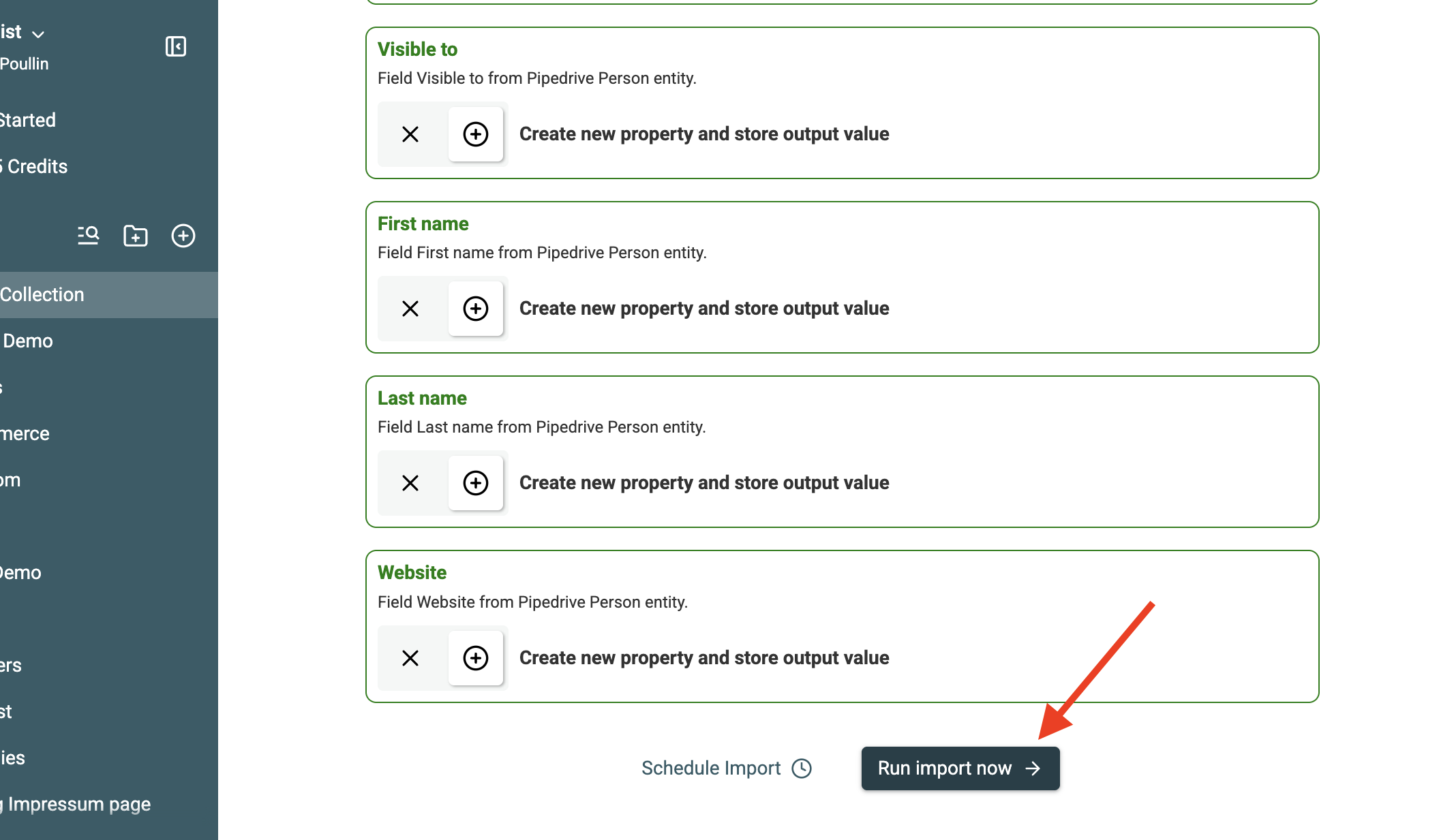
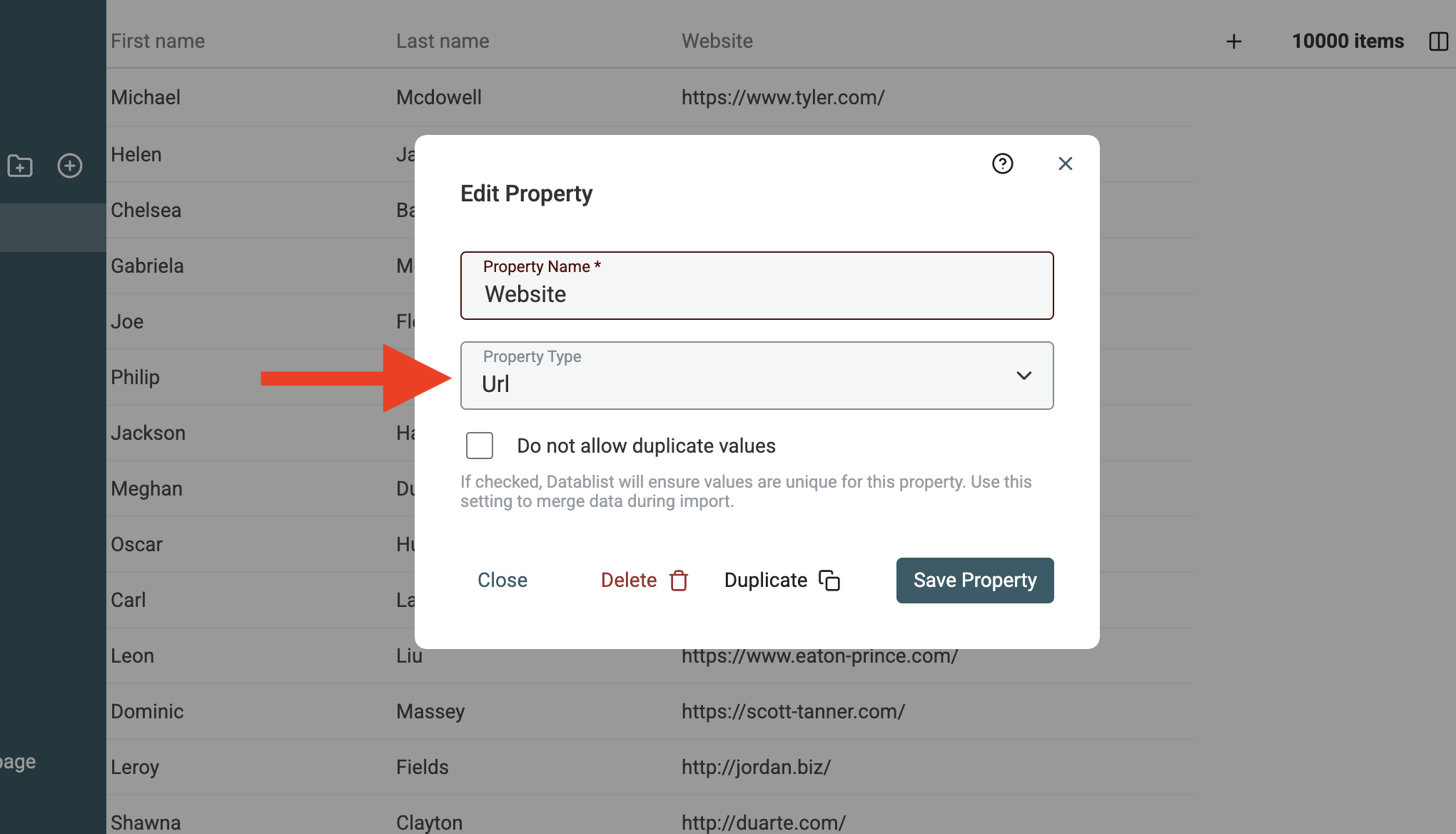
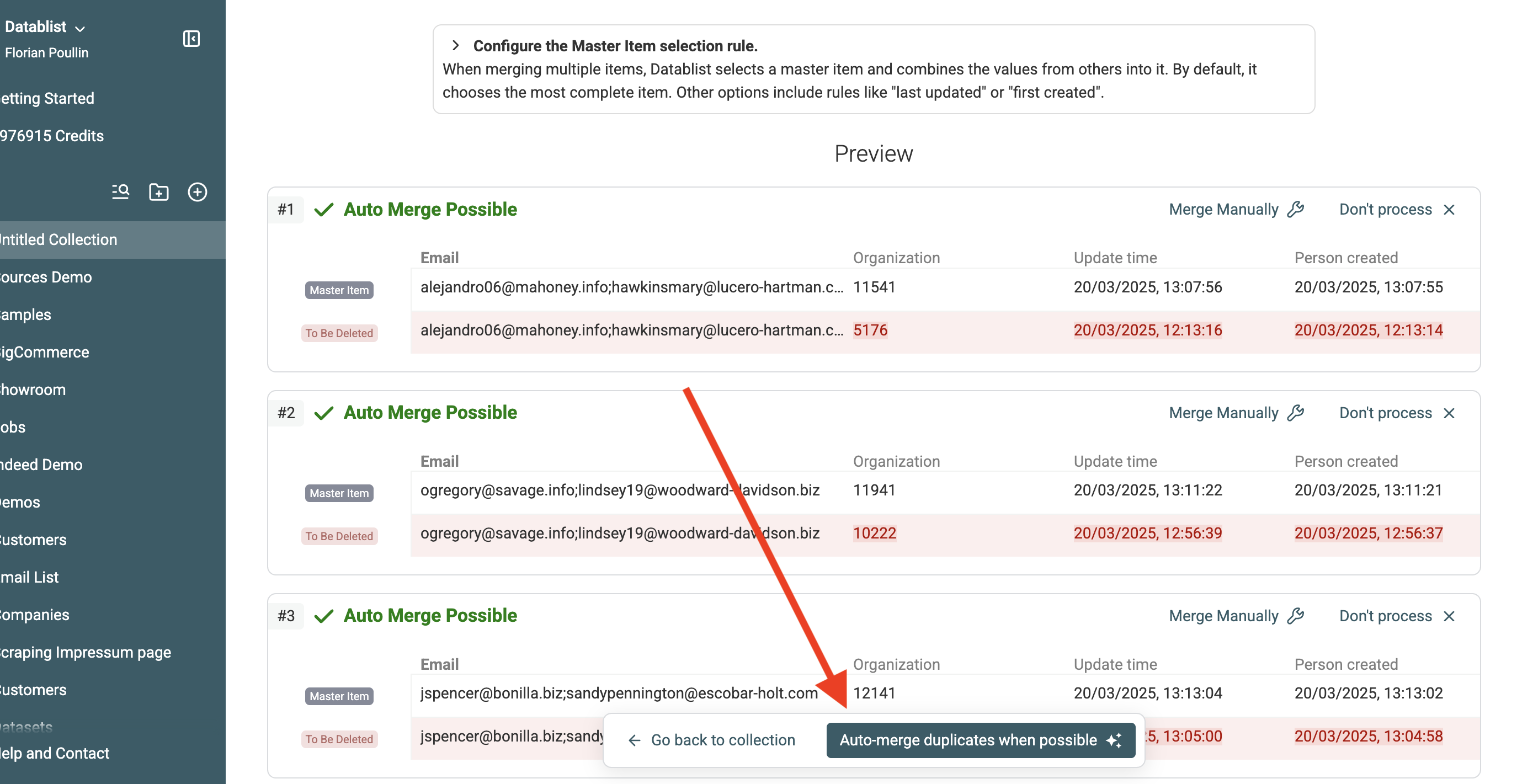
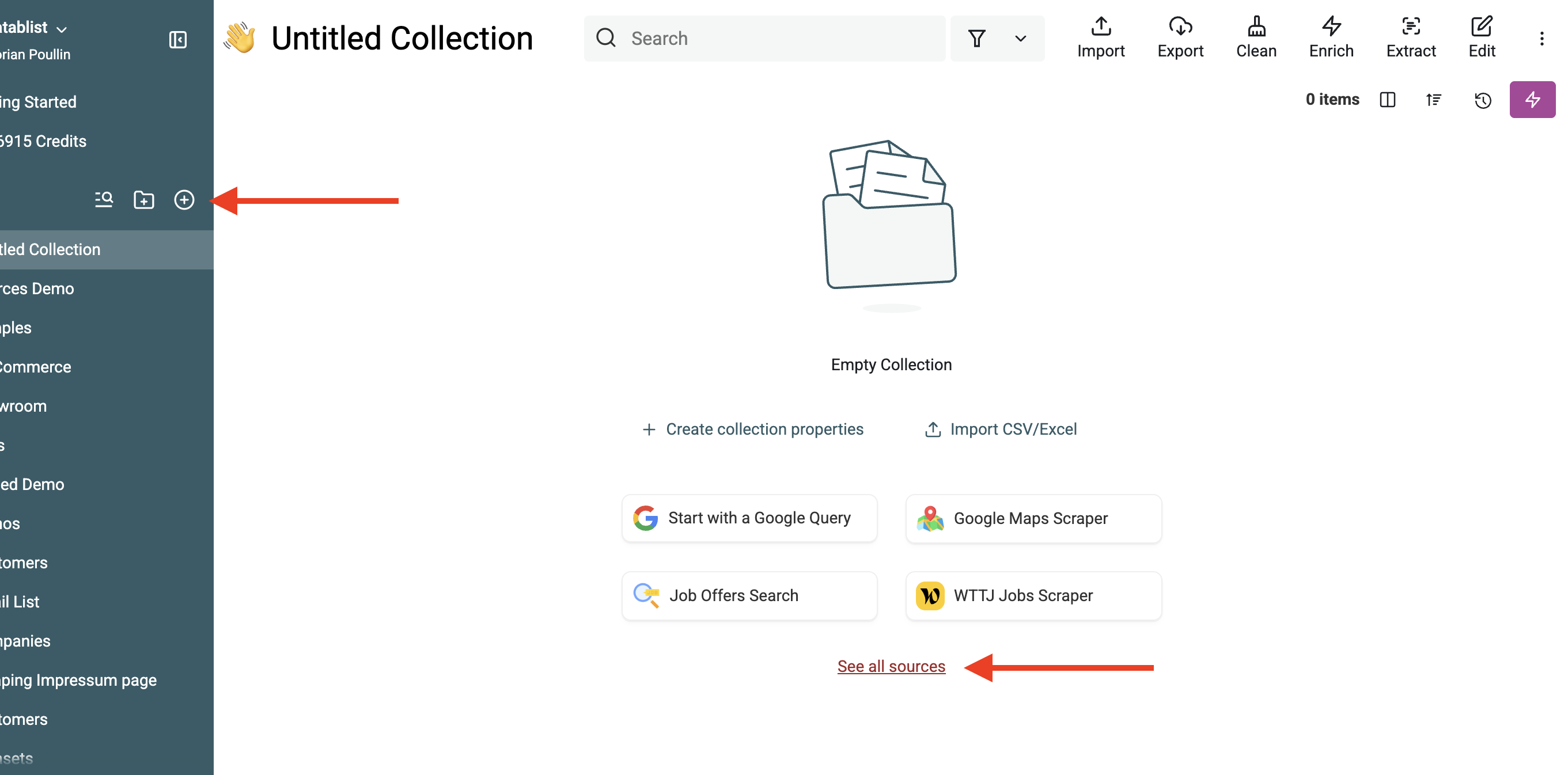
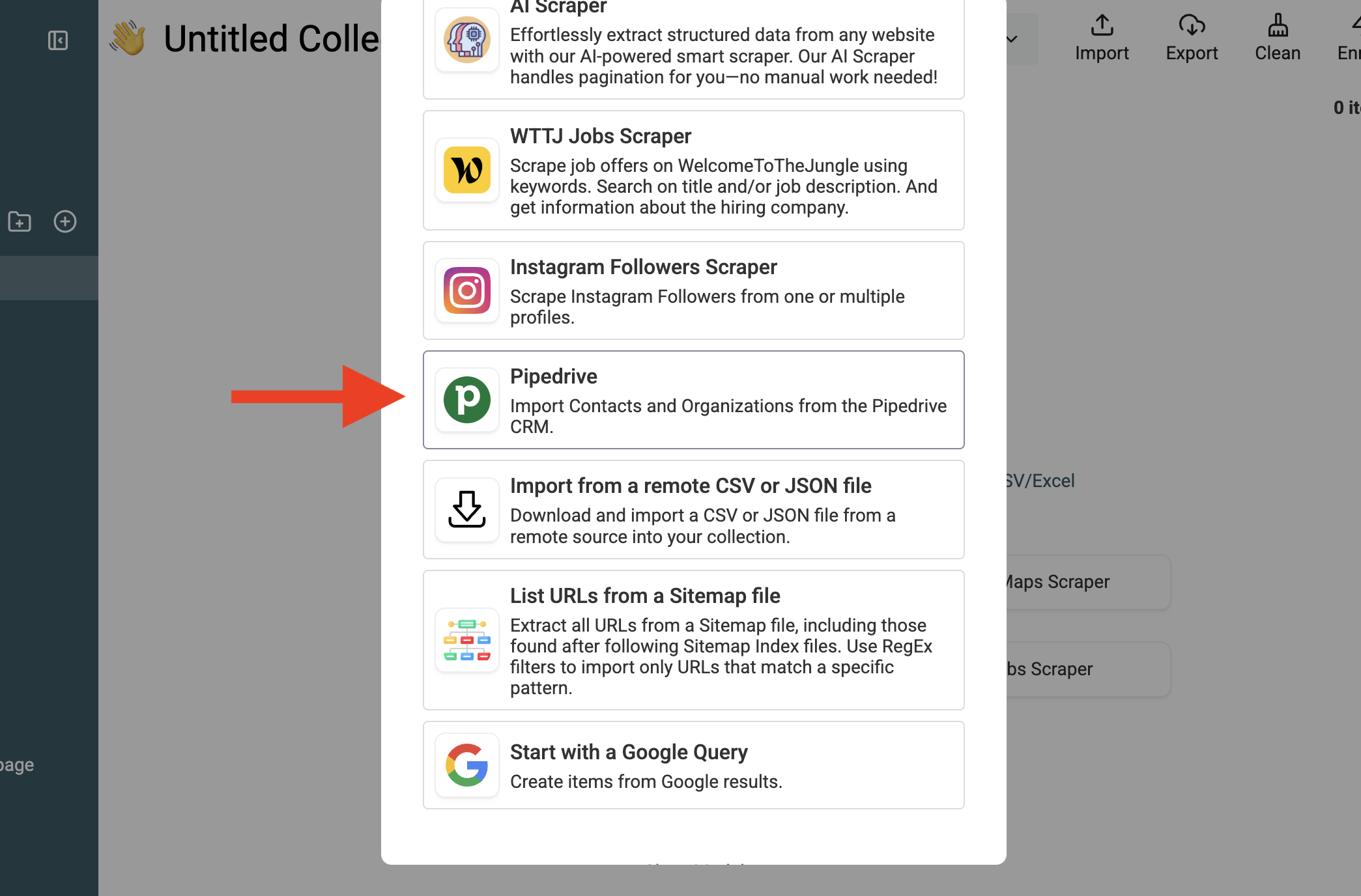
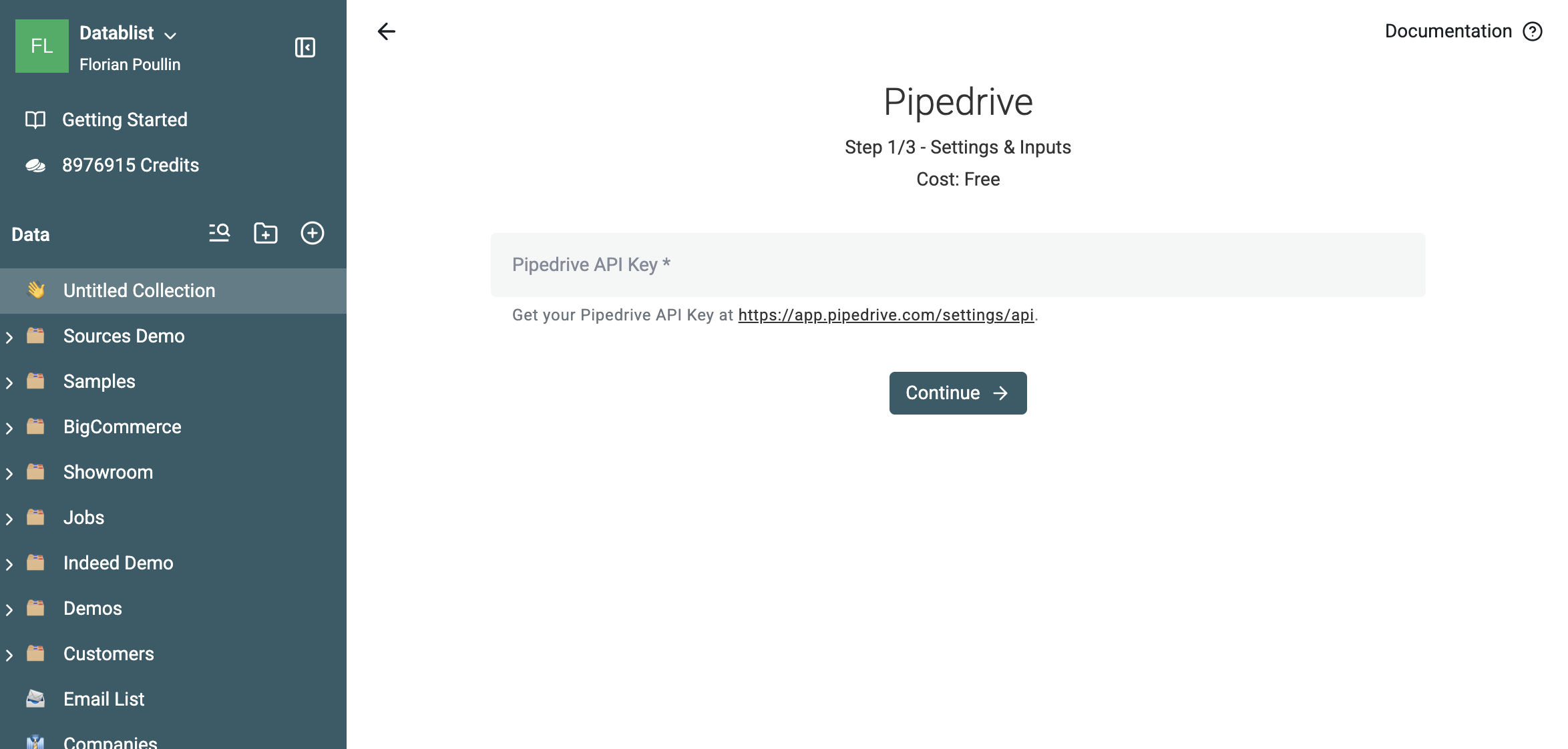
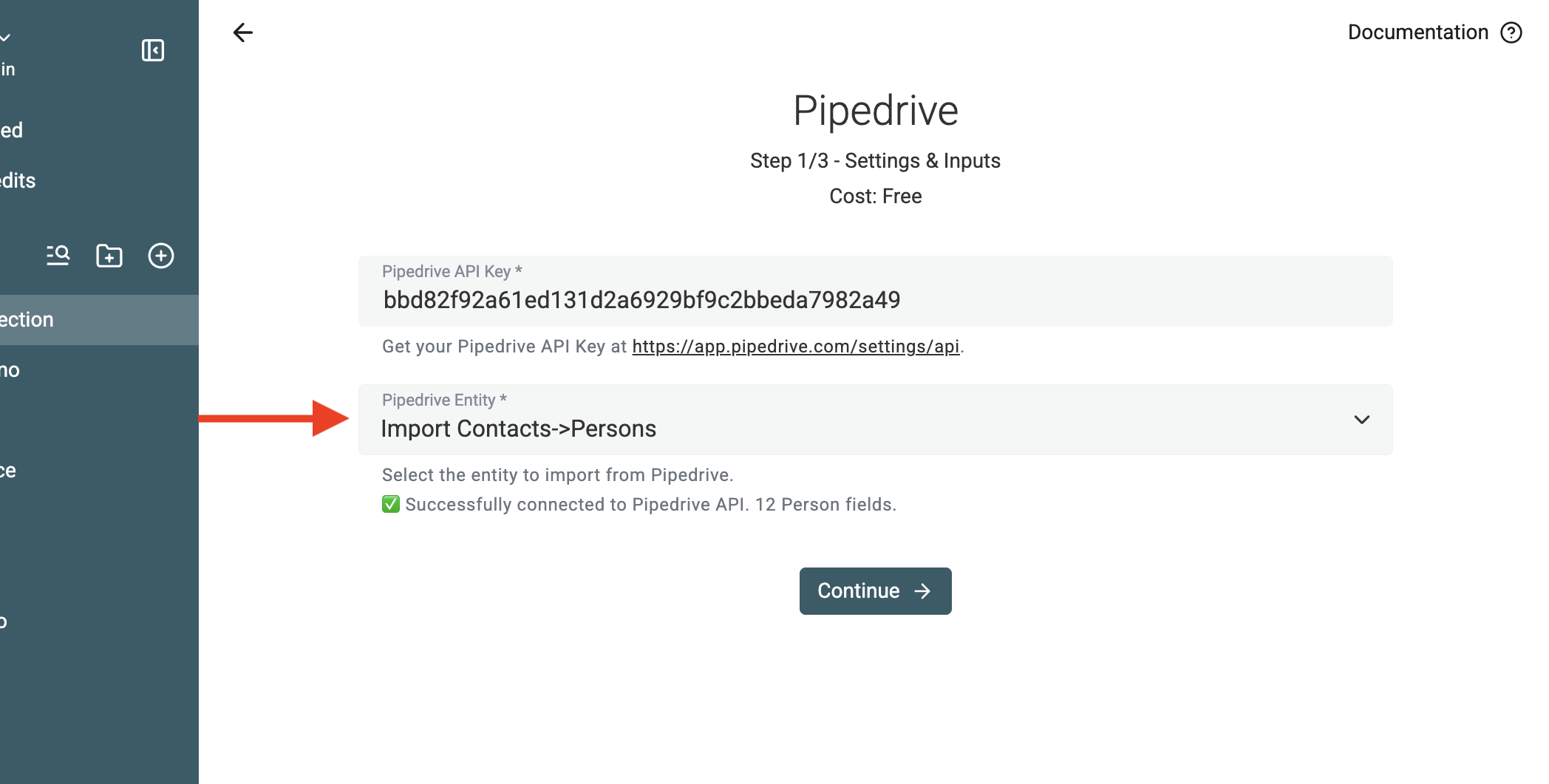
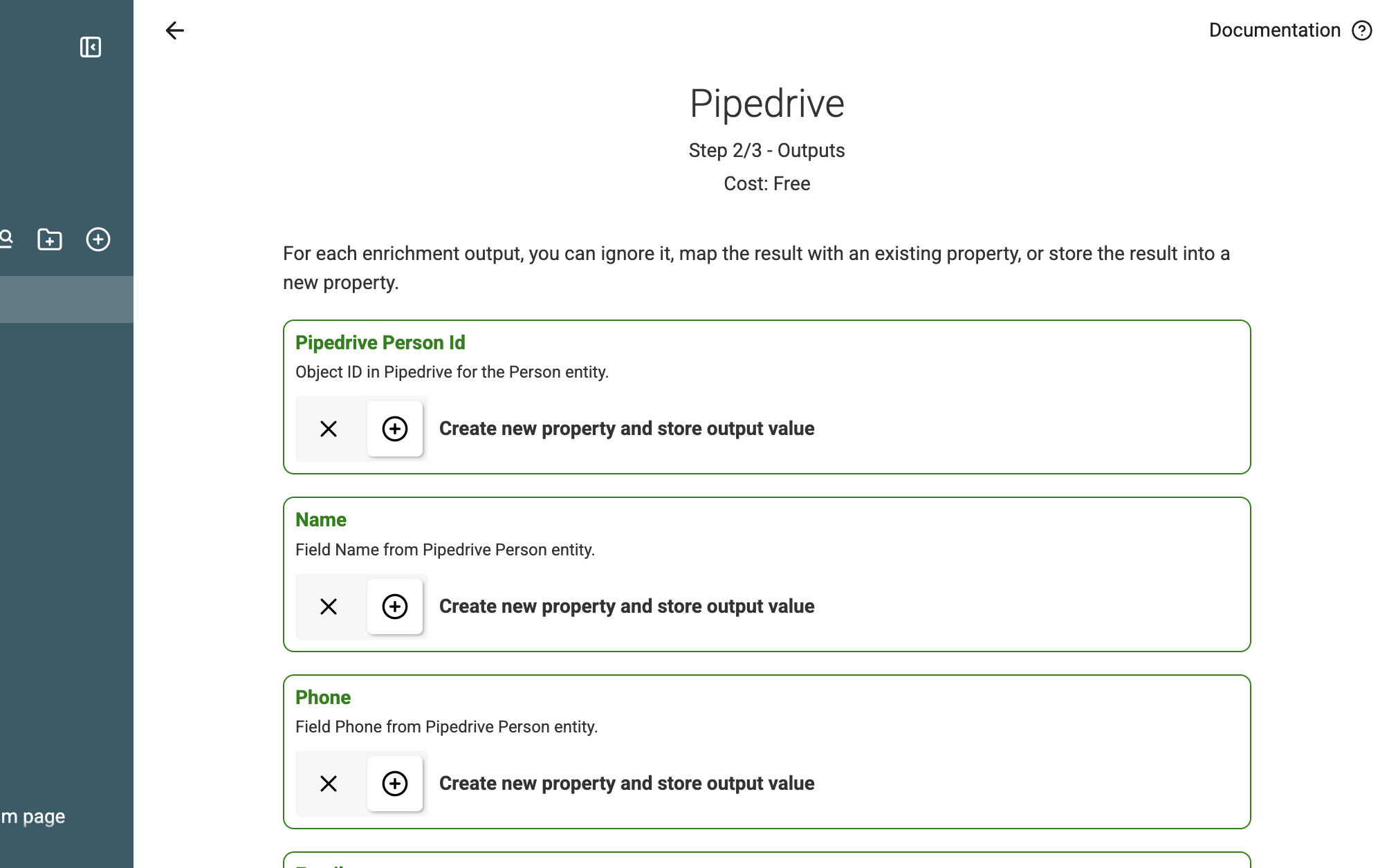
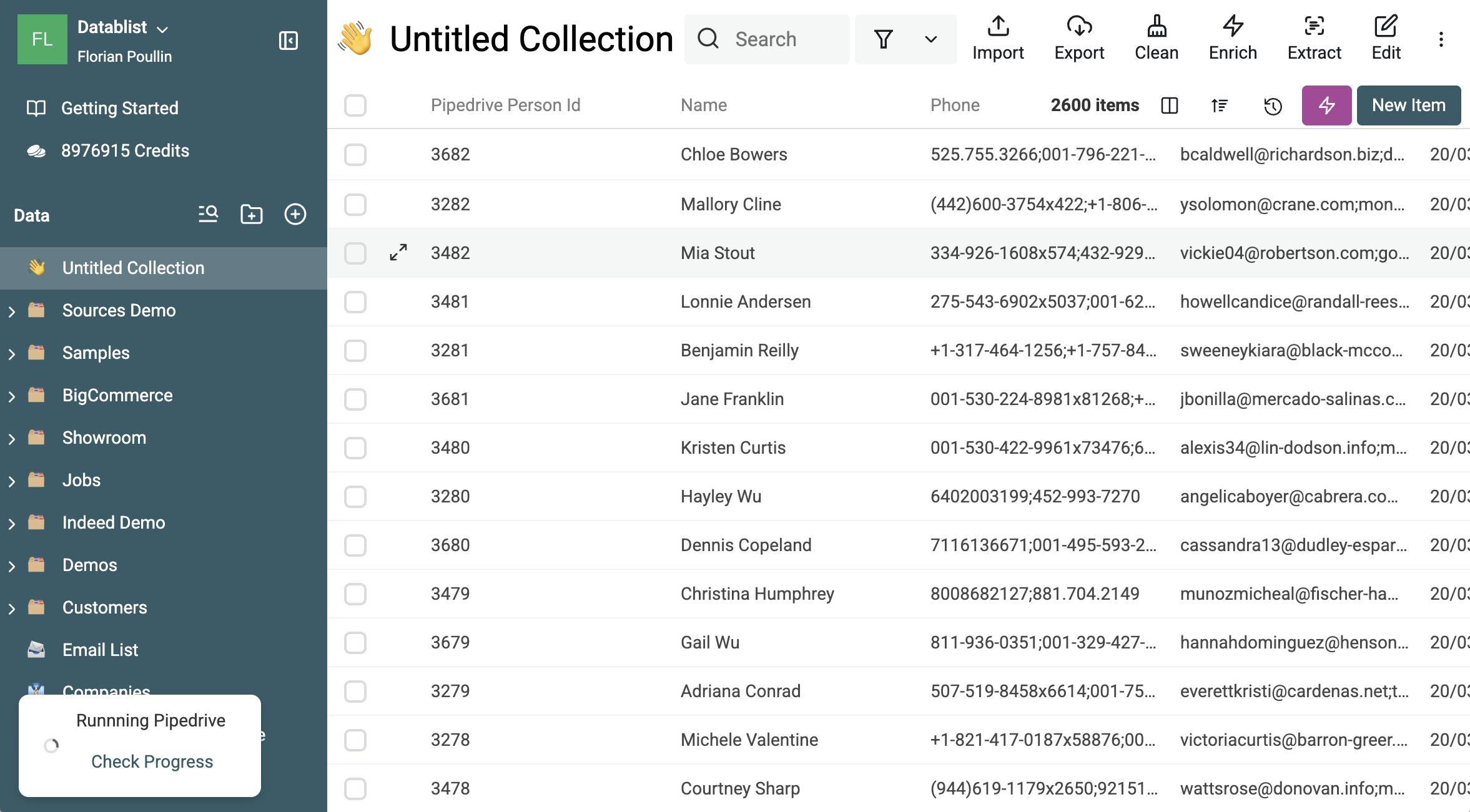
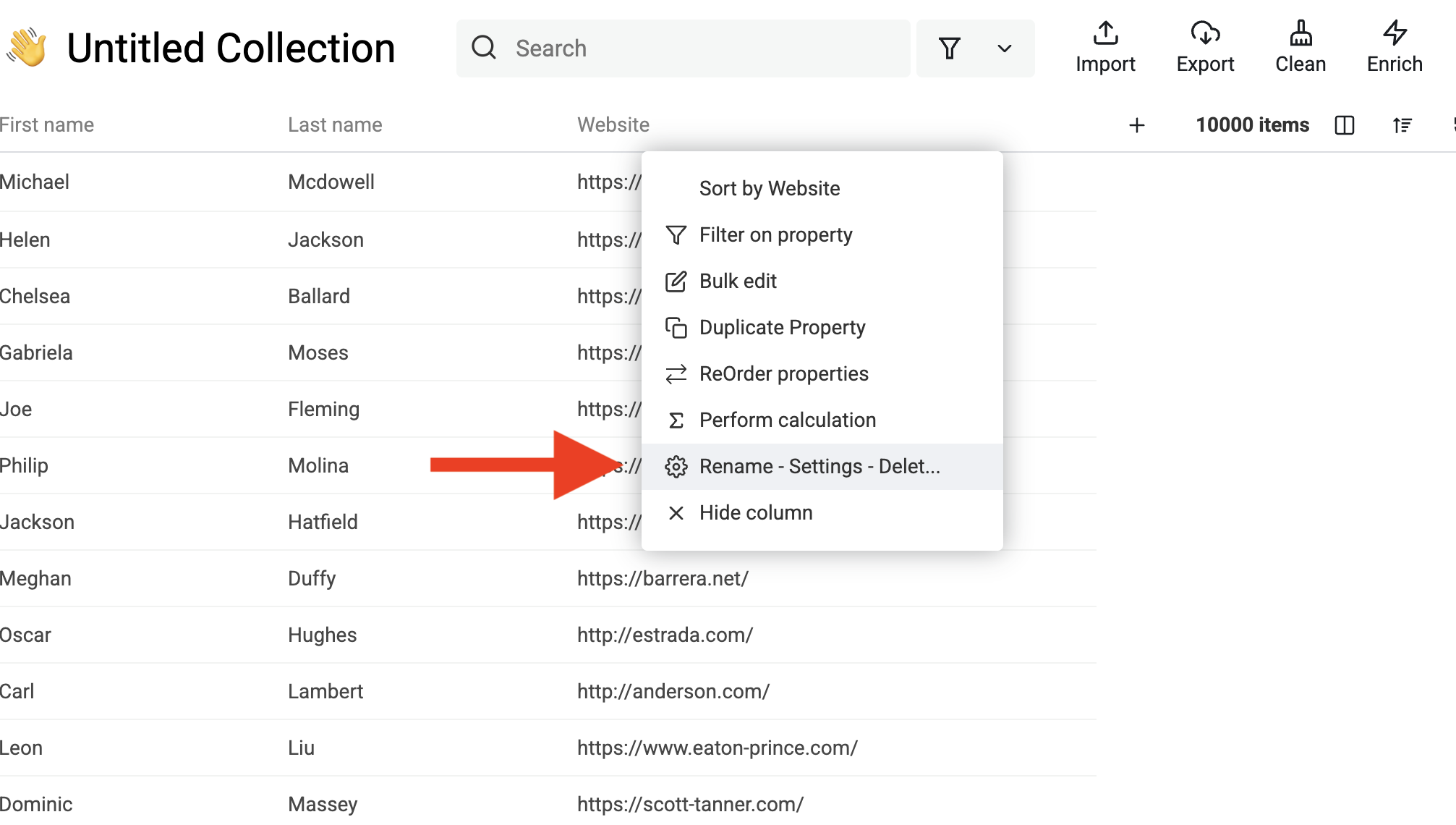
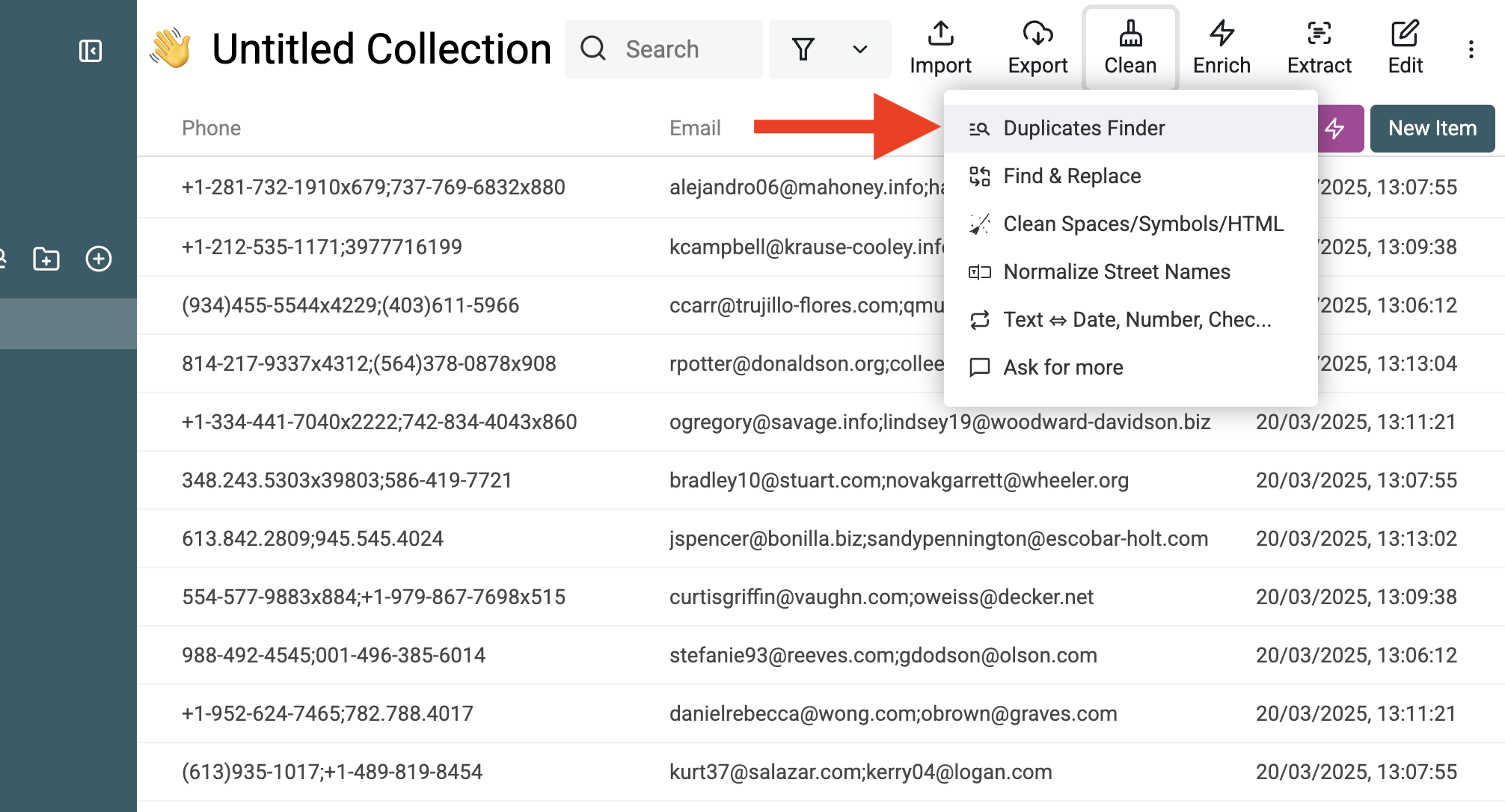
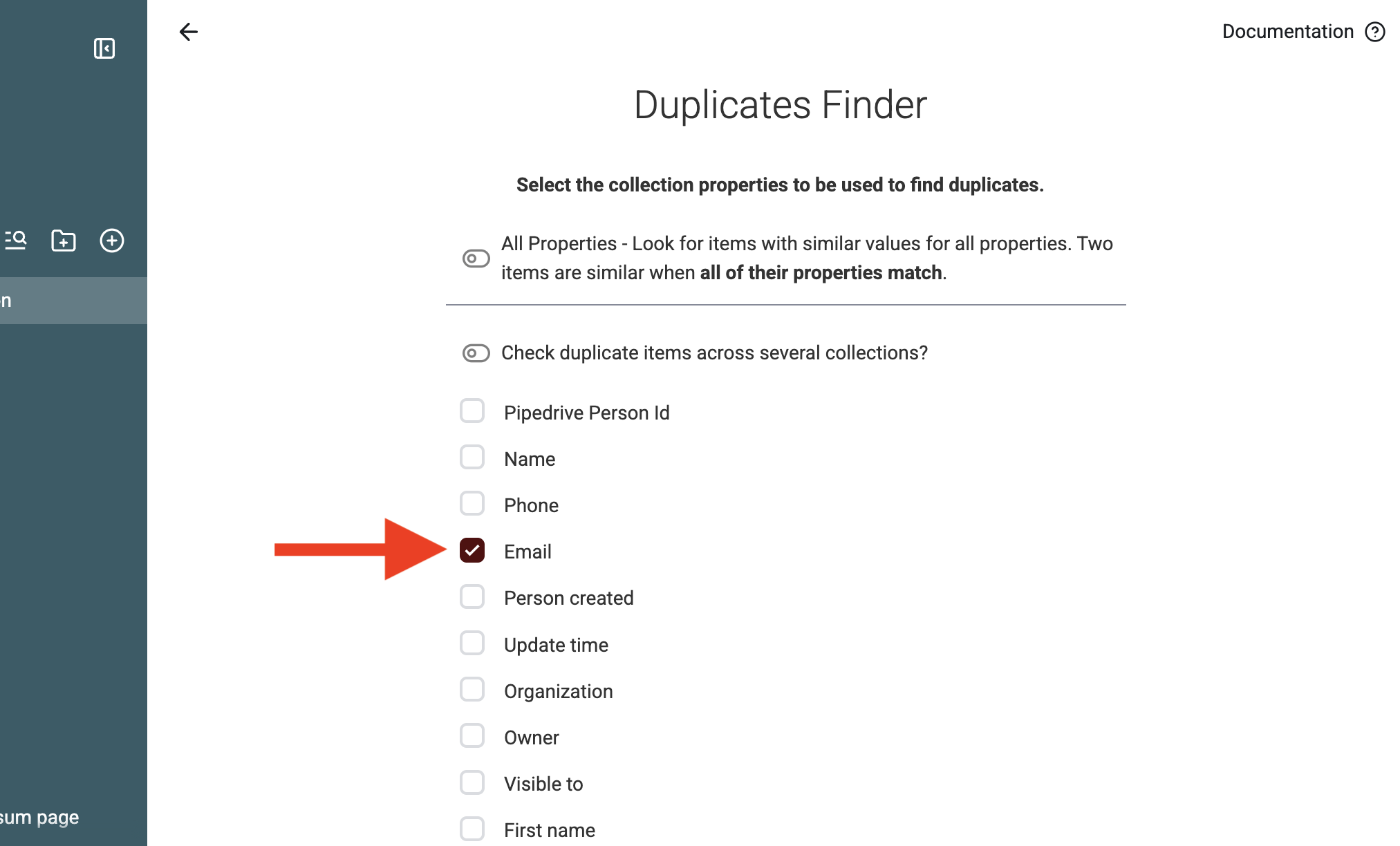
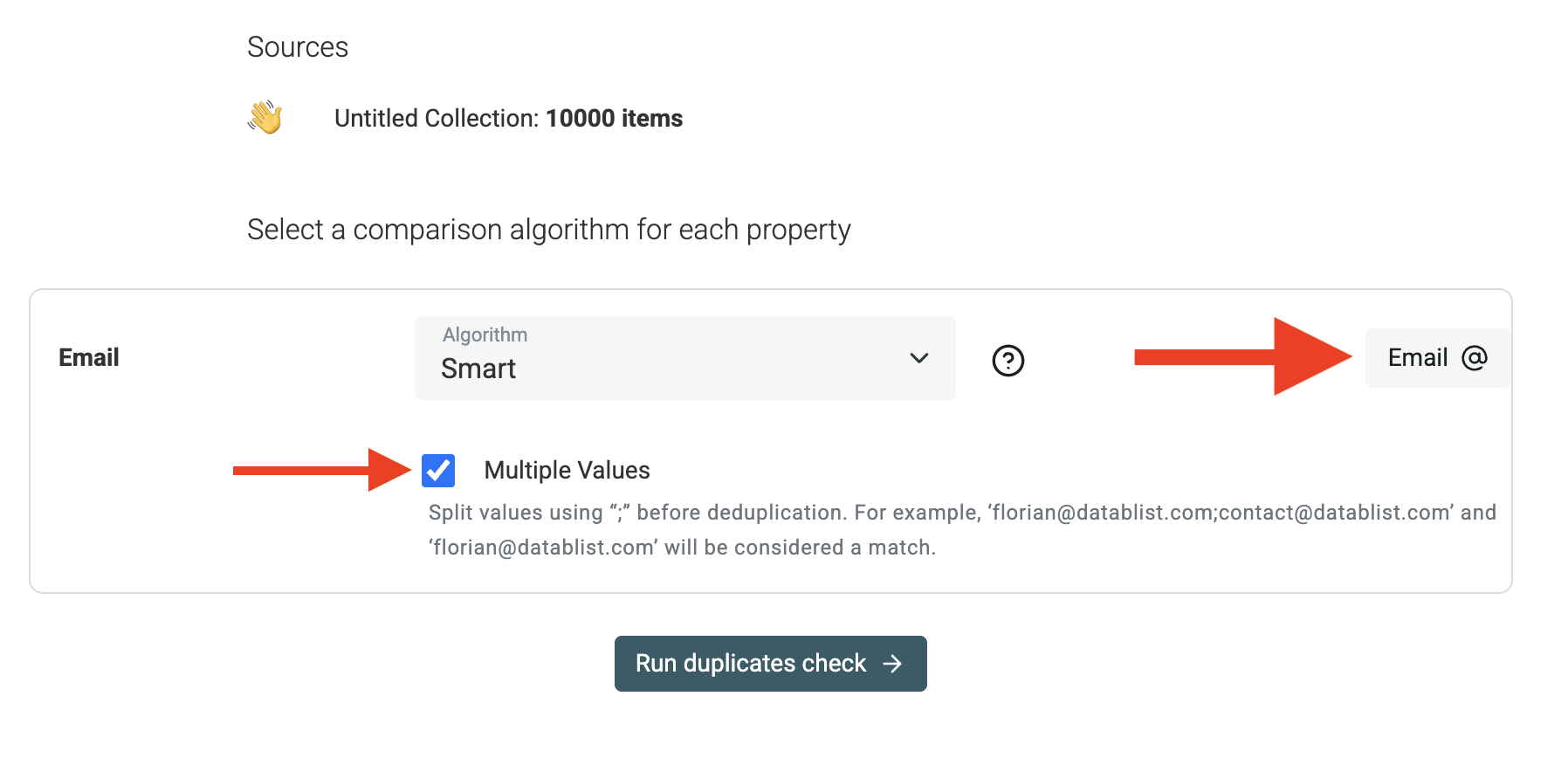
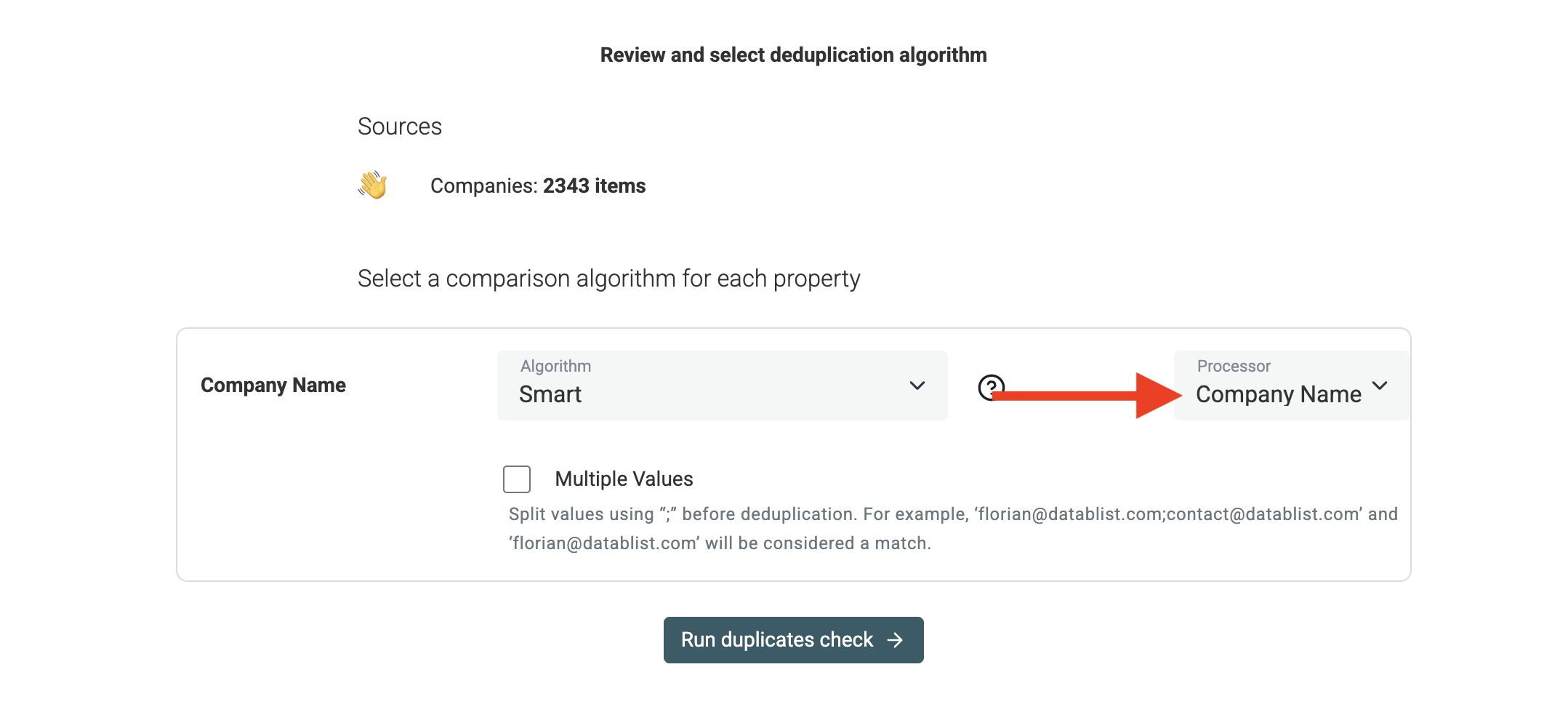
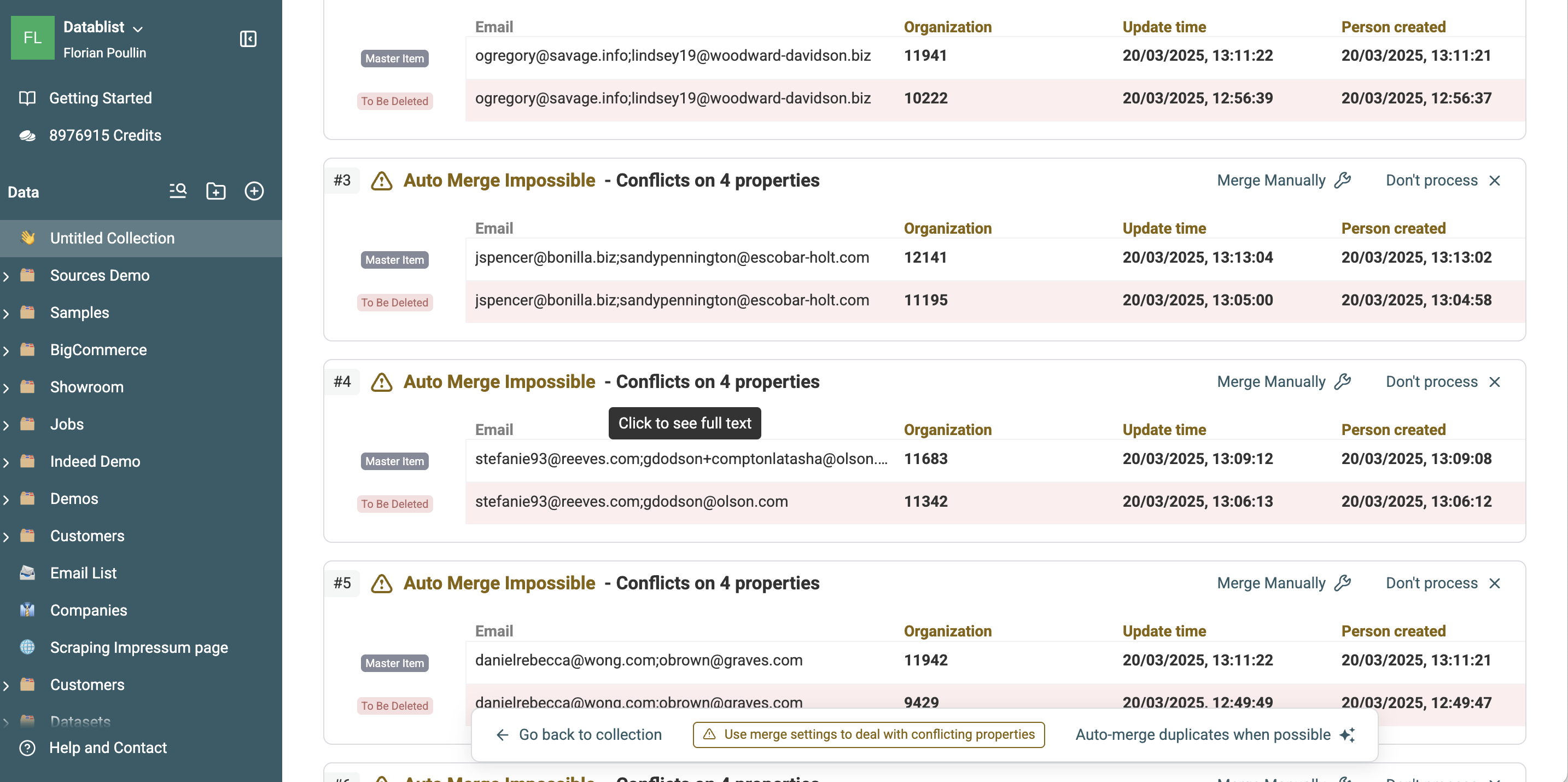
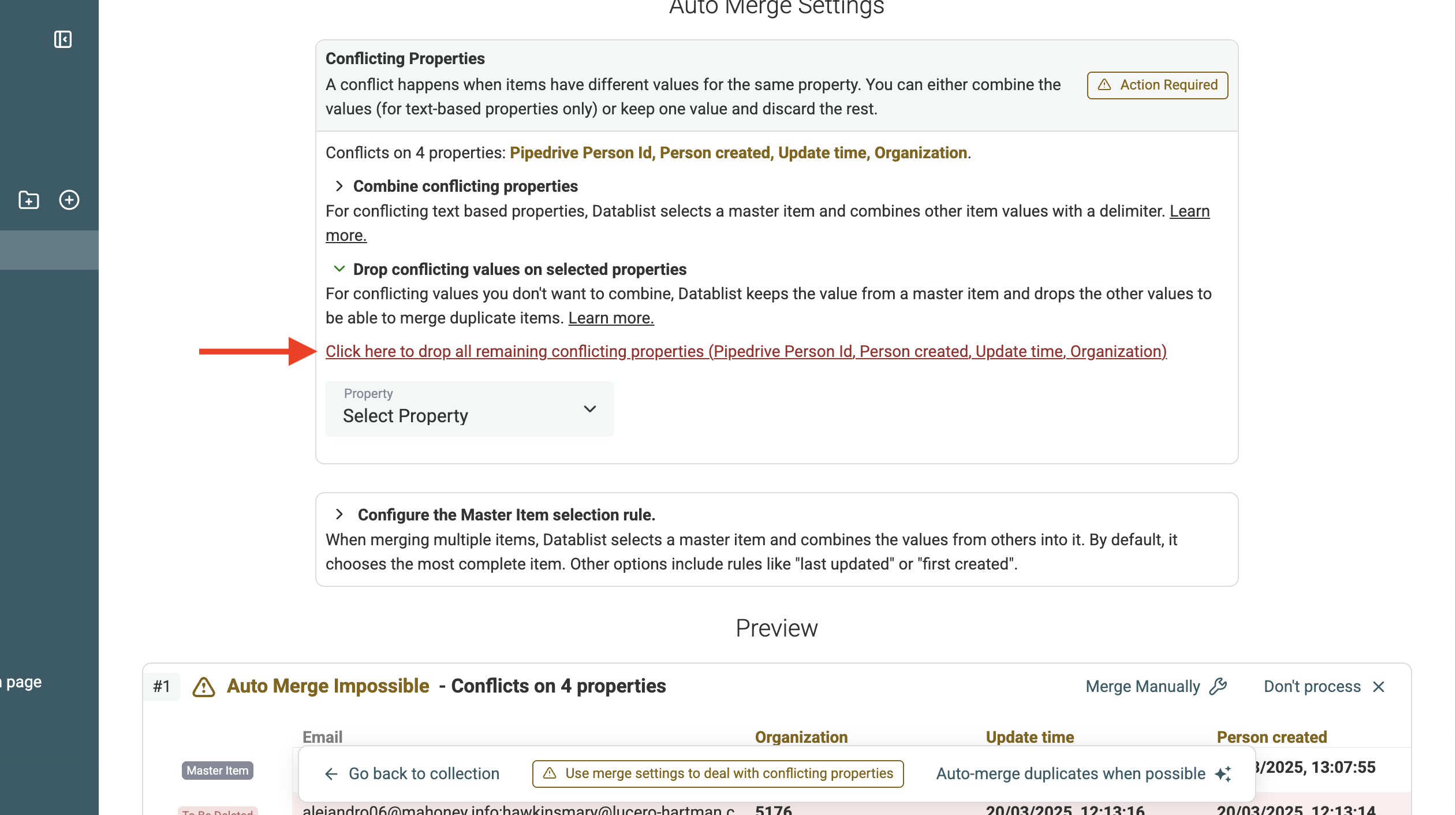
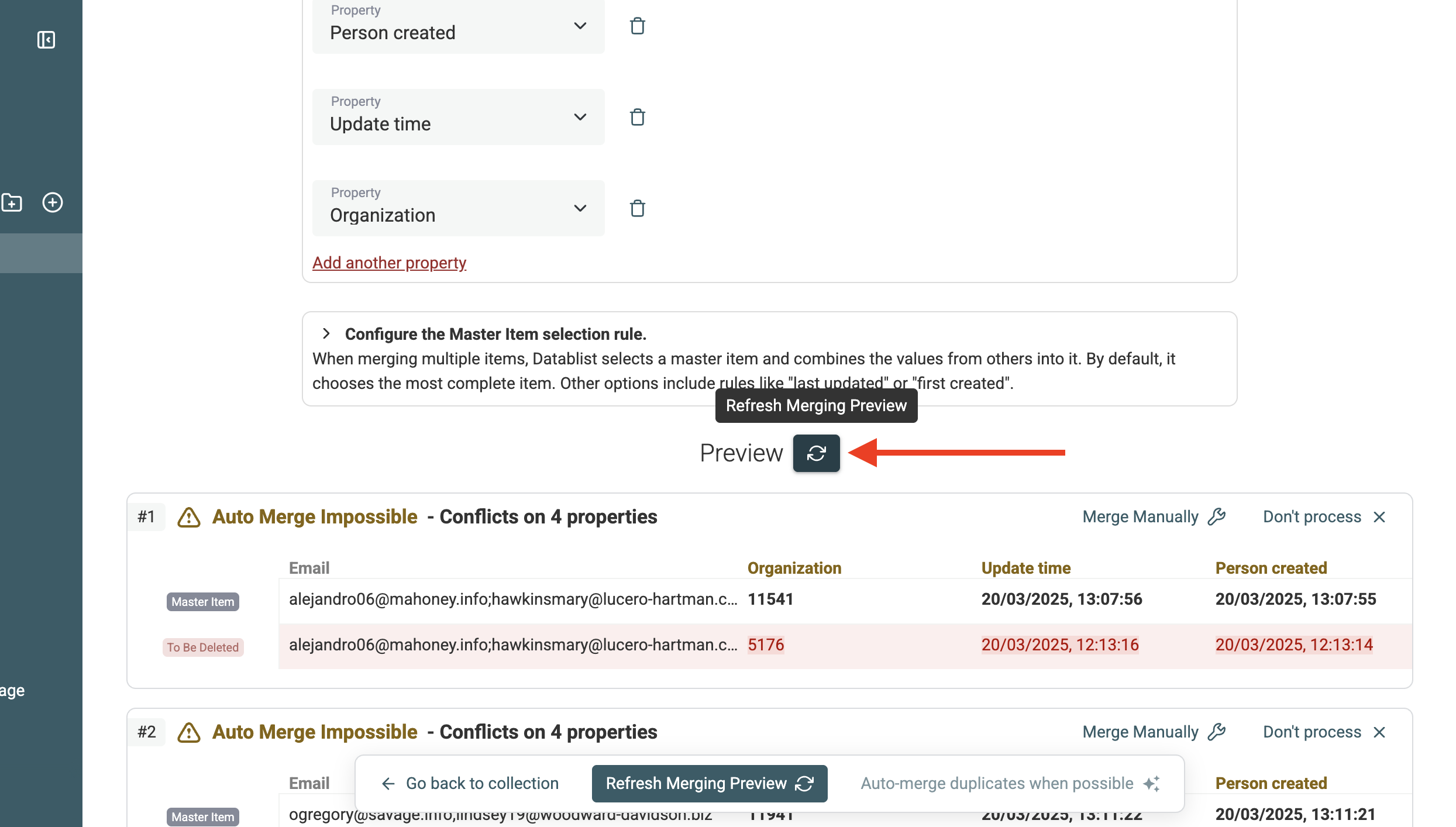
  "contentMarkdown": "\n**Pipedrive** is great for managing leads and sales. However, like any CRM, duplicate contacts and organizations pile up over time.\n\nThe built-in Pipedrive deduplication tool has major **limitations** ([see all Pipedrive Merge Duplicate Limitations](#pipedrive-built-in-merge-duplicates-limitations)):\n\n- It only detects **exact matches** using the persons/organization names - No matching of company names with legal suffixes (Google LLC == Google), no fuzzy matching, or deduplication using the website, email address, etc.\n- It **doesn’t let you bulk merge** duplicates.\n\nIf you’re dealing with duplicate People or Organizations in Pipedrive, you need a **better solution**. \n\nThat’s where Datablist [Duplicates Finder](/features/duplicates-remover) comes in to dedupe your Pipedrive data. In this guide, I'll show you how:\n\n1. [Import your Pipedrive People and/or Organizations in Datablist](#step-1-import-your-pipedrive-contacts)\n2. [Find and merge duplicates using advanced algorithms](#step-2-find-duplicates-in-pipedrive-people-and-organizations)\n3. [Sync Merges in bulk back to Pipedrive](#step-3-sync-merges-in-bulk-back-to-pipedrive)\n4. [Pipedrive Built-in Merge Duplicates Limitations](#pipedrive-built-in-merge-duplicates-limitations)\n\n## Step 1: Import Your Pipedrive Contacts\n\nThe first step to cleaning up your Pipedrive duplicates is to **import your data into Datablist**. This allows you to use advanced deduplication tools that Pipedrive doesn’t offer. Follow these steps to import your contacts and organizations:\n\n**1. Create a New Datablist Collection**\n\nA collection in Datablist is like a spreadsheet where you store and clean your data. Each collection will hold your Pipedrive contacts (People) or companies (Organizations).\n\n- If you want to deduplicate People, create a collection for People.\n- If you want to deduplicate Organizations, create a collection for Organizations.\n- If you need to clean **both**, create **two separate collections: one for People and one for Organizations**.\n\n![Create new collection](/howto_images/pipedrive-dedupe/step1-start-empty-collection.png#2722x1346)\n\n\n**2. Select “Source → Pipedrive”**\n\nDatablist connects directly to your Pipedrive account through the API.\n\nIn your Datablist collection, go to `Import` → Select `Source` → Choose `Pipedrive`. Or directly from the \"See all sources\" link in the collection start screen.\n\n![Pipedrive CRM data import](/howto_images/pipedrive-dedupe/step2-pipedrive-source.png#2089x1376)\n\n**3. Find Your Pipedrive API Key**\n\nYou’ll be prompted to enter your Pipedrive API key.\n\n![Pipedrive CRM Api Key](/howto_images/pipedrive-dedupe/step3-source-api-key.png#2348x1122)\n\nYour **Pipedrive API key is required** to link Datablist with your Pipedrive account. Go to [Pipedrive API Settings](https://app.pipedrive.com/settings/api) and copy your personal API key. Paste it into Datablist.\n\n**4. Choose People or Organizations**\n\nOnce connected, decide what you want to import:\n- If you’re cleaning duplicate contacts, select People.\n- If you’re cleaning duplicate companies, select Organizations.\n\n![Pipedrive CRM Api Key](/howto_images/pipedrive-dedupe/step4-import-persons.png#2096x1061)\n\n> Note: If you need both, **import them separately** into two different collections.<br/>\n> **Why separate collections?** - Pipedrive stores People and Organizations differently. You can’t deduplicate a mix of both at the same time. Keeping them separate ensures accurate results. \n\n**5. Datablist Fetches All Pipedrive Fields**\n\nOnce you select People or Organizations, Datablist will pull in:\n- Standard Pipedrive fields (Name, Email, Phone, Website, etc.).\n- Custom fields you’ve created in Pipedrive.\n\n![Pipedrive CRM Fields](/howto_images/pipedrive-dedupe/step5-outputs.png#2021x1255)\n\n![Pipedrive CRM Fields Next](/howto_images/pipedrive-dedupe/step6-import-objects.png#2133x1233)\n\nThis ensures that all relevant data is available for deduplication.\n\n**6. Run the Import**\n\nClick Import to start fetching your data. The time it takes depends on the number of records.\n\nDatablist processes your contacts and structures them for deduplication.\n\n![Pipedrive Data Import](/howto_images/pipedrive-dedupe/step7-import-progress.png#2354x1301)\n\n**Change data types for URLs** \n\nDatablist [Duplicates Finder](/features/duplicates-remover) has special processor to deal with `Emails`, `URLs`, etc. If your data has websites, change their property type to `URL`.\n\n![Define URL Property](/howto_images/pipedrive-dedupe/step8-type-url.png#2013x1140)\n\n![Select URL Type](/howto_images/pipedrive-dedupe/step9-change-type.png#2040x1168)\n\n\n**Multiple Email Addresses & Phone Numbers**\n\nIf a contact has multiple emails or phone numbers in Pipedrive, they are concatenated into a single field, separated by a semicolon `;`.\n\nExample:\n- John Doe has two emails in Pipedrive: `john@company.com` and `j.doe@gmail.com`.\n- In Datablist, he appears as: Email: `john@company.com;j.doe@gmail.com`\n\nThis allows Datablist to handle multiple values correctly during deduplication.\n\nOnce the import is complete, your data is ready for deduplication. Next, we’ll find duplicates using advanced matching techniques.\n\n## Step 2: Find Duplicates in Pipedrive People and Organizations  \n\nNow that your Pipedrive contacts or organizations are in Datablist, it’s time to **find duplicates**. Unlike Pipedrive’s built-in tool, Datablist uses **advanced matching algorithms** to detect similar records—even when names are slightly different or contact details are incomplete.  \n\nHere’s how to do it:  \n\n### 1. Open the Duplicates Finder and choose a Deduplication Property  \n\nIn your Datablist collection, go to **Clean → Duplicates Finder**.  \n\n![Open Duplicates Finder](/howto_images/pipedrive-dedupe/step10-duplicates-finder.png#2012x1086)\n\nA **deduplication property** is the field Datablist will use to find duplicates. The best one depends on the type of data:  \n\n- **For People:** Use **Email** (most reliable) or **Name** (if emails are missing or inconsistent).  \n- **For Organizations:** Use **Website** (best) or **Name** (if no website is available).  \n\n💡 **Example:**  \n- If \"Google\" has two records: one with `Google LLC` and another with `Google`, Datablist will detect them as duplicates because their names are similar.  \n\n![Select Properties to use for deduplication](/howto_images/pipedrive-dedupe/step11-select-property.png#2025x1224)\n\n\n### 2. Run Deduplication\n\nFor **best results**, don’t merge everything at once. Run deduplication in **iterations**:  \n\n1️⃣ **First pass:** Match on **Email** (for People) or **Website** (for Organizations). This finds **clear** duplicates.  \n2️⃣ **Second pass:** Match on **Name** (for People or Organizations) to catch duplicates that may have different emails but refer to the same entity.  \n\n🔹 **Why two steps?**  \n- If you merge on **Email + Name together**, minor name variations (like \"John Doe\" vs. \"Johnathan Doe\") might prevent matches.  \n- Doing an **email-first** pass ensures exact email matches are handled first, avoiding errors.  \n\n**Special care for multiple Emails and Company Names**\n\nSome Pipedrive fields contain **multiple values**, like Emails and Phones.  \n\nIf you are deduping on fields such as `Emails` or `Phones` that have multiple values (separated with `;`), enable **\"Multiple Values\" mode** in Datablist. This ensures that if a contact has `john@company.com; j.doe@gmail.com` on a record, and just `john@company.com` on another, it still gets correctly matched.\n\n![Email Processor](/howto_images/pipedrive-dedupe/step13-email.png#1796x876)\n\nIf you are deduping on **Company Names**, Datablist Duplicates Finder has a dedicated processor to deal with **legal suffixes** and clutter words.\n\n![Company Name Processor](/howto_images/pipedrive-dedupe/step12bis-company-names.png#2157x994)\n\n> If your are deduping on websites, use the `URL` processor.\n\n### 3. Review the Detected Duplicates and Conflicting values\n\nOnce the scan is complete, Datablist groups duplicates together.  \n\n- You’ll see **clusters** of similar People or Organizations. We call them \"**Duplicate Groups**\".\n- Each group will show **how they match** (by email, name, or website) and if they have conflicting data.\n\n![Duplicates listing](/howto_images/pipedrive-dedupe/step14-duplicates-listing.png#2867x1429)  \n\n\n#### 3.a. Understand Duplicate Groups  \n\nEach duplicate group contains multiple records that are considered the **same entity**.  \n\n- Some groups can be **merged automatically** because they have identical or complementary data.  \n- Others require **manual review** because they have **conflicting information**.  \n\n💡 **Example:**  \n- If two records for “John Doe” have the same email but different phone numbers, Datablist will detect them as duplicates but flag the phone number as a **conflicting field**.  \n\n#### 3.b. Set Up Merging Rules for conflicting values\n\n**Understanding Conflicts**\n\nConflicts happen when duplicate contacts have different values for the same field. For example, two records might have different job titles or phone numbers. Datablist highlights these conflicts so you can decide which value to keep.\n\n**How to Deal with Conflicts**\n\nDatablist provides an intuitive interface to resolve conflicts efficiently, ensuring you maintain clean and accurate data.\n\n- **Combine Values**: If the values are complementary (e.g., multiple phone numbers, notes), combine them.\n- **Keep One Value and delete the others**: If one contact is clearly more complete, and you want to discard the other, select \"Drop conflicting values...\".\n\n> For the **Combine conflicting values** and **Drop conflicting values** settings, you have a shortcut link to automatically select all conflicting properties.\n\n![Conflicting settings](/howto_images/pipedrive-dedupe/step15-conflicting-settings.png#2522x1411)\n\n**Select a master record**\n\nYou can also configure how Datablist selects the master record. When merging duplicate records, Datablist keeps one record, updates its fields, and deletes the other records to end up with only one record.\n\nYou can control how Datablist selects this Master Record by choosing from several rules:\n\n- **Most Complete**: Picks the record with the most populated fields.\n- **Last Updated**: Picks the most recently modified record.\n- **First Created**: Picks the oldest record based on the creation date.\n- **Highest Value**: Picks the record with the highest value for a selected property. If multiple records have the same value, it selects the most recent one.\n- **Lowest Value**: Picks the record with the lowest value for a selected property. If multiple records have the same value, it selects the most recent one.\n- **Matching Value**: Picks the record that contains a specific value in a selected property. If no record matches, they won’t be merged.\n\n\nDatablist shows a **preview listing** of the changes to be made. You see which records will be deleted, which values will be combined, etc.\n\nClick on the \"**Refresh**\" preview once you have finished defining the merge settings.\n\n![Update settings](/howto_images/pipedrive-dedupe/step16-update.png#2489x1414)  \n\n![Preview changes](/howto_images/pipedrive-dedupe/step17-preview.png#2749x1421)  \n\n\n🔹 **Example:** Merging Two Contacts\n\nThe following example shows the result of the merging rules:\n- Drop Conflicting values on the `Name` field.\n- Combine Conflicting values on the `Phone` field.\n\n<div class=\"preview-table\">\n<div class=\"table-wrapper\">\n  <table>\n      <thead>\n          <tr>\n            <th style=\"width:15%\">Field</th>\n            <th style=\"width:27%\">Contact 1</th>\n            <th style=\"width:27%\">Contact 2</th>\n            <th style=\"width:31%\">Merged Result</th>\n          </tr>\n      </thead>\n      <tbody>\n        <tr>\n            <td>Name</td>\n            <td>John Doe</td>\n            <td>Johnathan Doe</td>\n            <td>John Doe</td>\n        </tr>\n        <tr>\n            <td>Email</td>\n            <td>john@company.com</td>\n            <td>john@company.com</td>\n            <td>john@company.com</td>\n        </tr>\n        <tr>\n            <td>Phone</td>\n            <td>555-1234</td>\n            <td>555-5678</td>\n            <td>555-1234; 555-5678</td>\n        </tr>\n      </tbody>\n  </table>\n</div>\n</div>\n\n\n#### 3.c. Merge Duplicates Automatically  \n\nWhen you are happy with the preview, click on \"**Auto-merge duplicates when possible**\". to Datablist will apply the merging rules across all duplicate groups.  \n\n\n#### 3.d. Download Changes File\n\n⚠️ You **NEED** this changes file to merge and update the records in your Pipedrive CRM.\n\n![Download changes](/howto_images/pipedrive-dedupe/step18-download-changes.png#2340x1038)  \n\n![Export changes](/howto_images/pipedrive-dedupe/step19-export-changes.png#2319x1283)\n\n\n\n## Step 3: Sync Merges in bulk back to Pipedrive  \n\nYour duplicates are now merged in Datablist. The final step is to **sync the cleaned data back to Pipedrive** so your CRM stays up to date.\n\nFor that, we will use the **Changes File** downloaded in the last step (See [4.d. Download Changes File](#4d-download-changes-file)). This file lists all merged records, deleted duplicates, and updated fields.\n\n![Changes Log](/howto_images/pipedrive-dedupe/step20-change-logs.png#2900x1696)  \n\nIn this Changes Log file, you can see:\n\n✅ **Updated Records** → Contacts or Organizations that were modified (e.g., combined emails, phone numbers, or names).  With the previous data, and the new updated data.\n✅ **Deleted Records** → Duplicate records that were merged into a master record. With the `id` of the record deleted and the `id` of the master record that replaced it. **Those records need to be deleted in Pipedrive.**\n\n### 3.a Import the Duplicates Changes File into a new collection\n\nTo apply those changes in your Pipedrive, create a new collection, and upload the Changes File.\n\n![Import changes](/howto_images/pipedrive-dedupe/step21-import-changes.png#2872x1417)\n\n![Import changes CSV](/howto_images/pipedrive-dedupe/step22-import-changes-csv.png#2469x1397) \n\n![Import success](/howto_images/pipedrive-dedupe/step23-import-success.png#2137x1184)  \n\nYou will have a collection with the merging operations.\n\n![File preview](/howto_images/pipedrive-dedupe/step24-file-preview.png#2864x1401)  \n\n\n### 3.b. Merge and Delete Duplicate Records  \n\nThe first step to apply those changes to Pipedrive is to tell **Pipedrive to merge the \"deleted\" records into the \"master\" ones.**\n\nPipedrive provides a **merge API** to consolidate duplicate records. We will use it.\n\nFor the technical people, here is how the Pipedrive API works:\n\n- Use the **`/organizations/:id/merge`** endpoint for Organizations.\n- Use the **`/persons/:id/merge`** endpoint for People.\n- The duplicate record is **deleted**, and its data is transferred to the master record.\n\n💡 **Example API Request:**\n```\nPUT https://api.pipedrive.com/v1/persons/{duplicate_id}/merge?api_token=YOUR_API_KEY\n{\n  \"merge_with_id\": \"{master_record_id}\"\n}\n```\n\n🔹 **Why Use the Merge API?**  \n- It ensures all linked deals, activities, and notes **stay attached** to the master record.\n- Non-conflicting data (like extra phone numbers or emails) is **automatically retained**.\n\n> **Don't panic** - Datablist has a native enrichment that calls this Pipedrive endpoint for you.\n\nThe first step is to select only the items with a `deleted` change operation.\n\nThen, in the `Enrich` menu, select `Pipedrive Merge Duplicates`.\n\n![Pipedrive merge](/howto_images/pipedrive-dedupe/step25-pipedrive-merge.png#2349x1405)\n\nBe sure to only see \"deleted\" in the change column before running the `Pipedrive Merge Duplicates` enrichment.\n\nEnter your Pipedrive API key, and configure the Pipedrive entity to merge.\n\n![Pipedrive merge settings](/howto_images/pipedrive-dedupe/step26-pipedrive-merge-settings.png#2345x1412) \n\nThen, in the inputs, for `Pipedrive Object Id to Merge`, map with the `Previous Pipedrive Person Id` field. \n\n![Pipedrive Object Id to Merge](/howto_images/pipedrive-dedupe/step27-input-1.png#2346x1409)  \n\nFor the `Pipedrive Object to merge with`, map with the `Destination Pipedrive Person Id` field.\n\n![Pipedrive Object to merge with](/howto_images/pipedrive-dedupe/step28-input-2.png#2348x1407)\n\nThen, start the merging process.\n\n![Run process](/howto_images/pipedrive-dedupe/step29-run.png#2342x1412)\n\nYou can see the progress directly in Datablist.\n\n![Merge process](/howto_images/pipedrive-dedupe/step30-merge-process.png#2868x1413)\n\nFor each line in the collection, you have the status for the merging.\n\n![Merge success](/howto_images/pipedrive-dedupe/step31-merge-success.png#1971x1417)\n\nYou can check the Pipedrive record that will be deleted. Go to the record (for People, the URL is `https://app.pipedrive.com/person/:ID`). A message will appear at the top of the screen.\n\n![Merge source](/howto_images/pipedrive-dedupe/step32-merge-source.png#2870x1376)\n\nIn the master records, you will also see merged data.\n\n![Merge destination](/howto_images/pipedrive-dedupe/step33-merge-destination.png#2877x1309)\n\n### 3.c. Sync Updated Records in Pipedrive\n\nDuring the previous step, we used the Pipedrive merging API to merge our duplicate records with the master one.\n\nUnfortunately, during this merging process, Pipedrive adds the duplicate record values to the master one. You might end up with multiple similar websites, etc.\n\nTo deal with that, we will update the remaining master records with the clean data we got after the merging on Datablist.\n\nIn the same \"Changes File\" collection, filter on the `change` column to see only the `updated` operation.\n\n![Update Main Record](/howto_images/pipedrive-dedupe/step34-update-main-one.png#1564x1204)\n\n![Filter Result](/howto_images/pipedrive-dedupe/step36-filter-result.png#2536x1291)\n\nThen, click `Export` -> `Send to external tool`.\n\n![Update Pipedrive](/howto_images/pipedrive-dedupe/step37-update-pipedrive.png#2519x1101)\n\nAnd select `Sync with Persons/Organizations in Pipedrive`.\n\n![Select Export](/howto_images/pipedrive-dedupe/step38-select-export.png#1959x963)\n\nEnter your Pipedrive API Key, and select the entity you are updating (People or Organizations).\n\nSelect the `ID` field and the fields you want to update with clean values.\n\n> **Important** - You must select the `ID` field to update the data, and not create new records.\n\nIn this example, I will only update the website field. So I select `ID` and `Website`.\n\n![Pipedrive Update Settings](/howto_images/pipedrive-dedupe/step39-pipedrive-update-settings.png#2493x1410)\n\nIn the Inputs sections, map with the `Destination XX` fields.\n\n![Updates Inputs](/howto_images/pipedrive-dedupe/step40-updates-inputs.png#2520x1408)\n\nConfigure the outputs to have the status of the update.\n\n![Updates Outputs](/howto_images/pipedrive-dedupe/step41-updates-outputs.png#2550x2550)\n\nThen run the process.\n\nYou can check the result by going in the `Changelog` listing in your Pipedrive record.\n\n![Updates Results in Pipedrive](/howto_images/pipedrive-dedupe/step42-updates-results-pipedrive.png#2874x1406)\n\n\n### 3.d. Done! Your Pipedrive CRM is Now Clean  \n\nThat’s it! You’ve successfully:\n✅ Imported data into Datablist.  \n✅ Found and merged duplicates with smart algorithms.  \n✅ Synced the cleaned data back to Pipedrive.  \n\nYour CRM is now **deduped and organized**, making it easier to manage your sales and contacts. 🚀\n\n\n## Pipedrive Built-in Merge Duplicates Limitations  \n\nPipedrive offers a basic deduplication tool, but it has **serious limitations** that can leave your CRM cluttered with duplicates. Here’s why Datablist is the **better solution**:  \n\n### 1. Pipedrive Only Finds Exact Matches  \n\nPipedrive’s duplicate detection is **too strict**. It only matches records with **identical names**. This means:\n- \"Google LLC\" and \"Google\" **won’t be flagged as duplicates**.\n- Emails, phone numbers, or websites **aren’t considered** for deduplication.\n\n✅ **Datablist Advantage:** Uses **fuzzy matching** to catch duplicates even when names, emails, or websites are slightly different.  \n\n### 2. No Bulk Merging in Pipedrive  \n\nPipedrive forces you to **merge duplicates one by one**, which is time-consuming if you have hundreds of duplicates.  \n\n✅ **Datablist Advantage:** **Bulk merging** with full control over how fields are combined, ensuring clean and complete data.  \n\n### 3. No Control Over Merging Rules  \n\nWhen merging in Pipedrive:\n- You **can’t choose** which fields to keep or combine.\n- Some data **might get lost** if the system picks the wrong master record.\n\n✅ **Datablist Advantage:** Define **custom merging rules**, combine multiple values, and ensure no important data is lost.  \n\n### 4. No Merge History or Change Log  \n\nPipedrive doesn’t track **what was merged** or **which records were deleted**. If a mistake happens, there’s no undo.  \n\n✅ **Datablist Advantage:** **Change Log** keeps track of every merge, so you always know what changed.  \n\nPipedrive is great for managing sales, but when it comes to deduplication, **Datablist is the smarter choice**. Try it today and clean up your CRM effortlessly! 🚀"
}