{
"version": 1,
"slug": "export-sales-navigator-leads",
"title": "How To Export Sales Navigator Leads Without Risking Your Account",
"excerpt": "Need to export Sales Navigator leads without risking your LinkedIn account? This guide shows you the safe method, using Datablist's LinkedIn Search Scraper.",
"cover": {
"src": "/howto_images/export-sales-navigator-leads/how-to-export-sales-navigator-leads_cover.png",
"optimized": "https://www.datablist.com/_next/image?url=%2Fhowto_images%2Fexport-sales-navigator-leads%2Fhow-to-export-sales-navigator-leads_cover.png&w=1200&q=75"
},
"url": "https://www.datablist.com/how-to/export-sales-navigator-leads",
"contentMarkdown": "\nSales Navigator doesn't let you export your searches, so most people reach for browser extensions.\n\n**Those extensions are also the fastest way to get a LinkedIn account flagged.** Every click, every scroll, every export request rides on top of an authenticated LinkedIn session: yours.\n\nThis guide shows you how to export Sales Navigator leads at scale without giving any tool access to your LinkedIn account.\n\n> 📌 **Summary For Those In a Rush**\n> \n> **What this article covers:** A step-by-step guide to exporting Sales Navigator leads at scale, using Datablist's LinkedIn Search Scraper. You will learn why Sales Navigator has no native export, why browser-extension scrapers put your account at risk, and how to run a clean lead export end to end.\n> \n> - **Input:** a Sales Navigator search URL, or a regular LinkedIn search URL\n> - **Output:** a Datablist collection with 30+ data points per lead, emails included where Datablist finds them\n> - **Time / cost:** 15 credits per imported lead; results in minutes for a 1,000 to 2,500-lead segment\n> \n> **Why this works:** Datablist runs the scrape from its own infrastructure, so LinkedIn never sees activity on your account.\n\n### What This Guide Will Cover {#what-this-guide-will-cover}\n\n- [Why Sales Navigator Won’t Let You Export Your Search Results](#why-sales-navigator-wont-let-you-export-your-search-results)\n- [How Browser-Extension Scrapers Put Your LinkedIn Account At Risk](#how-browser-extension-scrapers-put-your-linkedin-account-at-risk)\n- [The Safer Way To Export Sales Navigator Leads](#the-safer-way-to-export-sales-navigator-leads)\n- [Phase 1: Configuring Your Sales Navigator Search For a Clean Export](#phase-1-configure-your-sales-navigator-search-for-a-clean-export)\n- [Phase 2: Bulk Export Sales Navigator Leads With Datablist](#phase-2-bulk-export-sales-navigator-leads-with-datablist)\n- [What You Get In The Export](#what-you-get-in-the-export)\n- [Frequently Asked Questions](#frequently-asked-questions-about-exporting-sales-navigator-leads)\n\n## Why Sales Navigator Won't Let You Export Your Search Results {#why-sales-navigator-wont-let-you-export-your-search-results}\n\nBefore we start the Sales Navigator export walkthrough, a short reality check on what Sales Navigator provides and what it deliberately leaves out.\n\n### The Missing Native Export Button {#the-missing-native-export-button}\n\nSales Navigator does not ship a *Download CSV* button on search results. You can save leads to a list, you can tag them, and you can route them to a CRM through LinkedIn's own integrations (if you have an enterprise plan $$$). None of that gives you a clean [lead list](/how-to/lead-list-building-guide) at the end.\n\n**This gap is intentional.** Sales Navigator is built to be the workspace, not the source of a file you take elsewhere. That logic works for LinkedIn, but it does not solve the problem of getting a filtered list of leads into an outbound tool.\n\n### How Most People Bridge The LinkedIn Export Gap {#how-most-people-bridge-the-linkedin-export-gap}\n\nMost people trying to export Sales Navigator leads settle on one of three workarounds; each carries a different trade-off.\n\n**Manual copy-paste** is the cheapest path. You page through results, paste names and titles into a spreadsheet, and lose every structured field that makes a list usable for outbound. Slow on 500 leads; impossible on 2,500.\n\n**Browser extension scrapers** are the fastest path. One click and the list flows into a CSV. The cost: the scraper runs on your LinkedIn session, and your account might get banned.\n\n**Outsourced exports** (Fiverr, VAs, lead-export agencies) shift the risk to someone else's account, but inherit the same problem. The contractor's account gets flagged instead of yours, and you wait days for a list you could have built in minutes.\n\n### How Browser-Extension Scrapers Put Your LinkedIn Account At Risk {#how-browser-extension-scrapers-put-your-linkedin-account-at-risk}\n\nBrowser extensions are the path of least resistance and the path most likely to end with a restriction email.\n\nA browser extension scraper does not log into LinkedIn separately. It uses the LinkedIn session you already have open. The browser holds an authenticated cookie; the extension reuses that cookie for every request it sends.\n\nFrom LinkedIn's side, every page view and every export attempt arrives signed with your account's credentials. The scraper looks identical to a logged-in person clicking very, very fast.\n\n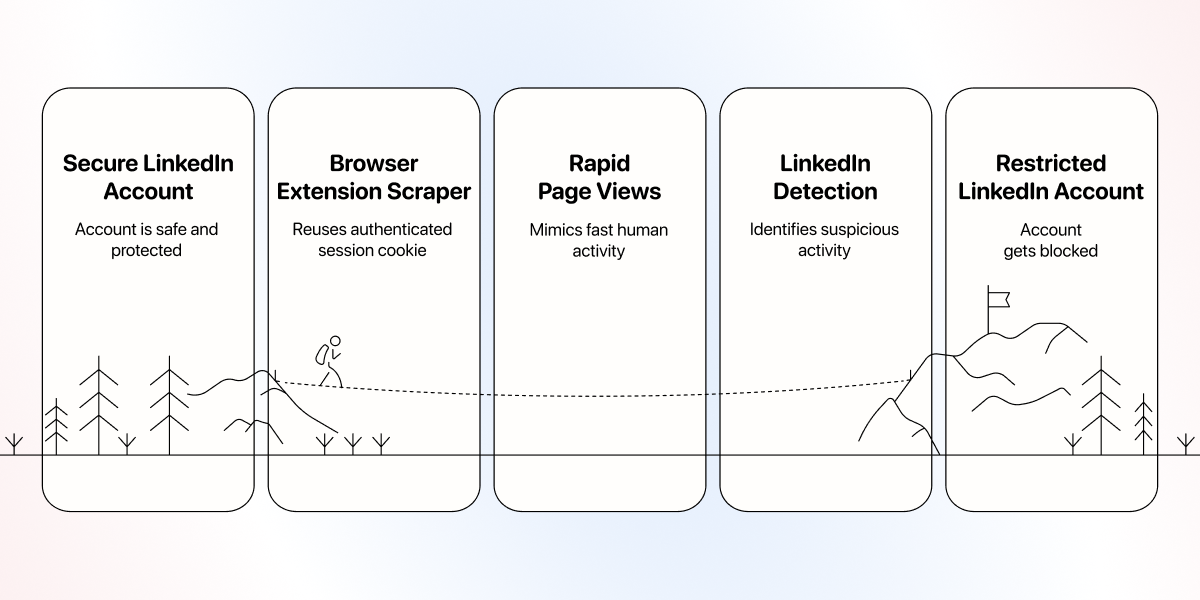\n\n## The Safer Way To Export Sales Navigator Leads {#the-safer-way-to-export-sales-navigator-leads}\n\nIf browser extensions are the risky path and manual copy-paste is the slow one, server-side scraping sidesteps both, which is how [Datablist.com](/) runs the export.\n\nDatablist’s LinkedIn Search Scraper works differently from anything that runs inside your browser, and that difference is what keeps your account clean. Before we get to the walkthrough, let’s talk about:\n\n1. What happens under the hood\n2. What to expect in terms of cost and speed.\n\n### How Datablist Keeps Your Account Safe {#how-datablist-keeps-your-account-safe}\n\nDatablist's LinkedIn Search Scraper does not run inside your browser. It runs on Datablist's own infrastructure, with no cookie or session from your account in the loop.\n\nYou hand over a Sales Navigator search URL. Datablist fetches the search results on its side and lands them in your collection. **Your LinkedIn account is never opened, never authenticated, never used.**\n\n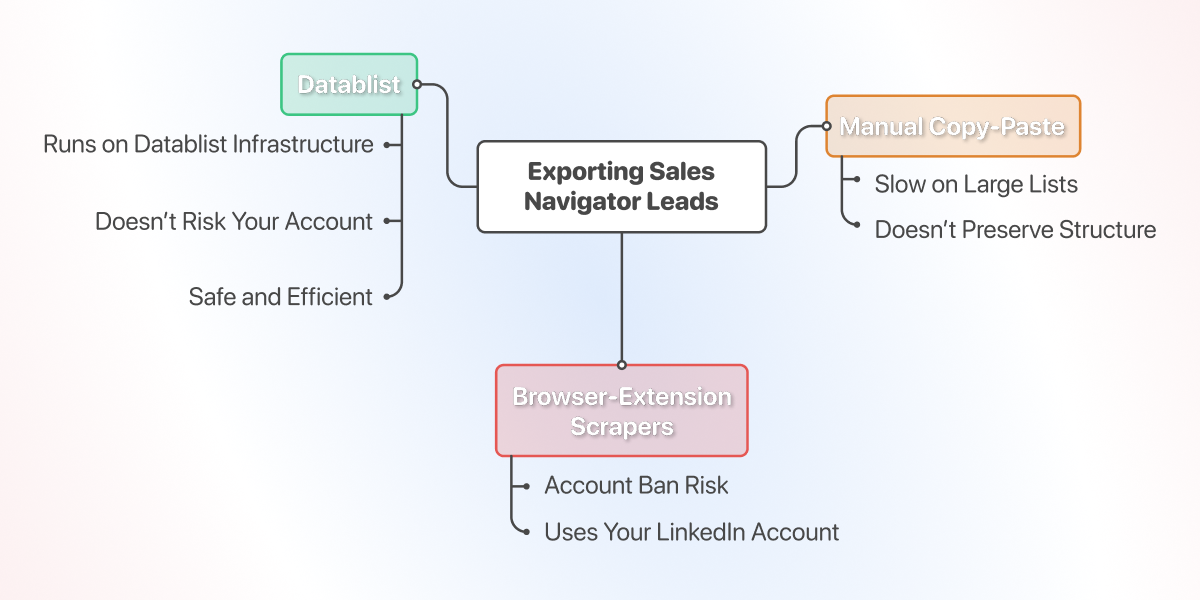\n\n### Where Datablist Lands On Cost And Speed {#where-datablist-lands-on-cost-and-speed}\n\nDatablist is not the cheapest Sales Navigator lead exporter you can find, and it is not the fastest. A browser extension can stream a list into a CSV in seconds, and free scripts cost nothing to download.\n\nWhat Datablist gives you instead is the one thing the cheaper and faster options cannot: a way to export Sales Navigator leads without risking your LinkedIn Account. The lead list still lands in minutes; your account just stays out of it.\n\n> If you want to compare your options before committing, here's a breakdown of the [best Sales Navigator scrapers](/how-to/best-sales-navigator-scraper) 👈🏽\n\n### Phase 1: Configure Your Sales Navigator Search For A Clean Export {#phase-1-configure-your-sales-navigator-search-for-a-clean-export}\n\nThis section will show you how to configure the search Datablist uses to export Sales Navigator leads for you.\n\n#### Step 1: Open Sales Navigator And Expand All Filters {#step-1-open-sales-navigator-and-expand-all-filters}\n\nOpen Sales Navigator Lead Search. Expand the full filter panel by clicking the arrow on the right side of the search bar, so all 33 filters are visible at once.\n\n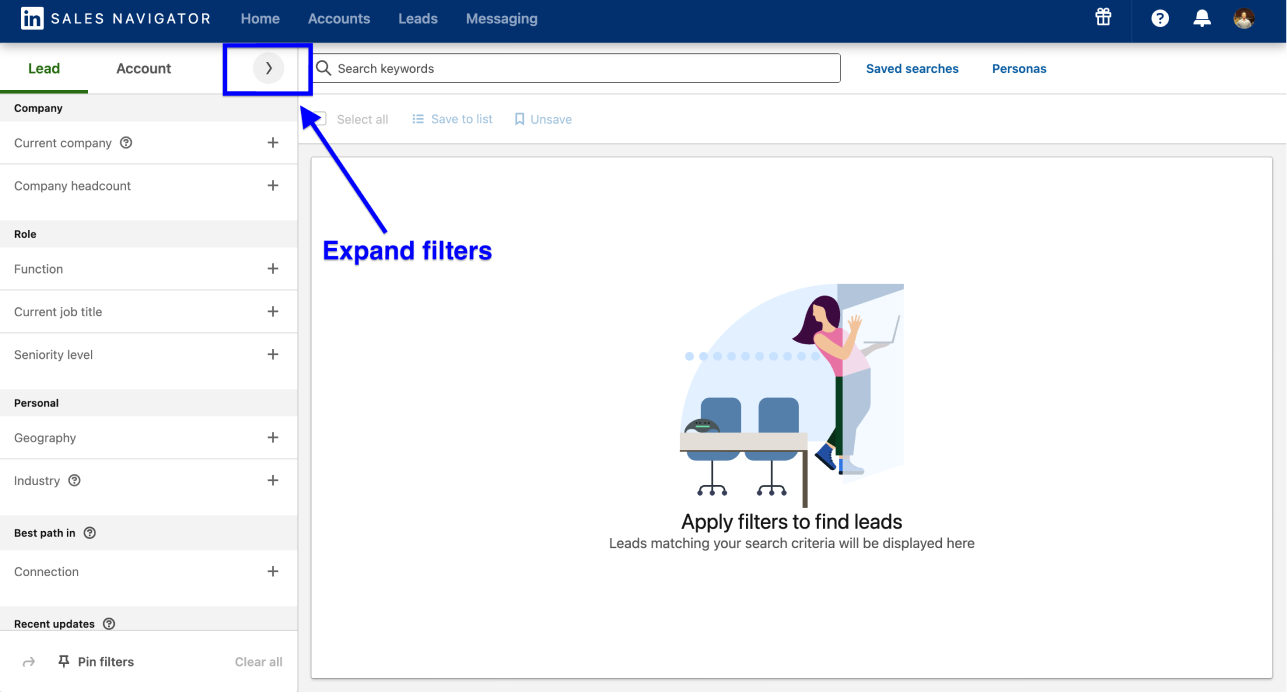\n\n#### Step 2: Use The 33 Filters To Narrow Down Leads {#step-2-use-the-33-filters-to-narrow-down-leads}\n\nCombine the filters that actually matter for your segment (job title, seniority, geography, company size, years in current role) to land on a tight list.\n\n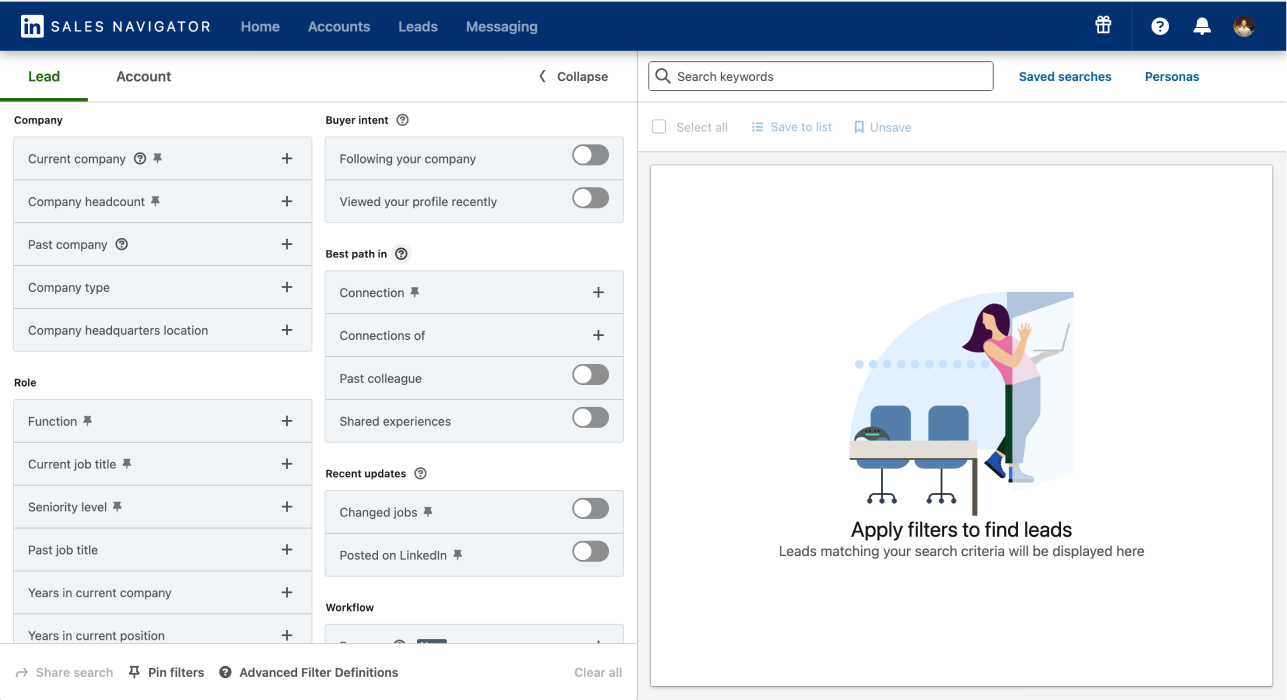\n\n#### Step 3: Break Down Searches That Exceed 2,500 Results {#step-3-break-down-searches-that-exceed-2500-results}\n\nWhen the search returns more than 2,500 leads, the filters are too broad. Split the search into smaller segments.\n\n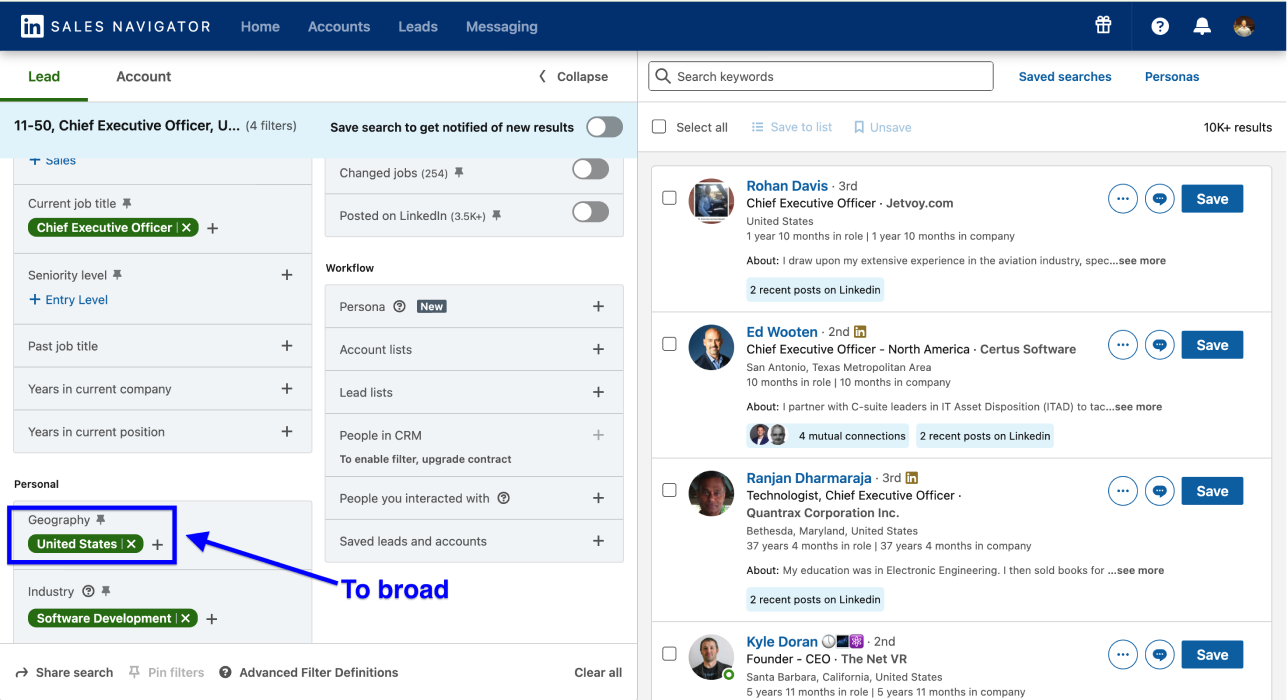\n\nA search for CEOs at US software companies (10 to 50 employees) might return 10,000 results. Use these three quick lead list segmentation moves to bring it into range:\n\n- Filter by state (California first, then Texas, then New York)\n- Narrow further by industry sub-category (B2B SaaS, AI infrastructure, vertical SaaS)\n- Add *years in current position* to slice the list by tenure\n \n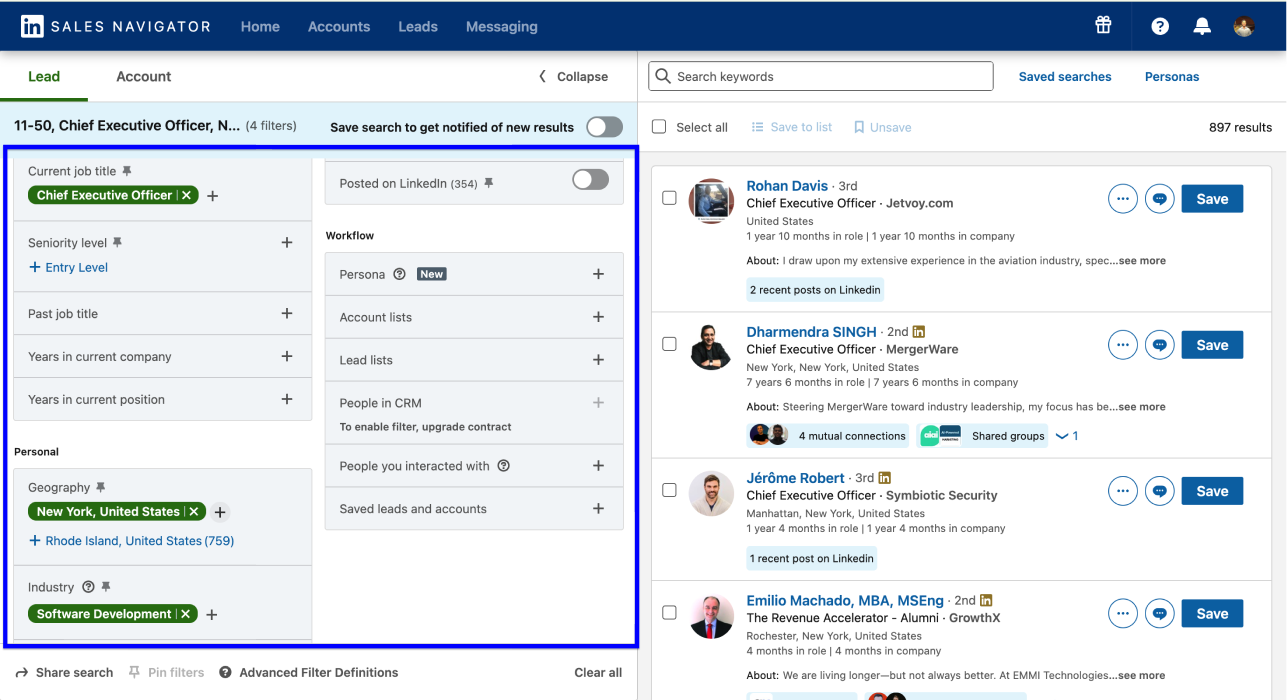\n \n\n#### Step 4: Copy The Search URL {#step-4-copy-the-search-url}\n\nOnce you have filtered your Sales Navigator lead list correctly, copy the URL straight from your browser's address bar and keep it on hand for Phase 2. Datablist also accepts a regular LinkedIn search URL, so the same workflow runs without a Sales Navigator subscription.\n\n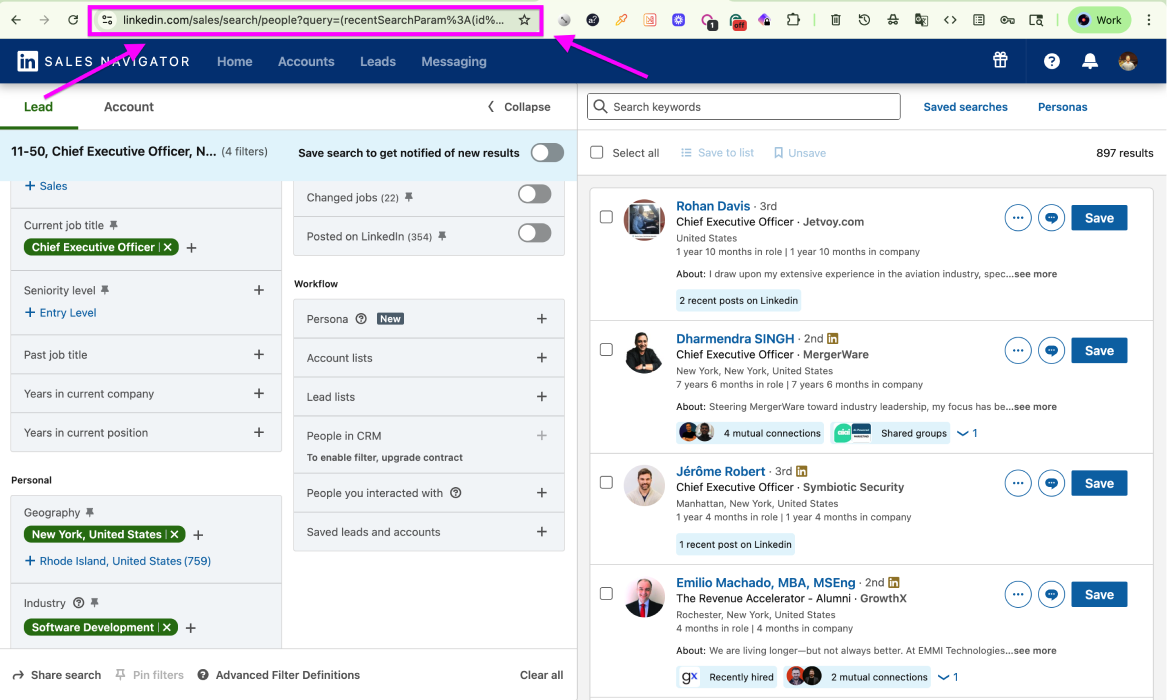\n\n### Phase 2: Bulk Export Sales Navigator Leads With Datablist {#phase-2-bulk-export-sales-navigator-leads-with-datablist}\n\nPhase 2 is where you download leads from Sales Navigator using Datablist's LinkedIn Search Scraper. Before the steps, check the configuration details below:\n\n> 📌 What This Scrape Costs And What It Returns\n> \n> - **Tool:** Datablist's [LinkedIn Search Scraper](/sources/linkedin-search-scraper), under the Sources tab.\n> - **Inputs:** a Sales Navigator search URL, or a regular LinkedIn search URL.\n> - **Outputs:** a Datablist collection with 30+ data points per lead, across Personal, Professional, and Company fields. Emails included where Datablist finds them.\n> - **Cost:** 15 credits per imported lead. You pay per profile imported, not per runtime.\n> - **Settings you'll configure:** Search URL, Limit (how many leads to import), Offset (how many leads to skip; useful for splitting a large list across imports).\n\n#### Step 1: Sign Up And Create A Collection {#step-1-sign-up-and-create-a-collection}\n\nSign up on [Datablist.com](/)\n\n\n\n\n
\n
\n Free trial\n
Start your free trial
\n
Export Sales Navigator leads without risking your account.
\n\nInside the workspace, click ***New Collection***\n\n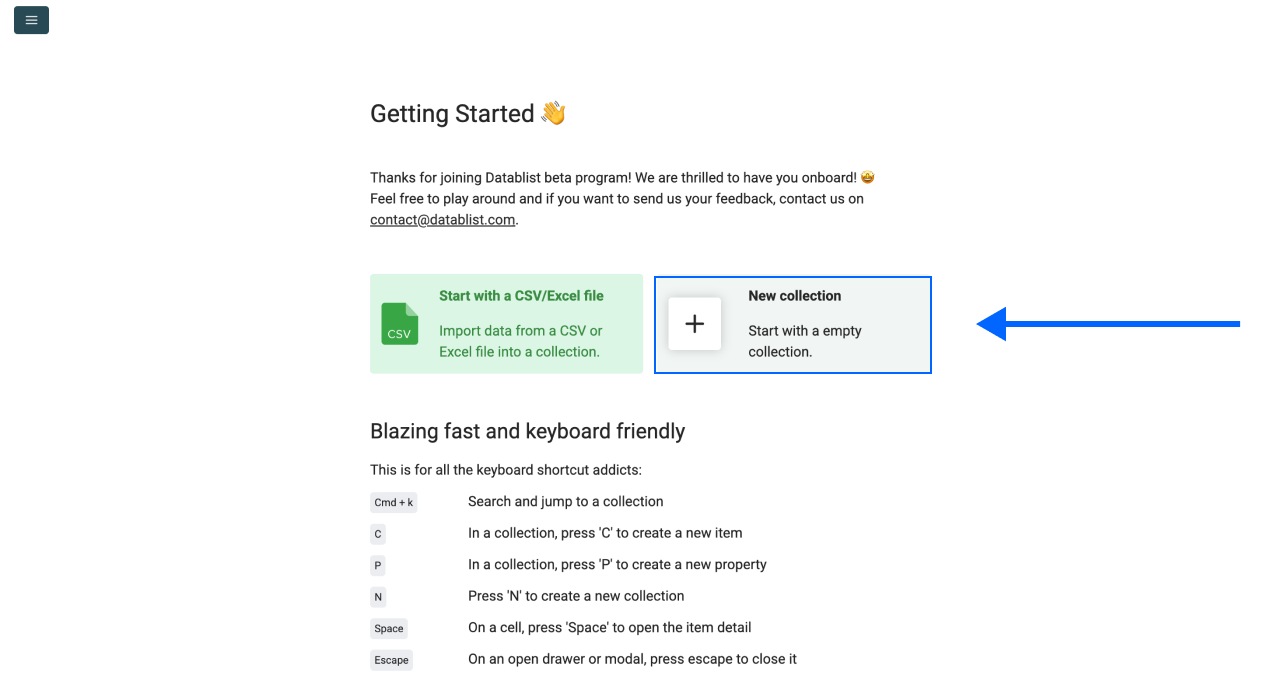\n\n#### Step 2: Navigate To The LinkedIn Search Scraper {#step-2-navigate-to-the-linkedin-search-scraper}\n\n1. Inside the new collection, click ***See all sources***.\n2. Select the ***LinkedIn Search Scraper*** from the source library.\n \n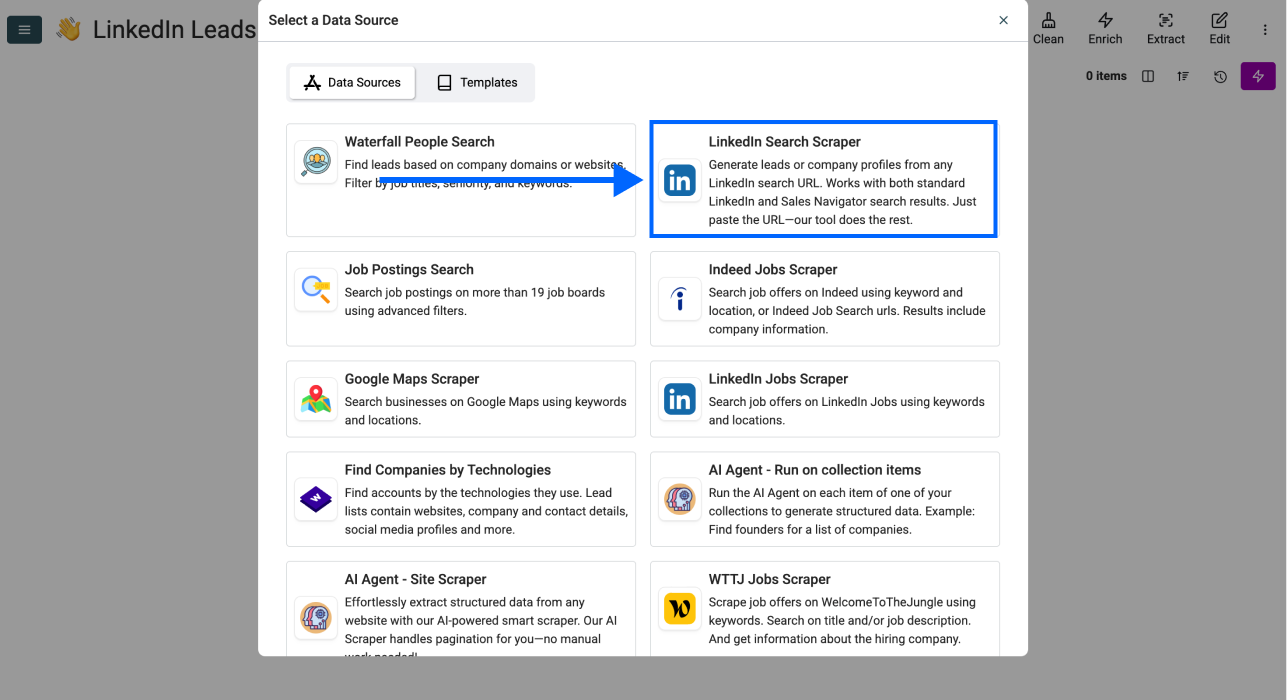\n \n\n#### Step 3: Configure The Source Settings (Search URL, Limit, Offset) {#step-3-configure-the-source-settings-search-url-limit-offset}\n\nNow you should see the following settings: \n\n- ***Search URL*** - paste the Sales Navigator search URL from the previous flow.\n- ***Limit*** - set how many leads to import.\n- ***Offset*** - choose how many leads to skip; useful for splitting up large lead lists.\n\nPaste the URL and set the preferred limit, then click ***Continue***.\n\n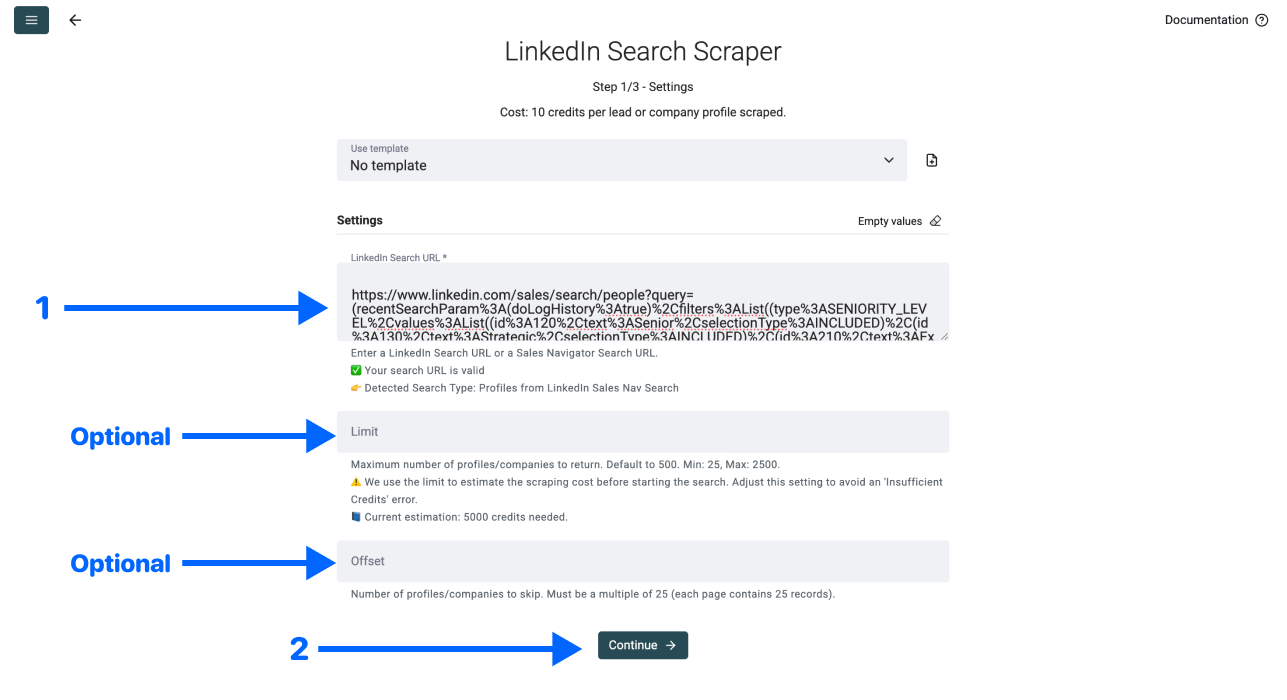\n\n#### Step 4: Select Your Outputs (30+ Data Points) {#step-4-select-your-outputs-30-data-points}\n\nDatablist shows all 30+ available data points and creates an output property for each one automatically. Click the ***✕ Icons*** to remove fields you don't want in the collection, then scroll down.\n\n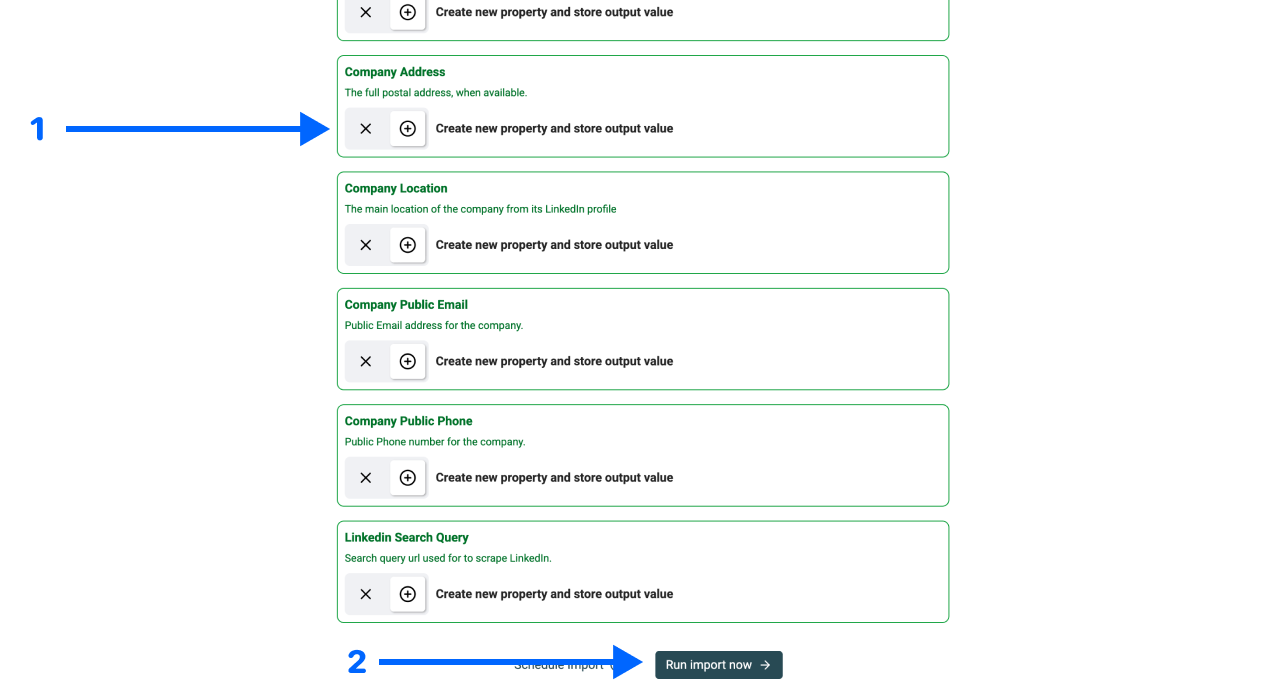\n\nThe output set splits into three buckets:\n\n- ***Personal:*** first name, last name, full name, LinkedIn URL, Sales Navigator URL, internal ID, location, and latest education.\n- ***Professional:*** job title, last position start and end date, premium account flag, open-to-work flag, LinkedIn headline, summary.\n- ***Company:*** name, domain, description, founded year, LinkedIn URL, industry, specialties, employee range, address, public email, public phone.\n\n#### Step 5: Run The Import And Review Results {#step-5-run-the-import-and-review-results}\n\nClick ***Run Import Now*** to start exporting leads from Sales Navigator.\n\n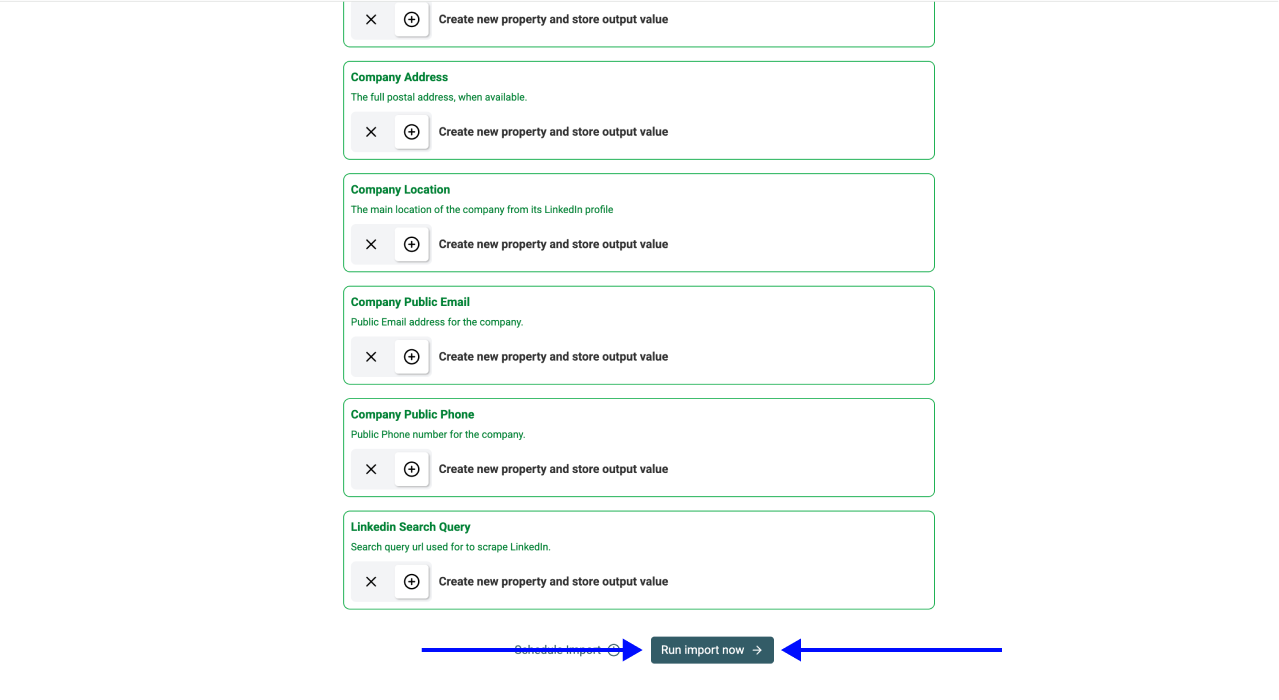\n\nOnce the import finishes, the collection holds a clean, structured lead list ready to drop into outbound on day one. Emails populate where Datablist finds them; rows without an email still carry every other field.\n\n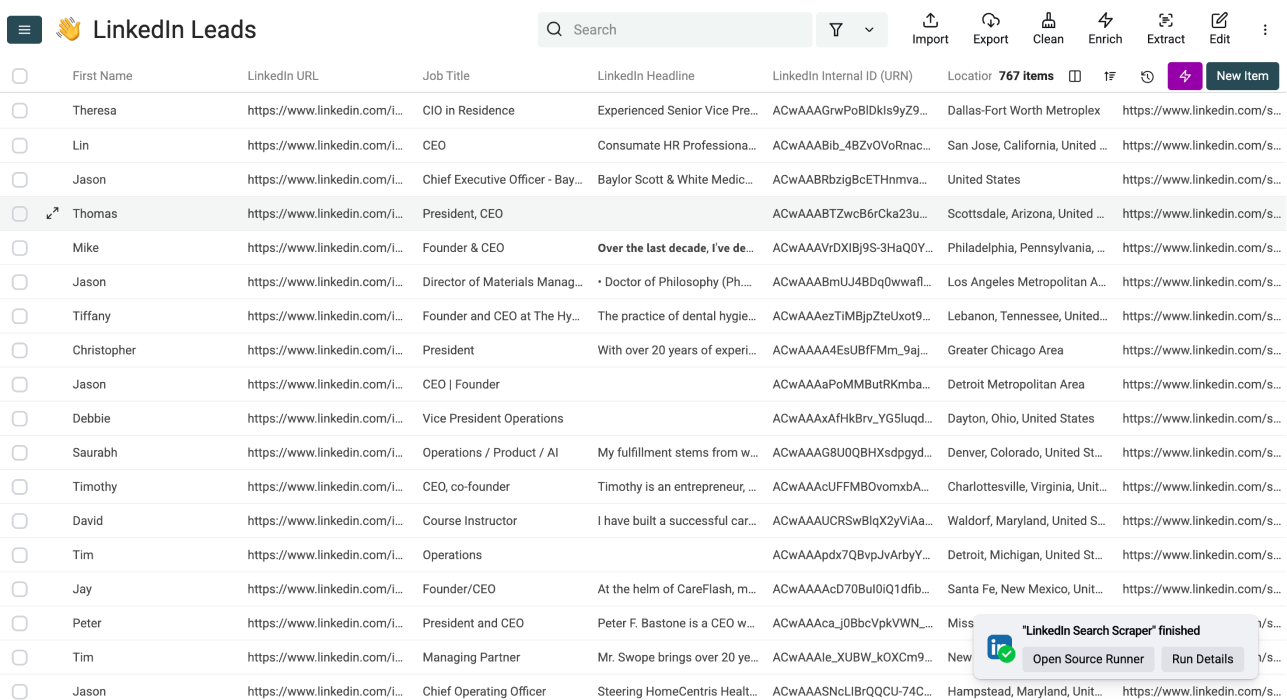\n\nFor the rows that came back without an email, you can still use Datablist’s Waterfall Email Enrichment to [find emails from the LinkedIn Profile URL](/how-to/find-email-from-linkedin-profile) directly inside the same collection.\n\n### What You Get In The Export {#what-you-get-in-the-export}\n\nWhen you export Sales Navigator leads through Datablist, you get a complete lead list you can use for outbound right away.\n\nThe fields are split into three buckets that mirror how an outbound tool consumes them:\n\n- ***Personal*** (eight fields): full name, location, latest education, and identifiers like the LinkedIn internal ID and the Sales Navigator URL.\n- ***Professional*** (seven fields): job title, tenure dates, open-to-work and premium flags, headline, summary.\n- ***Company*** (fifteen fields): name, domain, industry, employee range, addresses, public contact info, and founded year.\n\nThat is enough to filter, segment, and [personalize your cold emails](/how-to/cold-email-personalization-tactics).\n\n## Verdict: Export Sales Navigator Leads Safely Was Never Easier {#verdict-export-sales-navigator-leads-safely-was-never-easier}\n\nExporting Sales Navigator leads is only “easy” when your LinkedIn account stays out of the workflow. That’s the whole advantage of the Datablist method: you paste a search URL, run the import, and you get a clean lead list back in minutes, without risking your account.\n\n\n
\n
\n Free trial\n
Start your free trial
\n
Export Sales Navigator leads without risking your account.
\n\n\n## Frequently Asked Questions About Exporting Sales Navigator Leads {#frequently-asked-questions-about-exporting-sales-navigator-leads}\n\n### How Much Does It Cost To Export Sales Navigator Leads With Datablist? {#how-much-does-it-cost-to-export-sales-navigator-leads-with-datablist}\n\nDatablist's LinkedIn Search Scraper costs 15 credits per imported lead per profile imported. Emails are included where Datablist finds them. The subscription costs $50/month and gives you 20,000 free credits every month.\n\n### How Long Does It Take To Export 1,000 Sales Navigator Leads? {#how-long-does-it-take-to-export-1000-sales-navigator-leads}\n\nFor a 1,000-lead segment, the import typically takes 5-15 minutes. A 2,500 lead segment usually finishes in the same window.\n\n### What Inputs Does Datablist's LinkedIn Search Scraper Accept? {#what-inputs-does-datablists-linkedin-search-scraper-accept}\n\nTwo URL formats work: a Sales Navigator search URL, or a regular LinkedIn search URL with the *People* filter applied. The Sales Navigator URL gives you tighter segments thanks to the 33-filter panel; the regular LinkedIn URL is the fallback when you don’t have a Sales Navigator account.\n\n### Can I Enrich The Exported Leads With Emails And Phone Numbers Afterwards? {#can-i-enrich-the-exported-leads-with-emails-and-phone-numbers-afterwards}\n\nYes. You can run Datablist's [Waterfall Email Finder](/enrichments/email-finder) directly on top of the same collection to fill missing emails for rows that did not surface one during the initial scrape. [Phone number enrichment](/how-to/two-ways-to-find-phone-numbers) works the same way.\n\n### Can I Use Datablist To Export Leads From A Regular LinkedIn Search Instead Of Sales Navigator? {#can-i-use-datablist-to-export-leads-from-a-regular-linkedin-search-instead-of-sales-navigator}\n\nYes. [Datablist.com](/) handles both cases: to export LinkedIn Sales Navigator searches and regular LinkedIn searches, paste the relevant URL with the *People* filter applied, and the scraper runs identically. The 33 Sales Navigator filters give you tighter segments, but the underlying export mechanism is identical.\n\n### What's The Difference Between Datablist's Scraper And A Browser-Extension Scraper? {#whats-the-difference-between-datablists-scraper-and-a-browser-extension-scraper}\n\nA browser extension scraper reuses your authenticated LinkedIn session to send requests from your account. Datablist sends requests from its own infrastructure, with no session or cookie from your account in the loop. Browser extensions are faster, Datablist is safer.\n\n### Do I Need Technical Skills Or A Developer To Export Sales Navigator Leads? {#do-i-need-technical-skills-or-a-developer-to-export-sales-navigator-leads}\n\nNo, with Datablist the process is easy and intuitive. The full setup is paste-a-URL, set a limit, and click run. There is no script to write, no API key to manage, no proxy to configure. Most people clear get it done in under a minute.\n\n### Do I Need Sales Navigator Premium To Use Datablist's LinkedIn Search Scraper? {#do-i-need-sales-navigator-premium-to-use-datablists-linkedin-search-scraper}\n\nNo. The scraper accepts a regular LinkedIn search URL as well, so a free LinkedIn account is enough to feed the workflow. Sales Navigator Premium gives you the 33-filter panel and a cleaner segmentation, but the export step itself does not require a Premium subscription.\n\n### Is There A Way To Export Sales Navigator Leads Without Paying For A Tool? {#is-there-a-way-to-export-sales-navigator-leads-without-paying-for-a-tool}\n\nIf you want to download leads from Sales Navigator without paying for a tool, manual copy-paste is the only zero-cost path, and it falls apart at any meaningful scale. Browser extensions look cheap on the pricing page, but carry an unpriced cost (your LinkedIn account at risk). Datablist prices the cost honestly: $50/month, 15 credits per profile, with no account in the loop.\n\n### Can LinkedIn Detect That I Exported Leads From Sales Navigator? {#can-linkedin-detect-that-i-exported-leads-from-sales-navigator}\n\nWith Datablist’s scraper, no. With a browser-extension scraper, yes; the scraper uses your session, and LinkedIn's detection layer looks at request patterns coming from your account specifically.\n\n### How Many Leads Can I Export From Sales Navigator In One Run? {#how-many-leads-can-i-export-from-sales-navigator-in-one-run}\n\nThe limit per run is the 2,500-result list cap that Sales Navigator enforces inside its own UI. When the filtered search returns more than 2,500 leads, segment the search by state, industry, or tenure, and run each segment as a separate Datablist import.\n\n### Will Exporting Sales Navigator Leads Get My LinkedIn Account Banned? {#will-exporting-sales-navigator-leads-get-my-linkedin-account-banned}\n\nBans happen when the scraping activity is traceable to a logged-in account, which is the standard mode for browser extension tools. If you export Sales Navigator leads with Datablist, LinkedIn will not ban your account because it never sees it."
}