{
"version": 1,
"slug": "lead-scoring-with-ai",
"title": "How to Score Leads With AI",
"excerpt": "Outbound sales is harder than ever. Reps waste time on leads that won’t buy. This guide shows how to use AI for lead scoring, helping teams focus on the right prospects efficiently.",
"cover": {
"src": "/howto_images/lead-scoring-ai/lead-scoring-ai-cover.png",
"optimized": "https://www.datablist.com/_next/image?url=%2Fhowto_images%2Flead-scoring-ai%2Flead-scoring-ai-cover.png&w=1200&q=75"
},
"url": "https://www.datablist.com/how-to/lead-scoring-with-ai",
"contentMarkdown": "\nOutbound sales have never been harder than it is now—replies are shrinking, sales reps are booking fewer demos, missing quota, and getting overly frustrated since most of them are chasing the wrong leads who won't buy anyway. But this isn't their fault.\n\nIn fact, this is due to Sales, Marketing, and GTM leaders not putting the right systems in place.\n\nCreating a system that ensures reps spend their time chasing the right leads requires significant time, effort, and technical expertise.\n\nLuckily, this isn't an issue any more thanks to AI.\n\n**In this guide, I'll show you how you can create a system that automatically ranks all leads before your reps even contact them—also called a Lead Scoring system.**\n\nHere is the step-by-step process for AI Lead Scoring:\n\n1. [Identify Your Best Customers](#step-1-identify-your-best-customers)\n2. [Import your leads into Datablist](#step-2-import-your-leads-into-datablist)\n3. [Tell the AI how to score the Leads](#step-3-tell-the-ai-how-to-score-the-leads)\n\n
\n \n
\n\n## What is Lead Scoring?\n\nLead scoring is a systematic approach to evaluate and rank prospects based on specific criteria and behaviors. \n\nSystematizing this process helps sales teams prioritize their efforts by identifying which leads are most likely to convert into customers.\n\nBy implementing a lead scoring system, sales reps can focus their time on the most qualified prospects, leading to higher conversion rates and improved sales velocity.\n\n\n## Step 1: Identify your Best Customers\n\n1. Take a look in your CRM and identify the top 10 prospects you ever had.\n\n2. Analyze what they have in common and write it down. Here are a few factors you should consider: \n - Company characteristics (size, industry, location)\n - Contact details (job title, decision-making authority)\n - Engagement levels with your company\n - Demographic and behavioral data\n3. Create a breakdown of how each factor impacts the ranking.\n\n\nFor that, you should give the highest score to the important factors and the lowest to the nice-to-have but not essential factors.\n\nFor example, in most sales processes, the location doesn't have a big impact on the ranking, especially if your company sells a digital product or service, but the industry does play a crucial role.\n\nThat's why I would give 3 points for the industry but only 1 for the location.\n\n> **Note**: Adjust scores to match your business model and market.\n\n## Step 2: Import your leads into Datablist\n\nFirst, [import a CSV/Excel file](/csv-editor) in Datablist with a list of the leads you want to score.\n\n**Datablist is an AI Co-Pilot for modern GTM Teams.**\n\n\n\nOne of Datablist's key features is its ability to **automatically generate data manipulation scripts**, making it easy for non-technical users to perform complex data operations. \n\nAll you need to do is to tell it what you want to accomplish.\n\nStart by creating a collection and import your list as a CSV or Excel file.\n\n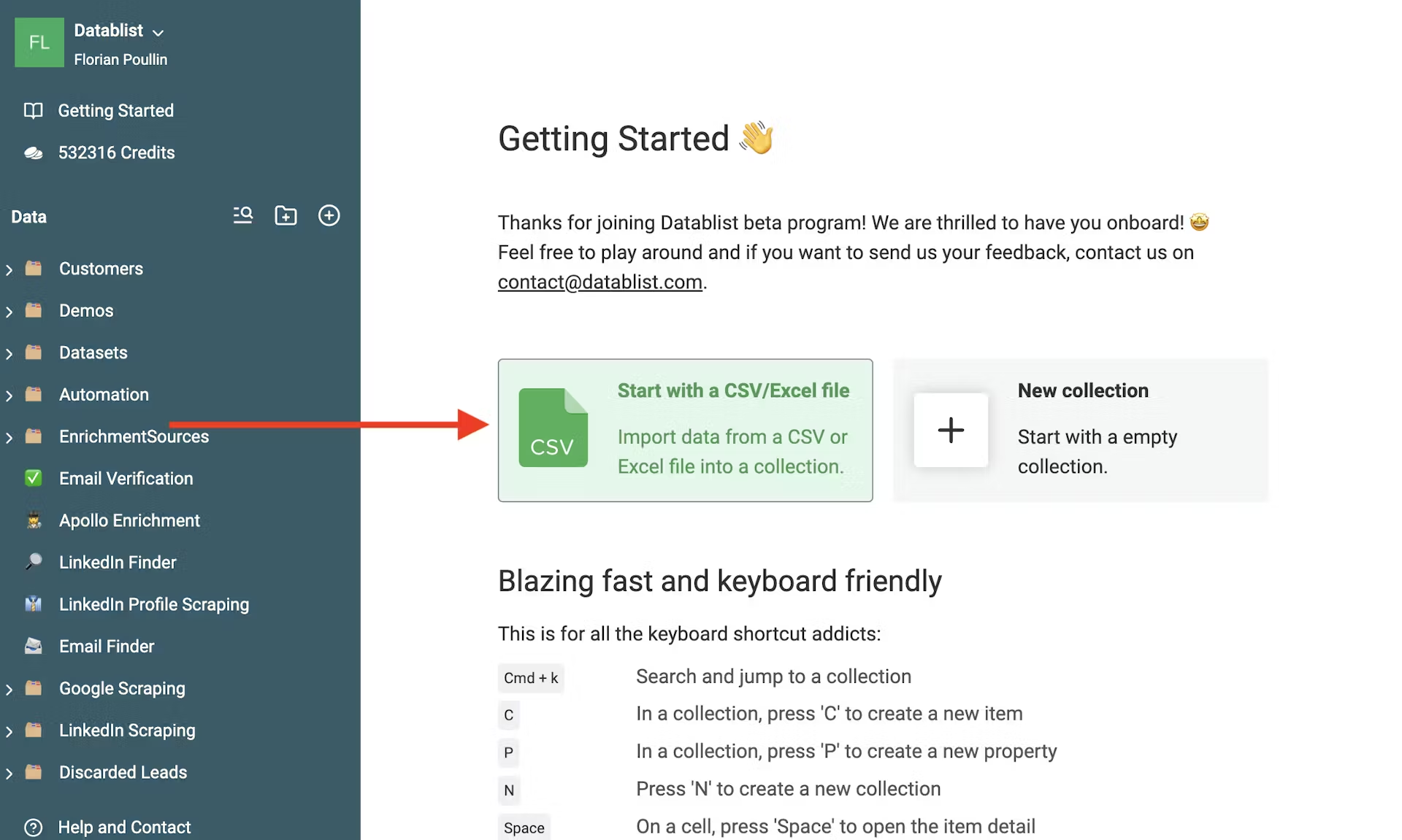\n\nThis is my file. It contains:\n- website texts of the companies\n- the company sizes\n- the job position of the prospects\n\n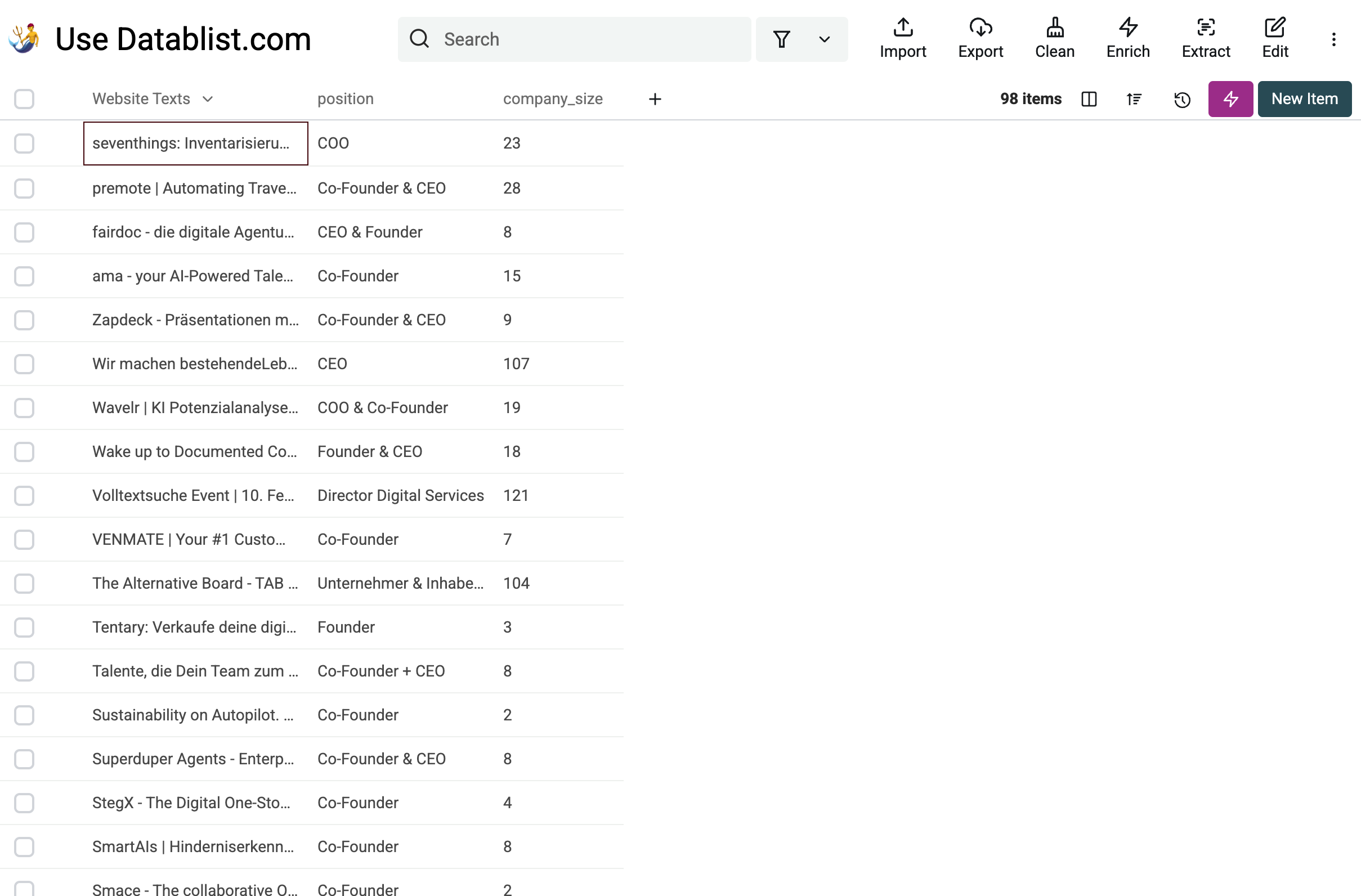\n\n\n## Step 3: Tell the AI how to score the Leads\n\nThe final step is to calculate a score for each lead. The **old** way would be to write a complex Excel formula. The problem with formulas is that they quickly become hard to read.\n\nHopefully, with AI, you won't need to write formulas anymore. **You just write the score criteria, and the AI will automatically generate a script that calculates the score.**\n\nFollow these instructions to get the most accurate results: \n\n1. Go in the Nav-Bar, click on “Edit”\n2. Select “AI Editing”\n \n 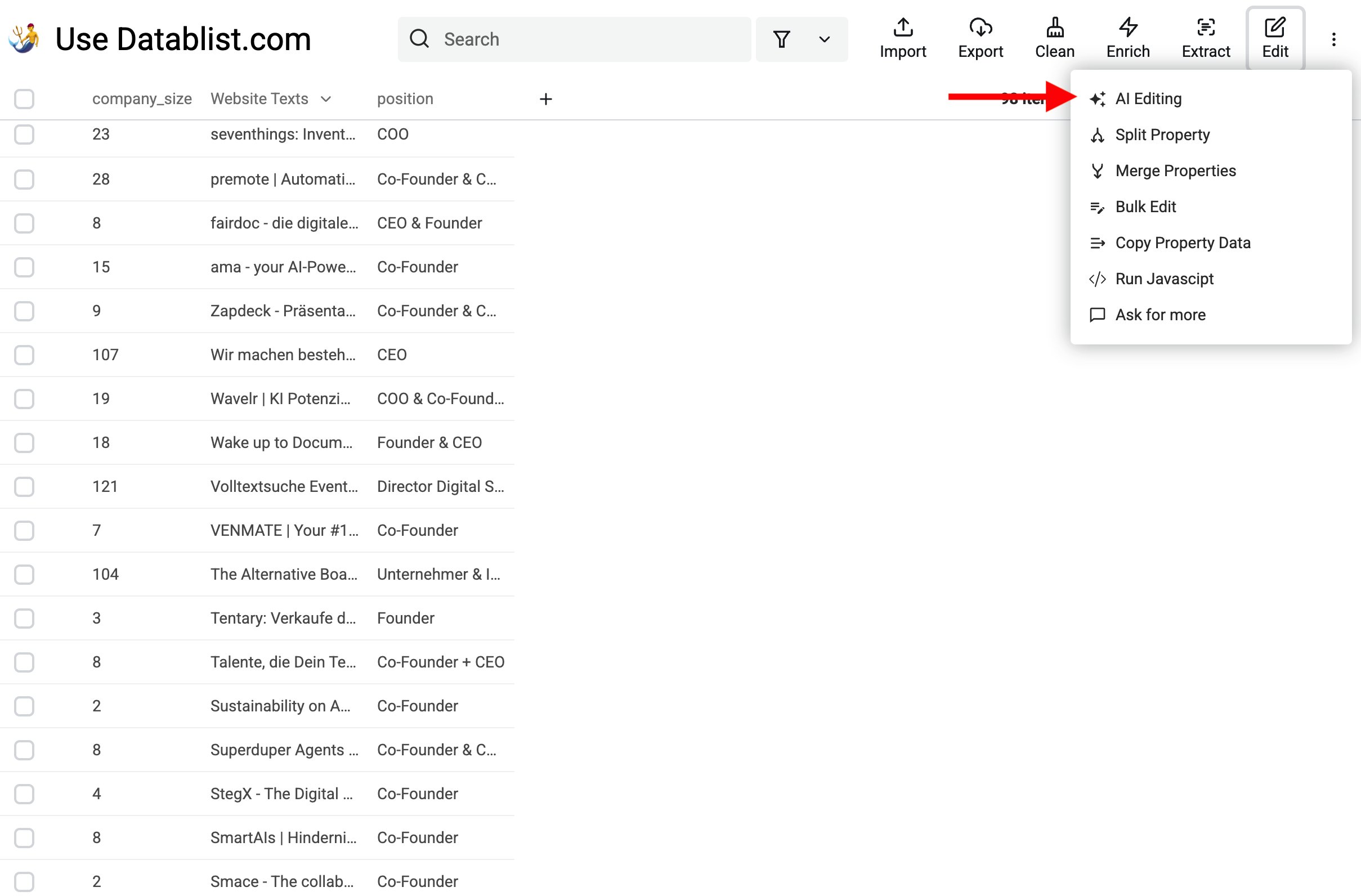\n \n3. Then, write your prompt. Best Practices for prompt writing: \n - Be specific about the outcomes you want to have.\n - Use clear bullet points and commas to structure your prompts in a logical way.\n - Use variables from your collection by typing 2 brackets (`{{PropertyName}}` or slash `/PropertyName`) and selecting the property you want to use.\n\n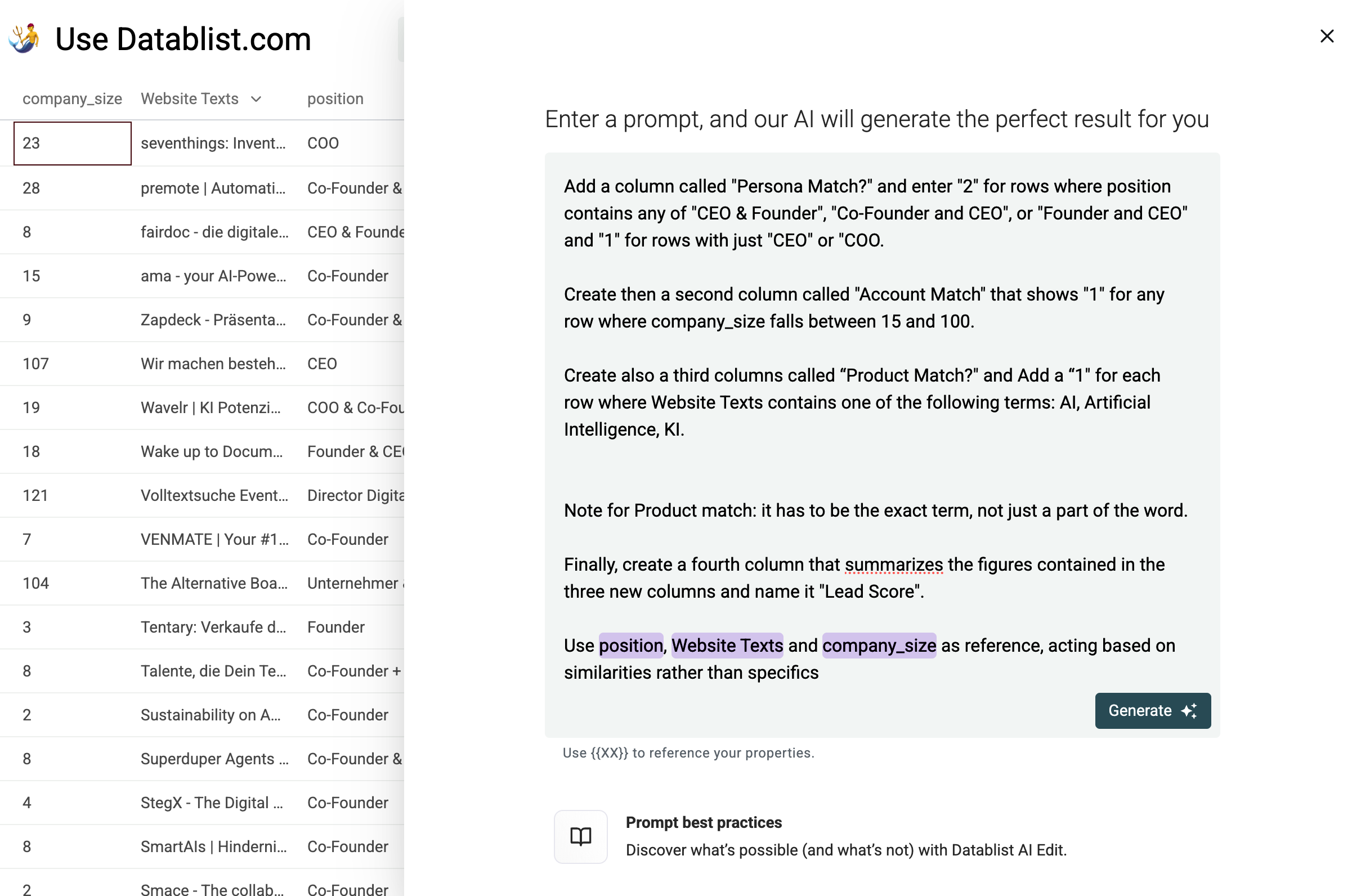\n\nHere is my prompt for Lead Scoring with AI.\n\n
\nAdd a column called \"Persona Match?\" and enter \"2\" for rows where the position contains any of \"CEO & Founder\", \"Co-Founder and CEO\", or \"Founder and CEO\" and \"1\" for rows with just \"CEO\" or \"COO. \n\nCreate then a second column called \"Account Match\" that shows \"1\" for any row where company_size falls between 15 and 100. \n\nCreate also a third column called \"Product Match?\" and Add a \"1\" for each row where Website Texts contains one of the following terms: AI, Artificial Intelligence, KI. \n\nNote for Product match: it has to be the exact term, not just a part of the word. \n\nFinally, create a fourth column that summarizes the figures contained in the three new columns and name it \"Lead Score\". \n\nUse {{position}}, {{Website Texts}} and {{company_size}} as reference, acting based on similarities rather than specifics\n
\n\n>❗**Important**\n>\n> Replace the `{{xxx}}` at the end with your collection properties (use `{{` or `/` to pick a property).\n\n\n4. Click on generate \n\nThe AI will then generate a script for you and give you a preview of the results that you're going to get. From this preview, you can **improve the prompt** to add more criteria if needed. \n\n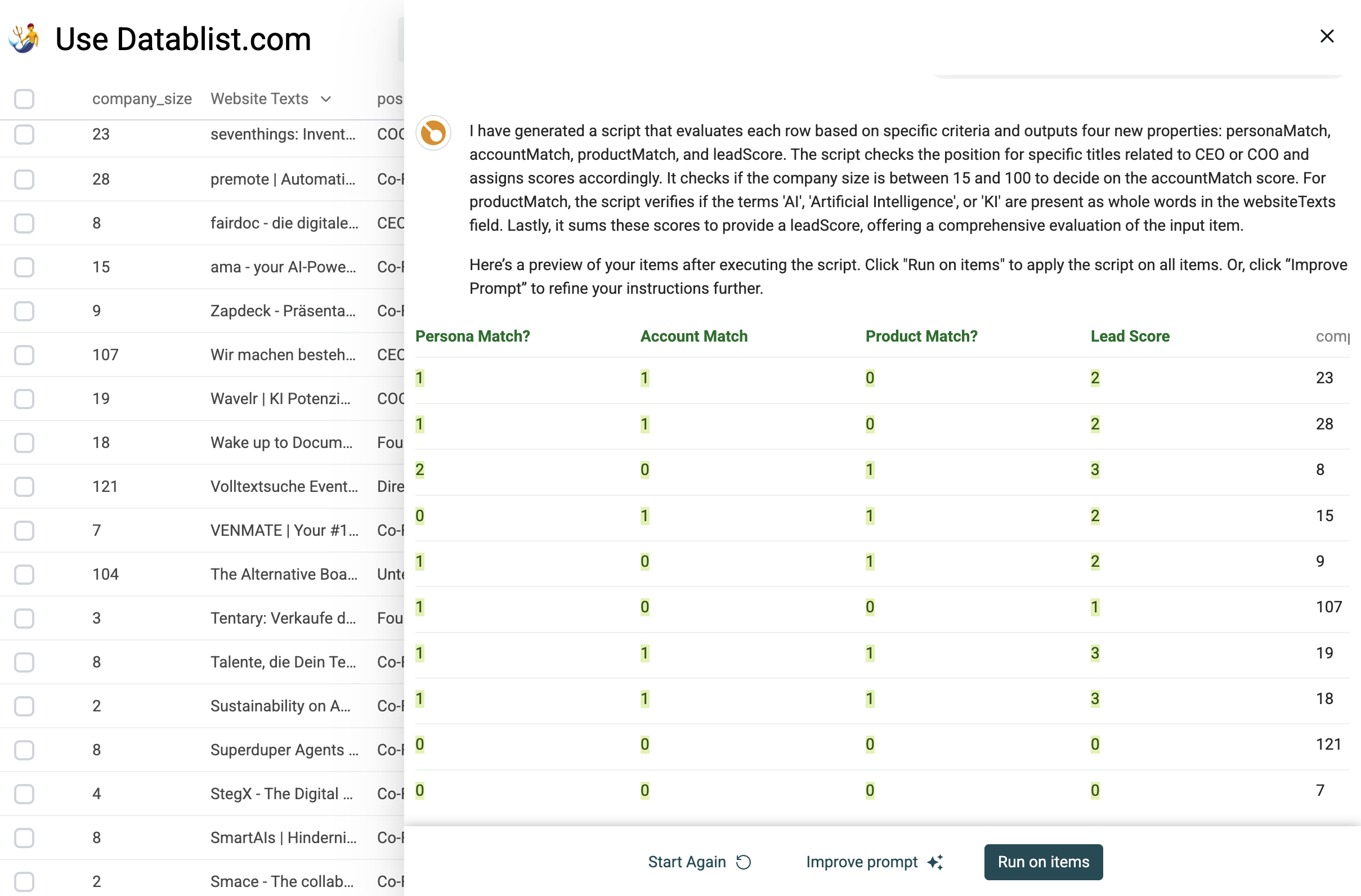\n\n\n## Step 4: Get Your Results\n\nClick on \"Run on items\" to get your results.\n\n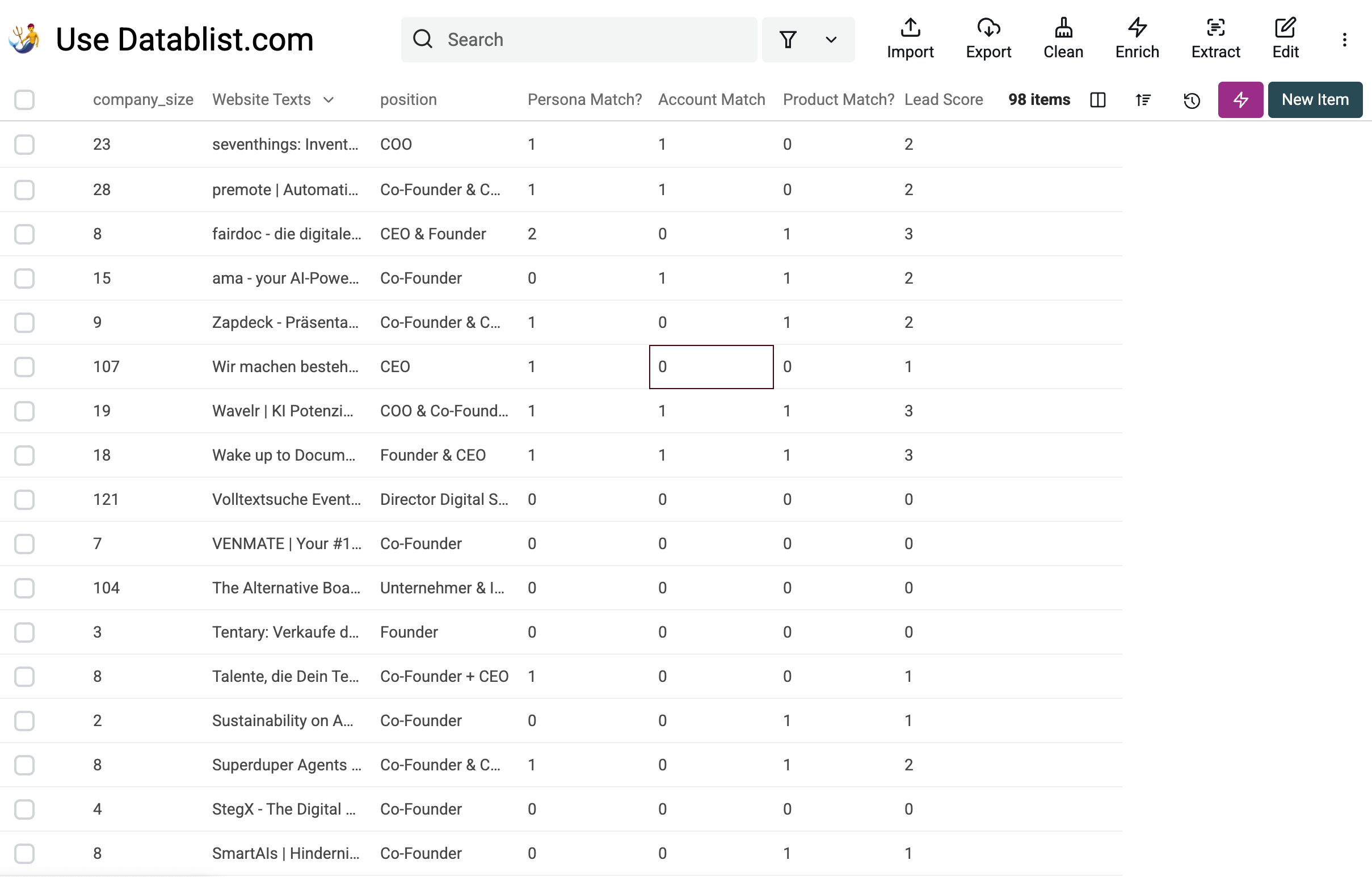\n\nYou can send the results back to your CRM or sequencer by using one of Datablist's native integrations or the Call API/HTTP enrichment.\n\n\n**The script is saved, so you can access it any time from the Edit -> AI Editing\" menu to run it on new leads.**"
}