Scrapes agency listings from Clutch.co including company names, ratings, services, pricing, and profile links
كيف تستخدم هذا AI prompt
- أنشئ مجموعة جديدة: ابدأ بإنشاء مجموعة جديدة وفارغة في Datablist حيث سيتم تخزين البيانات. انقر على '+ Create new collection' في الشريط الجانبي.
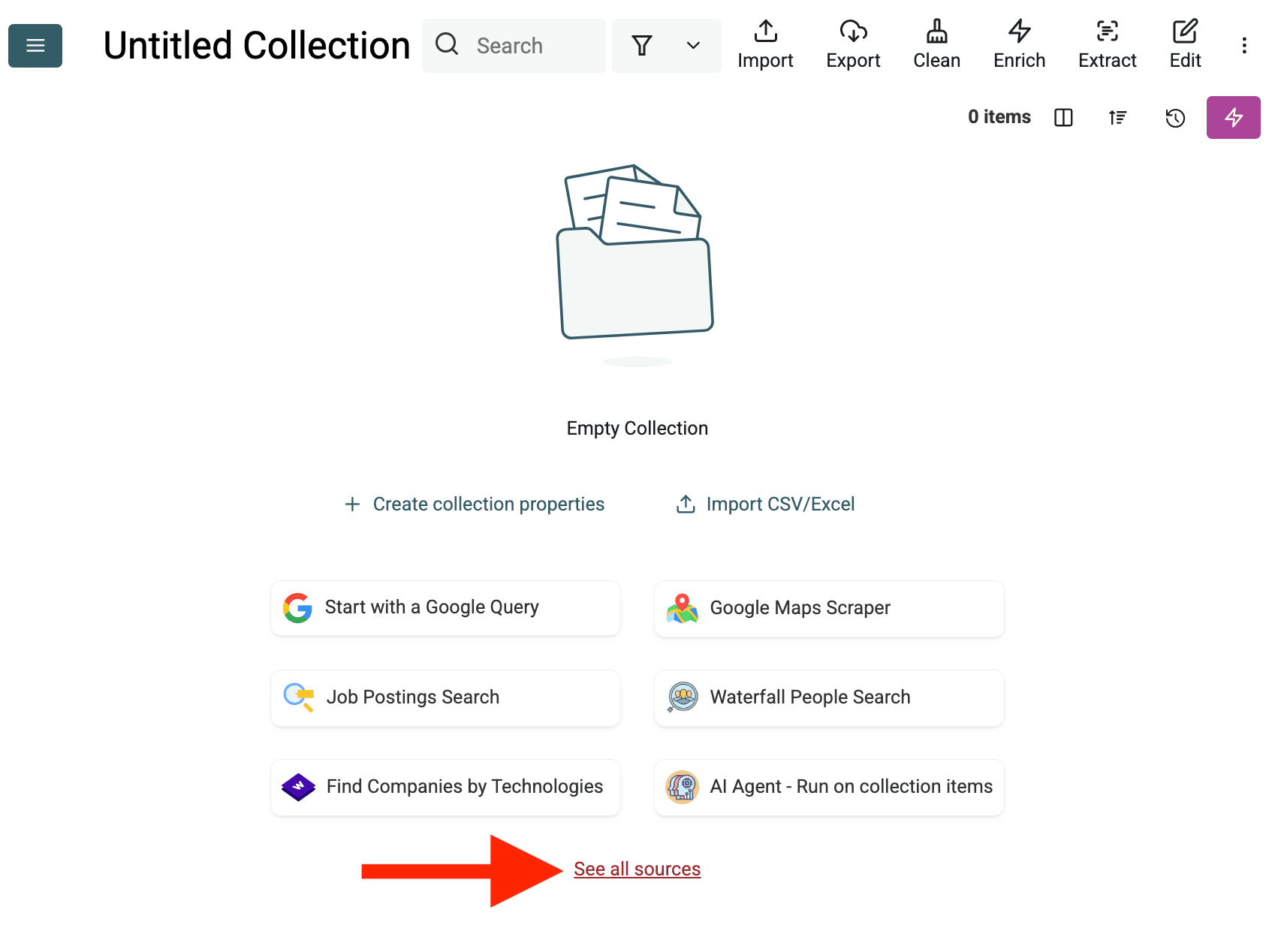
- اختر AI Agent Source: انقر "See all sources" أو اذهب إلى "Import" -> "Import From Data Sources". اختر "AI Agent - Site Scraper".
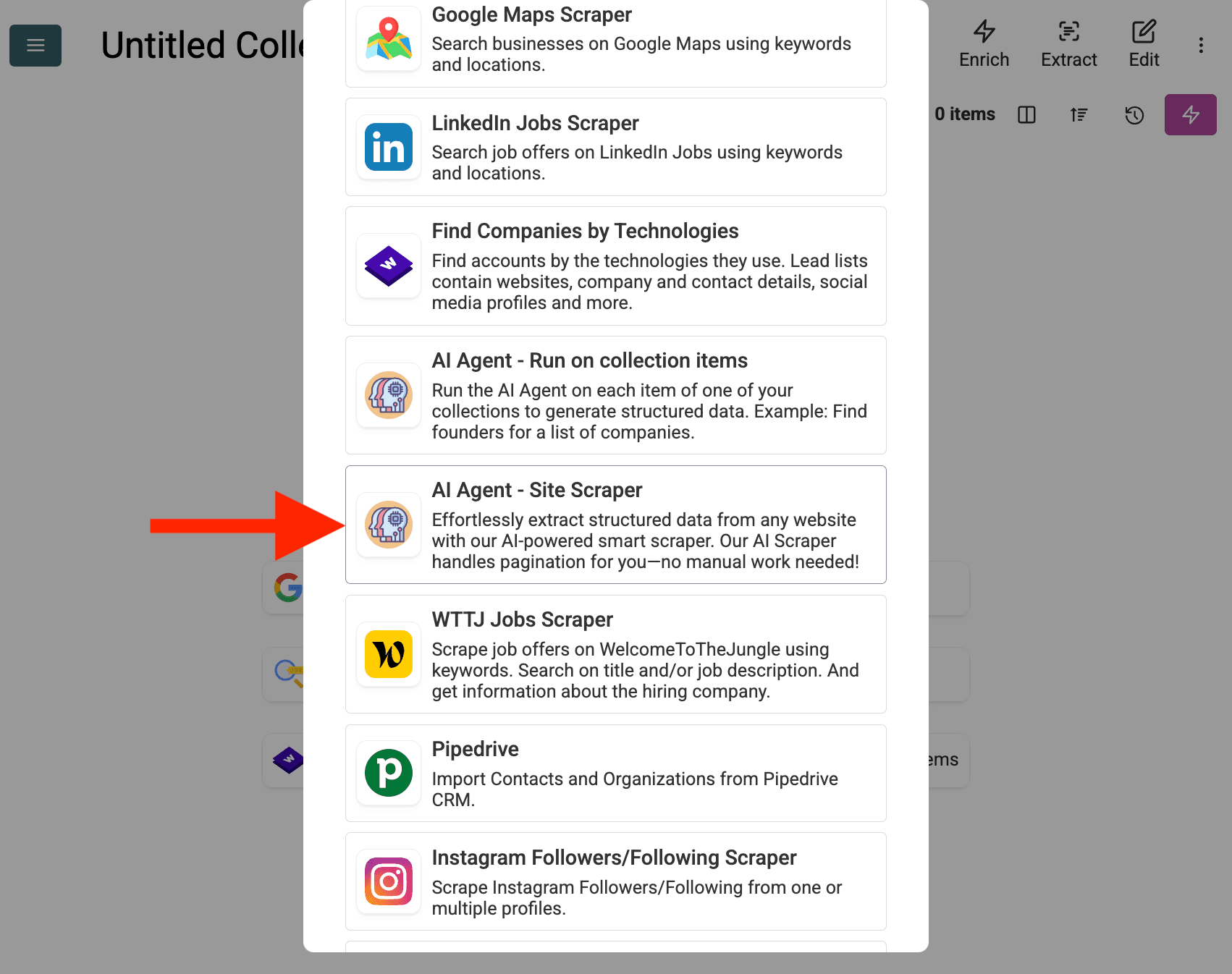
-
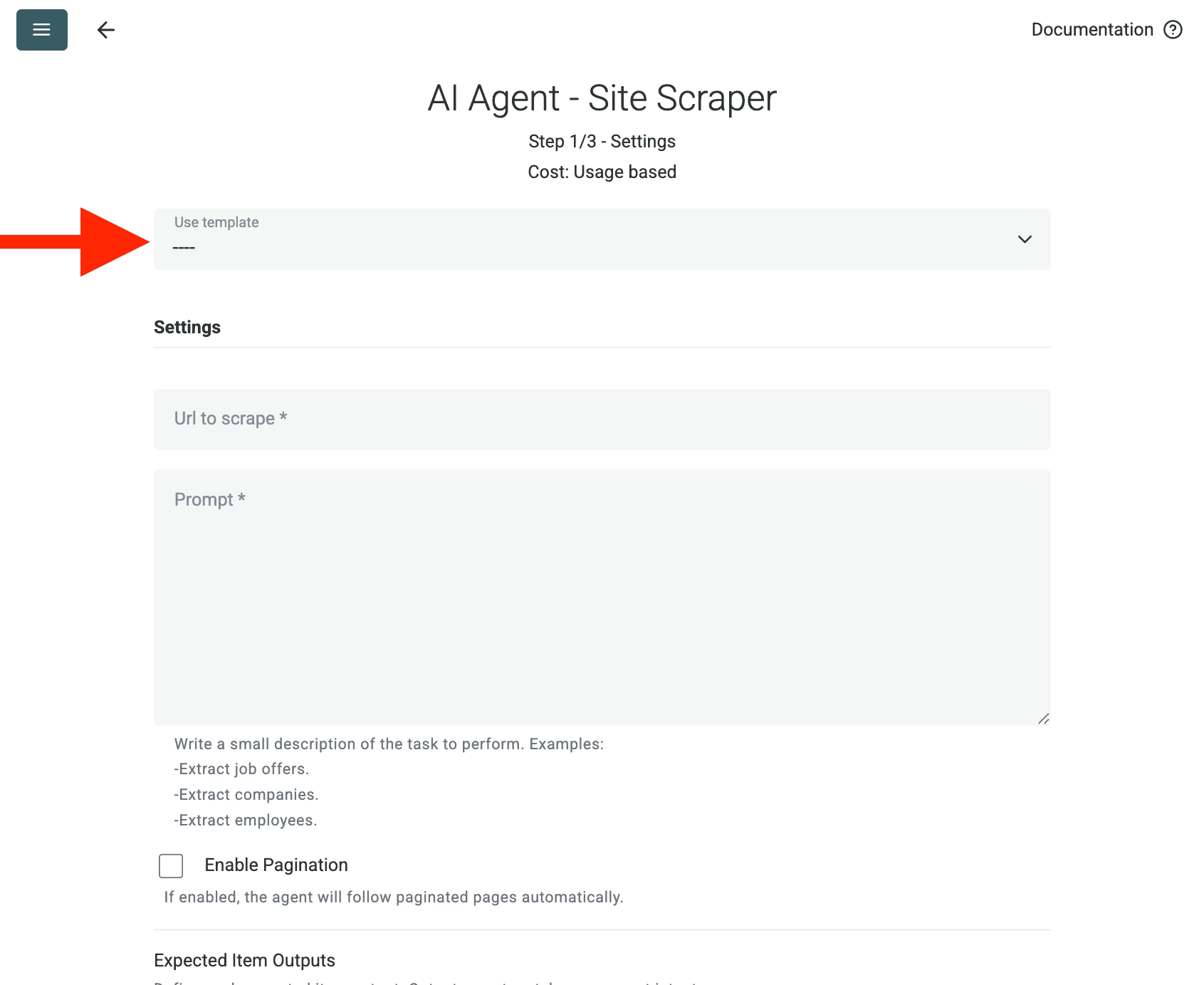
إعداد المصدر:
- Select Template: ابحث واختر الـprompt من قائمة "Template" المنسدلة. سيتم تحميل الـprompt أعلاه تلقائيًا.
- URL to Scrape: أدخل الـURL الخاص بك
- Enable Pagination (اختياري): إذا كانت النتائج على عدة صفحات، فعّل Enable Pagination وحدد حد Max Pages مناسبًا (مثلاً، 10).
- Customize (اختياري): يمكنك ضبط نموذج الـAI (مثلًا، GPT-4o mini غالبًا أقل تكلفة)، وتحرير الـprompt لاحتياجات محددة، أو تعديل Outputs المتوقعة.
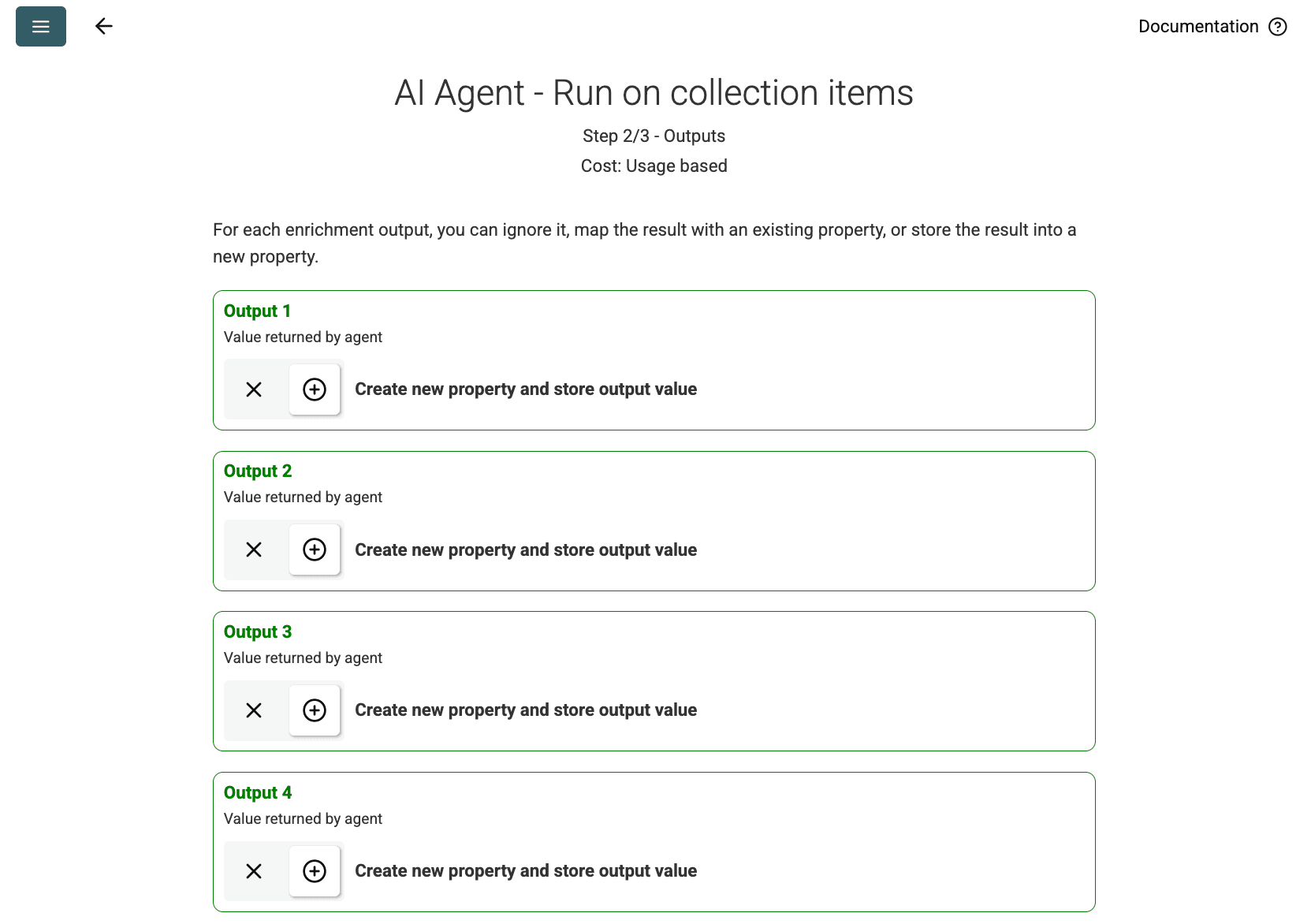
- Review Outputs: انقر Continue. ستعرض Datablist حقول المخرجات المُعرّفة في الـprompt (Project Name, Client Company Name). انقر على أيقونة + بجانب كل حقل لإنشاء الخصائص (الأعمدة) المقابلة في مجموعتك.
- Run Import: انقر Run import now. سيبدأ AI Agent في إجراء web scraping للموقع بناءً على الـprompt وملء مجموعتك.
التسعير
هذا المصدر يستهلك اعتمادات Datablist بحسب الاستخدام. تعتمد التكلفة على تعقيد الموقع وعدد الصفحات التي يتم زيارتها.
اختبر تشغيل AI Agent على صفحة واحدة أولاً للحصول على تقدير للتكلفة.
الأسئلة الشائعة
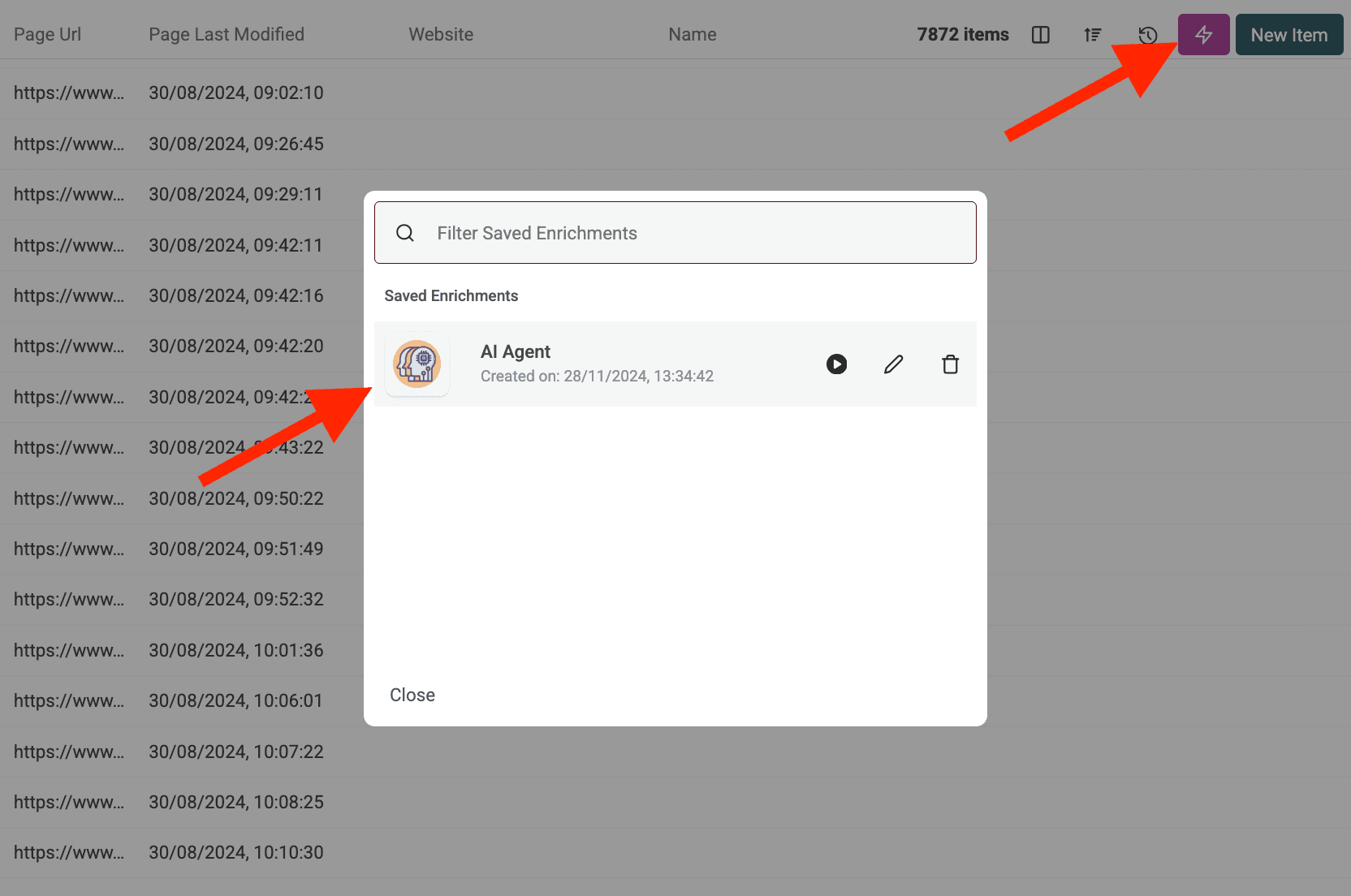
كيف أبدأ تشغيلًا آخر بنفس الإعدادات؟
بعد تشغيل AI Agent، انقر على الزر الوردي أعلى يمين جدول بياناتك لإعادة فتحه بأحدث الإعدادات المستخدمة.
ماذا يحدث إذا حاول AI Agent الوصول إلى موقع محمي أو تم حجبه؟
يستخدم AI Agent تلقائيًا خوادم بروكسي عند الحاجة للوصول إلى مواقع قد تحتوي على حمايات web scraping أو قيود جغرافية. هذا يزيد فرص نجاح استخراج البيانات، رغم أن المواقع المحمية بشدة قد تظل تحديًا.
كمية البيانات التي يمكنني معالجتها باستخدام AI Agent؟
عند تشغيل AI Agent (سواء كإثراء أو كمصدر بيانات)، يمكن لمجموعات Datablist معالجة ما يصل إلى 100,000 عنصر (صف). لمجموعات بيانات أكبر، قد تحتاج إلى تقسيم بياناتك عبر عدة مجموعات.
كيف يختلف AI Agent عن إثراءات ChatGPT/Claude/Gemini؟
تُعالج إثراءات AI القياسية (ChatGPT وClaude وGemini) البيانات الموجودة بالفعل في مجموعتك باستخدام المعرفة الحالية للذكاء الاصطناعي. بينما يستطيع AI Agent التفاعل مع الويب الحي—إجراء عمليات بحث Google، وتصفح المواقع، واستخراج معلومات جديدة بناءً على الـprompt.
ما مدى دقة النتائج؟
تعتمد الدقة بشكل كبير على وضوح وتحديد الـprompt، وكذلك على تعقيد المهمة والمعلومات المتاحة عبر الإنترنت. تقديم تعليمات واضحة وأمثلة وقواعد للتعامل مع الأخطاء يحسّن النتائج. غالبًا ما توفّر Datablist درجة ثقة لمخرجات AI Agent للمساعدة في تقييم الموثوقية.