
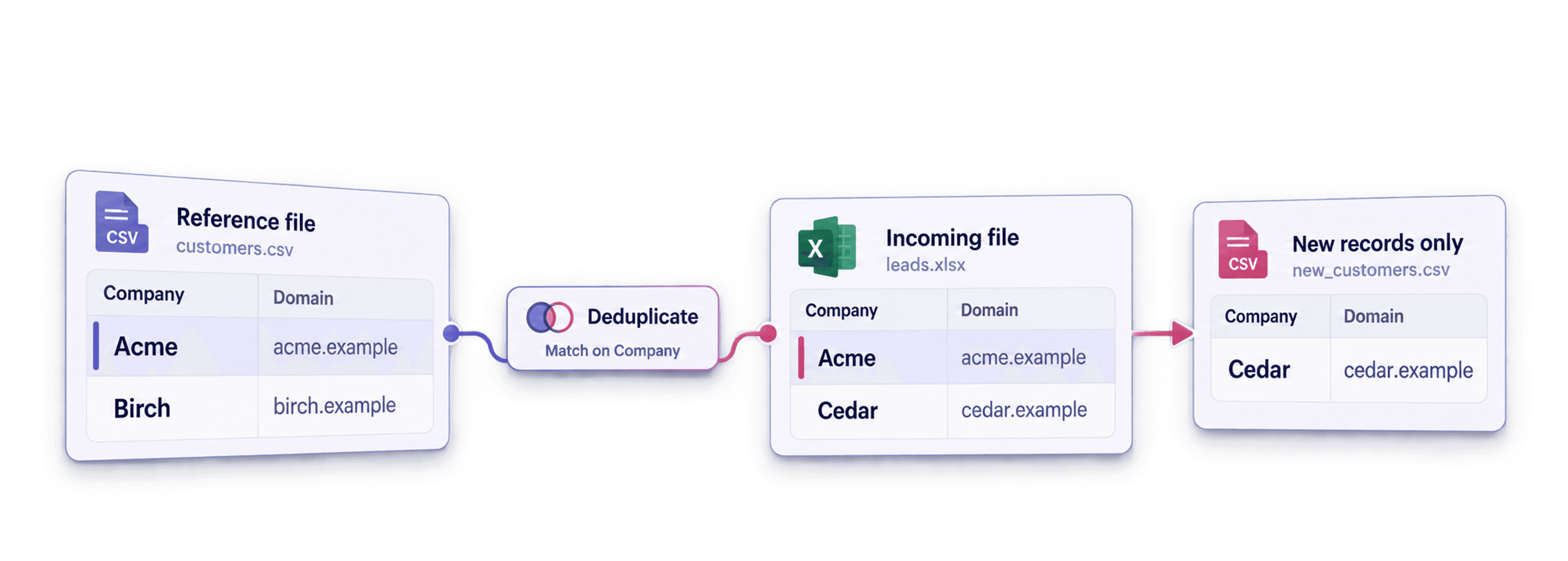
To deduplicate across several Excel or CSV files, keep each file in a separate Datablist collection, map the properties that identify the same record, and compare the collections. You can then remove matching rows from an incoming list while keeping your reference list unchanged.
This workflow is useful when you have a CRM export and a new prospect file. It answers a specific question: which prospects are already in the CRM?
The automatic action is a suppression operation, not a merge. It removes matched records from the collection you select. It does not copy unique values from those records into another collection.
This guide documents a real test with two 250-row CSV files:
| Collection | Role | Rows before | Matching property |
|---|---|---|---|
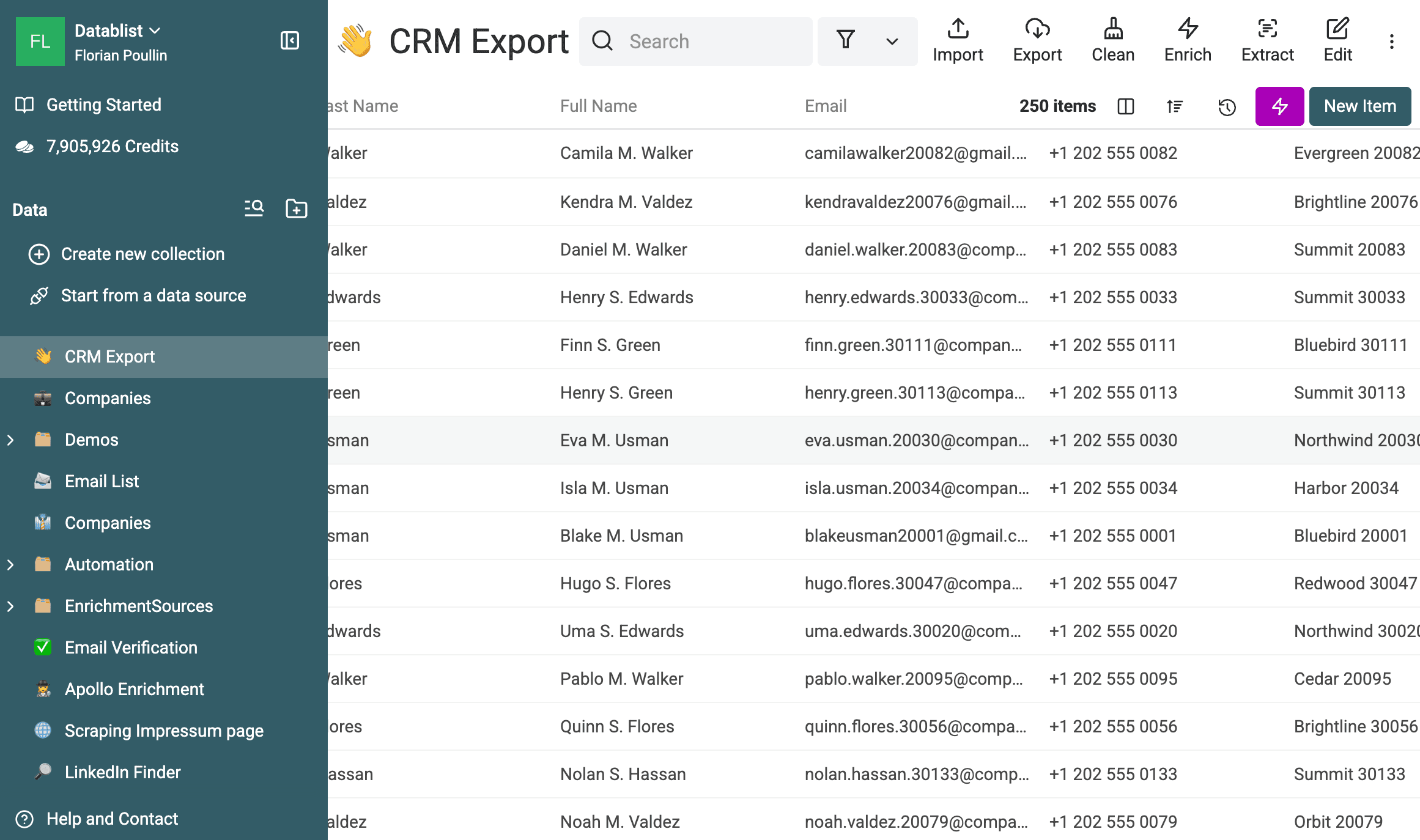
CRM Export | Reference list to preserve | 250 | Email |
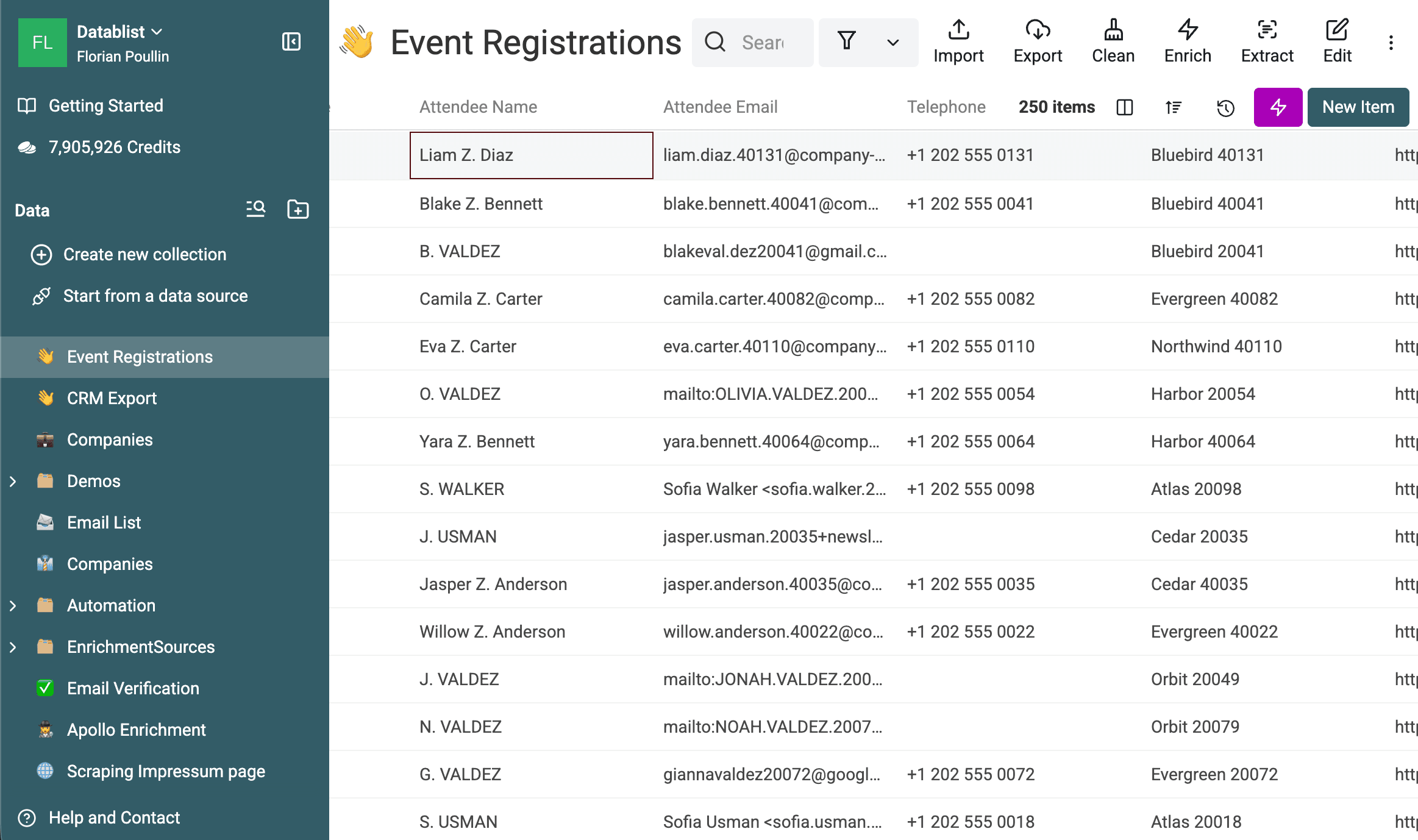
Event Registrations | Incoming list to clean | 250 | Attendee Email |
The files contain 100 designed cross-list overlaps. After removing those
matches from Event Registrations, 150 net-new event contacts remain.
This example matches by email. For lists with missing emails or several contact identifiers, review lead deduplication before deciding which matches are safe to suppress.
Download the two example files
Use these files to reproduce the test:
The headers differ on purpose. The CRM uses Email, First Name, and Last Name. The event file uses Attendee Email, Attendee First Name, and
Attendee Last Name. Cross-collection property mapping lets the files keep
their original structures.
The test data includes email formatting and alias variations. This makes Smart matching with the Email processor more useful than a raw exact comparison.
Import each file into a collection
Open Datablist and import each CSV or Excel file into its own collection. Name the collections after their roles so the cleaning rule is easy to verify.
The first collection in this test is the CRM reference list. It contains 250 records and must remain unchanged.
The second collection is the incoming event list. It also starts with 250 records.
Check the property types during import. Set both email columns to the Email type. Keep the external IDs, names, phone numbers, and other fields because they help you review questionable matches.
Map the identifying properties
Open the incoming Event Registrations collection. Choose Clean >
Match across collections.
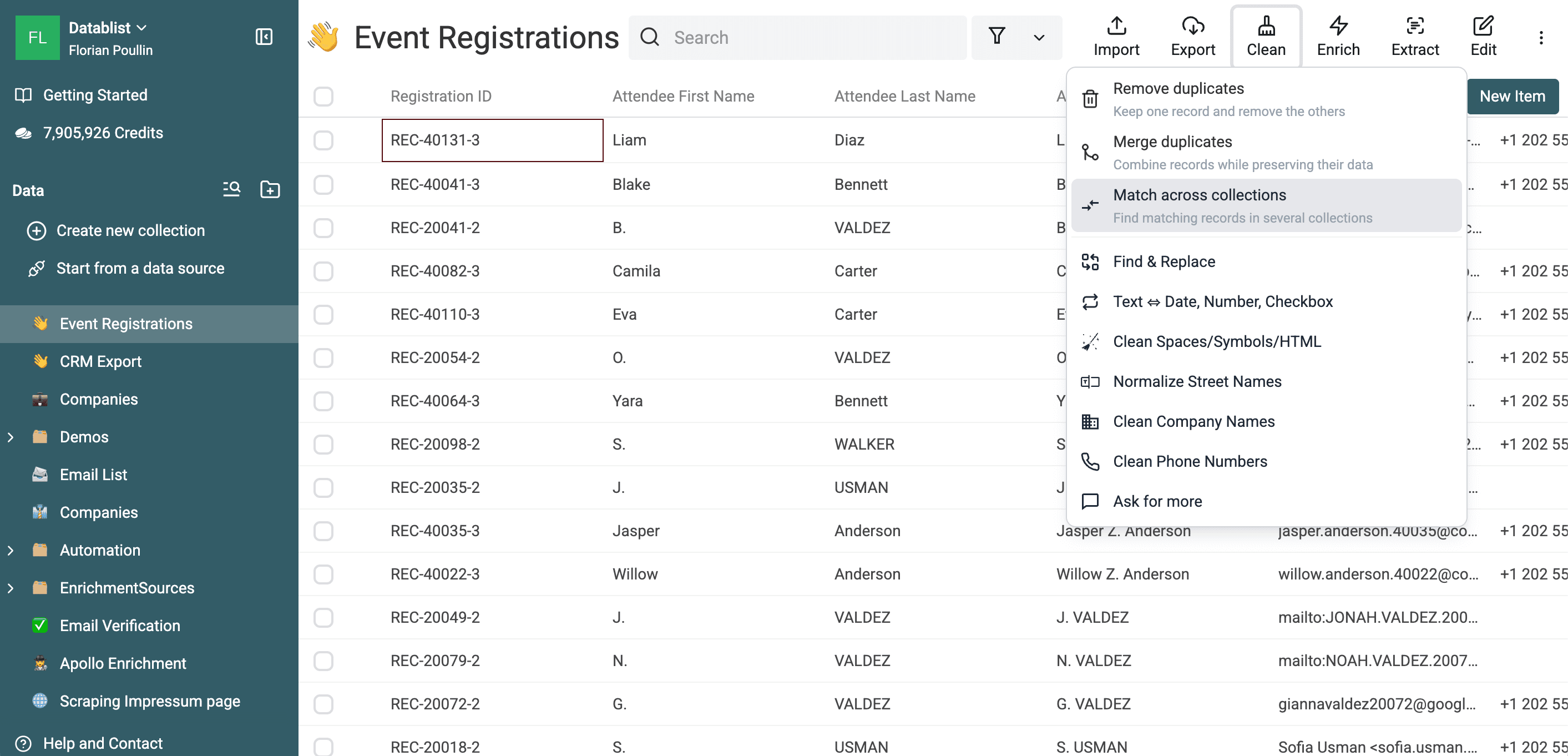
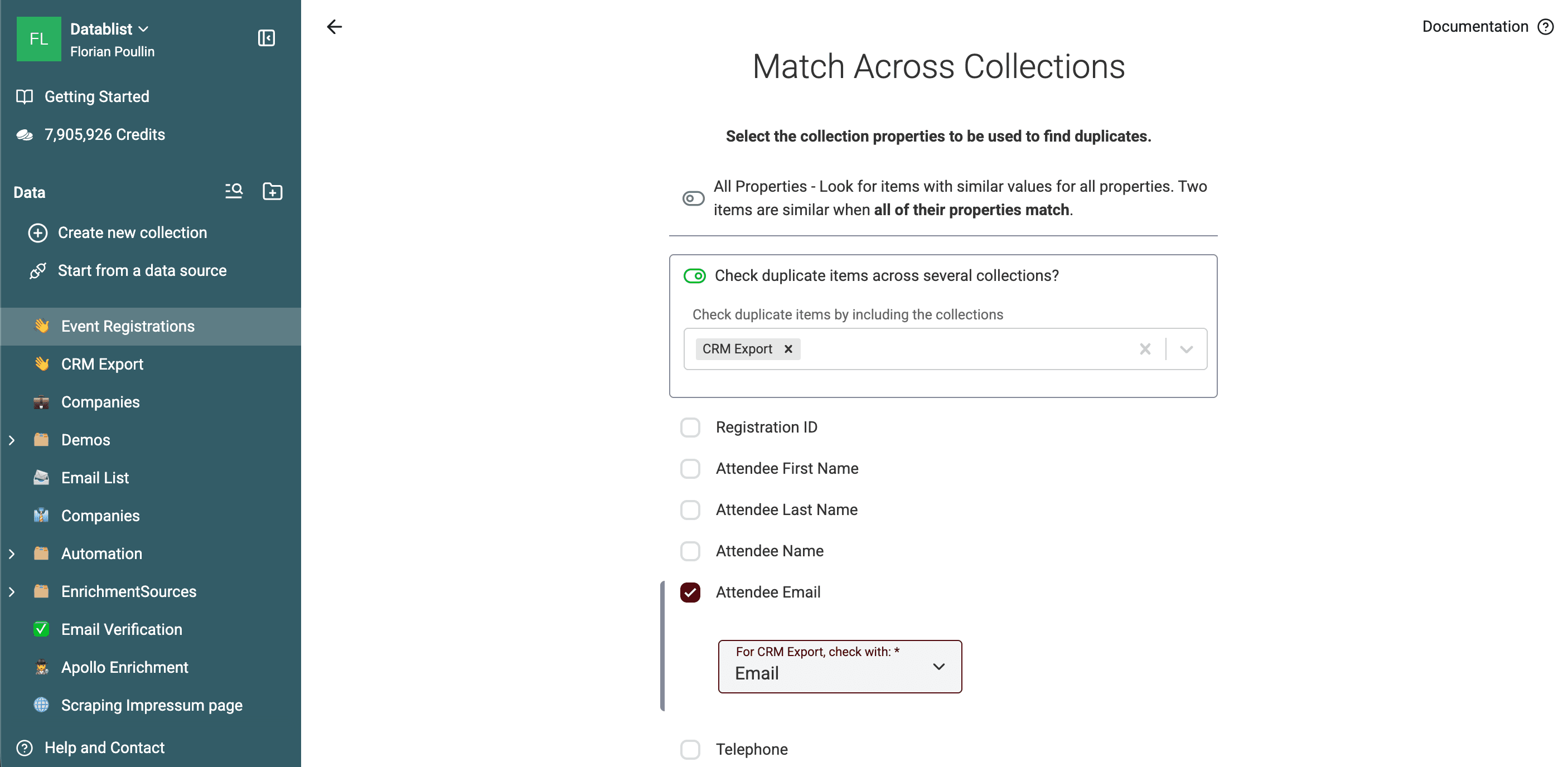
Turn on Check duplicate items across several collections? and add CRM Export.
Select Attendee Email in the event collection. Map it to Email in the CRM
collection.
A strong identifier matters more than the column name. Good candidates include:
- Email address for contacts.
- Phone number when both files use compatible country codes.
- LinkedIn URL for prospect lists.
- Website domain for companies.
- SKU or another stable identifier for products.
Avoid matching on first name alone. Different people often share a name.
If you select several properties in one check, the records must satisfy the complete configuration. Run separate checks when you want to match by email or phone rather than email and phone.
Configure the comparison
Use Exact for stable IDs that must be identical. For emails, select Smart with the Email processor.
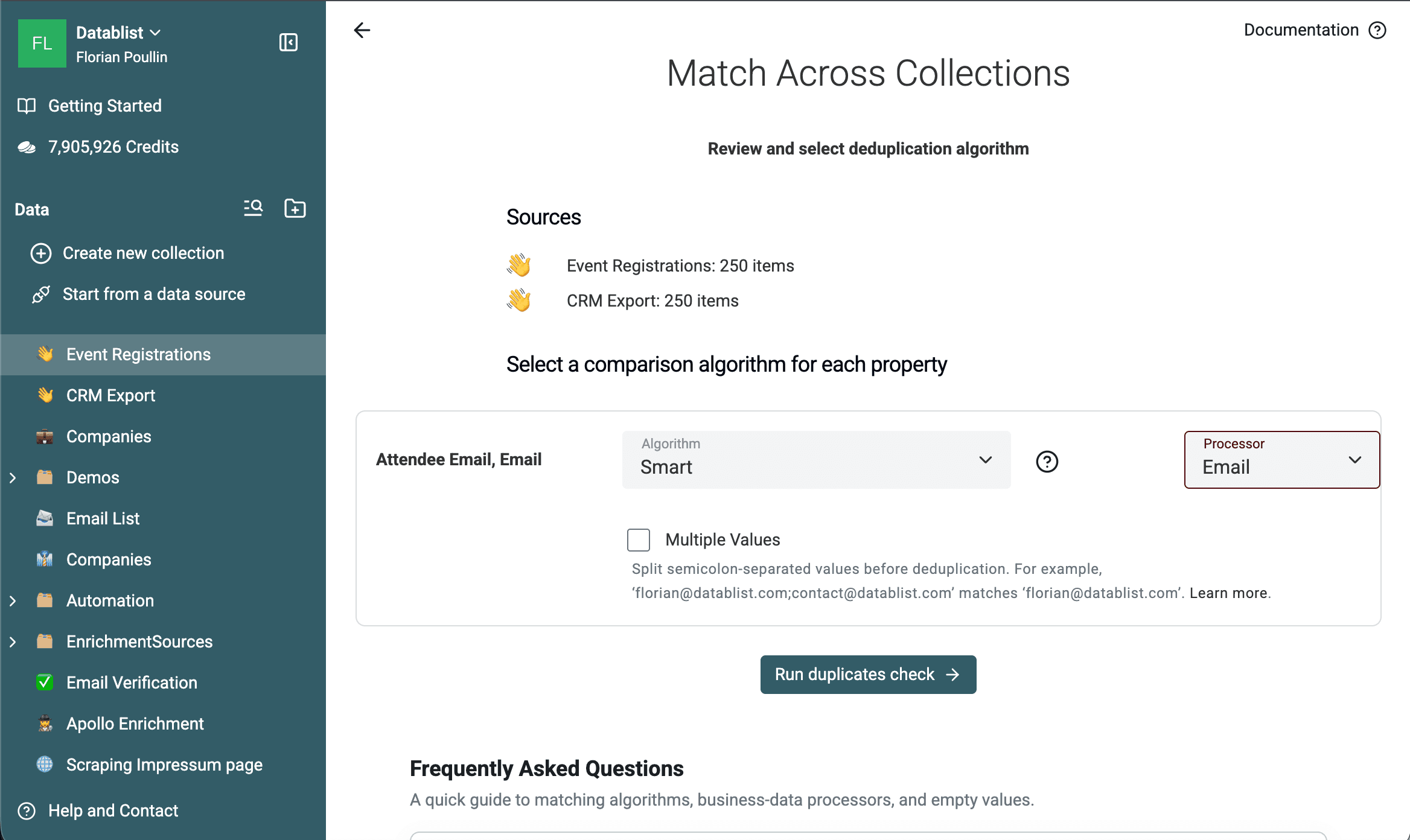
The Email processor standardizes supported email variations for comparison without rewriting the source cells. See the dedicated guide to dedupe email addresses and aliases for email-specific behavior and limitations.
Click Run duplicates check after reviewing the two sources, their item counts, the mapped properties, and the comparison settings.
Review the cross-collection matches
This test checked 500 records and returned 100 cross-collection duplicate groups.
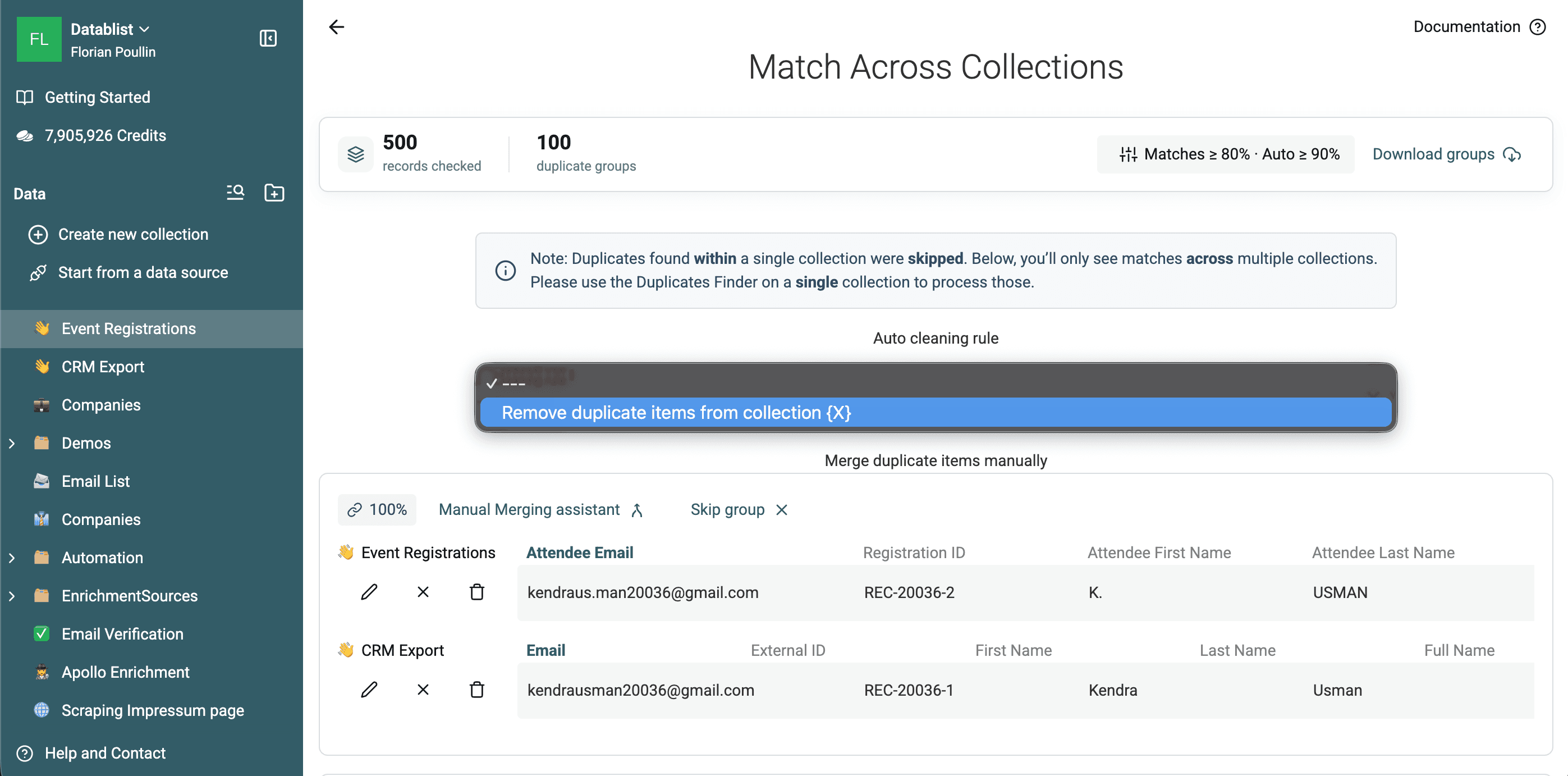
Cross-collection mode only returns groups containing records from more than one
collection. It skips duplicates found solely inside CRM Export or solely
inside Event Registrations.
Review the groups before deleting anything:
- Confirm the mapped identifier represents the same person or company.
- Check whether the incoming row contains unique data.
- Verify which collection is the reference list.
- Download the groups when another person needs to approve the suppression.
- Use the Manual Merging Assistant for an individual group that needs consolidation rather than removal.
If you also need to clean duplicates within either file, run the single-collection Duplicates Finder workflow on that collection separately.
Remove overlaps from the incoming list
Choose Remove duplicate items from collection {X}, then select Event Registrations as the collection to clean.
Datablist shows the impact before processing:
- Matched records in
Event Registrationswill be removed. CRM Exportwill not change.- Event records without a match in the CRM will remain.
- Unique values held only by a removed event record will be lost.
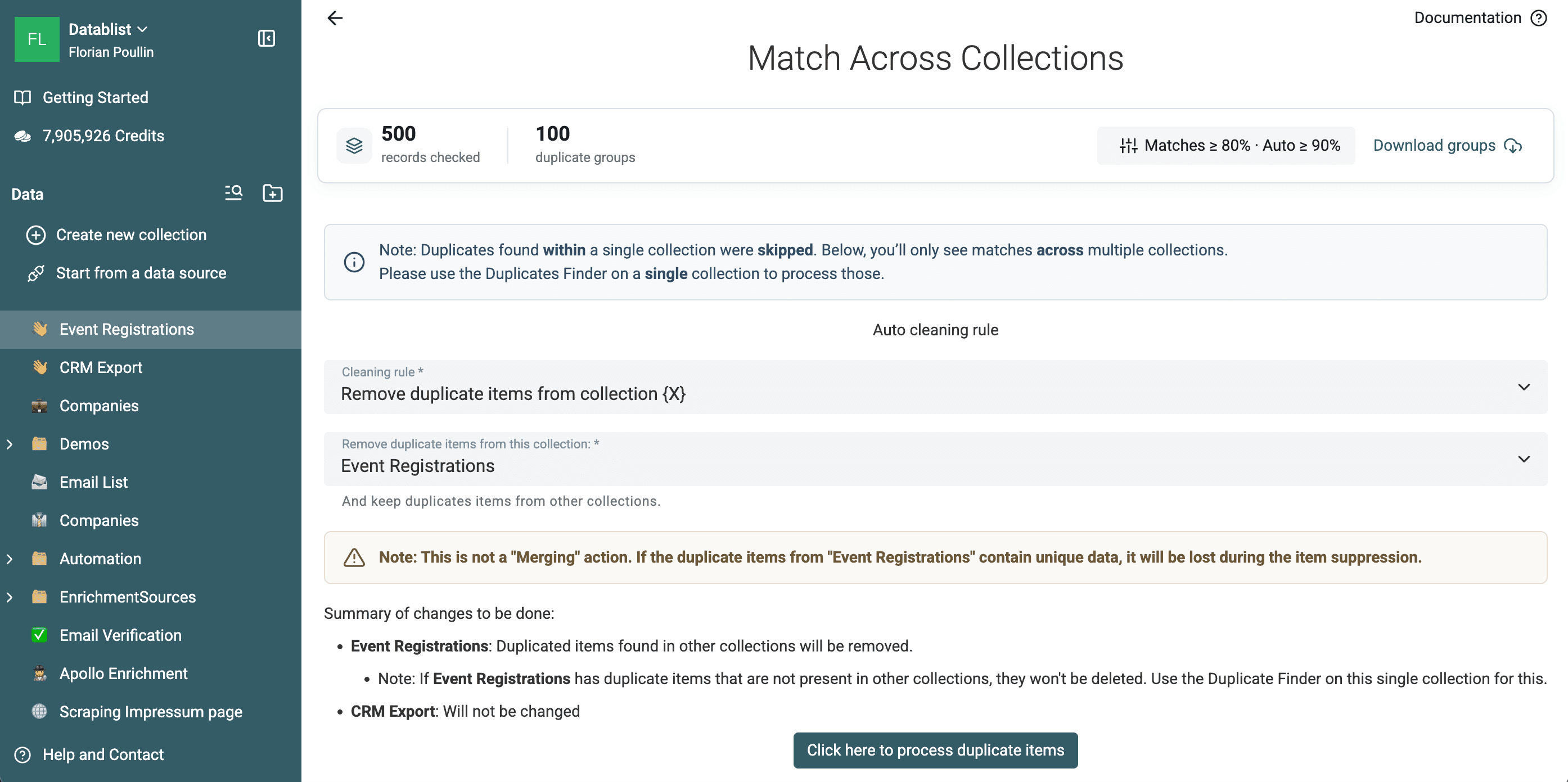
⚠️ This action does not merge data into the CRM
If an event record contains a useful phone number, source, consent field, or note missing from the CRM, automatic suppression will not copy it. Review or export the groups first, or use the Manual Merging Assistant for the affected groups.
With three or more collections, Datablist also offers a rule that keeps duplicate records only in one selected collection. Check the summary carefully before processing because the action can remove records from several sources.
Click Process duplicate items when the selected collection and summary match your intended operation.
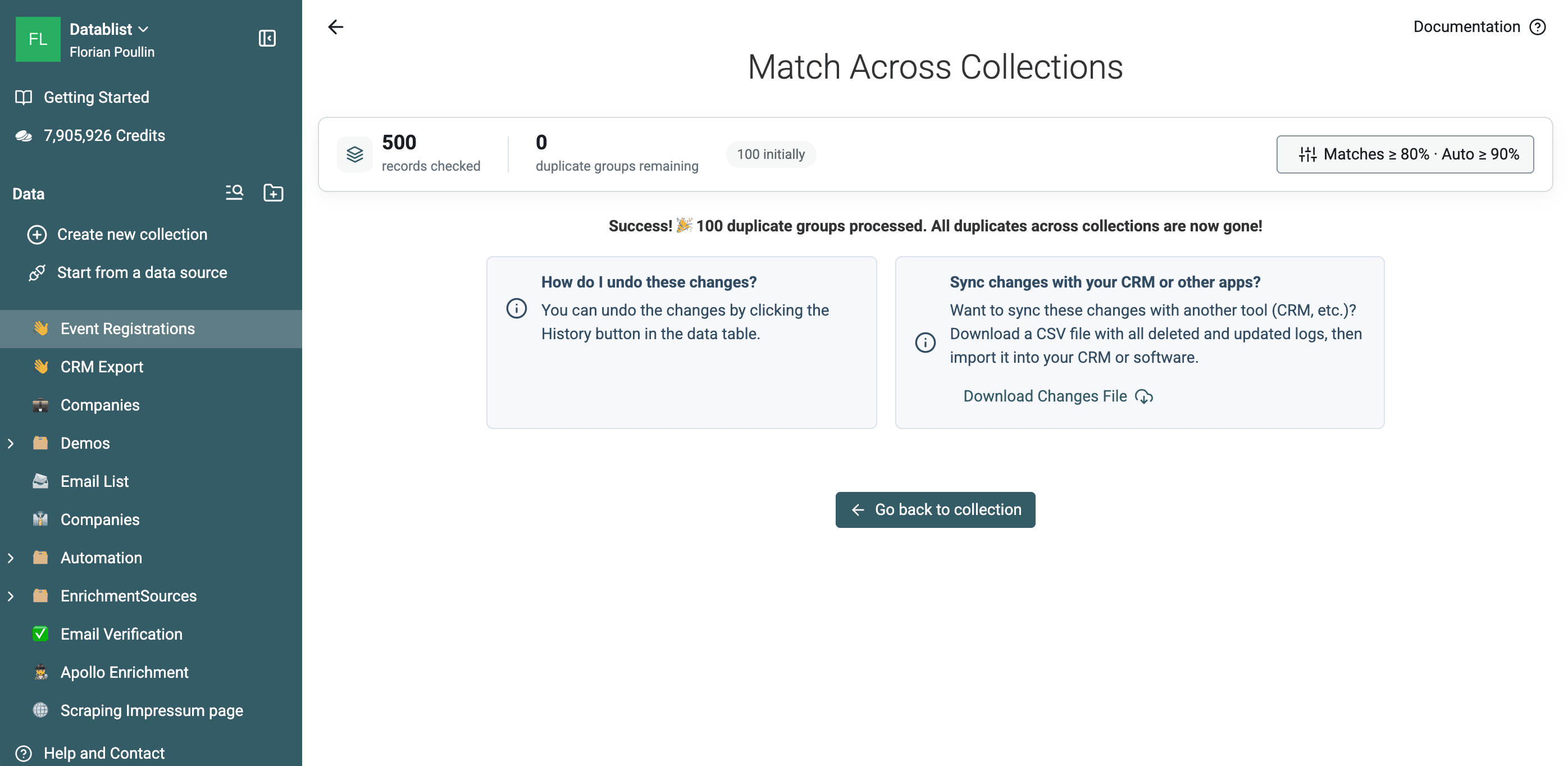
Datablist processed all 100 cross-collection groups in this run. The results screen then reported zero groups remaining.
Validate the cleaned list
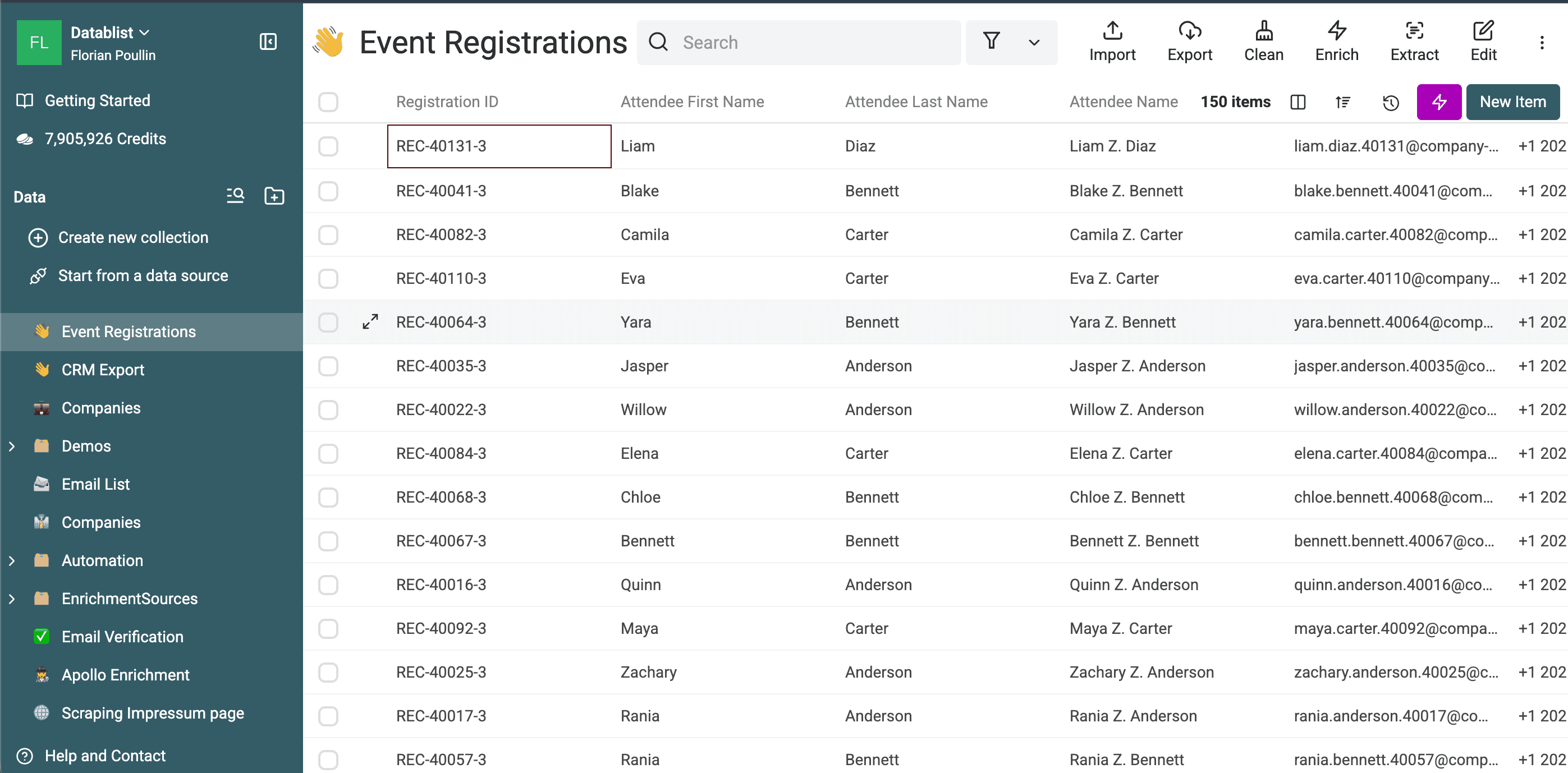
Return to Event Registrations. The collection now contains 150 items.
The row-count reconciliation is:
250 incoming rows - 100 matched CRM contacts = 150 net-new rows
Before exporting, verify:
CRM Exportstill contains 250 items.Event Registrationscontains 150 items.- A few known CRM email addresses no longer appear in the event list.
- Unmatched event contacts remain.
- The processed operation appears in History if you need to undo it.
Export the cleaned event collection to CSV or Excel. It is now ready for a net-new lead workflow without re-importing contacts already stored in the CRM.
Limits of cross-collection deduplication
Cross-collection matching has a narrower purpose than merging files:
- Automatic processing removes records. It does not consolidate fields across collections.
- Internal duplicates in one collection are skipped.
- Every comparison property must be mapped across the selected collections.
- Matching several properties makes the rule stricter.
- Smart, fuzzy, and phonetic matching can return candidates that need human review.
- Cross-collection matching requires a paid plan.
Use this workflow for suppression lists, CRM import checks, event lead cleanup, campaign audience exclusions, or any process where one list must remain the source of truth.
If you need to combine files into one table before deduplication, follow the guide to merge spreadsheets. If you need to preserve complementary values within one collection, use the single-list workflow to merge duplicate leads without losing data.