
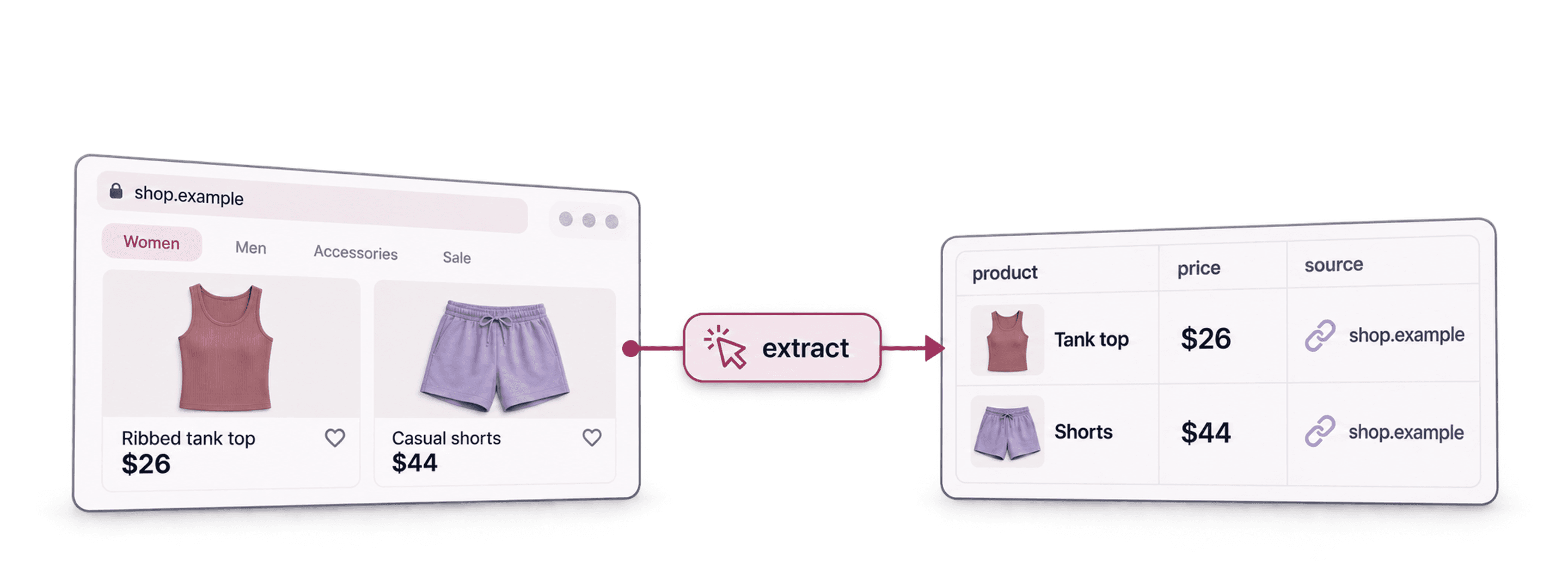
To scrape ecommerce product listings without code, give Datablist's AI Agent - Site Scraper a category URL and a prompt for the fields you need. Enable pagination when the store has more than one listing page, set a page limit, and check product URLs and prices in the first results. This guide uses a Gymshark category page as an example; the number of products and available fields depend on the store.
Input: one category or all-products URL per run. Output: one row per product found, with fields such as name, product URL, displayed price, and image URL when available. Check: compare a few rows with the source pages and remove duplicate product URLs before export. For store feedback rather than product listings, the Trusted Shops review workflow defines one row per review and checks ratings, dates and page overlap before analysis.
Step 1 – Understanding E-Commerce Site Scraping
There are two ways to scrape products from e-commerce sites:
You can either:
-
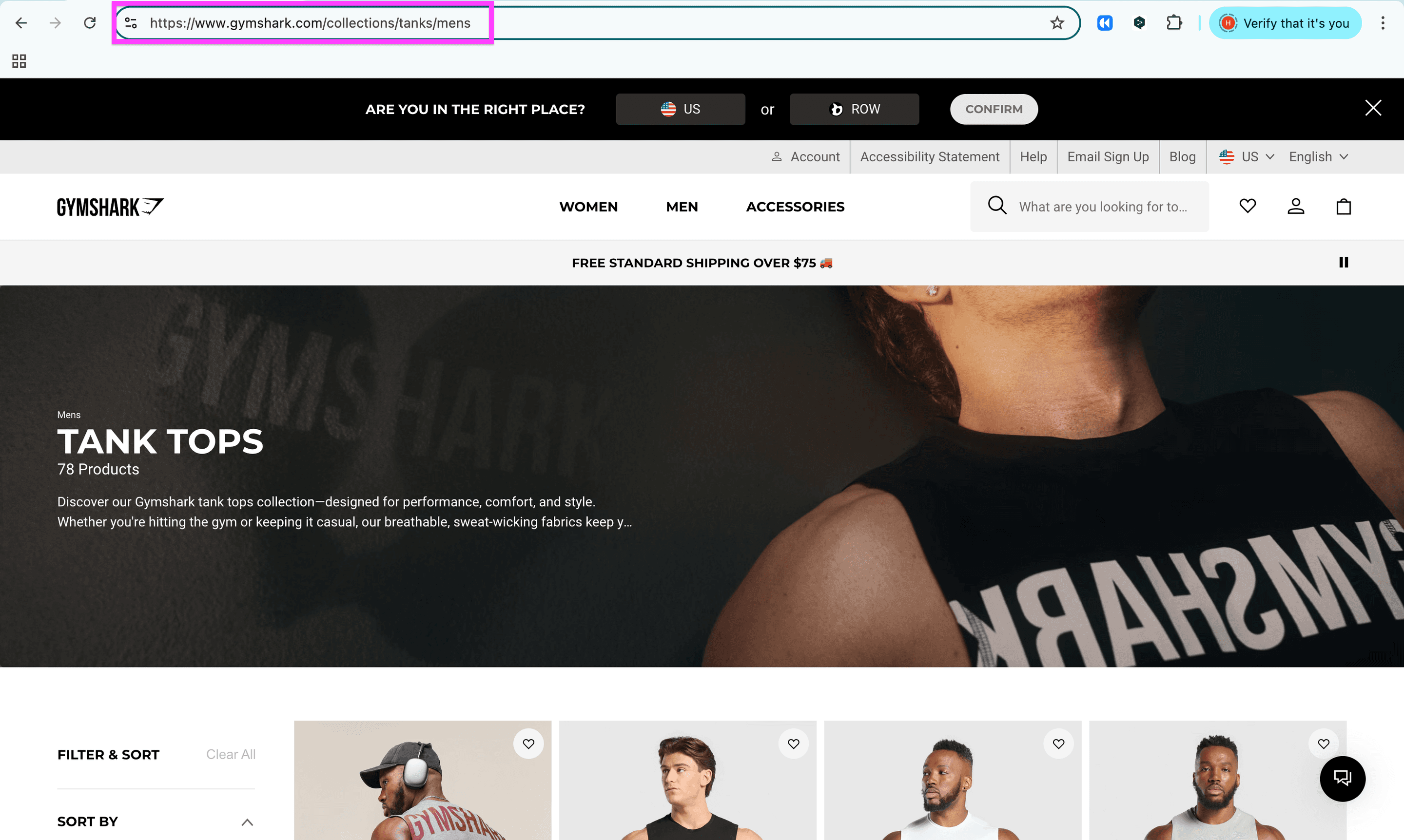
Scrape "Collection/Category" pages to extract selected products from an e-commerce site ⬅️ This is the method we'll apply today
This is the category page I’ll use to scrape all products from -
Start from an "All Products" page when you want broader coverage. The result is still limited to pages the agent can access and the page limit you set.
“All products” pages offer less control about the extracted products
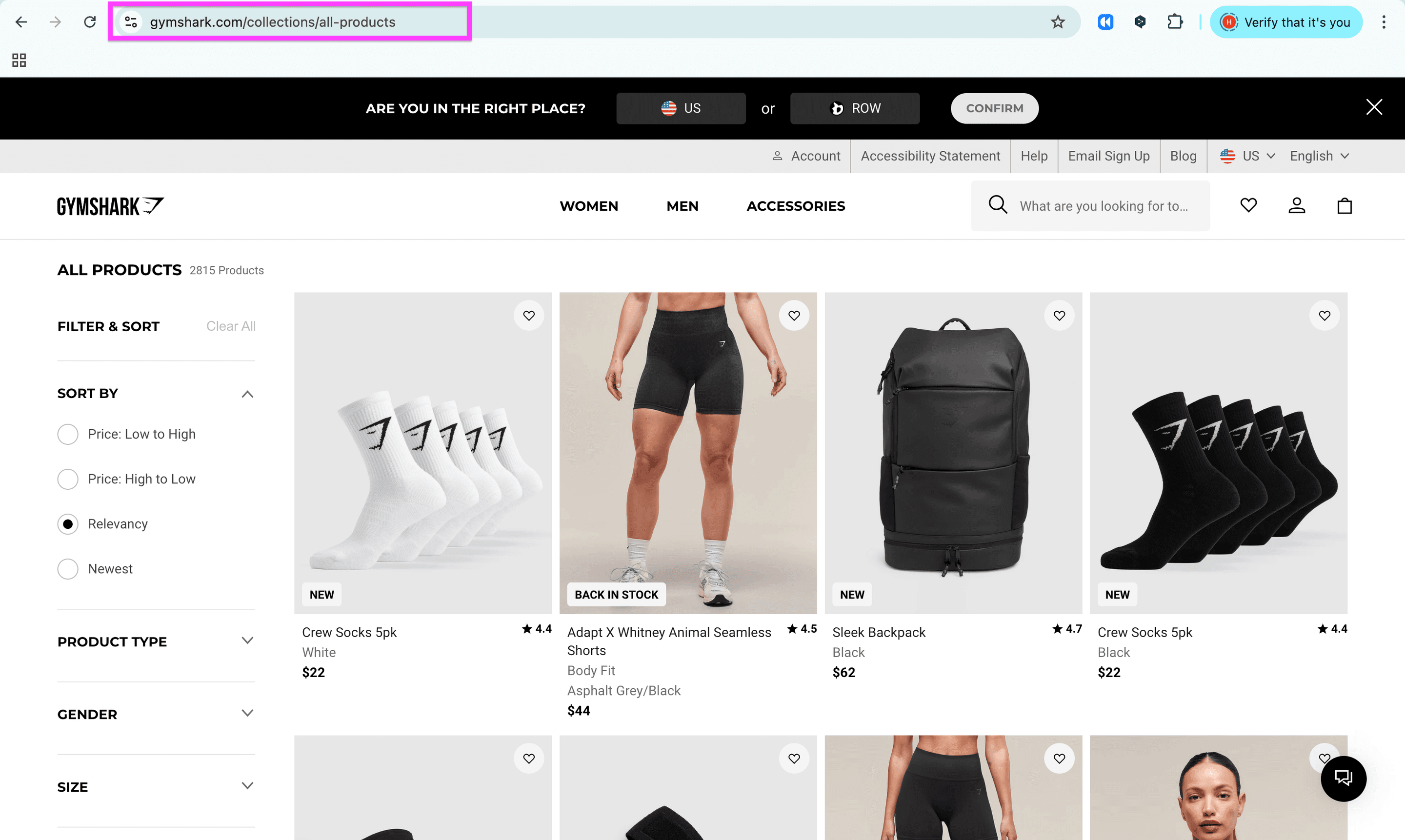
The configuration for the AI agent works in the same way, only the starting points are different.
Step 2 – Preparing the Scraping of E-commerce Sites
Preparation is half the battle, right? Here's what we will do to prepare the scraping of the e-commerce sites:
- Choose a category or all-products URL for the store you want to inspect
- Sign up for Datablist
- Create a collection in Datablist
Let's begin!
To scrape products from e-commerce sites without code, you need a tool that lets you do this in plain English. One of these tools is the AI Research Agent in Datablist.
Once you've signed up for Datablist, you'll need to set up your automation. I'll explain how!
Create a new collection by clicking on the plus, or just use the shortcut "N"
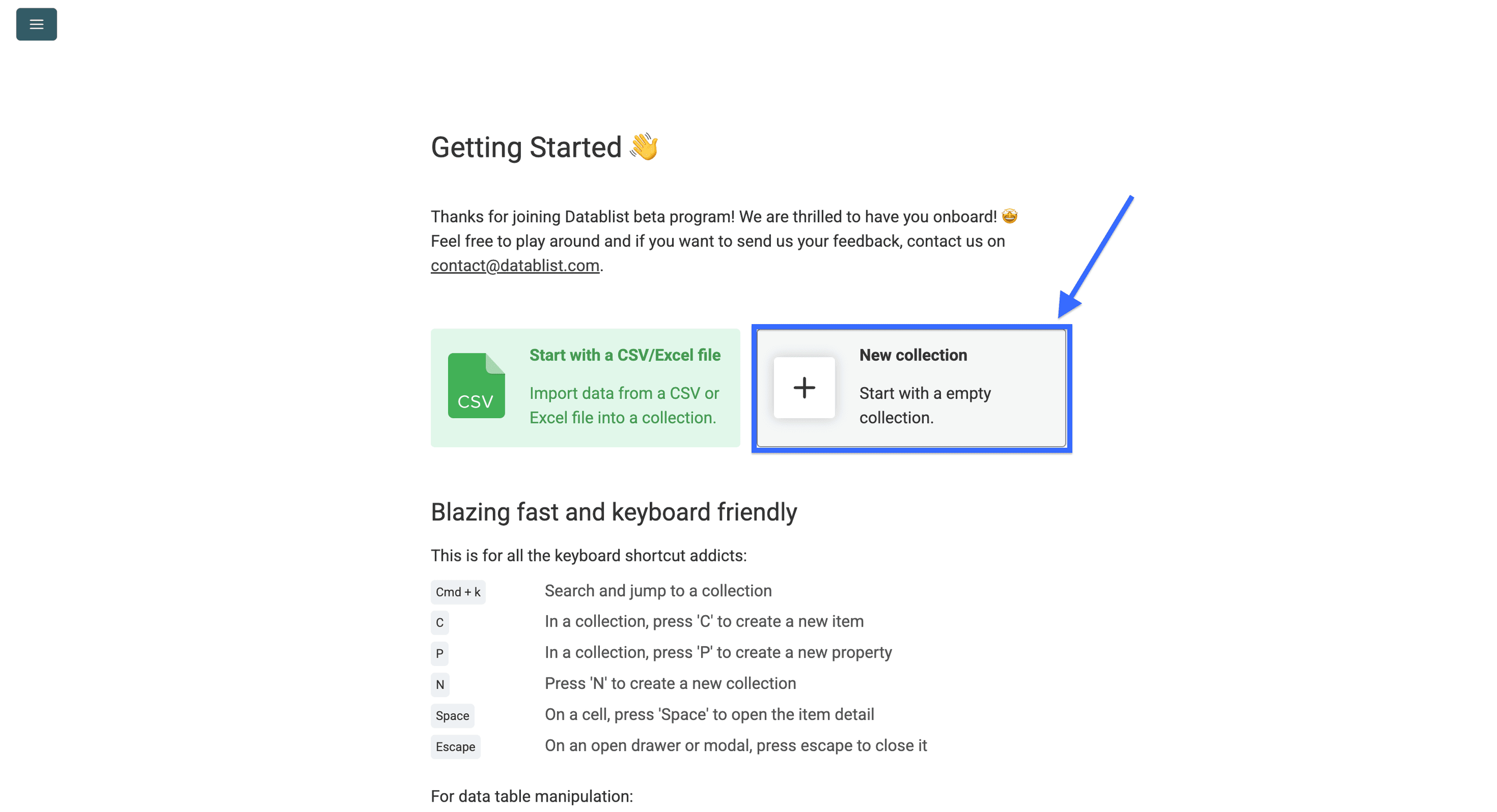
This is what you’ll see when creating a new collection. I’ve already renamed my collection (I gave it a nice emoji too)
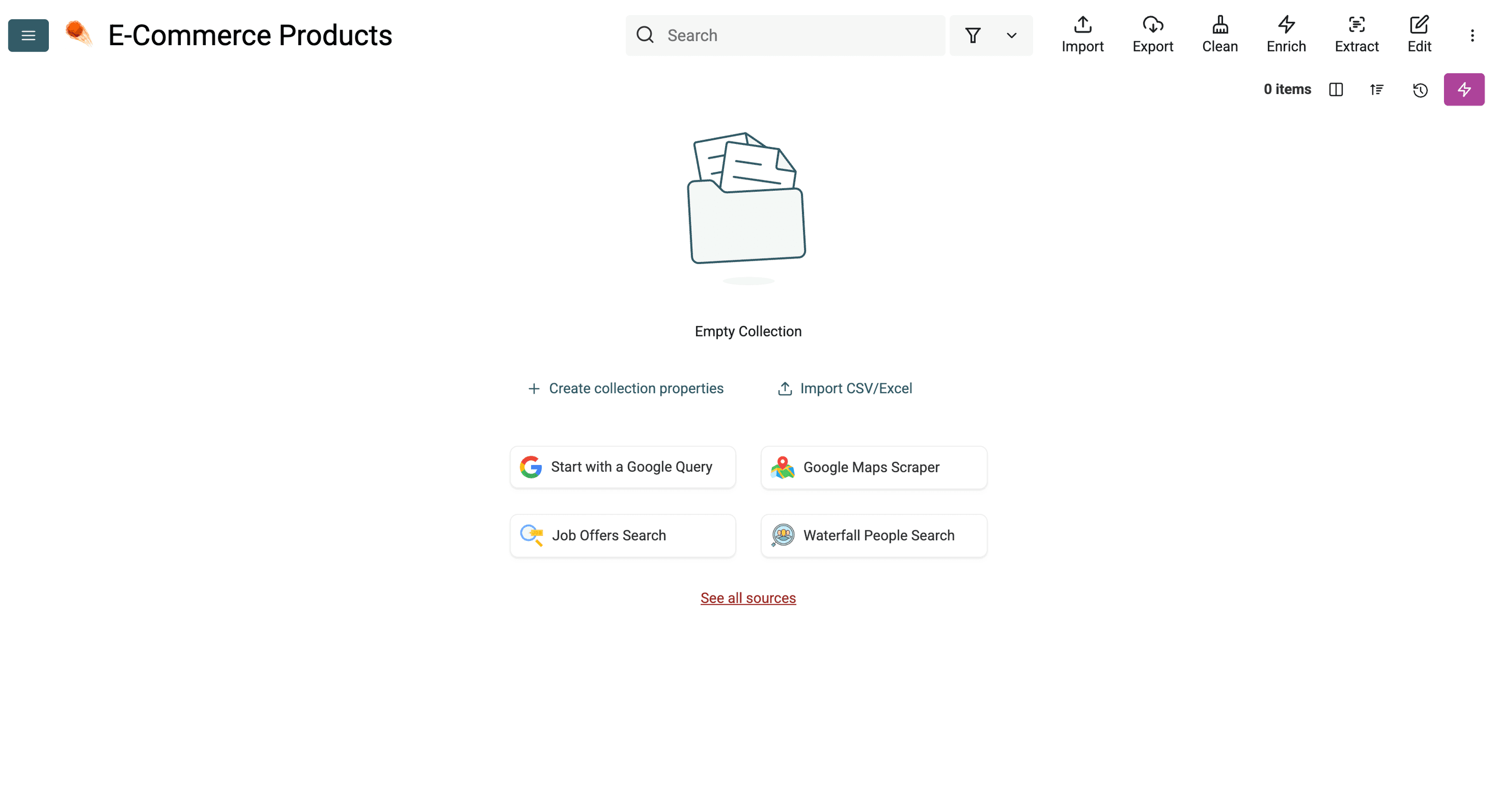
That’s it with preparation. Now comes the action.
Step 3 – Getting Started with the Scraping of E-commerce Sites
To get started with scraping products from e-commerce sites, you need to do 3 things:
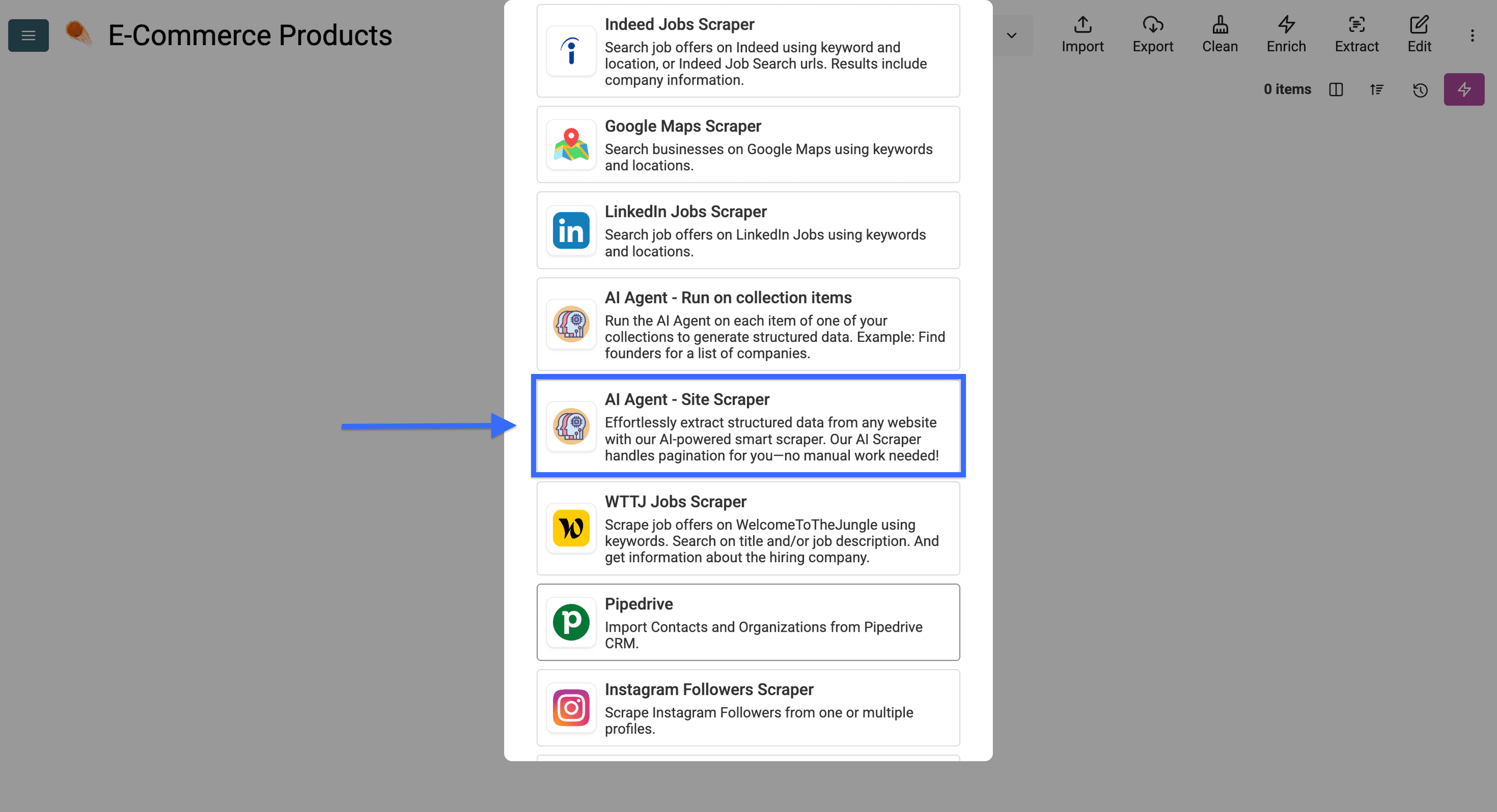
- Choose the "AI Agent - Site Scraper" as a source
- Paste the prompt that explains to the AI Agent what your goal is
- Create an output property for each product information you want to scrape
Now that we have outlined everything we are going to do — let's start scraping!
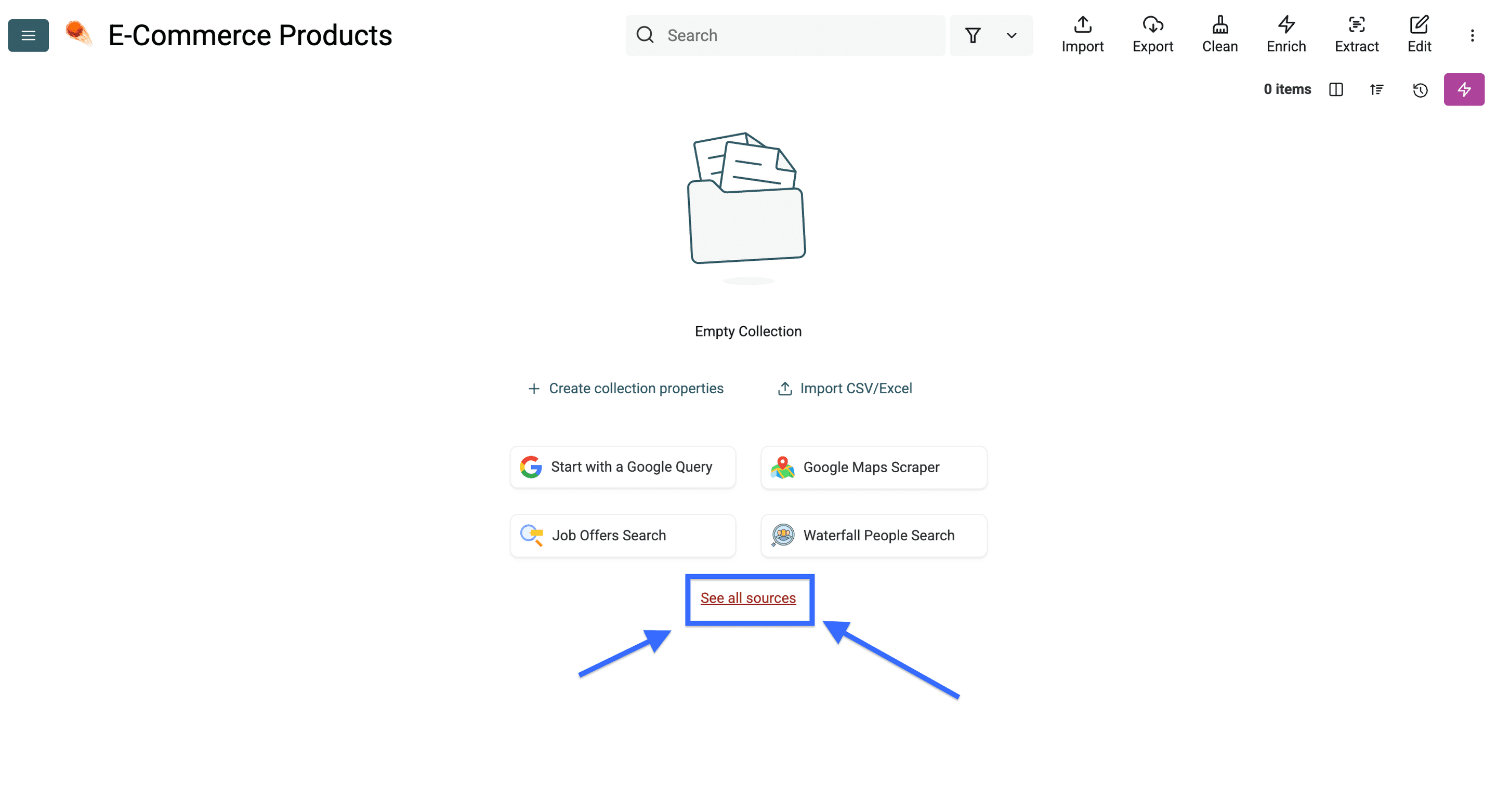
Click on "See all sources" to start configuring the AI agent for scraping
Now select the “AI Agent - Site Scraper”
Paste the URL of the site you want to scrape products from in the first field.
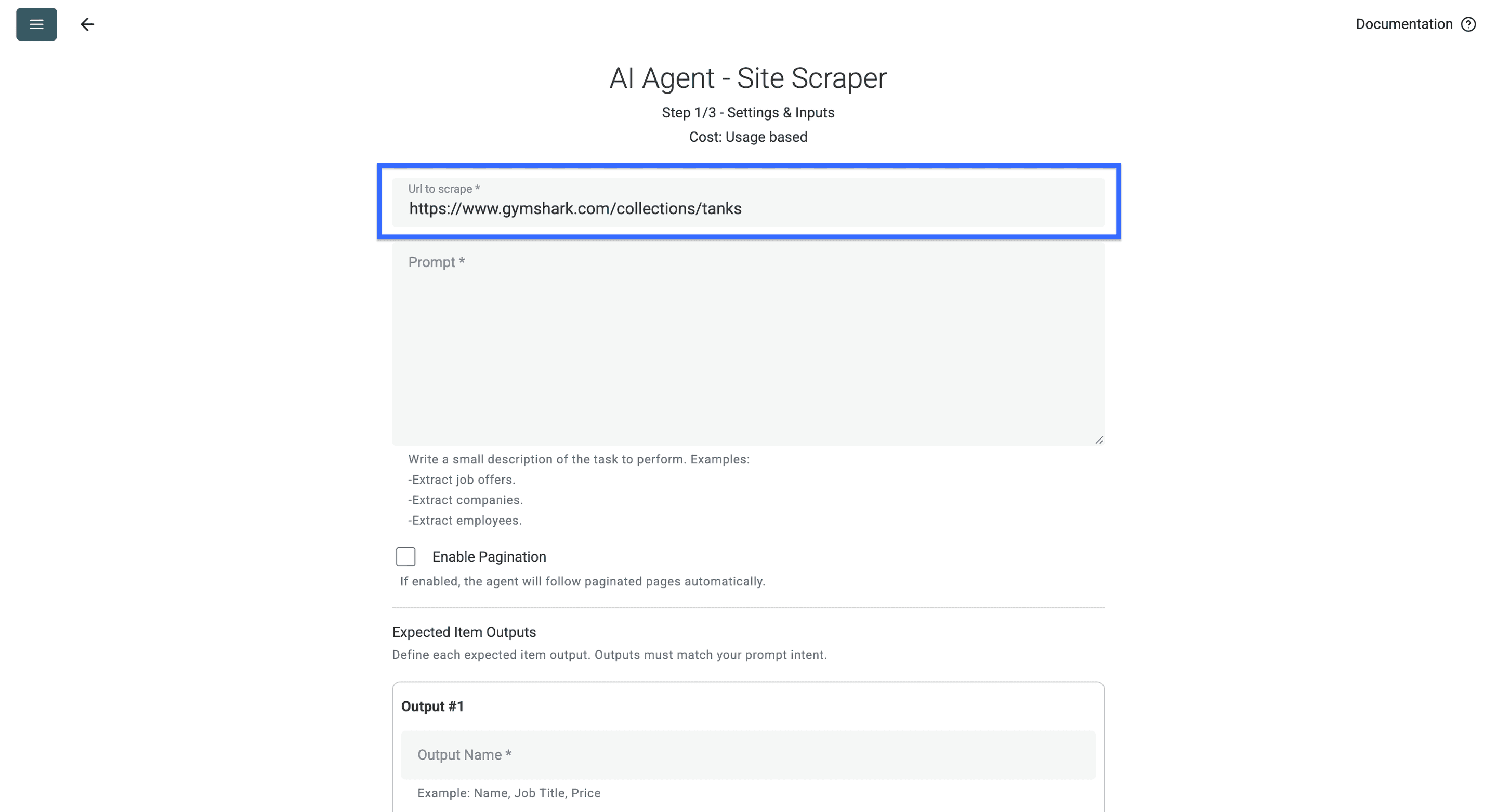
Then type in a prompt explaining to the AI agent what information you want to scrape from that e-commerce site (you can also use my prompt below)
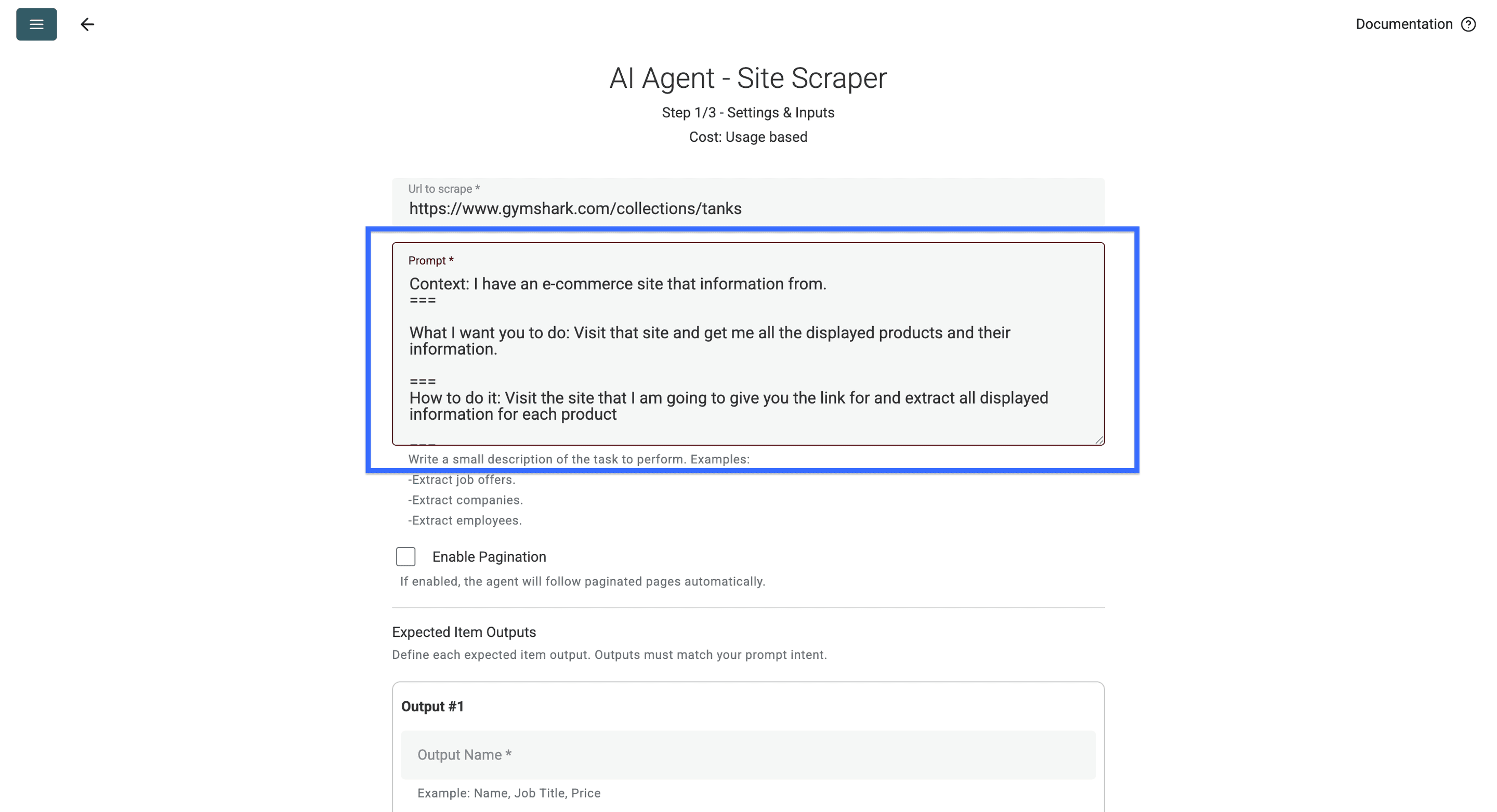
Context: I have an e-commerce site with a listing of products.
===What I want you to do: Visit that site and get me all the displayed products and their information.
===How to do it: Visit the site that I am going to give you the link for and extract all displayed information for each product.
===Important mention about the task: Don't extract any information that isn't linked to a product, e.g. call to actions
===Here's a description of what we are looking for:
- Name of the Product
- Link to the product page
- Original Price of the product in the displayed currency
- Product category: (examples: Nutritionally Complete Instant Meals, Tank tops, Socken)
- Product specification 1: (examples: Compression fit, 40g protein, Premium Füßlinge)
- Product specification 2: (examples: Color, pieces, servings)
- Special Tags: (examples: New, limited edition, last chance etc. Return "None" if there none)
- Absolute link to the product picture
- Discount in % (if available. Return "None" if there's no discount)
Don't return anything what doesn't fall in these data types and return only one piece of information for each type
===Important mention about the data: Not all pages are structured in the same way but the products are all labeled well enough that you should be able to recognize the distinctions between the data point.
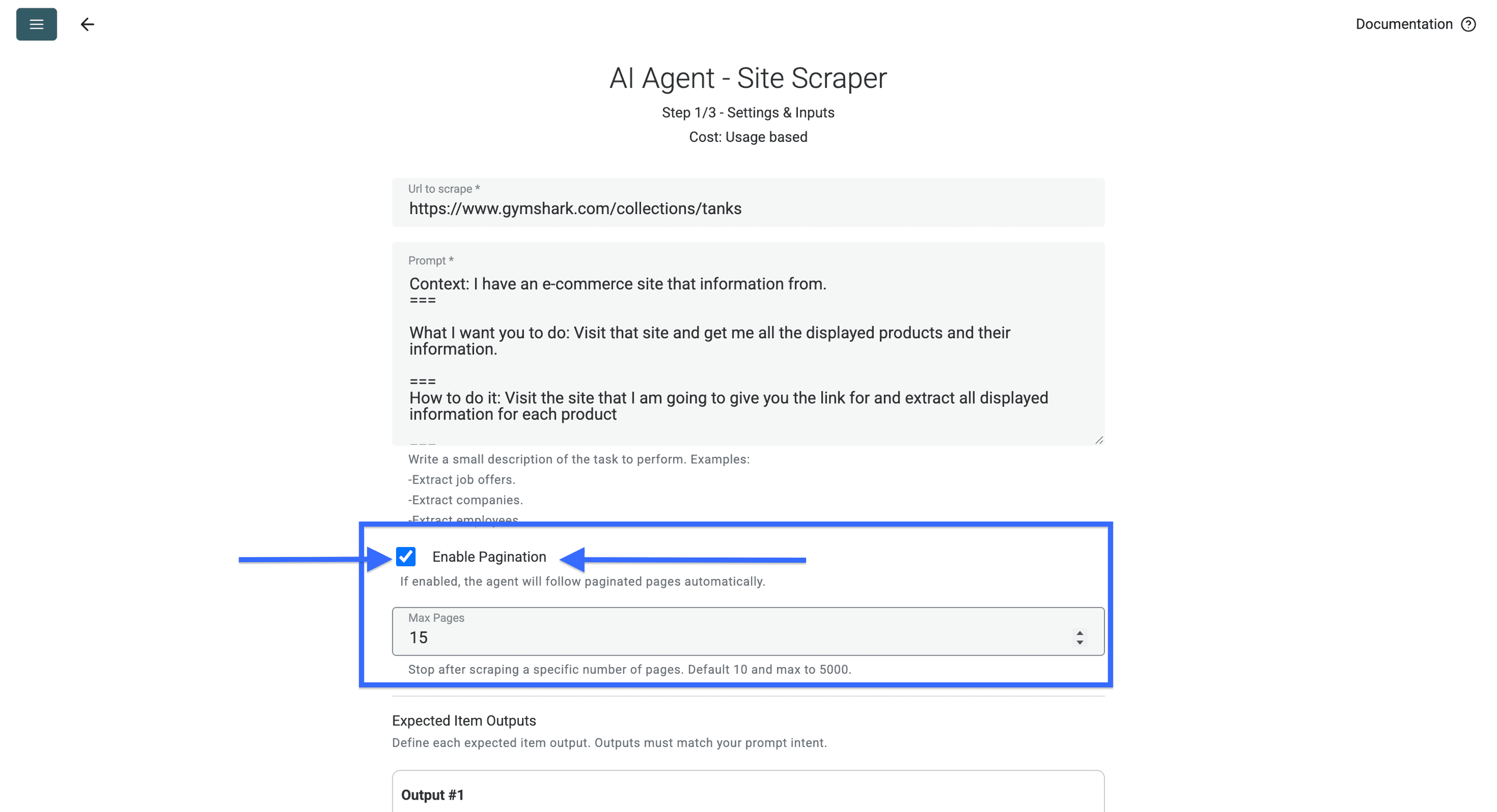
If the listing has more than one page, turn on Enable Pagination and set Max Pages to a small number for the first run. The page limit controls pages visited, not the number of products returned. Check whether the next-page links are accessible; a single page or a blocked next page will not produce a complete catalog.
Now you have to create an output field/column for each type of product information you want to scrape.
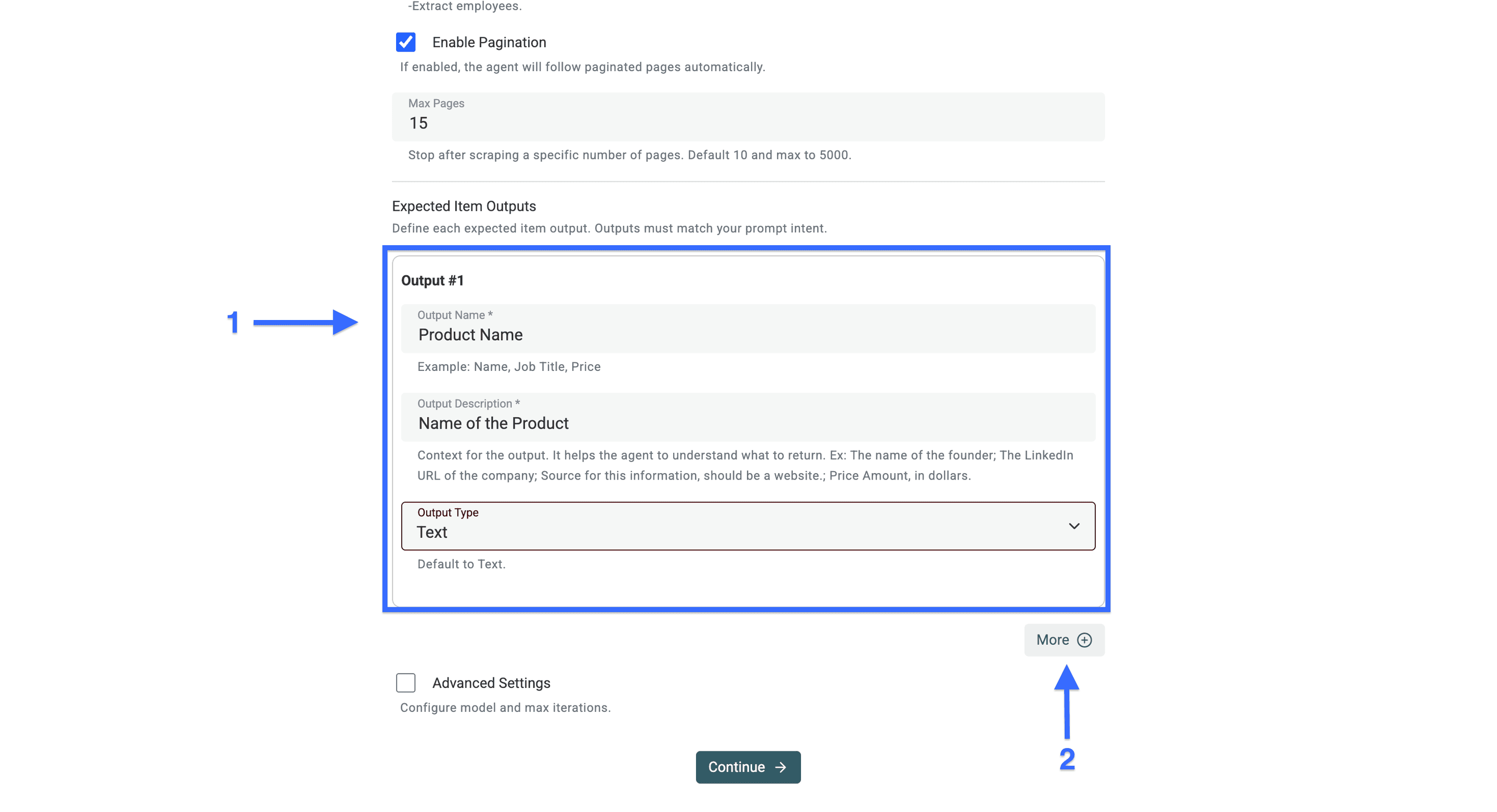
Click on "More" to create more output fields, and continue this process until you have an output field for each information type
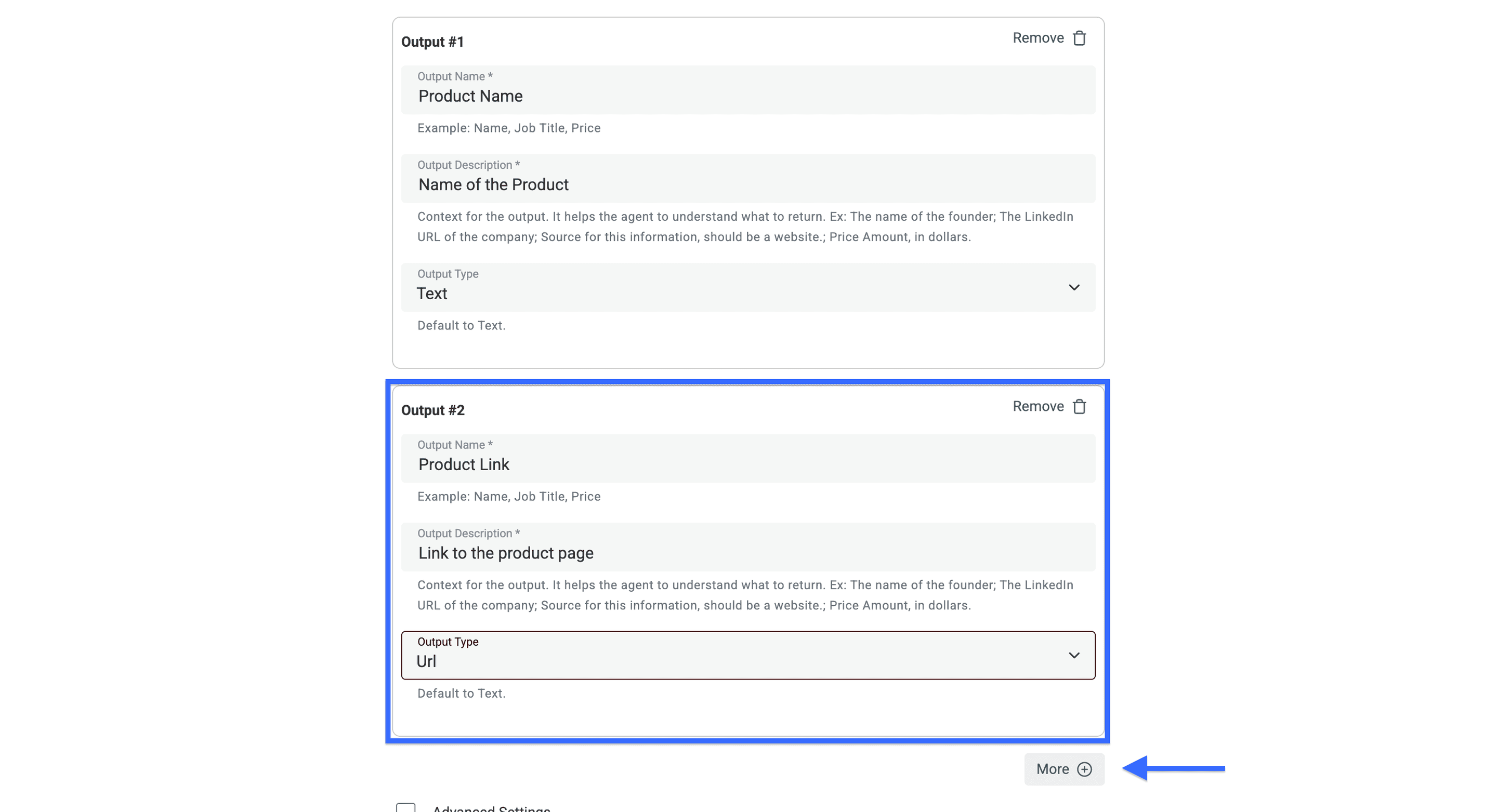
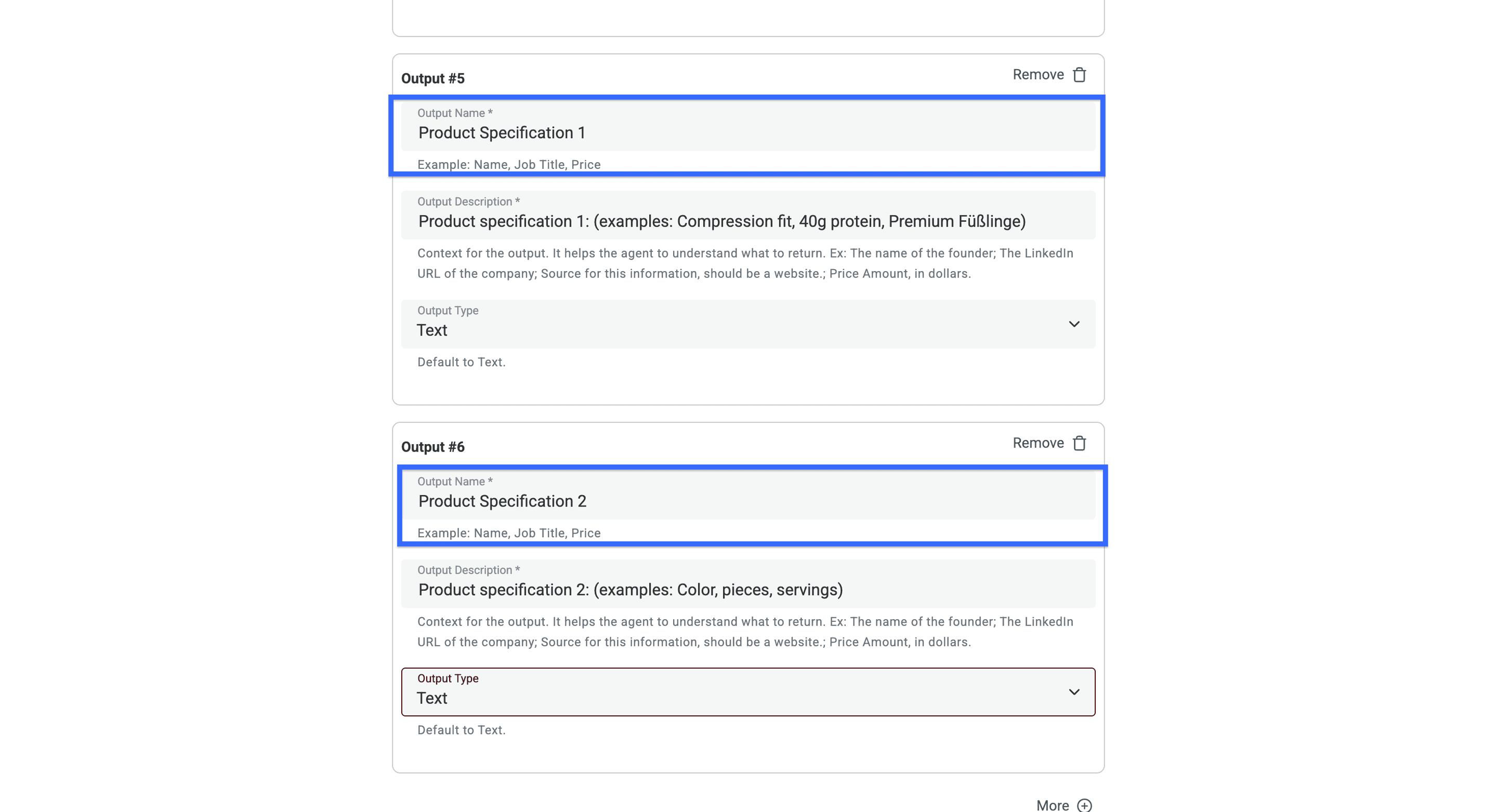
If you need the product specifications stored separately, create a field for each product specification. Here's an example:
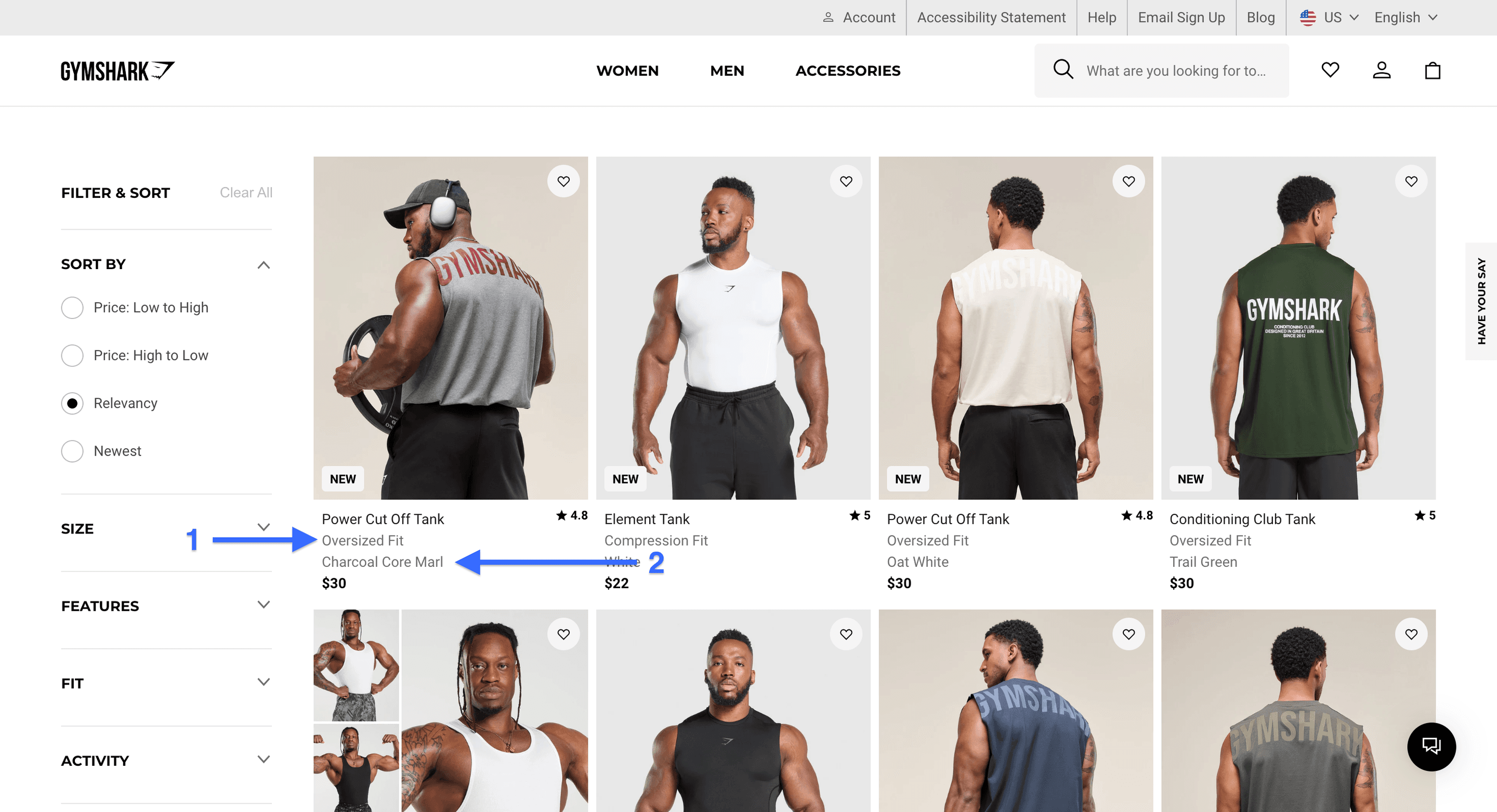
💡 Do This for More Accurate Scraping Results
Give the AI Agents explicit examples of the product specifications you want to have. Here’s an example based on GymShark’s Tank tops (the picture above)
Product specification 1: Slim Fit
Product specification 2: Black
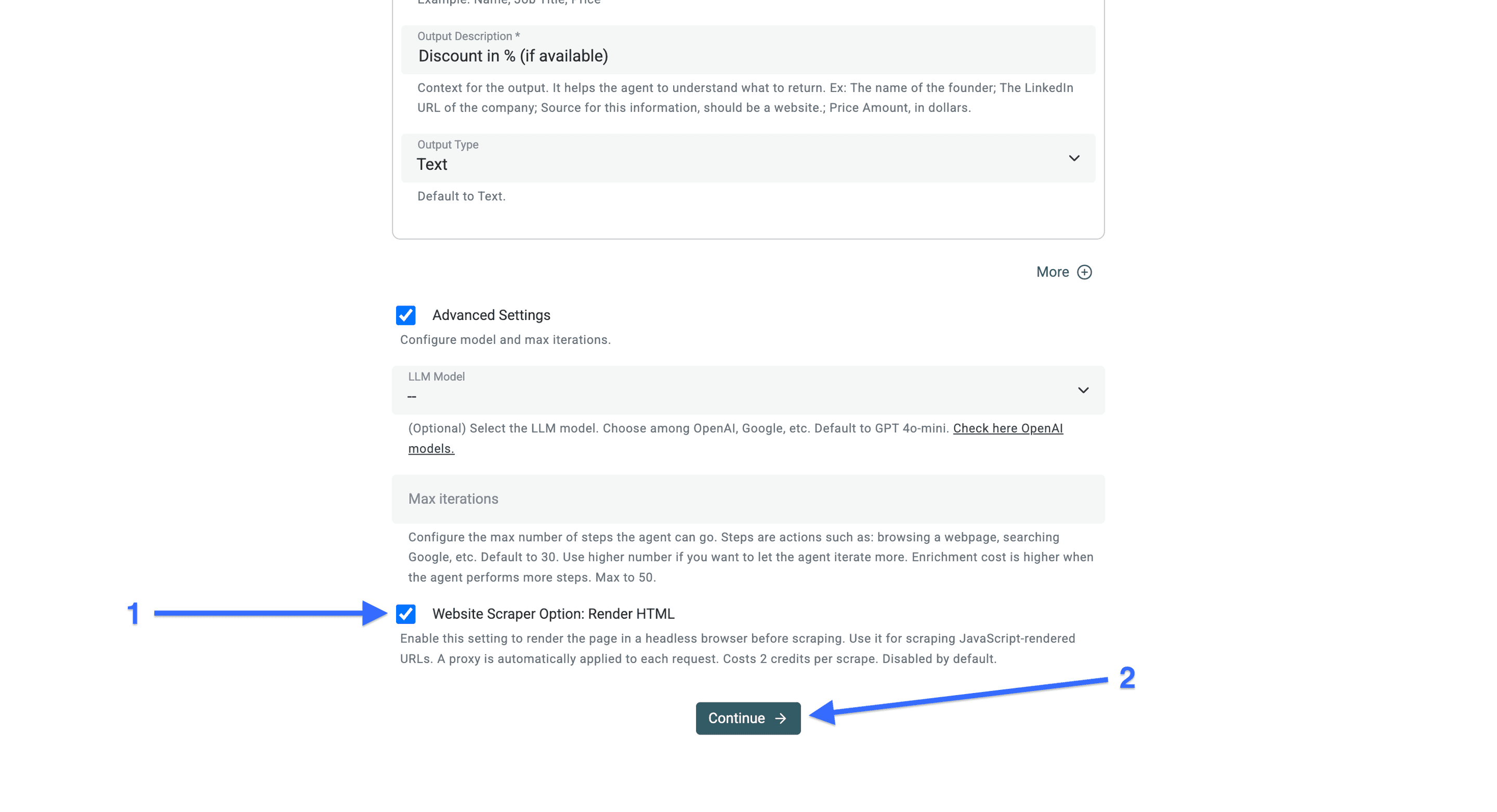
Once you have created all the output fields for the information you want to scrape, click on the checkbox for "Advanced Settings"
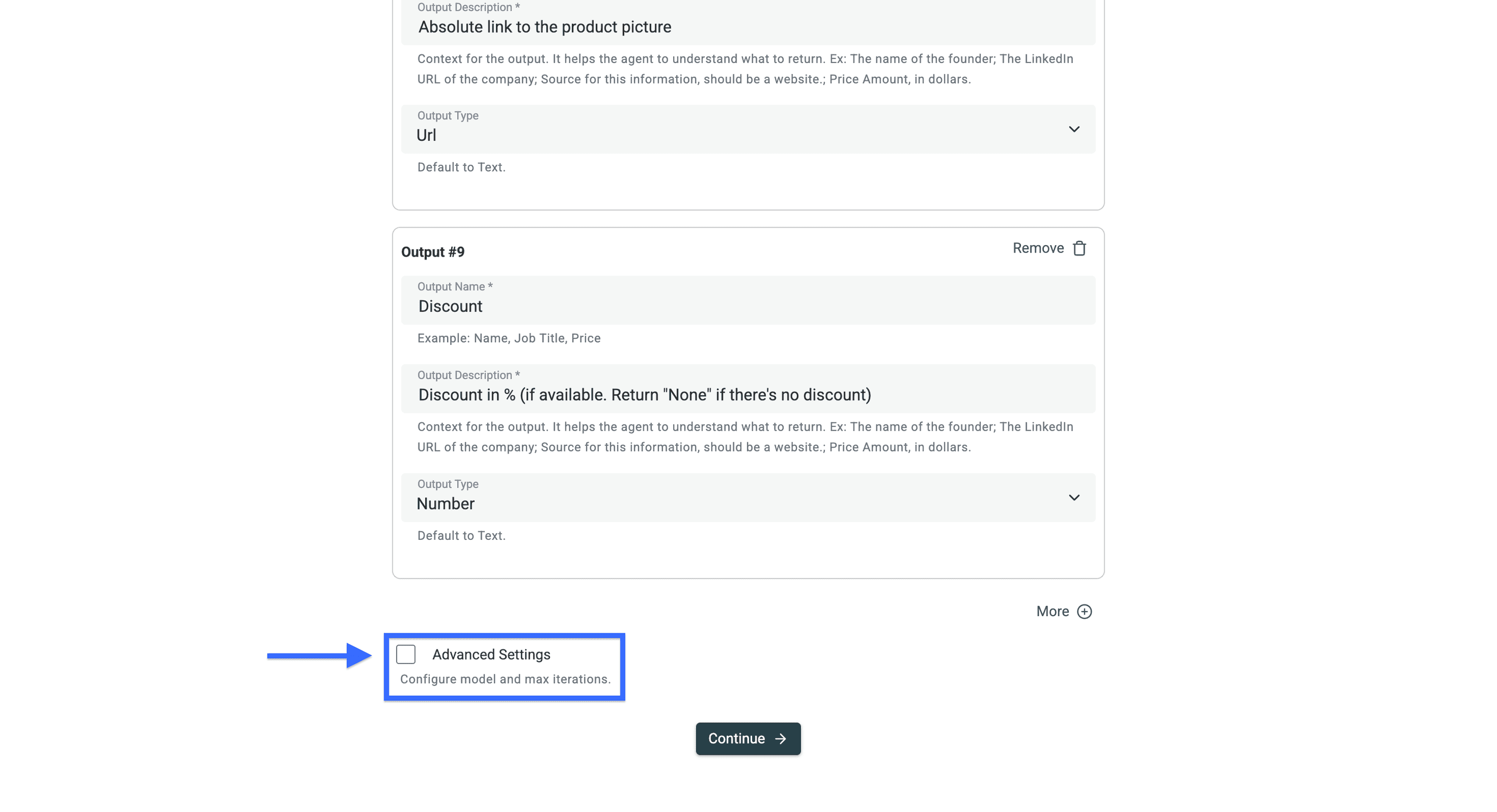
Now you can:
- Choose an available model if the default does not fit your cost or extraction needs; compare a small sample before a larger run.
- Set the maximum number of iterations. More iterations can increase credit usage; learn how AI agents work.
- Try Render HTML if products load through JavaScript and the first run returns no usable rows. Recheck the output after enabling it.
Once you enabled it click on “Continue”.
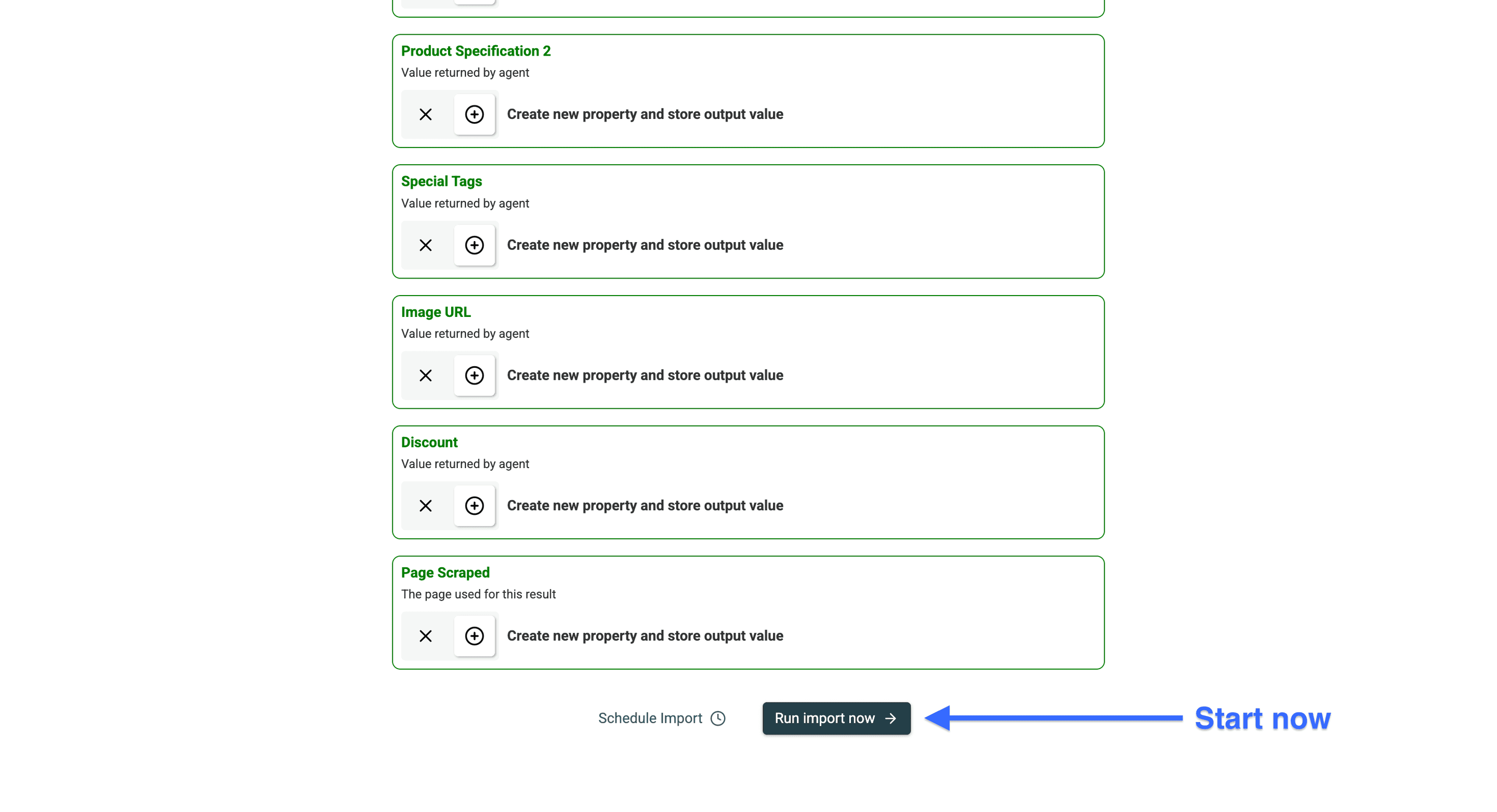
Then click Run import now to extract products from the URL configured for this run.
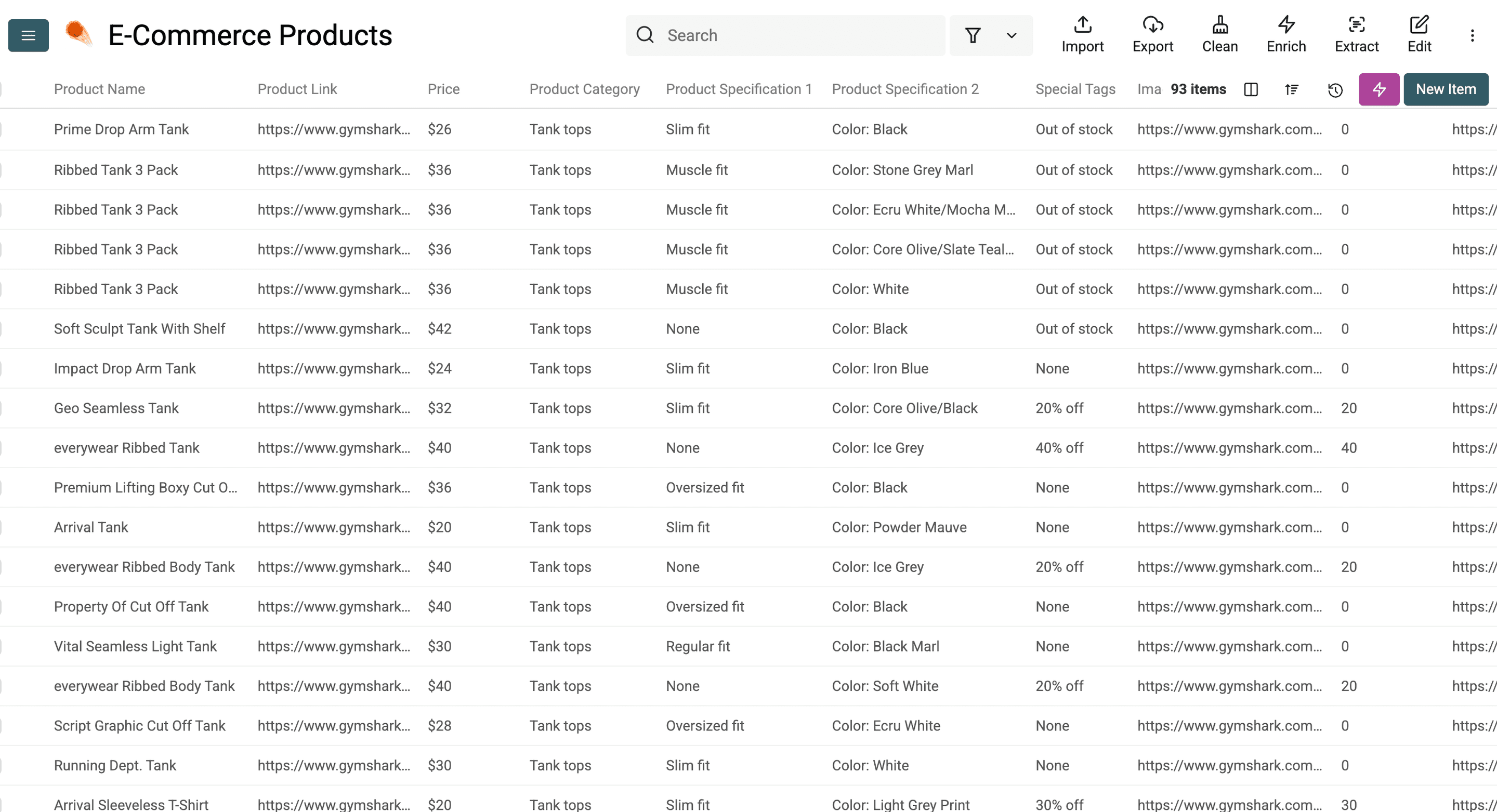
Here is an example result from the website scraper AI Agent. The fields and row count depend on the source page and your prompt.
💡 Do This to Avoid Duplicates
Use the product URL as a unique identifier when the store gives each product a stable URL. Product names can repeat across sizes or variants. Uniqueness prevents duplicate rows in the collection; it does not prevent the agent from visiting pages or using credits on a later run.
See instructions below ⬇️
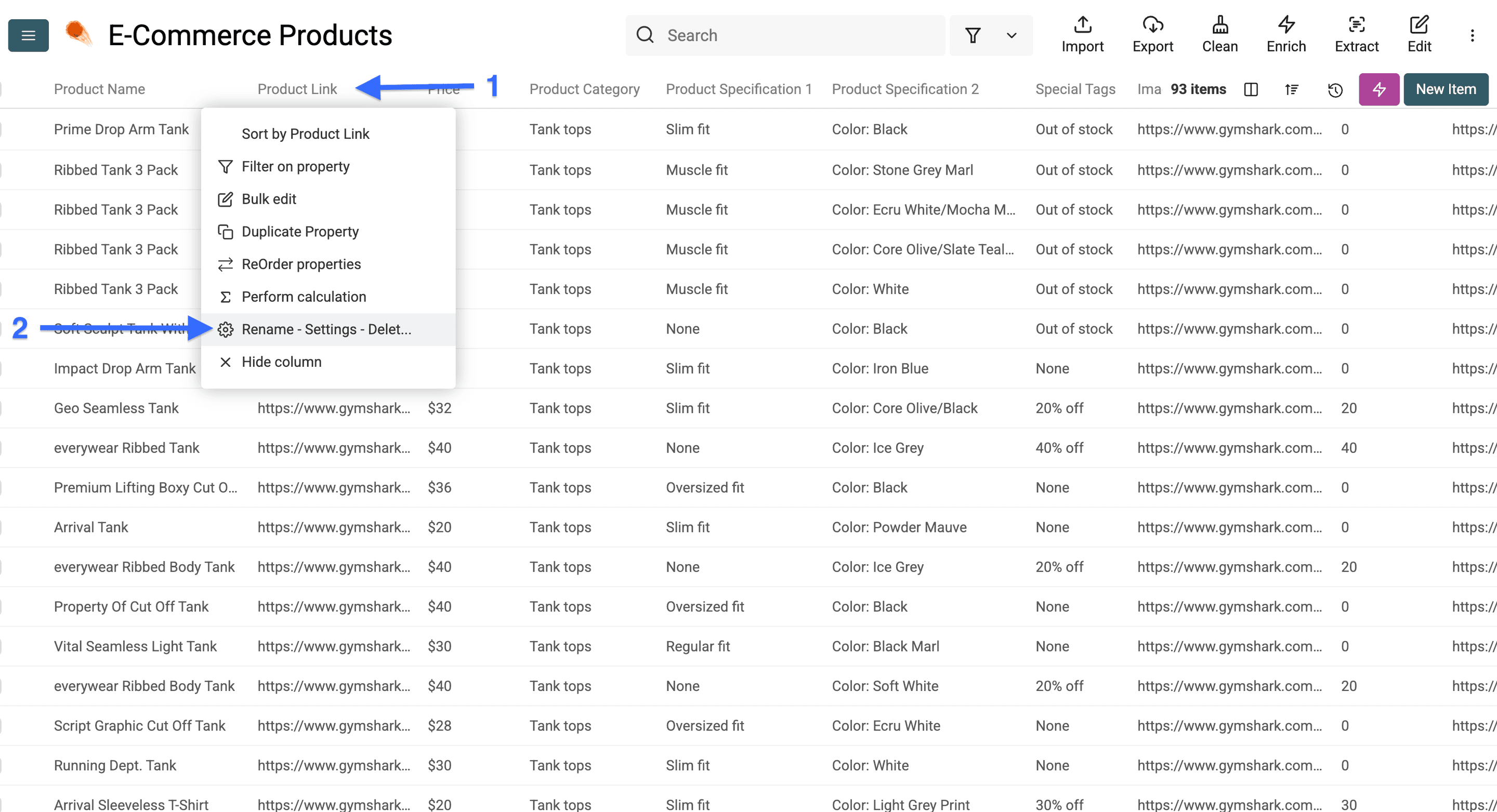
First, select your unique identifier. In my case, I'll take the product link, but it could be something else for you.
Then click on the column header and select "Rename - Settings - Delete"
Now check the box that says "Do not allow duplicate values" and click on "Save Property"
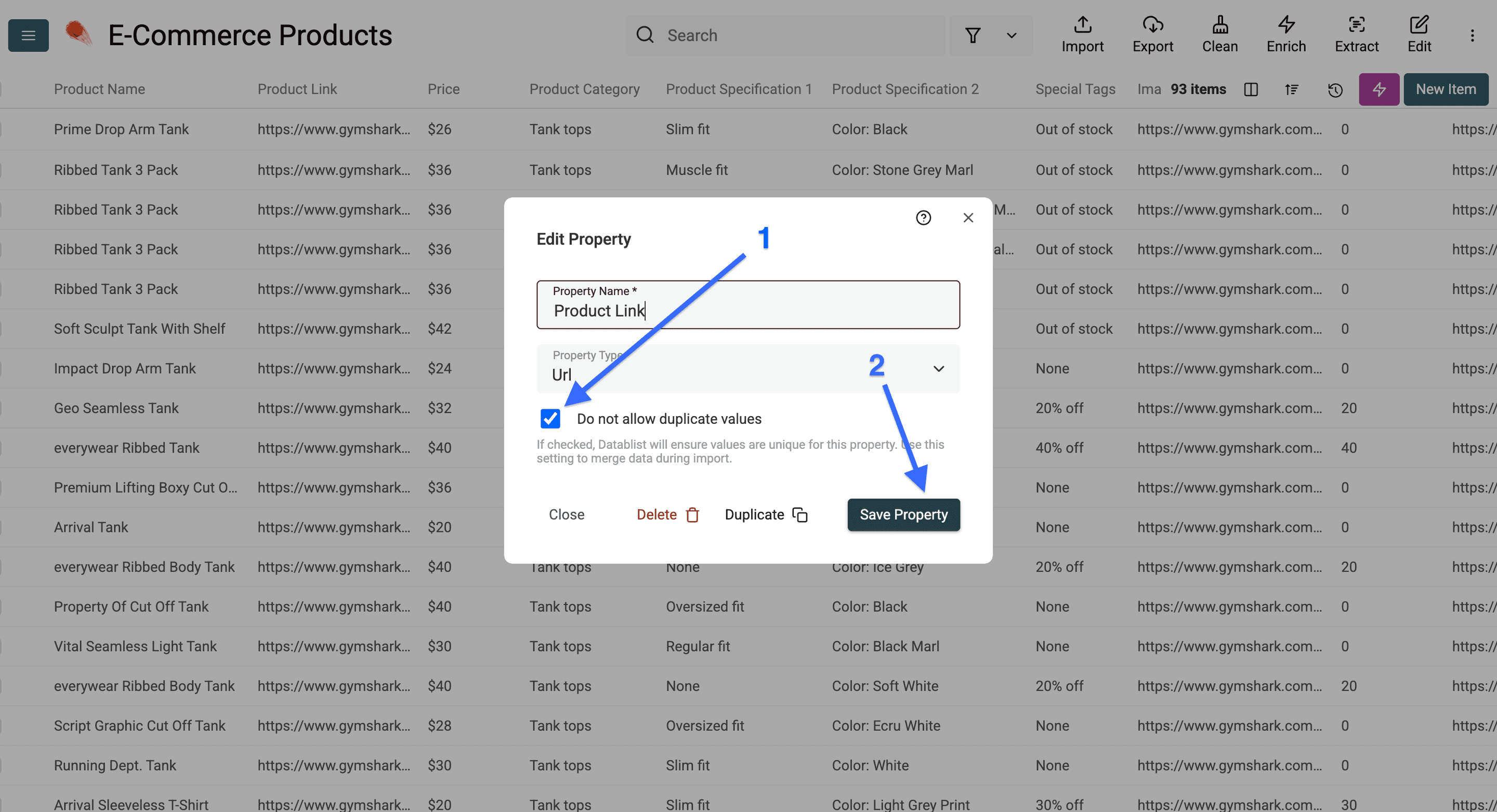
Once you've done this, you're all set and will have each product from the store appear only once in your collection, even if you scrape that e-commerce store multiple times.
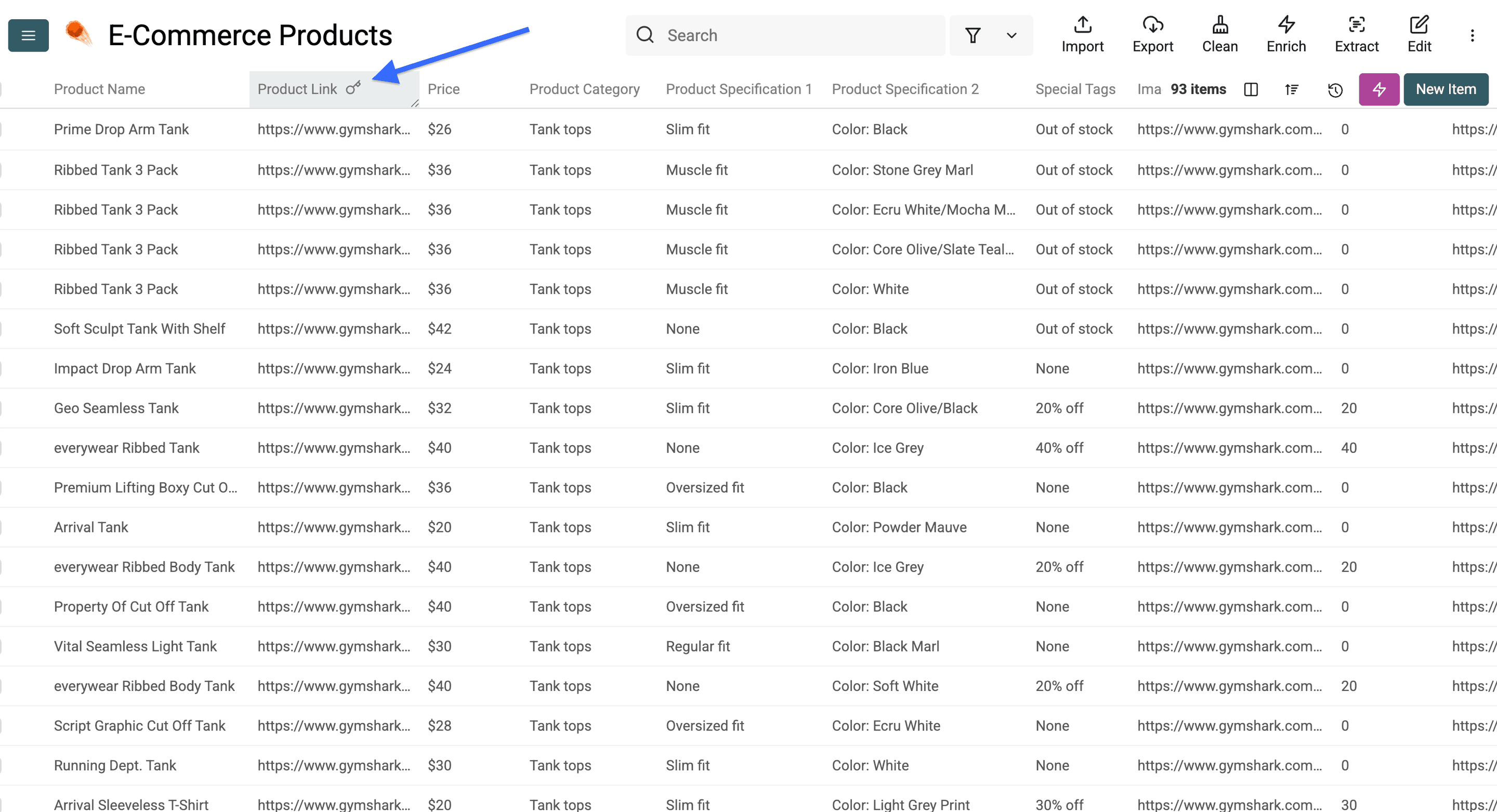
Now you should also see a key icon in your column header that confirms this.
Conclusion
For a usable product list, start with the right category URL, request only fields visible on the listing, and keep the first run small. Check prices, product links, missing values, and pagination before expanding the page limit. Follow the store's access rules and terms.
Can I Scrape E-commerce Sites Without Code?
Yes, Datablist's AI allows you to scrape e-commerce sites using natural language commands. You simply need to write instructions in plain English and the AI agent will handle the technical aspects.
How to Monitor Price Changes on E-commerce Sites?
Run the same listing workflow again and compare the new price column with your earlier export. The Morrisons product guide explains how to retain dated observations and distinguish More Card offers from ordinary prices. Use a stable product URL to match rows; a listing price can differ from the product page or change by variant.
How to Scrape Product Information from E-commerce Sites?
Provide one category or all-products URL, request specific fields such as product name, URL, displayed price, and image URL, then map each field to an output property. Inspect the first rows before increasing the page limit.
How to Scrape Multiple E-commerce Websites at Once?
The Site Scraper accepts one starting URL per run. Run it separately for each store or category, then combine the results in a collection if useful. Coverage depends on the accessible pages and your page limit.
Is Scraping Websites Legal?
Check each store's terms and permissions before collecting its data. Public visibility alone does not establish permission, and rules vary by site and location.