Scrapes agency listings from Clutch.co including company names, ratings, services, pricing, and profile links
Hoe gebruik je deze AI Prompt
- Maak een nieuwe collectie: Maak in Datablist een nieuwe, lege collectie aan waar de data wordt opgeslagen. Klik op '+ Create new collection' in de sidebar.
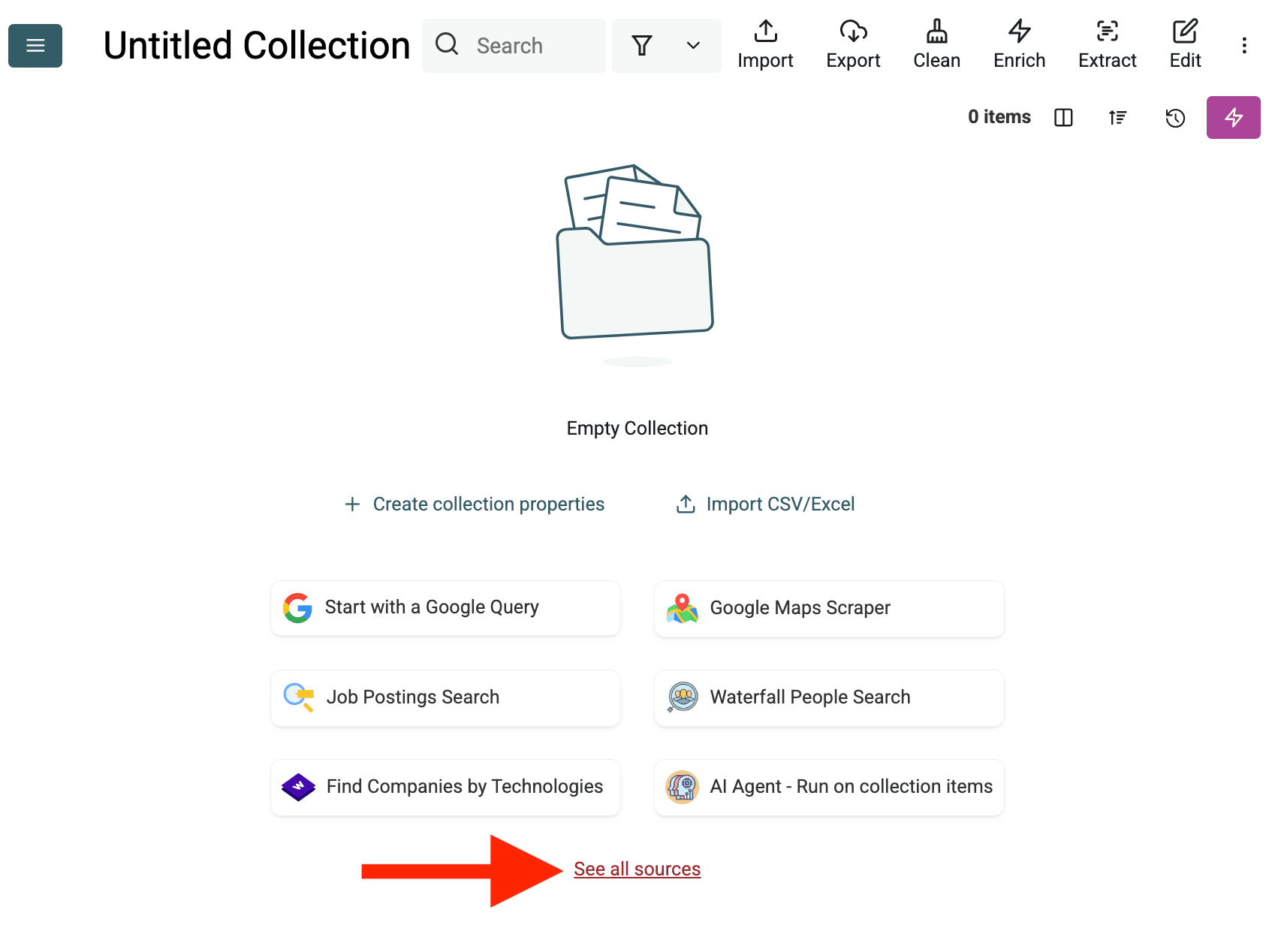
- Select the AI Agent Source: Klik 'See all sources' of ga naar 'Import' -> 'Import From Data Sources'. Kies 'AI Agent - Site Scraper'.
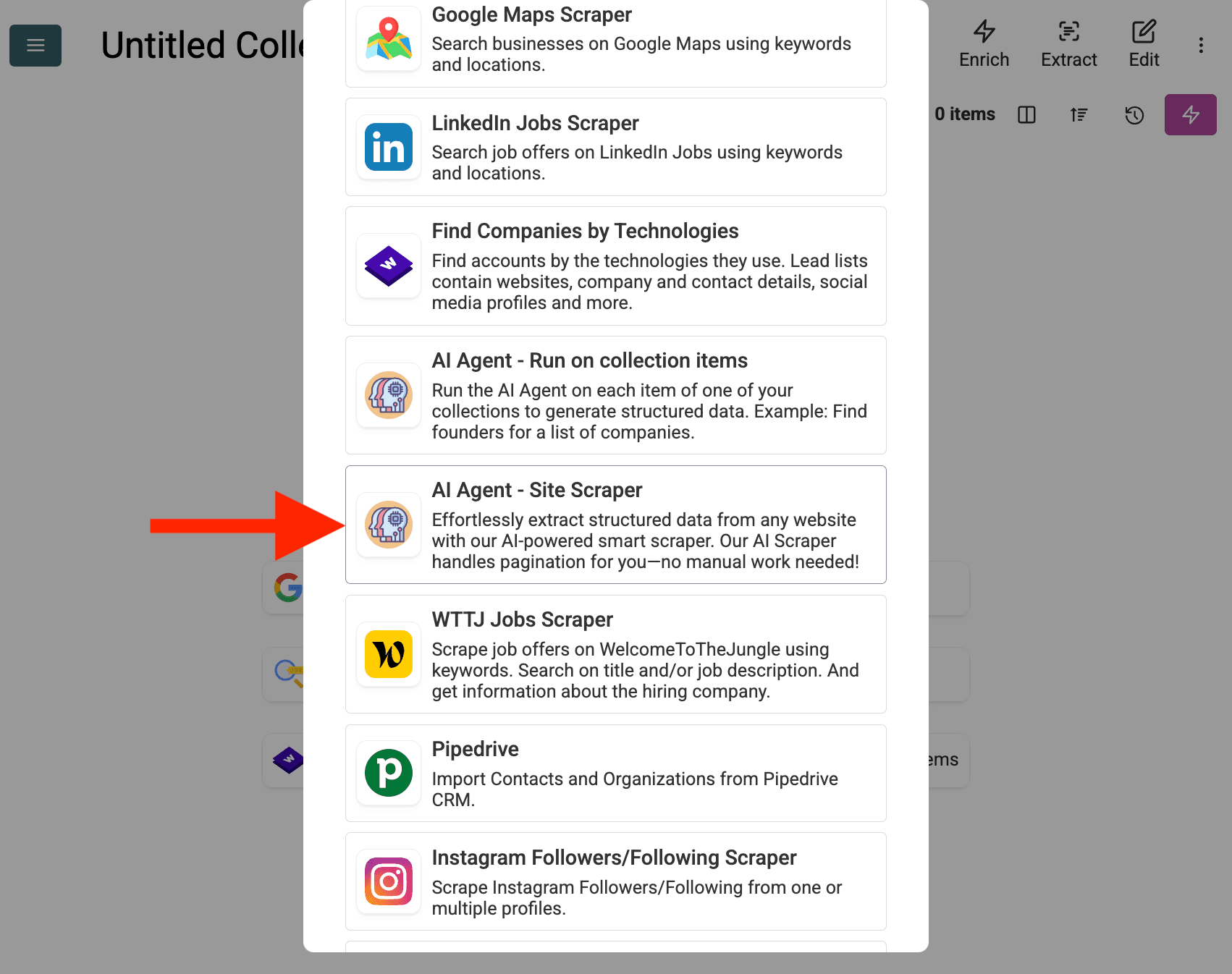
-
Configureer de Source:
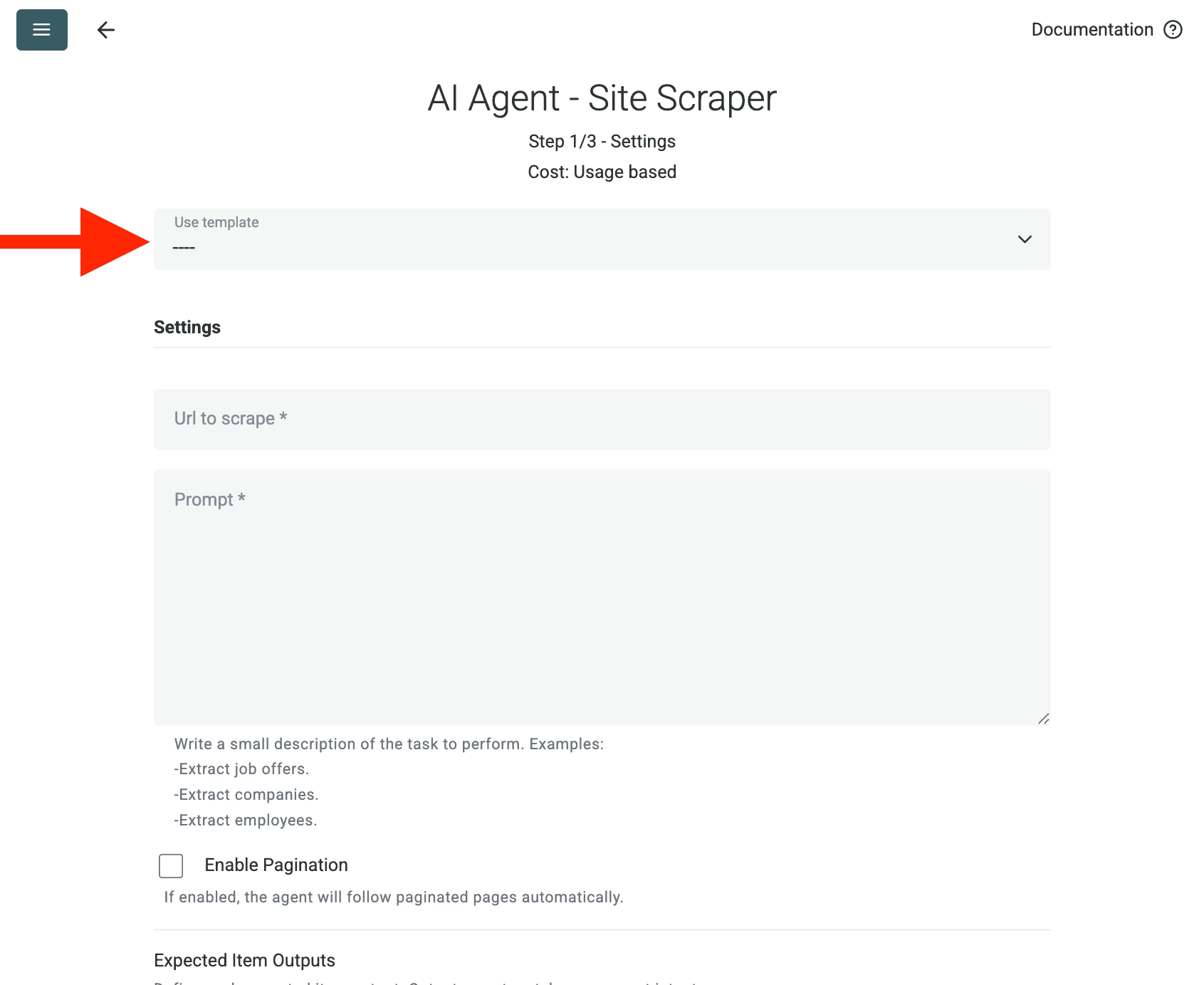
- Select Template: Vind en kies de prompt in de 'Template'-dropdown. De bovenstaande prompt wordt automatisch geladen.
- URL to Scrape: Voer de URL in die je wilt scrapen
- Enable Pagination (Optional): Als de resultaten op meerdere pagina's staan, vink Enable Pagination aan en stel een redelijke Max Pages-limiet in (bijv. 10).
- Customize (Optional): Je kunt het AI model aanpassen (bijv. GPT-4o mini is vaak kostenefficiënt), de prompt bewerken voor specifieke behoeften of de verwachte Outputs wijzigen.
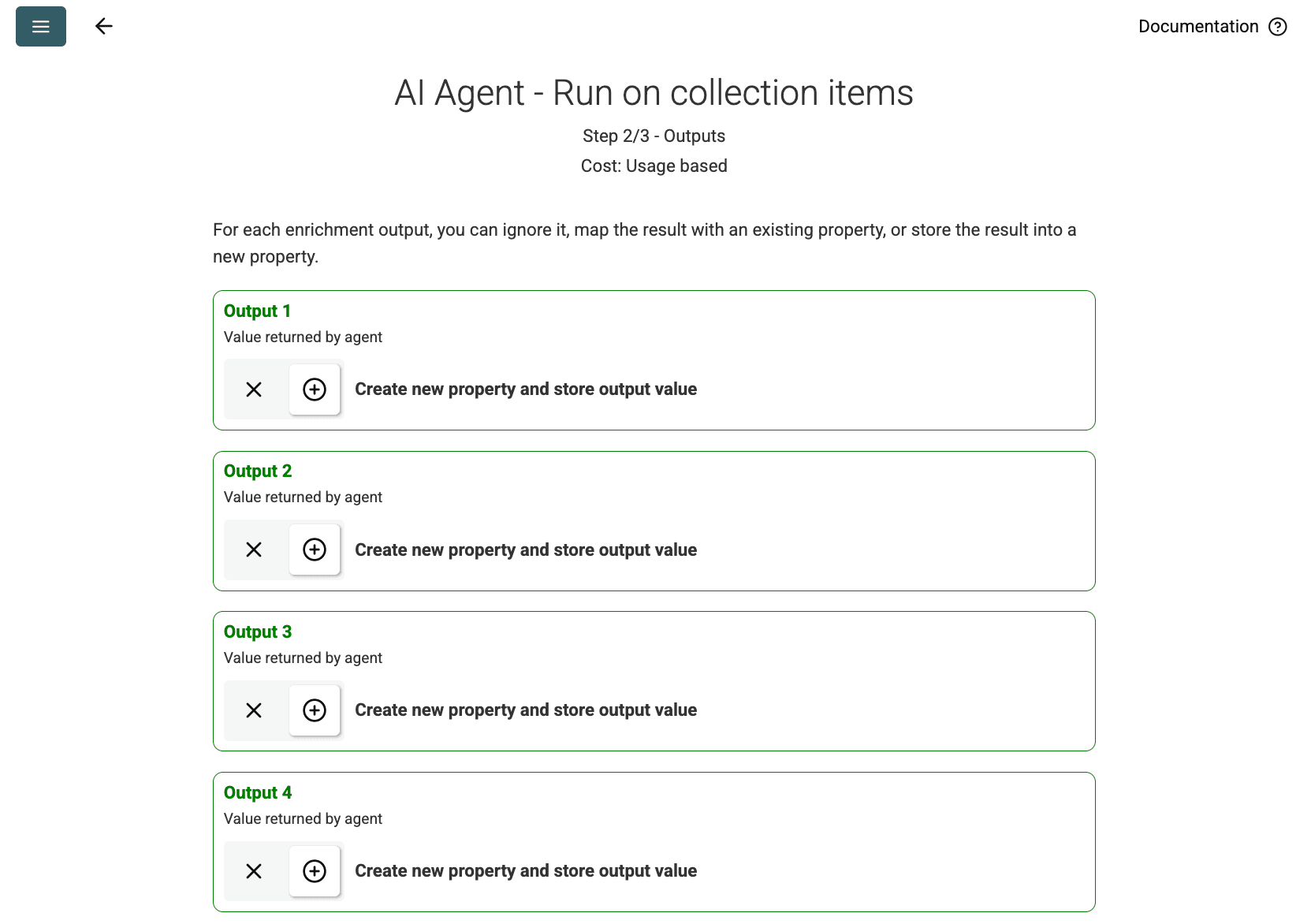
- Review Outputs: Klik Continue. Datablist toont de outputvelden die in de prompt zijn gedefinieerd (Project Name, Client Company Name). Klik op het +-icoon naast elk om de overeenkomstige properties (kolommen) in je collectie aan te maken.
- Run Import: Klik Run import now. De AI Agent begint de website te scrapen op basis van de prompt en vult je collectie.
Prijzen
Deze data source gebruikt Datablist credits op basis van gebruik. De kosten hangen af van de complexiteit van de website en het aantal bezochte pagina's.
Test eerst om de AI Agent op één pagina te draaien om een indicatie van de kosten te krijgen.
FAQ
Hoe start ik een nieuwe run met dezelfde configuratie?
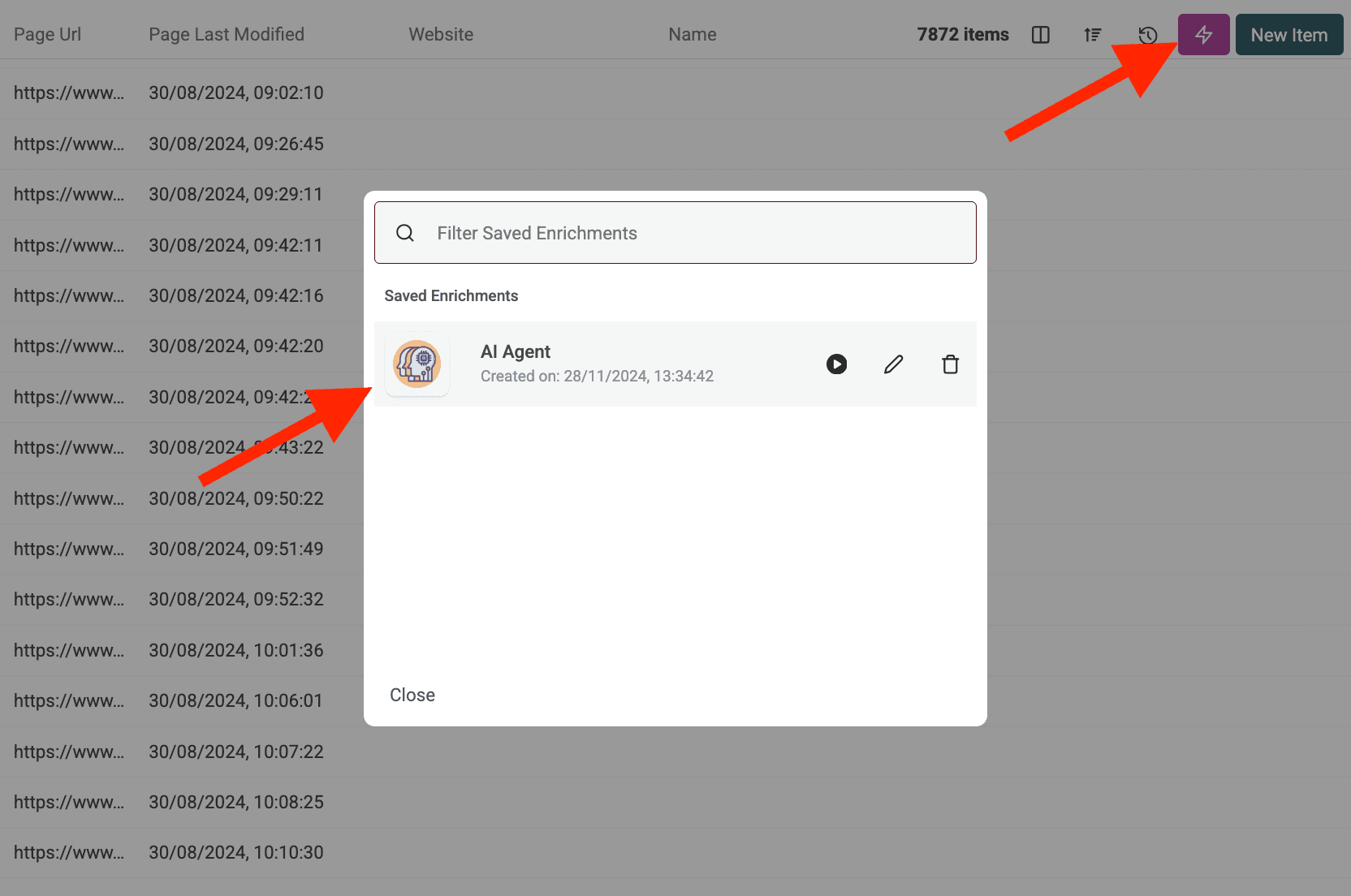
Zodra je je AI Agent hebt gedraaid, klik je op de roze knop rechtsboven in je datatabel om hem opnieuw te openen met je laatst gebruikte instellingen.
Wat gebeurt er als de AI Agent een beschermde website probeert te benaderen of wordt geblokkeerd?
De AI Agent gebruikt automatisch proxyservers wanneer nodig om websites te benaderen die scrapingprotectie of geografische beperkingen hebben. Dit vergroot de kans op succesvolle data-extractie, al kunnen zeer zwaar beschermde sites nog steeds uitdagingen vormen.
Hoeveel data kan ik verwerken met de AI Agent?
Bij het draaien van de AI Agent (als enrichment of als data source) kunnen Datablist collecties tot 100.000 items (rijen) verwerken. Voor grotere datasets moet je je data mogelijk opsplitsen over meerdere collecties.
Waarin verschilt de AI Agent van de ChatGPT/Claude/Gemini enrichments?
De standaard AI enrichments (ChatGPT, Claude, Gemini) verwerken data die al in je collectie staat met de bestaande kennis van de AI. De AI Agent kan actief met het live web interageren—Google-zoekopdrachten uitvoeren, websites browsen en nieuwe informatie extraheren op basis van je prompt.
Hoe nauwkeurig zijn de resultaten?
De nauwkeurigheid hangt sterk af van de duidelijkheid en specificiteit van je prompt, de complexiteit van de taak en de online beschikbare informatie. Heldere instructies, voorbeelden en regels voor foutafhandeling verbeteren de resultaten. Datablist geeft vaak een confidence score voor AI Agent outputs om de betrouwbaarheid in te schatten.