
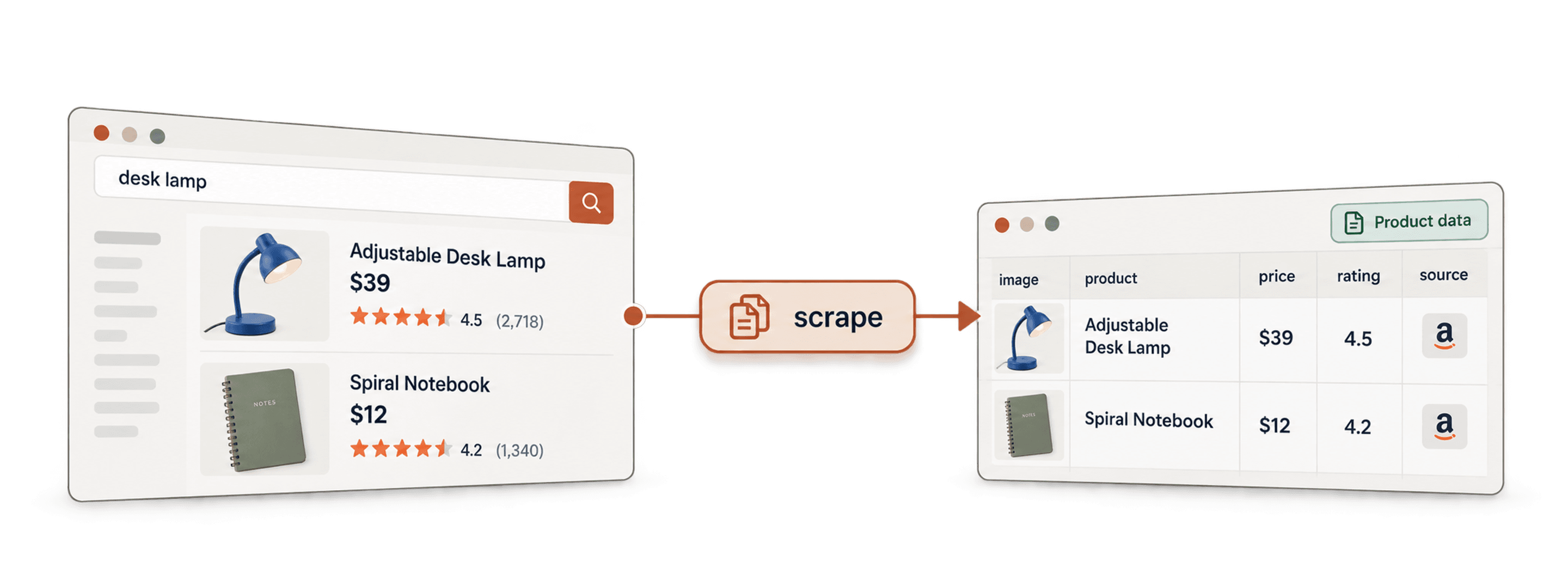
To scrape Amazon products without code, collect product links from a search-results page, then visit those links to extract the fields you need. If you already have product URLs or ASINs, start with the product-detail step instead of scraping search results again.
I would begin with one results page and a few product pages. Check the marketplace, product variants, and price labels before increasing the run size. An AI scraper can return the information it can access; a run is not proof that it retrieved every search result or every product field.
This guide uses Datablist's AI Agent - Site Scraper to create product-link rows and the AI Agent enrichment to add details to those rows.
Here’s what this guide includes:
- How to setup the Amazon search scraper
- Scraping product links from Amazon search results
- Extracting details from an Amazon products page
Start From Search Results, Product URLs, or ASINs
Choose the input you actually have:
- A keyword or category search: Open the intended Amazon marketplace, copy the results URL, and follow Steps 1 and 2 to collect links.
- A list of product URLs: Import one URL per row and go to Step 3.
- A list of ASINs: Keep ASIN as a text column with the marketplace domain. Confirm the corresponding product URL before running the detail lookup.
Amazon describes an ASIN as a 10-character alphanumeric product identifier. A product URL commonly includes it after /dp/. For an illustrative ASIN B0EXAMPLE01, the proposed URL shape is https://www.amazon.com/dp/B0EXAMPLE01; this is a format example, not a real product or a successful lookup.
Keep marketplace and ASIN together when comparing or deduplicating products. Different variants may have different identifiers, while the same product link can repeat in sponsored and organic results. Check the selected size, color, or pack before treating two rows as identical. When comparing Amazon with other retailers, use the retailer scraping guide to preserve price conditions, variant context, and observation dates.
Step 1: Pre-Setup for Amazon Product Extraction
When scraping search results from Amazon, you need a tool that can actually navigate the different pages and get you the product links, some people call it Amazon product link extractor we call it AI Research Agent.
To start extracting product links go to Datablist.com and sign up.
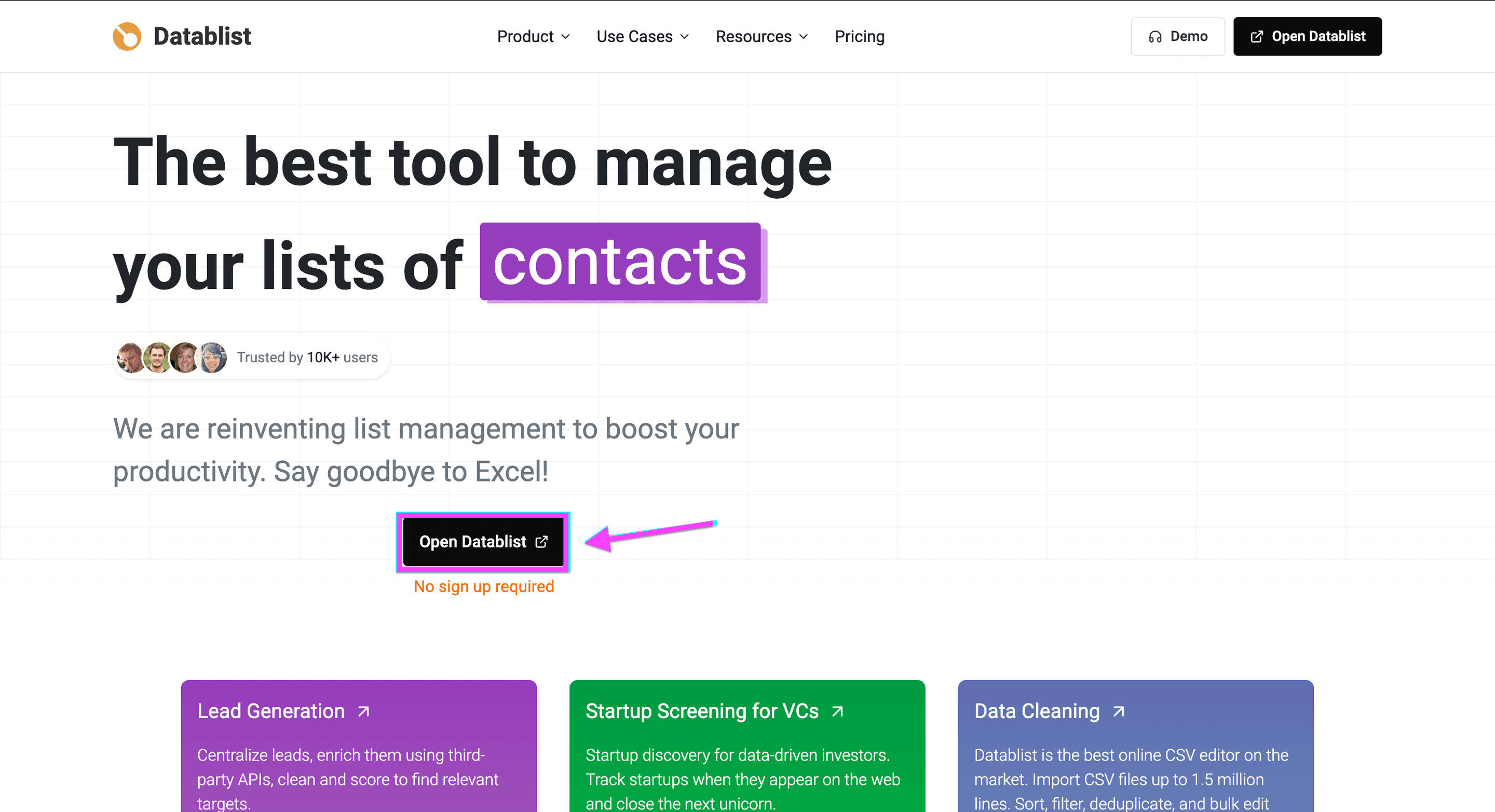
Then, create a collection by clicking on New Collection from the starting page, or on the Create new collection link in the sidebar.
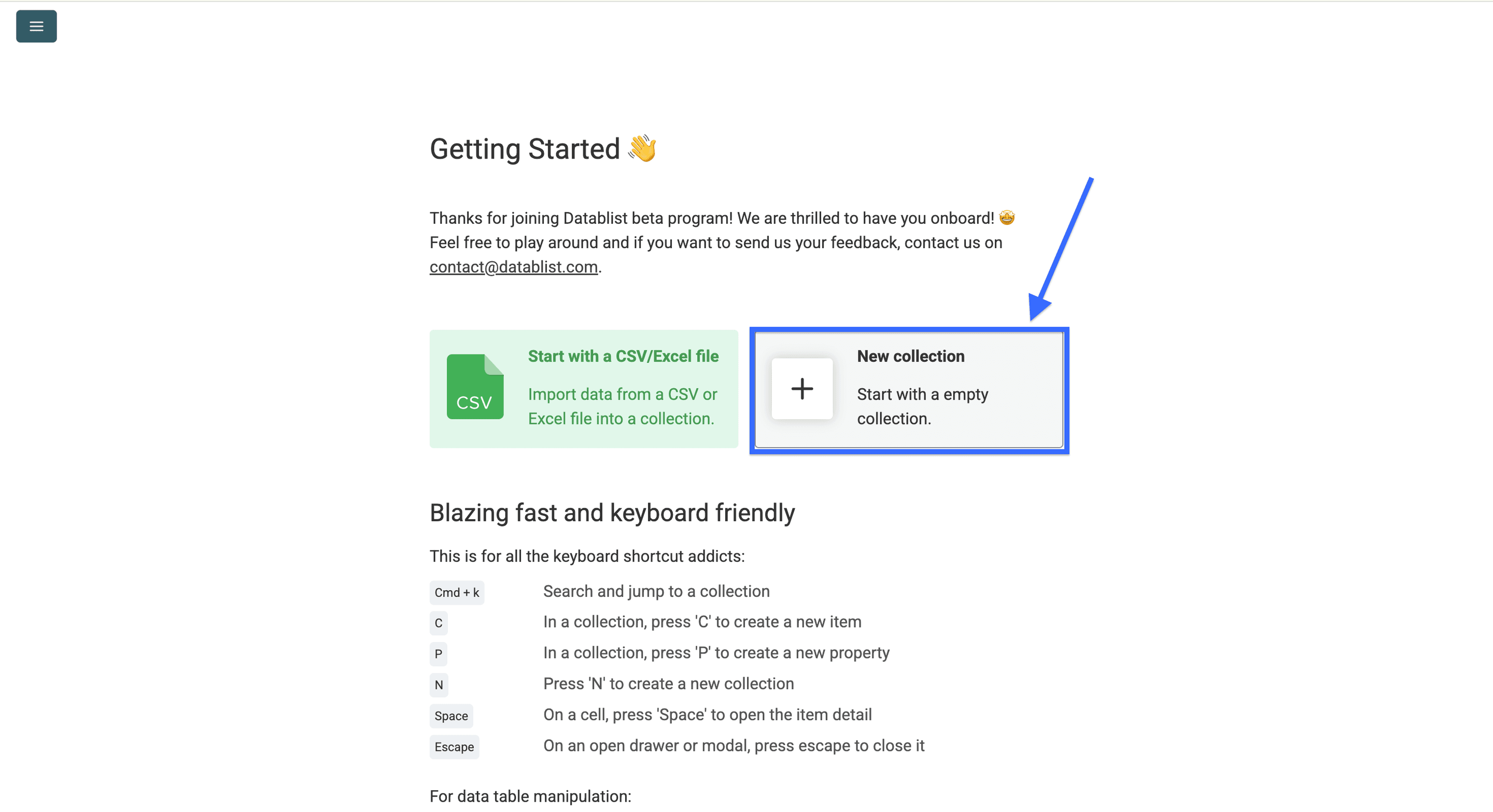
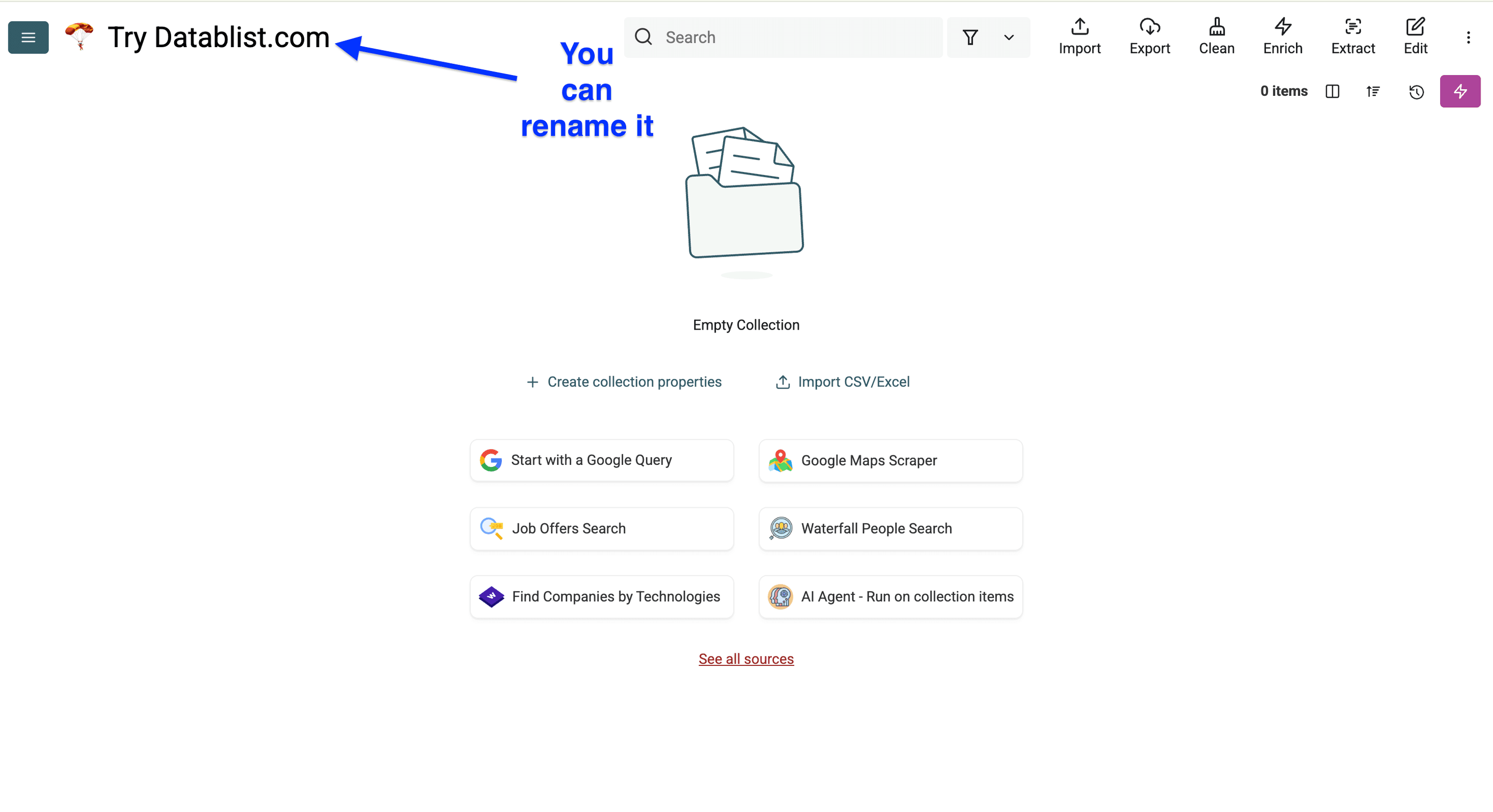
That's what you should see once you've created a Datablist collection (give it a name).
💡 What is Datablist?
Datablist is an AI-powered spreadsheet for collecting, cleaning, enriching, and reviewing structured data.
Imagine Excel, but enhanced with built-in data sources, enrichments, and AI agents that let you scale and streamline tasks far beyond what traditional spreadsheets offer.
Go to Amazon and copy the URL of your search results.
For my example, the URL is https://www.amazon.com/s?k=coffee+mug&crid=1UV1WPG69YYZM&sprefix=coffee+mug%2Caps%2C197&ref=nb_sb_noss_1
It usually starts with https://www.amazon.com/s?k=XXX.
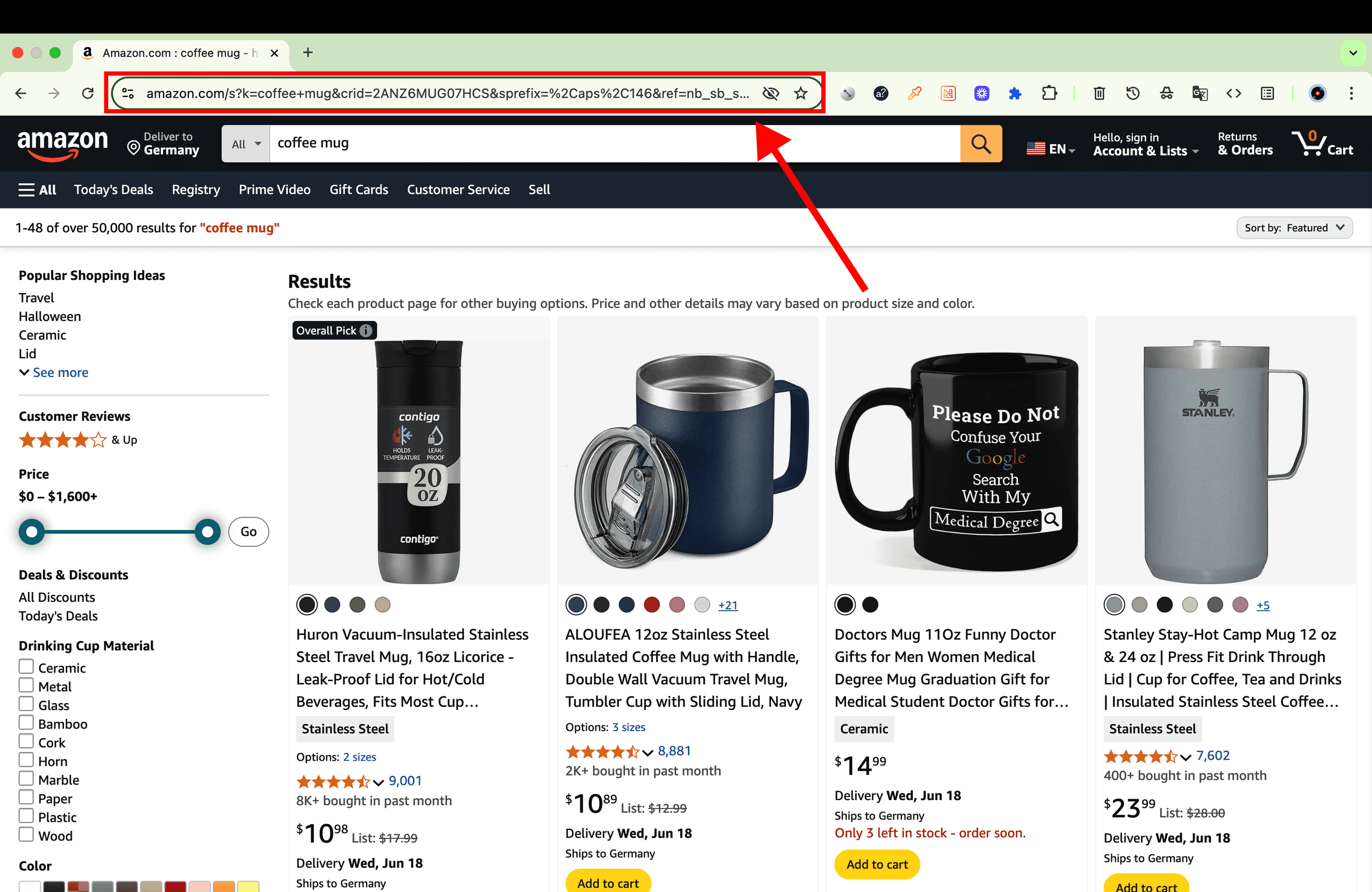
Now you should have:
- Signed up for Datablist.
- Created a collection.
- Copied Amazon URL to your clipboard.
That’s it with the pre-setup 🙂
Now I’ll show you how to set up your automation to extract the product links from the Amazon search results.
Step 2: Scraping Amazon Search Results
First collect product links from the current search page. Then use those links as inputs to the product-detail enrichment. Keeping these stages separate makes repeated links and missing fields easier to review.
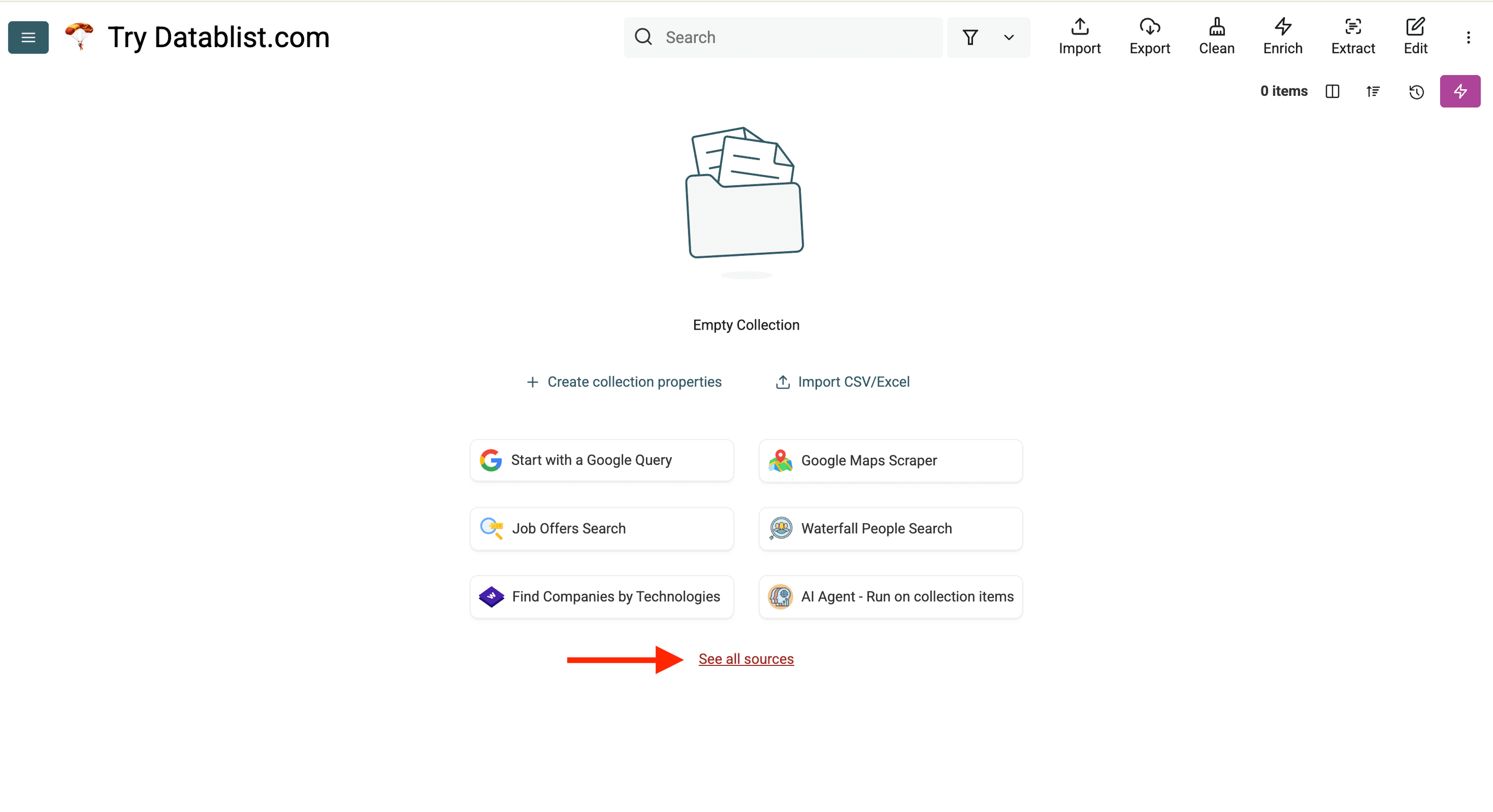
Now, go back to your Datablist collection and click on See all sources.
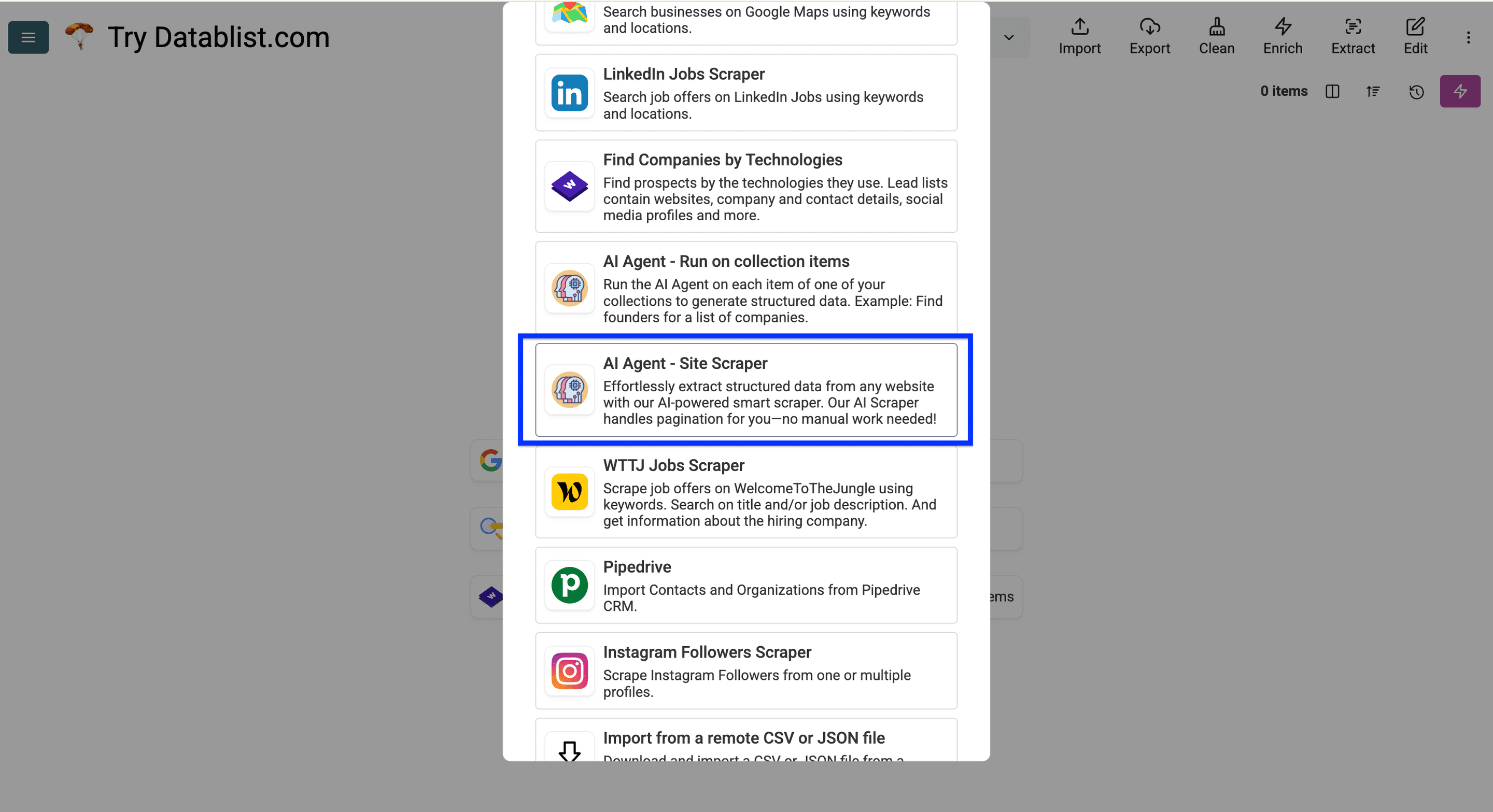
Click on AI Agent - Site Scraper.
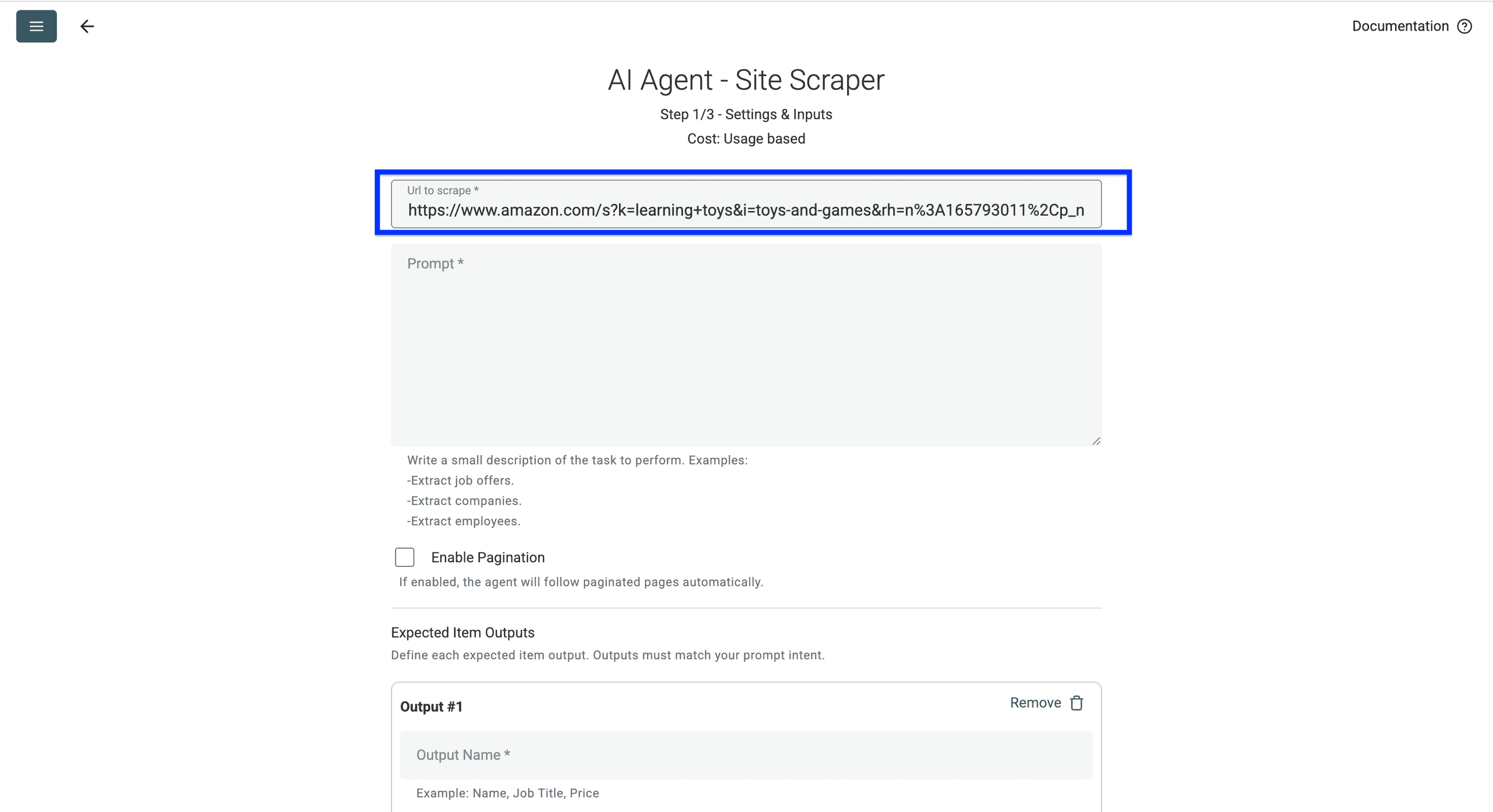
Paste the Amazon search link in Url to scrape.
Now, copy the prompt below and paste it in the Prompt field. Don’t forget to edit it.
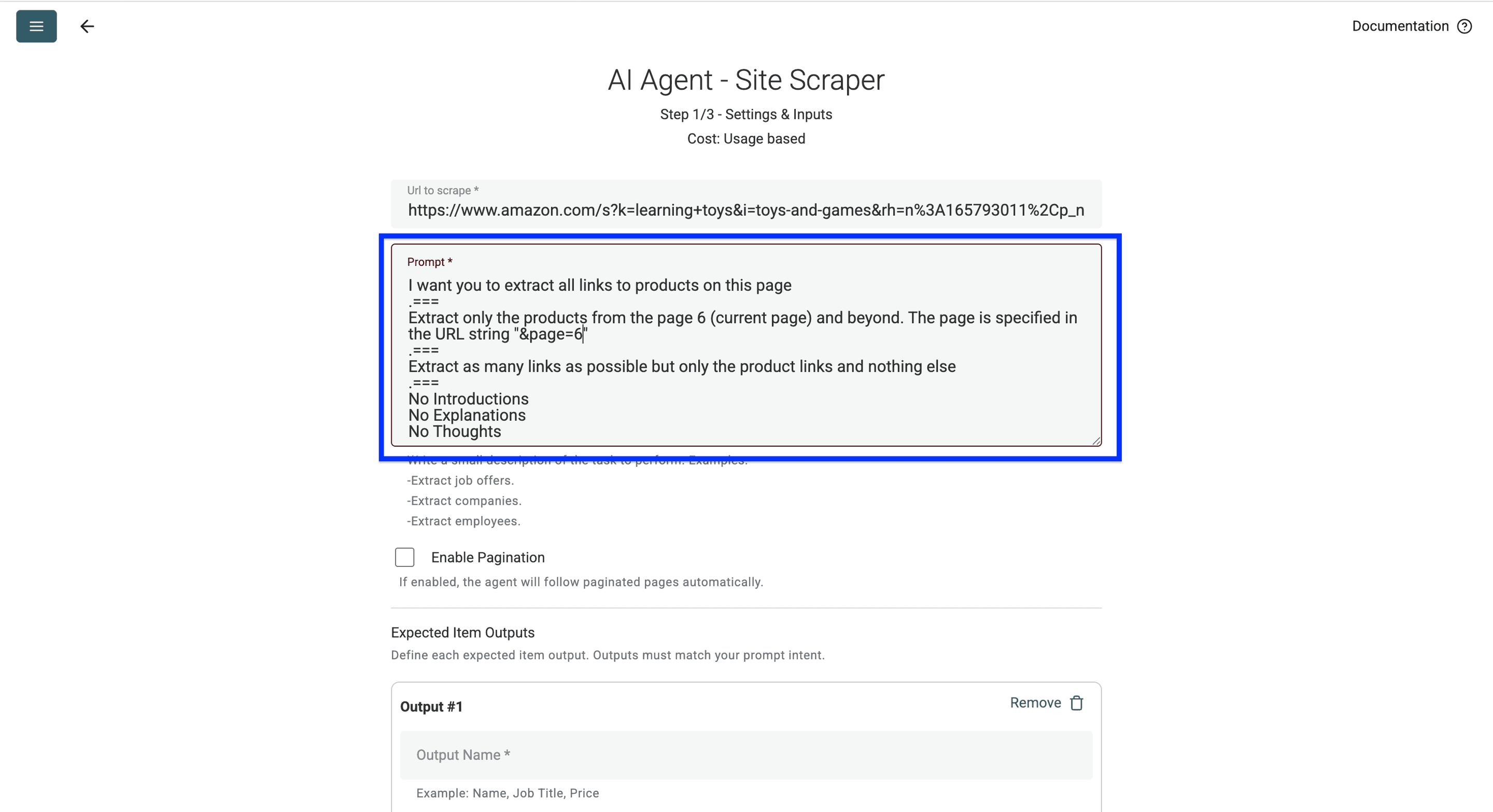
Extract product links from the supplied Amazon search-results page. Return one row per product listing with Product Link and ASIN when the identifier is visible in the link.
Use absolute product URLs. Exclude navigation, category links, advertisements that do not link to a product, and links outside the supplied marketplace. Keep the selected product variant's identifier when visible.
Use only links present on the current page. Do not invent products or visit product-detail pages during this extraction. If the page shows a challenge or no accessible listings, return no product rows rather than guessed links.
The URL setting determines the starting page. Keep the prompt focused on extracting records from that page; pagination is configured separately.
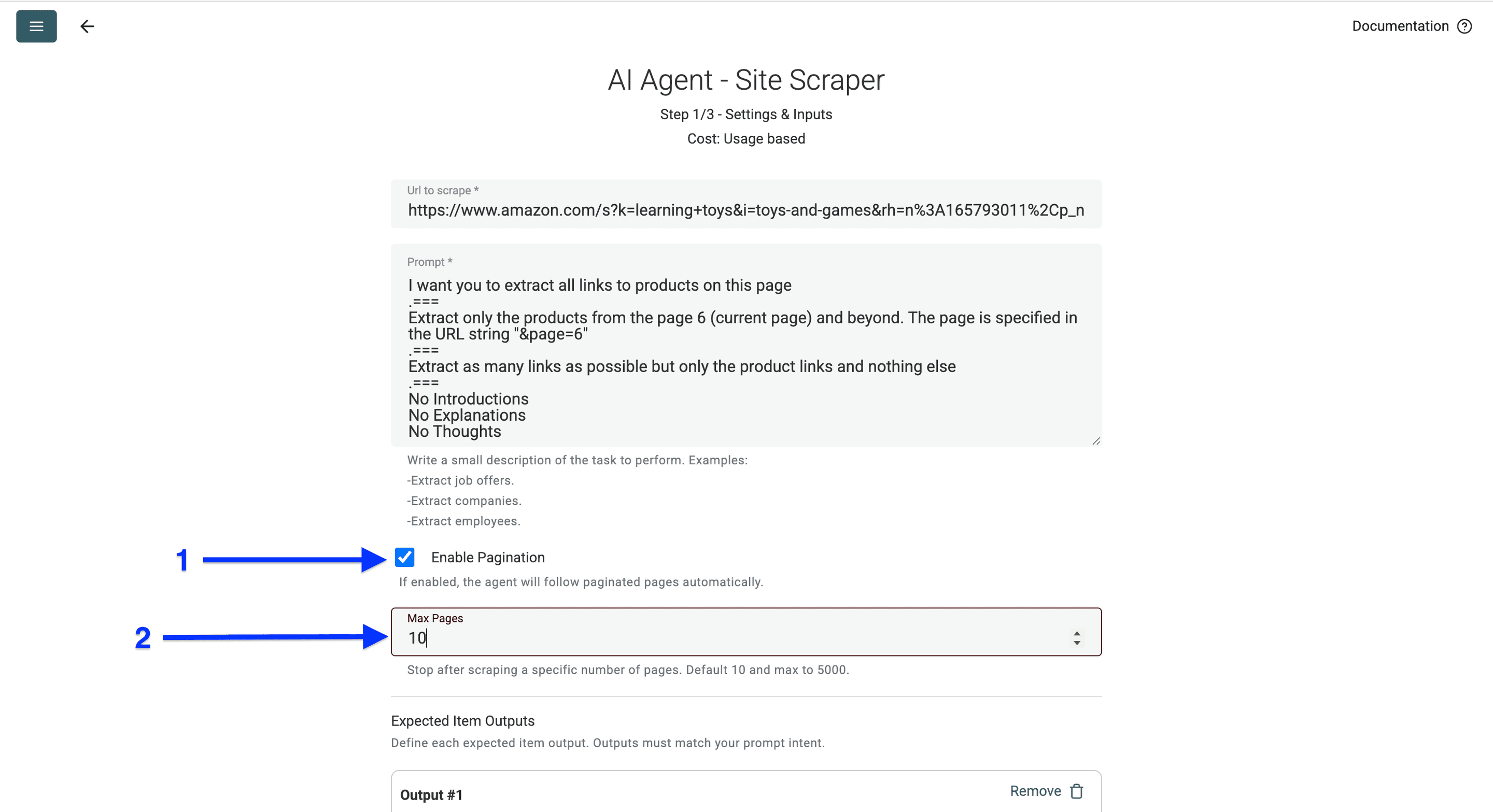
For the first sample, leave Enable Pagination off. After checking that the returned links match the page, enable it and choose a small Max Pages value for the next run.
📘 Review pagination before scaling
The source follows a next-page link it finds in the current page. A page limit is a stopping budget, not a promise that every page will be available. Check the returned Page Scraped output before choosing where to resume.
Next, we will configure the outputs.
To do this, scroll down and:
- Paste
Product Linkinto Output Name. - Paste
Link to the productinto Output Description. - Select
URLas Output Type.
Then, click on More.
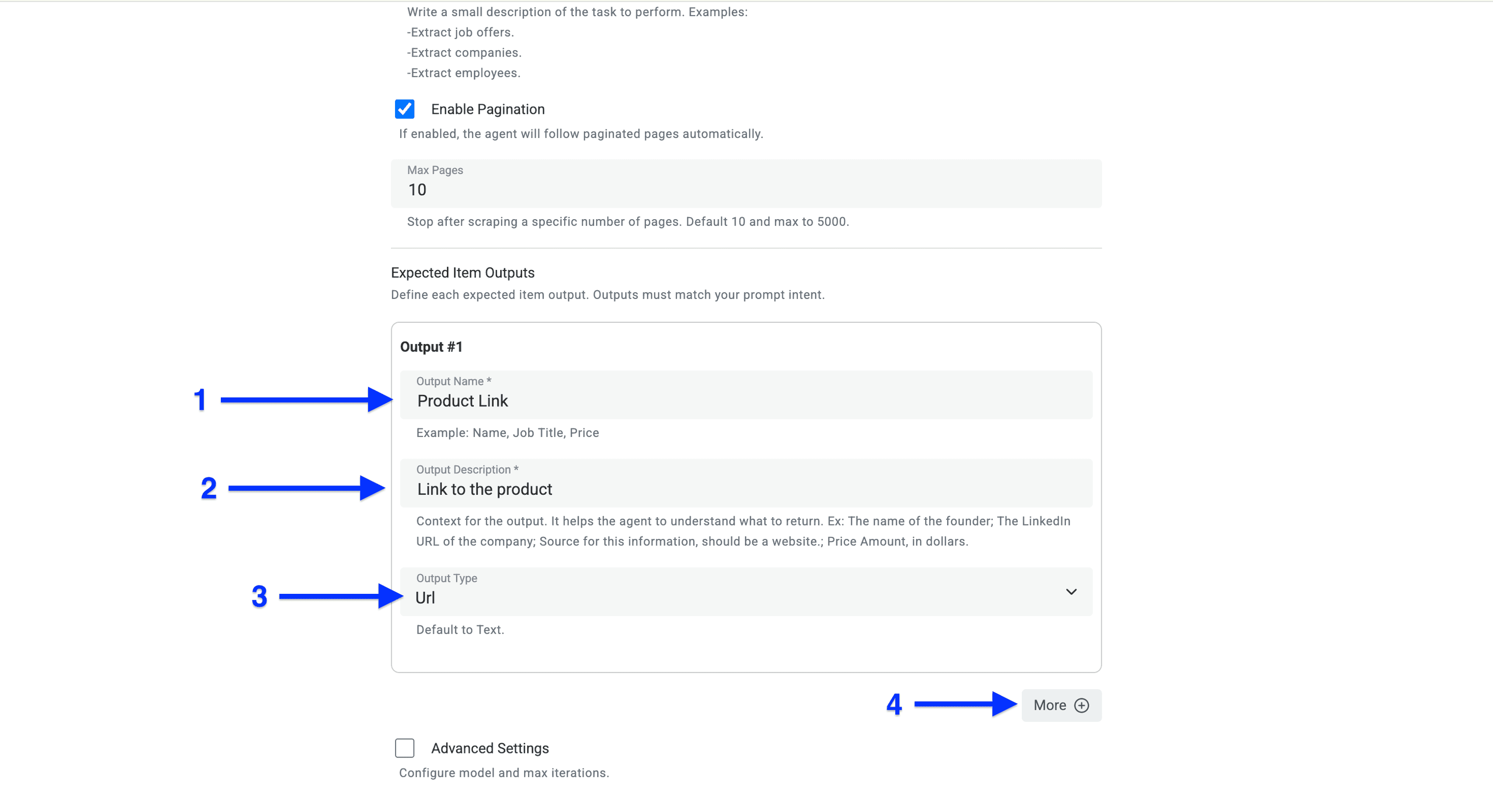
For a second product output, add ASIN as Text and describe it as the identifier visible in the product link. Map the built-in Page Scraped output too, so you retain the search page that produced each row. A custom field named Error Message is not a substitute for reviewing the source run’s error state.
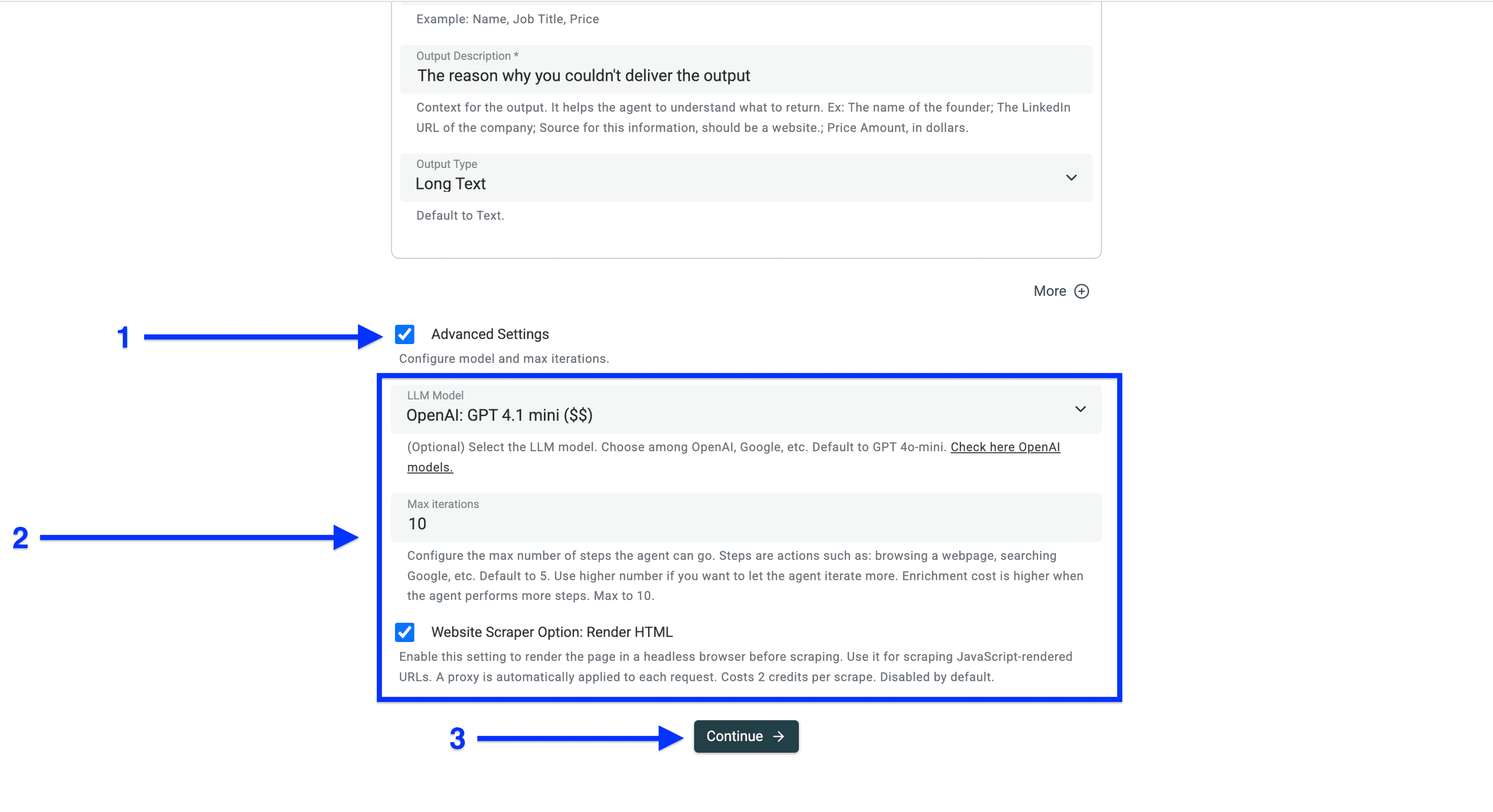
Then check the box next to Advanced Settings.
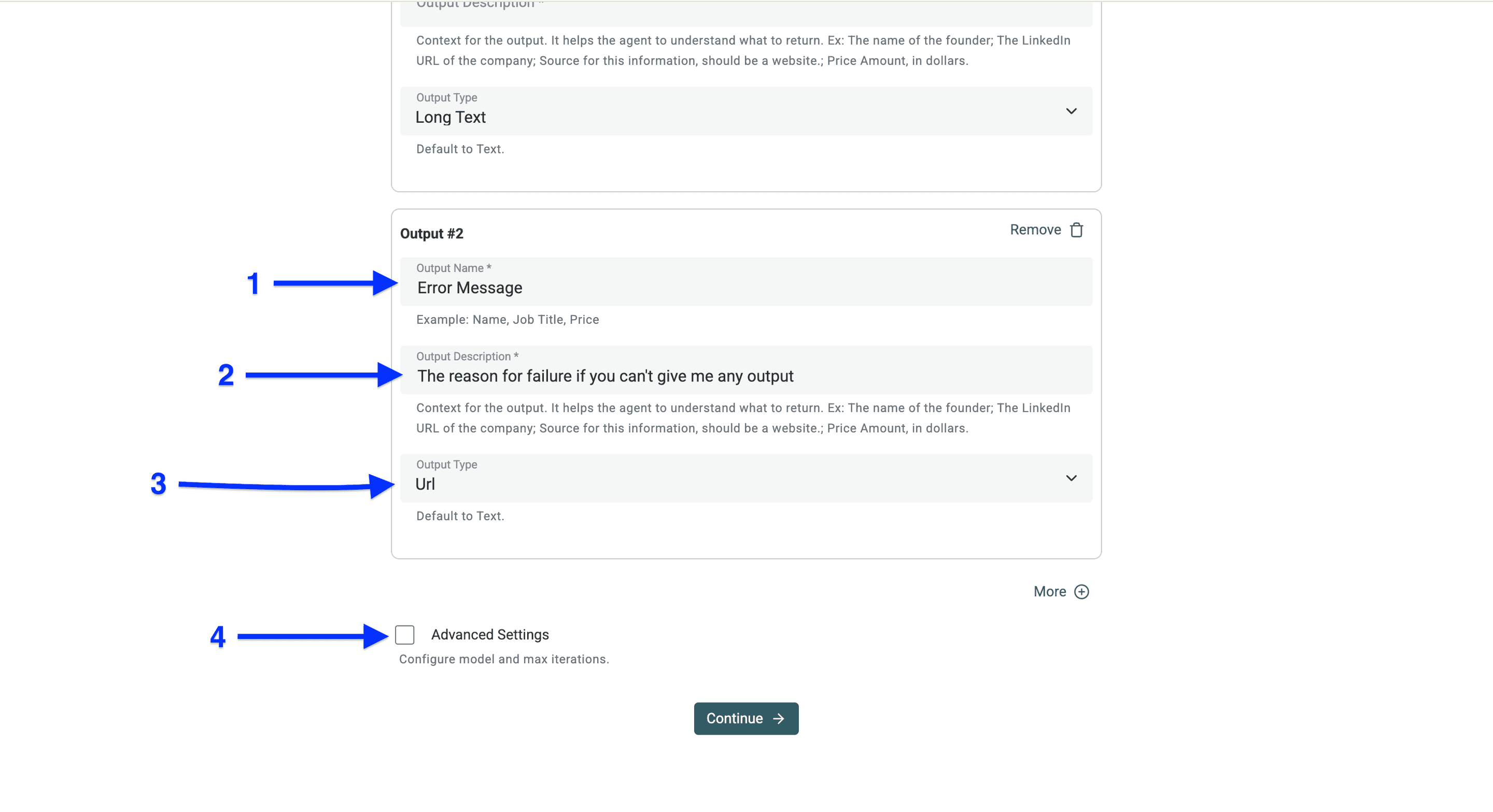
- Start with the current default LLM Model and review the sample.
- Adjust Max iterations only when the task needs more steps.
- Use Website Scraper Option: Render HTML when the required content needs browser rendering. It adds cost and does not guarantee access to a blocked page.
Click on Continue.
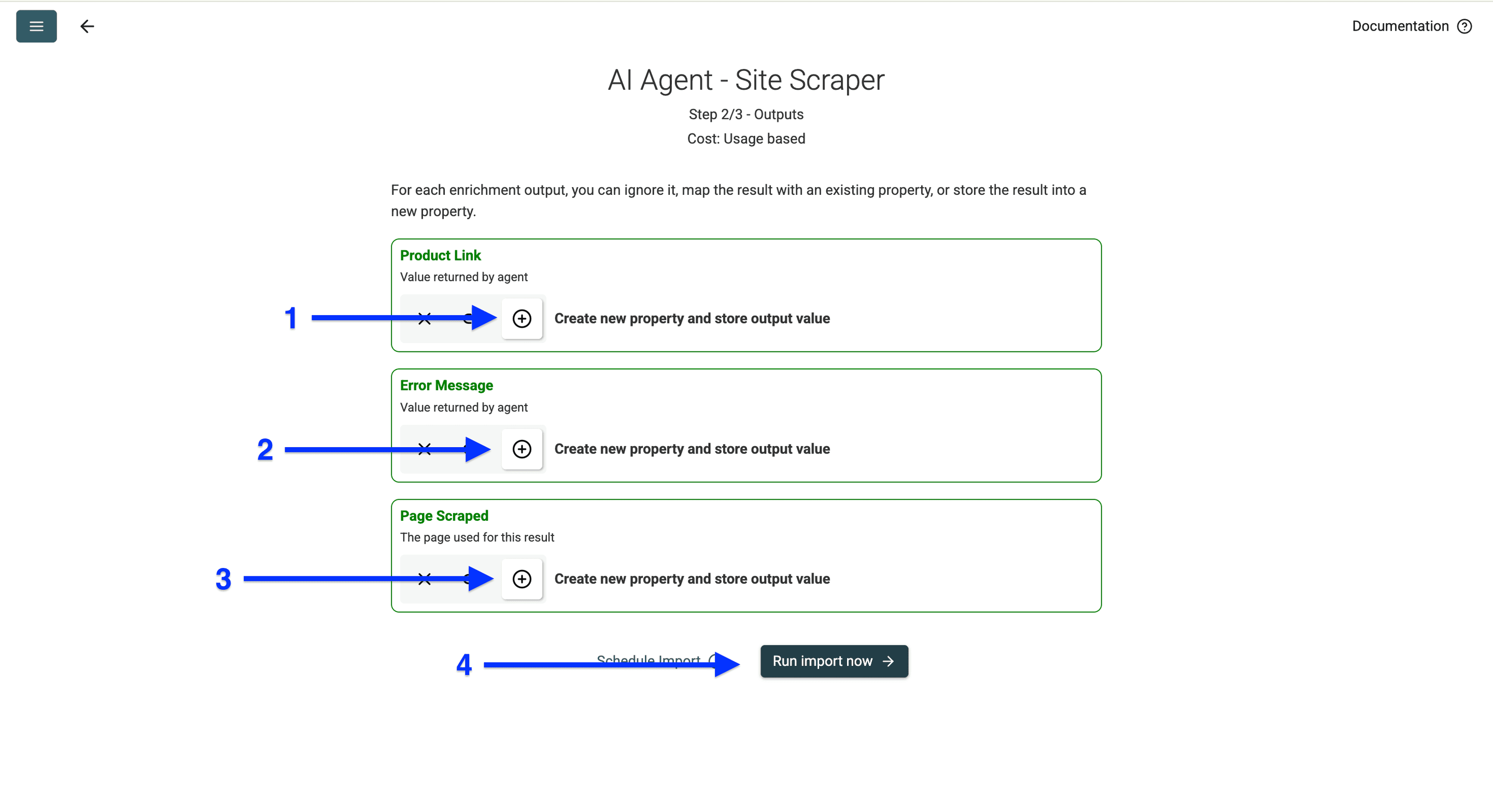
Click on the ⊕ icons to add a new column for each output.
Click on Run Import Now.
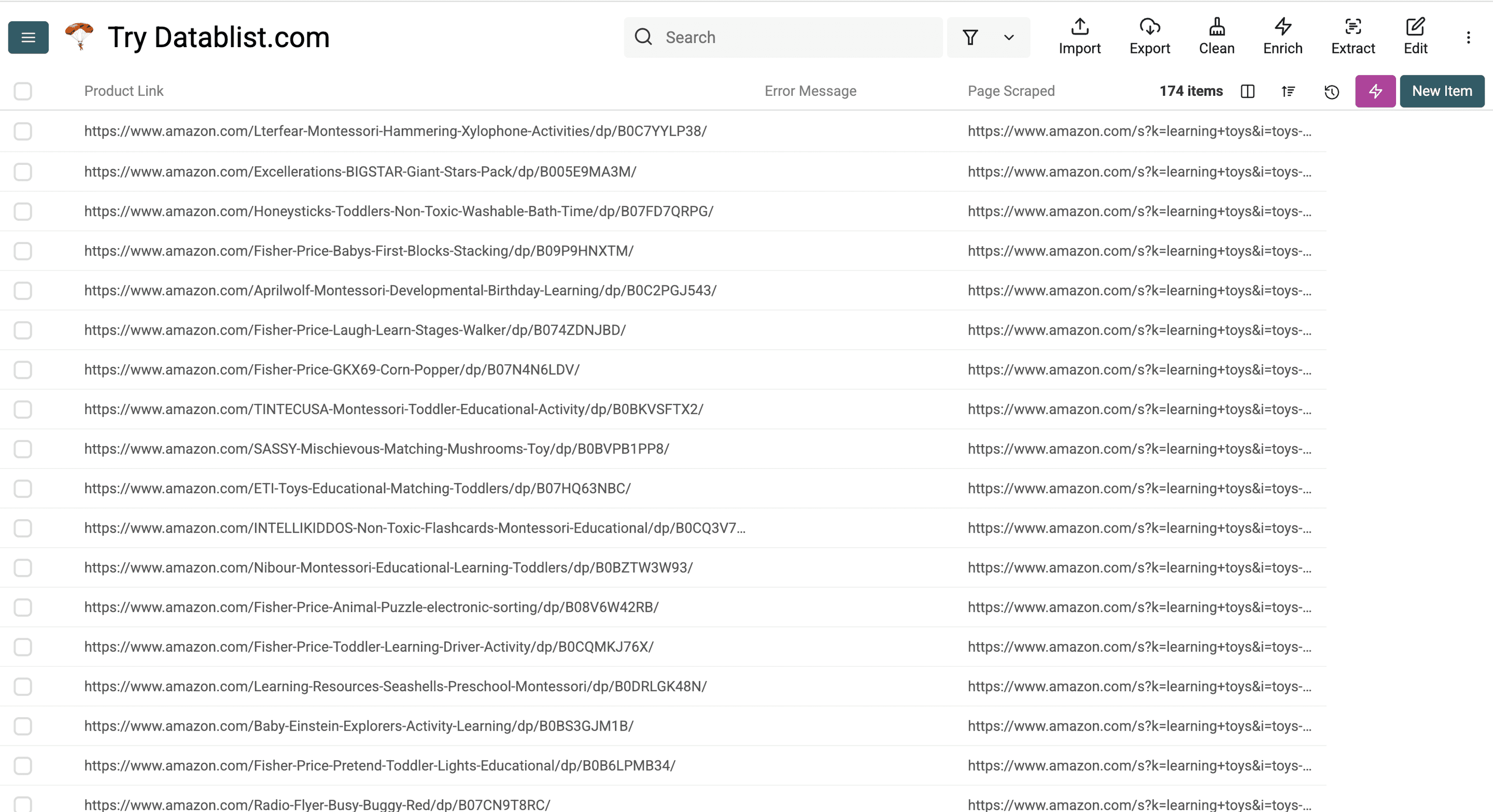
When the source run finishes, review the returned links and its run status. The duration and number of rows depend on accessible pages, pagination, and the selected settings.
Now that we've covered scraping Amazon search results, let me show you how you can extract the product details from those pages. After all, scraping Amazon is not only about extracting links but also about gathering each piece of information about a product.
Step 3: Extracting Product Details From Amazon Page
Open a few returned product links and decide which fields your dataset needs. Product pages can differ by marketplace, variant, availability, and delivery location. Use the visible labels to define your outputs.
- Visit 3-4 of the Amazon product pages that you just extracted from that search.
- Select the product details you want to scrape and copy 2-3 examples.
- Edit the prompt according to the product details you want to extract.
- Start scraping with Datablist's AI Agent.
Let me walk you through it step-by-step!
📘 Understanding Labels
Each Amazon product has its own unique details, but similar products (like phones or shoes) tend to share common descriptors (labels). Once you spot these, you can tell the AI exactly what to look for.
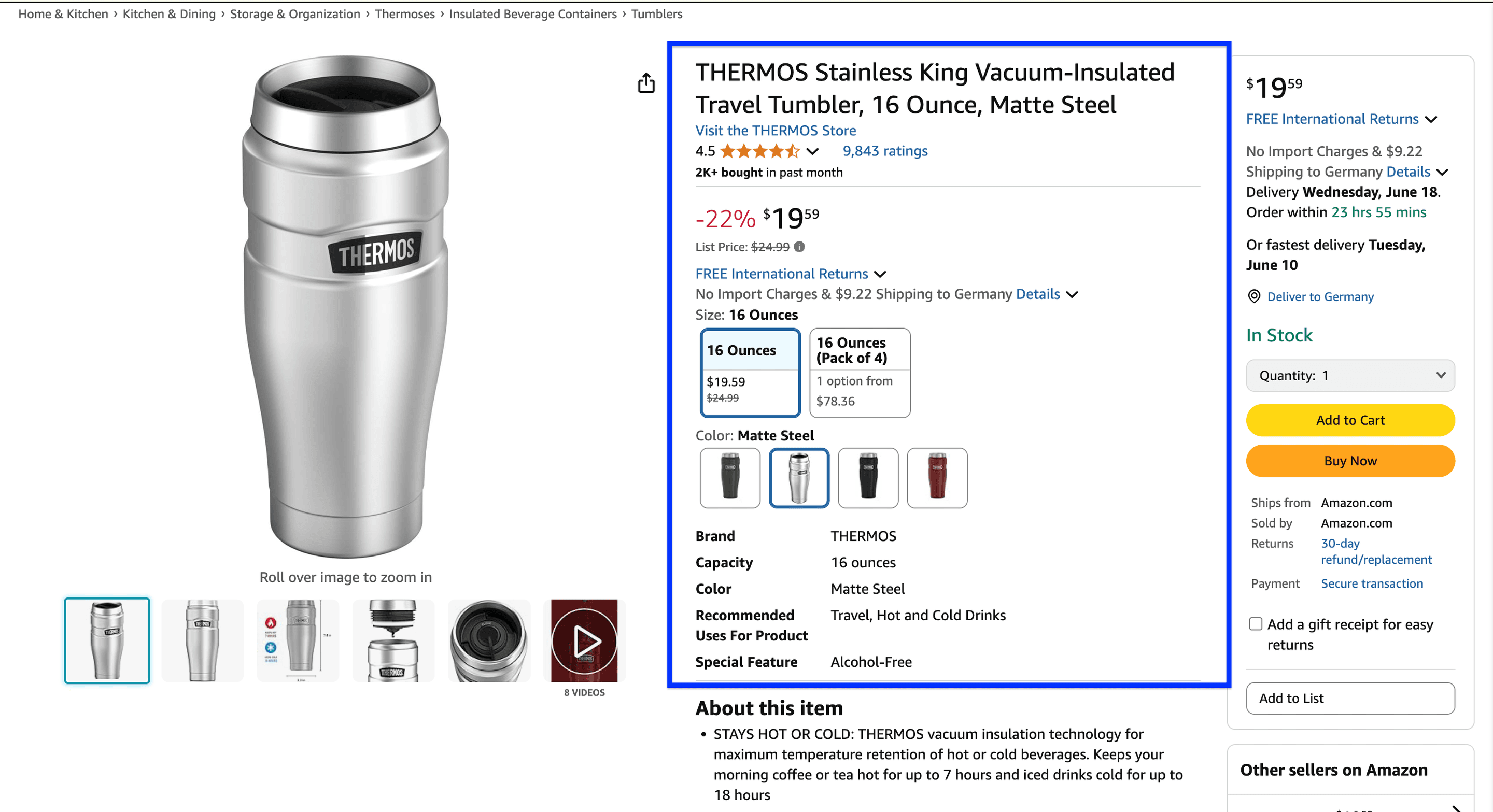
If you want price, product name, brand name, ratings, and other basic information, you can find them right at the top of the Amazon product page. Here’s what you have to do now:
- Copy the product detail and its label into a note for configuring the extraction.
- Now label that product detail and attach 2–3 examples of similar products.
- Make sure that the label describes the same kind of information.
Example: "- Brand (Adidas; Nike; Apple)"
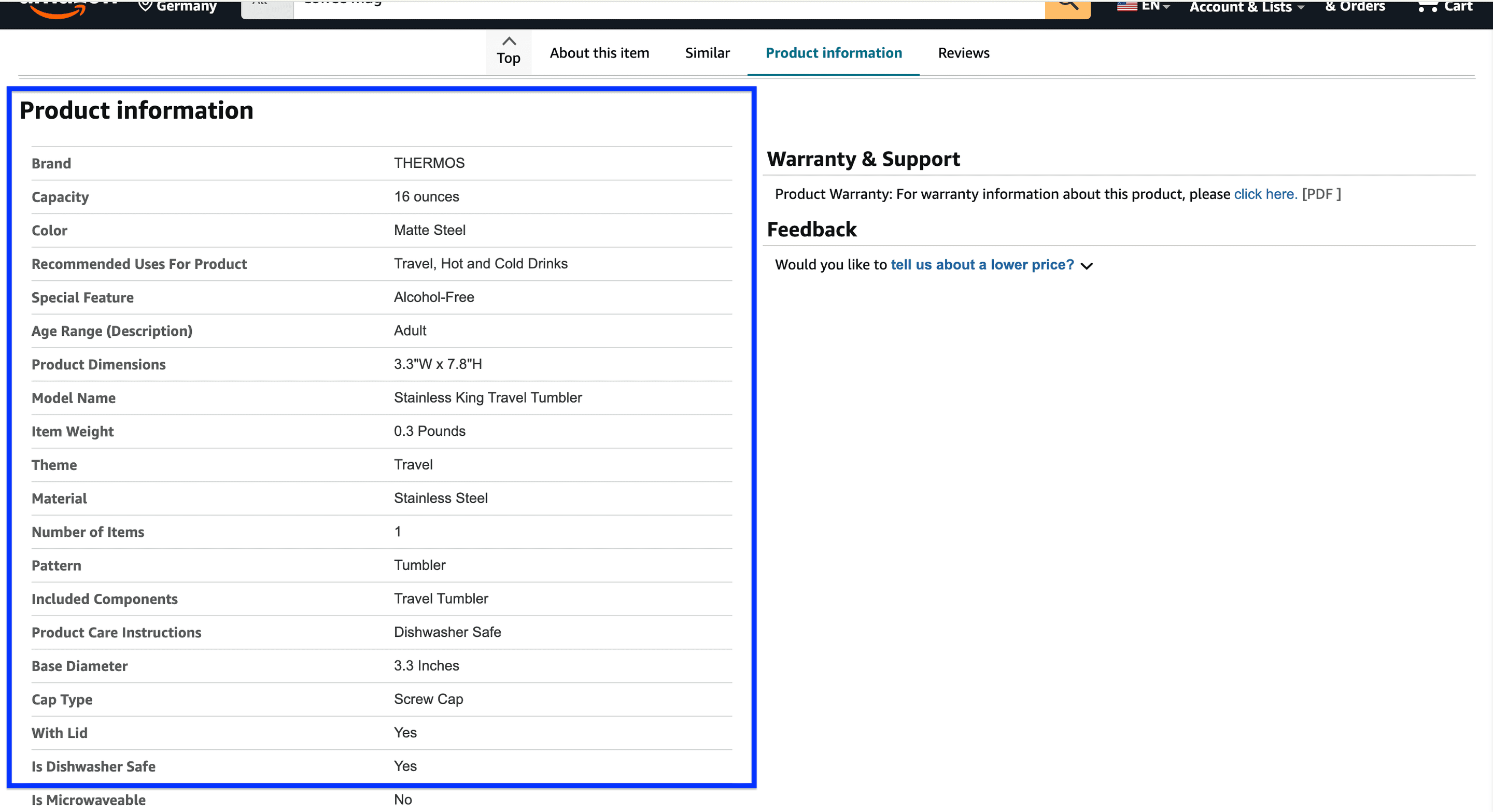
For detailed information, you have to scroll down to find all the product details that are available on Amazon. To get this kind of product details, follow this process:
- Copy the label on the left and paste it into your document.
- Copy the information on the right and paste it into your document.
- Attach 2-3 examples of other details of similar products.
- Repeat this for each detail you want to get.
Example: “- Capacity (16 ounces; 300ml;)
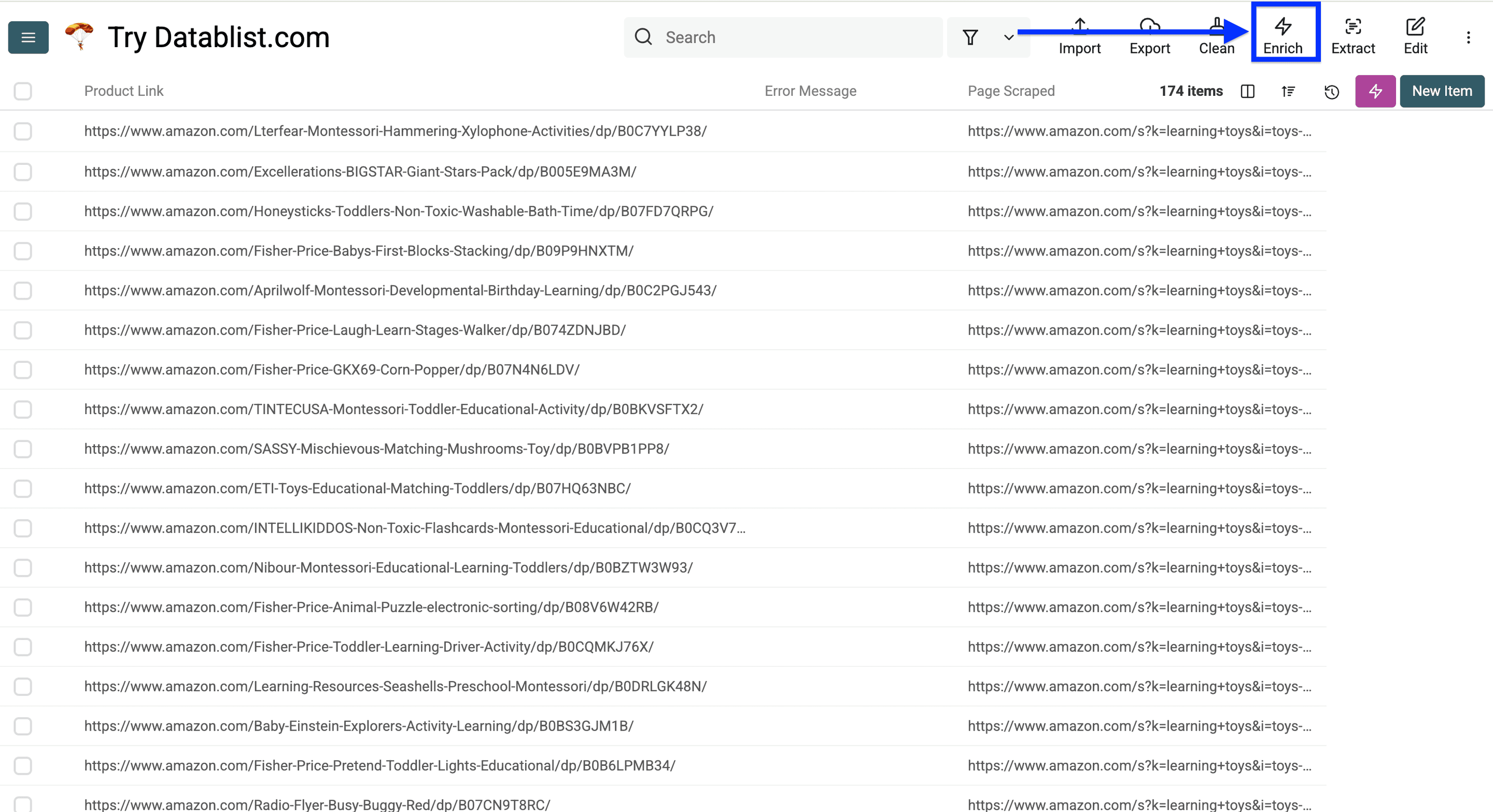
Open your Datablist Collection with the product links and click on Enrich.
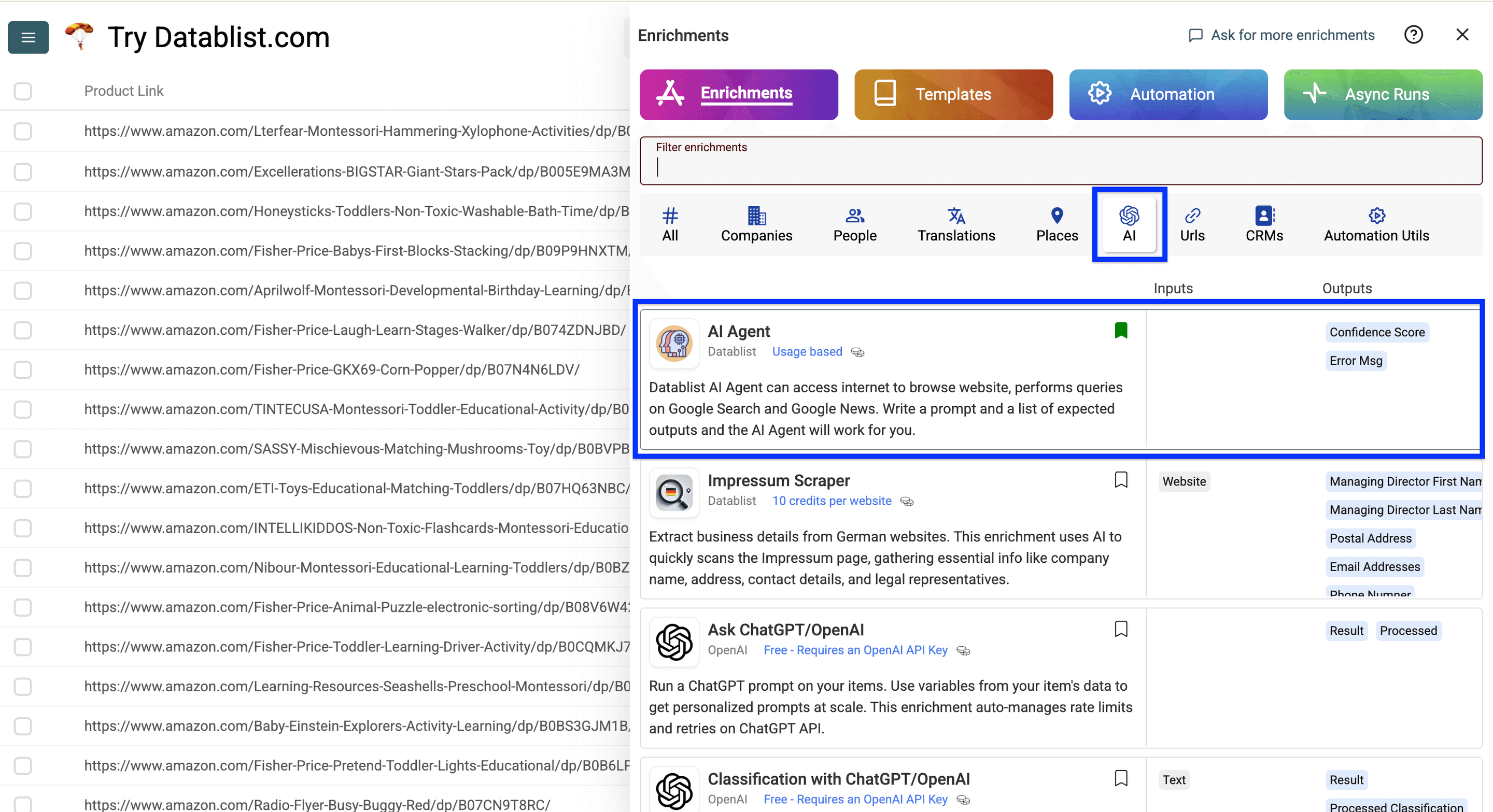
Go to AI and select the AI Agent.
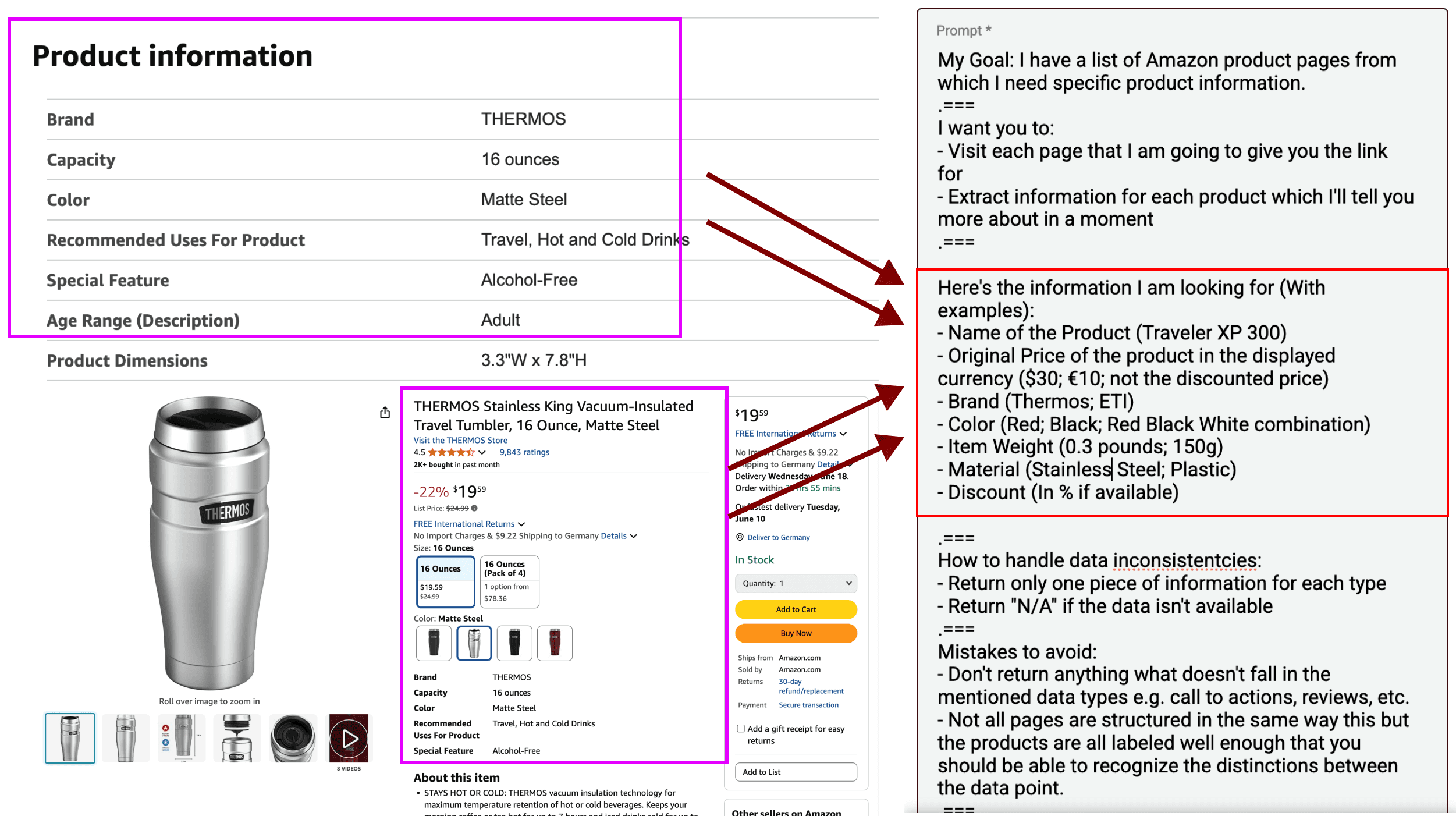
Copy this prompt and paste it in the Prompt Field. You need to edit it!
Visit the supplied Amazon product URL and extract Product Name, ASIN, Brand, Selected Variant, Displayed Price, Currency, Price Note, Availability Text, and Evidence. Use only information visible on the accessible product page.
Displayed Price means the current price attached to the selected variant. Keep a crossed-out reference price, a coupon, and a subscription offer separate in Price Note; do not replace the displayed price with a guessed original price. Preserve units, pack size, and currency.
If you also configure Item Weight or Material as outputs, copy their visible values for the selected variant. Keep the weight and its unit together, such as 150 g. If the page explicitly labels a discount percentage for that offer, copy it into Price Note with its label.
If a field is missing, leave it empty. If access fails or a challenge is shown, do not fill product fields from memory or search snippets. Evidence should quote the words supporting the price and variant.
Product URL: {{Product Link}}
Now Replace my output description with the output description you created. Here’s an example:
At the end of the prompt, map {{Product Link}} to the URL column from your source run or imported file.
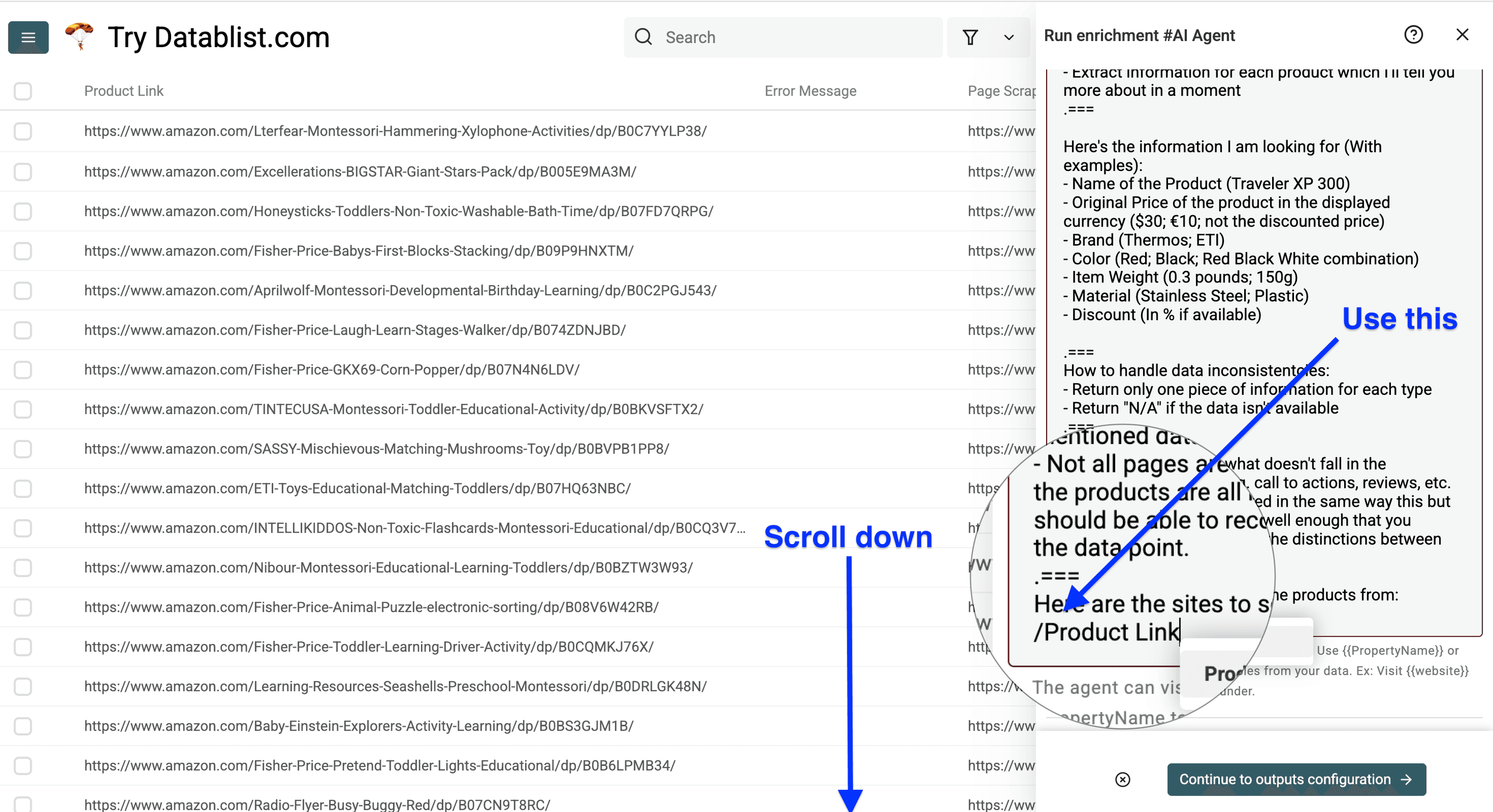
Then, scroll down to configure your Outputs.
Here’s how to configure your Outputs:
- Paste your label name in Output Name.
- Paste “As described in the prompt” in the Output Description.
- Select the appropriate Output Type for your data.
Click More and repeat the process for each product detail you want to scrape.
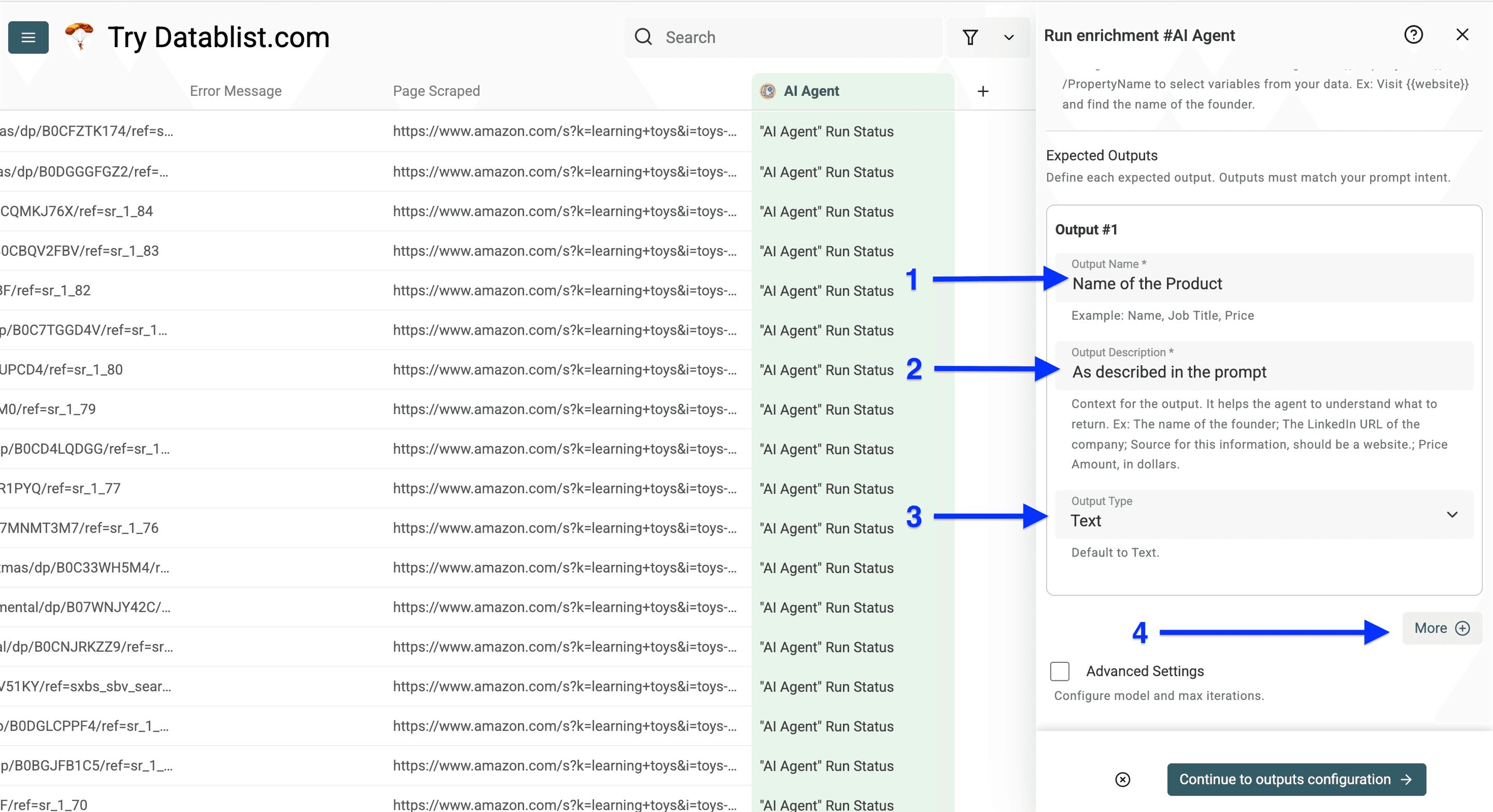
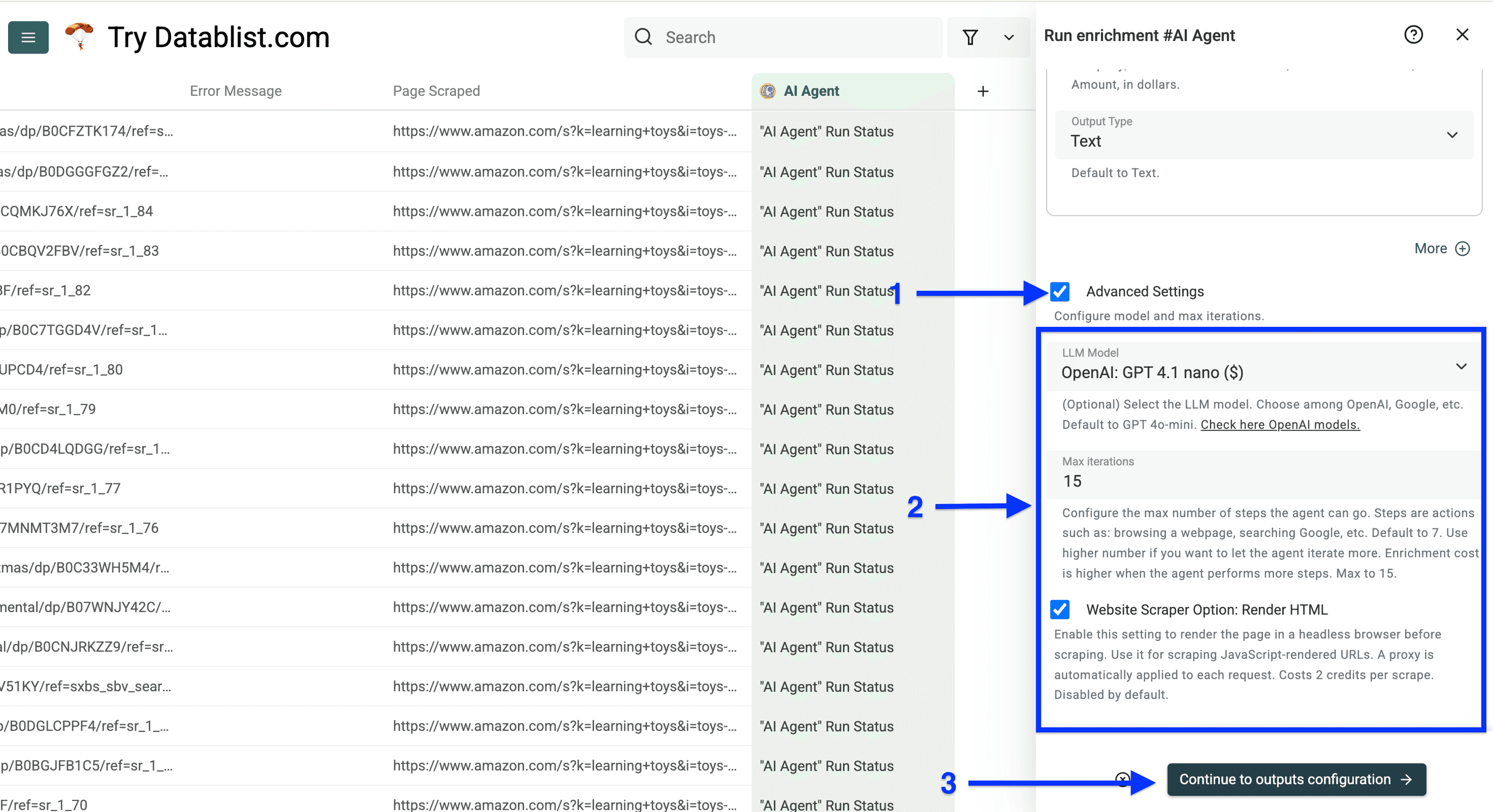
Once you have configured all your outputs, check the box next to Advanced Settings and use the following Settings
- LLM Model: start with the current default and inspect the sample.
- Max iterations: choose a budget appropriate to the fields you request.
- Website Scraper Option: Render HTML: use it if the required content needs rendering; it adds cost.
Then, click on Continue to outputs configuration.
Click on the ⊕ icons to Add a new column for each output. After doing this, click on Instant Run.
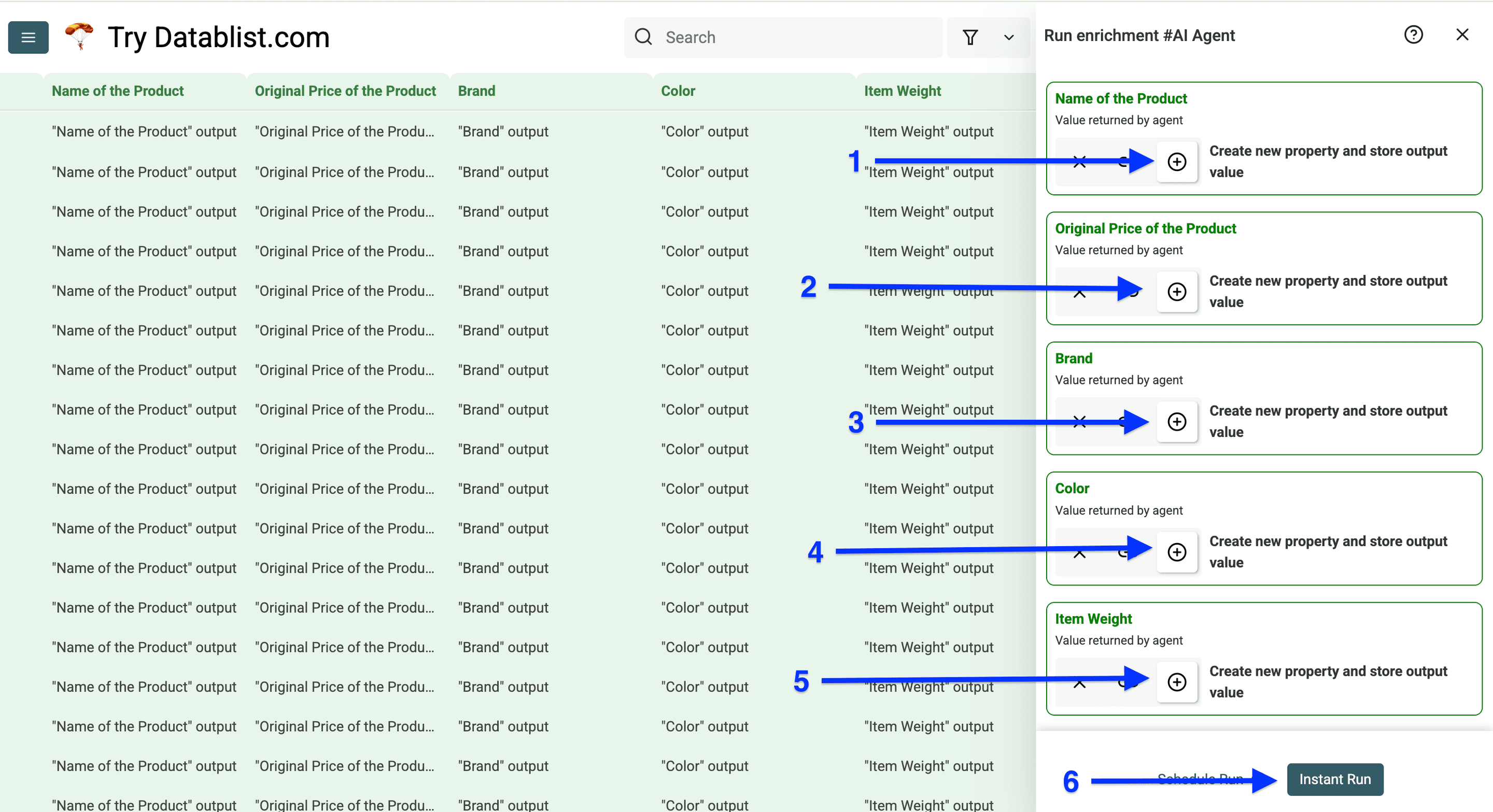
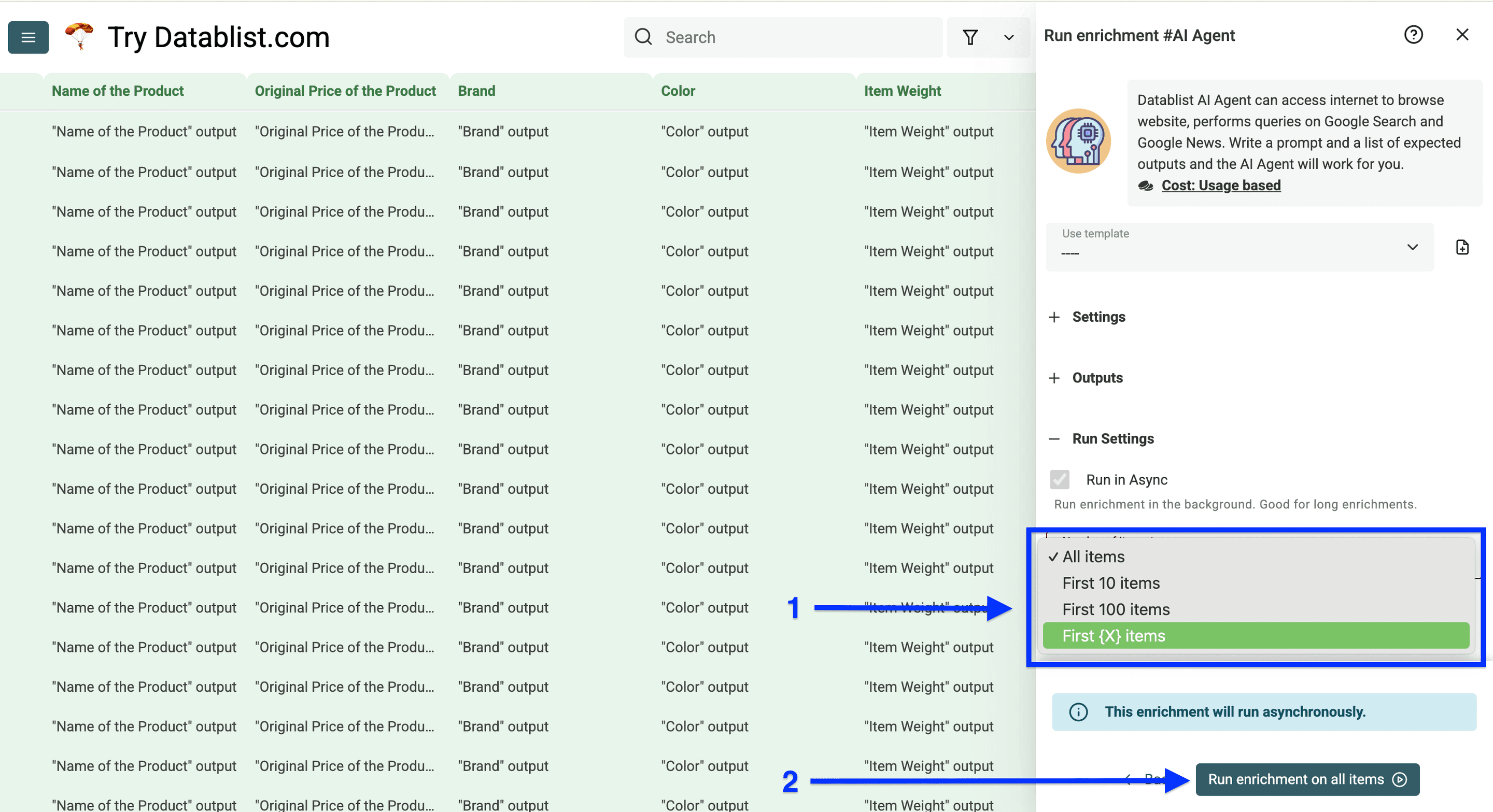
Now you'll see the Run Settings, which allow you to select the Number of items to process.
Once you've specified this, click on Run enrichment on X items to start scraping the product details from Amazon.
Once the enrichment finishes, compare the populated fields with the source pages. Review Error Msg separately from empty product outputs; a failed lookup does not establish that the product has no price or is unavailable.
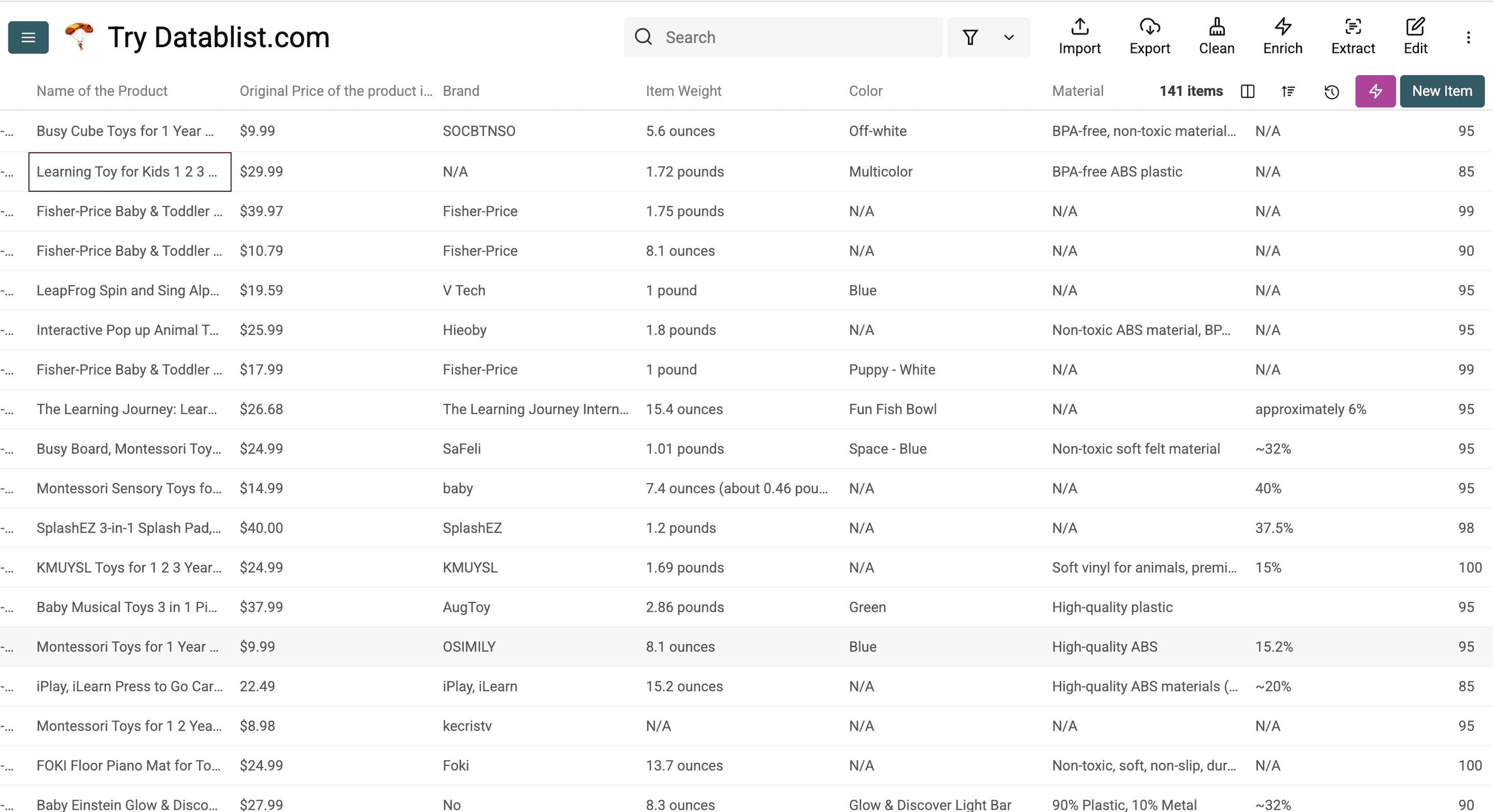
Validate ASINs, Variants, and Prices Before Export
Keep Product Link, ASIN, Page Scraped, and a Checked At column beside the extracted details. Add the actual run date yourself so repeated price checks can be distinguished.
For an illustrative row, a page stating “Acme Mug, blue, pack of 2, USD 18” should keep the blue variant, pack of 2, and displayed amount 18 together. A later coupon does not prove the price became 18 minus the coupon value, and a price from a different seller should not silently replace that row's offer.
I would check a sample for these cases before increasing the page limit:
- Repeated product links in different placements: deduplicate by reviewed marketplace and ASIN, while keeping the source page.
- Different size or color selections: keep them separate when they represent different identifiers or offers.
- Unavailable products or access errors: retain the status for review; never turn an empty price into zero.
- Reference and subscription prices: preserve their labels rather than mixing them into the current displayed amount.
For field types and missing-value rules, see LLM structured extraction.
Export a reviewed CSV or Excel file with the source URLs and date. This creates a dated catalog snapshot, not an inventory feed or a guarantee of the price a shopper will see later.
Resume Amazon Scraping from Another Page
When scraping Amazon search results, it’s best to start small.
Grab the first few pages, check the product links, and then continue from where you left off.
After your first run with the AI Agent scraper, you can reuse the same configuration to scrape the next pages.
Click Saved Enrichments at the top right of your collection.
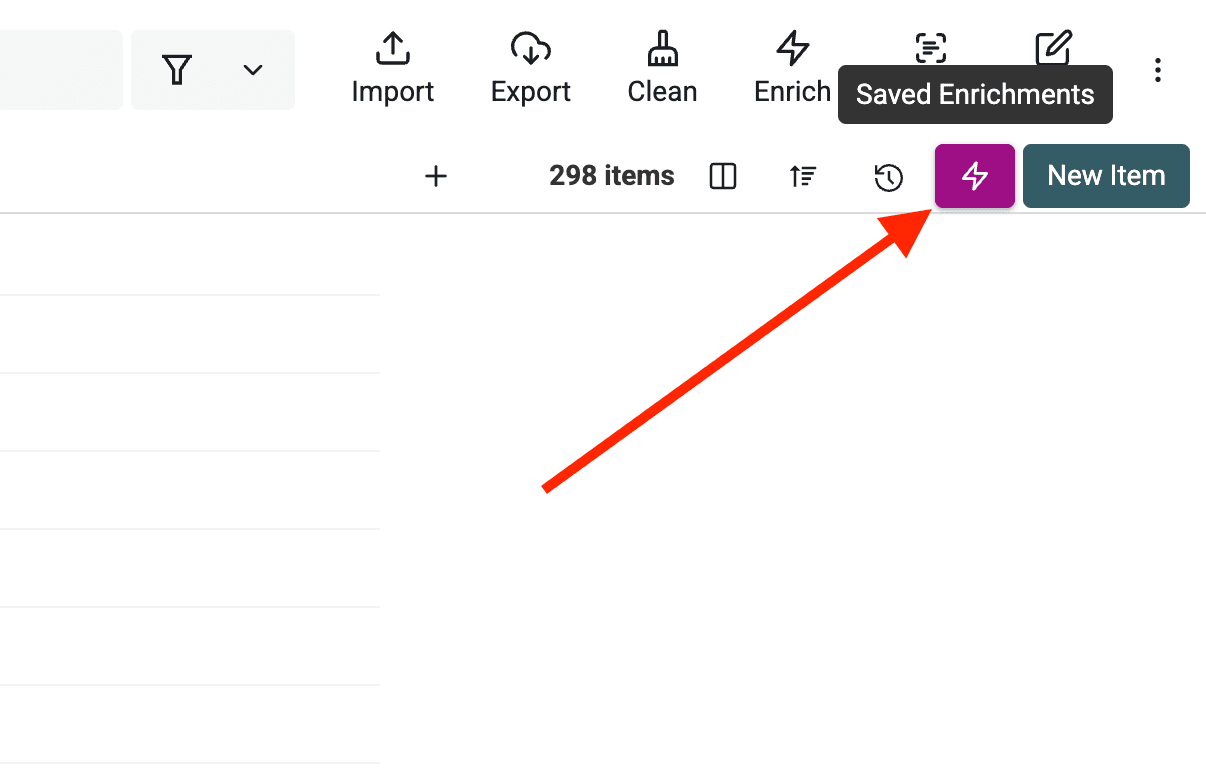
This opens a list of your saved enrichments.
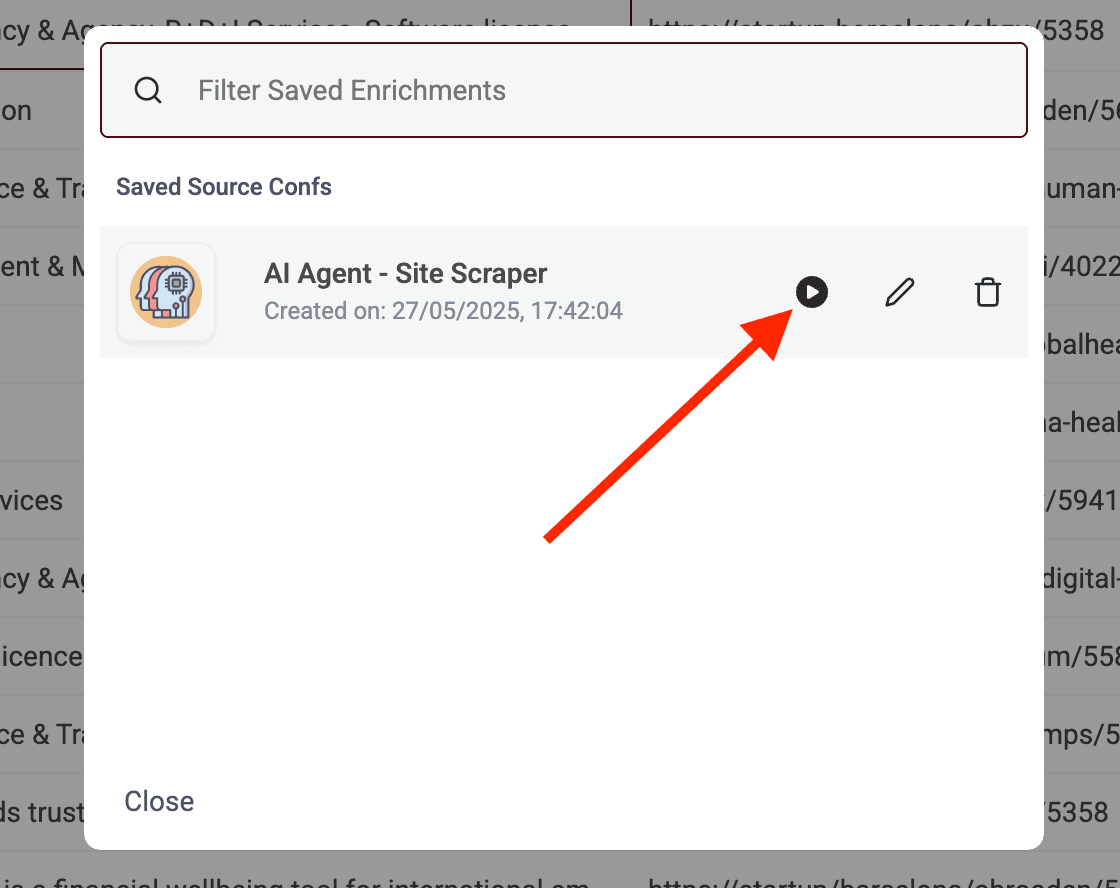
Find the Amazon scraper you just used and click the Play icon to open its settings.
Now, update the Amazon search URL to start from the next page. For example, if Page Scraped confirms that the last successful page was 10, open the results URL for page 11 and confirm it before using it as the next input. Do not append a second page parameter to a URL that already has one.
To keep track of what’s already been scraped, look at the product links in your collection.
You can even add a column named Page Scraped and store the URL source during the first scrape.
Use that info to decide your next &page=X value.
Check for overlap after each resumed run. Search results can change between runs, so resuming by page number can produce repeated products or miss products that moved to an earlier page.
Frequently Asked Questions
How can I scrape Amazon without coding?
You can use no-code tools like Datablist's AI Agent, which allows you to scrape Amazon products and their details without writing any code. These tools provide user-friendly interfaces where you can simply input URLs and select the data you want to extract.
What is the best Amazon scraper for non-technical users?
For non-technical users, AI-powered web scrapers like Datablist are excellent choices. They offer visual interfaces, don't require coding knowledge, and can handle complex scraping tasks through simple point-and-click operations.
Is it legal to scrape data from Amazon?
Public access does not establish permission for automated collection or reuse. Review Amazon’s current Conditions of Use and the requirements for your intended dataset before starting. This workflow does not grant access to restricted pages.
What's the easiest way to extract product information from Amazon?
Import product URLs or collect them from a search page, then configure the AI Agent prompt and expected output fields. The prompt above is an example you adapt; the workflow does not rely on a dedicated built-in Amazon template.
How to Scrape Amazon Search Results Without Code
Use AI Agent - Site Scraper with one search-results URL, a product-link extraction prompt, and a small initial page budget. Check the returned product links and Page Scraped before enabling more pagination.