
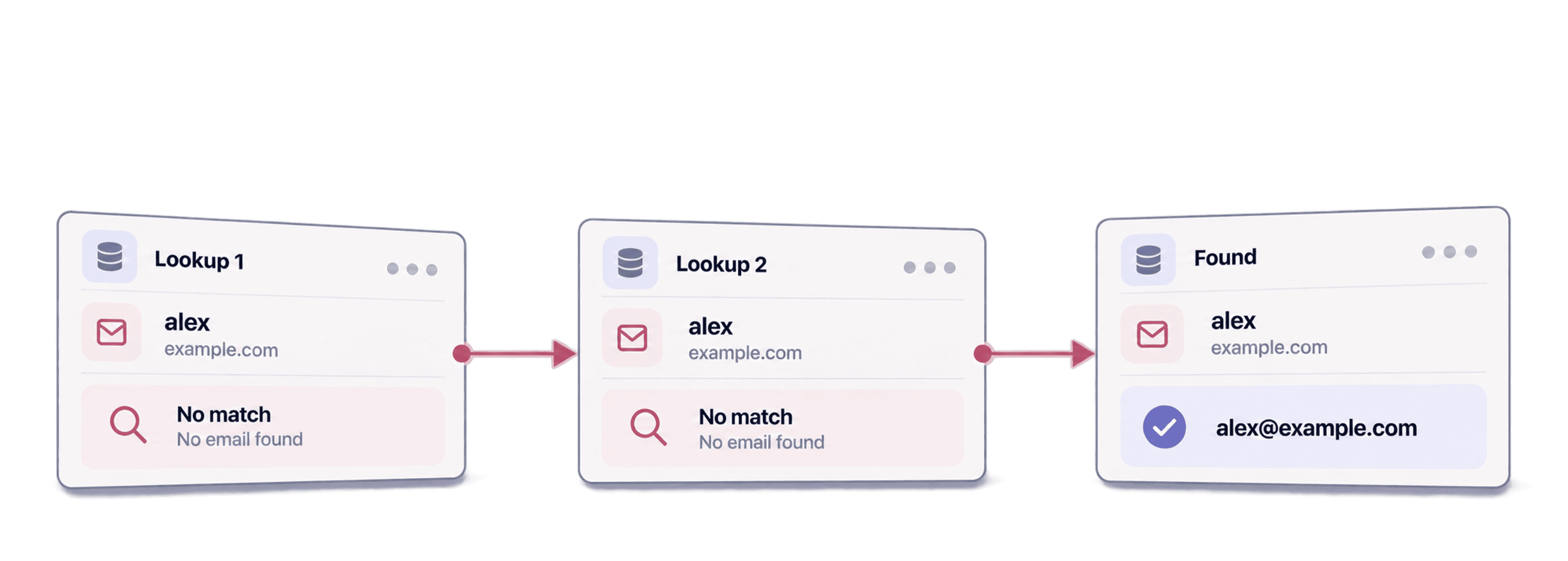
Waterfall enrichment searches multiple data sources in sequence to fill missing information. If one provider cannot return the required result, the next provider gets a chance. For a lead list, that might mean finding a work email from a name and company, or a phone number from a LinkedIn profile.
The useful question is how many additional usable contacts the sequence finds for your own list. More providers do not guarantee a particular match rate or revenue increase. This guide explains the workflow, the inputs to prepare, and how to decide which results to keep.
How waterfall enrichment works
Start with an identifiable person and the field you need. An email finder searches for an address; an email verifier evaluates an address you already have. They solve different problems.
For an email search, a typical sequence looks like this:
- Send the person's identifying information to the first provider.
- Keep the result if it meets the search's acceptance criteria.
- Try a later provider for records that still need a result.
- Return the result and its status, or an indication that no usable result was found.
Datablist's Waterfall Email Finder processes remaining records through its provider sequence. The run can also end when provider attempts or processing limits are reached. A missing result does not prove that the person has no email address.
Here is an illustrative input, not a measured enrichment test:
| Lead ID | Name | Company domain | Existing email | Task |
|---|---|---|---|---|
| L-101 | Alex Rivera | example.com | Empty | Find a work email |
| L-102 | Sam Taylor | example.org | sam@example.org | Verify the existing address |
| L-103 | Jordan Lee | Missing | Empty | Resolve the employer or use an available LinkedIn profile |
Only the first row is ready for the name-and-company email workflow. Sending all three rows through the same action would confuse missing inputs with unsuccessful searches and spend effort on an address you already have.
Run a waterfall email search in Datablist
1. Prepare the identifying fields
Import your leads into a Datablist collection. Keep your CRM or source ID alongside the person's name, company name or domain, and any known contact details.
Check that the company belongs to the person's current job. Two people with the same name at different employers are different search inputs. Remove obvious duplicate leads before enrichment so you can review one result per intended contact.
2. Choose the email search method
Open Enrich and select Waterfall Email Finder. Set Email Search Method to the method that fits your data:
- By Name and Company (default): map the person's name and company information. Use a company domain when you have it.
- By LinkedIn URL: map the person's profile URL. A company page URL is not a person's profile.
When using separate first and last name fields, map both. If your data has a single full-name column, configure the full-name input instead of putting the entire name in the first-name field.
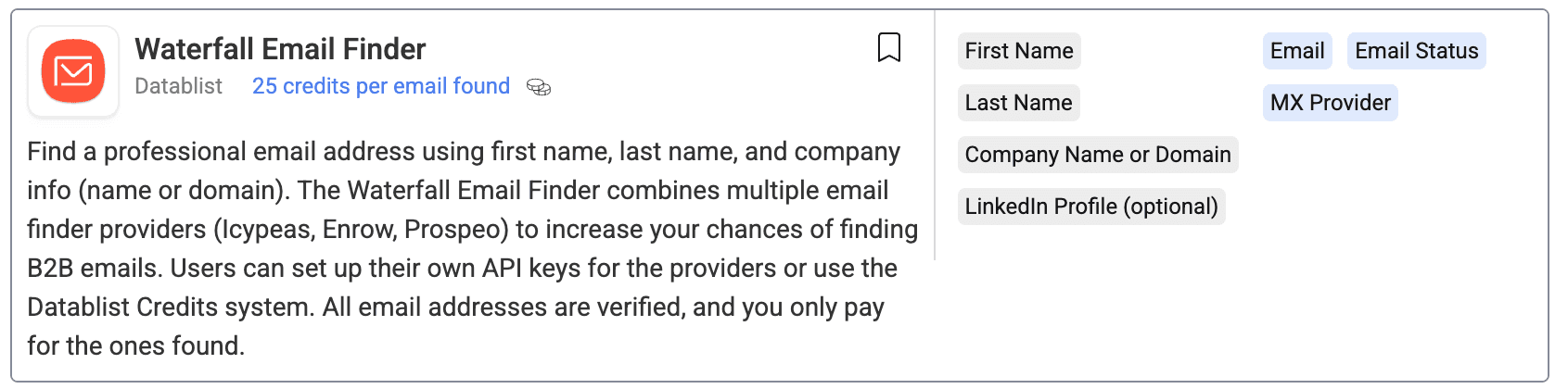
The custom waterfall configuration lets you supply a provider sequence and your own API keys for the name-and-company method. Check the chosen method before configuring a custom sequence; it is not a universal setting for every search mode.
3. Configure outputs and test a small sample
Keep the returned email and its status in separate columns. Retain the existing email column if you are comparing old and new contact information. You need to see which value came from this run before choosing what to export.
I would start with a small collection containing representative records: a complete name and domain, a LinkedIn profile, and a row with a missing input. Review the output before expanding the run to your full list.
A result review might lead to these decisions:
| Returned result | What to check | Next step |
|---|---|---|
| Email with a verified status | The person and employer match the input | Keep the email and status for your contact workflow |
| Email with an unverified status | Whether further verification is needed | Keep it separate from verified results |
| No email found | Input quality and available identifiers | Improve the input or leave the field empty |
| Missing or invalid input | The field mapping and source row | Correct the input before retrying |
These are review scenarios, not a promise that every run returns every status. Read the actual status columns for the selected action. A technical failure and a completed search with no match should not be treated as the same outcome.
4. Keep provenance when exporting
Export the source ID, returned address, status, and the columns needed to match the result back to the original contact. Avoid replacing a known email just because a new address was returned. Compare the identity and result quality first.
What waterfall enrichment can change financially
Additional usable contacts can expand the reachable portion of a lead list. That is a coverage benefit; the revenue effect depends on whether those contacts are relevant, reachable, and willing to buy.
For example, if a single provider returns usable contacts for 55 out of 100 leads and a sequence returns 80, the sequence adds 25 contacts. That is about 45% more contacts relative to 55. It is not evidence of a 45% revenue increase, and the numbers are illustrative assumptions, not Datablist benchmark results.
To evaluate your own run, compare the same eligible lead set. Track usable results, additional results beyond your first provider, unsuccessful searches, and total credits used. A second provider is useful when the additional contacts justify the cost and review effort for your workflow.
Five reasons to consider a waterfall
1. Recover gaps in a single provider's coverage
A second source may have information that the first does not. Measure the incremental results instead of assuming all providers add distinct coverage.
2. Reduce manual retries
A sequence handles fallback searches for missing results. You still need to prepare inputs and inspect statuses, but you do not have to submit every unsuccessful record to the next tool manually.
3. Match the search to your data
Names and company domains support one workflow; person profile URLs support another. Choose the method that fits the identifiers you actually have rather than filling missing fields with guesses.
4. Separate discovery from verification
Finding an email, finding a person, and verifying an address each answer a different question. Choosing the appropriate action avoids presenting every returned field as verified contact data.
5. Review coverage by audience
A result across your whole list can hide differences between countries, industries, or company types. Check representative segments before using the sequence for a new market.
Choose the Datablist waterfall for your task
Waterfall Email Finder
Use it when you know the person and need a work email. Prepare a name and company or a personal LinkedIn URL, choose the corresponding search method, then review the returned address and status.
You can try the free Email Finder for one contact using first and last name plus company information, or a public LinkedIn profile URL. Review the email status alongside the person's identity before using the result.
For a complete contact-list workflow, see finding emails at scale.
Waterfall Phone Finder
Use Waterfall Phone Finder when you have a person's LinkedIn profile and need a phone number. The output includes a phone number, country, and phone-number status. Keep the international prefix when transferring a number to another system.
A returned number still needs to match your intended contact. Do not infer a guaranteed mobile-only result or universal country coverage from the waterfall label.

Waterfall People Search
Use Waterfall People Search when you know the company and need to discover people there. The company domain anchors the search. Configure Waterfall Searches with the job titles, departments, and seniorities that fit your target.
Fallback search criteria can broaden a search after no result. Review whether the resulting people still fit your targeting requirements; a fallback title is not automatically equivalent to your first choice.

Discovering a person and filling information for a person you already know are separate workflows. Waterfall People Enrichment is available for enriching known contacts.
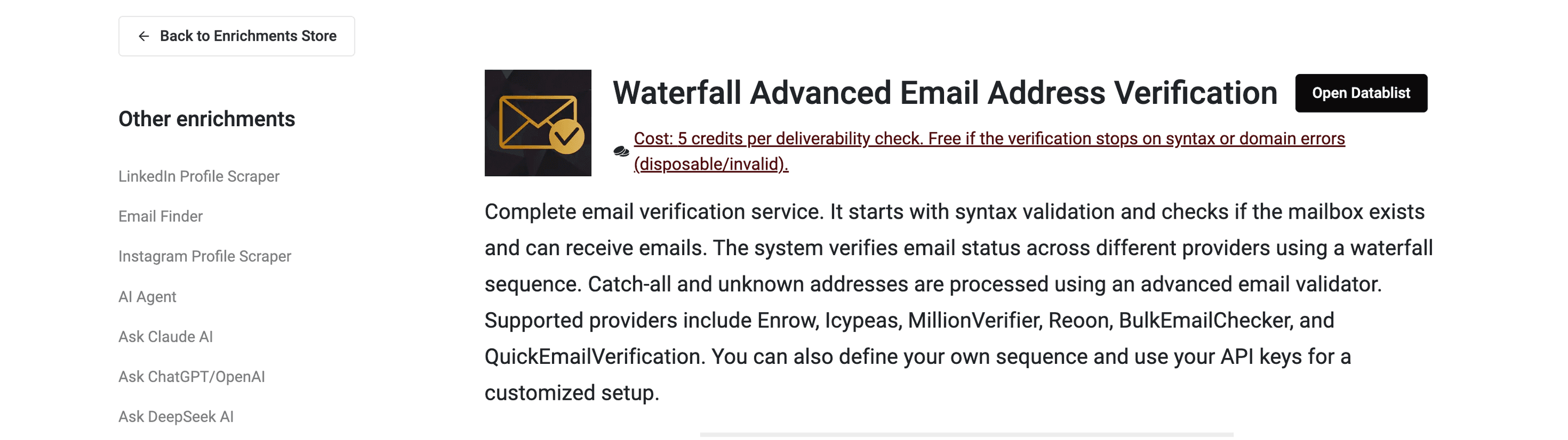
Waterfall Advanced Email Address Verification
Use Waterfall Advanced Email Address Verification when you already have an email. Its outputs include the email status and reason, plus supporting information such as whether the address is a role account.
Verification helps you evaluate an address. It does not guarantee inbox placement, recipient interest, or delivery at a later date.
Use cases for waterfall enrichment
CRM maintenance: fill missing contact fields without losing the original record ID. Review changed employers before updating an existing contact. Our CRM cleaning and enrichment guide covers the broader process.
Account research: start with company domains and use people search to identify relevant roles. Keep fallback matches separate when their role differs from your preferred target.
Contact-list preparation: find missing emails, then review statuses before exporting. Verify existing addresses separately instead of running an email finder on every row.
Frequently asked questions about waterfall enrichment
Is waterfall enrichment the same as ordinary data enrichment?
Data enrichment adds information to existing records. Waterfall describes a sequence of attempts or fallback criteria. A single-provider lookup is an enrichment, but it does not use a provider waterfall.
Does waterfall enrichment guarantee an 80% match rate?
No. Coverage depends on your audience, identifiers, providers, and acceptance criteria. Run a representative sample and calculate usable matches against the same eligible input set. A percentage without those details is not a useful prediction for your list.
Do all waterfall actions charge only for successful matches?
No single billing rule should be applied to the whole suite. Costs and billable outcomes depend on the selected action and configuration. Check its current usage information and Datablist credits documentation before running a large list. A custom provider sequence can also involve your own provider accounts.
Should I retry every record with no result?
First inspect the input and status. Correct a missing company, outdated employer, or invalid profile URL before retrying. Repeating an unchanged search is not the same as improving the search input.