Find a company's official domain using its name and an employee's full name to identify and verify the correct company.

Your goal is to identify the correct company and employee using:

- The company name
- The employee's first name
- The employee's last name

Then provide:

1. The company's official website URL
2. A short summary of what the company does
3. The employee's LinkedIn profile URL

To do so, search Google using queries such as:

- "[Company Name]" official website
- site:linkedin.com/in "[Employee First Name] [Employee Last Name]" "[Company Name]"
- site:linkedin.com/company "[Company Name]"

Visit relevant search results, the company website, and the employee's LinkedIn profile when publicly accessible.

Verify that the company website belongs to the requested company. Verify that the LinkedIn profile matches both the employee's full name and the specified company. Do not select a profile based on the name alone.

For the company website, discard company directories, legal listings, business reports, map listings, shops, social networks, and other results that are not official corporate websites.

The company website must be returned as a root domain without a path or tracking parameters. For example: https://example.com

If an output cannot be found, leave only that output empty. When evidence is incomplete, conflicting, or ambiguous, return a lower confidence value. Do not invent URLs or facts.

## Confidence

Return exactly one of these values:

- High: The company website and employee LinkedIn profile are both strongly verified using consistent evidence.
- Medium: The results are likely correct and supported by evidence, but one part cannot be fully verified.
- Low: The results are plausible, but the employee-company relationship or company identity is supported by limited or ambiguous evidence.
- Very Low: The evidence is weak or conflicting, or one or more requested results could not be found.

## Inputs

The company name to process is: /Name
Employee First Name: /FirstName
Employee Last Name: /LastName

このプロンプトをCSVファイルで使う方法は?

Datablistでは、CSVファイル全体に対して各行に直接プロンプトを実行できます。

朗報です。必要なプロンプトは、すでにDatablistの「Templates」セクションに用意されています。ゼロから作成する必要はありません。タスクに合うテンプレートを選ぶだけで、CSVの各行にすぐ実行できます。数クリックでデータ変換がさらに簡単になります。

DatablistにCSVファイルをインポートします。次に、ヘッダーから「Enrich」を選択します。

テンプレート:Find Company Domain from Company and Employee Names を選択します
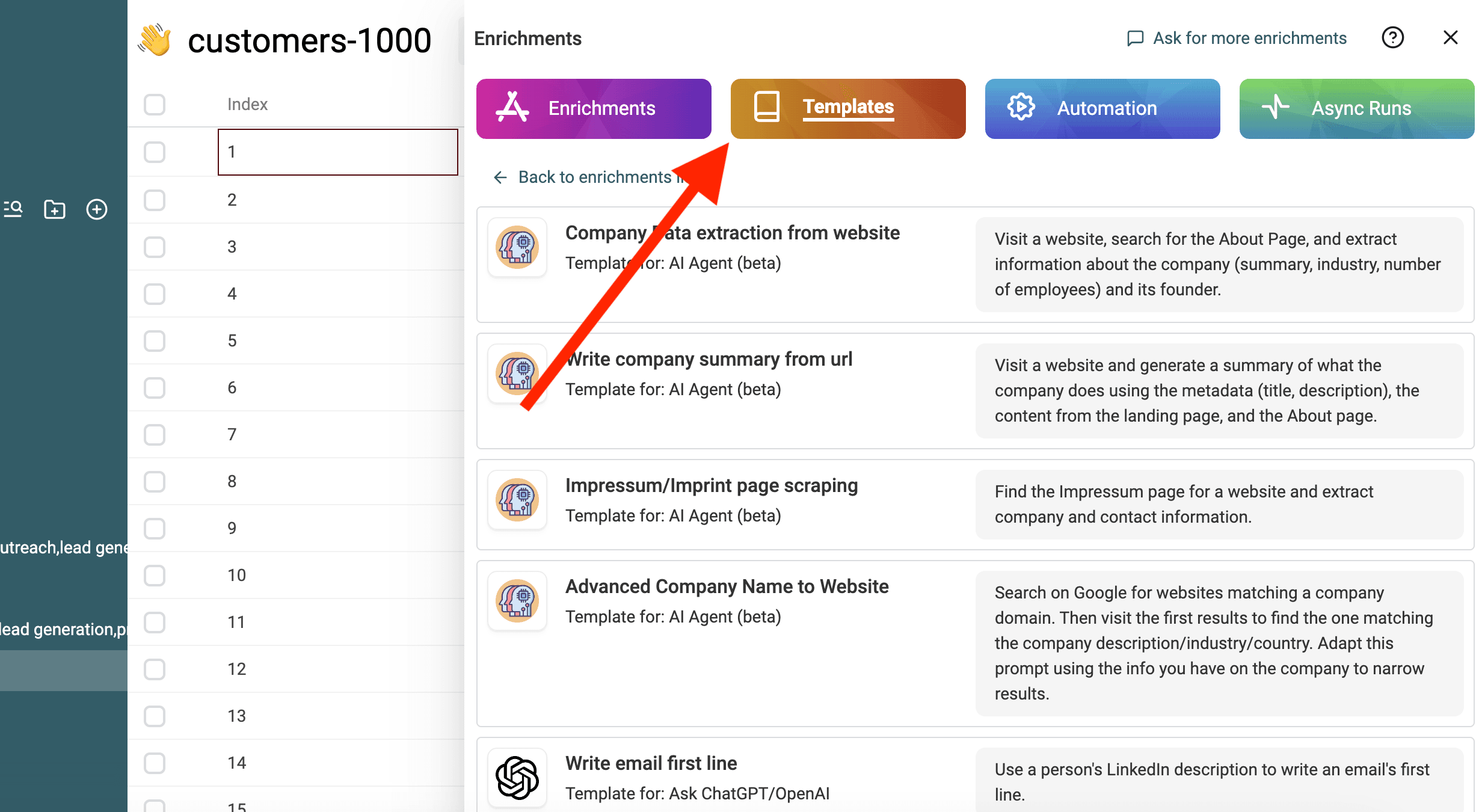
テンプレートを選択
テンプレートを選択

「/」または「'{{'」を使って、プロンプトの変数をコレクションのプロパティに置き換えます。
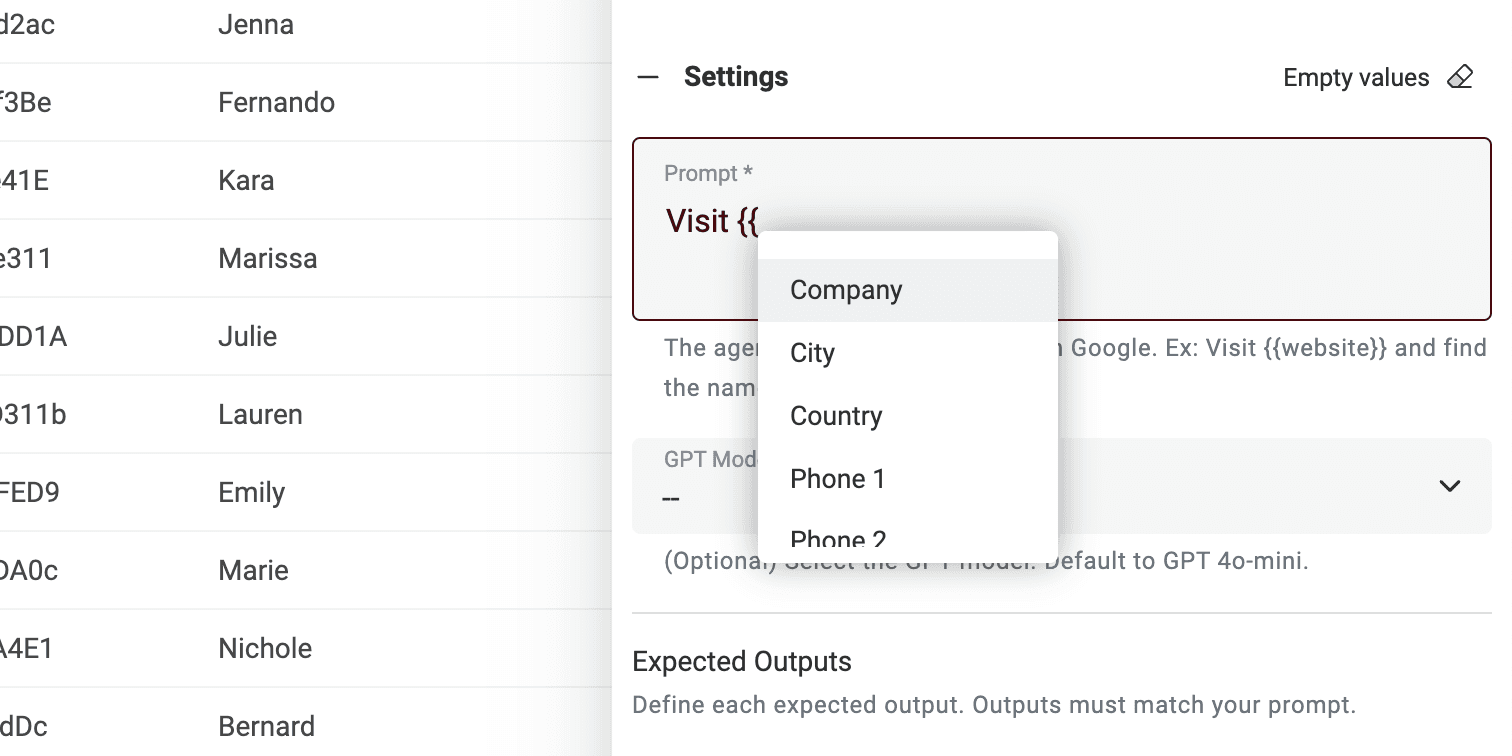
コレクションのプロパティで変数を定義
コレクションのプロパティで変数を定義

すべての変数が揃っていない場合は、プロンプトを編集してください。

これで完了です! CSVファイルの各行でプロンプトを実行し、結果を新しい列で取得できます。 🚀

AIエージェント プロンプトに関する注意

このプロンプトはDatablistのAI Agentエンリッチメント向けです。AIエージェントは、人工知能(AI)を用いて業務を代行するスマートなツールです。Webサイトの閲覧、Googleでの情報検索、各種オンラインサービスとの連携が可能です。 そのため、リアルタイムデータや最新の回答にアクセスできます。

一方、ChatGPT APIは入力テキストを解析し、既存の知識に基づいて応答するのみです。自らインターネットにアクセスしたり新しい情報を収集することはできません。

AIエージェントはリアルタイムデータを取り込むことで、より動的な体験を提供します。一方、ChatGPT APIは既存知識に基づいて応答します。

https://chatgpt.com/で直接操作している場合、エージェントと対話しています。プロンプトに追加情報を提供するためにオンラインにアクセスすることがあります(頻繁ではありません)。一方、ChatGPTと連携する他ツールはAPIを使用します。したがって、このプロンプトはChatGPT APIを呼び出す他のツールでは使用できない点にご留意ください。

DatablistのAI Agentは、CSVの各行でエージェントを実行します。