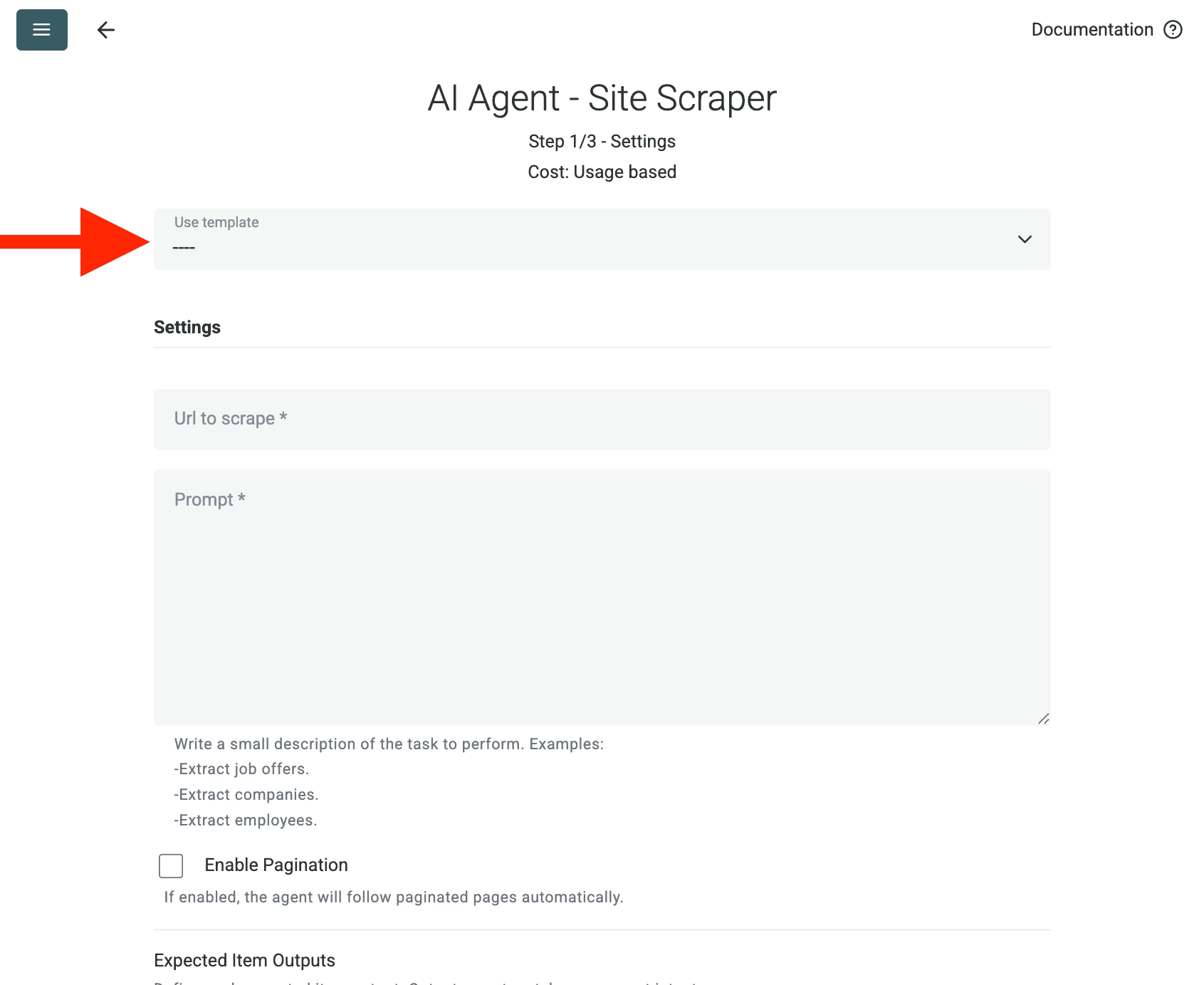
Scrapes agency listings from Clutch.co including company names, ratings, services, pricing, and profile links

## Goal
Visit the Clutch.co URL I am going to give you and extract the agency information.

## Information I want you to extract:

- Company Name
- Clutch Profile URL (full absolute URL to the company profile page, e.g. https://clutch.co/profile/company-name)
- Tagline / Summary (the short description shown below the company name)
- Min. Project Size (e.g. $10,000+, $25,000+)
- Avg. Hourly Rate (e.g. $25 - $49 / hr)
- Employee Count (e.g. 10 - 49, 50 - 249, 250 - 999)
- Location (city and country as displayed, e.g. Denpasar, Indonesia)
- Rating (overall star rating out of 5.0)
- Number of Reviews (total number of reviews shown)
- Primary Service (the service with the highest percentage, e.g. "40% UX/UI Design")
- All Services (comma-separated list of all services provided, e.g. "UX/UI Design, Custom Software Development, Mobile App Development")
- Verified Status (Premier Verified, Verified, or Not Verified)

## How to handle pagination:
- The pagination on Clutch.co is done using the "?page=X" URL parameter
- Example: https://clutch.co/id/agencies/ui-ux?page=2, https://clutch.co/id/agencies/ui-ux?page=3
- Use this parameter to navigate through all pages of results

## How to handle data inconsistencies:
- Return only one piece of information for each type
- Return "N/A" if the data isn't available
- For ratings, return the numeric value (e.g. "4.8") not the star icons
- If a company has no reviews yet, return "0" for Number of Reviews and "N/A" for Rating
- For the Primary Service, always include the percentage (e.g. "40% UX/UI Design")
- For All Services, list them without percentages, separated by commas

## Additional Instructions:
- Extract information from the listing cards on the search results page
- Do not navigate into individual company profiles, extract only what is visible on the listing page
- Skip sponsored/featured banners that are not actual company listings
- Some listings may show a "Serves [Location]" instead of a physical location, extract that as the Location value
- Important: Do not extract anything else but the requested information

如何使用此 AI Prompt

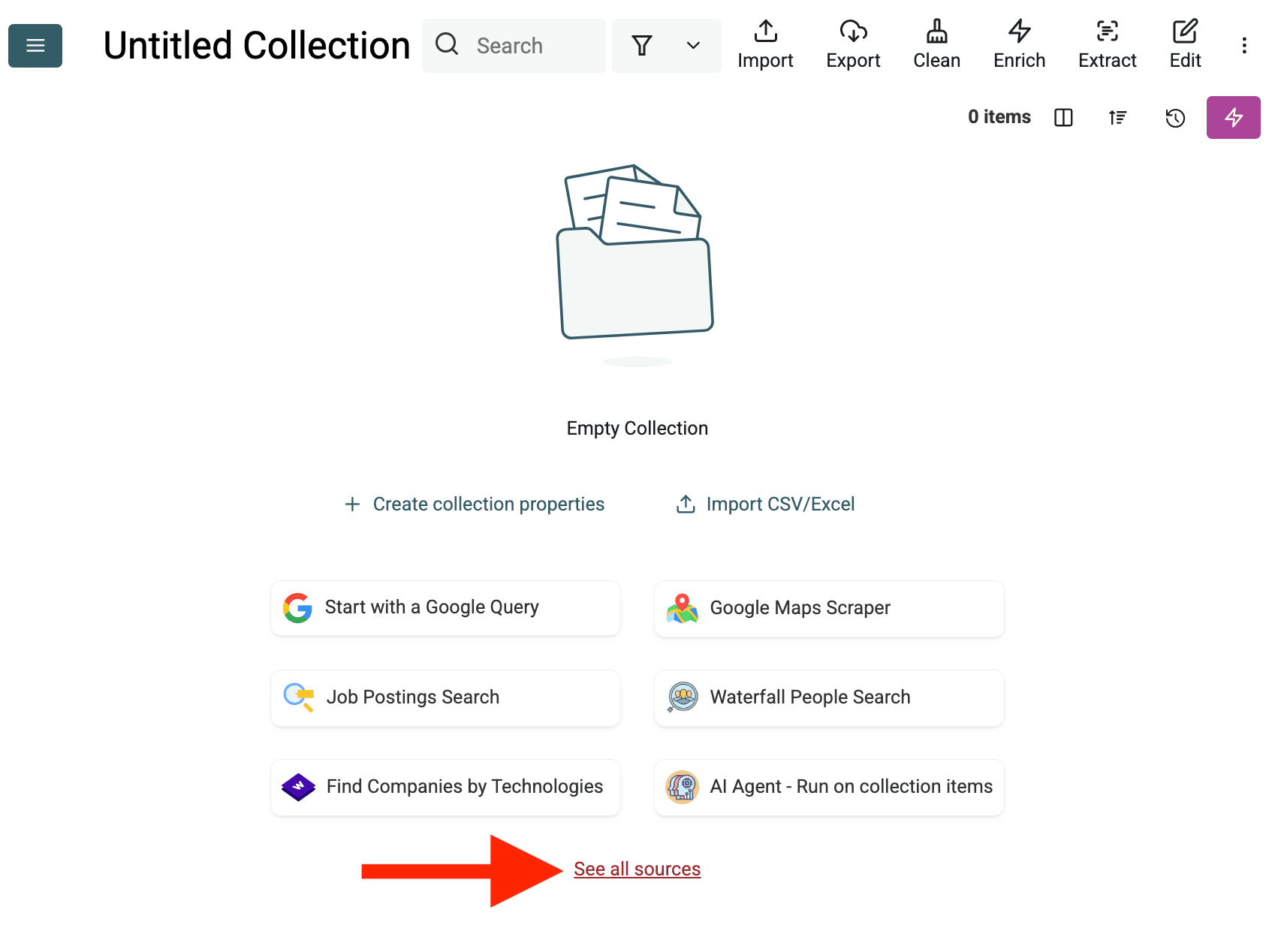
  1. 创建一个新的 Collection:首先在 Datablist 中创建一个新的空 collection 用于存储数据。点击侧边栏中的“+ Create new collection”。
AI web scraping > 常规 web scraping
  1. 选择 AI Agent Source:点击 "See all sources",或前往 "Import" -> "Import From Data Sources"。选择 "AI Agent - Site Scraper"。
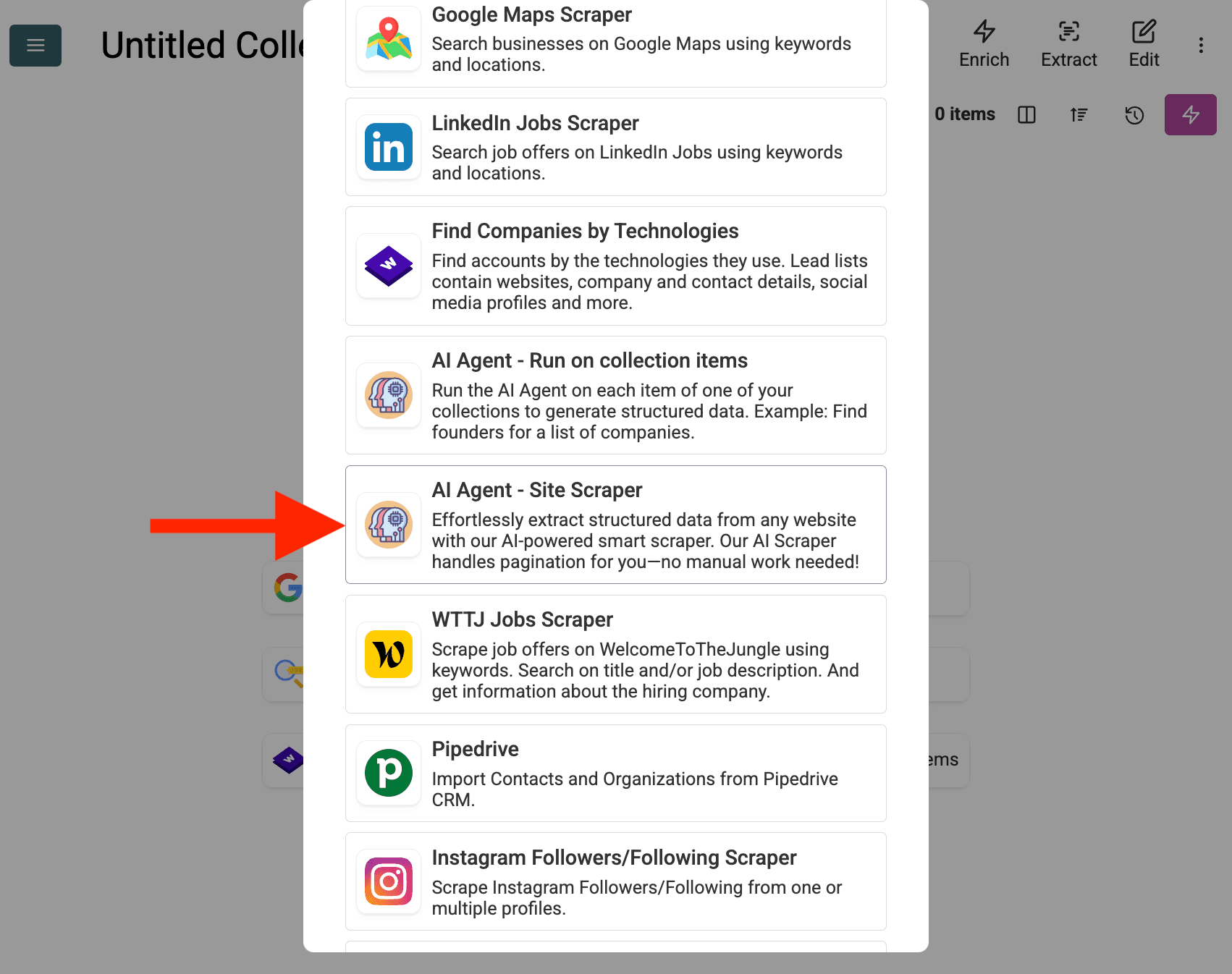
选择 AI Agent - Site Scraper
  1. 配置数据源

    • Select Template:在 "Template" 下拉菜单中找到并选择该 prompt。上面的 prompt 会被自动加载。
    • URL to Scrape:输入要抓取的 URL
    • Enable Pagination (Optional):如果结果跨多页,勾选 Enable Pagination,并设置合理的 Max Pages 上限(例如 10)。
    • Customize (Optional):你可以调整 AI 模型(例如 GPT-4o mini 通常性价比更高)、根据特定需求编辑 prompt,或修改期望的 Outputs
AI web scraping > 常规 web scraping
  1. Review Outputs:点击 Continue。Datablist 会显示在 prompt 中定义的输出字段(Project Name, Client Company Name)。点击每个字段旁的 + 图标,在你的 collection 中创建相应的属性(列)。
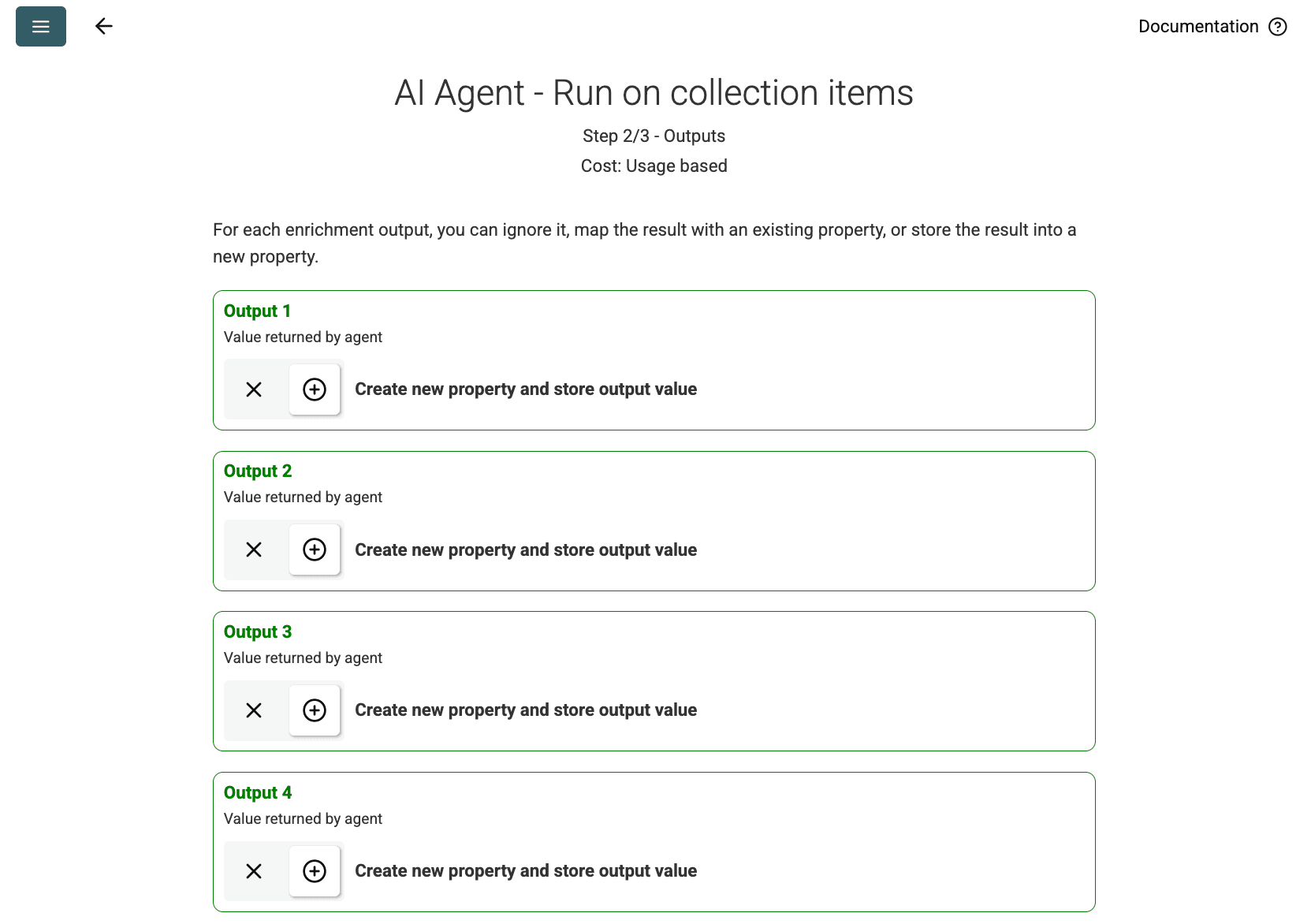
Outputs
Outputs
  1. Run Import:点击 Run import now。AI Agent 将根据 prompt 开始抓取网站,并填充到你的 collection。

定价

此数据源按使用量消耗 Datablist credits。成本取决于网站的复杂度以及访问的页面数量。

建议先在单个页面上运行 AI Agent 进行测试,以估算成本。

常见问题

如何使用相同配置再次运行?

运行你的 AI Agent 后,点击数据表右上角的粉色按钮,可再次打开并使用上次的设置。
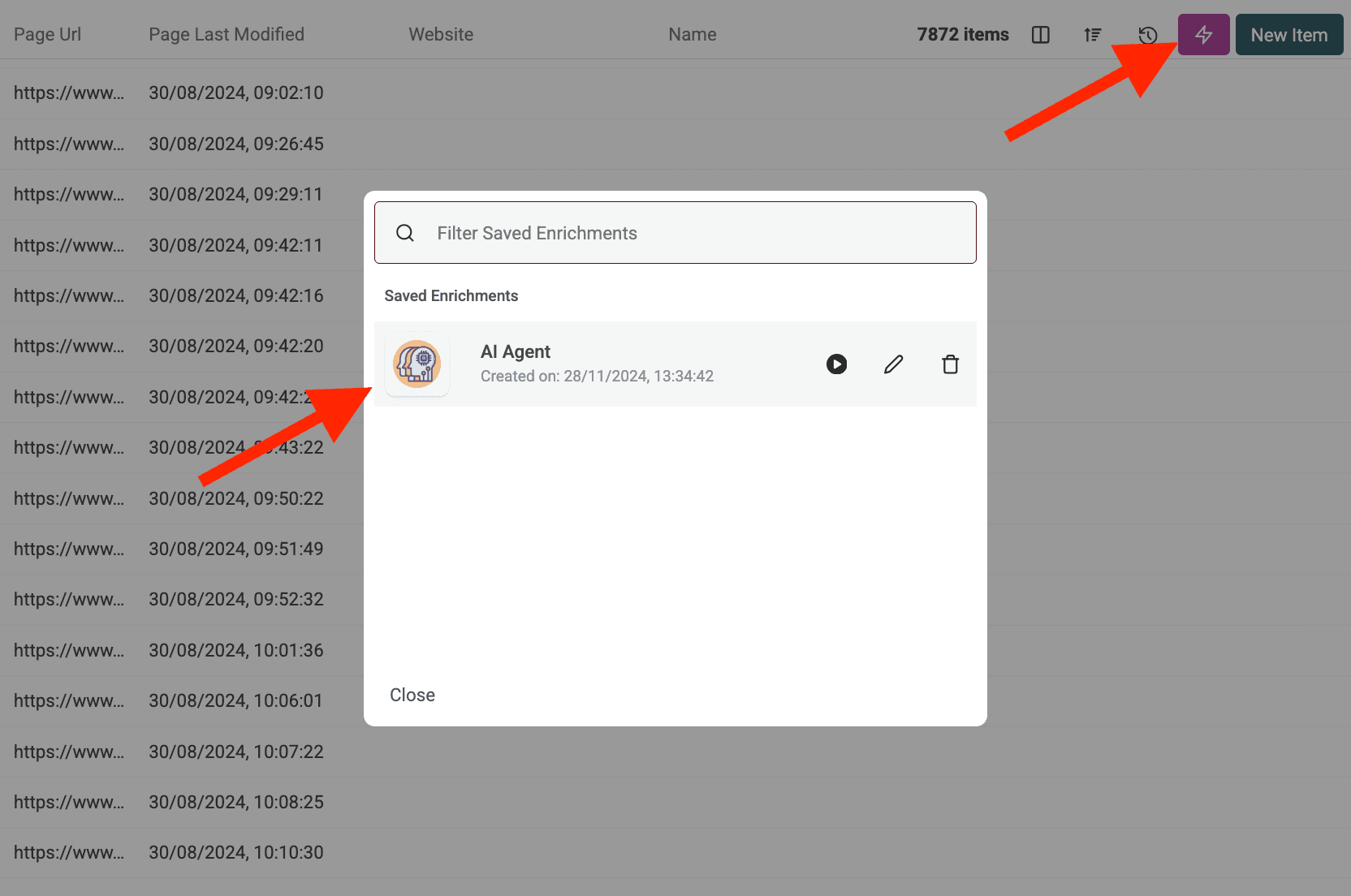
使用你现有的 agent 设置
使用你现有的 agent 设置

如果 AI Agent 访问受保护网站或被拦截会怎样?

AI Agent 会在需要时自动使用代理服务器访问可能存在反爬虫保护或地域限制的网站。这会提升数据提取成功率,但防护非常严密的网站仍可能存在挑战。

AI Agent 能处理多少数据?

在运行 AI Agent(作为 enrichment 或数据源)时,Datablist 的 collections 最多可处理 100,000 条目(行)。对于更大的数据集,你可能需要拆分到多个 collections。

AI Agent 与 ChatGPT/Claude/Gemini 的 enrichments 有何不同?

标准 AI enrichments(ChatGPT、Claude、Gemini)会使用 AI 的既有知识处理你 collection 中已有的数据。AI Agent 则可主动与实时 Web 交互——执行 Google 搜索、浏览网站,并根据你的 prompt 提取新信息。

结果有多准确?

准确性高度取决于你的 prompt 的清晰度与具体性,以及任务复杂度和网上可用的信息。提供清晰的指令、示例和错误处理规则会提升结果质量。Datablist 通常会为 AI Agent 的输出提供置信度分数,帮助评估可靠性。