
Selling in another country starts with a product catalog people can read and trust.
But most e-commerce platforms make catalog translation slow. Shopify, WooCommerce, Magento, BigCommerce, and marketplace exports often mix product names, HTML descriptions, categories, JSON specifications, and URLs in the same CSV.
Basic translation tools can translate the words. They often fail on the catalog data.
In this guide, I’ll show you how to translate an e-commerce product catalog with ChatGPT in Datablist. We’ll localize product names, translate categories and descriptions, preserve HTML and JSON, convert units, and create language-specific URLs.
What You Will Learn in This Guide
- Why catalog translation is different
- How to localize product names
- How to translate product categories
- How to keep HTML tags while translating
- How to adapt product specifications in json to local units
- How to add subdirectories to URLs automatically
- How to check the translated catalog before import
- Why you should use AI for translations
Why Product Catalog Translation Is Different
An e-commerce catalog is not plain text.
You need to translate customer-facing text without damaging the fields your store needs to import the data back.
For example:
- Product names need local terms, not word-for-word translations.
- Product categories should stay short and consistent.
- Product descriptions may contain HTML tags.
- Product specifications may use JSON keys your platform expects.
- Measurements may need local units.
- URLs may need
/de,/fr,/es, or another language path.
That is why a product catalog translation workflow needs instructions, not only a translator.
Datablist's Translate with ChatGPT/OpenAI enrichment runs on rows from your CSV or Excel file. It translates one column at a time, writes the result to a new column, and marks each row with a status. Empty rows cost 0 credits, and each translated row shows its credit cost.
Step 1 – Requirements for Translating a Product Catalog
You need two things:
- A CSV or Excel file with your products. Export it from Shopify, BigCommerce, WooCommerce, Magento, PrestaShop, or your marketplace tool. This workflow also works for Amazon, Etsy, Rakuten, AliExpress, MercadoLibre, Lazada, and other marketplaces.
- An AI assistant that can run a prompt on each row.
In this guide we’ll:
- Translate a catalog from English to German as an example
- Use the ChatGPT translator from Datablist
- Keep the original columns and write translations to new columns
📘 What is Datablist?
Datablist is an AI spreadsheet for cleaning, enriching, and managing lists. You can import a CSV or Excel file, run enrichments on rows, and export the result.
Which ChatGPT Model Should You Use?
The default model is GPT-4o mini. It is a good fit for most catalog translations because it keeps cost low and handles product text well.
Use a larger model when:
- Product names need more local adaptation
- Descriptions carry brand tone
- Specifications include complex technical language
- You translate luxury, medical, industrial, or regulated products
Use a smaller model when:
- The catalog is large
- Text is simple
- You need a first translation pass before human review
Datablist shows the estimated credit cost in the enrichment settings. It also returns the cost for each translated row, so you can see where credits went.
If you use row-level OpenAI prompts for a non-urgent catalog, Flex Mode can reduce processing costs on supported models.
Step 2 - Importing the CSV
Once you have your catalog in CSV/Excel format, sign up for Datablist.
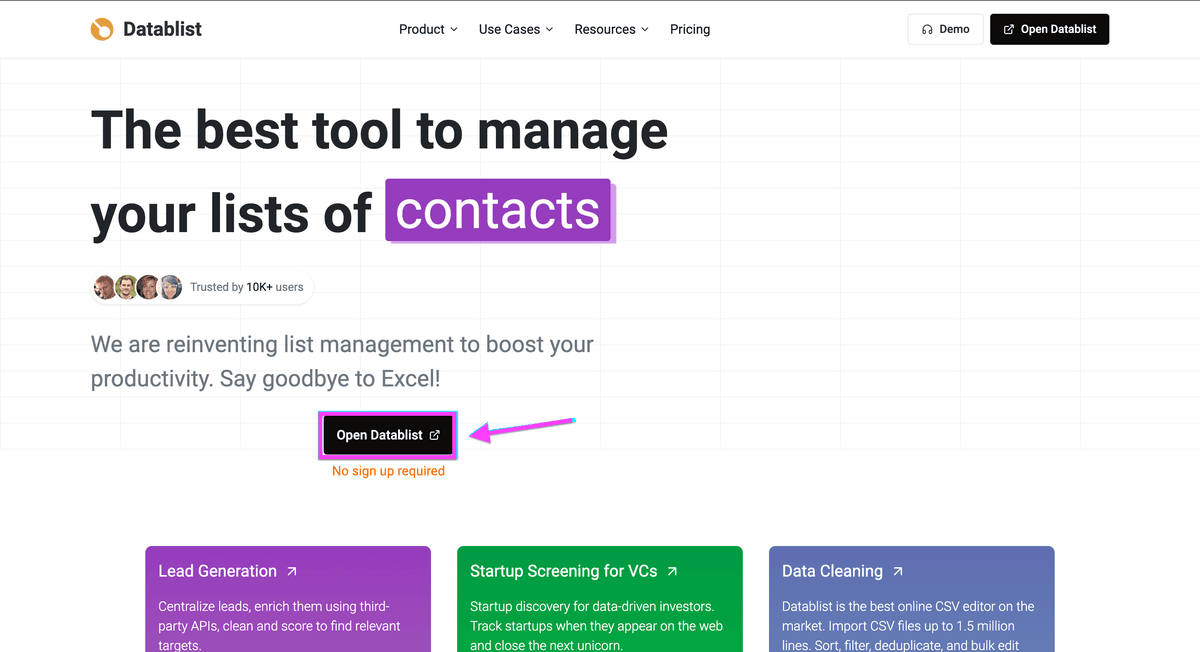
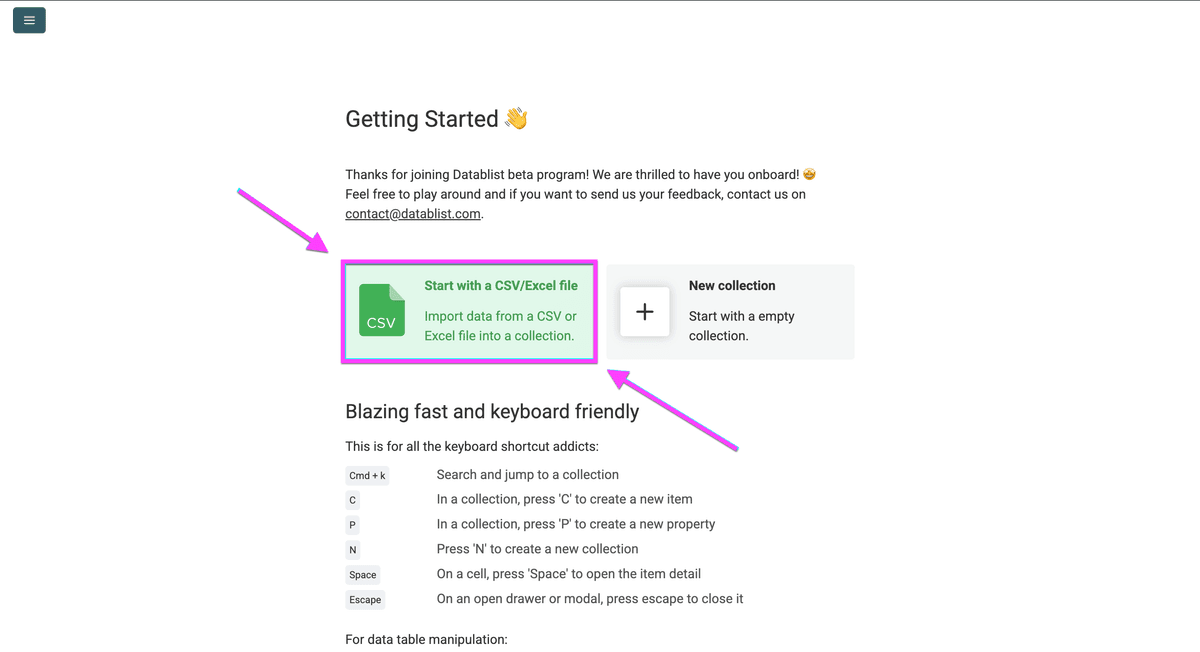
Import the CSV with your product catalog.
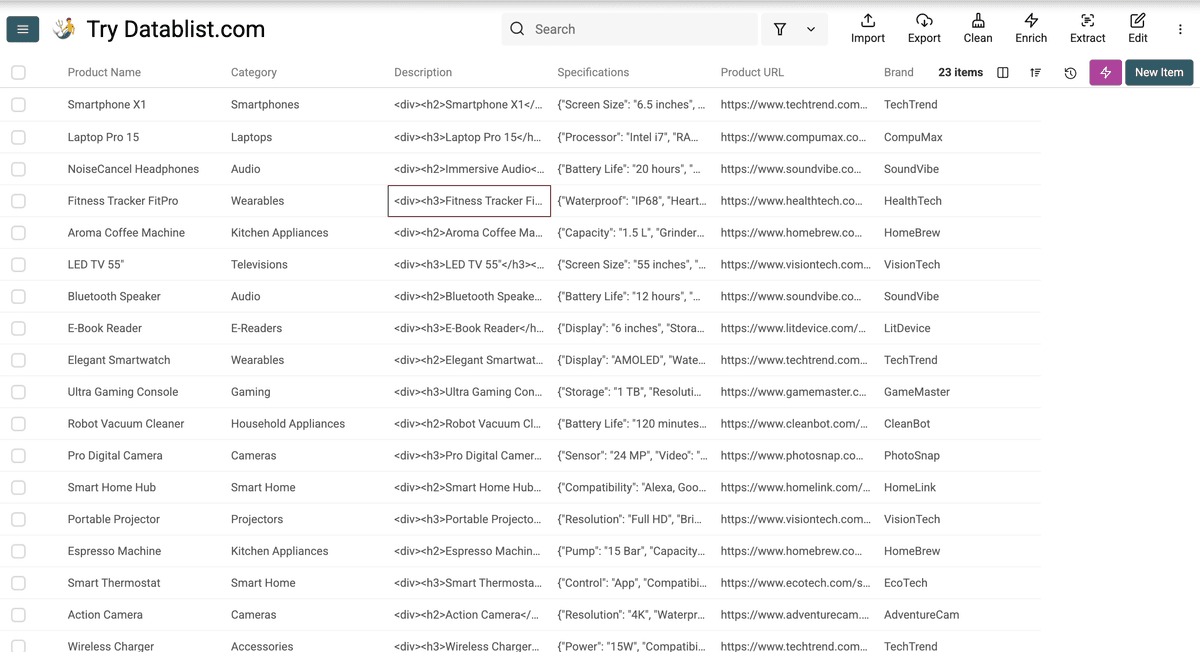
This sample file contains product fields with different formats.
I'll use it to translate:
- product names
- product categories
- product descriptions with HTML tags
- product specifications in JSON format
Then I’ll modify product URLs for the German version.
Step 3 - Localizing Product Names
One limit of translators like Google Translate is how they handle product names.
Direct translations often sound formal. They may also miss the terms local customers type into search.
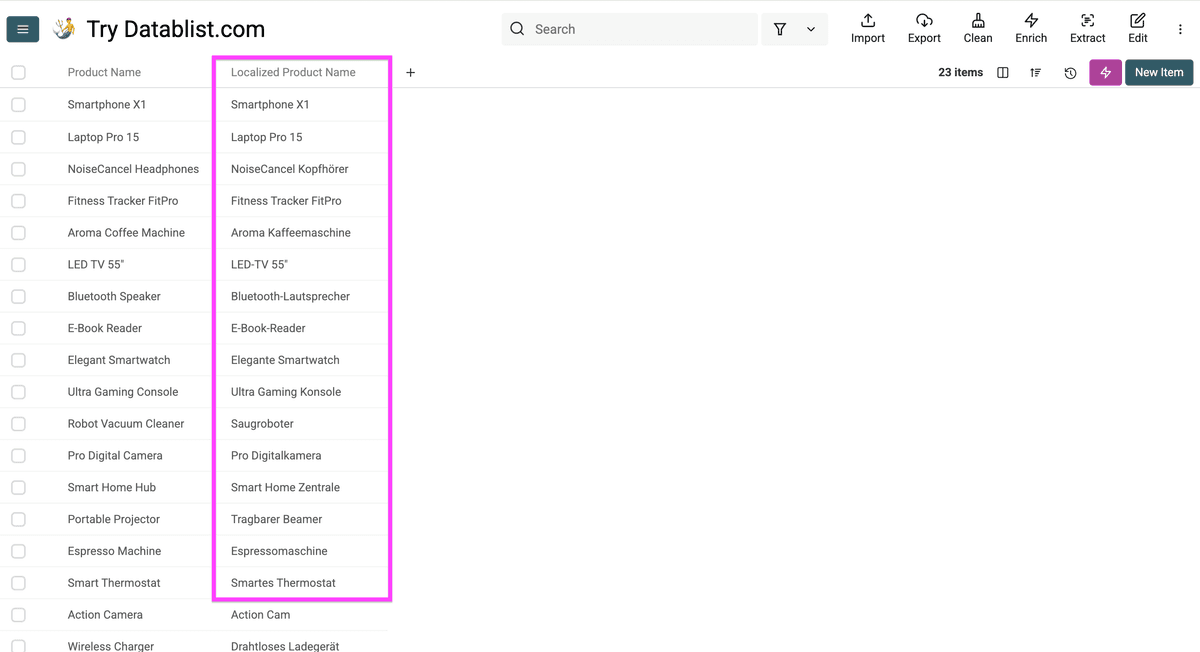
That is why we localize product names instead of translating them word for word.
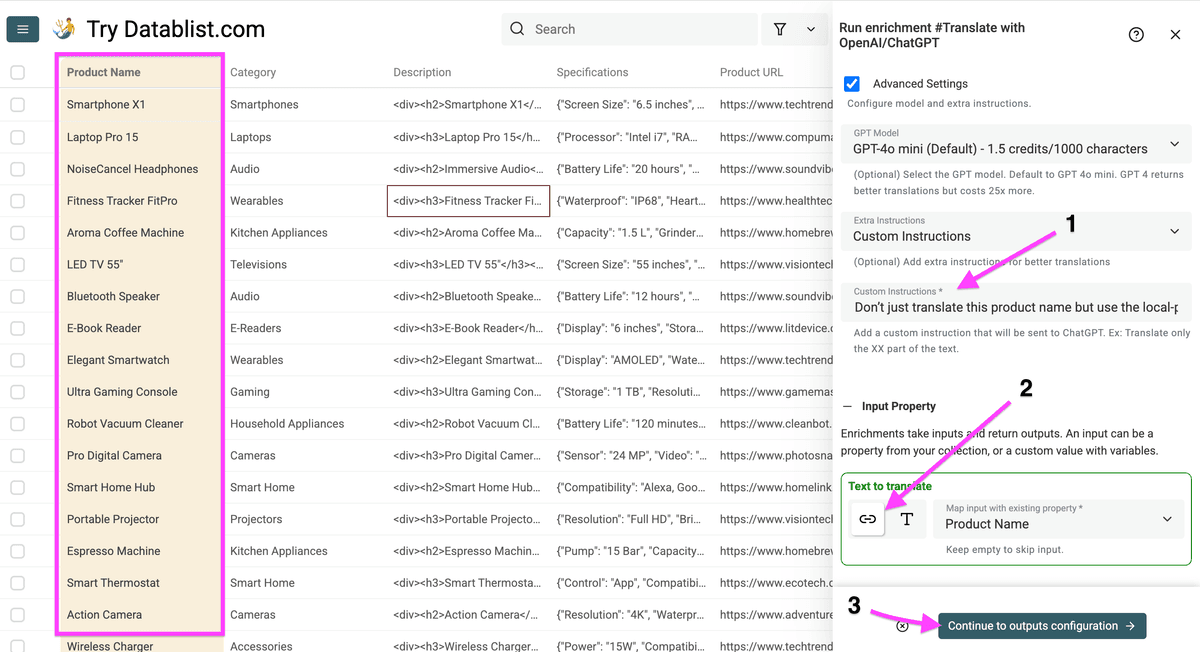
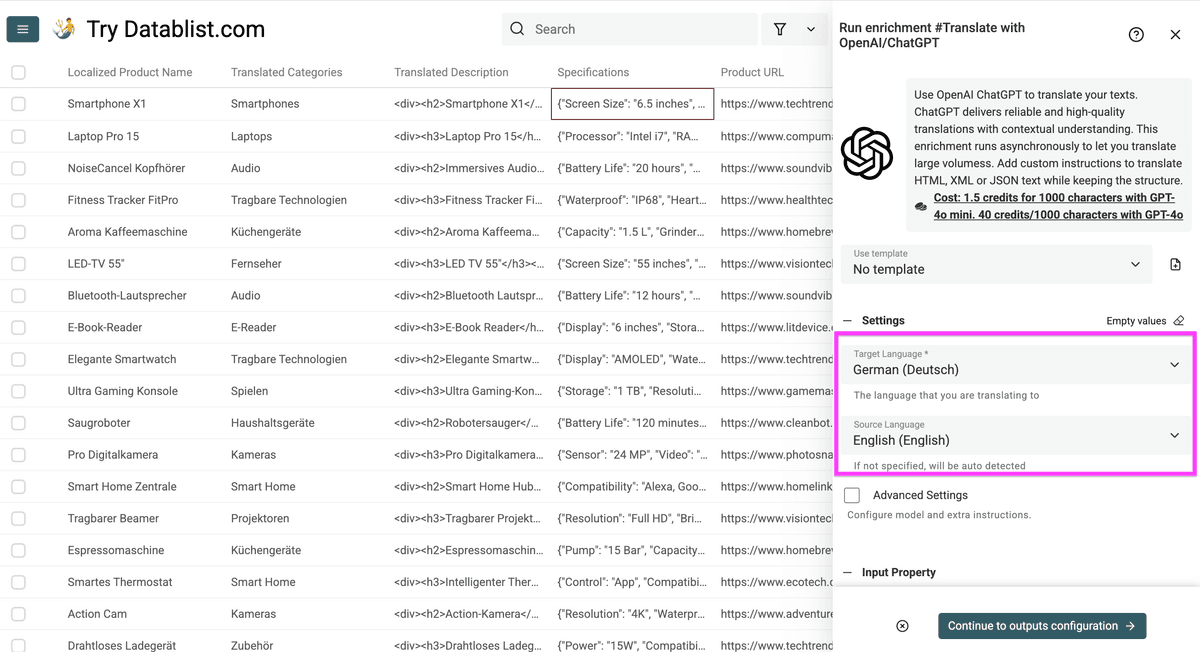
First, click Enrich.
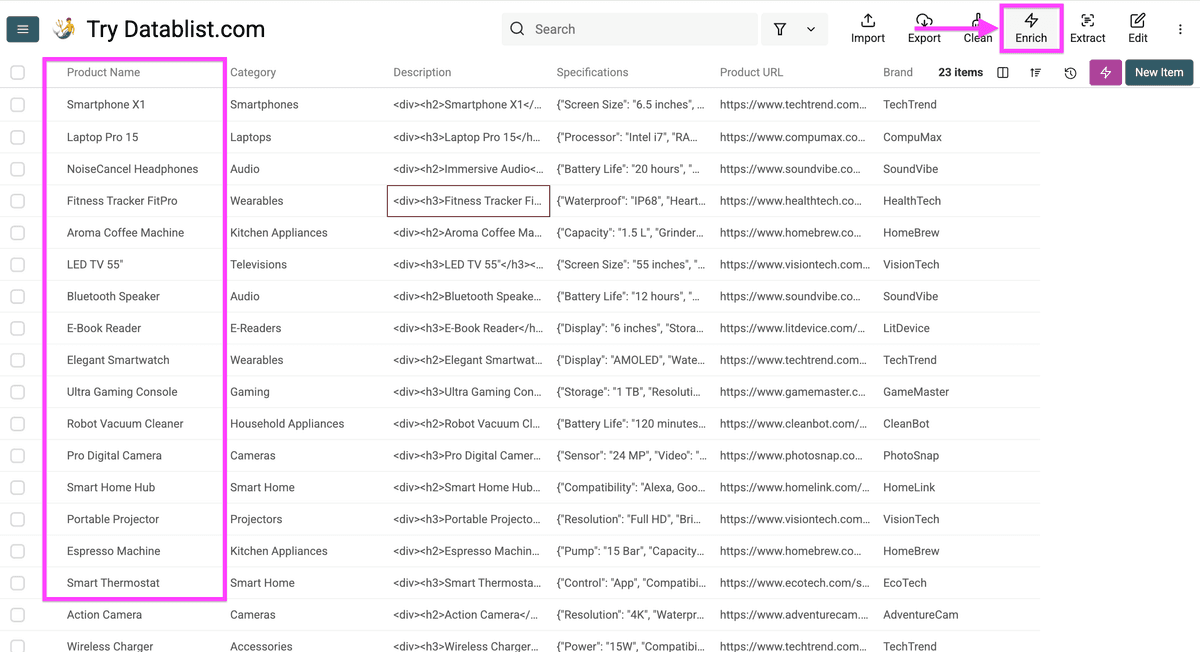
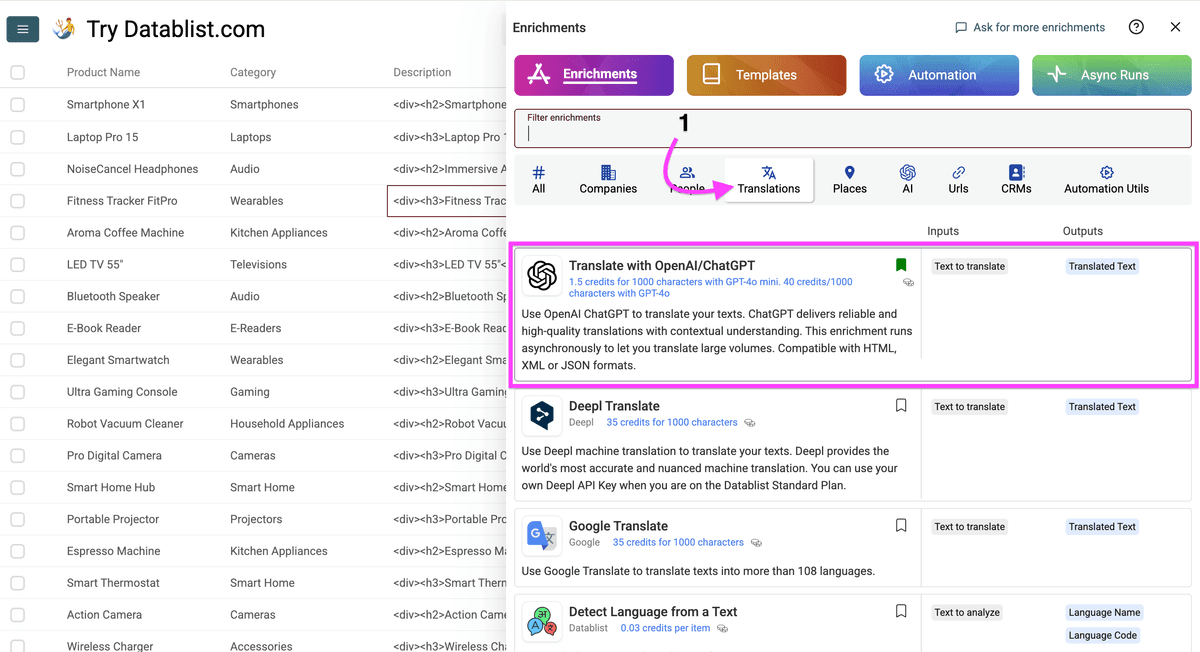
Then go to “Translations” and select “Translate with OpenAI/ChatGPT”
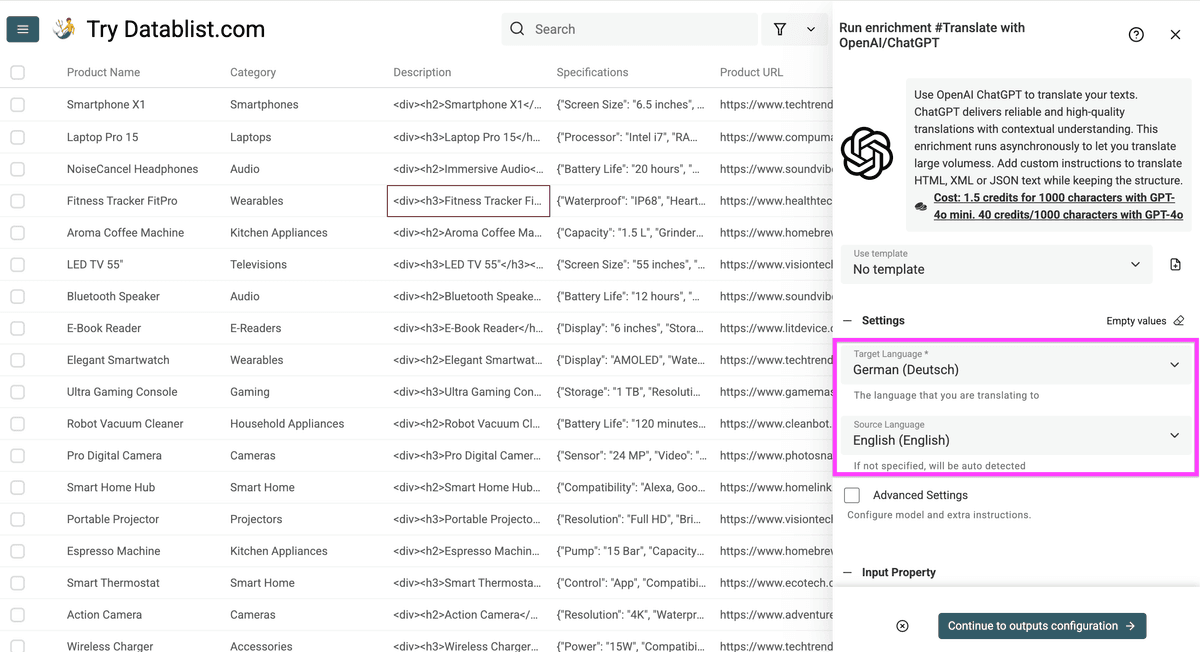
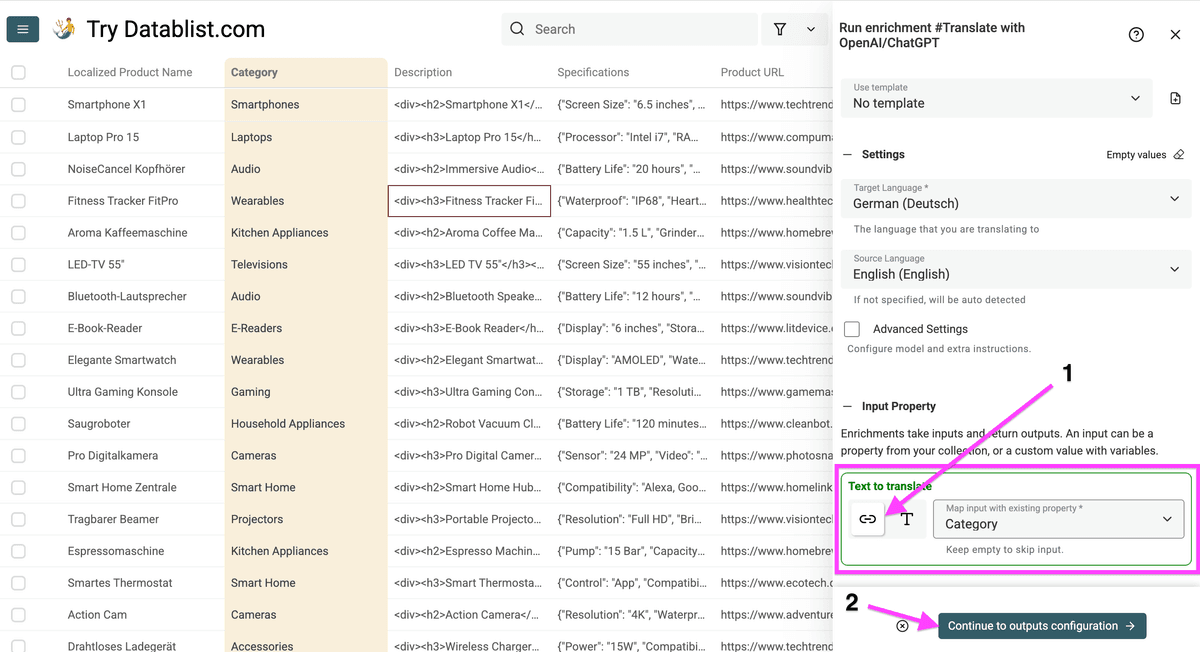
Once you open this enrichment, define:
-
The language your product catalog should be translated to
-
The source language of your product catalog. This is optional, but useful for short product names.
The source and target language of my product names -
The ChatGPT model you want to use
-
Extra instructions, including:
- Keep HTML or XML structure
- Keep JSON structure
- Custom instructions
-
The column that should be translated.
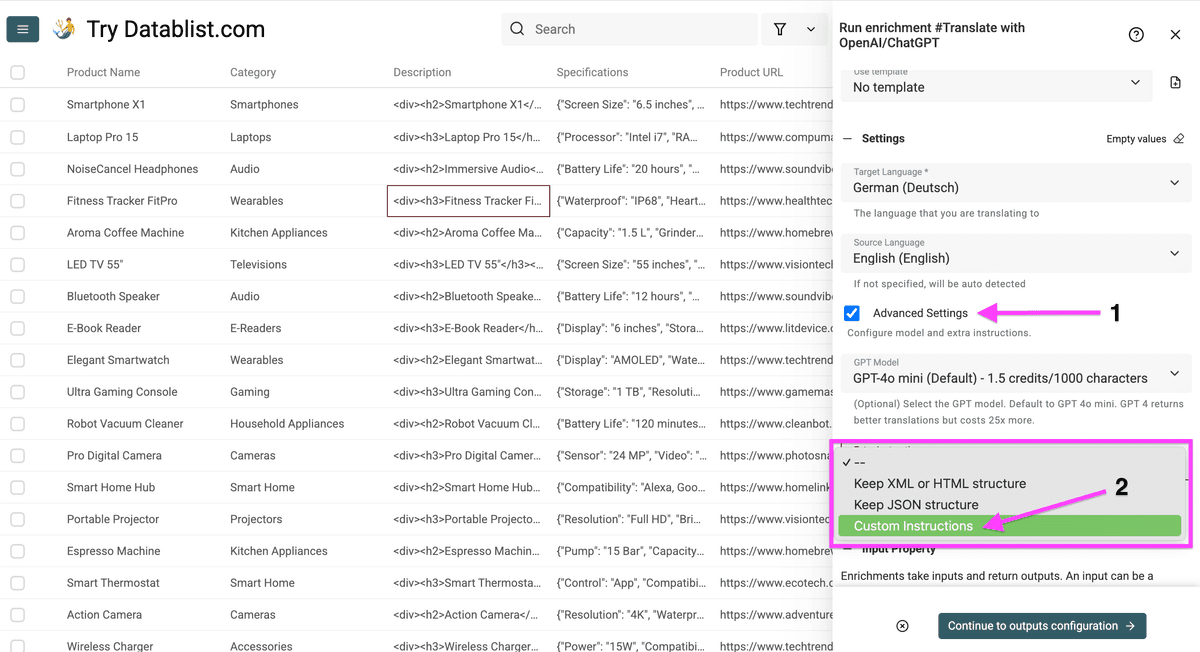
Ask ChatGPT to use local product terms.
Instruction used:
Don't just translate this product name but use the locally-preferred term for it and keep English terms that Germans would also use in their everyday life.
Then click Continue to output configuration.
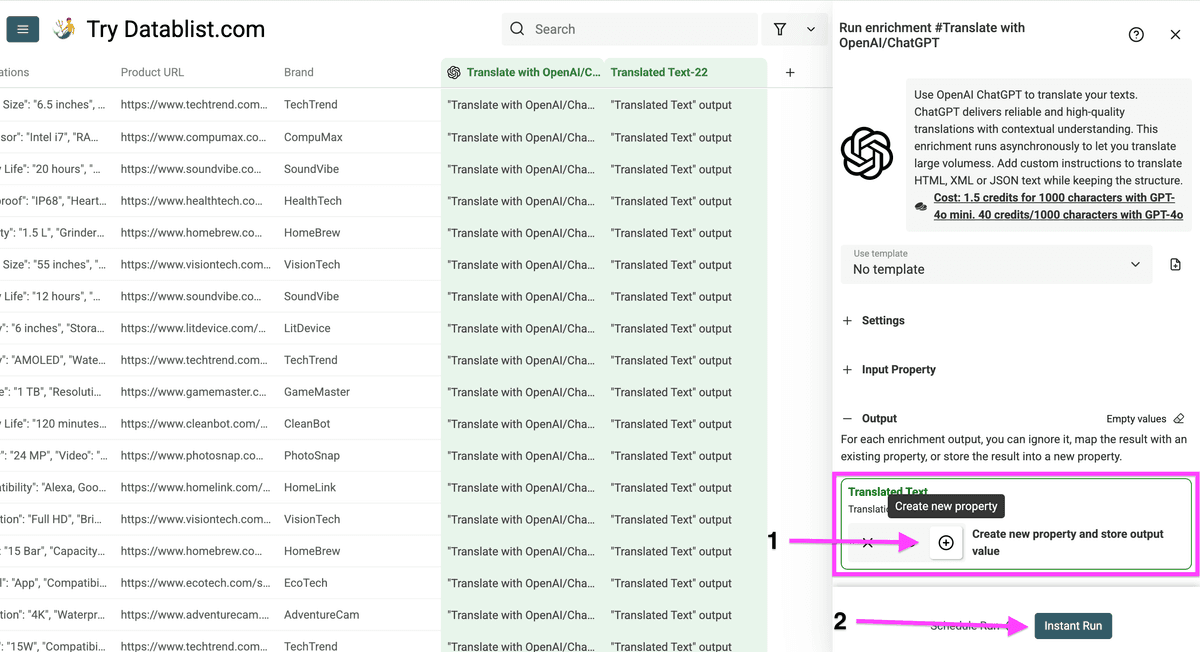
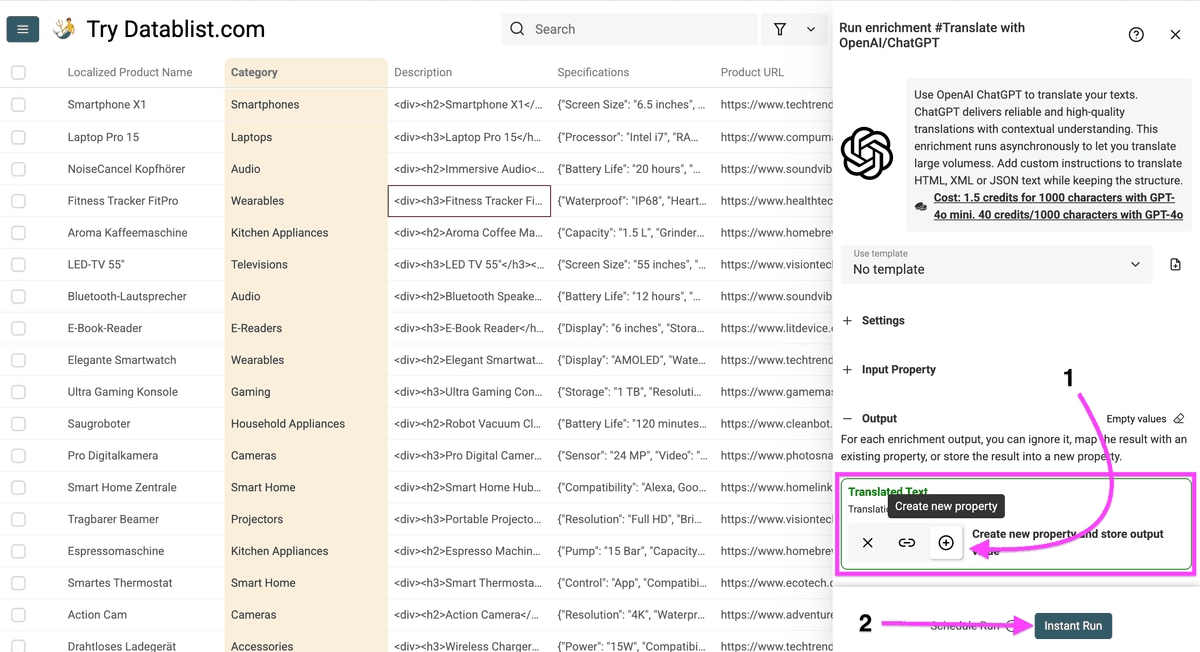
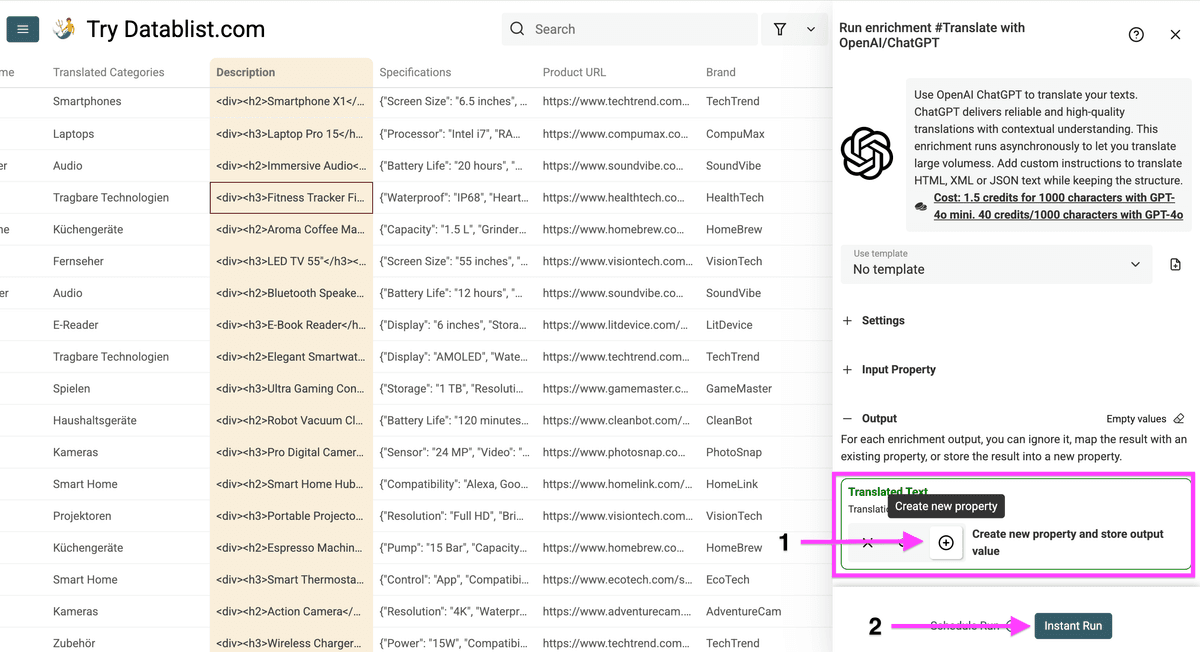
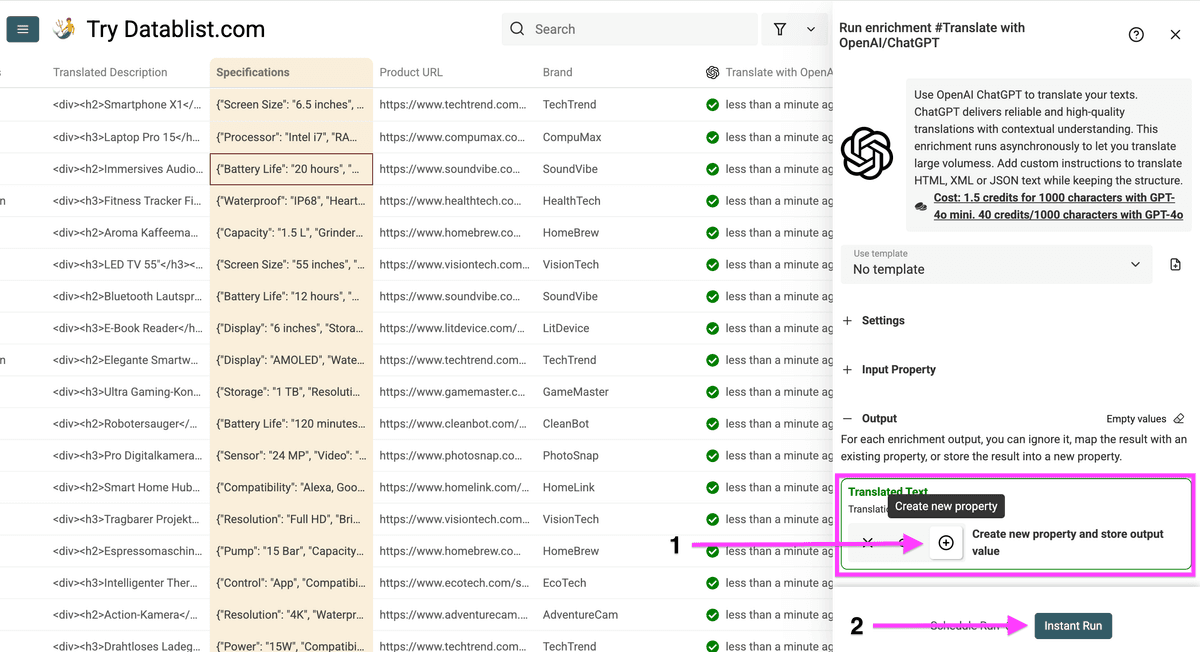
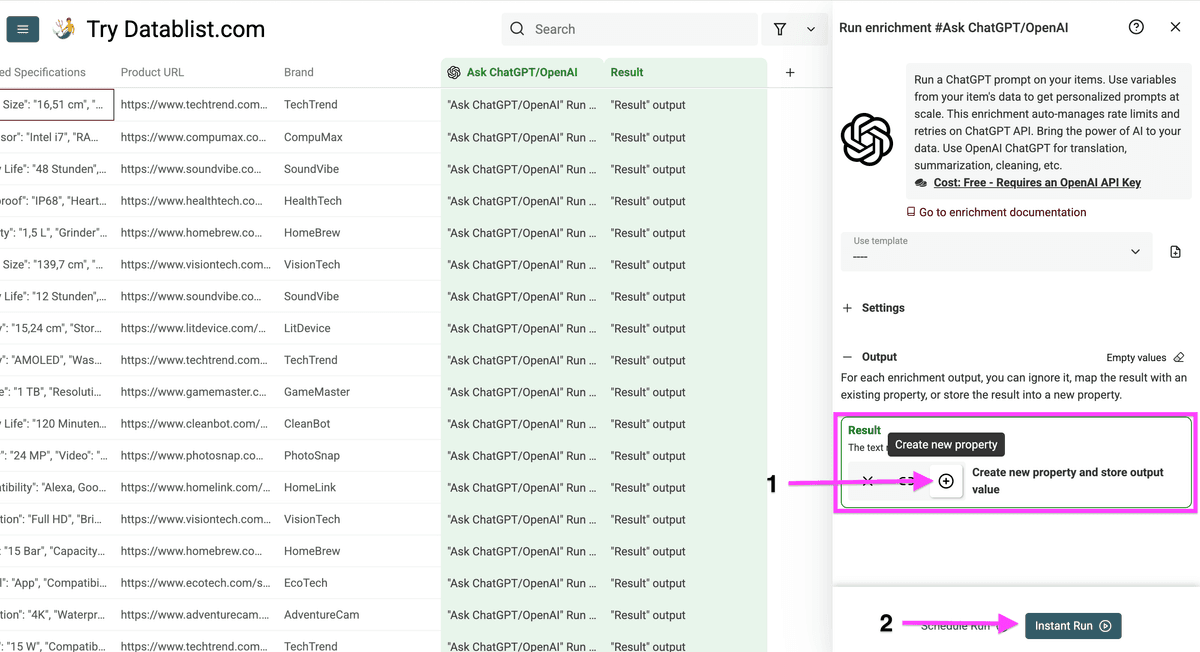
Click on the plus icon to create a new column, and then click on "Instant Run" to start localizing your product names.
The result reads more like a local catalog than a literal translation.
💡 Interesting Fact
A Springer research shows that 55% of consumers buy only a product if it's in their local language, with 52.4% even prioritizing language over price.
Step 4 - Translating Product Categories with AI
Product categories need consistency more than creativity.
For this column, use the same workflow as product names, but skip custom localization instructions. Categories should stay short, clear, and easy to map back to your store navigation.
Click on "Enrich".
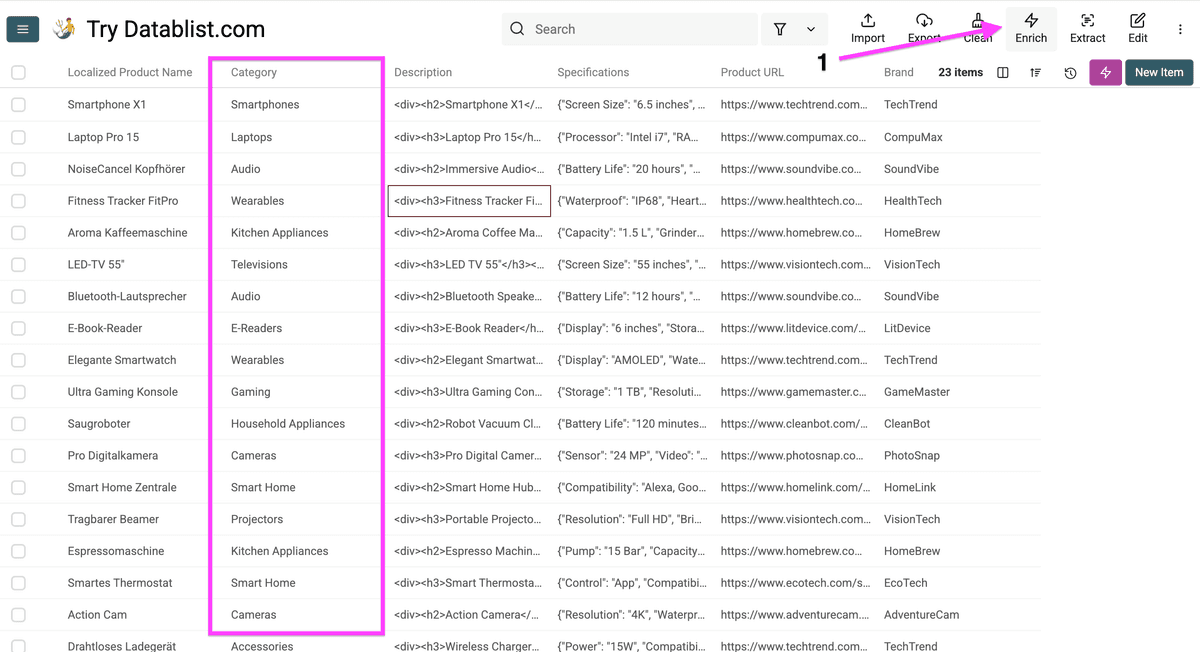
Select “Translations” and open “Translate with OpenAI/ChatGPT”
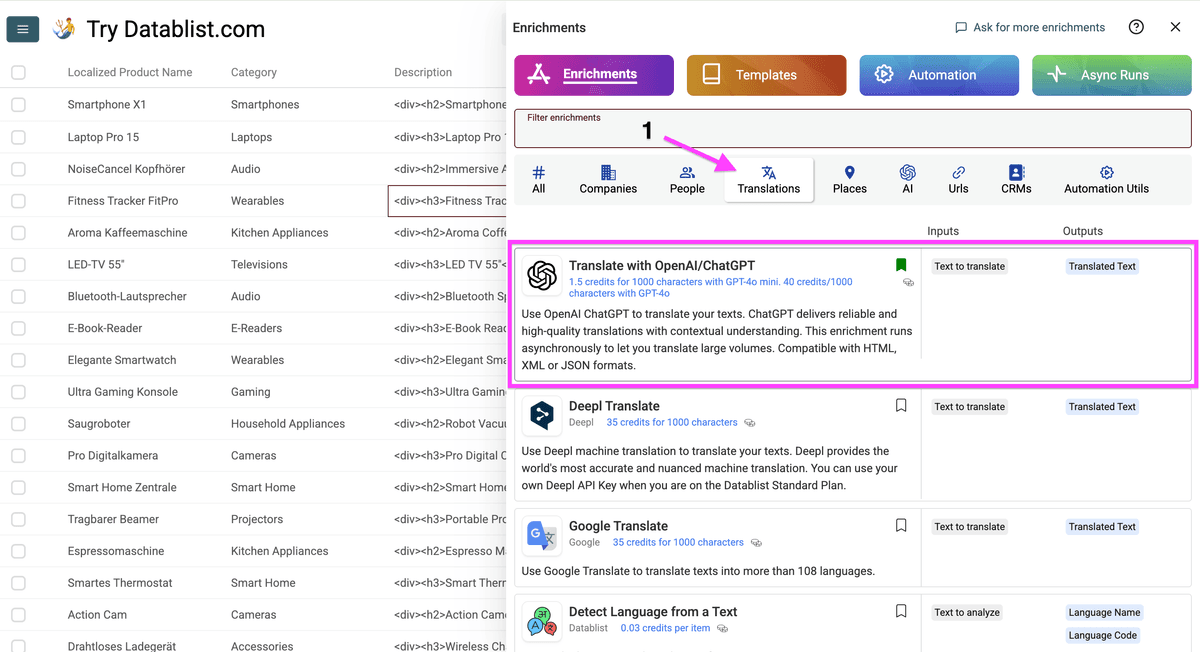
Configure your source language, target language, and the column you want to translate, then click on "Continue to output configuration"
Click the plus icon to create a new output column. Then click Instant Run to translate your product categories.
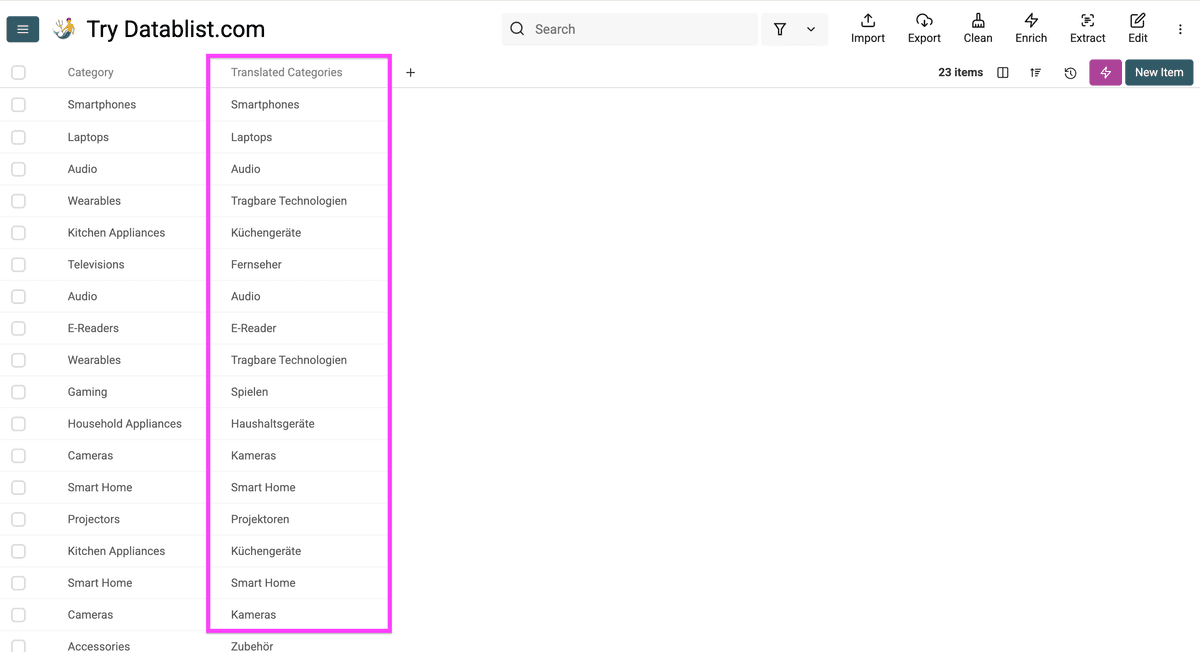
The translated categories:
Next, translate product descriptions without changing HTML tags.
Step 5 - Translating Product Descriptions without Breaking the HTML
Product descriptions often contain HTML tags such as <p>, <strong>, <ul>, and <li>.
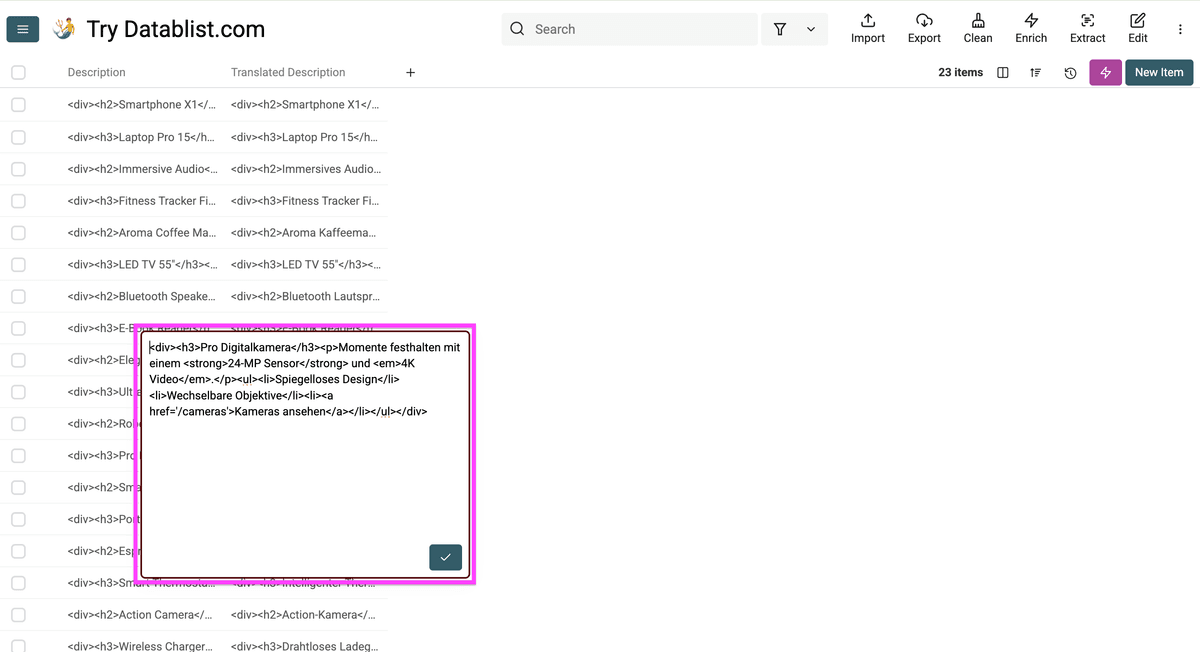
You want to translate the visible text, not the markup. If a translation tool changes tags, your product page can break after import.
Datablist includes a preset instruction for this.
You can start by clicking on “Enrich”.
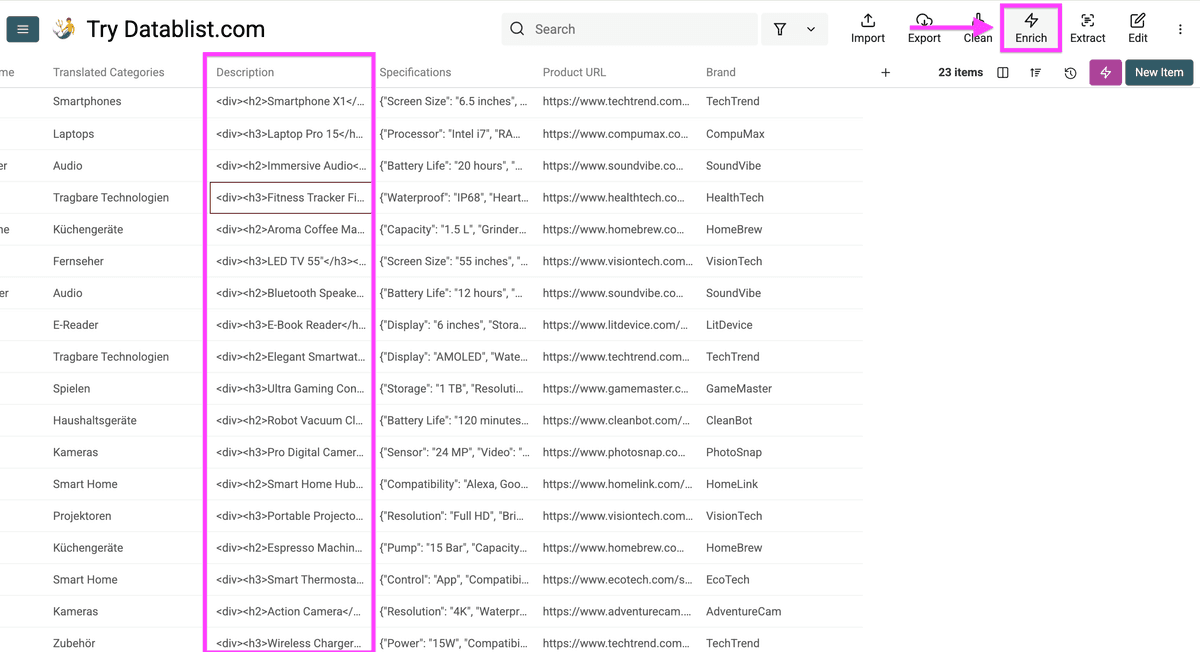
Select “Translations” and open “Translate with OpenAI/ChatGPT”
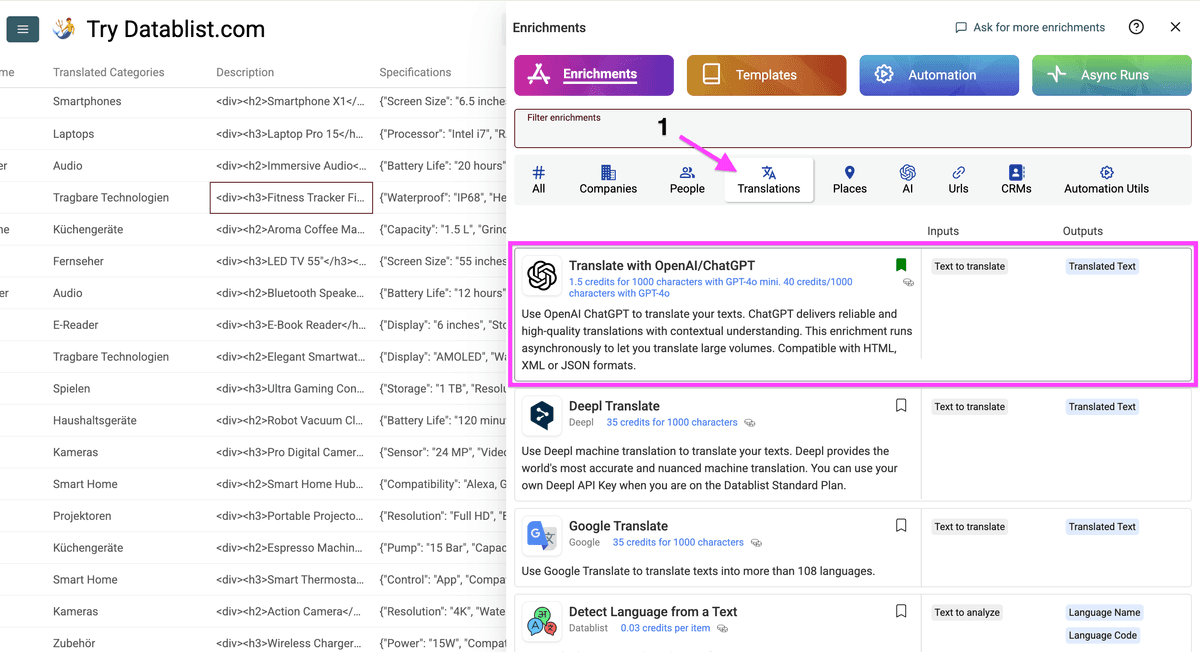
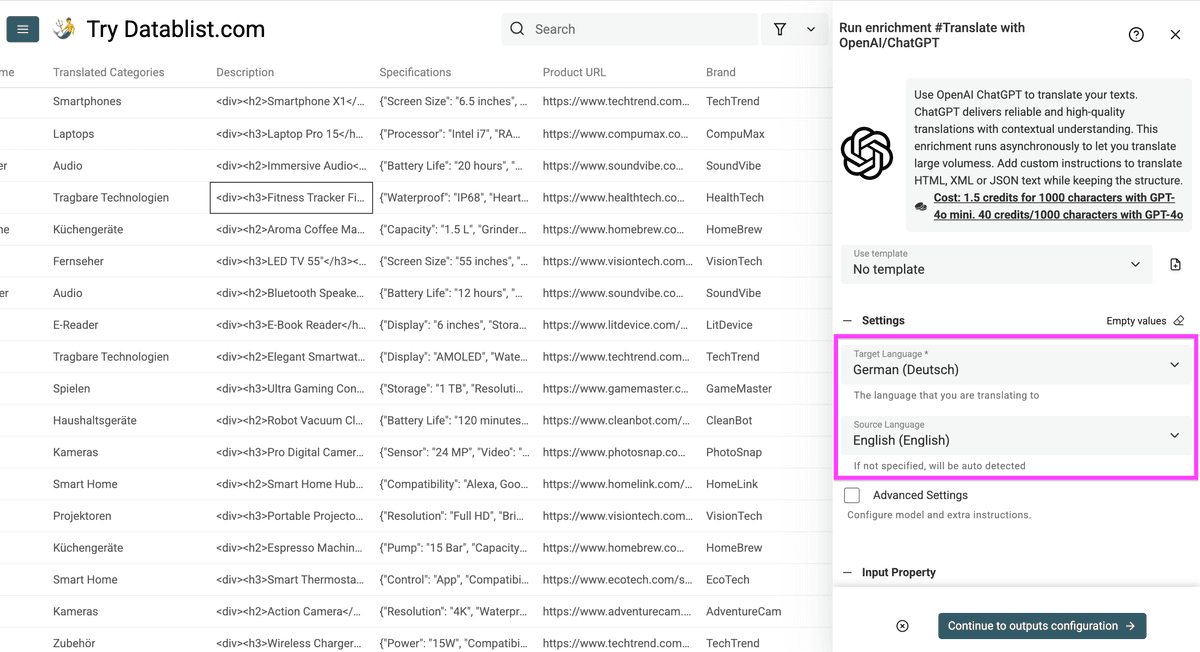
Once the enrichment opens, configure your source and target language.
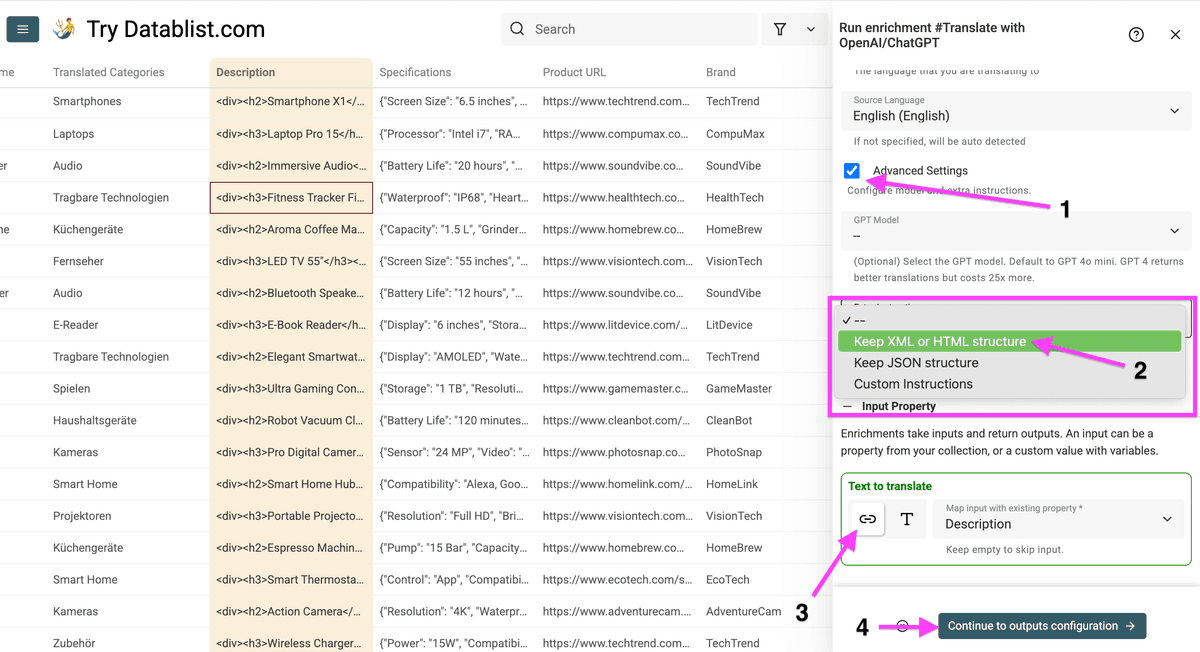
To translate the product description without changing HTML tags:
- Check Advanced Settings and open Extra Instructions
- Select Keep XML or HTML structure
- Map the product description column to the translator
Then click Continue to outputs configuration.
Create a new column for translated descriptions. Then click Instant Run.
This is the translated description. The text changed, but the HTML structure stayed intact.
Next, let’s translate product specifications stored as JSON.
Step 6 - Translating Product Specifications While Maintaining JSON Format
To translate JSON product specifications, click Enrich.
For JSON, structure matters:
- Keys and values have different roles.
- Keys often power filters, imports, or templates.
- Invalid JSON can fail during import.
- Unit conversion must happen in values, not keys.
If your product data starts as a raw JSON export, convert it first with the JSON to CSV Converter, then run the translation workflow on the CSV.
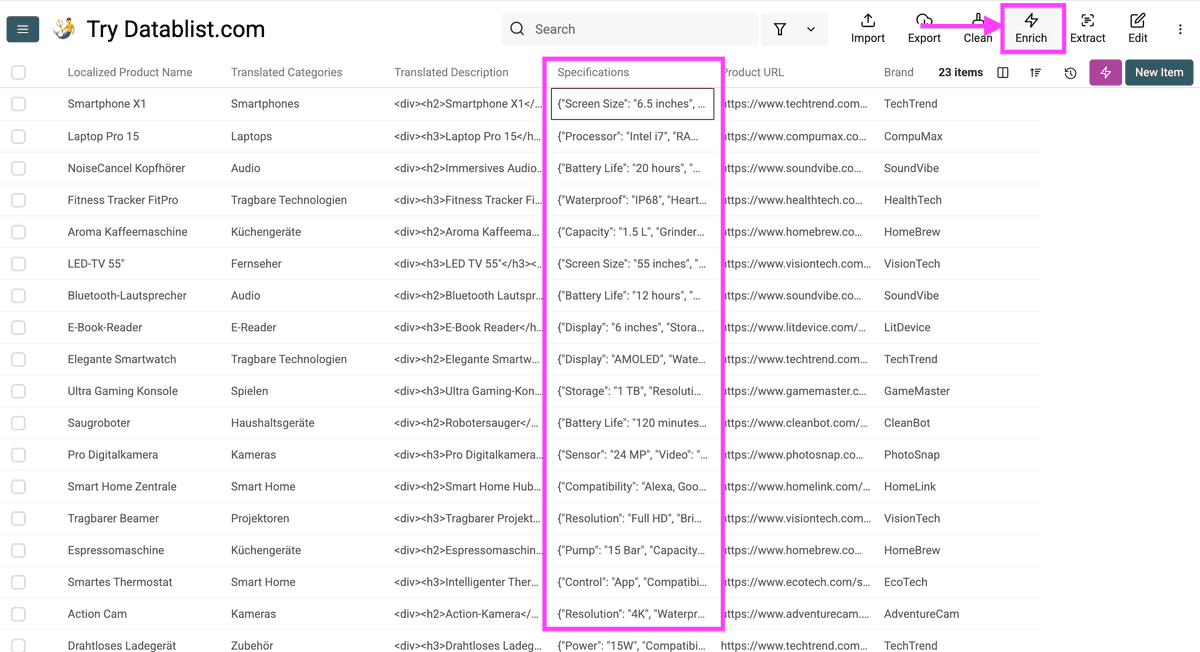
Select "Translations" and open "Translate with ChatGPT/OpenAI".
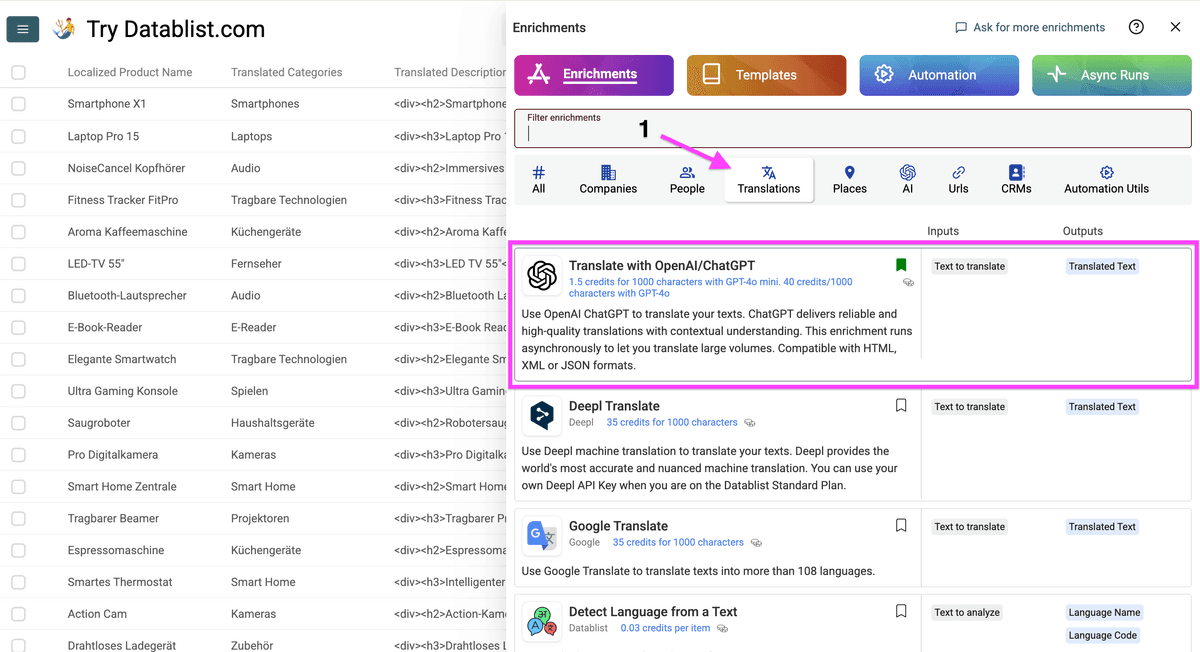
Configure your source and target languages.
Select Custom Instructions in the advanced settings and paste this:
Keep JSON format without translating the keys. Convert measurements from imperial units (inches, feet, pounds etc.) to metric units. Return only the translated JSON, without notes or explanations.
Then select the "Specifications" column and click on "Continue to output configuration".
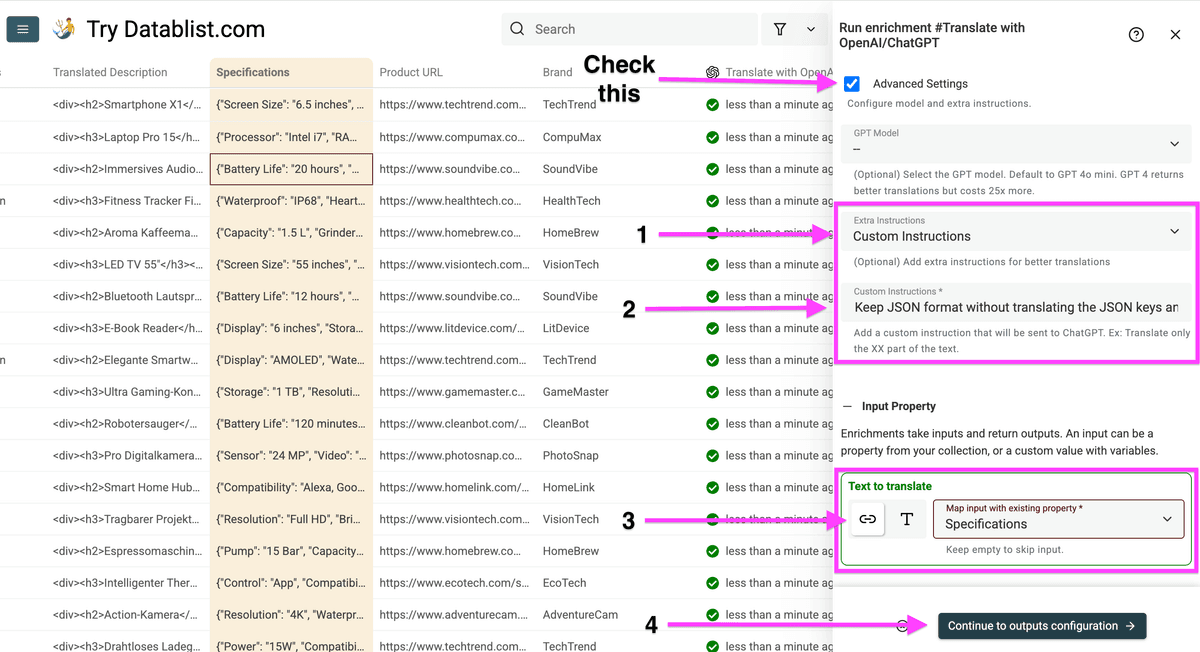
These settings tell ChatGPT to:
- Translate only customer-facing values
- Keep JSON keys unchanged
- Preserve valid JSON
- Convert measurements for German buyers
For example, if you have a JSON specification like this:
{
  "dimensions": {
    "length": "20 inches",
    "width": "15 inches",
    "height": "10 inches"
  },
  "material": "genuine leather"
}
Basic translators often create two problems:
- They translate JSON keys like
"dimensions"and"material" - They keep measurements in units buyers do not use
These issues can:
- Break your JSON structure
- Make product details harder to understand
- Break imports back into your store
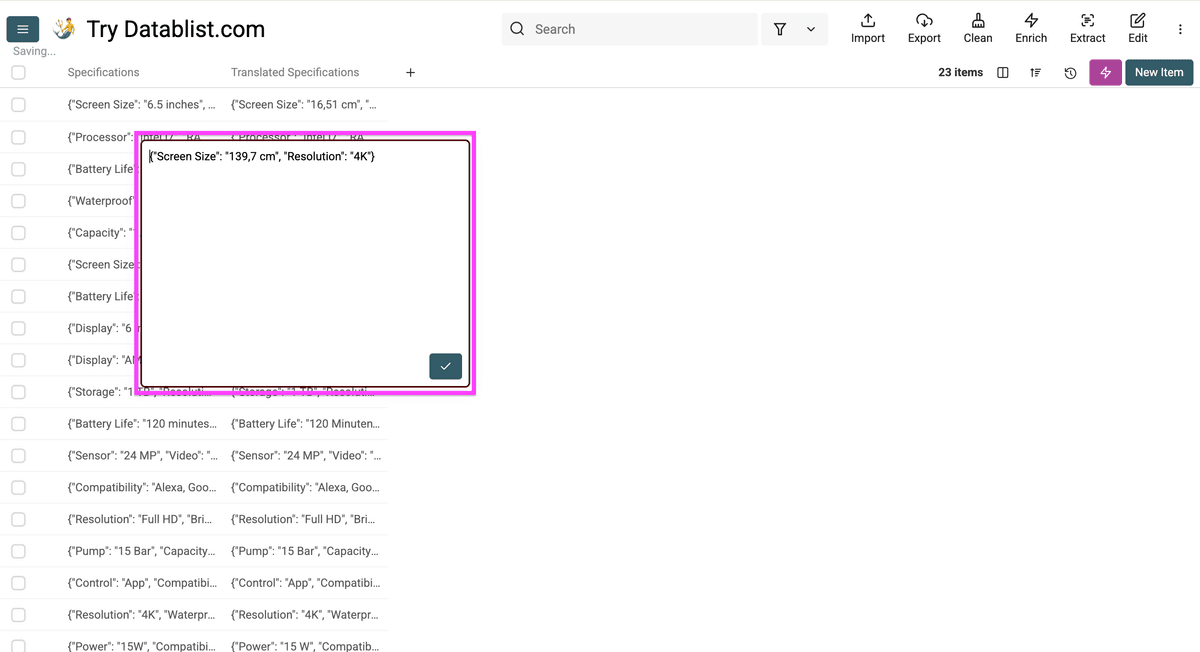
With the JSON instruction, ChatGPT can translate values and convert units while keeping the keys:
{
  "dimensions": {
    "length": "50,8 Zentimeter",
    "width": "38,1 Zentimeter",
    "height": "25,4 Zentimeter"
  },
  "material": "echtes Leder"
}
Create a new column for translated specifications. Then click Instant Run.
This is how your translated specifications look:
After translating product names, categories, descriptions, and specifications, create URLs for the translated catalog.
Step 7 - Adding a Subdirectory to Your URL
Translated product pages need a URL structure search engines can understand.
For this example, we’ll add /de after the domain name:
domain.com/products/category/item-1domain.com/de/products/category/item-1
Begin by clicking Enrich.
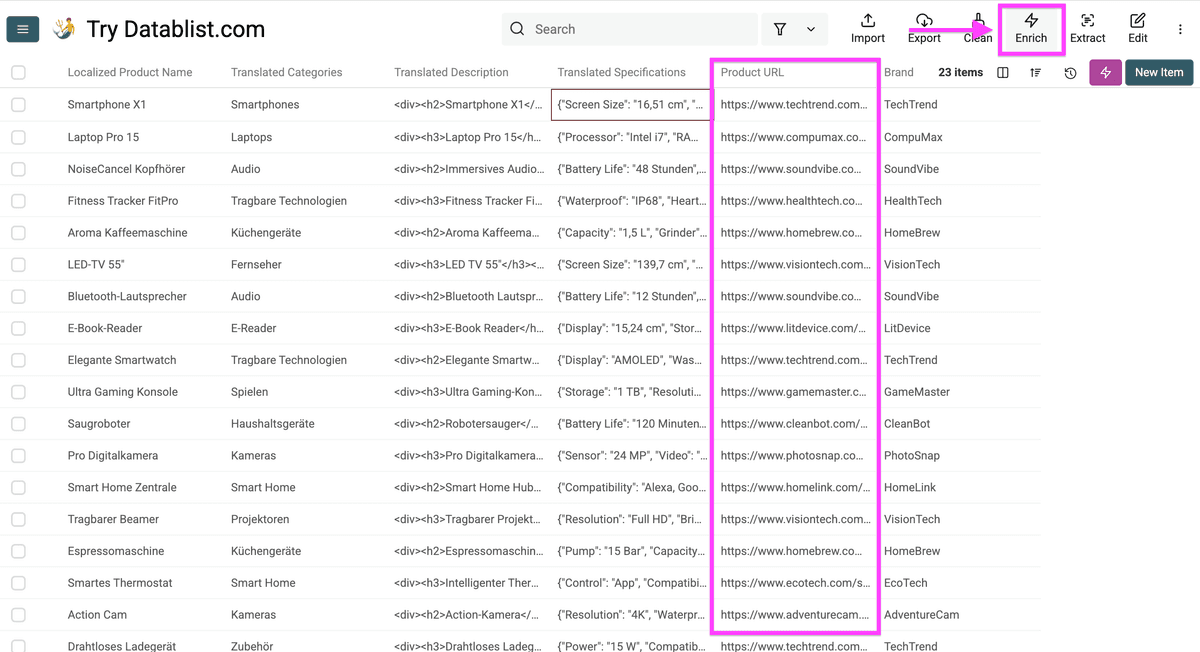
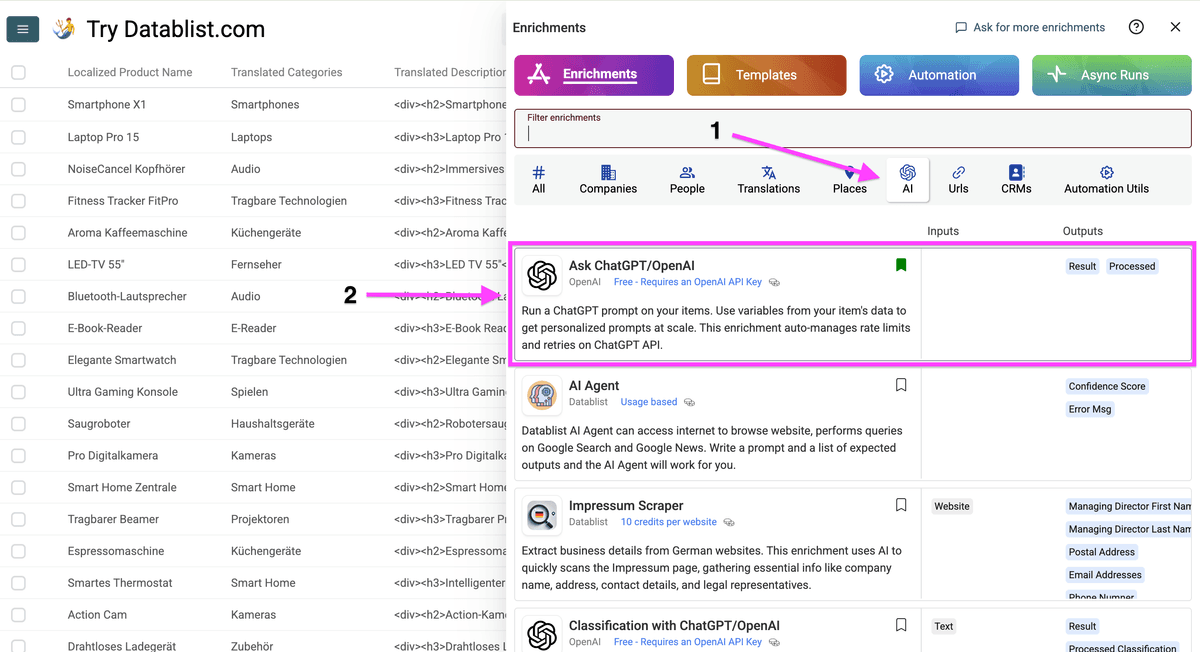
For this step, do not choose Translations. Select AI and open Ask OpenAI/ChatGPT.
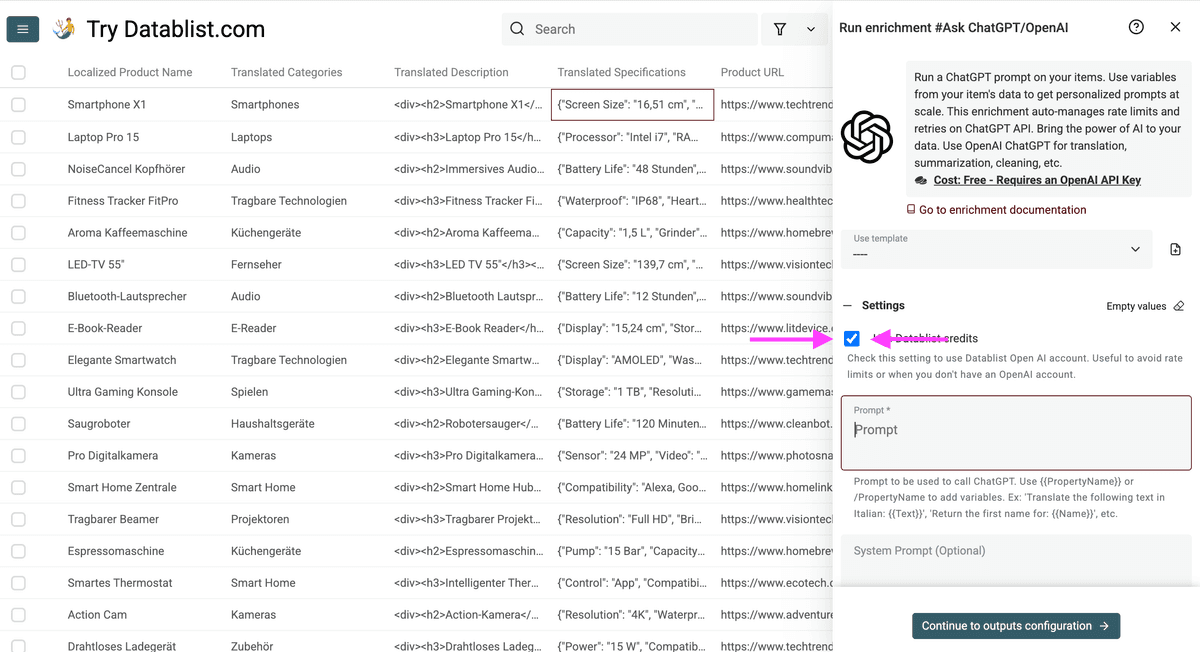
Once you've opened it, check the highlighted box to use Datablist credits for this task. For instructions on setting up your own OpenAI account and API key, click here.
Paste the prompt below into Datablist to add a /de subdirectory to each URL while keeping the original path. Then click Continue to outputs configuration.
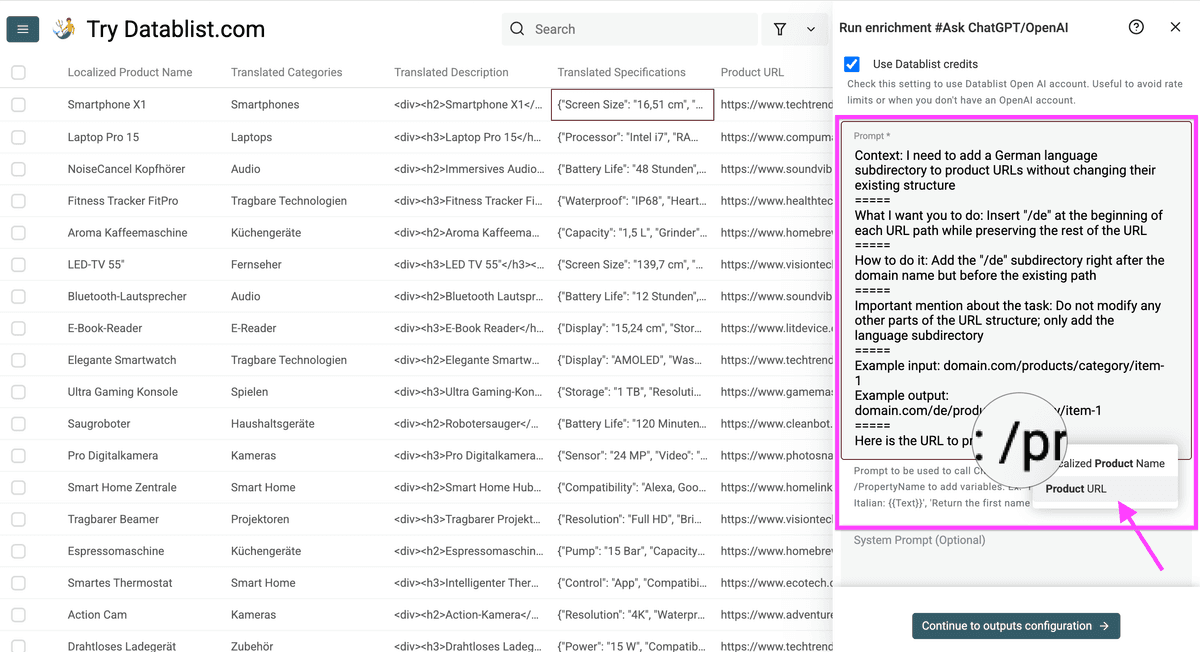
Here's the prompt I used:
Context: I need to add a German language subdirectory to product URLs without changing their existing structure
=====
What I want you to do: Insert "/de" at the beginning of each URL path while preserving the rest of the URL
=====
How to do it: Add the "/de" subdirectory right after the domain name but before the existing path
=====
Important mention about the task: Do not modify any other parts of the URL structure; only add the language subdirectory
=====
Example input: domain.com/products/category/item-1
Example output: domain.com/de/products/category/item-1
=====
When using this prompt, insert your URL column as a Datablist variable. Variables look like @[Product URL](product_url). If you want to learn how to write prompts like the one above, check our guide.
Click the plus icon to create a new column. Then click Instant Run to add subdirectories to your product URLs.
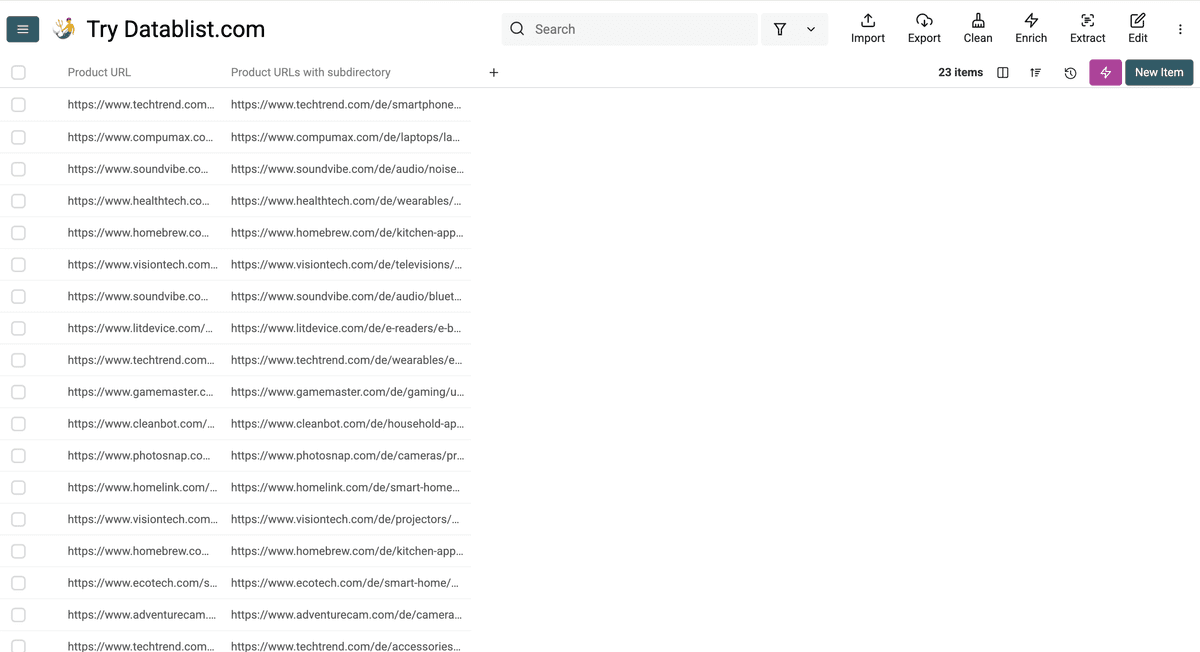
After running it, you get results like these:
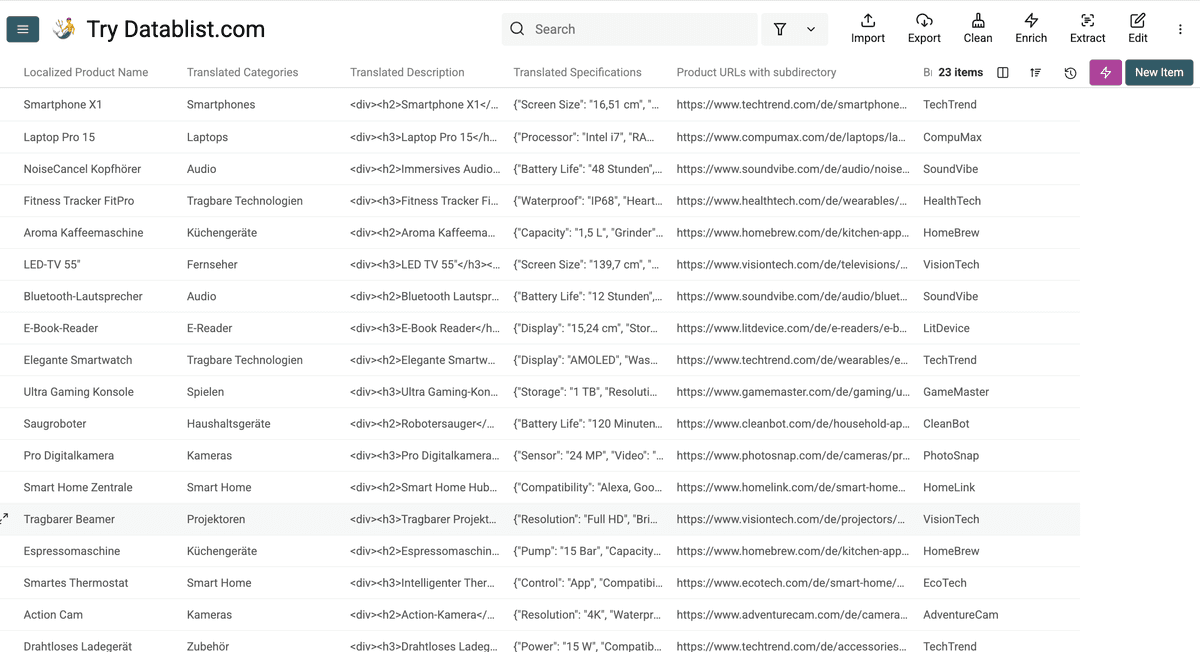
This is the translated catalog:
Quality Checks Before Importing Your Translated Catalog
Before you import the translated CSV back into Shopify, WooCommerce, Magento, or your marketplace, check a small sample.
Start with these checks:
- Review product names for local wording.
- Check category consistency.
- Open a few translated HTML descriptions and confirm tags stayed intact.
- Validate JSON specifications before import.
- Confirm measurements match the target market.
- Check URLs and language subdirectories.
- Review rows marked with an error status.
- Keep the original columns until the import succeeds.
Datablist helps with this because each run writes translations into new columns. You can compare source text and translated text side by side before exporting.
If your catalog has many repeated values, translate one column at a time and review duplicate outputs. This makes it easier to catch inconsistent wording before publishing.
Why You Should Always Translate with AI
AI is useful for product catalog translation because it can follow instructions for each field type.
In this guide, we handled:
- Product Names: Localized product titles while maintaining brand names and model numbers
- Categories and Navigation: Translated category names
- Product Descriptions with HTML: Translated text while keeping HTML tags
- Product Specifications in JSON: Translated values, kept JSON keys, and converted measurements
- URL Structure: Added language subdirectories ("/de") to product URLs without breaking their structure using custom AI prompts
Benefits of this approach
- Customers can read product names and descriptions in their language.
- Product data stays easier to import.
- HTML and JSON formatting stays usable.
- Measurements match local habits.
- Language-specific URLs help local SEO.
The goal is not to replace every review step. The goal is to translate large product catalogs faster, keep structured data intact, and review the output before import.

Frequently Asked Questions
Can I translate a Shopify product CSV with ChatGPT?
Yes. Export your products from Shopify, import the CSV into Datablist, and run the ChatGPT translation enrichment on each text column you want to translate.
Keep the original columns and save translations in new columns. This makes review and reimport easier.
Can ChatGPT translate product descriptions with HTML?
Yes. Use the Keep XML or HTML structure option in Datablist. ChatGPT translates the visible text and keeps tags such as <p>, <strong>, <ul>, and <li>.
Review a few rows before importing the translated descriptions back into your store.
Can ChatGPT translate JSON product specifications?
Yes, but you need clear instructions. Tell ChatGPT to keep JSON keys unchanged, translate only values, and return valid JSON without comments.
Datablist also lets you choose a JSON structure option or write custom instructions for unit conversion.
How do I translate my online store to other languages?
Start with your product catalog export. Translate product names, categories, descriptions, specifications, and metadata in a CSV or Excel file. Then import the translated file back into your store.
For store pages outside the catalog, translate menus, checkout text, emails, and landing pages separately.
Which is better for store translation: manual or automatic translation?
Use automatic translation for the first pass when you have many products. Then review high-value products, product names, category labels, and homepage content manually.
This hybrid workflow is faster than manual translation and safer than publishing raw machine translation.
How much does it cost to translate an e-commerce website?
Cost depends on catalog size, text length, language pair, and the model you use.
Professional translation often charges per word. ChatGPT translation in Datablist uses credits based on token usage. The enrichment shows model cost estimates and returns the credit cost for each translated row.
Will translating my online store affect my SEO?
Yes, if you publish each language with a clean URL structure and local content.
Translate product names, descriptions, category names, title tags, and meta descriptions. Use language subdirectories such as /de/ or /fr/, and add hreflang tags so Google understands each language version.
How do I maintain product data consistency across multiple languages?
Keep one master catalog and store translated fields in separate columns. For example, keep title_en, title_de, and title_fr instead of overwriting the original title.
Use a glossary for brand terms, category names, materials, sizes, and product families. Add those rules in custom instructions when you run ChatGPT translation.
What are common mistakes when translating an e-commerce site?
Common mistakes include:
- Translating product names word for word
- Breaking HTML descriptions
- Translating JSON keys
- Forgetting units, size systems, and currencies
- Skipping title tags and meta descriptions
- Publishing translated pages without language URLs
- Importing translated data without checking row errors
What are the best alternatives to Weglot for e-commerce translation?
Weglot works well for translating live website pages. Datablist is a better fit when you need to translate structured product data from a CSV or Excel file.
Use Datablist when you need to translate product names, descriptions, categories, HTML fields, JSON specifications, or marketplace exports before importing them back into your store.
How do I maintain HTML and JSON formatting during translation?
Use the Keep XML or HTML structure option for product descriptions with tags. Use the JSON option or custom instructions for specifications and localization files.
Always test a few rows before translating the full catalog. Then validate JSON fields and preview HTML descriptions before import.