
Need to translate spreadsheet rows without copying text into Google Translate one by one?
Datablist's Google Translate enrichment translates a full column from a CSV or Excel file. Pick the text column, select the target language, and Datablist writes the translated text to a new column for every row.
Use it for product catalogs, customer reviews, support tickets, lead data, survey answers, website exports, and any list where the same translation task must run on many rows.
Translate Only the Columns You Choose
Many online CSV translation tools translate the whole file. They process every column and every cell, including IDs, URLs, tags, codes, notes, and fields you may want to keep unchanged.
Datablist works differently.
You choose the exact column to translate and the output column where the translation should be saved. Your original data stays untouched.
This helps when:
- Only one column needs translation
- Product IDs, SKUs, URLs, and tags must stay unchanged
- You want to translate product names with Google Translate and descriptions with DeepL or ChatGPT
- You want to test translation quality on one column before translating more fields
- You need to filter rows and translate only matching items
For example, you can filter your catalog to products in one category, translate only the Description column, then run another translation engine on SEO Title if needed.
Step-by-step guide
Step 1: Load your CSV or Excel file on Datablist
Create a free account and import your data file. Datablist is a CSV editor built for large lists, so you can translate rows in bulk without formulas or scripts.
Create a new collection and import your file.
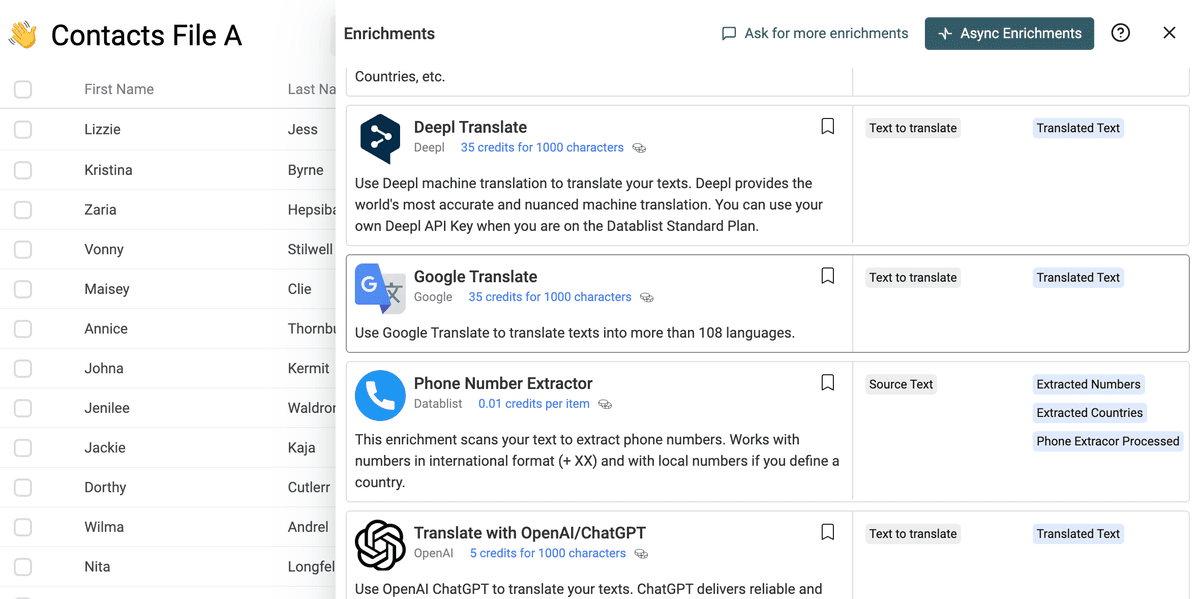
Step 2: Select the "Google Translate" enrichment
Click on the "Enrich" button, and search for "Google Translate".
Step 3: Configure the translation
The enrichment has two language settings:
- Target Language - Required. This is the language you want to translate to.
- Source Language - Optional. Leave it empty to let Google detect the source language.
Then map the Text to translate input to the column that contains the original text.
Create or select an output column for Translated Text. Datablist writes the translated value there and keeps your original text unchanged.
Step 4: Preview and run
Run a preview on a few rows. Check the translation quality, language settings, and output column.
When the preview looks correct, run the enrichment on the full file.
What You Get
For each row, Datablist returns:
- Translated Text - The translated text returned by Google Translate.
Rows with empty source text are marked in the run status, so you can filter them later.
Common Use Cases
Translate Ecommerce Catalogs
Translate product names, product descriptions, category labels, and attribute values before importing data into Shopify, WooCommerce, Prestashop, or another ecommerce platform.
Translate Customer Feedback
Bring customer reviews, support tickets, and survey answers into one language before analysis. This makes tagging, sentiment review, and reporting easier.
Translate Lead and CRM Data
Translate job titles, company descriptions, notes, and form submissions before routing leads to a local sales team.
Localize Website Exports
Export CMS pages or SEO metadata to CSV, translate the source column, then reimport the translated content into your CMS.
Cost Examples
Google Translate costs 35 credits per 1,000 characters translated.
Examples:
- 10,000 characters cost about 350 credits.
- 100,000 characters cost about 3,500 credits.
- 1,000,000 characters cost about 35,000 credits.
The cost depends on the number of characters in the source text, not the number of rows. A file with short labels costs less than a file with long descriptions.
Google Translate or DeepL?
Use Google Translate when you need broad language coverage and fast bulk processing.
Use DeepL Translator when you want DeepL-specific options such as formality, context, XML tag handling, or your own DeepL API key.
Use Translate with ChatGPT/OpenAI when you need custom instructions, tone control, or translation of structured content with extra rules.
Tips Before Translating a Large File
- Preview a few rows before running the full list.
- Keep the original column and write translations to a new column.
- Set the source language manually when the source text is short.
- Clean empty rows before running to keep your results easier to review.
- Split long HTML or product descriptions into a dedicated column before translation.
Google Translate vs AI Translation
Use Google Translate when you need fast, direct translation for a spreadsheet column. It is a good fit for product names, short descriptions, reviews, support messages, and lead notes.
Use ChatGPT translation when you need custom instructions, tone control, or special handling for HTML, JSON, placeholders, or brand vocabulary.
FAQ
Can I translate a CSV file with Google Translate?
Yes. Import the CSV into Datablist, map the text column, choose the target language, and save translations in a new column.
Can I translate several languages in the same file?
Yes, but test a sample first. If your source file contains many languages, run Language Detection first so you can filter and process rows with more control.
Can I keep the original text?
Yes. Save the translation in a new output column and keep the original source column for review.
What should I do before translating a large file?
Run a preview on a small sample, check the target language and output column, then process the full list.