
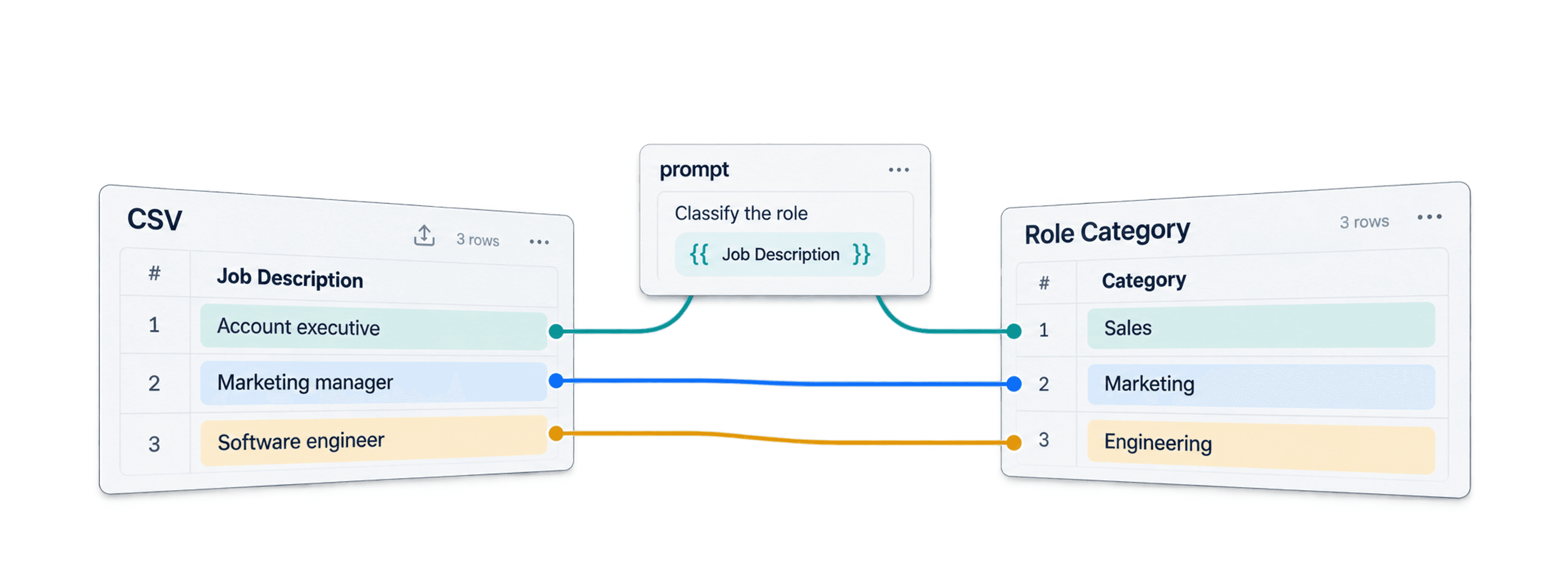
To run the same OpenAI prompt on each Excel or CSV row, import the file into Datablist, map a spreadsheet column into the prompt, test a small set of rows, and save each response in an output column. You can use your own OpenAI API key; paid Datablist plans can also use Datablist credits in the enrichment settings.
Long generated responses can exceed Excel’s cell capacity. If that blocks your download, use the Excel export limit guidance to preserve the complete response in CSV.
For example, a file with Company and Job Description columns can produce a Role Category column. A prompt such as Classify the role in {{Job Description}} as Sales, Marketing, Engineering, or Other. Return only the category. gives you an output you can review and filter before export.
ChatGPT can also analyze uploaded spreadsheets and create files. The Datablist workflow is useful when you want explicit per-row inputs and a mapped output column in an existing collection.
- How to set up OpenAI’s API for pay-as-you-go usage
- How to run ChatGPT on Excel/CSV files
- How to process thousands of rows without hitting limits
The methods described in this guide work for both CSV and Excel files, making it an ideal guide for anyone looking to run ChatGPT on a spreadsheet.
How to set up OpenAI’s API for pay-as-you-go usage
What is the OpenAI API?
The OpenAI API (Application Programming Interface) is a set of tools and protocols that allows companies to integrate ChatGPT's capabilities directly into their applications.
The API lets software send a prompt for each selected row and write the response back to a mapped column. API usage is billed separately from a ChatGPT subscription. Review OpenAI's API quickstart for the current setup steps.
To use the OpenAI API, you'll need an API key - this is like a unique password that allows your application to securely communicate with OpenAI's services. You can get this key from your OpenAI account dashboard after signing up.
Step 1: Sign up and add credits to your OpenAI account.
Go to the OpenAI Sign-Up Page and create an account.
Open the billing settings for your API organization and add a payment method or credits if your account requires them. Check your current balance and spend controls before processing a large file.
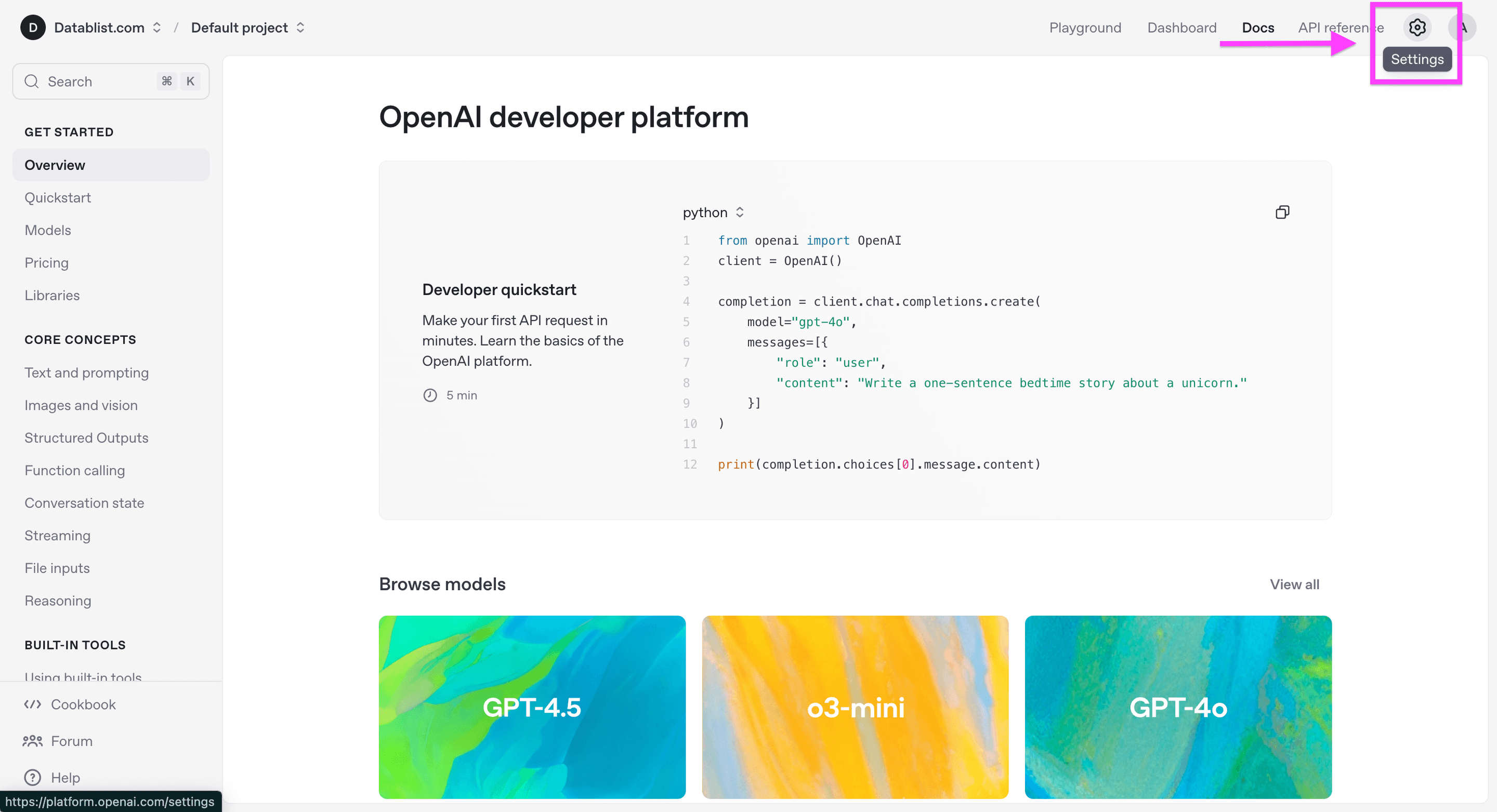
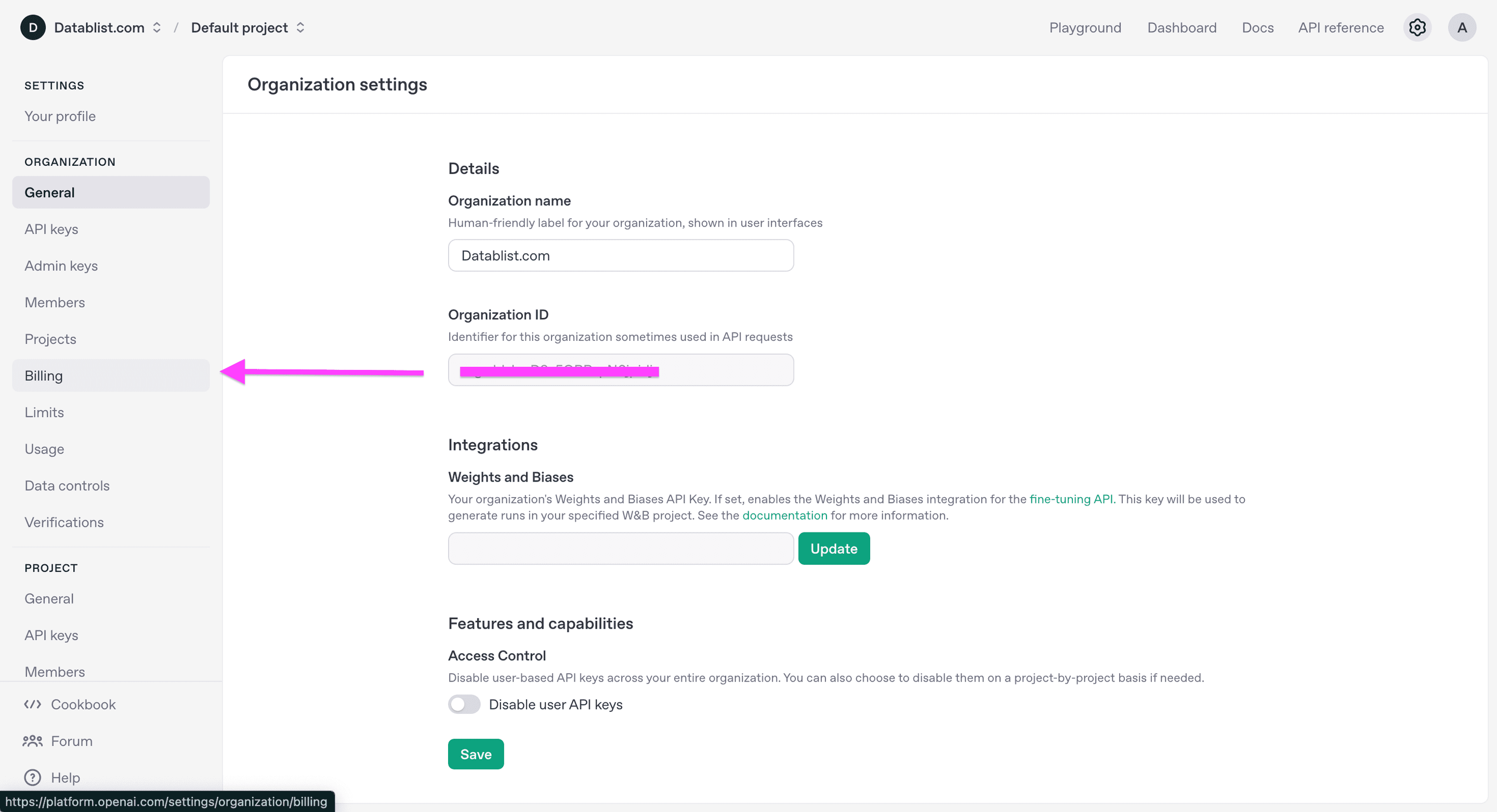
You’ll land on the general settings from there you have to go to the billing settings.
Click on “Add to credit balance”
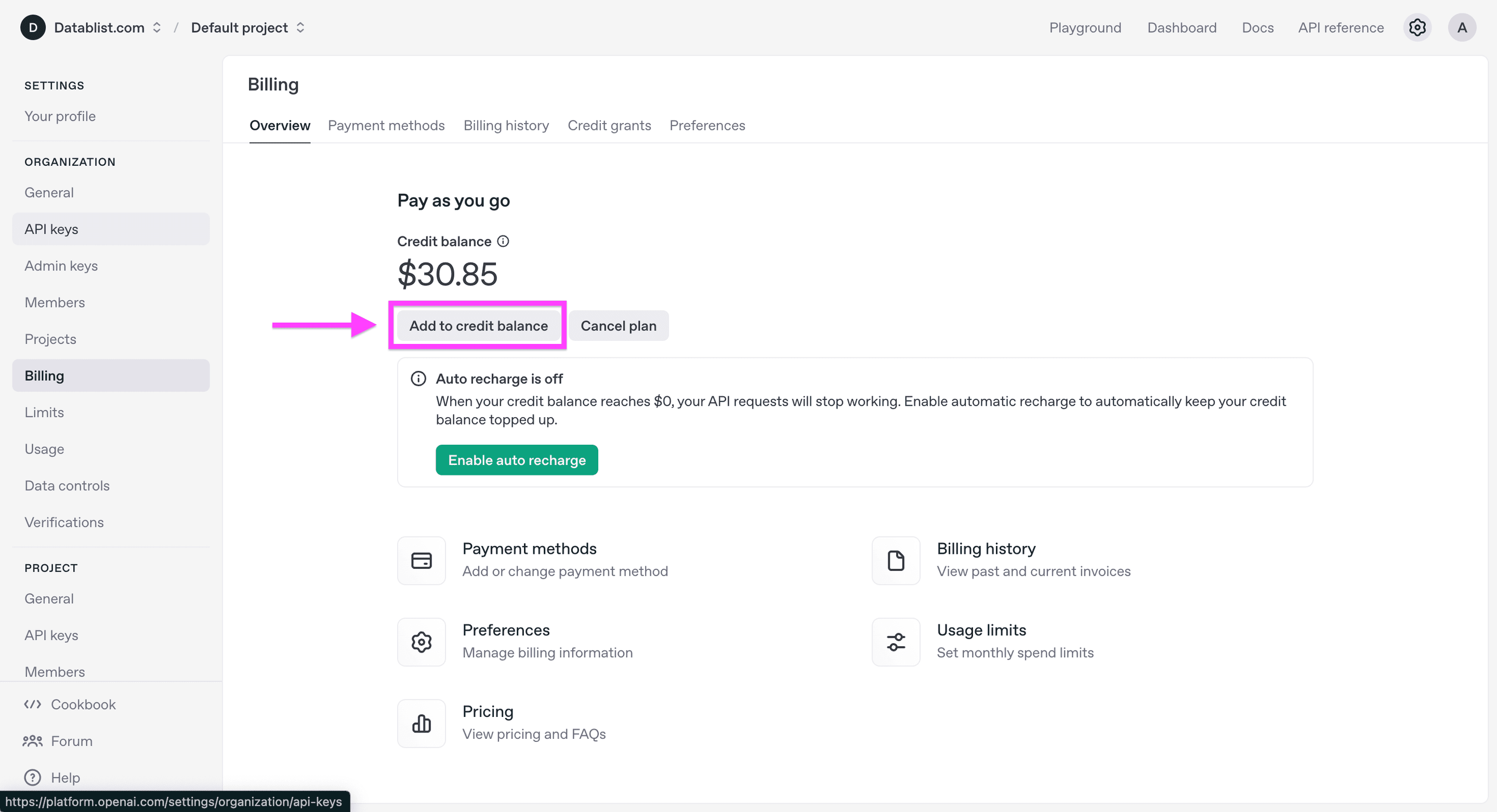
Choose an initial credit amount that fits your planned test. OpenAI currently lists $5 as the minimum prepaid purchase, but the amount needed for your spreadsheet depends on the model, prompt length, and number of rows.
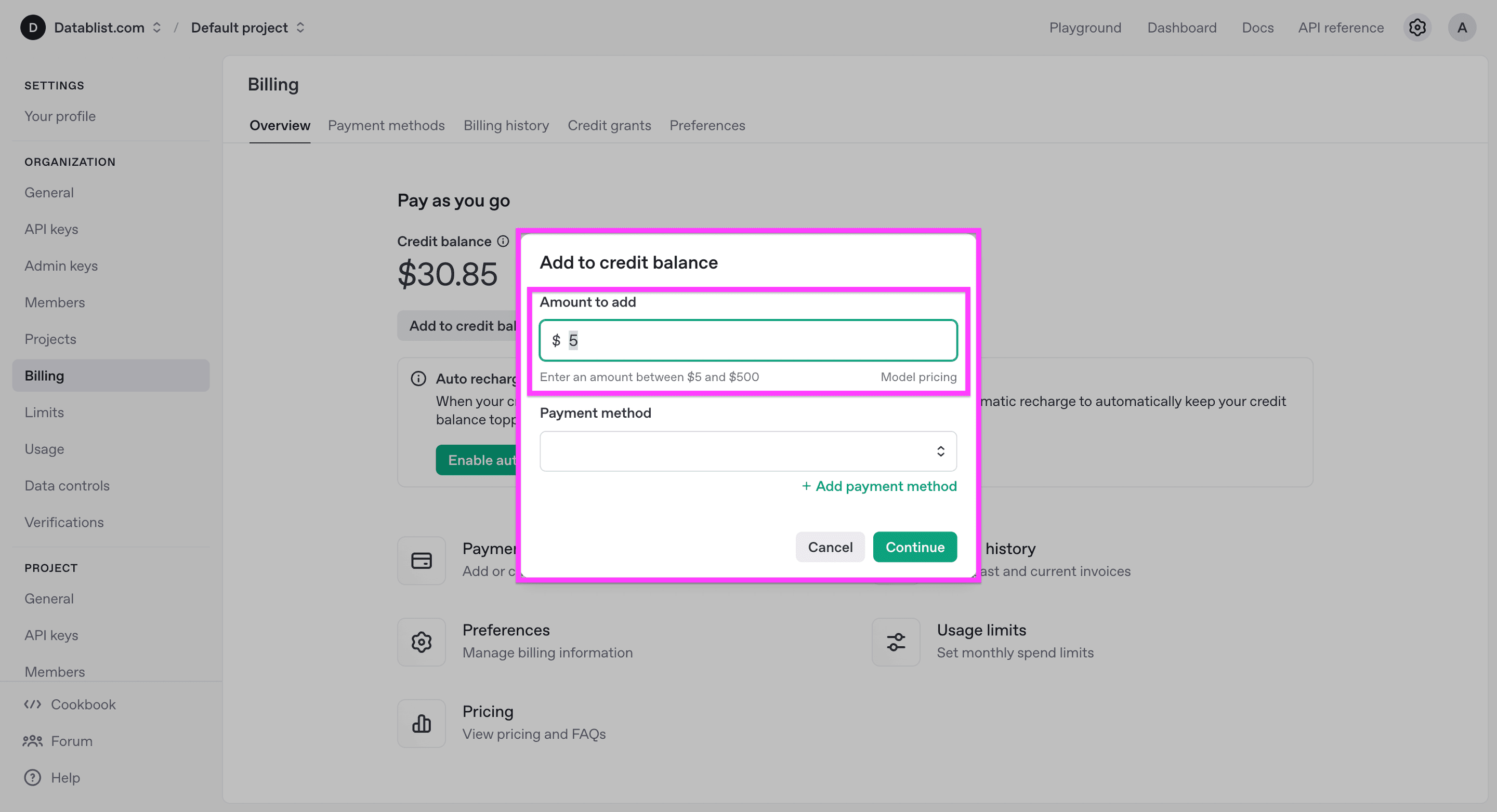
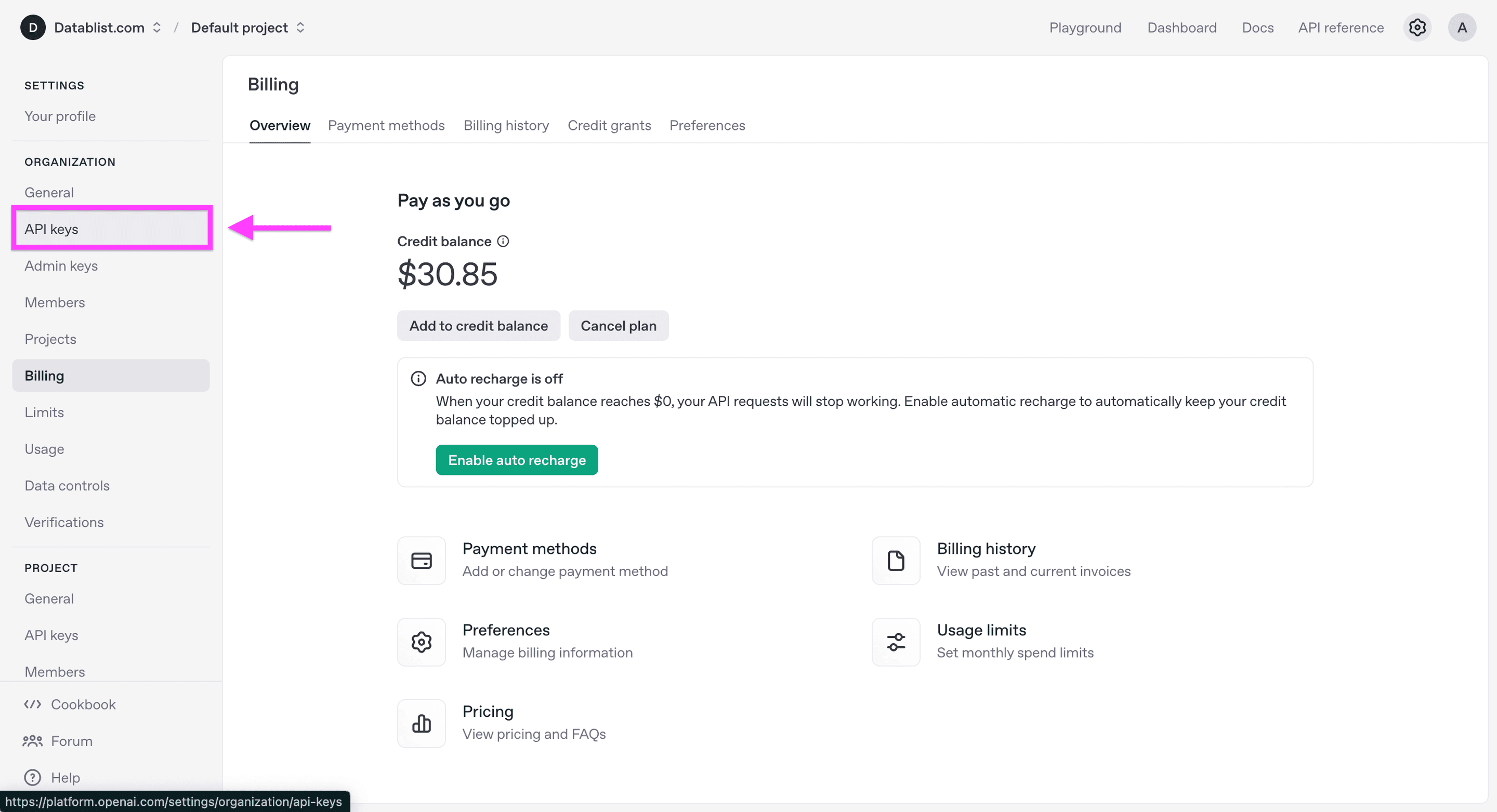
Step 2: Create an OpenAI API key.
Now go to the API keys section to get your OpenAI api key.
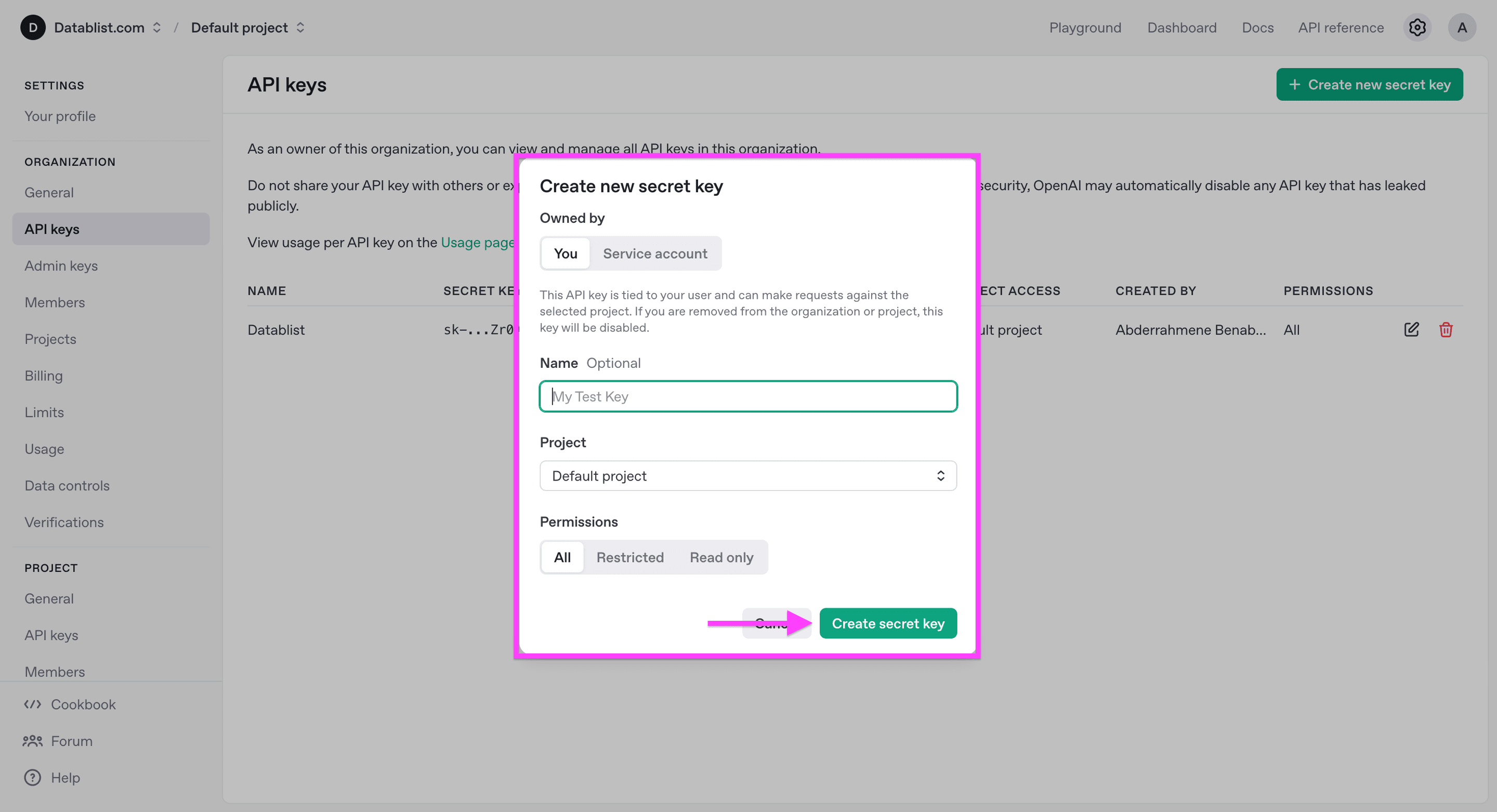
Click on create a new secret key
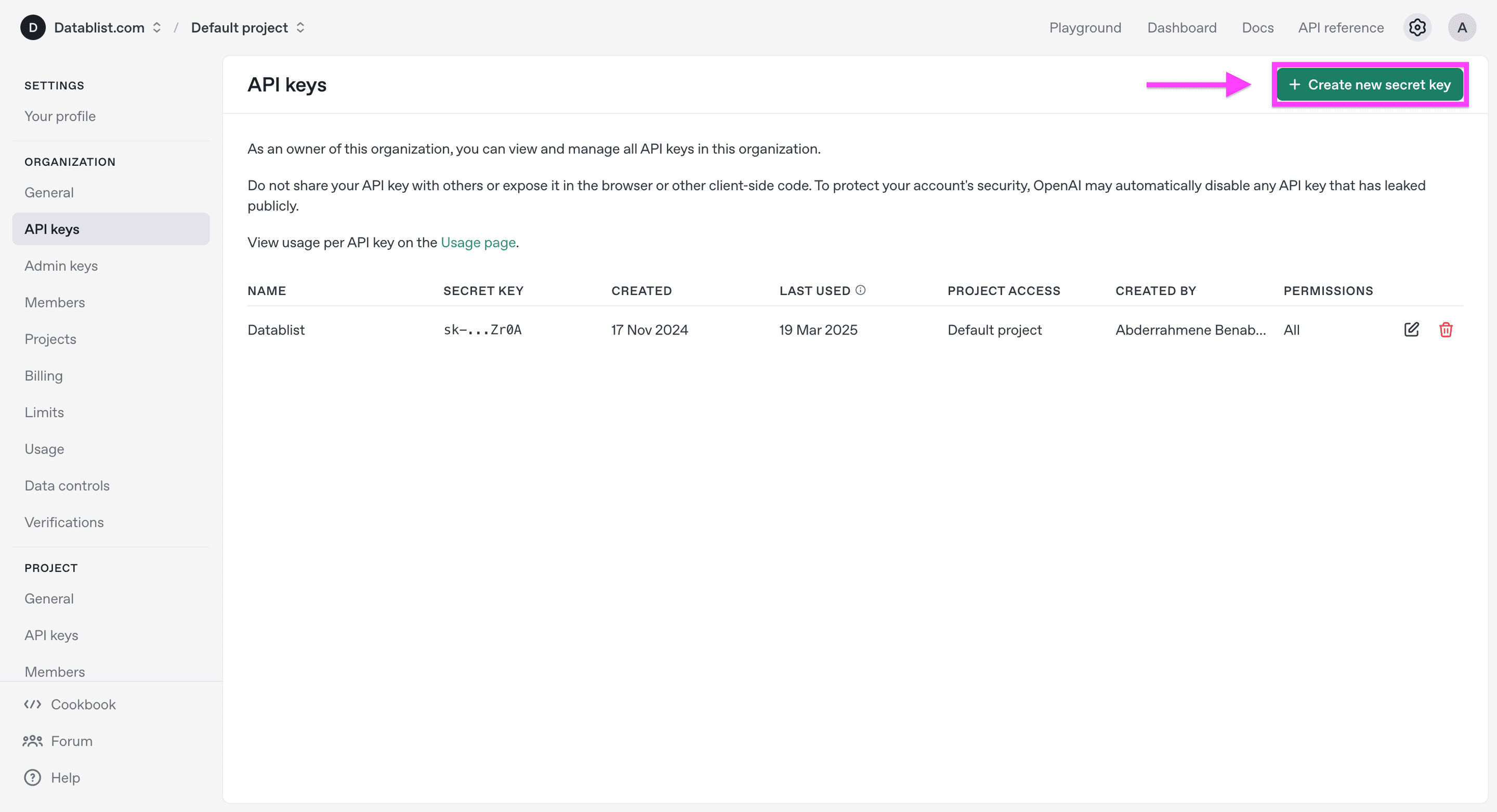
Choose the project and permissions appropriate for your account, then create the key. Save it securely; OpenAI shows the full secret only when it is created.
Copy your secret key.
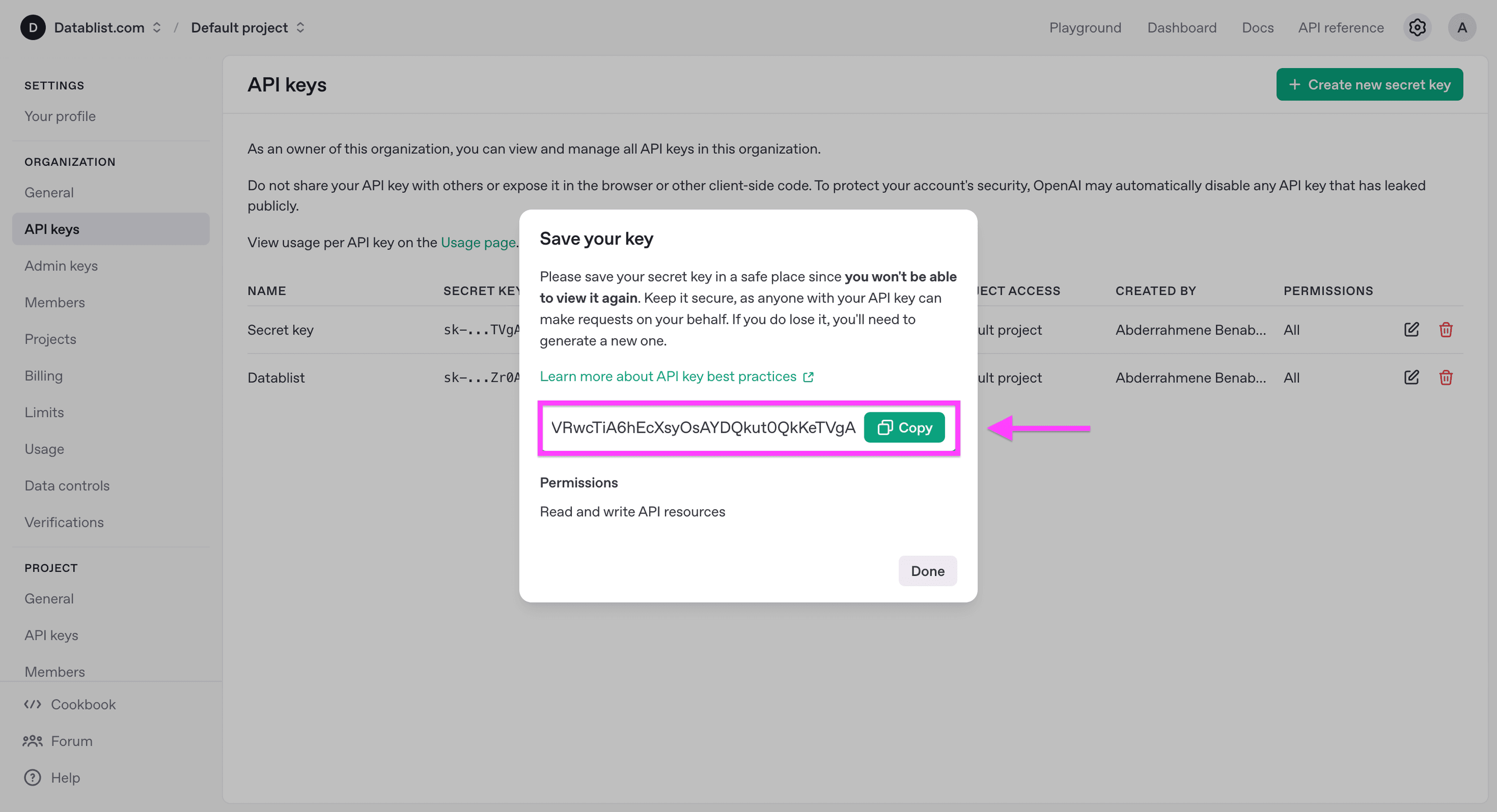
Always store your API key in a safe place or use a password manager. If you lose it, you won't be able to get it back."
When to use a row-by-row workflow
You might wonder: Why can’t I simply upload my Excel file in ChatGPT?
ChatGPT supports CSV and Excel uploads for analysis and can create or edit spreadsheet files. For a repeatable enrichment task, Datablist lets you map a field such as {{Job Description}} into one prompt, run it across selected rows, and store responses in a named column. Check a small sample first because model outputs can vary.
How to run ChatGPT on Excel/CSV files
Step 1: Sign up and import your data.
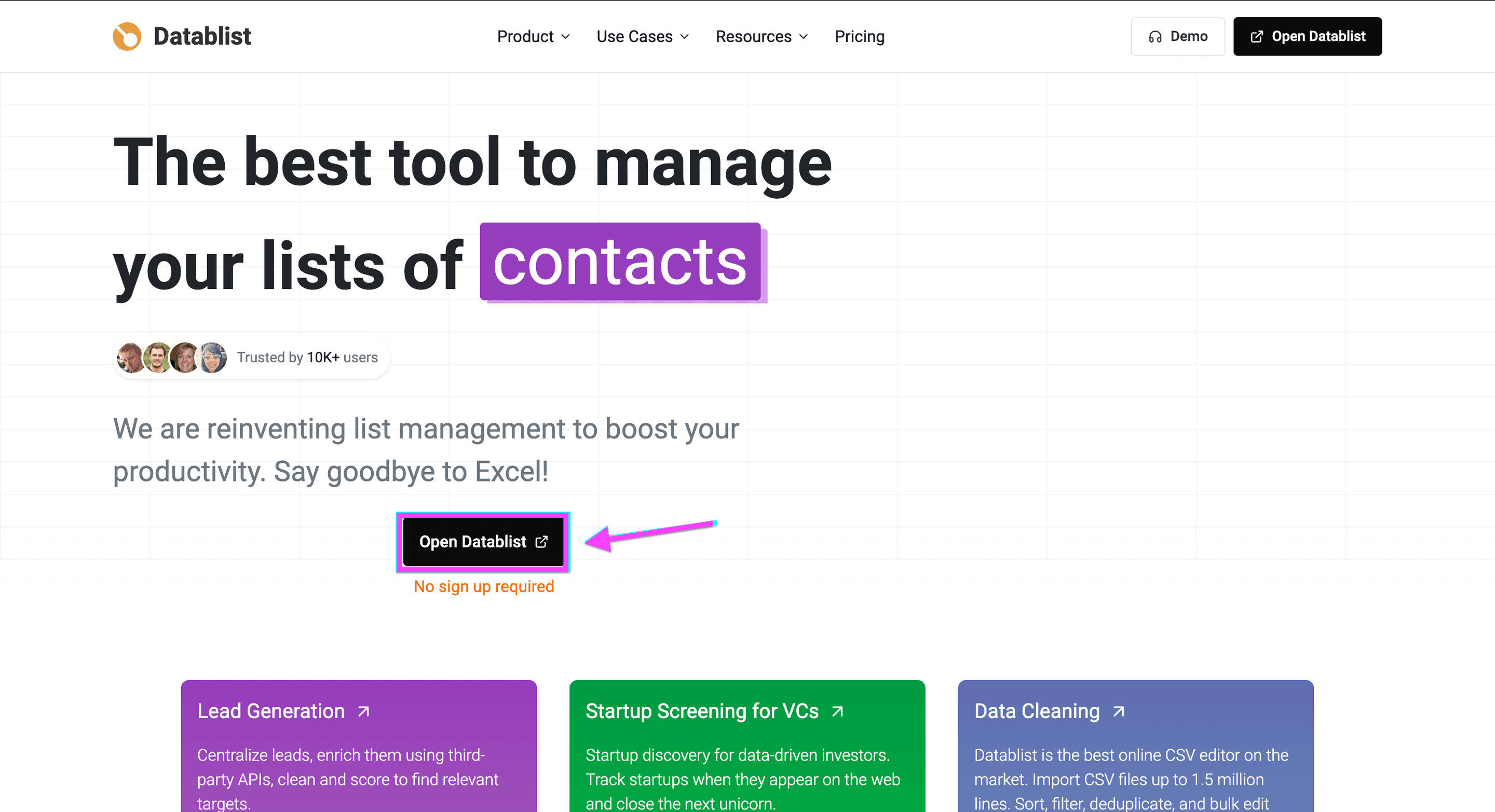
Go to Datablist and Sign up (It’s Free).
Upload you CSV to run be able to run ChatGPT on CSV file.
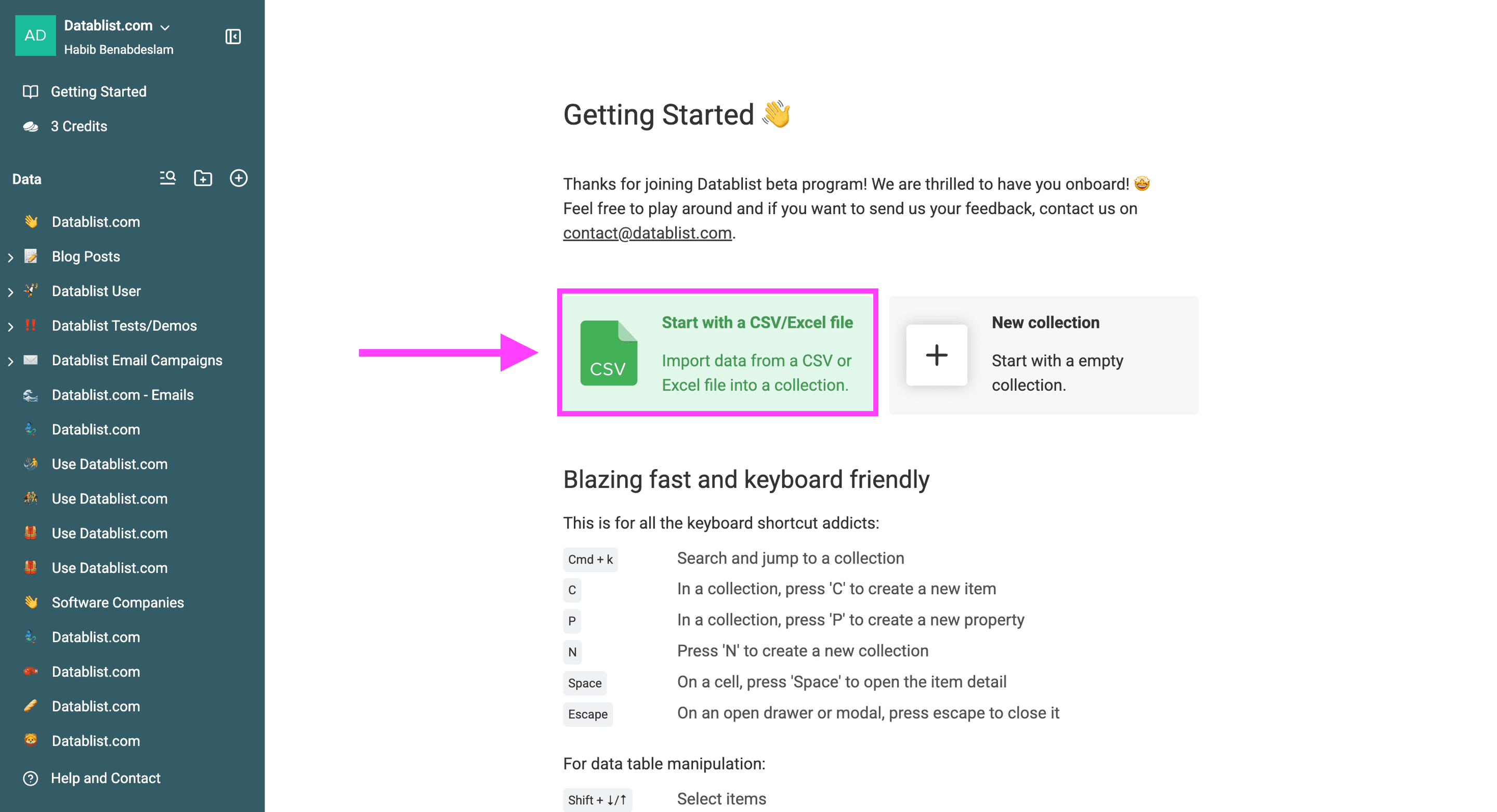
Step 2: Use ChatGPT on your Excel items
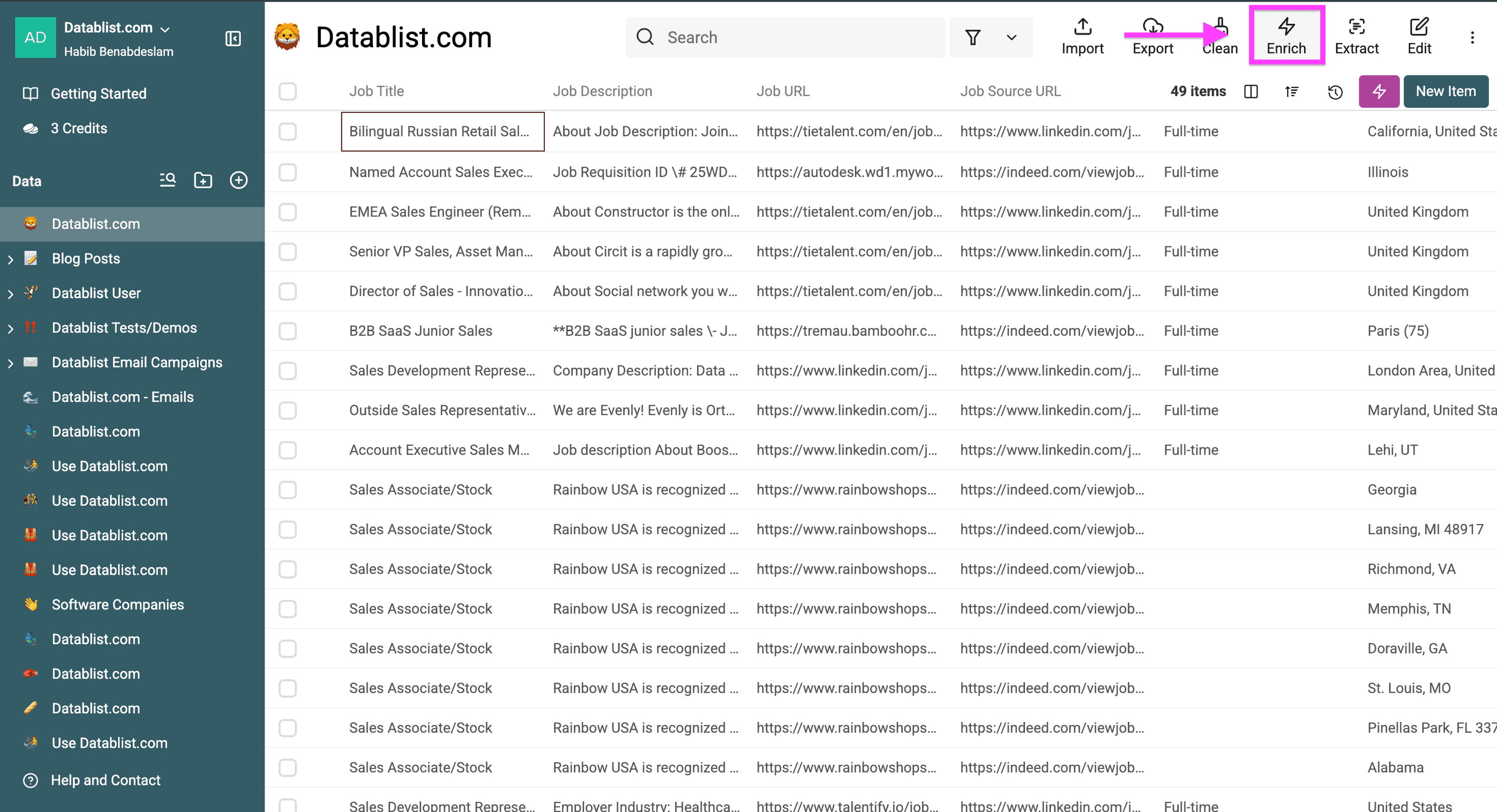
Click the “Enrich” button.
Select Ask ChatGPT/OpenAI for a free-form answer or Classification with ChatGPT/OpenAI for a category from a defined list.
- Select the “Ask ChatGPT/Open” if you want to use ChatGPT to edit or extract Excel items.
- Select the “Classification with ChatGPT/OpenAI” if you want to use ChatGPT to classify Excel items into a limited number of choices.
If your prompt only needs a language label, use a dedicated language detection workflow first before spending LLM tokens on every row.
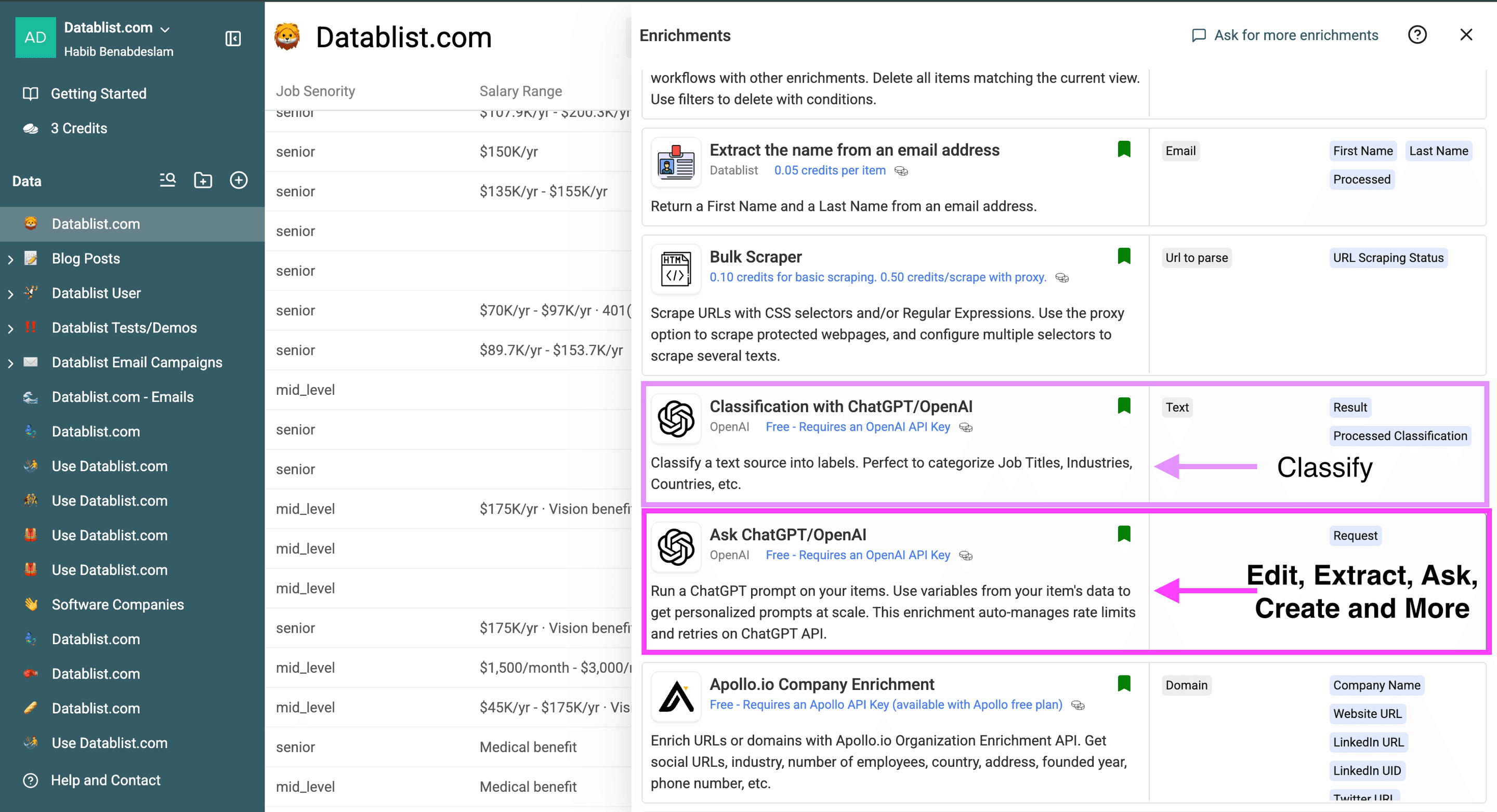
For this guide, I'll go with "Ask ChatGPT/OpenAI".
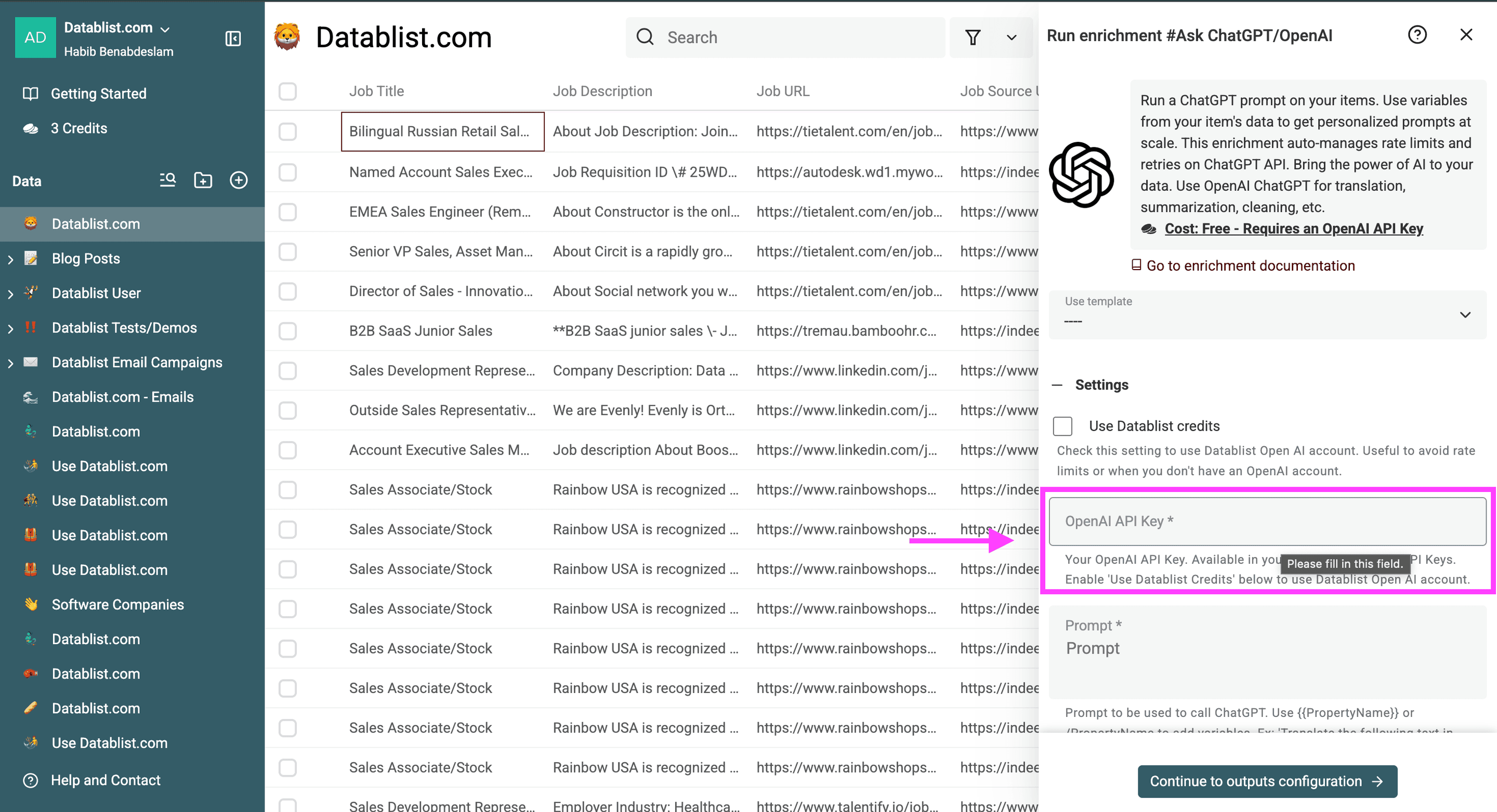
Paste your OpenAI API key. On a paid Datablist plan, you can instead select Use Datablist credits. Check the applicable cost before processing the whole file.
To use ChatGPT to edit and extract items from a Excel file, you have to type a prompt or select one of our templates.
- I'll ask it to tell me what the company is specialized in and which skills/traits they're looking for in the perfect candidate
- I always use the system prompt to give AI its role and behavioral guidelines (optional), and the regular prompt for the specific task I want it to fulfill.
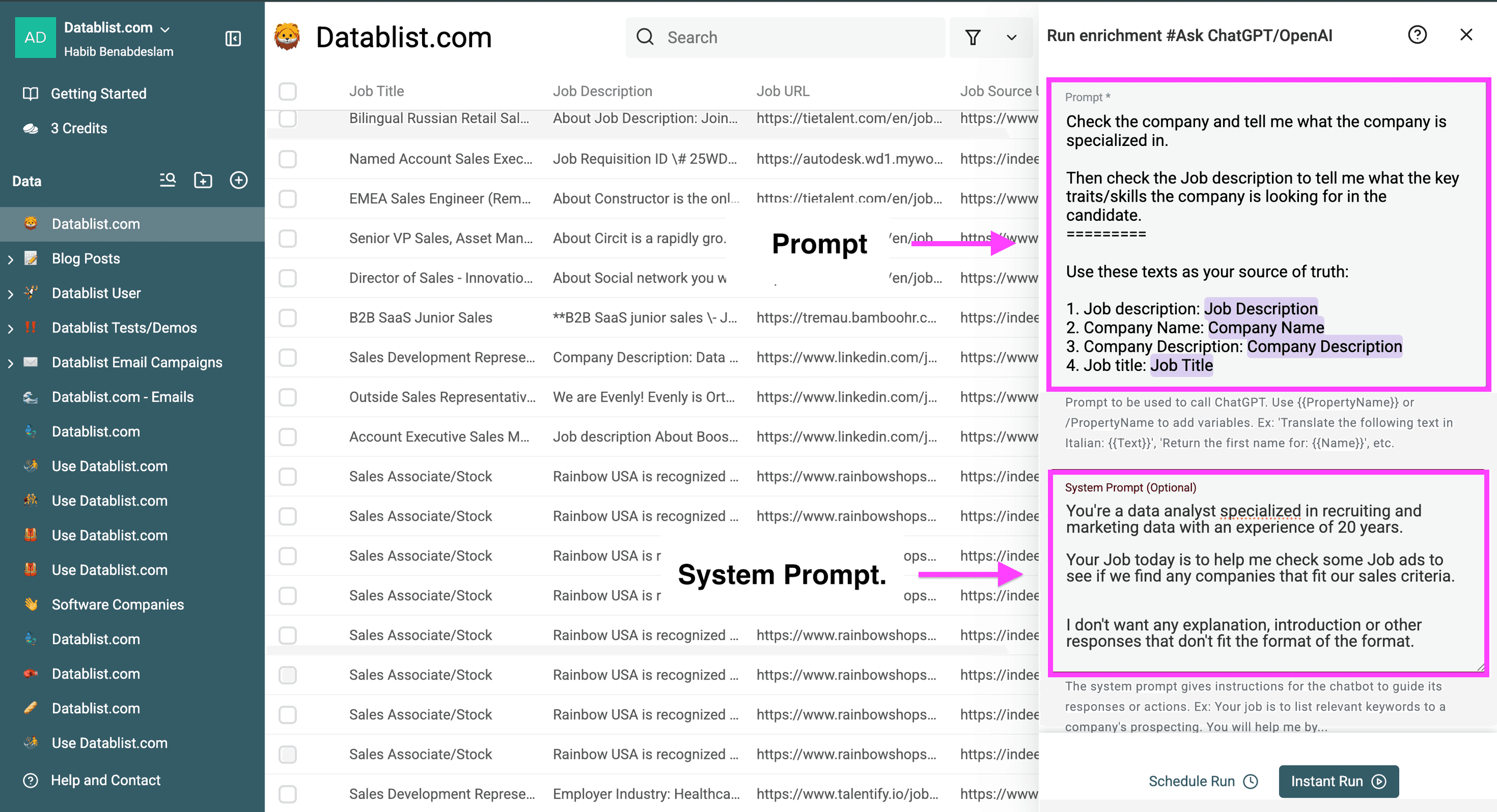
Here's why separating them is important:
- Regular Prompt: Contains your specific question or task for that particular interaction, like "Use {{Column}}"
- System Prompt: Acts as persistent instructions that shape how the AI approaches all responses. For example, telling it to "You’re a data analyst specialized in recruiting and marketing data with an experience of 20 years."
Use brackets "{{ }}" or slashes "/" to reference the columns in your collection.
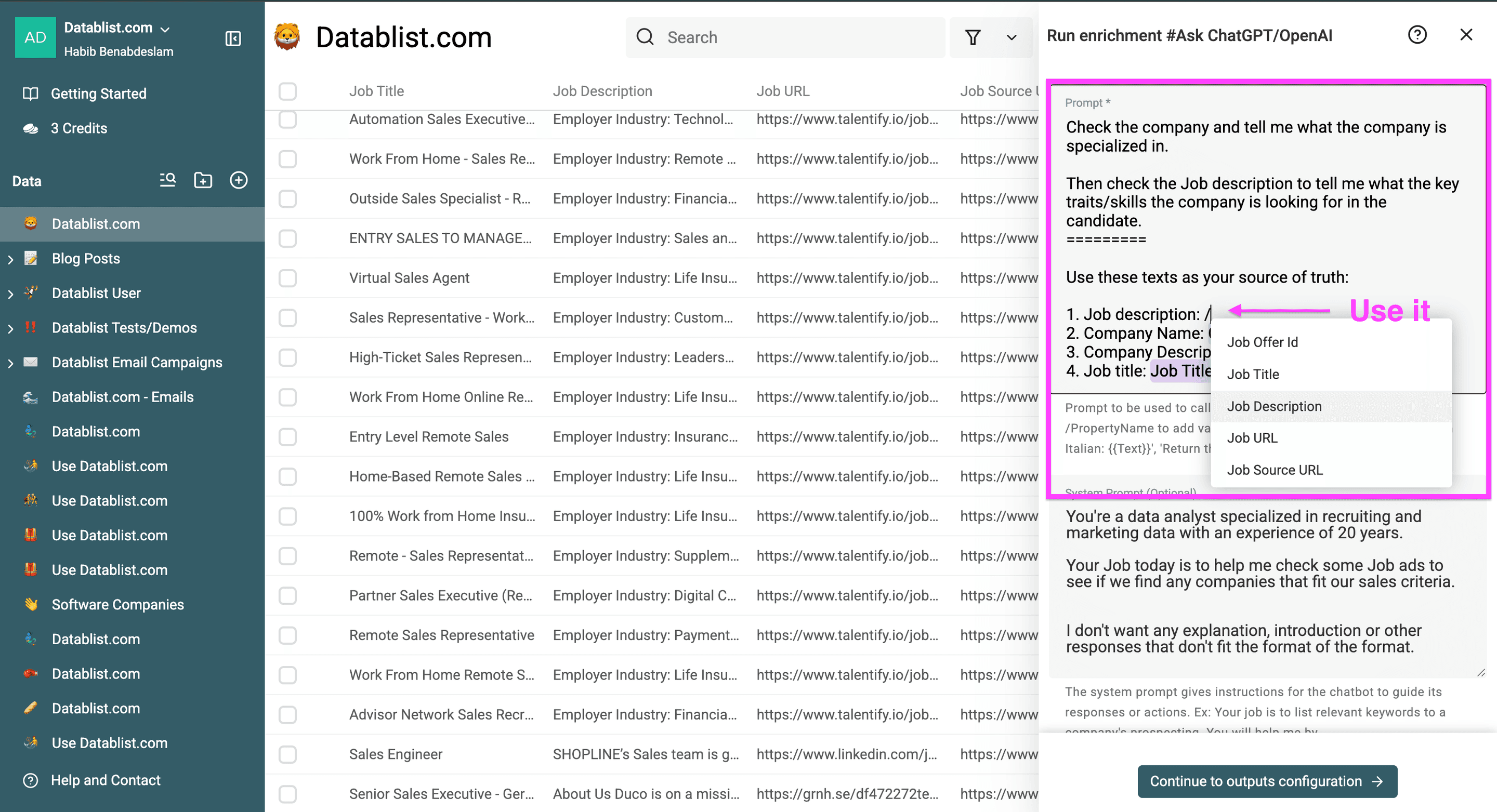
Use the System Prompt to tell ChatGPT to not return explation/comments by added something like: Return the result. No instruction, no comment.
Separating System Prompt from the Regular Prompt helps maintain consistency in the AI's behavior while allowing flexibility in your specific requests. You could think of it as a safety layer to keep the AI operating in the same way.
Step 3: Configure your settings
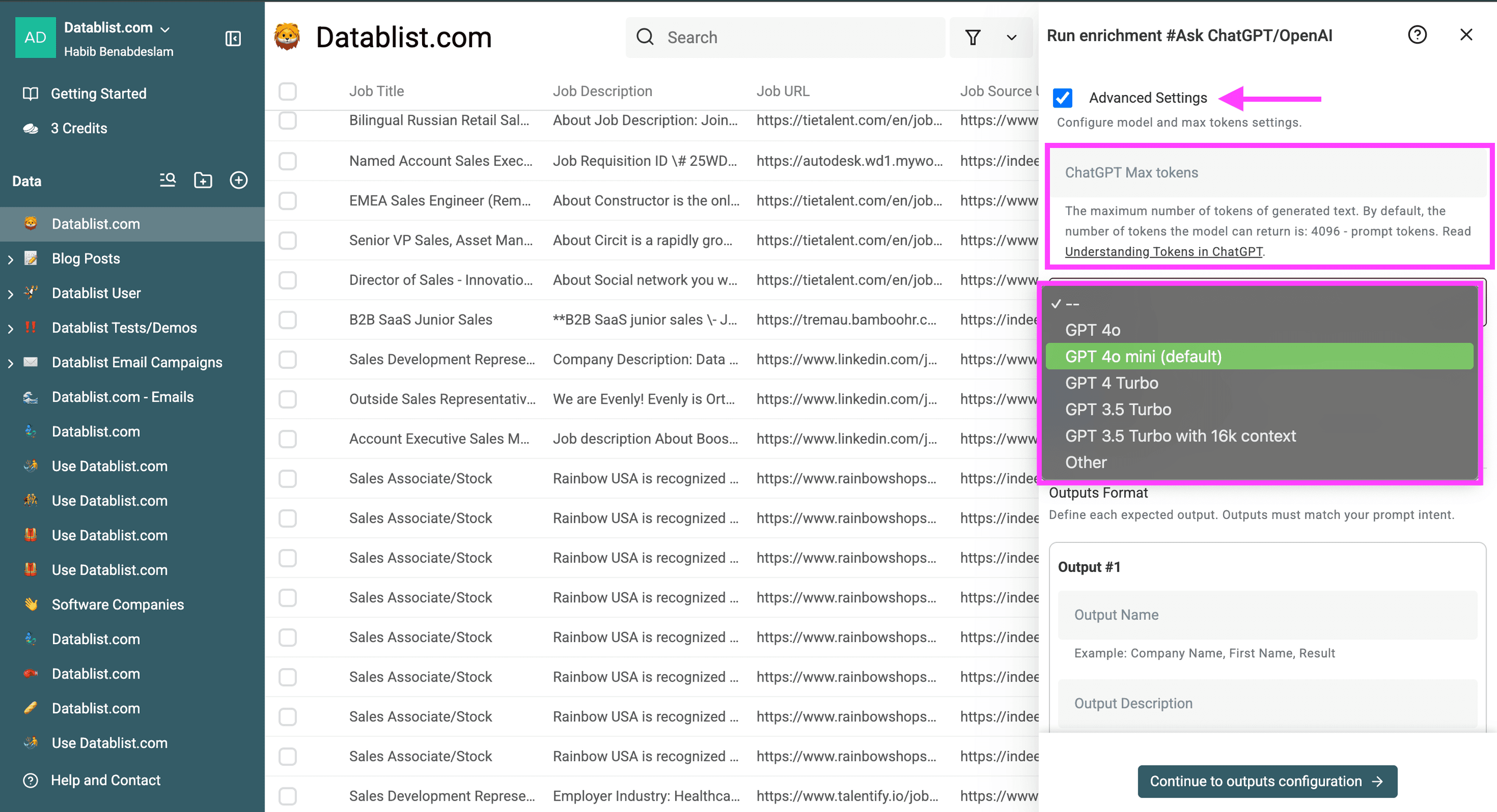
Next, you'll have the advanced settings to limit the token output or to choose a specific ChatGPT model to run on your Excel file. Here's a brief explanation of these settings:
-
Use the first option if you have very large files and want to control your credits spending for each line — this allows you to forecast the approximate costs of the run while running ChatGPT on thousands of Excel items. For non-urgent jobs on supported models, learn how to reduce OpenAI processing costs with Flex Mode.
-
Choose a model available in the current GPT Model selector. Start with the default for a short classification task, then compare a small sample with another model if accuracy is insufficient. Model availability and pricing can change.
Token configuration and model selection inside datablist -
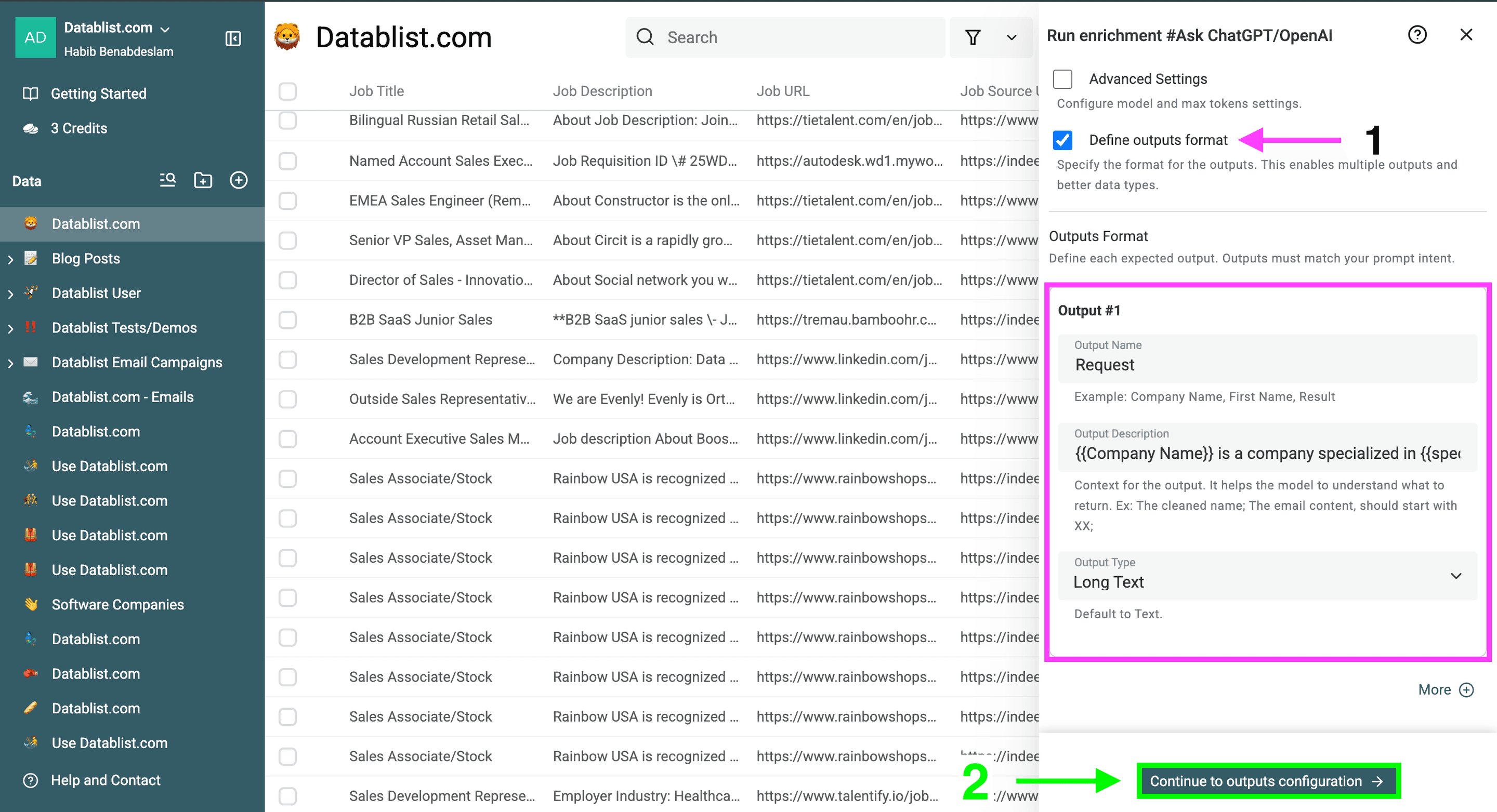
Define your output format by checking the highlighted box — this setting is optional — use it if you want your output to follow a certain structure.
-
Click on "Continue to output configuration" to configure your output fields (the columns where the data will be stored).
Option to define outputs format
Create a new property or link your responses to an existing one, and click "Instant Run" to configure your run settings.
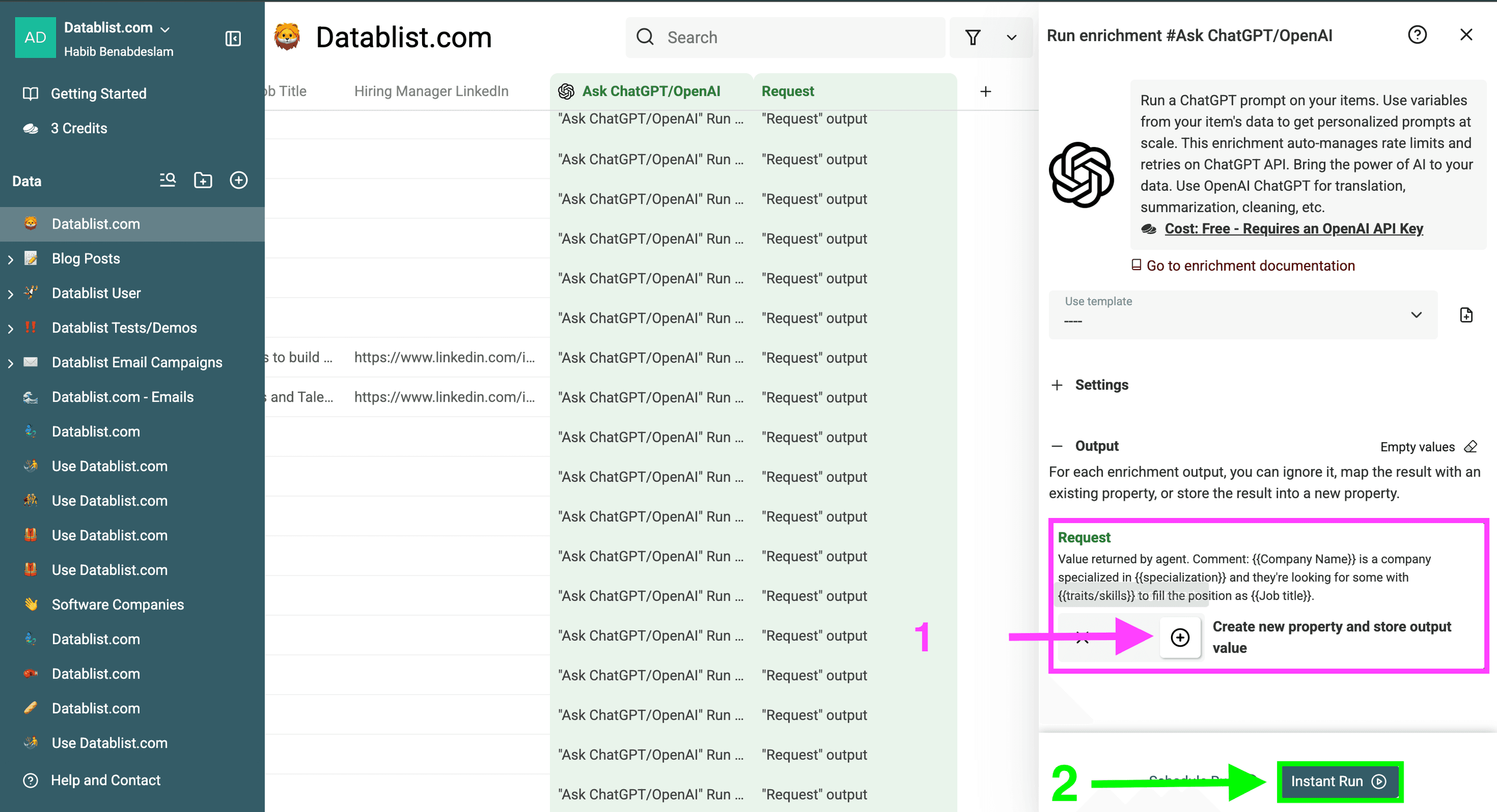
By configuring your run settings, you can choose whether to use ChatGPT on 1,000 Excel items or just 10 items. Here are the available options:
- Test it on the first 10 items.
- Run it in Async (crucial when running ChatGPT on large Excel files).
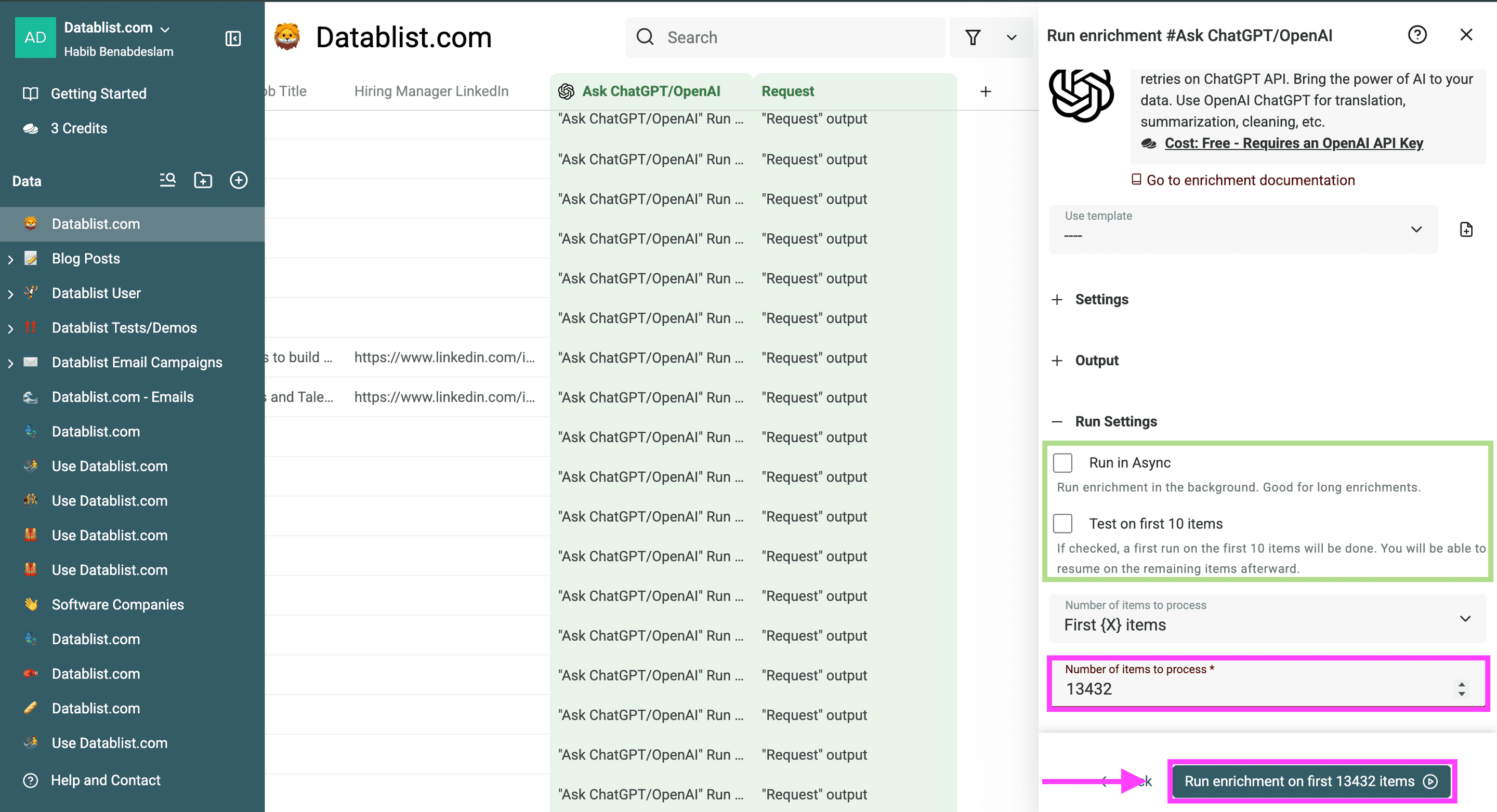
- Run ChatGPT on the first 10 items.
- Run ChatGPT on the first 100 items.
- Run ChatGPT on the first {{Custom amount}} items.
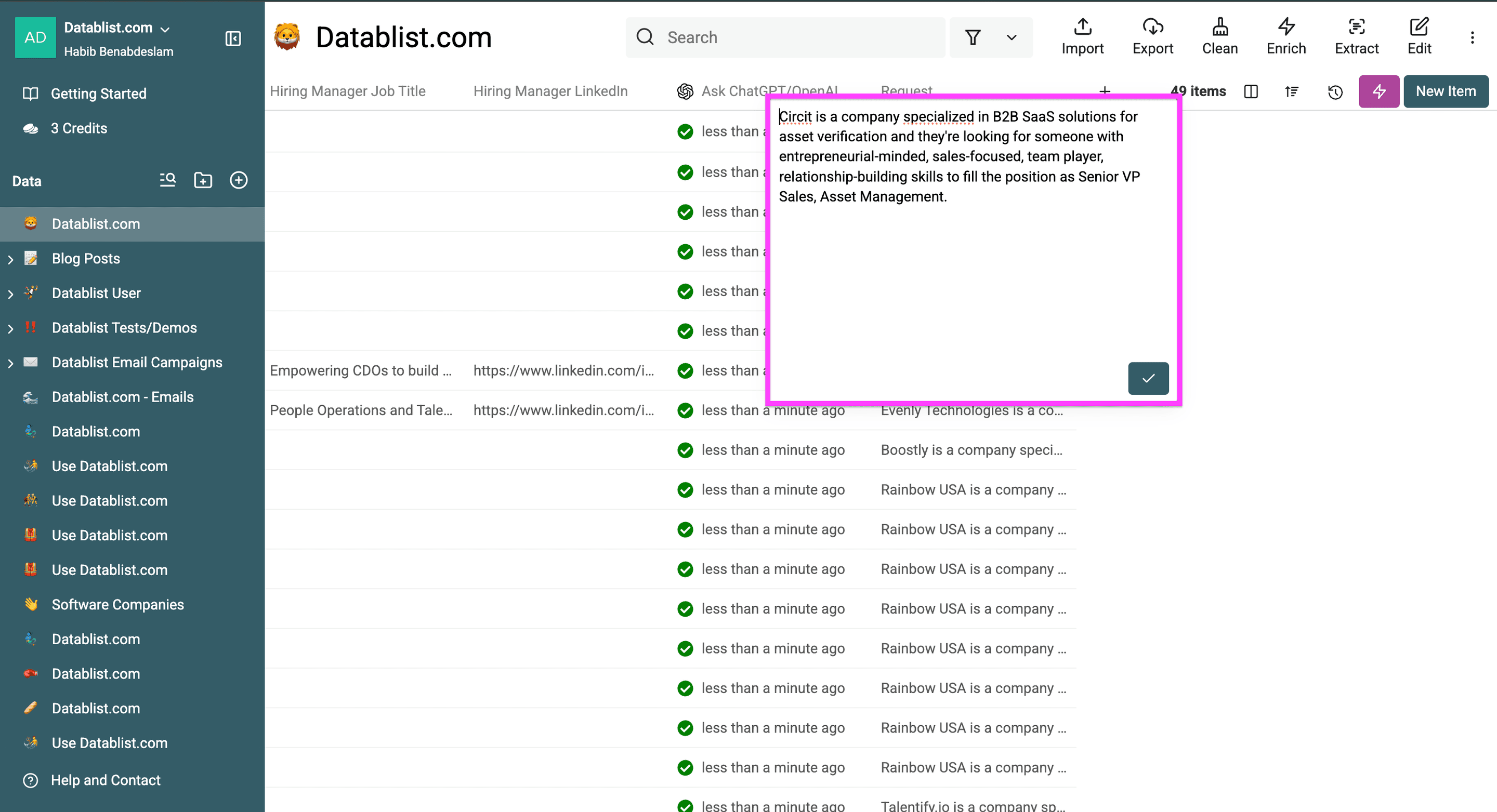
Check your response.
Limitations when running ChatGPT on huge Excel files
When you’re planning to run ChatGPT on large Excel files, you need to be aware of OpenAI's API rate limits and usage tiers.
Here's what you need to know:
- API rate limits vary: Check the limits for your selected model and project in the OpenAI API dashboard. A fixed rows-per-minute estimate will not apply to every account or prompt.
- Token and cost usage vary: Longer row values and responses use more tokens. Test a representative sample, inspect the results and usage, and then scale up.
- Control concurrency: If your own API key hits rate-limit errors, lower Max Concurrent Calls in the enrichment settings or process rows in batches.
📘 On a paid Datablist plan, Use Datablist credits lets you run the enrichment without supplying your own OpenAI API key. Check the estimated credit usage in Datablist before the full run.
Conclusion
For a repeatable Excel or CSV transformation, map one column into a prompt, test the output on a small sample, and then run the remaining rows. Review the new column before exporting it.
Key Takeaways
- ChatGPT's web interface can handle Excel file uploads.
- The described workflow works seamlessly for both CSV and Excel files.
- Datablist saves each response in a mapped output column that you can review and export.
- You can use your OpenAI API key or, on a paid Datablist plan, Datablist credits; check the applicable usage cost before a large run.
- Test the prompt on a few representative rows because AI responses require review.
Frequently Asked Questions
How can I use ChatGPT with Excel files?
You can use ChatGPT with Excel files through the OpenAI API and tools like Datablist. This allows you to process large datasets more efficiently than using the ChatGPT web interface.
What is the limit of rows that I can process?
The workable batch size depends on your Datablist plan, selected model, API limits, and available credits. Test a small batch first and check the current limits shown in each service.
Do I need coding knowledge to use ChatGPT with Excel?
No, you don't need coding knowledge. Tools like Datablist provide a user-friendly interface to connect ChatGPT with your Excel files without any programming required.
How much does it cost to use ChatGPT with Excel files?
The cost depends on the model, prompt and response lengths, row count, and whether you use your own API key or paid-plan Datablist credits. Test a sample to estimate usage before running the full file.
Can ChatGPT help analyze customer feedback in Excel?
Yes, ChatGPT can effectively analyze customer feedback in Excel, helping categorize responses, extract sentiments, and identify common themes in your data.
What's the difference between using ChatGPT's website and API for Excel files?
ChatGPT can analyze uploaded spreadsheets and create or edit files. The API-backed Datablist workflow maps row values into a repeatable prompt and writes each result to a collection column. API usage and ChatGPT subscriptions are billed separately.