
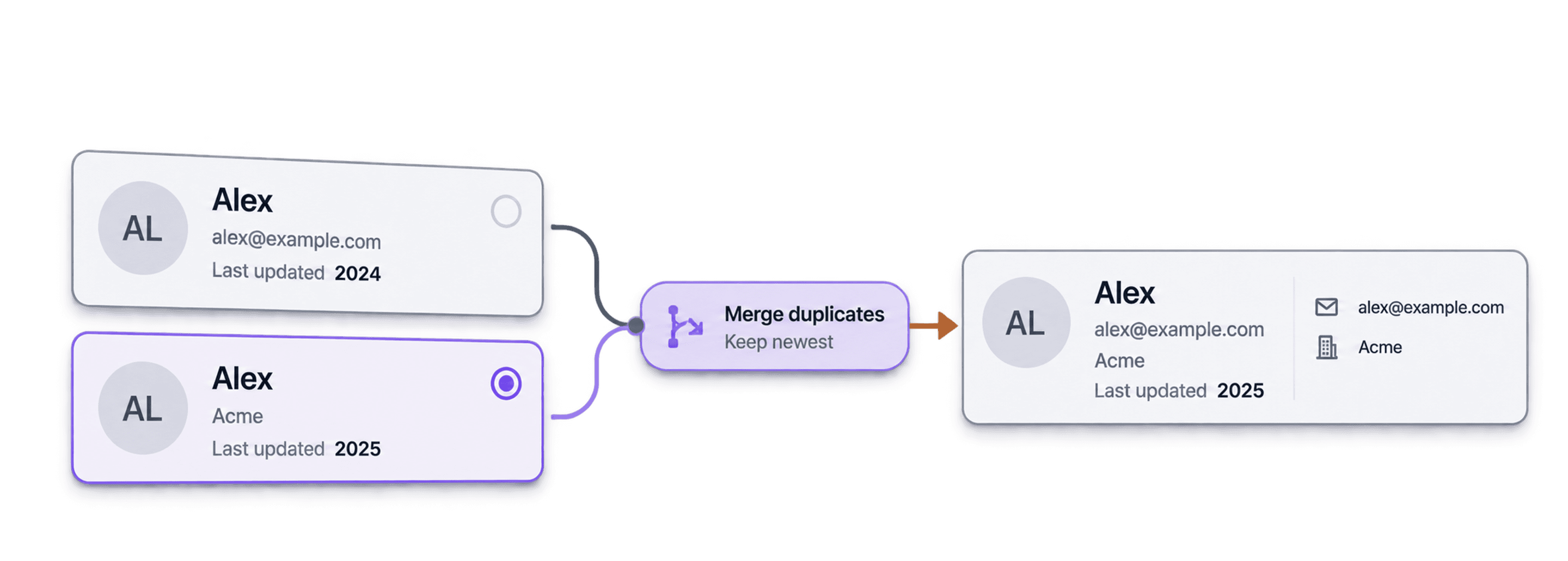
To remove duplicate iPhone, iCloud, or Mac contacts, start with Apple’s built-in duplicate review. If you need to keep the contact with the newest source modification date, export the contacts on a Mac and compare that date in Datablist before importing the cleaned file.
I recommend choosing the method before exporting anything. Apple’s native merge is enough for many contact lists. The CSV workflow below gives you an explicit date rule and a preview, but it is a file-based cleanup, not an ongoing synchronization between apps.
Plan distinction: basic deduplication with Datablist’s default Most Complete rule is available on the Free plan. Choosing Highest value on a property for a source date requires a paid plan.
Try Native Duplicate Removal First
On iPhone, open Contacts and use View Duplicates below My Card when it appears. Review the suggested cards before using Merge All. Apple describes the steps in its iPhone duplicate-contacts guide.
On Mac, use Card > Look for Duplicates, or select known duplicates and use Merge Selected Cards. The Mac Contacts guide explains merging and the distinction from linking cards across accounts.
Use the following workflow when those suggestions do not give you enough control over which source record survives.
Export Apple Contacts With Source Dates
Back Up Before Exporting
In Contacts on Mac, choose File > Export > Contacts Archive and save the backup outside your working CSV folder. A CSV export is not a complete Contacts archive: photos, account relationships, and unsupported fields may not survive the round trip. See Apple’s export and archive instructions.
If you want the cleanup to affect iCloud contacts, first check which account holds the cards. Contacts can display cards from several accounts together. Do not assume every card in All Contacts belongs to iCloud.
Export the Source Dates With Script Editor
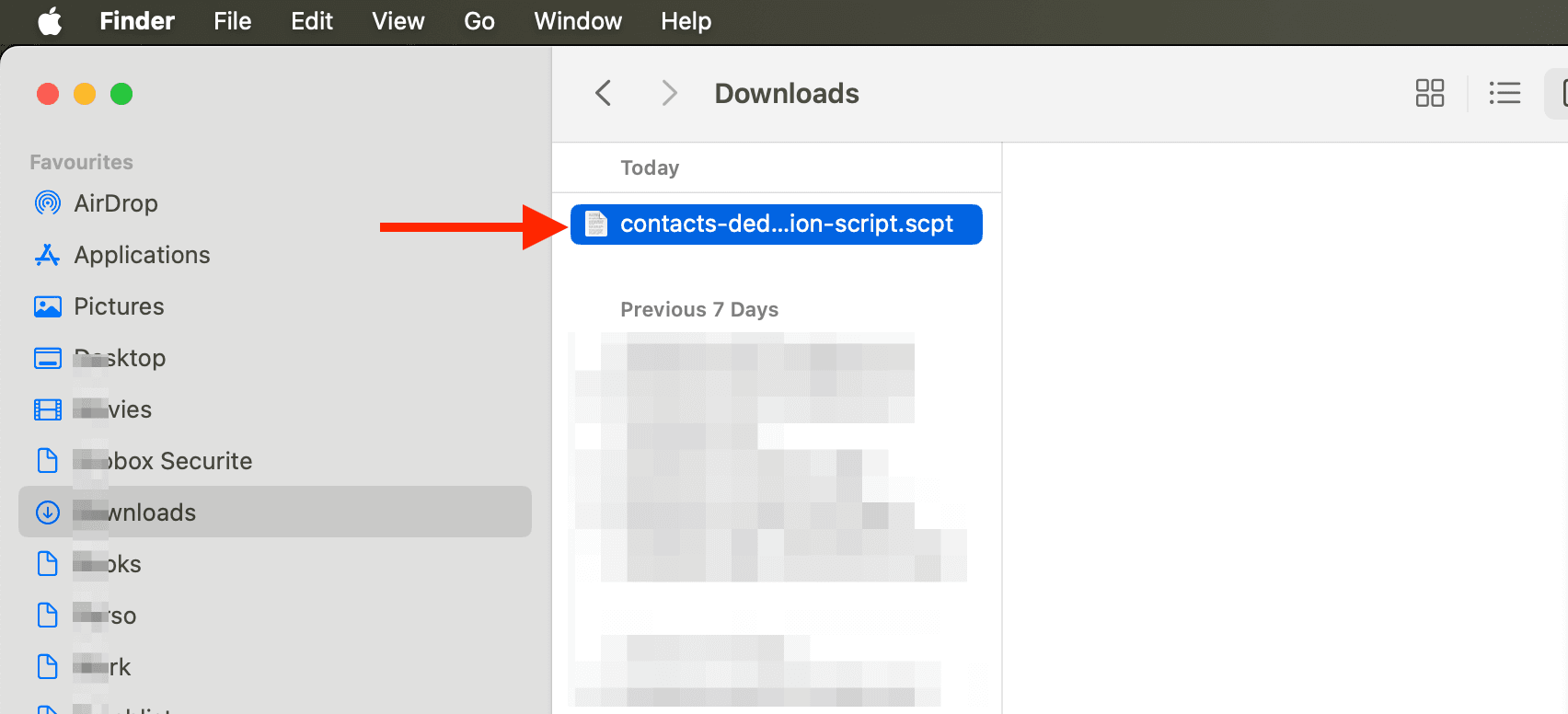
Download contacts-deduplication-script-v2.scpt and open it in Script Editor on your Mac.
This exporter reads the Mac Contacts list and writes a timestamped contacts_detailed_XXXX.csv file to the Desktop. Its columns include First Name, Last Name, Creation Date, Modification Date, and labeled phone and email fields, plus fields such as address and note where available. It does not export contact photos or preserve every Contacts feature.
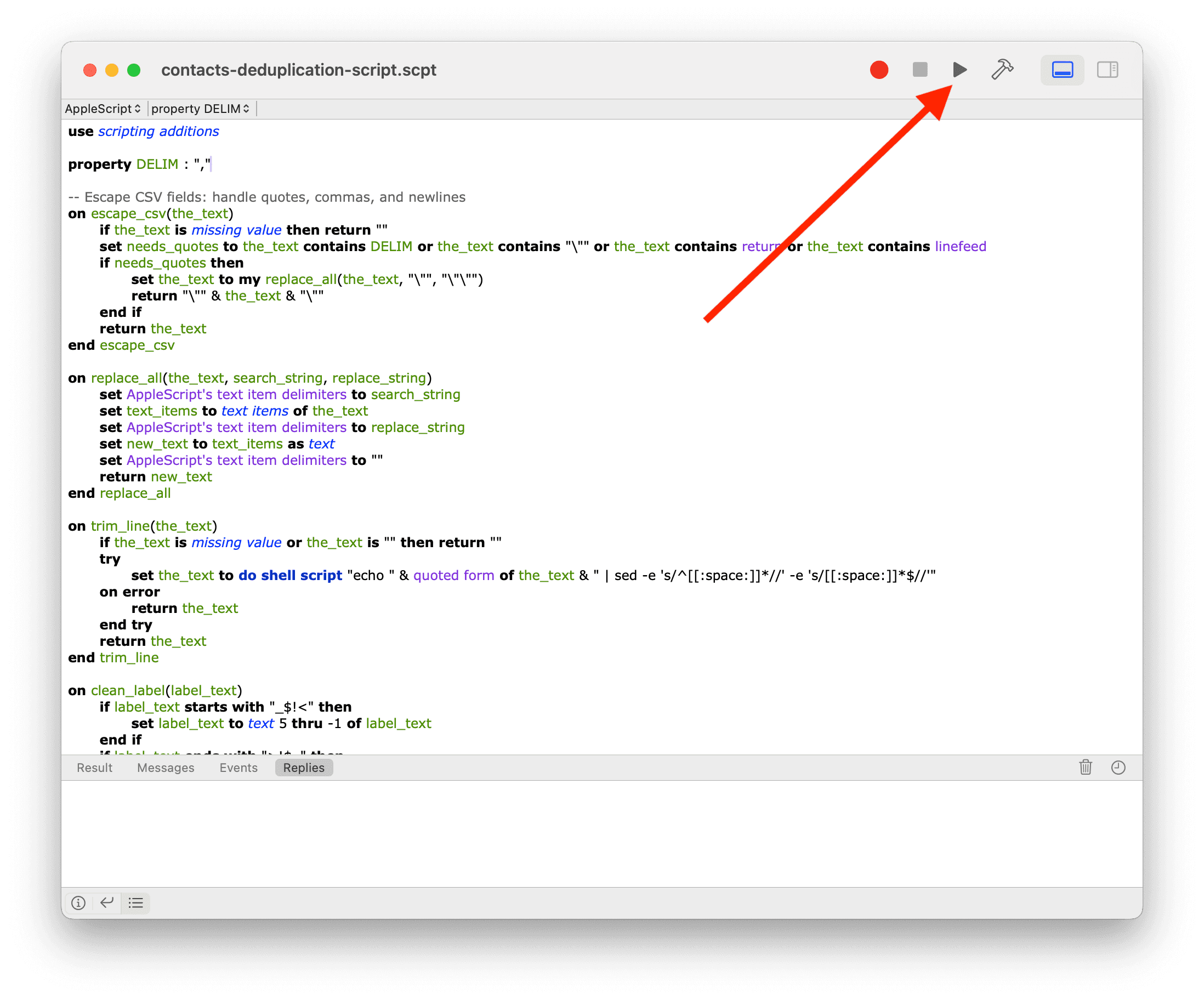
Review the script, then click Run. Allow Script Editor to access Contacts when macOS asks. The exporter does not delete or merge contact cards.
The script can display progress notifications if you allow them. Runtime depends on the number of contacts and your Mac.

When export completes, check the notification and locate the CSV on the Desktop.
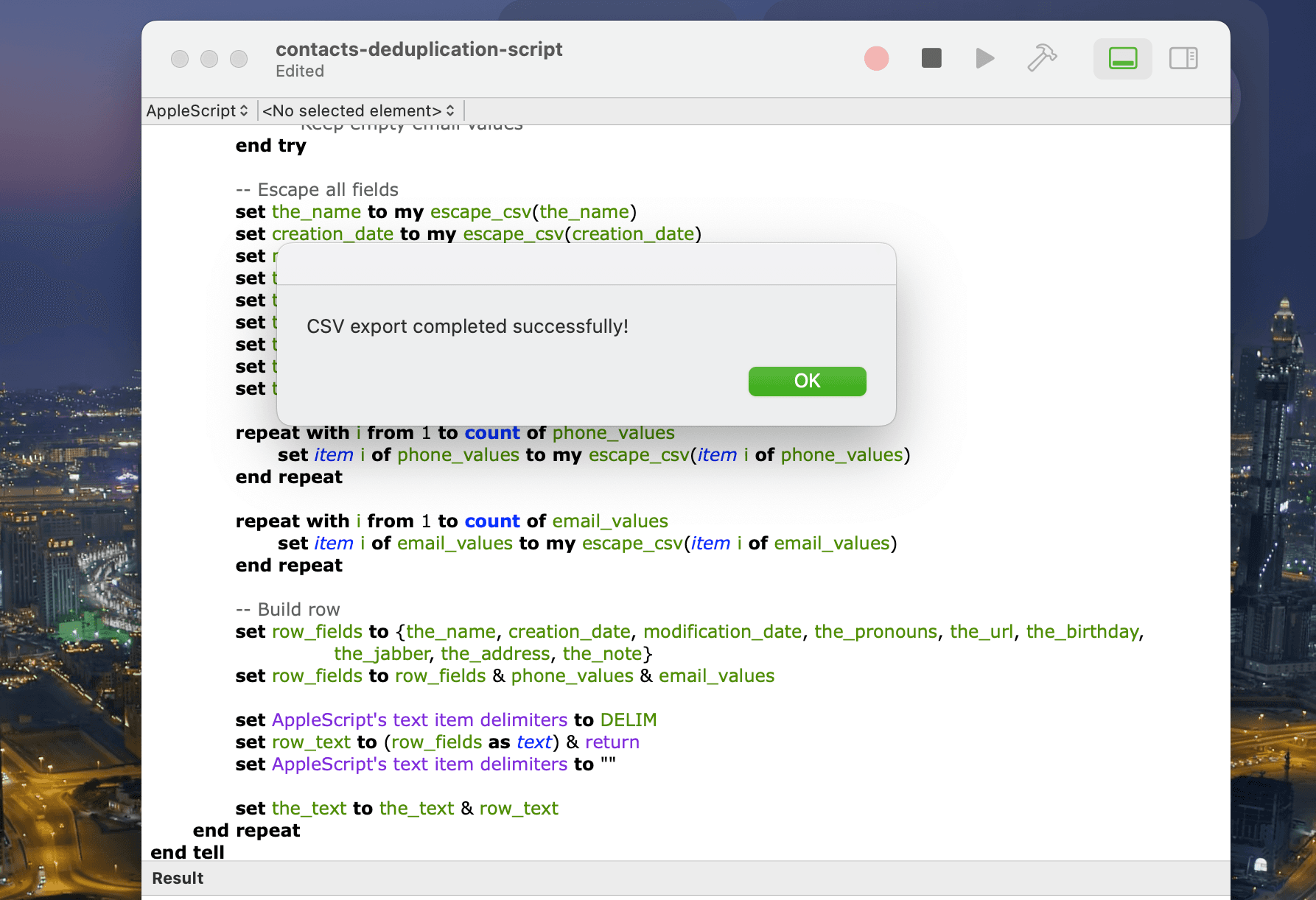
Open a copy of the file and inspect several source dates, phone numbers, and email fields. A missing date should be reviewed before it becomes part of a “keep newest” decision.
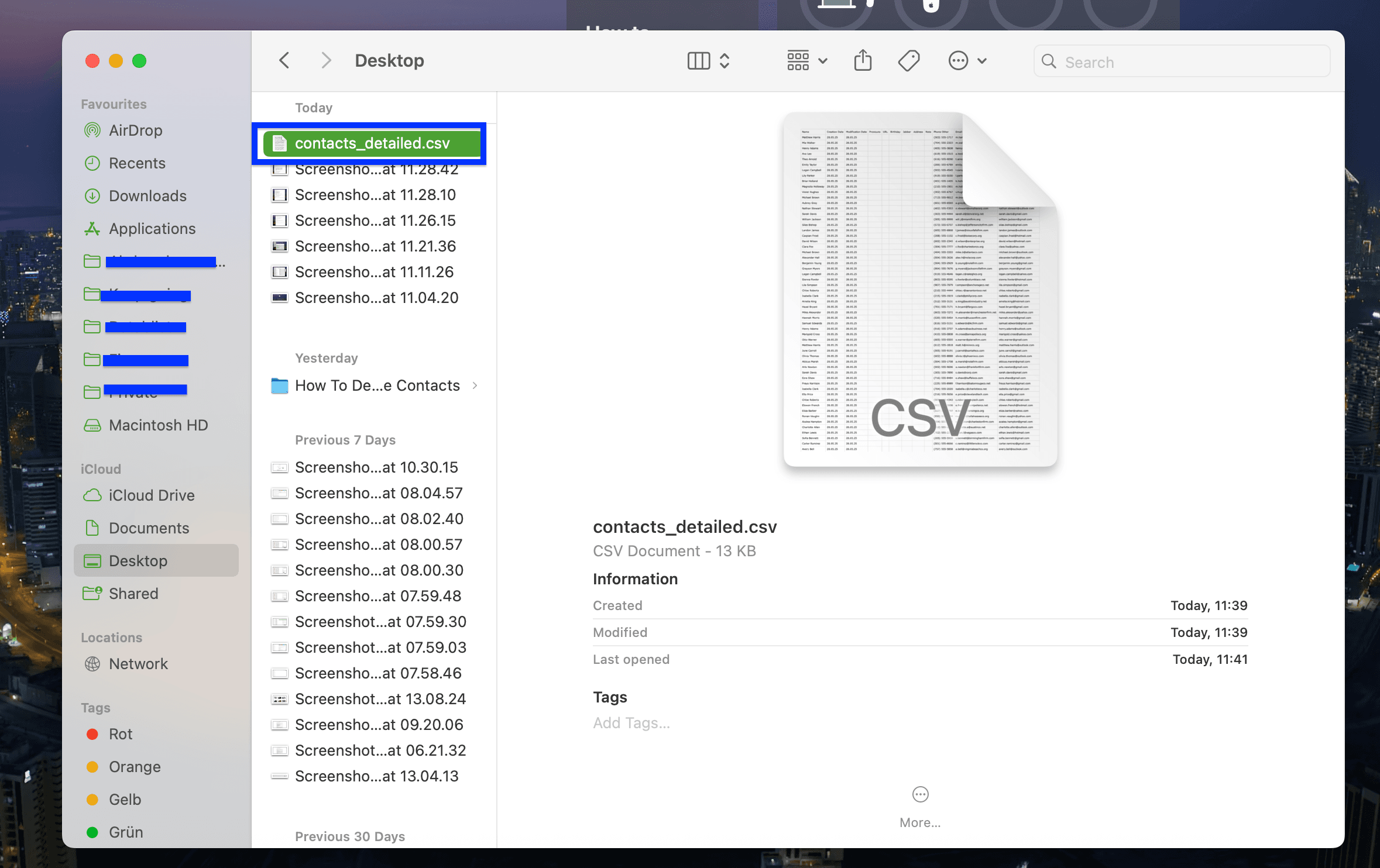
Import and Check the Contact Fields
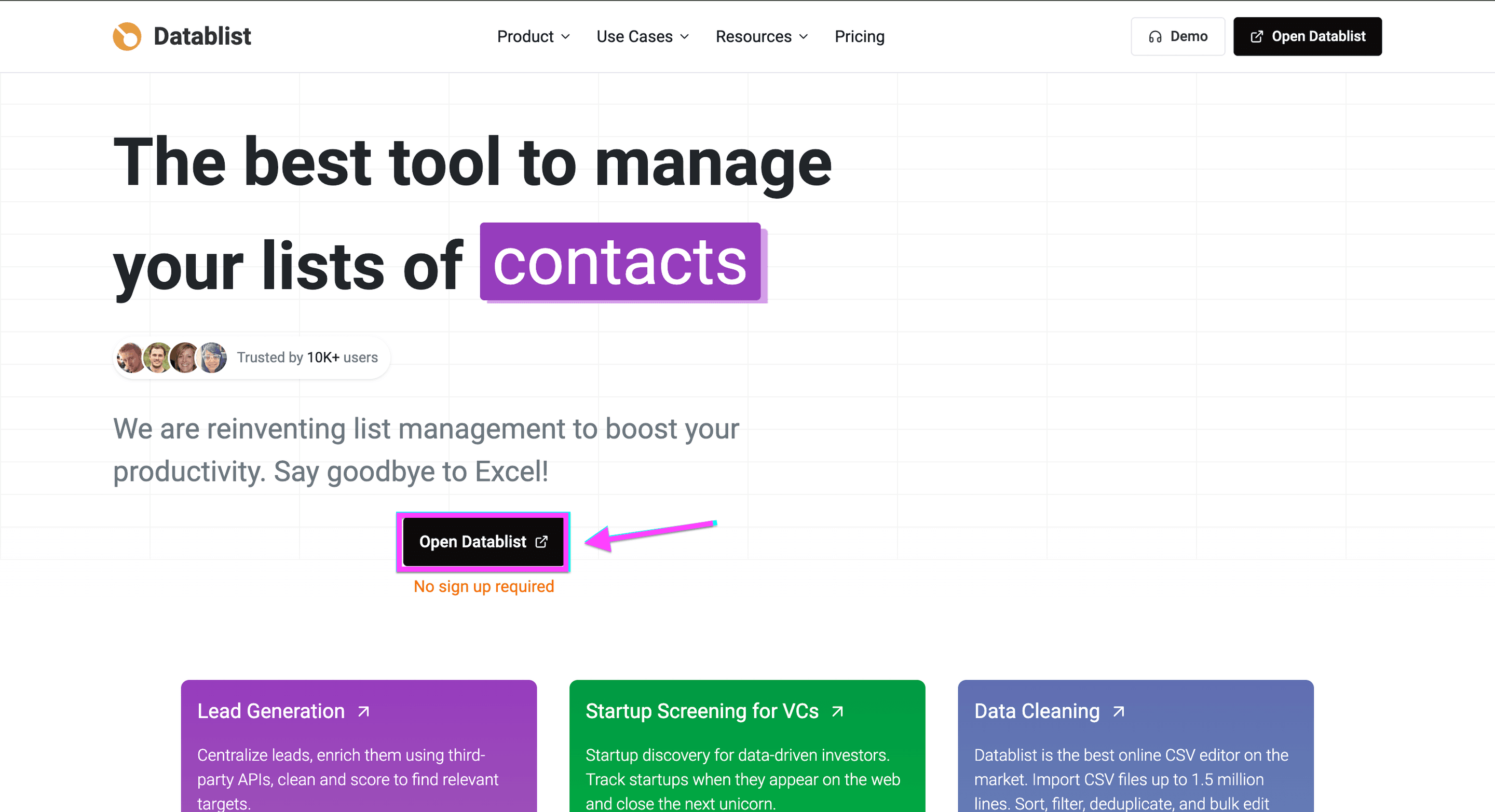
Open Datablist and create a collection for the exported contacts.
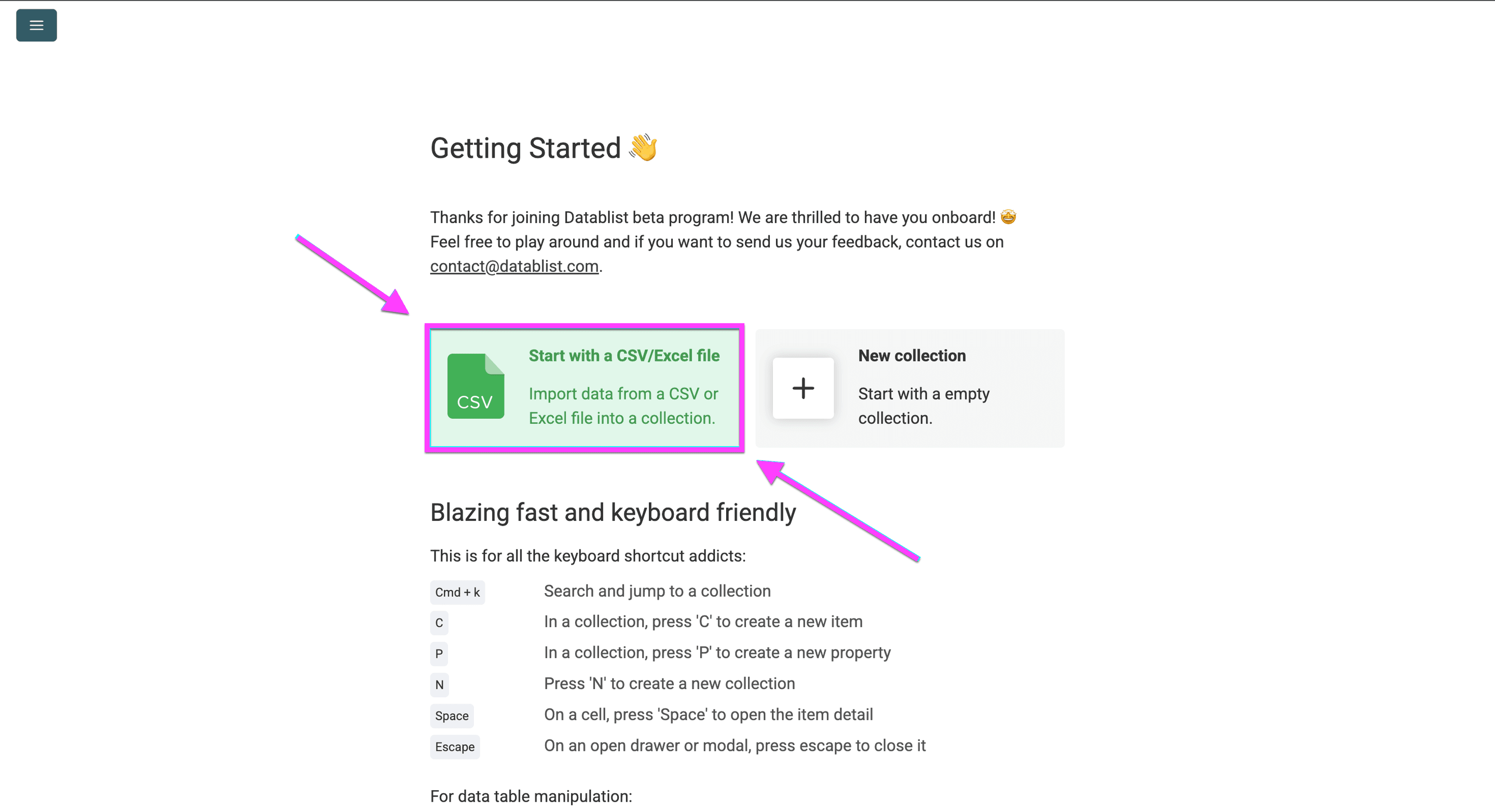
Choose Import CSV/Excel and select the working CSV, keeping your archive separate.
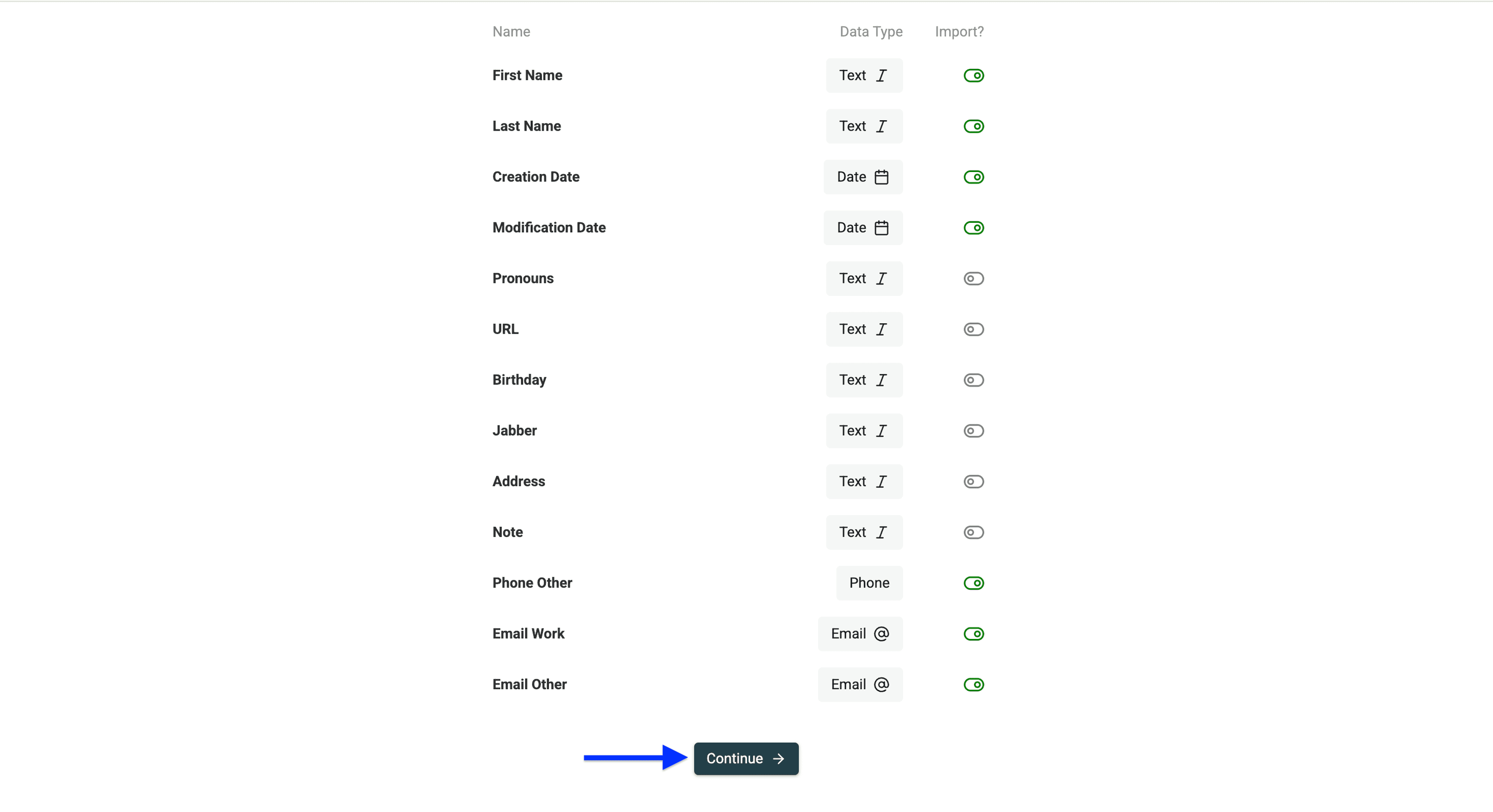
Map the name fields to Text, email fields to Email, phone fields to Phone, and Creation Date and Modification Date to Date. The date type matters: comparing date values is different from comparing strings that merely look like dates.
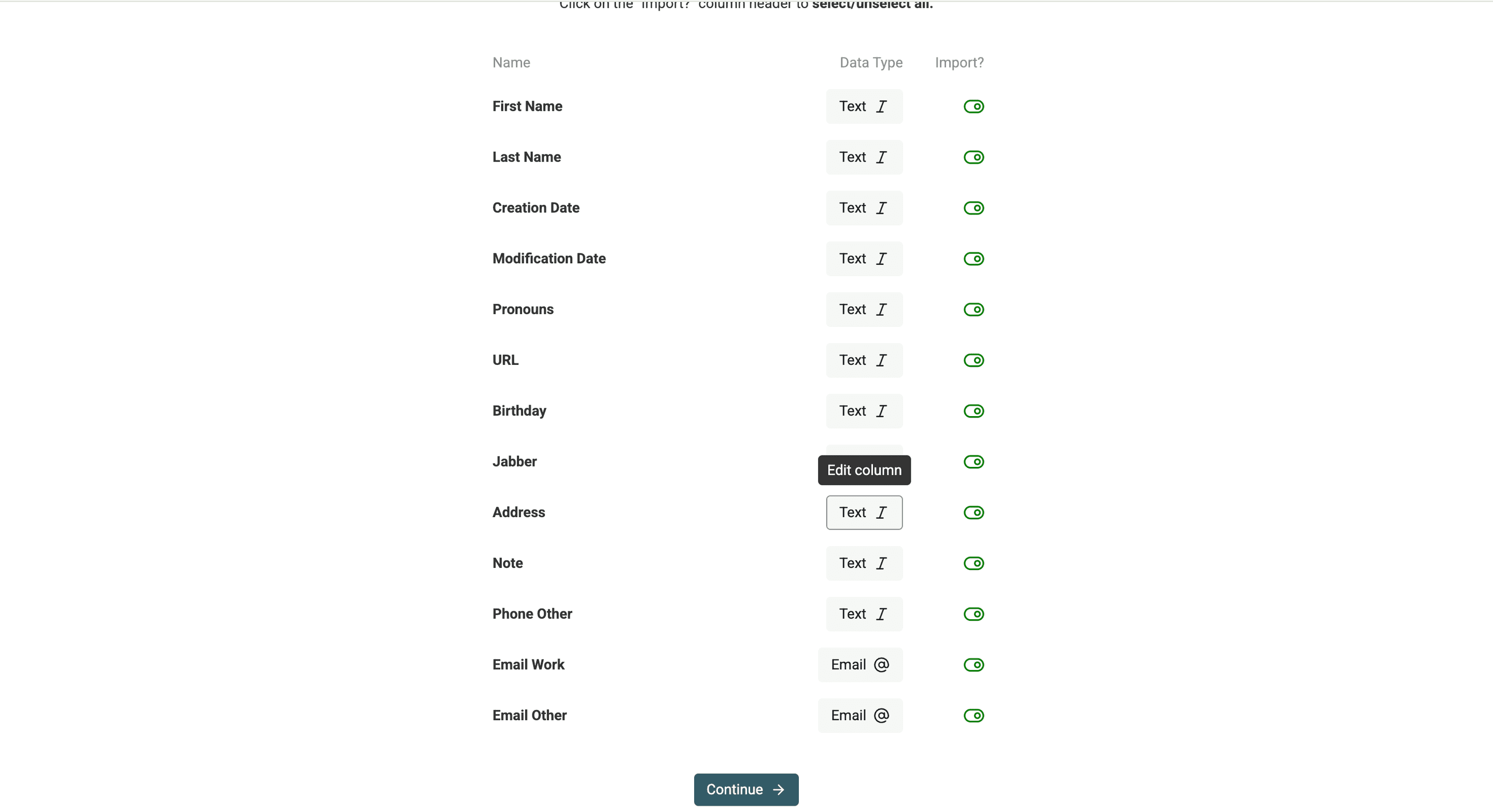
Use Save Property after configuring each field. Check that dates parse correctly and that the phone values have not lost meaningful digits.
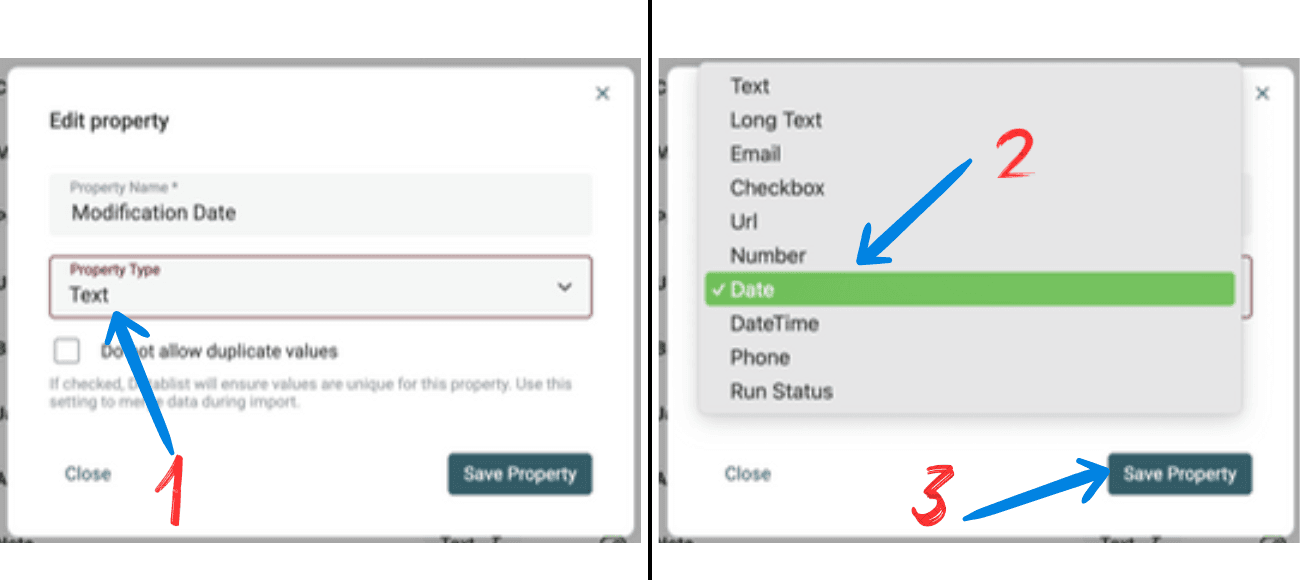
Keep every field you need to compare or return to Contacts. You can skip irrelevant fields, but skipping them removes them from this cleanup’s output.
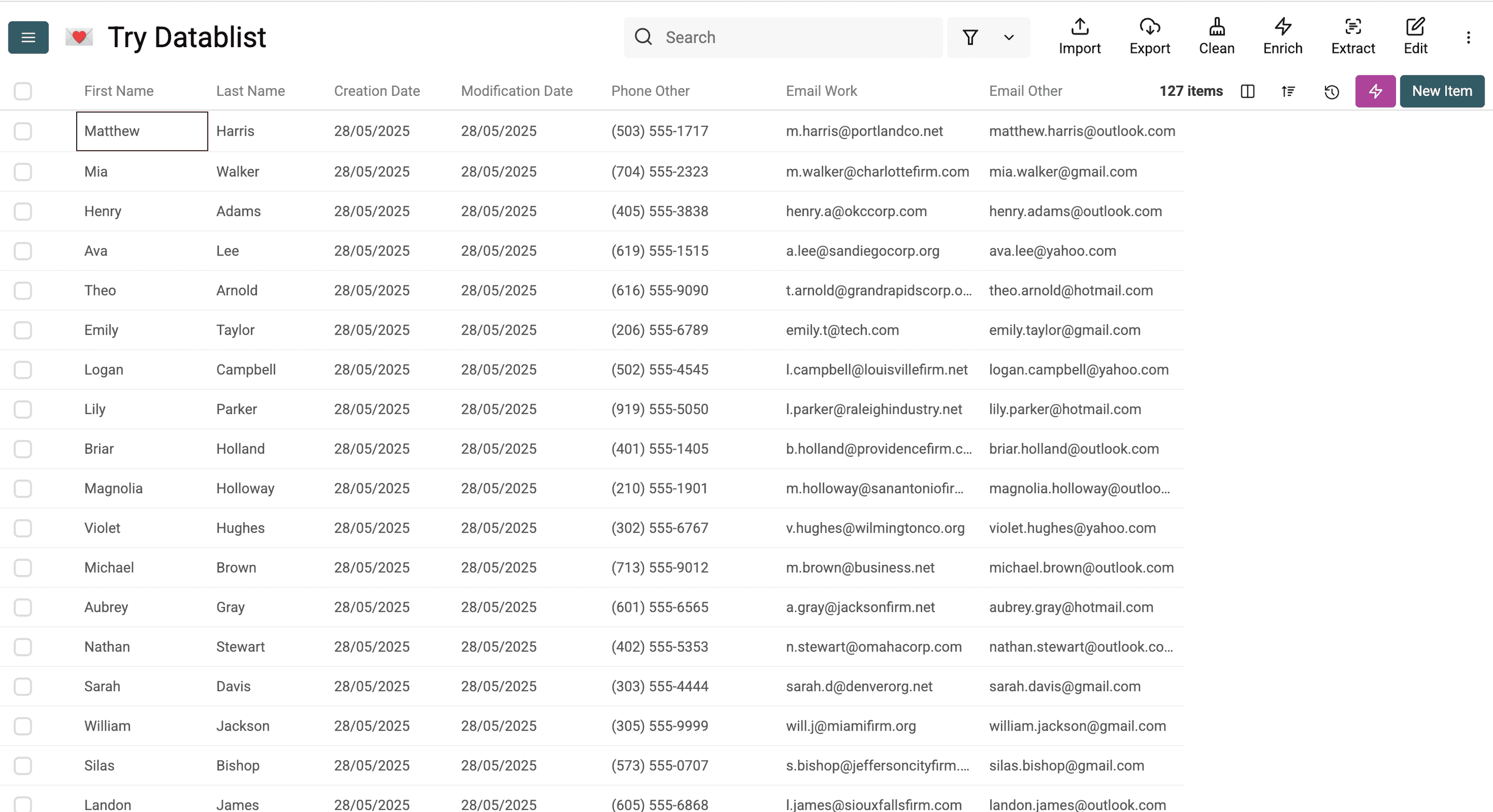
Inspect the imported rows. Include two known duplicate contacts in your first check so you can verify the identifier and date rule before processing the full list.
Find Matches and Select the Source Record
Choose the Matching Identifier
Open Clean > Merge duplicates. The screenshots below show an earlier interface; the current workflow separates matching, the record to keep, and field rules.
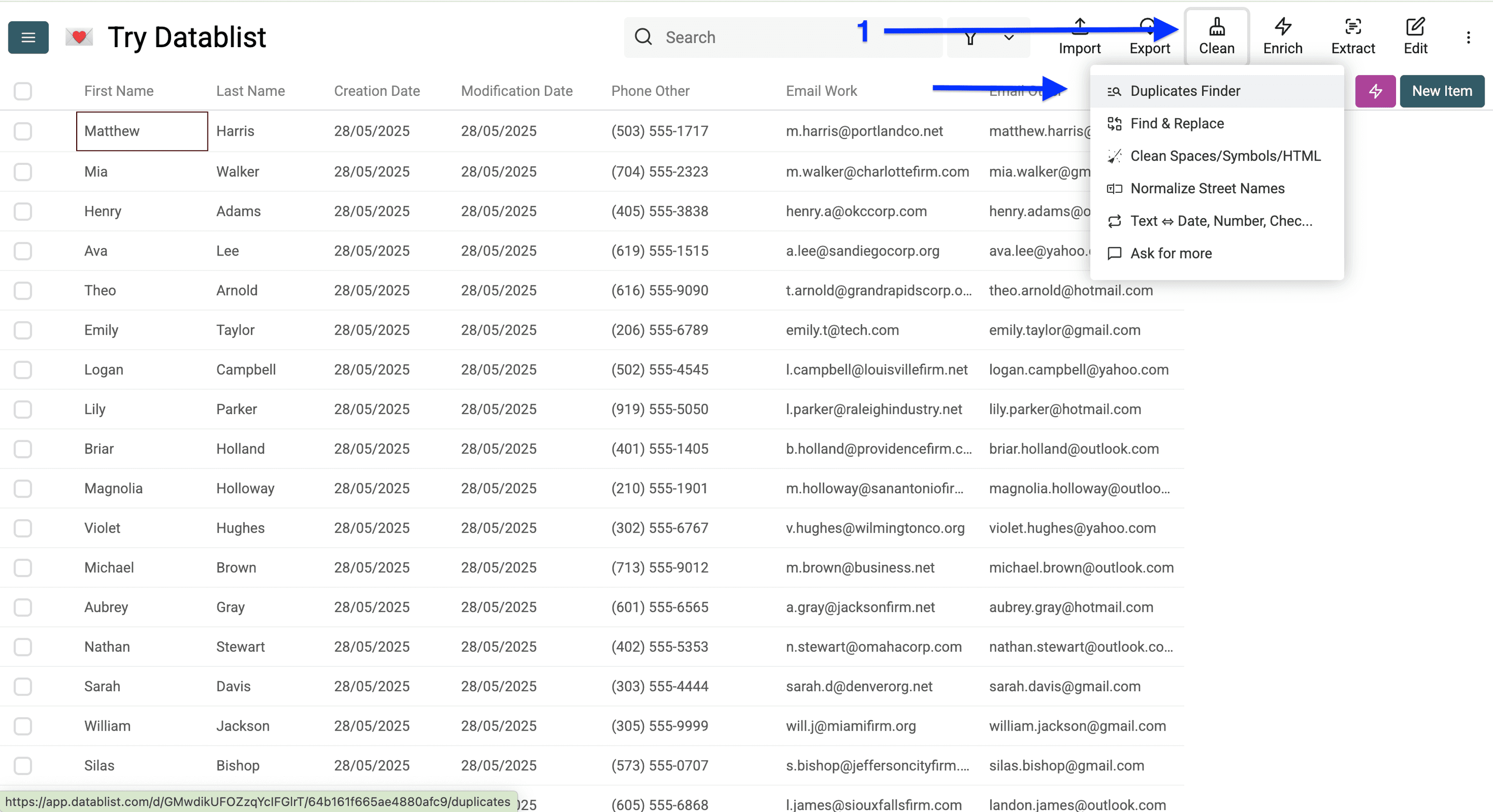
Start with a reliable person-level identifier, such as an email address or phone number that you know is not shared. Name alone can group unrelated people. A family phone number can also create a false match.
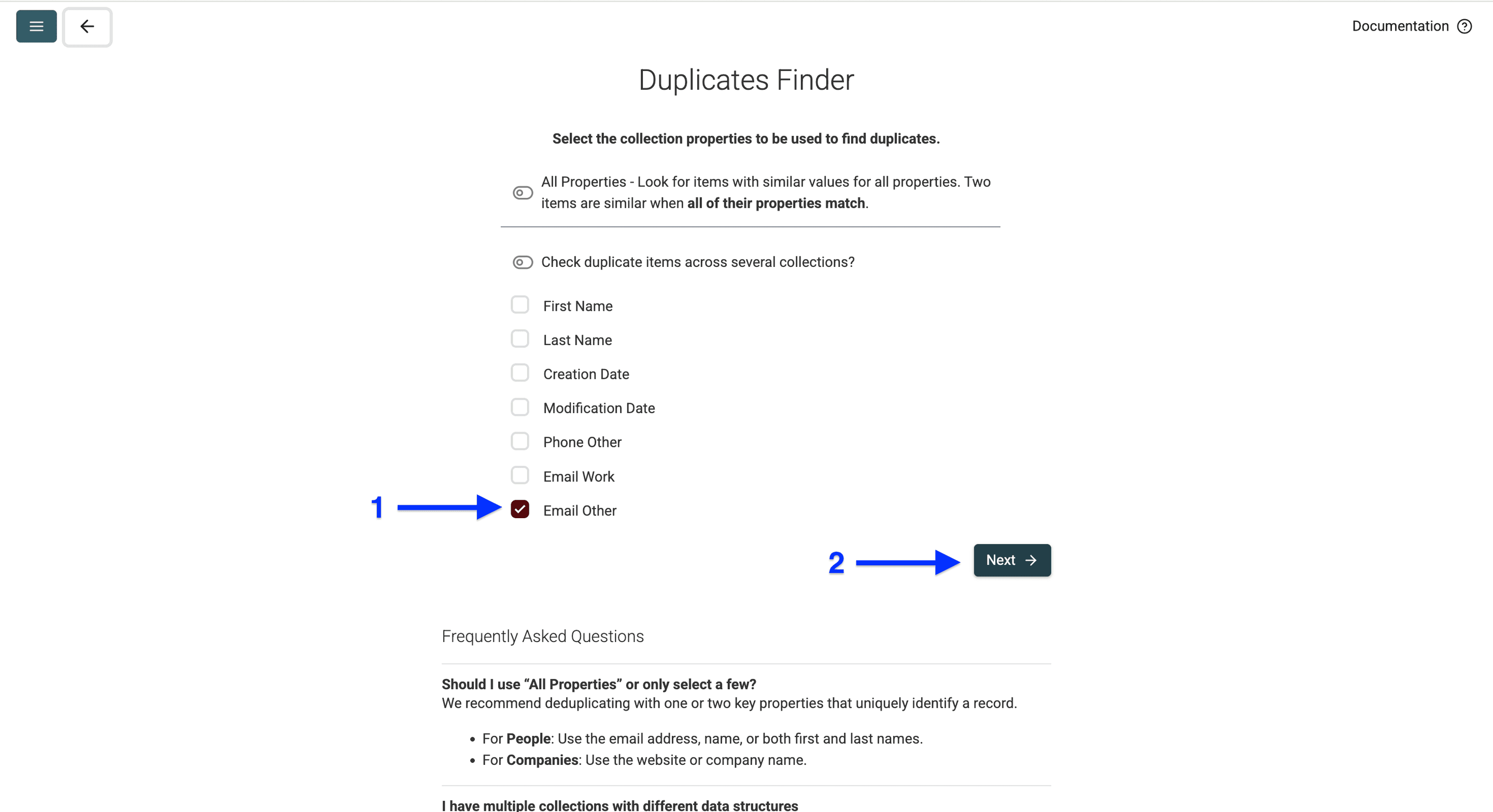
Select an appropriate comparison algorithm and processor. If an exported cell contains several identifiers, enable multiple-value matching only with the delimiter actually present in your file. Separate labeled phone columns are not automatically one combined identifier.
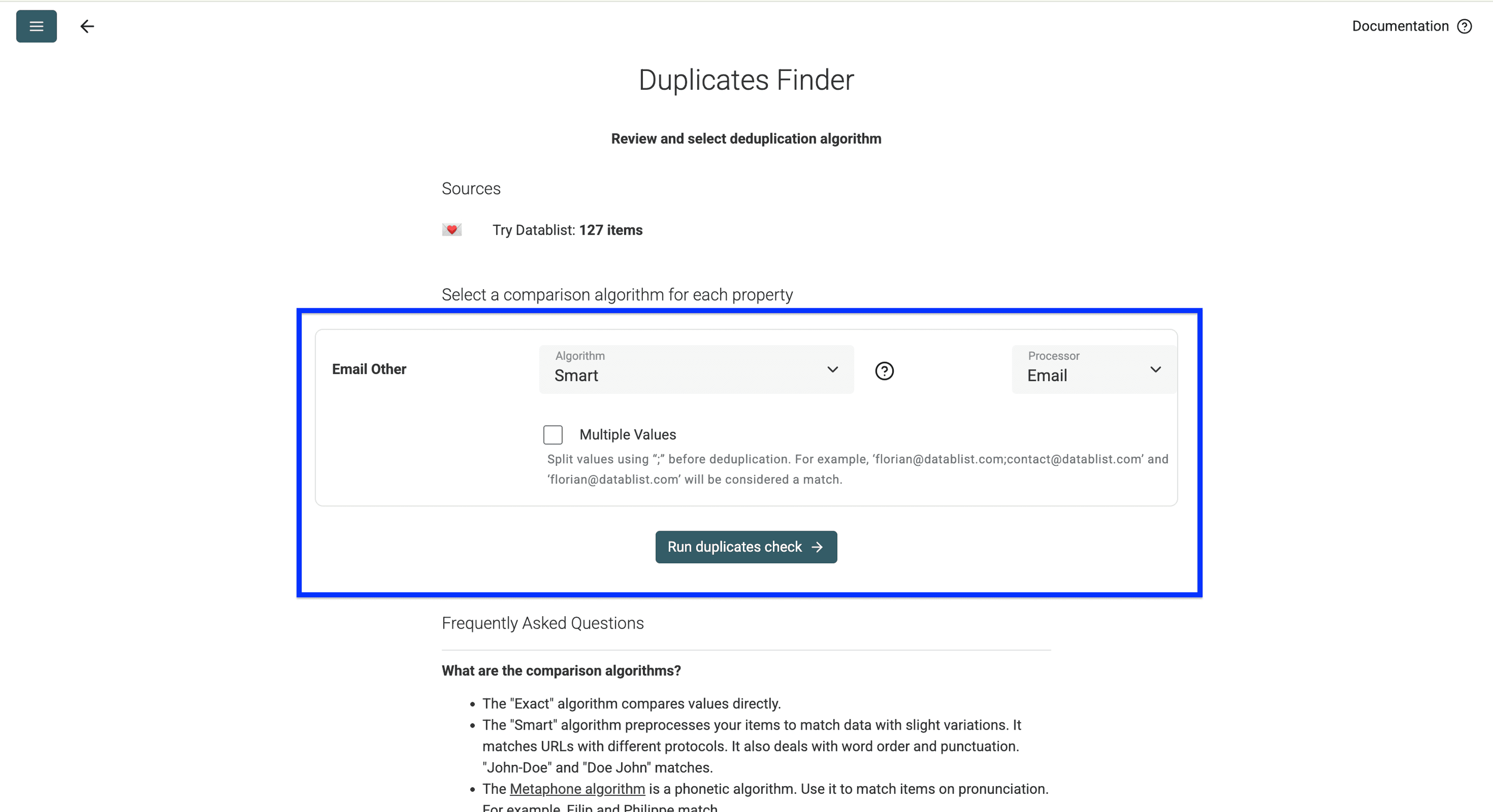
Run the check and inspect the groups. Exclude false matches before setting merge rules.
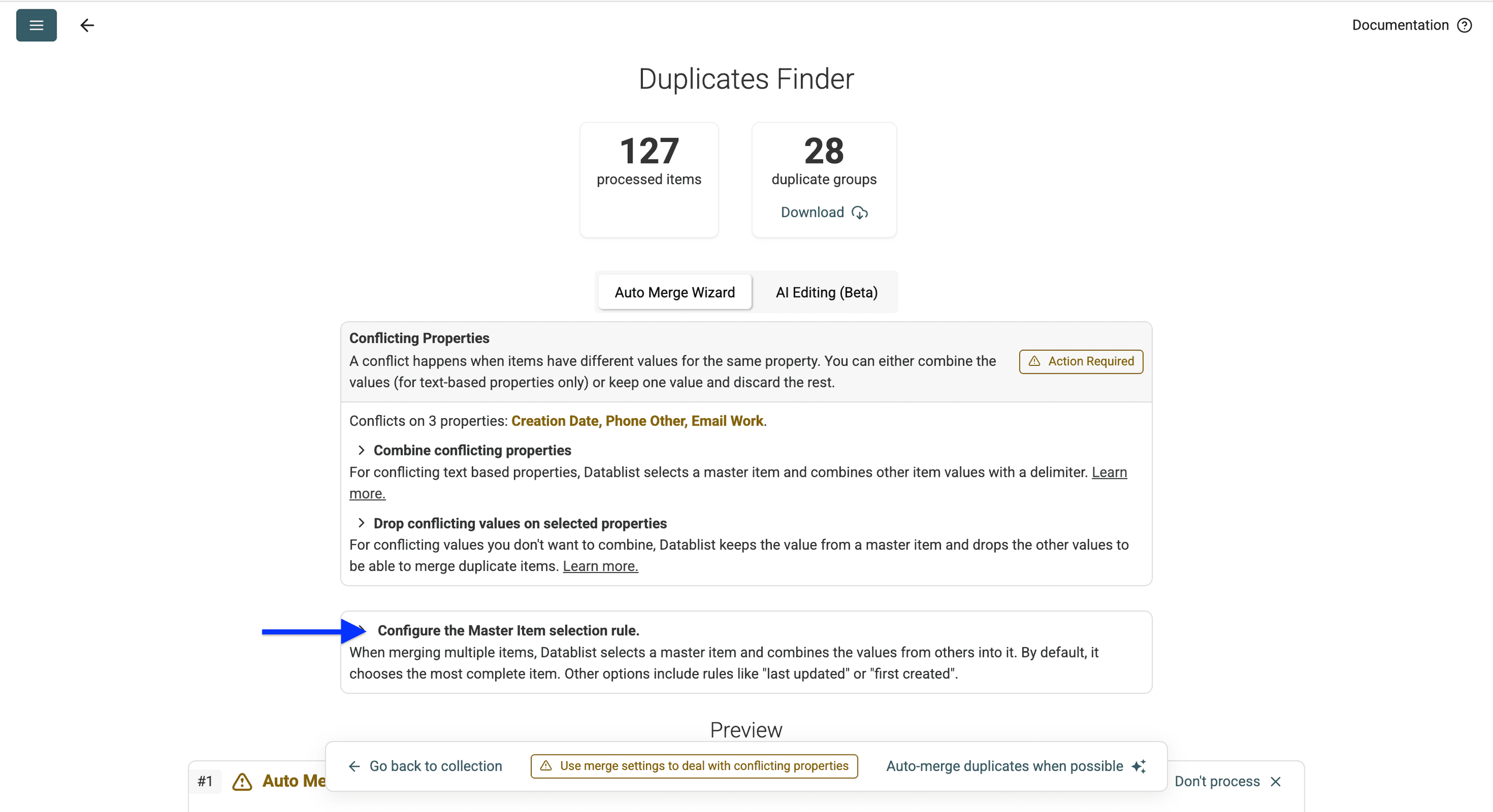
Keep the Newest Source Record
In Record to keep, choose Highest value on a property and select the imported Modification Date property. This selects the contact edited most recently in the source export. Do not use Datablist’s built-in Last updated rule for this purpose: it uses the item’s Datablist modification timestamp.
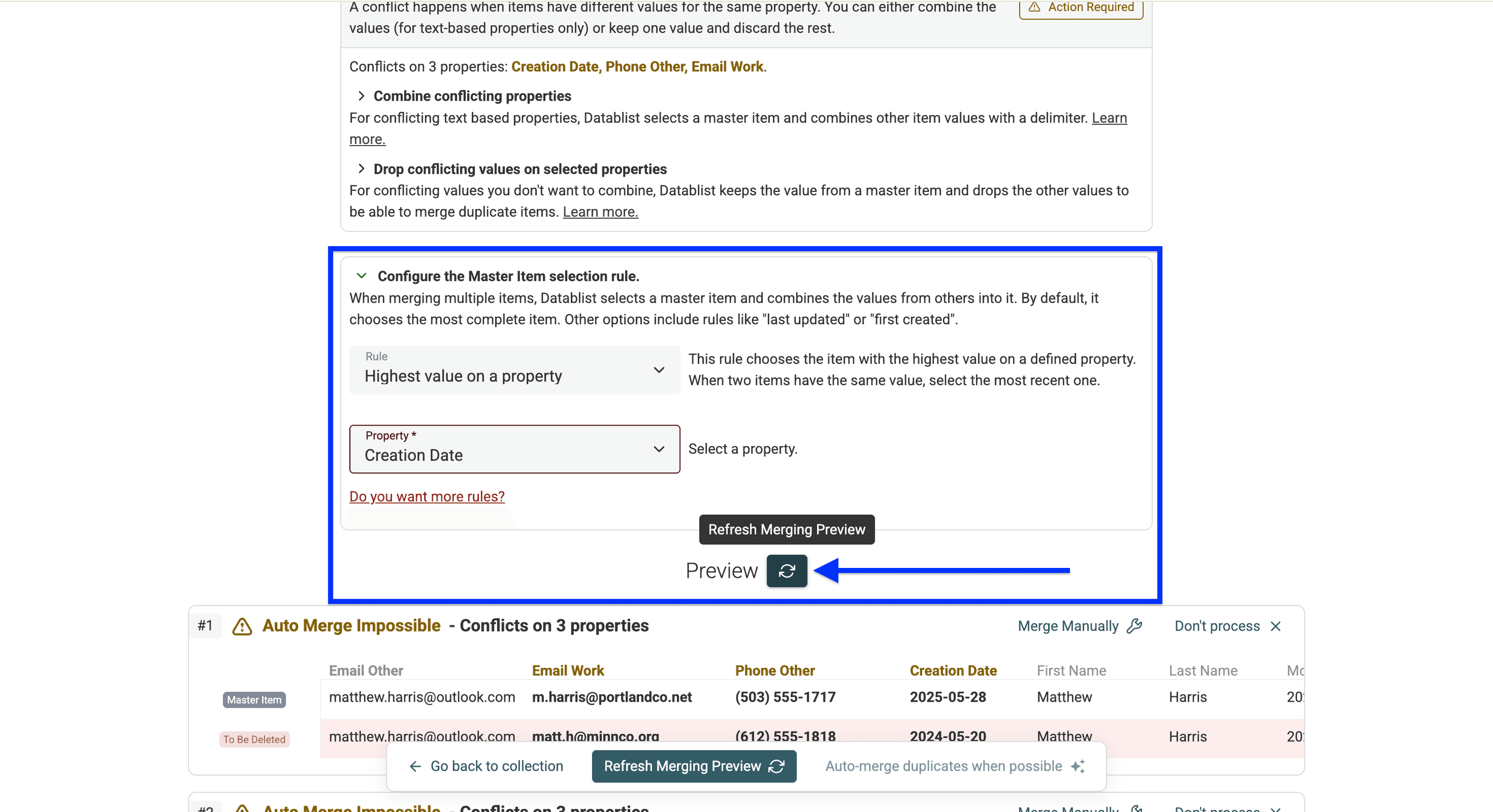
For example, if matching contacts have modification dates of 2026-08-12 and 2026-09-24, the September row should be selected. Check that outcome in the preview.
Use Highest value on a property with Creation Date to keep the most recently created source card. To keep the oldest source card, choose Lowest value on a property instead. Creation date alone does not tell you which phone number is correct.
Resolve Conflicting Fields
Review fields that disagree. If the newer source card is authoritative for a particular field, choose the rule that keeps that retained record’s value. Keep unique useful information from the other card when it belongs to the same person.
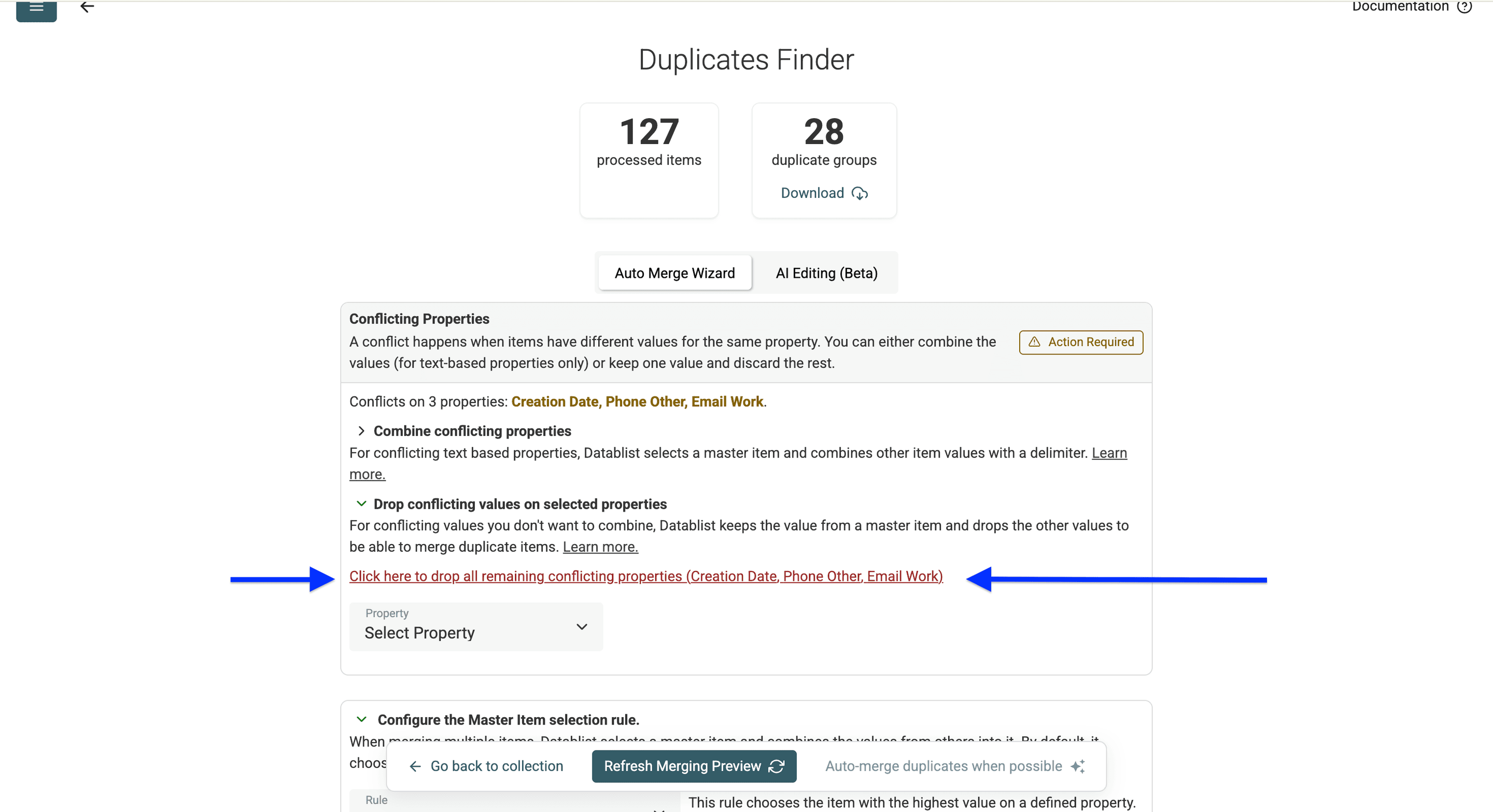
Do not apply one blanket rule to every conflict without checking the output. In particular, a semicolon-separated list of phones in one cell may not import as separate labeled numbers in Contacts. Preserve the separate phone and email columns you need, or resolve those fields manually.
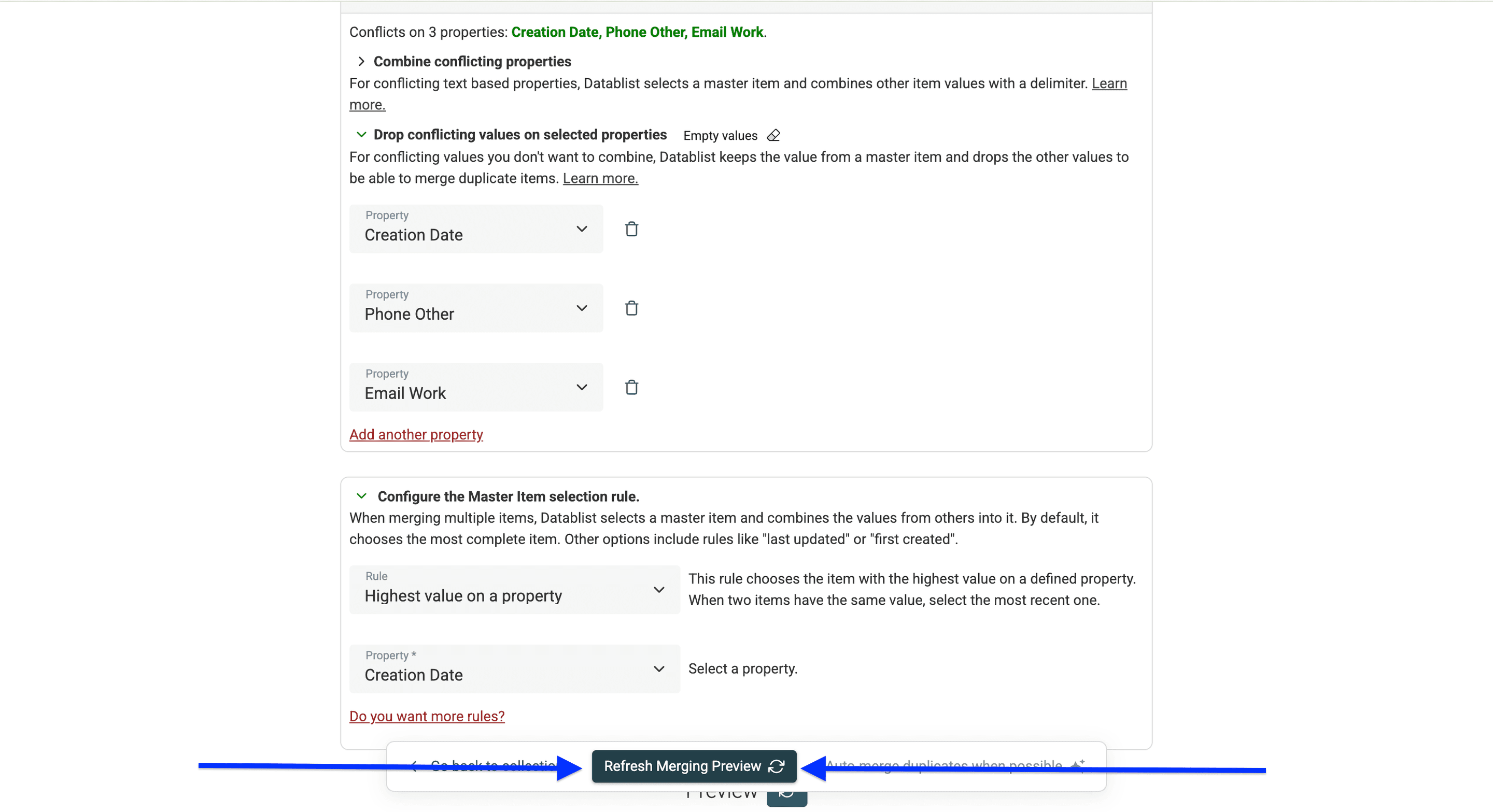
Inspect the refreshed preview. Apply only the groups marked Ready; resolve Needs review groups separately. The master-record reference explains how selecting a surviving row differs from selecting its field values.
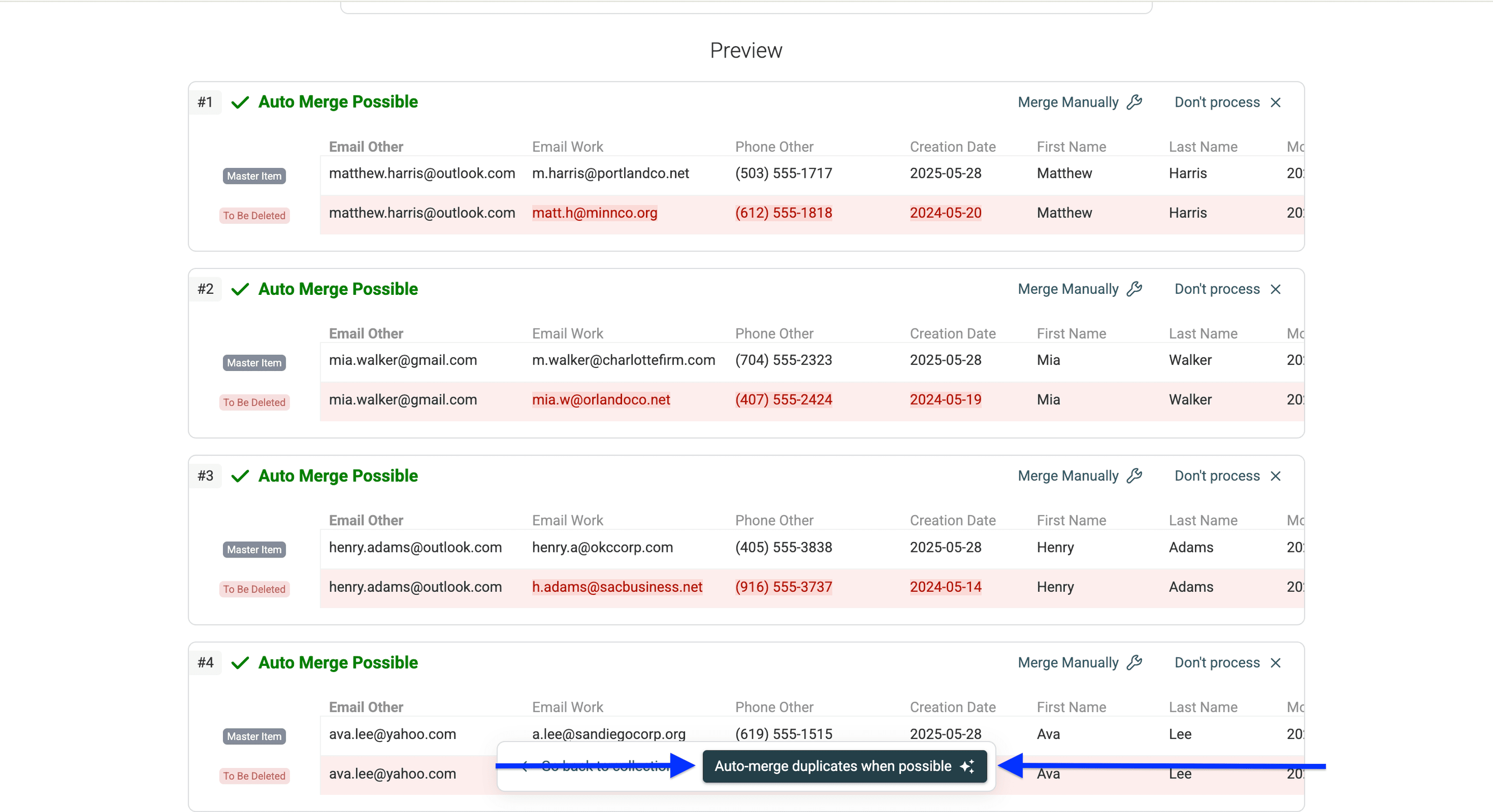
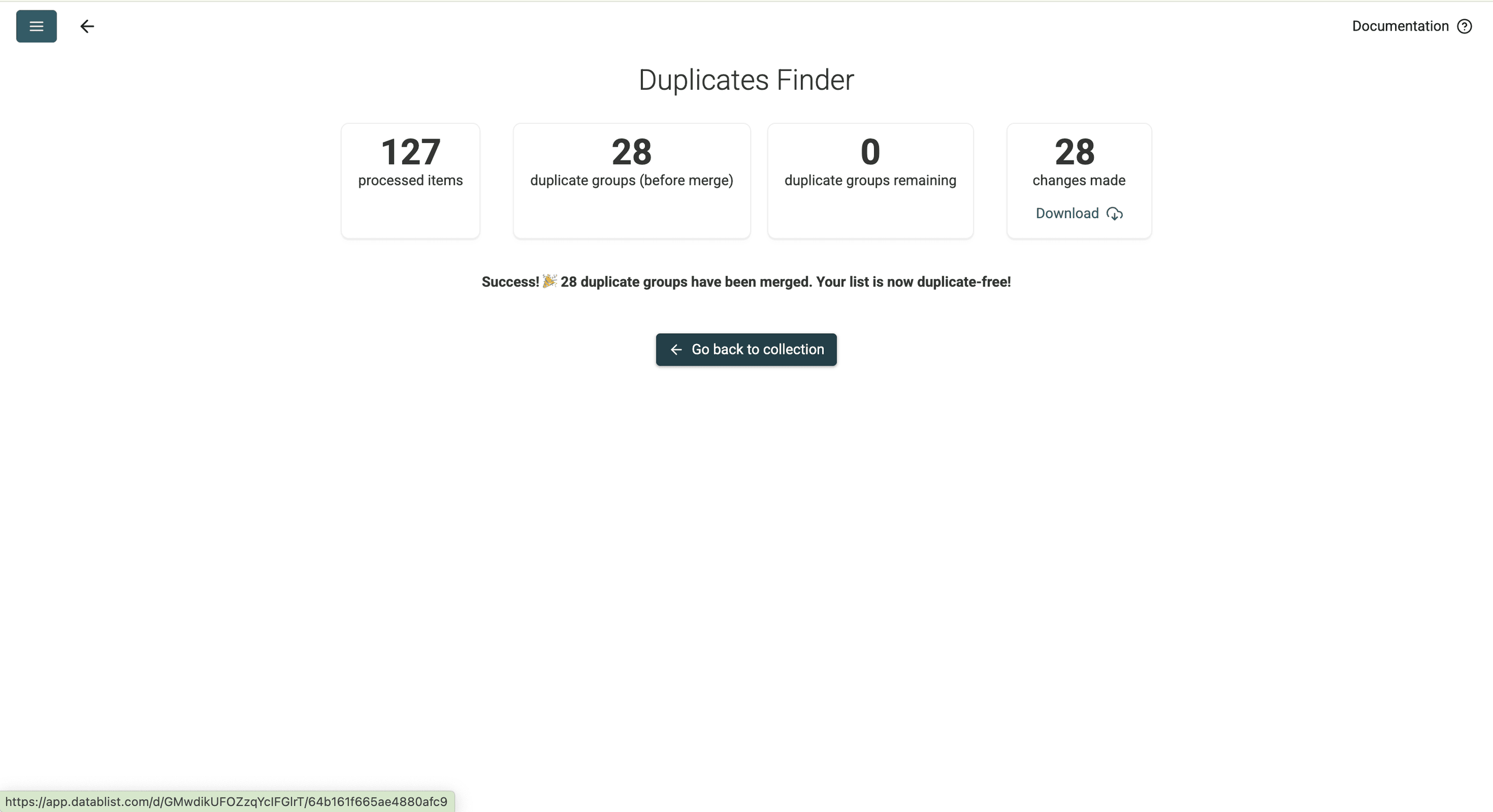
After processing, check the cleaned rows against your original CSV. Confirm that the chosen date, retained numbers, and email fields are the ones you intended to keep.
Reimport the Reviewed Contacts
Export a Cleaned CSV and Test the Import
Give the collection a recognizable name so you can distinguish the cleaned file from your original export.
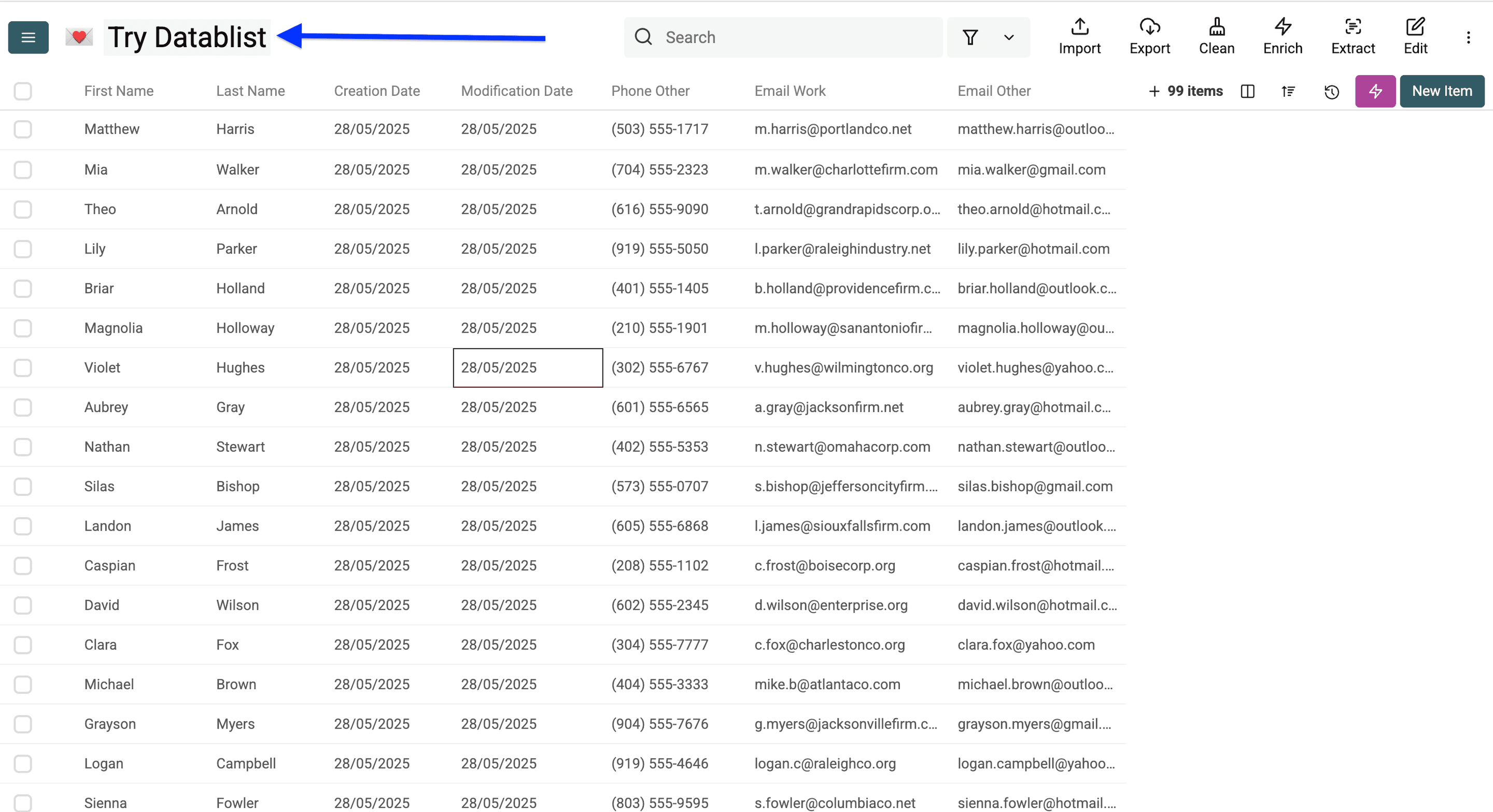
Hide the source date columns if you do not want them in the Contacts import. In the export settings, select the intended columns explicitly; keep a separate full export if you want the date evidence for later review.
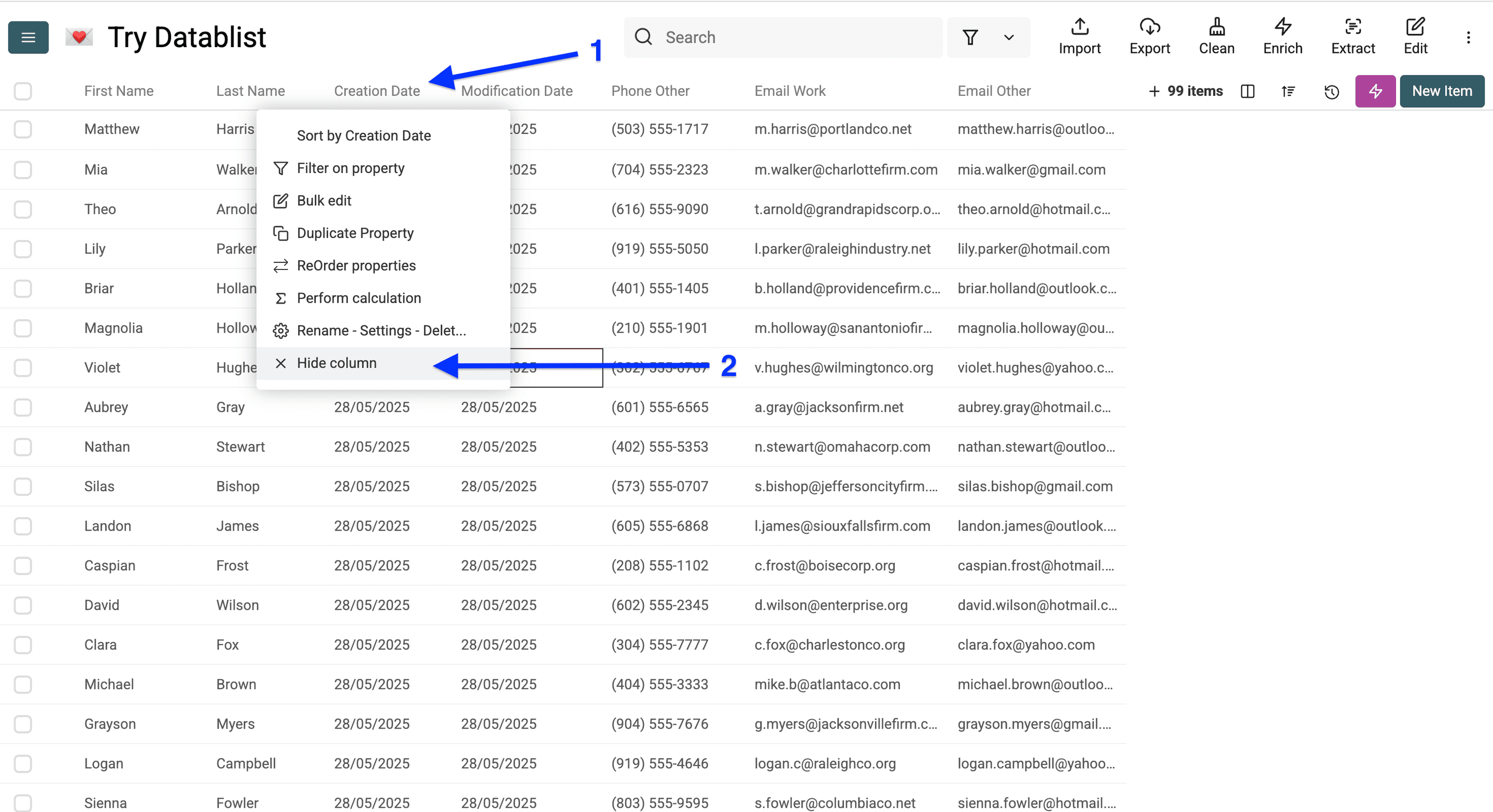
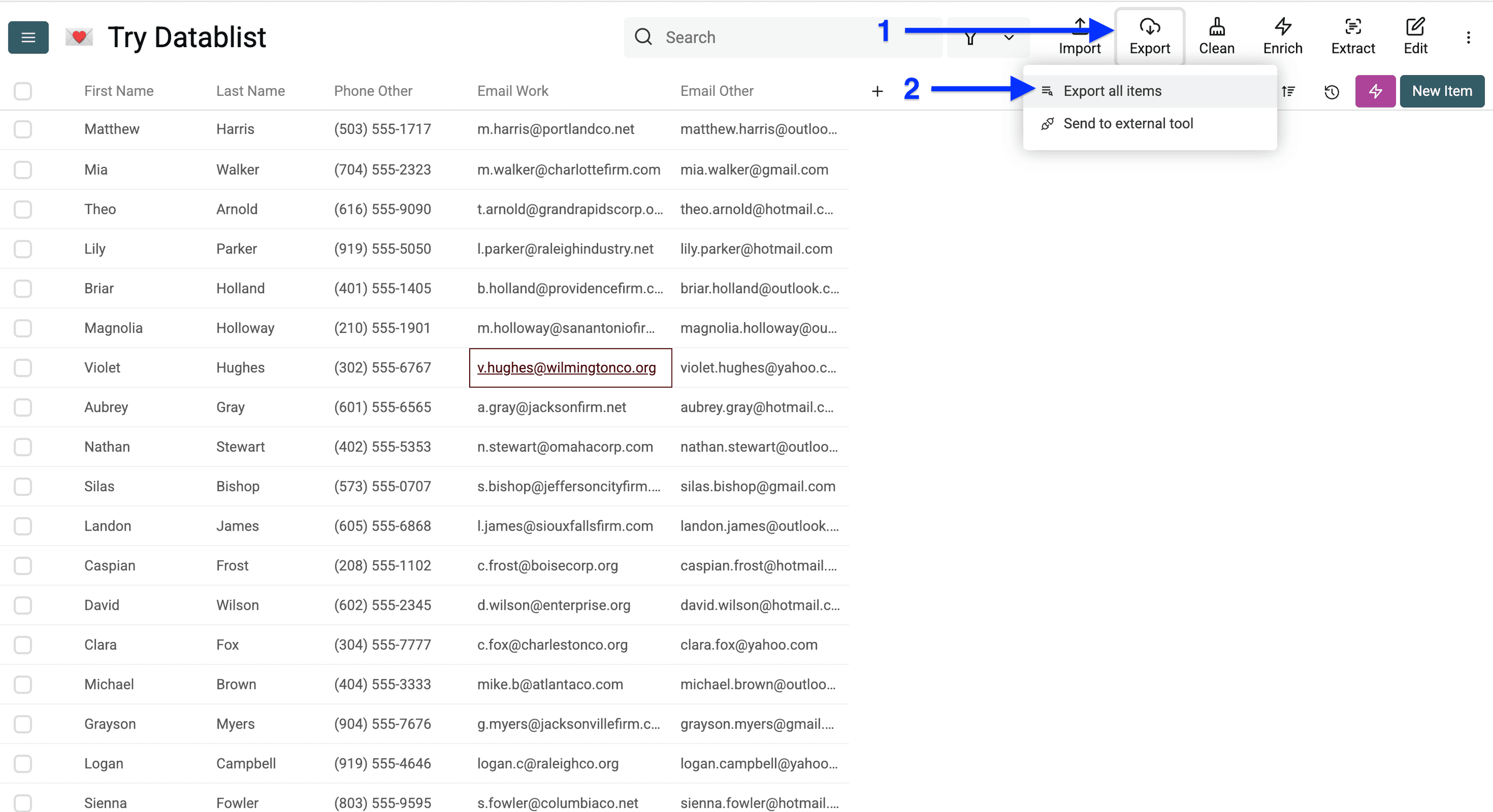
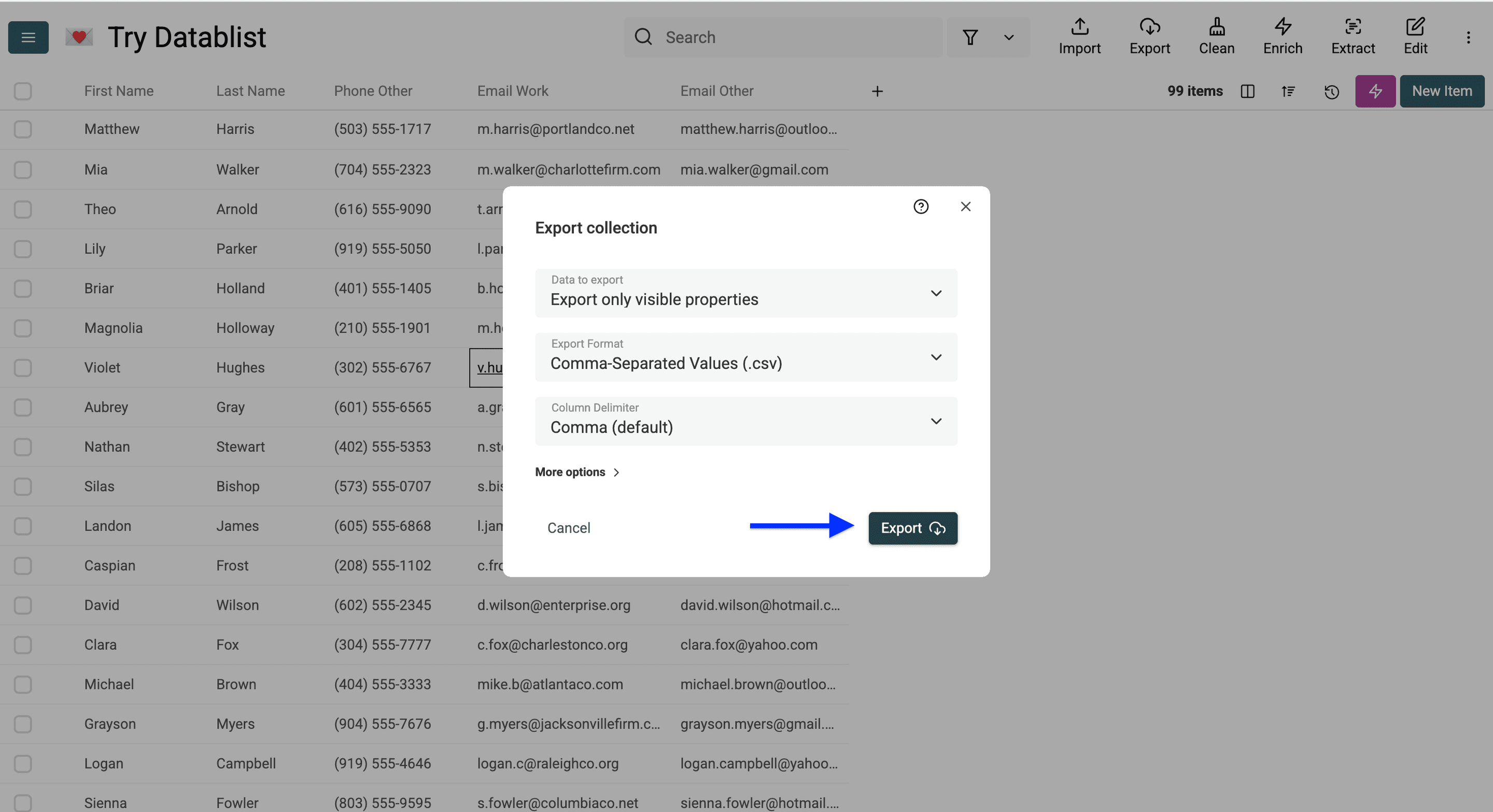
Open Export and export the cleaned items as CSV. If another address book requires VCF, the CSV-to-vCard guide explains the field mapping; keep your Contacts archive as the separate backup.
Check the downloaded file before importing it. Apple’s CSV import instructions specify consistent fields and no line breaks within a contact’s information. Notes and addresses deserve particular attention.
In Contacts on Mac, choose File > Import. Start with a small sample of known cards so you can check the mapping.
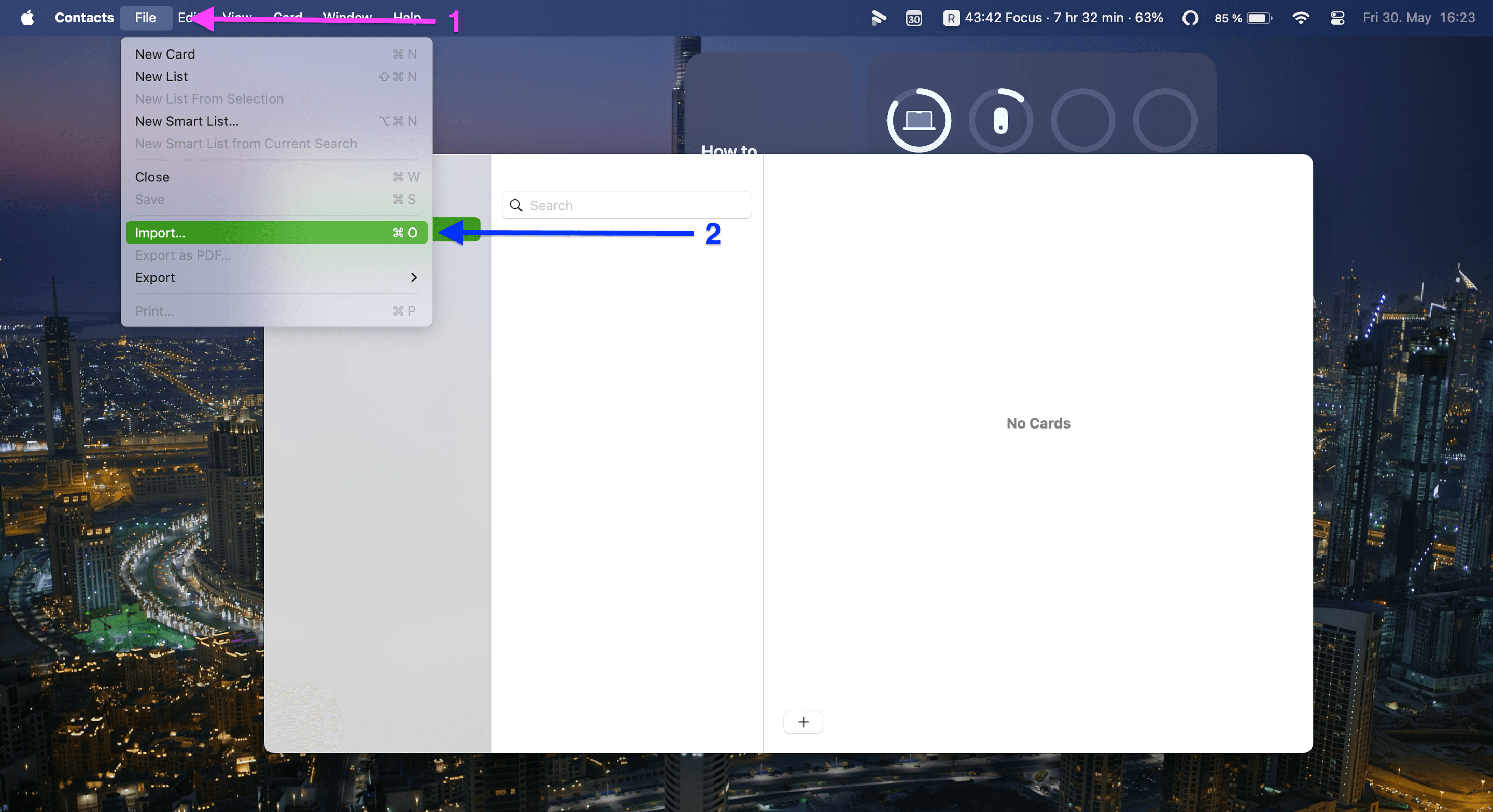
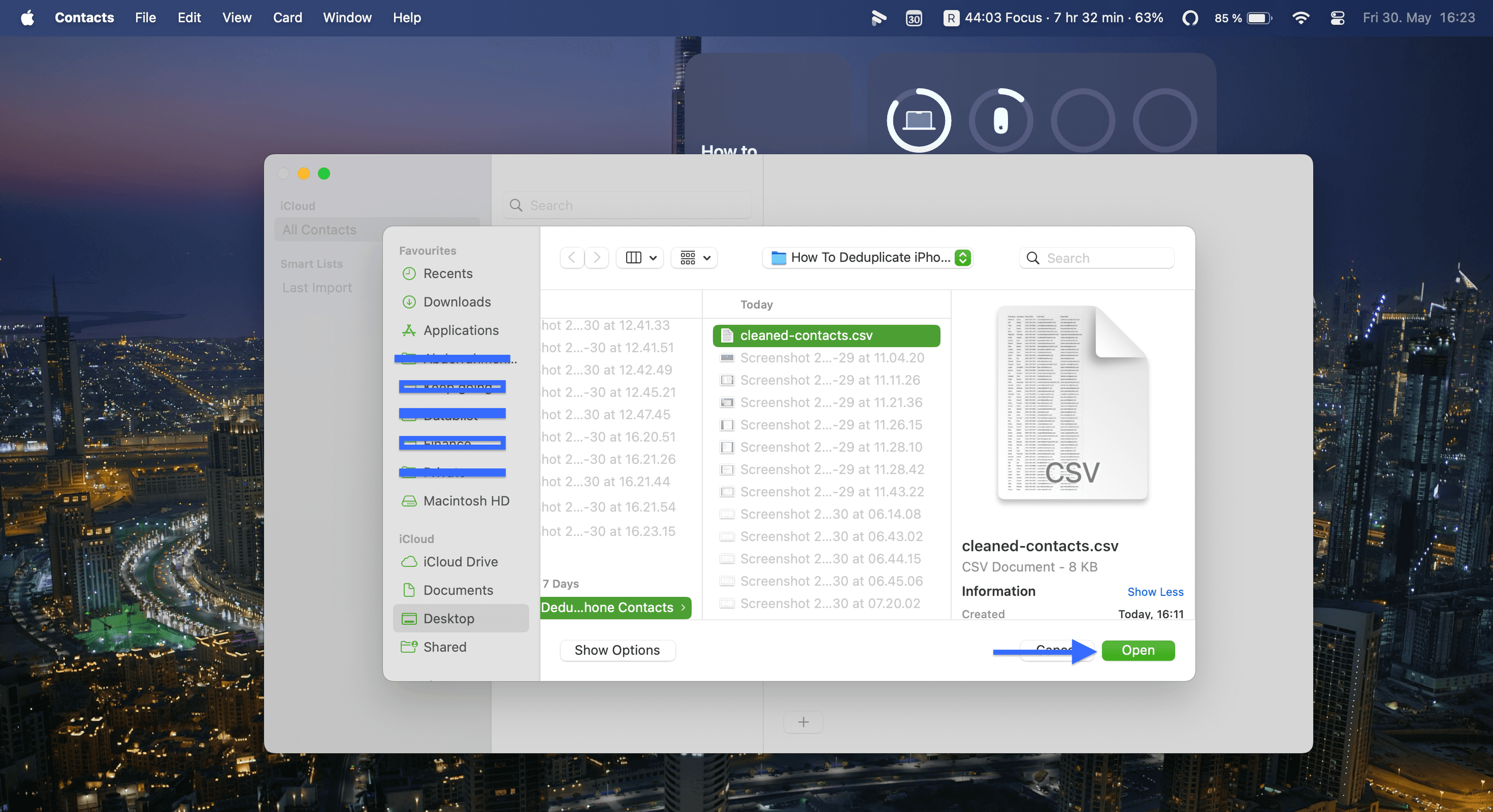
Select the sample CSV and open it.
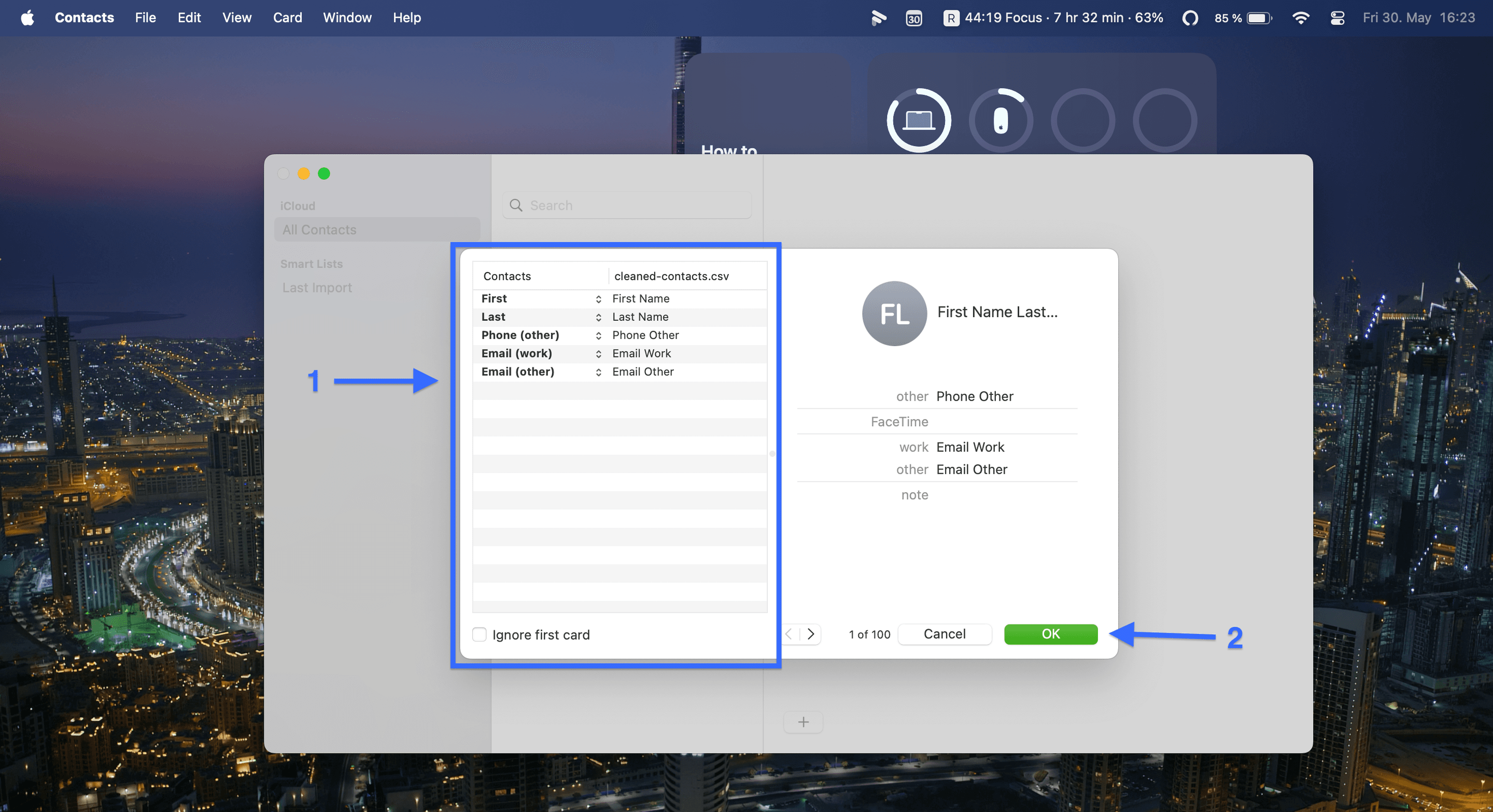
Review the field labels. Mark unwanted columns Do not import and use Ignore first card when the first row is the CSV header.
Do not delete all existing contacts before validating the import. When Contacts finds duplicates during import, you can review them and choose whether to keep the old card, keep the new card, keep both, or update it with information from both. Follow Apple’s import duplicate-review instructions.
Check the sample cards, then repeat the reviewed import with the remaining cleaned contacts. If the cards belong to iCloud and Contacts synchronization is enabled on your devices, changes can appear on the other devices too. Check the account and a sample card on iPhone after synchronization.
Check the Result
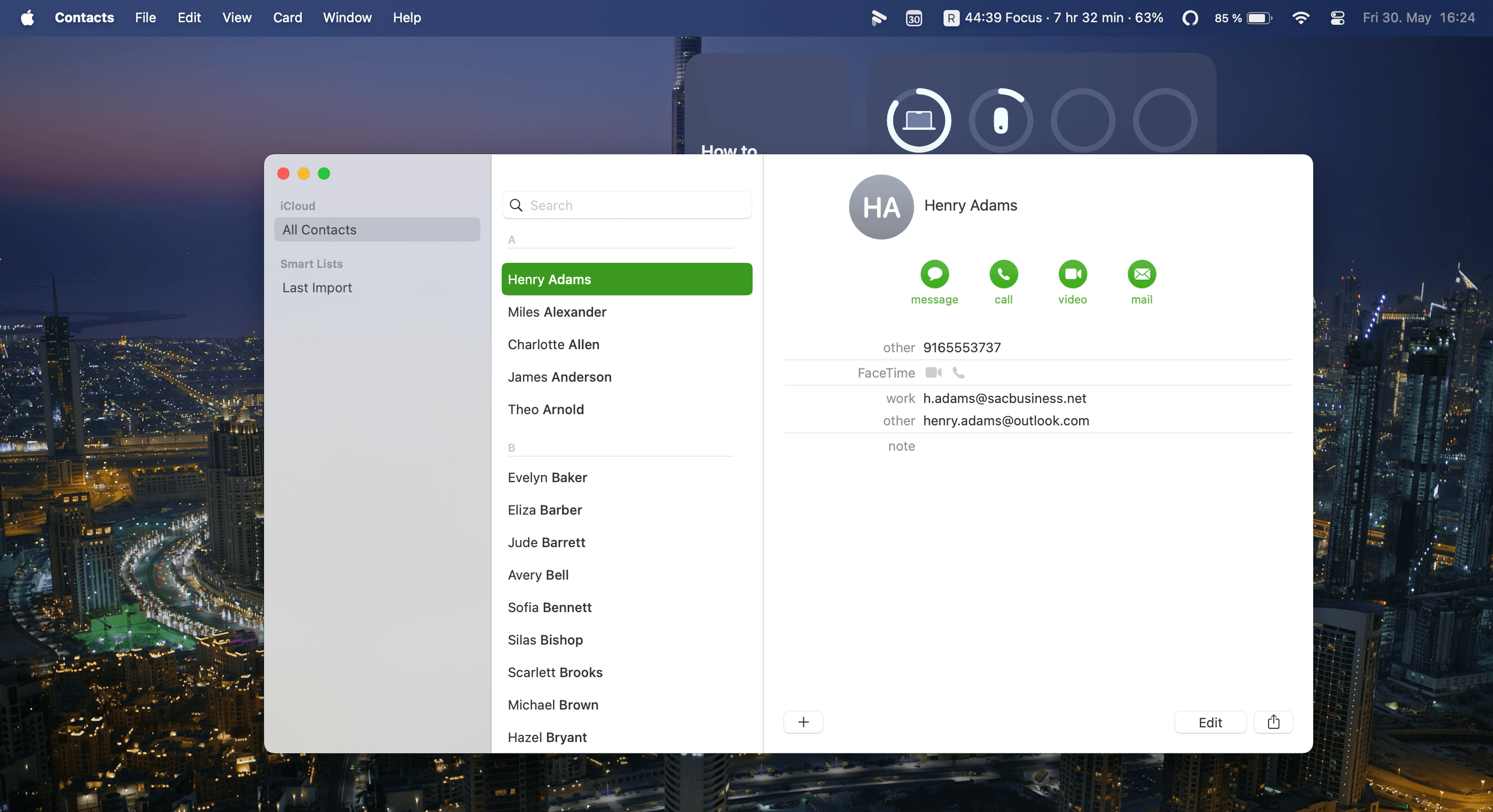
Your expected result is one reviewed card per person, with the contact details you chose to retain. Compare a few previously duplicated cards with the backup, especially contacts with several phone numbers or conflicting emails. Keep the archive until you are satisfied with the import.

Frequently Asked Questions About Contacts Deduplication
Can I Remove Duplicate iPhone Contacts Without a Mac?
Yes. Start with View Duplicates in the iPhone Contacts app. The source-date CSV workflow in this guide requires a Mac because it uses macOS Contacts and Script Editor.
Can I Keep the Most Recently Updated Contact for Free?
Apple’s built-in duplicate review is available on the device. Datablist’s basic deduplication is available on the Free plan, but configuring a source-date selection rule requires a paid plan. Free deduplication does not automatically select the largest imported date.
Does This Automatically Deduplicate Contacts Across Apps?
No. This workflow cleans an export and imports the reviewed result. It does not continuously synchronize Apple Contacts, Google Contacts, and a CRM. For several exported lists, see deduplication across multiple files and retain the source identifiers.
Does a Newer Contact Always Have Better Data?
No. A later modification can be a changed note rather than a corrected email. Use the date rule to choose a candidate, then review important conflicting fields before merging.