Scrapes products from retailer websites including product names, prices, categories, and availability.

## Goal
Visit the retailer URL I am going to give you and extract the relevant product and store information.

## Information I want you to extract:

- Product Name
- Product URL (full absolute URL to the product page)
- Brand Name (name of the brand the product is from)
- Price (in the displayed currency, e.g. $49.99)
- Sale Price (if a discount is shown, otherwise return "N/A")
- Product Category (e.g. Electronics, Clothing, Home & Garden)
- Availability (In Stock; Out of Stock; Limited Stock; Pre-Order)
- Rating (out of 5 stars, if displayed)
- SKU / Product ID (usually found in the product URL, e.g. "https://shop.example.com/products/SKN-40221" → SKU is "SKN-40221")
- Image URL (absolute link to the main product image)

## How to handle data inconsistencies:
- Return only one piece of information for each type
- Return "N/A" if the data isn't available
- If prices include tax labels (e.g. "incl. VAT"), return the price without the label
- If a product has multiple variants (sizes, colors), return only the default/first displayed variant

## Additional Instructions:
- Navigate through category pages and product listings to find products
- SKU's are  usually found in the product URL, e.g. "https://shop.example.com/products/SKN-40221" → SKU is "SKN-40221"
- Some retailers use lazy loading or infinite scroll, keep scrolling to load more products
- Do not extract promotional banners, ads, or non-product content
- Important: Do not extract anything else but the requested information

このAIプロンプトの使い方

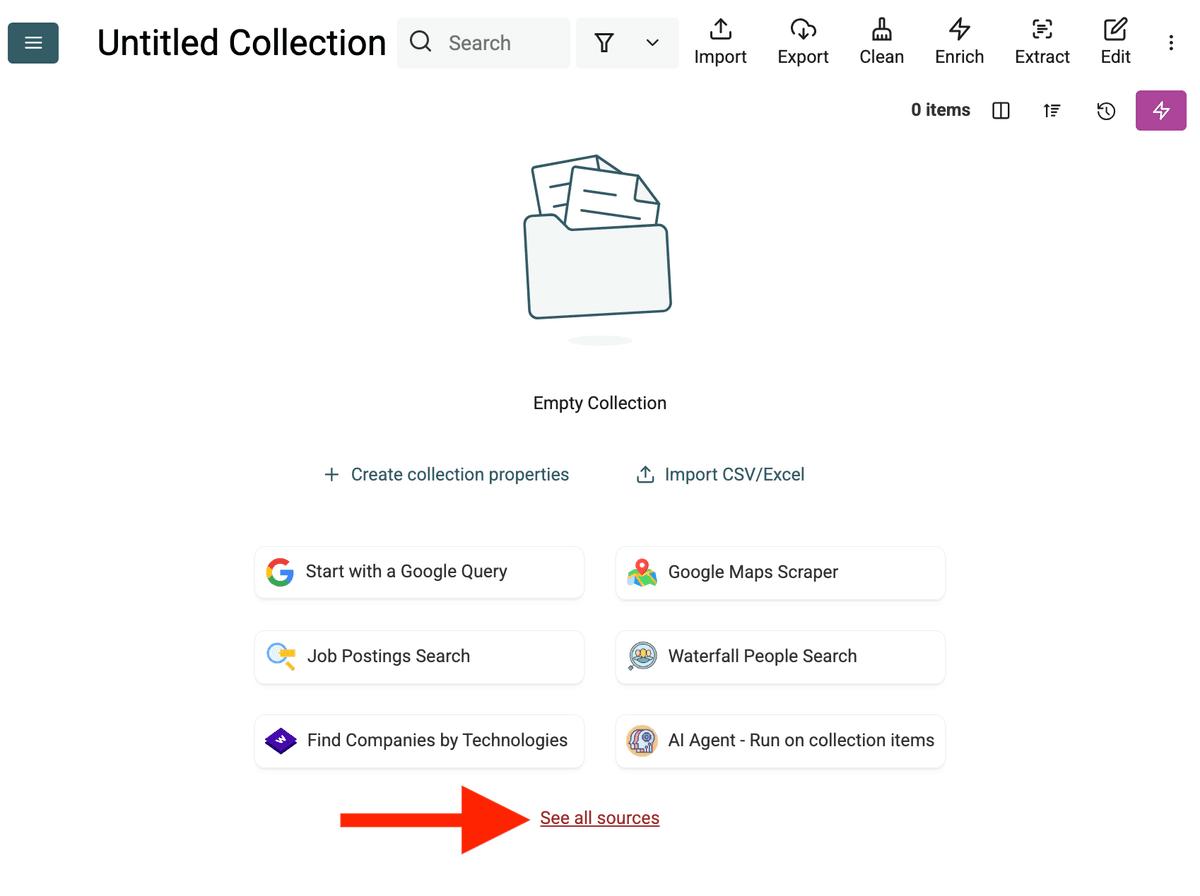
  1. 新しいコレクションを作成:データを保存する空の新規コレクションをDatablistで作成します。サイドバーの '+ Create new collection' をクリックしてください。
AI Web Scraping > 通常のWeb Scraping
  1. AI Agent Source を選択:「See all sources」をクリックするか、「Import」->「Import From Data Sources」へ進みます。「AI Agent - Site Scraper」を選択します。
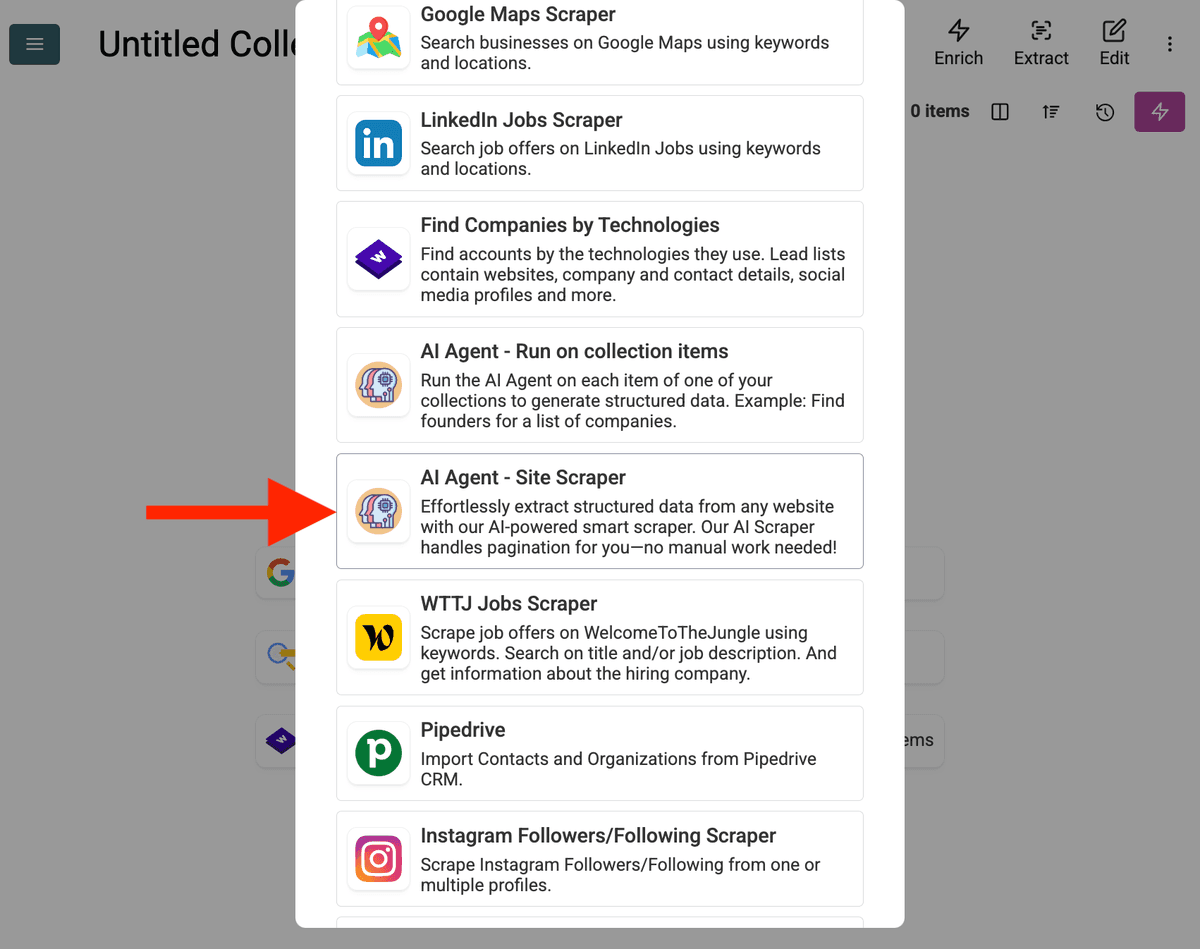
AI Agent - Site Scraper を選択
  1. ソースを設定

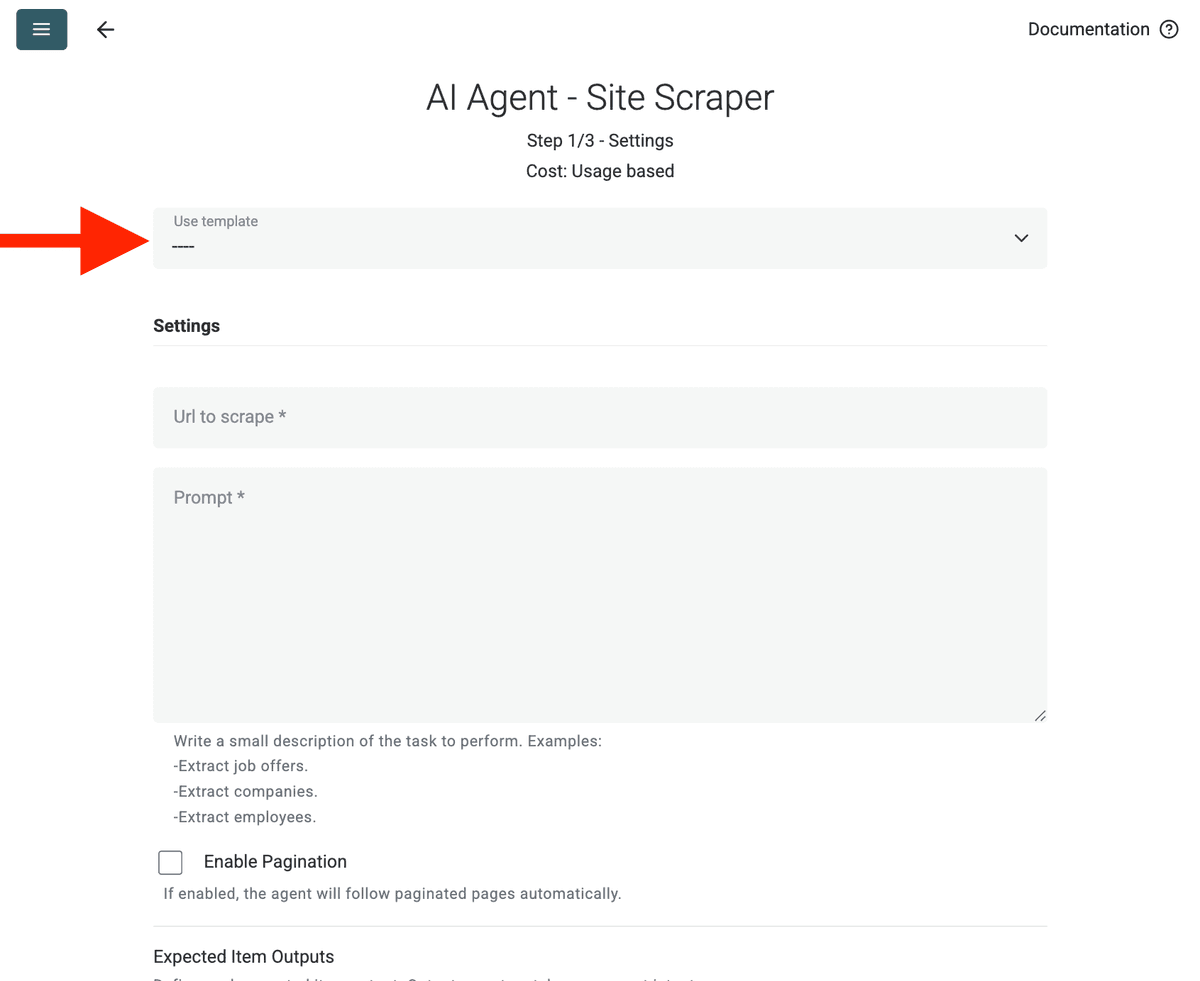
    • テンプレートを選択:「Template」ドロップダウンからプロンプトを選びます。上記のプロンプトが自動で読み込まれます。
    • スクレイプするURL:スクレイプしたいURLを入力します。
    • ページネーションを有効化(任意):結果が複数ページにわたる場合は Enable Pagination にチェックを入れ、適切な Max Pages(例:10)を設定します。
    • カスタマイズ(任意):AIモデルを調整(例:GPT-4o miniは費用対効果が高いことが多い)、プロンプトをニーズに合わせて編集、または期待するOutputsを変更できます。
AI Web Scraping > 通常のWeb Scraping
  1. 出力を確認Continue をクリックします。プロンプトで定義された出力フィールド(Project Name、Client Company Name)が表示されます。各項目の横にある + アイコンをクリックして、コレクションに対応するプロパティ(列)を作成します。
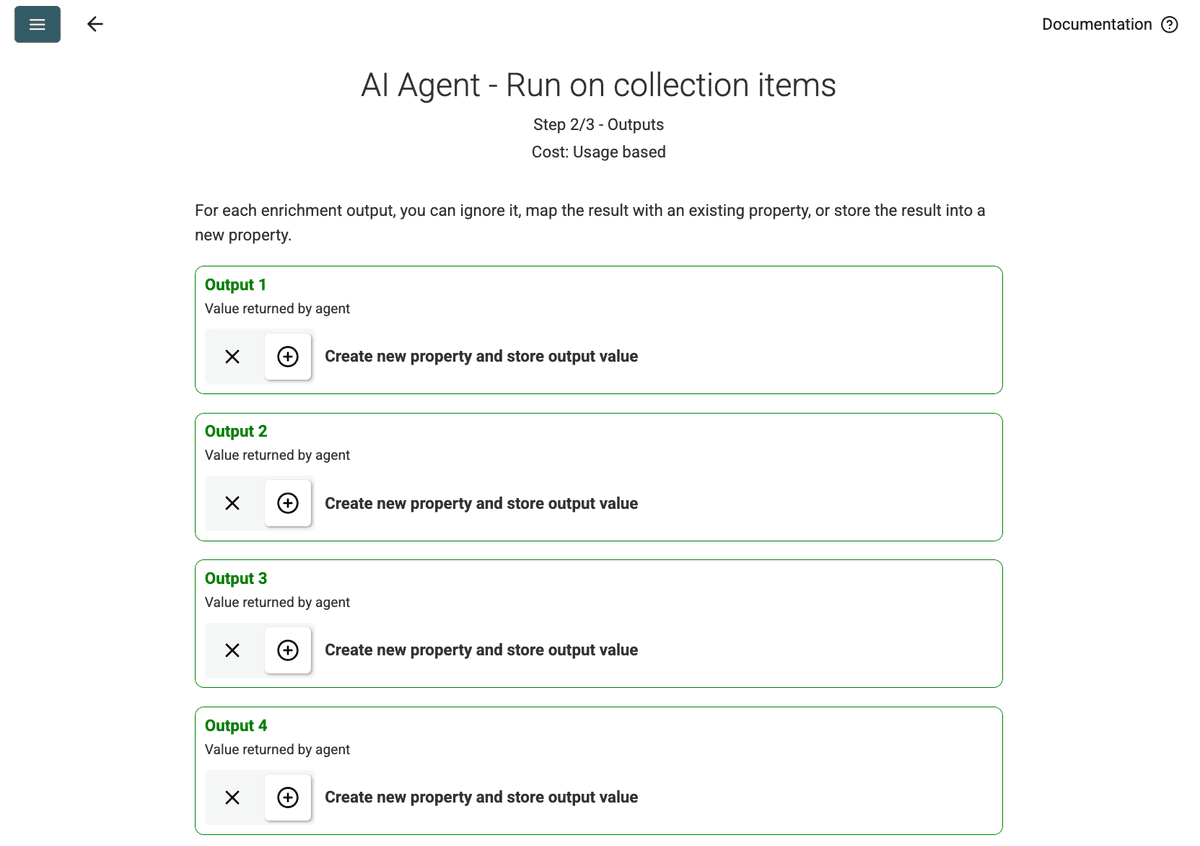
出力
出力
  1. インポートを実行Run import now をクリックします。AIエージェントがプロンプトに基づいてWebサイトをスクレイプし、コレクションにデータを投入します。

料金

このデータソースは従量制でDatablistクレジットを使用します。費用はWebサイトの複雑さや訪問ページ数に応じて変動します。

まず1ページでAIエージェントを試し、概算コストを確認することをおすすめします。

FAQ

同じ設定で再実行するには?

AIエージェントの実行後、データテーブル右上のピンクのボタンをクリックすると、直前の設定で再度開けます。
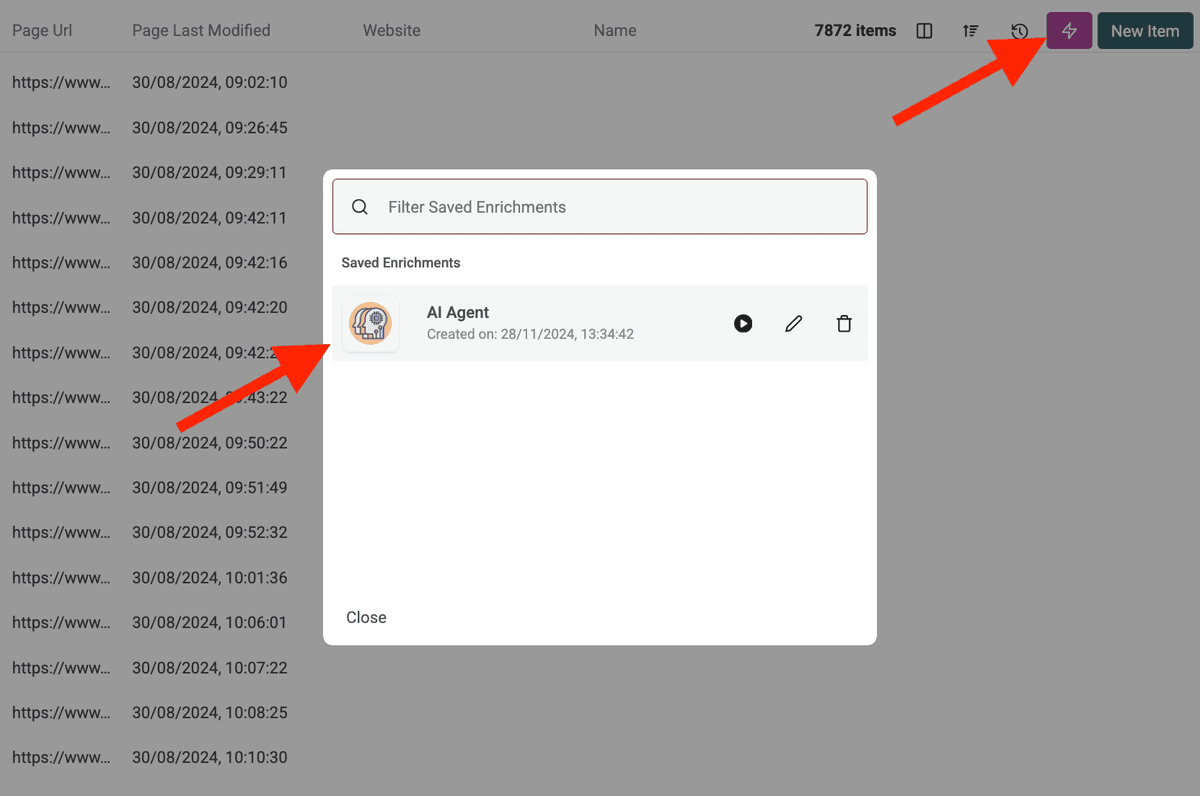
既存のエージェント設定を使う
既存のエージェント設定を使う

AIエージェントが保護されたサイトにアクセスしようとしてブロックされた場合は?

AIエージェントは必要に応じて自動的にプロキシサーバーを利用し、スクレイピング対策や地域制限のあるサイトへのアクセスを試みます。これにより成功率は高まりますが、非常に厳格に保護されたサイトでは課題が残る場合があります。

AIエージェントでどれくらいのデータを処理できますか?

AIエージェント(エンリッチメントまたはデータソースとして)実行時、Datablistのコレクションは最大100,000アイテム(行)まで処理できます。これより大きいデータセットでは、複数のコレクションに分割する必要がある場合があります。

AIエージェントはChatGPT/Claude/Geminiのエンリッチメントとどう違いますか?

標準のAIエンリッチメント(ChatGPT、Claude、Gemini)は、コレクション内の既存データをAIの既存知識で処理します。AIエージェントはライブのWebと能動的にやり取りし、Google検索、Webサイトの閲覧、プロンプトに基づく新規情報の抽出が可能です。

結果の精度はどの程度ですか?

精度は、プロンプトの明確さ・具体性、タスクの複雑さ、オンラインで利用可能な情報に大きく依存します。明確な指示、例、エラー時の取り扱いルールを与えることで結果が向上します。DatablistではAIエージェントの出力に信頼度スコアを付与することがあり、信頼性の判断に役立ちます。