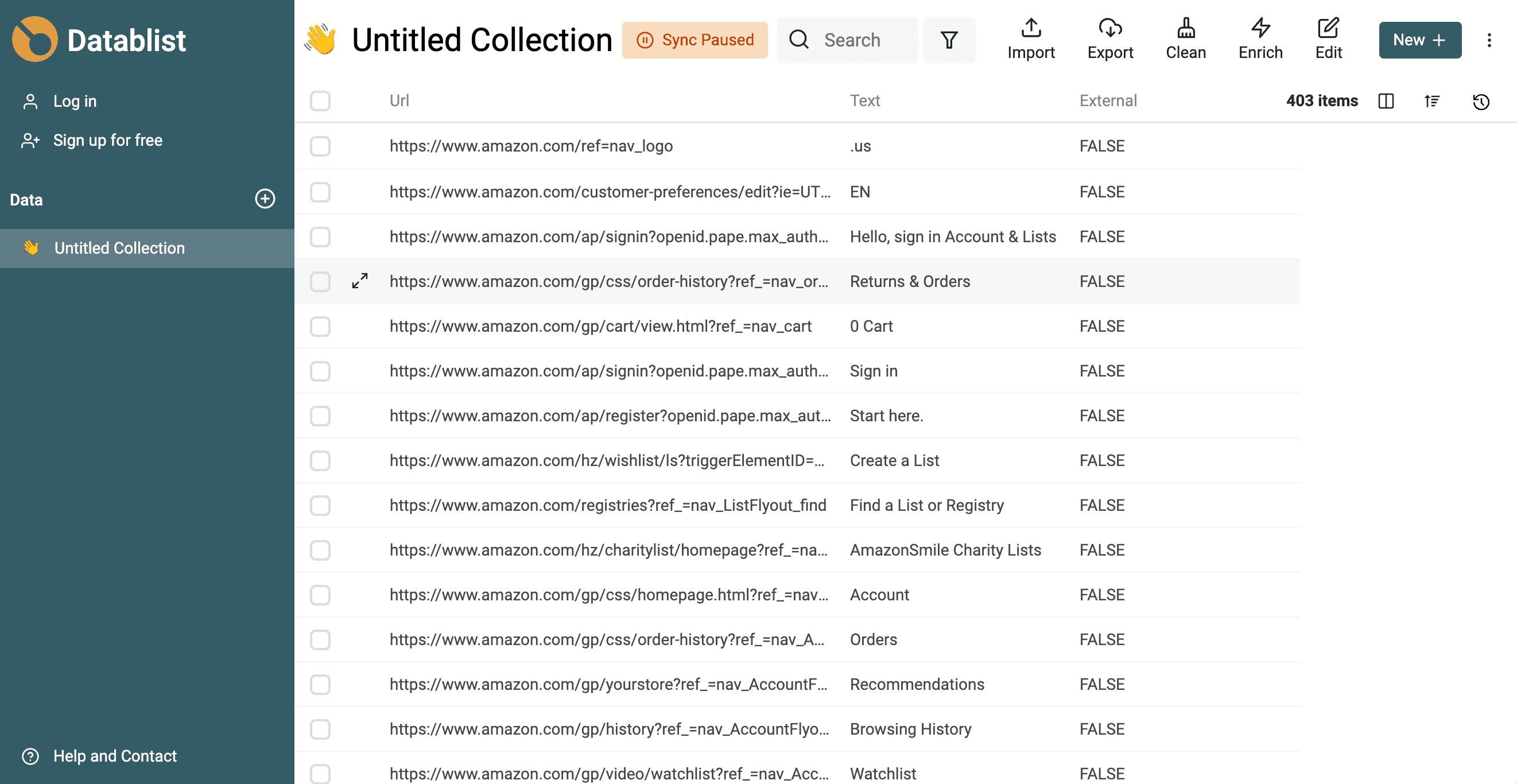
To extract URLs from the webpage currently open in your browser, run the script below in Developer Tools. It lists the page's clickable <a> links, their anchor text, hostname, and whether each link points to another host. The output is a CSV you can paste into a spreadsheet or the Datablist CSV editor.
This extracts links present on one rendered page. It does not crawl every page on the site, and it cannot see links that have not loaded yet. Scroll or expand the page first if it loads content on demand.
Step 1: Run JavaScript code in Google Chrome Developer Tools
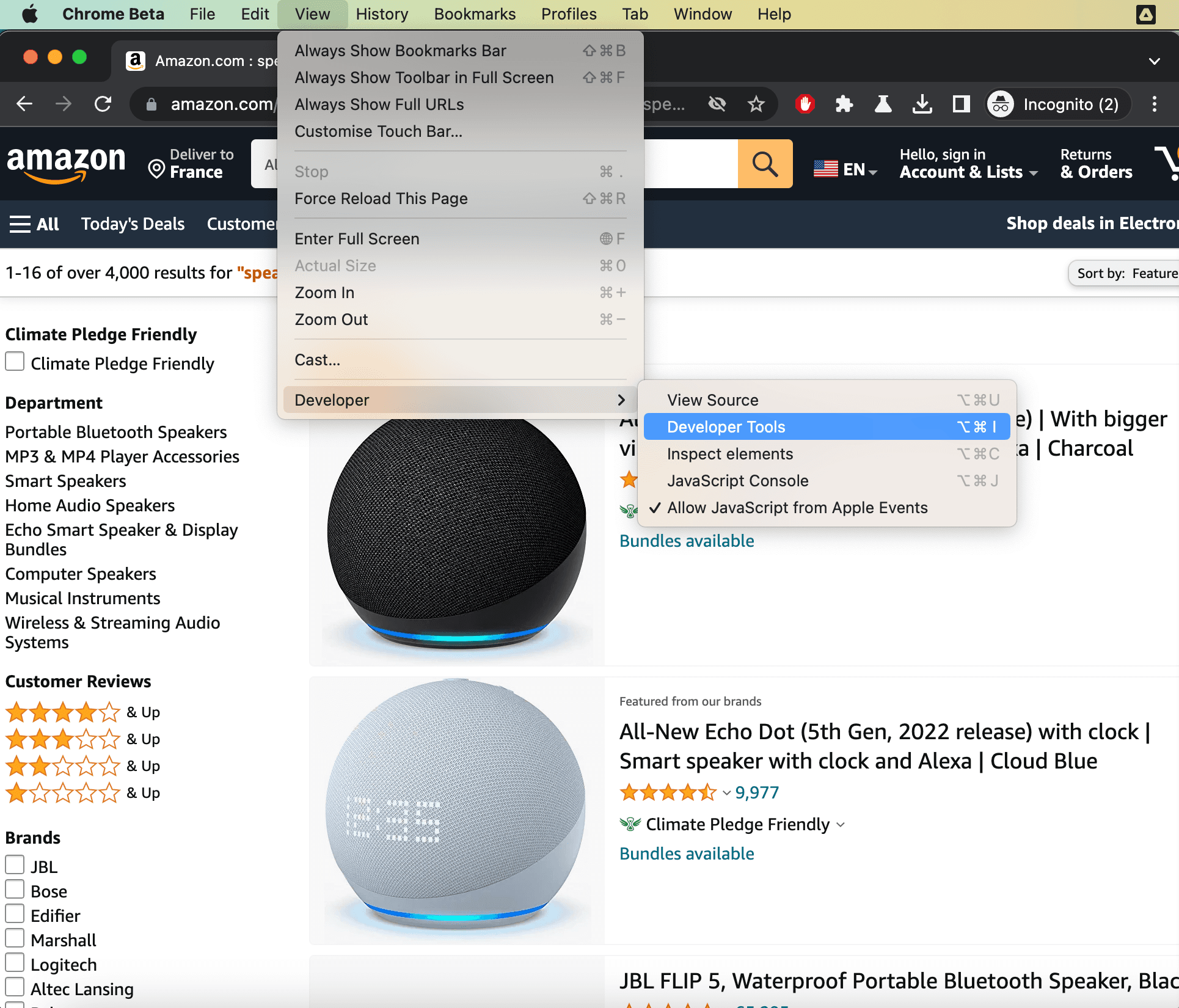
- Open Google Chrome Developer Tools with
Cmd + Opt + i(Mac) orF12(Windows). And click on theConsoletab. - Click Copy on the JavaScript block below, paste it into the console, and press
Enter.
const rows = [['Url', 'Anchor Text', 'External', 'Host']];
for (const link of document.querySelectorAll('a[href]')) {
if (!['http:', 'https:'].includes(link.protocol)) continue;
rows.push([
link.href,
link.textContent.replace(/\s+/g, ' ').trim(),
link.host === location.host ? 'FALSE' : 'TRUE',
link.hostname
]);
}
const csv = rows.map(row => row.map(value =>
`"${String(value).replace(/"/g, '""')}"`
).join(',')).join('\n');
console.log(csv);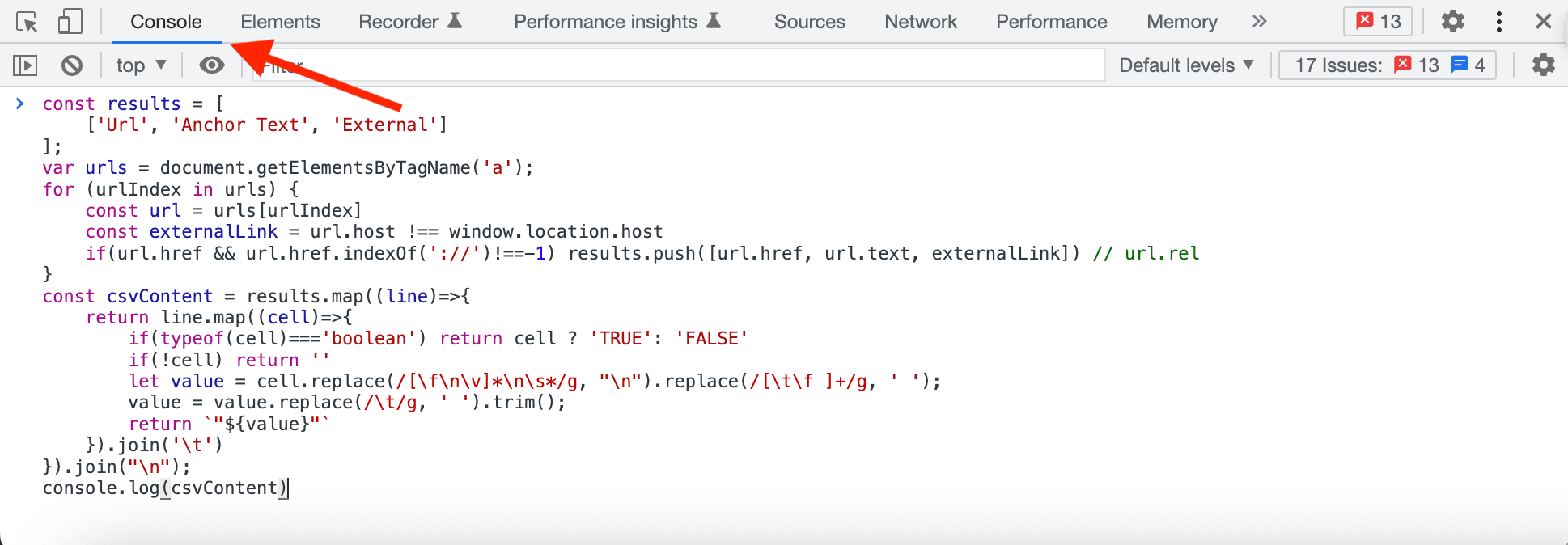
Step 2: Copy-paste exported URLs into a CSV file or spreadsheet tools
The JavaScript code will extract all URLs from the webpage with the following values:
- URL - The link URL
- Anchor Text - The label associated with the link. Called "Anchor Text".
- External -
TRUEwhen the host (including any port) differs from the current page, otherwiseFALSE. This does not determine whether two sites belong to the same organization. - Host - The hostname, such as
www.example.com, without the URL path or port.
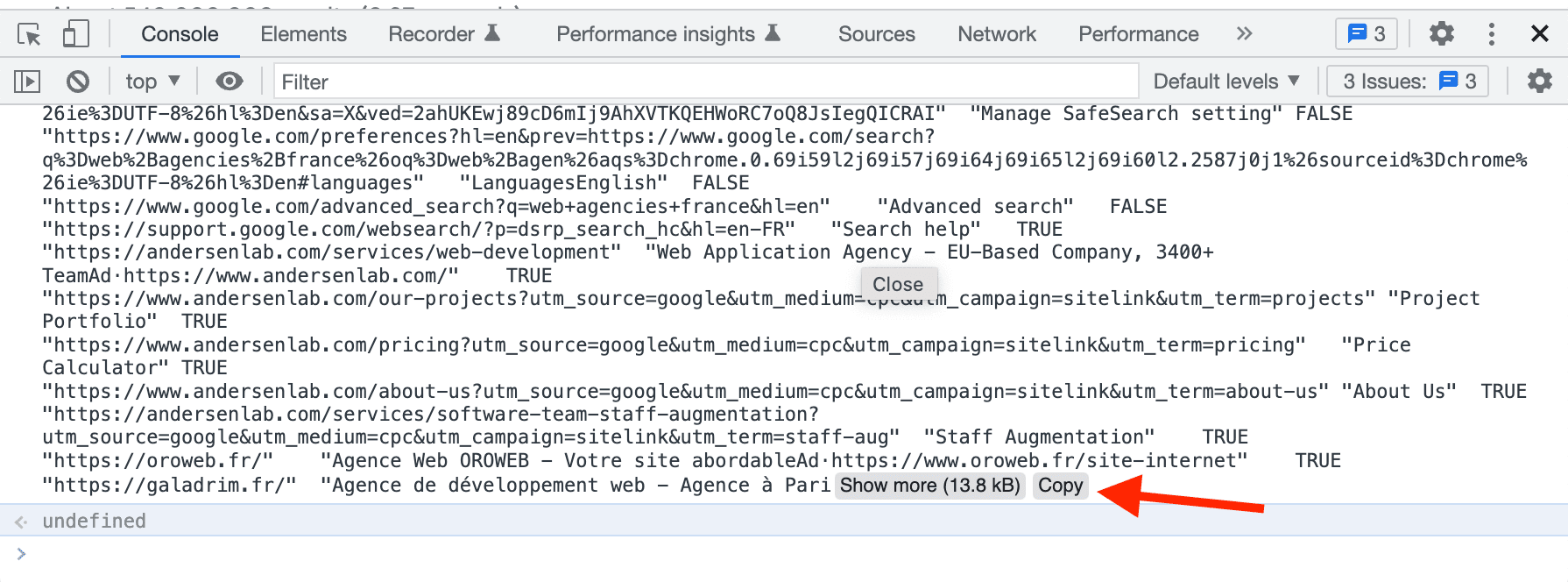
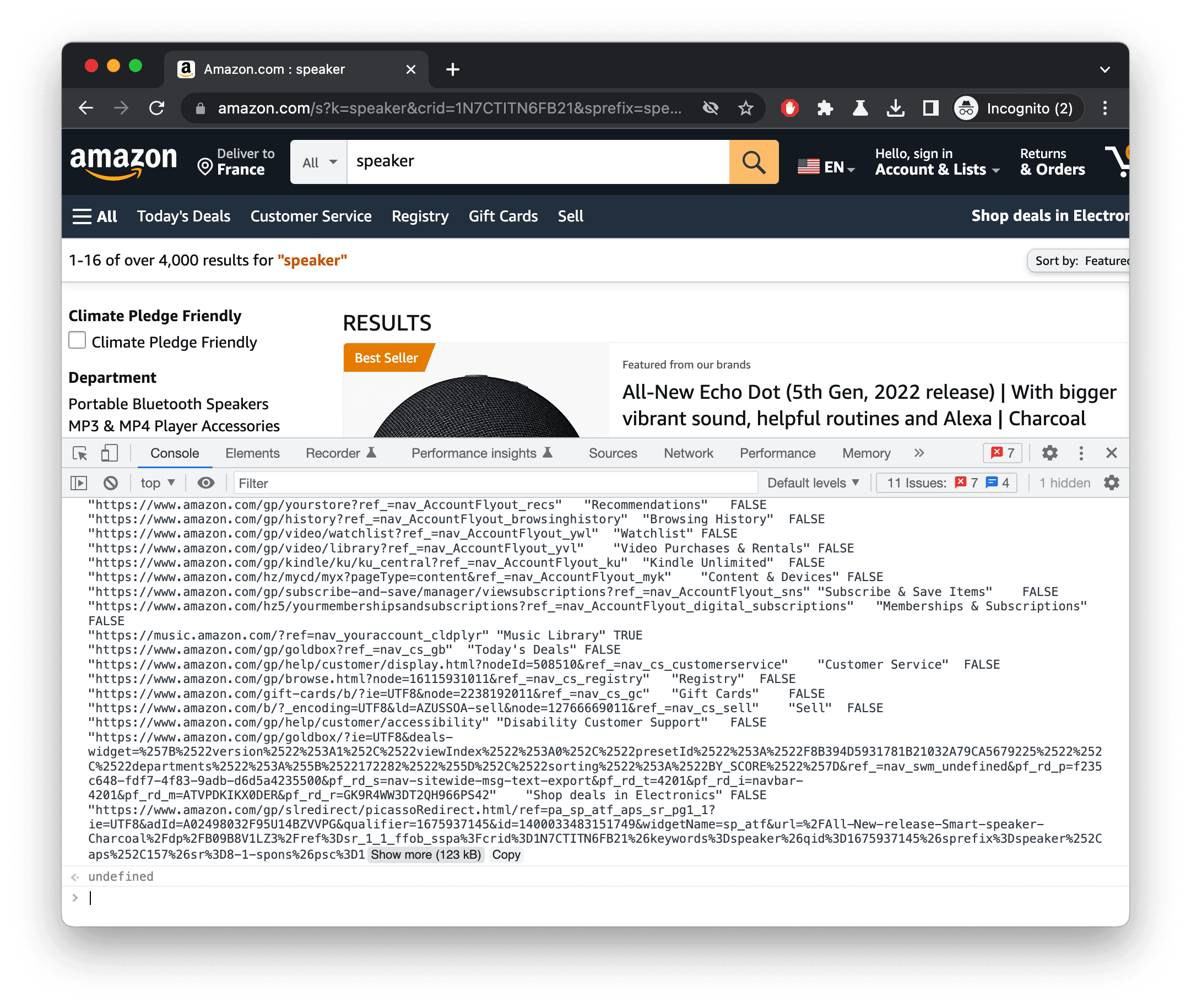
The result is printed on the console using CSV format. Copy the full output into a .csv file or a spreadsheet. The script quotes each cell and escapes quotation marks in anchor text, so commas in labels do not split a row. Links without http or https, such as mailto: links, are excluded.
For example, a link labeled About, "Us" on the current host produces "https://example.com/about","About, ""Us""","FALSE","example.com". A link to another host produces TRUE in the External column. The screenshots below show an earlier export; the current script adds the Host column.
Copy the entire console output, including the header row.
Step 3: Filter CSV data to get relevant links
To filter quickly your links, open Datablist CSV editor. Create a collection and paste your CSV data. Check the Google and Amazon examples below for a more step-by-step guide.
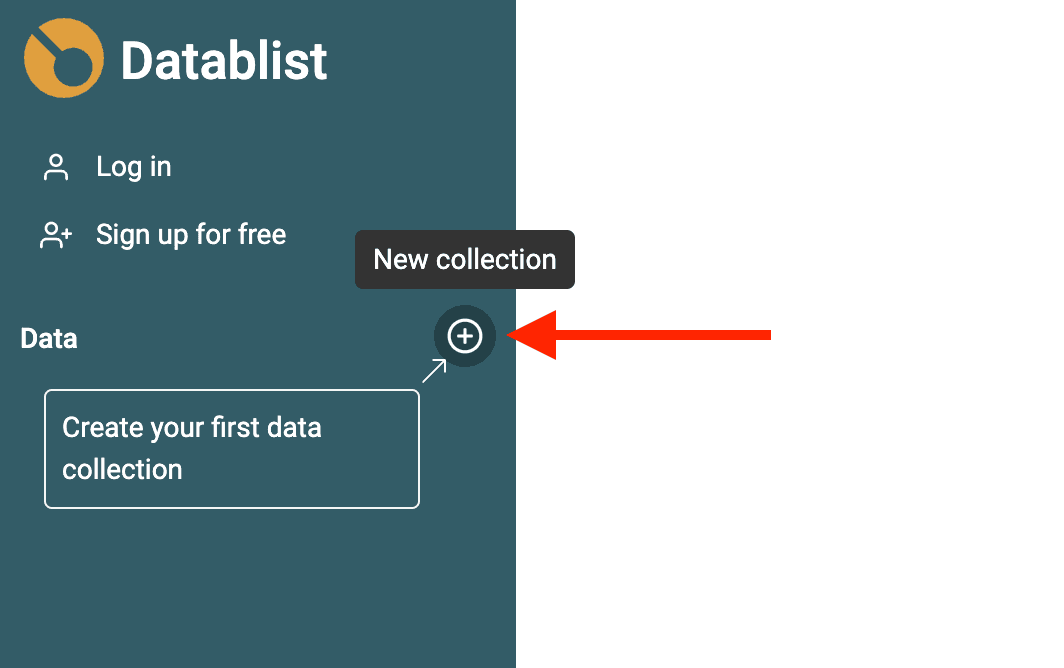
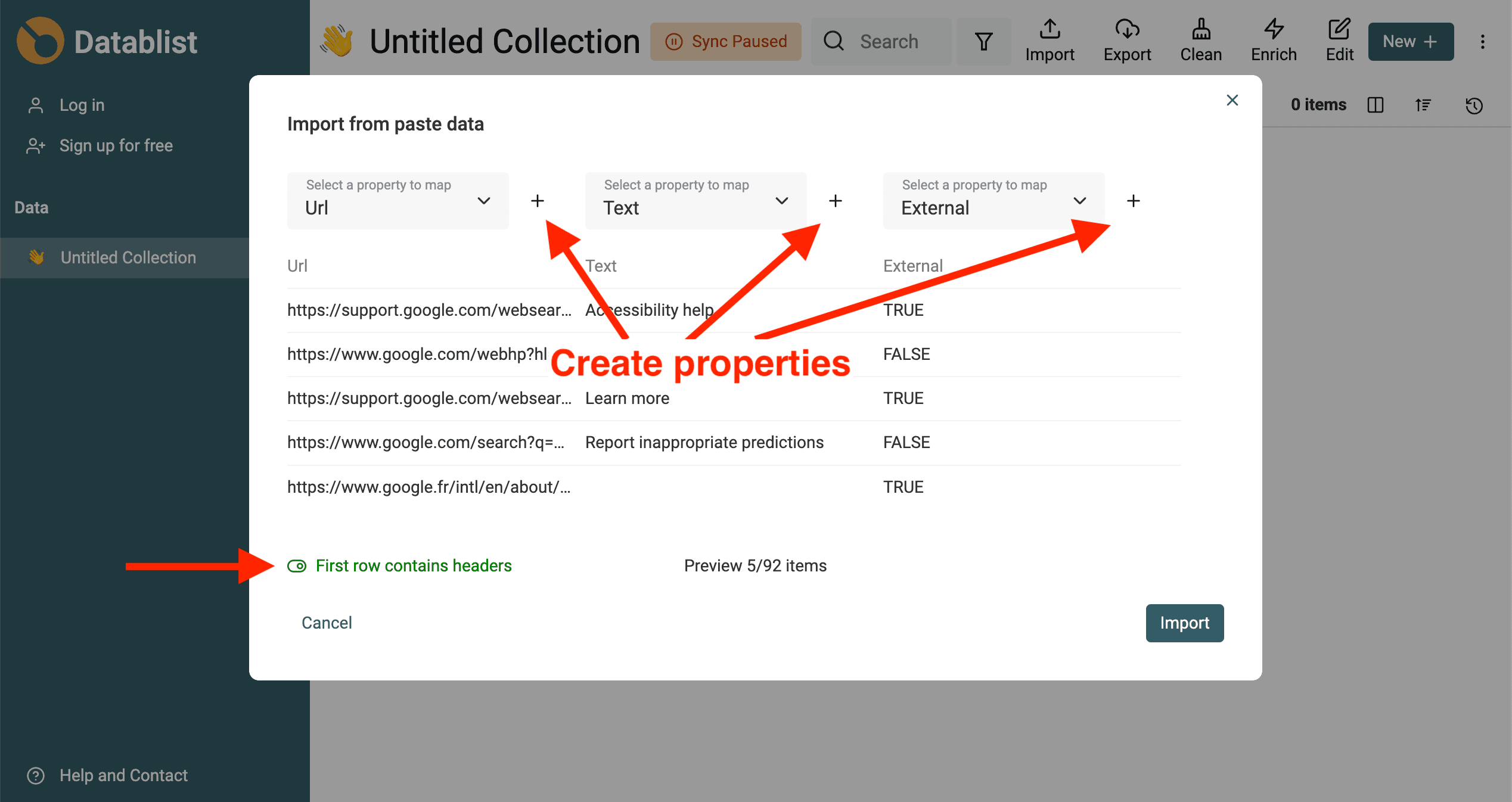
Select 'First row contains header' and click on the "+" button for each column to import them.
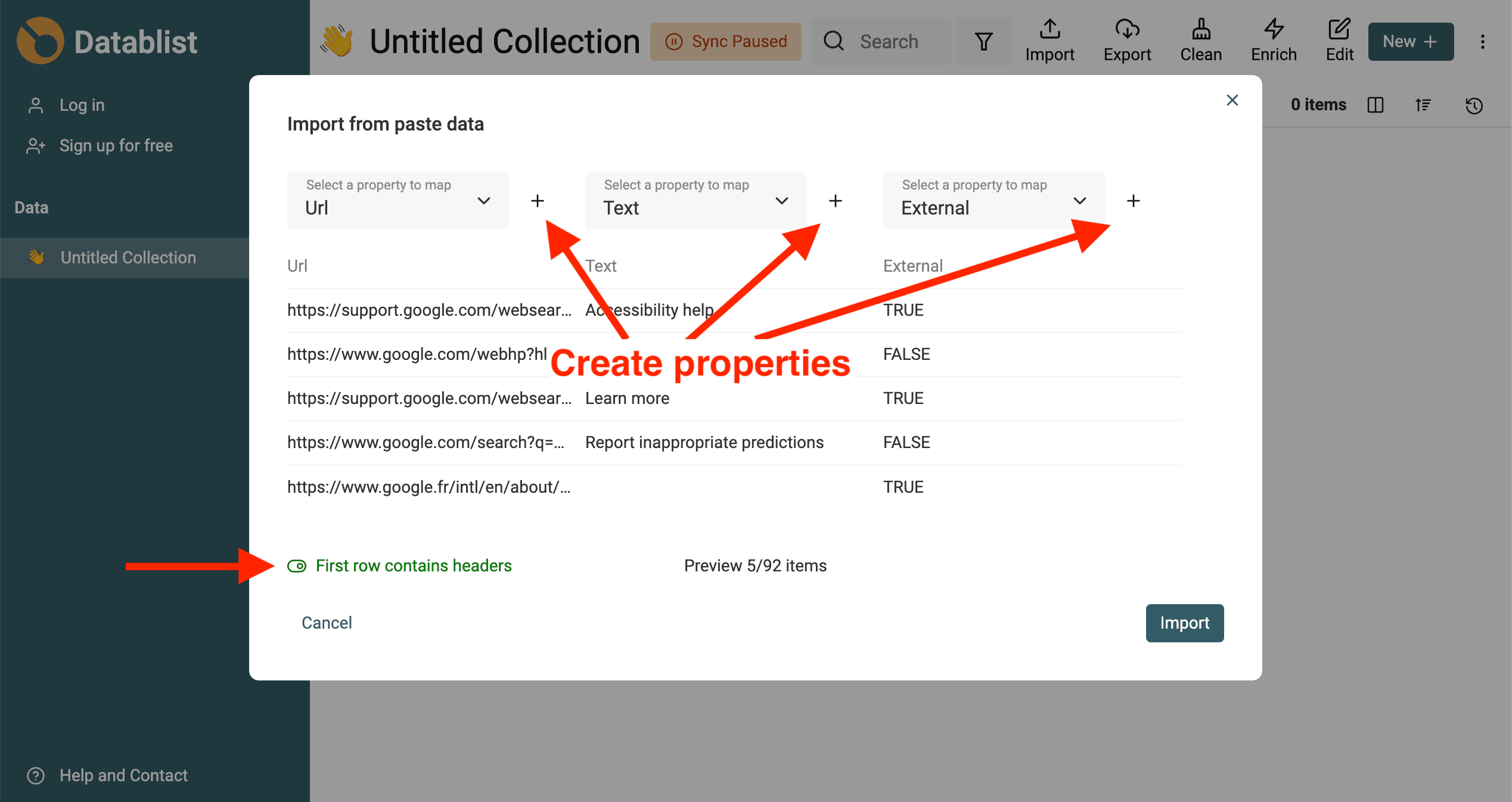
Then you will be able to use text search or filter on a specific property. You can use Datablist to consolidate all your CSV data. And Datablist comes with an algorithm for deduplication to have a clean list or URLs.
Example with Google Results
This is a step-by-step example with the Google results page. We want to extract all external links from a Google search result.
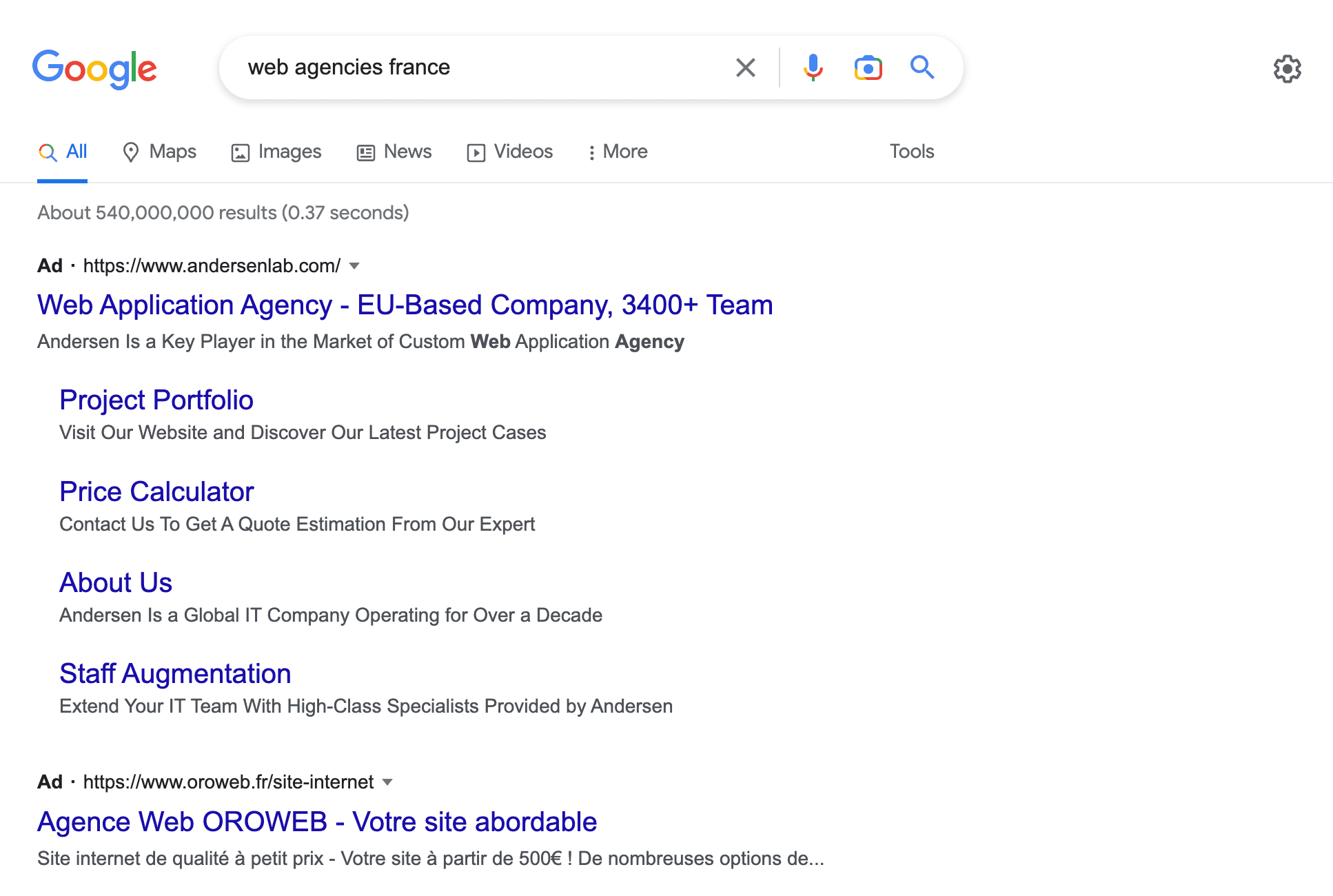
Step 1: Search for a Google term that you want to extract links.
Only links loaded into the current results page can appear in the export. Search engines may change their page layout or limit the visible results, so check the extracted rows before using them.
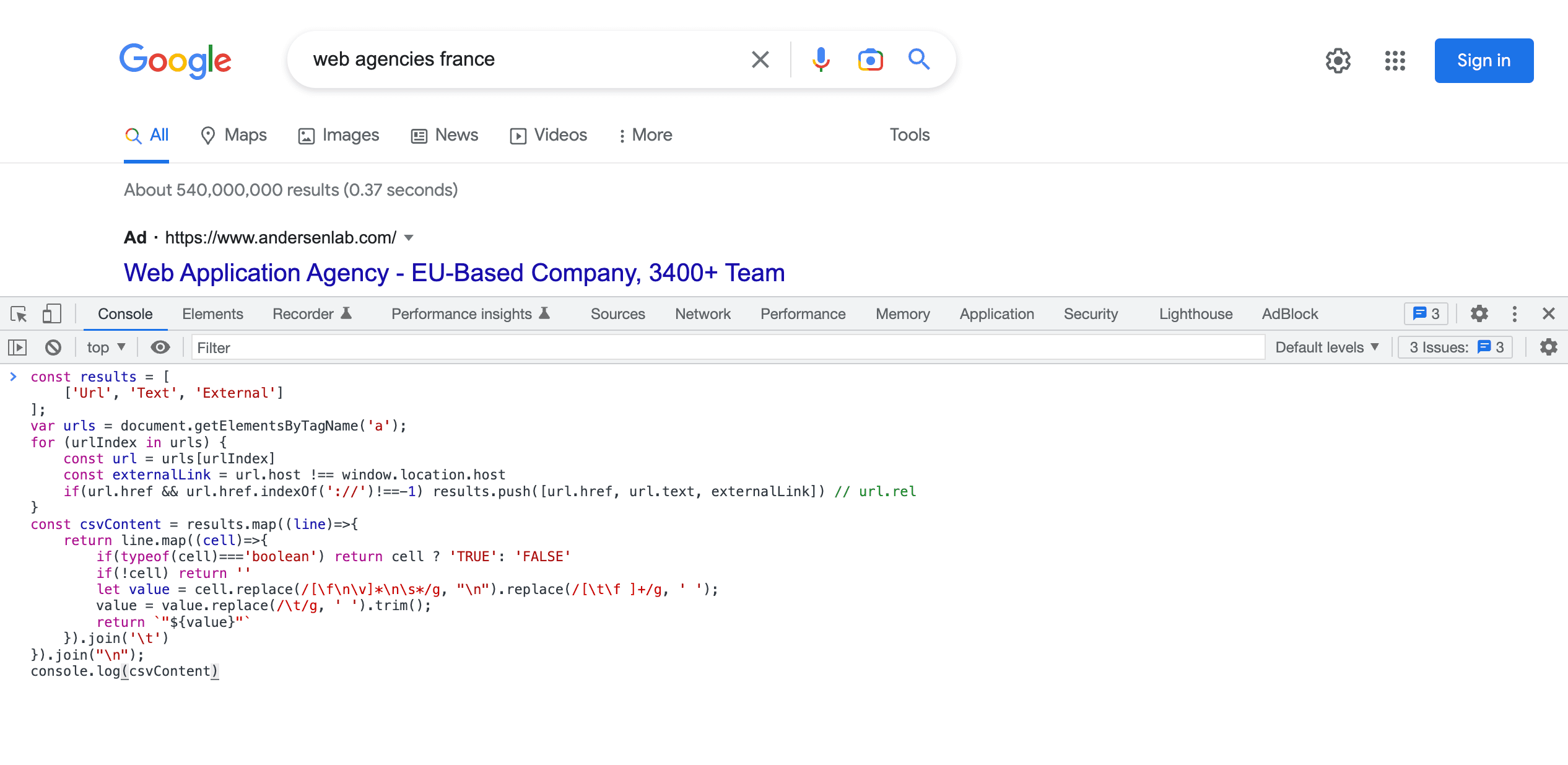
Step 2: Copy-paste the code and run it
Open the console in Google Developer Tools, paste the JavaScript code and press Enter.
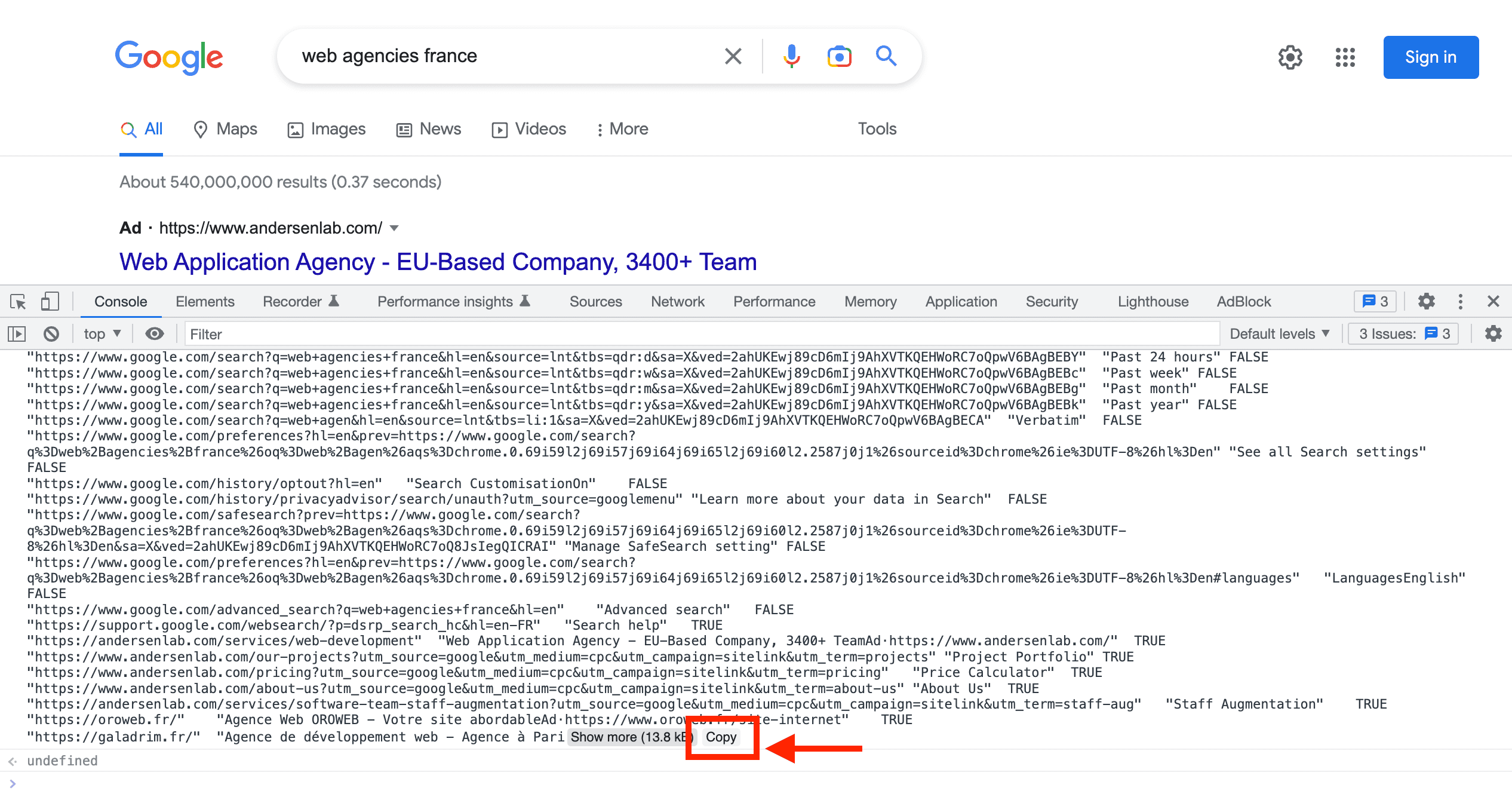
Copy the results. Select the line and ctrl + c or use the Copy button when Chrome shows it.
Step 3: Filter results
Open Datablist CSV editor, create a collection, and paste the copied URLs.
Note: Don't forget to select the option
First row contains headersand to click the "+" button as shown.
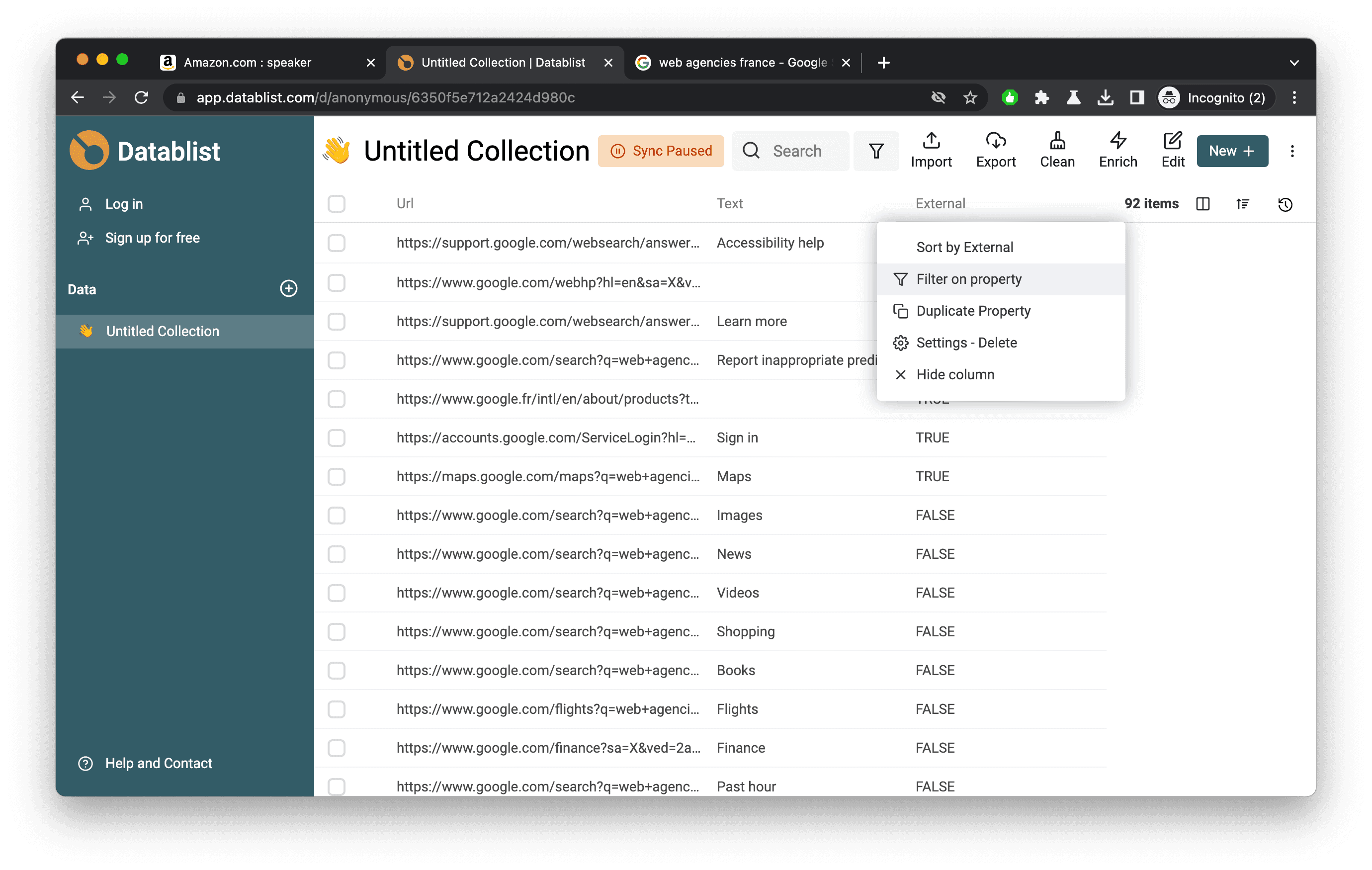
Once imported. Click "Filter on property" in the "External" column.
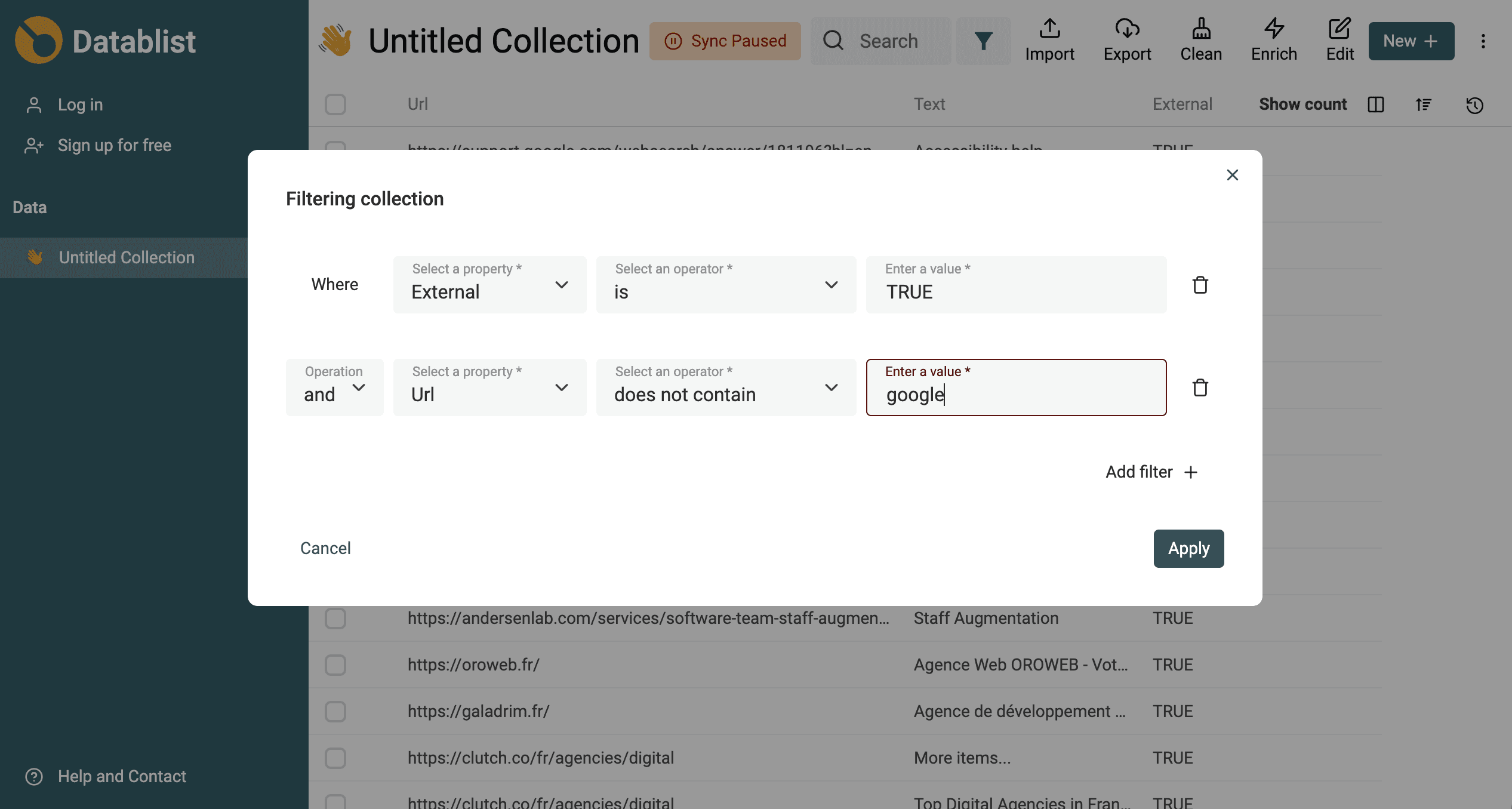
Combine these two filters with AND:
ExternalisTRUE.Hostregexp^(?!(?:.*\.)?google\.com$).+$.
The hostname expression excludes google.com and its subdomains, such as accounts.google.com. It keeps unrelated hosts such as notgoogle.com and links whose path happens to contain google. Filtering the entire URL with "does not contain google" would wrongly discard those links. Enter the expression without surrounding slashes.
This example excludes the google.com domain family only. Inspect the distinct Host values for other Google-owned or regional domains before using the list. The older screenshot below illustrates the filter panel; use the hostname rule above rather than its substring filter. See how to clean scraped data for the next steps.
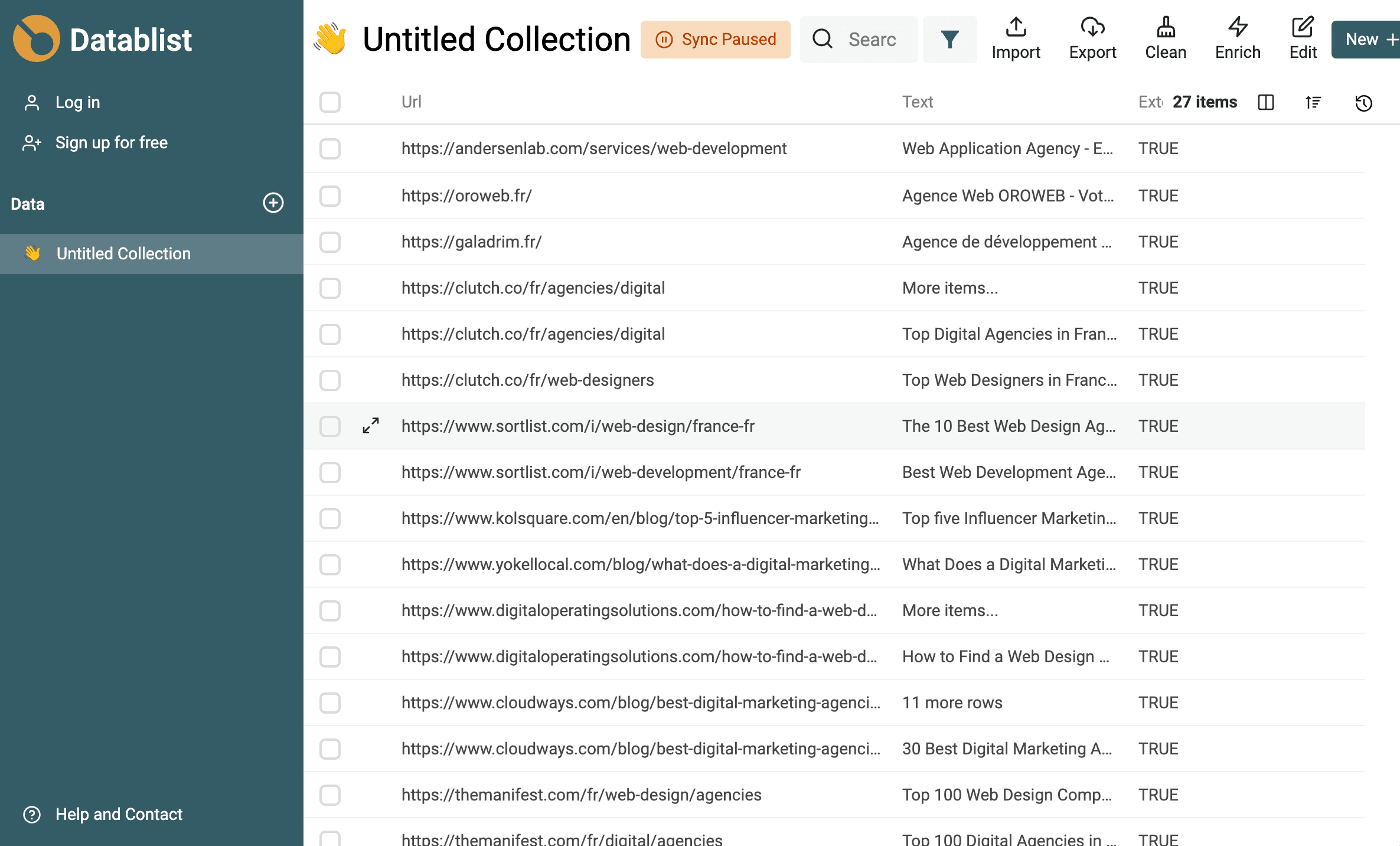
And here are your external links:
Example with Amazon Results
This is a step-by-step example with the Amazon products page. We want to extract all links from this page.
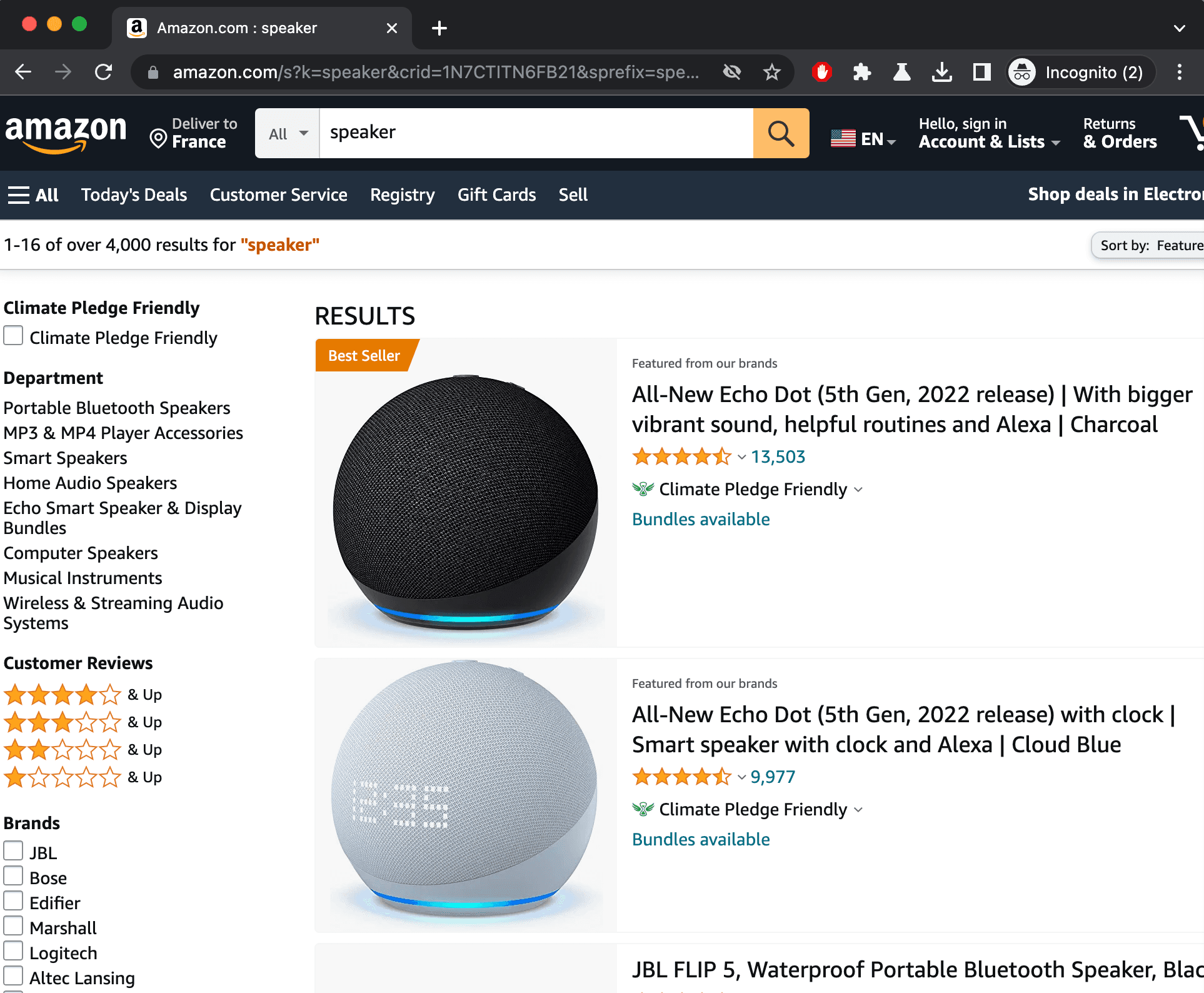
Open the Chrome Developer Tools:
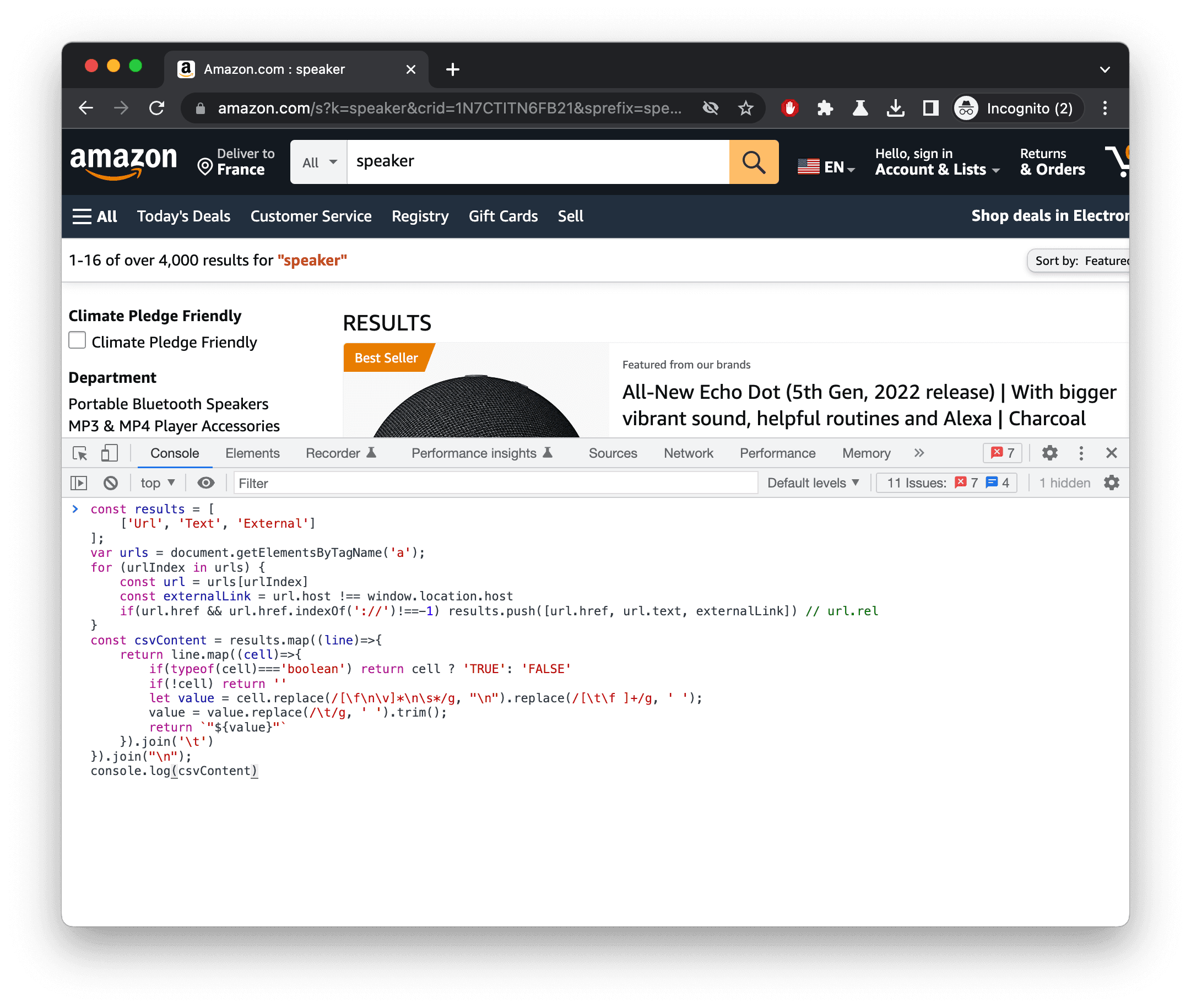
Copy-paste the JavaScript code:
And run it by pressing Enter:
With Datablist CSV editor, create a collection.
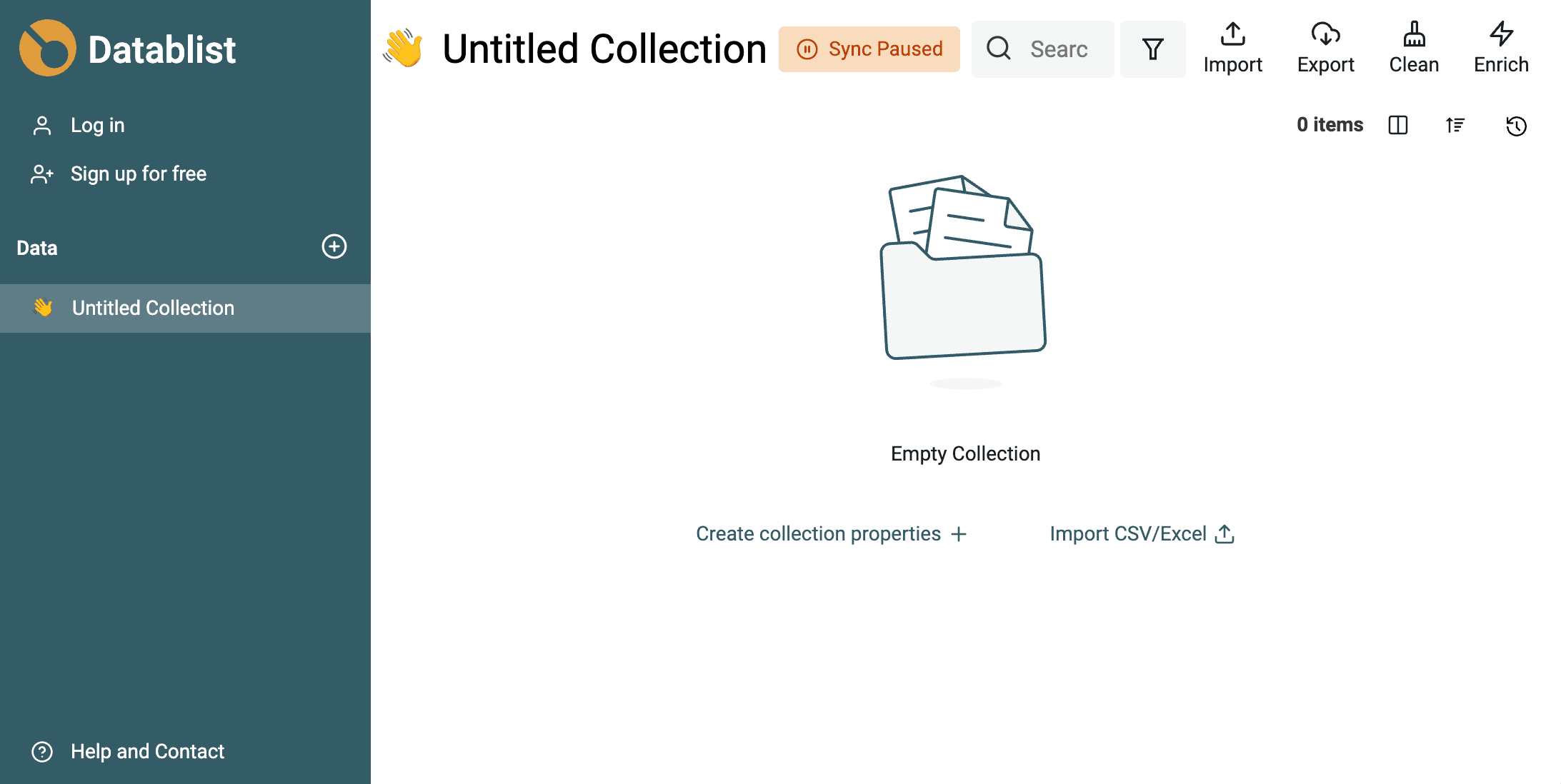
Paste your scrapped URLs:
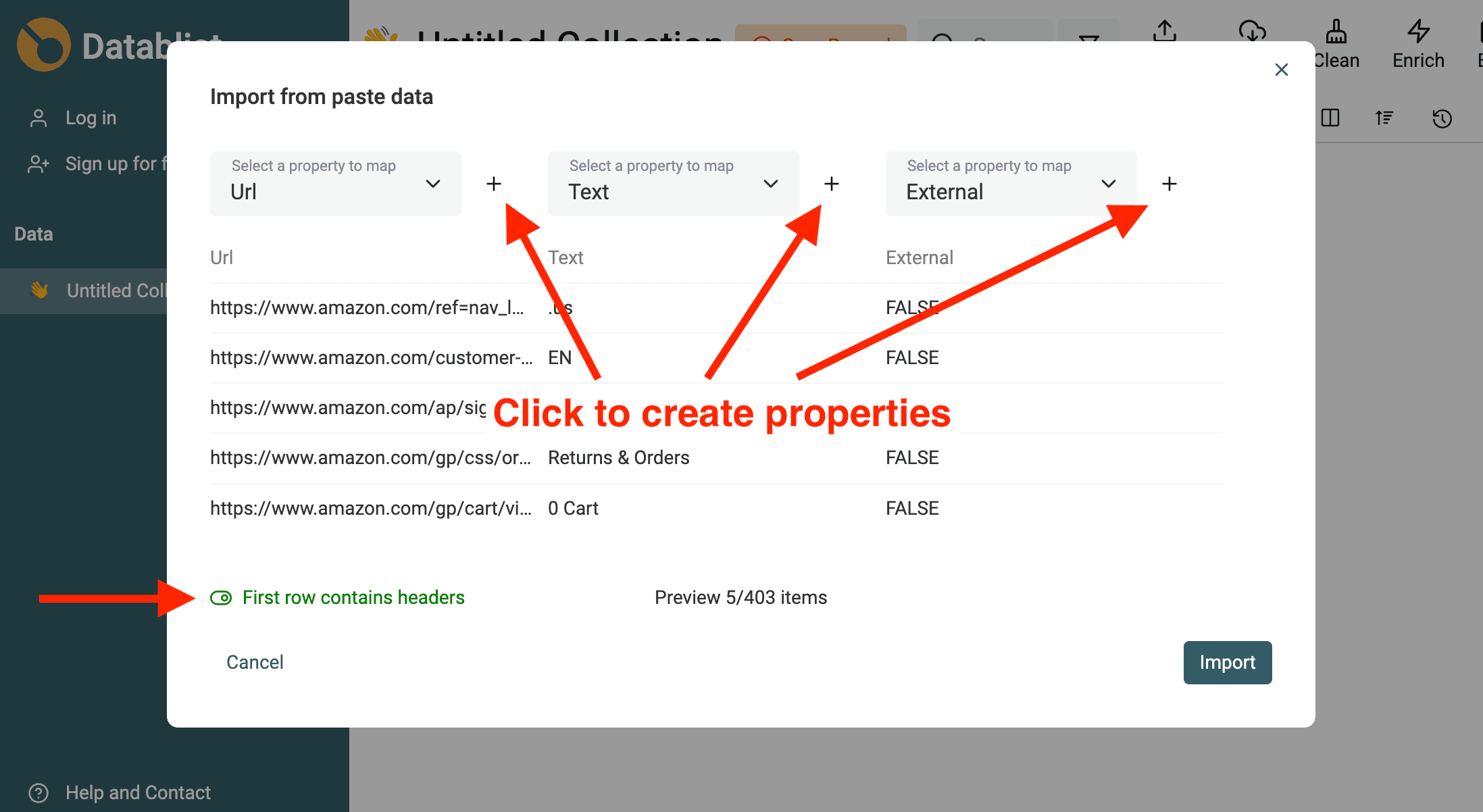
Your scrapped URLs are listed on the tool. Filter the links, deduplicate the results, and clean your scraped data.