

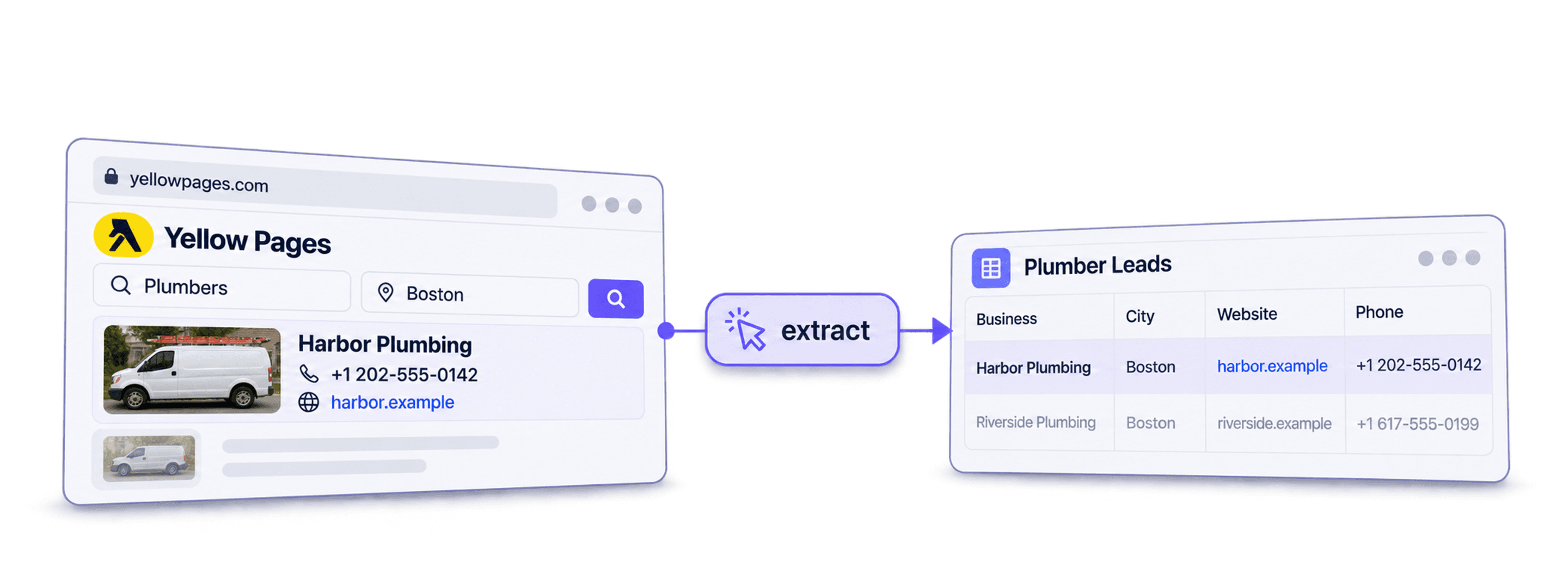
Scrape plumbers from Yellow Pages by opening a location/category search, copying its URL, and running Datablist's Yellow Pages Business Details Extractor template. It creates rows with listing details you can review and export.
If you are still selecting a tool, compare directory scraping workflows on the same Yellow Pages sample before committing to a large extraction.
The useful result is a list of distinct business locations. Keep the listing URL and address: the same business name can belong to several branches, and nearby searches can return the same listing more than once.
📌 Summary For Those In a Rush
Turn a Yellow Pages plumbing search into a spreadsheet of business names, phone numbers, websites, addresses, descriptions, and listing URLs. In Datablist, choose AI Agent - Site Scraper, load the Yellow Pages template, and inspect a small import before expanding the search. Keep Business Name non-unique so separate branches survive; use the listing URL to review repeated results. Available pages determine coverage, so a completed run is not proof of a complete local business inventory.
What This Guide Will Cover
- A Step-by-Step Walkthrough to Scrape Plumbers From Yellow Pages
- Alternative Methods for Scraping Yellow Pages Listings
- Review and qualify the business rows
- Frequently Asked Questions About Scraping Yellow Pages
What is Datablist?
Datablist combines data sources, enrichments, and cleaning tools in a spreadsheet. For this workflow, AI Agent - Site Scraper creates business rows from an accessible search page, and you review them before cleaning duplicate listings or finding additional contact details.
Scraping Plumbers From Yellow Pages: The 5 Step Process
Start with one category and location, such as plumbers in Boston. Keep your search URL so you can compare returned rows with the original results. Before opening Datablist:
- Have configured your search in Yellow Pages
- Copied the Yellow Pages URL from your browser's search bar
Scraping Plumbers From Yellow Pages: Step-By-Step Guide
The following section will guide you through the entire scraping process. If you encounter any issues, feel free to reach out to us
Step 1: Sign up & Create a Collection
First, sign up for Datablist.com
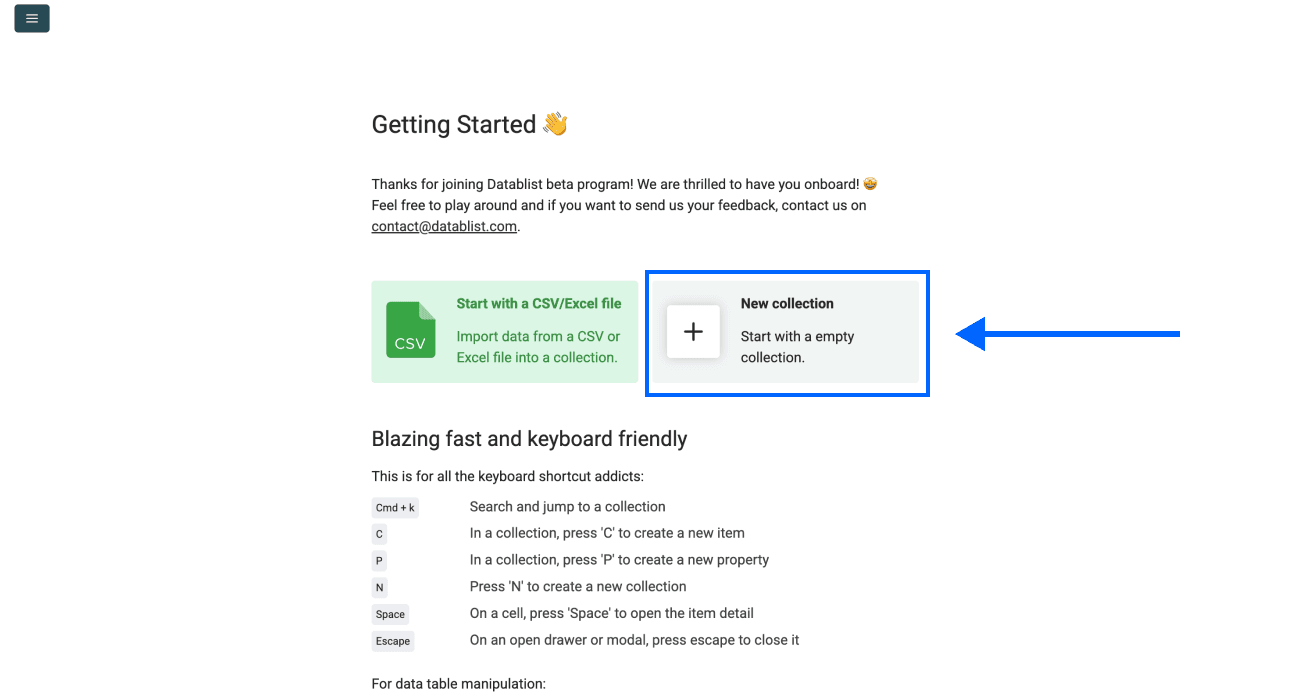
Then, create a New Collection
Step 2: Keep Listing Identifiers Before Deduplication
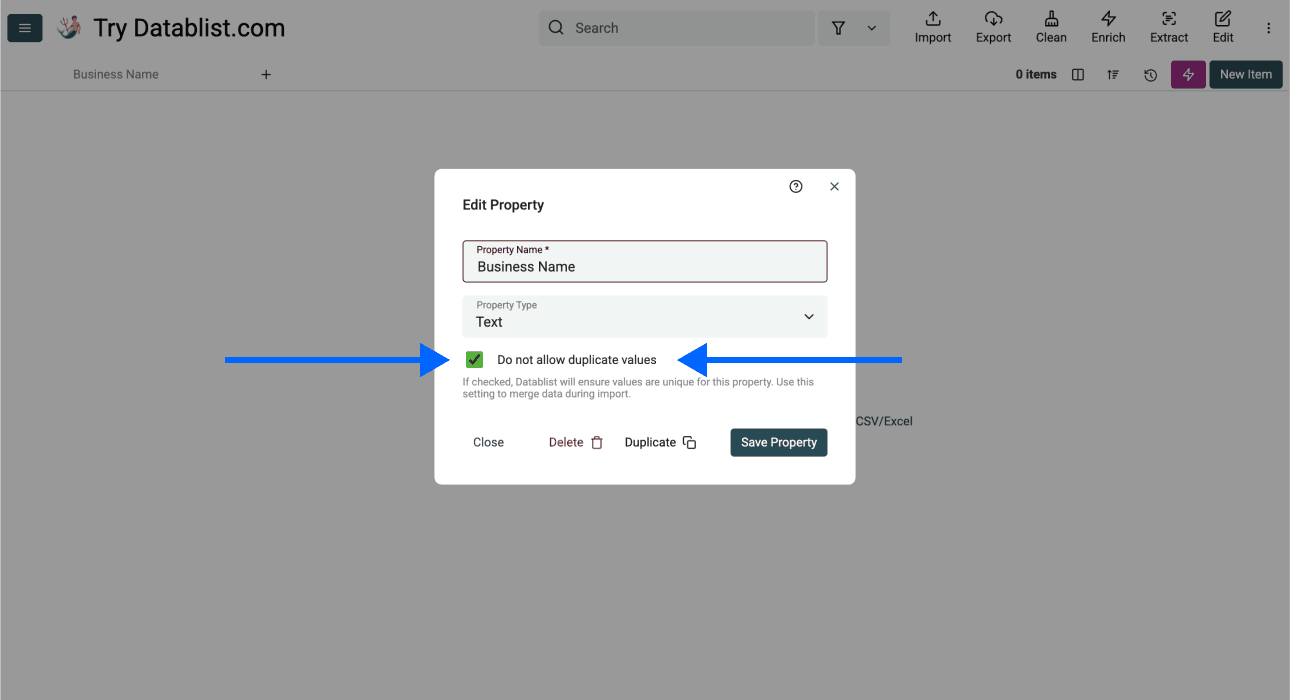
Create a text property named Business Name and leave Do not allow duplicate values disabled for it. Two plumbing branches can share a name while serving different locations.
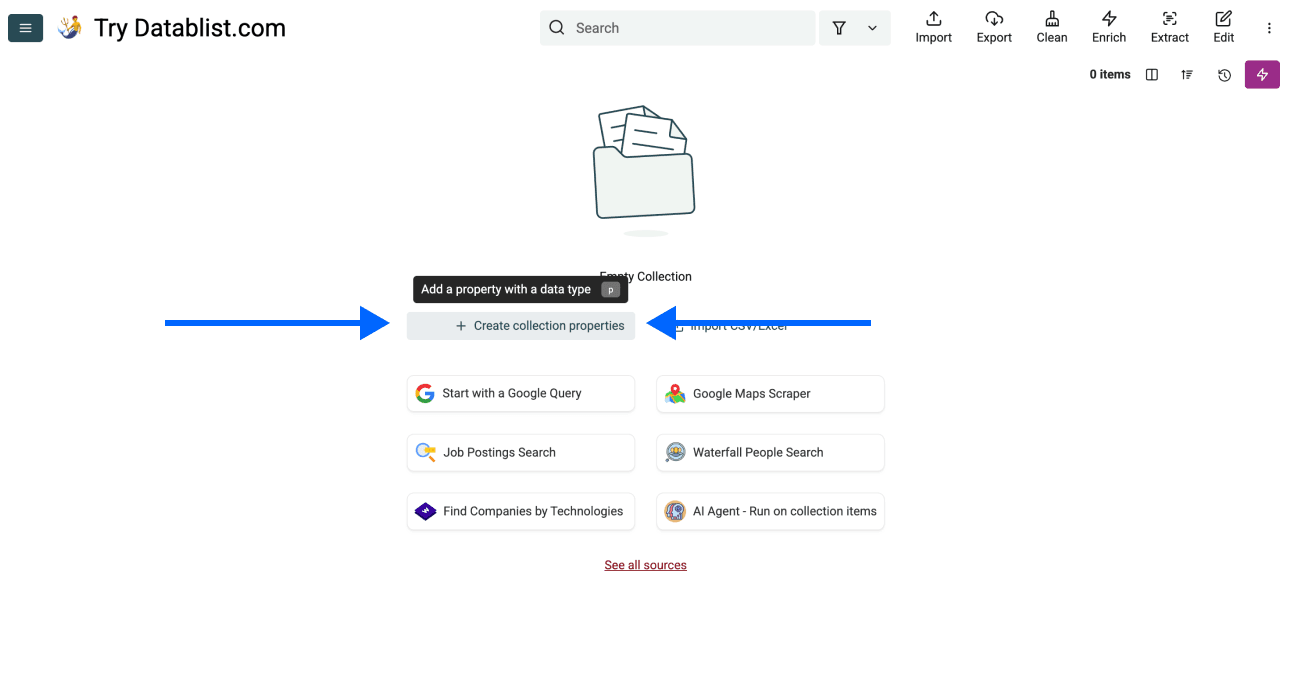
Open the column's Rename - Settings - Delete control if you need to check its settings.
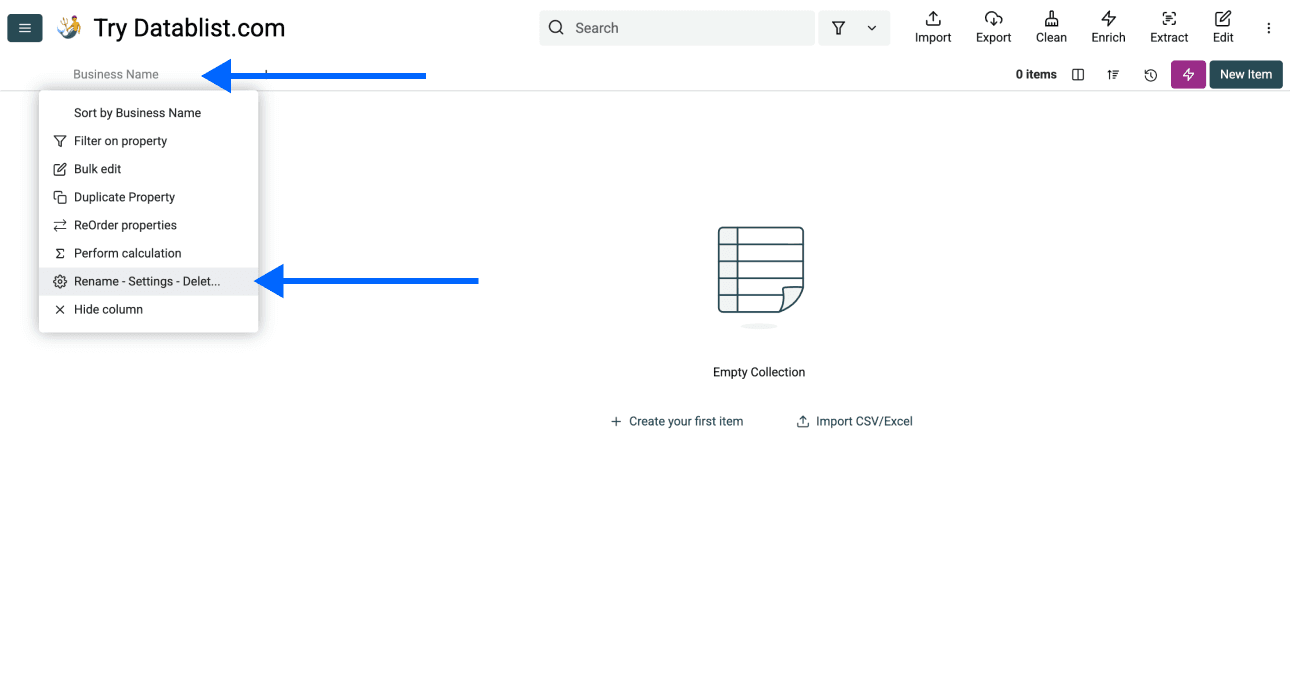
The screenshot below shows the uniqueness setting. Do not enable it on Business Name for a location-level list. Map Address and YellowPage Detail Url in the output step so you can distinguish branches and review duplicate listings after import.
For example, in an illustrative list, “Example Plumbing” at two different street addresses represents two locations. The same Yellow Pages detail URL returned by two neighboring searches is a candidate for consolidation. A shared company website alone does not prove that two locations are duplicates.
Step 3: Navigating To the Template
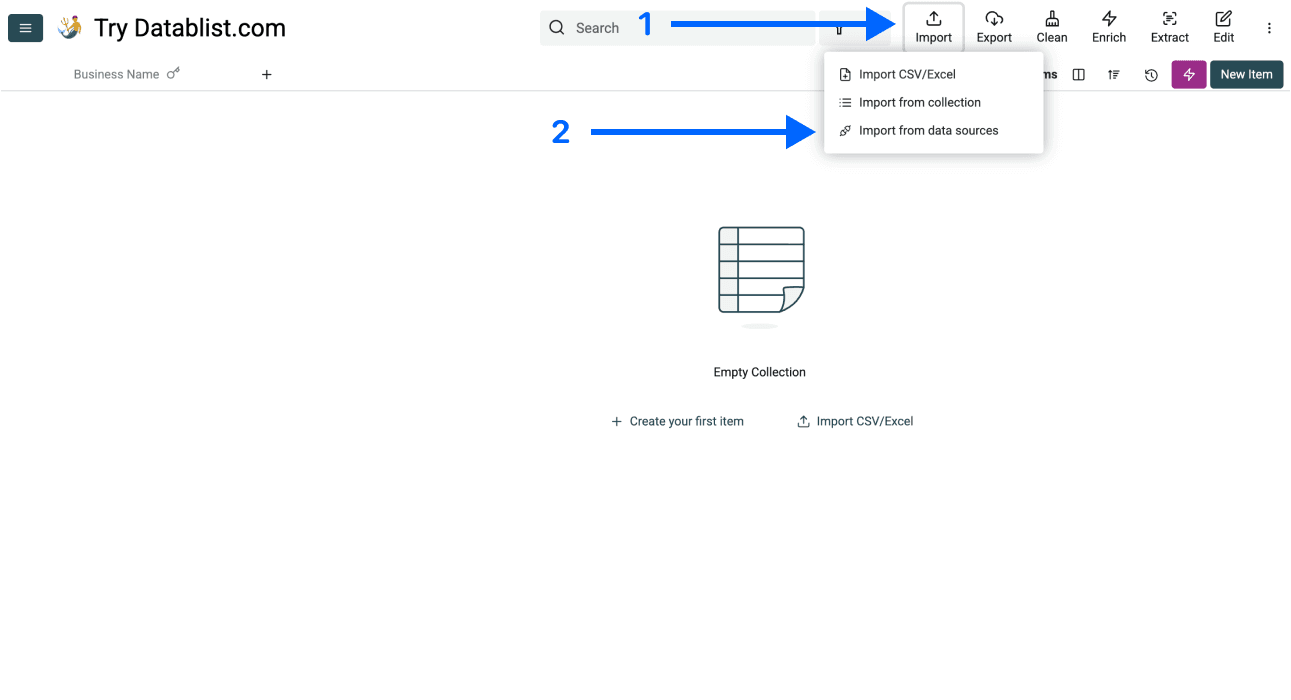
- Click on Import in the top menu of the app and select Import From Data Sources
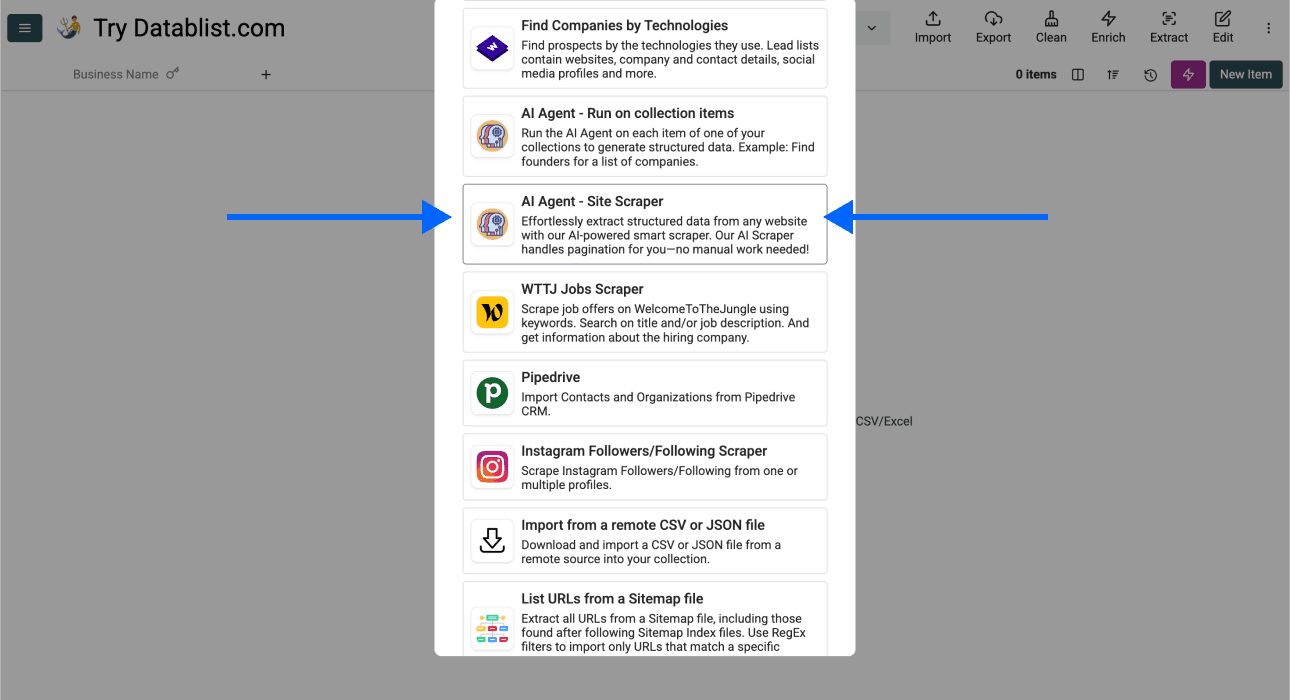
- Scroll down and select AI Agent - Site Scraper
Now, you should see a different interface, which looks like this
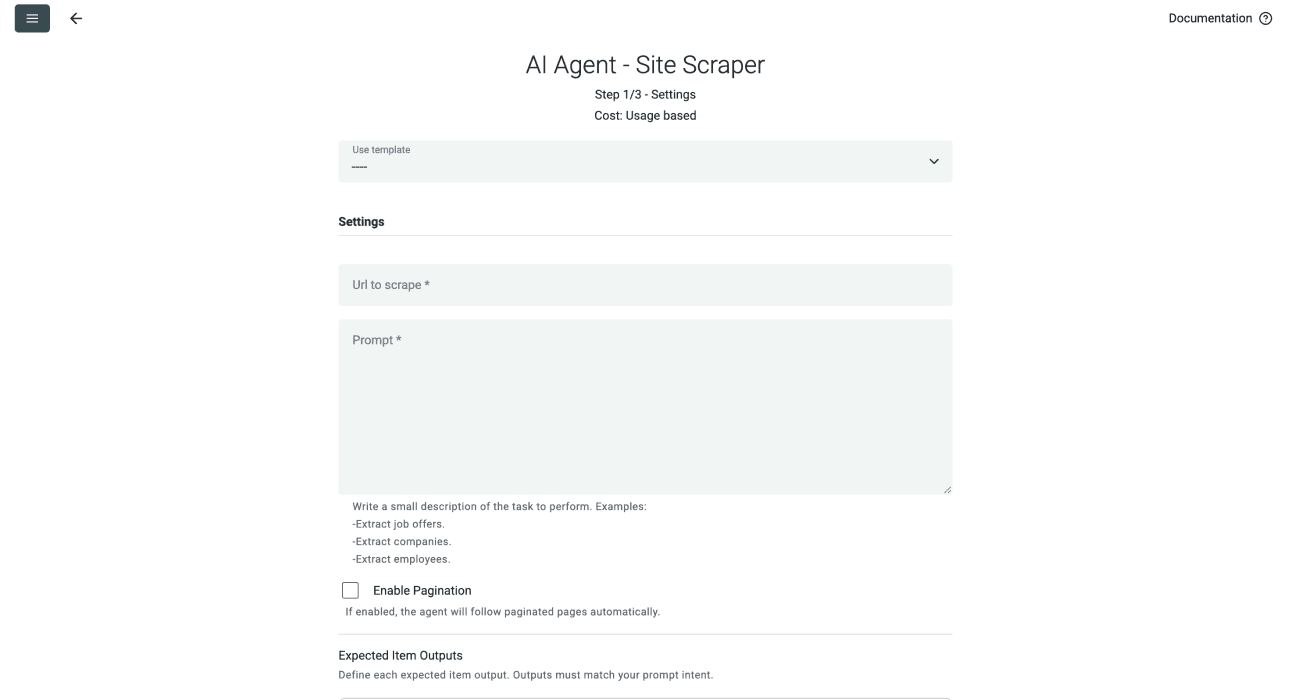
Step 4: Selecting the Template & Setting Limits
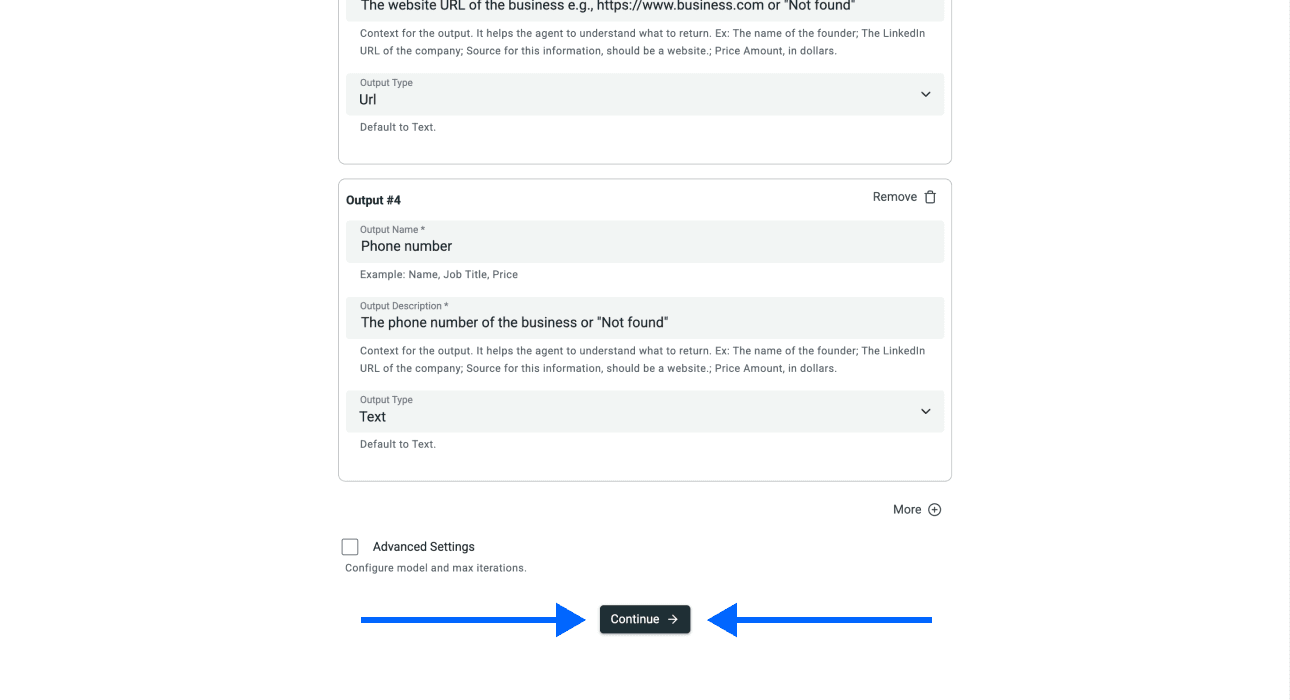
- Open the template dropdown and select [Source] Yellow Pages Business Details Extractor. The screenshots show an earlier template label; the current template returns the six business-detail fields described below.
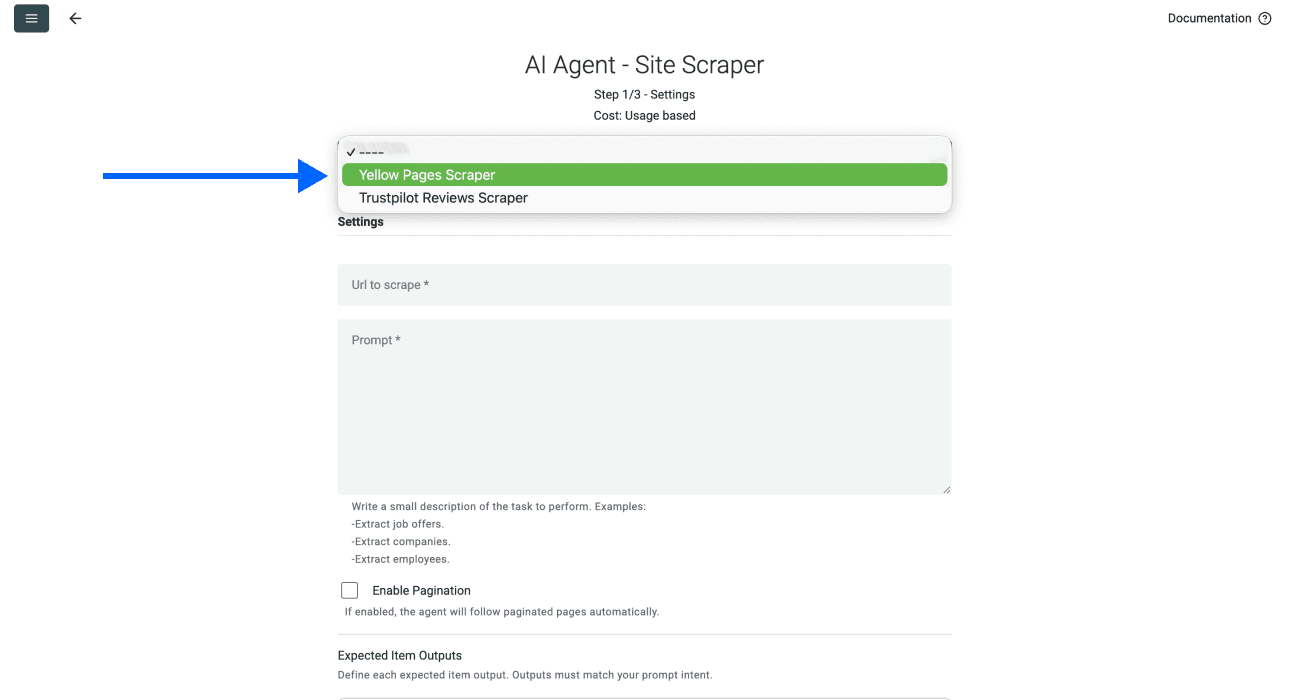
- Paste your Yellow Pages search URL in the first field
For example https://www.yellowpages.com/boston-ma/plumbers
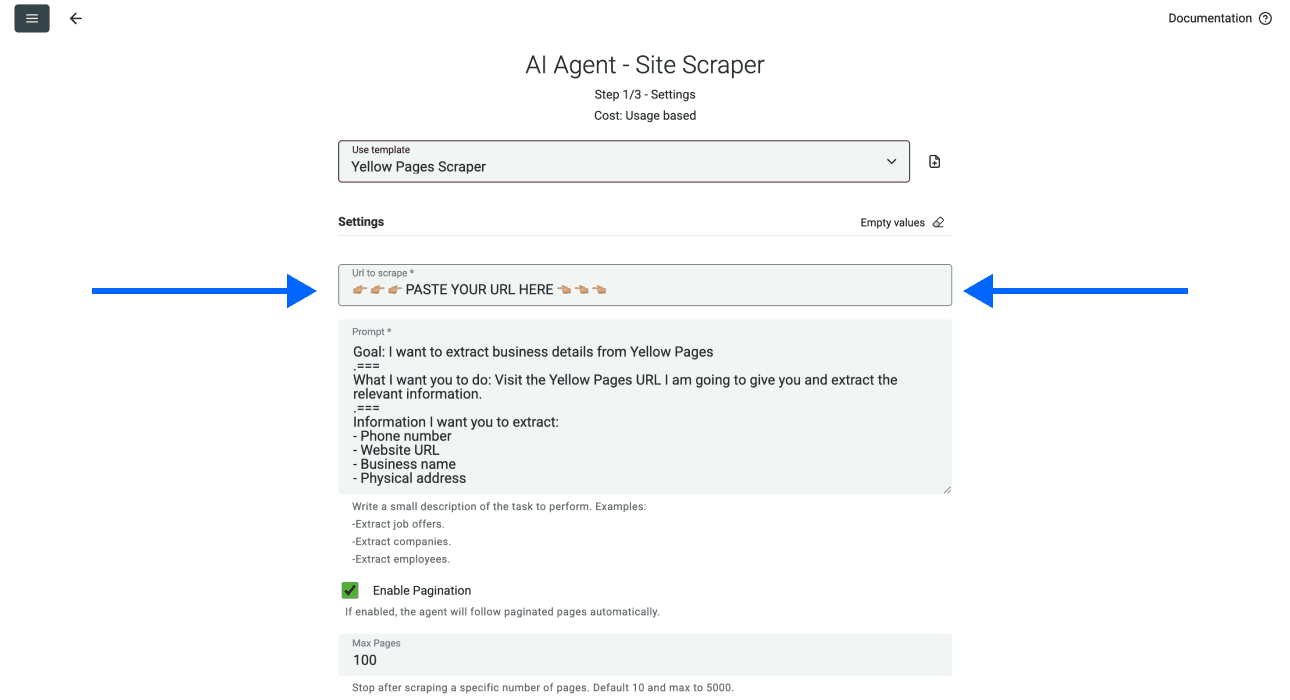
- Review Enable Pagination and choose Max Pages. Start with a small number so you can check the output before expanding the run.
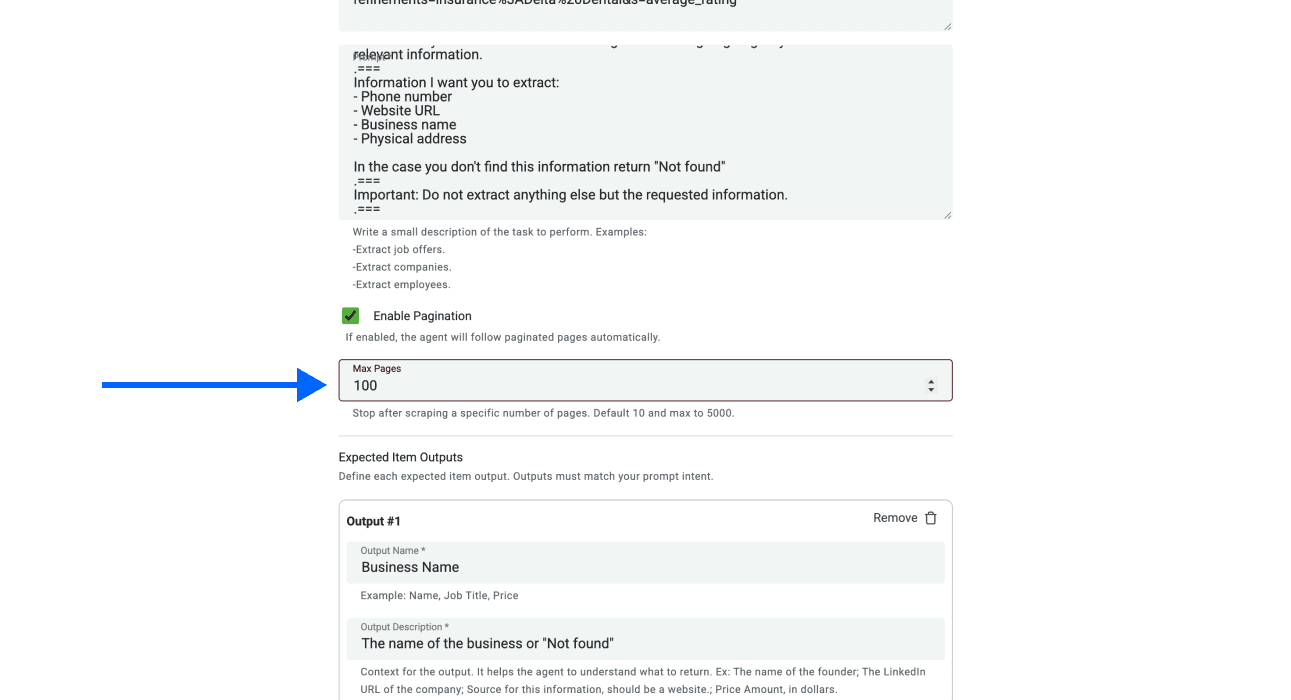
📘 Check Search Coverage
Inspect the accessible result pages for your category and location. Pagination, repeated listings, missing fields, and site access can limit what the agent returns. Smaller nearby-area searches can broaden your sample, but they can overlap and do not guarantee every plumbing business is included. Keep each search URL with the results and compare repeated listing URLs.
- Scroll down and click on Continue
Step 5: Selecting Inputs
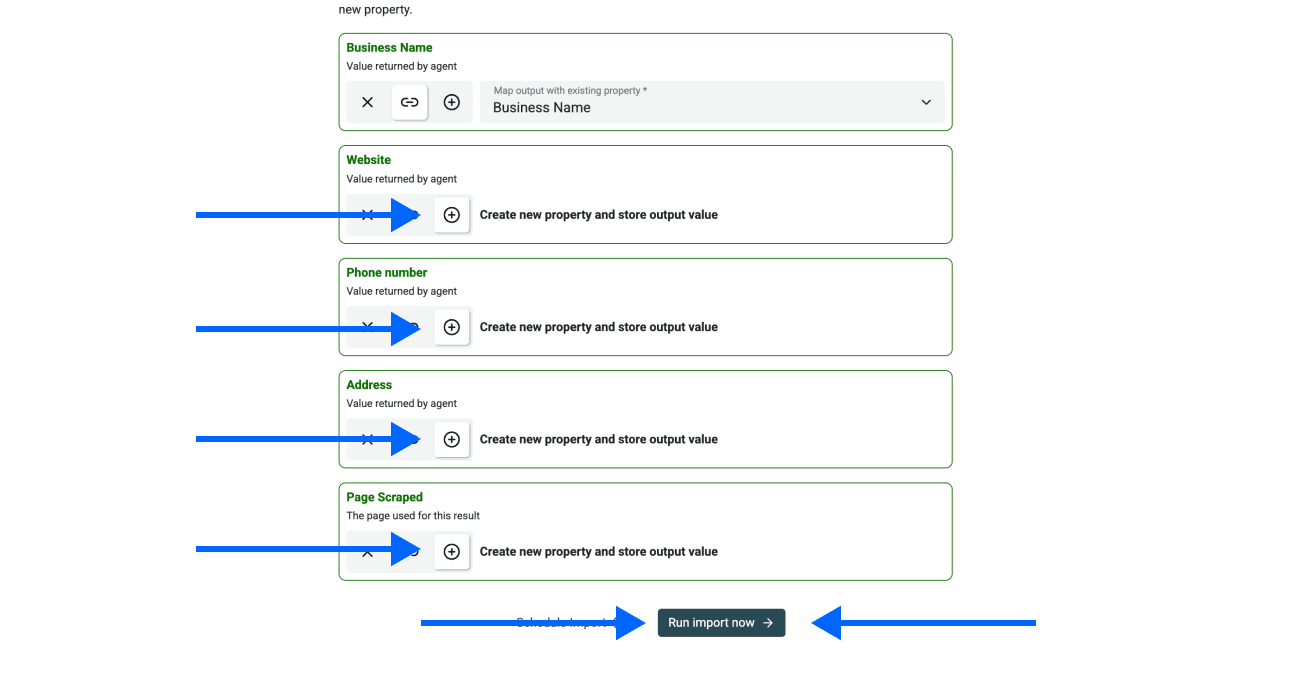
Datablist will map the first property automatically since they have the same name.
For the other properties, click on the ⊕ Icons to add them to your collection
Once you’ve done that, click on Run Import Now to start scraping
The import creates business rows. Review them against the source page before treating the list as ready for outreach.
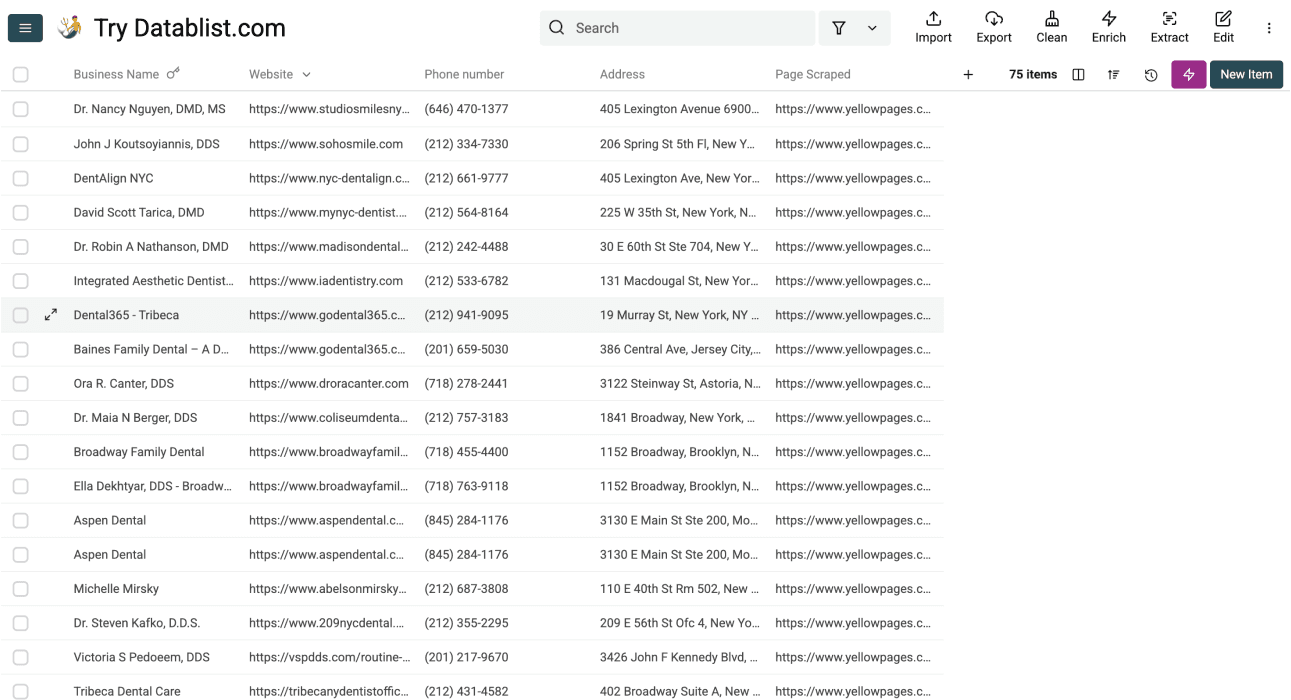
Review the Imported Plumbing List
Check the first result set before running more locations:
- Confirm the businesses match your selected service and area. A result page can include related categories or businesses serving an area from elsewhere.
- Open several YellowPage Detail Url values and compare the name, address, and phone with the imported row.
- Keep missing Website or Phone Number values empty. A missing listing field does not prove that the business has no website or phone.
- Compare listing URLs across searches, then review names and addresses together before consolidating branches.
- Export the accepted rows with the source identifiers so later enrichment can be joined to the correct business location.
The template supplies Business Name, Phone Number, Website, Address, YellowPage Detail Url, and Business Description when found. Reviews, ratings, owner names, and email addresses require a separate extraction or enrichment task; they are not promised by this template.
2 Alternative Methods to Scraping Plumbers From Yellow Pages
Choose a tool by the extraction and review work you need. Compare a small sample against the same result page before deciding which configuration fits your list.
ScrapingBee
ScrapingBee provides web-scraping APIs, AI extraction and workflow integrations. It suits a pipeline where you want returned JSON or page content for another application. Check the extraction rules, output fields and handling of pagination; an API response still needs business-identity review.
Octoparse
Key Features
Octoparse provides visual extraction tasks and a free local plan. Paid plans add cloud execution and scheduling.
Pricing
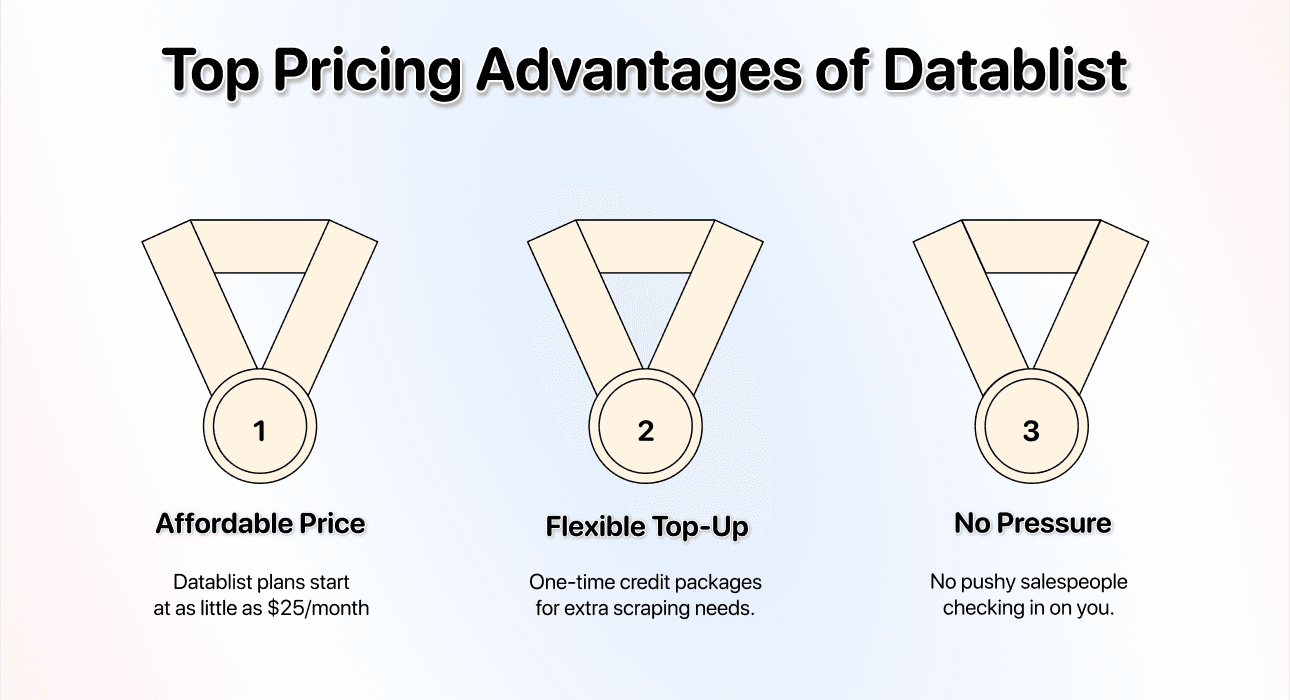
Octoparse Standard starts at $83/month on monthly billing; the $69 rate requires annual billing. Its free plan runs locally and has different limits. Datablist Starter is $25/month with 5,000 credits, with usage-based AI scraping and optional top-ups. Compare the setup and required features as well as the entry fee.
Limitation
Test the target page’s listing fields and pagination in the selected task; a subscription or a template does not guarantee complete extraction.
Octoparse offers a visual task builder, templates and cloud runs. A ready-made directory template may fit your task; otherwise you configure the listing and detail-page extraction. Inspect what its task returns when a phone number or website is missing, and compare listing URLs across result pages.
Review and qualify the business rows
Datablist keeps extraction, review and cleaning in the same collection. I would start with the built-in template, inspect a small import and then change the prompt or outputs only when a missing field matters to the business decision.
Estimate your run cost
The scraper uses credits. Pages, model calls and the extraction work affect usage; there is no single price for every thousand plumbers. Run a small sample, inspect its history and credit usage, then decide whether a broader search is worthwhile. Paid-plan access and top-ups are described on the pricing page.
Adapt the template to the listing
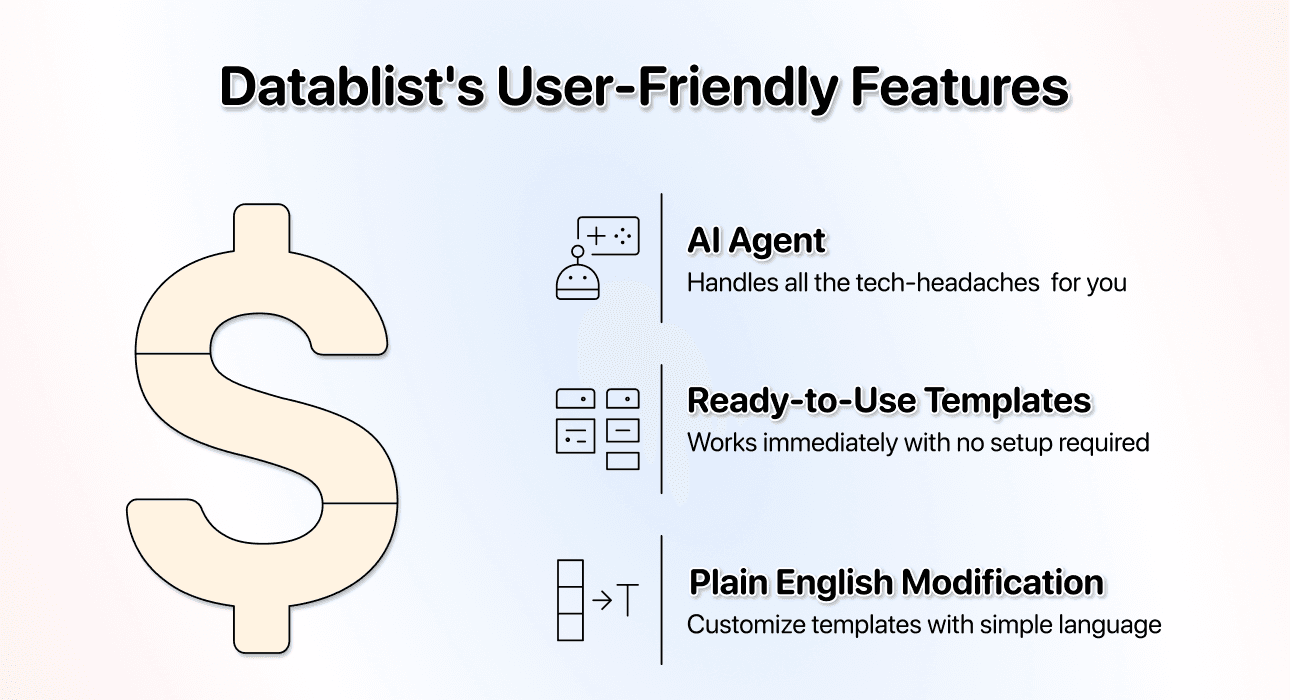
The default template asks for business details and leaves unavailable values empty. If you add a field, define what evidence counts and what the agent should return when the listing does not provide it. A new column called Email does not make a missing email discoverable.
Qualify plumbers before contact enrichment
A plumbing category can include contractors with different services, areas and branch structures. The listing address may be an office address, not a complete service-area boundary. Read the description and linked website before assuming a company serves your target ZIP code.
For an illustrative qualification pass, keep the source fields and add your own reviewed columns:
| Review field | Evidence to check | Fallback |
|---|---|---|
| Target service | Listing or website explicitly mentions the plumbing service you need | Needs review |
| Target service area | Published service-area text includes your location | Unknown; do not infer from office address alone |
| Branch identity | Listing URL and address identify the location | Compare similar names manually |
| Contact context | Phone or mailbox belongs to the listed business | Leave missing details empty |
Do not label a business licensed, available for emergency calls or open around the clock unless the source explicitly supports that claim. Keep those checks separate from whether the scraper successfully returned a row.
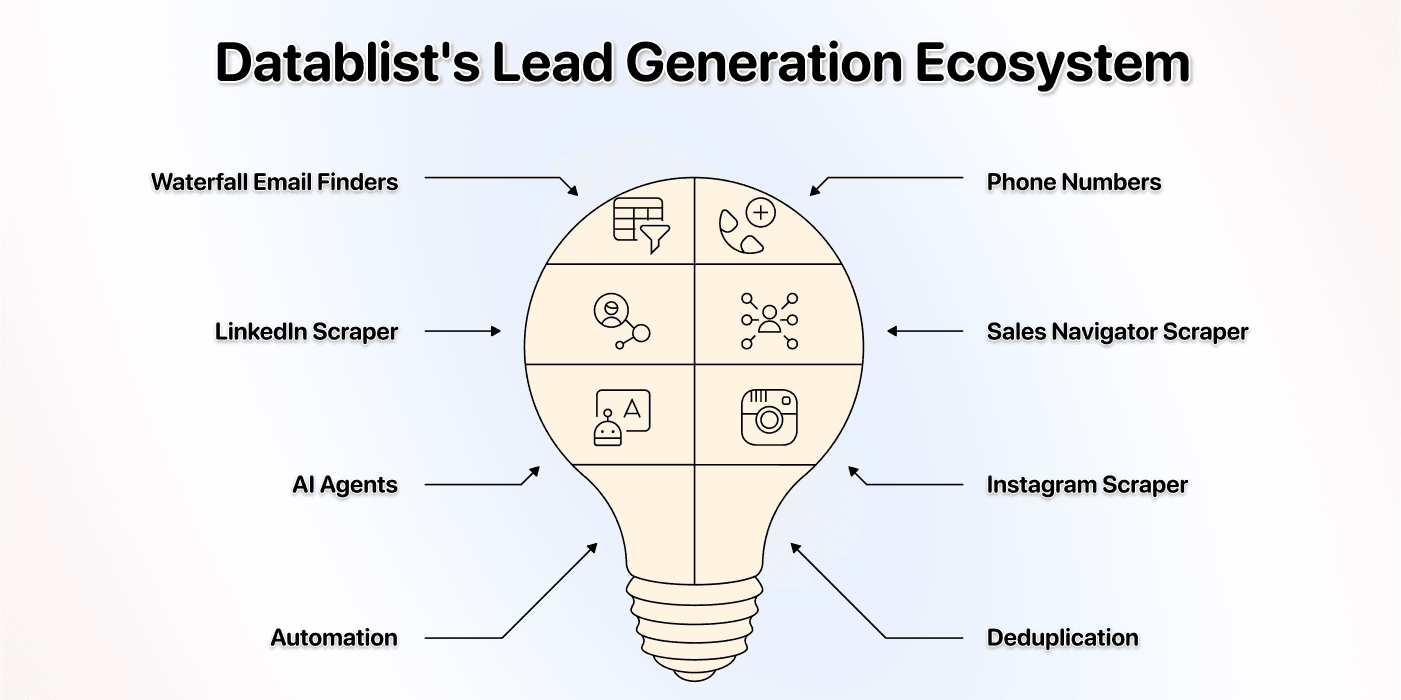
Once you accept the business identities, you can use the website for a separate contact-discovery task. A directory phone is usually business contact information; it is not automatically an owner's mobile number. Keep the listing identifier when adding enrichment results so details stay attached to the correct branch.
Export a reviewed plumbing-business list
Start with one plumbing search, map the six business-detail outputs and compare the first rows with the source. Expand pagination or nearby-area searches only after names, addresses and listing URLs are useful. Keep overlapping results until you have checked whether they represent duplicate listings or separate branches.
Export the accepted rows with the listing URL, original search and any qualification notes. That gives you a list you can explain and refresh, rather than a set of names with an assumed coverage claim.