
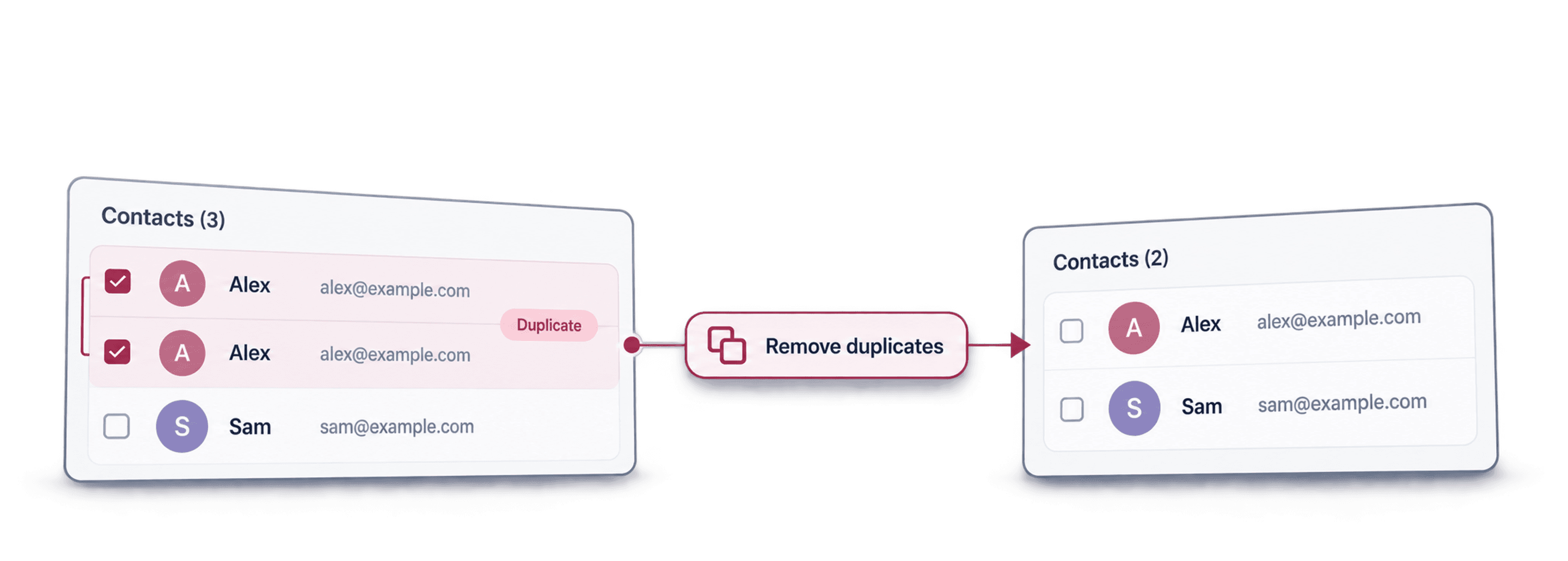
To dedupe a list online, first choose the field that identifies one person, company, or product. Run a strict matching pass, review the proposed duplicate groups, then merge useful values or remove the rows that add nothing. This keeps the cleanup fast without treating every similar value as a safe match.
Datablist does this in one browser workflow. Import a CSV or Excel file, choose your matching properties, compare the rows, review the result, and export the cleaned list. The duplicate check is read-only until you start a Remove, Merge, or custom processing action.
This guide uses a downloadable 1,000-row sample with exact copies, email aliases, company-name variations, URL differences, basic phone-format differences, spelling errors, conflicting values, and complementary records.
🔑 The safe deduplication rule
Match on the smallest reliable identifier, but use the complete row to decide what to keep.
Dedupe a Simple List of Values
If your list is one value per line, save it as a one-column CSV with a header such as Email, Domain, or Value. Import it into Datablist and run Clean > Remove duplicates on that column with Exact. Review the groups, choose the record to keep, process the duplicate rows, then export the remaining values.
For example, an illustrative list containing alpha.example, beta.example, and alpha.example should keep one alpha value and one beta value after you remove the repeated row. This is a proposed input/output example, not another measurement from the downloadable sample.
I would use this route for a list of identifiers. If your file contains several columns, the task is to resolve duplicate records: removing a row also removes its other values. Use the merge workflow below when a repeated email has a useful phone number or note on a second row.
Keep blank identifiers separate. In the default selected-property comparison, a missing text identifier does not establish a match. If you need to delete empty rows, handle that cleanup explicitly rather than expecting deduplication to decide what they represent.
Choose what makes a record unique
Do not start with the matching algorithm. Start by defining the entity.
A contact, company, product, and transaction need different identifiers:
| List | Strong starting identifiers | Useful second pass |
|---|---|---|
| Contacts | Email, phone, LinkedIn URL | Full name plus company |
| Companies | Website domain, company ID | Normalized company name |
| Products | SKU, EAN, GTIN, product URL | Product name plus brand |
| CRM leads | Email, phone, CRM ID | Name plus company domain |
| Orders | Order ID | Customer ID plus order date |
One pass rarely catches every duplicate. A contact can have the same email in two rows, while another contact has changed email addresses but keeps the same phone number. Run separate passes for separate identifiers instead of building one rule with every property.
For example:
- Match contacts on email.
- Process the reviewed groups.
- Normalize phone numbers, then run an Exact check on the cleaned property.
- Run a cautious fuzzy check on full name plus company.
Adding email, phone, name, and company to one check makes matching stricter. A row must satisfy the complete configuration, so one missing value can hide a real duplicate.
Use the dedicated guides when the identifier needs its own normalization:
- Dedupe email addresses and aliases
- Match duplicate company names
- Deduplicate a field containing several values
- Normalize local and international phone numbers
Download the 1,000-row example list
Download the deduplication demo CSV. It contains 1,000 rows representing 800 designed entities.
The file mixes several test cases:
| Designed case | Duplicate groups | Matching pass |
|---|---|---|
| Exact full-row copies | 5 | All Properties with Exact |
| Email aliases and wrappers | 100 | Email with Smart and the Email processor |
| Company and URL variations | 50 | Company Name or URL processing |
| Basic US phone formatting differences | 25 | Phone with Smart, formatting only |
| Controlled name typos | 15 | Jaro-Winkler or Levenshtein |
| Phonetic first-name variations | 5 | Metaphone |
| Records with no designed duplicate | 600 | Should remain separate |
These are designed ground-truth counts, not a promise that every fuzzy threshold will return the same result. Distance matching can include extra candidates when the threshold is low. Review those groups before processing.
Here are three pairs from the file:
| Use case | First stored value | Second stored value |
|---|---|---|
| Email alias | felix.patel.605@company-0605.example | felix.patel.605+newsletter@company-0605.example |
| Company and URL | Redwood 0727, Inc.https://www.redwood-0727.example/ | Redwood 0727 Group LLChttp://redwood-0727.example/about?utm_source=event |
| Basic phone formatting | +1 (202) 555-0768 | 1 202 555 0768 |
The rows also disagree on fields such as job title, owner, status, revenue, source, tags, and notes. Those conflicts make the file useful for testing master-record and field-survivorship rules.
Import the list into Datablist
Open Datablist and import the CSV or Excel file into a collection. A collection works like a structured spreadsheet: rows are items and columns are properties.
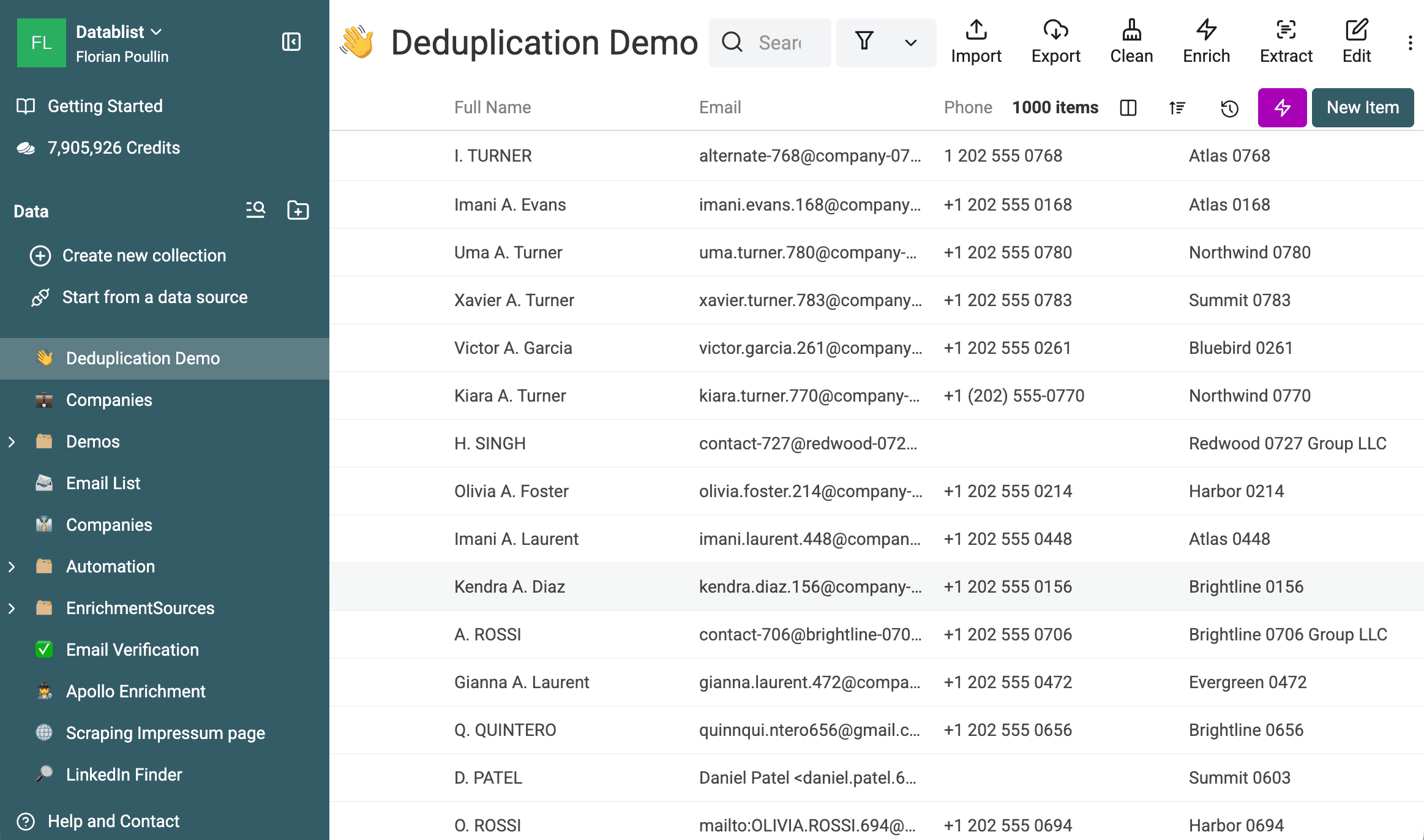
Check the detected property types during import:
- Email columns should use the Email type.
- Website columns should use URL.
- Phone columns should use Phone.
- Revenue or quantity columns should use Number.
- Activity and creation dates should use DateTime.
Keep IDs, source, owner, notes, and status columns in the collection. They help you select the right record and verify what the merge will preserve.
Run Exact, Smart, and fuzzy matching passes
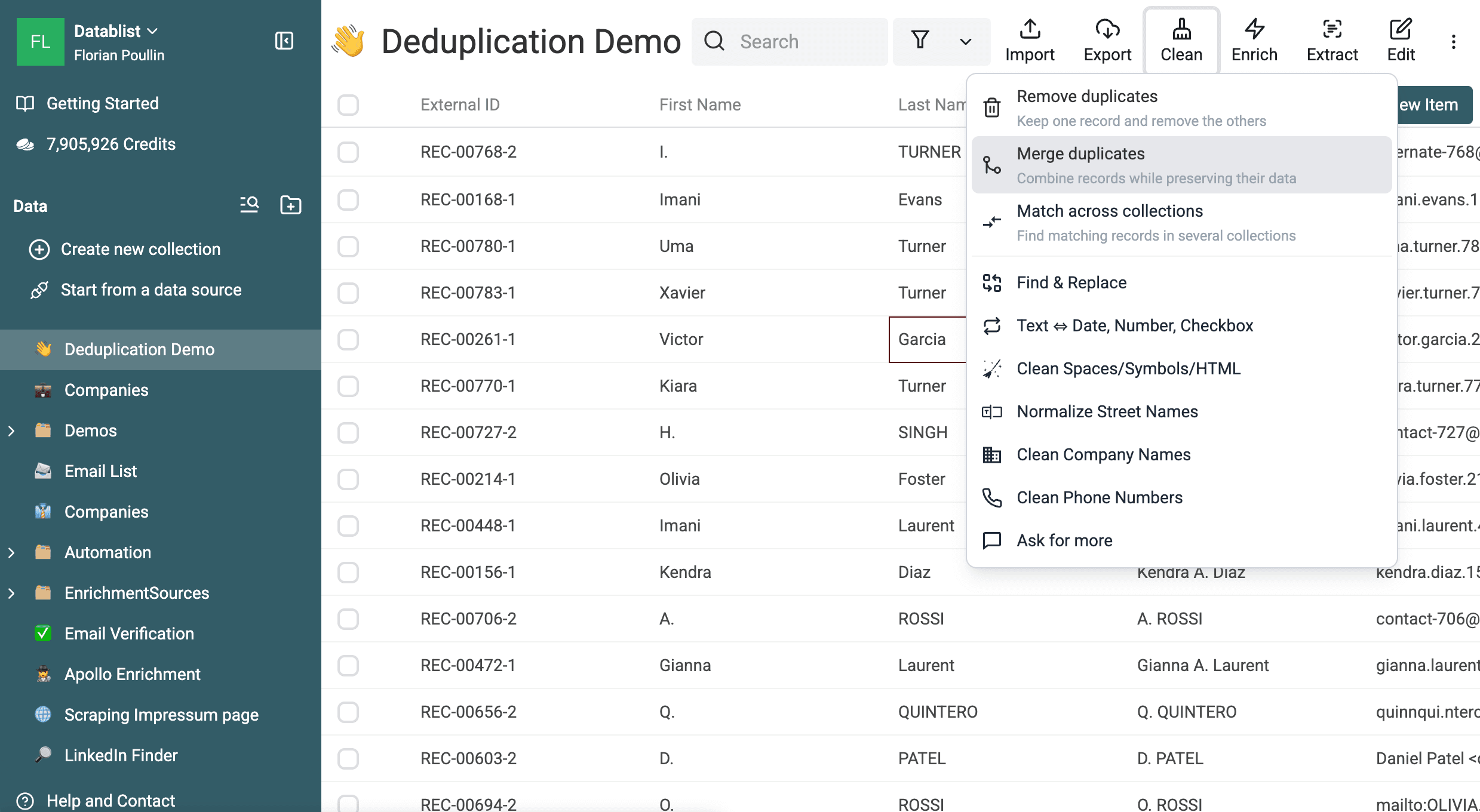
Open Clean and choose the action that matches your goal:
- Remove duplicates when secondary rows can be discarded.
- Merge duplicates when the rows contain information worth preserving.
- Match across collections when the records live in separate collections.
The first two actions use the same detection engine. They open the result workspace with a different processing mode selected.
Start with Exact matching
Use All Properties with Exact to catch rows copied twice without changes. Use Selected Properties when one field, such as an external ID, must be identical.
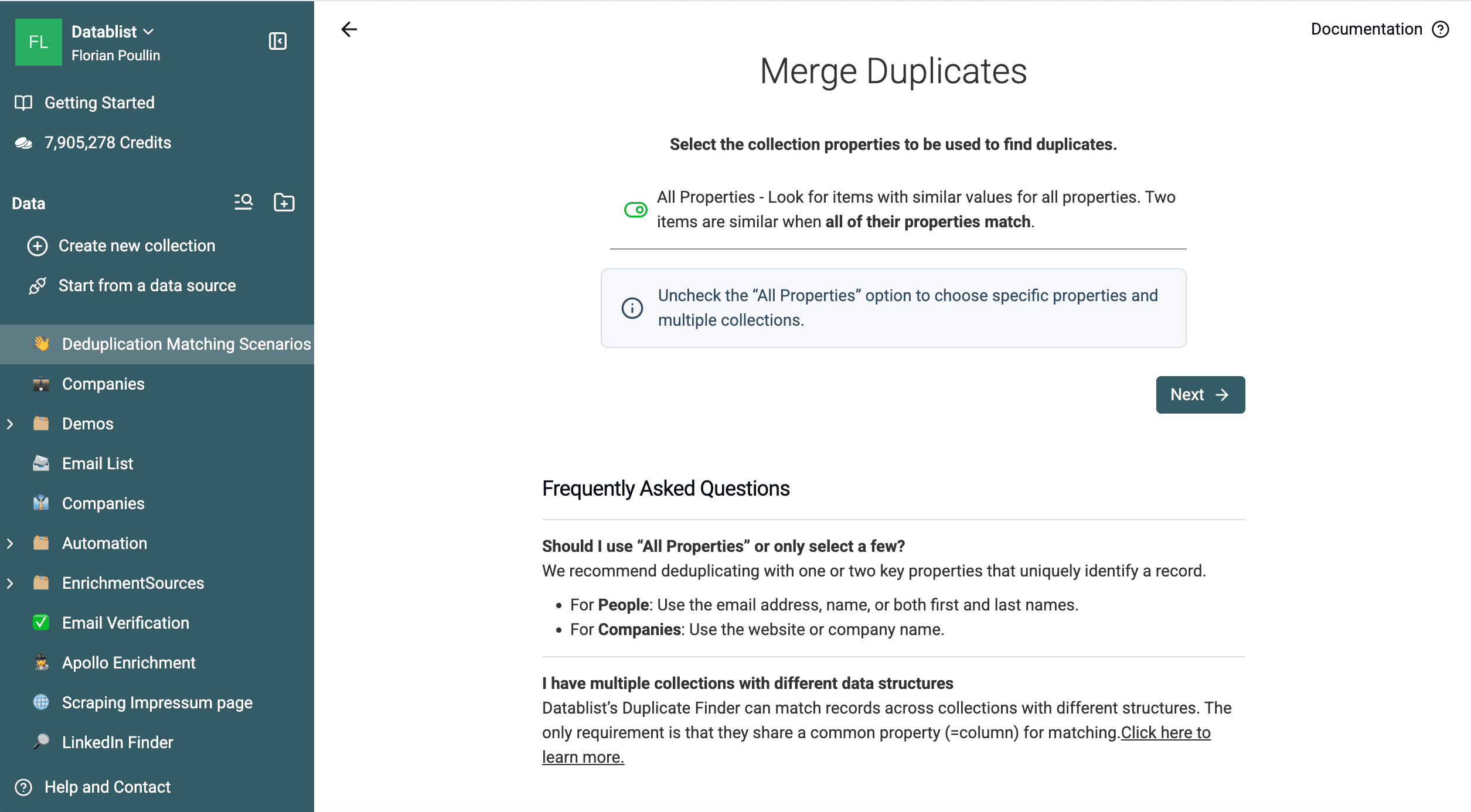
On the 1,000-row sample, this pass returns five duplicate groups. Every group contains two rows with the same values across all properties.
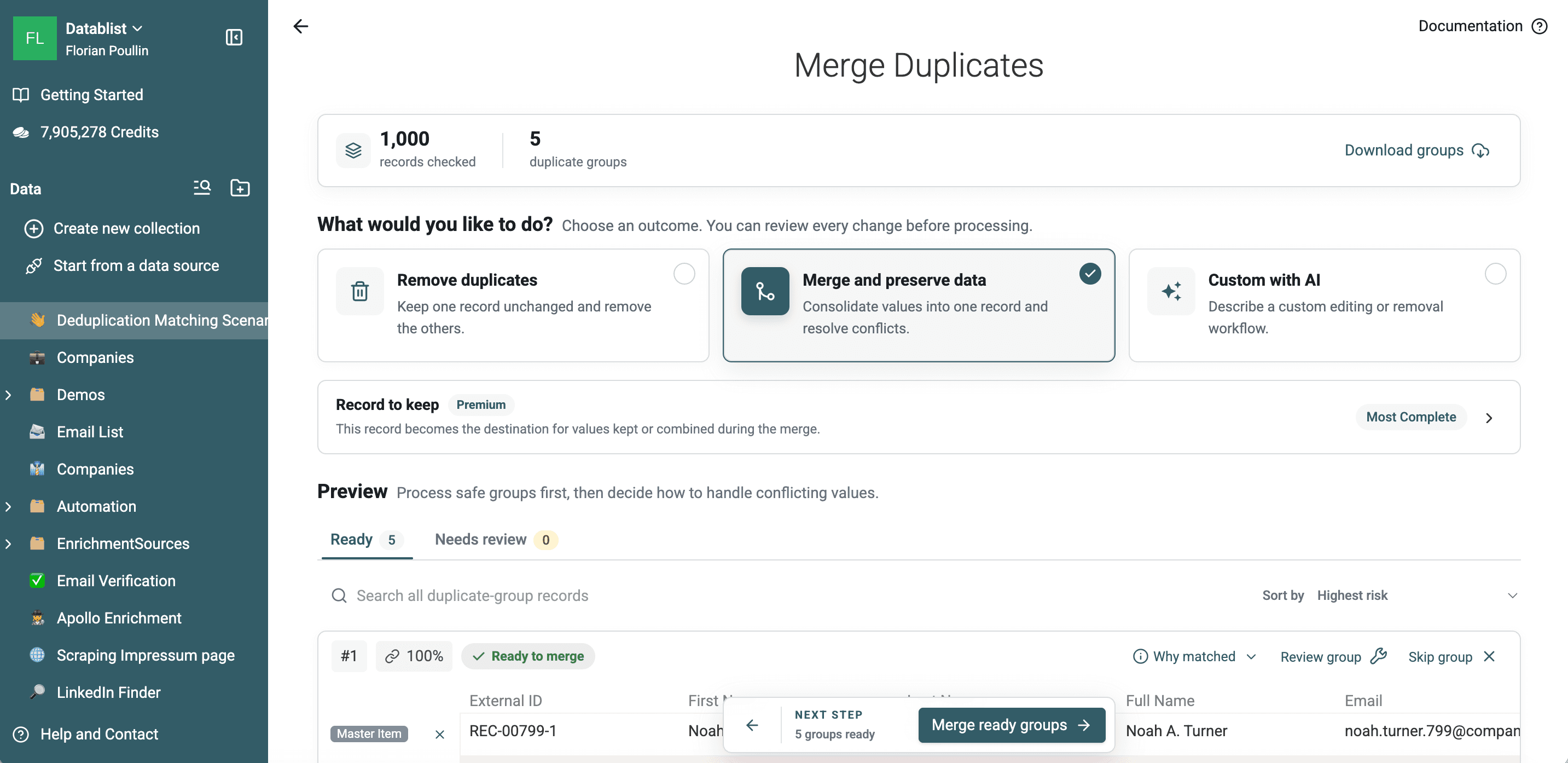
Exact is the safest first pass because every retained match satisfies a strict
comparison. It will not find Acme Inc. and Acme, a formatted phone number,
or an email alias when their stored values differ.
Anonymous visitors can run an Exact duplicate check. Creating a free account unlocks Smart comparison and the other Free-plan features.
Use Smart matching for business data
Smart matching standardizes values for comparison without rewriting the stored cells. Select a processor that matches the property:
- Email handles case, surrounding spaces, plus aliases, Gmail dots,
googlemail.com, display-name wrappers, andmailto:values. - URL can ignore protocols and a trailing slash, with optional controls for subdomains, paths, and query parameters.
- Phone ignores formatting characters. It does not validate numbers, use a Country property, or infer a missing country code.
- Company Name removes common legal, business, and geographical terms.
- Text ignores accents, spaces, punctuation, symbols, case, and word order.
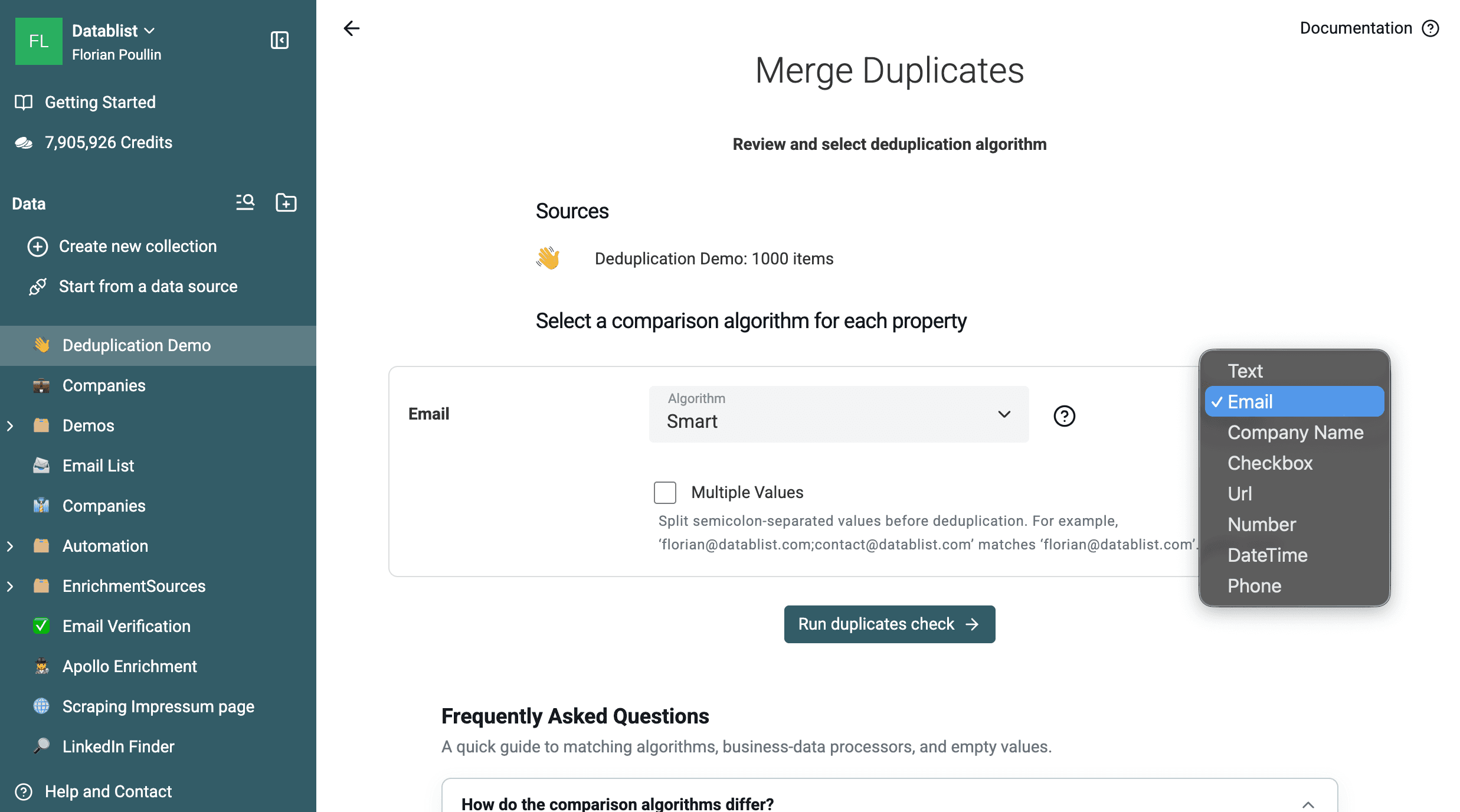
The Company Name processor, multi-value matching, and advanced algorithms require a paid plan. Exact and Smart are available for single-collection matching on the Free plan, although Smart requires a free account.
When one cell contains several semicolon-separated identifiers, enable
Multiple Values. Datablist compares each part and matches the property
when at least one pair matches. For example, a cell containing
primary@example.com;shared@example.com can match a second cell containing
shared@example.com.
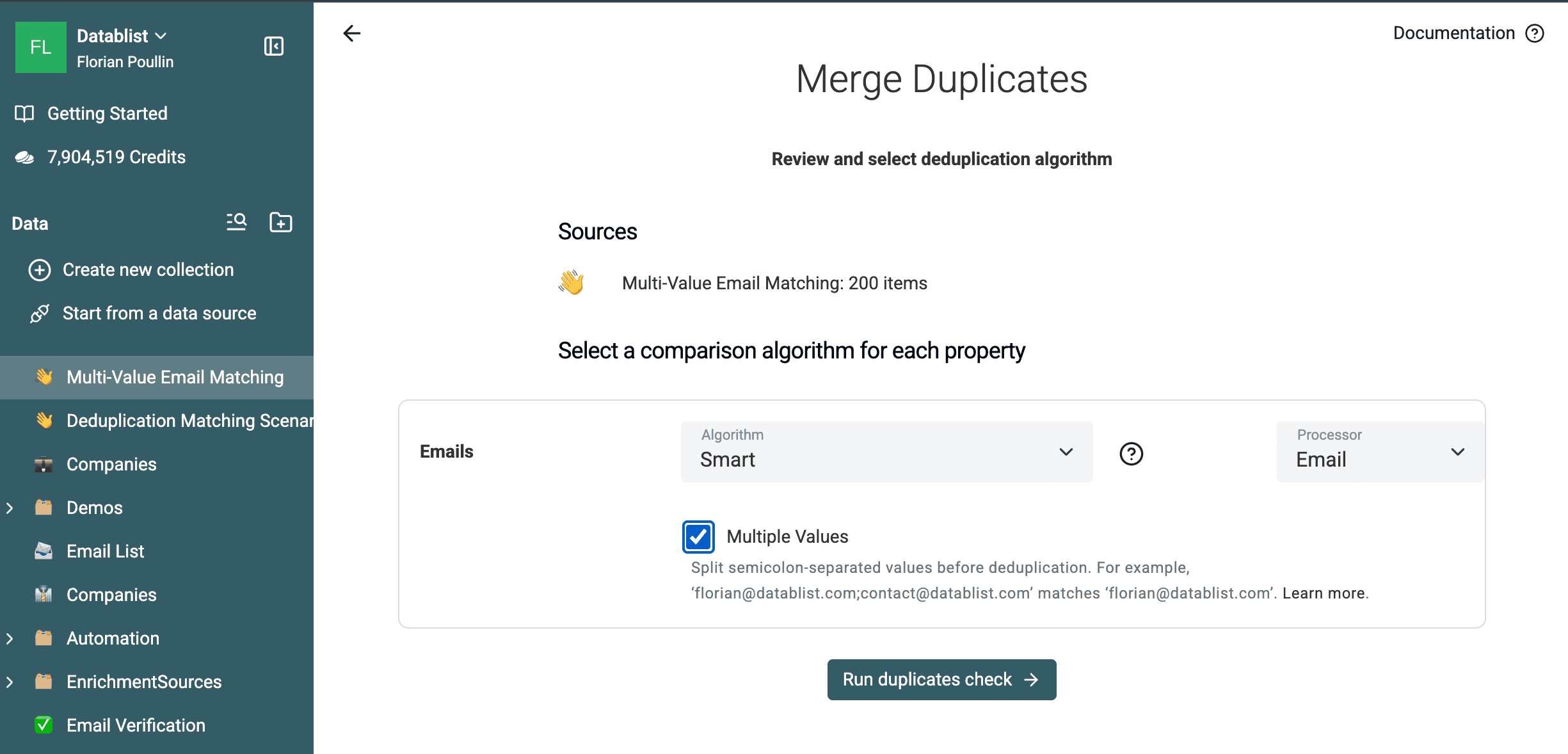
On the dedicated 200-row sample, this configuration returned 60 two-row groups. Ground-truth validation found all 60 designed pairs and excluded all 80 controls. Follow the multi-value field deduplication workflow for the sample file, result CSV, and merge decisions.
This email pass returned 105 two-row groups: 100 designed email-normalization pairs and the five exact-copy pairs, which also share the same email.
Normalize phone numbers before matching them
The Smart Phone processor is useful for one narrow case: values with the same
digits and different spaces, parentheses, dashes, or symbols. It can match
(415) 555-0123 with 4155550123.
It cannot determine that a local number and an international number are the
same. For example, 06 12 34 50 08 and +33 6 12 34 50 08 need country
context before they can be compared.
Use the Phone Number Cleaner before phone-based deduplication:
- Map the raw
Phoneproperty. - For a single-country list, select the country under Local Phone
Countries. For a mixed list, enable Define country per item and map
the
Countryproperty. - Write the enrichment result to
Clean Phone Numberwithout overwriting the raw value. - Review failed or empty outputs. They should not participate in phone-based matching.
- Run the Duplicates Finder on
Clean Phone Numberwith Exact.
Download the dedicated 200-row phone sample. It contains 50 local/international pairs across the United States, France, the United Kingdom, Germany, and Spain, plus 100 non-matching controls. Validation with the production cleaner logic returned one normalized phone number for all 200 rows. The 50 designed pairs converge to 50 shared international values; the controls remain unique.
This preprocessing step also validates the phone format. Keep the original Phone and Country properties beside the cleaned output so you can inspect any record before merging it. Read what phone number normalization means for the role of country codes and international values.
For company records, run a separate pass on Website. Choose Smart with
the URL processor. Enable Ignore Subdomain, Ignore Path, and
Ignore Query Params only when those URL components should not identify a
different company or location.
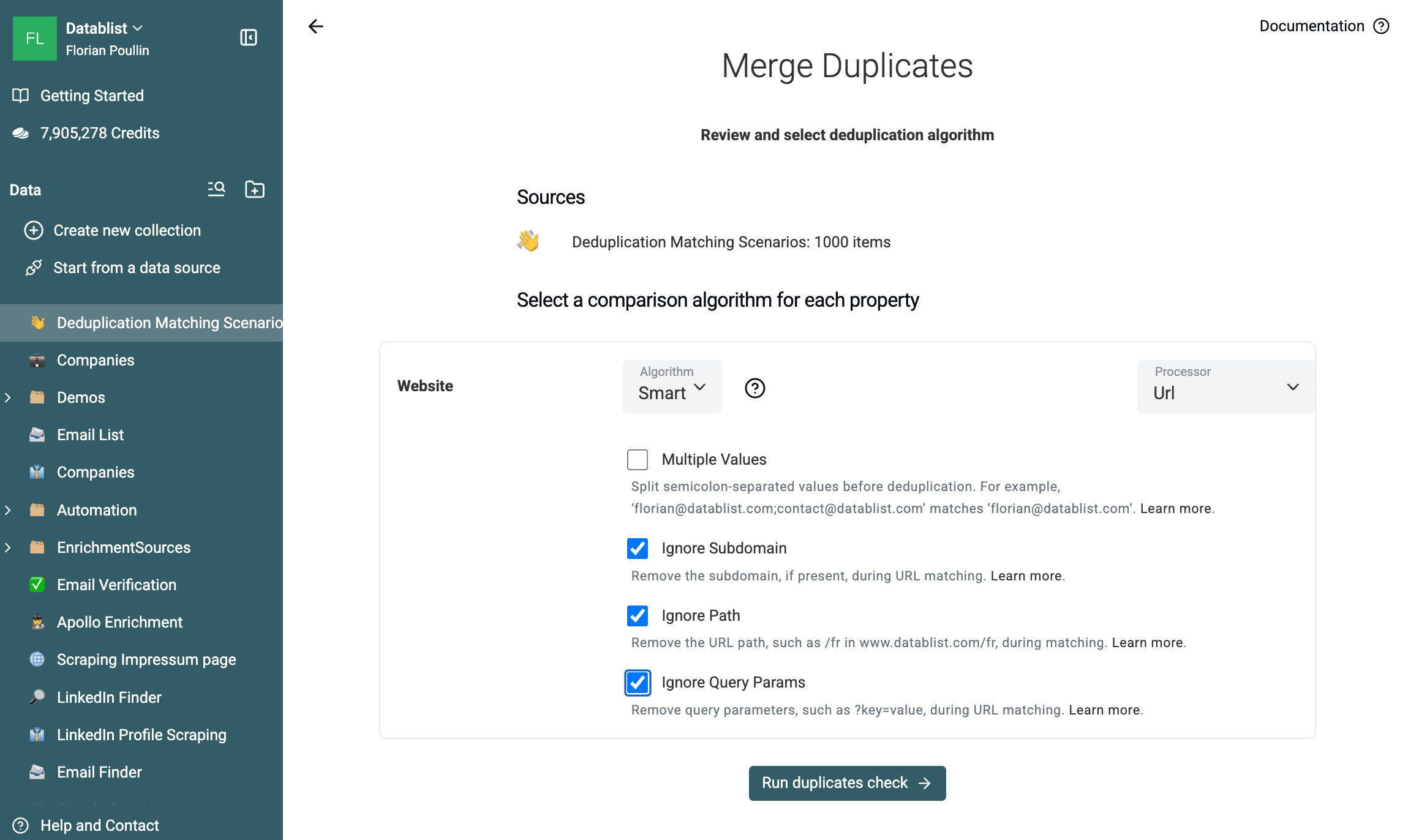
On the same 1,000-row sample, this configuration returned 200 two-row groups. Fifty pairs contain designed URL variations, while 150 pairs already share an identical website. Every exported pair resolved to the same normalized host in this test.
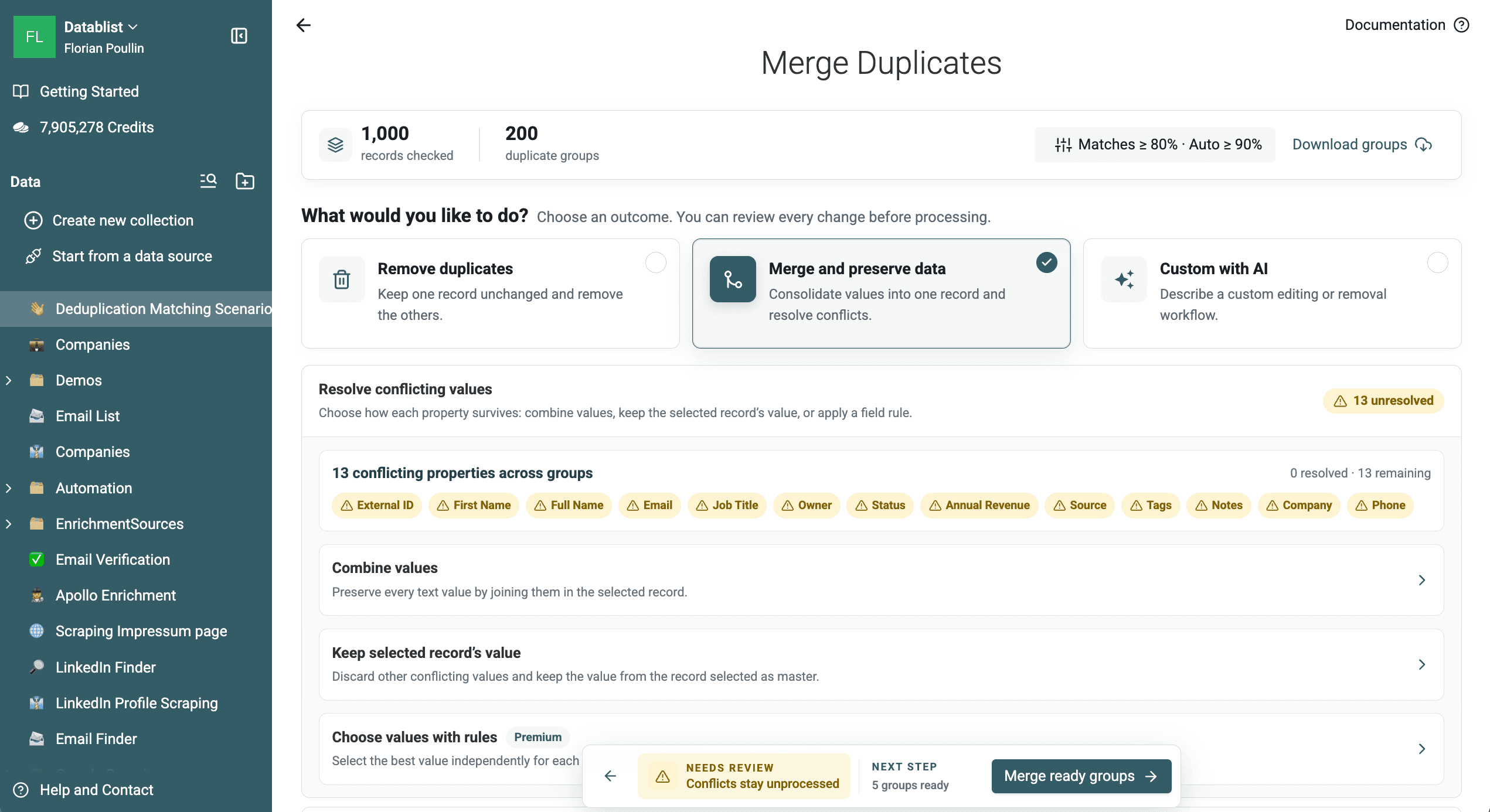
Download the 200 Website duplicate groups or see the company deduplication workflow for a domain-first matching strategy.
Use fuzzy or phonetic matching as a review pass
Metaphone compares how text sounds. Jaro-Winkler and Levenshtein calculate a
similarity score, which helps find spelling differences such as Uma Turner
and Uman Turner.
Fuzzy matches are candidates, not confirmed duplicates. Start with a high threshold, inspect the weakest groups, then lower the result threshold only when the review remains precise.
For a measured fuzzy pass, select Full Name, choose Distance with
Levenshtein, keep the Text processor, and set the threshold to 90%.
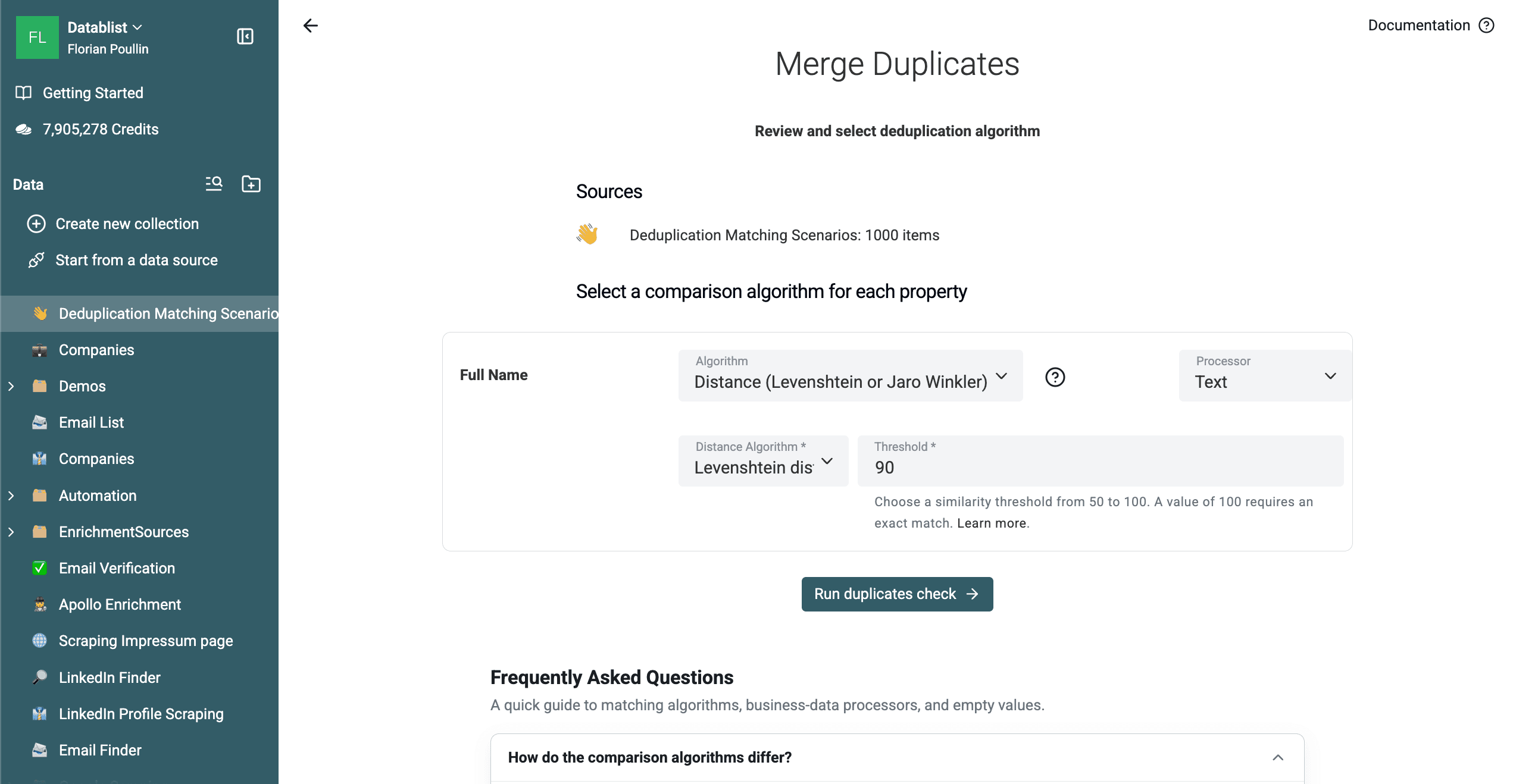
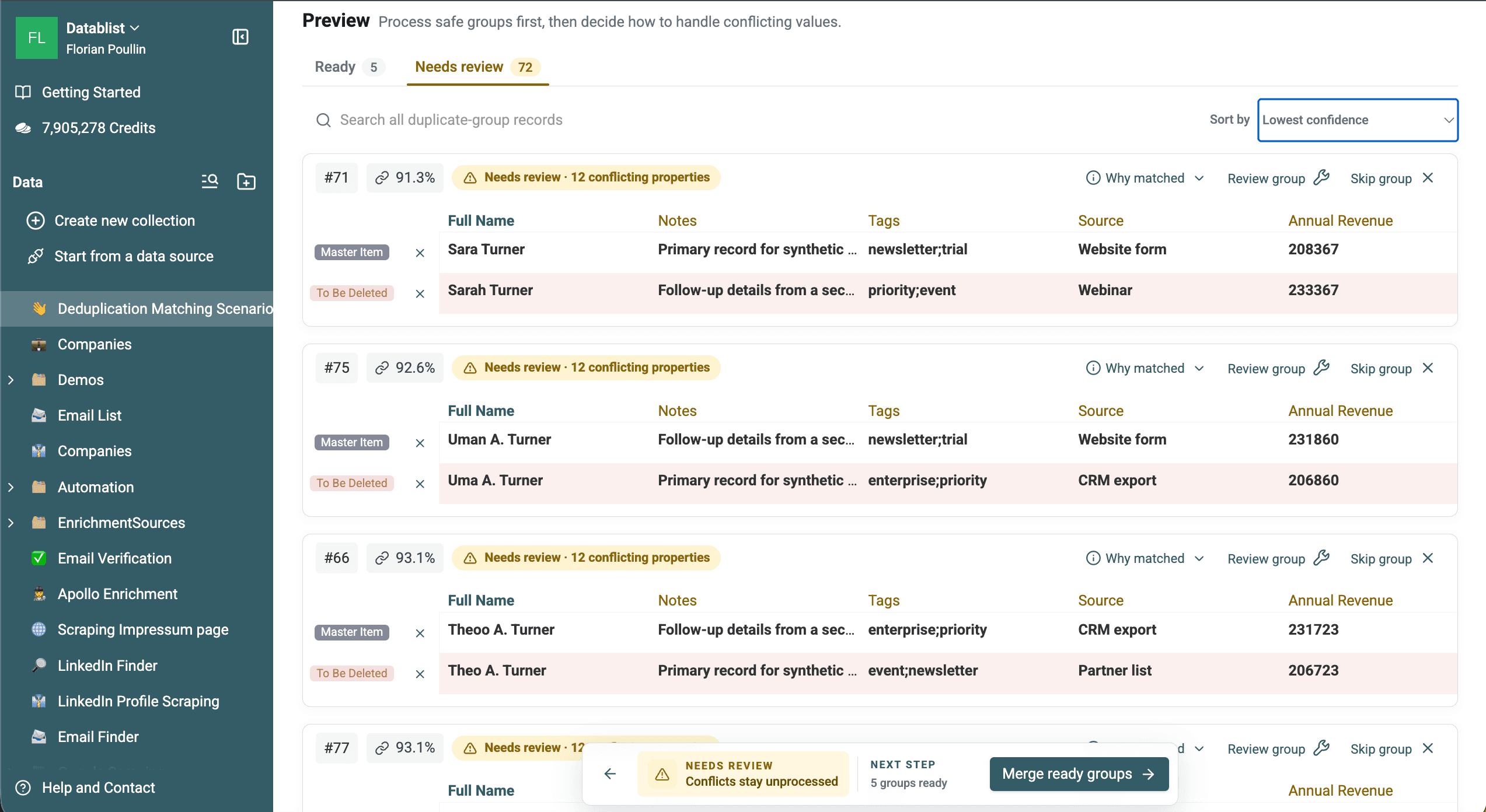
This check returned 77 two-row groups from the 1,000-row sample. Ground-truth
validation found 21 groups that link the same designed entity and 56 groups
that link different entities. Most false positives were abbreviated names such
as G. Rossi, where the Full Name value alone cannot distinguish two people.
The pass catches intended spelling variations such as Uma A. Turner and
Uman A. Turner, but it also shows why name-only fuzzy matches need review.
Download the 77 exported Levenshtein groups to inspect both the useful matches and false positives.
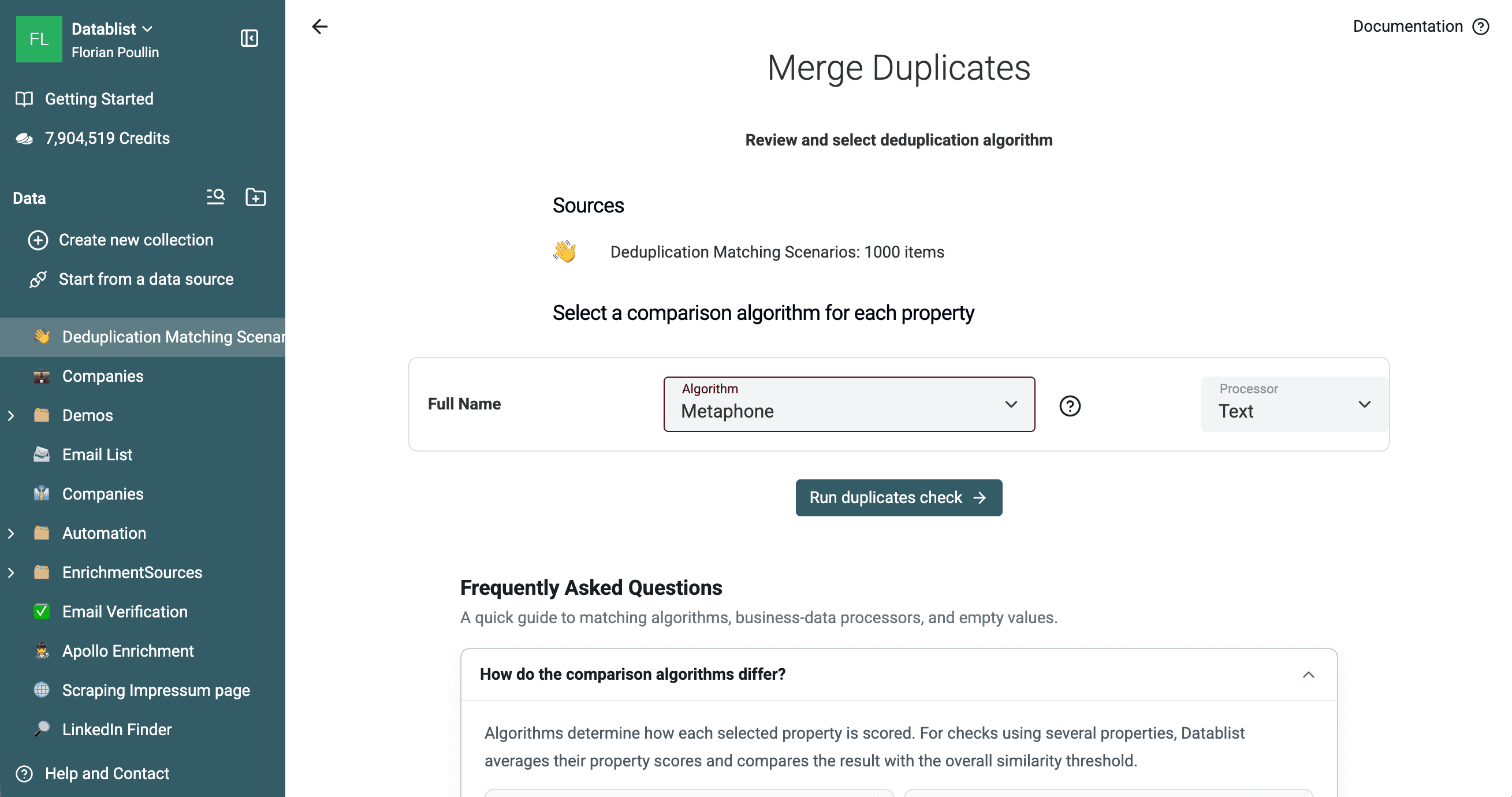
For phonetic matching, select Full Name, choose Metaphone, and keep the
Text processor.
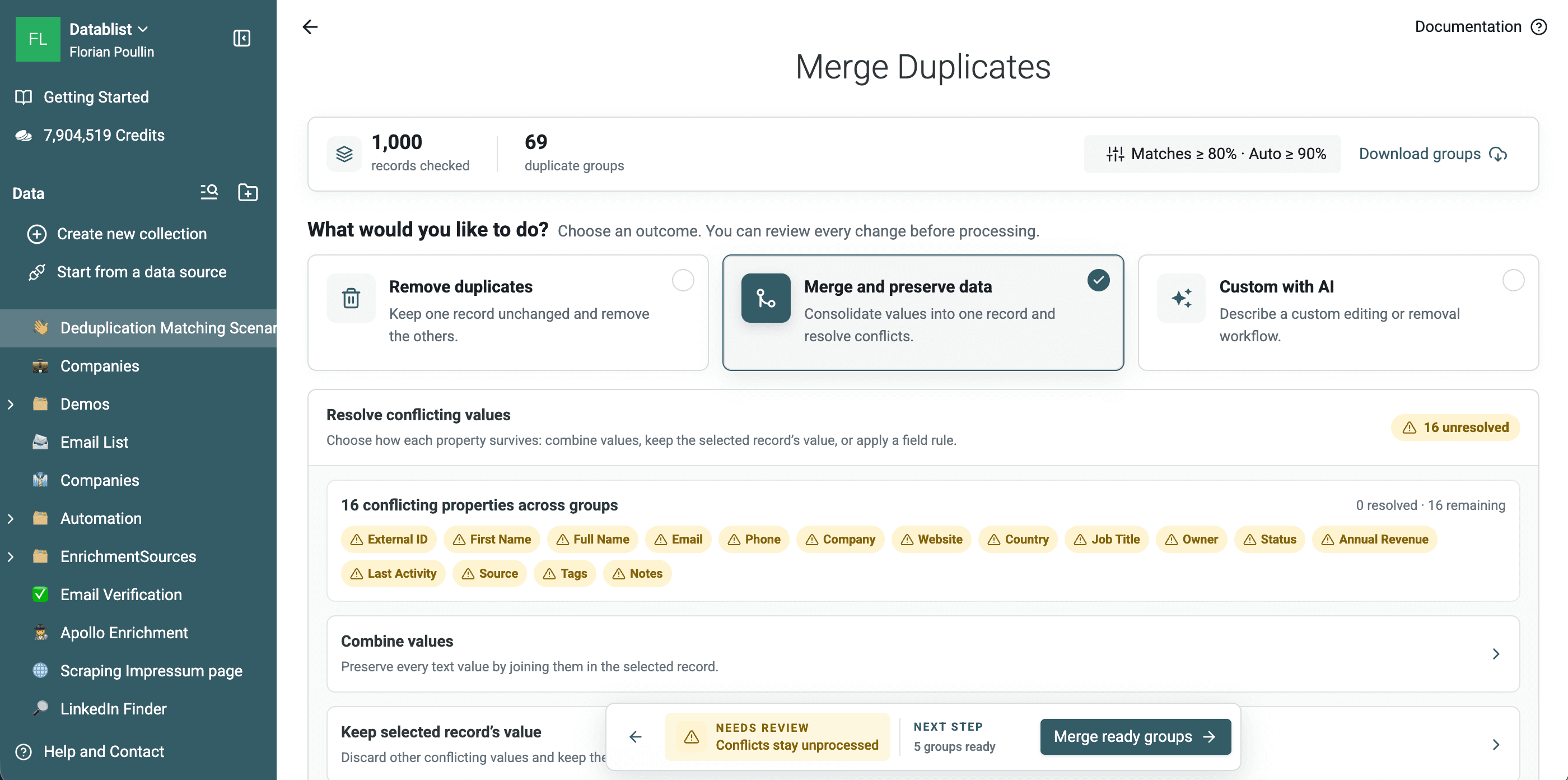
This pass displayed 69 groups: 5 Ready and 64 Needs review. The exported groups contain 188 rows. Validation against the sample's known entities found 19 pure same-entity groups and 50 groups that mix different people. Group sizes range from two to seven rows.
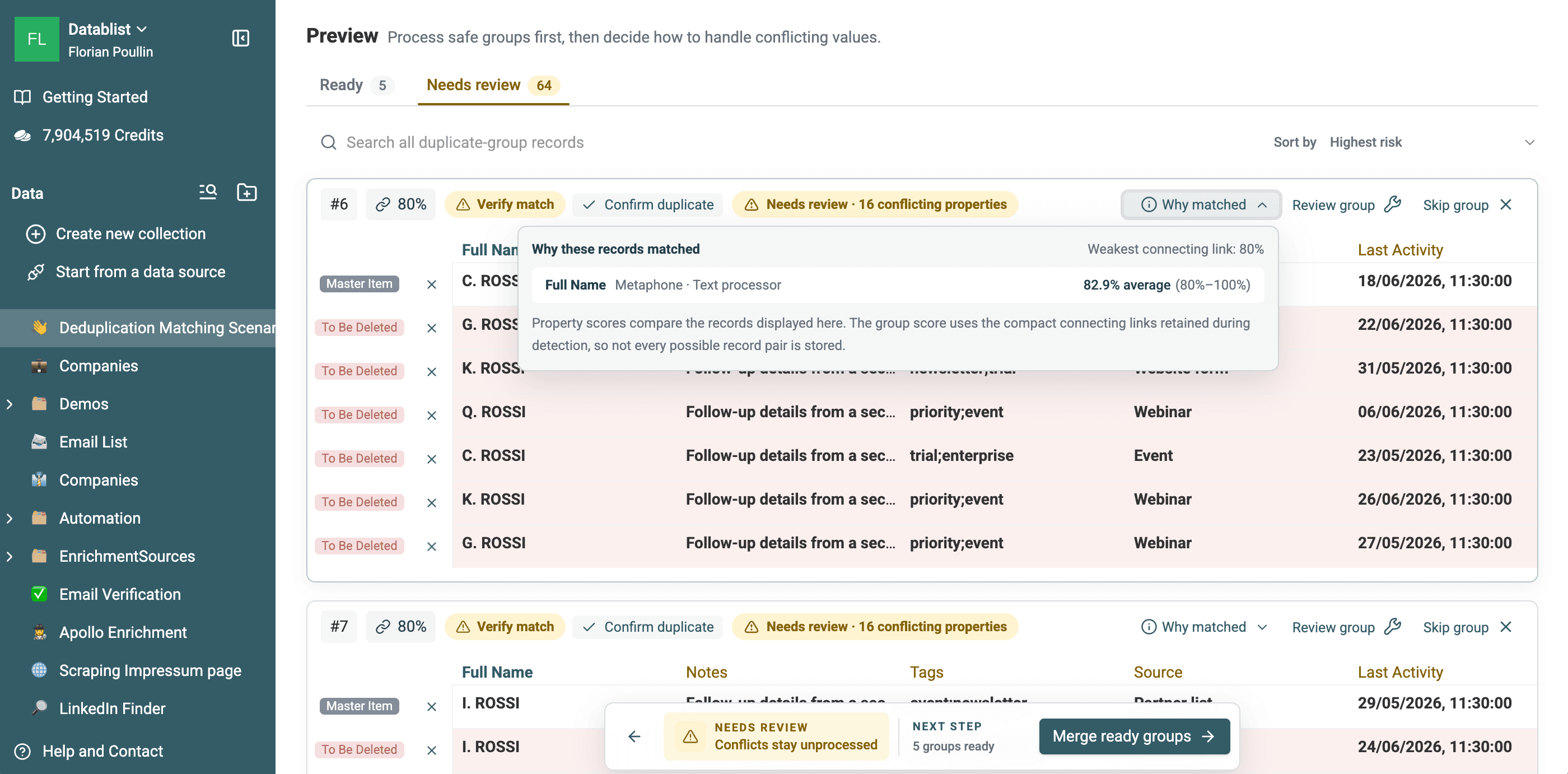
Why matched confirms the Full Name property, Metaphone algorithm, Text processor, and group score. Use this detail to audit the comparison, not to replace an identity check.
Download the 69 exported Metaphone groups
to inspect the useful phonetic matches and the false positives. The larger
false-positive groups often combine initials with a common surname, such as
several abbreviated Rossi names. Their phonetic codes overlap, but the names
alone do not provide enough identity evidence for an automatic merge.
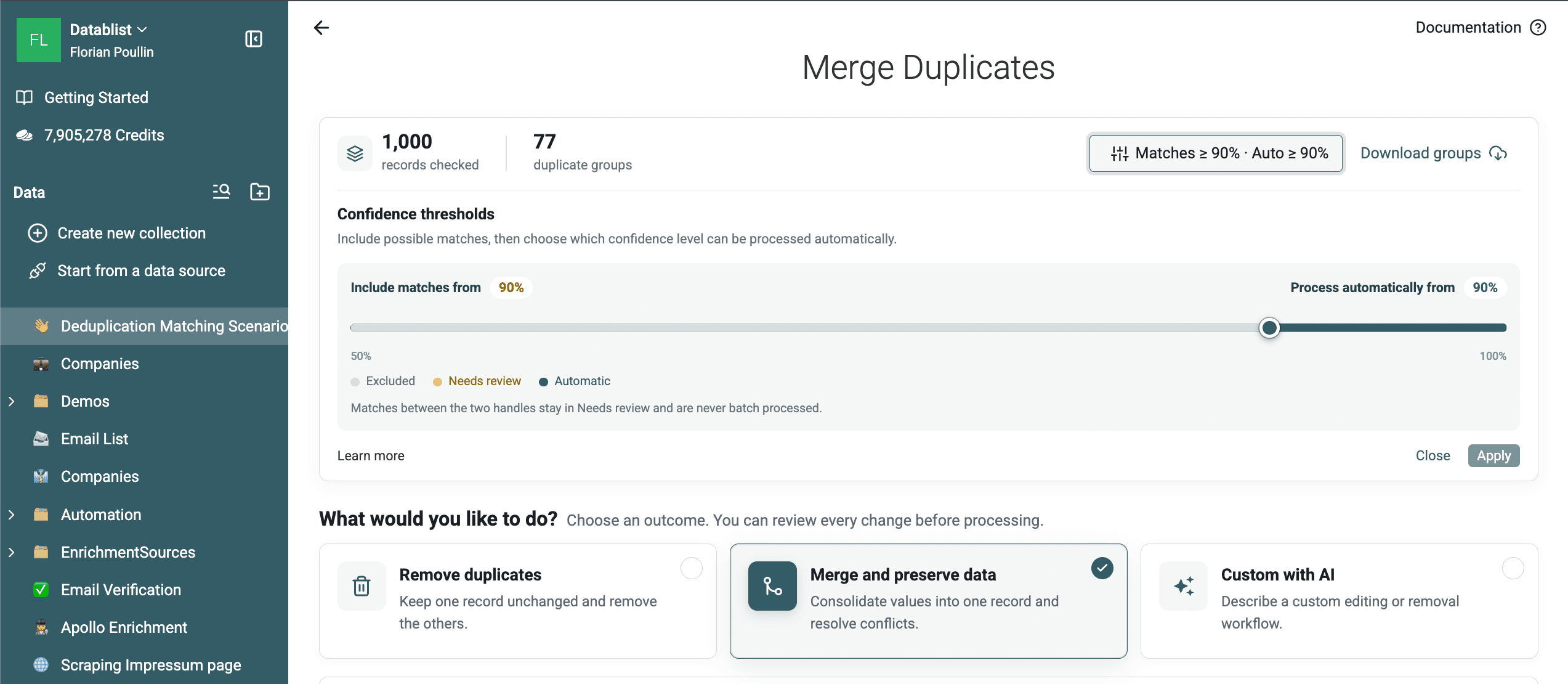
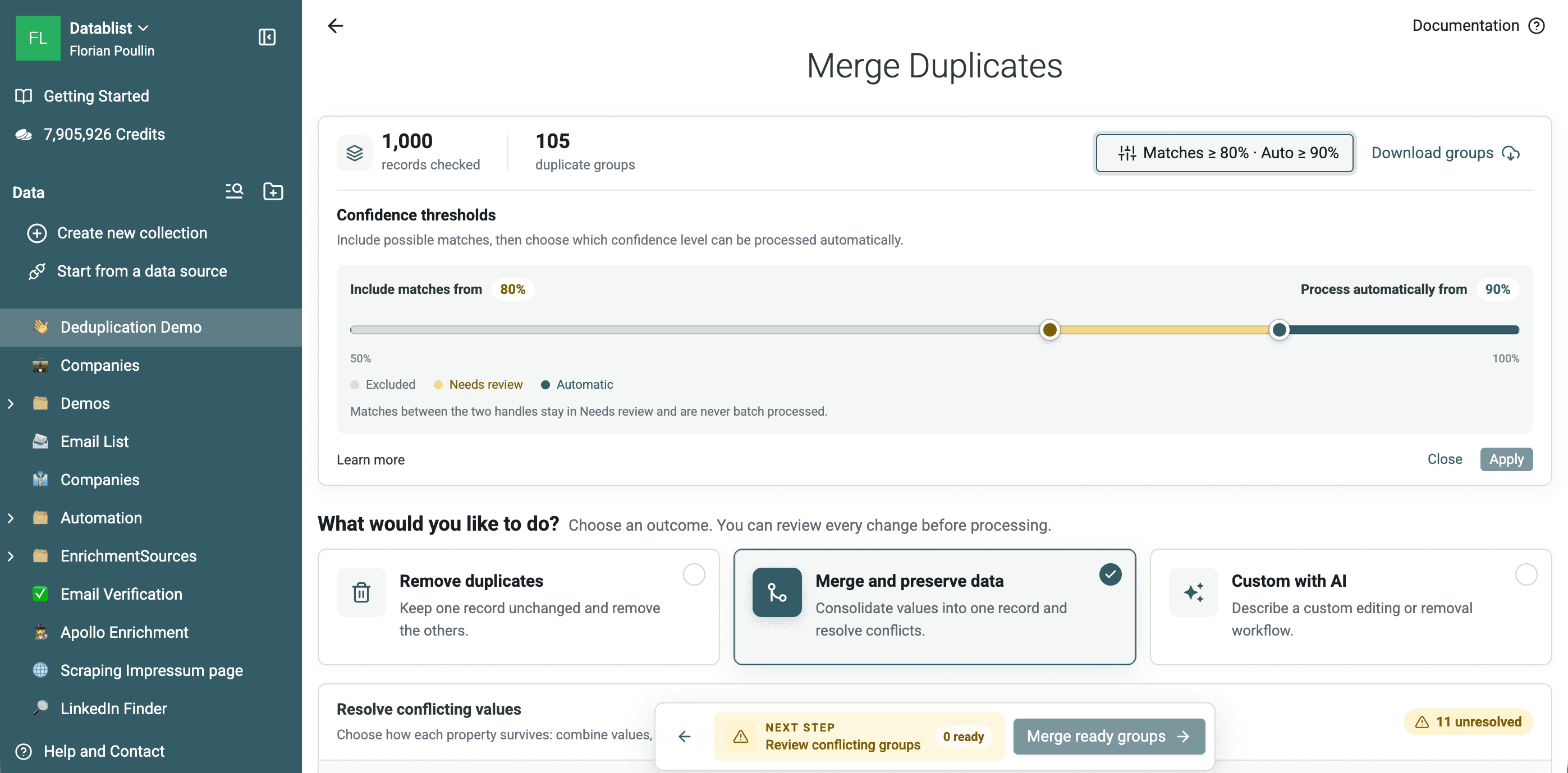
The result page has two controls:
- Include matches from decides which groups appear.
- Process automatically from keeps lower-confidence groups in Needs review and out of batch processing.
This separation lets you inspect broad candidates without applying the same automation rule to all of them.
Review the duplicate groups
The result workspace splits duplicate groups into Ready and Needs review.
- Ready groups have a concrete processing result and meet the automatic confidence threshold.
- Needs-review groups have lower confidence, unresolved merge conflicts, an unmatched record-selection rule, or a custom rule that skipped them.
For each uncertain group, check:
- Does every row represent the same person, company, or product?
- Which identifier caused the match?
- Are any values complementary?
- Which source is authoritative?
- Would removing a row discard a phone, ID, status, date, or note?
- Is the group connected through a weak third record?
Use Why matched to inspect the matching properties, algorithms, processors, and score ranges. For fuzzy checks, the group similarity is the weakest retained connection needed to keep the group together.
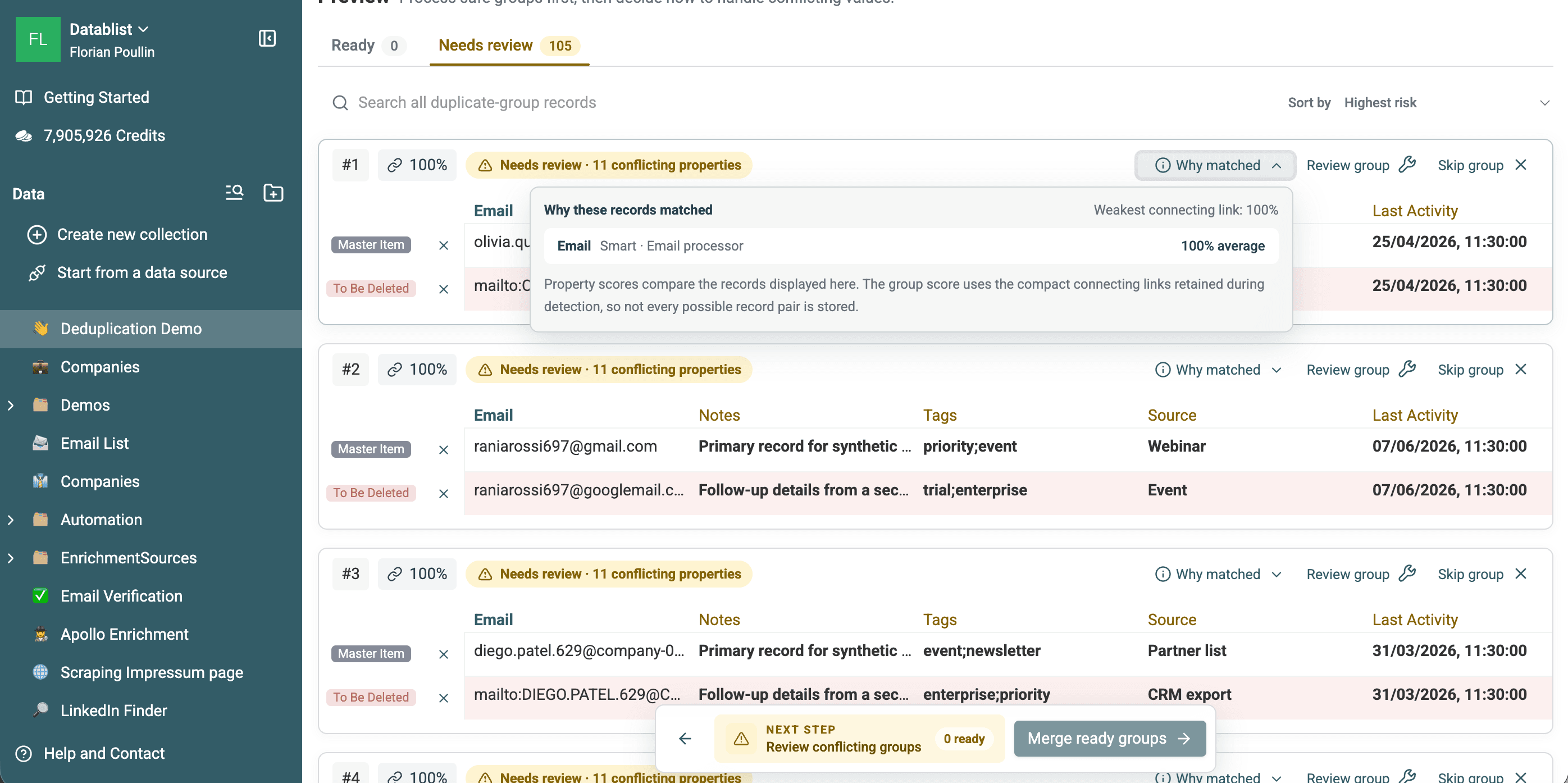
You can also:
- Confirm a low-confidence match.
- Remove one record from a group without deleting it.
- Skip the group.
- Open a record and edit it.
- Review the group in the Merging Assistant.
- Search all remaining groups and sort the riskiest candidates first.
⚠️ Do not process a fuzzy group from the percentage alone
Similar names can belong to different people. Review the identifiers and surrounding fields before confirming the group.
Check Shared and Missing Identifiers Before Merging
A shared inbox such as info@company.example can belong to several contacts. Two people with that address may match on Email while still being distinct people. Likewise, a company domain may identify one business but appear in many employee records.
I would keep those groups out of automatic person-level merging until another identifier supports the match. If your goal is one row per company instead, the shared domain may be the intended grouping key. Define the entity before interpreting the result.
The empty-value rule also changes a selected-property comparison. For a multi-property check with a non-Exact comparison, the advanced Empty Value Rule setting offers Value required (default) or Match on empty value. The default requires the text identifier to be present; allowing empty-value matches relaxes that requirement. Use them only when the other matching fields provide enough identity evidence; two missing emails are not evidence that two people are the same.
For example, two rows with blank Email and different Full Name values should not be merged simply to reduce the row count. A row with a missing email may still contain a contact you need to keep or enrich later.
Remove, merge, or custom-process duplicates
Finding duplicates and resolving duplicates are separate decisions. Choose the processing mode after reviewing what the secondary rows contain.
Remove duplicates when one row is authoritative
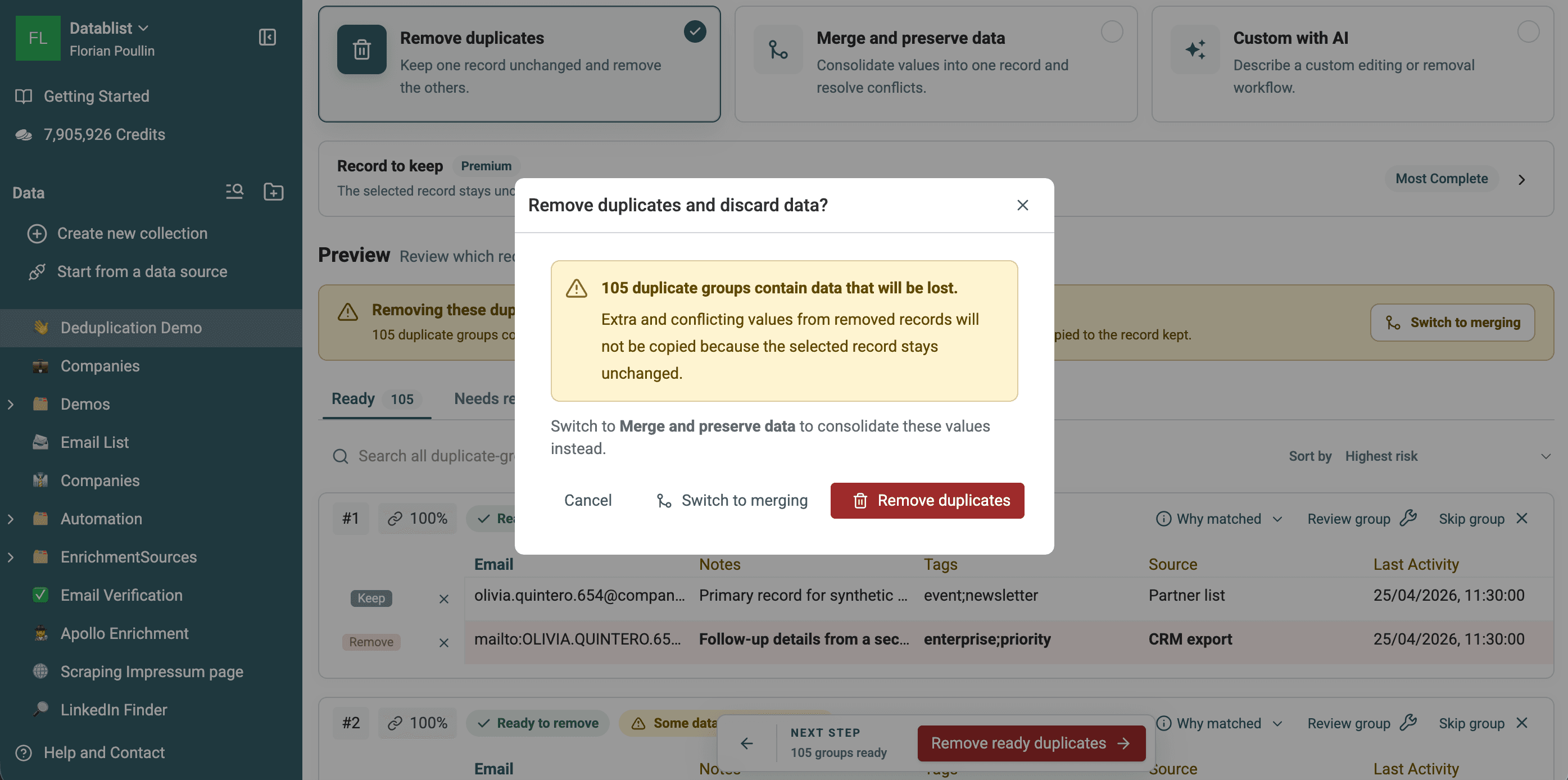
Remove duplicates keeps one selected record unchanged and deletes the other rows in each Ready group.
Use it for copied rows, temporary imports, or records whose secondary values can be discarded. The preview warns when the removed records contain additional or conflicting information. Those values are not copied to the retained row.
Merge when the rows contain useful data
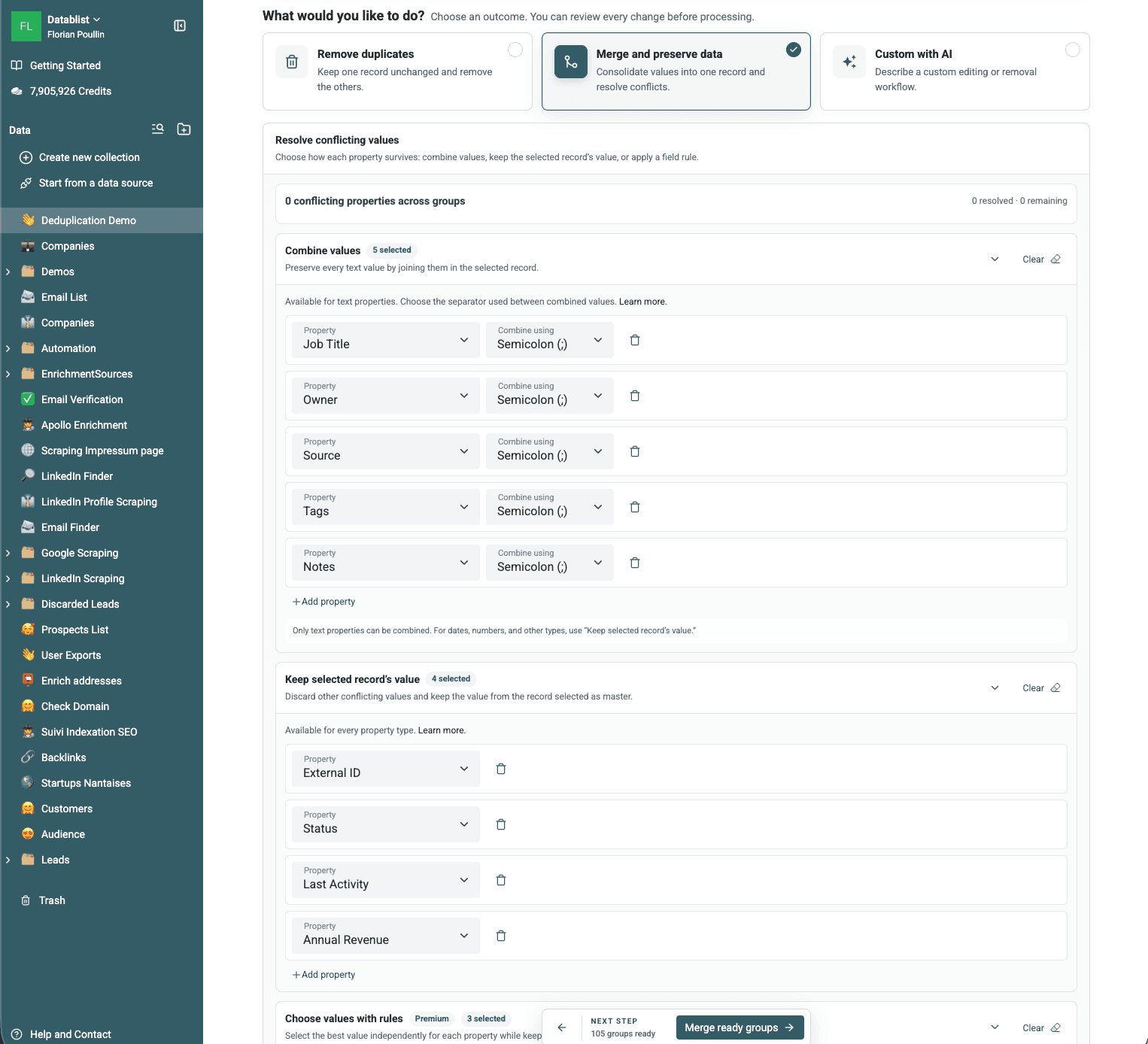
Merge and preserve data fills empty properties on the selected record, resolves configured conflicts, then deletes the secondary rows.
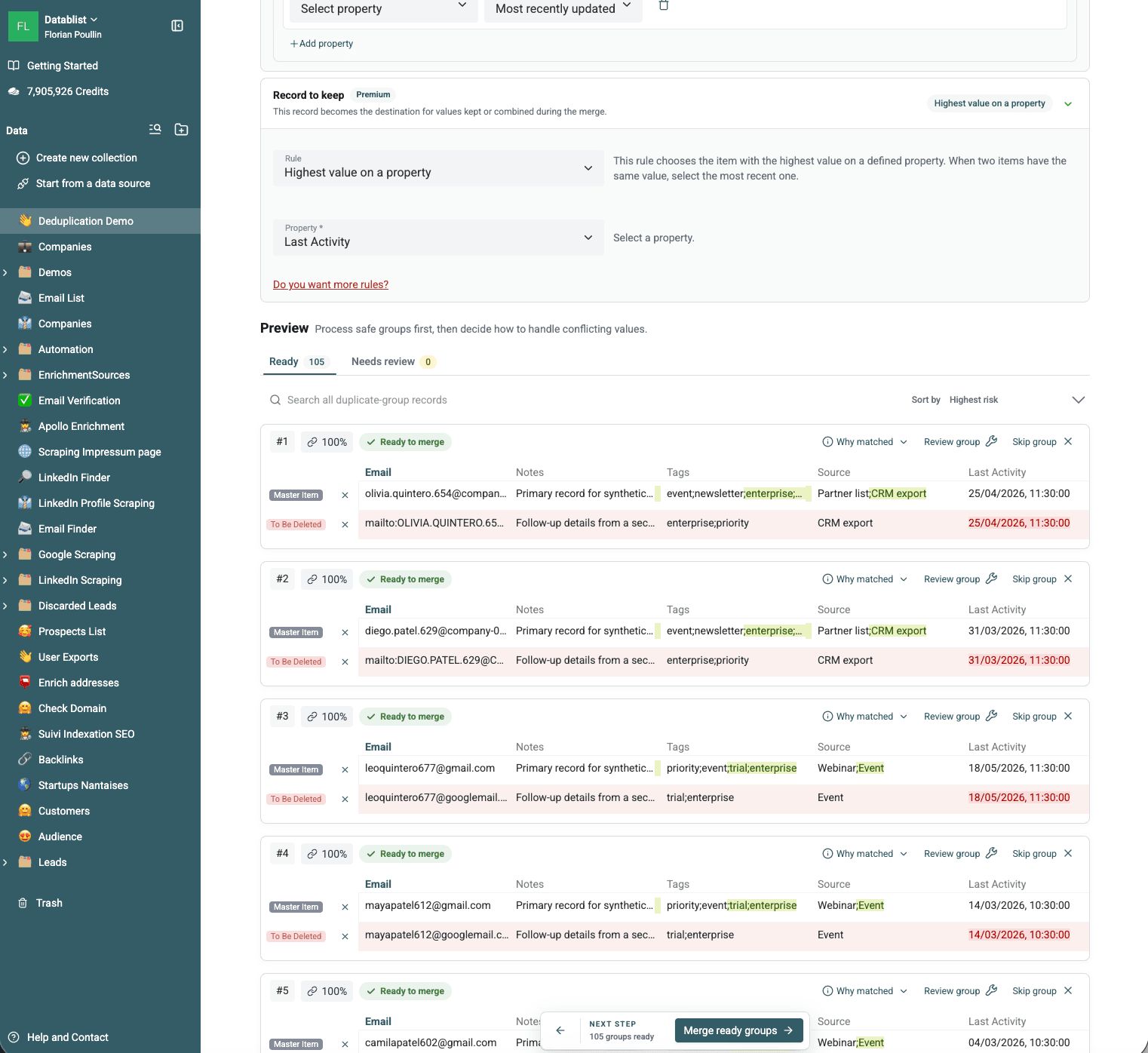
Start with the Record to keep rule. Most Complete is the default. Paid plans can select rules based on creation time, update time, highest or lowest property value, or a required property value.
Then decide how each conflicting property should survive:
- Combine distinct text values with a delimiter.
- Keep the selected record's value.
- On paid plans, choose values independently with rules such as most recent, oldest, longest, shortest, highest, lowest, or most frequent.
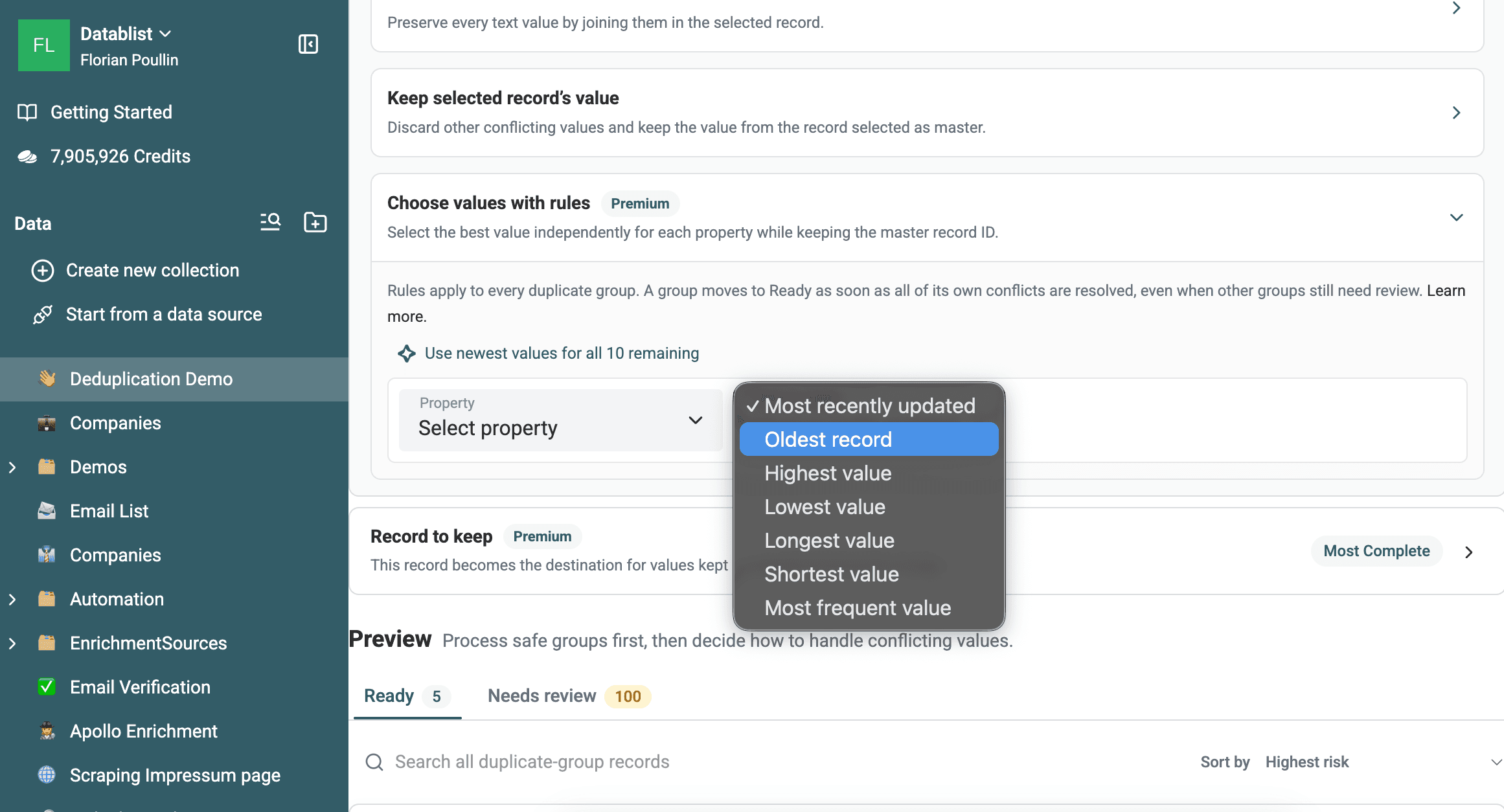
Use field-level rules when no single row holds the best value for every property. You can preserve the selected record's ID while taking a newer job title, a longer company name, and the most frequent status from other rows.
Refresh the preview after changing the threshold, workflow, group membership, conflict settings, or record-selection rule.
Use Custom with AI for group-specific logic
Custom with AI generates a group-processing workflow from a plain-language instruction. It can select a record, copy or normalize values, add a status property, calculate a group total, delete secondary rows, or skip groups that do not satisfy a condition.
For example:
Keep the record whose Source is CRM export. Copy the Job Title from the most recent record, combine distinct Notes with line breaks, add a Duplicate Reviewed checkbox, then delete the secondary records.
Reference collection properties with /Property or {{Property}}. Generate
and preview the workflow before running it. Custom with AI is available to
authenticated users on paid plans.
For individual exceptions, open Review group and use the Merging Assistant instead of making the batch rule more complicated.
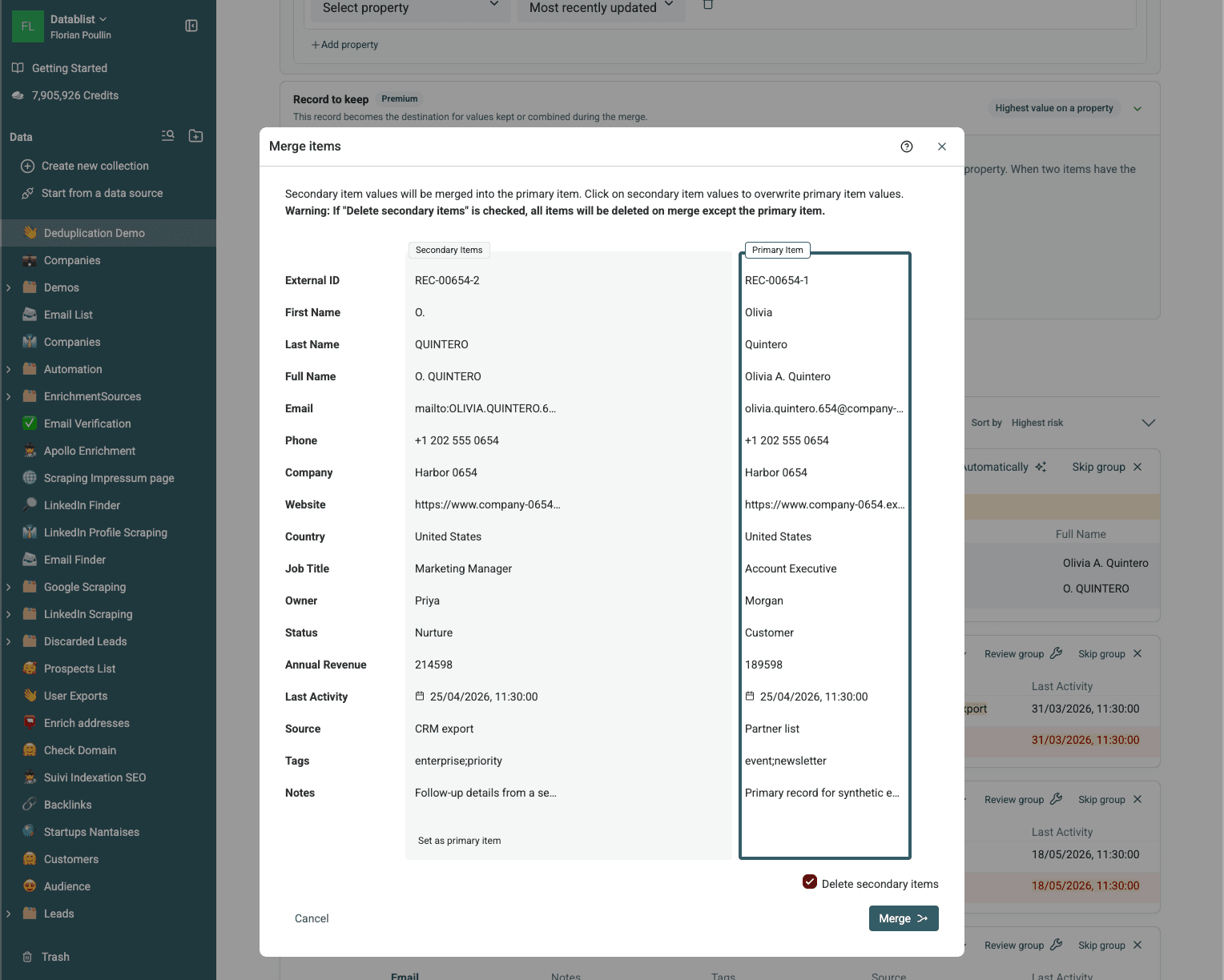
Validate and export the clean list
Before processing Ready groups, verify:
- The preview reflects the current settings.
- Low-confidence and shared-identifier groups were reviewed.
- The selected record has the ID you need to preserve.
- Unique phone, source, note, and status values survive.
- Fields with one allowed value do not get concatenated.
- The displayed Ready count matches the scope you want to process.
After processing, reconcile the row count:
Starting rows - deleted secondary rows = final rows
For the Exact pass in this guide, Datablist merged five two-row groups. The collection therefore went from 1,000 to 995 items.
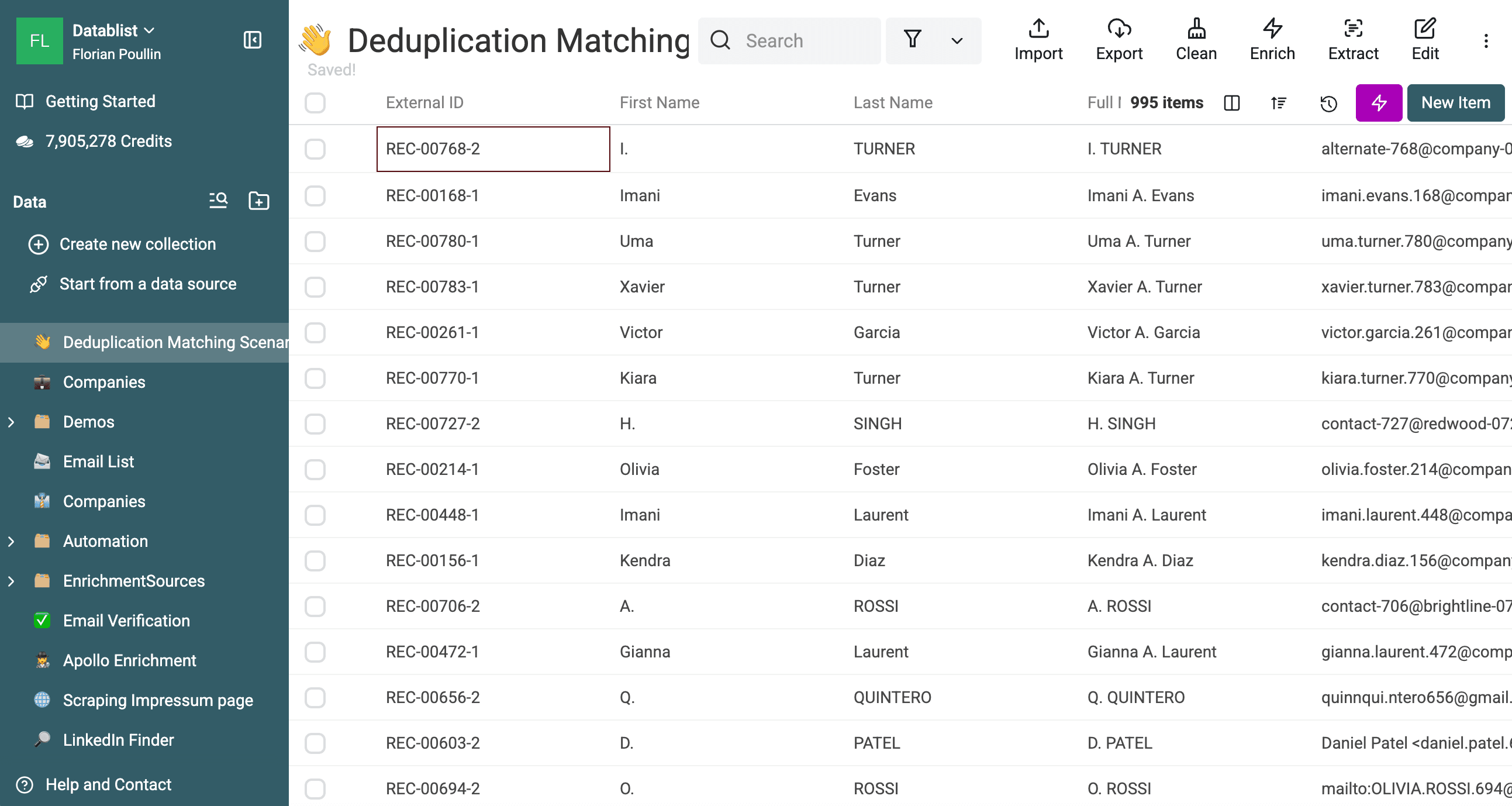
Download duplicate groups before processing when you need an external review file. Paid plans include usable duplicate-group IDs and the post-processing change log. The change log records deleted and updated Datablist IDs with the previous and destination values.
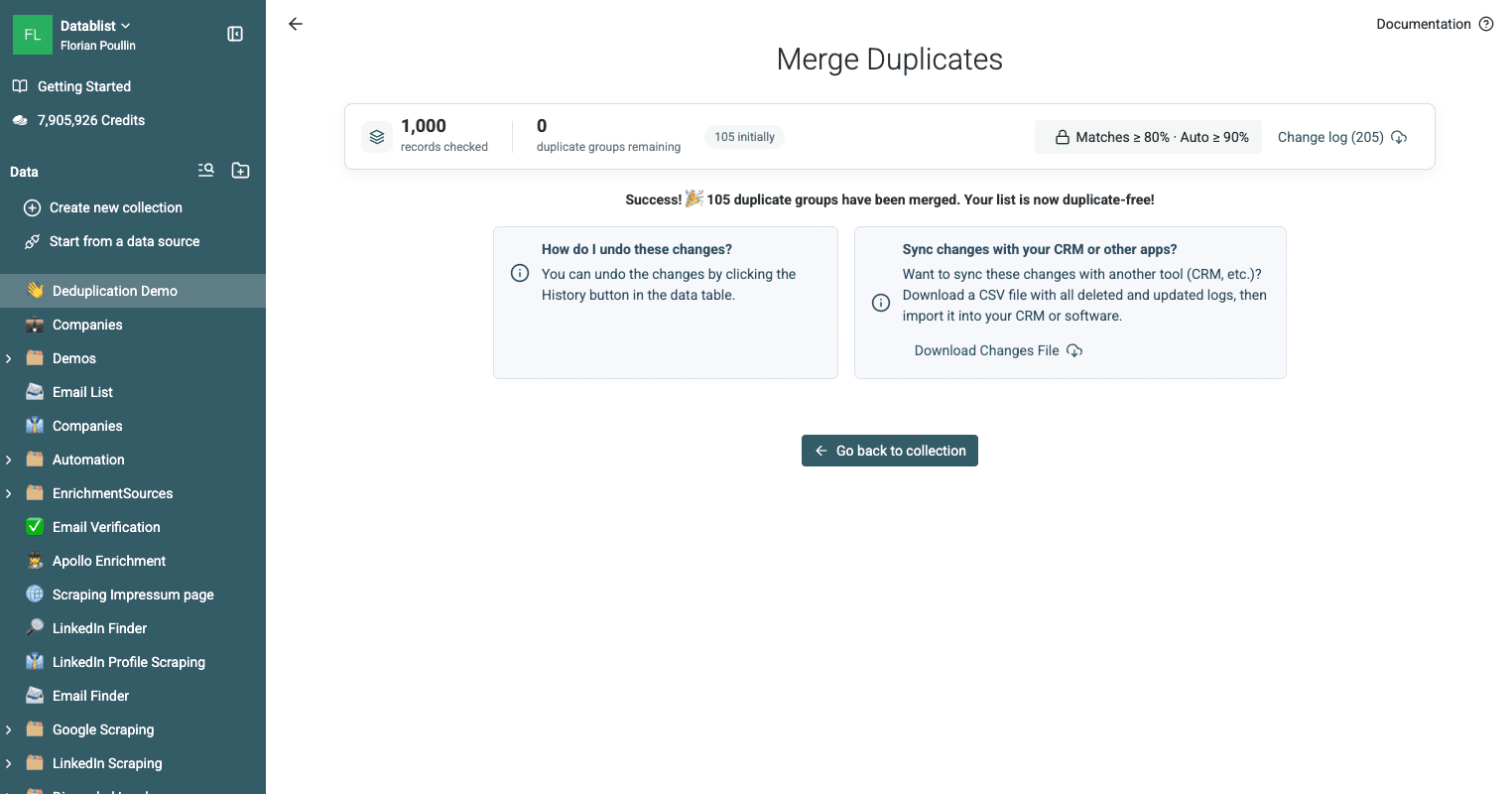
Automatic removal and merge operations also appear in collection History, where you can undo them.
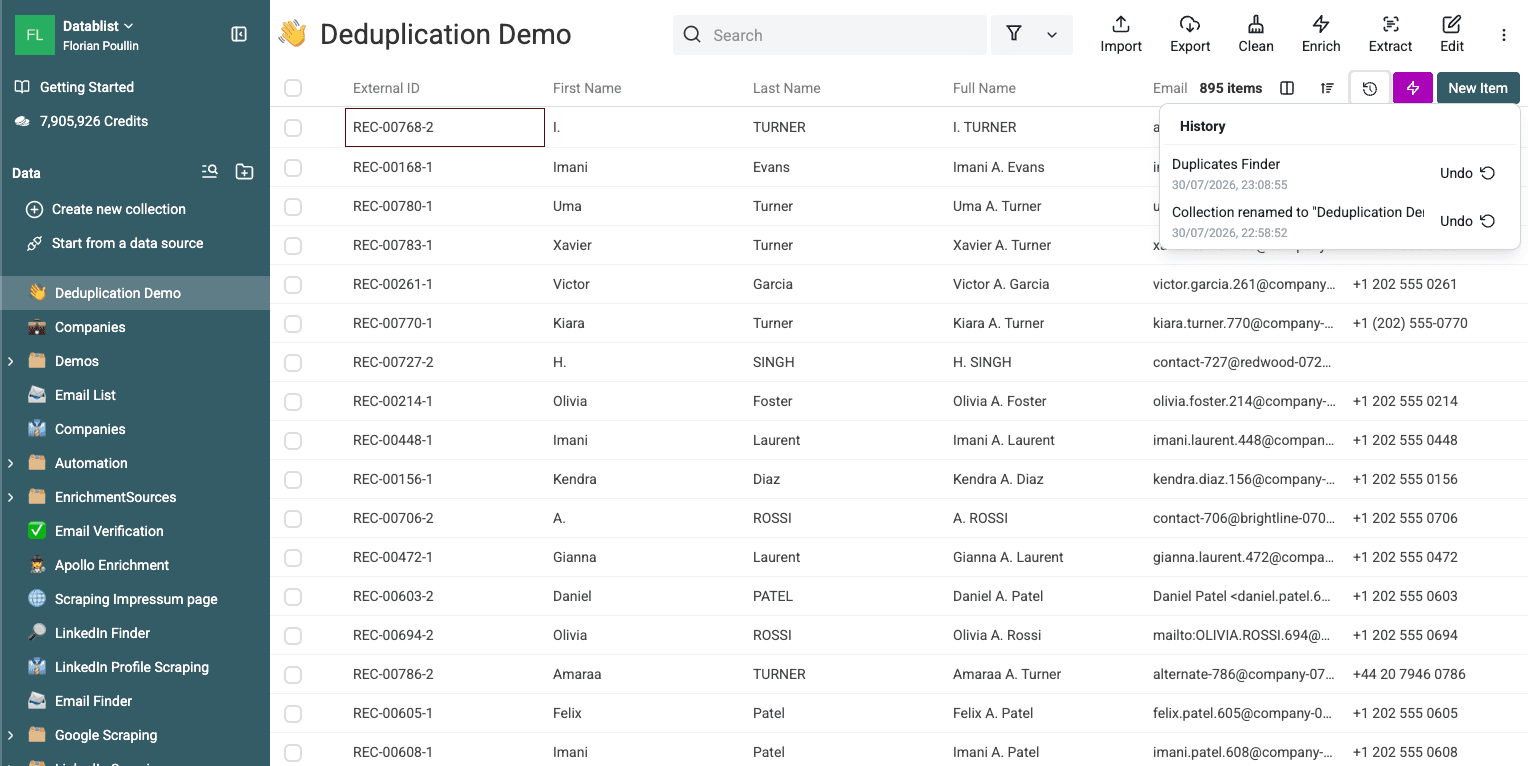
Return to the collection and open Export to download the cleaned CSV or Excel file.
Dedupe several lists
Use cross-collection matching when a new lead file must be compared with a CRM export. Treat the CRM as the reference list and remove its matches from the incoming list before import.
Download the demo CRM file and the demo event file to test this workflow. The two files use different headers and contain 100 designed email overlaps. Each file starts with 250 rows.
Import each file into its own collection, then open Clean > Match
across collections. Add both collections and map corresponding properties,
such as Email to Attendee Email.
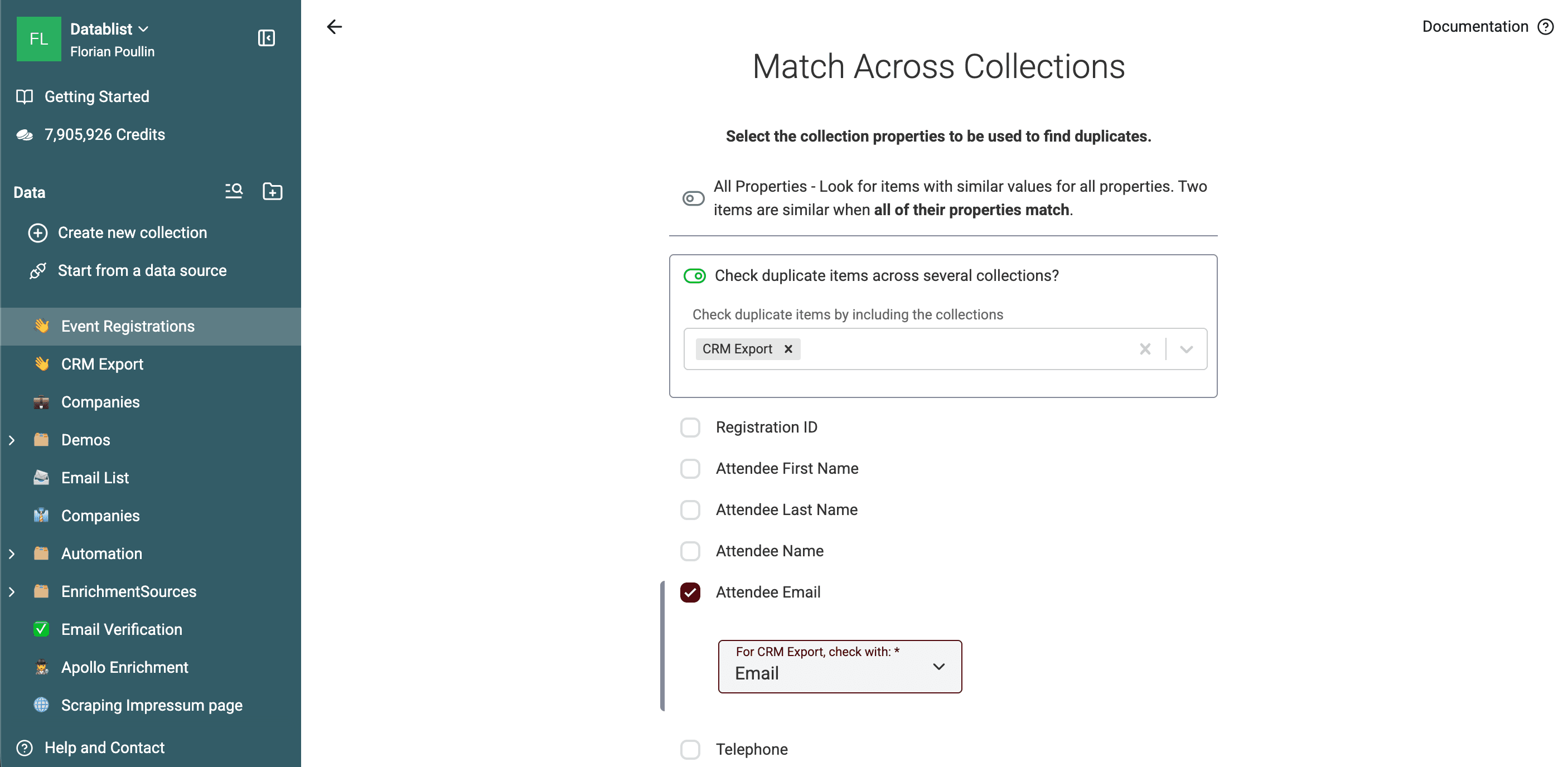
In this test, Smart matching with the Email processor returned 100
cross-collection groups from 500 checked records. Select Event Registrations
under Remove duplicate items from collection {X} to keep the CRM
unchanged and suppress its matches from the event list.
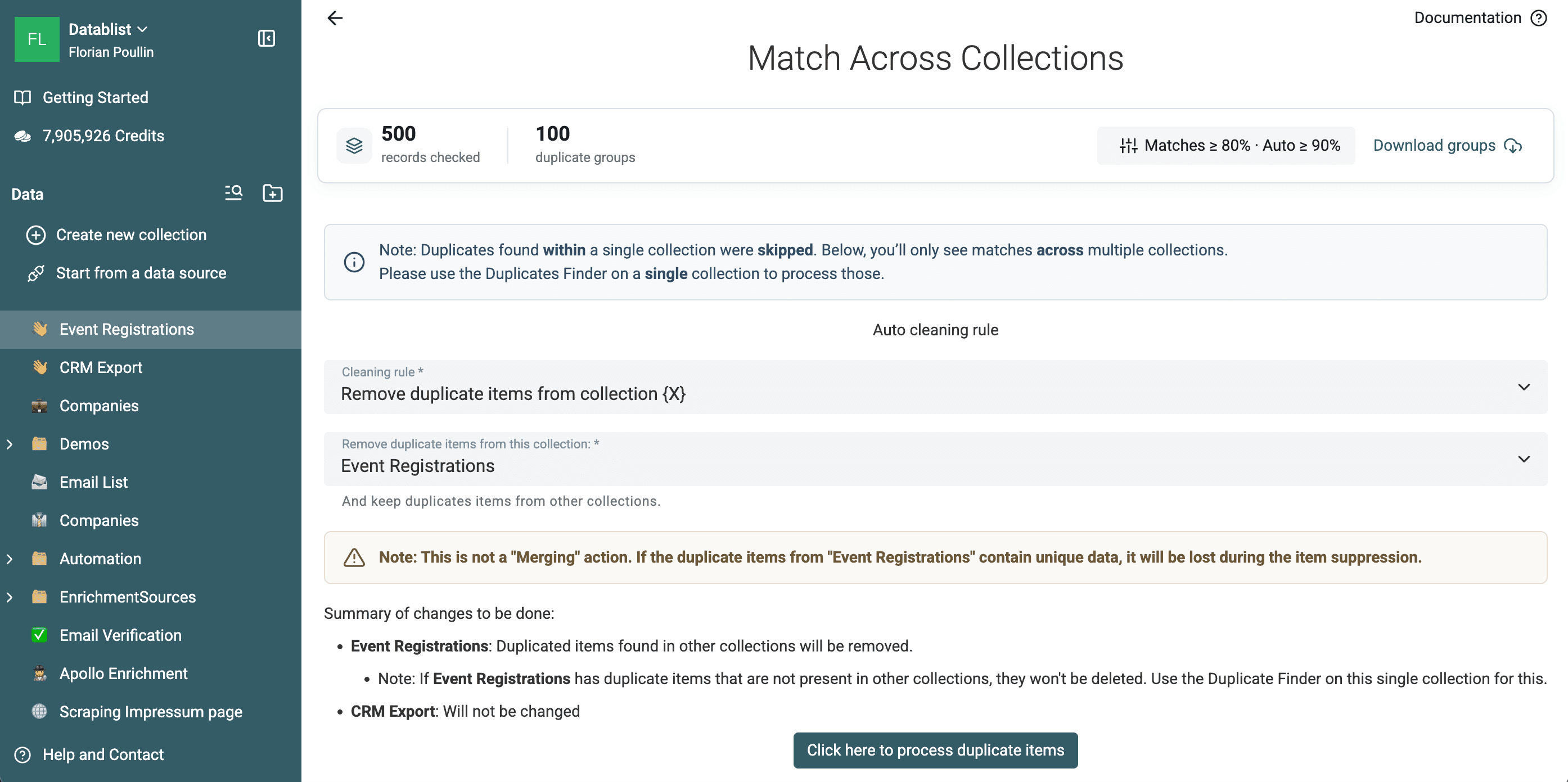
Automatic cross-collection cleaning removes rows. It does not merge unique event values into the CRM. Export or review the groups first when the incoming records contain information you need to preserve.
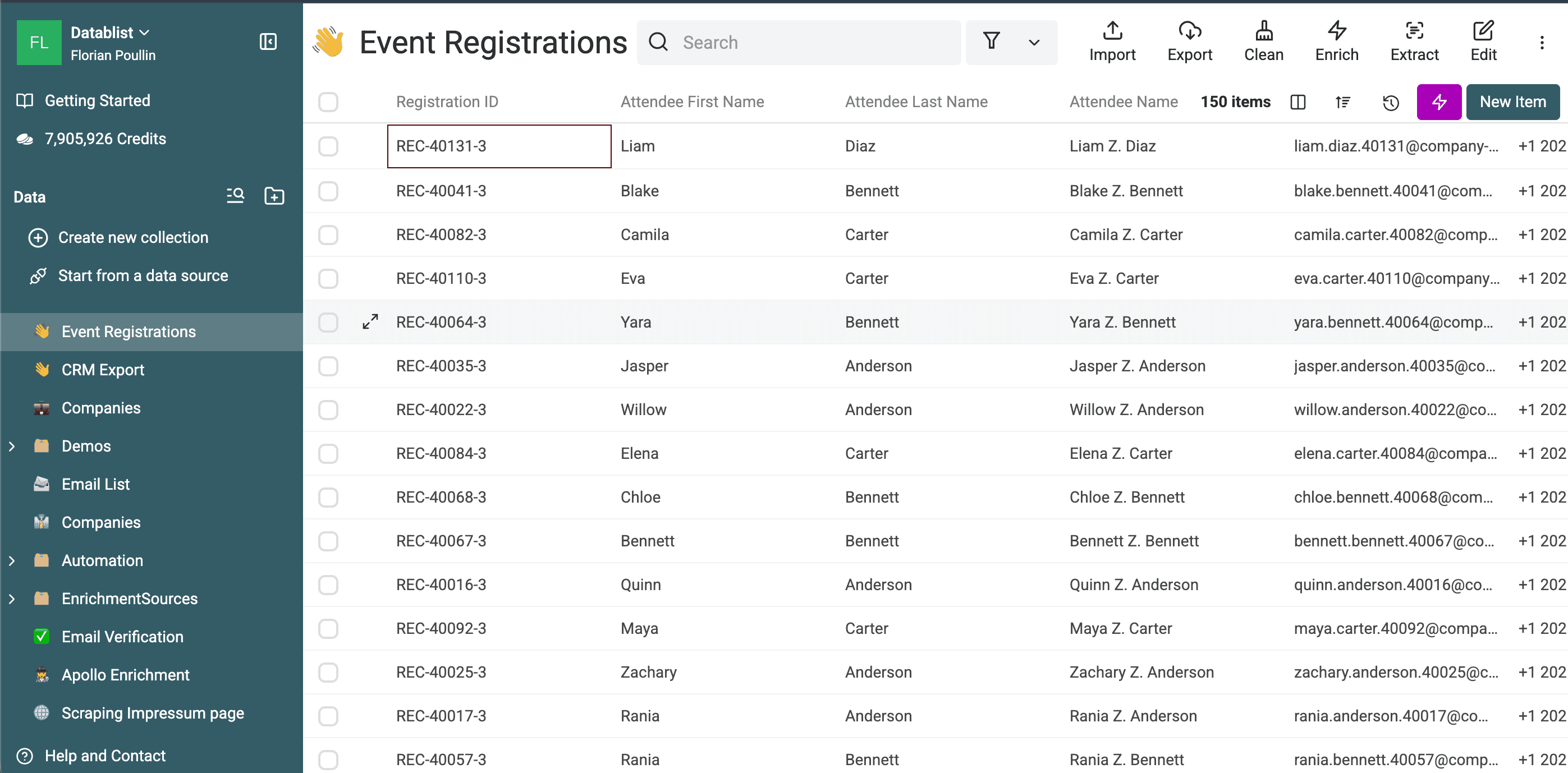
After processing the 100 overlaps, Event Registrations contains 150 net-new
contacts.
Cross-collection matching is a Premium feature. Read the detailed guide to dedupe several CSV or Excel files for collection mapping and processing options.
FAQ
Can I dedupe a list online for free?
Yes. Anonymous visitors can run an Exact check. A free account unlocks Smart matching and the other Free-plan single-collection features. Fuzzy and phonetic algorithms, advanced processors, cross-collection matching, configurable survivorship, and Custom with AI require a paid plan.
Should I remove or merge duplicate rows?
Remove rows when one record is authoritative and the others contain nothing you need. Merge when secondary rows contain useful values. The Remove preview warns when data would be discarded.
Can Datablist find duplicates with spelling errors?
Yes. Jaro-Winkler and Levenshtein compare text similarity, while Metaphone compares how text sounds. These advanced algorithms require a paid plan and their matches should be reviewed.
Can I merge duplicate rows without losing data?
Datablist can fill empty fields, combine text values, keep the selected record's value, or apply field-level survivorship rules. Review the preview because any value you choose to discard will not appear in the merged record.
How large can the list be?
The Free plan supports up to 1 million items per collection in browser storage. Paid plans support imports up to 2 million items per collection. Large local operations still depend on the browser and device.
Can I review duplicates without changing the list?
Yes. Detection is read-only. You can inspect groups, adjust thresholds, use Why matched, search and sort results, and download duplicate rows before starting a processing action.
For every setting and limitation, read the complete Duplicate Finder documentation.