To convert contacts from CSV to vCard online, import the CSV into Datablist, map its columns to vCard fields, and export a .vcf file. For example, map Full Name, Email, and Phone to the matching contact fields, then open the exported file in the destination address book to check a few contacts.
The export puts the selected contacts into one VCF file. Map your source columns before downloading it so names, email addresses, and phone numbers reach the right fields.
Step 1: Load your CSV file
First, upload your CSV file to Datablist. You can try the conversion without registering; anonymous imports are limited to 10,000 rows. A free account supports up to 1 million rows per collection, and paid plans support up to 2 million. See the large CSV import guide if your file is too large for an anonymous import.
To get started, create a new collection by clicking the "+" button in the left sidebar, then select "Import CSV" to upload your file.
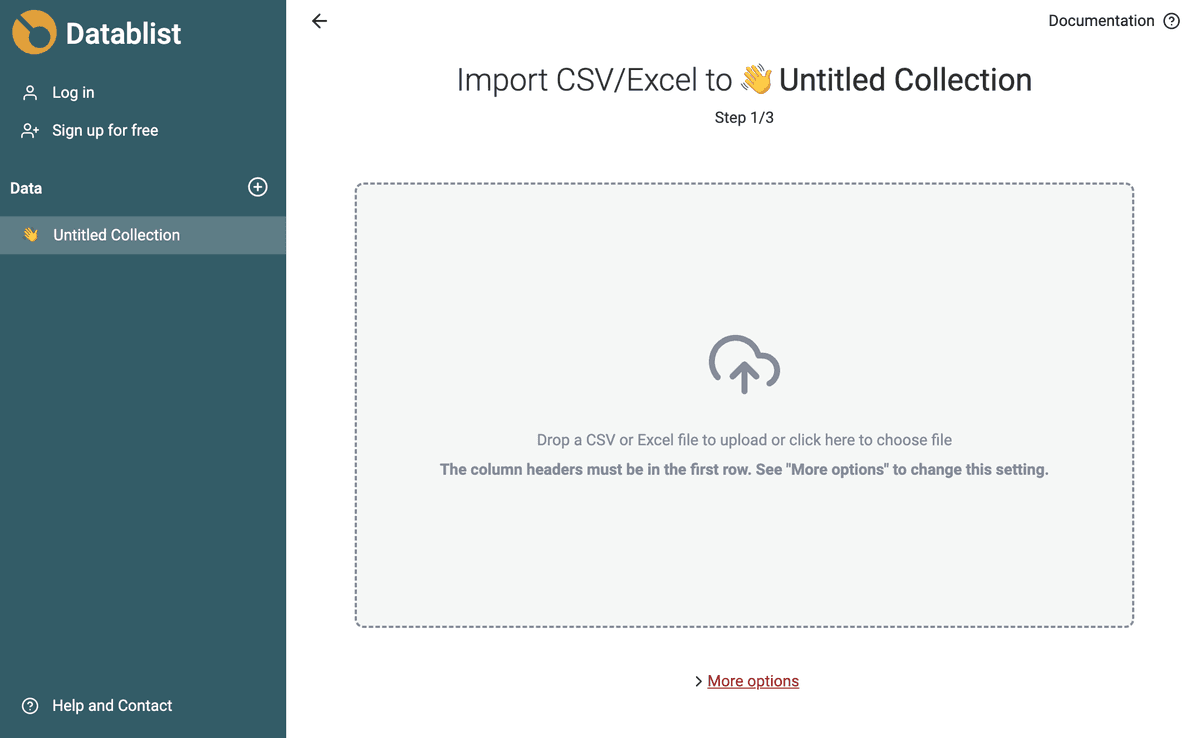
In just a few seconds, your CSV columns and data will appear in Datablist, ready for you to work with.
Step 2: Map your columns to vCard fields
Now your CSV is loaded, converting the data to vCard is simple and can be done in just a few steps.
Click on the Export button available in the application header.
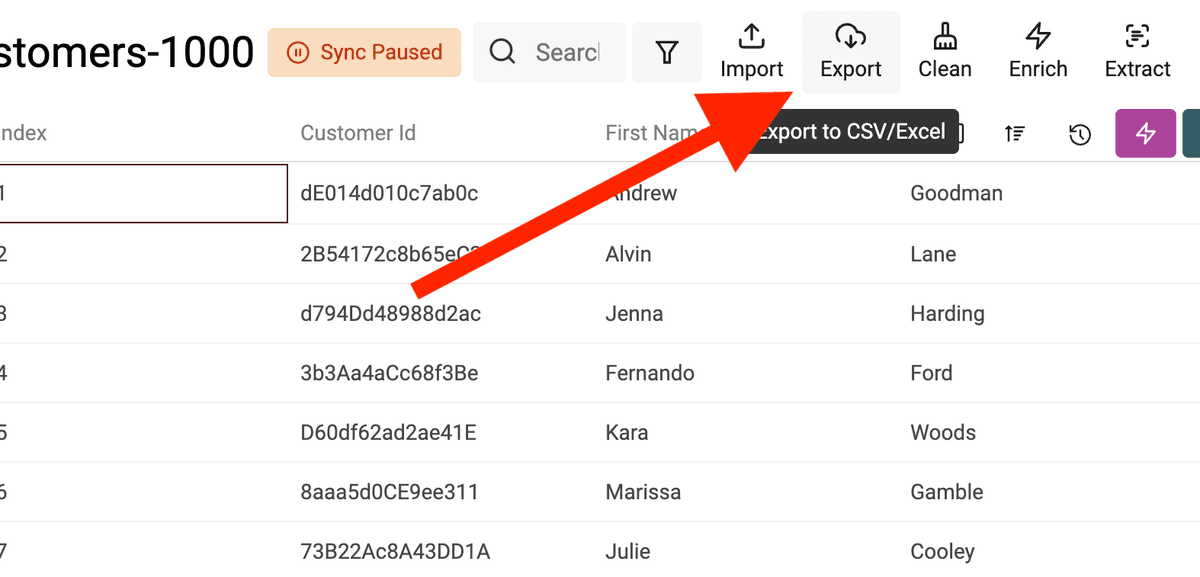
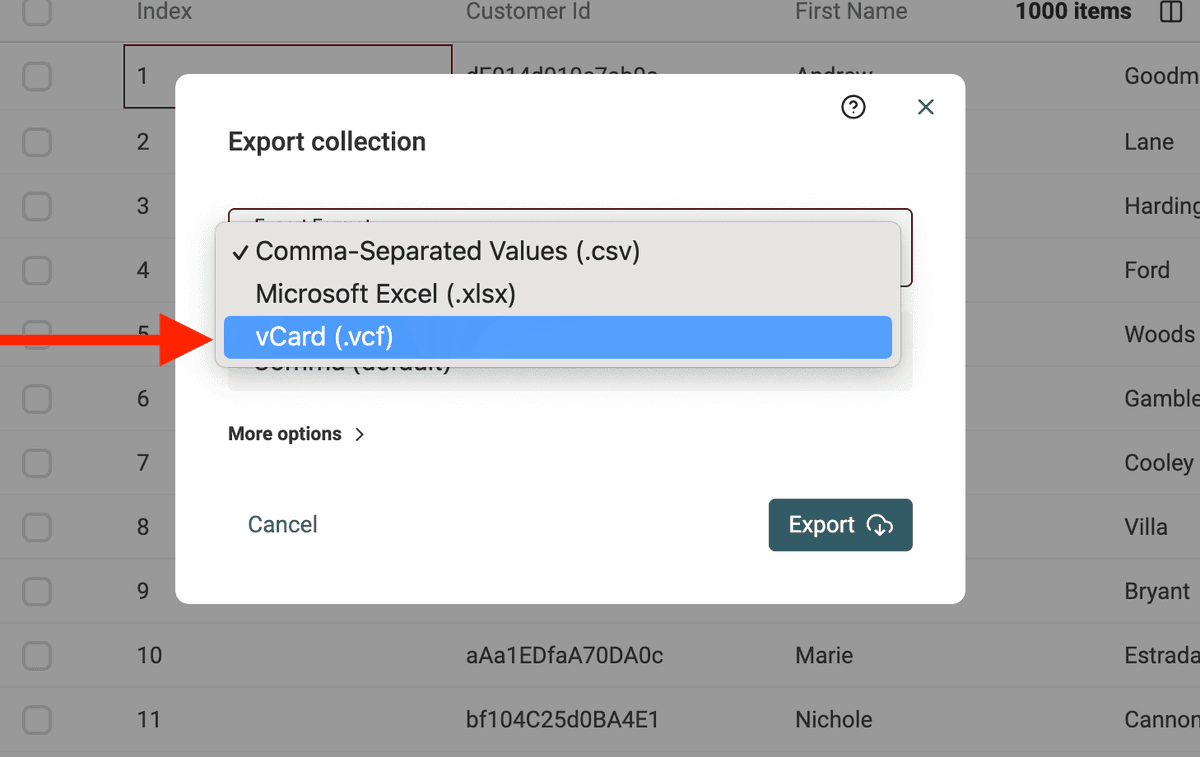
In the export options, choose the vCard format. This ensures your contacts are saved in a format compatible with most modern devices and apps.
The next step is to match your CSV columns (like Name, Email, and Phone) to the corresponding vCard fields. This ensures all your data is accurately transferred.
The vCard format is a standard for electronic business cards. The format includes a list of standard properties to store the name, the profile picture, email addresses, etc.
Visit the vCard Wikipedia page to see all available vCard properties.
The format also allows custom properties to store any data other than the standard ones.
Advice: To improve the compatibility of your exported VCF file (vCard) with other tools, be sure to map your CSV column with a standard property when possible. Use custom property only when no matching property exists.
Datablist lists all your CSV columns.
For each of them:
- Select a standard vCard property
- Or define a custom property
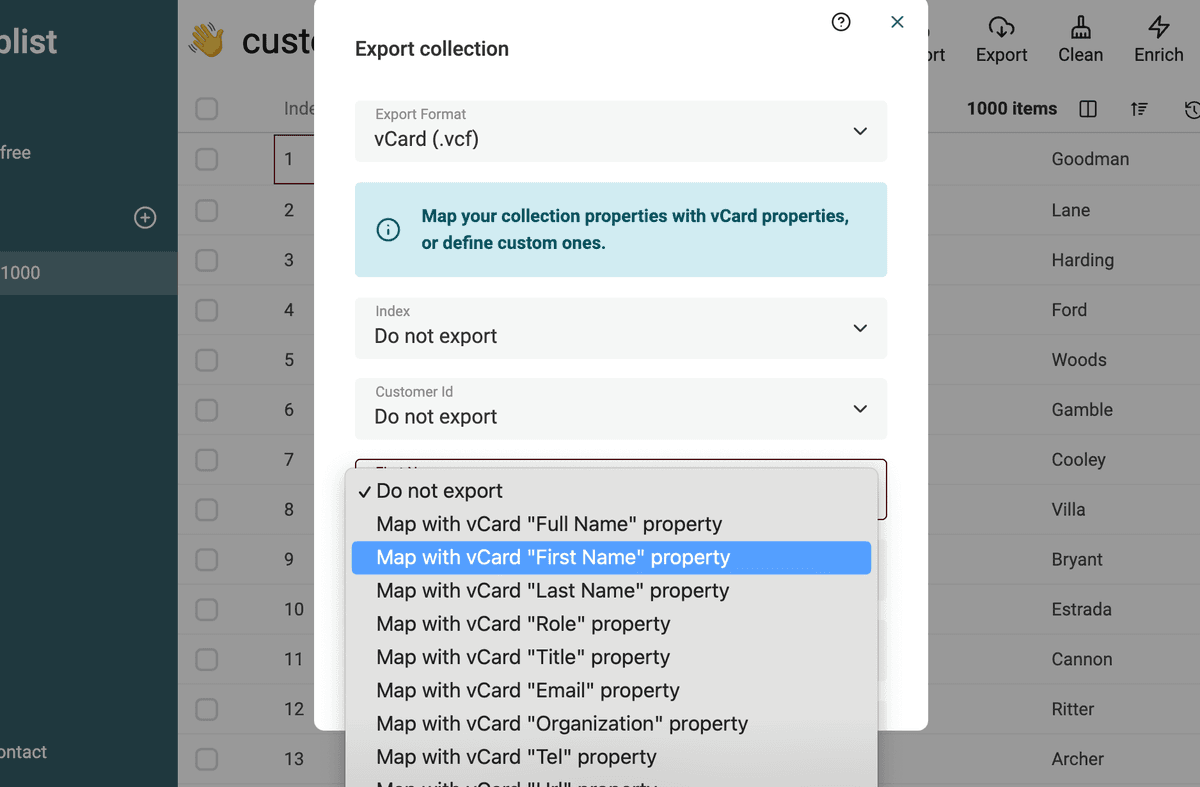
When selecting "Map with custom vCard property", an input appears. Write the name of the property to be added in the exported vCard file (.vcf).
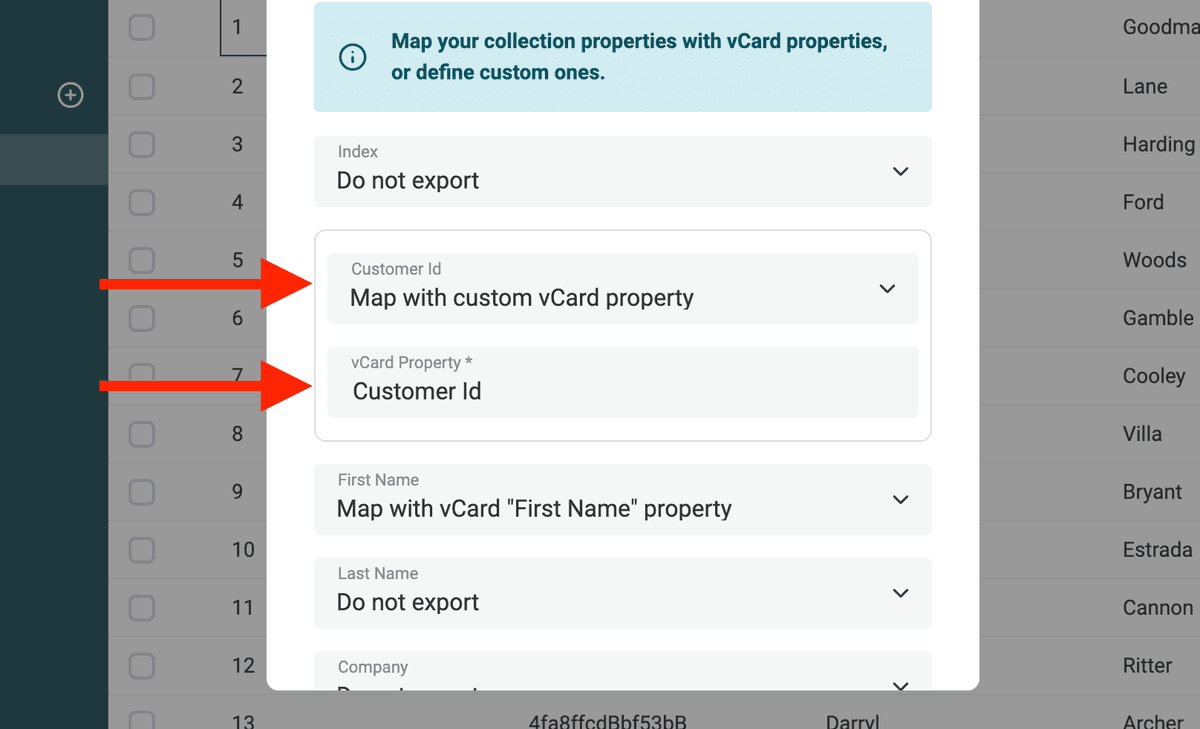
Once you've mapped the fields, you’re ready to export and use your contacts in the vCard format!
Just click on the "Export" button at the bottom of the export modal.
A file is generated with the .vcf file extension. All your CSV rows are converted to the vCard format.
Conclusion: vCard is a good text format for storing and exchanging contacts between tools. With its powerful features to view and edit CSV, Datablist is the perfect tool for converting your contacts from a CSV file to a VCF file.
FAQ
What is the version of vCard generated?
Datablist sets the vCard version to the last available to date: VERSION:4.0.
It also adds the KIND property to individual to define the type of entity to contacts.
How many contacts can be converted at once?
The limit depends on the CSV import limits. As anonymous, you can load and convert CSV files up to 10,000 rows. With a free account, you can import up to 1,000,000 rows per collection. Paid plans support up to 2,000,000 rows per collection. The file you convert must fit your account's import limit.
Is it free to convert a CSV file to vCard (VCF)?
Yes, it is. Data conversion is available in the Datablist free plan.
When is CSV to VCF (vCard) conversion useful
-
Transferring Contacts Between Devices - Easily move your contacts from a spreadsheet to your phone, email client, or contact management app.
-
Backup Contacts - Convert and store contacts as a VCF file for secure and standardized backup that can be imported anywhere.
-
Sync Contacts Across Platforms - Ensure contacts are compatible across different systems, like transferring from Outlook to Google Contacts.
-
Sharing Contact Lists - Share your contact list with colleagues, clients, or friends in a universal format that’s easily importable.
-
Import Contacts to CRM - Upload contacts from a CSV file to CRM platforms that accept vCard format for streamlined data integration.
-
Organizing Large Contact Databases - Organize and migrate large contact lists in a structured vCard format, which supports additional data fields like addresses and notes.
-
Personalizing Contact Information - Add richer details such as photos, social media profiles, and custom fields when converting to the vCard format.