Manually finding and replacing values in an Excel file is a pain. Excel's built-in "Find and Replace" tool works for simple cases, but what if you need to replace dozens or hundreds of terms? Doing it one by one is slow and frustrating.
To replace many values in an Excel file, import it into Datablist, give AI Editing an explicit replacement list, preview the generated edit, then export the result. This works well for controlled mappings such as country codes; check the preview before applying it to the full list.
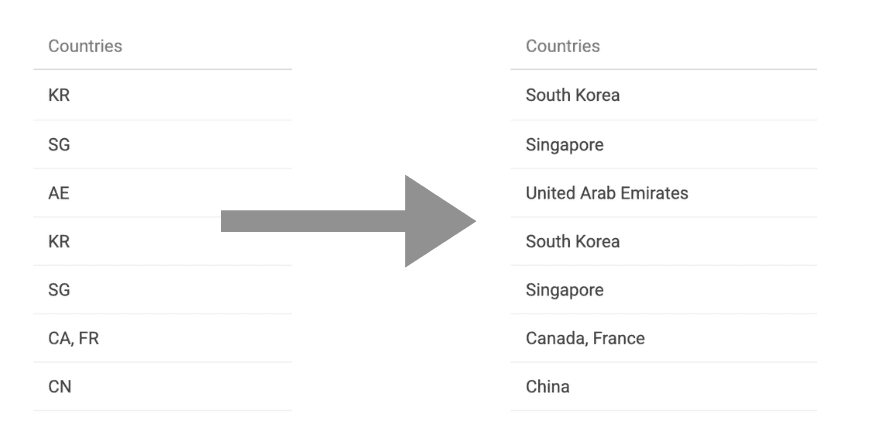
How to Find and Replace Multiple Values in an Excel file
Follow these steps to transform your data effortlessly.
Step 1: Upload Your Excel File
Datablist is a free online tool to open and edit CSV and Excel files. It comes with data cleaning and data enrichment tools.
Create a new collection and Upload your Excel file (supports .xlsx and .csv).
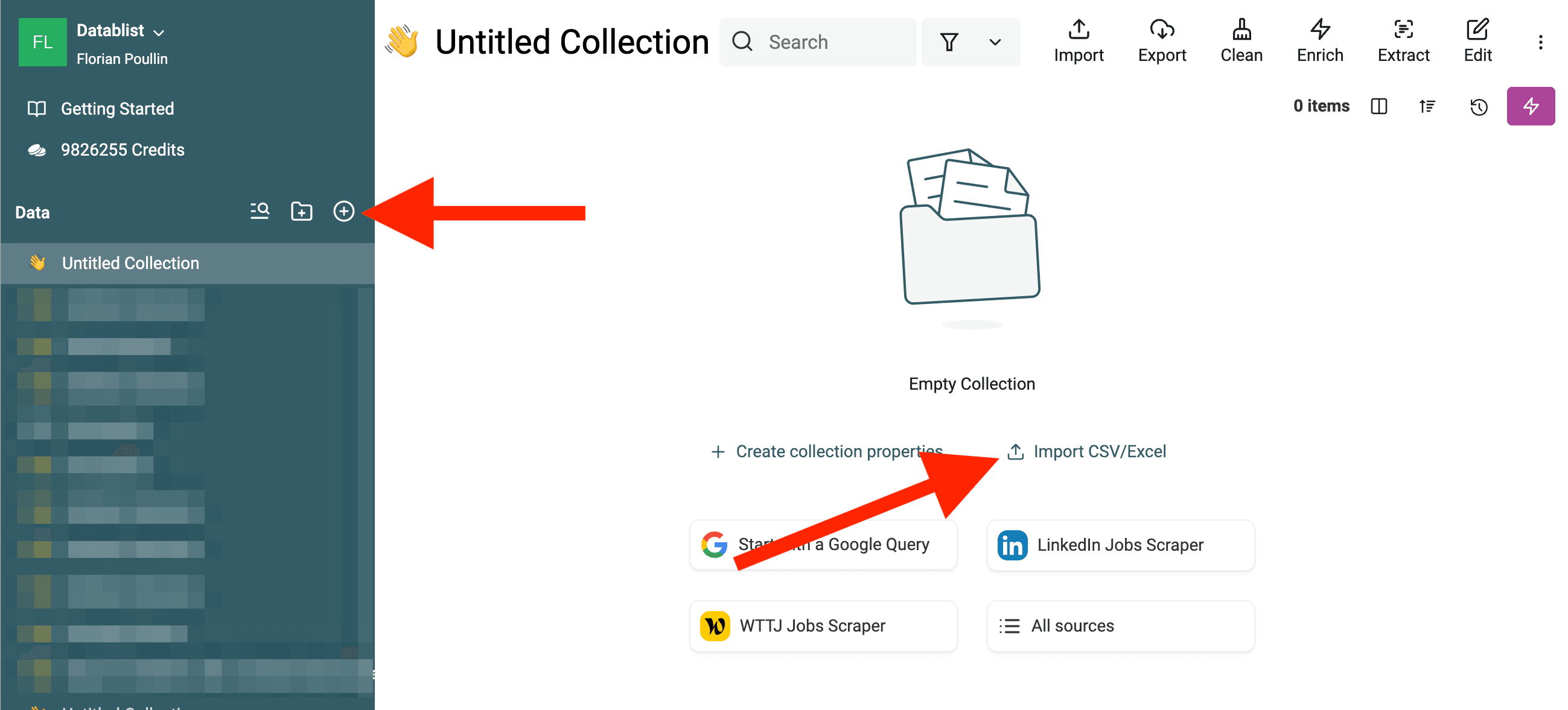
Your data will appear in a clean, editable table.
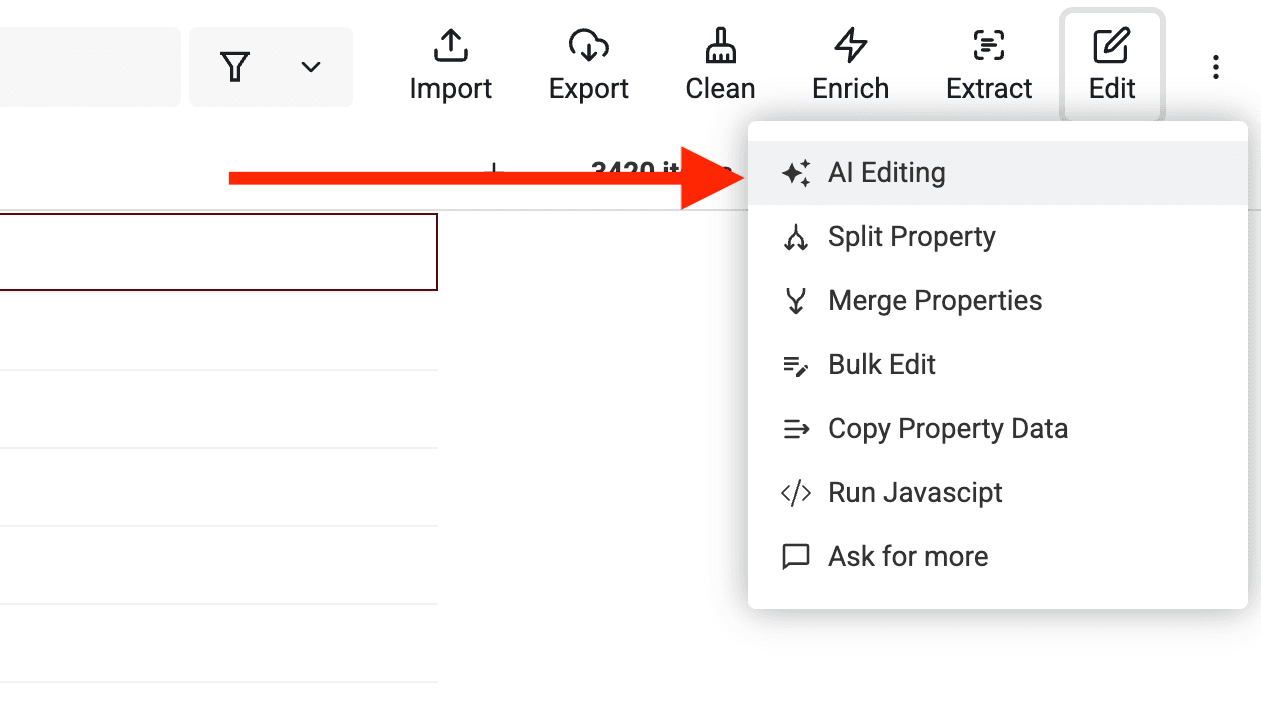
Step 2: Open AI Editing
AI Editing in Datablist is a powerful feature that generates scripts based on your instructions. Instead of manually creating complex Excel formulas or VBA macros, you describe what you need in a prompt, and Datablist does the rest.
AI Editing generates a JavaScript edit from your prompt and a small sample of items. State the match rule and exceptions explicitly: a prompt that says only “replace CA” could also change text you wanted to keep. You can handle comma-separated values by telling it to replace each complete entry, rather than matching letters inside a word. For a formula-based alternative, the Excel sales-data cleanup examples show a narrow final-suffix rule and explain why unrestricted replacements damage names.
Step 3: Write Your Find and Replace Instructions
In the AI Editing prompt, write the find and replace instruction with the list of terms to replace.
Name the actual property you want to edit. For example, if a Countries cell contains KR, SG, the expected result is South Korea, Singapore. This prompt defines the boundaries of each match:
Edit the Countries property. A cell may contain several comma-separated country codes.
Split each cell on commas, trim spaces, and replace only complete code values:
KR => South Korea
SG => Singapore
AE => United Arab Emirates
CA => Canada
CN => China
ZA => South Africa
SE => Sweden
US => United States
FR => France
ES => Spain
NL => Netherlands
BR => Brazil
MX => Mexico
Keep an unknown value unchanged. Preserve the original order and join values with a comma and a space.
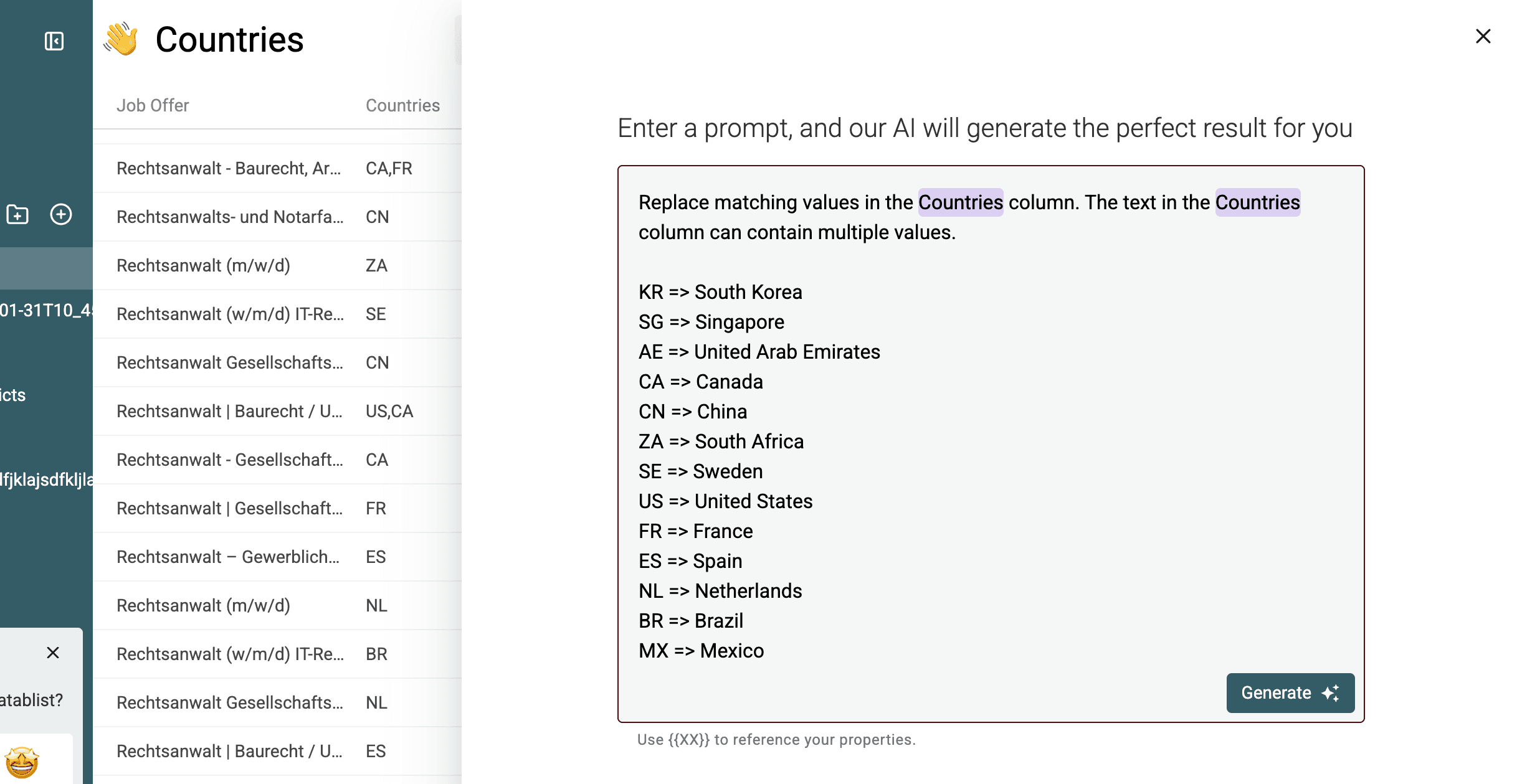
The AI generates a script based on your instructions.
Click Generate to preview the results. Check a cell with several codes, one with an unknown value, and one that already contains a full country name. Refine the prompt if the preview changes any of them incorrectly.
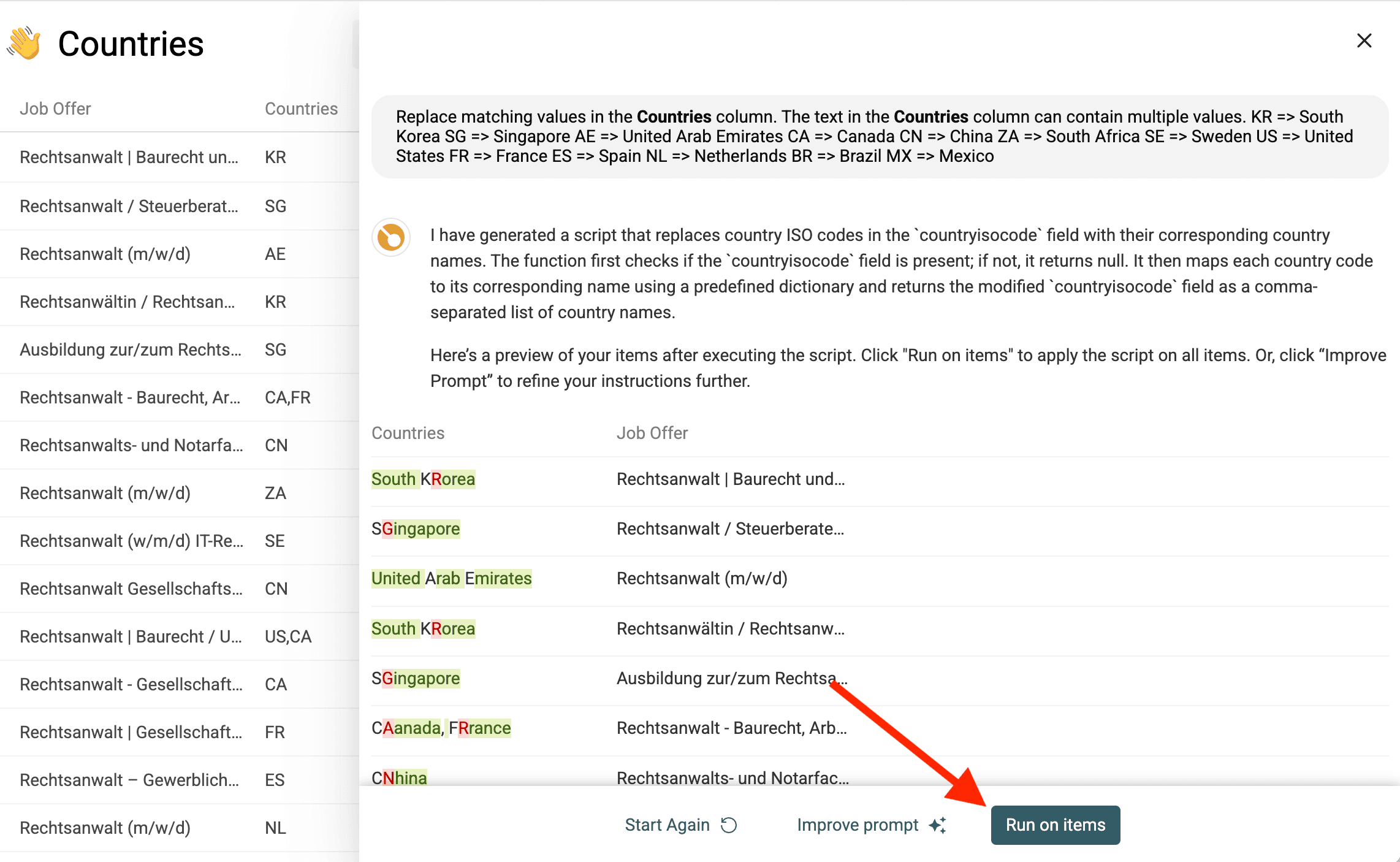
Once the preview matches your rules, click Run on items to apply the generated edit to the items. Review a few resulting rows before exporting.
Step 4: Download Your Updated File
Once the replacements are made, export your file back to Excel. If the receiving application requires CSV, use the Excel-to-CSV export workflow for the worksheet you intend to share.
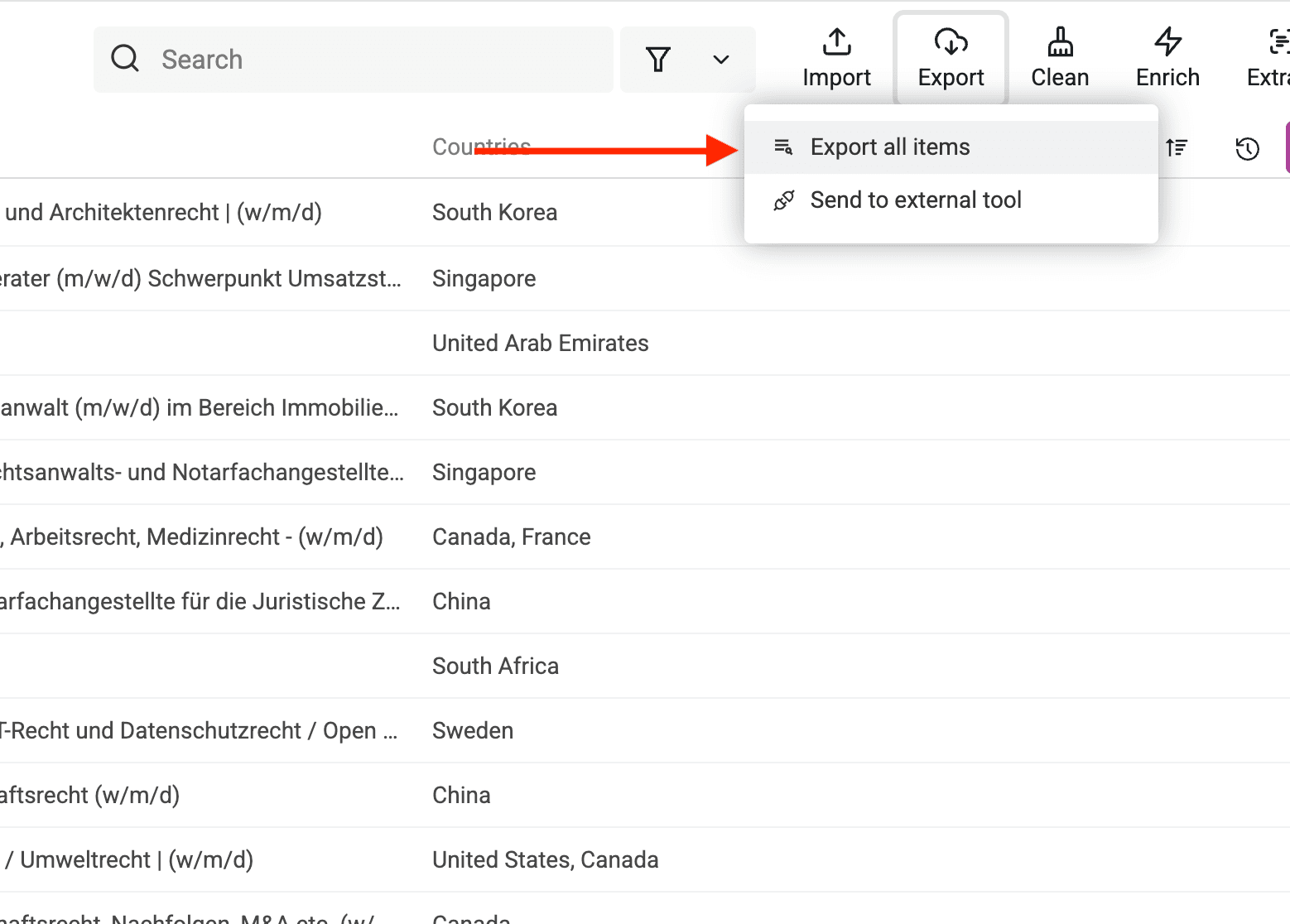
Click on the "Export" button in the header.
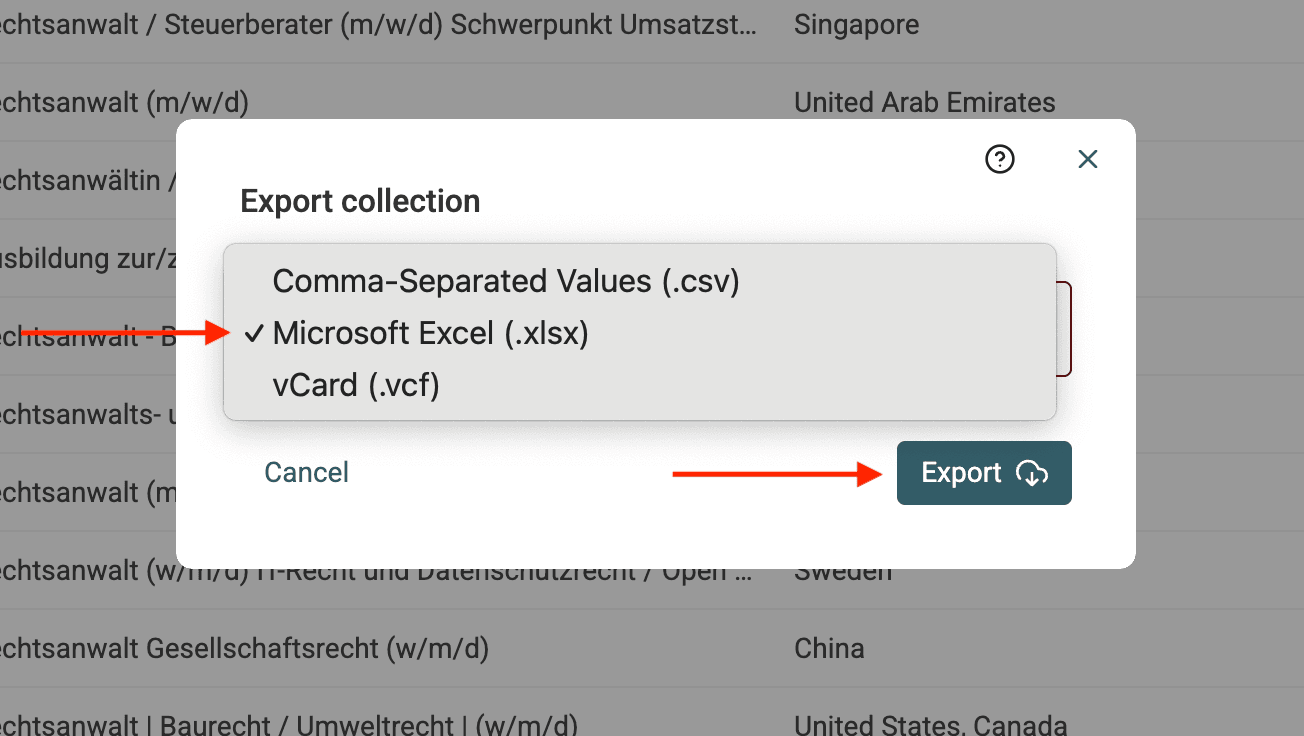
And select the "Excel" export format.
Done! No manual search and replace needed.
Why Use Datablist for Bulk Find and Replace?
- Faster than Excel – No need to run find-and-replace one by one.
- No formulas or macros – Just describe what you need.
- Handles large datasets – Perfect for cleaning and standardizing big files.
- Works inside multi-value cells – No need to match the full cell value.
- Accurate and repeatable – AI follows your instructions precisely.
Conclusion
If you're spending hours manually updating spreadsheets, stop. With AI Editing in Datablist, bulk find and replace is as easy as writing a to-do list. Try it today and make your Excel workflow effortless!