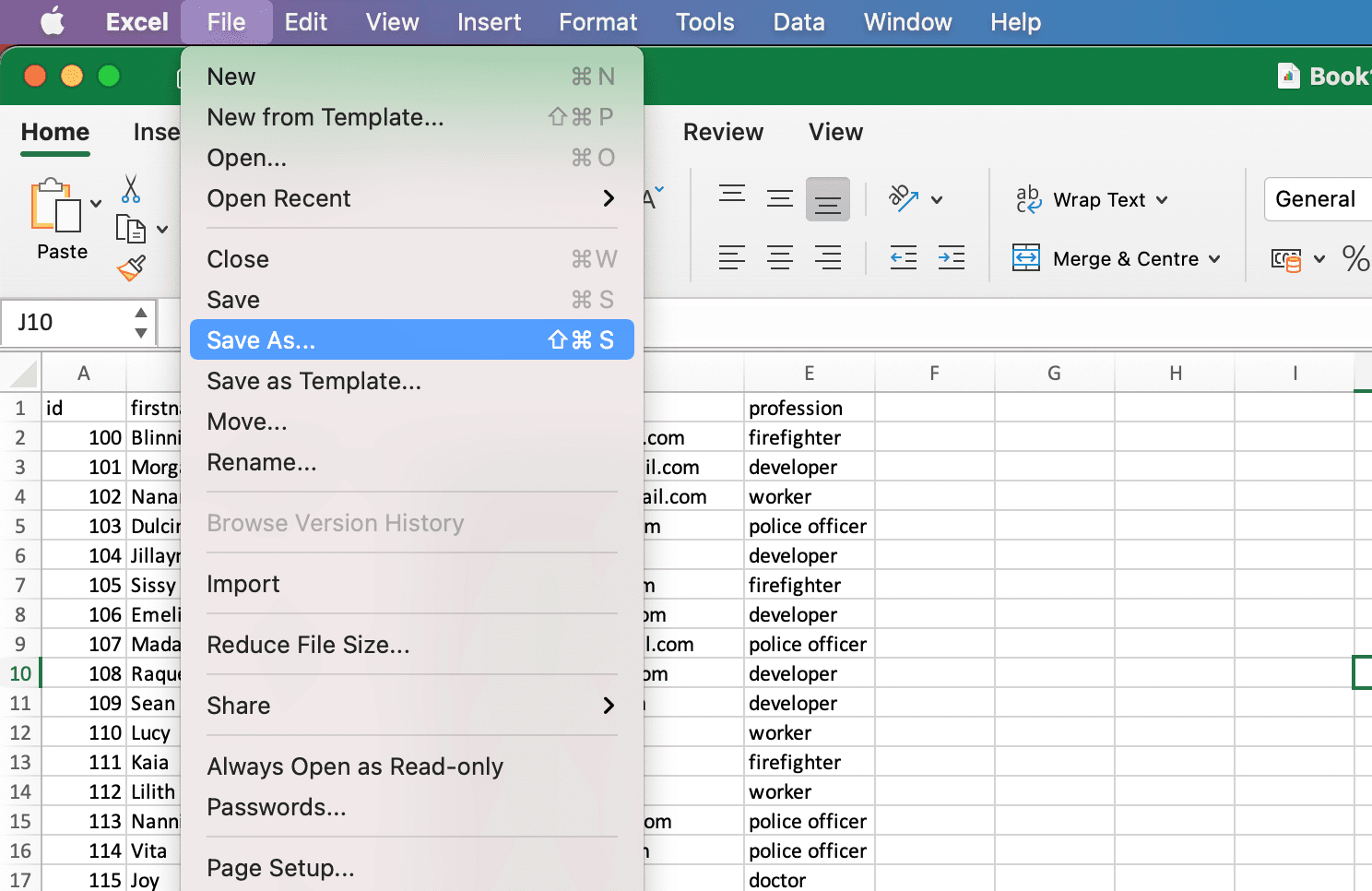
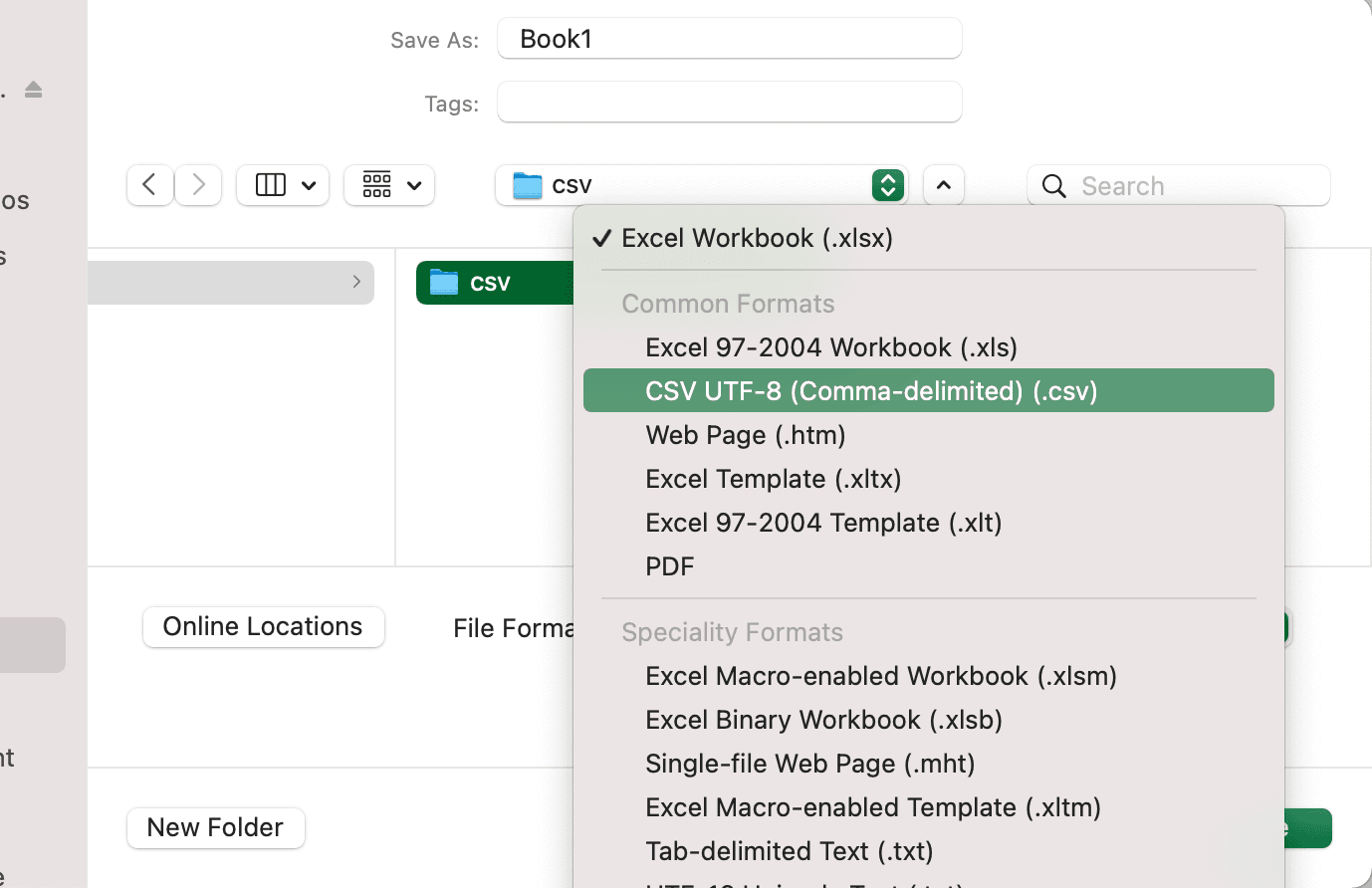
To convert an XLSX or XLS file to CSV in Microsoft Excel, open the workbook, select the worksheet you want, then use File > Save As (or Save a Copy). Choose CSV UTF-8 (Comma delimited) (.csv) where available and save a new file.
Excel saves only the active worksheet to CSV. If your workbook has several sheets, export each one separately. Keep the original Excel workbook because CSV cannot preserve formulas, charts, formatting, or multiple sheets. Microsoft documents these CSV export limits.
If you are exporting long text from Datablist, choose CSV before encountering the Excel cell character limit. Converting an already shortened workbook cannot recover text that was previously discarded.
Convert the active worksheet
- Open the XLSX or XLS workbook and click the worksheet containing the rows you need. Check that its headers and data are visible.
- Choose File > Save As or Save a Copy, then choose a destination and a new filename.
- Select CSV UTF-8 (Comma delimited) (.csv) from the file-format menu if Excel offers it. UTF-8 helps preserve accented and other non-ASCII characters.
- Click Save. If Excel warns that only the active worksheet or some workbook features will be kept, confirm only after checking you selected the right sheet.
The CSV contains the displayed cell values from that sheet, not the formulas behind them. For example, a Total formula that displays 125 becomes the value 125 in the CSV. See Microsoft's list of features lost on export.
Check the exported file
Open the CSV in a text editor or import preview and check the header row, row count, delimiter, and a few values with accents or leading zeros. Opening a CSV directly in Excel can reinterpret identifiers as numbers or dates, so inspect those fields as text when they matter.
If you need only selected cells rather than the whole active sheet, copy them to a new worksheet first. The selected-cells export guide explains that workflow. For a broken character display, see CSV encoding.