Visit a company website and extract their phone number with the source location.
How to use this prompt on a CSV file?
Datablist allows you to take an entire CSV file and run prompts directly on every line.
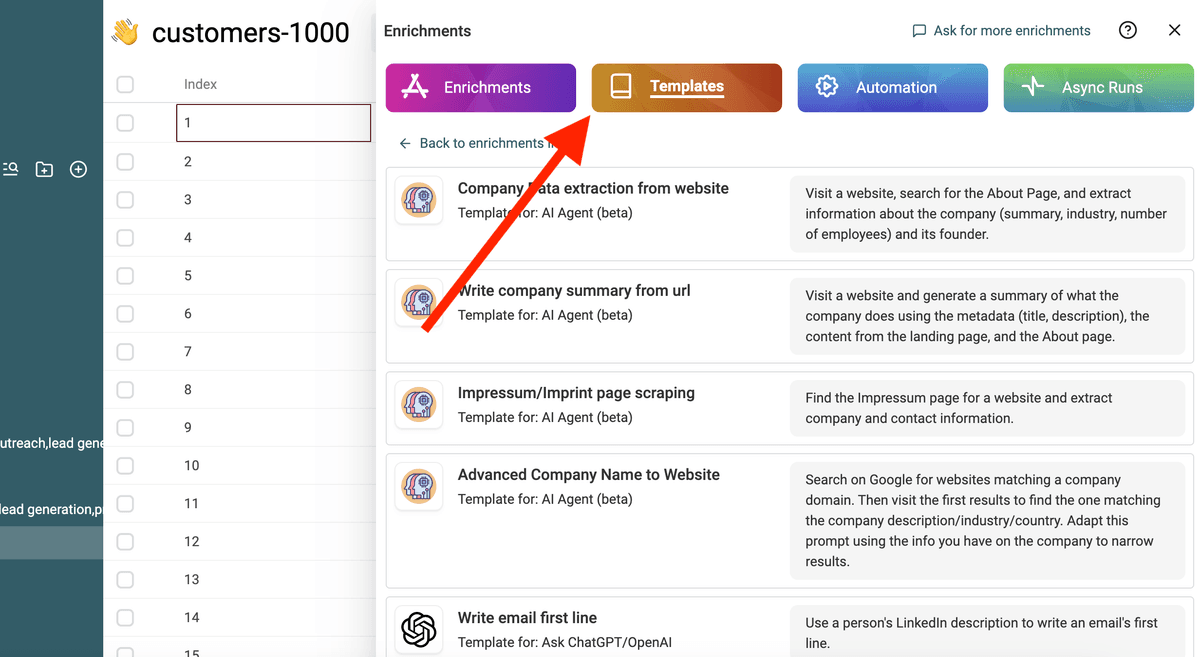
The great news is that the prompt you need is already available in Datablist under the "Templates" section. No need to start from scratch! Simply select the template that fits your task, and it's ready to run on every line of your CSV. This makes it even easier to transform your data with just a few clicks.
Import your CSV file in Datablist. Then select "Enrich" from the header.
Select the template: Business Number Extractor
Replace the variables from the prompt with your collection's properties using / or '{{'.
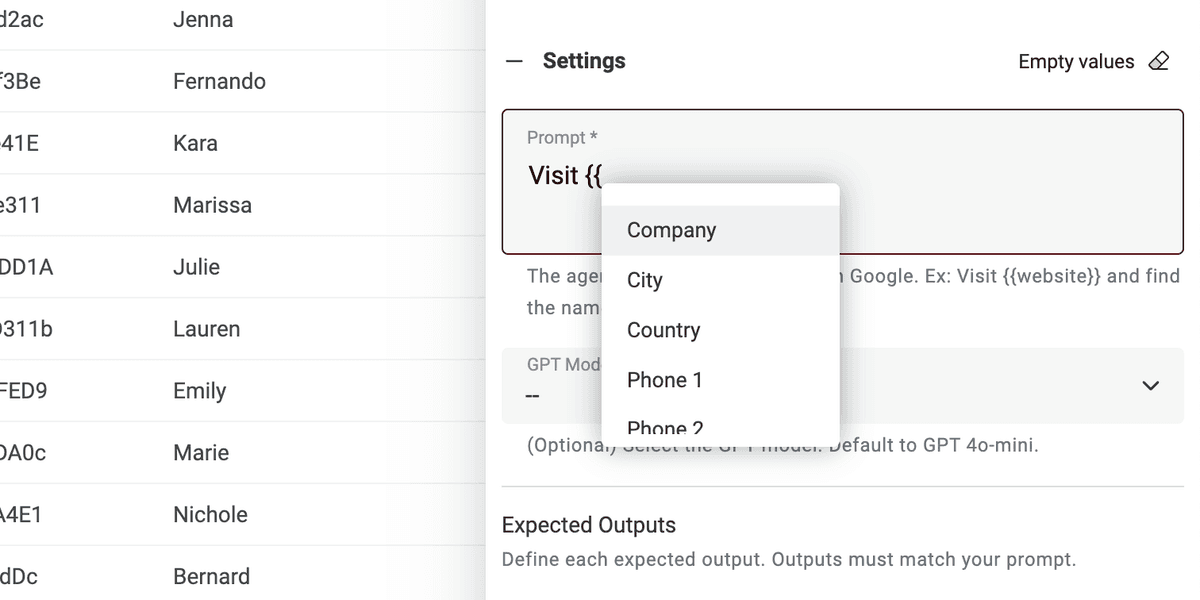
If you don't have all the variables, just edit the prompt.
That's it! You can now run the prompt on every line of your CSV file and get the results in a new column. 🚀
Note on AI Agent prompts
This prompt is made for Datablist AI Agent enrichment. An AI Agent is a smart tool that uses artificial intelligence (AI) to perform tasks for you. It can browse websites, use Google to find information and interact with different online services. This means it can help you with real-time data and up-to-date answers.
On the other hand, the ChatGPT API can only analyze the input text and respond based on its existing knowledge. It doesn't have the ability to access the internet or gather new information on its own.
An AI Agent provides a more dynamic experience by pulling in real-time data, while the ChatGPT API relies on pre-existing knowledge to respond to queries.
When you interact directly on https://chatgpt.com/, you are interacting with an Agent. Sometimes it goes online to provide extra information for your prompt (but not often). However other tools that are connected to ChatGPT use the API. So remember that this prompt cannot be used in another tool that calls the ChatGPT API.
Datablist AI Agent runs an agent on every line of your CSV.