 Always Free
 Disposable and MX Checks
 Business Email Detection
















 Easy to Use
 All Settings Are Optional
 Fully No-Code
Step-by-Step Guide
Step 1: Sign Up & Upload Your Data
First, sign up for Datablist.com
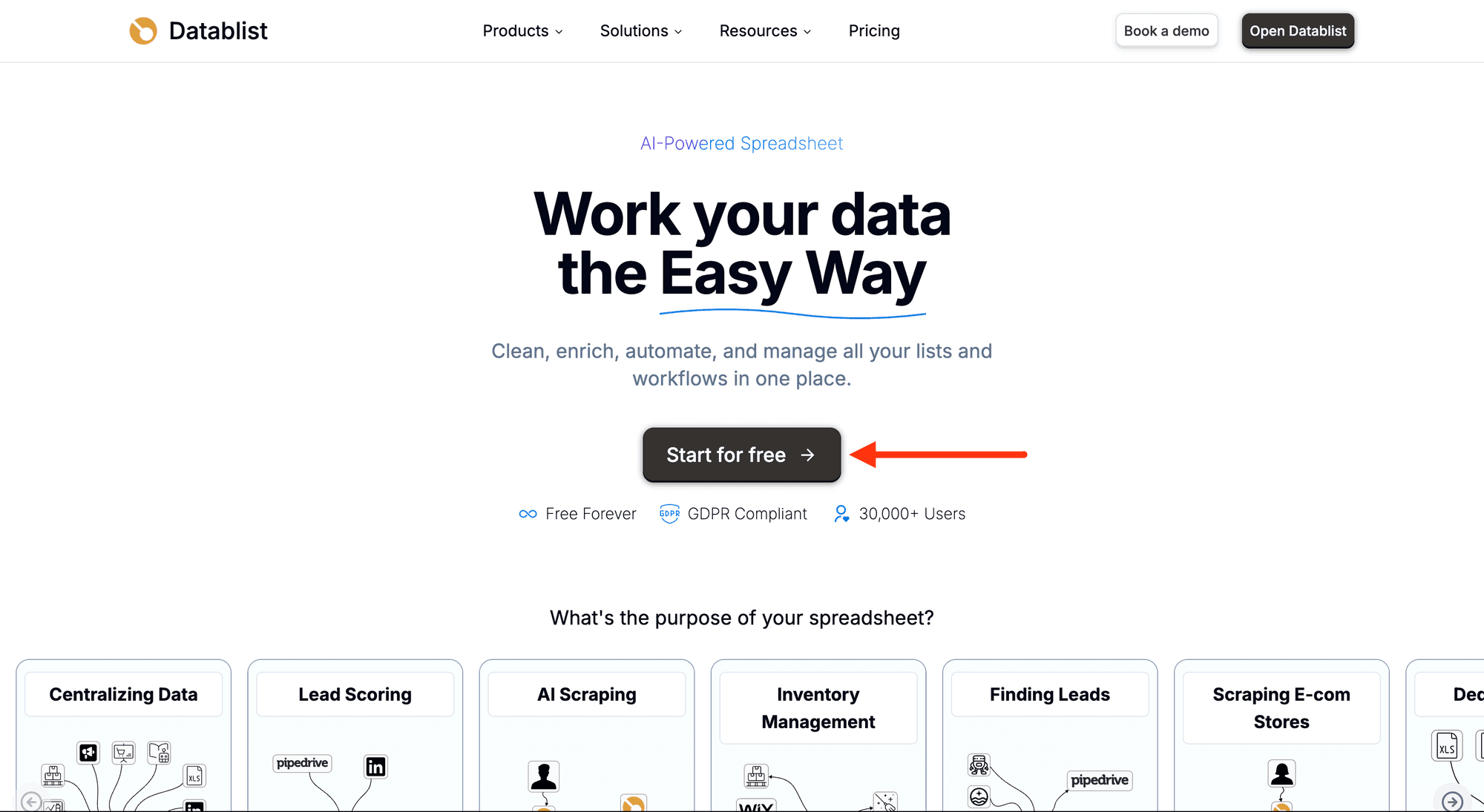
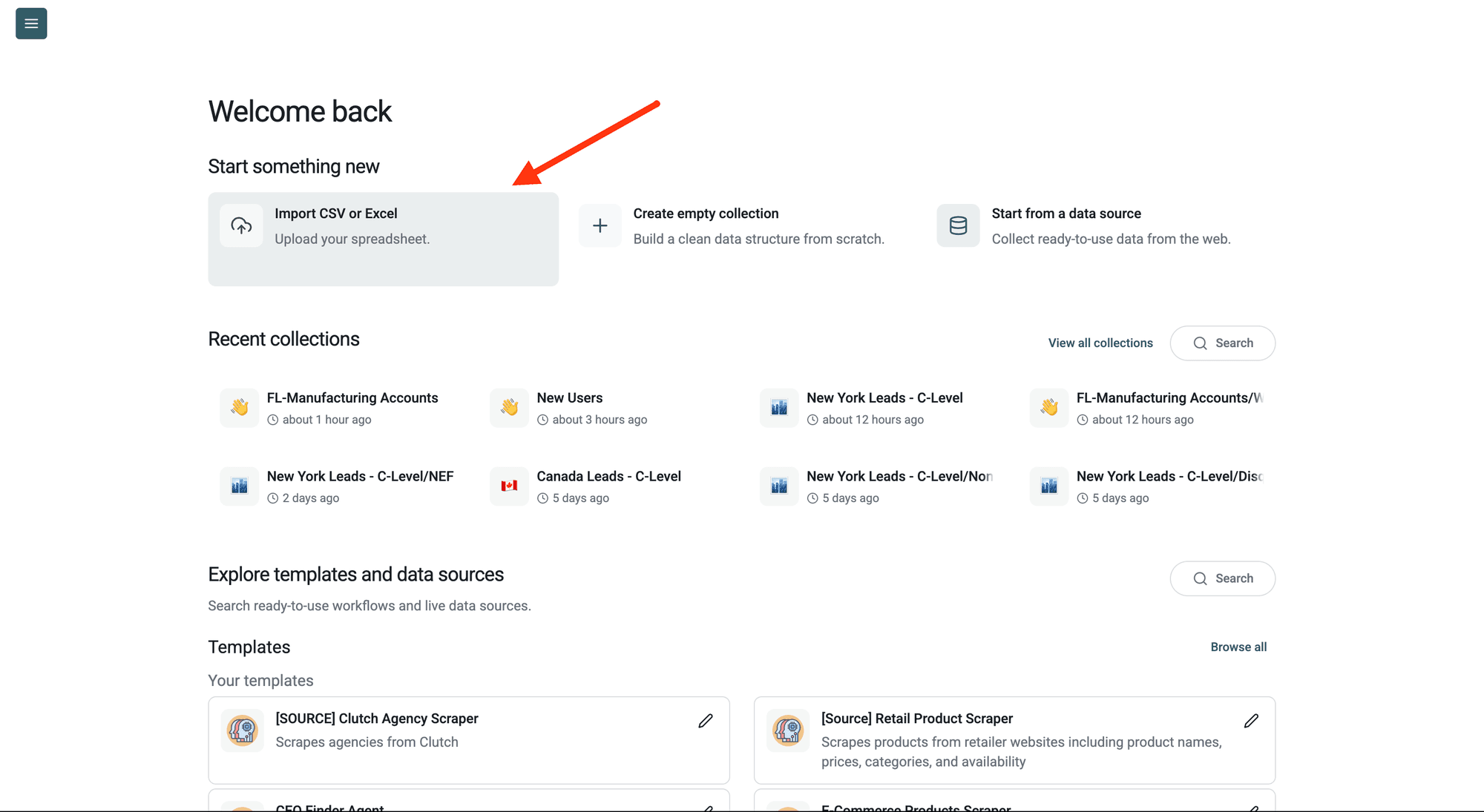
Create a collection with the CSV editor. Then, upload your CSV or Excel file with the email addresses you want to check.
Step 2: Navigate to the Enrichment
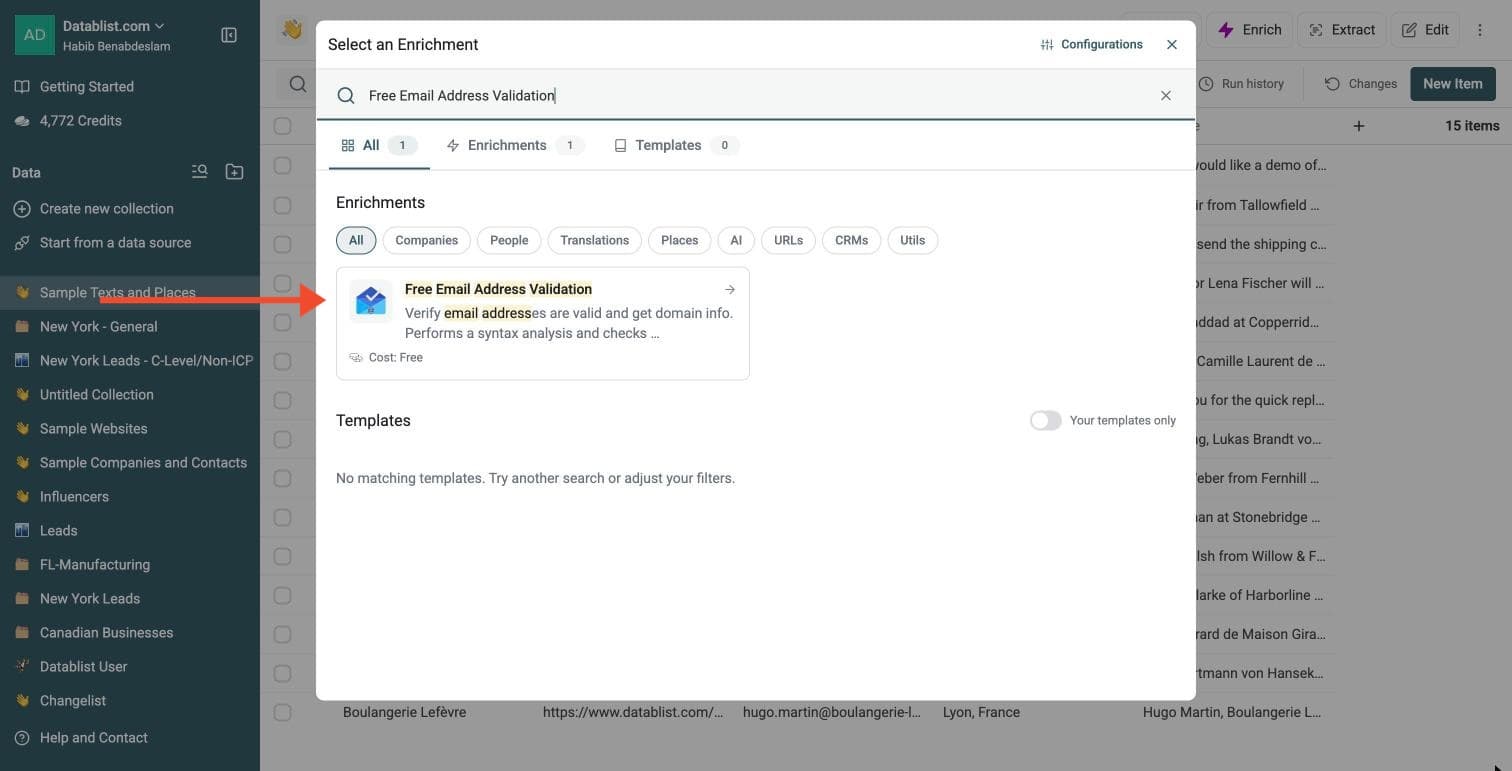
Click Enrich in the top menu and search for Free Email Address Validation.
Step 3: Set Up the Enrichment
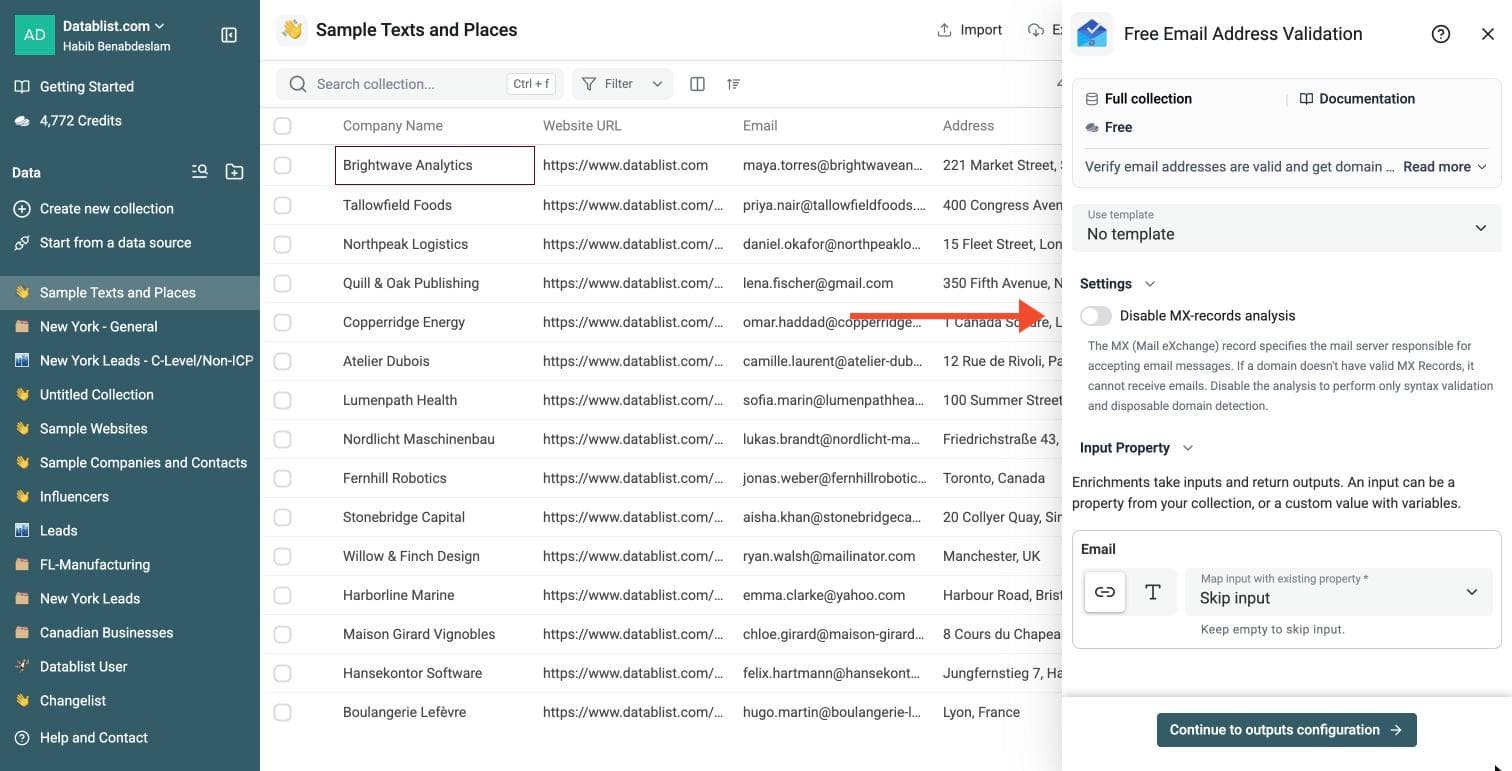
In the drawer that opens, one optional setting:
- Disable MX-records analysis: switch it on to run only the syntax and disposable domain checks
Leave MX analysis enabled when you need domain mail-server checks and the MX Provider output. When disabled, the enrichment still checks syntax and disposable domains, but MX Provider remains empty. This does not verify that a mailbox exists or guarantee delivery.
Step 4: Configure Your Inputs
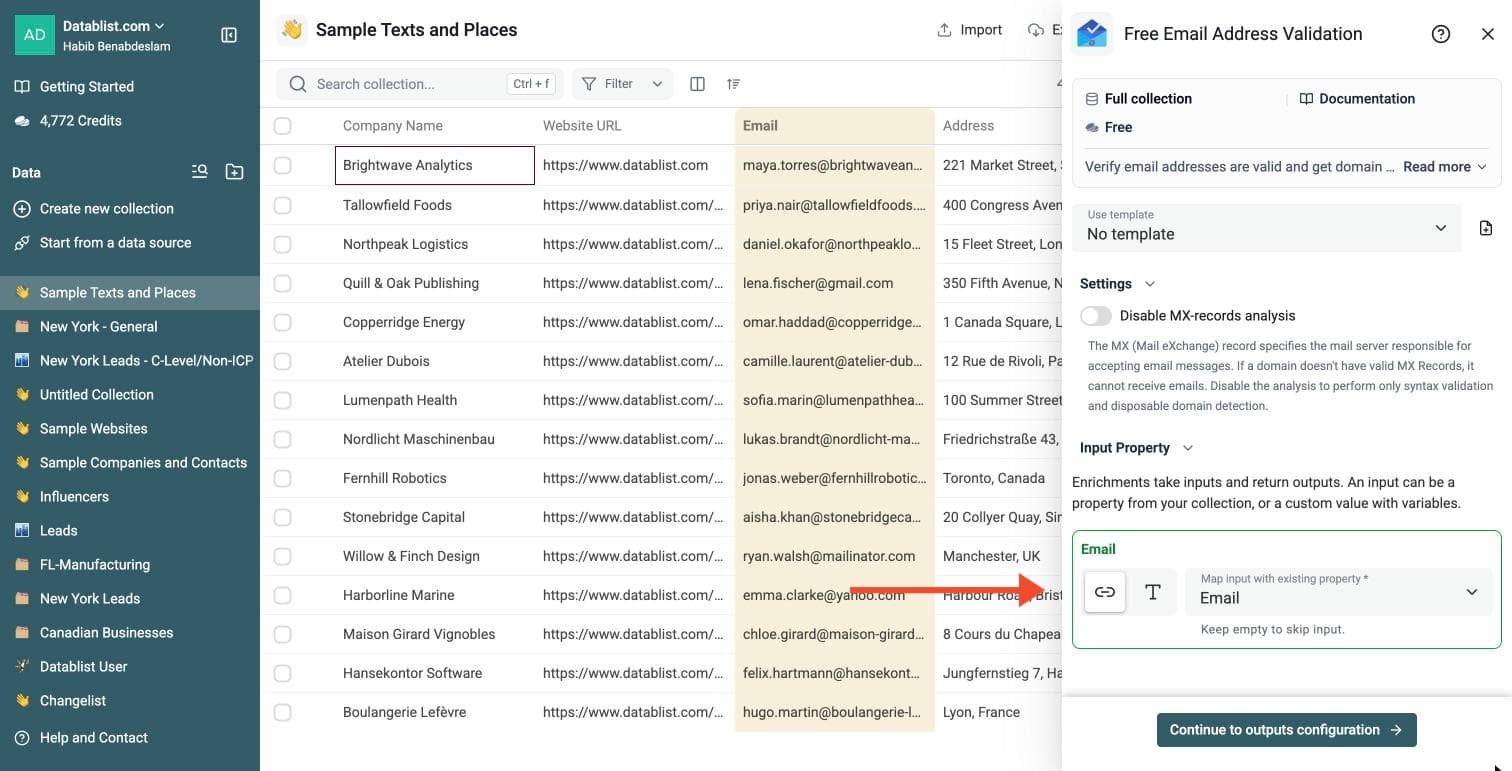
Map the Email input to the column that holds your email addresses.
Then click Continue to outputs configuration.
Step 5: Select Outputs
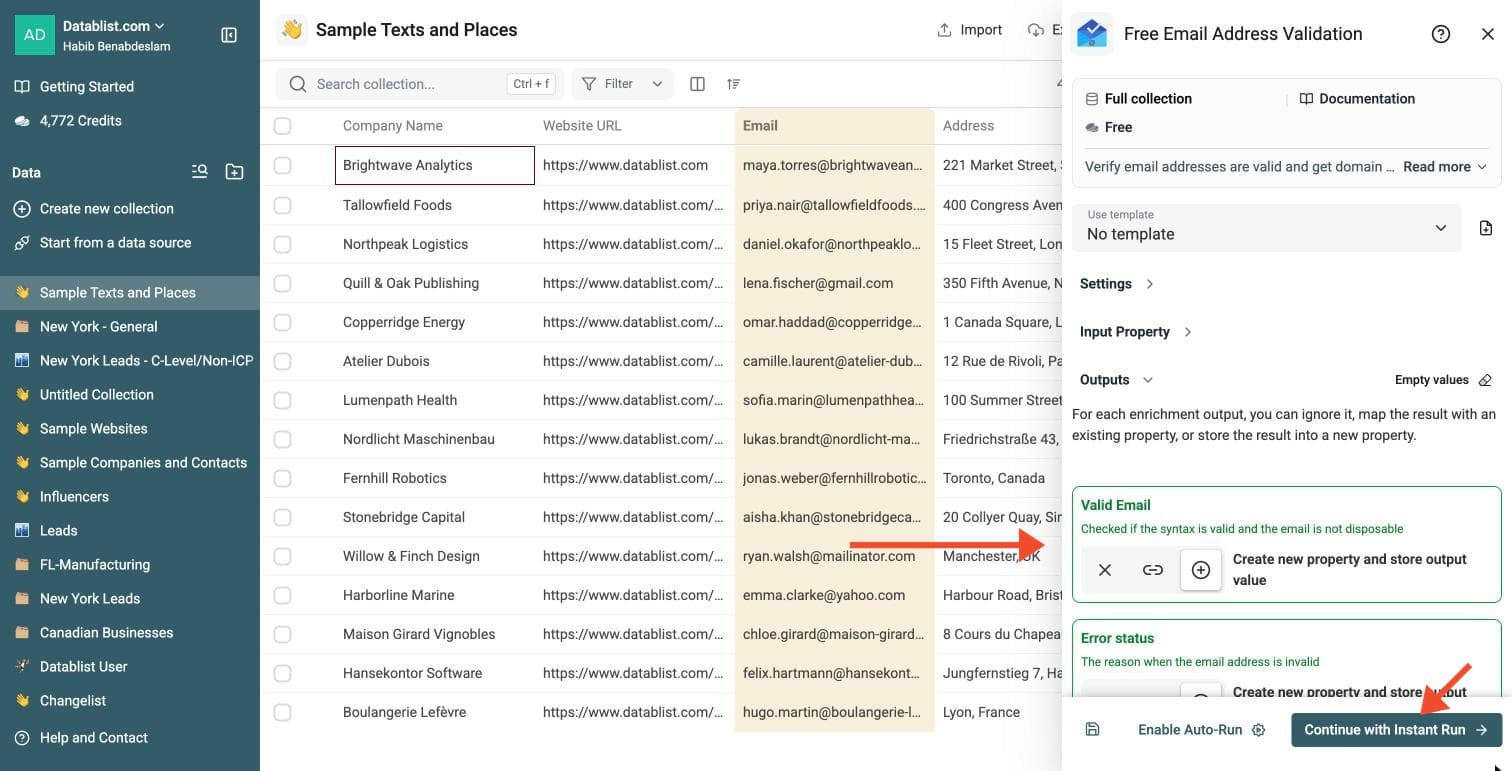
Free Email Validation returns:
-
Valid Email: checked when the enabled validation checks pass
-
Error status: the reason when the address is invalid
-
Business Email: true if the domain is not a generic provider such as Gmail
-
Domain: the part after the @
-
MX Provider: the email provider, such as Google or Microsoft
Click the ⊕ icons to add them to your collection, then click Continue with Instant Run.
Step 6: Run the Enrichment
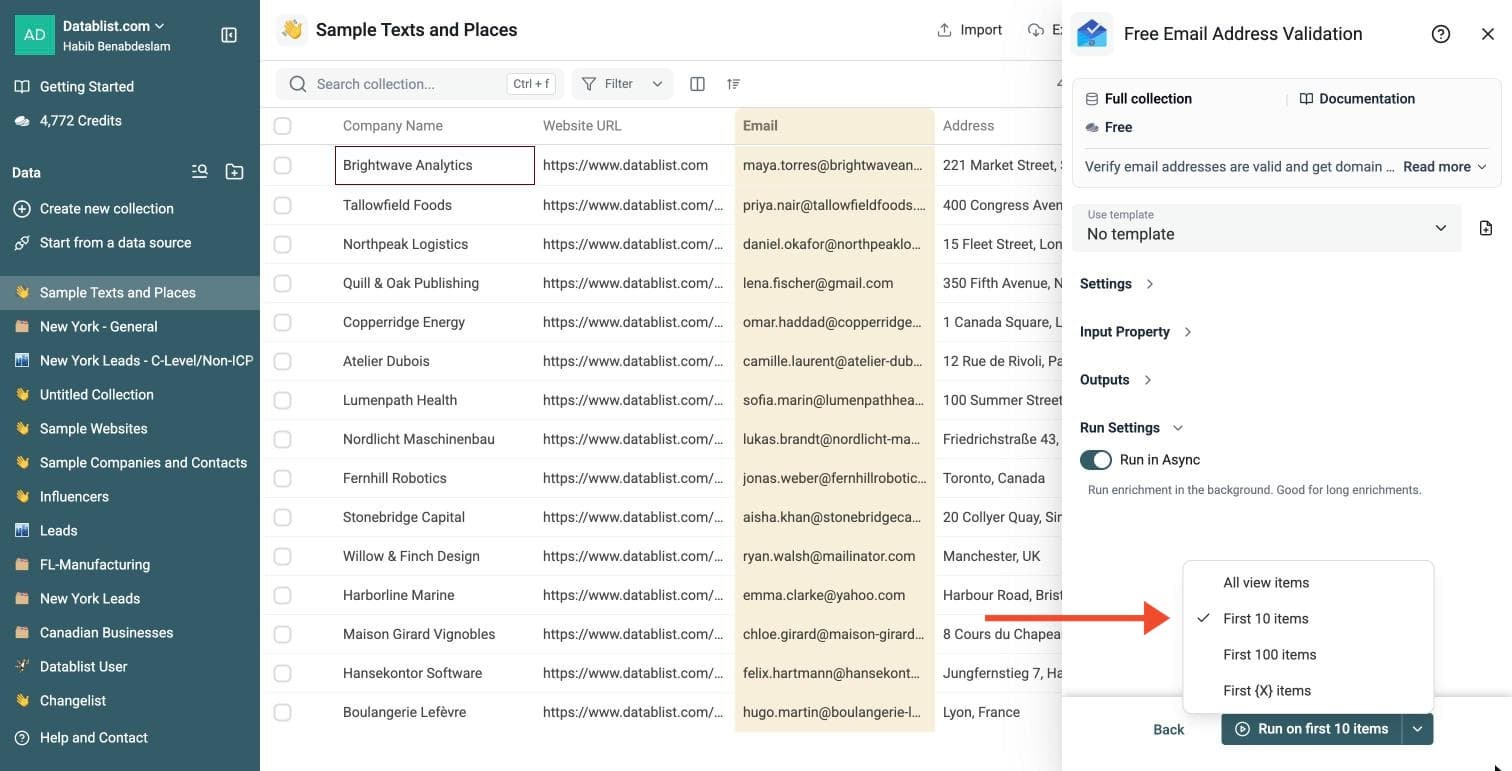
Click the chevron on the right side of the run button to choose how many items to process:
-
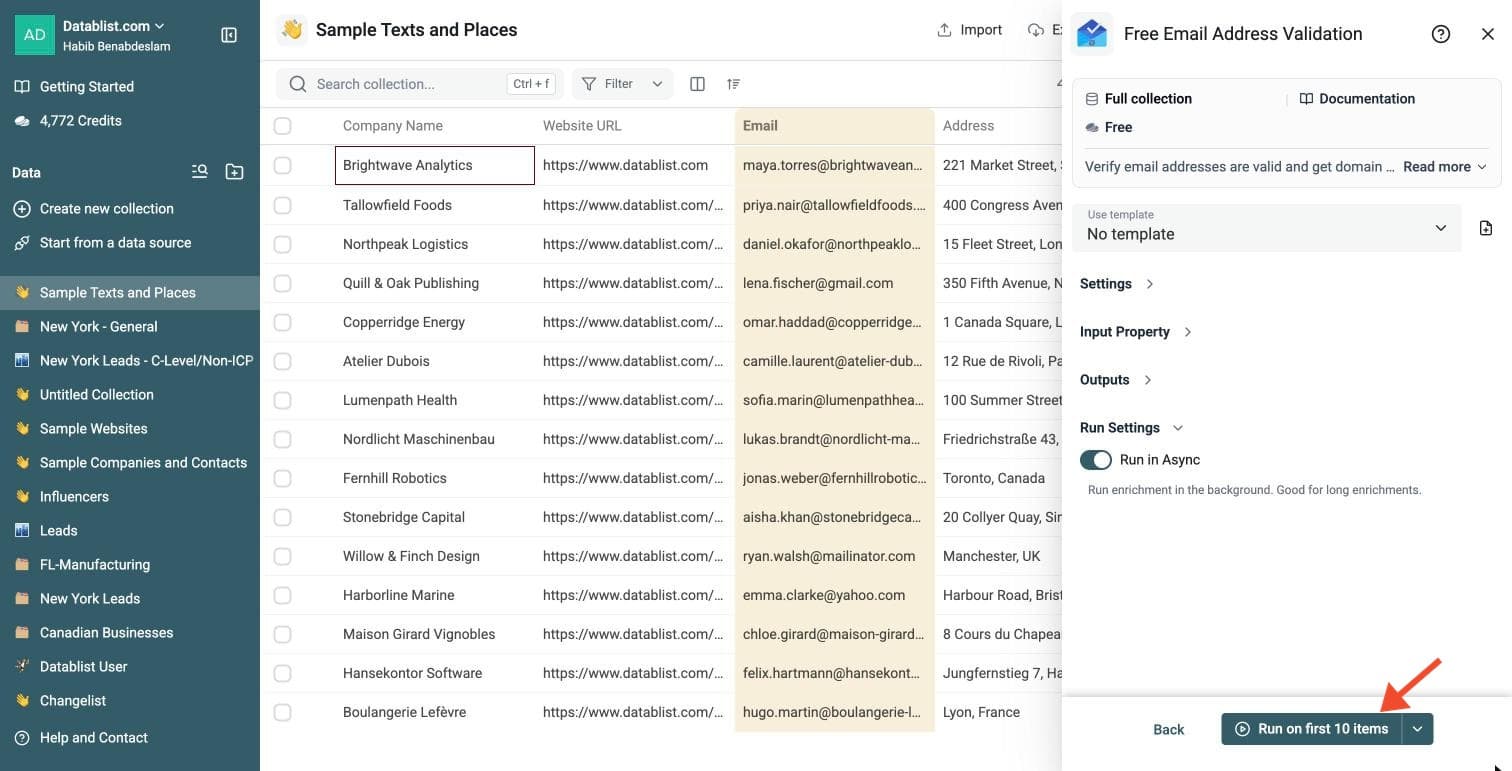
Run on first 10 items: Good for checking results before committing
-
Run on first 100 items: Useful for validating larger samples
-
Run on all view items: Process your entire list (or view if you've enabled filters)
Free Email Validation is free.
Review a small sample and the run-status column before processing the full list. Filter rows that need attention, fix inputs or settings, and rerun those rows. Export your collection when the results are ready.
What the Free Email Validator Checks
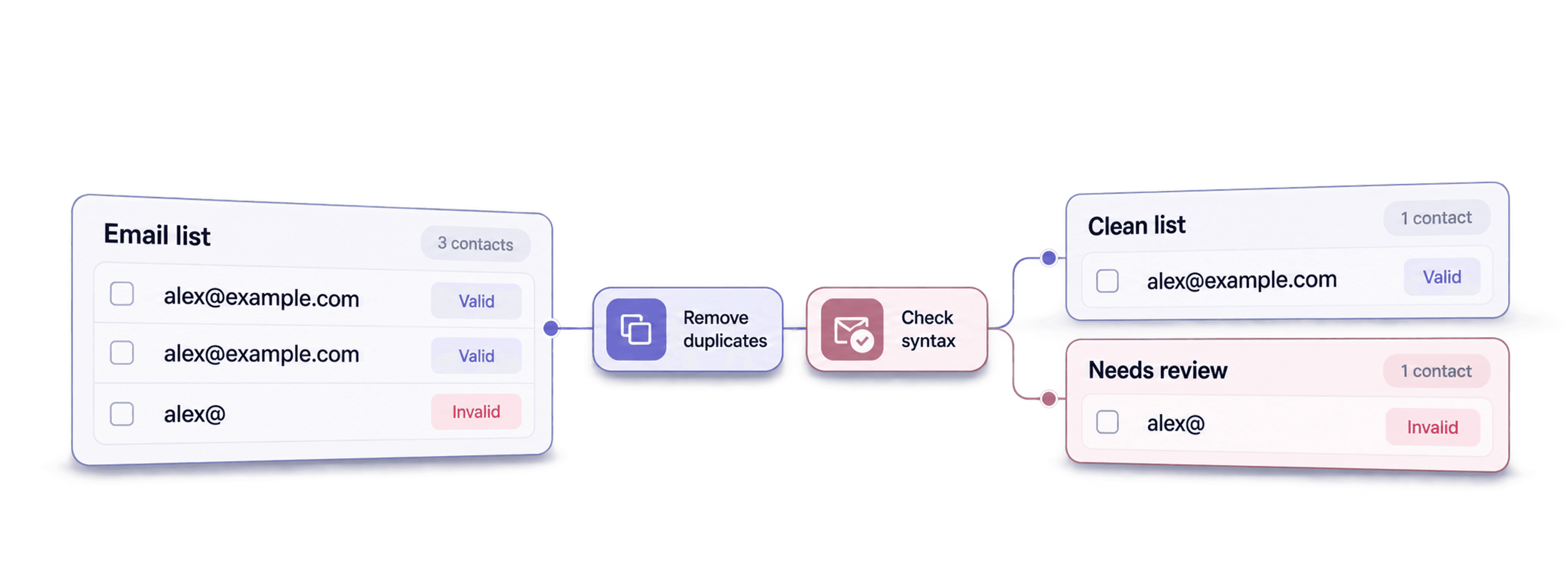
- Syntax Check: Finds formatting errors, such as a missing @ symbol.
- MX Records Check: Checks domain mail-server records when MX analysis is enabled. The validator marks missing MX records as invalid.
- MX Provider: Identifies recognized email-hosting providers. Use it to segment Google, Microsoft or other provider groups; it does not confirm delivery.
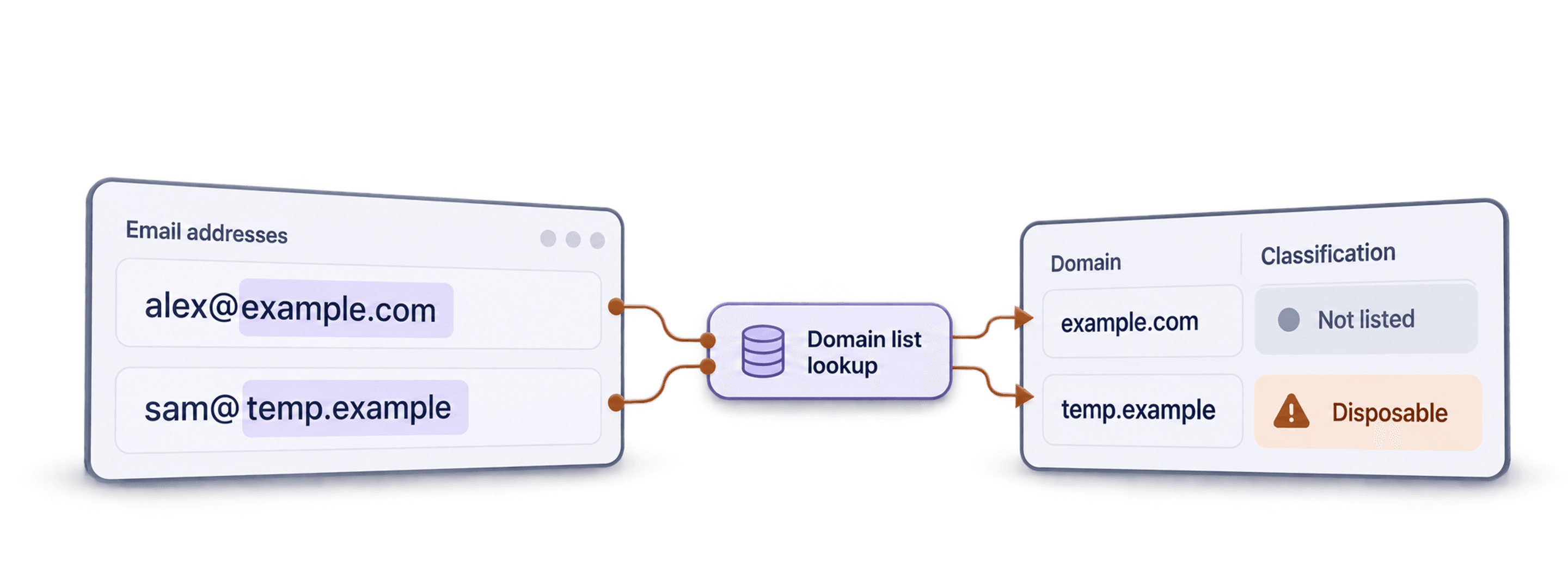
- Disposable Email Detection: Flags temporary addresses from services such as YopMail or Mailinator.
- Business vs. Generic Emails: Distinguishes company domains from generic providers such as Gmail or Yahoo.
These checks identify address and domain problems. They do not check whether an individual mailbox exists.
List of MX Providers
The "Free Email Validator" enrichment can return the name of the email provider based on the MX Records.
Here is the list of built-in providers:
- microsoft
- zoho
- yahoo
- safenames
- ovh
- amazon
- gandi
- ionos
- mimecast
- godaddy
- yandex
- apple
- proofpoint
- mailgun
- protonmail
- mail.ru
- barracuda
- namecheap
Note: If the MX Records don't match one of those providers, the full MX Record is returned.
For the full email-cleaning workflow, see how to clean an email list. To review temporary-domain checks, see how to detect disposable email addresses.