 0.05 Credits per Email
 Confidence Level for Every Name
 500 Free Credits to Try
















 Easy to Use
 No Settings to Configure
 Fully No-Code
Step-by-Step Guide
Step 1: Sign Up & Upload Your Data
First, sign up for Datablist.com
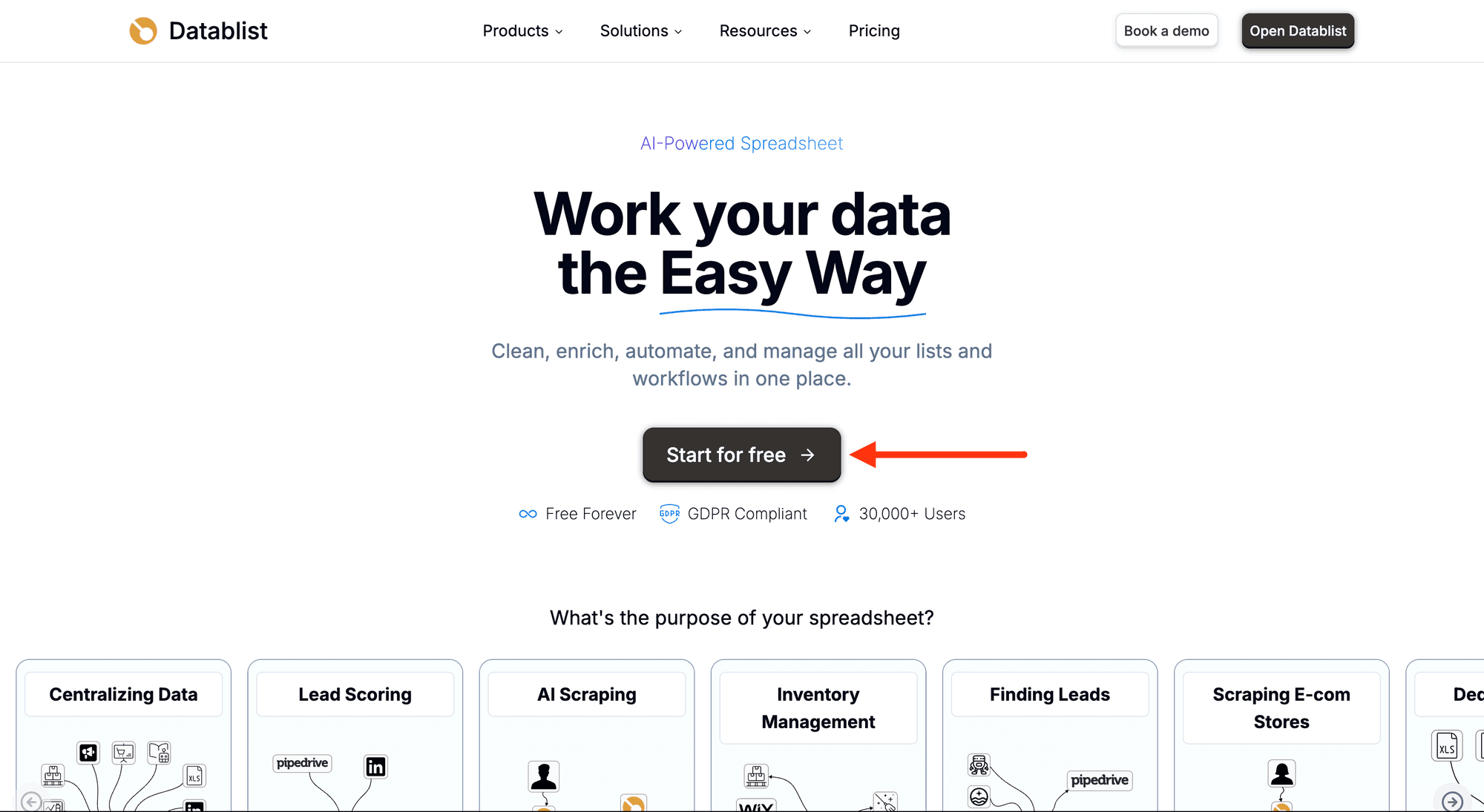
Create a collection with the CSV editor. Then, upload your CSV or Excel file with the email addresses.
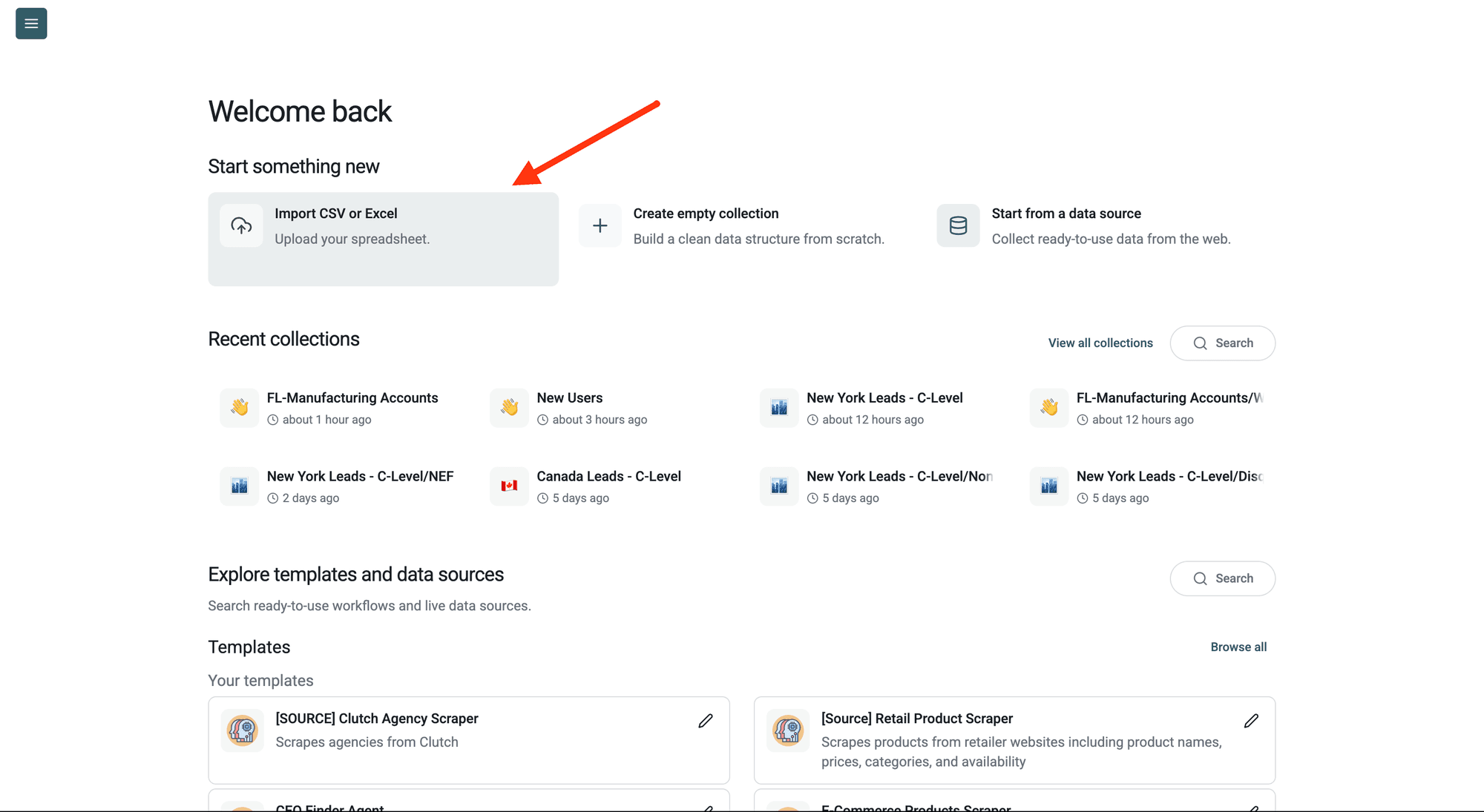
Step 2: Navigate to the Enrichment
Click Enrich in the top menu and search for Extract the name from an email address.
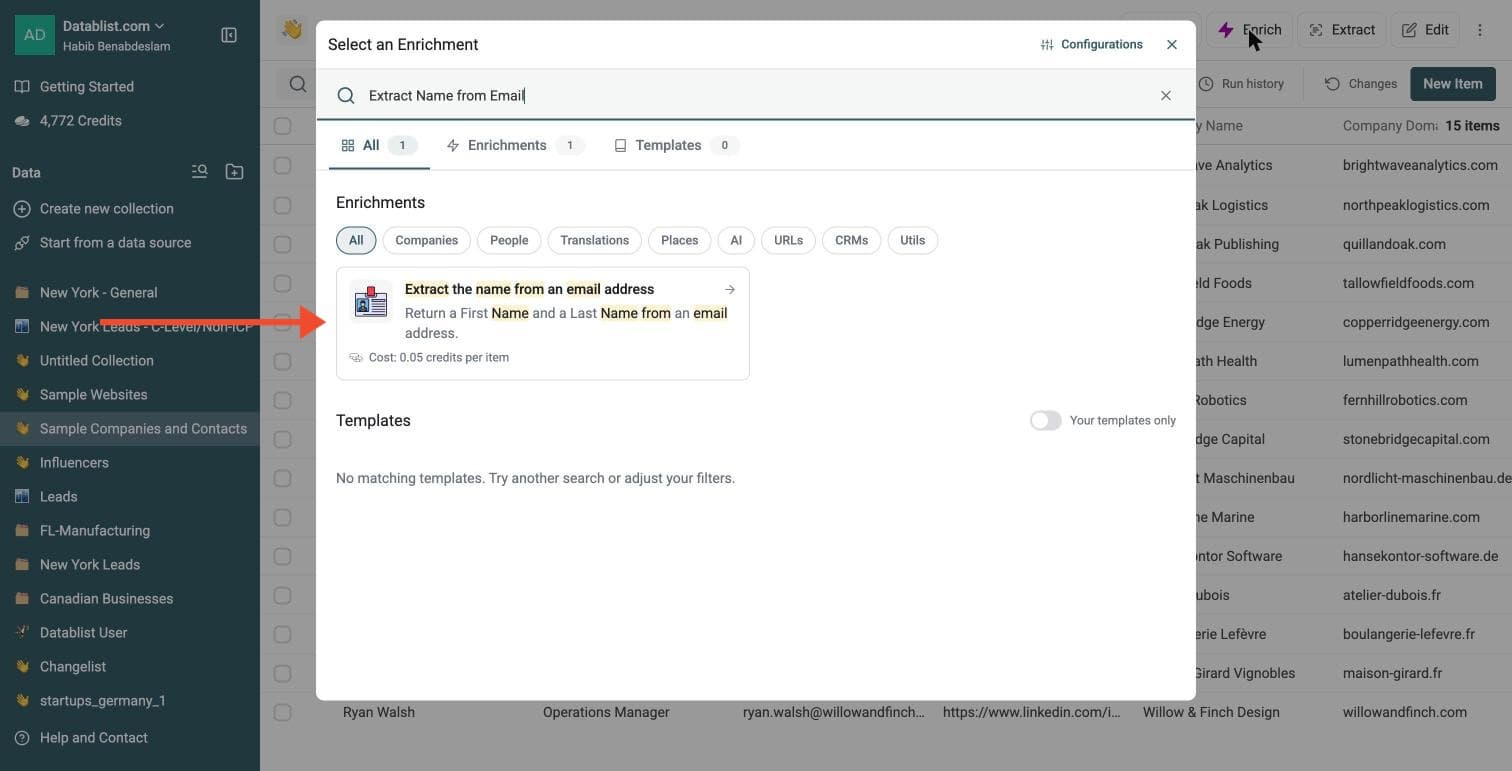
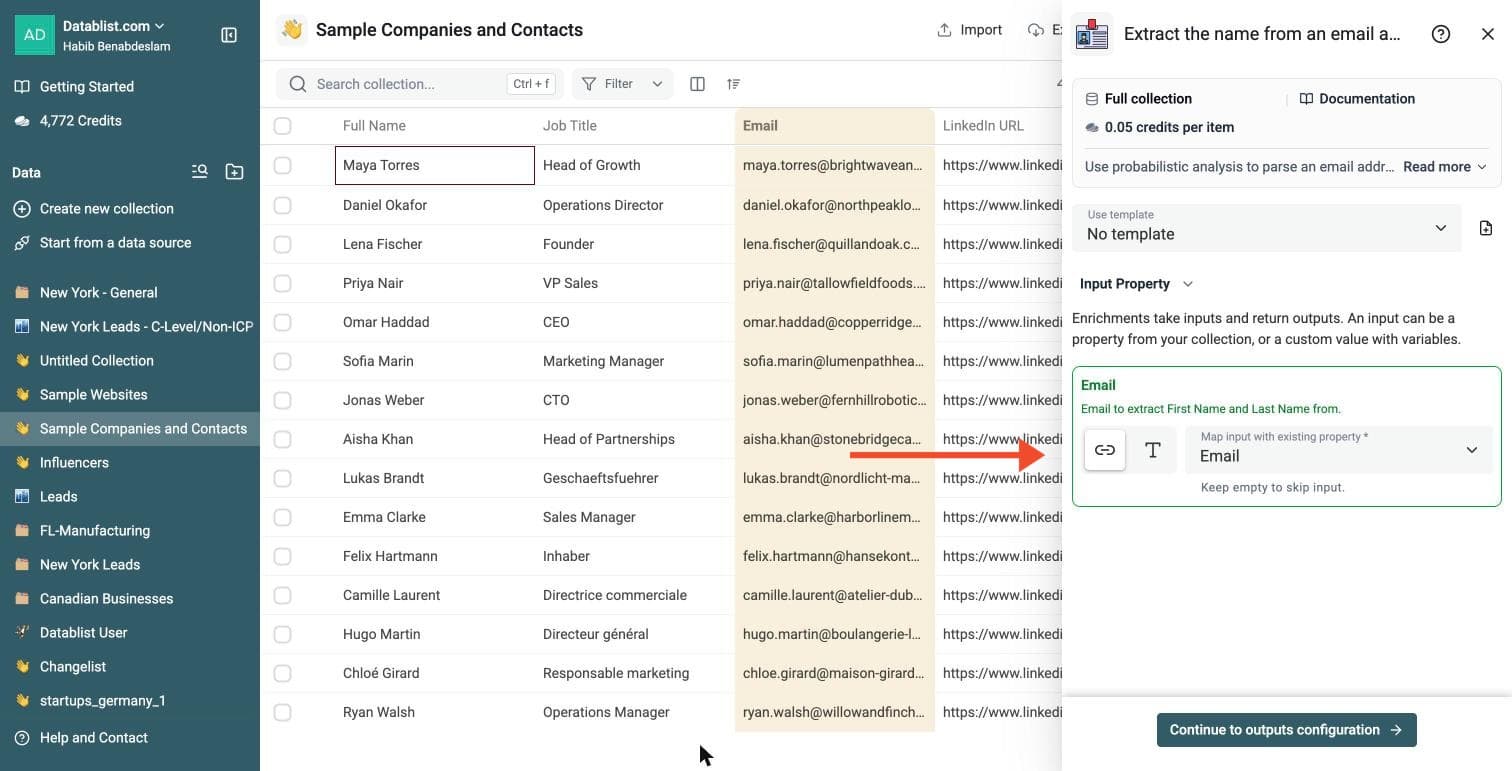
Step 3: Configure Your Inputs
Map the Email input to the column that holds the email addresses.
Then click Continue to outputs configuration.
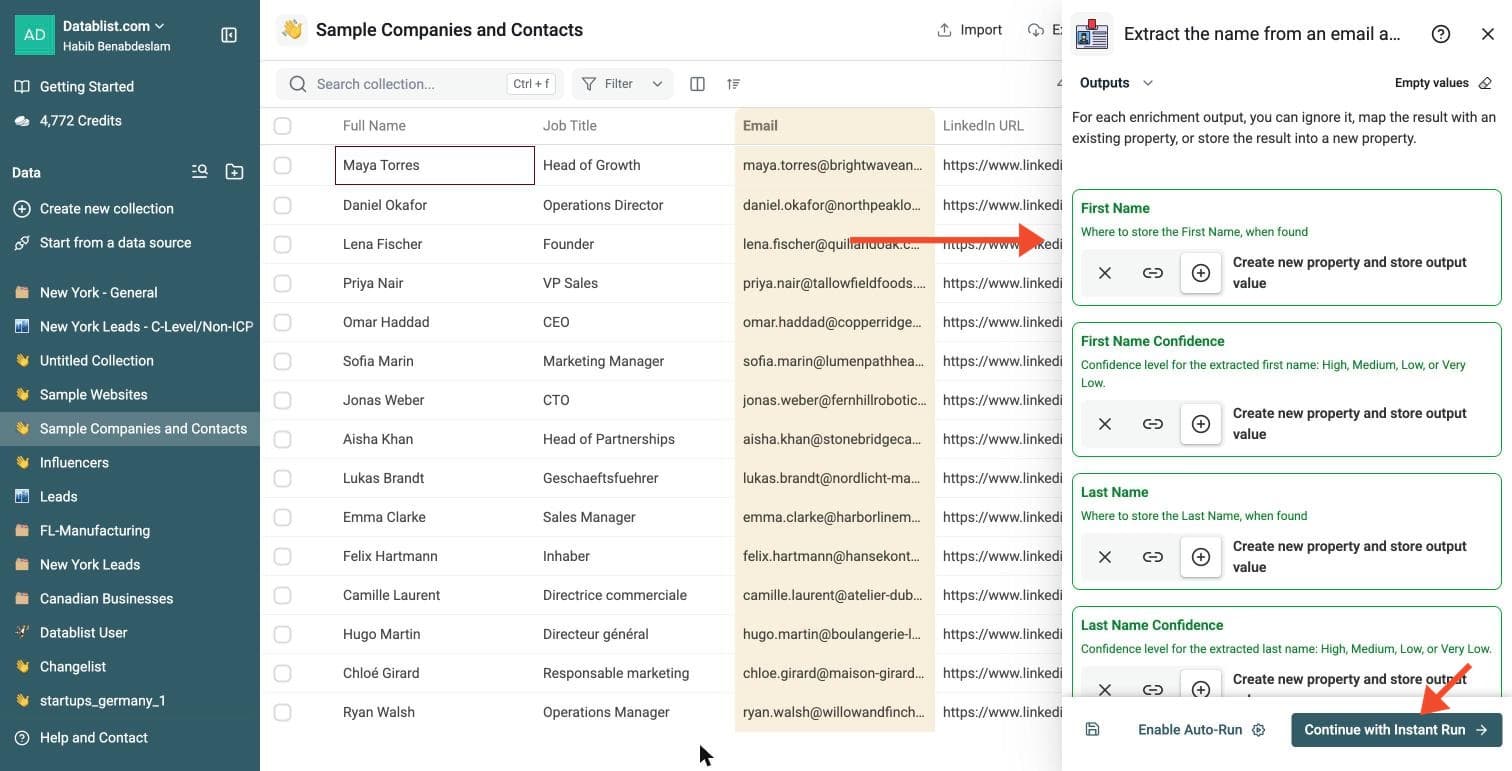
Step 4: Select Outputs
Extract Name from Email Address can return:
-
First Name and Last Name: the name parts, when found
-
First Name Confidence and Last Name Confidence: High, Medium, Low or Very Low
-
Country and Country Confidence: where the name is most common, and how much to trust it
-
Extraction Pattern: the pattern used, such as
{first}.{last},{f}.{last}or display_name
Click the ⊕ icons to add them to your collection, then click Continue with Instant Run.
Step 5: Run the Enrichment
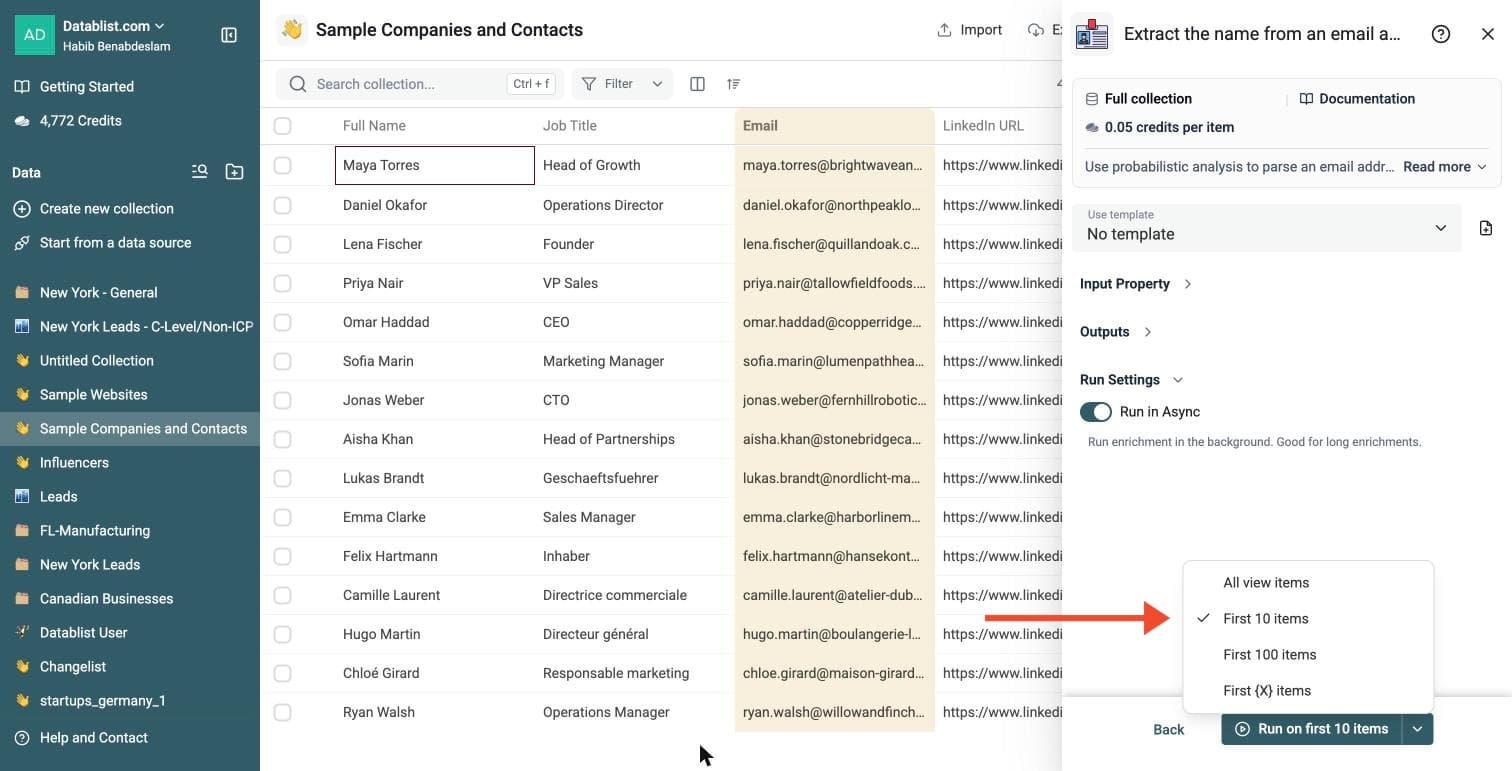
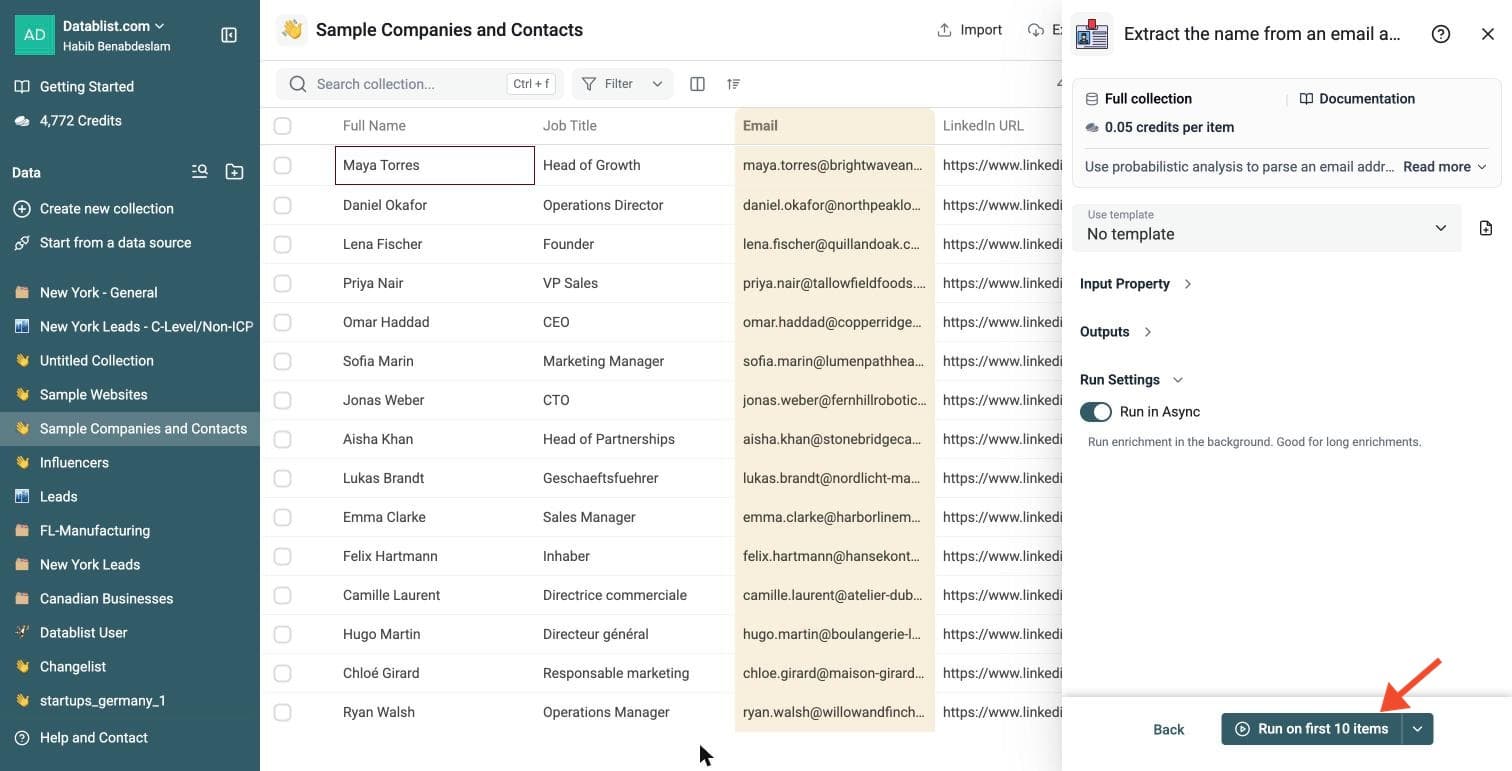
Click the chevron on the right side of the run button to choose how many items to process:
-
Run on first 10 items: Good for checking results before committing
-
Run on first 100 items: Useful for validating larger samples
-
Run on all view items: Process your entire list (or view if you've enabled filters)
Extract Name from Email Address costs 0.05 credits per item.
Review a small sample and the run-status column before processing the full list. Filter rows that need attention, fix inputs or settings, and rerun those rows. Export your collection when the results are ready.
What You Get
For each email address, Datablist returns:
- First Name - The first name found in the email handle or display name.
- Last Name - The last name found in the email handle or display name.
- First Name Confidence - Confidence for the first name only.
- Last Name Confidence - Confidence for the last name only.
- Country - The country where the extracted name is most common, when the name gives enough signal.
- Country Confidence - Confidence for the country inference.
- Extraction Pattern - The reusable email/name pattern, such as
{first}.{last}or{f}.{last}.
When Datablist cannot find a reliable name, the row is marked as no result. Empty input is marked as empty data.
Detects First Name and Last Name Order
Email handles do not always use the same order.
Some companies use firstname.lastname@company.com. Others use lastname.firstname@company.com.
Datablist does not assume the first token is always the first name. It checks each token against a statistical name database, then decides which part is more likely to be a first name and which part is more likely to be a last name.
This helps with emails such as:
john.smith@company.com-> John / Smithsmith.john@company.com-> John / Smithmaria-garcia@company.com-> Maria / Garciagarcia.maria@company.com-> Maria / Garcia
The result is still an inference, not a verified identity. Use no-result rows and unusual names for manual review when accuracy matters.
Confidence Levels
Name extraction from an email is not always equal for first name and last name.
For example, lu.rossi@gmail.com contains:
lu- a short first-name signal. It may be a nickname, a diminutive, or a username.rossi- a full last-name signal.
Datablist returns a separate confidence level for each part:
- High - Strong signal. Example:
luca.rossi@company.comorJohn Smith <email@domain.com>. - Medium - Good signal, but the pattern needs more inference. Example:
lucarossi@company.com. - Low - Weak signal. Example:
lu.rossi@gmail.com, whereLuis short and may not be the full first name. - Very Low - Reserved for weak name-part signals.
This lets you filter results after the run.
For outreach, you can keep High and Medium first names, then review Low first names before using them in greetings.
For CRM cleanup, you may keep Low first names but mark them for review.
Country Output
Datablist can also return a likely country from the extracted name.
This is based on name frequency data. It is not a verified location, and it does not use the email domain. For example, luca.rossi@company.com can return Italy because both name parts are common in Italy.
The Country Confidence output tells you how strong the signal is:
- High - The name points clearly to one country.
- Medium - The name has a useful country signal, but other countries are possible.
- Low - The country signal is weak.
- Very Low - The name gives little country evidence.
Use country confidence to filter your list. For segmentation, keep High and Medium rows. For compliance, identity checks, or location rules, use a verified source instead.
Extraction Patterns
The Extraction Pattern output tells you the email/name format Datablist detected.
Examples:
{first}.{last}forjohn.smith@company.com{last}.{first}forsmith.john@company.com{f}.{last}forj.smith@company.com{first}.{l}forjohn.s@company.com{first}{last}forjohnsmith@company.com{last}{first}forsmithjohn@company.com{first}_{last}forjohn_smith@company.com{first}-{last}forjohn-smith@company.comdisplay_nameforJohn Smith <support@example.com>
This is useful for lead generation. Once you identify the email pattern used by a domain, you can reuse it to build likely business email addresses for other contacts at the same company.
The display_name pattern describes the display name, not the email address format. A detected pattern does not verify any new address you generate.
Use this field with confidence levels. For example, {first}.{last} with High confidence on both parts is cleaner than {first}{last} with Medium confidence.
Why Extract Names from Email Addresses?
Many lead lists, exports, and scraped files only contain email addresses. This makes outreach and CRM work harder.
With first and last names, you can:
- Personalize email campaigns with
Hi John - Split contacts into clean first-name and last-name fields
- Import cleaner records into your CRM
- Prepare lists for people enrichment
- Route leads without asking users to fill more form fields
This enrichment gives you a low-cost first pass before running more expensive enrichment tools.
Examples
| Email Input | First Name | First Confidence | Last Name | Last Confidence | Country | Country Confidence | Pattern | Notes |
|---|---|---|---|---|---|---|---|---|
| john.smith@example.com | John | High | Smith | High | United States | High | {first}.{last} | Classic first.last pattern |
| smith.john@example.com | John | High | Smith | High | United States | High | {last}.{first} | Detects lastname.firstname order |
| lu.rossi@gmail.com | Lu | Low | Rossi | High | Italy | High | {first}.{last} | Short first-name signal, full last name |
| maria-garcia@brand.co | Maria | High | Garcia | High | United States | Medium | {first}-{last} | Dash separator |
| j.smith@example.com | Smith | High | United States | High | {f}.{last} | Initial plus last name | ||
| john.s@example.com | John | High | United States | Medium | {first}.{l} | First name plus initial | ||
| lucarossi@example.com | Luca | Medium | Rossi | Medium | Italy | High | {first}{last} | No separator, split by name database |
| John Smith <support@example.com> | John | High | Smith | High | United States | High | display_name | Display name from email headers |
| support@example.com | unknown | No result |
Patterns Supported
The parser is made for email-shaped data. It accepts full email addresses and email usernames.
It checks common patterns such as:
firstname.lastname@domain.comlastname.firstname@domain.comfirstname-lastname@domain.comfirstname_lastname@domain.comfirstnamelastname@domain.comfirstname.lastnamefirstnamelastnamej.lastname@domain.comfirstname.l@domain.comFirstname Lastname <email@domain.com>Lastname, Firstname <email@domain.com>
It also strips common noise:
- Numbers at the end of usernames
- Plus tags such as
john.smith+newsletter@gmail.com - Role words such as
sales,support,admin,noreply,jobs, andbilling - Titles such as
mr,mrs,dr,ceo, andcto
When to Use It
Prepare Cold Outreach Lists
If your email list has no names, extract first names before writing your sequence. A simple first-name greeting often reads better than a generic opening.
Clean CRM Imports
Many CRMs need separate first-name and last-name fields. Run this enrichment before importing raw contact files into HubSpot, Pipedrive, Salesforce, or another CRM.
Improve Lead Enrichment
People enrichment works better when you provide a name plus an email or domain. Extract names first, then run a contact enrichment workflow.
Process Scraped Emails
If you scrape emails from websites, directories, or job boards, the result often lacks names. This enrichment can recover names from email handles and display-name strings.
Clean Signup and Form Data
Some users enter an email but leave name fields empty. Use the email address to recover a likely name and reduce manual cleanup.
Tips for Better Results
- Use real email addresses, not domains alone.
- Keep display names when you have them, such as
John Smith <email@domain.com>. - Run this enrichment before CRM import or cold outreach.
- Filter no-result rows and Low confidence first names before using names in email templates.
- Use Extraction Pattern to review risky cases faster.
- Use Country Confidence before segmenting a list by likely country.
- Trust
display_nameand clean separated patterns such as{first}.{last}first. - Review compact patterns such as
{first}{last}when accuracy matters. - Do not treat extracted names as verified identity. Use them as a strong cleanup signal.
Limits
Email names are inferred from patterns. Some emails do not contain a person name.
Examples:
support@company.cominfo@company.comteam@company.comno-reply@company.comx7k92@company.com
Datablist avoids inventing names for these rows. They stay empty and can be reviewed or enriched with another workflow.
The parser can also try to split raw usernames or strings without @. That is useful for email handles, but random strings can create false positives. For example, a long random username may look like two possible name parts. Use confidence fields and extraction patterns to review those rows.
Pricing
This enrichment costs 0.05 credits per item.
Examples:
- 1,000 email addresses cost 50 credits
- 10,000 email addresses cost 500 credits
- 100,000 email addresses cost 5,000 credits
Review Confidence Fields
After the run, filter your results.
Good filters to start with:
- Keep rows where First Name Confidence is High or Medium.
- Review rows where First Name Confidence is Low.
- Keep last names with High confidence.
- Keep country values only when Country Confidence is High or Medium.
- Review compact patterns such as
{first}{last}when the list is important. - Filter rows marked as no result before using names in email templates.
If you only need a first-name greeting, focus on the first-name confidence. If you prepare CRM records, review both first and last-name confidence. If you segment by region, filter on country confidence before using the country output.