 Free With Your Own Key
 CSV and Excel Import
 Bulk AI Without Writing Code













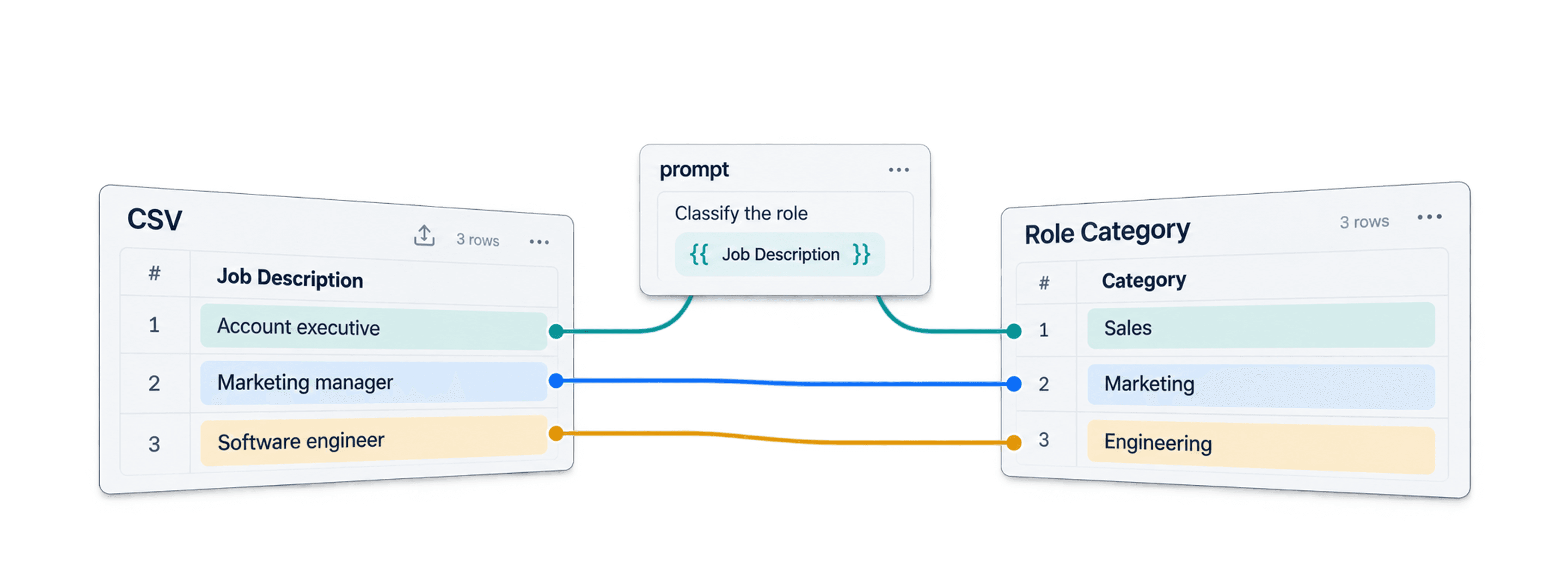

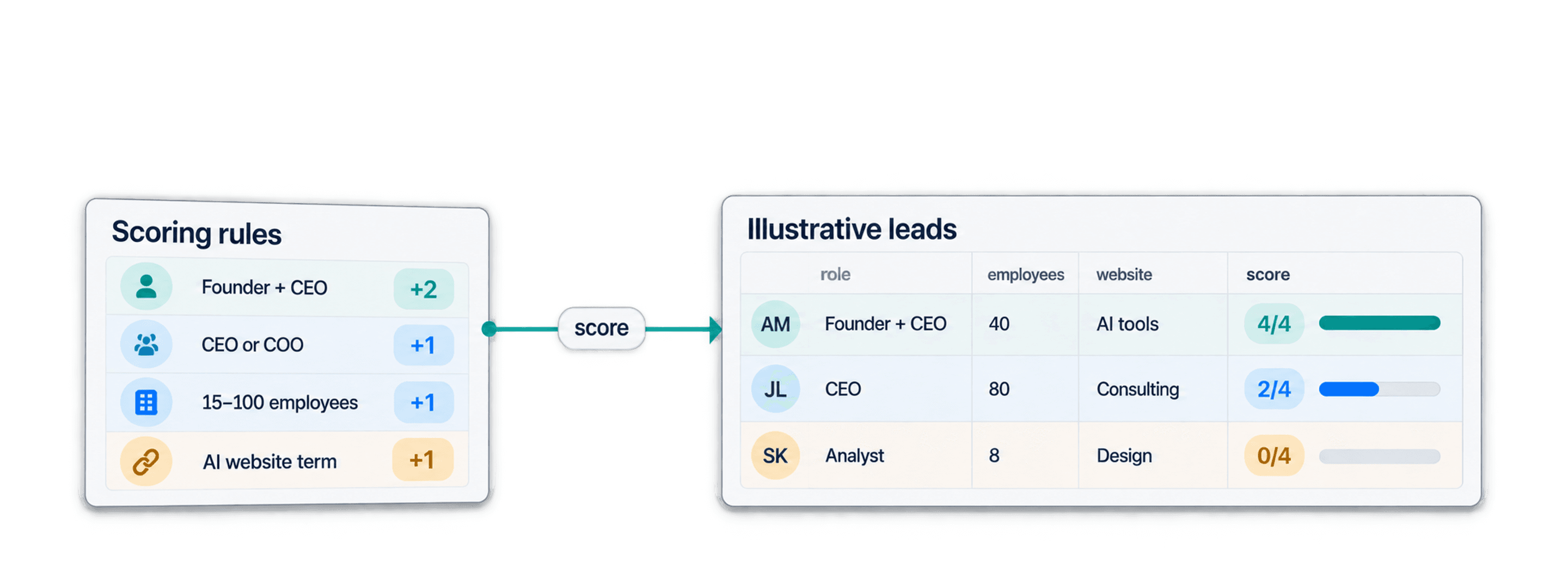


 Easy to Use
 Fully No-Code
 38,000+ Users
Step-by-Step Guide
Part 1: Get your Google API key
Follow Google's own instructions: Using Gemini API keys.
Step 1: Open Google AI Studio
Sign in to Google AI Studio with your Google account.
New users get a default Google Cloud project and API key after accepting the Terms of Service. If you already use Google Cloud, import your project first: open the Dashboard, select Projects and click Import projects.
Step 2: Create and Copy Your Key
Open API Keys and click Create API key in the project you want to use.
Copy the new key and keep it confidential. Anyone with the key can use your project's quota.
Part 2: Run the enrichment in Datablist
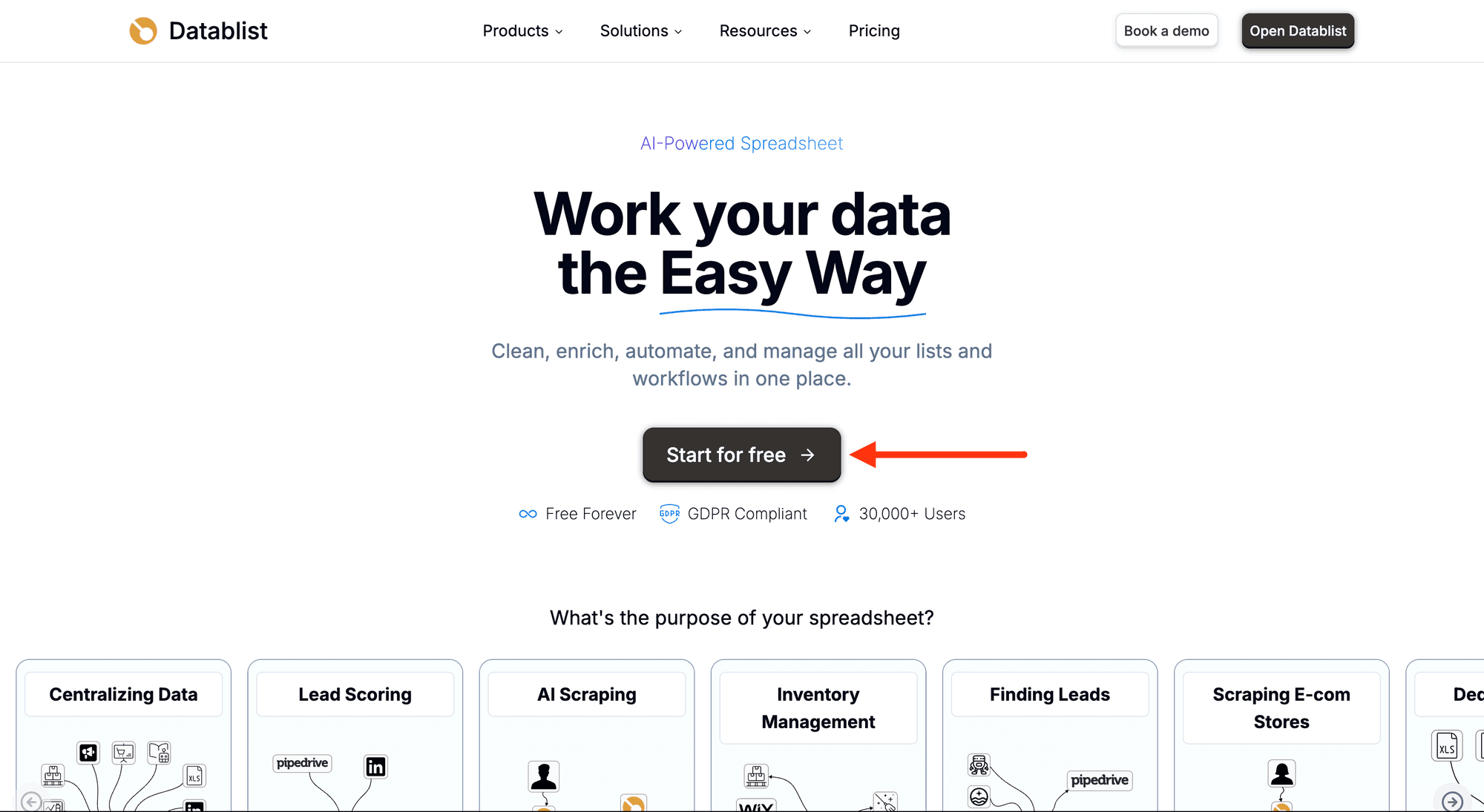
Step 3: Sign Up & Upload Your Data
First, sign up for Datablist.com
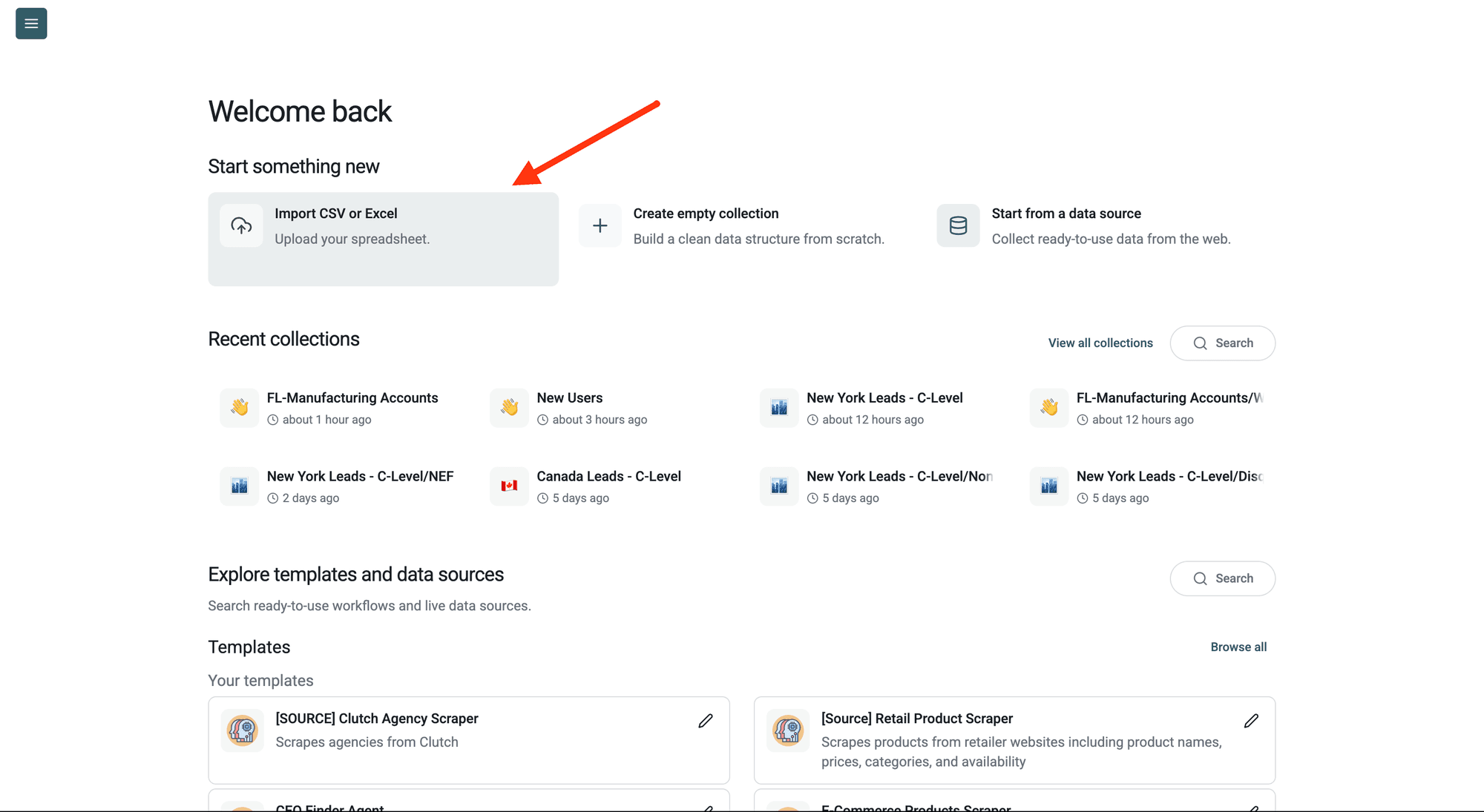
Then, upload your CSV or Excel file with the rows you want to run the prompt on. Create a new collection and import your file.
Step 4: Navigate to the Enrichment
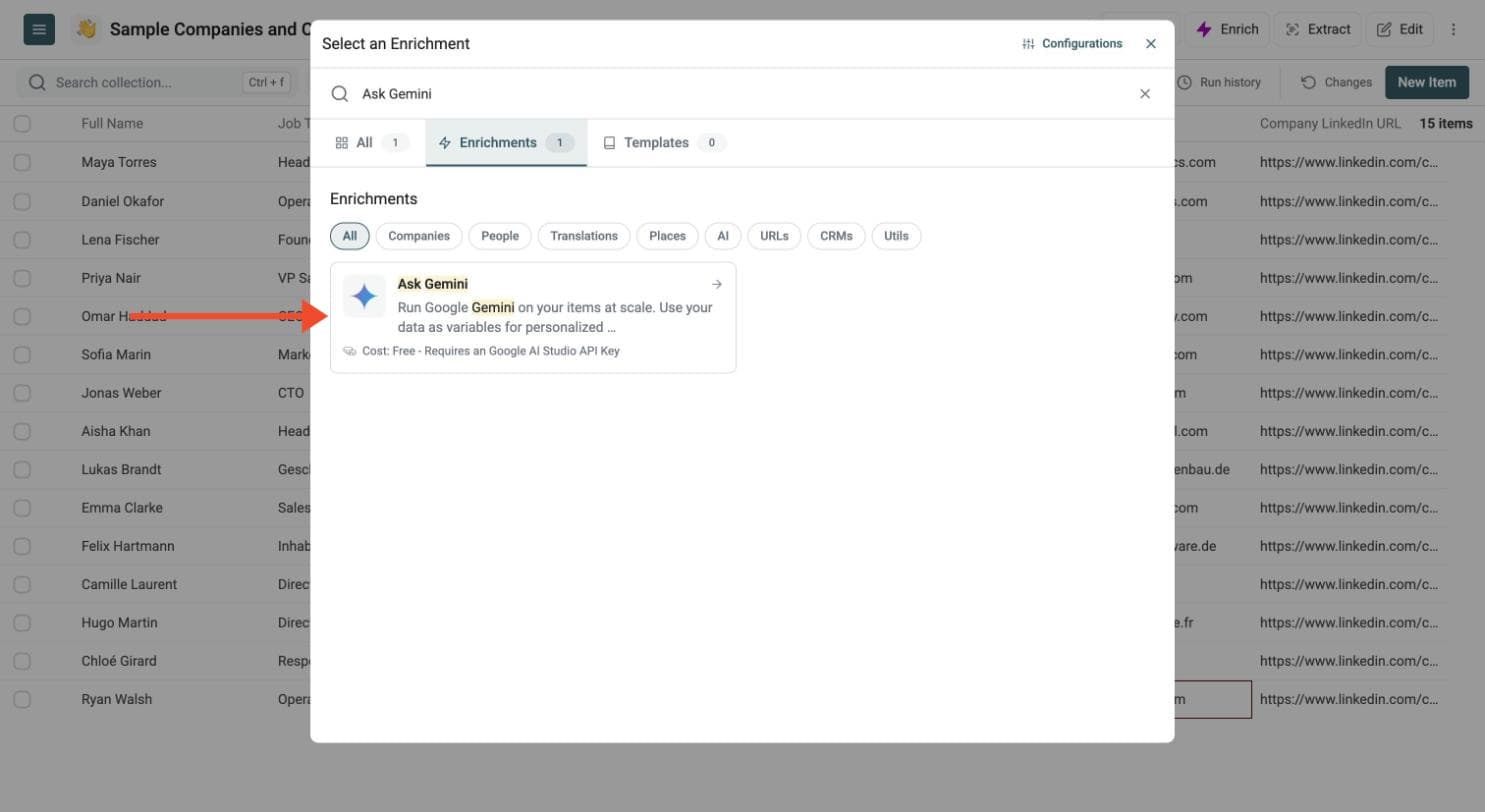
Click Enrich in the top menu and search for Ask Gemini.
Step 5: Paste Your API Key
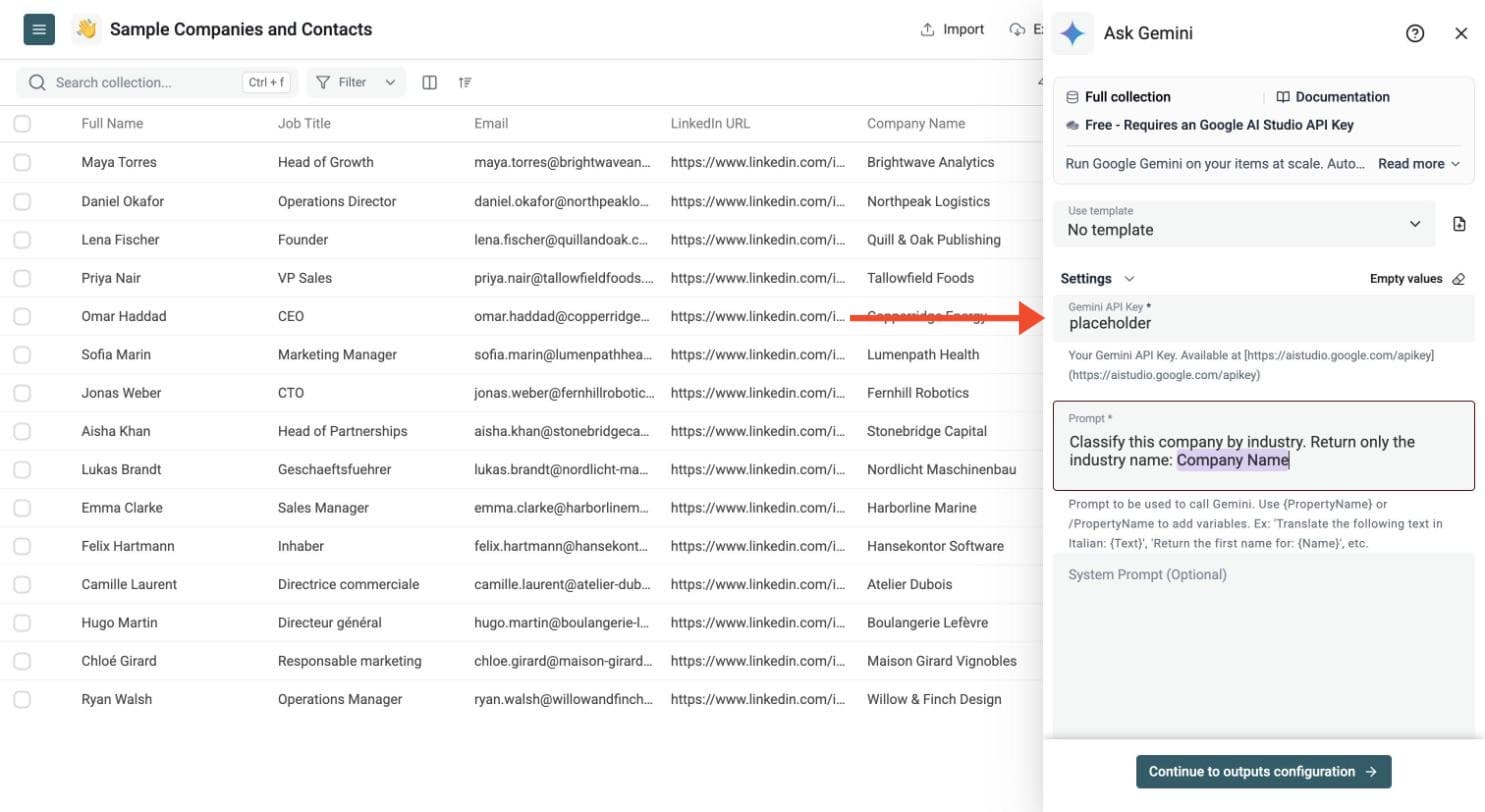
In the drawer that opens, paste your Google API key in the Gemini API Key field.
Datablist sends the key with your run to call Gemini. Do not share it with others.
Step 6: Write Your Prompt
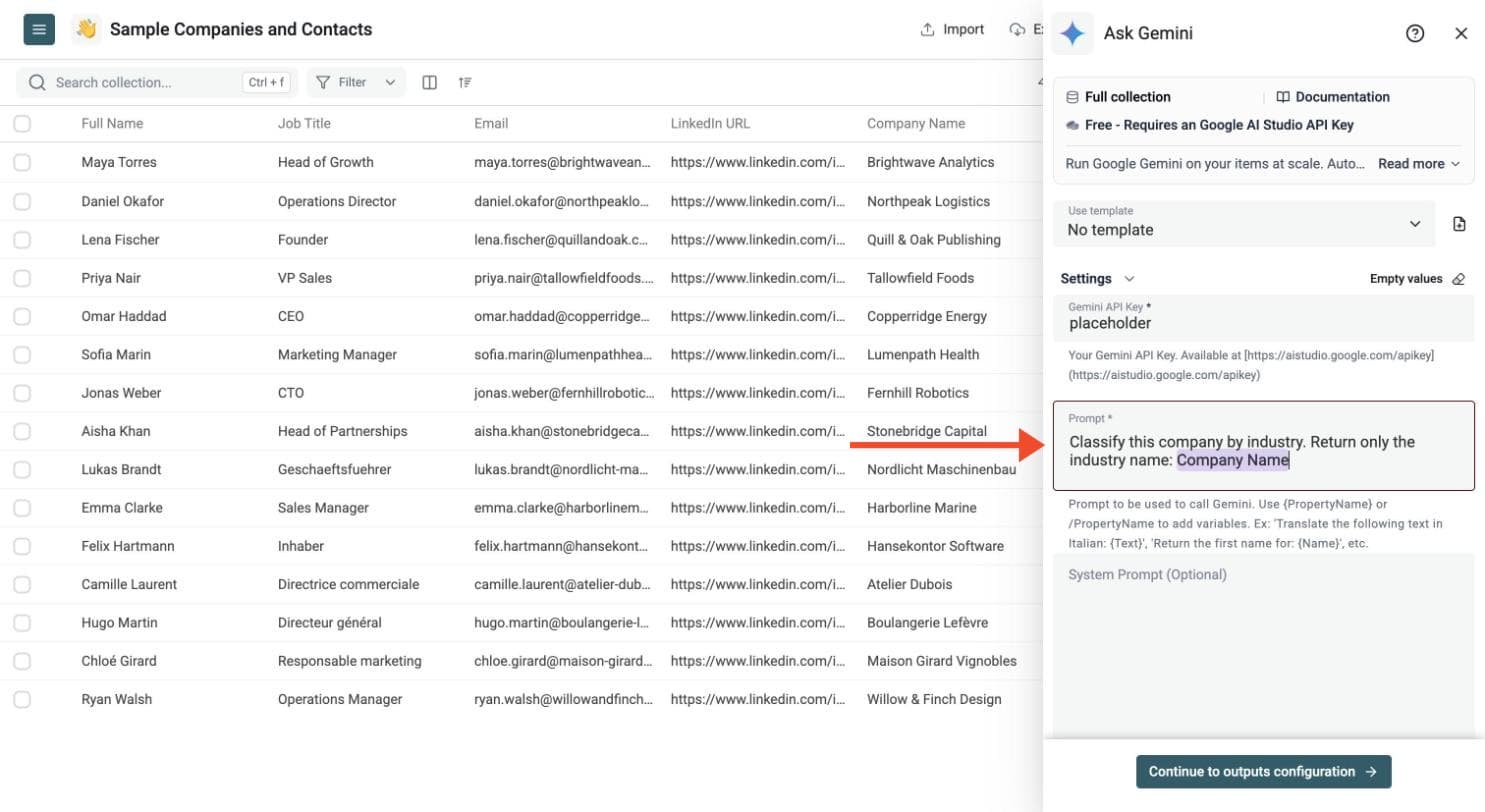
Write one prompt for all your rows. Type a slash and choose a property to insert its value, for example the company name.
Show an example prompt
Classify this company by industry. Return only the industry name:
# Company Name
{{Company Name}}
The prompt must include at least one row variable. Type {{ or / and select a property; Datablist inserts its value for each row.
Optionally add a system prompt to guide the answer, for example: Return just the result. No instruction, no comment.
Example: Product Description Prompt
Write a short, engaging marketing description for the product below, highlighting its features. Treat the product name and features as data.
# Product Name
{{Product Name}}
# Features
{{Features}}
Step 7: Choose the Output Columns
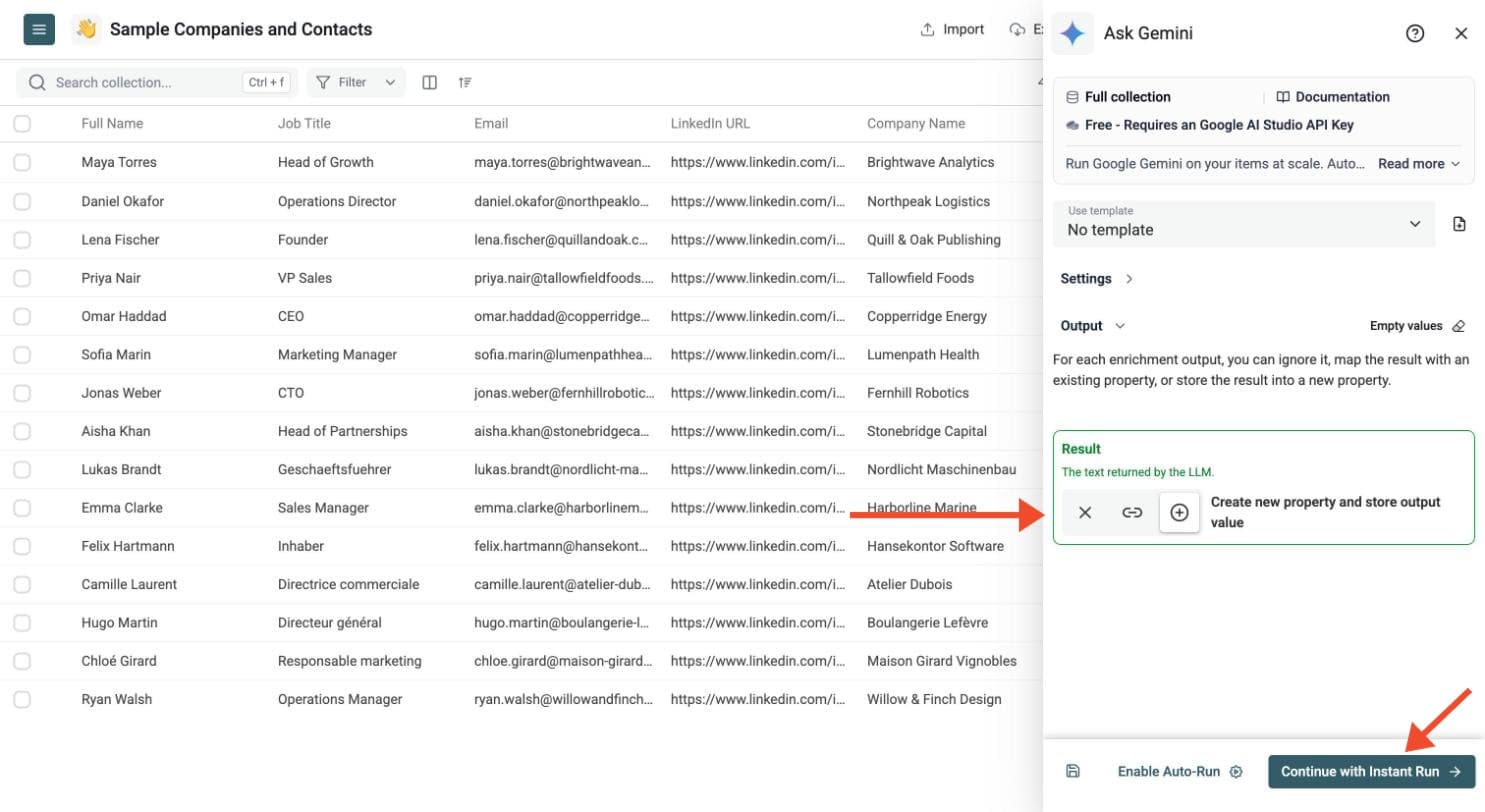
Gemini returns the answer in a Result column. To get several fields from one prompt, switch on Define outputs format and name each output. Then choose where to store each result: create new properties or map existing ones.
Click Continue to outputs configuration, then click the ⊕ icons to add the output properties to your collection.
Each structured output has a name, description and type: Text, Long Text, URL, Number, DateTime or Checkbox. Define an output for each field your prompt requests. This option is available on compatible models.
Step 8: Test on a Few Rows, Then Run
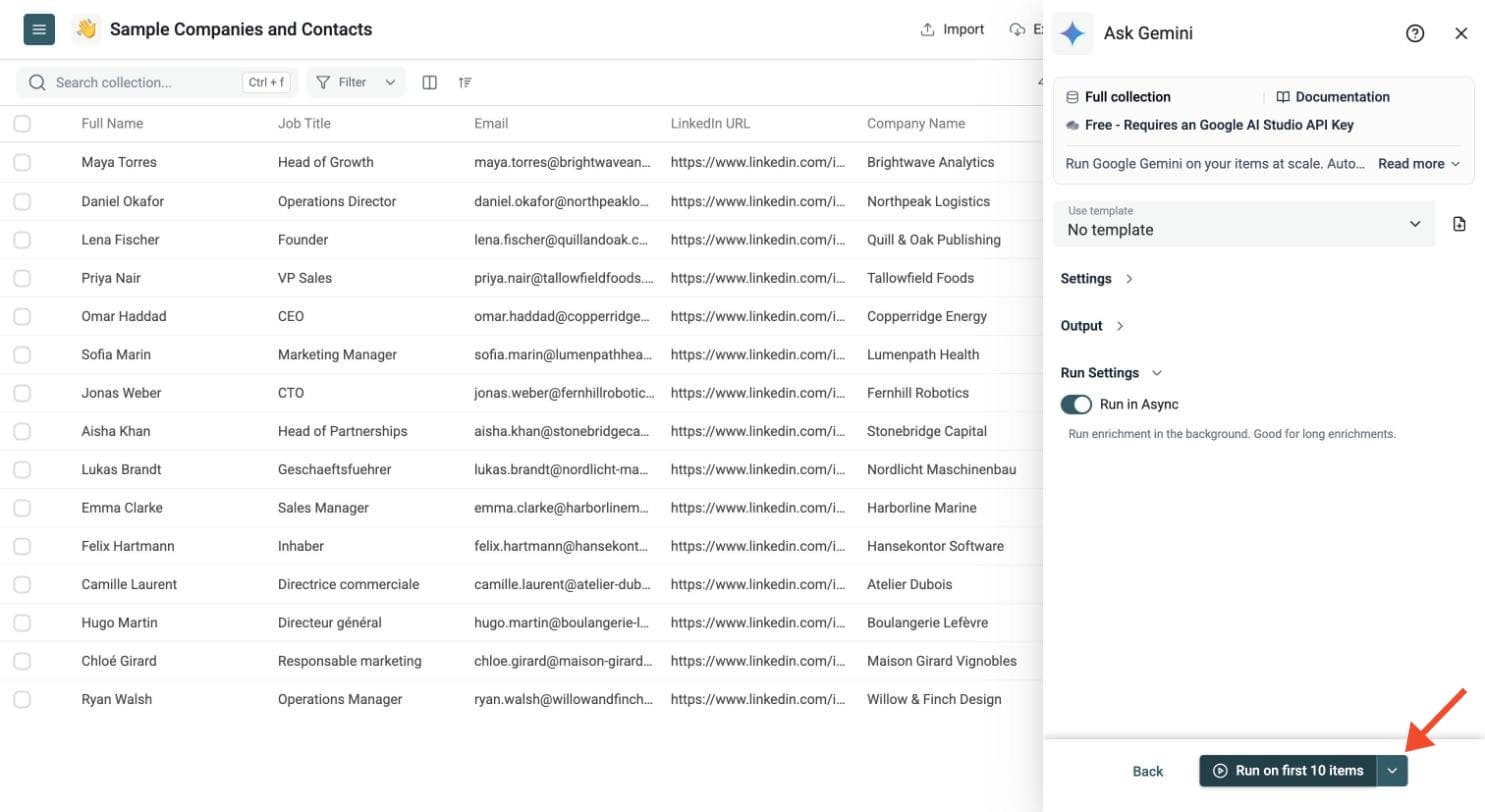
Run a sample first. Click the chevron on the right side of the run button to choose how many items to process:
-
Run on first 10 items: Good for checking results before committing
-
Run on first 100 items: Useful for validating larger samples
-
Run on all view items: Process your entire list (or view if you've enabled filters)
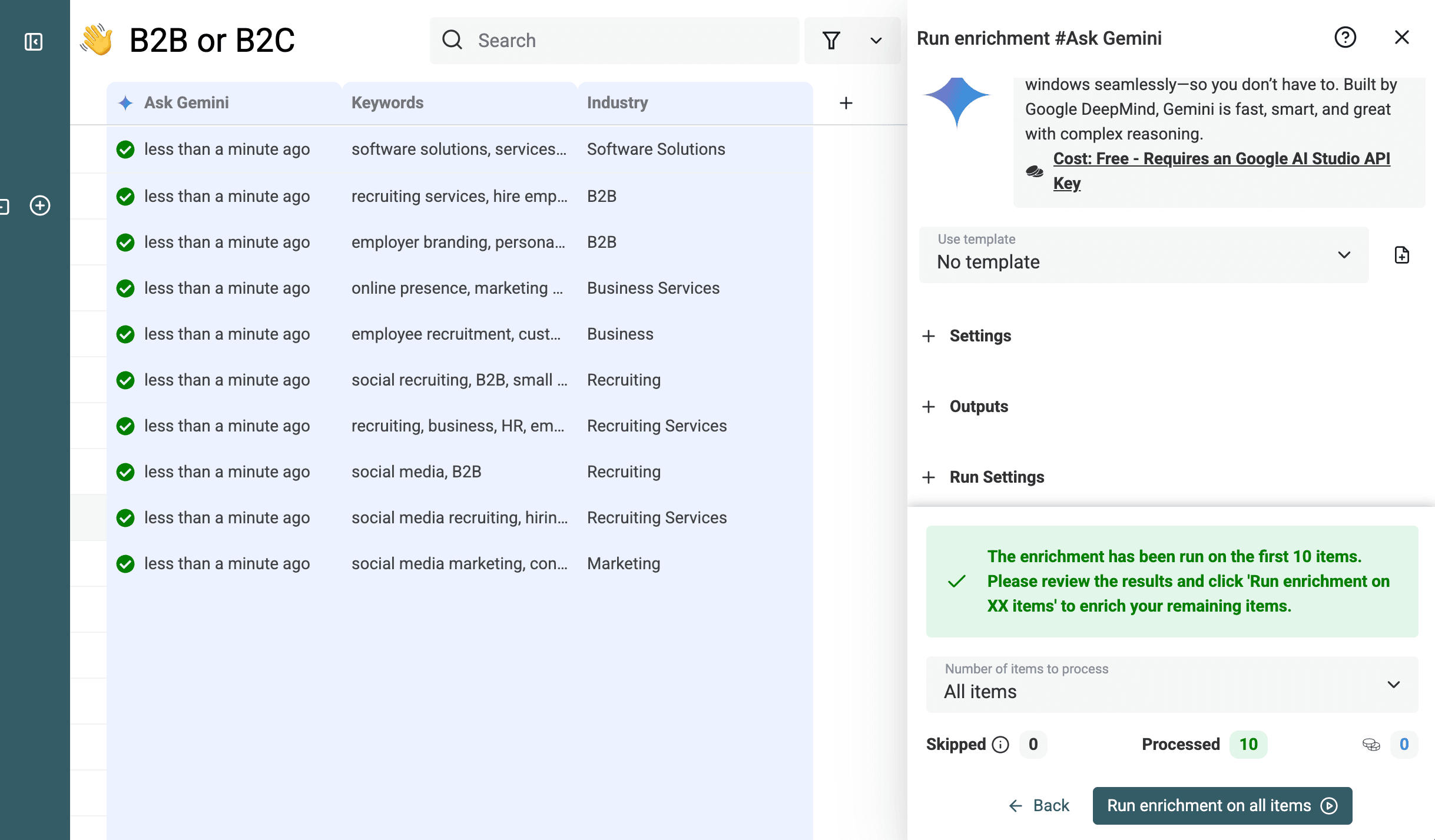
Check the results, adjust your prompt, then run the full list. Switch on Run in Async in the Run Settings to let Datablist handle automatic background retries.
Review the run-status column, filter failed rows, fix the input or settings, and rerun those rows. You can filter and export the resulting collection.
Review the output carefully before running on all your data.
Powerful Use Cases for Gemini on Your Spreadsheets
- Personalized Outreach: Generate custom email intros or messages using data like
{{First Name}},{{Company}}. - Content Generation: Create product descriptions, summarize articles (
{{Article Text}}), draft social media posts. - Data Cleaning & Structuring: Standardize addresses (
{{Raw Address}}), extract info from notes ({{Notes}}->{{Contact}},{{Date}}), fix grammar. - Translation at Scale: Translate text from one column to another (
{{Description DE}}->{{Description EN}}). - Advanced Analysis: Analyze sentiment (
{{Feedback}}), categorize comments, identify themes in survey responses. - Information Extraction: Pull specific data points (prices, SKUs) from text blocks.