
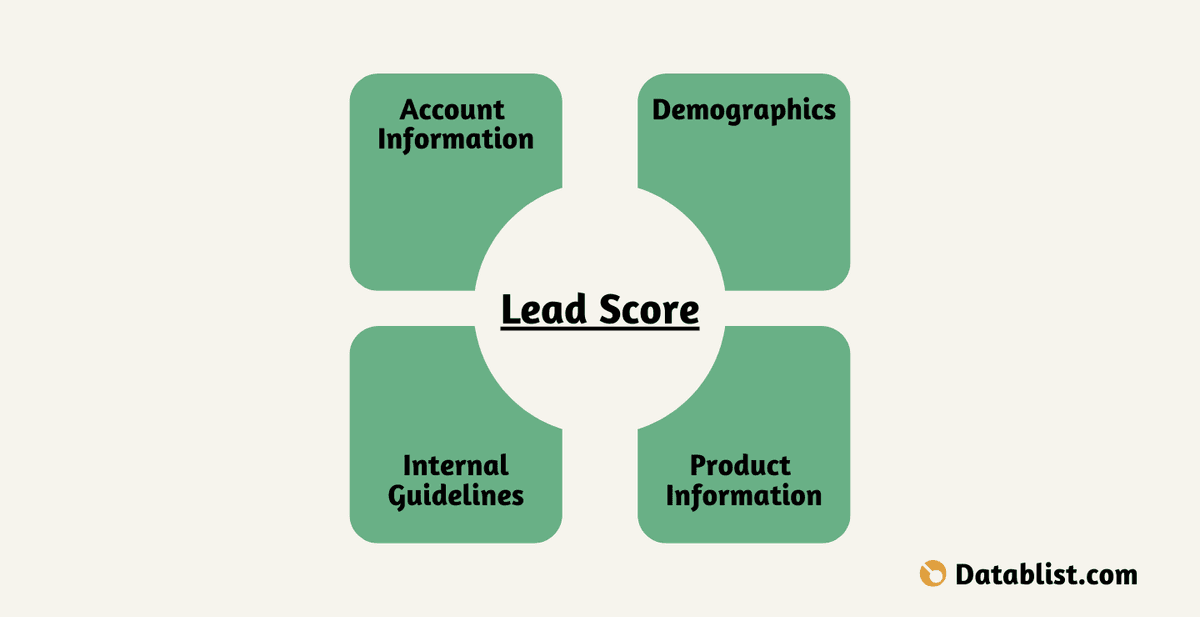
To score leads with AI, start with a small set of rules your sales team can explain. Import a lead list with company size, job title, and website text, then use Datablist AI Editing to generate a score from those fields. Preview the generated script on sample rows before applying it to the whole list.
This gives each lead a consistent score for prioritization. It does not predict who will buy, so compare the output with real customer examples and adjust the rules when the ranking looks wrong.
Here is the step-by-step process for AI Lead Scoring:
What is Lead Scoring?
Lead scoring ranks prospects against criteria you choose, such as whether the account fits your target size and whether the contact has a relevant role. A score helps decide which rows to review first; it is only as useful as the rules and input data behind it.
Step 1: Identify your Best Customers
-
Review a few won customers and a few poor-fit leads in your CRM. Look for characteristics that separate them; ten positive examples alone cannot show which rules exclude the wrong accounts.
-
Analyze what they have in common and write it down. Here are a few factors you should consider:
- Company characteristics (size, industry, location)
- Contact details (job title, decision-making authority)
- Engagement levels with your company
- Demographic and behavioral data
-
Create a breakdown of how each factor impacts the ranking.
For that, you should give the highest score to the important factors and the lowest to the nice-to-have but not essential factors.
For the example below, a matching decision-maker role earns two points, a company with 15 to 100 employees earns one, and a website mentioning an AI-related term earns one. A lead can score from zero to four. These weights are examples, not a model trained on conversion data.
Note: Adjust scores to match your business model and market.
Step 2: Import your leads into Datablist
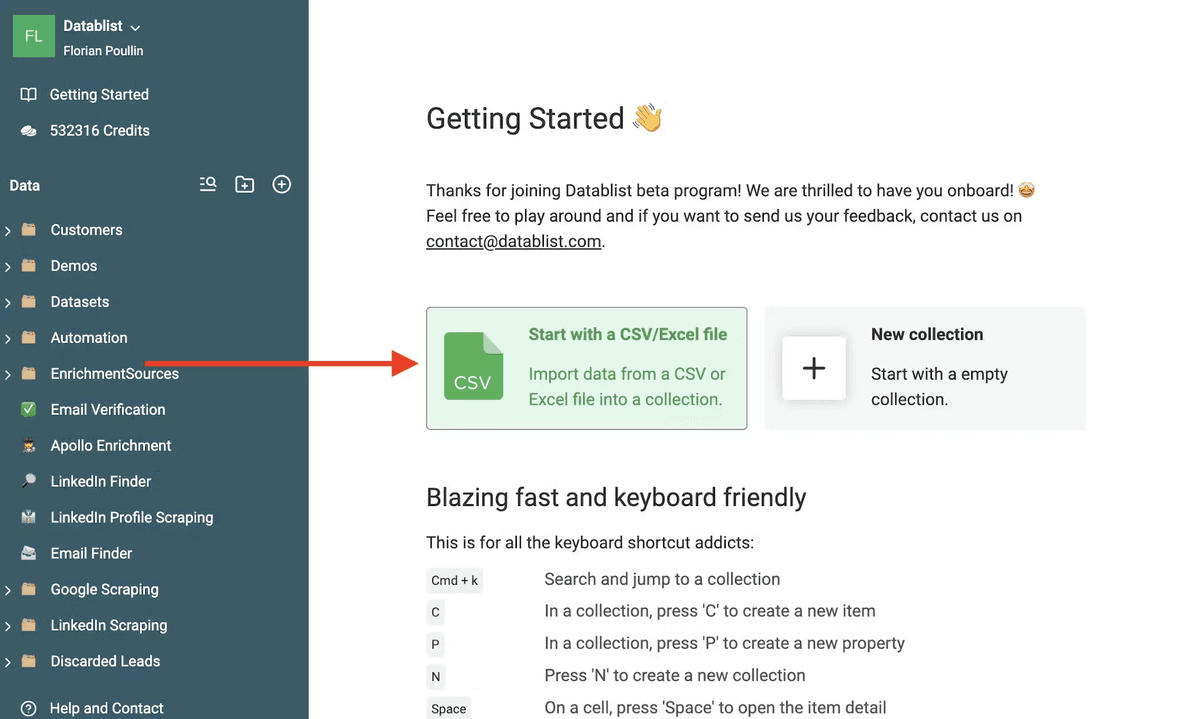
First, import a CSV/Excel file in Datablist with a list of the leads you want to score.
Datablist lets you work through the score in a collection before exporting a prioritized list.
AI Editing generates JavaScript from a prompt and a small sample of items. It applies the generated rules to your rows after you approve the preview. Spell out edge cases because the generator cannot infer every pattern in the full collection from a few examples.
Start by creating a collection and import your list as a CSV or Excel file.
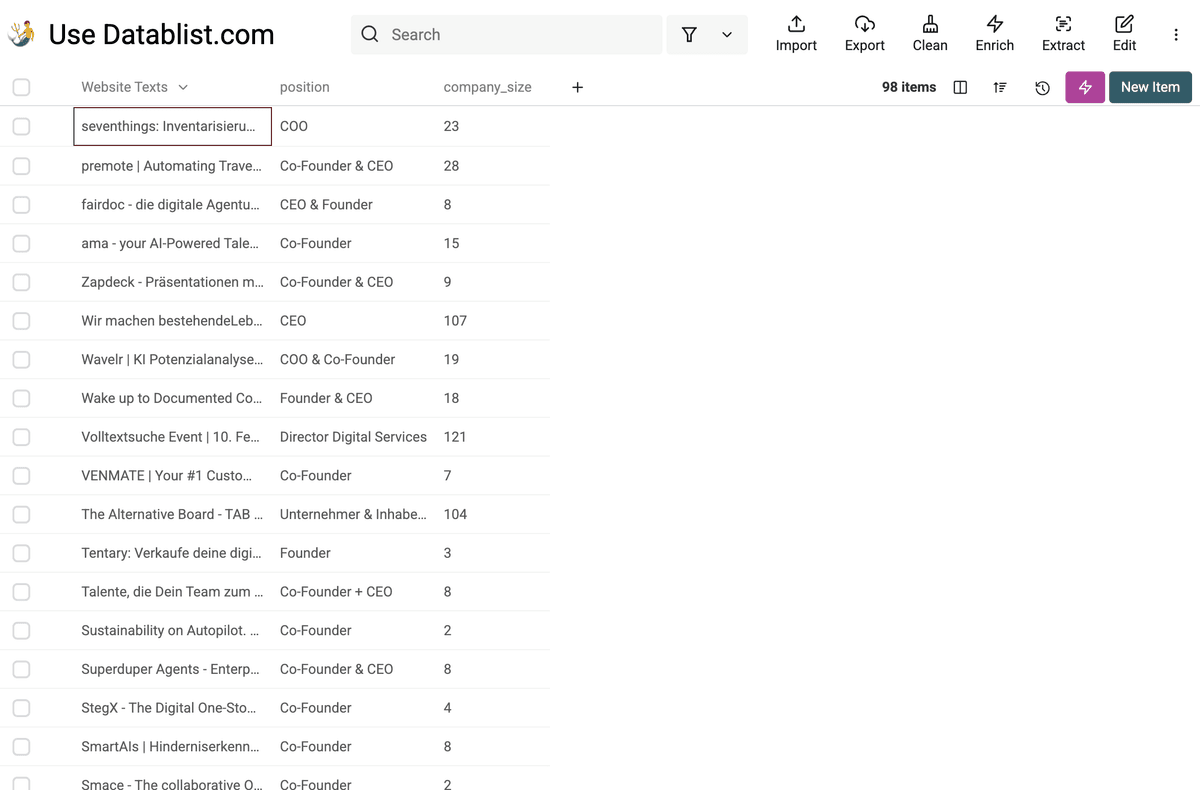
This is my file. It contains:
- website texts of the companies
- the company sizes
- the job position of the prospects
Step 3: Tell the AI how to score the Leads
Now turn the scoring rules into an edit. Name the input properties and define the values and exceptions you want the generated script to handle.
Follow these instructions to get the most accurate results:
-
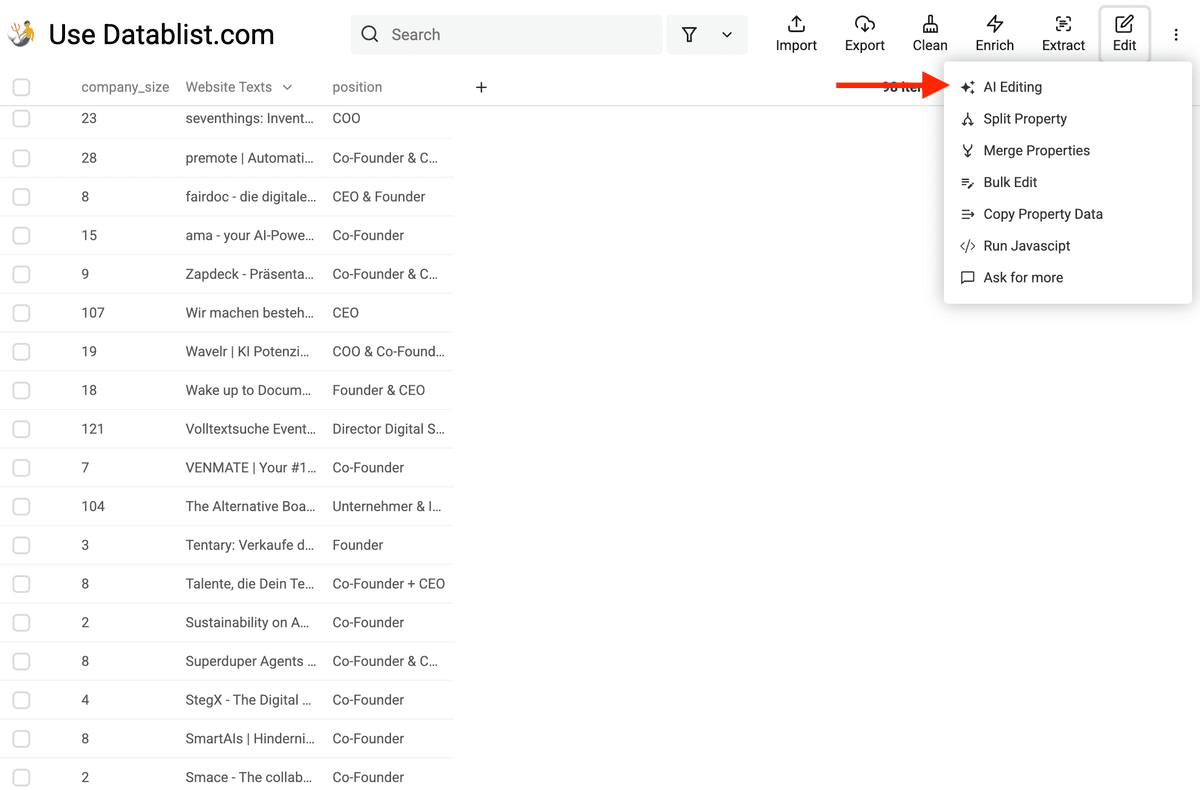
Open Edit in the collection header.
-
Select AI Editing.
Open AI Editing with Edit -> AI Editing -
Write the scoring prompt. Select the collection properties from the prompt editor so the references bind to the actual columns. State whether a missing value earns zero and whether partial matches count.
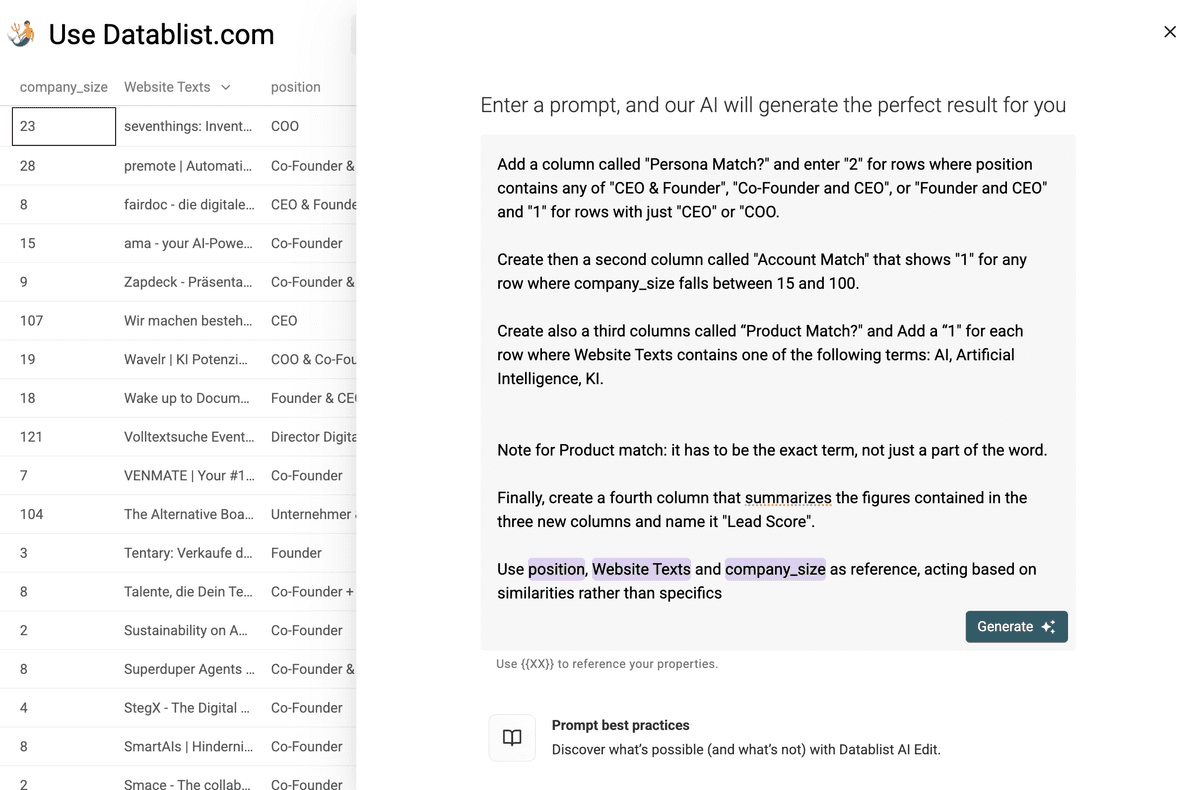
Here is my prompt for Lead Scoring with AI.
For Persona Match, read the position property. Award 2 points when it contains a founder or co-founder who is also CEO. Otherwise award 1 point when the role is CEO or COO. Award 0 for other or empty roles. Never award both 2 and 1.
For Account Match, read company_size. Award 1 point when it is a number from 15 through 100, inclusive; otherwise award 0.
For Product Match, read Website Texts. Award 1 point when it contains AI or KI as a complete term, or the phrase Artificial Intelligence, ignoring letter case. Do not match AI inside another word. Award 0 when the text is empty or has no match.
Set Lead Score to the sum of the three numeric matches, from 0 to 4. Preserve the input properties. Use the actual bound position, company_size, and Website Texts properties from this collection.
❗Important
Select each property from the prompt editor rather than leaving placeholder text unbound. Test a missing company size, a founder-and-CEO title, and a website with the word “said” to catch accidental matches on “AI.”
- Click Generate.
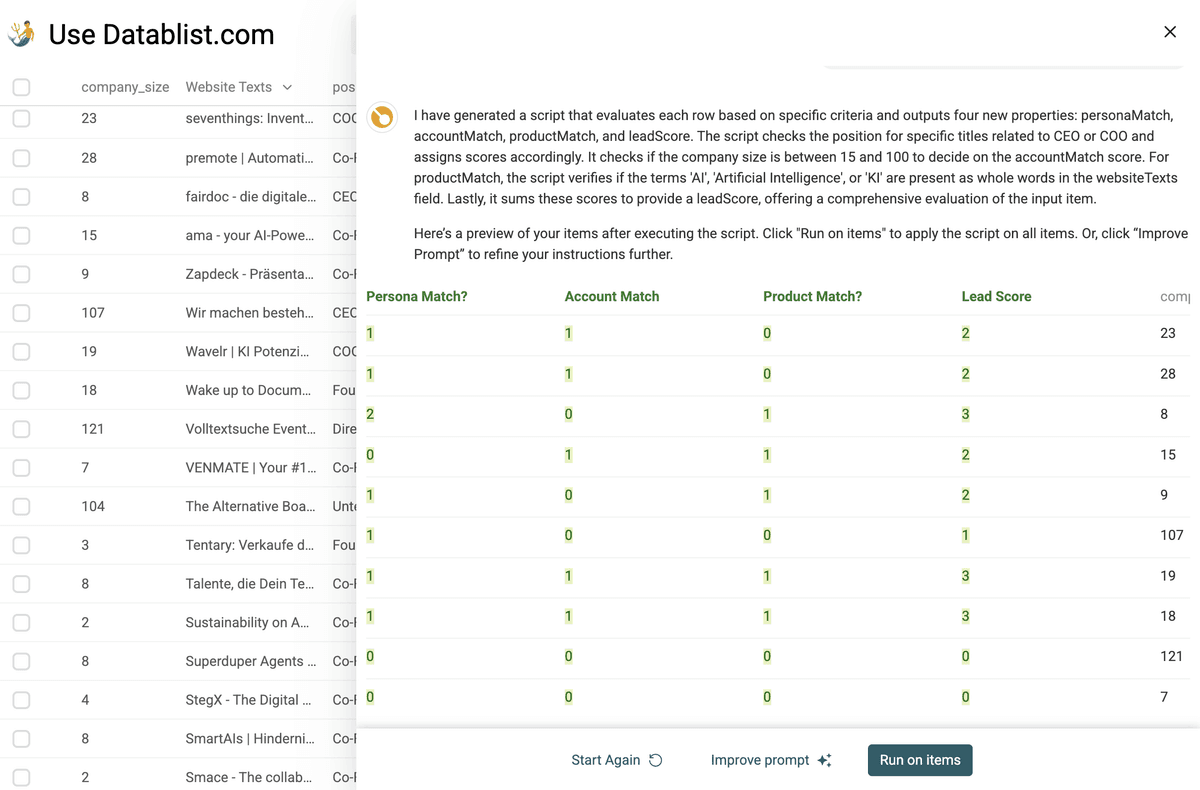
The preview shows the generated script's result on sample items. Check the three component scores and their sum. If a rule fails, refine the prompt and preview again before applying it to the list.
Step 4: Get Your Results
Click Run on items when the preview matches your rules. Review high- and low-scoring rows against your CRM examples before using the score for outreach.
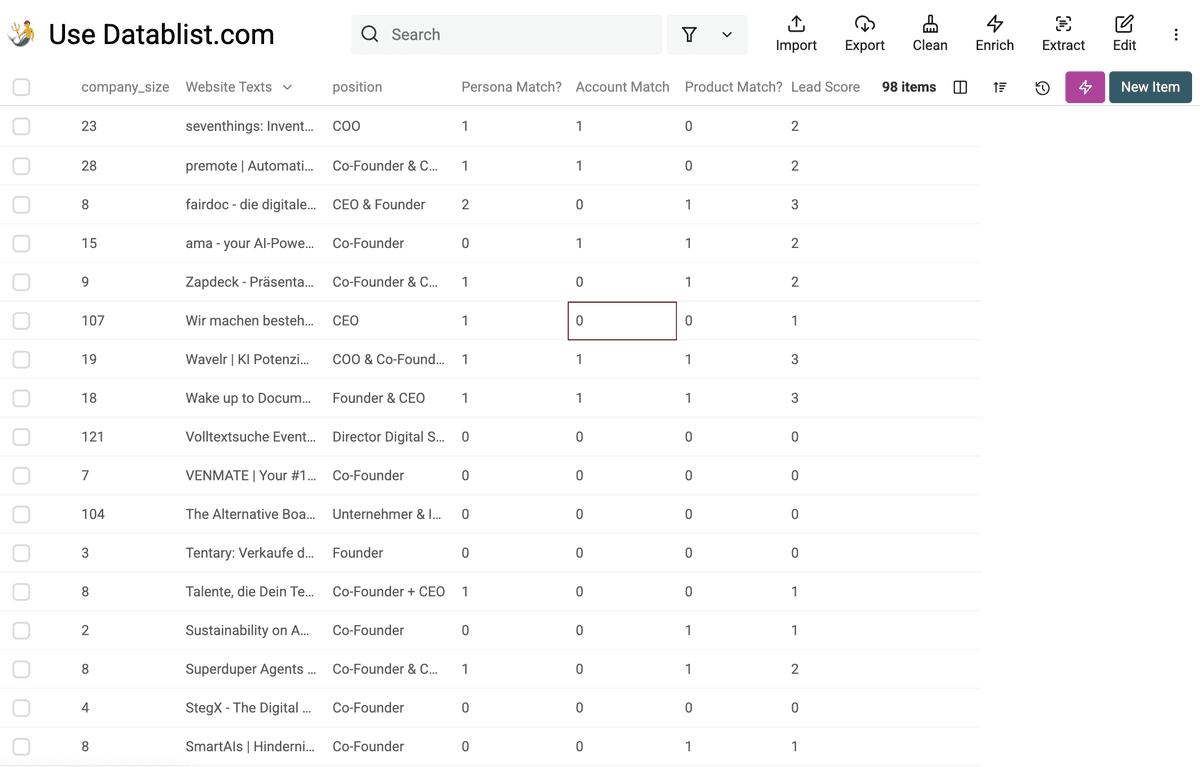
Export the reviewed list for your CRM or use an integration available on your plan. Keep the rule definitions with the list so teammates know why a lead received its score.
The generated edit can be reused for new leads. Review its rules when your target customer profile or input columns change.