
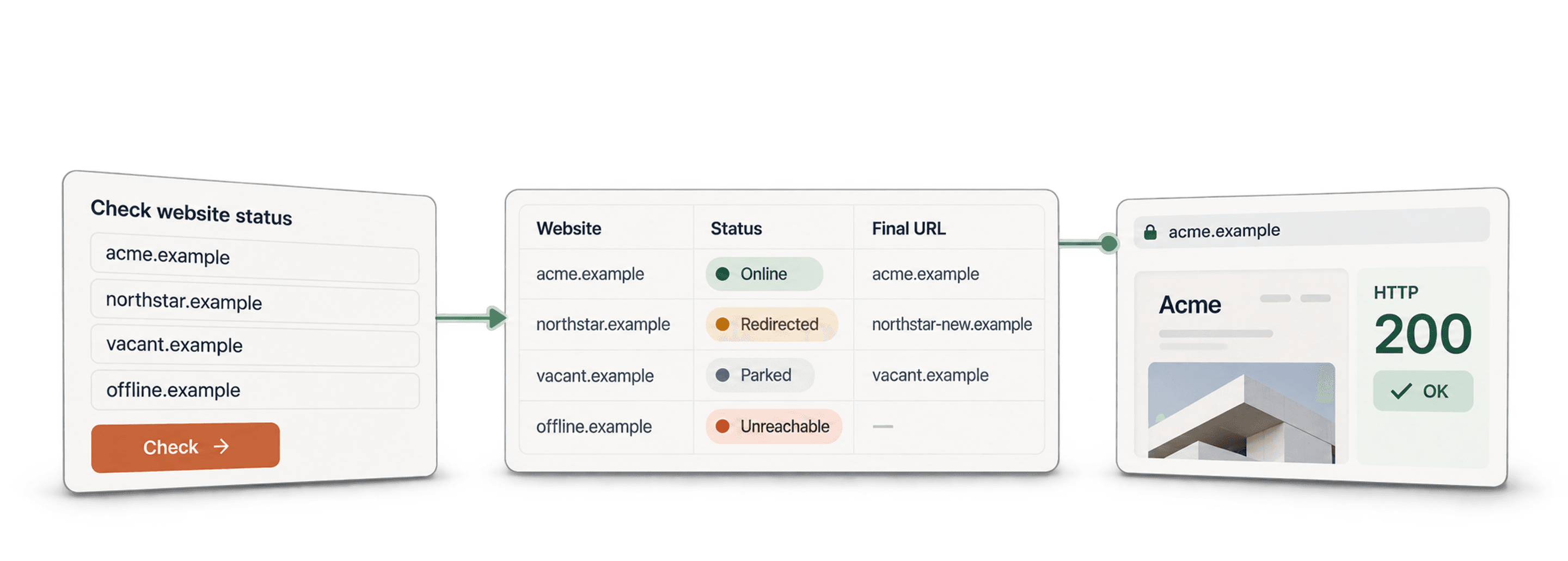
A bulk website checker helps you review company URLs by returning Website Status, HTTP Status Code, Final URL, Page Title, and Error Message. In Datablist, use Website Status & Parked Domain Checker on a CSV or Excel list, test a sample, and investigate uncertain results before changing CRM records.
Website availability is evidence about a URL, not proof that a company is active or closed. A working page can belong to a dormant business. A failed request can reflect a temporary outage, an old URL, or access protection.
I recommend keeping the check result separate from your business-status decision. That gives your team a review queue without turning a technical failure into an incorrect account deletion.
What The Tool Does
The enrichment fetches the supplied website URL and classifies the response. It can reuse cached page content unless you disable that option.
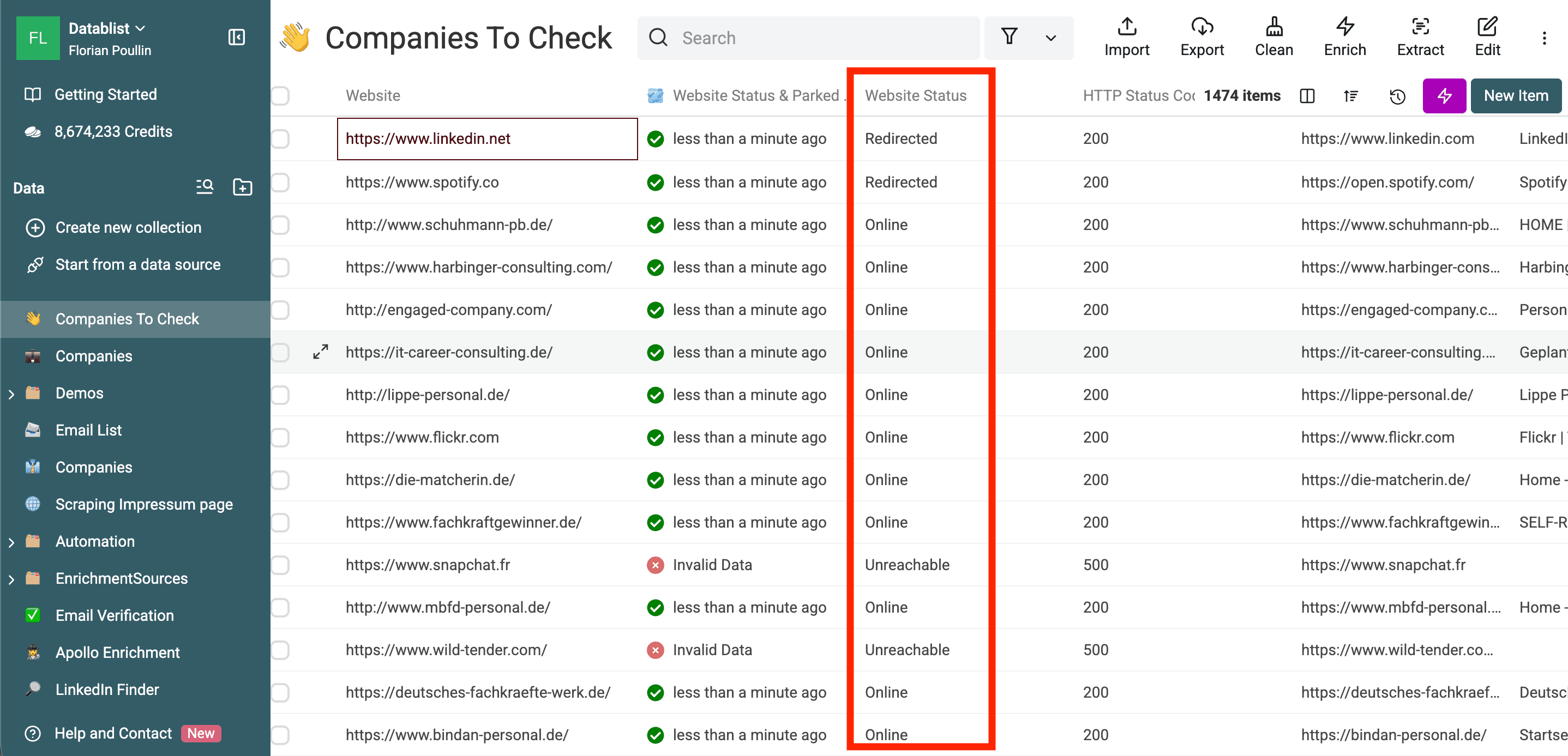
- Online: The fetch returned successful page content and did not match the parking checks. This does not verify the company's trading activity or email deliverability.
- Redirected: The request ended on a different domain. A scheme change or a different path alone is not classified as a company-domain change.
- Parked: Page title, content, or URL patterns matched the tool's parking heuristics. Review the page; placeholder and maintenance text can require human interpretation.
- Unreachable: A request error or an unsuccessful response prevented a usable page result. Read the HTTP code and error rather than assuming the domain no longer exists.
For parking-page results, follow the bulk parked-domain review workflow before archiving CRM records. Website status alone does not establish whether the company has closed.
A company-name-only list needs website identification first. If that is your input, read find company websites from names, then review the domain matches before checking them.
Step-by-Step Guide to Check Website Status
Step 1: Load Your Data
Import your CSV or Excel file into a collection. Keep Company Name, Original Website, and a stable CRM or source ID. Write the checker outputs into new properties so an uncertain match does not overwrite the original website.
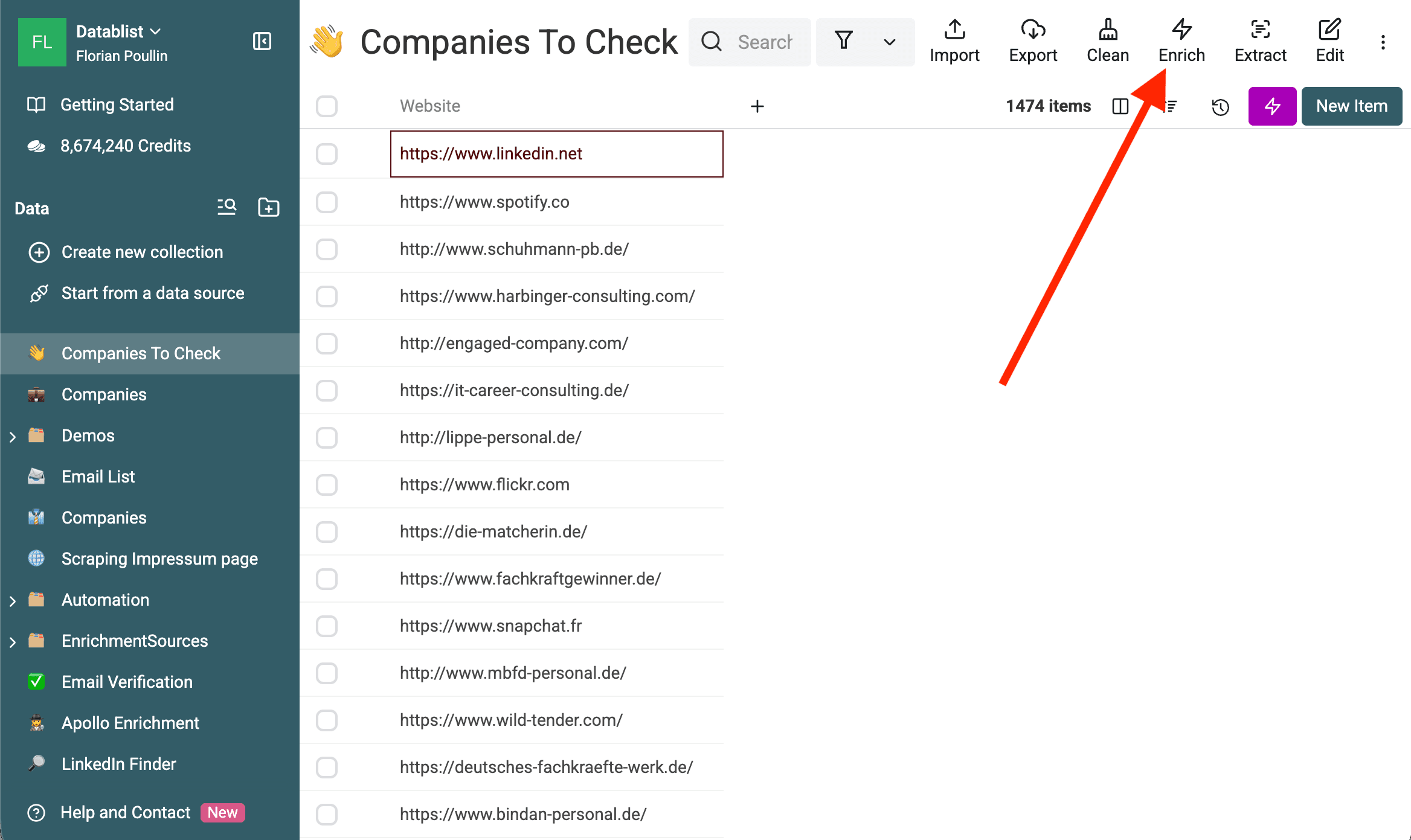
For an illustrative input, account 001 might contain https://acme.example, while account 002 contains a previous domain. Include a mixture of normal URLs, known redirects, and records that need review in your sample. These are examples of input shapes, not tested live websites.
Step 2: Open the Status Checker
Open the enrichment catalog and select Website Status & Parked Domain Checker. It processes a website URL from each existing row; it does not identify anonymous visitors to your own website.
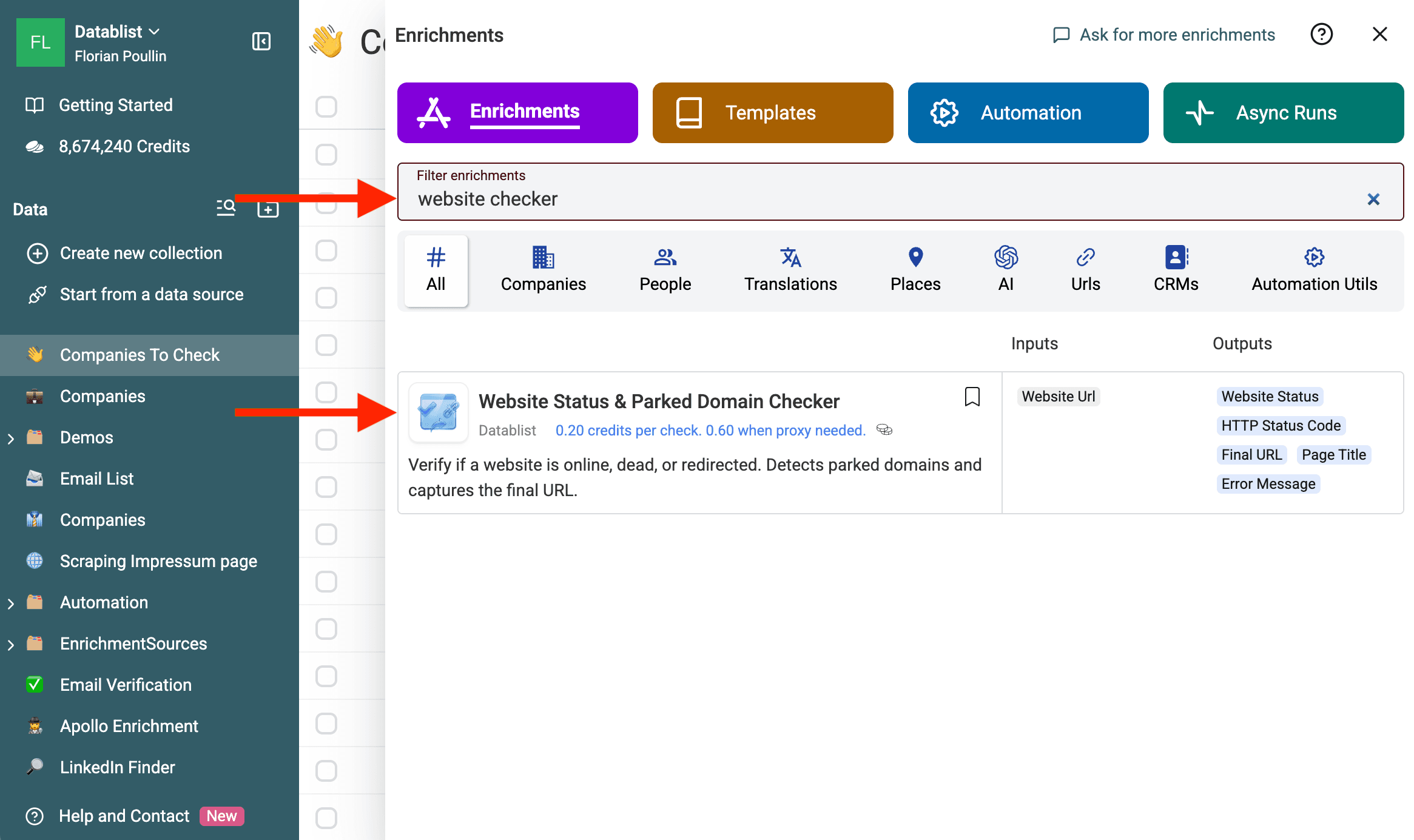
That distinction matters if you searched for “which companies are on my website”. This workflow checks company URLs you supply. It is not a visitor-identification or website-analytics product.
Step 3: Configure settings and map website input
Map Website Url to the property containing the original company URL. Missing or invalid inputs need correction before a meaningful availability check.
Choose a Proxy Policy: Use proxy on error (default), Always use proxy, or No proxy. The default policy can retry failed fetches through a proxy. It does not guarantee a successful request or establish why a site rejected the initial attempt.
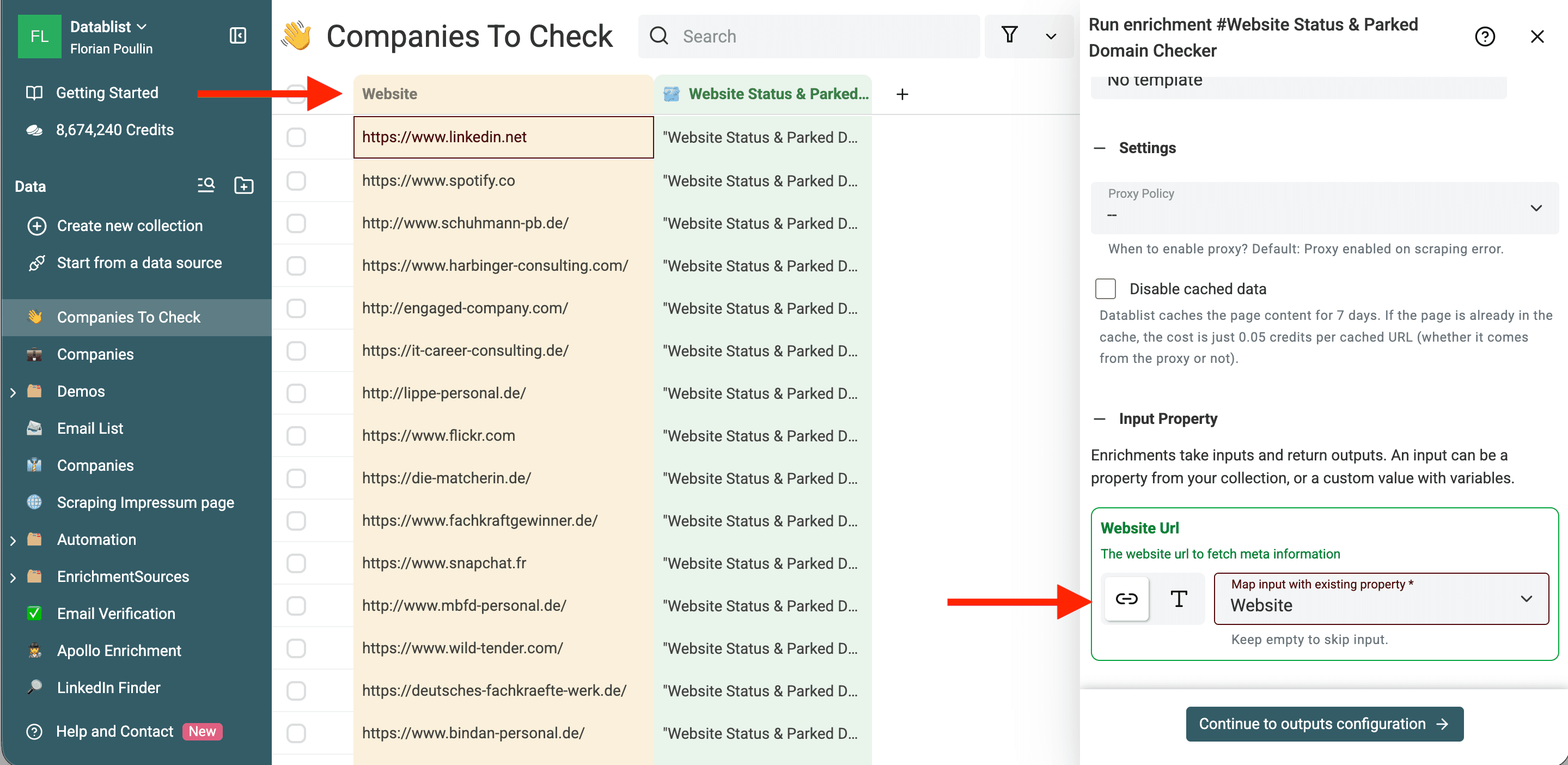
The enrichment can reuse page content cached for seven days. Enable Disable cached data when you need a fresh fetch to investigate a recent change. Record your own check date in the collection; the time you run a cached check is not necessarily the time the page was fetched.
Use the cost displayed in the enrichment settings and the reported run usage when budgeting. Proxy and cache paths can affect usage, so do not estimate every result as an identical fresh request.
Step 4: Choose Your Outputs
Map all five outputs when the purpose is list review: Website Status, HTTP Status Code, Final URL, Page Title, and Error Message. Each answers a different question.
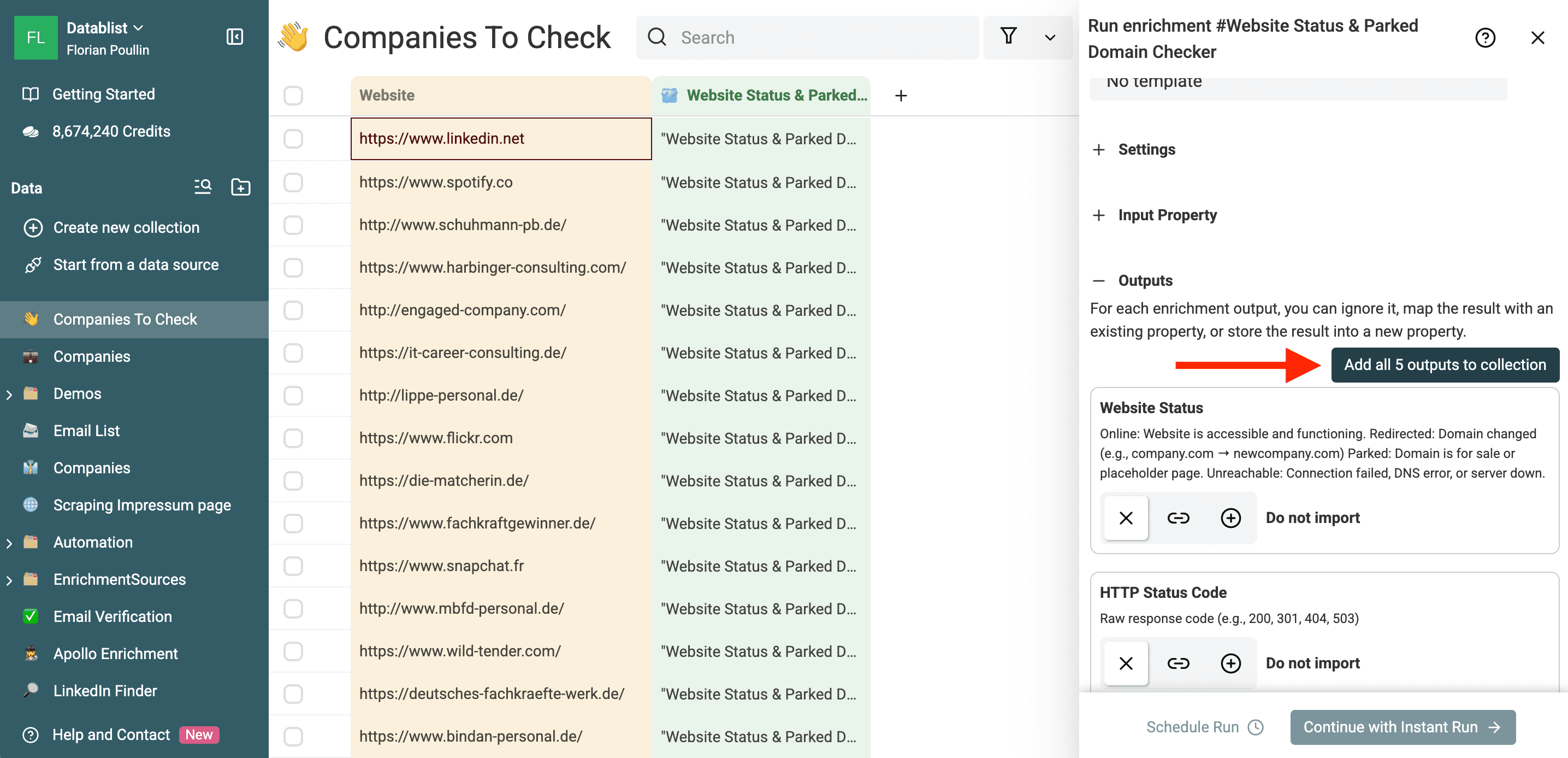
Website Status is the summary. Final URL helps investigate a domain change. Page Title and Error Message help explain parking or failed fetches. The HTTP code is context for that request, not an independent business-status verdict.
Add a separate review property you control, such as Keep, Verify domain, Retry, or Investigate business status. The checker does not create these business decisions for you.
Step 5: Open Instant Run
Choose Continue with Instant Run after configuring the inputs and outputs. Test a small selection before processing the remaining collection.
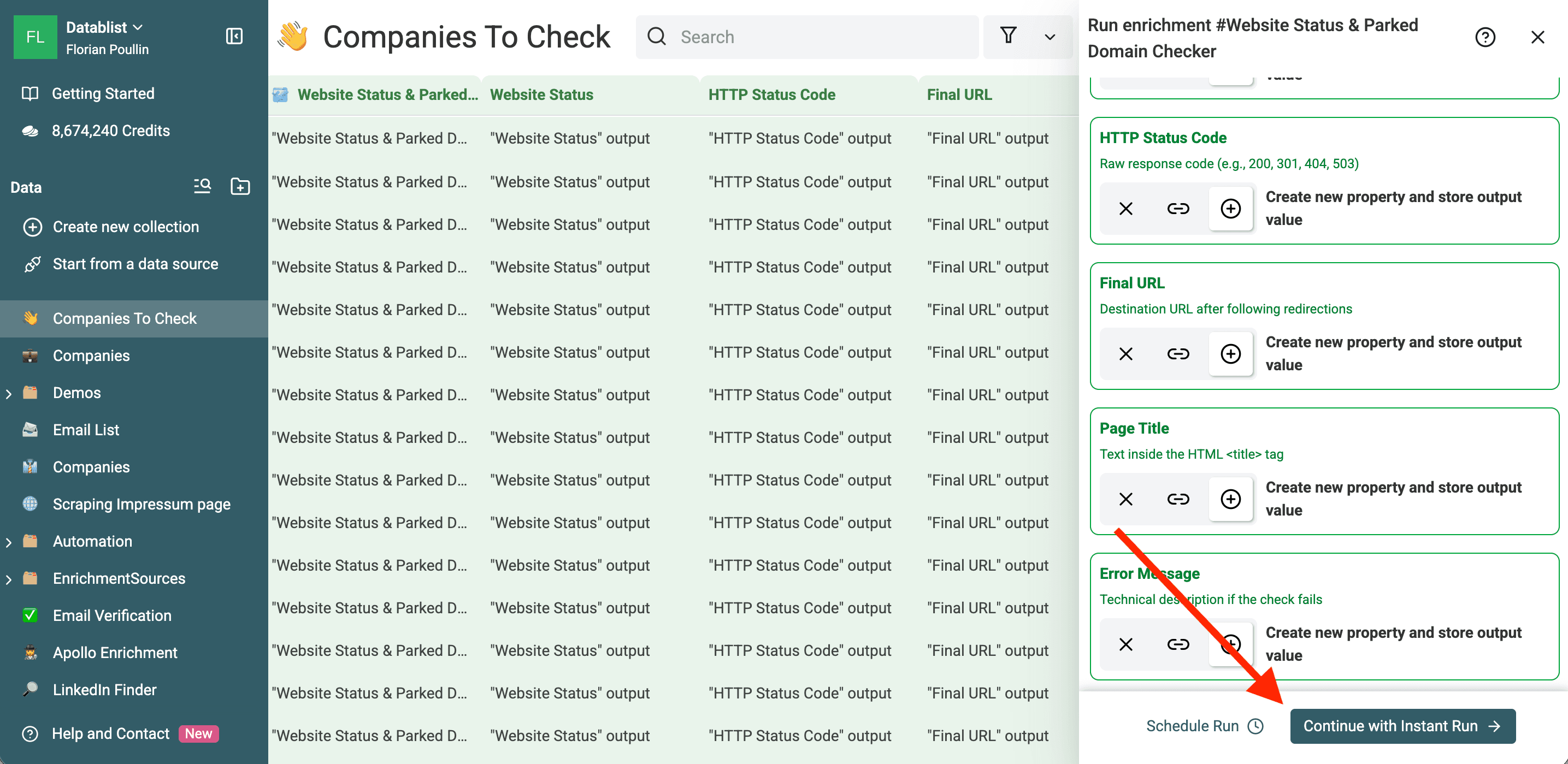
Keep the sample representative. A set containing only easy, current homepages will not show how your older domains or protected sites behave.
Step 6: Test on a Sample
Review the configured run scope and process a few rows. Compare the original URL, Final URL, and page title with the company record. Inspect errors separately from successful results.
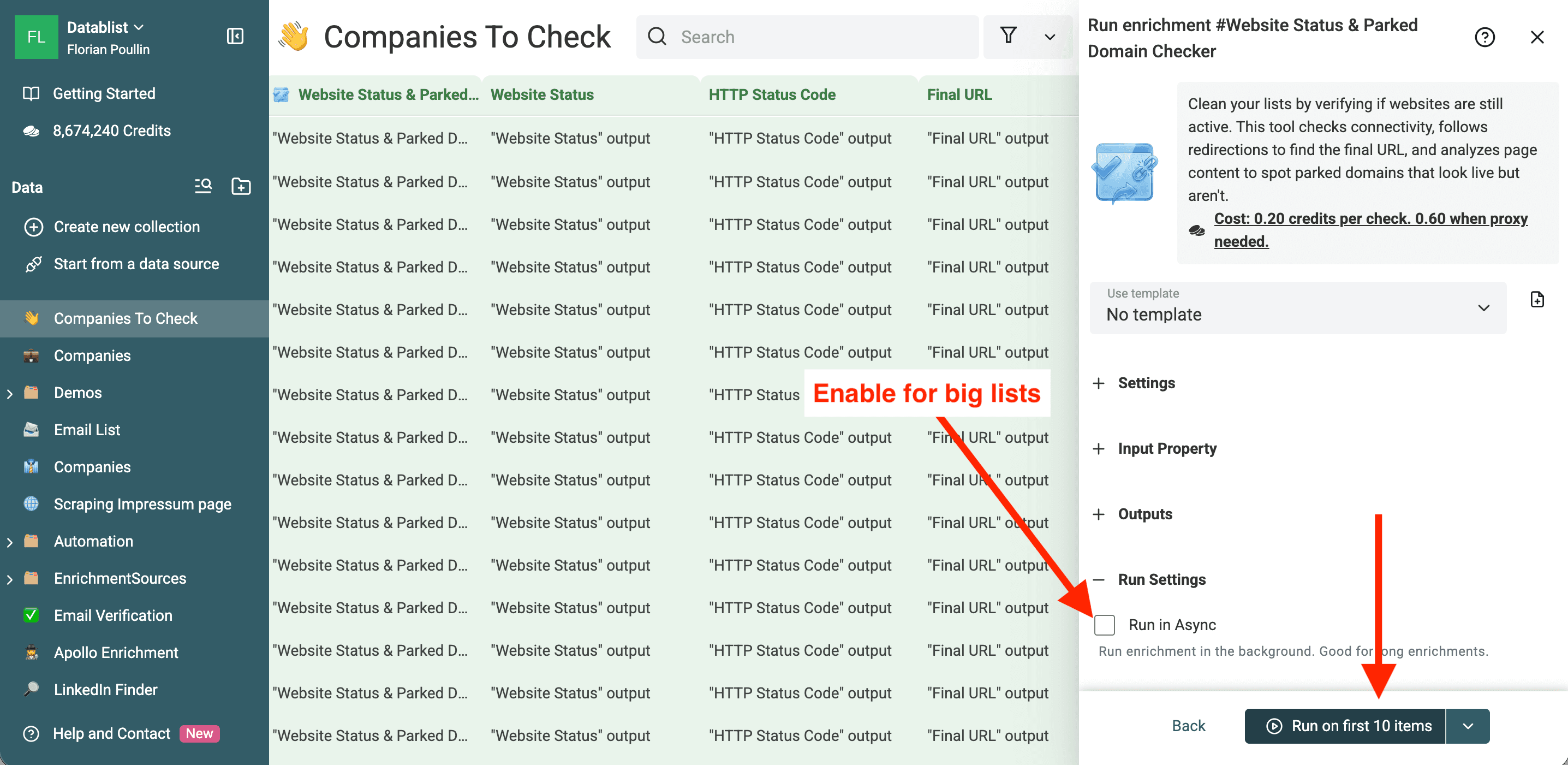
Use the run mode offered by the application for your batch. Run in Async concerns how the job executes; it does not change a failed website response into evidence that a business closed.
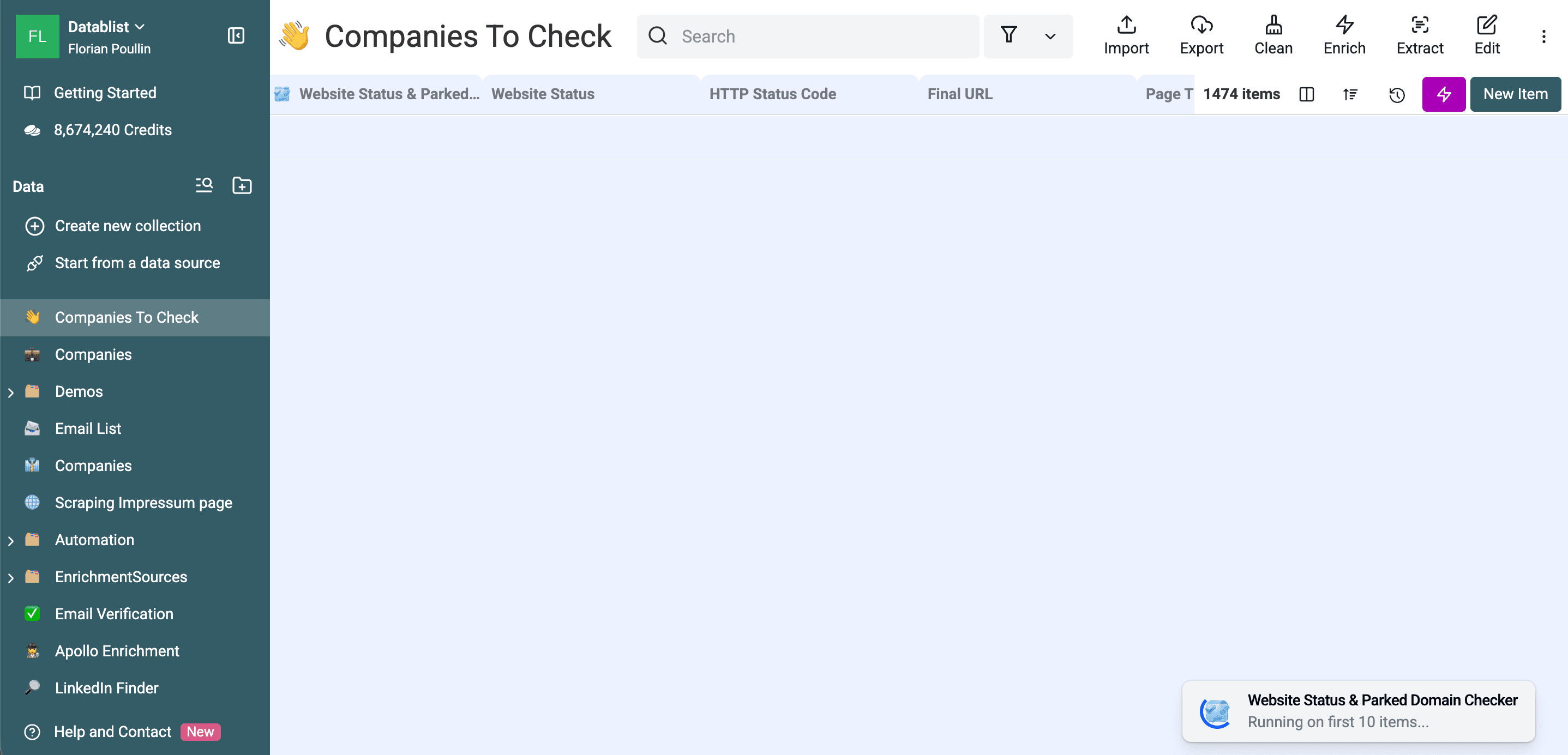
For a fresh-check comparison, enable the cache setting deliberately rather than repeatedly running the same cached request and treating it as independent confirmation.
Step 7: Review and Scale
Check the sample before running the rest. If the wrong input property is mapped or redirects point to unrelated companies, correct the configuration or the source data first.
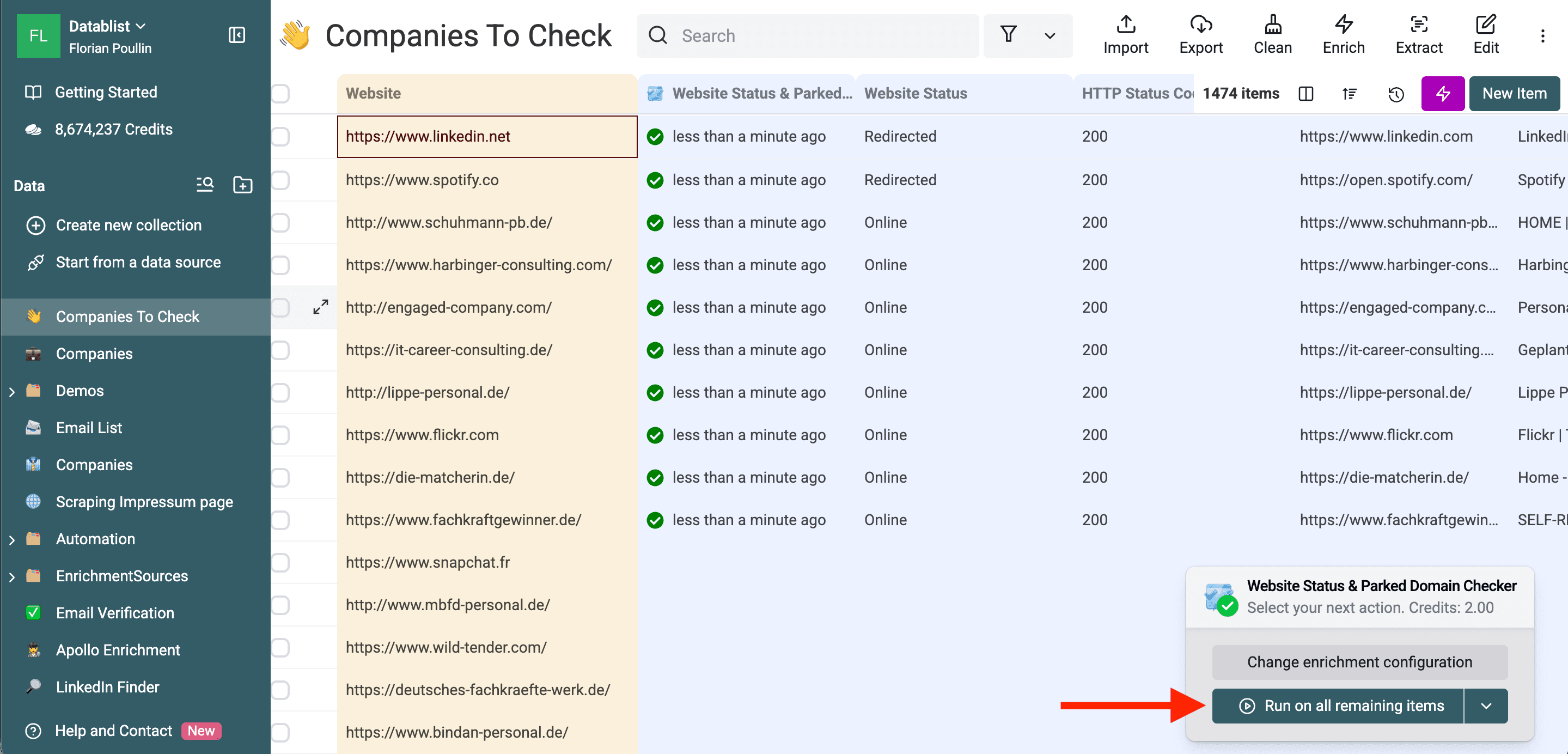
Once the sample is useful, process the remaining intended rows. Keep the original source IDs and your review decisions for export back to the CRM.
For a web-design prospecting list, an accessible site is only the starting point. Follow the outdated-website review checklist to inspect mobile navigation, contact paths, and content before proposing a redesign.
Interpreting the Results
Use the following illustrative decisions to keep the technical output separate from the business conclusion:
| Result | What to review | Decision to avoid |
|---|---|---|
| Online, successful content | Does the page identify the intended business? | Assuming every contact or email is current. |
| Redirected to another domain | Original company, destination identity, and reason for the change. | Automatically labeling the change an acquisition. |
| Parked, coming-soon title | Whether this is a placeholder, relaunch, or unrelated domain. | Deleting the company account immediately. |
| Unreachable, request error | Error details, source URL, and a later fresh retry where appropriate. | Marking the company closed from one failed check. |
Dealing with Redirects
Compare the destination's name and business activity with your account. A domain redirect can indicate a rebrand, an acquisition, a hosting change, or an unrelated destination. Update your CRM only after checking which explanation applies.
Do not replace an email domain merely because a website redirects. Web and email routing are separate; use an appropriate email-verification workflow before changing contact addresses.
Identifying Parked Domains
The classifier uses patterns in fetched content, titles, and URLs. It can flag “coming soon” or other placeholder content. That is a reason to inspect the site, not a company-registry lookup or a verified closure notice.
Keep the result in a review queue and preserve any customer relationship information. A secondary source or the account owner may be needed to decide whether the business remains active.
Handling Unreachable Sites
Read the error and HTTP code. A missing page path, a server problem, or a blocked request has a different implication from a confirmed change in company identity.
Check whether the supplied URL is still correct and whether the cache was used. Retry deliberately when the issue appears temporary. Leave unresolved records marked for review rather than converting uncertainty into a negative fact.
Conclusion
Use the website check to prioritize work on a company list: fetch or review cached responses, investigate redirects and errors, and export approved decisions with the original record IDs. Keep technical status and company status in separate fields.
Use Cases
CRM Hygiene
Use periodic checks to find accounts whose website needs attention. Route those accounts to review instead of bulk-deleting them. Preserve the original URL and account ID so a correction remains traceable.
Cleaning Prospect Lists
Check uncertain website matches before enrichment. This can reveal a wrong domain or a stale source record, but it does not validate every email or establish outreach suitability. Combine it with data cleaning and the checks required by your next workflow.
Rebranding Detection
A changed Final URL is a candidate signal. Verify the company identity and the reason for the change before referring to a rebrand or acquisition in a message. Keep the supporting evidence with the reviewed record.
FAQ
Does this visit the website?
It fetches page content, but can reuse a cached response. Enable Disable cached data when the distinction matters for a fresh check.
Can it detect parked domains?
It flags patterns associated with parking or placeholder pages. Inspect the page and context because a heuristic result can require correction; the check does not establish company closure.
What if the website blocks bots?
Review Proxy Policy and the reported error. A proxy retry may obtain content, but it can still fail. Treat the result as unresolved when access prevents a reliable check.
Does Online mean the company is alive?
Online means the website check found usable page content under its rules. Confirm company status through appropriate evidence before changing CRM account status or deleting a record.