
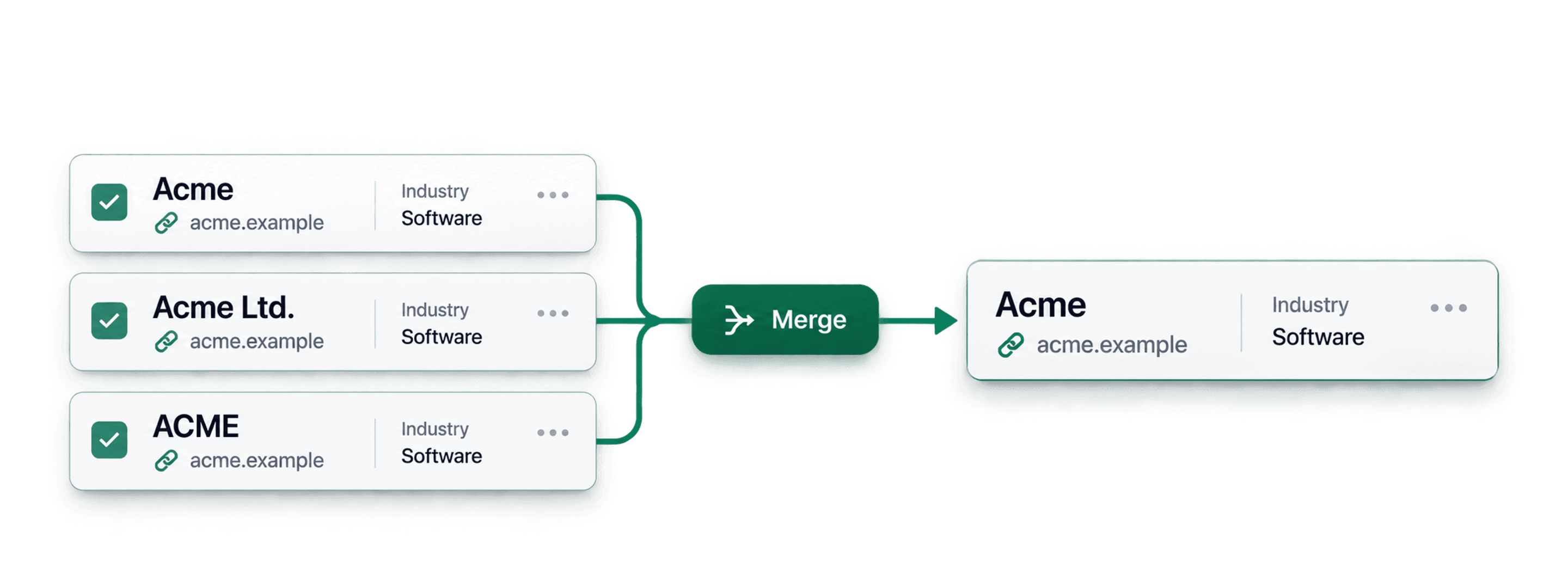
To find duplicate company names, compare a stable domain first, then use normalized company-name matching for records without a reliable website. Review the proposed groups before merging because two businesses can share a short or generic name.
This guide shows how to:
Best practices for deduplicating company name lists
Use the strongest identifier available. A normalized website or domain is a better first pass than a name because different companies can share names such as Acme Services. Keep the original company name, website, and CRM record ID in separate properties so you can inspect each match and map the cleaned row back to its source.
Run name matching as a second pass. The Company Name processor removes common legal, regional, and business terms before comparison. That can bring Cedar Group LLC and Cedar together, but it can also make two unrelated businesses look alike. For records without a domain, compare another field such as country, city, or address before deciding to merge. Do not treat a 100% name match as proof that the companies are the same entity.
When a group contains different phone numbers, owners, or notes, inspect Why matched and choose which values to retain. Export duplicate groups first if you need an audit trail. Only merge after you can explain why the records refer to the same business.
If you want a separate cleaned-name column for a few records, use the free Company Name Cleaner before importing the list. Keep the originals beside the results. Cleaning makes names easier to compare; it does not decide which companies should be merged.
Step 1: Import Your Company Name List
Start by importing your company list into Datablist. Keep a domain or website column when you have one. A domain is usually a stronger company identifier than a name alone.
To reproduce the measured workflow below, download the 1,000-row deduplication sample. It contains 800 designed entities, including 50 pairs with company-name and website variations.
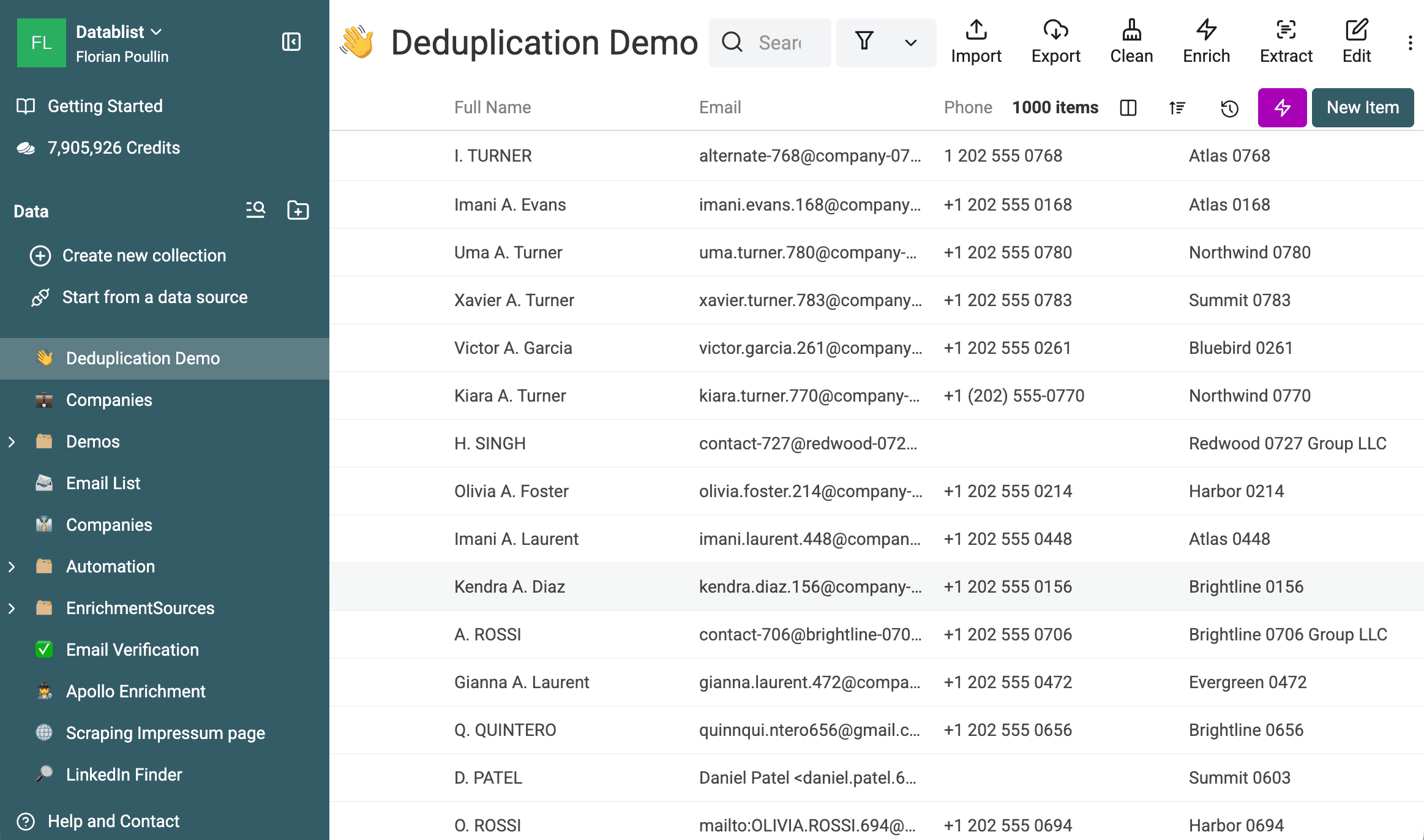
Review the imported properties and set Website to URL when applicable. The
Company property can remain Text.
Step 2: Identify Duplicates Using Algorithms
Open Clean > Merge duplicates to detect matching company records.
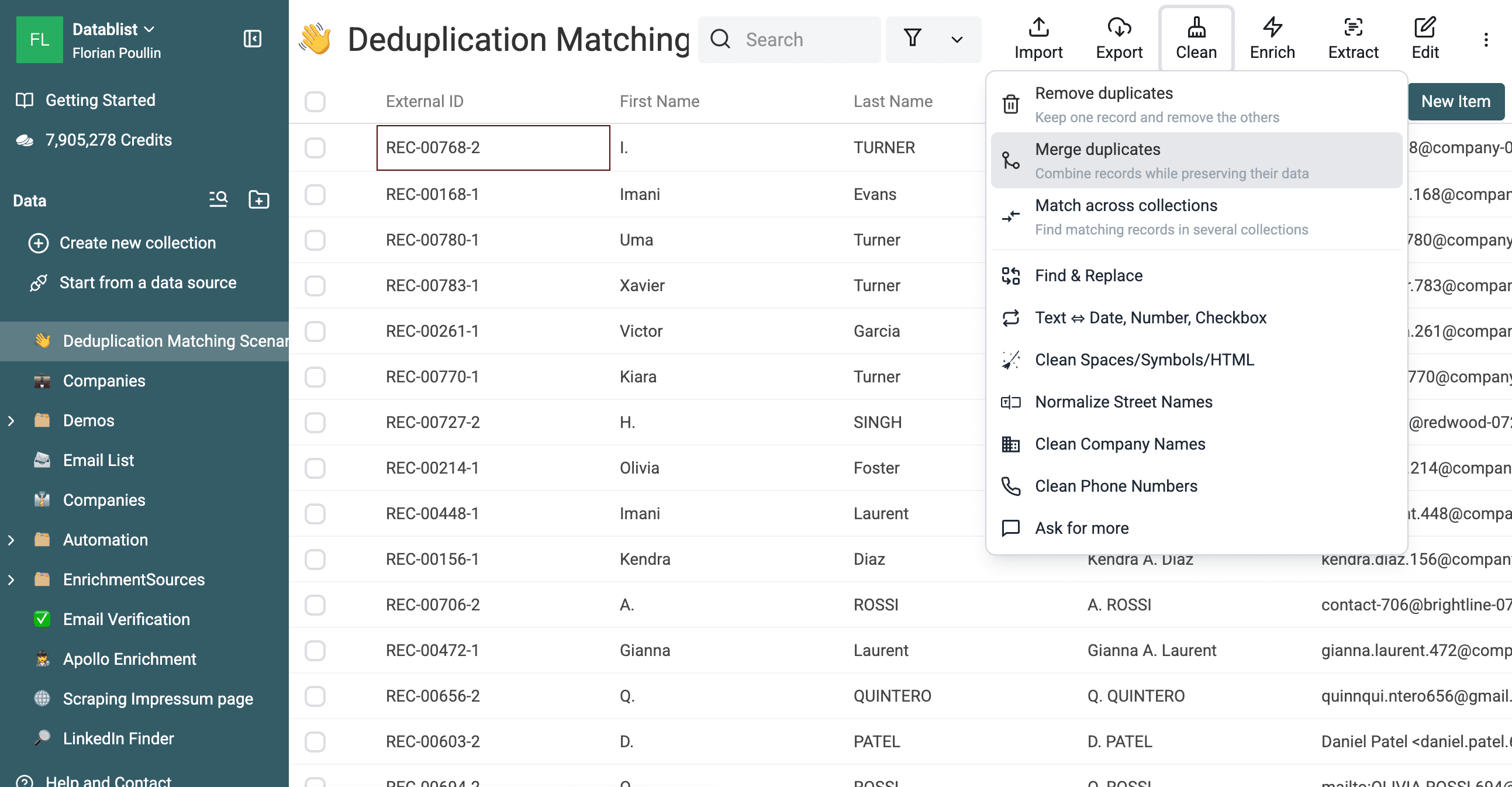
When the list contains websites, match those first. Then run a separate company-name pass for rows without a reliable website or domain.
Match company websites
Turn off All Properties and select Website only.
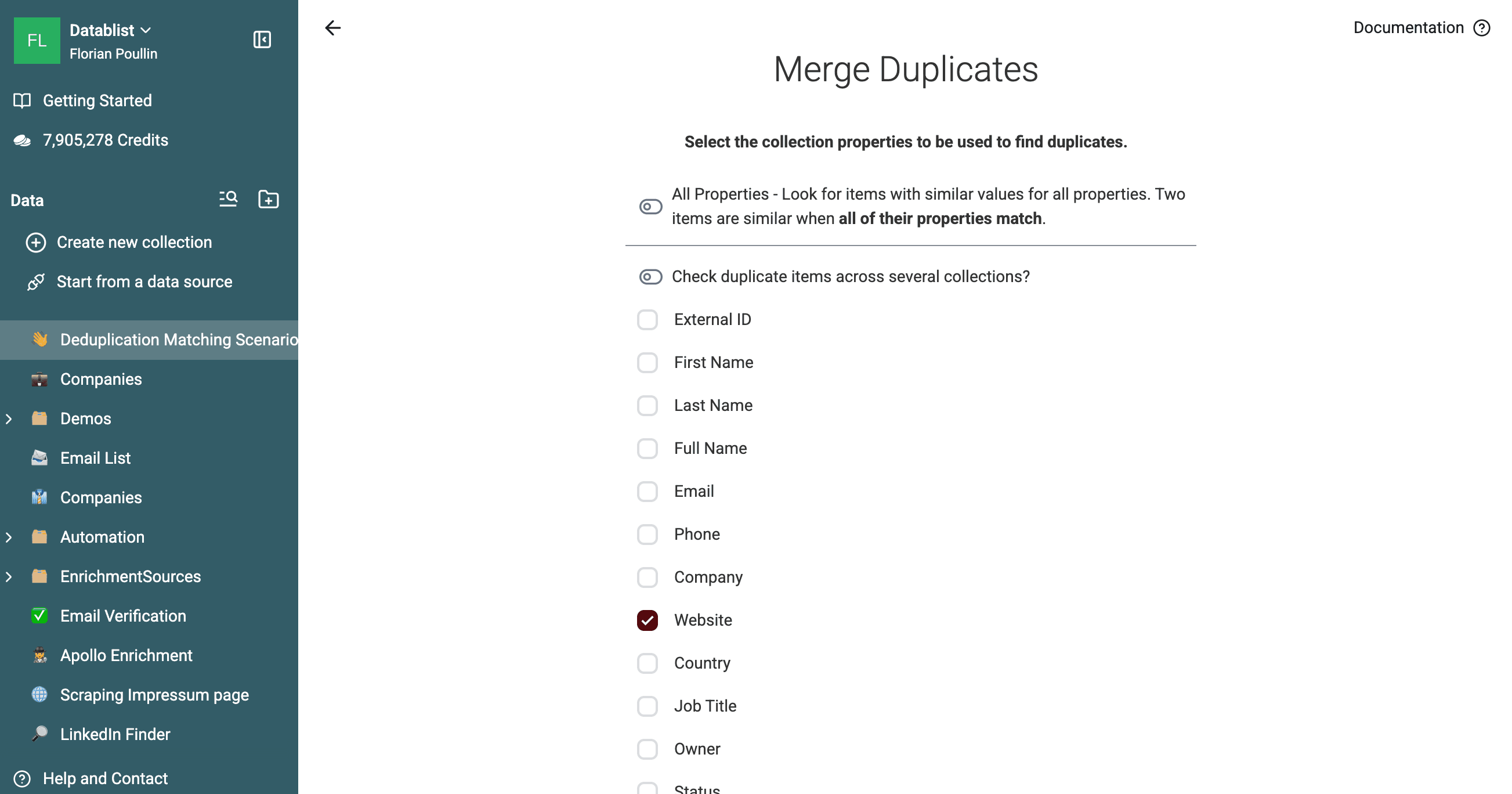
Choose Smart with the URL processor. The processor ignores protocol differences and trailing slashes. Enable these optional settings when they fit your data:
- Ignore Subdomain treats subdomains as the same registered domain.
- Ignore Path compares the domain without page paths.
- Ignore Query Params removes tracking and other query parameters before comparison.
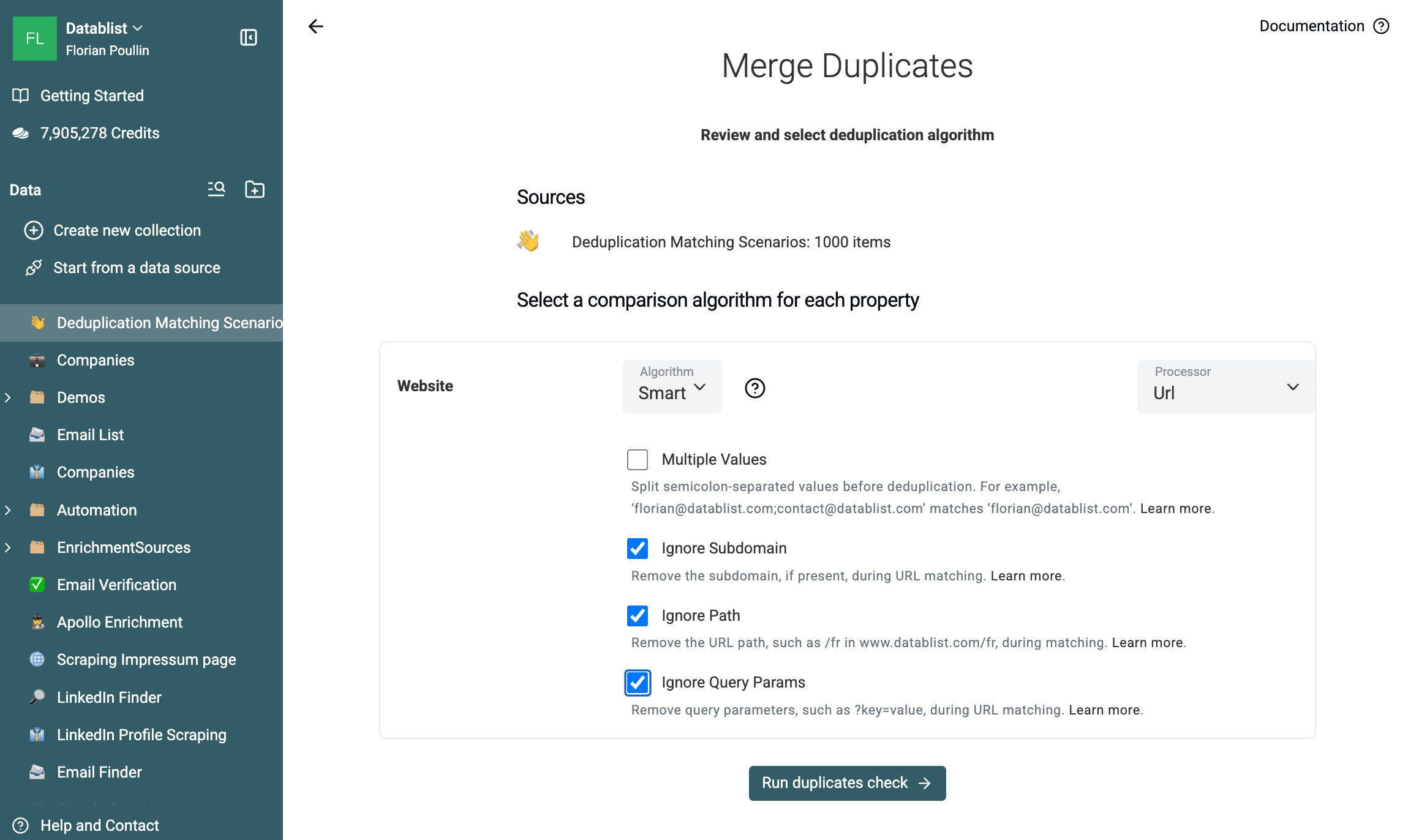
Use these options carefully. Two subdomains or paths can represent separate accounts, branches, products, or locations. Keep them when those distinctions matter.
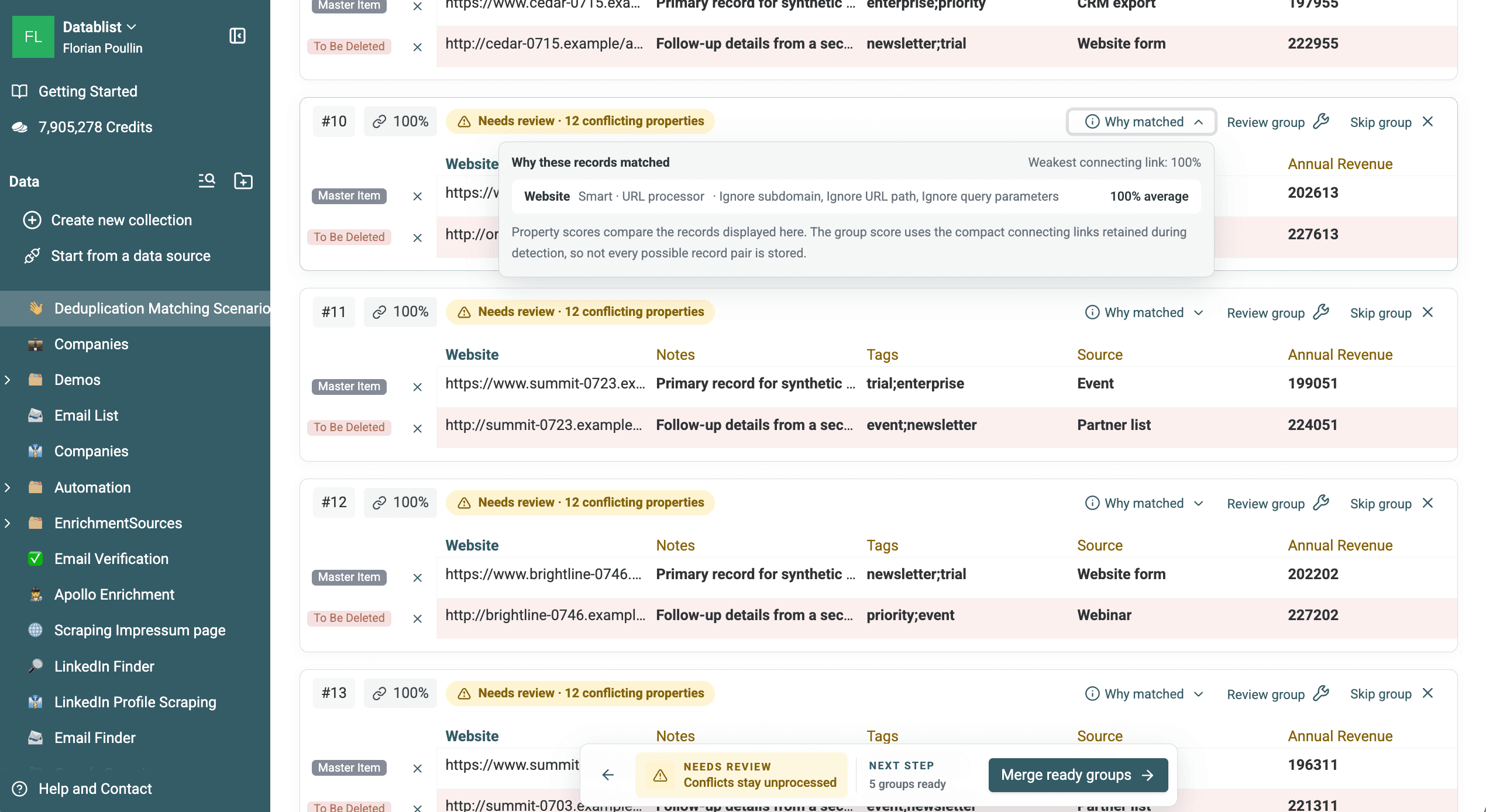
The Website pass returned 200 two-row groups from the 1,000-row sample. Fifty pairs contain designed URL variations, and 150 pairs already share the same Website value. Validation of the exported groups found no cross-entity match.
Open Why matched before processing a group. It shows the Website property, Smart algorithm, URL processor, enabled URL options, and match score.
Download the 200 Website duplicate groups to inspect the matched rows.
Match normalized company names
Select Company for a second pass.
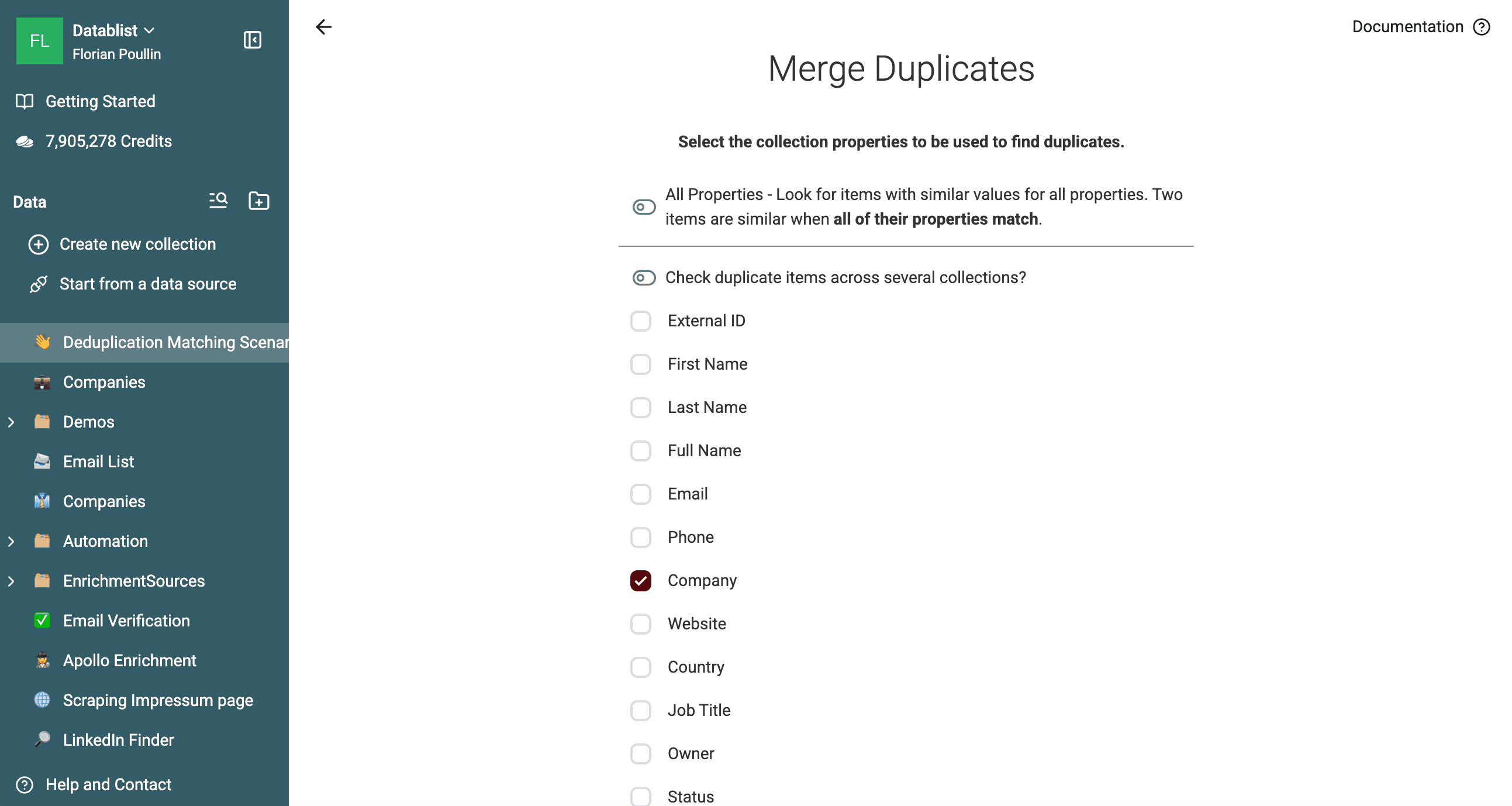
Choose the comparison method:
- Use Smart with the Company Name processor to remove common company terms before comparison.
- Use Jaro-Winkler or Levenshtein for spelling variations. Start with a high threshold and keep lower-confidence groups in Needs review.
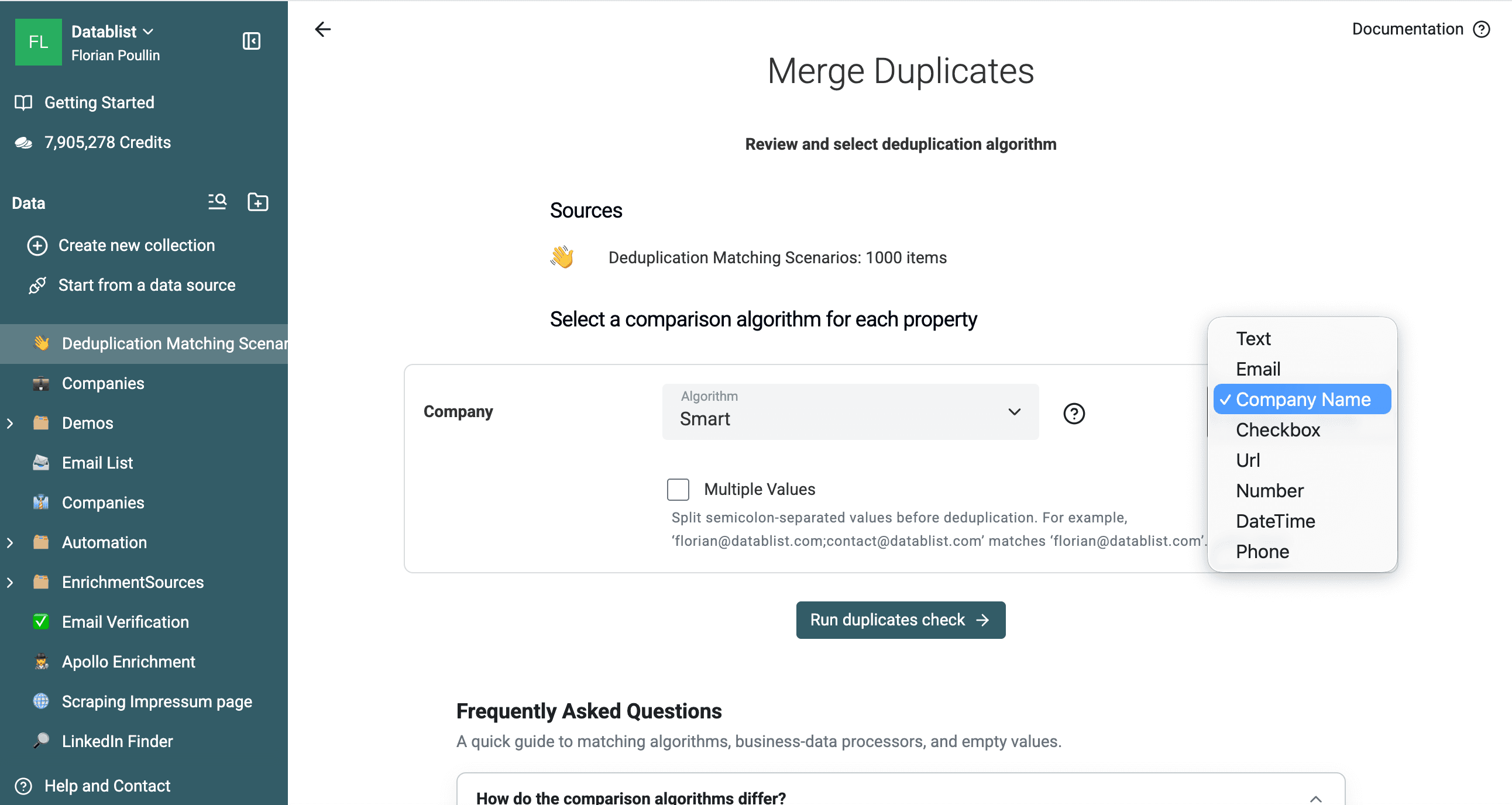
Run the duplicates check to detect matching records.
Understanding the Company Name Processor
The Company Name Processor is a special tool that normalizes company names before detecting duplicates. This is crucial because companies often have different variations of their names in your data.
What It Does:
- Removes Legal Suffixes: LLC, Inc., Ltd., etc.
- Ignores Geographic Terms: Europe, USA, UK, etc.
- Eliminates Business Keywords: Partners, Group, Technologies, etc.
Example:
| Original Name | Normalized Name |
|---|---|
| Apple Inc. | Apple |
| Apple USA LLC | Apple |
| Apple Technologies | Apple |
| Microsoft Corporation | Microsoft |
| Microsoft Ltd. UK | Microsoft |
These values can become matching candidates. The Company Name processor is a paid feature, and the group still needs to represent the same business before you merge it.
Measured result on the 1,000-row sample
The Company Name pass returned 200 two-row groups from 1,000 checked records:
- 50 pairs contain designed company-name variants such as
Cedar 0715, Inc.andCedar 0715 Group LLC. - 150 other designed duplicate pairs already share an identical company value.
All 200 groups map to the correct synthetic entities in this test. No group combines records from different entities. This is a result for the generated sample, not a general accuracy guarantee.
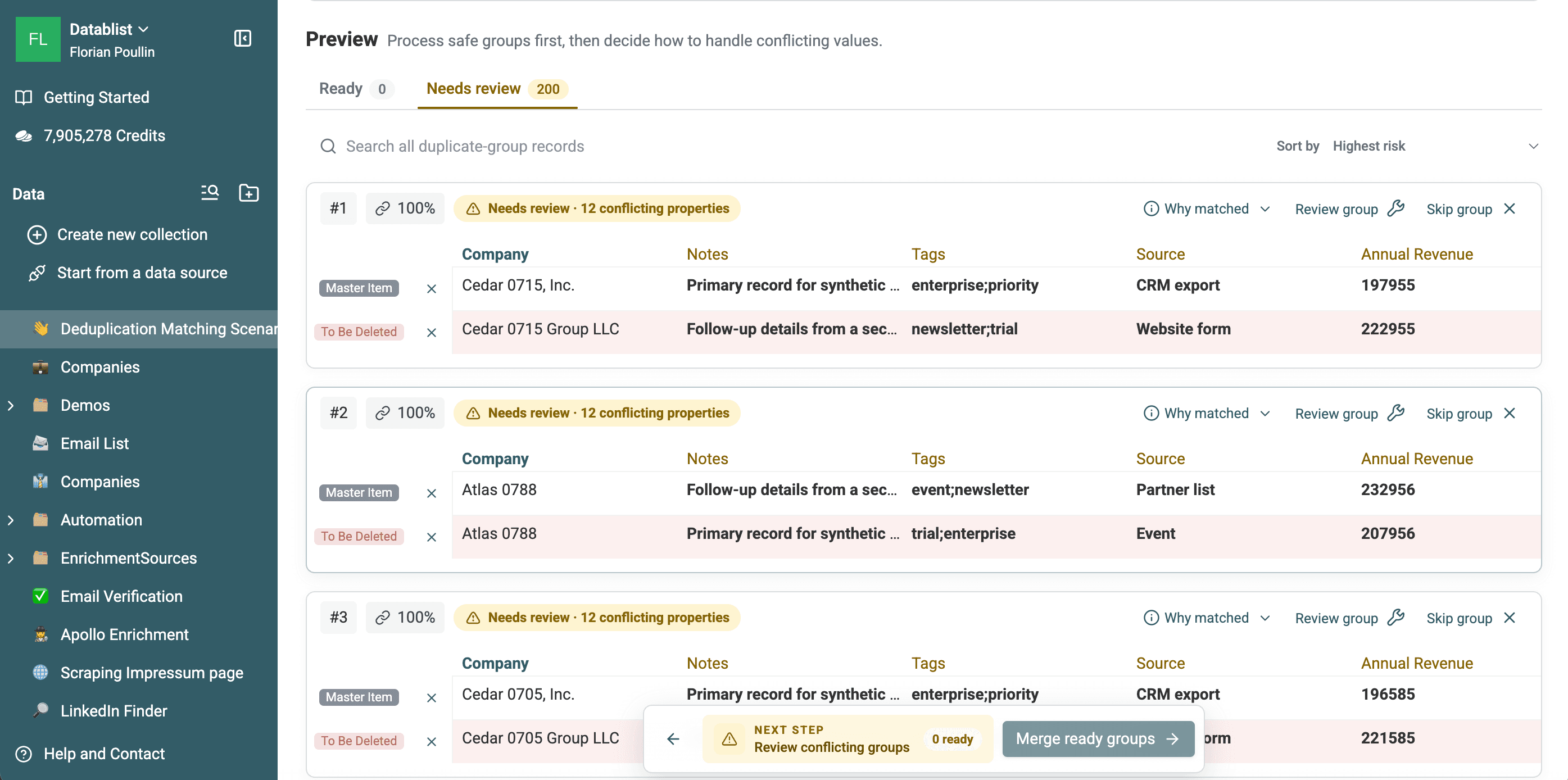
The groups show a 100% match score. They appear in Needs review because other properties conflict, not because the company-name match has low confidence.
Open Why matched to verify the property, algorithm, processor, and score used for a group.
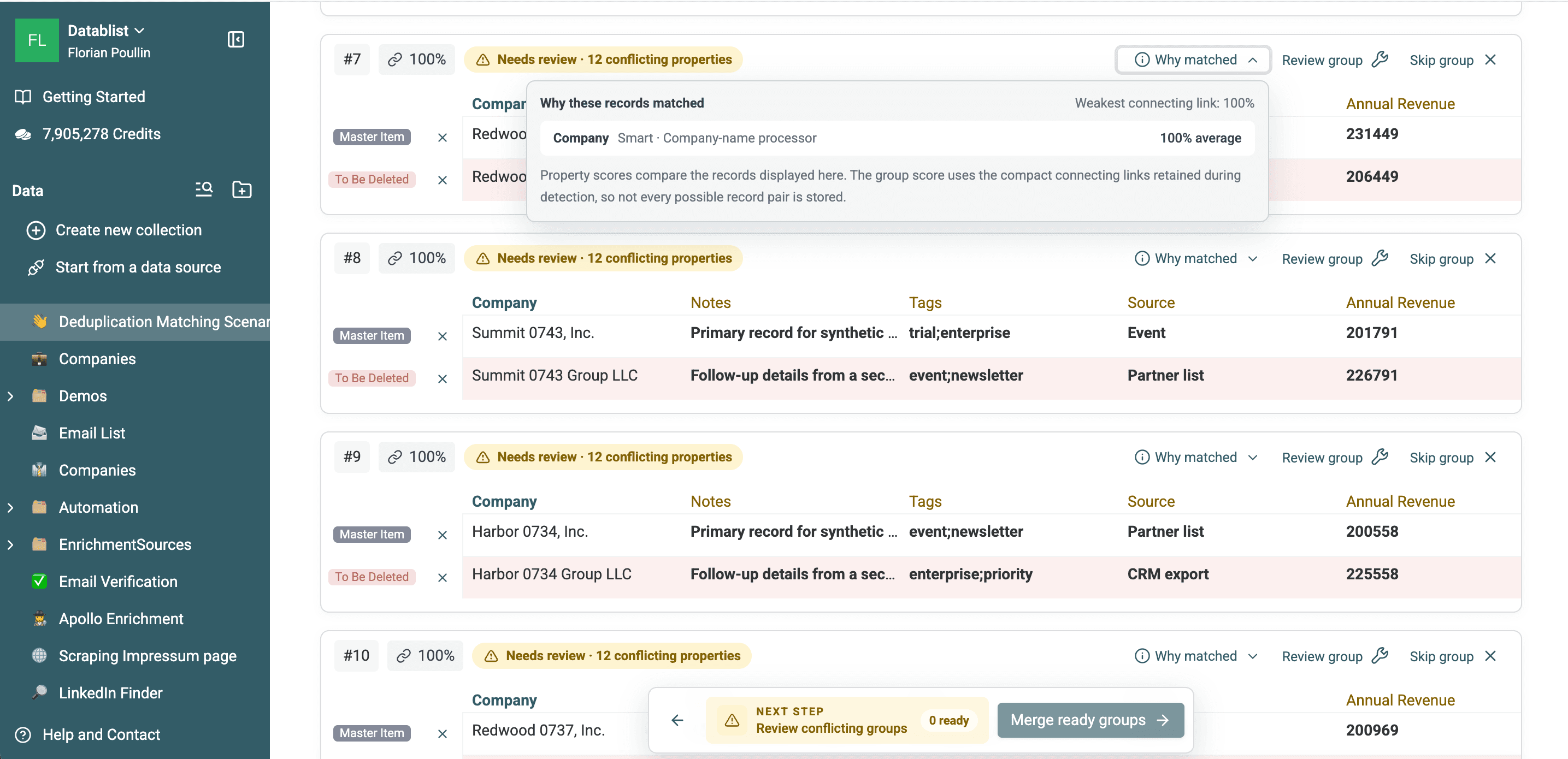
Download the 200 exported duplicate groups
to inspect the matched rows and DuplicateGroupId values.
Step 3: Merge Duplicate Company Records
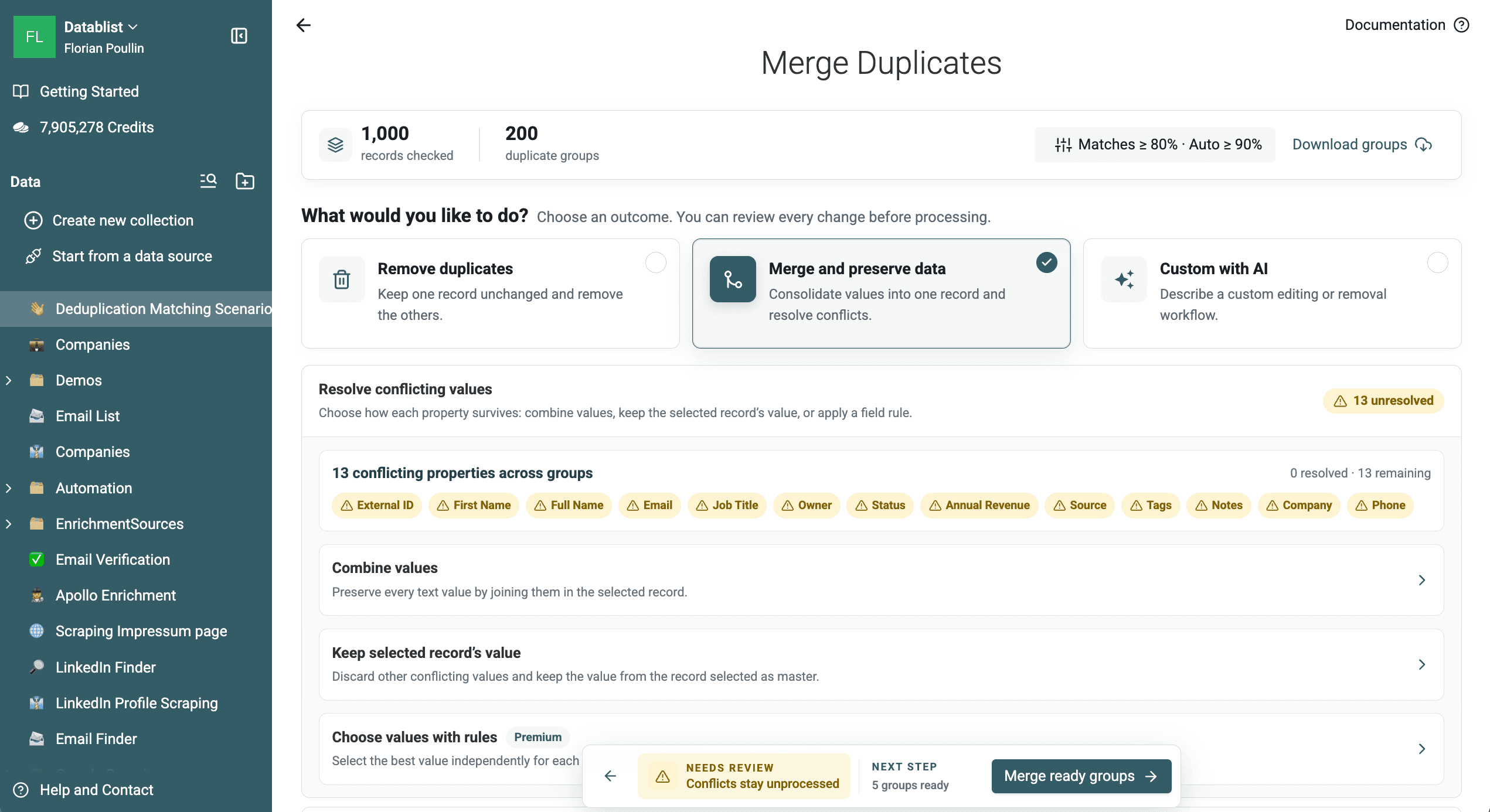
If you only need a list of matches, use Download groups and stop before processing. Continue when you want to consolidate the records in Datablist.
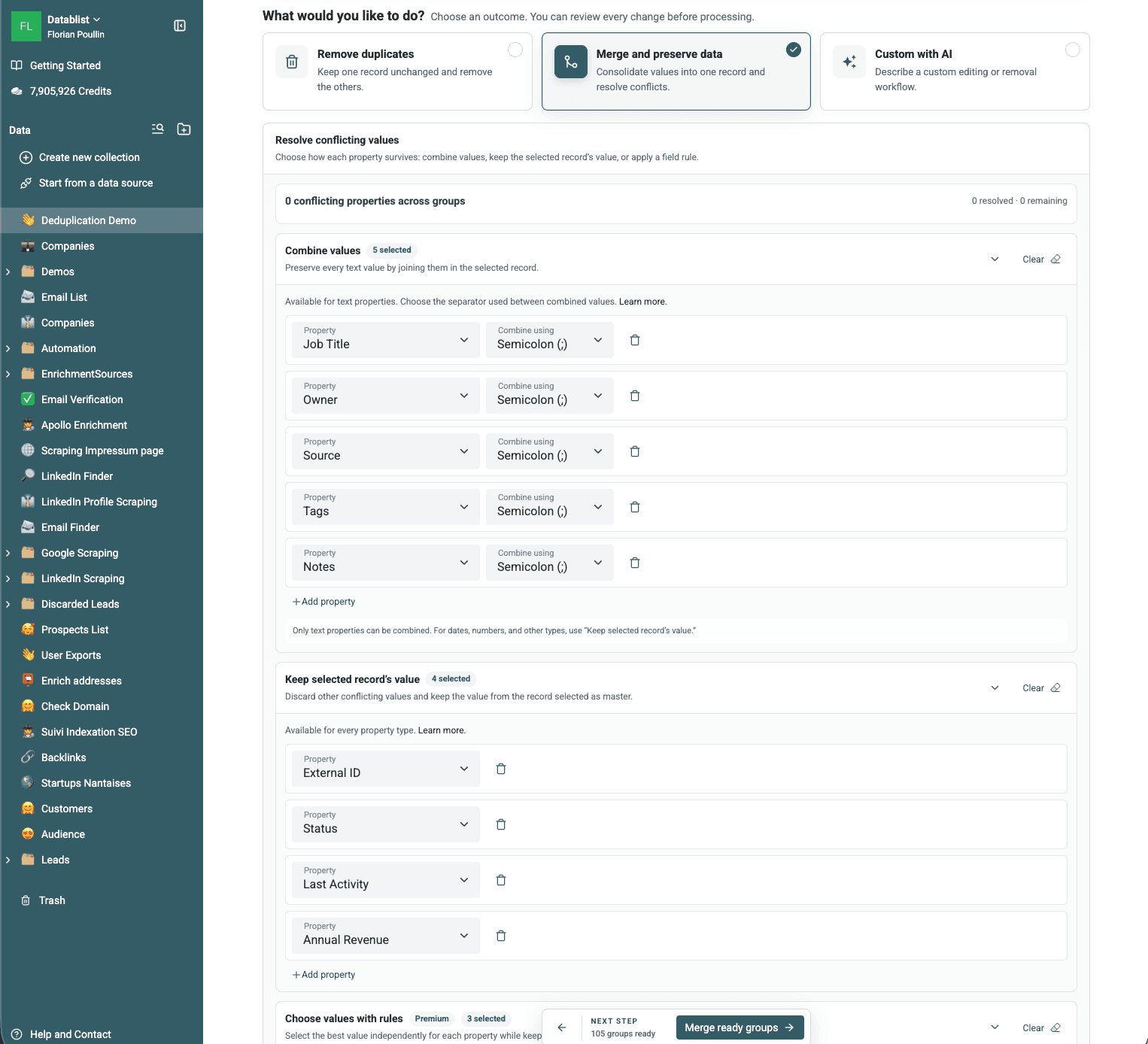
Resolving Conflicts
A conflicting property indicates differing values for the same field across the identified duplicate records.
If duplicate records have different values in fields, you need to decide how to merge them.
Choose a rule for each conflicting property:
- Combine preserves distinct text values with a delimiter.
- Keep the selected record's value discards the other values.
- Field survivorship rules can choose the newest, oldest, longest, shortest, highest, lowest, or most frequent value on paid plans.
Use the shortcut control to apply the same rule to several conflicting properties, then adjust individual fields where needed.
Choosing a Master Record
One record becomes the destination and keeps its Datablist ID.
You can select based on:
- Most Complete: Keep the record with the most populated properties.
- Last Updated: Keep the most recently modified record.
- First Created: Keep the oldest record.
- Highest Value or Lowest Value: Compare a selected property.
- Matching Value: Keep the record containing a specified property value.
After configuring merging rules and master record selection, refresh the preview to visualize the outcome of the merge operation before committing changes.
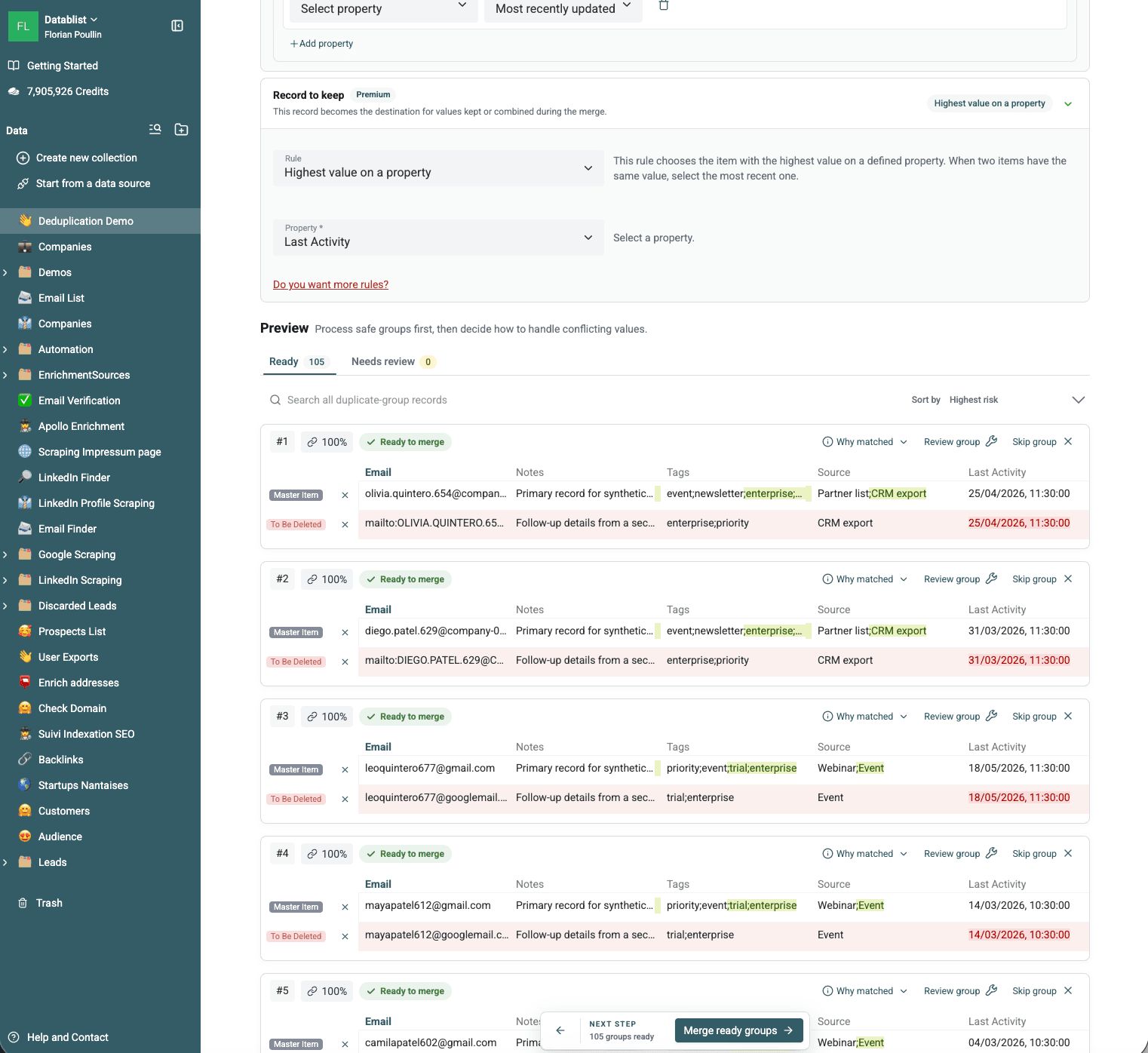
The preview displays the values that will be deleted, combined, and the designated master record for each duplicate group.
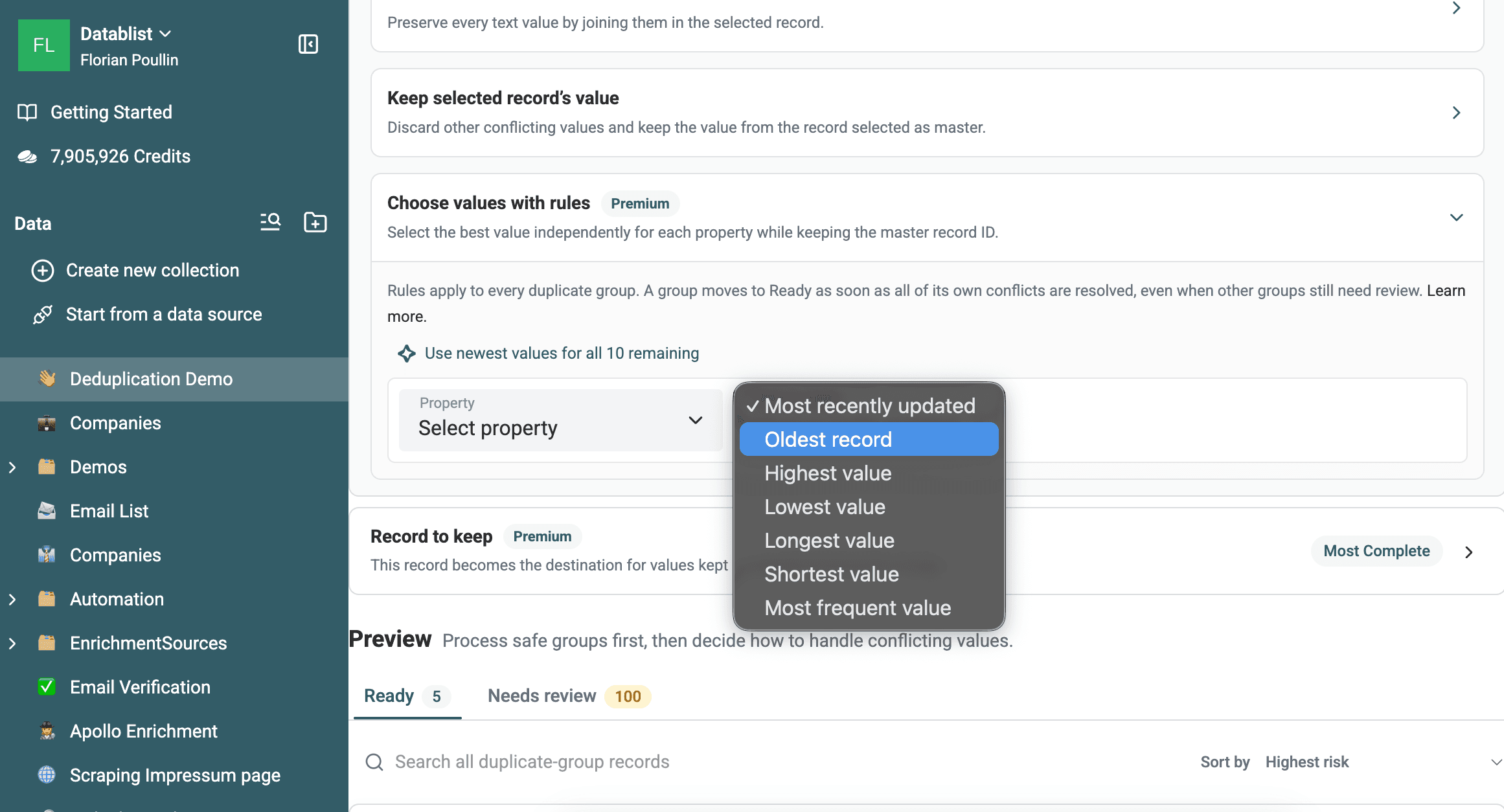
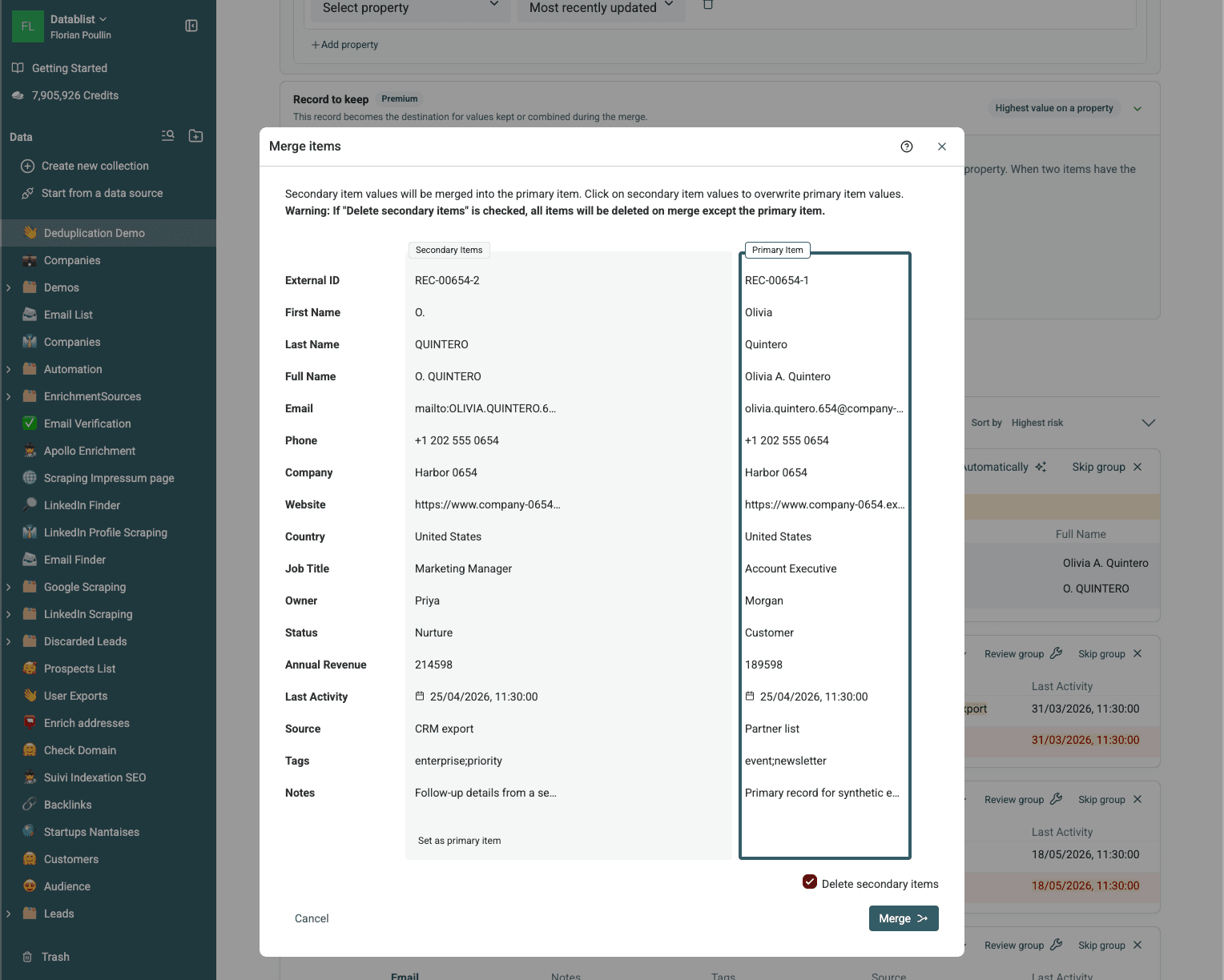
For exceptions, open Review group and choose values manually.
Process the Ready groups. Groups still marked Needs review remain unchanged.
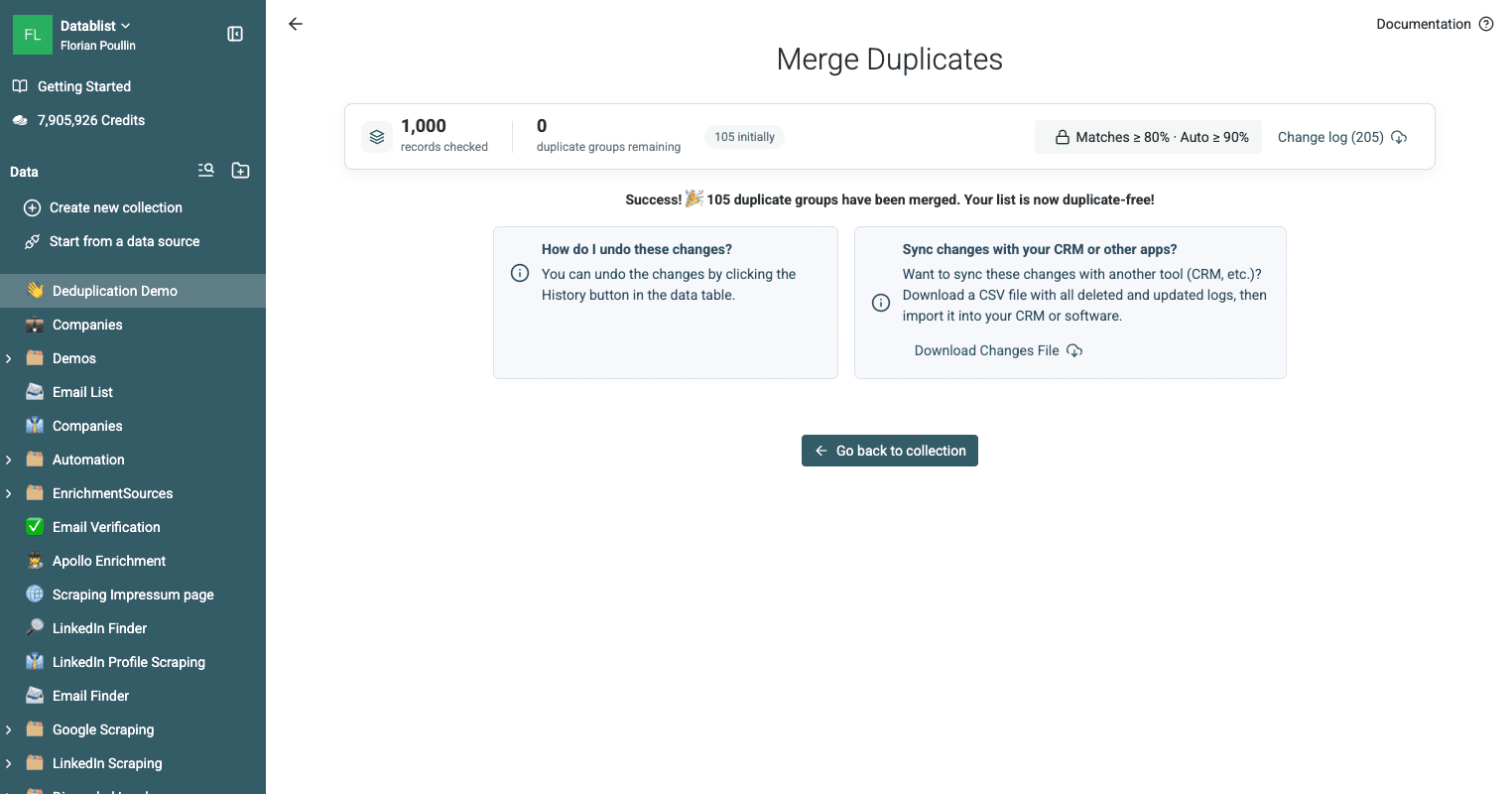
After merging, use Export in the collection header to download the clean list as CSV or Excel. The post-processing change log records deleted and updated IDs when you need an audit trail.
Before a name-based pass, use free company-name cleaning for a small sample. Keep both name columns; normalization helps comparison but does not establish that two companies are the same.
For the complete matching, review, and merge settings, read the Duplicate Finder documentation.