

When you need to compare CSV files online, the main thing I want you to avoid is a raw text diff. CSV files are structured data. Rows move, columns get renamed, exports add new fields, and a line-by-line comparison quickly becomes noise.
I prefer to compare the files as tables: pick a stable key, map the columns, review added, removed, changed, and unchanged rows, then export the diff. That is what Datablist's CSV Diff tool is built for.
In this walkthrough, I will compare an older product catalog export with a newer supplier offer file. The two files do not have the same columns, but they share EAN, Internal ID, Price, and Stock. That gives us a realistic example: match products by EAN, compare price and stock, then export the result.
Quick links
- The fastest CSV comparison workflow
- Example dataset
- Step 1: upload the original and updated CSV files
- Step 2: choose how rows should match
- Step 3: map columns with different names
- Step 4: choose join type and comparison options
- Step 5: review the differences
- Step 6: export the CSV diff result
- Example output
The fastest CSV comparison workflow
If you already have the two files ready, the workflow is short:
- Open Datablist's CSV Diff tool.
- Upload the older file as the original CSV.
- Upload the newer file as the updated CSV.
- Start with auto-detect, then confirm the key column.
- Map columns when the two files use different names.
- Keep full outer join for the first audit.
- Review changed, added, removed, and unchanged rows.
- Export the full diff CSV for the first pass.
- Switch to changed rows export if you need a shorter handoff file.
This works better than a text diff because the comparison follows records, not line numbers. If a CRM export reorders contacts, or a supplier adds a new column, a text diff can make the whole file look different. A table diff tells you which records changed and which cells changed.
🔑 Pick the row key before judging the diff
A good key column is what turns a noisy comparison into a useful one. Use an ID, email, SKU, EAN, or internal identifier that stays stable between exports.
Example dataset: Products CSV vs Offers CSV
For this tutorial, I will use a fictional ecommerce dataset. The first file is an older product catalog export. The second file is a newer supplier or marketplace offer feed.
The original Products CSV looks like this:
| Index | EAN | Internal ID | Name | Brand | Category | Price | Currency | Stock | Availability |
|---|---|---|---|---|---|---|---|---|---|
| 1 | 5901234123457 | PRD-001 | Airtight Bottle | Acme Outdoor | Outdoor | 24.90 | EUR | 42 | In stock |
| 2 | 5901234123464 | PRD-002 | Bento Lunch Box | Northline | Kitchen | 18.50 | EUR | 120 | In stock |
| 3 | 5901234123471 | PRD-003 | Cotton Tote Bag | Urban Goods | Accessories | 9.90 | EUR | 0 | Out of stock |
| 4 | 5901234123488 | PRD-004 | LED Desk Lamp | Luma | Office | 39.00 | EUR | 18 | In stock |
| 5 | 5901234123495 | PRD-005 | Yoga Mat | BalanceFit | Sport | 29.00 | EUR | 65 | In stock |
| 10 | 5901234123549 | PRD-010 | Wireless Mouse | ClickPro | Electronics | 34.00 | EUR | 55 | In stock |
The updated Offers CSV has fewer descriptive fields, but it still has the identifiers and commercial values I care about:
| Offer ID | EAN | Internal ID | Supplier SKU | Stock | Price |
|---|---|---|---|---|---|
| OFF-001 | 5901234123457 | PRD-001 | ACM-BTL-01 | 38 | 23.90 |
| OFF-002 | 5901234123464 | PRD-002 | NTH-LBX-02 | 120 | 18.50 |
| OFF-003 | 5901234123471 | PRD-003 | UGD-TOTE-03 | 25 | 9.90 |
| OFF-004 | 5901234123488 | PRD-004 | LMA-LAMP-04 | 18 | 35.00 |
| OFF-005 | 5901234123495 | PRD-005 | BFT-MAT-05 | 65 | 29.00 |
| OFF-008 | 5901234123556 | PRD-011 | CLP-CAB-11 | 44 | 16.50 |
This pair includes the problems I usually want in a CSV diff example: changed values, new rows, removed rows, unchanged rows, and different schemas. With the full sample, I expect PRD-001, PRD-003, PRD-004, PRD-006, and PRD-010 to be changed. I expect PRD-011 and PRD-012 to be added, and PRD-008 and PRD-009 to be removed.
Step 1: upload the original and updated CSV files
Open the CSV Diff tool. You will see two upload areas:
- Original CSV: the earlier export, old snapshot, or baseline file.
- Updated CSV: the newer export you want to compare against the original.
The order matters. If a row exists only in the updated file, Datablist marks it as added. If a row exists only in the original file, Datablist marks it as removed.
In the product example, I upload the Products CSV as the original file because it is the older catalog export. I upload the Offers CSV as the updated file because it represents the newer supplier feed.
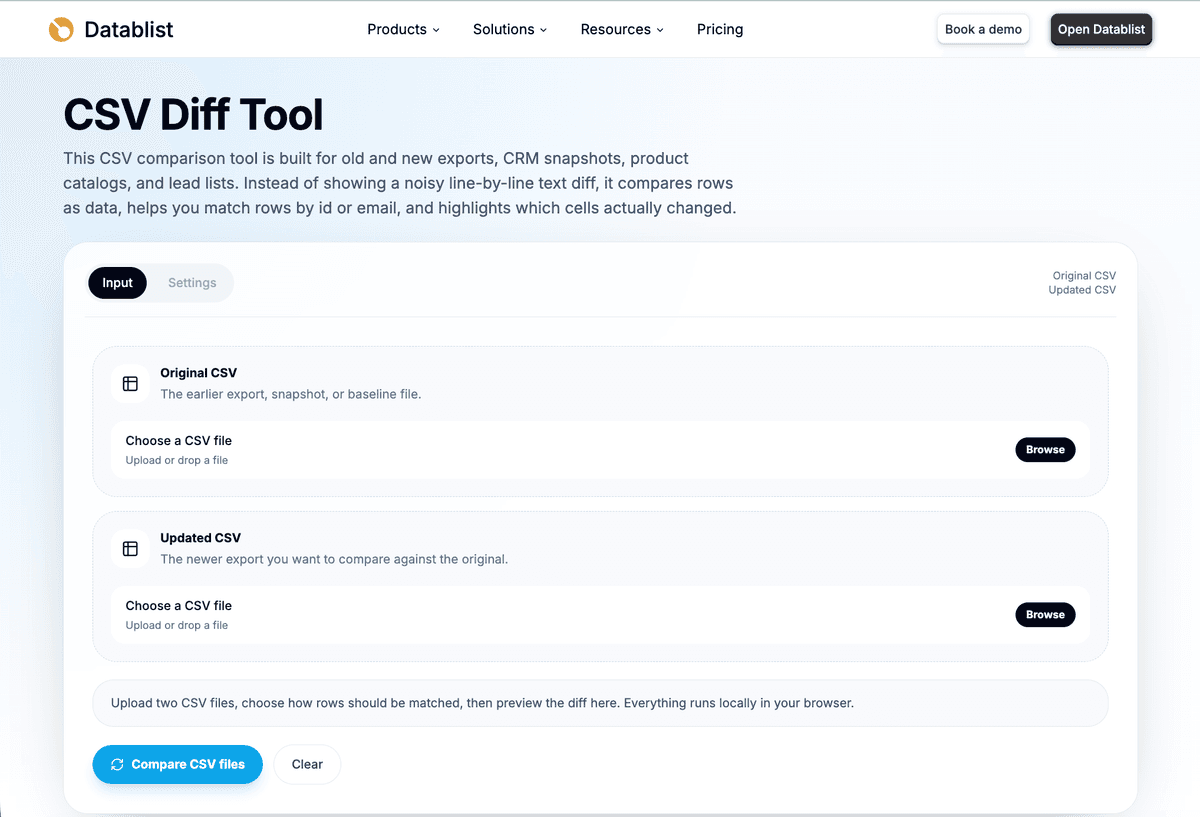
After you select both files, the tool parses them and prepares the first comparison. CSV files are parsed and compared in your browser. The parser detects common separators such as comma, semicolon, tab, and pipe, and supports common encodings such as UTF-8 and Windows-1252 style files.
I still check the file order before looking at the result. Many bad CSV comparisons come from swapping old and new files, then reading added and removed rows backwards.
Step 2: choose how rows should match
Row matching is the most important setting in the workflow.
Datablist can start with auto-detect. It looks for likely identifier columns such as id, email, sku, uuid, external_id, record_id, user_id, contact_id, and company_id.
For product data, I usually prefer:
EANwhen it is present and unique.Internal IDwhen EAN values are missing, duplicated, or supplier-specific.SKUonly when the same SKU is used in both files.
For CRM or lead files, the equivalent key might be email, contact_id, company_id, or a CRM record ID.
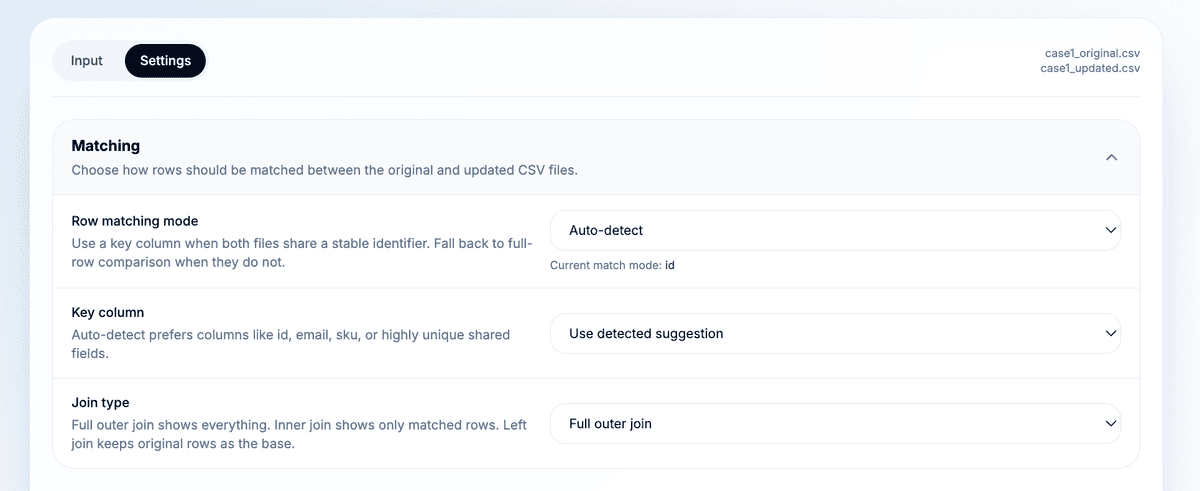
The matching mode depends on the shape of your data:
- Use single-key matching for most exports. One stable column is easier to audit.
- Use multi-key matching when one column is not unique enough. For example,
Company DomainplusEmail. - Use full-row comparison only when you do not have a stable identifier.
- Use auto-detect for the first pass, then confirm the detected key before trusting the counts.
⚠️ A weak key creates noisy added and removed rows
If the key is missing, duplicated, or reformatted between exports, matched records can appear as one removed row and one added row. Review duplicate-key flags before you use the result for an update.
Duplicate keys are not a reason to ignore the diff, but they are a signal to slow down. The tool flags duplicate keys, and I treat those rows as records to review before I rely on the counts.
Step 3: map columns with different names
Column mapping controls which fields are compared.
In the product example, the two files share EAN, Internal ID, Stock, and Price. The original file also has Name, Brand, Category, Currency, and Availability. The updated file has Offer ID and Supplier SKU.
I do not want supplier-only metadata to create changes. I want to compare the columns that answer my business question:
- Match rows by
EAN. - Compare
StocktoStock. - Compare
PricetoPrice. - Keep descriptive columns for context when they help review the row.
- Leave unrelated fields unmapped when they should not affect the comparison.
When the column names are identical, Datablist can align them by name. Column order does not need to match. Manual mapping matters when labels changed. A CRM export might use customer_id in one file and Customer ID in another. Map those only when they represent the same value.
💡 Map only the columns you want to compare
New metadata columns often appear in supplier feeds and CRM exports. If a field should not count as a change, leave it unmapped or use it only as context during review.
This step feels small, but it usually saves the most time. A wrong key creates bad row matching. Wrong column mapping creates bad change counts.
Step 4: choose join type and comparison options
For the first run, I recommend this setup:
- Full outer join.
- A stable key column.
- Ignore leading and trailing whitespace.
- Normalize empty and null-like values.
- Keep case-sensitive comparison unless capitalization should not matter.
Full outer join is the best default because it shows everything: matched rows, added rows, and removed rows. It gives you the broad audit view before you narrow the result.
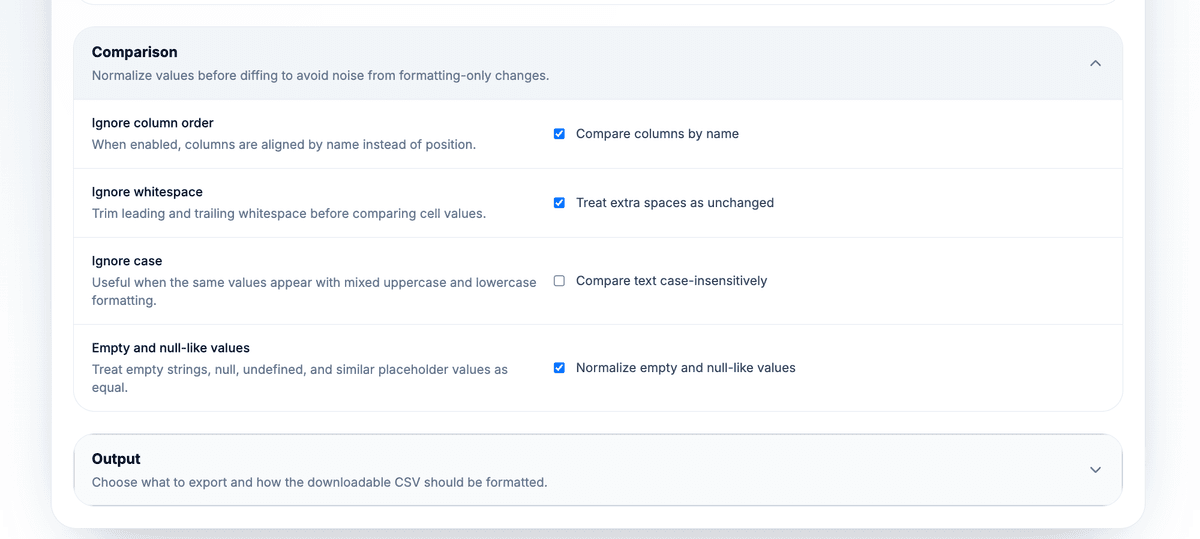
The join type changes what appears in the result:
- Full outer join shows matched rows, rows only in the original file, and rows only in the updated file.
- Inner join shows only records present in both files. Use it when you only care about changes on shared rows.
- Left join keeps the original file as the base and excludes updated-only rows.
The comparison options reduce formatting noise:
- Ignore whitespace trims leading and trailing spaces before comparing cells.
- Ignore case treats
AcmeandACMEas equal. - Empty and null-like normalization treats blanks,
null,undefined,nil,none,n/a, andnaas equivalent placeholders.
📘 Use full outer join for the first audit
Start broad, then narrow. Once you know the added, removed, and changed counts make sense, export a smaller changed-rows file for review.
For large files, browser and device performance matter. The preview is limited for responsiveness, while the downloadable CSV is built from the full result. If a review export is too large to compare comfortably, split the large CSV into smaller review files first.
Step 5: review added, removed, changed, and unchanged rows
Once the comparison runs, start with the row statuses:
added: the key exists only in the updated CSV.removed: the key exists only in the original CSV.changed: the key exists in both files and at least one mapped value changed.unchanged: the key exists in both files and mapped values match after normalization.
The product example gives clean cases:
PRD-001changed becausePricemoved from24.90to23.90andStockmoved from42to38.PRD-003changed because stock moved from0to25.PRD-011was added because its EAN appears only in the Offers CSV.PRD-008was removed because its EAN appears only in the Products CSV.
Use the status filters to focus the review. I usually start with Changed, then check Added and Removed. I leave Unchanged for the end, unless I need a full audit trail.
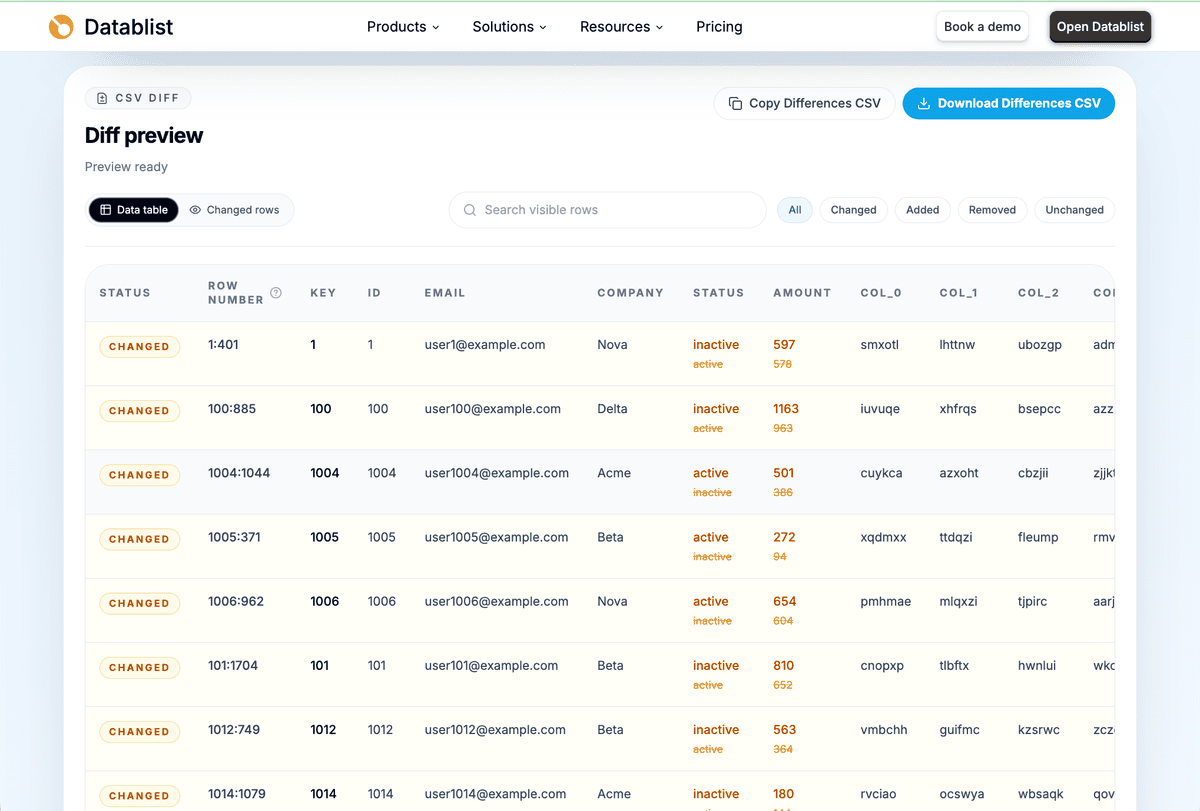
The changed rows view is useful when you need cell-level differences. It shows the original value and updated value side by side for each changed column.
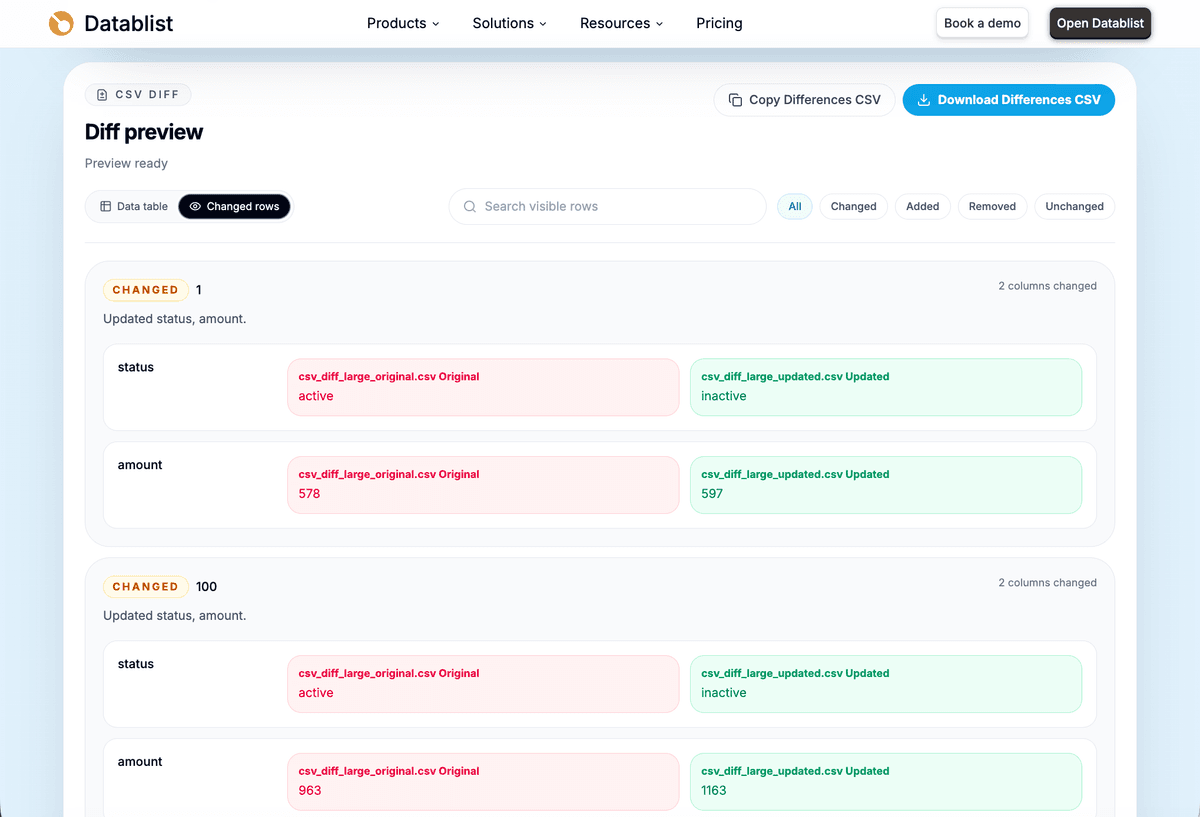
Before exporting, I use a short quality check:
- Do added and removed counts look plausible?
- Did the tool match rows by the key I expected?
- Are duplicate keys flagged?
- Are the columns mapped correctly?
- Are formatting-only changes being ignored when they should be?
- Do a few changed rows make sense when expanded?
The summary section gives another quick check. It shows processing details, mapped columns, duplicate-key flags, and the status counts.
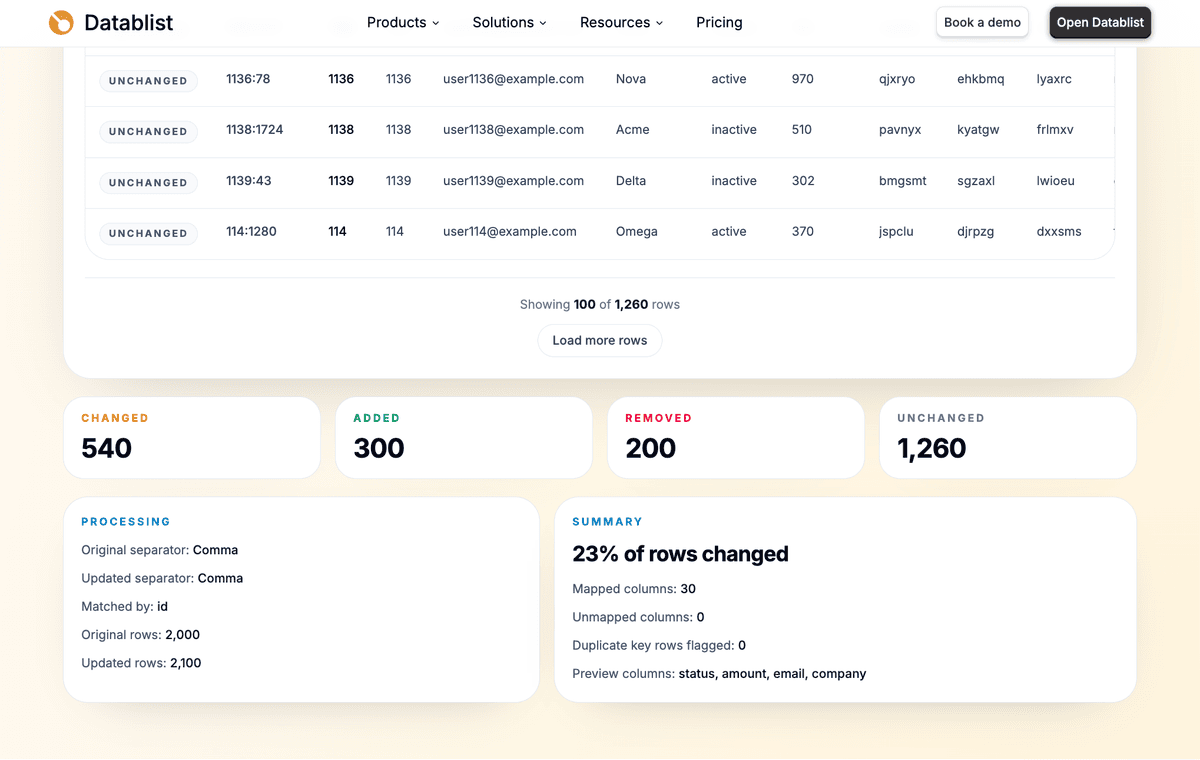
If the numbers look strange, do not export yet. Go back to the key and column mapping first. That is where most issues come from.
Step 6: export the CSV diff result
When the preview looks right, export the result. Datablist gives you different output modes depending on what you need:
- Summary CSV: use this for row status, keys, counts, and an audit-friendly overview.
- Changed rows CSV: use this when someone only needs to review records with differences.
- Full diff CSV: use this for side-by-side original and updated values.
For a first run, I prefer full diff CSV. It keeps more context, which helps when you need to explain a change later. Once the workflow is validated, I switch to changed rows CSV for a shorter file.
You can also choose the separator:
- Comma for most spreadsheet workflows.
- Semicolon when your locale or downstream system expects it.
- Pipe or tab for tools that require those formats.
The tool lets you copy the differences CSV or download it. Downloaded files follow this pattern:
csv-diff-{originalBase}-vs-{updatedBase}.csv
If the exported result is large and you need to filter or edit it before sharing, use Datablist's guide to edit big CSV files online.
Example output table
Here is a small sample of what a full diff export can look like for the product example.
| status | key | changed_columns | original:Price | updated:Price | original:Stock | updated:Stock |
|---|---|---|---|---|---|---|
| changed | 5901234123457 | Price|Stock | 24.90 | 23.90 | 42 | 38 |
| changed | 5901234123471 | Stock | 9.90 | 9.90 | 0 | 25 |
| added | 5901234123556 | 16.50 | 44 | |||
| removed | 5901234123525 | 7.50 | 88 |
The exported CSV can include:
status: added, removed, changed, or unchanged.key: the value used to match the row.__row_index_original: row number in the original CSV when present.__row_index_updated: row number in the updated CSV when present.__duplicate_key: whether the selected key appears more than once.changed_columns: the changed fields.changed_columns_count: the number of changed fields.summary: a readable change summary.original:{column}andupdated:{column}pairs for side-by-side review.
I like this format because it is easy to hand off. Someone can filter status = changed, sort by changed_columns_count, or isolate added and removed records without rerunning the comparison.
When to compare CSV files this way
This workflow fits any situation where you have two snapshots and need to know what changed. Good examples:
- Product catalog price and stock updates.
- Supplier feed review before importing new offers.
- CRM export before and after a cleanup.
- Lead list refreshes.
- Inventory snapshot comparison.
- Spreadsheet handoff audits.
- Generated CSV exports from a JSON conversion workflow.
For example, if you first convert nested JSON to CSV, you can use CSV Diff afterward to compare two generated exports. If you are preparing records for a CRM, run the diff before broader data cleaning so you know which rows changed.
Compare, join, or deduplicate: choose the right workflow
CSV comparison is not the same as joining or deduplicating files. Use CSV Diff when your question is:
What changed between these two snapshots?
Use a join workflow when your question is:
How do I combine fields from two files?
For that, see the guide to join CSV files by a unique identifier.
Use deduplication when your question is:
Which records repeat inside one or more files?
For that, see the guide to remove CSV duplicates.
This distinction matters because each workflow has a different goal. CSV Diff is for comparing snapshots and exporting a diff. It is not a fuzzy matching tool, and it is not a merge tool.
Troubleshooting and edge cases
Rows appear added and removed instead of changed
Check the key column first. If the key changed between files, Datablist cannot treat the two rows as the same record. Also check file order. If the original and updated files are swapped, added and removed rows will be reversed.
Too many cells appear changed
Review the comparison options. Enable whitespace trimming if spaces should not matter, compare case-insensitively if capitalization should not matter, normalize empty values if blanks and placeholders should match, and check column mapping for renamed fields.
Column names are different
Use manual mapping. Map fields only when they mean the same thing. Leave unrelated columns unmapped if they should not affect the comparison.
Duplicate keys appear
Treat duplicate keys as a review signal. The result can still help, but duplicate keys mean the selected identifier is not unique enough. Clean the source files or choose a stronger key before using the counts for an import.
The file is slow or the preview is limited
Large files depend on browser and device performance. Use the preview for review, then download the CSV diff when you need the full result.
CSV parsing fails
Check for unclosed quoted fields, unusual delimiters, or encoding issues. A single broken quoted field can make a CSV file invalid.
Conclusion
The best way to compare two CSV exports is to treat them as data, not text. Upload the old file as the original CSV, upload the new file as the updated CSV, choose a stable key, map the columns, review row statuses, and export the diff.
My default setup is simple: full outer join, stable key, whitespace trimming, null-like value normalization, and a full diff export for the first review.
You can run the workflow with Datablist's CSV Diff tool.
FAQ
How do I compare two CSV files online?
Open Datablist's CSV Diff tool, upload the older file as Original CSV, upload the newer file as Updated CSV, choose a key column, review the result, then download the diff CSV.
Can I compare CSV files by ID, email, SKU, or EAN?
Yes. Use the shared identifier as the key column. Good keys include record IDs, email addresses, SKUs, EANs, internal IDs, company IDs, and other values that stay stable between exports.
What if the rows are in a different order?
Use key-based matching. When rows are matched by a stable key, row order does not need to match between the two files.
Can I compare CSV files with different column names?
Yes. Map the columns manually when names differ. For example, map customer_id in one file to Customer ID in the other file if they represent the same identifier.
What is the best join type for a CSV diff?
Use full outer join for the first audit. It shows matched rows, added rows, and removed rows. Use inner join only when you care about records present in both files.
Can I ignore whitespace, capitalization, or blank values?
Yes. You can trim whitespace, compare text case-insensitively, and treat empty or null-like placeholders as equal. I usually keep whitespace trimming and empty-value normalization enabled.
Can I export only changed rows?
Yes. Use the changed rows output when you need a shorter review file. I still recommend exporting the full diff once first so you can validate the comparison.
What do added, removed, changed, and unchanged mean?
added means the key appears only in the updated CSV. removed means the key appears only in the original CSV. changed means the key appears in both files but mapped values differ. unchanged means the key appears in both files and mapped values match.
Are CSV files uploaded to a server?
The CSV files are parsed and compared in your browser. Treat this as a browser-based comparison tool, not a Datablist collection import or sync workflow.
Can this compare large CSV files?
Yes, but very large files depend on your browser and device performance. The preview is limited for responsiveness, while the downloadable CSV is built from the full result.