
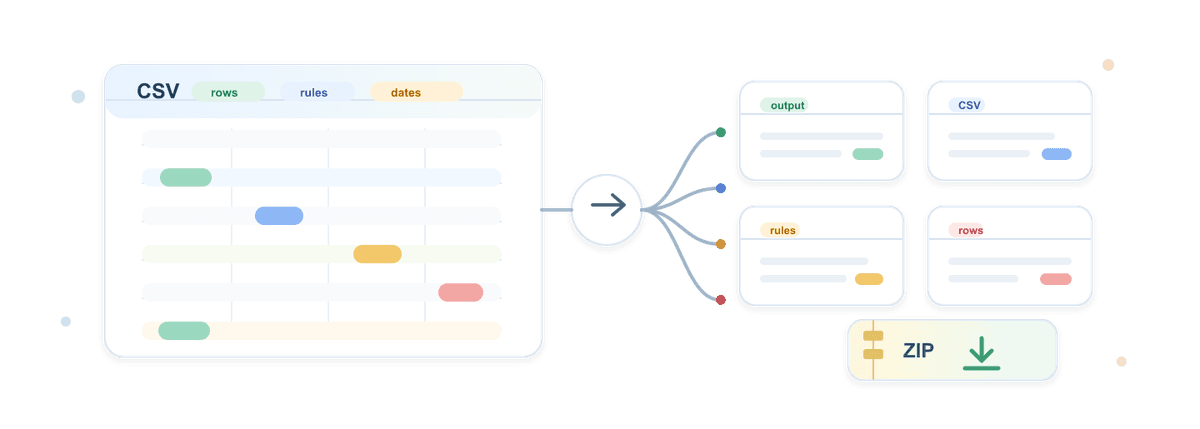
If you need to split a CSV file into multiple files, the main decision is not the CSV itself. It is what the next step needs. Use row count or file size when another tool has a limit. Use column values, rules, or dates when each output file needs meaning.
With Datablist's CSV Splitter, you can upload or paste a CSV, choose the split mode, preview the generated files, and download the result as one CSV or a ZIP archive. In this guide, I will use a 10,000-row organizations dataset and split it into one file per country, then show the other modes for row batches, file-size limits, custom rules, and dates.
This guide is about turning one CSV into several CSV files. If your problem is different, and one cell contains several emails, tags, phone numbers, or categories you want to expand into separate rows, use the CSV Rows Splitter guide instead.
🔑 Choose the split mode from the next step
Row count and file size solve technical limits. Column values, rules, and dates solve routing, review, and reporting workflows.
Quick Links
- Direct answer
- Example CSV dataset
- Pick the right split mode
- Upload the CSV
- Split by column value
- Preview the generated files
- Download CSV or ZIP
- Other split modes
Direct Answer
Open Datablist's CSV Splitter, upload your CSV file or paste CSV content, then choose how you want to split the file:
- Rows for fixed batches, such as 1,000 rows per file.
- File size when another platform has an upload limit.
- Column values for one file per country, owner, status, source, or segment.
- Rules when you need business logic, such as "US companies" and "software companies".
- Dates for monthly, yearly, or weekly files.
After the tool creates the split preview, check the filenames, row counts, selected columns, and warnings. If the split creates several files, download them as a ZIP archive. If it creates one output file, download it as a CSV.
Example CSV Dataset
For this walkthrough, I use Datablist's Organizations sample CSV. It has 10,000 rows, which is large enough to make the split useful without turning the guide into a performance test.
The dataset includes these columns:
Organization IdNameWebsiteCountryDescriptionFoundedIndustryNumber of employeesUpdatedAt
I like this example because Country gives us a clean, meaningful split. One file per market is useful for sales territories, regional review, localized campaigns, and CRM imports. The same file also has Industry for rule examples and UpdatedAt for date-based splitting.
If you want to follow along with the exact file, download the CSV version from the sample dataset page. The direct CSV download is also available here: Organizations CSV sample.
Pick The Right Split Mode
Before touching the settings, decide why you are splitting the file. This saves a lot of trial and error.
Use rows when you want equal work batches. For example, split 10,000 organizations into ten files of 1,000 rows each. This works well for manual review queues or controlled imports, but the files may mix countries, industries, owners, and statuses.
Use file size when the next tool rejects large uploads. If a platform accepts files under 1 MB, split by size and keep each output below that limit. I use this mode only when the size limit is the actual problem.
Use column values when each file should match a segment. This is the mode I reach for most often. One file per Country, Owner, Status, Source, or Industry is easier to hand off than arbitrary row batches.
Use rules when one column is not enough. For example, you might want US organizations in one file, software companies in another file, and everything else in a needs-review file.
Use dates when the handoff is based on reporting periods. With the organizations dataset, UpdatedAt can be split by month, year, or ISO week.
💡 If you are unsure, start with column values
Most CSV splitting jobs are not about making smaller files. They are about giving the right rows to the right person, market, workflow, or upload queue.
When the output files keep the same row structure as the source, keep the header row in every file. If you want a refresher on why headers matter, read Datablist's guide to CSV headers.
Step 1: Open The CSV Splitter And Load The File
Open Datablist's CSV Splitter. You can upload a CSV file or paste CSV content directly into the tool.
For this example, upload the organizations CSV. Once the file loads, Datablist reads the file structure, detects the columns, and shows the splitter interface. The tool supports normal CSV details such as quoted cells, embedded commas, quoted line breaks, headers, and separators, so you do not need to clean a valid CSV by hand before using it.
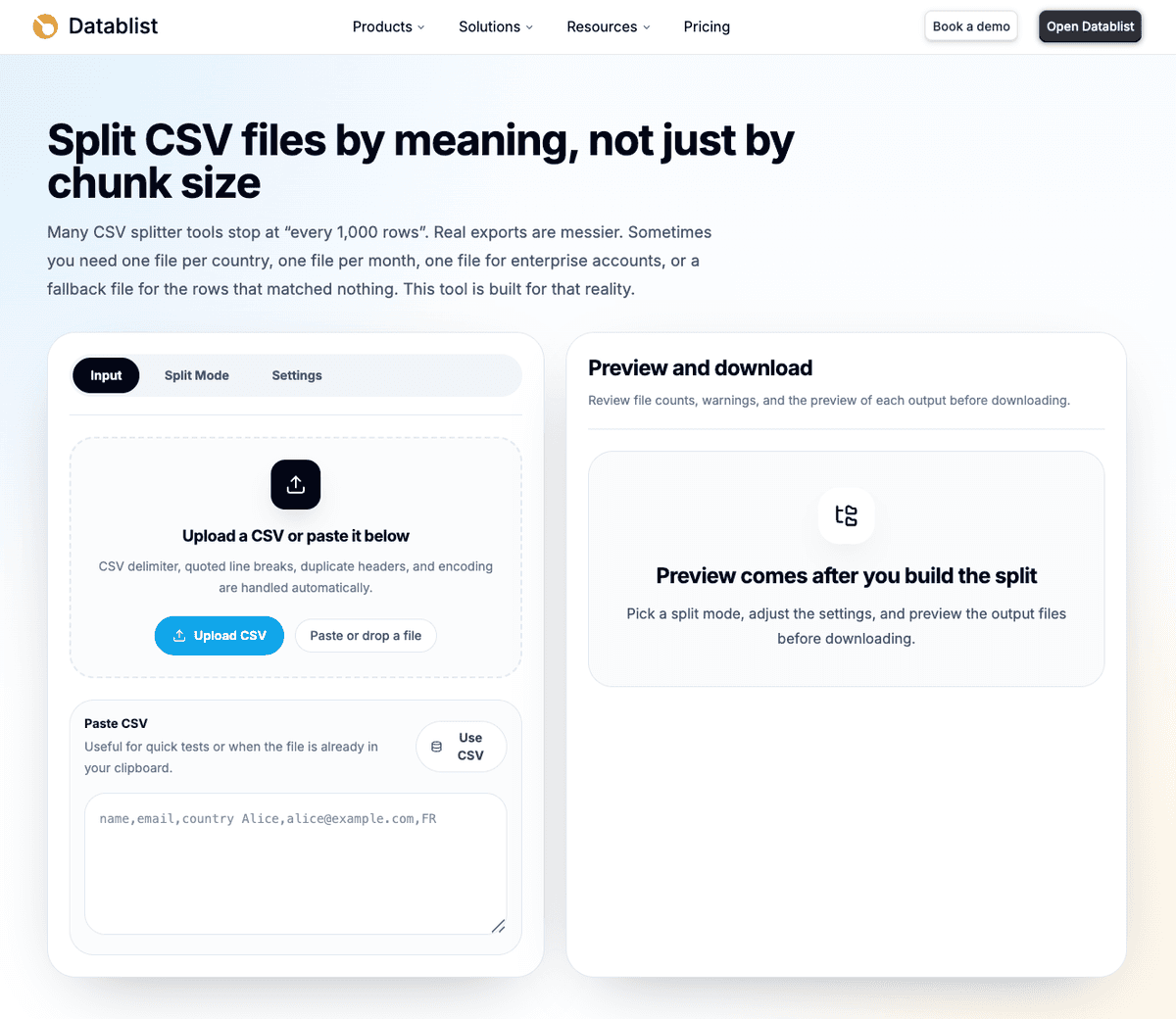
The first thing I check is the column list. If Country, Industry, and UpdatedAt appear as separate columns, the file is parsed correctly for the examples in this guide.
The CSV Splitter runs in your browser for this workflow. That is useful for quick file work, but it does not mean every file size will work on every laptop. Browser and device performance still matter with huge CSV files.
Step 2: Choose The Split Mode
After the CSV loads, choose the split mode. Datablist shows the main options: rows, file size, column values, rules, and dates.
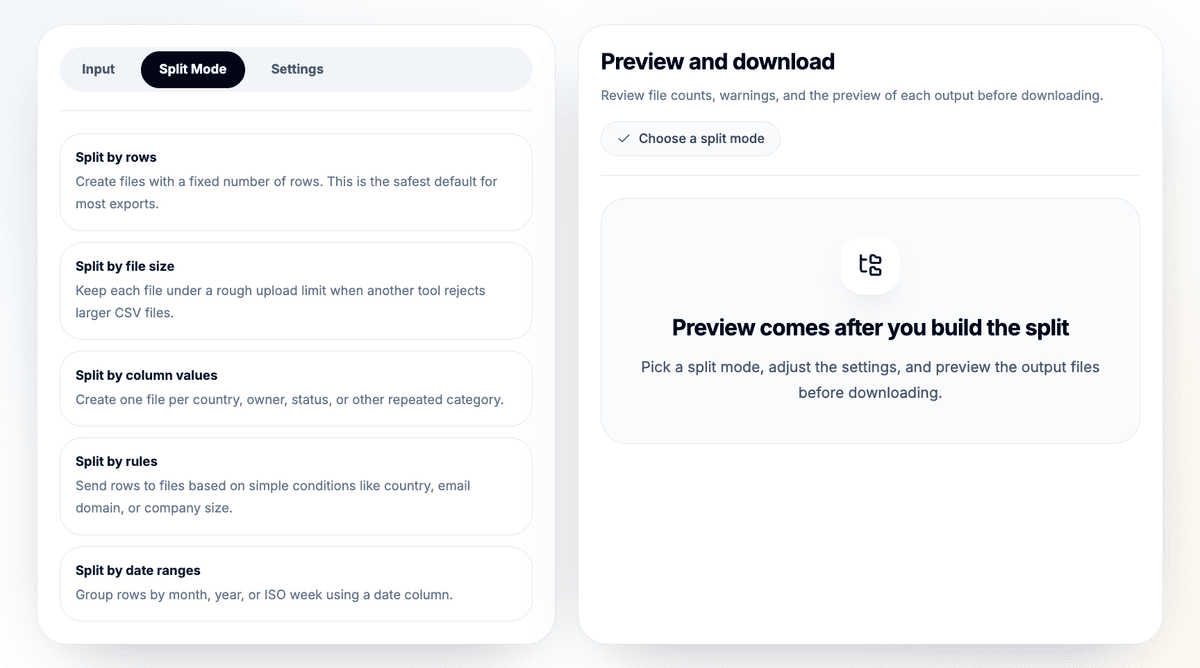
For the main walkthrough, select Split by column values. The organizations CSV has a Country column, so this creates one output file per country or market. That is more useful than a file named part-1.csv when you are preparing a real handoff.
If your downstream task has a strict upload limit, choose file size instead. If your team needs equal batches, choose rows. If you need custom routing logic, choose rules. I will cover those alternatives after the main example.
Step 3: Split The CSV By Country
In the column-value settings, choose Country as the grouping column. This tells Datablist to create output files based on the values found in that column.
Use a clear naming pattern such as:
organizations-{label}
The {label} part becomes the country value. This gives you filenames such as organizations-france.csv and organizations-united-states.csv.
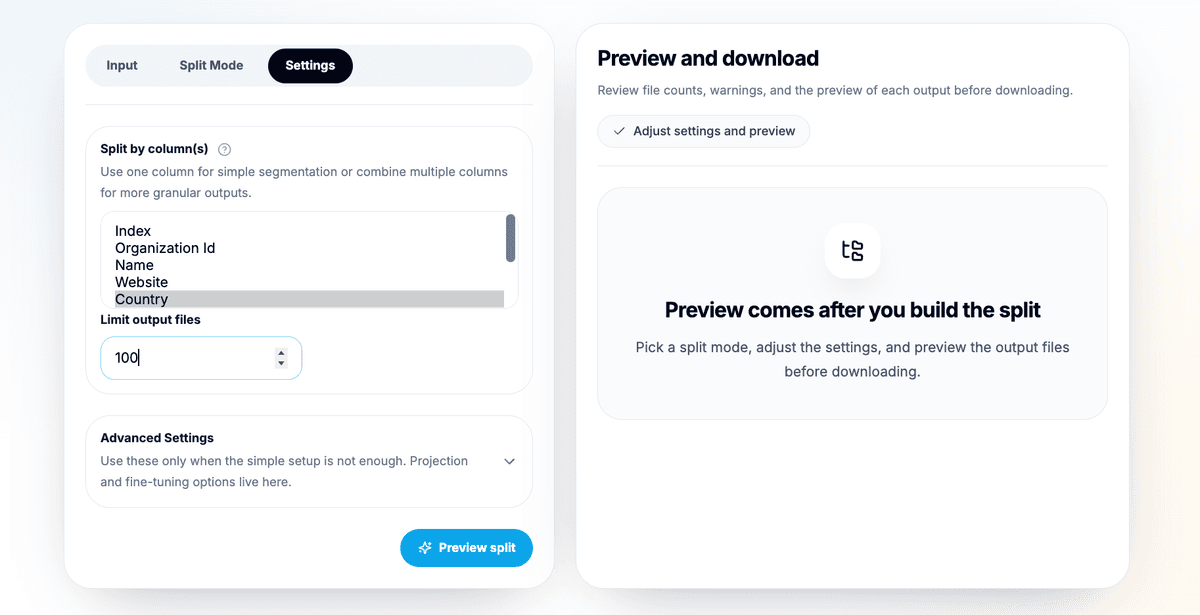
Open the advanced settings when you want to control the exported filenames, starting number, and output columns. The filename pattern is the setting to check when you want files to be named after the split value instead of generic parts.
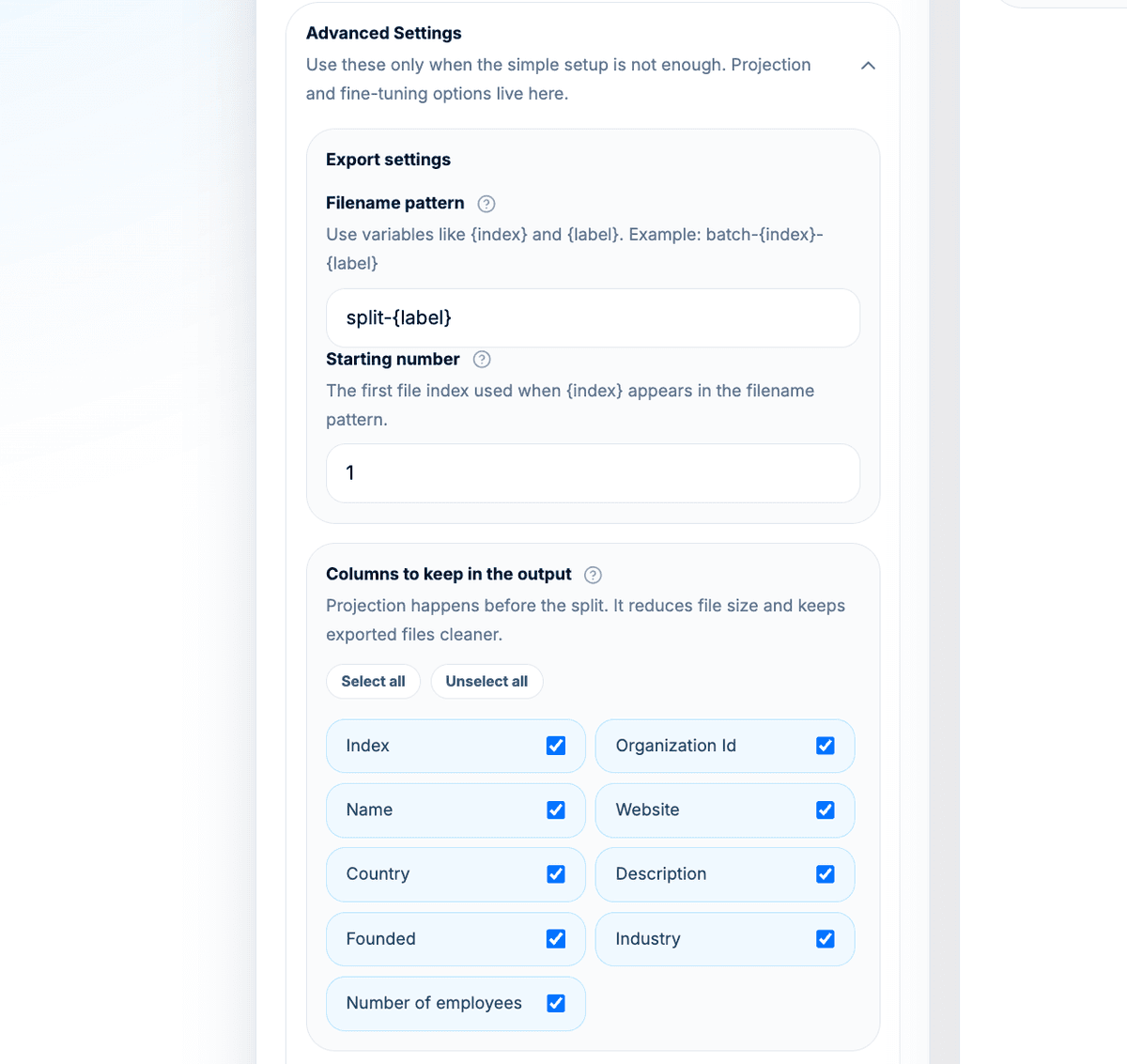
Keep headers enabled. I also prefer keeping only the columns needed for the next step:
Organization IdNameWebsiteCountryDescriptionFoundedIndustryNumber of employeesUpdatedAt
Column projection is optional, but it makes exported files easier to review. If the next person only needs market, company, website, and company details, do not send extra columns because they happened to be in the source file.
For column-value splitting, watch the number of unique values. Country is manageable. A column like Website or Organization Id would create thousands of tiny files, which is almost never useful.
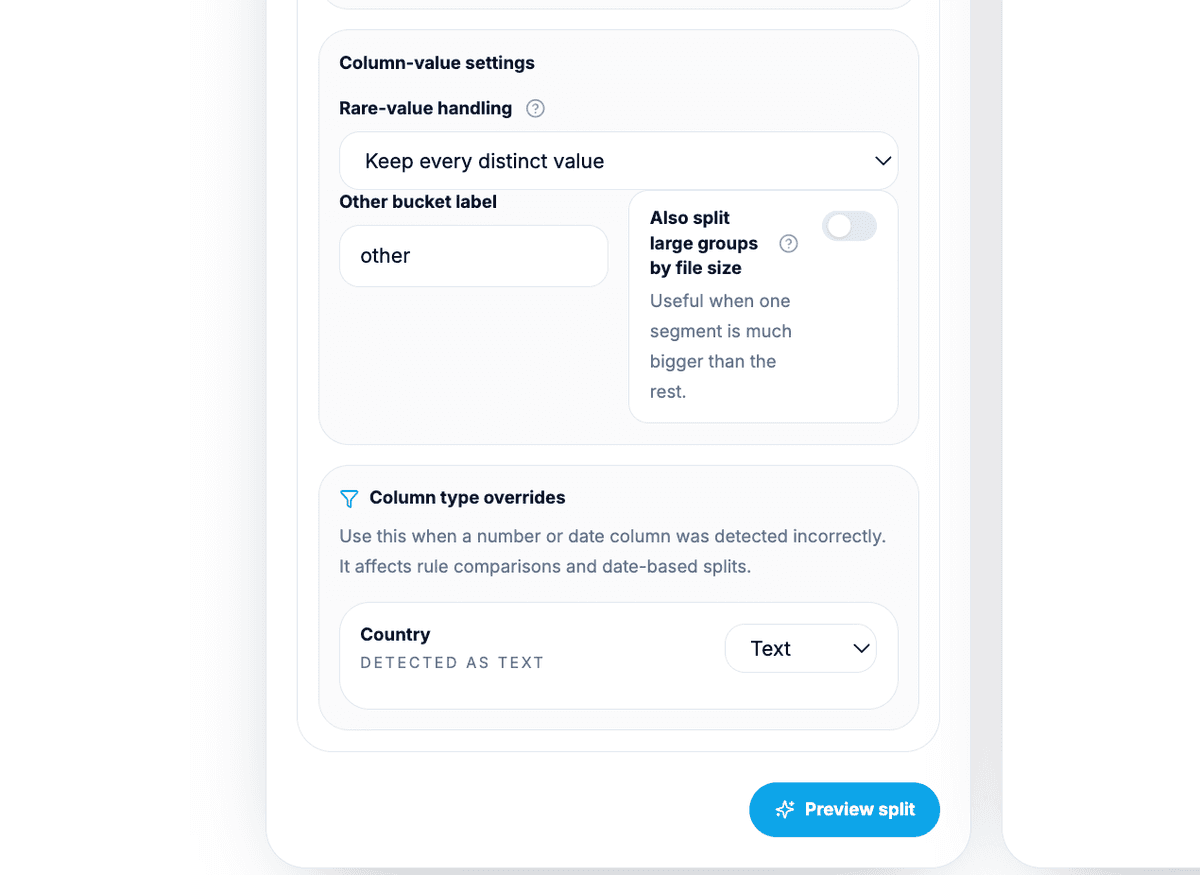
Datablist includes controls for cases like this:
- Limit the maximum number of output files.
- Group rare values into an
otherbucket. - Split a large group by file size if one segment is still too large.
- Use several grouping columns when the split needs more structure.
The second part of the advanced settings controls rare values, the other bucket, large-group size splitting, and column type overrides. For this country split, keep every distinct value if you want one file per country. Use the other bucket when the preview shows too many small files.
⚠️ Too many unique values can create too many files
If a split creates hundreds of tiny outputs, use rare-value handling, an
otherbucket, or a broader grouping column.
For this guide, Country is a good default because the files map to a practical business action. A teammate can take one country file, a regional campaign can use another, and an import workflow can run market by market.
Step 4: Preview The Generated CSV Files
Run the split and review the preview before downloading anything.
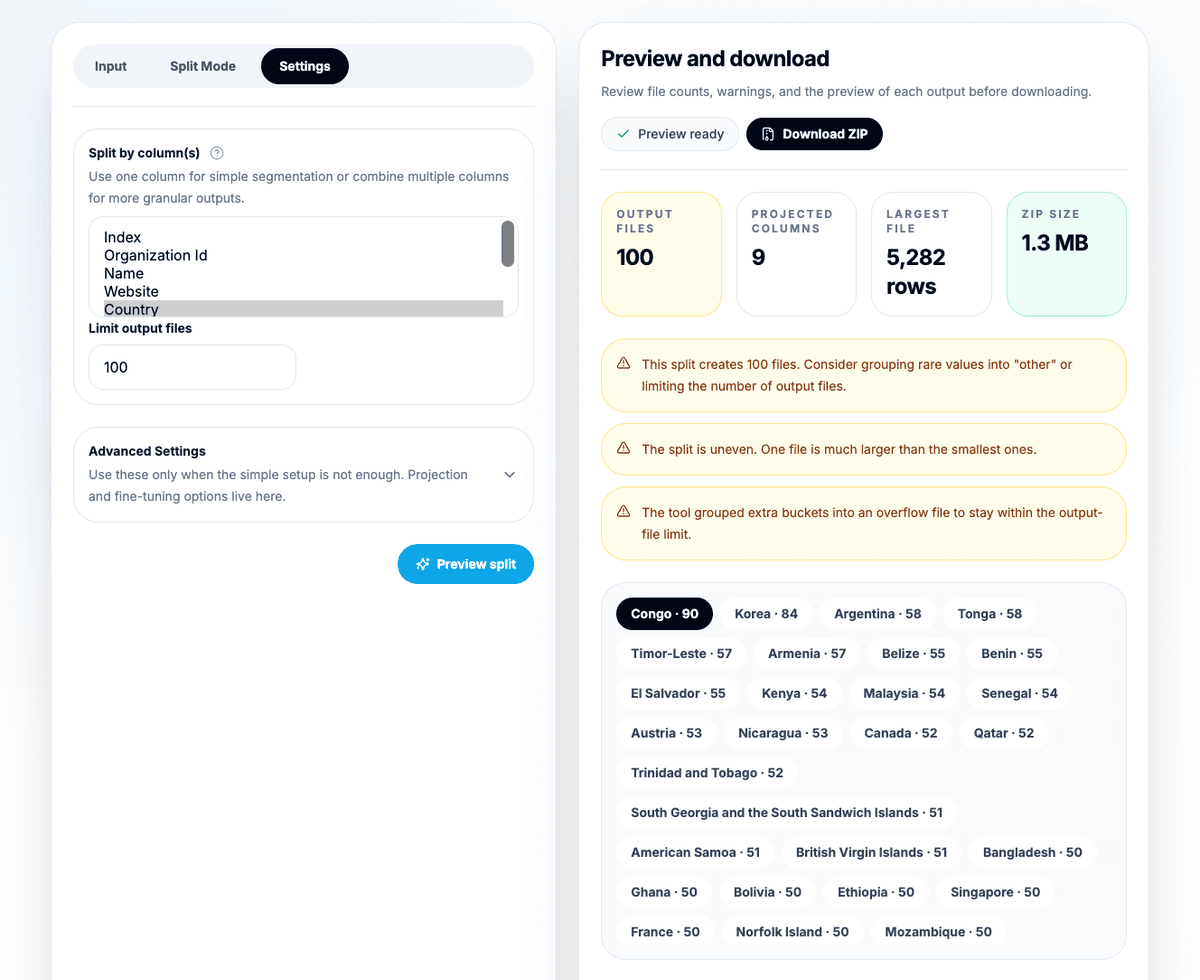
The preview is where most mistakes become obvious. I check:
- File labels and output filenames.
- Row count per file.
- Estimated file size.
- Sample rows.
- Included columns.
- Whether headers will be exported.
- Warnings about too many files, tiny files, uneven groups, size estimates, grouped overflow, or invalid dates.
I still check the preview every time. CSV splitting feels simple, but small settings can change the output a lot. A wrong grouping column can create thousands of files. A missing fallback can hide rows. A confusing filename pattern can waste time later when files are sent to another person.
🔍 Preview before downloading
Check the row distribution, filenames, selected columns, and warnings before you create the final CSV files.
For the country split, the preview should show one output per country value included in the split. The row counts should make sense for the sample data. You do not need equal row counts here because countries will not have equal numbers of organizations.
Step 5: Download The CSV Files Or ZIP Archive
When the preview looks right, download the output.
If the split produces one output, Datablist downloads a CSV file. If it produces several outputs, Datablist downloads a ZIP archive containing the generated CSV files.
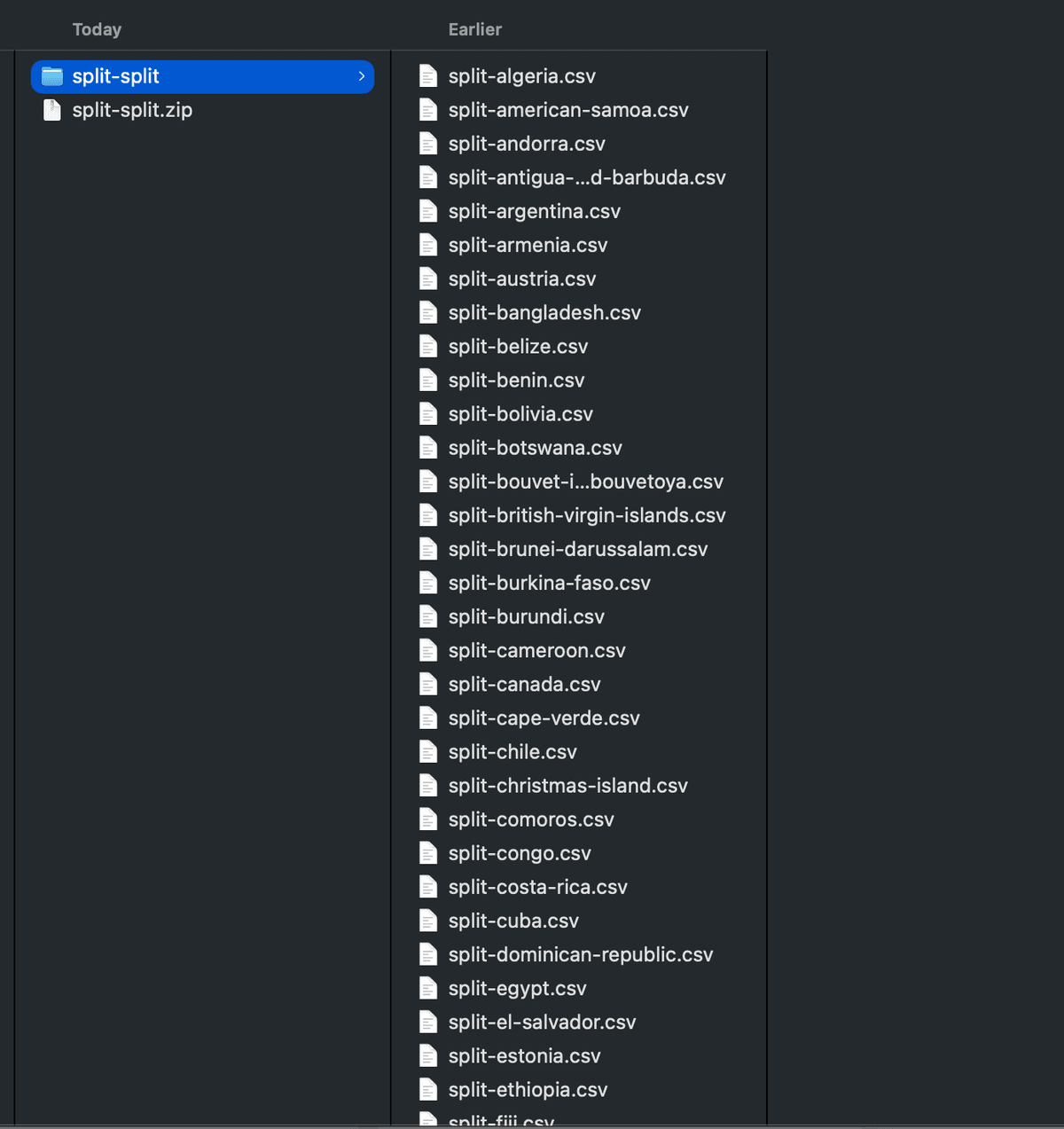
For the main example, the ZIP should contain files similar to:
organizations-france.csvorganizations-germany.csvorganizations-united-states.csv- Other country files based on the dataset values
Each output keeps the same row structure as the source CSV, and each file includes the header row when header export is enabled.
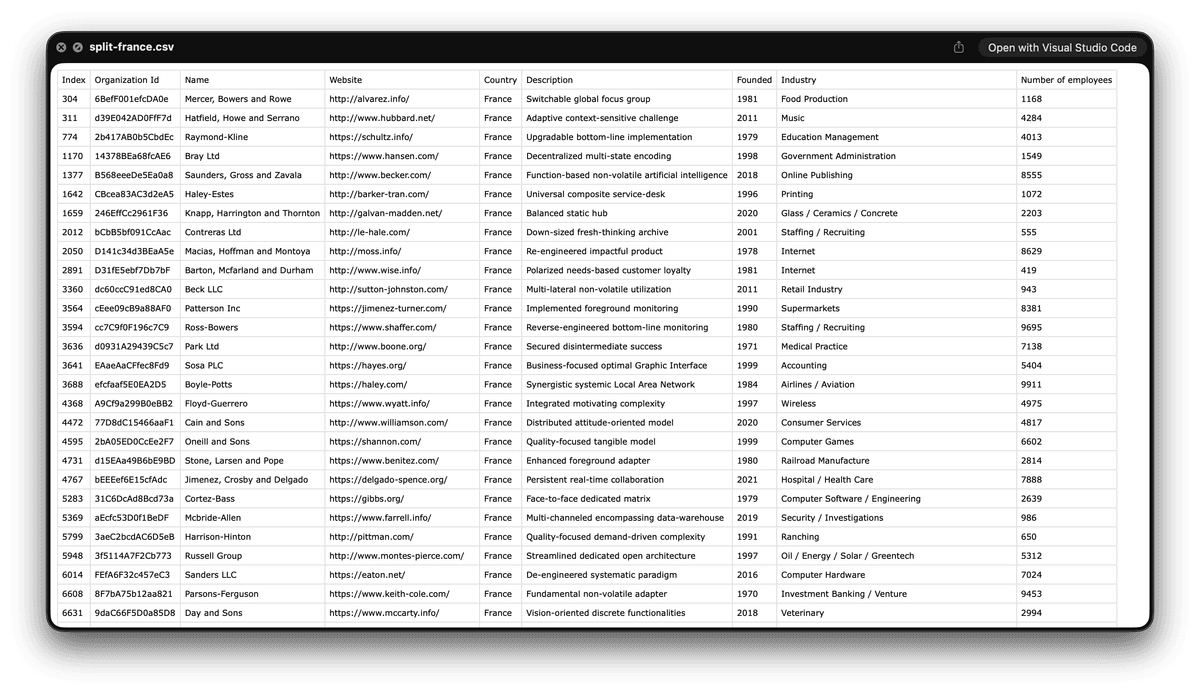
After splitting, I usually open one or two files before sending them forward. For example, open the France file and confirm every row has Country = France, the columns are still aligned, and the header appears at the top.
If you are preparing a CRM import, this is also a good moment to remove duplicate CSV rows. If you need to verify two exports against each other, use Datablist's guide to compare CSV files online.
Example Output: What The Split Files Look Like
The result is a set of CSV files, or a ZIP archive containing them. Each file keeps the same row format as the original CSV, unless you selected only specific output columns.
| Output file | Rule or group | Expected content | What to check |
|---|---|---|---|
organizations-france.csv | Country = France | French organizations | Row count, headers, selected columns |
organizations-united-states.csv | Country = United States | US organizations | Size, headers, selected columns |
organizations-other.csv | Rare or grouped values | Smaller country groups | Whether this bucket is acceptable |
split-part-1.csv | Row or size split | First generated batch | Import limit and row count |
The important part is not the exact filename. The important part is being able to explain why each file exists. If a filename does not tell you what is inside, change the naming pattern before exporting.
Other Ways To Split The Same CSV
The country example is the best fit for the organizations dataset, but the same tool can split the file in other ways.
Split by row count
Use row count when you need fixed batches. For example, split 10,000 rows into files of 1,000 rows each.
This is useful for manual review queues, phased imports, or controlled processing. It is less useful when the receiving person expects a market, owner, or status-based file because row batches do not carry much business meaning.
Optional row settings can help in specific cases:
- Use overlap rows when each batch needs a bit of context from the previous batch.
- Keep deterministic order when reproducibility matters.
- Shuffle rows when you want balanced review samples.
- Keep grouped rows together when related records should not be separated.
Split by file size
Use file size when the next tool has an upload limit. For example, keep every output under 1 MB.
This mode is practical for ad platforms, CRMs, import forms, and older tools with strict upload limits. File sizes can still be estimates because CSV quoting, encoding, and line breaks affect final bytes, so review the preview before export.
If one generated file is still too large, lower the size target or combine file-size splitting with a meaningful grouping column.
Split by rules
Use rules when one exact column value is not enough.
For the organizations dataset, you could define:
CountryequalsUnited States->organizations-united-statesIndustrycontainssoftware->software-organizations- Unmatched rows ->
needs-review
For routing workflows, I recommend first-match-only mode unless you intentionally want one row copied into several files. Without that guard, a US software company could appear in both the United States file and the software file, which may or may not be what you want.
The unmatched file matters. I prefer keeping unmatched rows visible because it turns uncertain logic into a review queue instead of losing rows silently.
Split by dates
Use date splitting when files should match reporting periods. With the sample organizations CSV, the UpdatedAt column can be grouped by month, year, or ISO week.
Date splitting is useful for monthly exports, weekly operations reviews, and audit handoffs. The main thing to check is invalid dates. Put invalid dates in a separate file when review matters. Skip invalid dates only when you are sure you do not need those rows.
📌 Keep unmatched rows visible
In rule-based and date-based splits, fallback files prevent silent row loss. Review them before you delete or ignore anything.
CSV Splitter vs CSV Rows Splitter
These two workflows sound similar, but they solve different problems.
Use the CSV Splitter when one input CSV should become several output CSV files. For example, one organizations file becomes one file per country.
Use the CSV Rows Splitter when one cell contains several values and you want more rows in one output CSV. For example, a Tags cell contains sales, enterprise, europe, and you want one row per tag while keeping the other columns copied across.
If that is your workflow, follow the guide to split CSV rows by delimiter. It covers commas, semicolons, pipes, tabs, and custom delimiters inside a selected column.
Quality Checks Before You Send Or Import The Files
Before sending the split files to a teammate or importing them into another tool, check a small sample.
I use this checklist:
- Open one or two output files and confirm the headers.
- Check row counts in the preview against what you expect.
- Confirm important columns did not get removed.
- Review the largest and smallest files.
- Check the fallback or
otherfile. - Check invalid-date files when splitting by dates.
- Keep a copy of the original CSV until the downstream workflow succeeds.
If columns look shifted after splitting, the issue is usually the input CSV format, not the split mode. Check CSV quoting for embedded commas, quotes, and line breaks. Check CSV delimiters if the file uses semicolons, tabs, or another separator.
When To Use Each Split Type
| Your goal | Best split type | Example |
|---|---|---|
| One file per market, owner, status, or source | Column values | One file per Country |
| Files under an upload limit | File size | Keep outputs under 1 MB |
| Equal work batches | Rows | 1,000 rows per file |
| Business routing | Rules | US accounts, software companies, unmatched rows |
| Reporting periods | Dates | One file per UpdatedAt month |
My default is simple: use meaningful splits for handoffs, and use row count or file size for technical limits. If the file is going to a person, make the filename explain the segment. If the file is going to a tool, make the file fit the tool's constraints.
Troubleshooting And Edge Cases
The split creates too many files
Choose a broader column, set a maximum number of output files, or group rare values into an other file. This happens when the grouping column has too many unique values.
Some files are tiny
Tiny files are not always wrong, but they are often noisy. Group rare values or choose a higher-level segment. For example, Country may work better than City.
One group is still too large
If one country, owner, or status still creates a file above the upload limit, split that large group by file size or add a rule for that segment.
Some rows do not match any rule
Enable an unmatched file and review it. I would rather inspect a needs-review.csv file than wonder where those rows went.
Date splitting misses rows
Check the date format and invalid-date handling. If the source file mixes date formats, send invalid dates to a separate file first.
Columns look shifted after splitting
Check quoting, delimiters, and embedded line breaks in the source CSV. A valid CSV can contain commas inside quoted cells, but malformed quoting can make columns appear shifted.
The file is too large for the browser
The CSV Splitter is convenient for browser-based work, but very large local operations still depend on your browser and device. Technical readers who prefer command-line workflows can also read Datablist's guide to split a large CSV file with terminal commands.
Use Cases And Variations
Sales and RevOps teams can split one account file by country, territory, owner, or CRM import queue. This makes imports easier to test and easier to roll back.
Marketing teams can split by campaign, source, segment, or region before uploading audiences or sending files to agencies.
Operations teams can split by UpdatedAt month or ISO week for recurring reports and handoffs.
Support and success teams can split by status, tier, priority, or account owner when work needs to be distributed.
Data cleanup workflows often start with splitting a huge CSV into safer pieces, then deduplicating, comparing, enriching, or reviewing each file. Splitting does not clean the data by itself, but it can make the next cleanup step easier to control.
Conclusion
To split a CSV well, start with the reason for the split. Use rows or file size when you need to satisfy a technical limit. Use column values, rules, or dates when the output files need meaning.
The workflow is simple: open Datablist's CSV Splitter, upload or paste your CSV, choose the split mode, preview the generated files, review warnings, and download the CSV or ZIP output.
For most business CSVs, I would start with column values. A file named organizations-france.csv is easier to use than part-3.csv, and the person receiving it knows exactly what it contains.
FAQ
How do I split a CSV file into multiple files?
Open Datablist's CSV Splitter, upload or paste your CSV, choose a split mode, preview the generated files, and download the result. Use rows or file size for technical limits, and use column values, rules, or dates for meaningful segments.
Can I split a CSV by column value?
Yes. Choose the column-value split mode, select a grouping column such as Country, Owner, Status, or Source, then preview the output files. Datablist creates one file per grouped value, with options for rare values and output limits.
Can I split a CSV by file size?
Yes. Use file-size splitting when the next platform has an upload limit. Set the target size, preview the estimated output files, and adjust the size if one file is still too large.
Can I split a CSV by rows and keep the header in every file?
Yes. Use row-count splitting and keep header export enabled. Each generated file will include the header row, which makes the files easier to import and review.
Can I split a CSV by month or year?
Yes. Use date splitting, choose a date column such as UpdatedAt, then group by month, year, or ISO week. Review invalid-date handling before export.
What happens to rows that do not match any rule?
In rule-based splitting, keep unmatched rows in a fallback file such as needs-review.csv. This makes exceptions visible and prevents silent row loss.
What should I do if one output file is still too large?
Split the large group again by file size, reduce selected columns, or use a more specific rule. For example, if organizations-united-states.csv is too large, split that group by size or by another column.
Should I split by row count or by column value?
Use row count when you need equal batches. Use column values when the files need meaning, such as one file per country, owner, status, source, or market. For handoffs, column values are usually easier to use.
What is the difference between CSV Splitter and CSV Rows Splitter?
CSV Splitter creates several output files from one input CSV. CSV Rows Splitter expands values inside one cell into more rows in one output CSV. If a cell contains multiple emails, tags, or categories, use the CSV Rows Splitter guide.
Can I download the generated CSV files as a ZIP?
Yes. When the split creates several output files, Datablist downloads them as a ZIP archive. When the split creates one output, it downloads as a CSV file.