

To convert nested JSON to CSV, use a JSON to CSV converter online that lets you choose which JSON array becomes the CSV rows. That choice matters more than most people expect. Real JSON exports often start with metadata, pagination, or wrapper objects, while the records you need live under a path like results, data.items, or payload.records.
I usually treat JSON to CSV conversion as three decisions:
- Which array should become rows?
- Which nested object fields should become columns?
- Which arrays should be joined, kept as JSON, or expanded into their own rows?
Once you answer those, the rest is a normal CSV workflow. You preview the output, check the columns, and download a CSV file that works in a spreadsheet, CRM, BI tool, or data cleanup workflow.
📌 The Short Version
Start by deciding what one CSV row should represent. For this example, I want one company per row, so the row node is
$.results. After that, I can flatten company metrics and decide what to do with arrays likecontactsandtags.
In this guide, I'll use a nested JSON export with 20,000 company records under results. The same workflow works for API responses, scraping outputs, webhook logs, CRM exports, and marketplace data where the useful records are not at the JSON root.
Quick links:
- Example nested JSON file
- Convert nested JSON to CSV in Datablist
- Choose the right row node
- Flatten nested JSON objects
- Handle arrays inside JSON rows
- Review and download the CSV
Example nested JSON file
For the example, imagine a large JSON export from an API or scraping tool. The file is about 8.8 MB and contains 20,000 records under a top-level results array.
The root object looks like this:
{
  "meta": {
    "generatedAt": "2026-07-04T10:00:00Z",
    "source": "stress_test"
  },
  "results": [
    {
      "id": 0,
      "name": "NbDXeG4Gyg",
      "website": "https://example-0.com",
      "contacts": [
        {
          "name": "Ava Martin",
          "emails": ["ava@example-0.com"],
          "phones": ["+1 555 0100"]
        },
        {
          "name": "Noah Lee",
          "emails": ["noah@example-0.com"],
          "phones": []
        }
      ],
      "tags": "enterprise",
      "metrics": {
        "employees": 124,
        "revenue": {
          "amount": 476171,
          "currency": "USD"
        }
      },
      "createdAt": "2026-06-25T09:12:00Z"
    },
    {
      "id": 1,
      "name": "DwwGmkzmBi",
      "website": "https://example-1.com",
      "contacts": [
        {
          "name": "Mia Chen",
          "emails": ["mia@example-1.com"],
          "phones": ["+1 555 0101"]
        }
      ],
      "tags": ["saas", "mid-market"],
      "metrics": {
        "employees": 47,
        "revenue": null
      },
      "createdAt": "2026-06-26T14:33:00Z"
    }
  ]
}
This is the kind of file where simple converters struggle. The records are not the root object. They are inside results. The records also contain nested objects, nested arrays, mixed string and array values, null values, and dates.
🔍 Why This File Is a Good Test
A flat JSON array only tests the easy case. This file tests the choices that matter in real exports: wrapper metadata, a nested record array, object fields, array fields, mixed values, and nulls.
Here is the shape of the first rows:
| Row | Website shape | Contacts count | Tags shape | Revenue |
|---|---|---|---|---|
| 0 | String | 2 | String | Amount and currency |
| 1 | String | 2 | Array | Null |
| 2 | Array | 1 | Array | Null |
The target CSV should have one row per company. I want useful fields such as id, name, website, employees, amount, currency, and createdAt as columns. For fields like contacts and tags, I need to choose how much structure to preserve.
Convert nested JSON to CSV in Datablist
Open Datablist's JSON converter. You can paste JSON into the editor or upload a .json file.
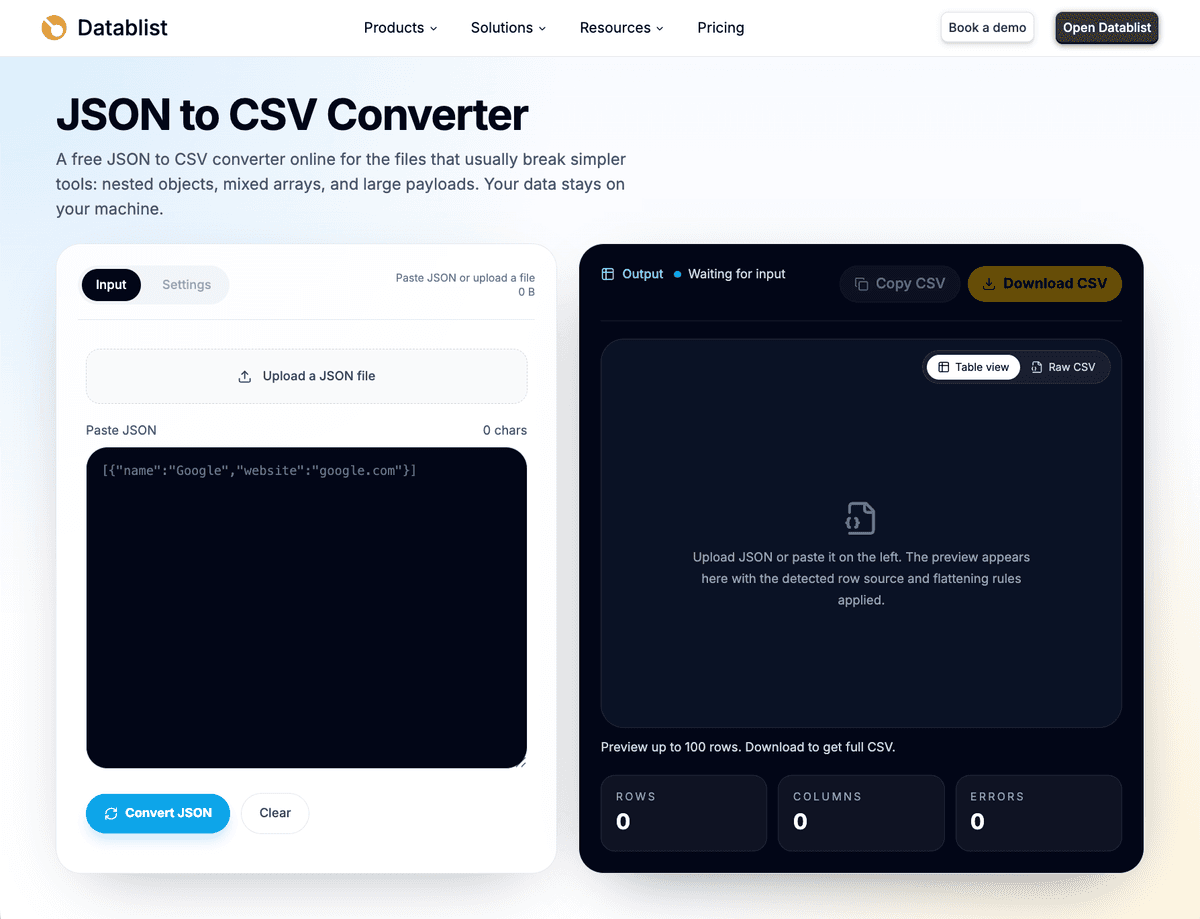
For a small API response, paste is fine. For a larger export, I prefer uploading the file because it avoids accidental copy-paste truncation. The file content is read in the browser, and conversion runs locally in your browser rather than being sent to Datablist servers for conversion.
After the JSON is loaded, Datablist analyzes the structure and looks for arrays of objects. It accepts JSON roots that are arrays or objects, then scans nested paths such as $.results, $.data.items, or deeper arrays.
If the file is hard to understand, I sometimes open the JSON in JSONCrack first. It gives you a visual tree, which helps you find the array that should become rows. This is optional, but it is useful when the file has several candidate arrays.
In this example, the correct row node is:
$.results
I choose $.results because I want one row per company. Each item in that array becomes one CSV row.
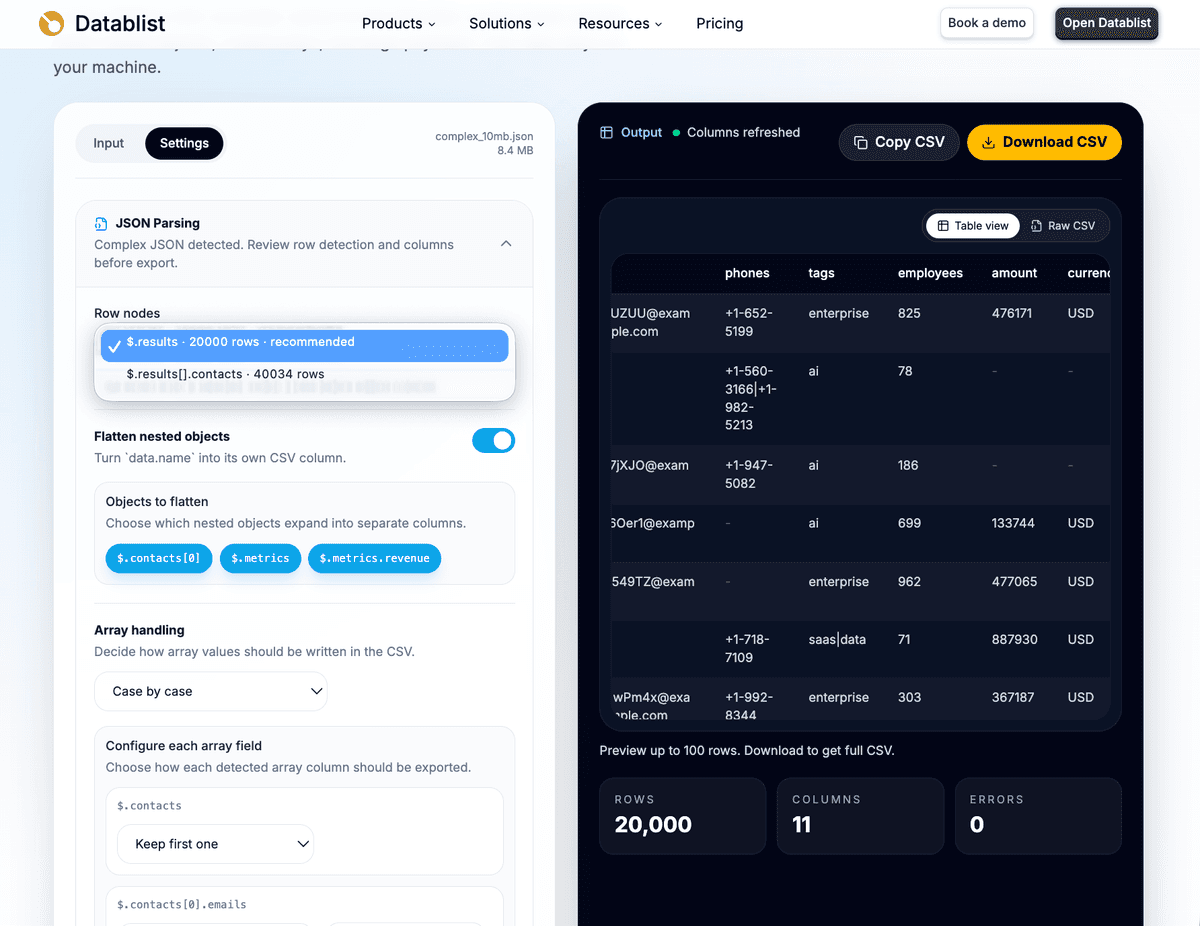
Datablist can recommend a row node, but I still check it manually. This is where most conversion mistakes happen. A JSON file can contain a parent array of companies, a child array of contacts, and another child array of tags or events. All of them are arrays, but only one of them matches the CSV you want.
⚠️ Changing the Row Node Changes the Dataset
$.resultsand$.results[].contactsare both valid row nodes, but they do not produce the same CSV. Pick the parent array when you want account rows. Pick the child array when the nested items are the dataset.
For this article, I keep the parent row node:
$.resultsmeans one company or account per row.$.results[].contactswould mean one contact per row.
That second option can be correct, but it changes the output. A contact-level CSV is useful when you want a list of people. A company-level CSV is better when you want to clean accounts, enrich companies, import records into a CRM, or review metrics.
Choose the right row node
A row node is the JSON array whose items become CSV rows.
The most common examples look like this:
| JSON path | Best when |
|---|---|
$.results | Records are stored under a results key |
$.data.items | An API wraps records inside a data object |
$.payload.records | Webhook or internal exports wrap records under payload |
$.results[].contacts | You want one nested contact per row |
I usually ask one question before choosing: what should one row represent?
If one row should represent a company, account, order, product, listing, or event, choose the parent array. If one row should represent a contact, email, line item, price, comment, or child event, choose the child array.
This sounds simple, but it changes the whole CSV.
With $.results, the CSV keeps company context. The contacts field stays inside the company row as a nested value unless you decide to process contacts separately. With $.results[].contacts, the CSV becomes a contact list, but parent company fields are not automatically included unless the converter adds that behavior in a future version.
My default is to start with the parent array. It gives me a safer first export because I can still inspect the nested arrays later. I switch to a child array only when the nested items are the real dataset.
Flatten nested JSON objects
Nested objects are where a CSV converter needs to be more than a plain file transformer.
In the example file, metrics is an object:
{
  "metrics": {
    "employees": 124,
    "revenue": {
      "amount": 476171,
      "currency": "USD"
    }
  }
}
In a spreadsheet, I do not want a single metrics cell containing a JSON object. I want columns I can filter and sort:
employeesamountcurrency
Datablist detects nested object paths and lets you choose which ones to flatten. I keep the useful scalar fields flattened because they behave better in CSV tools.
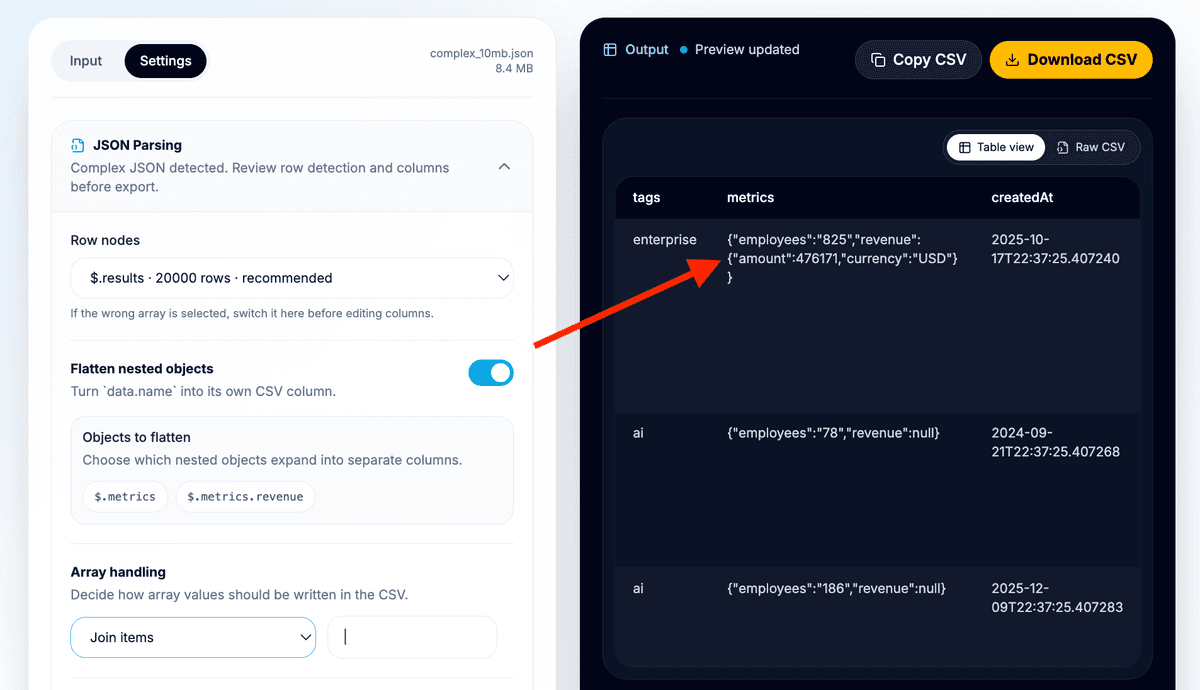
For this example, I flatten:
metrics.employeesintoemployeesmetrics.revenue.amountintoamountmetrics.revenue.currencyintocurrency
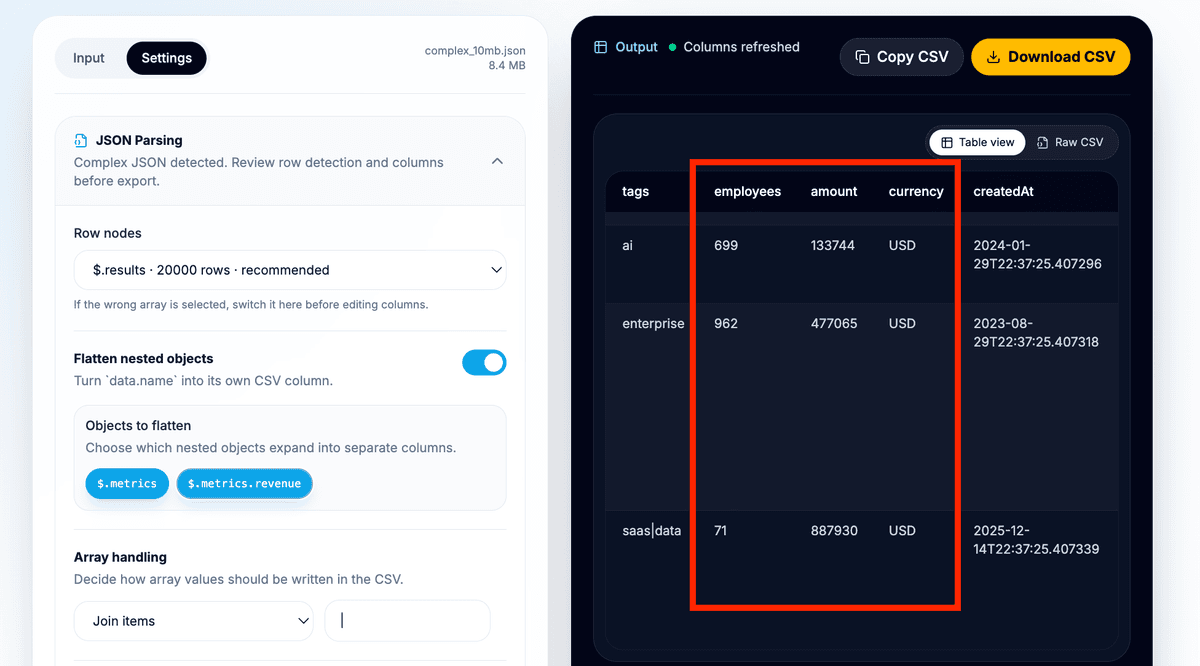
The expected company-level CSV looks like this:
| CSV column | Source value |
|---|---|
id | Row identifier |
name | Company or account name |
website | Website value, joined array, or JSON string depending on settings |
contacts | Nested contact data when exporting one company per row |
tags | Joined labels or original text |
employees | Value from metrics.employees |
amount | Value from metrics.revenue.amount |
currency | Value from metrics.revenue.currency |
createdAt | Original or formatted date |
I prefer readable column names for the first export. If the file has repeated names in different objects, check the preview before download. For example, billing.amount and revenue.amount should not both collapse into an ambiguous amount column without review.
💡 My Default for Flattening
Flatten scalar fields that you want to filter, sort, or import as columns. Keep structured objects or arrays as JSON when flattening would hide meaning or create unreadable cells.
Handle arrays inside JSON rows
Arrays need a separate decision because CSV cells hold text, while JSON arrays can mean different things.
A tag list is not the same as a contact list. An email list is not the same as a list of order line items. I avoid one global rule when the arrays have different meanings.
For the example file, I would use these settings:
| Field | Recommended handling | Why |
|---|---|---|
tags | Join values | Tags are simple labels and work well in one cell |
website | Join values or keep JSON | Join if you want readability, keep JSON if mixed shapes matter |
contacts | Keep as JSON for company rows | The contact objects have their own nested fields |
contacts | Use $.results[].contacts as row node for contact rows | Better when the contact list is the real output |
Datablist supports array handling options such as joining values, keeping arrays as JSON strings, taking the first item, and applying settings case by case.
My default is simple:
- Join simple arrays like tags.
- Keep structured arrays as JSON strings if I need to preserve them.
- Take the first item only when the first item has clear meaning, such as a primary email.
- Change the row node when each array item deserves its own row.
For the company export, I keep contacts as a structured value because each contact has a name, emails, and phones. Flattening it into one cell would make the CSV look messy, and taking the first contact would lose data.
For a contact export, I would select $.results[].contacts instead. The CSV would then contain contact-level columns like:
| CSV column | Source value |
|---|---|
name | Contact name |
emails | Joined email list or JSON string |
phones | Joined phone list or JSON string |
The tradeoff is context. A company export keeps the company row intact. A contact export focuses on people, but the parent company fields are not automatically copied into each contact row unless the tool supports that in a later version.
Configure output settings
After the row node, flattening, and array settings are correct, configure the CSV output.
I usually start with:
- Separator: comma for standard CSV.
- Header row: enabled.
- Date format: keep original unless the target spreadsheet needs a friendlier date.
Use a semicolon separator when your spreadsheet tool or locale expects semicolon-separated files. This can matter in European spreadsheet settings, where comma is often used as a decimal separator.
For dates, I prefer keeping the source format on the first export. If the source uses ISO timestamps, they are easy to parse later and they preserve time zone details. If the CSV is for a non-technical teammate, formatting the date can make the file easier to read.
Before downloading, check both previews:
- The table preview helps you inspect rows and columns.
- The raw CSV preview helps you inspect separators, quotes, and line breaks.
🔑 Preview Before Exporting
The preview is where you catch row-node mistakes, missing columns, messy arrays, and separator issues. I would rather spend 30 seconds there than debug a broken CRM or spreadsheet import later.
I still check the raw CSV preview when arrays or multi-line text are involved. It takes a few seconds and catches a surprising number of import problems.
Review and download the CSV
Before I download, I run through this checklist:
- Does the row count match the selected row node?
- Do the rows represent the entity I wanted?
- Are
employees,amount, andcurrencysplit into useful columns? - Are arrays readable, or preserved as JSON when structure matters?
- Are null revenue values blank or clear enough for the next step?
- Do dates look right for the spreadsheet or import tool?
- Does the raw CSV preview use the separator I expect?
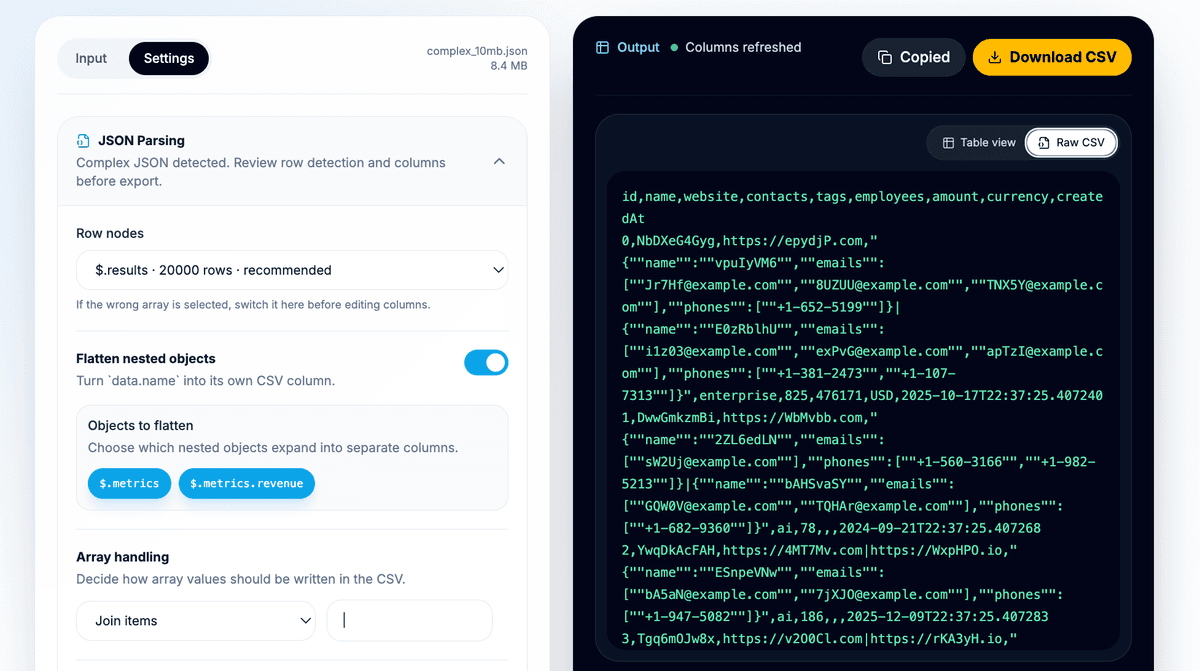
Then download the CSV. When you upload a file, the downloaded filename can be based on the source filename, which makes it easier to trace where the CSV came from.
After export, open the file in Datablist's CSV editor, Excel, Google Sheets, or your next data tool. In Datablist, you can continue with cleanup, filtering, deduplication, enrichment, or translation. If you generate several exports, you can compare two CSV files. If the file is too large for another tool, you can split the CSV into smaller files.
Expected CSV output
When selecting $.results, the primary output is one company or account per row.
| CSV column | JSON path inside each row | Expected value |
|---|---|---|
id | $.id | Row identifier |
name | $.name | Company or account name |
website | $.website | Website string, joined array, or JSON string |
contacts | $.contacts | Joined or JSON contact array when keeping one company per row |
tags | $.tags | Joined labels or original string |
employees | $.metrics.employees | Employee count |
amount | $.metrics.revenue.amount | Revenue amount when present |
currency | $.metrics.revenue.currency | Revenue currency when present |
createdAt | $.createdAt | Original or formatted date |
When selecting $.results[].contacts, the output changes to one contact per row.
| CSV column | JSON path inside each contact | Expected value |
|---|---|---|
name | $.name | Contact name |
emails | $.emails | Joined email list or JSON string |
phones | $.phones | Joined phone list or JSON string |
Both exports are valid. They answer different questions.
Use the company-level export when you want to clean accounts, review firmographic data, enrich company records, or prepare CRM imports. Use the contact-level export when the people are the target dataset.
When to use this workflow
This workflow is useful whenever JSON is the source format but CSV is the working format.
Good examples:
- API responses with metadata, pagination, and a nested
resultsarray. - API-based scraping outputs with listings, products, contacts, or events.
- CRM and RevOps exports where companies contain contacts, tags, metrics, and custom fields.
- Marketplace or product catalog exports with variants, prices, categories, and suppliers.
- Webhook logs where events are nested under a payload.
- Localization workflows where you want to translate the resulting CSV.
The pattern is the same each time. Find the array that represents the rows, flatten the object fields you need, decide how to treat arrays, and preview before exporting.
Troubleshooting nested JSON to CSV problems
If the JSON is invalid, check the source file first. Missing commas, copied console logs, trailing text, partial downloads, and unescaped quotes can break parsing. I usually validate the file before changing conversion settings because invalid JSON has to be fixed at the source.
If no row node is found, the file may not contain an array of objects. A single object with only scalar fields is not enough for this workflow. Primitive roots, strings, numbers, and single values do not create useful CSV rows.
If the wrong rows appear in the preview, change the selected row node. This usually means the converter found an array, but not the array you had in mind. Look for the path where the records live, such as $.results, $.data.items, or $.payload.records.
If contacts, tags, line items, or events are hard to read, adjust the array handling. Join simple lists. Keep structured arrays as JSON when you want to preserve detail. Switch to a child row node when each nested item should become a row.
If a large file feels slow, remember that browser and device performance still matter. Datablist runs parsing and conversion in a web worker, so the conversion work does not run on the main interface thread, but your local memory and CPU still set practical limits.
If the CSV does not import correctly elsewhere, try a different separator, keep the header row enabled, and inspect the raw CSV preview. Quoting and line breaks can matter when JSON values contain text, arrays, or nested objects.
What happens in the browser
Datablist parses and converts the JSON in a browser worker. The worker analyzes candidate row nodes, caches the parsed object, converts the selected node to CSV, and returns the preview and result to the interface.
This matters for two reasons.
First, the conversion work does not run on the main UI thread. That helps the page stay usable while the file is analyzed.
Second, processing happens locally in your browser rather than being sent to Datablist servers for conversion. This is useful when you are handling API exports, scraping outputs, or internal data files and do not want to upload them to a server-side converter.
I would still follow your usual data handling rules. Local browser processing is helpful, but it does not replace your company's privacy and compliance policies.
Conclusion
Nested JSON to CSV conversion is mostly about choosing the right row node. Once you pick the array that should become rows, the rest becomes more manageable.
For the example file, $.results gives one company per row. Flattening metrics.employees, metrics.revenue.amount, and metrics.revenue.currency creates useful spreadsheet columns. Array settings decide whether fields like tags, website, and contacts become readable text, preserved JSON, or a separate contact-level export.
Open the JSON to CSV converter, upload a nested JSON export, select the row node, review the preview, and download the CSV. Then open the exported file in Datablist's CSV editor if you need cleanup, filtering, deduplication, enrichment, or translation.
FAQ
How do I convert nested JSON to CSV?
Use a converter that lets you select the JSON array that becomes rows. In Datablist, paste or upload the JSON, choose the row node, flatten useful nested object fields, configure array handling, preview the table, and download the CSV.
Can I convert JSON to CSV when records are under results?
Yes. Select $.results as the row node when each item under results should become a CSV row.
How do I convert data.items or payload.records to CSV?
Choose $.data.items or $.payload.records as the row node if that path contains the objects you want as rows. The exact path depends on the JSON structure.
How do I flatten nested JSON fields into CSV columns?
Enable flattening for nested object paths such as metrics.revenue. Then review the generated columns in the preview before export.
How should I handle arrays inside JSON rows?
Join simple lists such as tags, keep structured arrays as JSON strings when you need to preserve them, or choose a deeper row node when each array item should become its own row.
Can I convert a large JSON file to CSV online?
Yes, if your browser and device can handle the file. Datablist uses a web worker for parsing and conversion, but very large files still depend on local performance.
Is an online JSON to CSV converter safe for private data?
Datablist's converter processes the file locally in your browser instead of sending it to Datablist servers for conversion. You should still follow your organization's data handling rules.
What is a row node in JSON to CSV conversion?
A row node is the JSON array whose items become CSV rows. For example, $.results creates one CSV row for each object inside the results array.
What happens if I choose $.results[].contacts instead of $.results?
The CSV becomes one row per contact instead of one row per company or account. Parent company fields are not automatically included unless the tool supports that behavior later.
What should I do after exporting the CSV?
Open it in Datablist or another spreadsheet tool to clean, filter, deduplicate, enrich, translate, or import it into another system.