
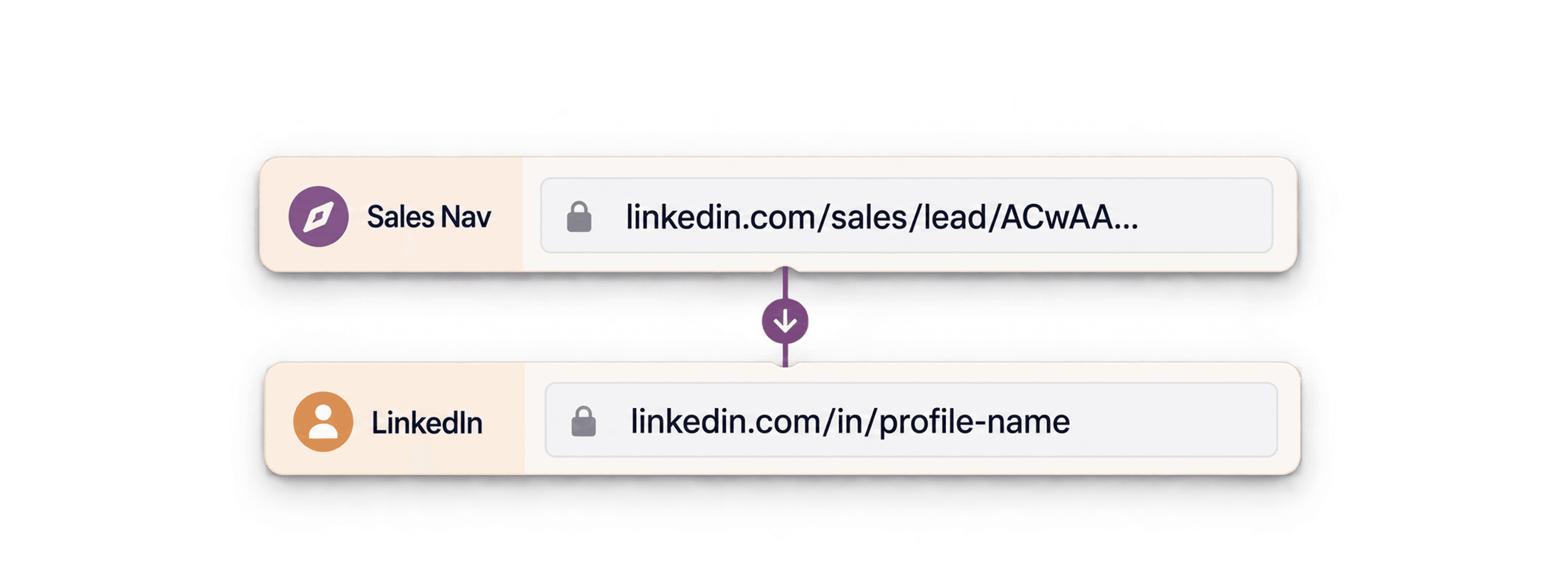
To convert Sales Navigator lead URLs into regular LinkedIn profile URLs in bulk, import the lead URLs into Datablist, run the LinkedIn Profile Scraper, and select LinkedIn Profile URL Normalized as an output. Keep both URL columns so you can match the result to its source. This is useful when your next tool expects a linkedin.com/in/ URL rather than a linkedin.com/sales/lead/ URL.
The enrichment accepts either URL format as input. A URL that is malformed or cannot be resolved may not return a normalized profile URL, so review the output before sending the list to another tool.
If you only have one Sales Navigator lead URL to check, try the free LinkedIn profile lookup. It accepts an individual lead URL and returns a normalized profile URL when available, alongside profile details. It does not accept search or company-page URLs.
In this article, I'll talk about:
- How to convert a list of Sales Navigator URLs into LinkedIn Profile URLs (in bulk)
- The difference between Sales Navigator URLs and LinkedIn URLs
- How to convert a Sales Navigator URL into a Normal LinkedIn Profile URL manually
⚠️ Important: To convert LinkedIn Sales Navigator Company URLs, check our Convert LinkedIn Sales Navigator URLs to LinkedIn Company Page URLs article.
How to convert Sales Navigator URLs to LinkedIn Profile URLs (in Bulk)
Let's get directly into the best way to convert Sales Navigator URLs into LinkedIn URLs.
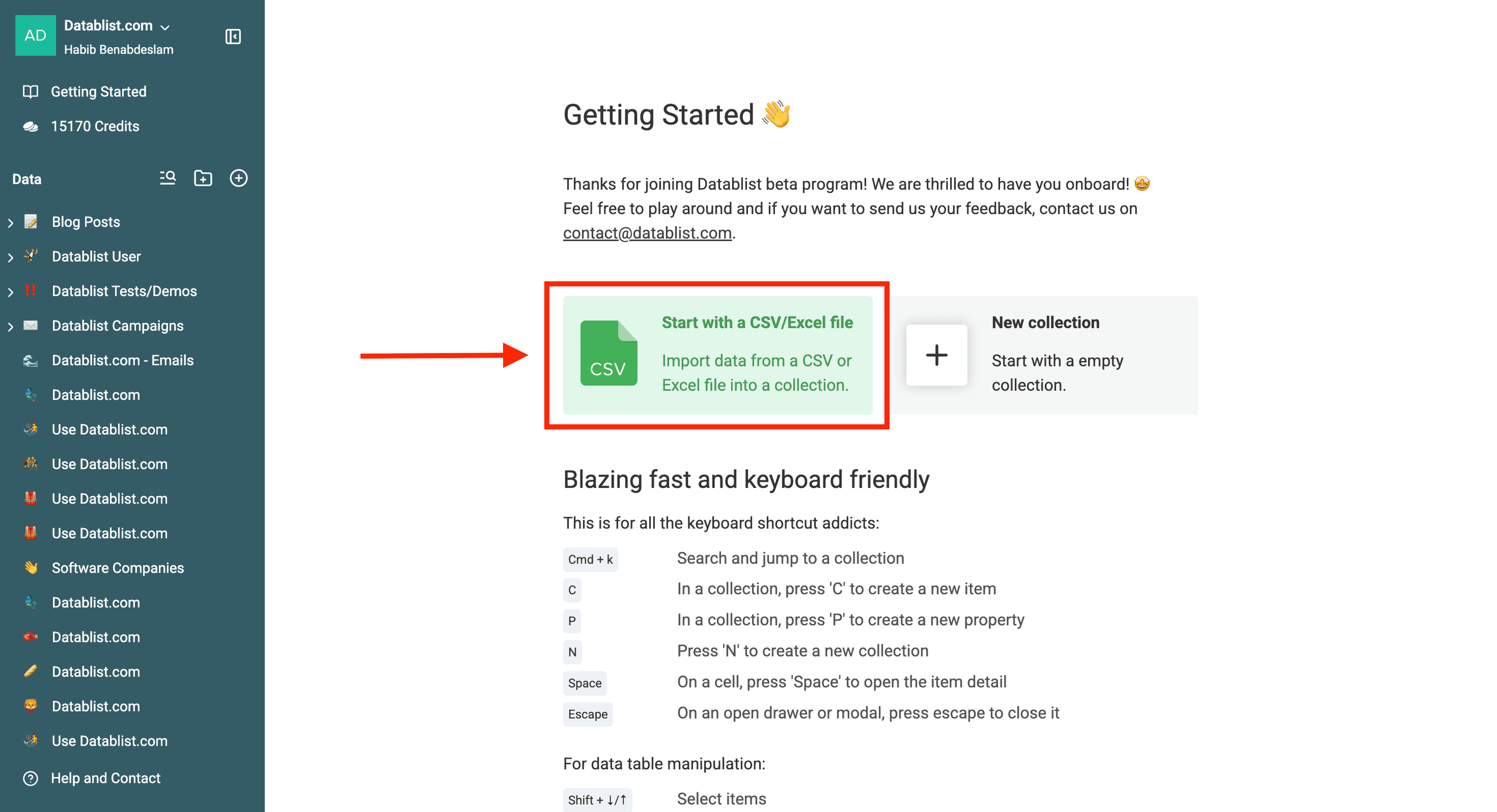
First Step: Import your CSV in Datablist.
Sign up for Datablist and import your CSV.
Datablist is a GTM co-pilot that helps Marketing, Sales, and RevOps teams combine data and AI to execute growth workflows and grow pipeline effortlessly.
My file contains only the Sales Navigator URLs, but you can upload a file with more columns and it will work in the same way.
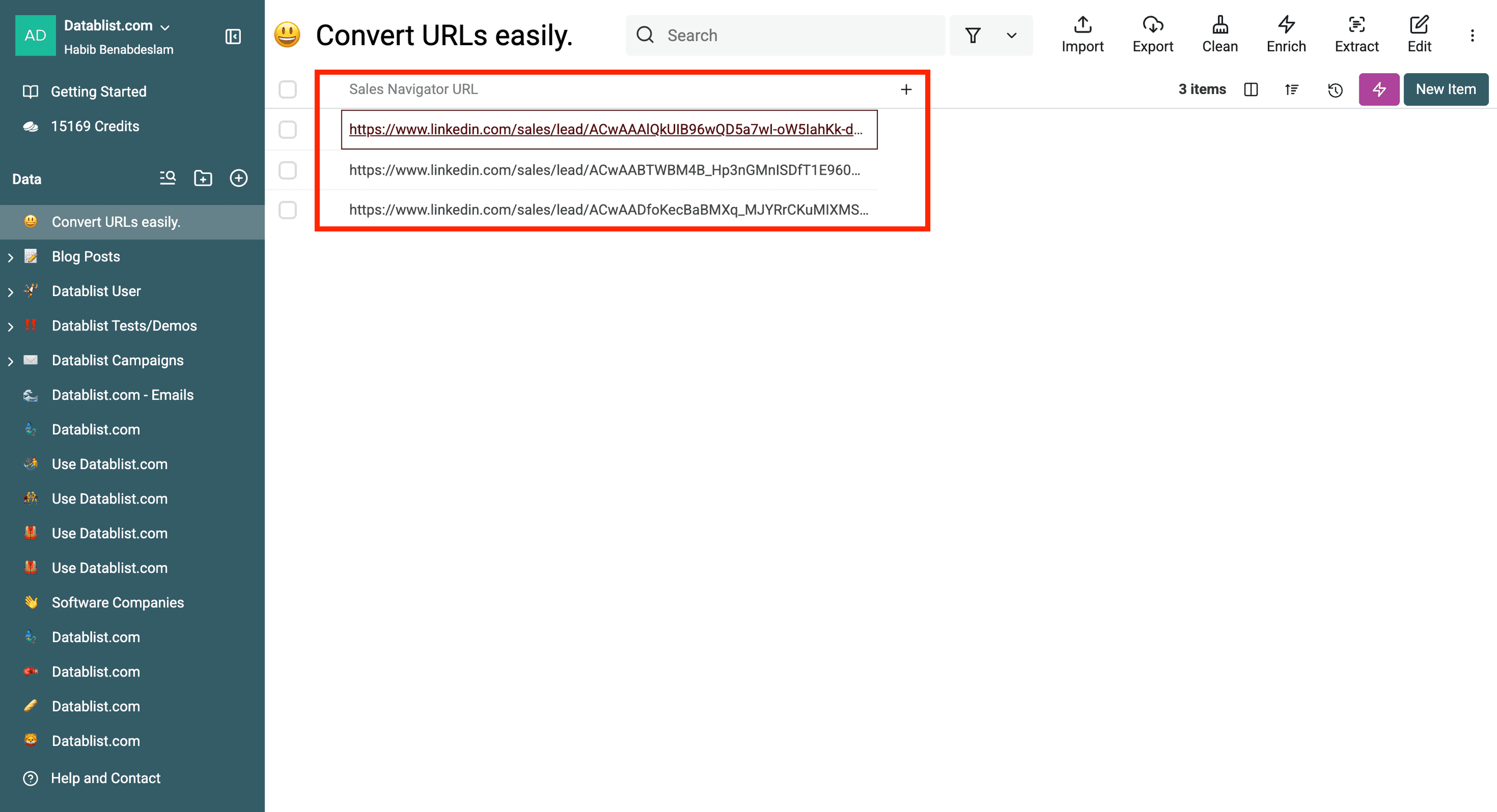
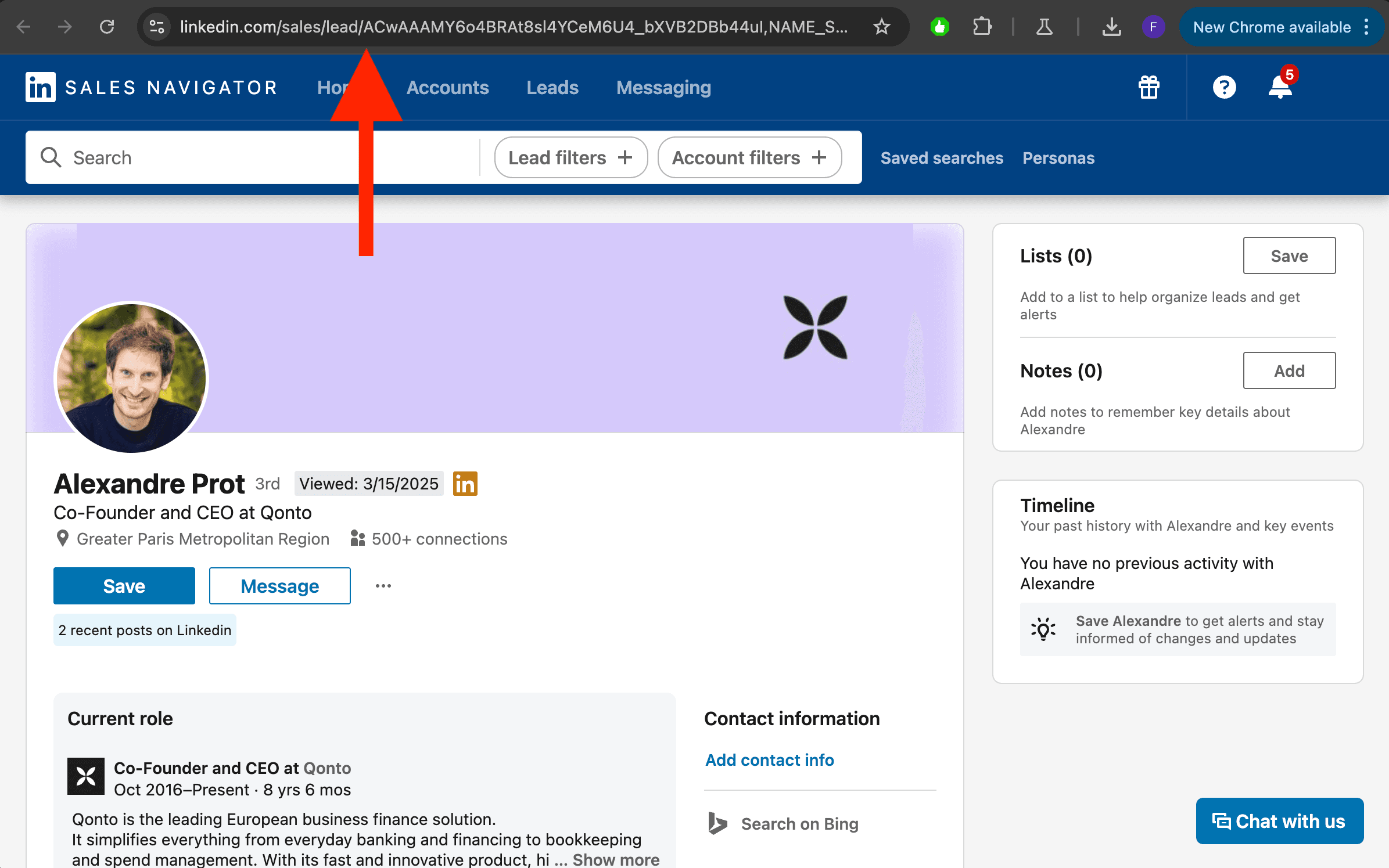
Those URLs come from the LinkedIn Sales Navigator lead pages.
They have the following format: https://www.linkedin.com/sales/lead/XXXXXX,NAME_SEARCH,VBt4?_ntb=f8HG0fiQRli0uIQgLSh0Rg%3D%3D&....
Second Step: Use the LinkedIn Profile Scraper.
Click on “Enrich” button in the collection "Header".
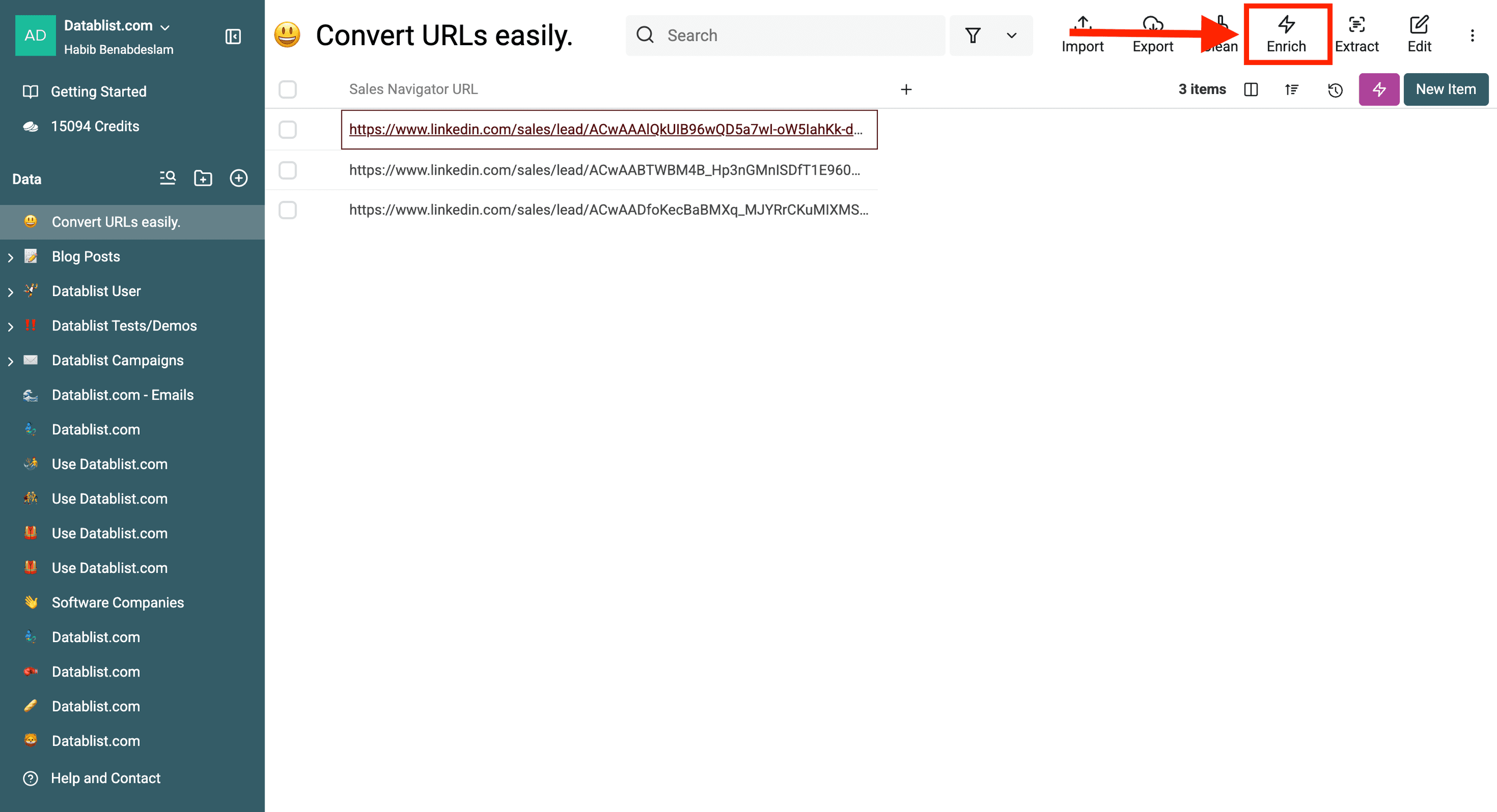
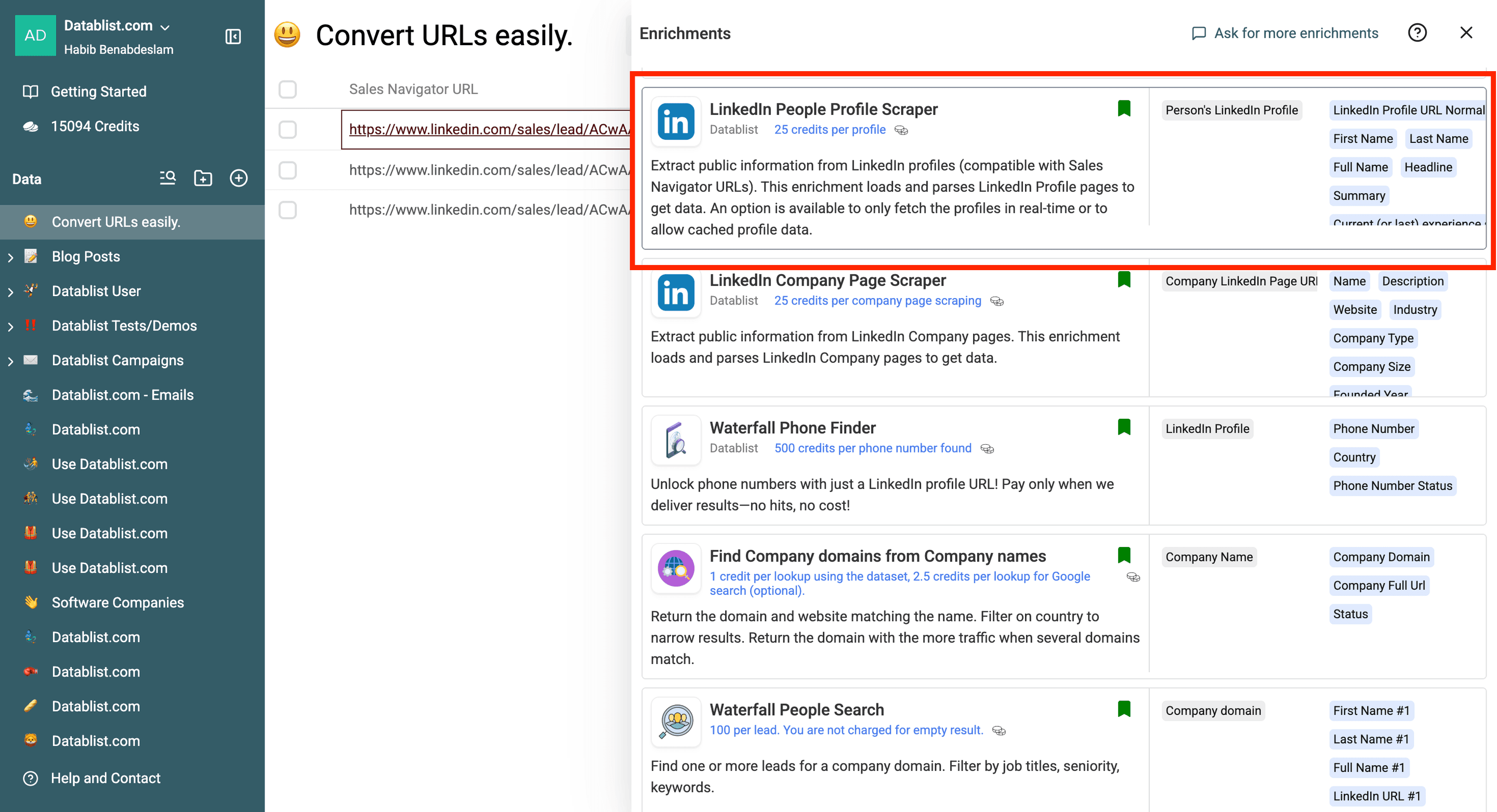
Select the “LinkedIn People Profile Scraper”.
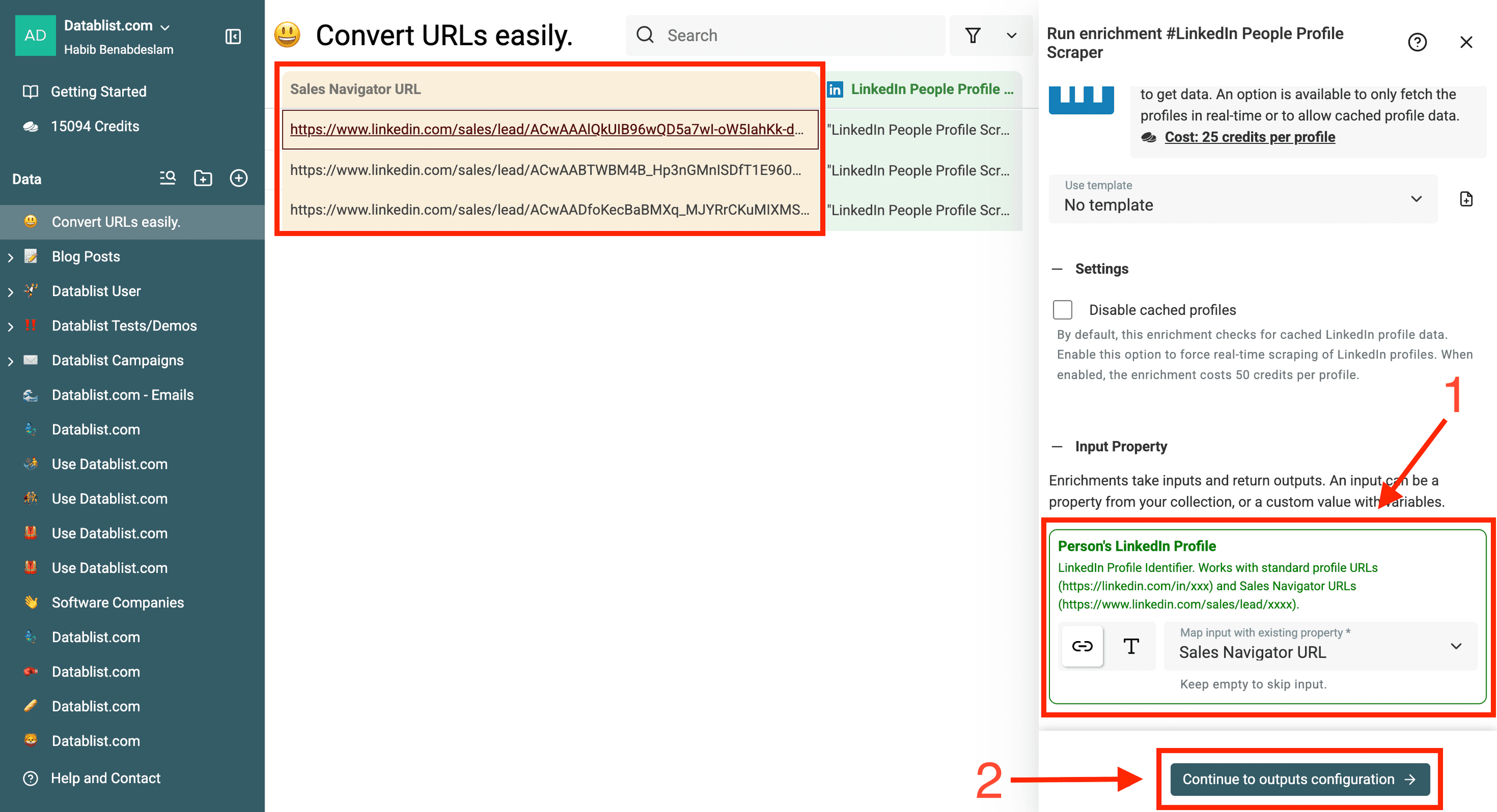
Configure your Sales Navigator URLs as input and click on the button below it to select your outputs.
For this quick demonstration, I chose to select only the LinkedIn profile URL and the prospect's name.
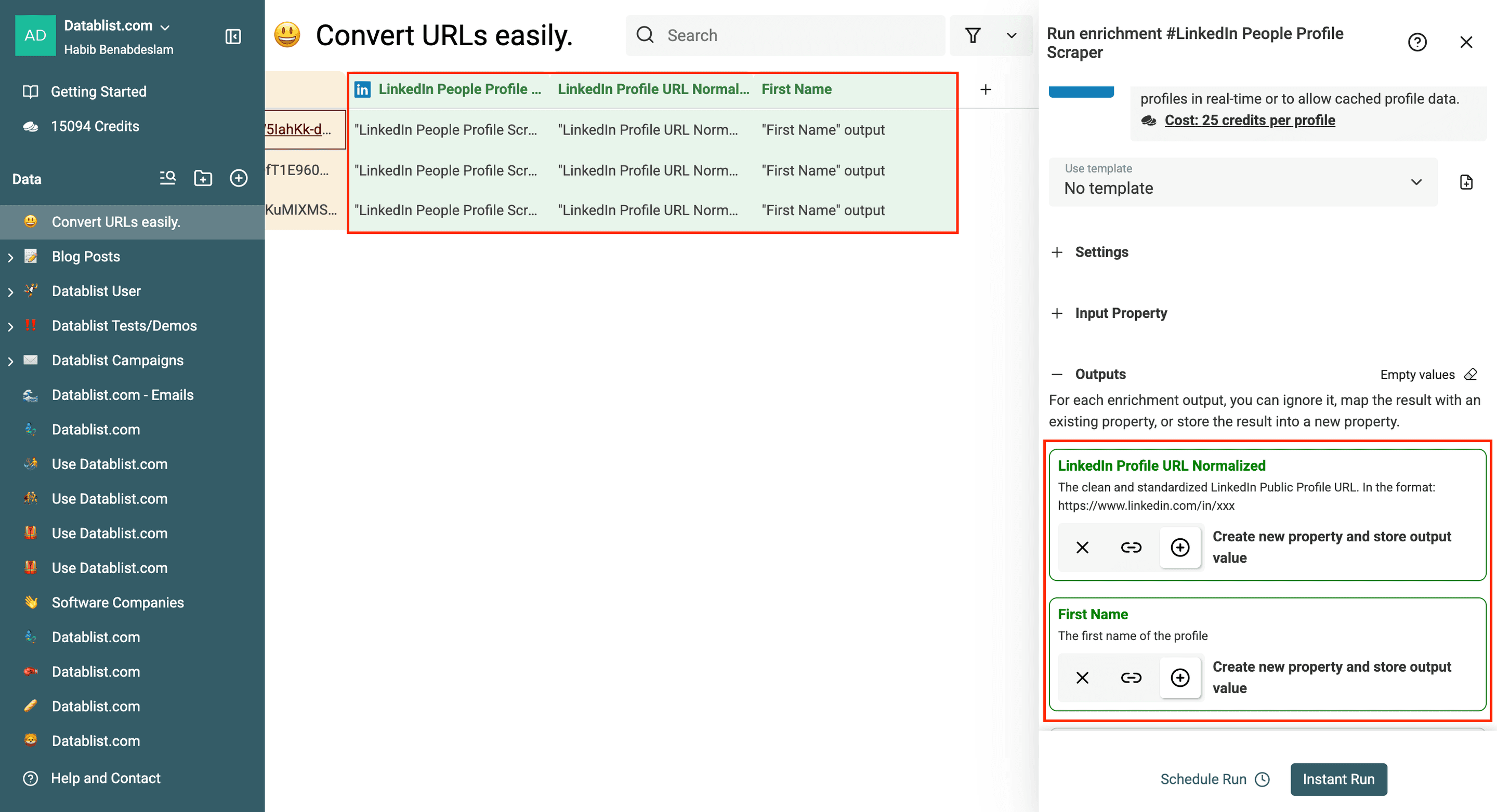
Here is a list of the data points that you can choose from when using the LinkedIn People Profile Scraper:
- LinkedIn Profile URL Normalized: 👈 This is the Regular LinkedIn Profile URL
- First Name
- Last Name
- Full Name
- Headline
- Summary
- Current (or last) experience start date
- Last experience end date
- Current (or last) experience company name
- Current (or last) experience company page URL
- Current (or last) experience title
- Current (or last) experience description
- Current (or last) experience location
- City
- State
- Country
- Country Name
- Languages
- Connections
Once you have configured your outputs, you can then:
-
Choose how many items you want to run the enrichment on. This is especially useful for larger lists and limited budgets.
-
Run your enrichment to convert your Sales Navigator URLs into LinkedIn URLs.
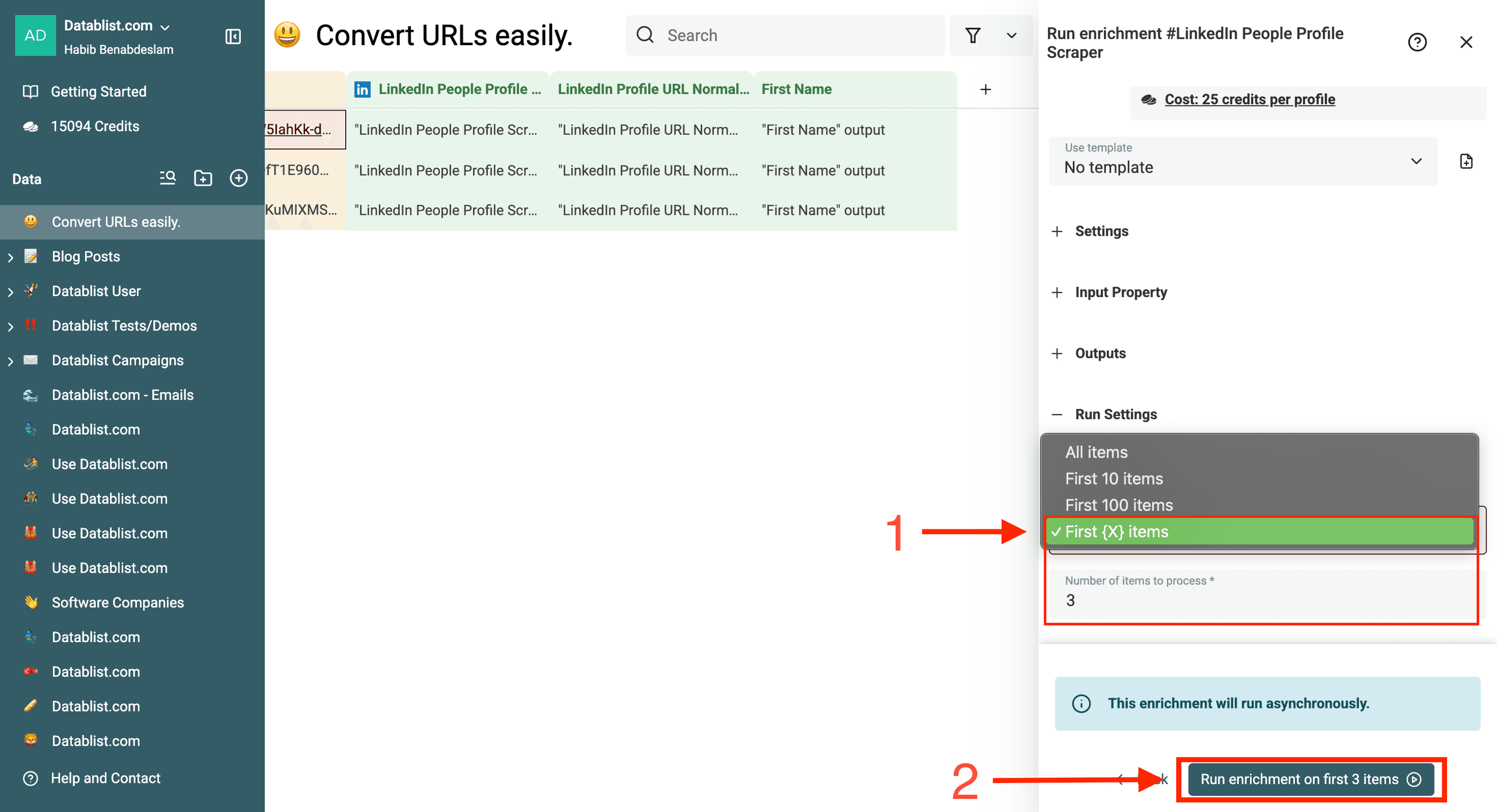
The standard LinkedIn Profile Scraper costs 25 credits per profile. Check the estimate in Datablist before running a large list; the available balance and any cache settings affect what you can process. Learn how credits work.
Here is how it looks once you've converted the Sales Navigator URLs into LinkedIn URLs.
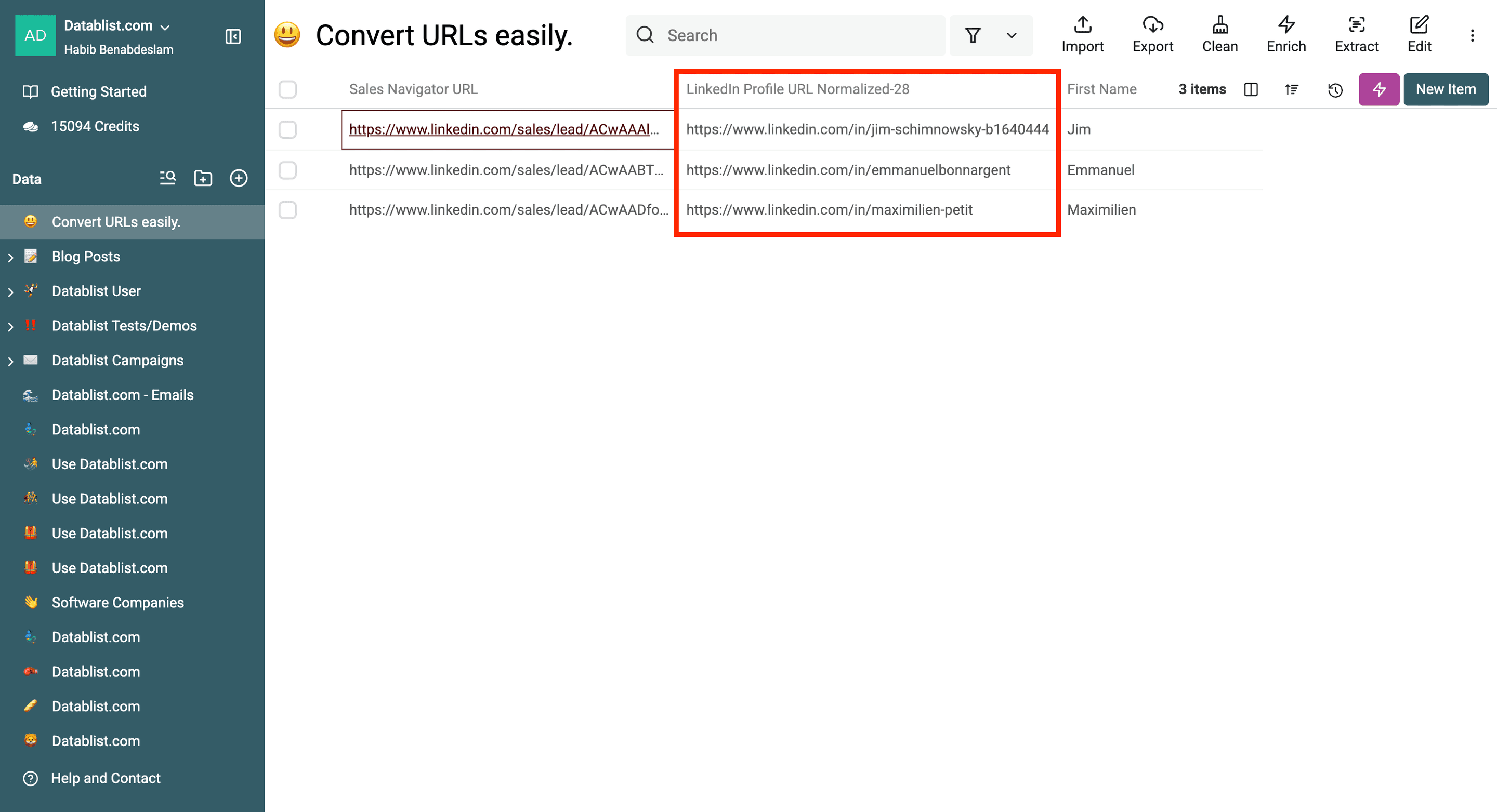
The LinkedIn Profile Scraper does not ask you to connect your LinkedIn account. Batch size, credits, provider availability, and profile visibility can still affect a run.
The difference between the Sales Navigator URL and the Normal LinkedIn URL.
1. Public LinkedIn URL
A Public LinkedIn URL (or Normal LinkedIn URL) is the one you see when you visit a profile from a Google search or LinkedIn’s free version.
It usually follows this format : www.linkedin.com/in/first-name-last-name
- This URL is static and easy to share, making it ideal for manual prospecting or referencing profiles.
- However, public URLs can be changed by the page owner at any time, which can create inconsistencies when tracking prospects. If the page owner updates their LinkedIn link, the old public URL will no longer work, leading to 404 errors in your CRM.
2. Unique LinkedIn ID URL (Sales Navigator URL)
A Unique LinkedIn ID URL is different from a public URL because it includes a unique identifier assigned by LinkedIn.
- This ID never changes, even if the page owner updates the public LinkedIn URL.
- Sales Navigator and LinkedIn’s API use this ID-based URL for internal tracking, making it the best option for integrating LinkedIn data into CRM systems.
Why Does This Matter?
When exporting leads from Sales Navigator, you’ll typically get the Unique ID URL, not the public URL.
If you’re enriching LinkedIn data outside of LinkedIn (using third-party tools e.g. Octave), you need to convert Unique IDs into Public URLs for better usability.
Pro Tip: Always store Unique ID URLs in your CRM for long-term tracking. Since public LinkedIn URLs can change, relying on them may result in accounts and broken links.

Use Cases
Sales Navigator ID URLs:
- Lead Tracking - For monitoring prospect engagement over time.
- CRM Integration - For reliable data syncing and automation.
- Account Mapping - For complex organizational relationships.
- Analytics Dashboards - For consistent reporting and metrics.
- Long term ABM Campaigns. - For always up to date data.
- Lead Magnet Sharing - For ongoing effectiveness.
Public LinkedIn URLs:
- Social Media Sharing - More user-friendly and recognizable.
- Client Presentations - More professional appearance.
- Personal Websites - For personal branding purposes.
- Marketing Materials - For better brand visibility.
Tools that require a LinkedIn URL.
- Octave — uses LinkedIn URLs but doesn't accept Sales Navigator URLs.
- Persana — has LinkedIn enrichment but doesn't allow Sales Navigator URLs for enrichment.
- Databar — doesn't have LinkedIn enrichment but relies on third-party tools like PDL to enrich profiles from social links.
- Clay — doesn't have its own enrichment capabilities but relies on Datagma, MixRank, Snov, LeadMagic, Apollo, Clearbit, and People Data Labs.
Why These Tools don’t Allow Sales Navigator URLs.
LinkedIn is a public site, while Sales Navigator isn't. Sales Navigator also has more strict security mechanisms, which makes it difficult to scrape.
To scrape LinkedIn Sales Navigator, most tools require your LI cookie to scrape it with their software using your account, as creating multiple accounts wouldn't be profitable for them in the long term.
Key Takeaways
- Converting Sales Navigator URLs to LinkedIn URLs is essential for using third-party prospecting tools
- The process can be automated using tools like Datablist
- Always maintain both URL types for different use cases - Sales Navigator URLs for tracking and LinkedIn URLs for sharing
How to convert manually a Sales Navigator URL into a Normal LinkedIn Profile URL
If you don’t want to use automation tools, you can manually convert a Sales Navigator URL into a public LinkedIn profile URL. This method is simple but requires a few steps.
Step 1: Extract the LinkedIn Profile Identifier
Every LinkedIn Sales Navigator URL contains a unique identifier that links directly to a person’s profile. To find this identifier, look at the structure of a Sales Navigator URL.
It's a 40 characters long identifier that comes after the /lead/ part and stops with the comma.
The Sales Navigator URL follows this format:
https://www.linkedin.com/sales/lead/UNIQUE_IDENTIFIER,NAME_SEARCH,VBt4?...
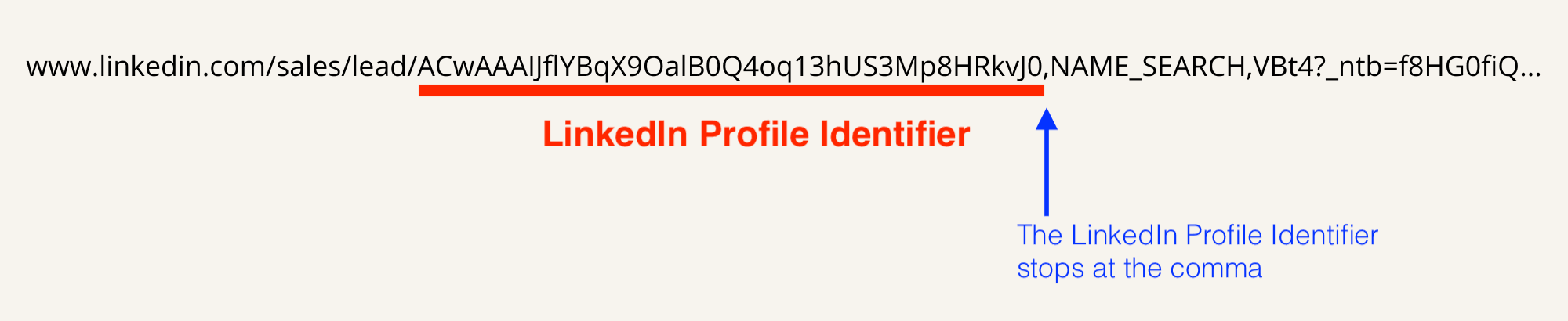
For example, in the following URL:
The LinkedIn Identifier is ACwAAAIJflYBqX9OalB0Q4oq13hUS3Mp8HRkvJ0.
This string of characters is the key to accessing the public LinkedIn profile.
Step 2: Build the Public LinkedIn Profile URL
Once you have extracted the LinkedIn identifier, the next step is to use it to make a LinkedIn Profile URL.
Simply insert the identifier at the end of the following base URL: https://www.linkedin.com/in/UNIQUE_IDENTIFIER
Using our example, the final LinkedIn profile URL would be: https://www.linkedin.com/in/ACwAAAIJflYBqX9OalB0Q4oq13hUS3Mp8HRkvJ0
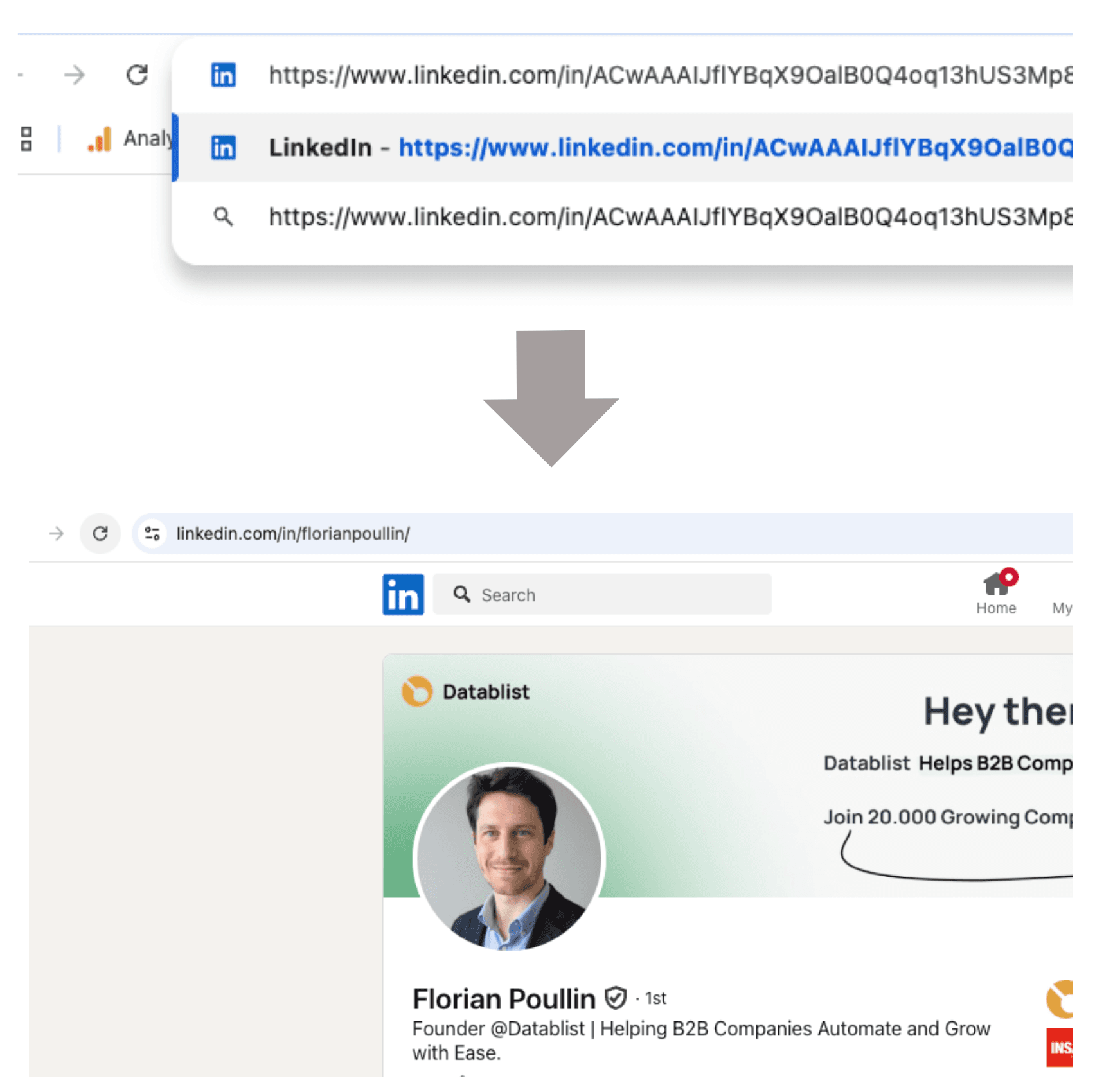
When you paste this URL into your browser while logged into LinkedIn, LinkedIn will automatically recognize the identifier and redirect you to the person’s public LinkedIn profile.
For instance, if the actual profile URL is: https://www.linkedin.com/in/florianpoullin/. LinkedIn will take you there instantly.
Important Notes
- You must be logged into LinkedIn for the redirection to work. A free LinkedIn account is enough—you don’t need a Sales Navigator subscription.
- The redirection only works for profiles that still exist. If the LinkedIn user has deleted their account or changed privacy settings, the link might not work.
Additional Tips for Manual Conversion
- Keep Both URLs – For better CRM tracking, store both the Sales Navigator URL and the public LinkedIn URL. The Sales Navigator URL will remain stable even if the public URL changes.
- Verify Redirections – If LinkedIn doesn’t redirect you, double-check the extracted identifier to make sure it’s correct.
Why Manual Conversion Might Not Be Ideal
Manually converting Sales Navigator URLs is possible but inefficient for large datasets. If you need to process hundreds or thousands of URLs, use the automated method to convert LinkedIn Sales Navigator URLs at scale.
Frequently Asked Questions
Do I need to connect my LinkedIn account to convert URLs?
No. The Datablist LinkedIn Profile Scraper accepts Sales Navigator lead URLs without asking you to connect your LinkedIn account. Review returned statuses and normalized URLs before using them elsewhere. Datablist cannot guarantee that every source profile remains accessible or that third-party platform rules will stay the same.
How do I convert a Sales Navigator URL to a Normal LinkedIn URL?
You can convert Sales Navigator URLs to LinkedIn URLs by using Datablist's LinkedIn Profile Scraper. Simply import your CSV file containing Sales Navigator URLs, use the enrichment feature, and select the LinkedIn Profile URL as your desired output.
Can I convert multiple Sales Navigator URLs at once?
Yes, you can convert multiple Sales Navigator URLs simultaneously using Datablist's bulk enrichment feature. You can choose how many profiles to process based on your credit budget.
How much does it cost to convert Sales Navigator URLs?
The standard LinkedIn Profile Scraper costs 25 credits per profile. Check the run estimate and your available credits in Datablist before processing the list.
Why won't my Sales Navigator URL work in third-party tools?
Most third-party tools don't accept Sales Navigator URLs because Sales Navigator is a premium platform with stricter security measures, while these tools are designed to work with public LinkedIn URLs.
Which URL should I store in my CRM - Sales Navigator or LinkedIn URL?
It's recommended to store Sales Navigator URLs (Unique ID URLs) in your CRM for long-term tracking, as public LinkedIn URLs can change when users update their profiles, potentially causing broken links.
How can I tell the difference between a Sales Navigator URL and a LinkedIn URL?
Public LinkedIn URLs typically follow the format www.linkedin.com/in/first-name-last-name, while Sales Navigator URLs contain a unique identifier and are longer in format.