
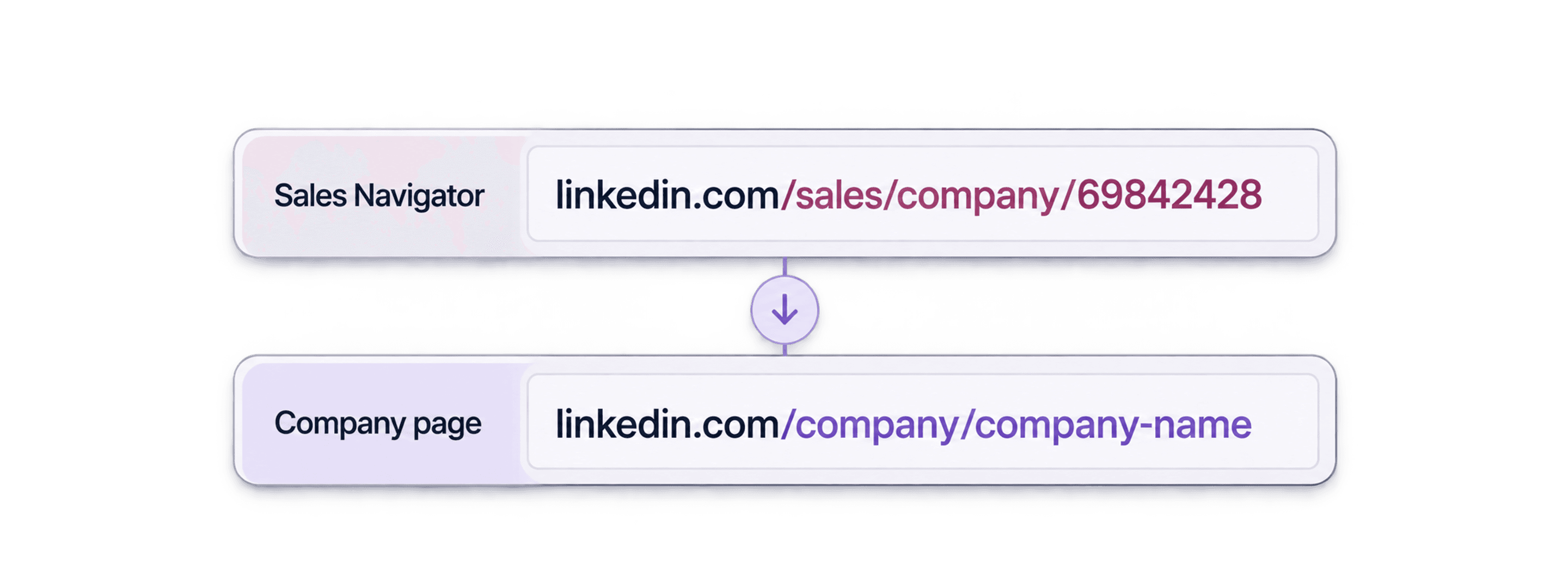
To convert a Sales Navigator company URL into a regular LinkedIn Company Page URL, import the URLs into Datablist and run the Company Domain/Website and LinkedIn Company Page Matcher. Map its Company LinkedIn Url output to a new column. The same lookup can return the company website and name.
This is a company lookup, not a people-profile conversion. It accepts company links such as linkedin.com/sales/company/69842428; a Sales Navigator lead link needs the people-profile conversion workflow.
The useful result is a checked company URL alongside the original identifier and lookup status. Replacing /sales/company/ with /company/ constructs a numeric company link, but does not find the company's named URL or verify its identity.
In this guide:
- Convert a list of company URLs in bulk
- Choose which LinkedIn identifiers to keep
- Check a single company ID manually
What are LinkedIn Sales Navigator URLs, Company IDs, and Company Public URLs?
A regular company URL usually looks like https://www.linkedin.com/company/datablist. A Sales Navigator company URL can contain a numeric ID, such as https://www.linkedin.com/sales/company/69842428. The number identifies a company page; it is not the company's website domain or a person's profile ID.
LinkedIn distinguishes a page's editable primary URL from its numeric secondary URL. Its Page public URL documentation explains that the secondary URL cannot be edited, while the named URL can change. Keep the identifier for matching and the resolved URL for sharing. Neither field guarantees that a page will remain accessible indefinitely.
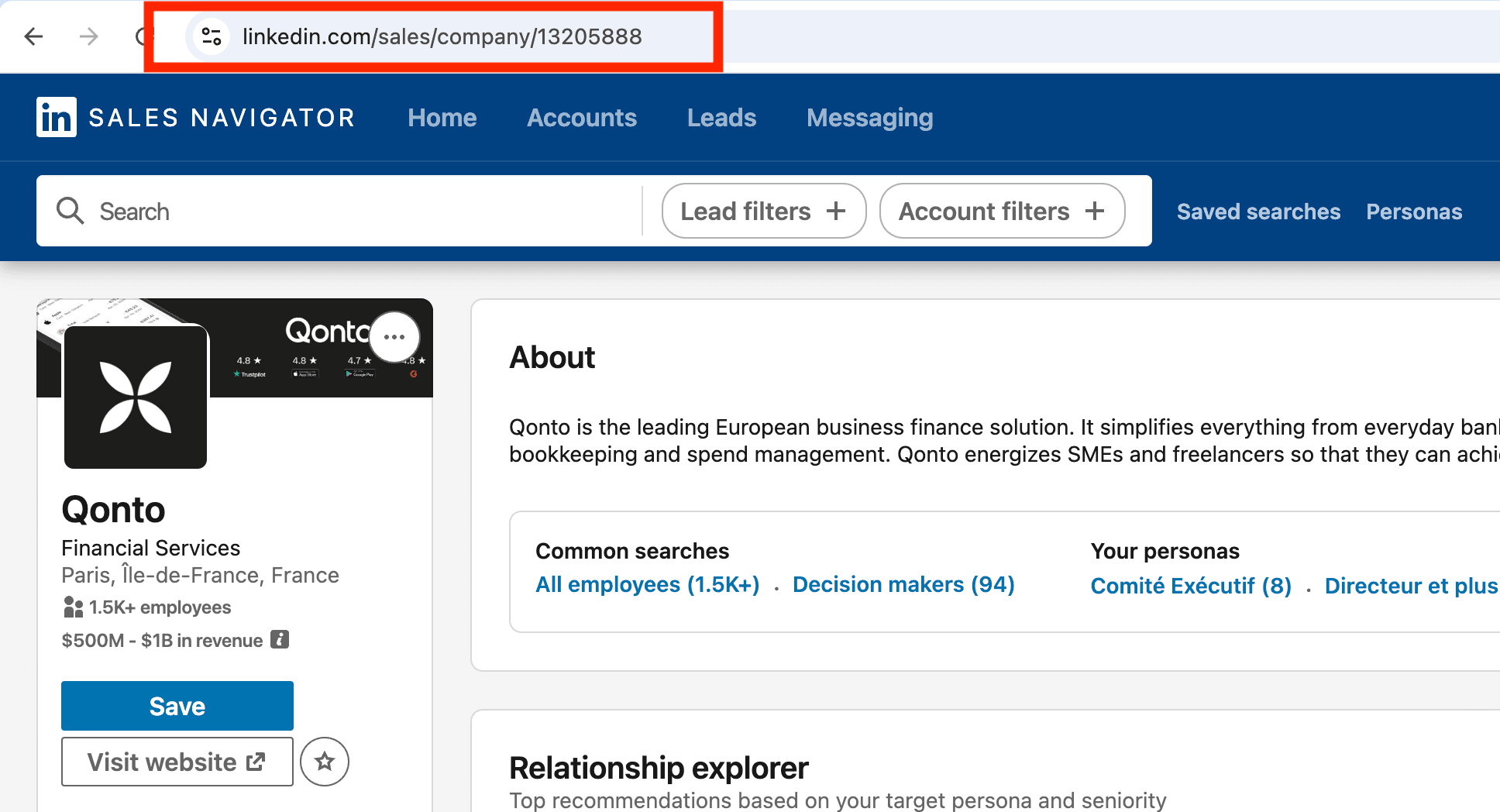
Before running a bulk lookup, separate company links from people links. A mixed CSV may contain both account and lead URLs, and choosing one enrichment for every row can produce unusable results.
How to get the LinkedIn Company URL from the Sales Navigator URL
Start with a CSV or Excel file containing company URLs. The matcher accepts these company formats:
| Input | What it identifies |
|---|---|
https://www.linkedin.com/sales/company/69842428 | A Sales Navigator company |
https://www.linkedin.com/sales/accounts/insights?companyId=69842428 | An account insights link with a company ID |
https://www.linkedin.com/company/69842428 | A numeric Company Page URL |
https://www.linkedin.com/company/datablist | A named Company Page URL |
Use the Company Domain/Website and LinkedIn Company Page Matcher to resolve these inputs. You do not need to run a domain lookup followed by a second domain-to-LinkedIn enrichment: the company-input direction returns the LinkedIn URL in the same lookup.
Step 1: Import your list of LinkedIn Sales Navigator URLs
Open Datablist, create a collection, and import your file. Keep a separate column for your CRM account ID if you plan to join the results back into another system.
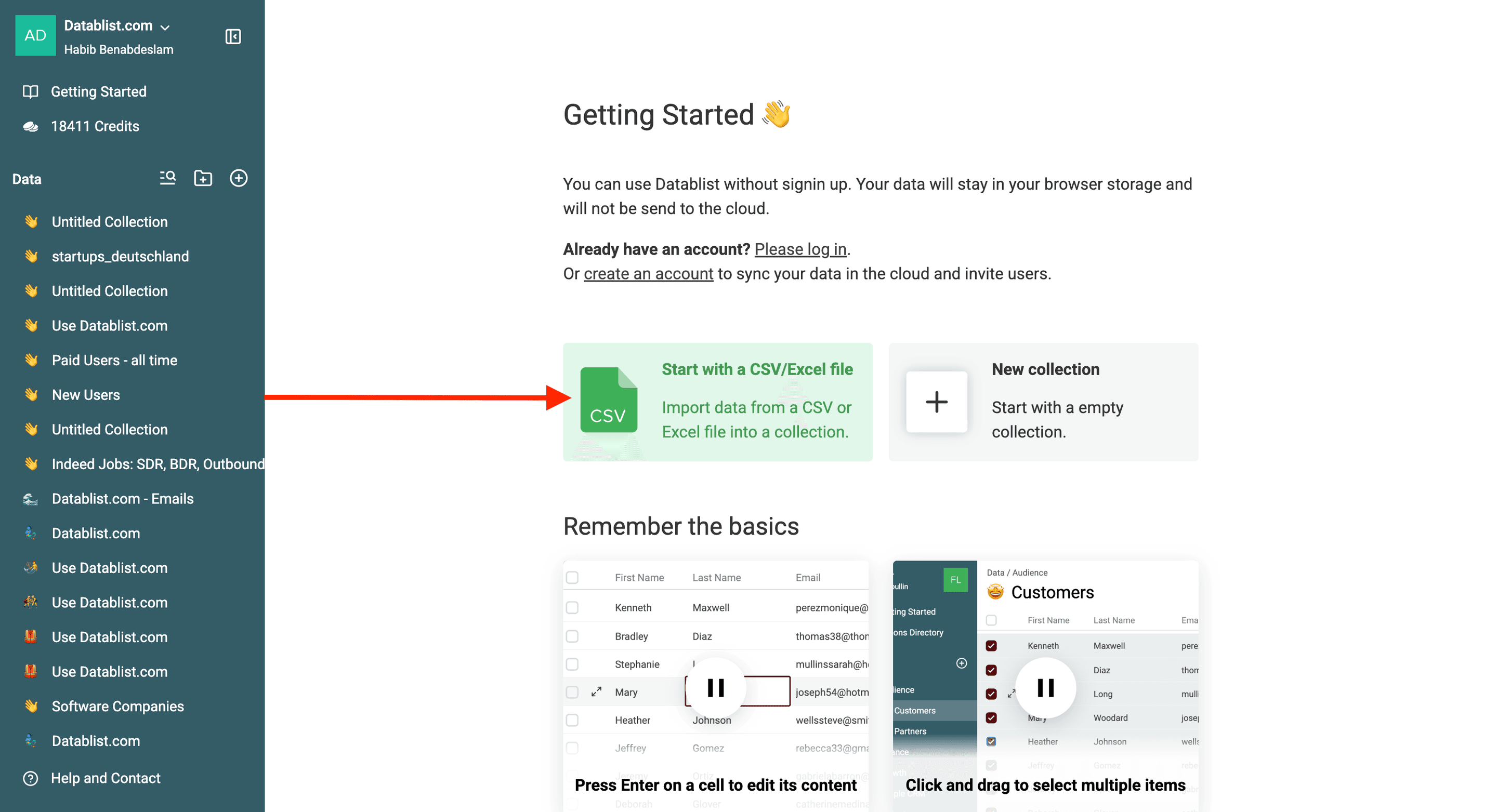
Map the source company URLs to a Text or URL property. Keep this original column unchanged and create separate properties for the lookup outputs. This makes it possible to investigate an unexpected result without losing the input that produced it.
If your file contains only numeric company IDs, prepare complete links in the form https://www.linkedin.com/company/69842428 before using them as URL inputs. A bare number and a named company URL are different input formats. Do not apply this prefix to a people-profile identifier.
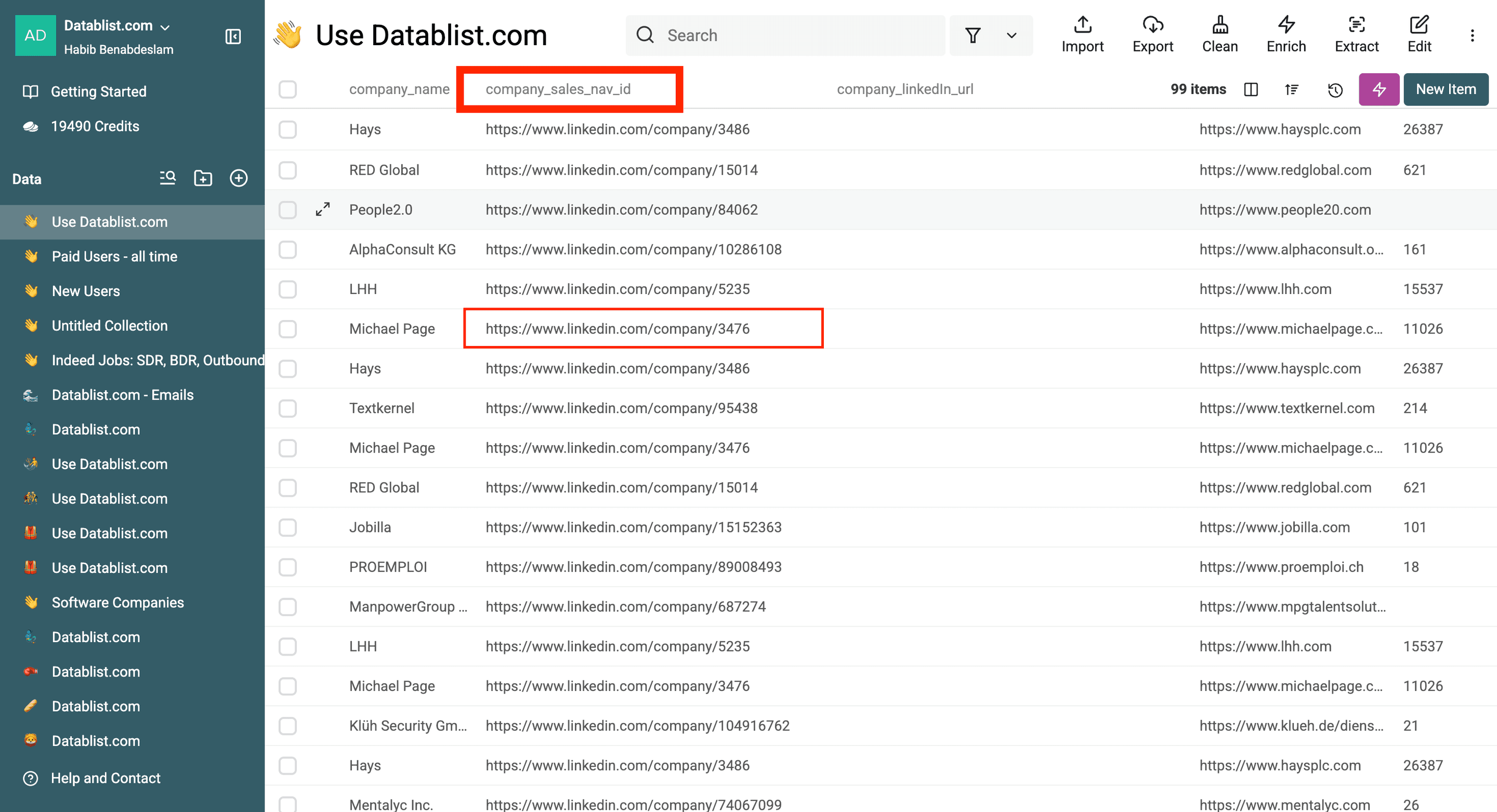
The example collection below stores company links in a column called Company_Sales_Nav_ID. The column name is a label: inspect the actual cell values to confirm that they are company URLs.
Step 2: Get the LinkedIn Company URL from their Sales Navigator URL
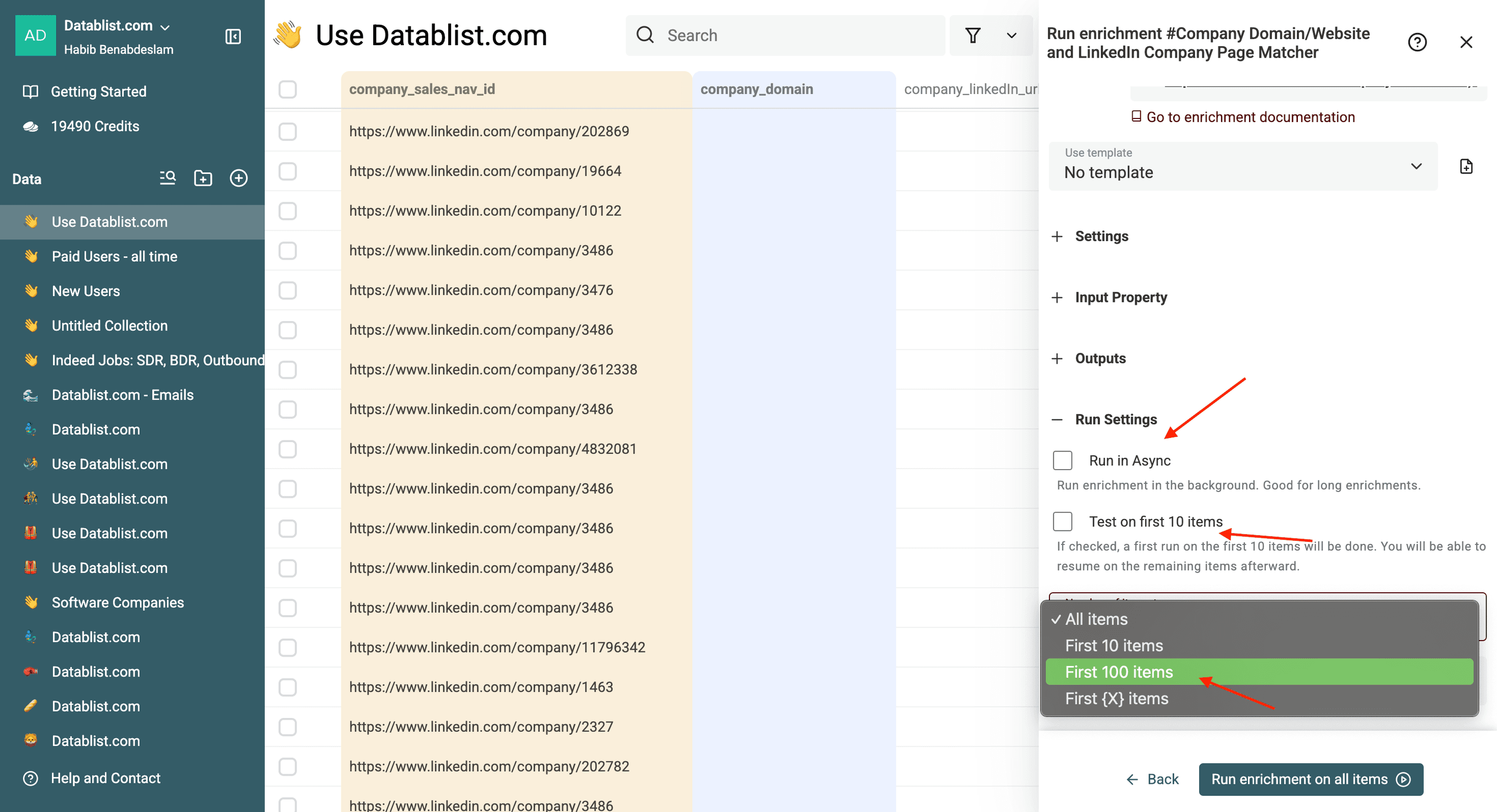
Open Enrich from the collection header.
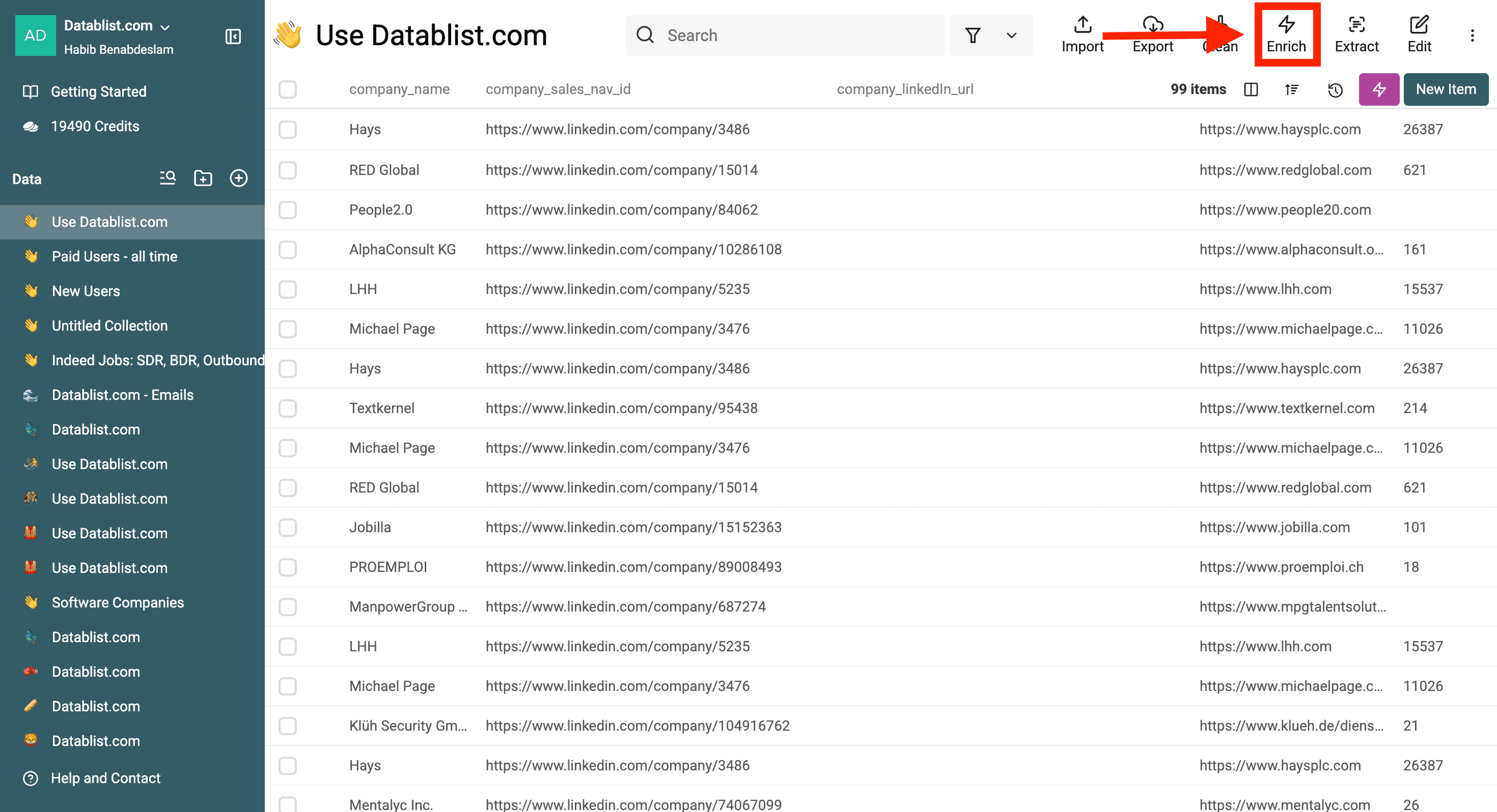
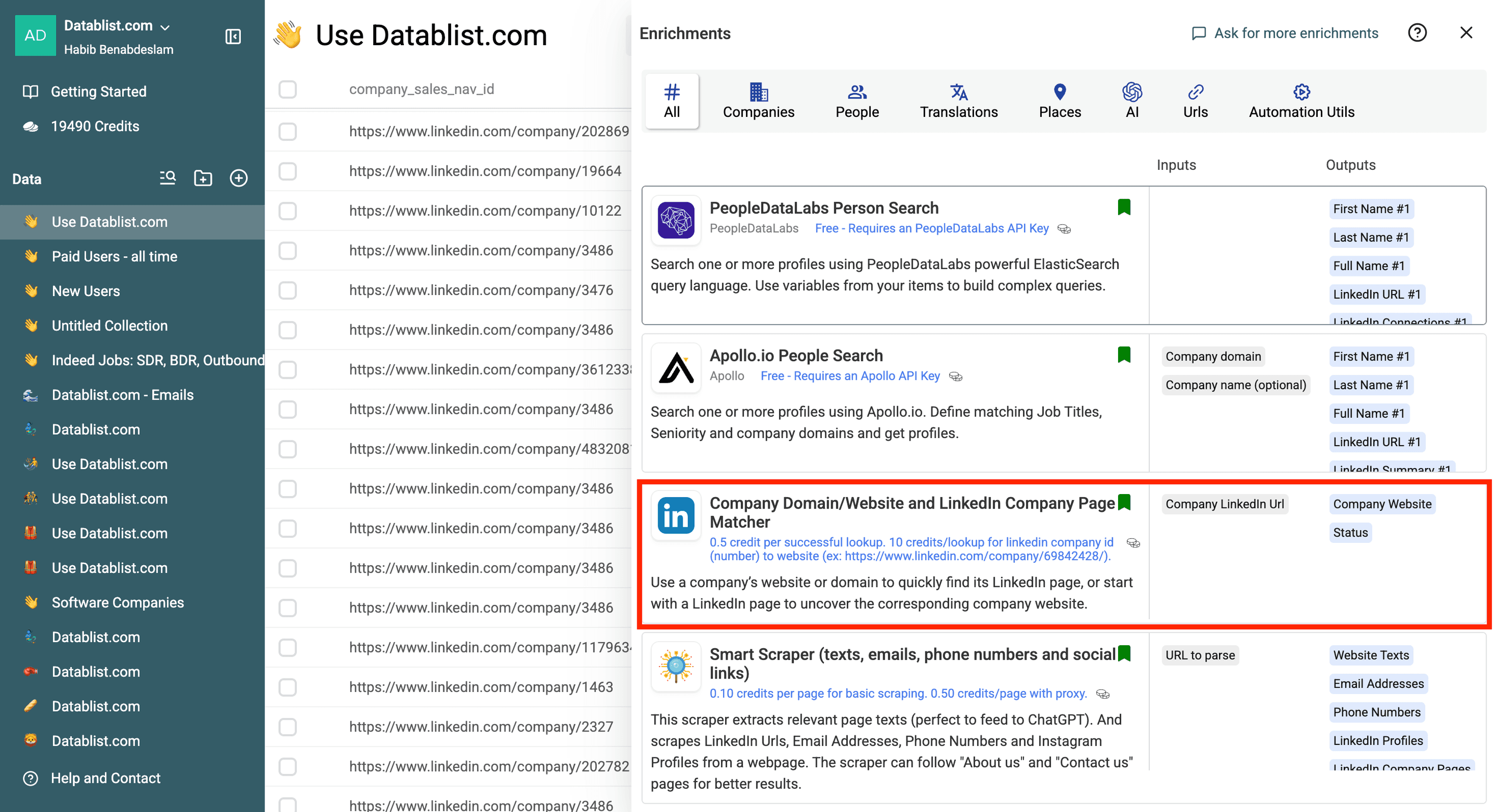
Select Company Domain/Website and LinkedIn Company Page Matcher.
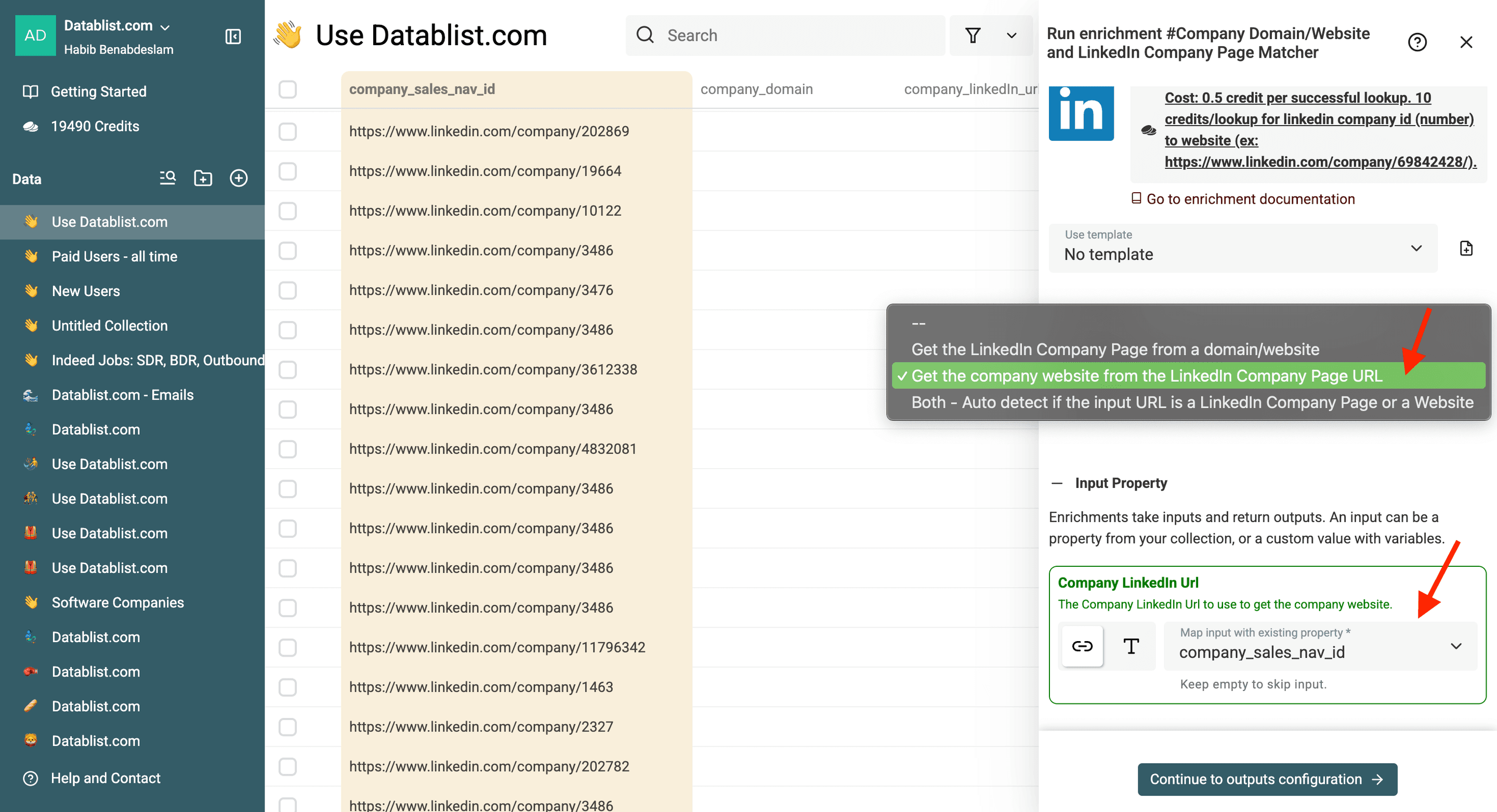
Under Matching Type, choose Get the company website from the LinkedIn Company Page URL. Although this option names the website, it also returns the resolved Company Page URL and company name. Map your Sales Navigator company URL property to the Company LinkedIn Url input.
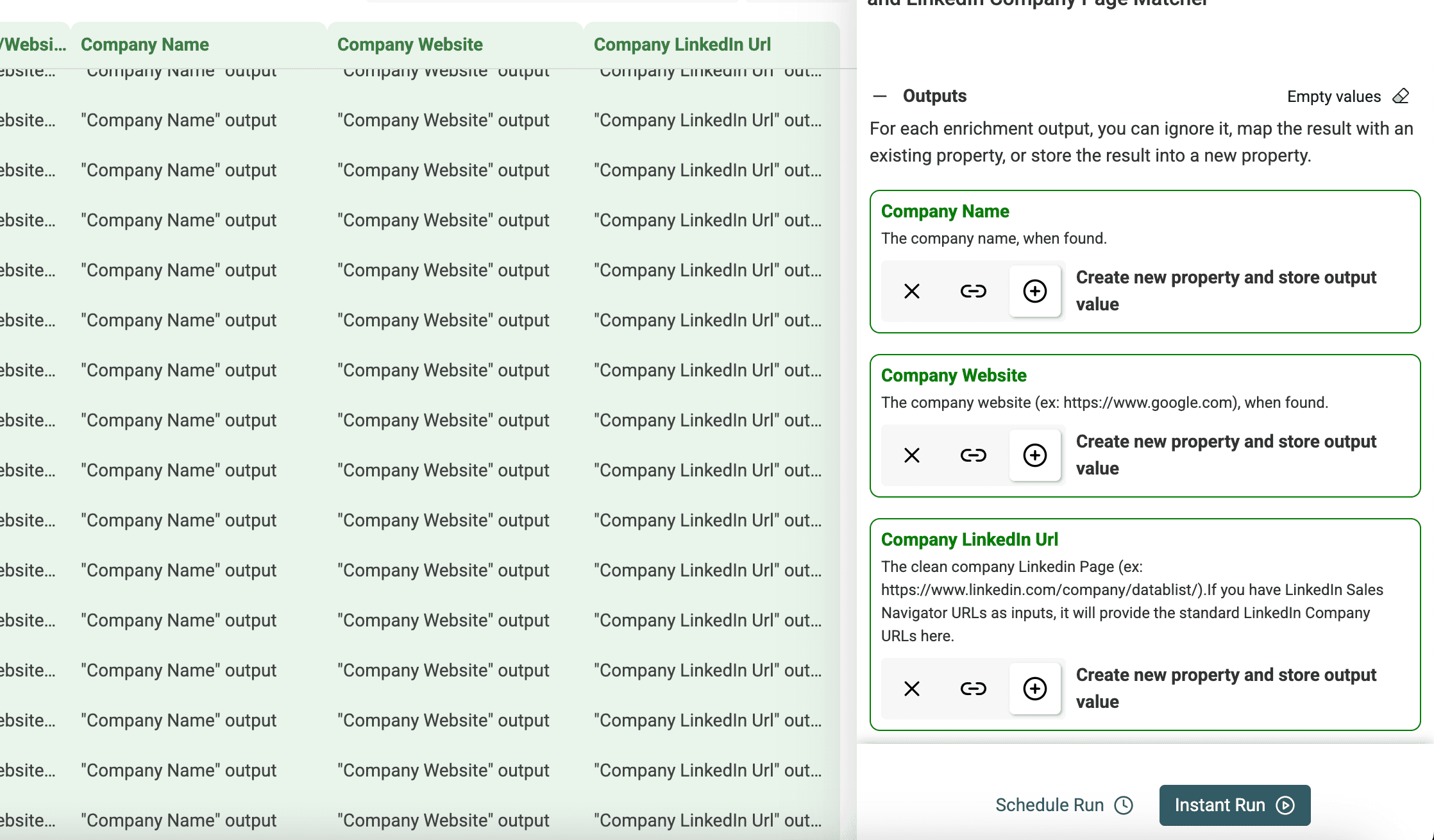
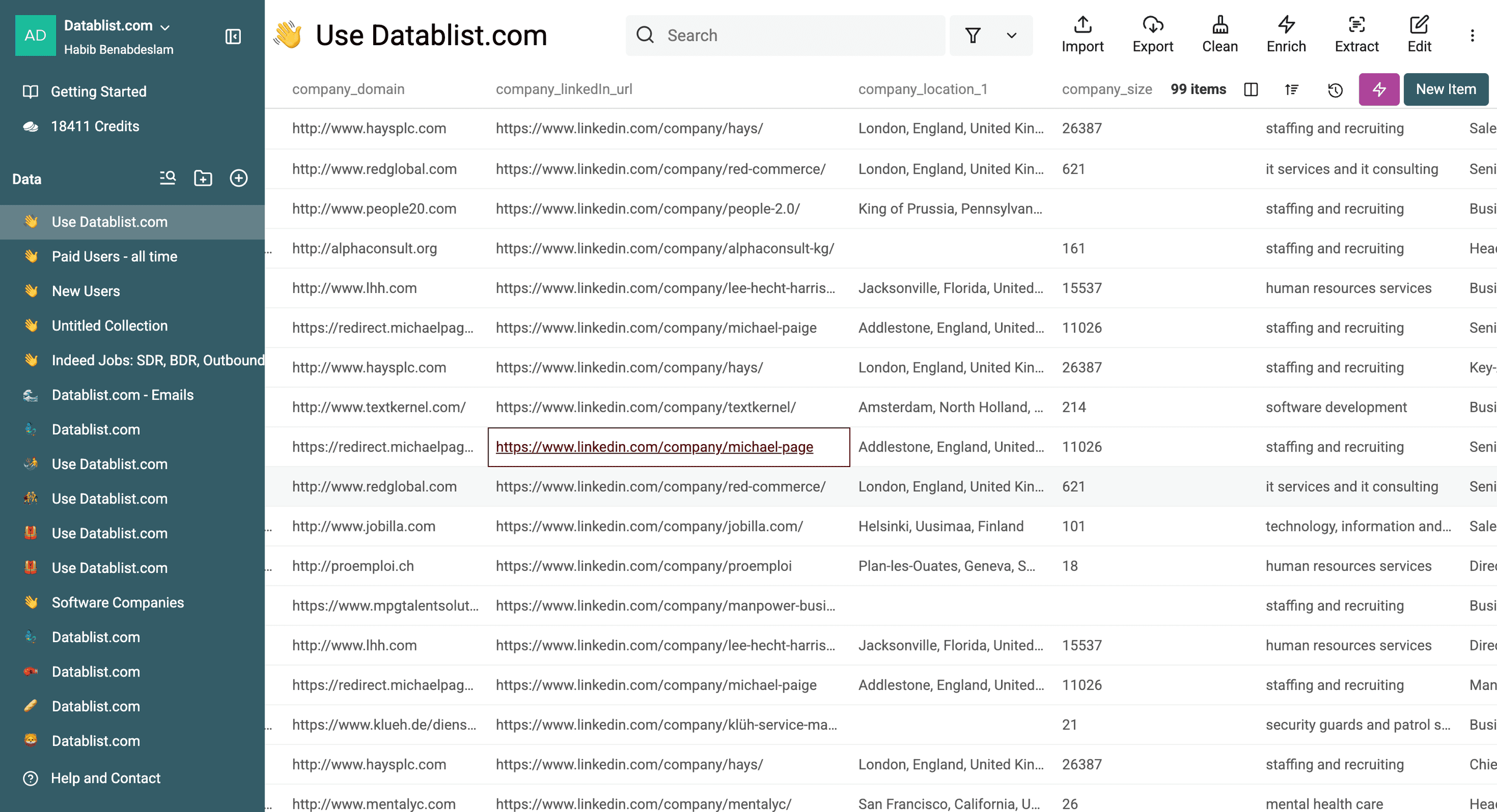
In the output configuration, create separate properties for:
- Company LinkedIn Url: the resolved regular Company Page URL.
- Company Name: the name returned by the lookup.
- Company Website: the website returned when available.
- Status: the lookup outcome, which helps separate matches from missing or invalid inputs.
The enrichment's Run Status column tracks execution, errors, and credit usage. It serves a different purpose from the Status output. Keep both when reviewing the first results.
Test a small selection before processing the whole list. Include a company with a known page, a numeric company link, and any input format you are unsure about. Inspect the returned company name and website alongside the LinkedIn URL, then choose the intended scope for the full run.
The output should give you a regular Company Page URL beside each successfully resolved source link. Keep empty or unsuccessful rows for review instead of filling them with a guessed URL based on the company name.
Review lookup statuses before exporting
The matcher exposes four lookup outcomes:
| Status | Next step |
|---|---|
success | Review the returned name, website, and Company Page URL before updating the CRM. |
not_found | The lookup did not find a match. Check the original company link rather than assuming the company has no page. |
empty_data | The input is empty. Supply a company URL if one is available. |
bad_data | The input could not be used. Check for a malformed URL or a people link in the company column. |
A returned URL is useful only if it belongs to the intended account. Check ambiguous company names against your original website or CRM record. An unrelated company with a similar name should stay in review.
Export the source URL, CRM account ID, returned URL, and status together. Join the checked results back on your existing account ID; don't create new accounts solely because the public LinkedIn URL has changed. Review the run's recorded usage and the credit documentation when budgeting the full list.
What’s the difference between the Sales Navigator URL and the LinkedIn Company Page URL?
The Sales Navigator URL opens the account in Sales Navigator. The regular Company Page URL opens the company page outside the Sales Navigator interface. Access can still depend on LinkedIn's sign-in requirements and page availability. If access is limited by an account notice, follow the LinkedIn restriction and review steps; converting a URL does not recover the account.
Public Company LinkedIn URL
A named URL, such as linkedin.com/company/datablist, is easier to recognize in a CRM, presentation, or message. It is useful for people opening the company page and for tools that expect a regular LinkedIn company URL.
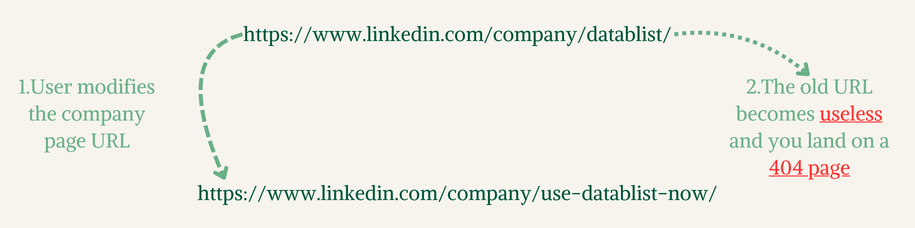
The page's named URL can change. LinkedIn says an old URL may redirect to the page, but it can later be reassigned. A changed name does not by itself prove that two CRM accounts are different companies.
Unique Company LinkedIn ID URL (Sales Navigator URL)
A Sales Navigator company link often includes the numeric company ID. Keep that identifier and the original link alongside the resolved public URL. This preserves a reference to the source account when reviewing or refreshing a lookup.
Why Does This Matter?
Use the fields for different jobs: your CRM account ID joins your own records; the LinkedIn company ID helps identify the source page; the named URL is convenient for opening and sharing it. Avoid overwriting all three with one URL field.
How to convert LinkedIn Company Ids to LinkedIn Company URLs manually
For a one-off check:
- Take the numeric company ID from a company link, such as
69842428. - Open
https://www.linkedin.com/company/69842428in your browser. - Sign in if LinkedIn asks you to.
- Check the page name and website against the company you intended to find.
- If LinkedIn presents a named URL, copy that URL into a separate field and retain the original ID.
LinkedIn's documentation says both primary and secondary URLs can direct traffic to a page. Do not assume every visit will expose a named URL or bypass access restrictions. A bulk matcher is useful when you need lookup outcomes for many rows rather than opening each page individually.
Frequently Asked Questions
How do I convert multiple Sales Navigator URLs to LinkedIn Company URLs in bulk?
Import the company URLs, run the matcher in its company-input direction, and map Company LinkedIn Url to a new output property. Review the returned company details and Status. One lookup returns the company URL and website; a second domain-to-LinkedIn run is unnecessary.
Can I convert People Sales Navigator URLs to LinkedIn Public Profile URLs?
People links use a different workflow. Follow how to convert Sales Navigator people URLs rather than putting lead-profile links into a company matcher.
Can I just replace the URL prefix?
For a link containing a numeric company ID, constructing /company/ID gives a numeric company link. It does not discover the named page URL, confirm the company's website, or produce a lookup status. Use it for a manual check, not as proof of a resolved match.
Why do my LinkedIn Company URLs stop working after some time?
A page's named URL can change or be reassigned, and access to a page can change. Retain the original company identifier, check the current page, and refresh the resolved URL when needed. A numeric ID is a useful reference, not a promise of permanent page availability.