

A custom waterfall email finder lets you run several email finder providers in the order you choose, using your own provider API keys. I use this setup when the usual managed waterfall is not the main constraint. The real constraint is control: which provider runs first, how external provider credits are spent, and how much of the workflow stays inside one lead-list workspace.
In Datablist, the workflow is straightforward. Import a lead list, open the Waterfall Email Finder, keep the search method on By Name and Company, enable Custom Waterfall, add provider and API-key rows, map your input columns, create output columns, run a preview, then process the list. Datablist also handles retryable provider rate-limit responses during custom runs, so temporary throttling does not have to become an immediate row failure.
The important pricing distinction is this: Datablist does not charge Datablist credits for valid custom API-key runs. You still pay the external providers through your own accounts, according to their plans and API rules. That is why provider order matters.
Quick Links
- What a custom waterfall email finder does
- Example lead CSV
- Prepare your provider API keys
- Configure Custom Waterfall in Datablist
- Map inputs and output columns
- Run a preview and review results
- Export or continue enriching the list
What A Custom Waterfall Email Finder Does
A waterfall checks several data providers one after another. For each lead, the first provider is queried. If it returns a usable email, the row stops there. If it does not find an email, the next provider runs. The sequence continues until an email is found or every provider has been checked.
That is the core idea behind waterfall enrichment: do not rely on one data source when another source may cover the same contact better.
A custom waterfall adds one layer of control. Instead of using a managed provider sequence, you choose the providers and authenticate each one with your own API key. Datablist handles the row-by-row execution, input mapping, output columns, and run status. You decide the order.
In Datablist, the custom provider sequence is available inside the Waterfall Email Finder when the search method is By Name and Company. Supported providers in the custom sequence are Icypeas, Enrow, Prospeo, Wiza, Findymail, LeadMagic, TryKitt, Enrich.so, and FullEnrich.
The default Datablist waterfall is simpler. Datablist controls the provider sequence and charges 25 Datablist credits per found work email. That option is often the better choice when you do not want to manage provider accounts.
Custom Waterfall is better when you already have provider subscriptions, unused external credits, or a strong reason to test your own order. If you are still deciding between managed and custom workflows, read this broader guide on how to find emails at scale.
🔑 Key Decision
Use Custom Waterfall when provider order and external cost control matter more than a fully managed sequence.
Example Lead CSV
For this walkthrough, I will use a sample lead export. The person names and returned emails are illustrative. They are here to show the workflow, not to claim these people work at the listed companies.
The file has these columns:
| First Name | Last Name | Company Domain | Company Name | LinkedIn Profile URL | Job Title | Lead Source | Market |
|---|---|---|---|---|---|---|---|
| Jane | Martin | calendly.com | Calendly | VP Sales | Webinar list | North America | |
| Mark | Lewis | algolia.com | Algolia | Head of Growth | Directory research | Europe | |
| Ana | Santos | Qonto | Operations Lead | Event list | Europe | ||
| Tom | Weber | qonto.com | Qonto | Founder | Partner list | Europe |
For the Email Finder, the required inputs are First Name and Last Name, or one Full Name field, plus one company-input field. That company field can contain a domain or a company name. I prefer domains when I have them because a domain removes company-name ambiguity.
When the mapped value is a company name, Datablist attempts to resolve a validated domain internally before calling the custom providers. This lookup is part of Email Finder and does not require a separate company-name-to-domain run. LinkedIn Profile URL can help when you have standard LinkedIn profile URLs, but this custom sequence walkthrough is built around the By Name and Company method.
The other columns are not mapped to the Email Finder. I still keep them. Job Title, Lead Source, and Market help review the list after enrichment and segment the export later.
💡 Practical Tip
Keep your original source columns. Failed rows are much easier to debug when the company name, domain, source, and market are still visible next to the enrichment result.
Prepare Your Provider API Keys
Before opening the enrichment, make sure you have three things ready:
- A Datablist collection with your lead data.
- Active accounts for the email finder providers you want to use.
- API keys copied from those provider accounts.
My usual order is not "cheapest provider first" by default. I start with the provider that has the best balance of cost, coverage, and output quality for the market I am testing. A cheap provider with weak coverage may still be a poor first step if it returns too many low-confidence results or rarely finds emails for your target accounts.
A sensible starting sequence looks like this:
| Position | Provider Role | Why It Goes There |
|---|---|---|
| 1 | Low-cost or already-paid provider | Uses credits you already have before paid fallbacks |
| 2 | Strong provider for your target market | Improves coverage after the first miss |
| 3 | Higher-cost fallback | Saves expensive lookups for harder rows |
The configuration is the provider sequence, the input mapping, and the output mapping.
⚠️ Cost Warning
Datablist credits are not charged for valid custom API-key runs, but each external provider can still charge through its own account, API pricing, or credit system.
Configure Custom Waterfall In Datablist
Step 1: Import Your Lead List
Create a new Datablist collection or open an existing one, then import your CSV or Excel file. After import, check the parsed columns before running any enrichment.
I usually check three things:
- Names are split into
First NameandLast Name, or the file has one clean full-name column. - Company information exists as a domain, website, or company name.
- Extra fields such as job title, source, and market stayed in the collection.
This import step looks mundane, but it decides how clean the rest of the workflow will be. If your lead source has mixed company names, missing domains, or pasted LinkedIn URLs in the wrong column, fix those obvious issues first.
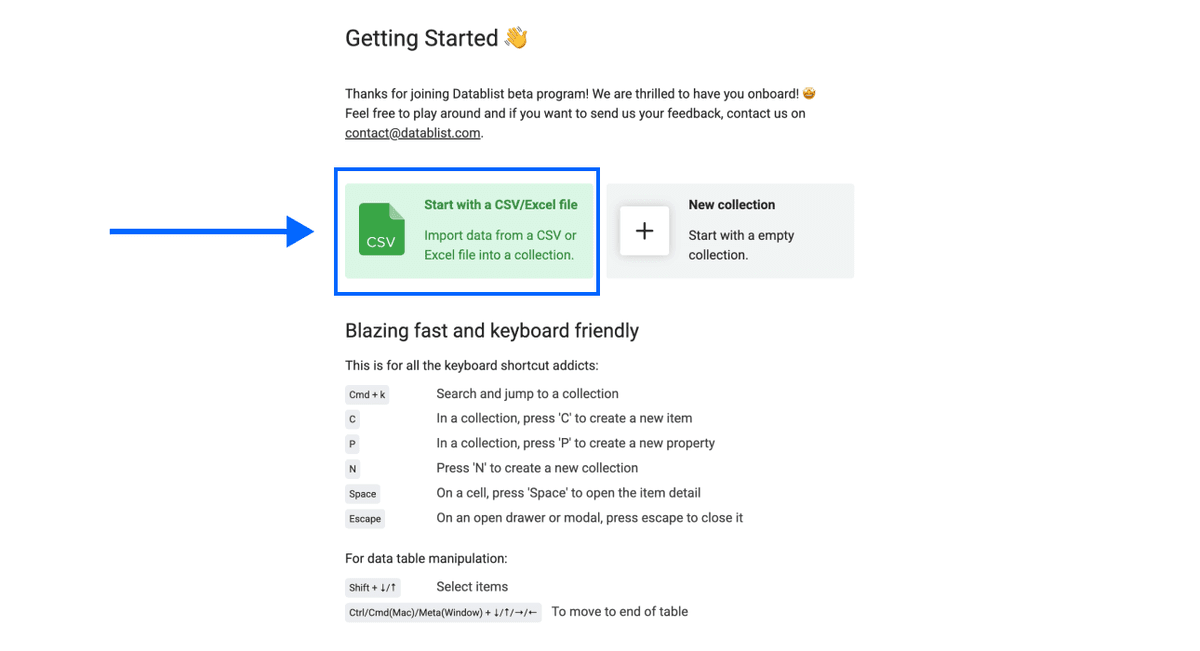
Datablist keeps the file in a spreadsheet-style collection, so you can filter, enrich, clean, and export without moving the data between tools.
Step 2: Open The Waterfall Email Finder
Open the enrichment panel and choose the Waterfall Email Finder.
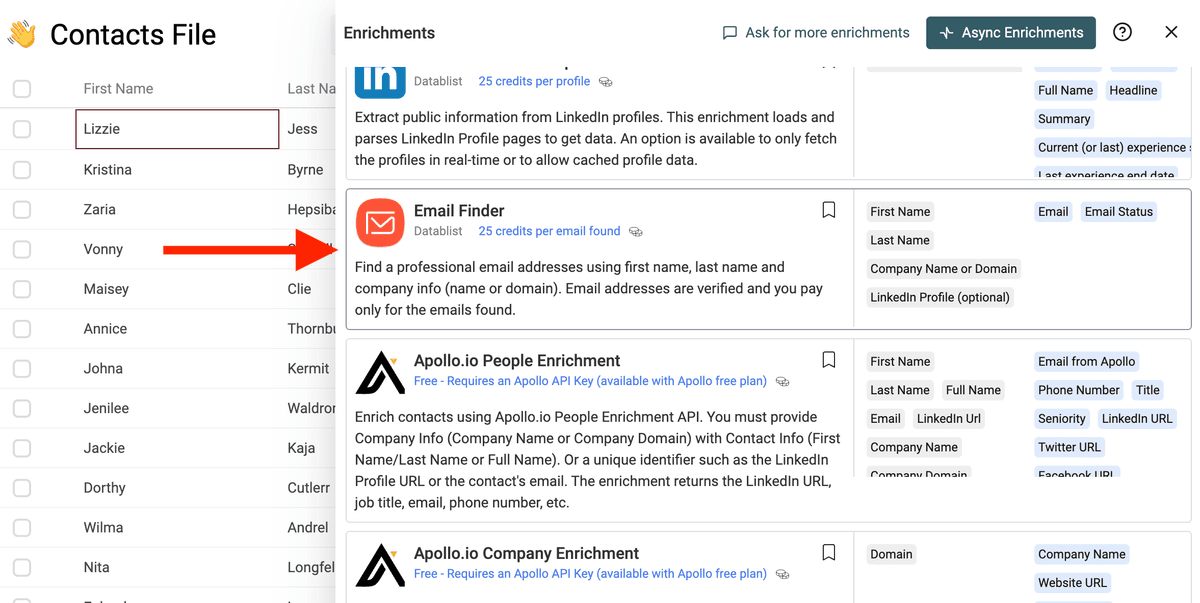
For this workflow, keep Email Search Method set to By Name and Company (default). This is the method where Custom Waterfall is configured. It expects a person name plus company information.
Datablist also has a By LinkedIn URL method for lists built around standard LinkedIn profile URLs. That is useful in another workflow, but I would not use it for this custom provider sequence unless your inputs match that method. Sales Navigator profile URLs are not supported by this enrichment, so do not treat them as a direct replacement for standard LinkedIn profile URLs.
If you are still comparing lookup approaches, this guide on methods to find someone's email address explains when a waterfall makes sense compared with single-provider lookup and manual methods.
Step 3: Enable Custom Waterfall And Add Providers
In the enrichment settings, keep the search method on By Name and Company (default).
Then choose the name format:
- If your file has
First NameandLast Name, leaveUse Full Namedisabled. - If your file has one name column, enable
Use Full Nameand map that column later.
Next, enable Custom Waterfall. Datablist will show the Waterfall Sequence section. Add one row per provider. For each row, select the provider and paste the API key from that provider account.
The sequence is evaluated per row. If provider 1 finds an email, the row stops there. If provider 1 finds nothing, Datablist tries provider 2. If no provider returns an email, the row gets a not_found result.
In custom mode, provider setup issues are surfaced so you can correct them. This is useful because API-key problems, provider-side quota issues, and account access problems should be fixed, not hidden behind a managed fallback.
I would start with a sequence like this:
| Sequence | Provider Choice | Reason |
|---|---|---|
| 1 | Provider already included in your plan | Uses existing external credits first |
| 2 | Provider with good coverage for your market | Improves match rate where the first provider misses |
| 3 | Fallback provider for harder contacts | Keeps higher-cost lookups later in the flow |
I am using generic labels here on purpose. The best order depends on your provider accounts, target market, and email quality requirements.
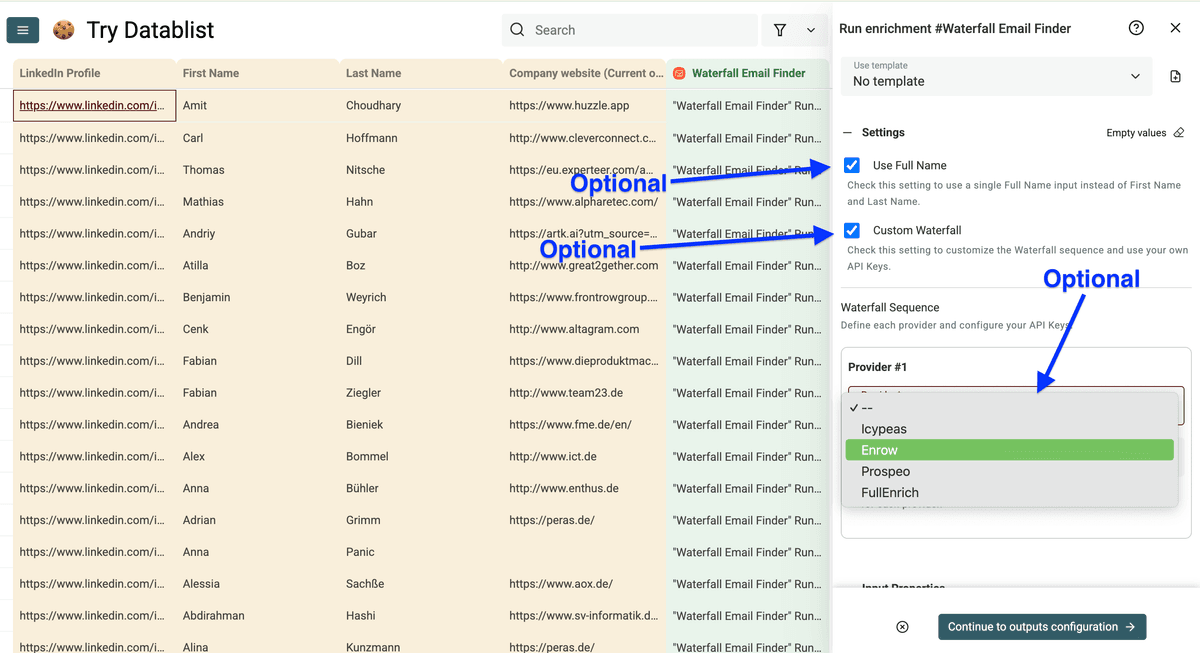
📘 Sequence Example
Start with a short sequence, run a preview, then add providers only when the extra coverage is worth the external cost.
Map Inputs And Output Columns
Step 4: Map Input Columns
Now map your source columns to the enrichment inputs.
For the sample lead export, I would map:
| Datablist Input | Source Column |
|---|---|
| First Name | First Name |
| Last Name | Last Name |
| Company Name or Domain | Company Domain, Company Name, or one consolidated company-input column |
| LinkedIn Profile | LinkedIn Profile URL when present |
If you enabled Use Full Name, map your single name column to Full Name instead of mapping first and last name separately.
The input mapping applies to one source column. If your file stores domains and company names in separate columns, map the column with the best coverage or prepare one company-input column containing the domain when known and the company name otherwise. When you map company names, Datablist attempts an internal domain resolution before the provider sequence. Ambiguous names can still collide with subsidiaries, old names, or similarly named companies.
Do not delete rows with missing data before the run. I prefer to keep them, run the enrichment, and use the result statuses to isolate problems. Rows with missing name or company data can return missing_source_data. Rows with malformed inputs can return invalid_data.
That status is useful. It gives you a cleanup queue instead of forcing you to guess which rows failed.
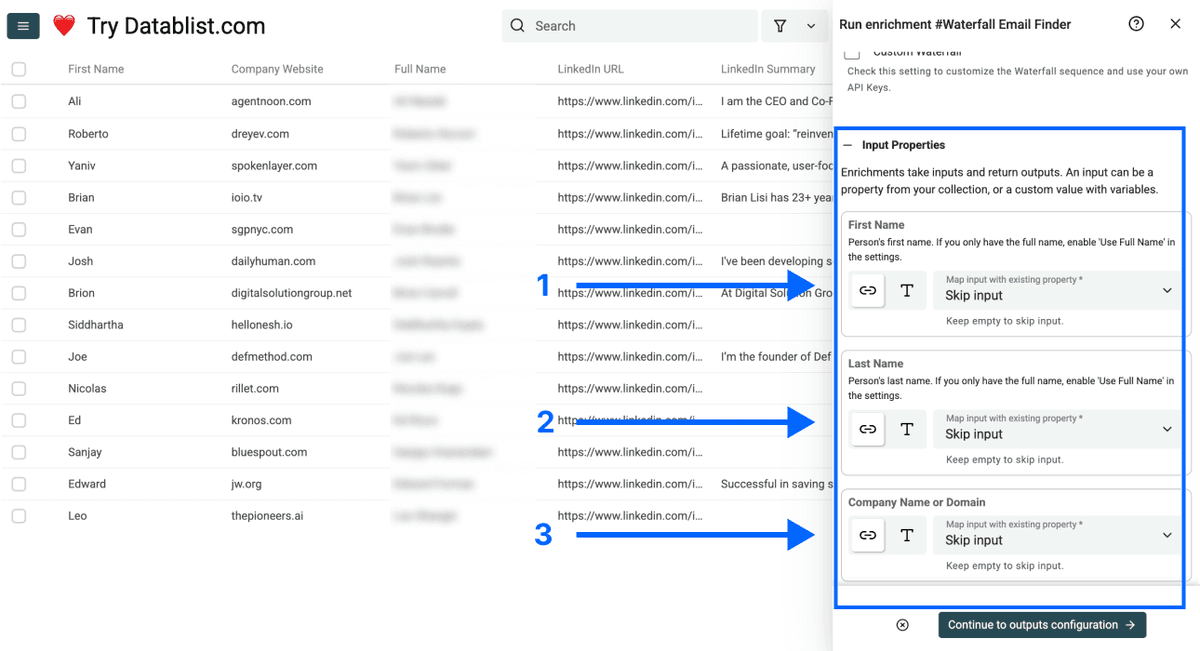
Step 5: Create Output Columns
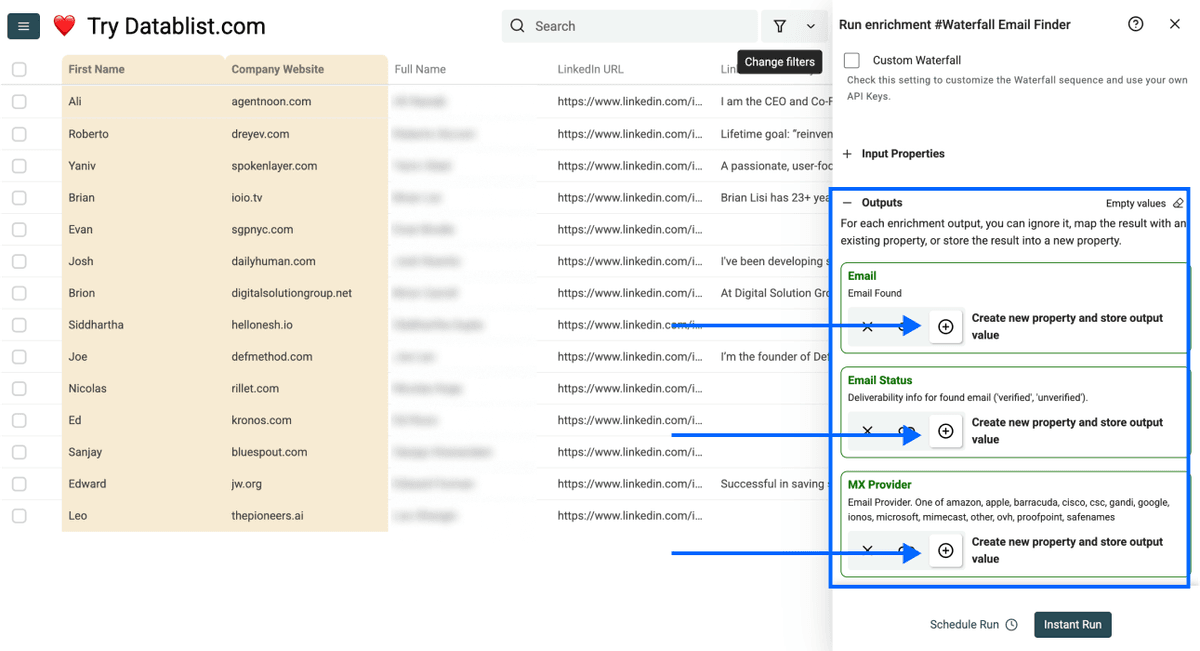
Add the output columns to your collection. Or map them with existing columns if you already have similar columns.
Here are the available outputs:
| Output Column | Data Type | What It Means |
|---|---|---|
| Found Work Email | Email | The returned work email, blank when no result is found |
| Email Status | Text | verified, unverified, not_found, missing_source_data, or invalid_data |
| MX Provider | Text | The mailbox provider behind the email domain |
| Finder Provider | Text | The custom provider that returned the result |
The Finder Provider column is the one I check first after a custom run. It tells you which provider actually produced the result. Without it, you can see the email, but you cannot evaluate your sequence.
MX Provider is different. It describes the mailbox provider behind the email, such as Google, Microsoft, Mimecast, Proofpoint, or another provider.
Run A Preview And Review Results
Step 6: Run A Preview Before Processing The Whole List
Run the enrichment on a small batch before processing the full collection. I still do this even when I trust the provider keys. A preview catches bad mappings and provider setup problems before they affect the full list.
Review the preview for five things:
- API keys are accepted.
Finder Providervalues appear when emails are found.Email Statusvalues look reasonable.- Missing fields return
missing_source_datainstead of confusing blanks. - The first provider is not producing too many low-quality
unverifiedresults.
This is where provider order starts to become concrete. If provider 1 returns many unverified emails and provider 2 returns fewer but cleaner verified emails, you may want to swap them or run a larger test.
🔍 Review Shortcut
Filter preview rows by
Email StatusandFinder Provider. This is the fastest way to see whether your first provider deserves its place in the sequence.
Step 7: Run The Custom Waterfall On All Rows
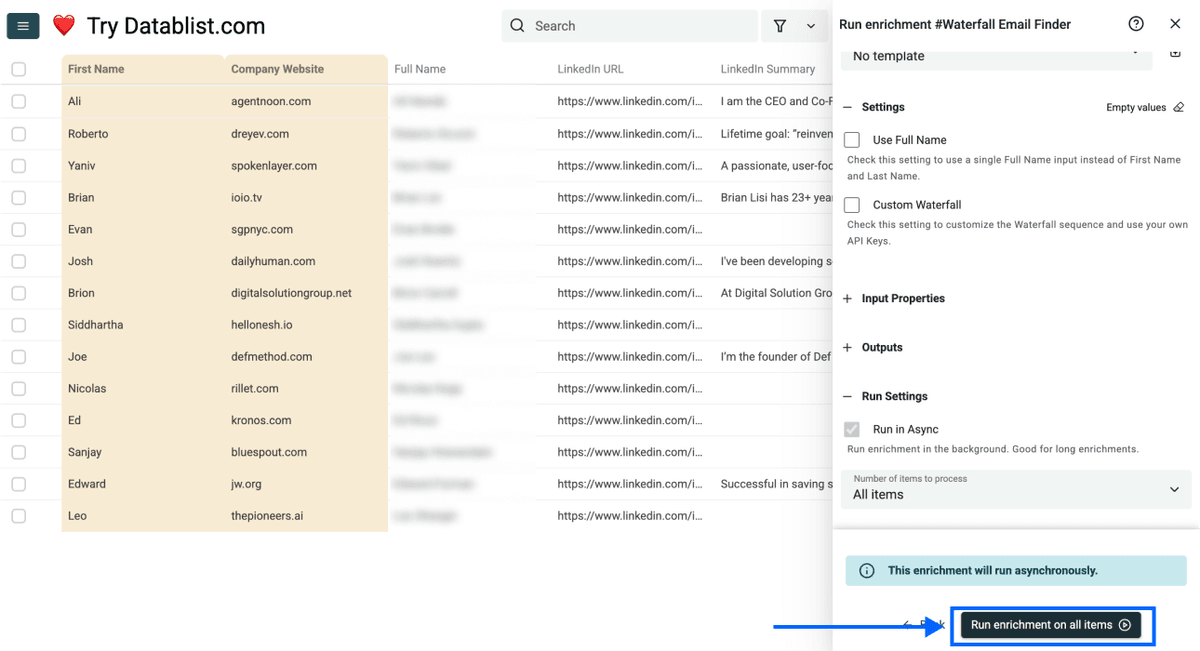
When the preview looks right, select the rows you want to process and run the enrichment on the full list.
For each row, Datablist follows your configured sequence. A successful row gets an email and status. A row where every provider misses gets not_found. A row with missing name or company input gets a missing-data status. A row with malformed inputs can be marked invalid.
Datablist also handles retryable provider rate limits during custom runs. If a provider temporarily slows down or returns a rate-limit response, Datablist can retry instead of immediately marking the row as a provider failure. That matters when you run a large list with your own API keys, because external providers often throttle requests before they fully reject them.
This does not remove your provider limits. You still need valid API keys, active provider accounts, and enough external credits or quota. The benefit is that Datablist handles the orchestration, retryable rate-limit responses, outputs, and review state in the same collection.
Review The Results And Clean Failed Rows
After the run, your collection should contain the original lead fields plus the Email Finder outputs.
Here is an illustrative result table:
| First Name | Last Name | Company Domain | Found Work Email | Email Status | Finder Provider |
|---|---|---|---|---|---|
| Jane | Martin | calendly.com | jane.martin@calendly.com | verified | Enrow |
| Mark | Lewis | algolia.com | mark.lewis@algolia.com | unverified | Findymail |
| Ana | Santos | missing_source_data | |||
| Tom | Weber | qonto.com | not_found |
The names and email addresses in this table are illustrative. Use the pattern to understand the output, not as real contact data.
I usually split the review into four groups:
verified: keep these for outreach, subject to your usual campaign checks.unverified: review before sending, especially if bounce risk matters.missing_source_dataorinvalid_data: fix the source fields, then rerun those rows.not_found: decide whether to try another provider sequence, research manually, or leave the email blank.
The Finder Provider column is also useful for cost analysis. Compare it with your provider accounts. If most found emails come from provider 3, provider 1 may not be adding enough value. If provider 1 finds good emails for most rows, your fallback providers may be doing exactly what you want: catching the harder records.
Do not judge the sequence only by found-email count. Check status quality, bounce risk, and external cost. A provider that returns many unverified emails can look productive in a spreadsheet and still create outreach problems later.
Export Or Continue Enriching The List
Once the results look clean, export the enriched list to CSV or Excel.
You can also keep working in Datablist before export:
- Filter to verified leads.
- Deduplicate contacts.
- Enrich companies with more firmographic fields.
- Segment by
Market,Lead Source, orJob Title. - Prepare a CRM import file.
This is why I like keeping the workflow in a collection. Email finding is often one step in a longer lead-preparation process. You may still need to clean domains, remove duplicates, normalize job titles, or enrich companies before sending the list to a CRM or outreach tool.
For adjacent workflows, see these bulk enrichment methods.
When To Use Custom Waterfall Instead Of The Default Waterfall
Use Custom Waterfall when you want control.
It fits best when:
- You already pay for one or more email finder tools.
- You have unused external provider credits.
- You want to test provider order by market or lead source.
- Your ICP performs better with a specific provider.
- Cost per found email matters more than a managed setup.
- You want Datablist to manage provider sequencing and retryable rate-limit responses while you keep control of the API keys.
Use the default Datablist waterfall when you want less setup. If you do not want to manage provider accounts, API keys, external quotas, and provider billing, the managed option is simpler. Datablist controls the sequence and charges 25 Datablist credits per found work email.
Neither option is universally better. I would use the default mode for speed and the custom mode for cost experiments, existing provider subscriptions, or more control over the sequence.
Common Variations
Full-Name Lead Exports
Some exports have one Full Name column instead of separate first and last name columns. In that case, enable Use Full Name in the Email Finder settings and map the full-name column.
I still prefer separate name fields when I can get them, but I would not block the workflow because the file has one name column.
Domain-First Lists
If your list has domains, use them. Map Company Domain to Company Name or Domain and keep Company Name as context.
This is the cleanest setup for most B2B lead lists because domains reduce ambiguity.
Company-Name-Only Lists
If your list has person names and company names but no domains, map Company Name to Company Name or Domain. Datablist checks its company datasets, validates candidate websites, and passes an accepted domain to the custom waterfall. If the resolver cannot select a safe domain, compatible providers can still receive the original company name.
You do not need to run Company Name to Domain first unless you also want the resolved domain as an output column.
LinkedIn-Heavy Lists
If your file includes standard LinkedIn profile URLs, map them as optional context in this workflow.
If LinkedIn profile URLs are the only reliable input you have, consider the separate By LinkedIn URL method in the Email Finder. The custom provider sequence covered in this article is configured with the By Name and Company method.
Agency Workflow
For agency work, I would keep client lists separated by collection or source fields. Test the provider sequence on each market before applying it broadly.
A sequence that works for US SaaS founders may not perform the same way for French retail companies or German industrial accounts.
Troubleshooting
missing_source_data
Check whether the row has a usable name and company input. For the default method, Datablist needs first and last name, unless Use Full Name is enabled, plus a company name or domain.
invalid_data
Look for malformed domains, websites, names, or LinkedIn URLs. This often comes from messy exports where a website column contains notes, tracking URLs, or empty placeholders.
not_found
No provider in the sequence returned an email for the row. You can correct the input, test another sequence, or leave the email blank. Do not assume every contact has a discoverable work email.
Provider Or API-Key Errors
Datablist retries retryable rate-limit responses during custom runs, but persistent provider errors still need attention. Check the provider key, account status, API access, daily quota, and billing state in the external provider account.
Too Many unverified Results
Review provider order. If the first provider returns many unverified emails, try moving it later or testing a different first provider. I would rather have fewer useful emails than a larger list with poor deliverability risk.
Conclusion
A custom waterfall email finder is useful when you want Datablist to orchestrate provider sequencing, retryable rate-limit handling, and result review while you keep control of your API keys.
The practical workflow is simple: import your lead list, enable Custom Waterfall, add provider/API-key rows, map your inputs and outputs, run a preview, process the list, review statuses, then export or keep enriching the data.
Start small. Use two or three providers, test a small batch, and compare Email Status with Finder Provider before spending external provider credits on the full list.
FAQ
What Is A Custom Waterfall Email Finder?
A custom waterfall email finder is a multi-provider email lookup where you choose the provider sequence and authenticate each provider with your own API key. Each row is checked against the providers in order until an email is found or the sequence is exhausted.
Can I Use My Own Email Finder API Keys In Datablist?
Yes. In Datablist's Waterfall Email Finder, enable Custom Waterfall while using the By Name and Company method. Then add provider rows and paste the API key for each provider.
Does Datablist Charge Credits When I Use Custom Waterfall?
Datablist treats valid custom API-key runs as free Datablist-credit runs. Your external email finder providers may still charge through their own accounts, plans, API pricing, or credit systems.
Does Datablist Retry Rate Limits In Custom Waterfall Runs?
Yes. Datablist handles retryable rate-limit responses during custom waterfall runs, so a temporary provider throttle does not have to become an immediate row failure. You still need valid provider accounts, working API keys, and enough quota in each external tool.
Which Providers Can I Use In A Custom Waterfall?
The supported custom providers are Icypeas, Enrow, Prospeo, Wiza, Findymail, LeadMagic, TryKitt, Enrich.so, and FullEnrich.
What Inputs Do I Need?
For the By Name and Company method, use first name and last name, or one full-name column when Use Full Name is enabled. You also need one company name or domain field. A domain is the cleaner input, but Datablist can resolve a likely domain internally when you provide a company name. A standard LinkedIn profile URL can be mapped when available.
Can I Use Only LinkedIn Profile URLs?
Datablist has a separate By LinkedIn URL method for standard LinkedIn profile URLs. The Custom Waterfall sequence covered in this guide is configured with the By Name and Company method.
What Does The Provider Output Mean?
The Provider output shows which custom provider returned the email result. I usually rename this output column to Finder Provider so it is easier to read in the final lead list.
Should I Put The Cheapest Provider First?
Often, but not always. Compare external cost, coverage, quality, and the provider's billing rules. A cheaper provider is useful only if it returns emails you can trust.