
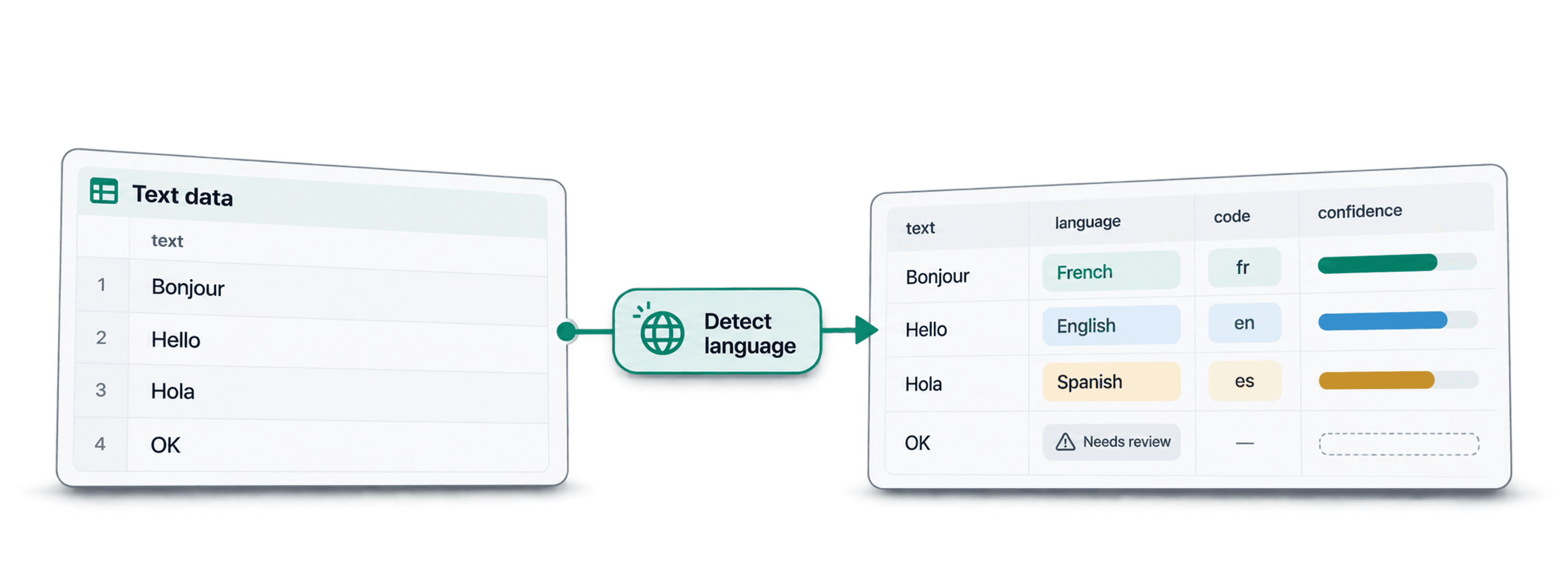
If you need to detect the language of each row in a dataset, the cleanest workflow is to add language columns directly to the file you already use. Import the CSV or Excel file into Datablist, run language detection on the text column, review the confidence values, then export the enriched dataset or continue with translation, routing, or segmentation.
I prefer this over copying rows into a chatbot because the result stays row-based. You get a language name, an ISO language code, and a confidence value on every row. That makes the next step much easier: filter French rows, send Spanish rows to translation, review low-confidence rows, or remove rows with no usable text.
In this guide, I will use a multilingual profile dataset, but the same workflow works for support tickets, survey answers, reviews, product descriptions, scraped pages, and CRM notes.
🔑 Use the dedicated detector first
If the only job is language detection, start with the language detection enrichment. Use ChatGPT only when you need custom rules or a combined decision.
Quick links
- Direct answer
- Example dataset
- Step 1: import the CSV or Excel file
- Step 2: select the language detection enrichment
- Step 3: configure inputs and outputs
- Step 4: review the detected languages
- Step 5: filter, export, or continue with translation
- Cost: fixed credits per row
- Alternative: use ChatGPT for custom rules
Direct answer
To detect the language of each row in a dataset, import your CSV or Excel file into Datablist, open the Enrich menu, and select the Detect Language from a Text enrichment. In the Inputs step, choose the text column you want to analyze. Datablist writes the detected language name, language code, and confidence level into new columns, with a fixed price of 0.05 credits per row.
The important part is the review step. Language detection is a classification task, and confidence tells you which rows can move forward and which rows deserve a second look. High-confidence rows can usually go into your next workflow. Low-confidence, invalid, or no-result rows should be filtered before export.
This is the workflow I use when the output needs to stay attached to the original rows. A spreadsheet formula might help for simple cases, but it usually breaks down on mixed-language text, short snippets, empty cells, and messy exports. A chatbot can answer a few examples, but it does not give you a clean dataset with one result per row.
Example dataset
For the demo, I use a social-profile CSV. It has five columns:
| Profile ID | Full Name | Headline | Bio | Company |
|---|---|---|---|---|
C8C1DXQBNP | Maya Collins | Founder building analytics tools for customer teams | I help sales teams clean messy lead lists... | Northstar Labs |
61M25JUEHM | Lucas Bernard | Responsable support client pour une marketplace | Je construis des workflows simples... | Market Loop |
Y45G9QU71C | Sofia Romero | Especialista en CRM y automatizacion comercial | Consultora de operaciones enfocada... | Talent Desk |
RL20HHREOT | Felix Wagner | Tech Recruiter fuer Produktteams | Ich helfe Teams dabei... | Cleanbase |
TT384W44MW | Aoi Nakamura | 営業チーム向けCRMコンサルタント | 多言語の問い合わせを分類... | Northstar Labs |
The file intentionally does not include a language column. I want Datablist to add that information, not confirm a label I already provided.
The dataset also includes messy rows: empty bios, short headlines, company names, handles, URLs, numbers, and mixed-language snippets. I like using this type of file because it shows what happens outside the perfect demo rows. Real exports always contain a few rows that need review.
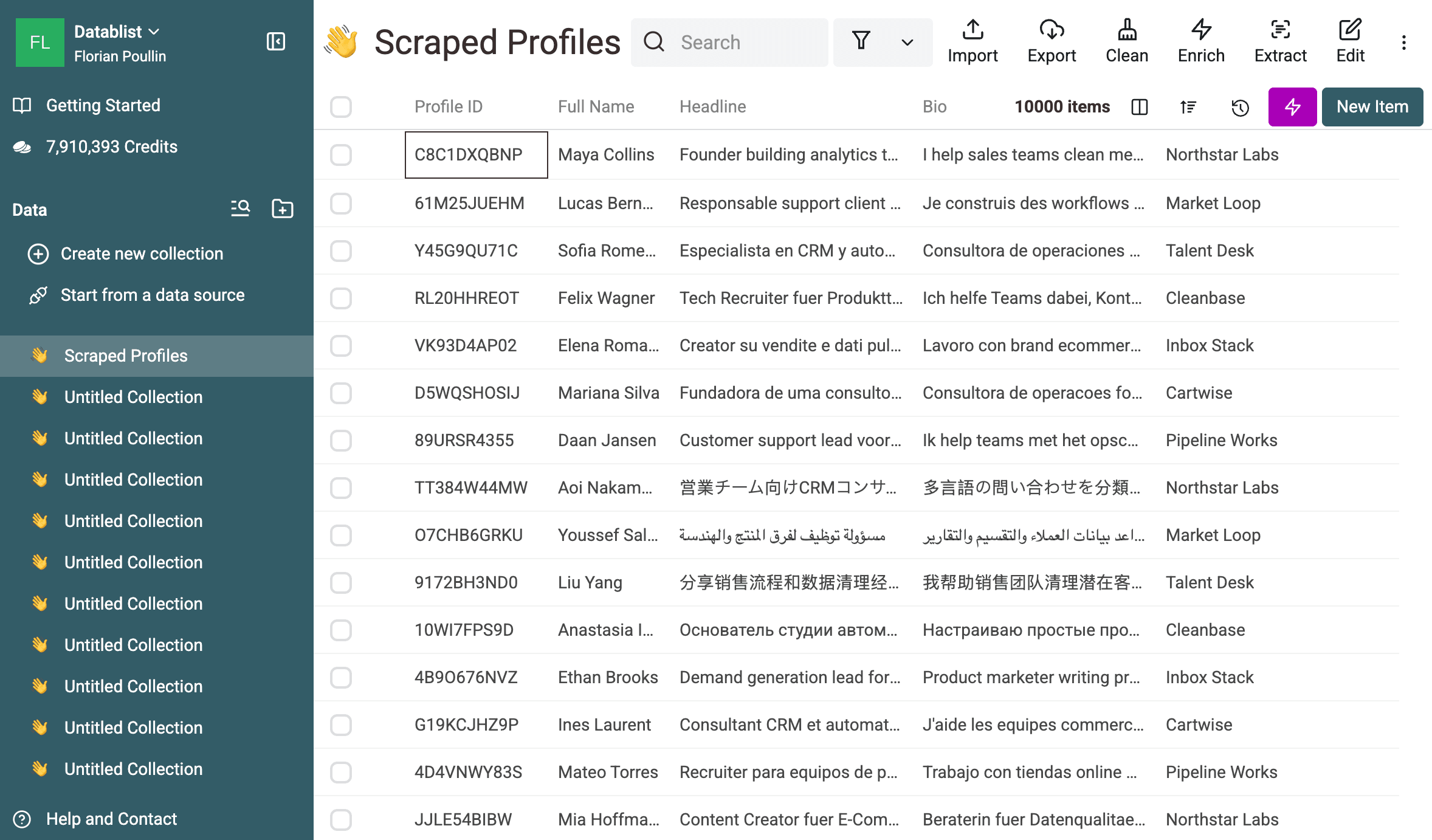
For this example, I use both Headline and Bio as the language signal. If your dataset has long support tickets or product descriptions in one column, one input column is enough. If each row has short fields, combining two text columns usually gives the detector more context.
Step 1: import the CSV or Excel file
Start with a CSV or Excel file that has one row per record and at least one text column. Open Datablist, create a collection, and import the file. You can use Datablist's CSV editor for this workflow.
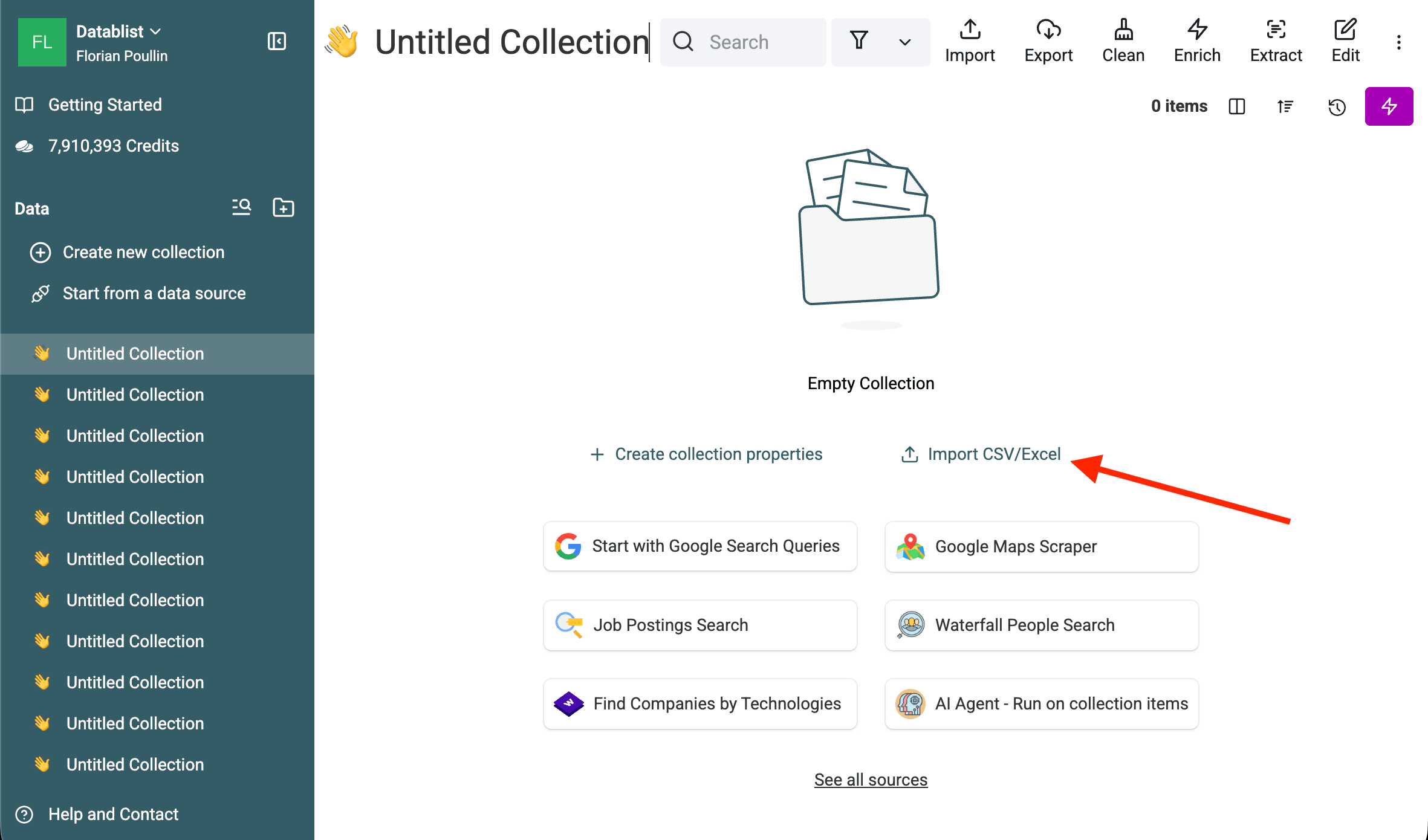
On the import review screen, check the column names and make sure the useful text fields are imported as text fields. In my example, I care about Headline and Bio. I do not use Full Name, Company, or Profile ID for detection because they are weak language signals.
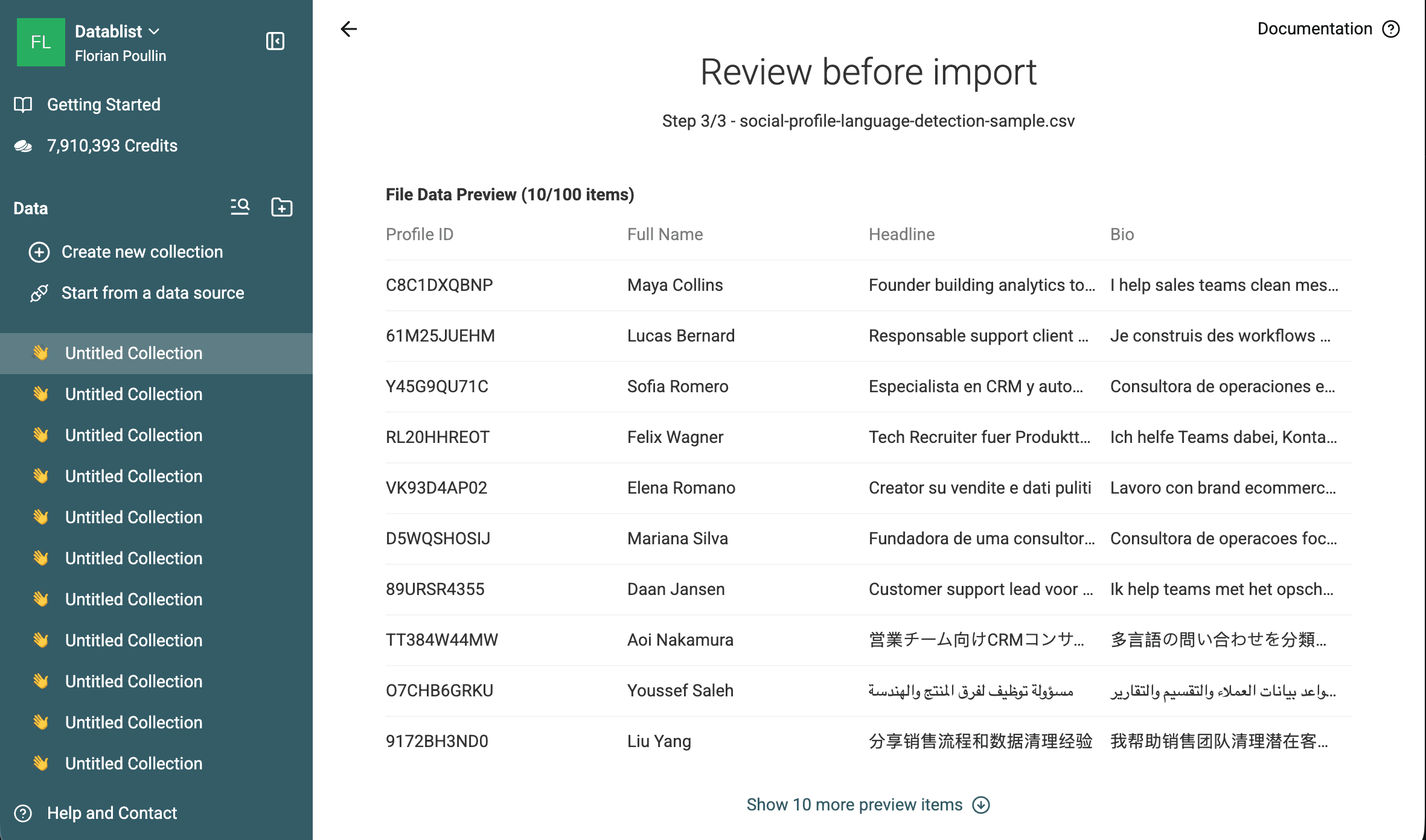
Keep the original text columns unchanged. I usually add new output columns instead of overwriting source data because it makes review easier. If a result looks strange, you can compare it with the original text immediately.
💡 Keep a stable ID column
If this file needs to go back into another system later, keep an ID column such as
Profile ID, ticket ID, product SKU, or CRM record ID. It makes export and matching safer.
Step 2: select the language detection enrichment
Once the dataset is imported, open the Enrich menu and search for language detection. Select the Detect Language from a Text enrichment.
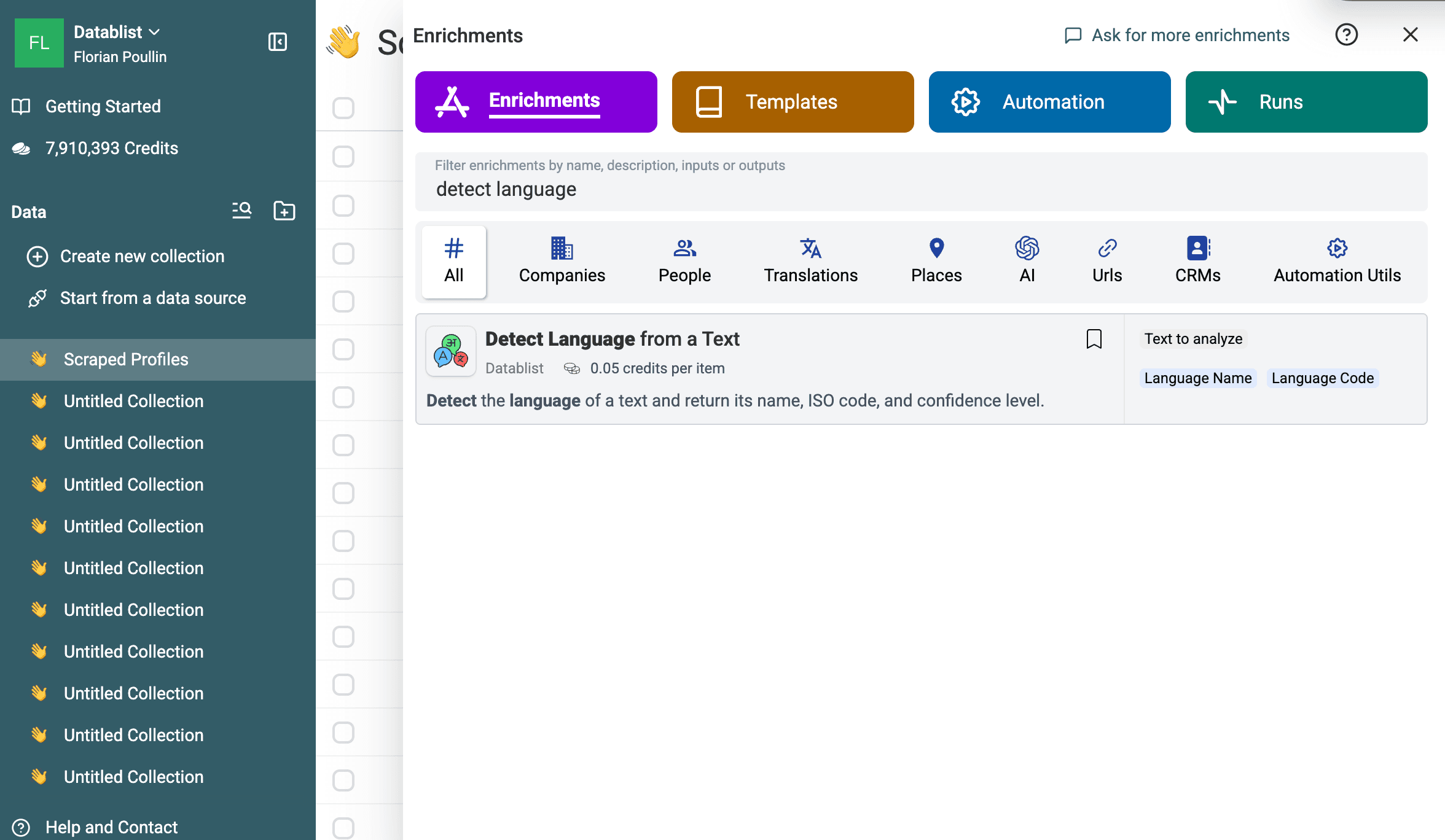
This enrichment runs row by row. For each item, it reads the input text and returns:
Language Name, such as English, French, Spanish, or German.Language Code, such asen,fr,es, orde.Language Confidence, such as High, Medium, Low, or Very Low.
This is the result shape I want for spreadsheet work. The language name is easy to read. The code is useful for automation and translation tools. The confidence tells me where to review.
Avoid using weak fields such as names, IDs, usernames, URLs, numeric codes, or company names as the only input. They often do not contain enough language signal. If the dataset has short text, select a second text field before you run the enrichment.
Step 3: configure inputs and outputs
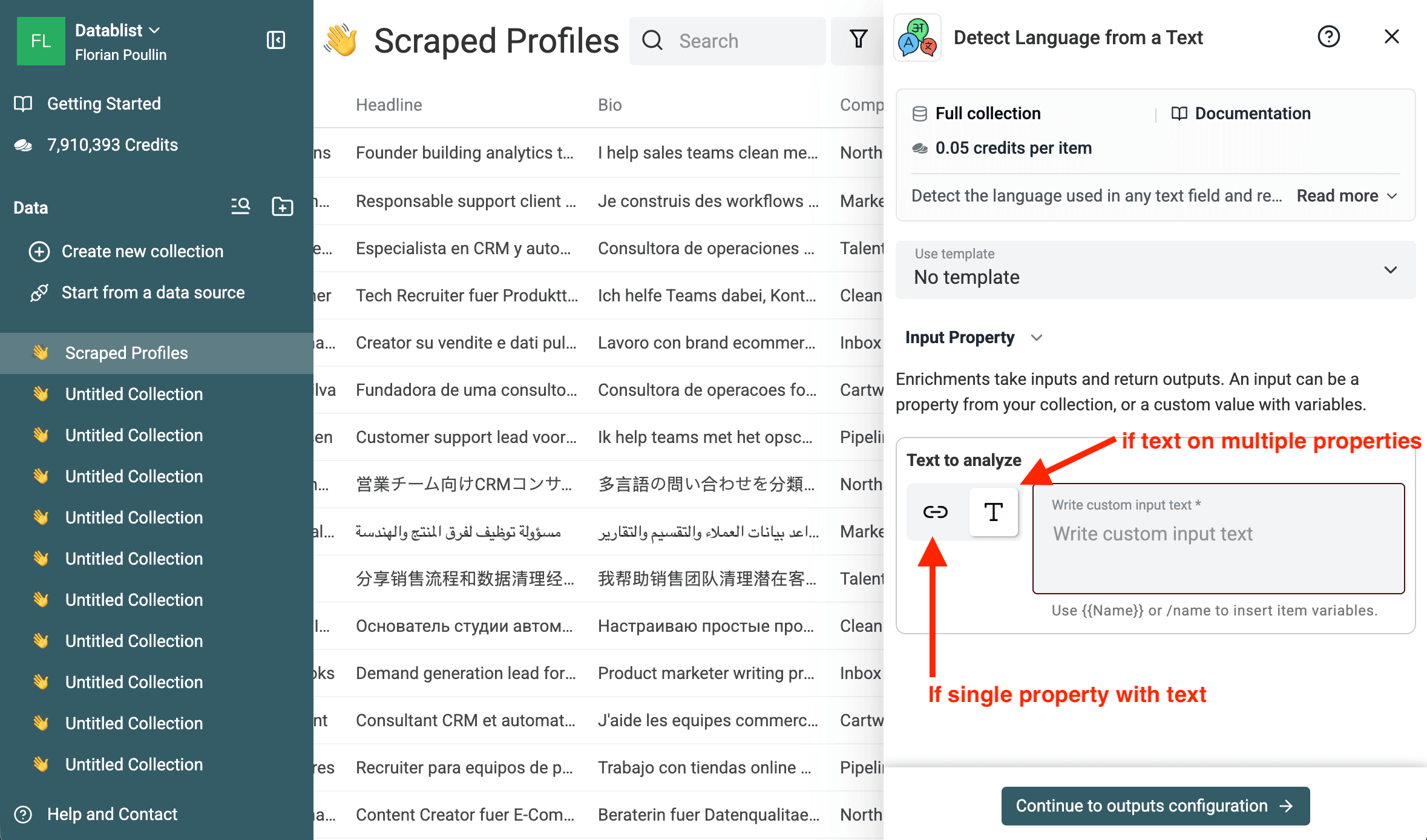
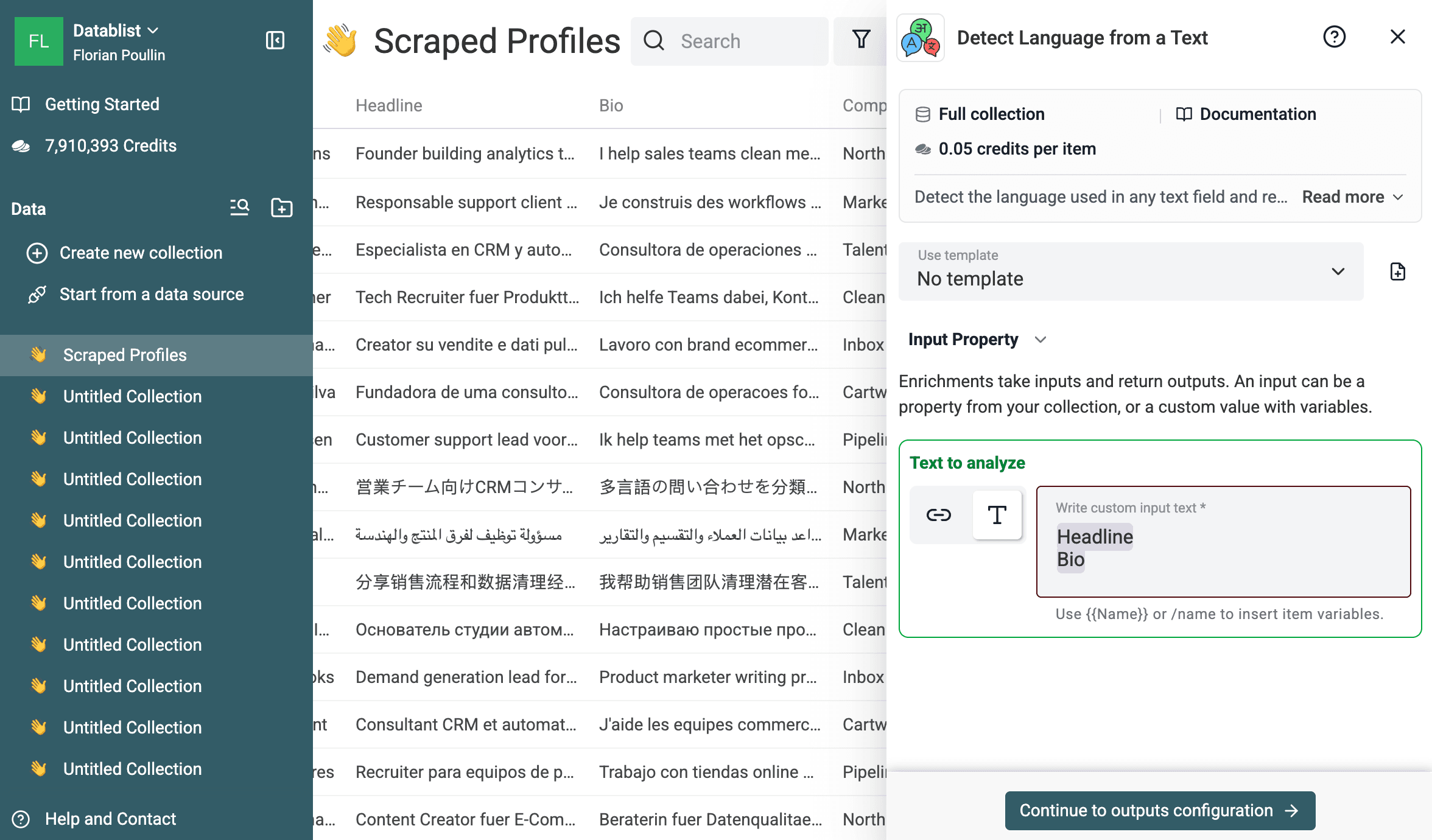
In the Inputs step, choose the text that Datablist should analyze. You can select one property, or build a custom input from several properties.
For the profile dataset, I use a custom input with Headline and Bio. This matters because some rows have a short bio, some rows have a useful headline, and a few rows are messy. Combining both fields gives the detector more context without adding a new manual column.
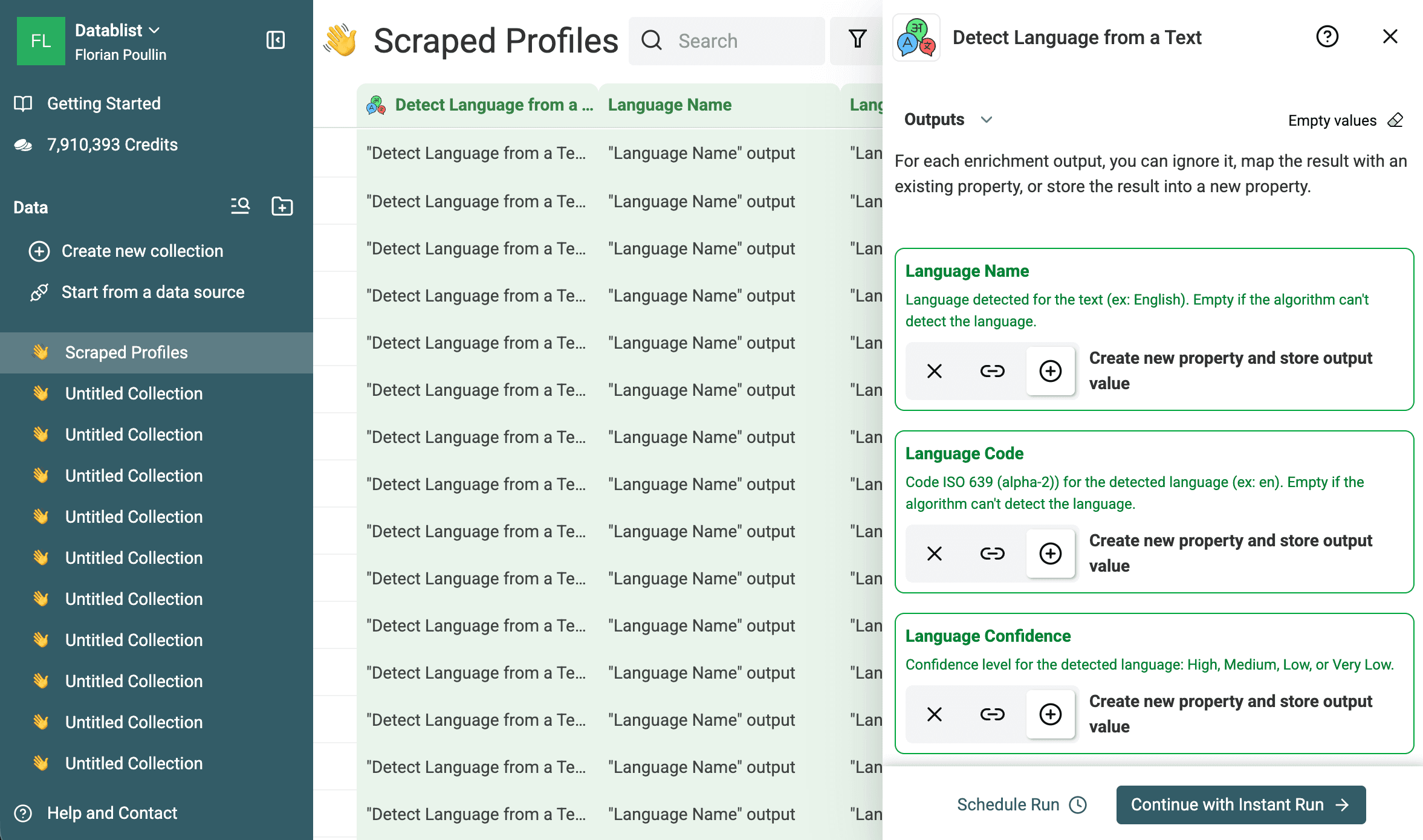
Then configure the output columns. I normally create new columns for:
Language NameLanguage CodeLanguage Confidence
A run status column helps you isolate rows that failed, had invalid input, or returned no result.
Before running the full file, run the enrichment on the first 10 rows. I still do this on simple workflows because it catches wrong input mapping quickly. If you accidentally choose Company instead of Bio, you will see poor results before spending credits on the full dataset.
⚠️ Short text is harder
One-word snippets, brand names, handles, numbers, and URLs may not contain enough language signal. Treat low-confidence or no-result rows as a review queue, not as failures.
After the first run looks good, process the remaining rows.
Step 4: review the detected languages
The first preview run should show the new language columns next to your original data. In the example below, Datablist detected English, French, Spanish, German, Italian, Portuguese, Dutch, Japanese, Arabic, and Chinese in the first rows.
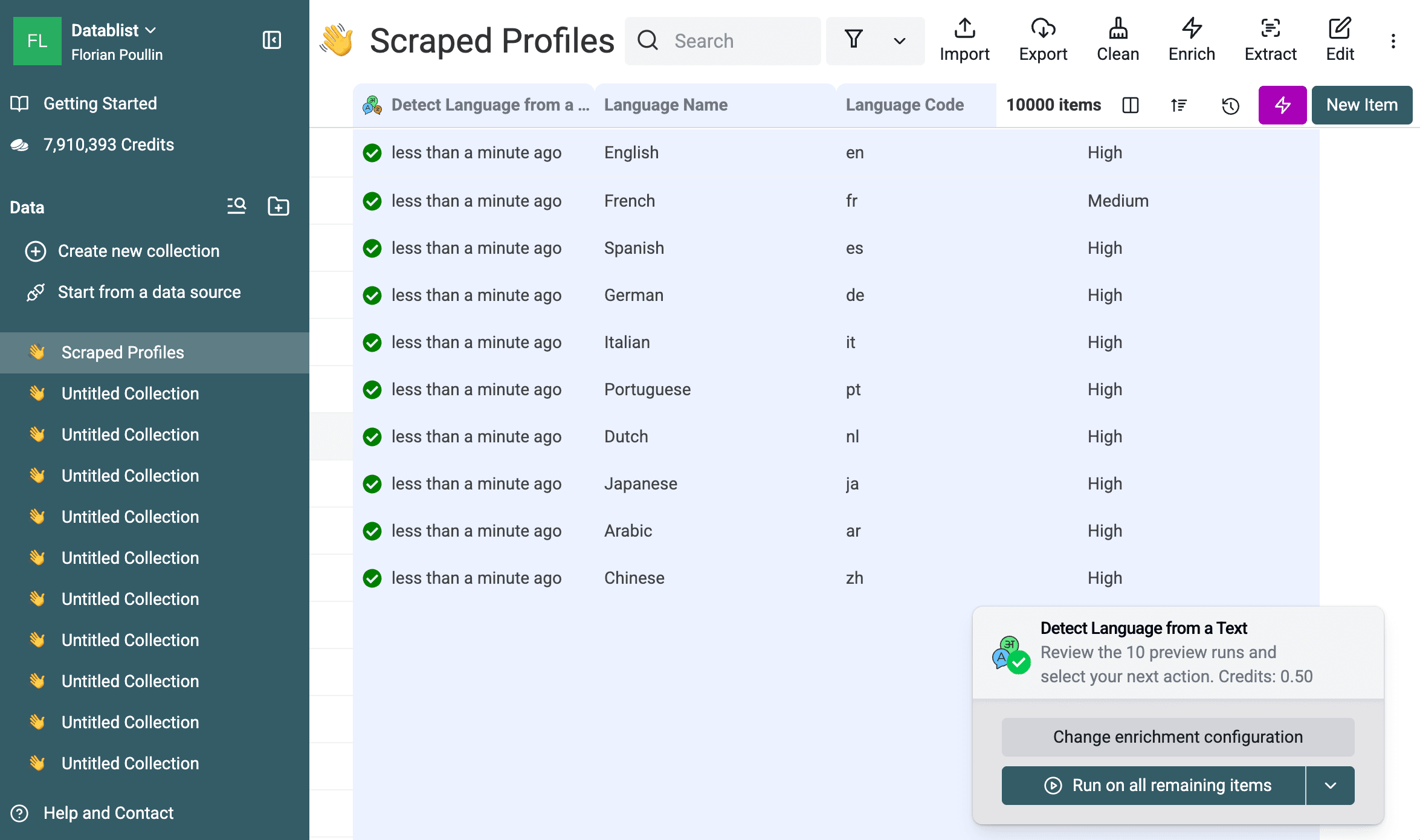
Here is the kind of result table you should expect:
| Profile ID | Text pattern | Language Name | Language Code | Confidence | Needs Review |
|---|---|---|---|---|---|
C8C1DXQBNP | English bio | English | en | High | No |
61M25JUEHM | French bio | French | fr | Medium | Maybe |
Y45G9QU71C | Spanish bio | Spanish | es | High | No |
RL20HHREOT | German bio | German | de | High | No |
| empty row | Blank bio and weak headline | No result or invalid | blank | blank | Yes |
| handle-only row | @marketloop | No result or low confidence | blank | Low | Yes |
I do not treat confidence as a final business decision. I treat it as a routing signal. High and Medium are usually fine when the next step is translation prep or broad segmentation. Low, Very Low, invalid, and no-result rows should be reviewed before you send emails, assign support tickets, or update a CRM.
📘 Confidence is a review shortcut
Confidence does not replace judgment. It tells you where to spend attention first.
If accuracy matters, create a simple Needs Review column after the run. Mark it Yes when confidence is Low or Very Low, when the input is invalid, or when Datablist returns no result. This turns the messy part of the dataset into a small work queue.
Language detection is a good example of AI classification: each row gets assigned to a class, and confidence helps you decide what can move forward.
Step 5: filter, export, or continue with translation
Once the language columns are filled, filter the dataset before you export or run the next workflow.
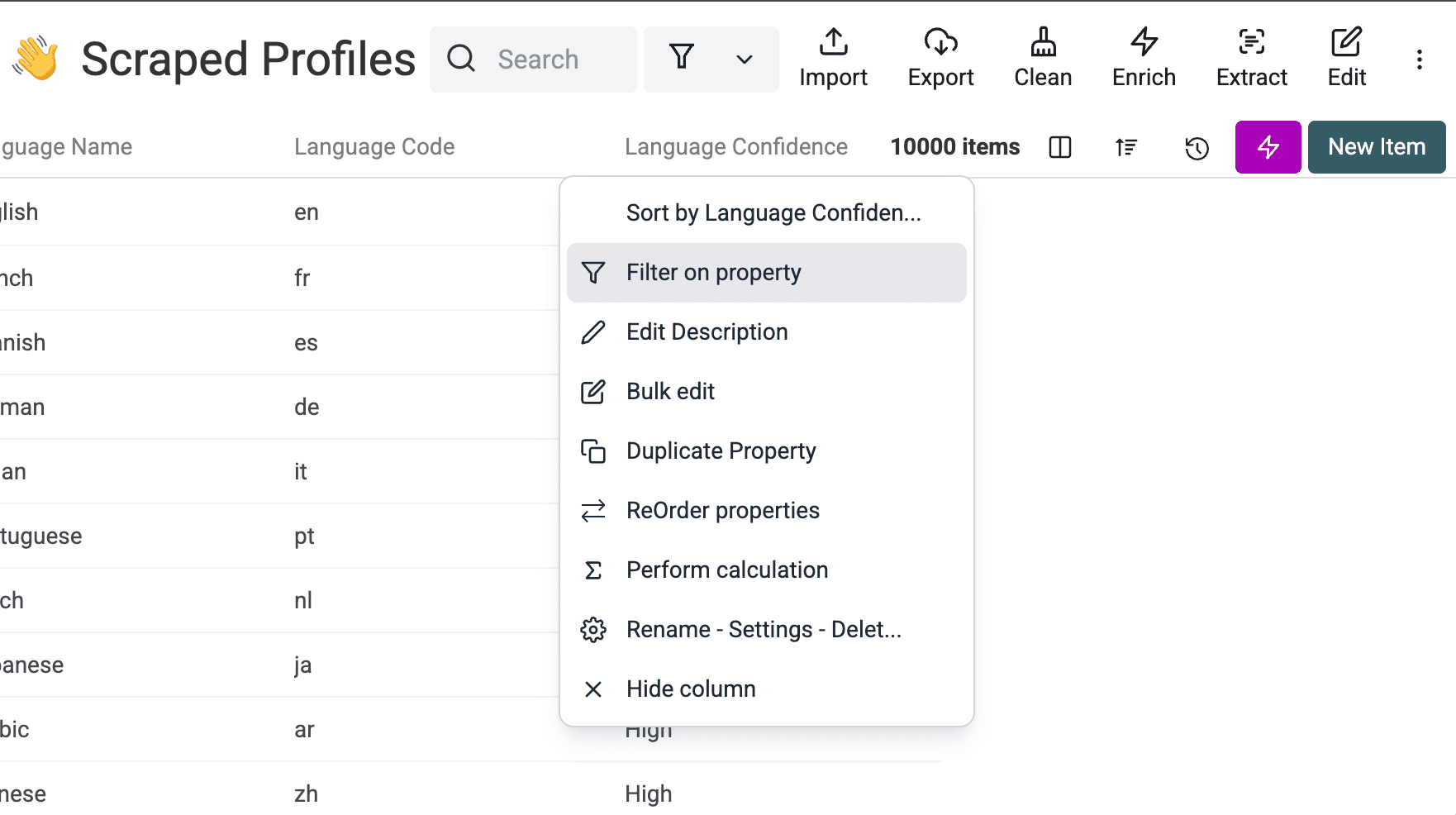
Start with confidence. Open the Language Confidence column menu and filter low-confidence rows. Review those rows first because they are the most likely to contain empty text, short snippets, mixed-language content, or non-language values.
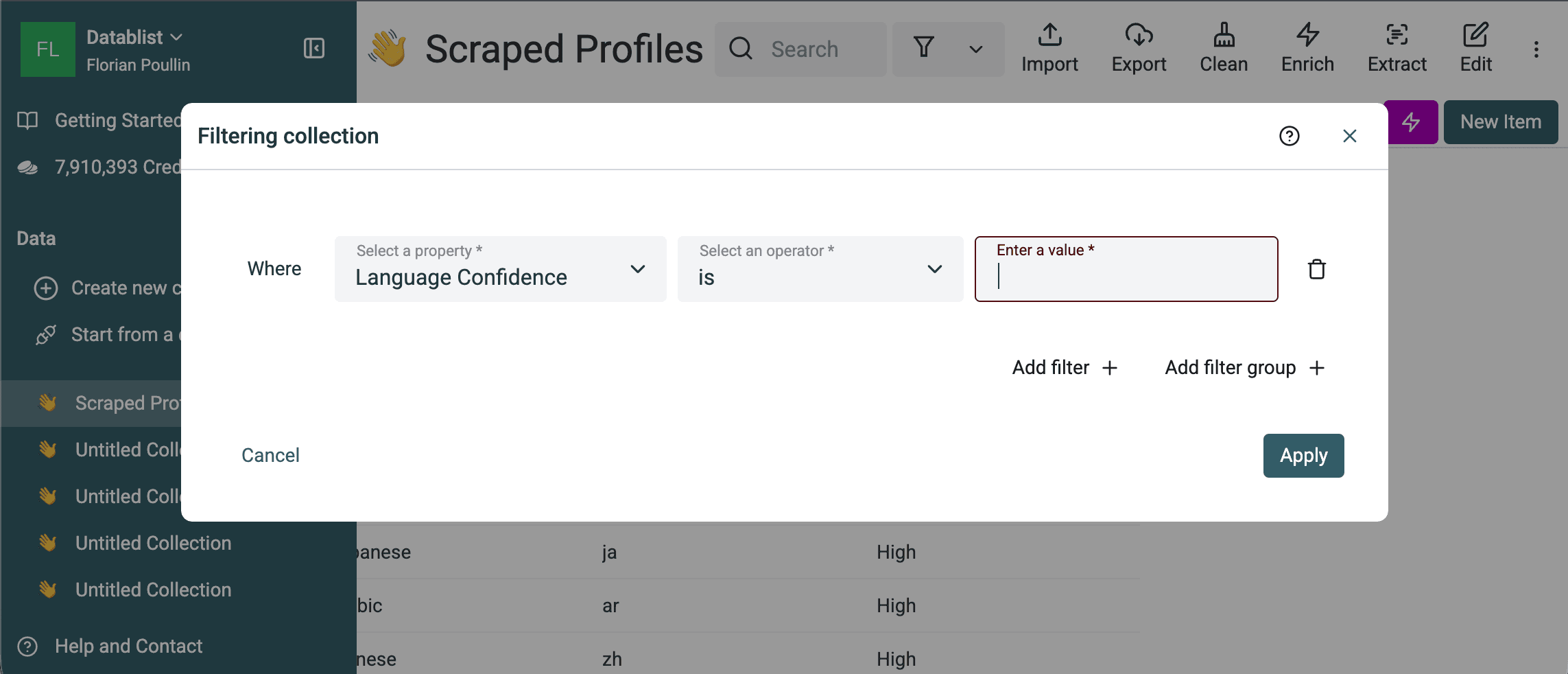
Then filter by Language Code when you need language-specific segments. For example:
- Send
fr,es,de, anditrows to translation. - Route
jaandzhsupport tickets to the right team. - Keep only English rows for one campaign.
- Remove invalid rows before importing the file into a CRM.
If your next step is translation, use the language code to prepare the file before you translate CSV files online. I usually prefer detecting the source language first when a file is mixed. It prevents you from translating rows that are already in the target language, and it makes review more predictable.
When the dataset looks clean, export it to CSV or Excel. Keep the original text, language name, language code, confidence, and review fields. Those columns explain what happened later if someone asks why a row went to translation, routing, or manual review.
Cost: fixed credits per row
The Detect Language from a Text enrichment costs 0.05 credits per row. The price is fixed by row count. It does not change because one row has a short headline and another row has a long support ticket, product description, review, or scraped page excerpt.
Using the Datablist credit top-up starting point of 20,000 credits for $20, 1 credit equals $0.001. That gives these rough costs:
| Rows | Credits used | Approximate cost |
|---|---|---|
| 1,000 | 50 credits | $0.05 |
| 10,000 | 500 credits | $0.50 |
| 100,000 | 5,000 credits | $5.00 |
This is one reason I use the dedicated enrichment before trying ChatGPT. ChatGPT/OpenAI pricing depends on input and output tokens. A short bio is cheap to process with an LLM, but long tickets, product descriptions, reviews, and page text cost more because they contain more tokens. With the language detection enrichment, the same row costs 0.05 credits no matter how much text you send.
New users can also test this workflow with 500 free credits when they sign up with a business domain email address. At 0.05 credits per row, those 500 credits cover 10,000 language detections.
Alternative: use ChatGPT for custom rules
Plain language detection usually does not need an LLM. The dedicated enrichment is the better first choice because the output is fixed: language name, code, and confidence. It also has a predictable per-row cost, while ChatGPT/OpenAI costs depend on token volume.
Use ChatGPT or OpenAI when the language result depends on business logic. For example, you may want to:
- Label mixed-language rows as
Mixedinstead of choosing a main language. - Combine language detection with a customer intent classification.
- Add a
Needs Reviewfield based on your own thresholds. - Return a short audit reason for ambiguous rows.
- Treat regional variants or product names in a specific way.
Datablist can run ChatGPT prompts on CSV or Excel rows with the Ask ChatGPT/OpenAI enrichment. Use prompt variables to insert row values into the prompt.
Here is a simple prompt for the same profile dataset:
Detect the main language of this text.

Text:
{{Bio}}

If the text is empty, mostly numbers, a URL, or too short to decide, return "No result" and mark Needs review as Yes.
Use defined outputs:
| Output name | Type | Instructions |
|---|---|---|
Language name | Text | Main language of the bio or headline. Return No result when there is not enough language signal. |
ISO 639-1 code | Text | Two-letter code such as en, fr, es, or de. Leave blank when there is no result. |
Confidence | Select or text | High, Medium, or Low. |
Needs review | Select or text | Yes for empty, ambiguous, mixed-language, or low-confidence text. Otherwise No. |
Reason | Text | Optional short note for audit workflows. Skip it when you only need labels. |
🔍 Use ChatGPT for rules, not routine detection
If the output needs judgment beyond "what language is this?", ChatGPT is useful. If you only need language codes, keep the dedicated enrichment.
The most common mistake is asking ChatGPT to return a paragraph. That creates cleanup work. Store each output in its own column so you can filter, sort, export, and reuse the data.
Quality control checklist
Before using the enriched file, I usually check these rows:
- 20 to 50 random rows across several detected languages.
- Rows with Low or Very Low confidence.
- Rows with invalid input or no result.
- Short bios, handles, URLs, numbers, and company-only text.
- Mixed-language rows where "main language" may be subjective.
- ISO codes expected by the next tool.
The right threshold depends on the workflow. Translation prep can tolerate a small manual review queue. Customer support routing needs more care because the wrong language can send a ticket to the wrong person. Outreach segmentation also needs review because sending a message in the wrong language looks careless.
For most files, the fastest path is simple: trust High, inspect Medium when the text is short, and review Low, Very Low, invalid, and no-result rows.
Use cases and variations
Support teams can detect ticket language before routing. This is useful when one inbox receives messages from several countries and the team needs a fast first pass.
Survey teams can detect the language of open-text answers before analysis. I would do this before translation because it keeps the source data organized.
Sales and recruiting teams can segment profile bios before outreach. A language code column makes it easier to assign owners or prepare localized messaging.
Ecommerce teams can detect product-description language before localization. If a catalog has mixed supplier content, language detection helps separate what needs translation from what is already ready.
Scraping workflows benefit from the same pattern. When you extract pages from several markets, detect the page language before you decide what to keep, translate, or discard.
If your Bio column is empty on many rows, run the enrichment on Headline, or combine both fields in the input. I usually combine fields when each one is short. I use one field when it already contains full sentences.
Troubleshooting
If the text is empty, expect invalid data or no result. Filter those rows and decide whether to remove them or fill another text field.
If the row contains only a URL, handle, number, ID, or brand name, do not trust the result automatically. Those values do not give the detector much language signal.
If the row is mixed-language, treat the result as the main language and review the confidence. For strict workflows, create a separate Mixed label with ChatGPT or manual review.
If an uncommon language appears in your file, review a sample before relying on the output at scale. The enrichment supports many common languages, but the safest habit is still to inspect edge cases before export.
If the file is large, run the first 10 rows, then a larger sample if needed. Once the input mapping and output columns look right, run the full dataset.
Conclusion
The practical way to detect languages in a spreadsheet is to keep the workflow row-based. Import the CSV or Excel file, select Detect Language from a Text, choose the text column or columns, create language name, code, and confidence outputs, then review low-confidence rows before export.
Use the dedicated enrichment for normal language detection. It gives you the columns you need without writing code or building a custom prompt, and the cost stays fixed by row count. Use ChatGPT when you need business rules, mixed-language labels, or extra review logic.
Start with a small test run, inspect the results, then process the full file. That small check usually saves more time than it costs.
FAQ
How do I detect the language of each row in a CSV file?
Import the CSV into Datablist, select Detect Language from a Text from the Enrich menu, map the text column in the Inputs step, and store the language name, code, and confidence in new columns.
Can I detect languages in Excel rows without writing code?
Yes. Import the Excel file into Datablist and run the language detection enrichment on the text column. The results are written back into the dataset and can be exported to CSV or Excel.
What output columns should I add?
Use Language Name, Language Code, and Language Confidence. Add a Needs Review column if you want to isolate Low, Very Low, invalid, or no-result rows.
What does language confidence mean?
Confidence tells you how reliable the detected language is likely to be. Use it as a review signal. High and Medium can usually move forward, while Low and Very Low deserve inspection.
What should I do with low-confidence language detection results?
Filter them into a review queue. Check whether the text is too short, empty, mixed-language, or made of names, URLs, handles, or numbers.
Can I detect language before translating a mixed-language CSV?
Yes. Detect source language first, then filter by language code before translation. This helps you avoid translating rows that are already in the target language.
How much does bulk language detection cost?
Detect Language from a Text costs 0.05 credits per row. With 20,000 credits for $20, that is about $0.05 for 1,000 rows, $0.50 for 10,000 rows, and $5 for 100,000 rows. New users with a business domain email address can test it with 500 free credits, enough for 10,000 detections.
Should I use ChatGPT for bulk language detection?
Use ChatGPT when you need custom rules or combined classification. For plain language detection, the dedicated language detection enrichment is the simpler first choice and has a fixed per-row cost. ChatGPT/OpenAI can become more expensive when rows contain long text because LLM costs depend on tokens.
What happens when the text is empty, only a URL, or too short?
Empty text is invalid, and text with no clear language can return no result or low confidence. Filter those rows before export or translation.
Can I detect language from profile headlines instead of bios?
Yes, but headlines are often short. If possible, combine Headline and Bio in the input so Datablist has more text to analyze.
Can I export language names and ISO language codes back to CSV or Excel?
Yes. After the enrichment runs, export the dataset with the original text, language name, language code, confidence, and review fields.