

To split CSV rows by delimiter, use Datablist's CSV Rows Splitter, choose the column with multiple values, choose the delimiter inside each cell, preview the expanded rows, then download the normalized CSV. The result is a file where the selected column has one value per row and the other columns are copied across the new rows.
This is the workflow I use when a CRM, ecommerce export, survey file, or scraping result stores several emails, tags, phone numbers, categories, URLs, or IDs in one cell. It is faster than setting up formulas when you only need to clean one file, and it gives you a preview before you export the result.
This guide is about expanding values inside one CSV column. If you want to split one large CSV file into several smaller files, use Datablist's CSV file splitter instead.
Quick Links
- What splitting CSV rows by delimiter means
- Example CSV with multiple emails in one cell
- Split CSV rows with Datablist
- Choose the right delimiter and cleanup options
- Preview and download the normalized CSV
- Check the result before importing it elsewhere
What splitting CSV rows by delimiter means
Splitting CSV rows by delimiter means taking one field that contains several values and turning each value into its own row.
For example, this input row:
Name,Company,Emails,Tags
Mia Chen,Acme,"mia.chen@example.test,mia@workmail.test","lead,customer"
becomes two output rows when you split the Emails column on comma:
Name,Company,Emails,Tags
Mia Chen,Acme,mia.chen@example.test,"lead,customer"
Mia Chen,Acme,mia@workmail.test,"lead,customer"
The selected column changes. Every other column is duplicated. That is usually what you want before deduplicating contacts, importing one email per row into a CRM, counting tags, or preparing data for another cleanup step.
🔑 Key distinction
A CSV delimiter separates columns in the file. A cell delimiter separates several values inside one field.
Rows without the selected cell delimiter stay as one row. Empty cells are kept by default. If a cell ends with a delimiter, such as mia@example.test,, you can enable the option to skip empty values and avoid creating a blank output row.
The output keeps the same headers as the input. The row count increases only when the selected column contains multiple values.
Example CSV with multiple emails in one cell
I will use a contact dataset for the walkthrough because it shows the problem clearly. The file has these columns:
NameCompanyEmailsTagsPhone NumbersSource
Some contacts have one email. Some have two or three emails in the same Emails cell. Some cells contain spaces after commas, repeated values, or a trailing delimiter. Those small imperfections are useful because they show which cleanup options matter.
Here is a small version of the input:
Name,Company,Emails,Tags
Mia Chen,Acme,"mia.chen@example.test,mia@workmail.test","lead,customer"
Lucas Martin,Northwind,"lucas@northwind.test, l.martin@personal.test, lucas@ops.test","lead,partner"
Sofia Lopez,Bluebird,sofia.lopez@example.test,customer
Ava Patel,Orbit,"ava@orbit.test, ava@orbit.test, a.patel@workmail.test","newsletter,trial"
After splitting Emails on comma, the result looks like this:
Name,Company,Emails,Tags
Mia Chen,Acme,mia.chen@example.test,"lead,customer"
Mia Chen,Acme,mia@workmail.test,"lead,customer"
Lucas Martin,Northwind,lucas@northwind.test,"lead,partner"
Lucas Martin,Northwind,l.martin@personal.test,"lead,partner"
Lucas Martin,Northwind,lucas@ops.test,"lead,partner"
Sofia Lopez,Bluebird,sofia.lopez@example.test,customer
Ava Patel,Orbit,ava@orbit.test,"newsletter,trial"
Ava Patel,Orbit,a.patel@workmail.test,"newsletter,trial"
Notice the quotes around cells such as "lead,customer". When comma is also used inside a CSV field, that field must be quoted. Otherwise a CSV parser may read lead and customer as two separate columns.
⚠️ Watch quoted comma values
If comma is both the CSV column separator and the delimiter inside a cell, the multi-value cell must be quoted. Read this CSV quoting guide if your columns shift after import.
For the screenshots, I used a larger synthetic contact CSV with 120 data rows. You do not need that exact file to follow the workflow. Any CSV with a multi-value column works.
Step 1: Open the CSV Rows Splitter
Open Datablist's CSV Rows Splitter. The tool is made for one job: expanding values inside one selected CSV column into multiple rows.
You can paste CSV text or upload a CSV file. I usually paste a tiny sample first when I am testing the delimiter, then upload the full file when the settings are clear.
The tool page says processing happens locally in your browser and the file is not uploaded to a server. That makes it useful for quick CSV cleanup where you do not want to create a full workspace first.
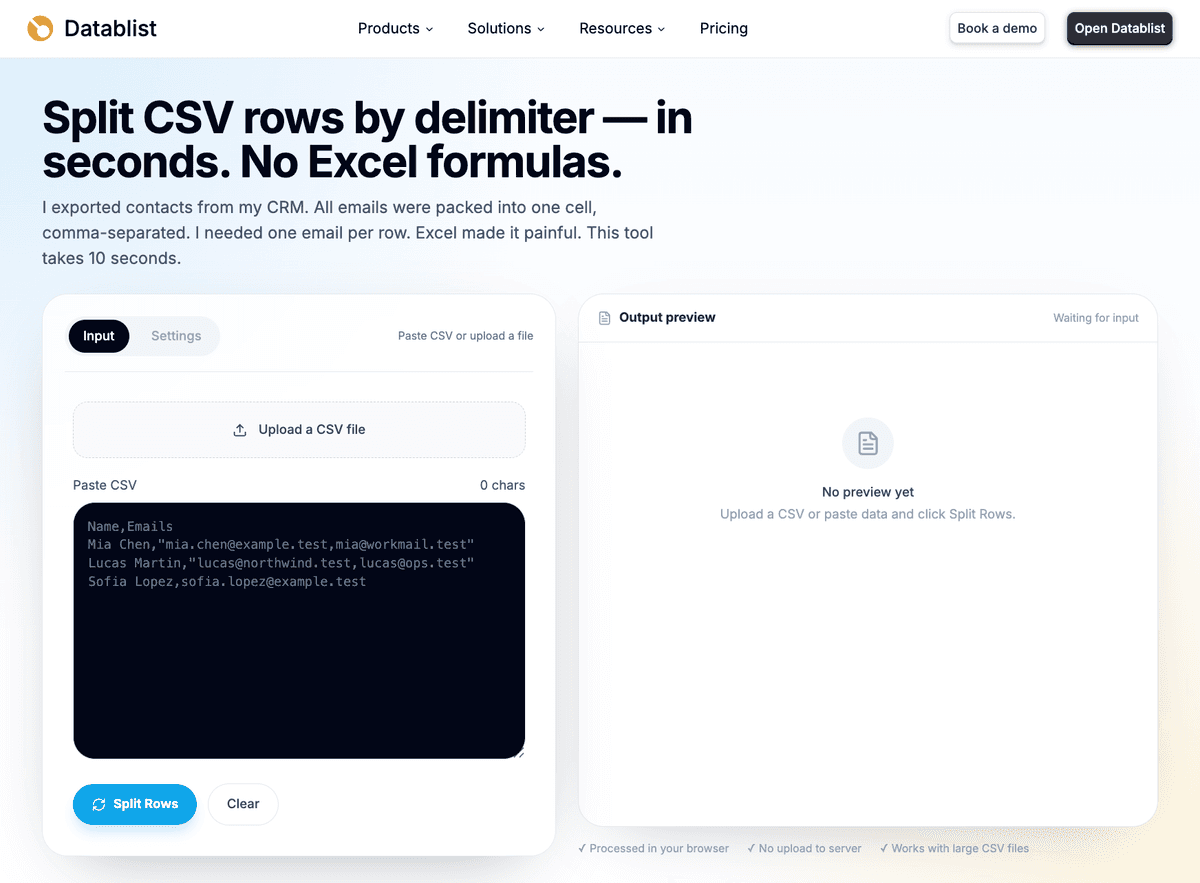
At this point, focus on getting the CSV parsed correctly. The splitter settings matter later, but the first check is simpler: do the headers and columns look right?
Step 2: Paste or upload your CSV
Paste your CSV into the input area or upload the file from your computer. For a small learning example, paste the snippet from the previous section. For a real cleanup, upload the full export.
After import, check three things:
- The header row is detected correctly.
- The multi-value field appears as one column.
- Values are not shifted into the wrong headers.
If the Emails field contains a@example.test,b@example.test and those values appear in two different columns, the issue is not the row splitter. The CSV is probably missing quotes around a field that contains commas.
I prefer fixing that before splitting anything. Once rows are shifted, every later cleanup step becomes harder because the file structure is already wrong.
Datablist's splitter handles quoted CSV fields and common encodings such as UTF-8 and Windows-1252 style files. Still, the preview is worth checking. I never skip it when the file came from a CRM export or a scraping tool because those files often contain odd separators or copied text.
Step 3: Select the column that contains multiple values
Choose the column you want to expand. In this example, I select Emails.
The tool can suggest a likely split column and delimiter from the CSV content. Treat that as a helpful shortcut, not a decision you can ignore. I still verify the selected column before exporting because a file may have several columns with separators inside them, such as Emails, Tags, and Phone Numbers.
Common columns to split include:
EmailsPhone NumbersTagsCategoriesSkillsLine ItemsURLs
The current CSV Rows Splitter expands one selected column at a time. If you need to split Emails and then Phone Numbers, split the first column, download the output, and run the exported CSV through the tool again for the second column.
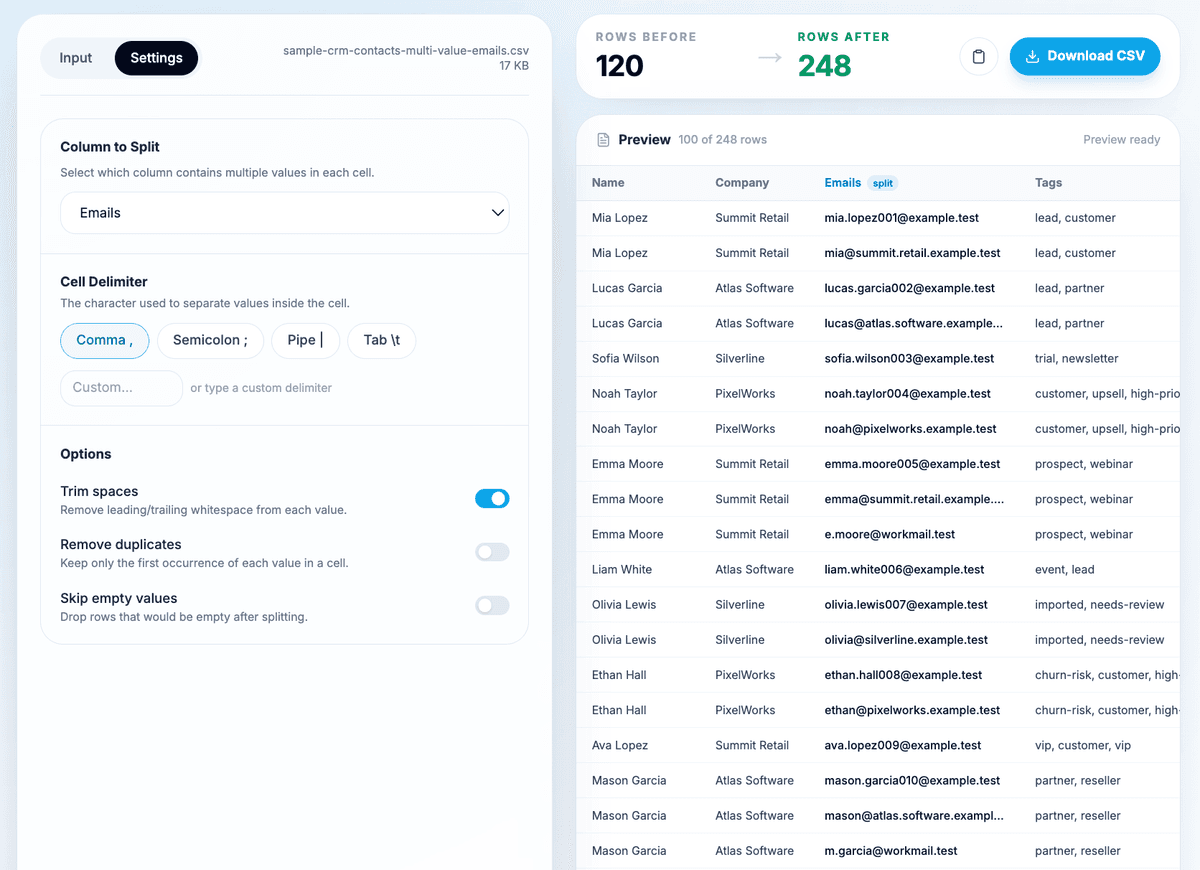
That one-column limit is usually a good thing for cleanup. It lets you inspect each transformation instead of multiplying the file into a shape you did not mean to create.
Step 4: Choose the delimiter inside the cell
Next, choose the delimiter that separates values inside the selected cell.
For the Emails example, I choose comma because the cells look like this:
"mia.chen@example.test,mia@workmail.test"
Datablist supports common cell delimiters:
- Comma
- Semicolon
- Pipe
- Tab
- Custom delimiter
Use comma for simple email lists, tags, and categories when values do not contain commas themselves. Use semicolon or pipe when the values may contain commas, such as company names, locations, or category labels. Use a custom delimiter for exports that use strings such as /, ###, or another separator from a source system.
The key is to choose the delimiter inside the selected cell, not the CSV column separator. A CSV file may use comma to separate columns, while the selected cell may use semicolon to separate phone numbers:
Name,Phone Numbers
Mia Chen,"+1-555-1000; +1-555-2000"
In that case, the CSV column separator is comma, but the cell delimiter is semicolon.
Step 5: Configure trim, duplicate, and empty-value options
For contact data, I usually start with these settings:
- Enable
Trim spaces. - Enable
Remove duplicateswhen repeated values are cleanup noise. - Enable
Skip empty valueswhen cells may end with a delimiter.
Trim spaces is the easiest default. It turns values such as lucas@northwind.test into lucas@northwind.test. CRM exports often include a space after each comma, and that space can break exact matching later.
Remove duplicates is useful when a cell contains the same value twice:
"ava@orbit.test, ava@orbit.test, a.patel@workmail.test"
With duplicate removal enabled, that row creates one ava@orbit.test row instead of two. I turn it on for emails, phone numbers, URLs, and tags because repeated values rarely mean anything in those fields.
Leave duplicate removal off when repetition carries meaning. For example, if a survey answer or order export repeats a product ID to represent quantity, removing duplicates would change the meaning of the data.
Skip empty values helps with trailing delimiters:
"mia@example.test,"
Without skipping empty values, the blank value after the comma may become an empty output row. With it enabled, the file keeps only the email row.
🔍 My default settings
For contact cleanup, I start with trim spaces on, duplicate removal on, and skip empty values on. I only change that when repeated values or blank values have a business meaning.
If filtering removes every split value in a cell, the original row is kept. That protects rows where the selected field is blank or where cleanup options remove only invalid split fragments.
Step 6: Preview the expanded rows
Before downloading, check the preview and the row counts.
Rows before is the number of original data rows. Rows after is the number of rows after expansion. If a 120-row file becomes 190 rows, that means some cells contained two or more values.
In the preview, I check a few row types:
- A contact with one email should stay as one row.
- A contact with two emails should become two rows.
- A contact with repeated emails should not create duplicate rows when duplicate removal is enabled.
- Other columns, such as
Company,Tags, andSource, should copy across each generated row. - Blank split values should appear only if I chose to keep them.
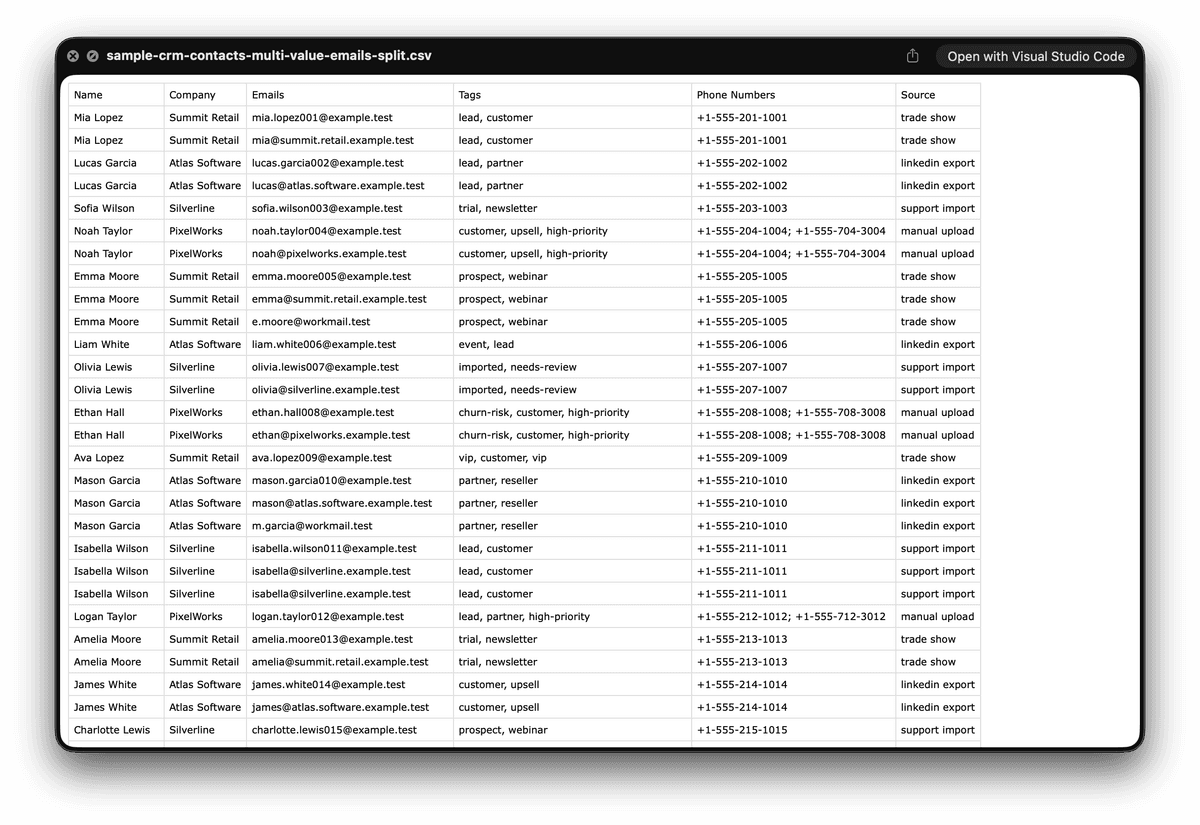
The preview can be capped at 100 output rows. That does not mean only 100 rows will be exported. The downloaded CSV contains the full generated result.
⚠️ Preview is for checking
Use the preview to confirm the structure, not to count every row manually. For larger files, download the CSV and inspect the full output in your spreadsheet, CRM staging workflow, or Datablist's CSV editor.
Step 7: Download the normalized CSV
When the preview looks right, copy the generated CSV or download it.
For small jobs, copying is fine. For larger files or anything you plan to import into another tool, download the CSV. You now have the same headers as the input, but the selected column contains one value per row.
That normalized shape is easier to use for:
- CRM imports that expect one email or phone number per row.
- Deduplication by email, phone number, SKU, URL, or ID.
- Counting tags, categories, skills, or line items.
- Filtering records before enrichment.
- Joining the file with another dataset.
If duplicate contact rows are the next problem, use a remove duplicate CSV rows workflow after the split. I prefer splitting first when the identifier I care about is trapped inside a multi-value cell.
Check the result before using it
Here is the practical check I do before importing the output anywhere important.
Start with one row that should expand:
Name,Company,Emails,Tags
Lucas Martin,Northwind,"lucas@northwind.test, l.martin@personal.test, lucas@ops.test","lead,partner"
After splitting Emails, it should become:
Name,Company,Emails,Tags
Lucas Martin,Northwind,lucas@northwind.test,"lead,partner"
Lucas Martin,Northwind,l.martin@personal.test,"lead,partner"
Lucas Martin,Northwind,lucas@ops.test,"lead,partner"
Then spot-check the full file:
- Compare rows before and rows after.
- Search for blank values in the split column.
- Filter for a few contacts that had one, two, and three values.
- Confirm quoted fields still open correctly in a spreadsheet.
- Check repeated values if you enabled duplicate removal.
- Validate a small import sample before sending the full file into a CRM.
That last point matters. Some CRMs expect one contact per row with several email fields. Others prefer one email per row or a separate related table. The right CSV shape depends on the target import format.
Other CSV columns you can split into rows
The same workflow works for any column where one cell contains a list.
Product tags are a good example. If a Tags column contains electronics,computers,work, splitting that column gives you one row per tag. That makes counting, filtering, and enrichment easier.
Phone numbers often work better with semicolon or pipe:
Name,Phone Numbers
Mia Chen,"+1-555-1000; +1-555-2000"
Use trim spaces here. Phone exports often include a space after the semicolon.
For ecommerce categories, choose a delimiter that does not appear inside category names. If category names contain commas, pipe is safer than comma:
Product,Categories
Laptop,"Electronics|Computers|Work"
Scraped URLs are another fit. A scraping workflow may return several profile URLs, product URLs, or links in one field. Split the URL list into one URL per row before validation, enrichment, or comparison.
Order IDs and line items can also work, but be careful with meaning. If repeated product IDs represent quantity, do not remove duplicates. If they are accidental duplicates, remove them.
If your problem is not splitting values into rows, but cleaning repeated values inside one multi-value field, read the guide on how to deduplicate multi-value fields.
Troubleshooting common CSV row splitting issues
If values appear under the wrong headers, the CSV was probably parsed incorrectly before the split. The usual cause is an unquoted comma inside a field. Fix the quoting or export the CSV again, then reimport it.
If the output has too many rows, check the delimiter first. You may have selected comma when the real delimiter is semicolon, pipe, or a custom string. Also check duplicate values and doubled delimiters such as a@example.test,,b@example.test.
If the output has too few rows, inspect one raw cell from the selected column. The value may use a delimiter you did not notice. For example, some systems export lists with pipe:
"lead|customer|partner"
In that case, comma will not split anything.
If spaces remain before values, enable trim spaces and run the split again. Spaces are easy to miss until you try to match emails or tags exactly.
If you only see 100 output rows in the preview, download the CSV. The preview can be capped, but the export contains the full result.
If you meant to divide one CSV file into smaller files, use the CSV file splitter. The CSV Rows Splitter expands values inside rows. The CSV file splitter creates separate files.
When splitting CSV rows by delimiter helps
Use this workflow when you need one value per row before another data step.
It is useful for:
- Normalizing CRM exports before deduplication.
- Preparing one email, phone number, URL, tag, category, or ID per row.
- Turning scraped lists into rows you can filter and enrich.
- Counting tags, skills, categories, or linked records.
- Preparing imports that reject multiple values in one field.
- Checking whether repeated values are real duplicates or expected data.
Do not use this workflow when the target system expects several values in one row. Also avoid it when several columns need relational modeling at the same time. In those cases, you may need a database-style workflow instead of a simple CSV transformation.
For most cleanup jobs, though, expanding one column at a time is enough. It gives you a clear file, a clear row count, and a clean next step.
Conclusion
Splitting a CSV column into multiple rows is mostly about choosing the right field and the right delimiter. Upload or paste the CSV, select the multi-value column, choose the delimiter inside the cell, configure cleanup options, preview the result, and download the normalized file.
The output keeps your original headers, copies the other columns, and gives you one value per row in the selected column. That structure is easier to deduplicate, import, filter, count, and enrich.
When you are ready to try it, open the CSV Rows Splitter and start with a few rows before running the full file.
FAQ
How do I split comma-separated values into rows in a CSV?
Open Datablist's CSV Rows Splitter, paste or upload your CSV, select the column that contains comma-separated values, choose comma as the cell delimiter, preview the expanded rows, then download the result.
What is the difference between a CSV delimiter and the delimiter inside a cell?
The CSV delimiter separates columns in the file. The delimiter inside a cell separates several values stored in one field. For example, a CSV may use comma between columns while a Phone Numbers cell uses semicolon between phone numbers.
Can I split a CSV column into rows without Excel?
Yes. Use the online CSV Rows Splitter to paste or upload the file, choose the column and delimiter, preview the result, and export a new CSV. You do not need formulas, Power Query, or manual copy and paste.
Can I split several CSV columns at the same time?
The current workflow expands one selected column at a time. If you need to split several columns, download the result after the first split and run the exported CSV through the tool again for the next column.
What happens to the other columns when a row is split?
Other columns are duplicated across the generated rows. If a contact row has three emails, the Name, Company, Tags, and other fields are copied onto each of the three output rows.
Why are my comma-separated values breaking into different columns?
The cell probably contains commas but is not quoted as one CSV field. Values such as "a@example.test,b@example.test" should stay in one field. Without quotes, a CSV parser may treat the comma as a column separator.
Does the preview include every output row?
Not always. The preview can be capped at 100 output rows, but the downloaded CSV contains the full generated result.
When should I remove duplicate values inside a cell?
Use duplicate removal when repeated values are cleanup noise, such as repeated emails, tags, phone numbers, URLs, or IDs. Leave it off when repeated values carry meaning, such as repeated item IDs that represent quantity.