 0.01 Credits per Row
 Type and Carrier Detection
 500 Free Credits to Try















 Easy to Use
 All Settings Are Optional
 Fully No-Code
Step-by-Step Guide
Step 1: Sign Up & Upload Your Data
First, sign up for Datablist.com
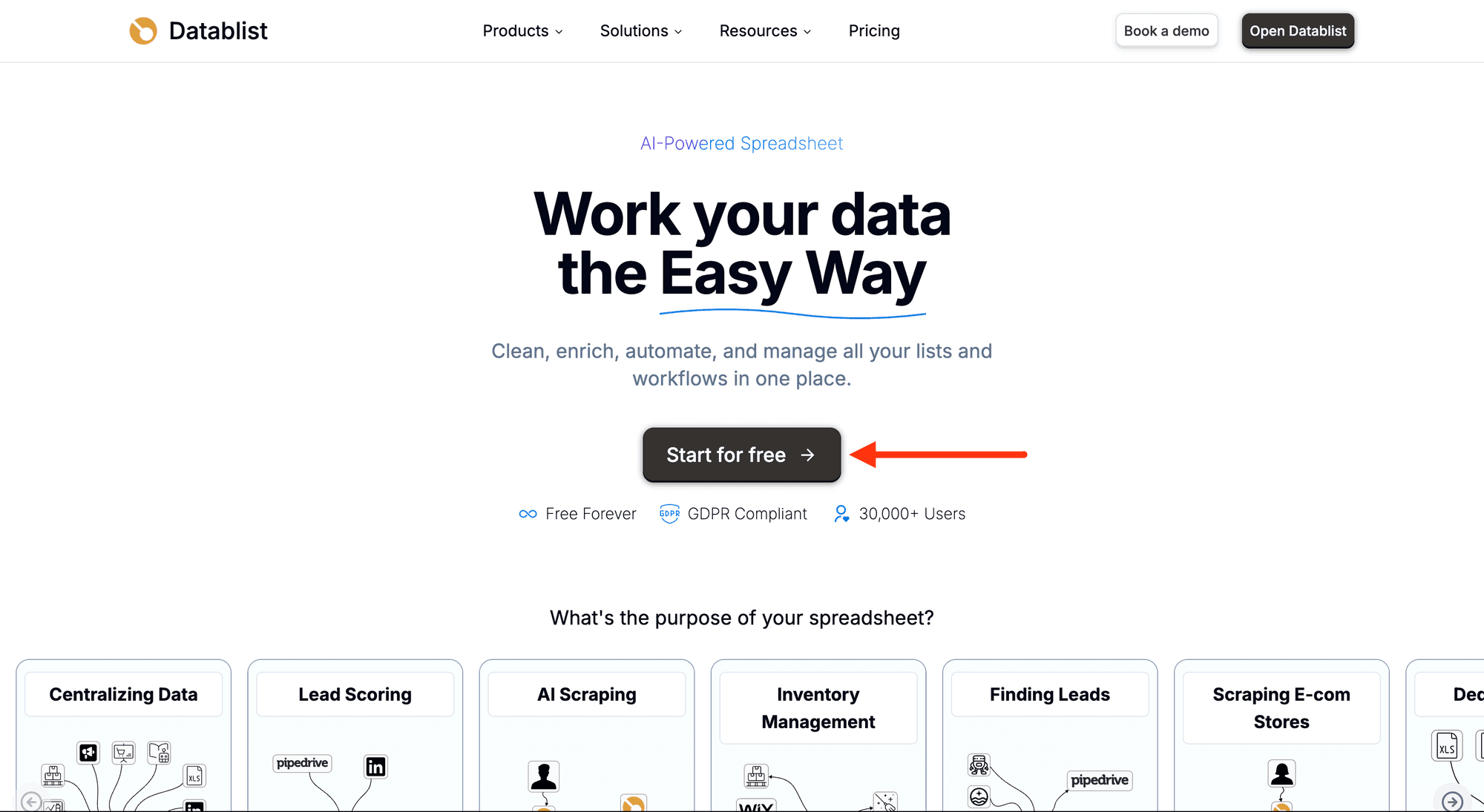
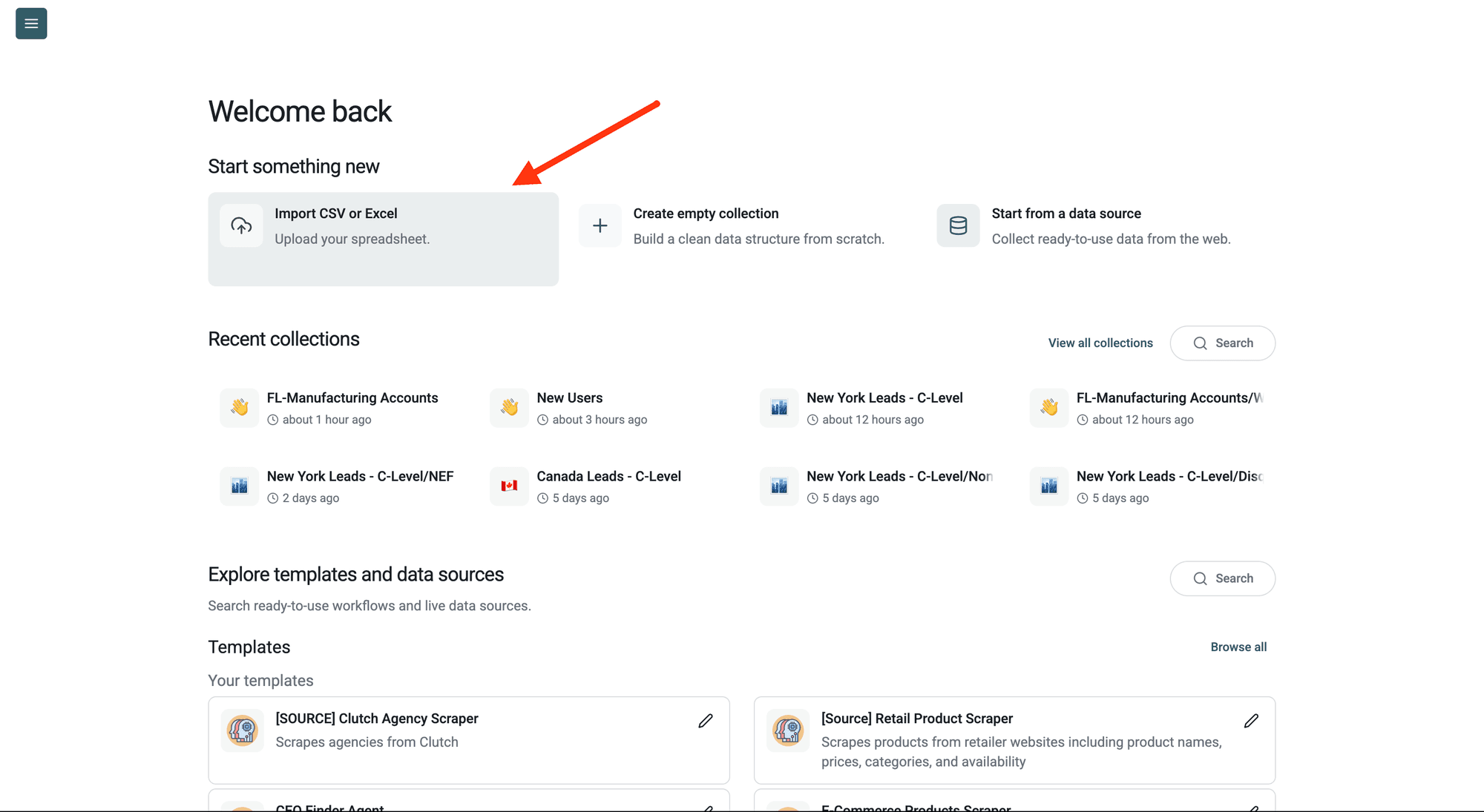
Create a collection with the CSV editor. Then, upload your CSV or Excel file with the text that contains phone numbers.
Step 2: Navigate to the Enrichment
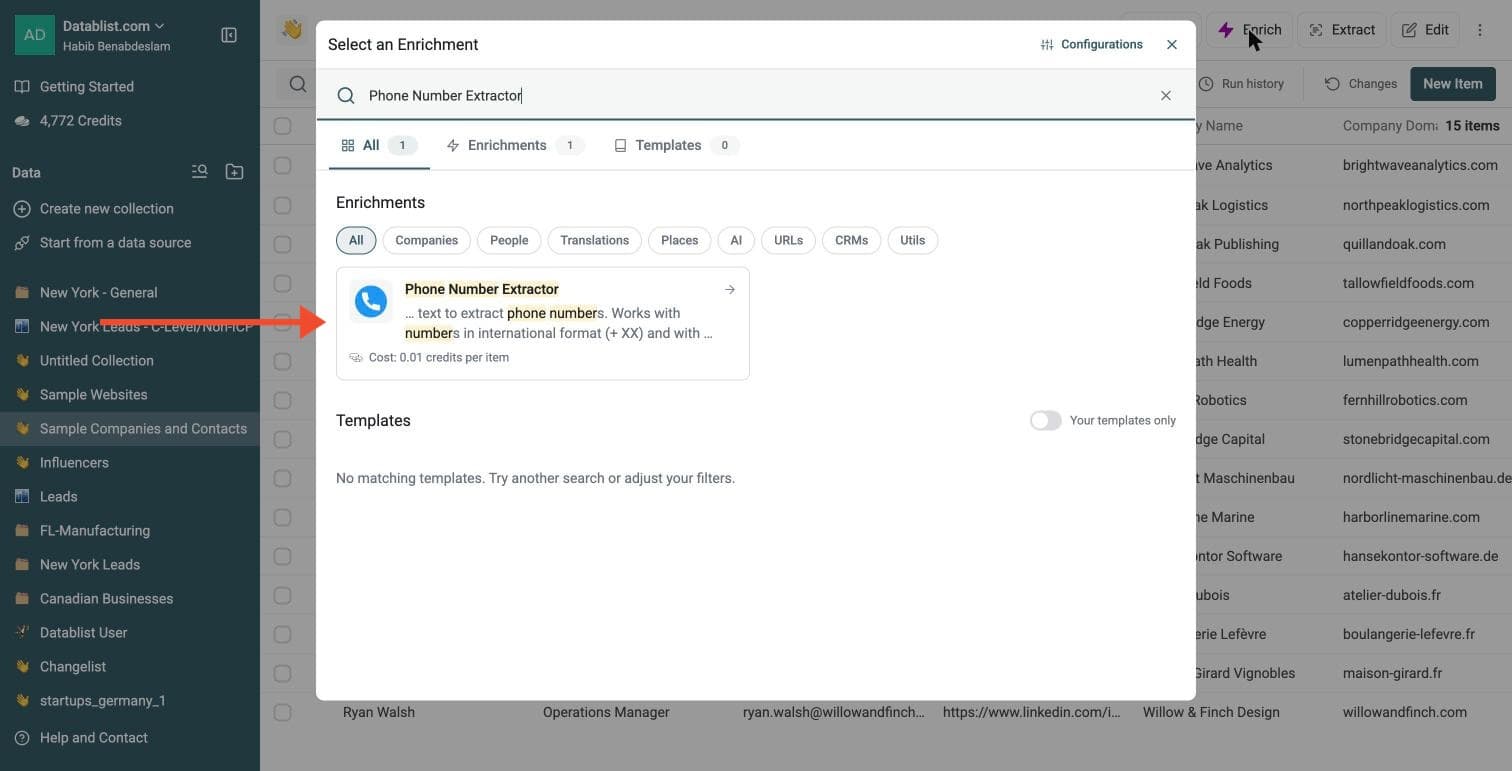
Click Enrich in the top menu and search for Phone Number Extractor.
Step 3: Set Up the Enrichment
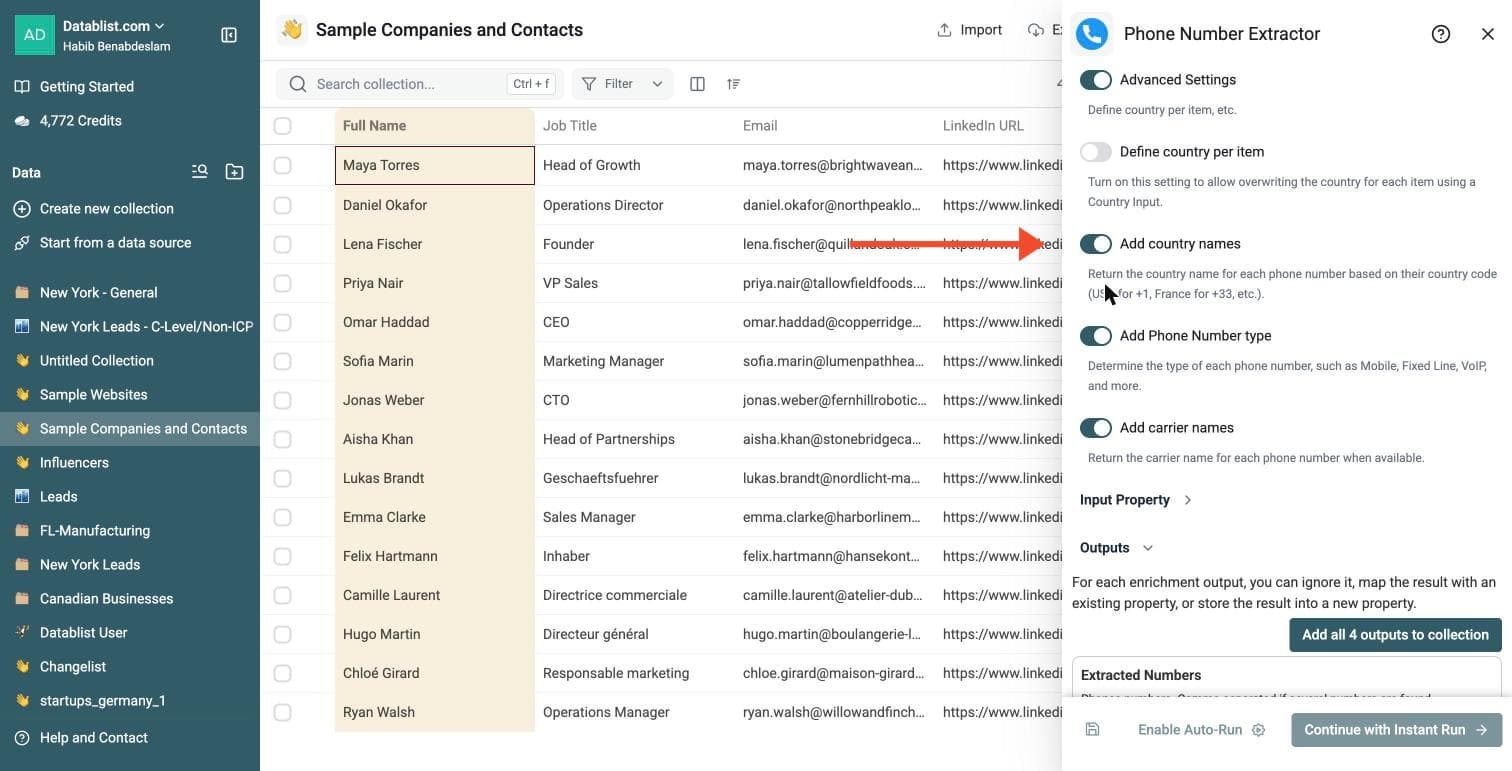
In the drawer that opens, set how numbers are read and what comes back:
For example, with France selected, 06 56 56 67 24 becomes +33 6 56 56 67 24.
-
Local Phone Countries: the countries for numbers written without a + code. Without it, only numbers in international format are processed
-
Advanced Settings: switch it on to define the country per item and to add extra outputs
-
Add country names, Add Phone Number type and Add carrier names: each one adds an output
Step 4: Configure Your Inputs
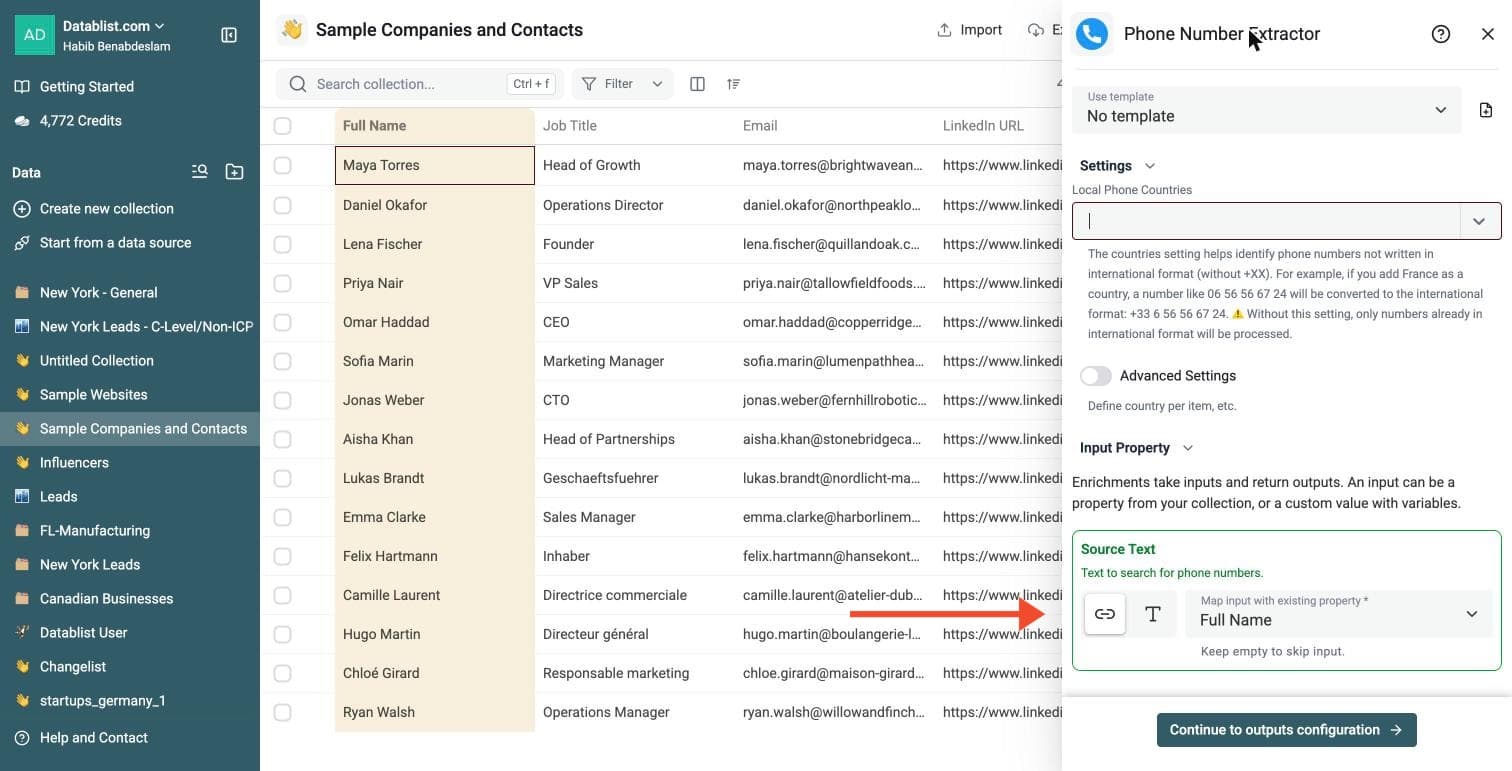
Map the Source Text input to the column that holds the text to scan.
Then click Continue to outputs configuration.
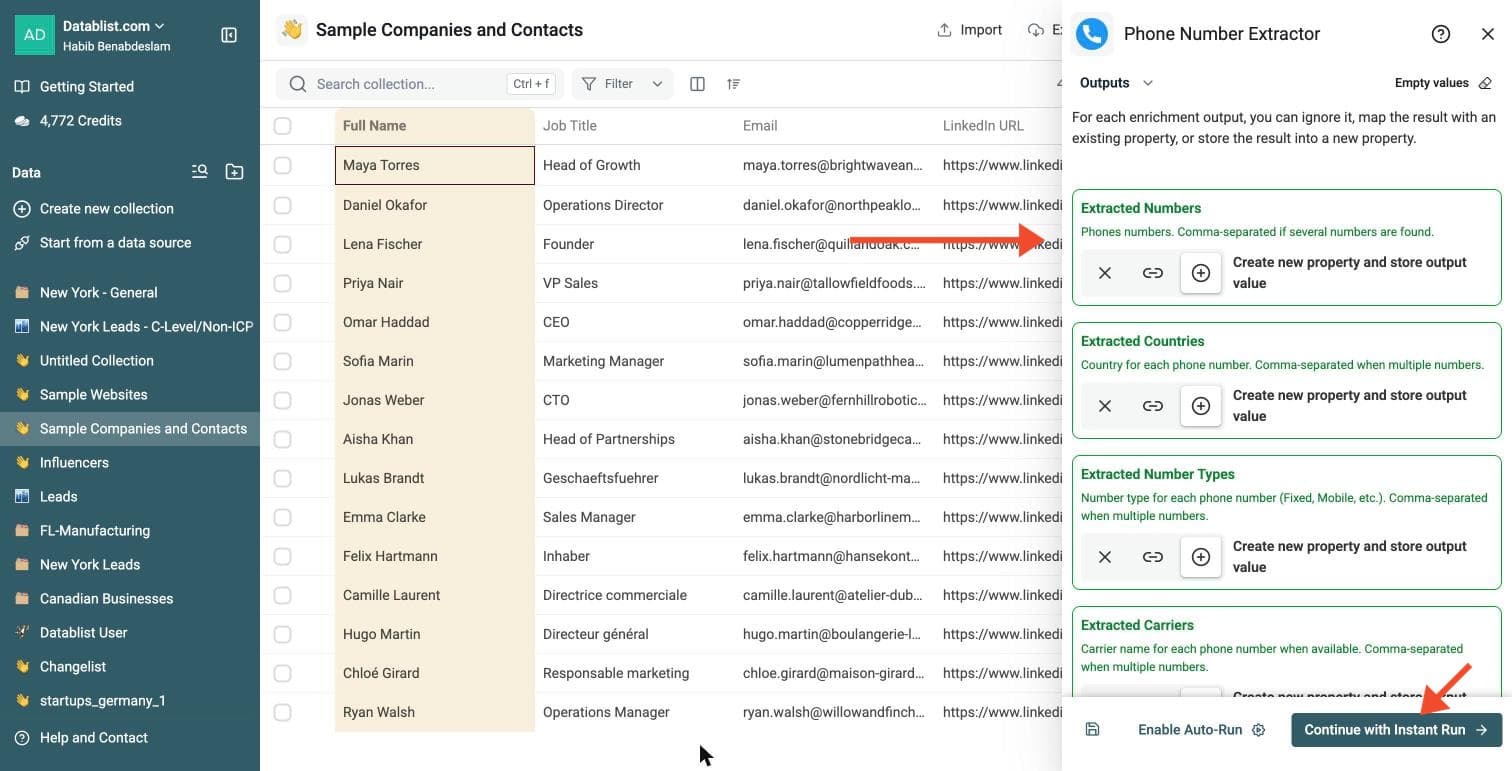
Step 5: Select Outputs
If a row contains several phone numbers, Datablist returns comma-separated values in the same order.
For example:
phoneNumbers:+33 6 56 56 67 24,+33 1 42 68 53 00phoneNumberTypes:MOBILE,FIXED_LINEphoneNumberCarriers:e*Message,
If your calling workflow needs one phone number per row, export the result and use the CSV Rows Splitter on the phone number column.
Phone Number Extractor can return:
-
Extracted Numbers: the phone numbers, comma-separated if a row has several
-
Extracted Countries: the country of each number
-
Extracted Number Types: Mobile, Fixed Line and more for each number
-
Extracted Carriers: the carrier of each number when available
Click the ⊕ icons to add them to your collection, then click Continue with Instant Run.
Step 6: Run the Enrichment
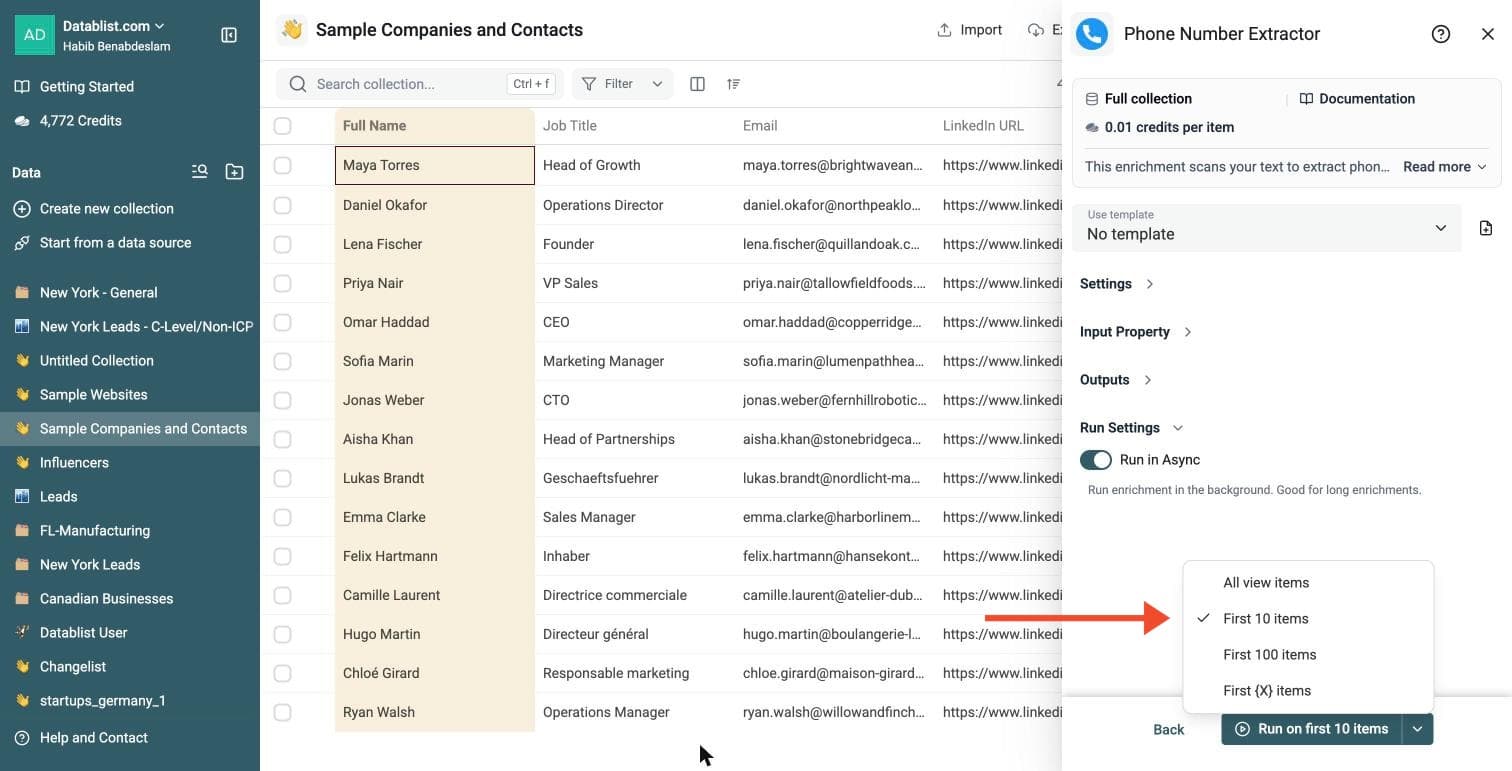
Click the chevron on the right side of the run button to choose how many items to process:
-
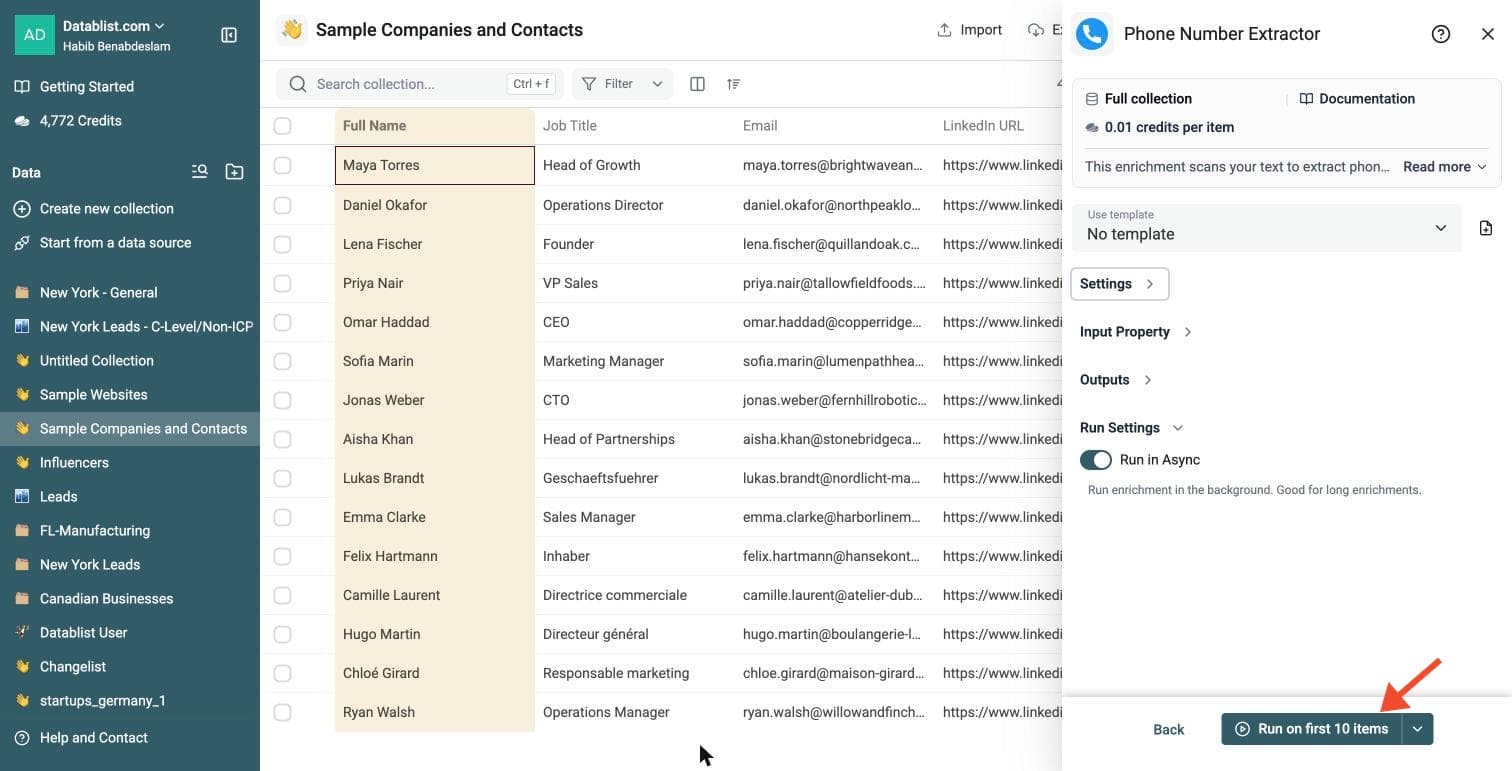
Run on first 10 items: Good for checking results before committing
-
Run on first 100 items: Useful for validating larger samples
-
Run on all view items: Process your entire list (or view if you've enabled filters)
Phone Number Extractor costs 0.01 credits per row.
Review a small sample and the run-status column before processing the full list. Filter rows that need attention, fix inputs or settings, and rerun those rows. Export your collection when the results are ready.
What the Phone Number Extractor Returns
The enrichment can return:
- Phone numbers in international format, such as
+33 6 56 56 67 24 - Country names from the country code
- Phone number type, such as mobile, fixed line, toll free, VoIP, or fax
- Carrier name, when the phone metadata includes one
The type and carrier outputs help you sort lists before calling, texting, or routing leads.
A Cheap Way to Extract Phone Numbers in Bulk
The Phone Number Extractor costs 0.01 Datablist credits per row.
With the free signup credits, you can process 50,000 rows.
With a $20 credit pack, you get 20,000 credits, enough to process up to 2,000,000 rows.
With a $165 credit pack, you get 200,000 credits, enough to process up to 20,000,000 rows.
You can test the enrichment on a few rows before running it on your full file.
How Phone Type and Carrier Detection Works
Datablist relies on phone number patterns and phone metadata. It does not query a live carrier database.
This keeps the enrichment fast and cheap, but it also creates limits.
Some countries use number ranges for mobile, landline, toll-free, or premium numbers. In those cases, the type is clear.
Other countries use ranges where fixed line and mobile numbers overlap. In those cases, the enrichment can return FIXED_LINE_OR_MOBILE.
Datablist also checks nearby text. If the source text says mobile, cell, office, landline, or fax near the number, the enrichment can infer a better type.
Examples:
Mobile: +1 650-253-0000returnsMOBILE_INFERREDOffice: +1 650-253-0000returnsFIXED_LINE_INFERRED
For current line type data, use a live telecom lookup service. For bulk extraction and cleanup, this enrichment gives you a low-cost first pass.
Use Cases
Clean CRM Exports
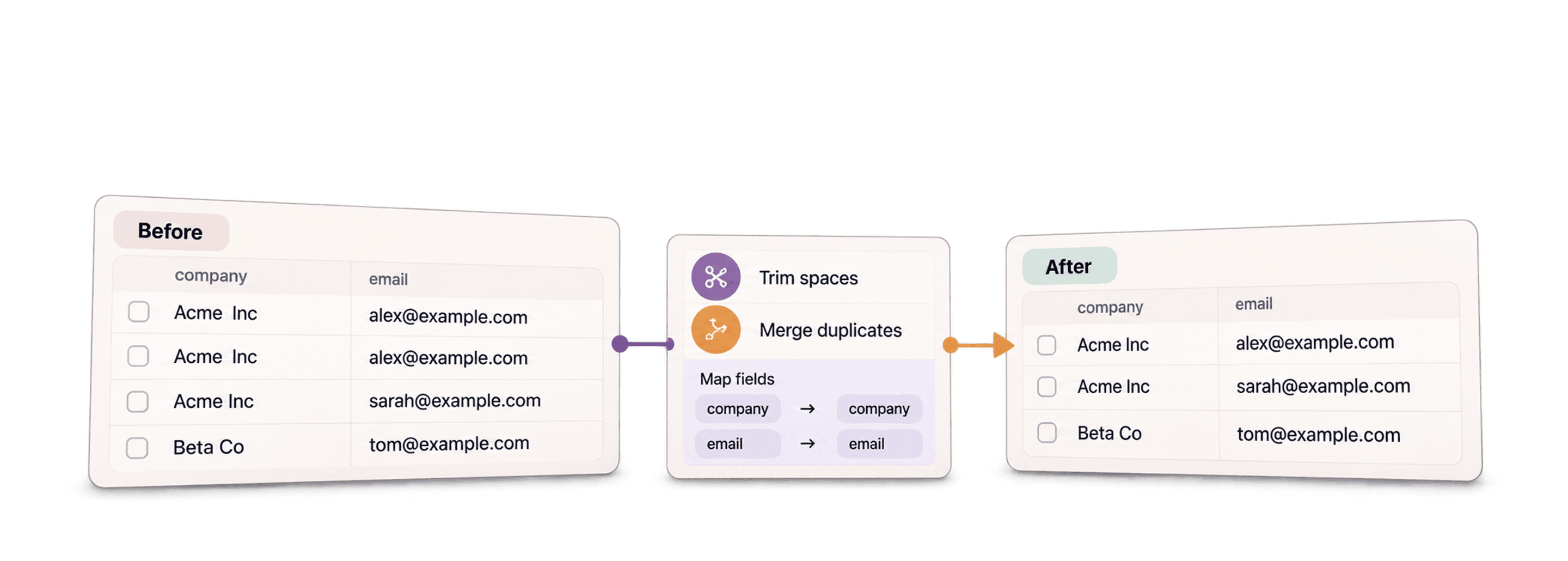
Extract phone numbers from notes, descriptions, and raw contact fields. Store clean phone numbers in a dedicated column before importing data back into your CRM.
Prepare Calling Lists
Use phone number type to split mobile numbers from office numbers when the data allows it.
Clean Scraped Website Data
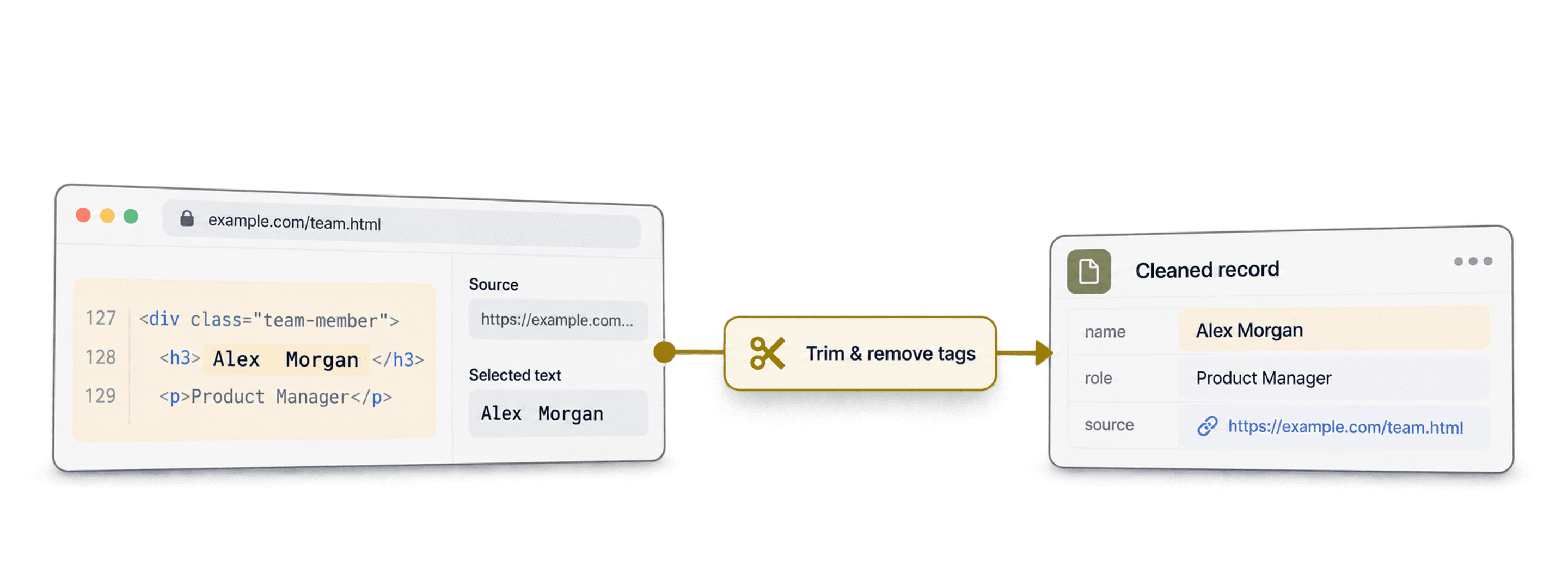
Web pages often mix phone numbers with addresses, opening hours, and labels. Datablist extracts the numbers and keeps the source rows aligned.
Normalize Local Numbers
Add a default country to convert local numbers into international format.