 Free With Your Own Key
 CSV and Excel Import
 Bulk AI Without Writing Code













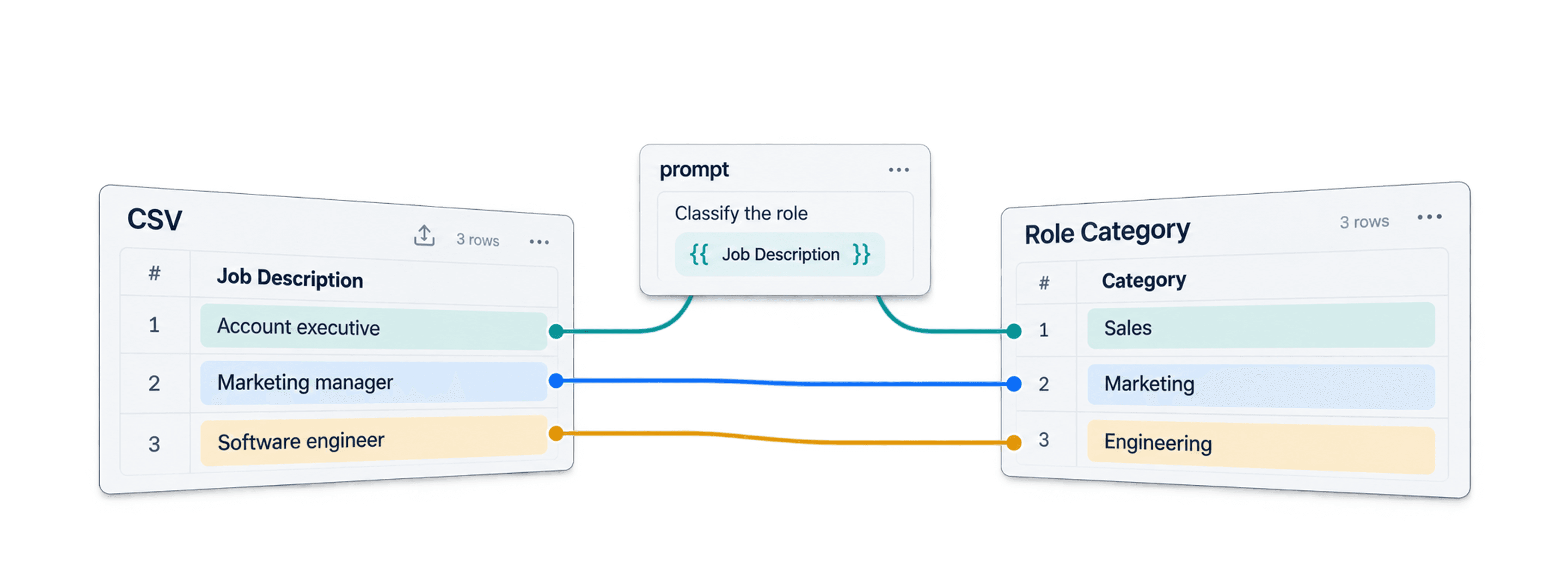
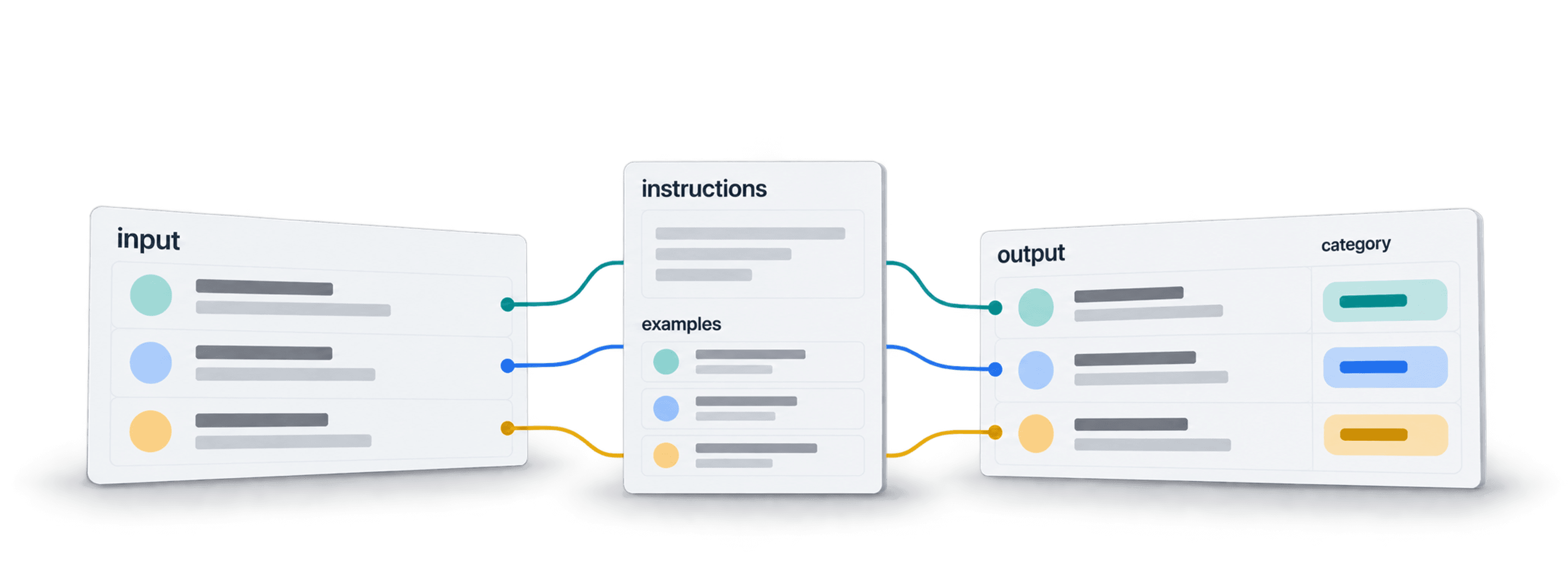
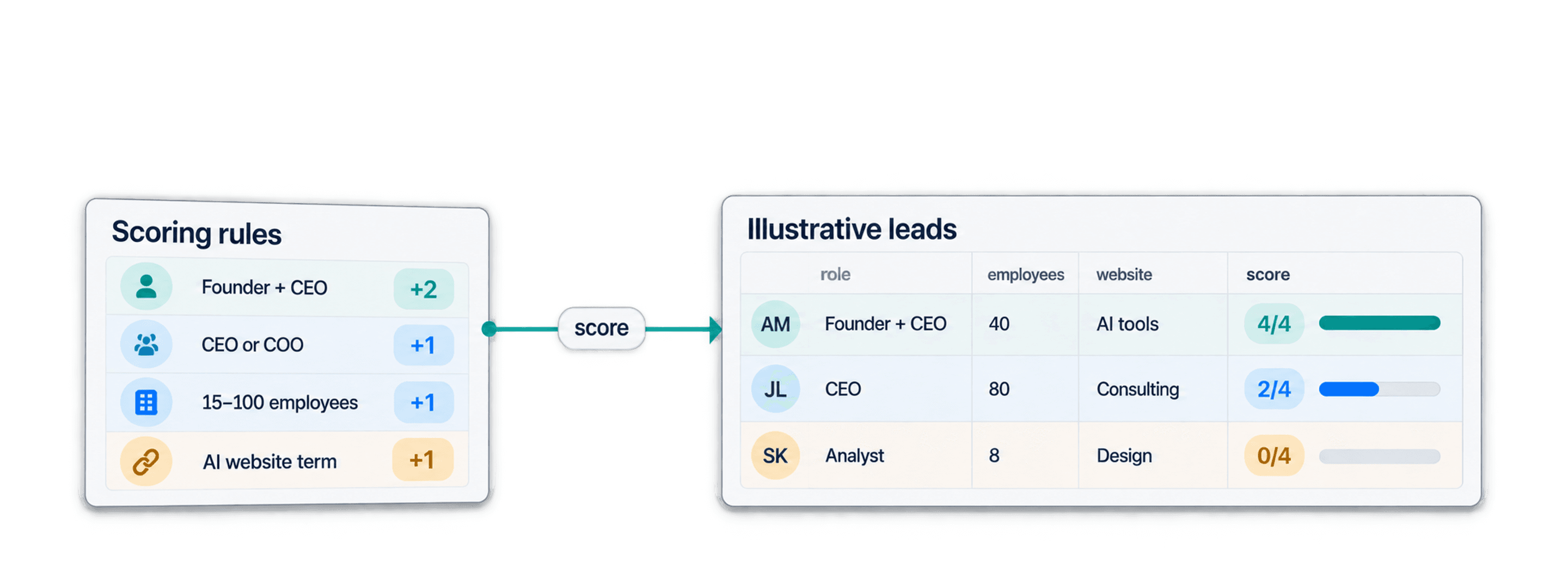


 Easy to Use
 Fully No-Code
 38,000+ Users
Step-by-Step Guide
Part 1: Get your DeepSeek API key
Follow DeepSeek's own instructions: DeepSeek API docs.
Step 1: Sign In and Top Up Your Balance
Sign in at the DeepSeek Platform.
Top up your balance. Usage is deducted from your topped-up balance or your granted balance, and the granted balance is used first.
Step 2: Create and Copy Your Key
Open API keys and create a new key.
Copy the key and store it somewhere safe.
Part 2: Run the enrichment in Datablist
Step 3: Sign Up & Upload Your Data
First, sign up for Datablist.com
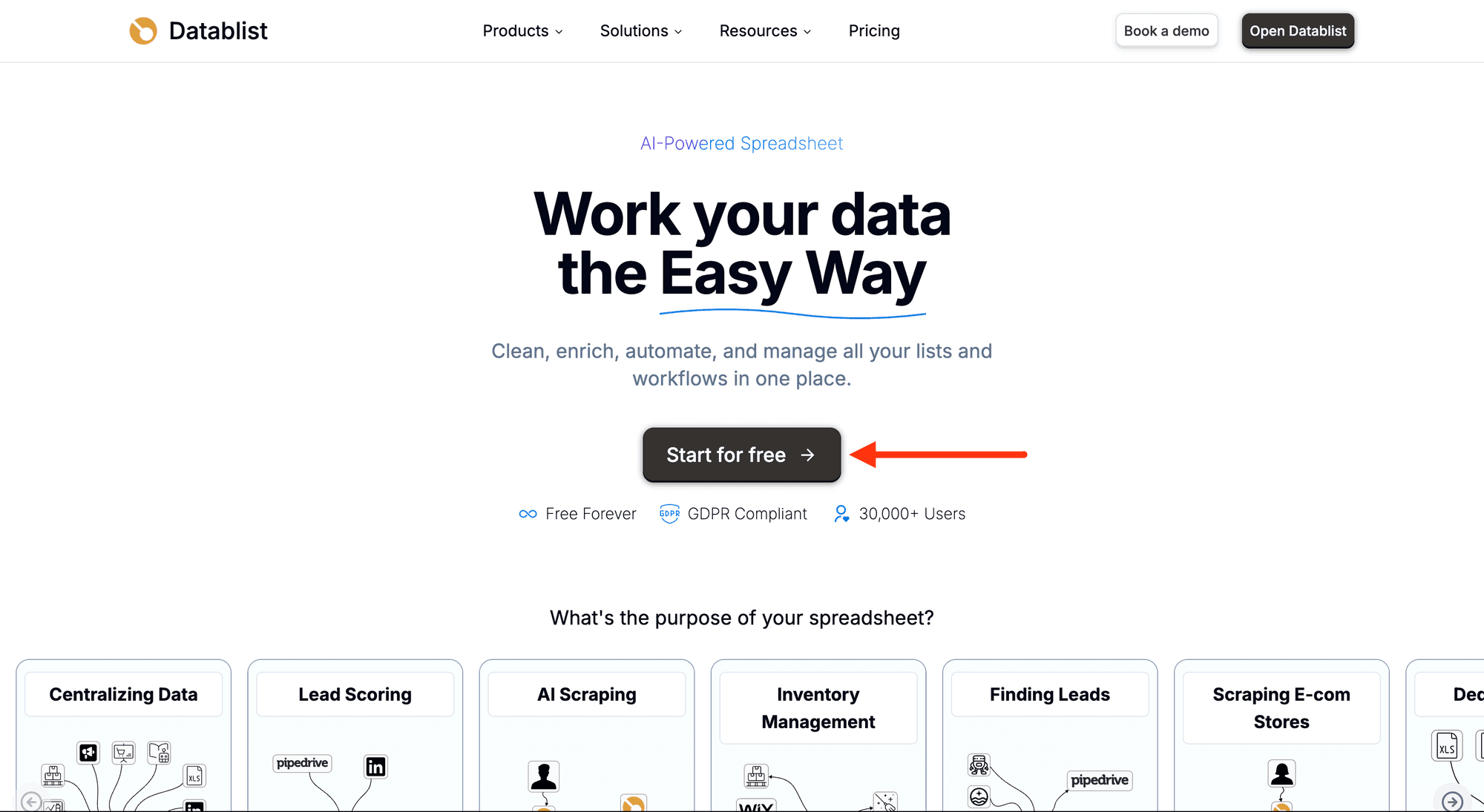
Then, upload your CSV or Excel file with the rows you want to run the prompt on. Create a new collection and import your file with the CSV editor.
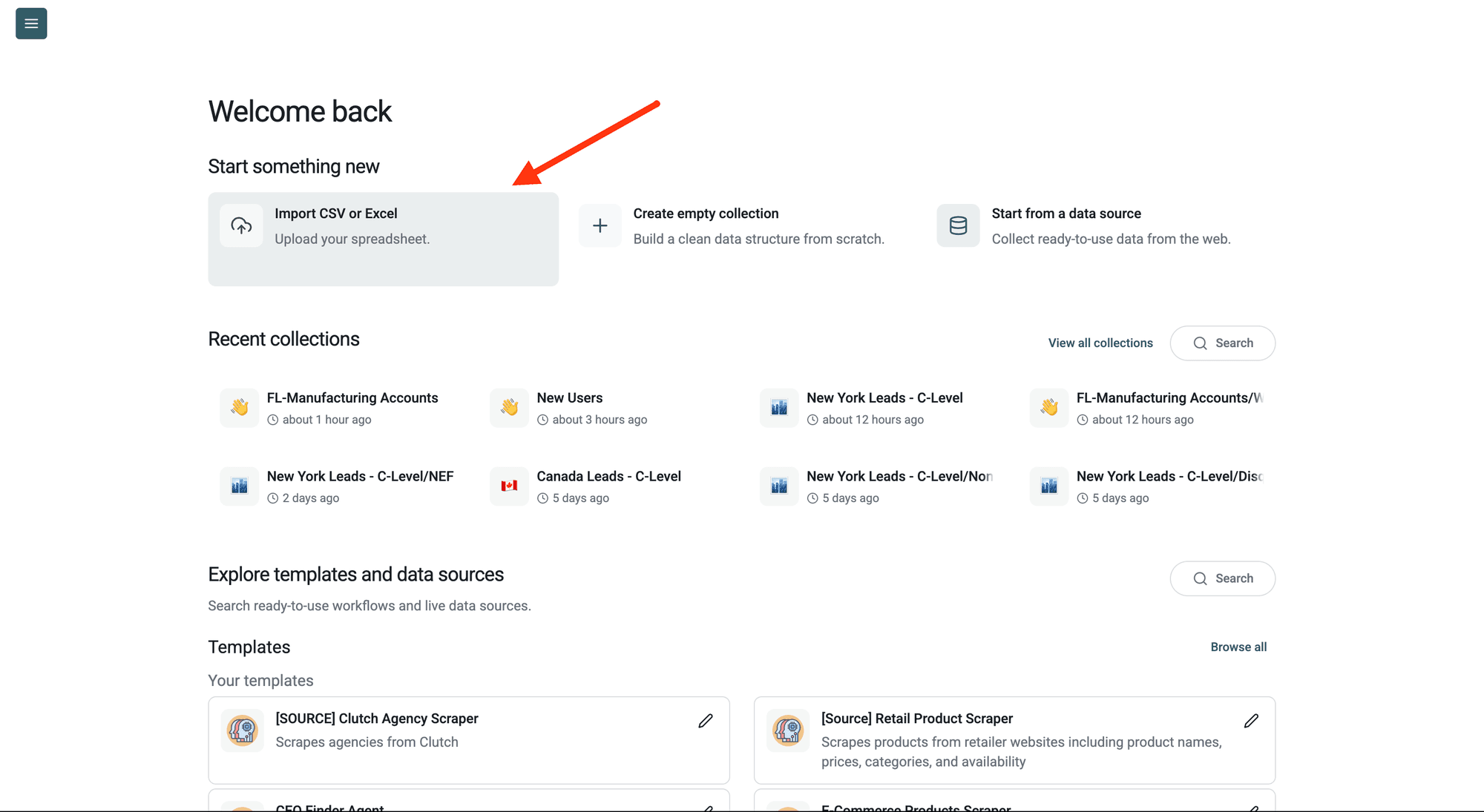
Step 4: Navigate to the Enrichment
Click Enrich in the top menu and search for Ask DeepSeek AI.
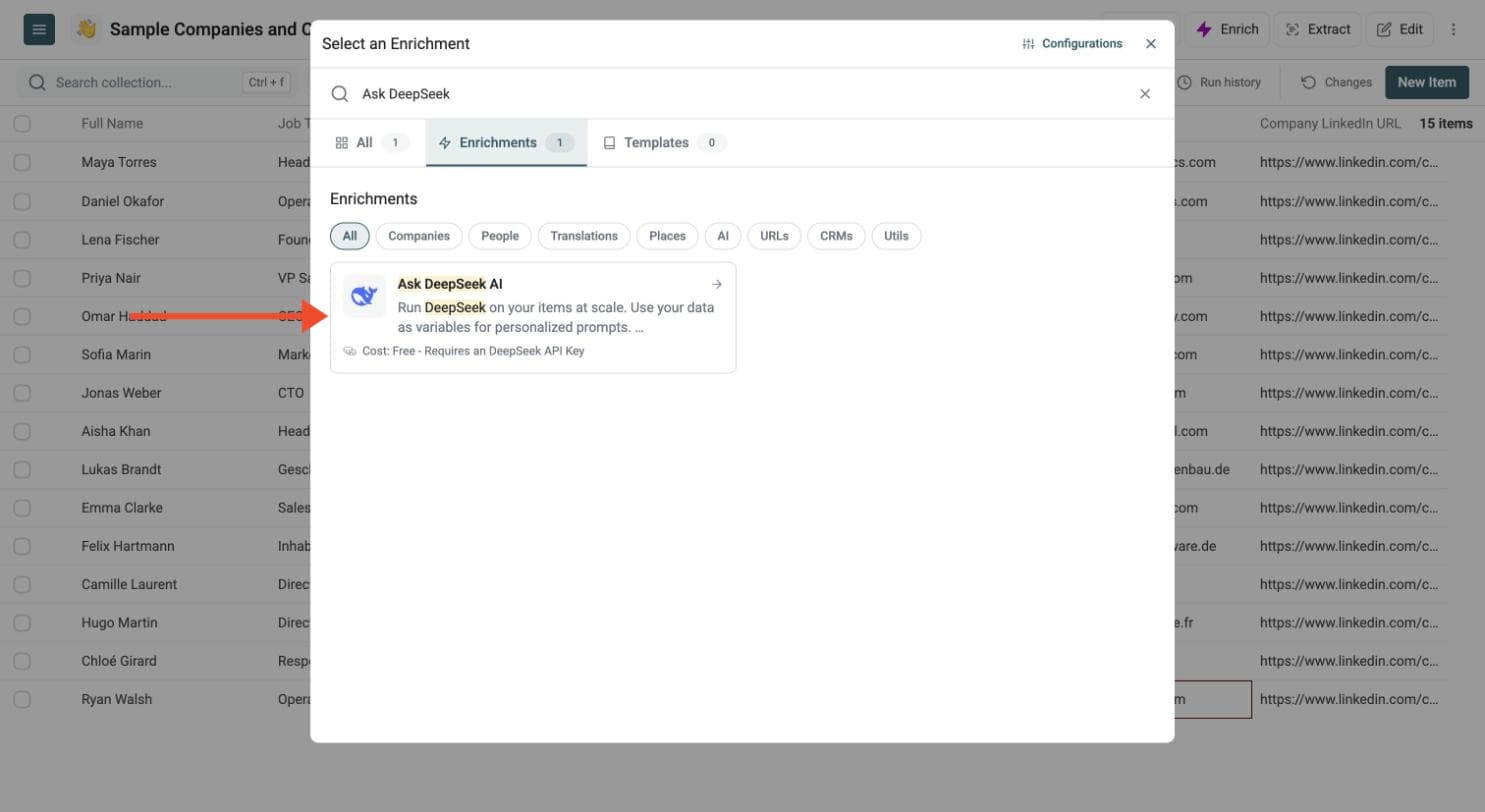
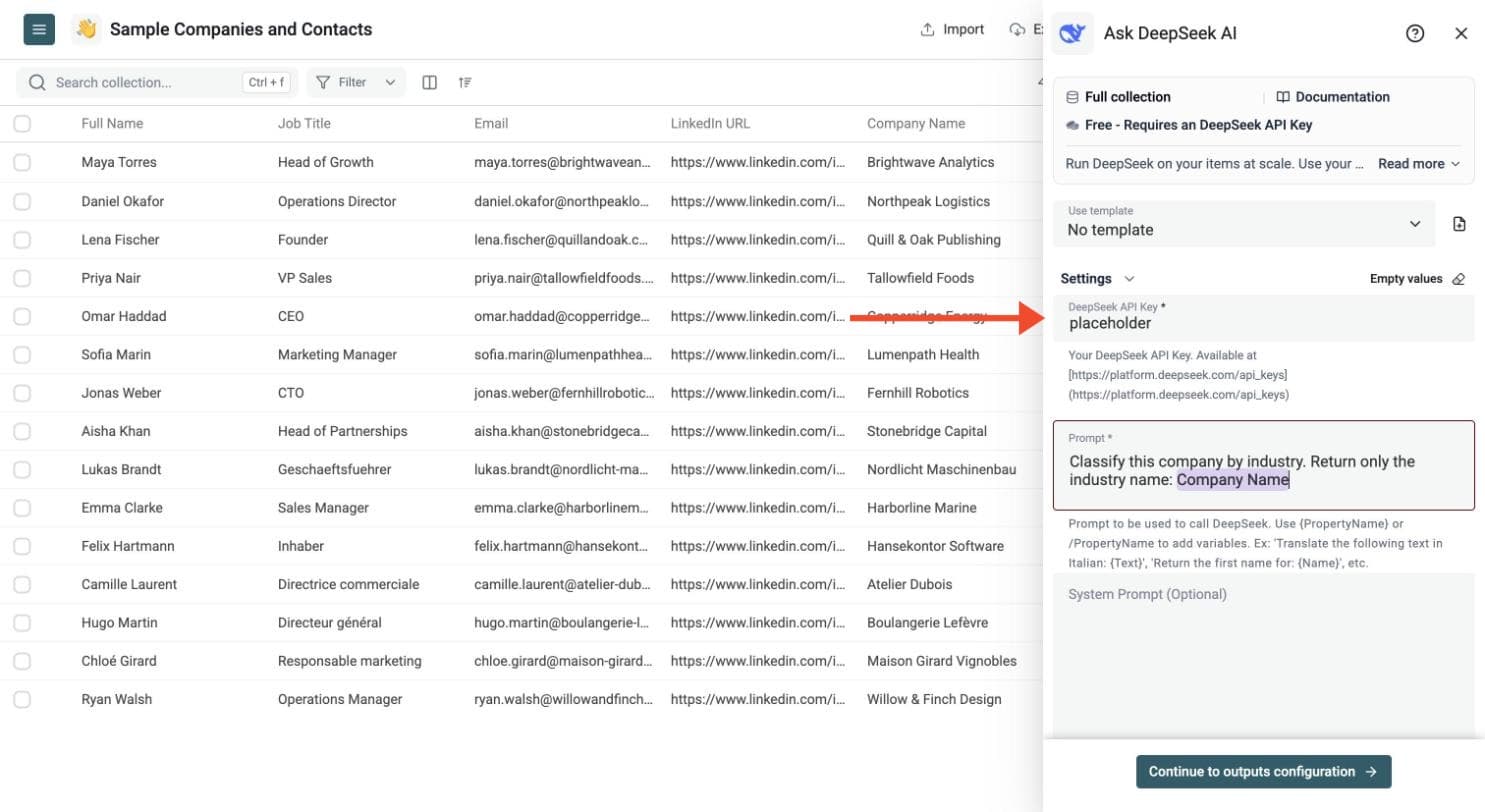
Step 5: Paste Your API Key
In the drawer that opens, paste your DeepSeek API key in the DeepSeek API Key field.
Datablist sends the key with your run to call DeepSeek. Do not share it with others.
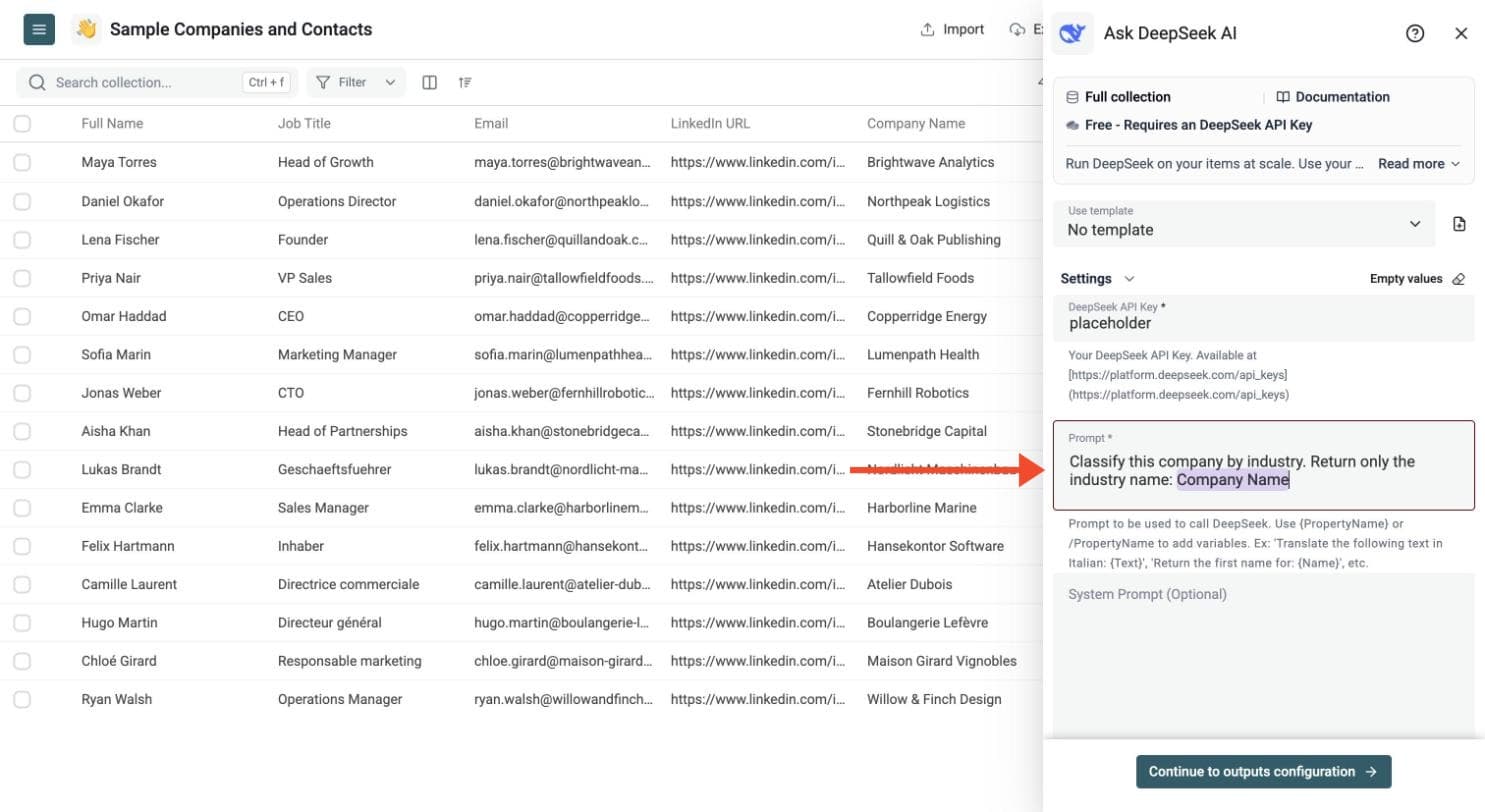
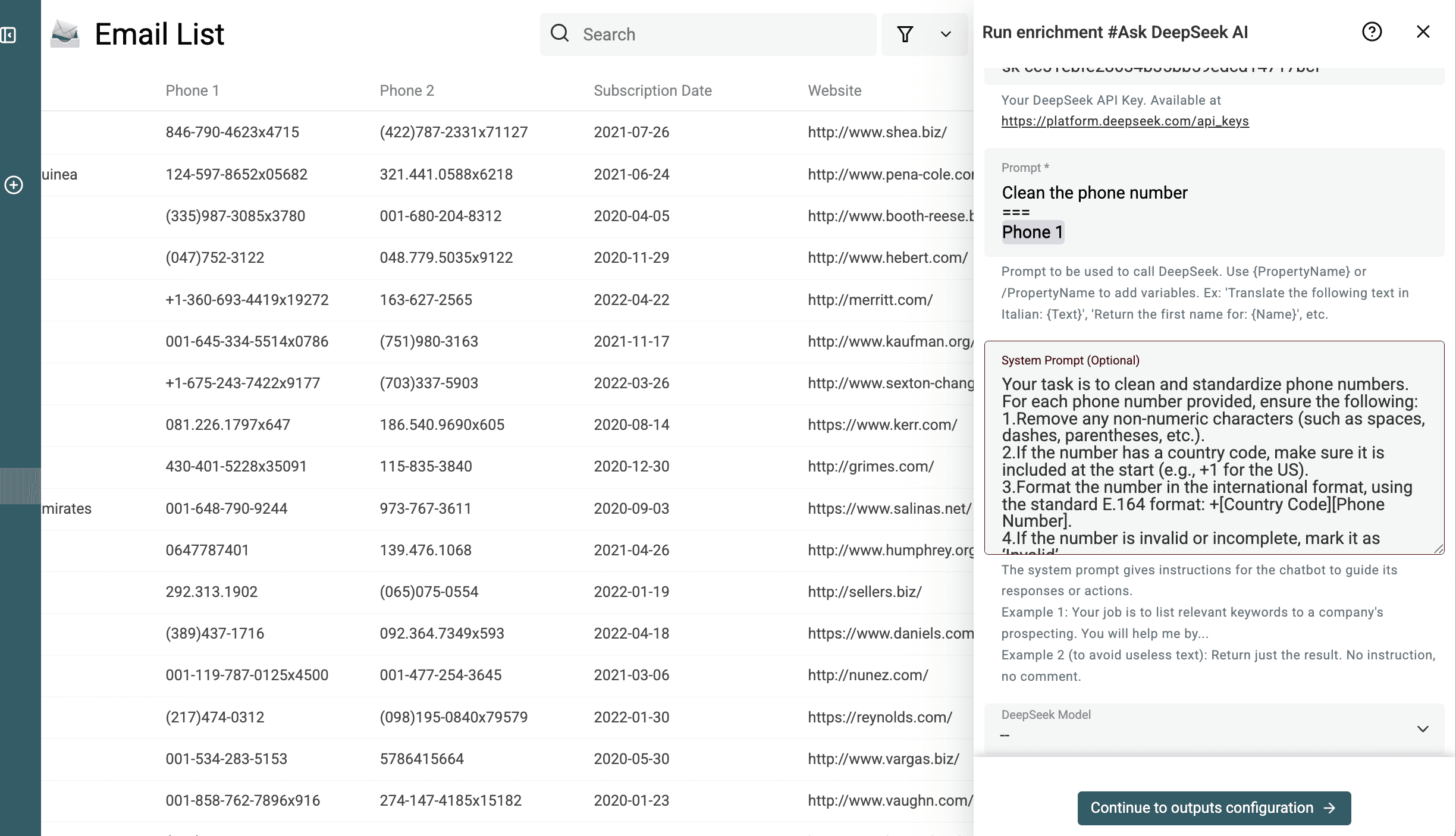
Step 6: Write Your Prompt
Write one prompt for all your rows. Type a slash and choose a property to insert its value, for example the company name.
Show an example prompt
Classify this company by industry. Return only the industry name:
# Company Name
{{Company Name}}
The prompt must include at least one row variable. Type {{ or / and select a property; all your text columns can be used.
Optionally add a system prompt to guide the answer, for example: Return just the result. No instruction, no comment.
Step 7: Choose the Output Columns
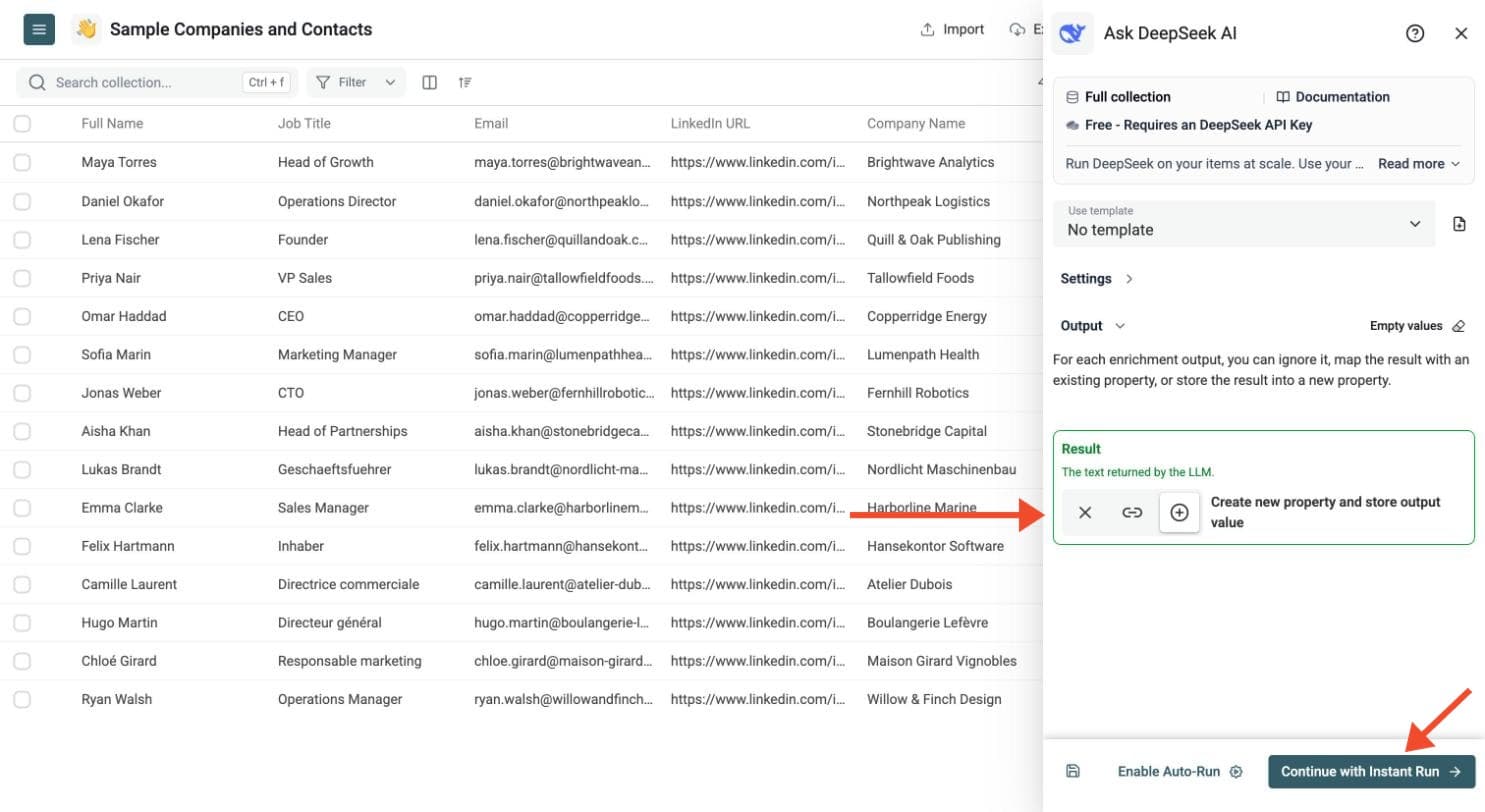
DeepSeek returns the answer in a Result column. To get several fields from one prompt, switch on Define outputs format and name each output. Then choose where to store each result: create new properties or map existing ones.
Click Continue to outputs configuration, then click the ⊕ icons to add the output properties to your collection.
Each structured output has a name, description and type: Text, Long Text, URL, Number, DateTime or Checkbox. Define an output for each field your prompt requests. This option is available on compatible models.
Step 8: Test on a Few Rows, Then Run
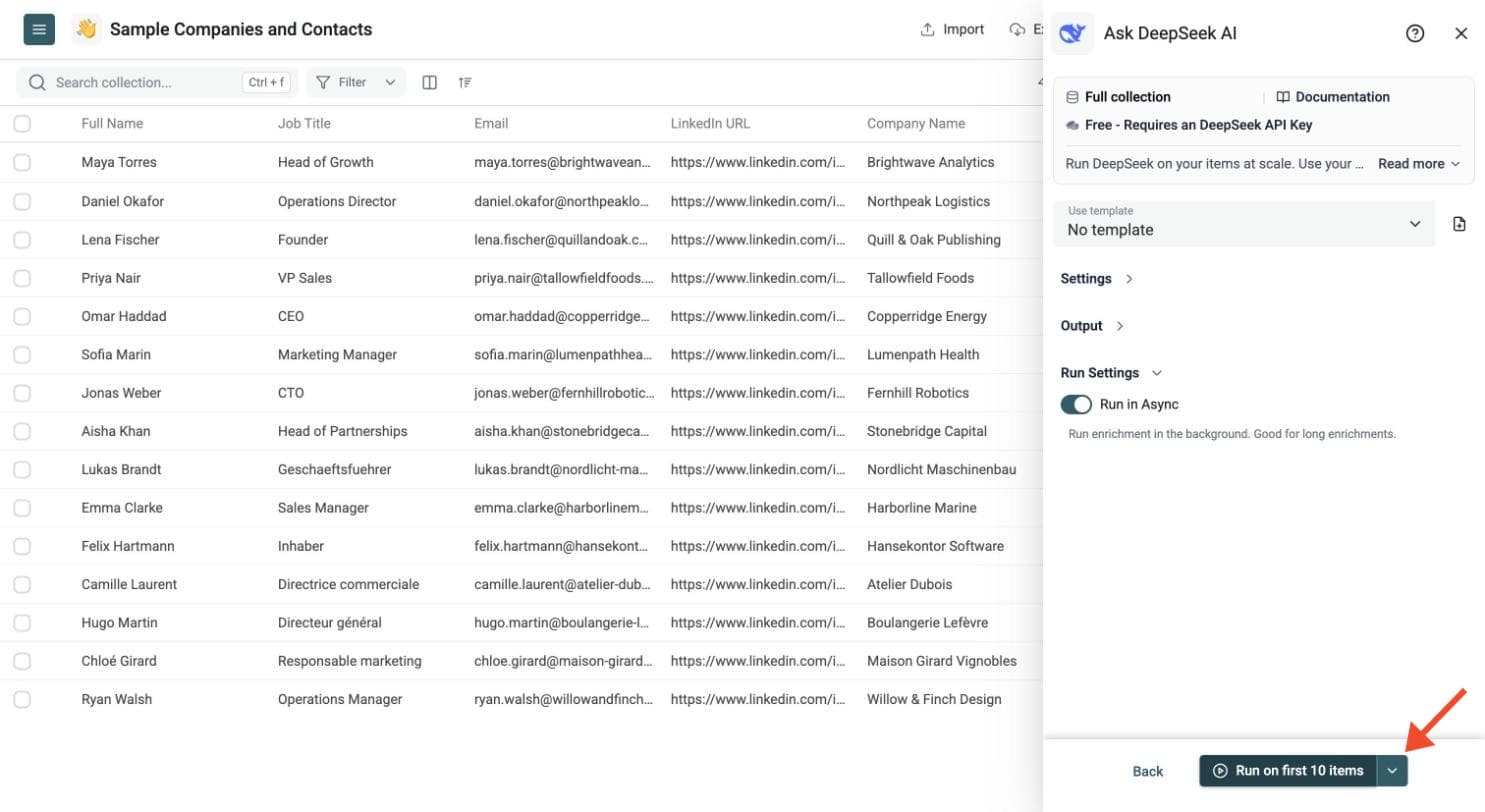
Run a sample first. Click the chevron on the right side of the run button to choose how many items to process:
-
Run on first 10 items: Good for checking results before committing
-
Run on first 100 items: Useful for validating larger samples
-
Run on all view items: Process your entire list (or view if you've enabled filters)
Check the results, adjust your prompt, then run the full list. Switch on Run in Async in the Run Settings to let Datablist handle automatic background retries.
Review the run-status column, filter rows with errors, fix the input or settings, and retry only those rows. You can filter and export the resulting collection.
Use cases
Code Explanation or Generation
If your rows contain code snippets, ask DeepSeek to explain them. Or, generate simple code based on parameters in other columns.
Data Cleaning
Use DeepSeek to correct text cases, fix grammar and typos, or standardize messy text fields across thousands of rows.
Text Summarization
Generate concise summaries from long descriptions, articles, or feedback found in each row.
Language Translation
Translate phrases or sentences from one language to another using DeepSeek's language capabilities.
Content Categorization
Automatically assign categories or tags to items (like products or articles) based on their text descriptions.
Information Extraction
Pull out specific pieces of information (like names, dates, company mentions) from unstructured text in your rows.