 0.05 Credits per Name
 Handles Messy Name Formats
 500 Free Credits to Try
















 Easy to Use
 No Settings to Configure
 Fully No-Code
Step-by-Step Guide
Step 1: Sign Up & Upload Your Data
First, sign up for Datablist.com
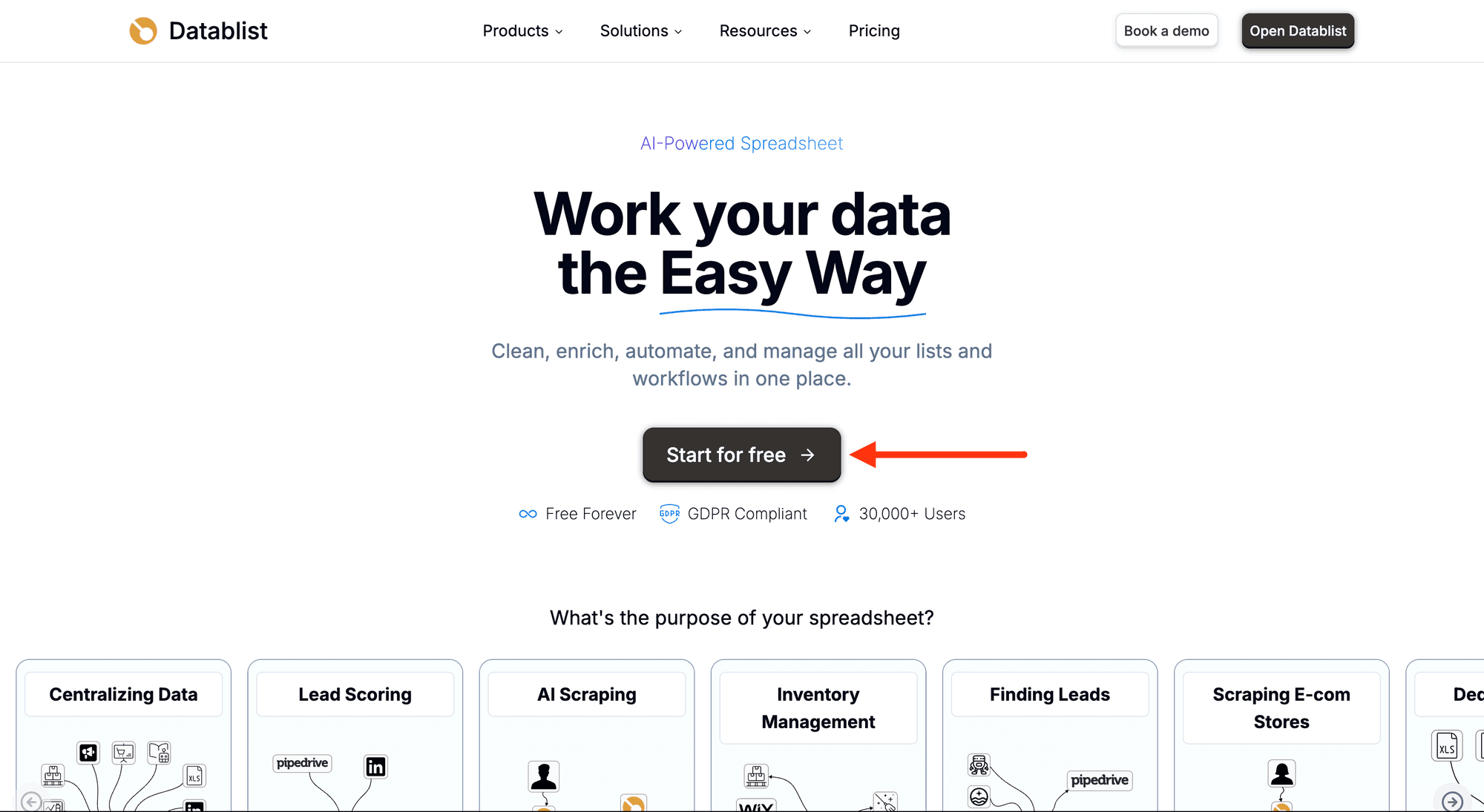
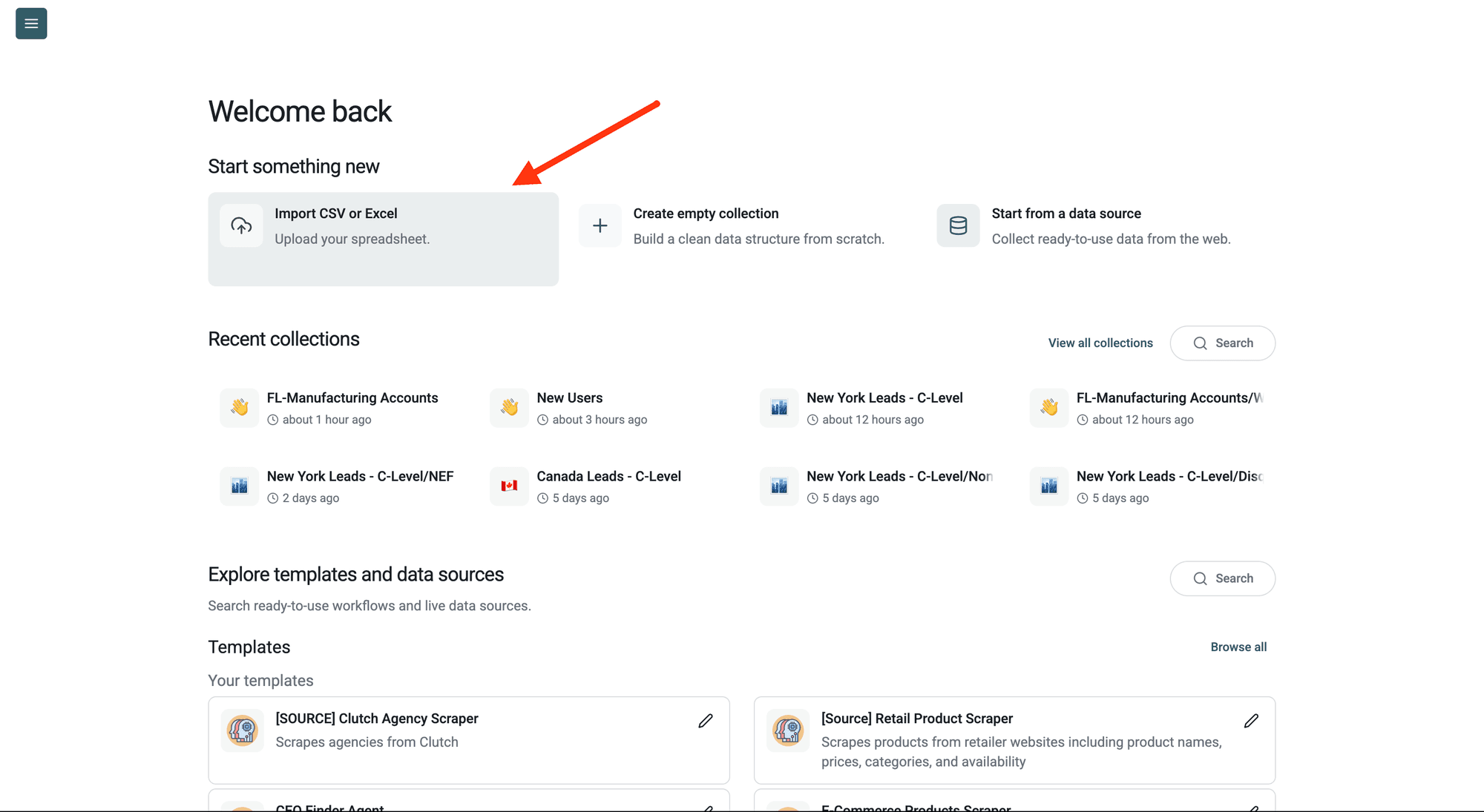
Create a new collection with the CSV editor. Then, upload your CSV or Excel file with the names you want to parse.
Step 2: Navigate to the Enrichment
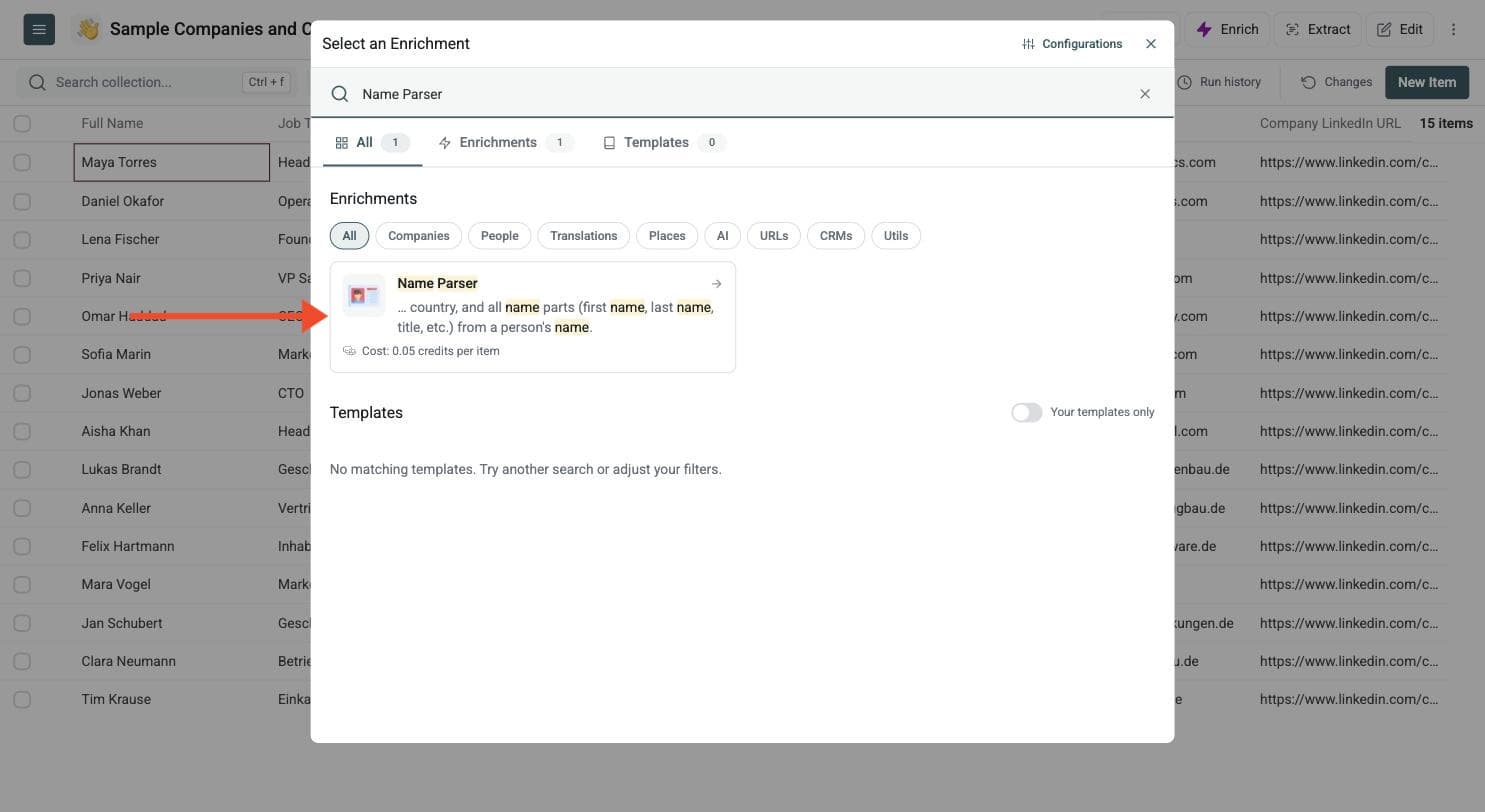
Click Enrich in the top menu and search for Name Parser.
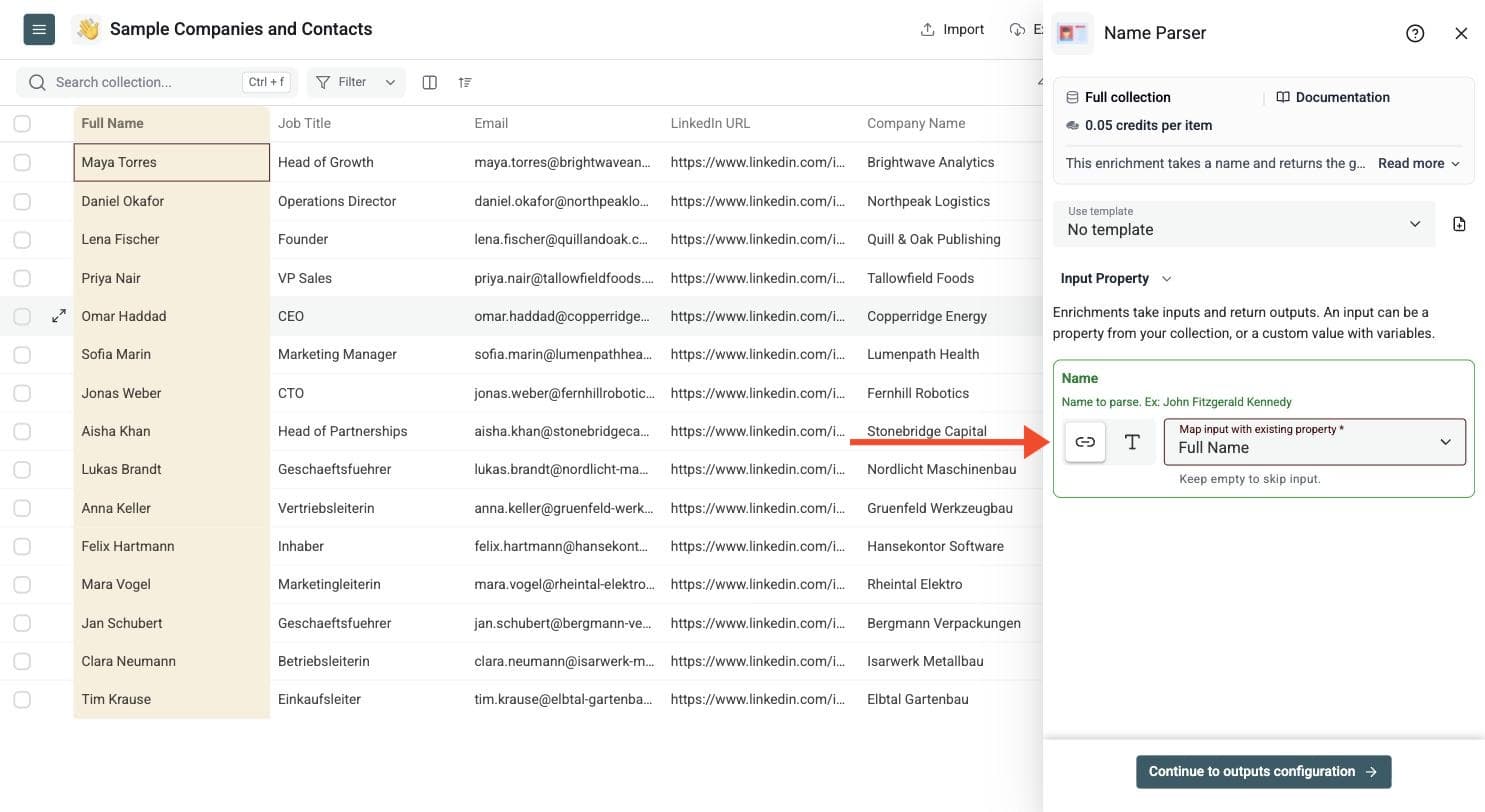
Step 3: Configure Your Inputs
- Map the Name input to the column that contains the full name.
Examples:
John Fitzgerald KennedyDr. Marie CurieJean DupontAna Maria SilvaSMITH, JOHNjohn.doe@example.comJohn Smith (CEO)
Datablist cleans the value before parsing it. It removes extra spaces, fixes casing when the source is all caps, strips some trailing context, and rejects values that do not look like person names.
Then click Continue to outputs configuration.
Step 4: Select Outputs
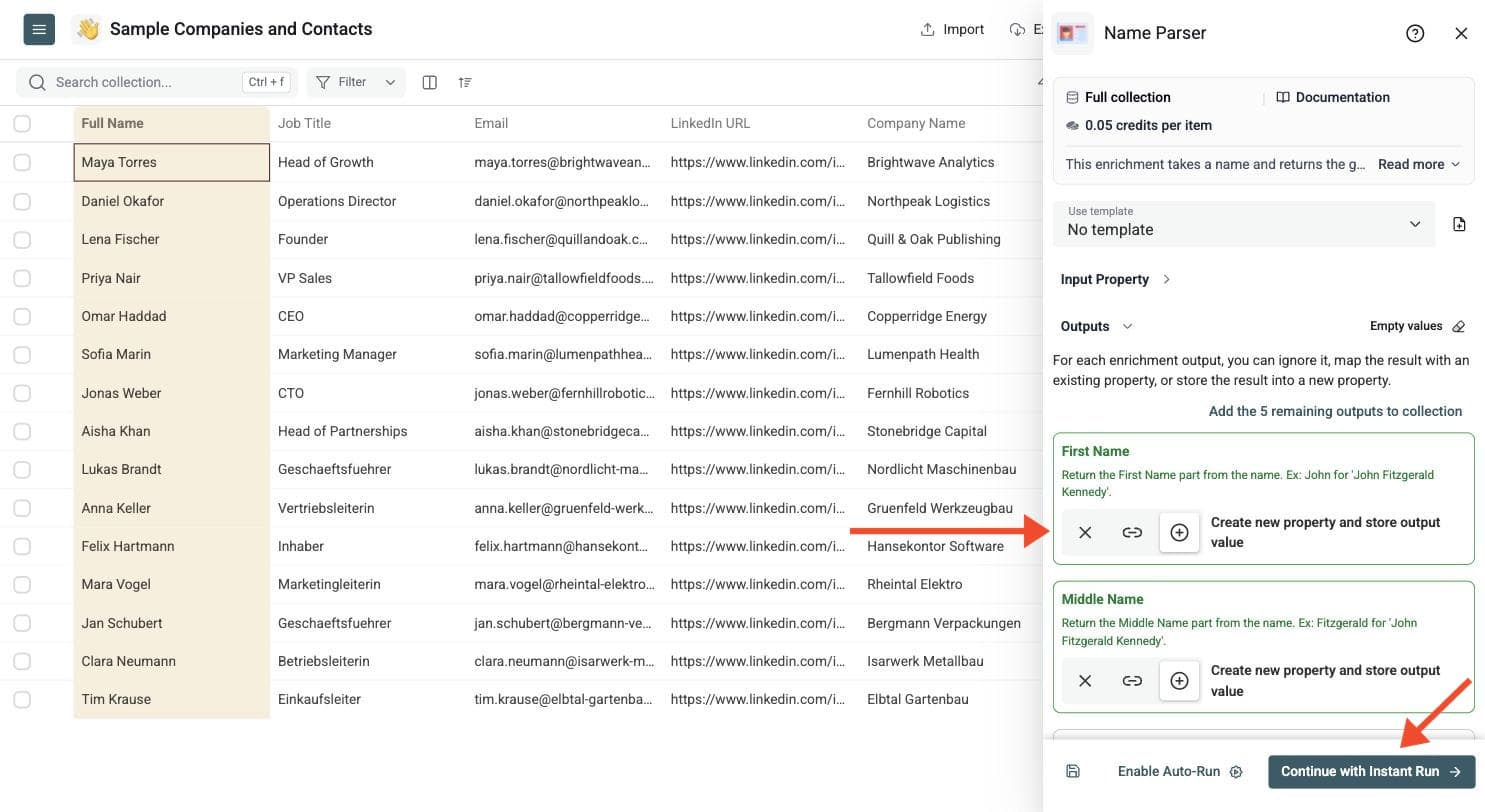
Name Parser can return:
-
First Name, Middle Name and Last Name: the name parts
-
Gender: Male or Female when it can be inferred
-
Title: a title or honorific such as Dr., Mr., Jr. or Mme
-
Country and Country Confidence: where the name is most common, and how much to trust it
Gender and country are computed only when you select those outputs. If you only need first and last names, map only those columns.
Click the ⊕ icons to add them to your collection, then click Instant Run.
Step 5: Run the Enrichment
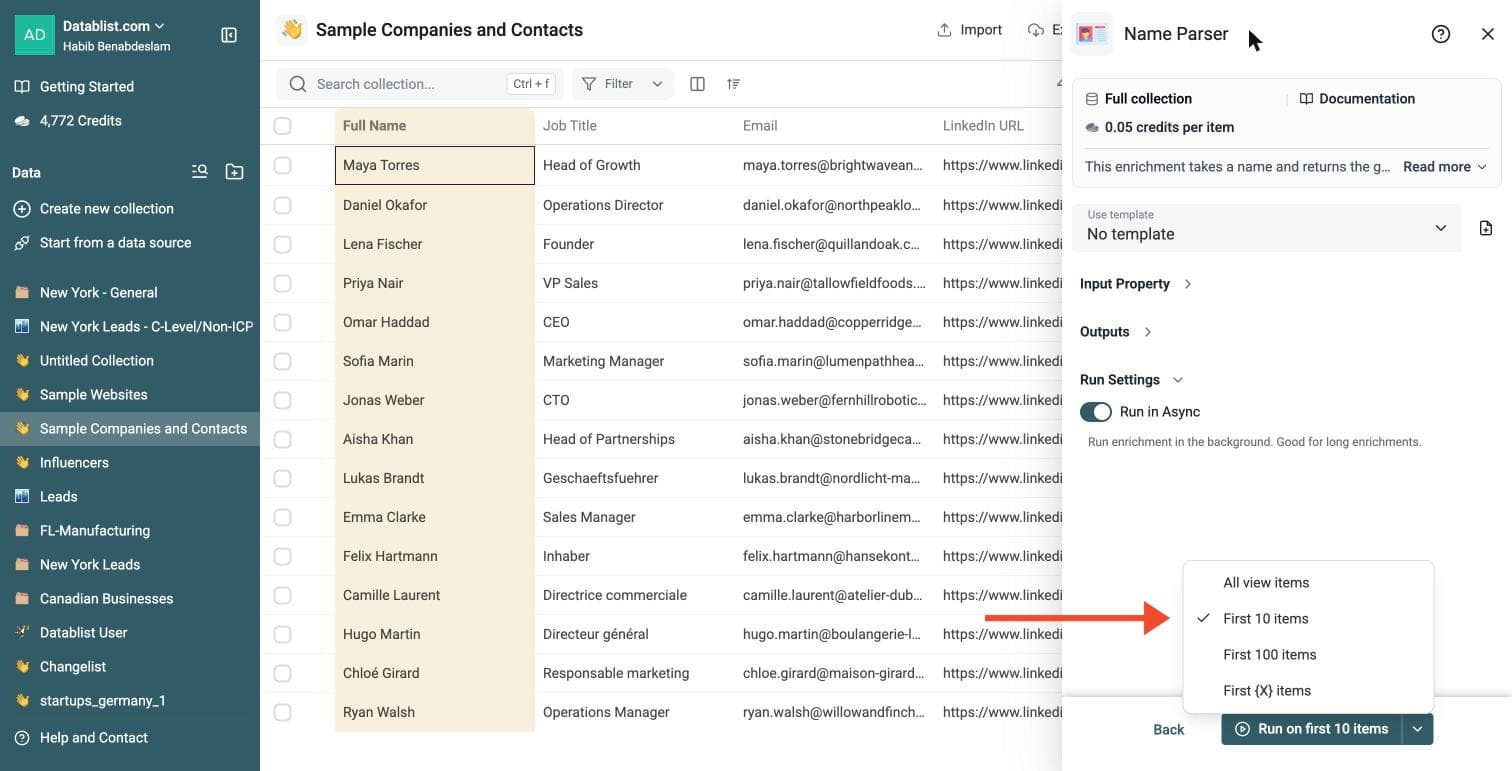
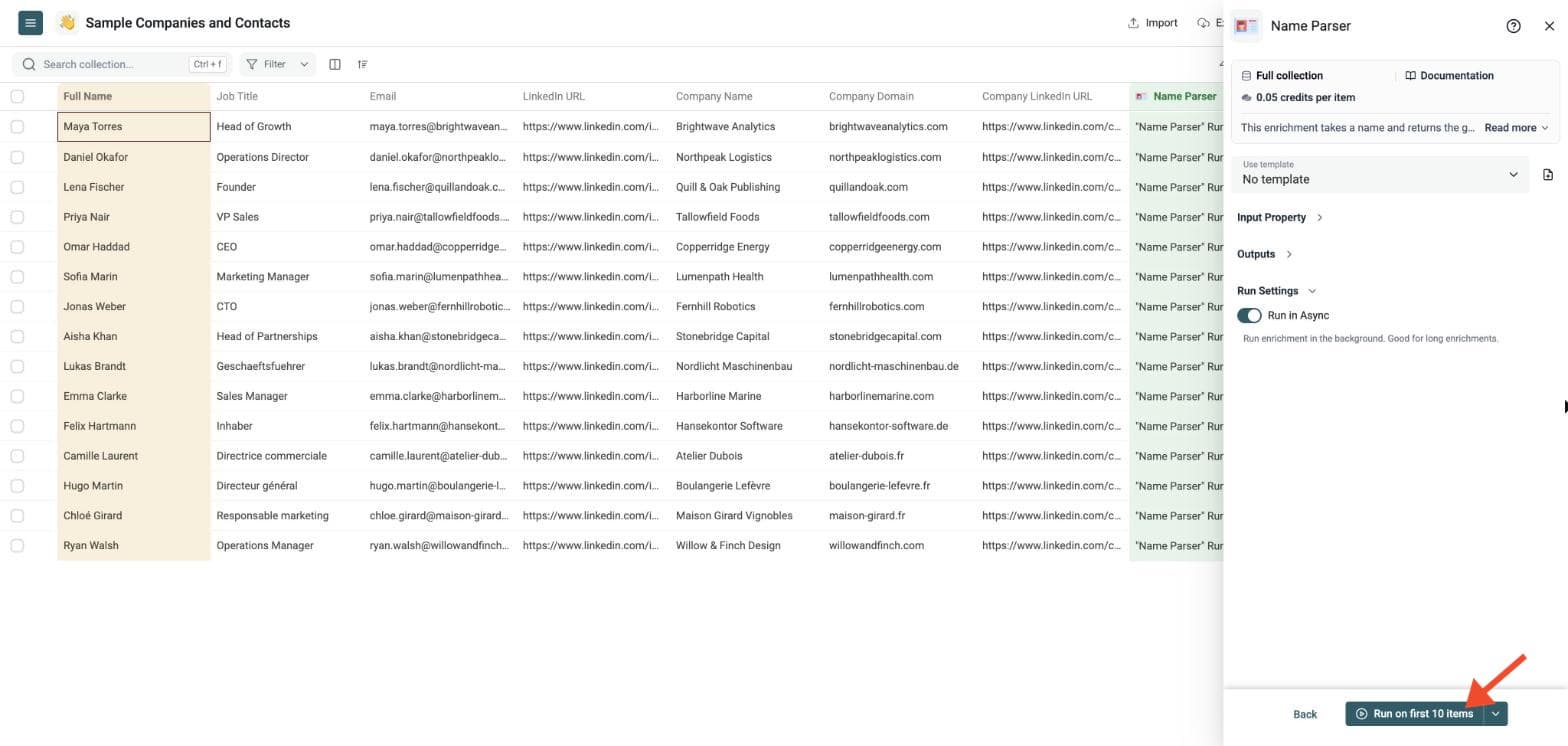
Run a sample of names first. Click the chevron on the right side of the run button to choose how many items to process:
-
Run on first 10 items: Good for checking results before committing
-
Run on first 100 items: Useful for validating larger samples
-
Run on all view items: Process your entire list (or view if you've enabled filters)
Review simple names, names with titles, compound names and names from several countries before processing the full list. Use the run-status column to filter no-result rows, then export the resulting collection.
Name Parsing Examples
Example outputs:
| Input | First Name | Middle Name | Last Name | Title | Country | Country Confidence |
|---|---|---|---|---|---|---|
| John Fitzgerald Kennedy | John | Fitzgerald | Kennedy | United States | High | |
| Dr. Marie Curie | Marie | Curie | Dr | France | High | |
| SMITH, JOHN | John | Smith | United States | High | ||
| Poullin Florian | Florian | Poullin | France | High | ||
| john.doe@example.com | John | Doe | United States | High | ||
| John Smith (CEO) | John | Smith | United States | High |
Messy Name Formats Supported
Real lists rarely contain clean full names. The Name Parser handles many common spreadsheet formats.
Names with titles and suffixes
The parser recognizes titles and honorifics such as:
Dr. Jane SmithMr John Doe Jr.Mme Marie CurieProf. Albert EinsteinSir Isaac NewtonM. Jean Dupont
It returns the title in a separate output when available.
Names in uppercase or lowercase
If your file contains JOHN DOE, Datablist returns John and Doe.
This helps with exports from CRMs, event tools, and legacy databases where names are stored in uppercase.
Last name first formats
The parser supports comma-separated names such as:
SMITH, JOHNDoe, Jane - CFOde la Cruz, Juan
It also detects some reversed two-word names when the data gives a strong signal. For example, Poullin Florian becomes:
- First Name: Florian
- Last Name: Poullin
Email-style values
If your name column contains email addresses, Datablist can parse the local part when it looks like a person name:
john.doe@example.com-> John Doemary-jane.smith@example.com-> Mary-Jane Smithjane_smith123@example.com-> Jane Smithjohn.smith+newsletter@example.com-> John Smith
Generic inboxes are rejected instead of parsed as names. Examples: support@example.com, hr@example.com, jobs@example.com, press@example.com, and no-reply@example.com.
Plus aliases are handled when the local part still contains a name. For example, john.smith+newsletter@example.com is parsed, but john+newsletter@example.com is skipped because it does not contain enough name evidence.
Names with trailing context
Datablist removes some common context after the name:
John Smith (CEO)-> John SmithElon Musk - Tesla-> Elon MuskJane Doe | Product Manager-> Jane DoeMarie Curie • Nobel Prize-> Marie Curie
This is useful for scraped data, LinkedIn exports, and event attendee lists where the name field contains a role or company.
Compound and international names
The parser supports hyphenated names, apostrophes, particles, and accented characters:
Jean-Luc PicardAnne-Marie O'NeillJuan de la CruzLeonardo da VinciGabriel García MárquezMohamad Bin Salman
For gender and country, Datablist uses name frequency data. The country output is a likely country for the name, not a verified location.
Country Confidence
Some names point clearly to one country. Others are common in many countries.
The Country Confidence output helps you decide how much to trust the country value:
- High - The name gives a clear country signal.
- Medium - The country signal is useful, but not unique.
- Low - The country signal is weak.
- Very Low - The name gives little country evidence.
Use this field before segmenting a list by country. For example, you can keep High and Medium rows for broad analysis, then leave Low rows blank or review them.
Do not use the country output as proof of nationality, residence, or legal location. It is a name-based guess.
Values Rejected as Non-Person Names
Name Parser avoids returning fake names for values that are not person names.
It rejects:
- Empty values
N/A,unknown,null, and similar placeholders- Numbers and symbol-only values
- Initial-only values such as
J D - Obfuscated emails such as
john at example dot com - Generic inboxes such as
support@,hr@, andjobs@ - Company names with legal suffixes such as
Acme LLC,Datablist SAS, orExample GmbH - Unsupported non-Latin names when the parser cannot identify a reliable person name
Rejected rows are marked in the run status so you can filter and review them.
This matters for bulk work. The parser prefers an empty result over a wrong first name when a row looks like a company, mailbox, placeholder, or noisy export value.
Run Status and Credits
Each processed row gets a run status.
- Parsed rows return a success status and cost 0.05 credits.
- Rows where the parser runs but finds no reliable name return a no-result status and cost 0.05 credits.
- Empty inputs return an empty-data status and do not use credits.
Use the no-result status to inspect rows manually. It often finds bad source data: company names in the contact column, role inboxes, placeholders, or names with scripts the parser cannot validate.
Common Use Cases
Personalize Cold Emails
Split full names into first names so your outreach tool can use a clean greeting.
This works even when the source file contains values such as SMITH, JOHN, john.doe@example.com, or John Smith - CEO.
Clean CRM Imports
Many CRMs expect first name and last name in separate fields. Name Parser prepares the file before import.
Normalize Event or Webinar Lists
Turn attendee names into structured fields before deduplication, segmentation, or follow-up campaigns.
Prepare Recruiting Data
Split candidate names from resumes, sourcing exports, or job board data before uploading them to an ATS.
Improve Deduplication
Separate name parts before matching records. This helps when one file has John Smith and another has John A. Smith.
Name Parser or Extract Name from Email?
Use Name Parser when your column contains a mix of full names and name-like email addresses.
Use Extract Name from Email Address when your input is only email addresses and you want a tool focused on email patterns.
Cost Examples
Name Parser costs 0.05 credits per parsed or attempted row.
Examples:
- 1,000 names cost 50 credits.
- 10,000 names cost 500 credits.
- 100,000 names cost 5,000 credits.
New accounts get 500 free credits on signup, which covers up to 10,000 name parsing rows.
Empty rows are skipped without credits. Rows with text that the parser checks but cannot validate are attempted rows and cost 0.05 credits.
Tips for Better Results
- Keep the original full name column.
- Write parsed values to new columns.
- Preview names from several countries before running a large file.
- Map gender and country only if you need them.
- Map Country Confidence when you use the country output.
- Use the run-status column to review rows before rerunning.
- Filter no-result rows after the run to inspect bad inputs, company names, and placeholders.
- Use the country output for broad segmentation only. It is based on name frequency, not a verified address.