 0.10 Credits per Page
 Proxy for Protected Pages
 500 Free Credits to Try













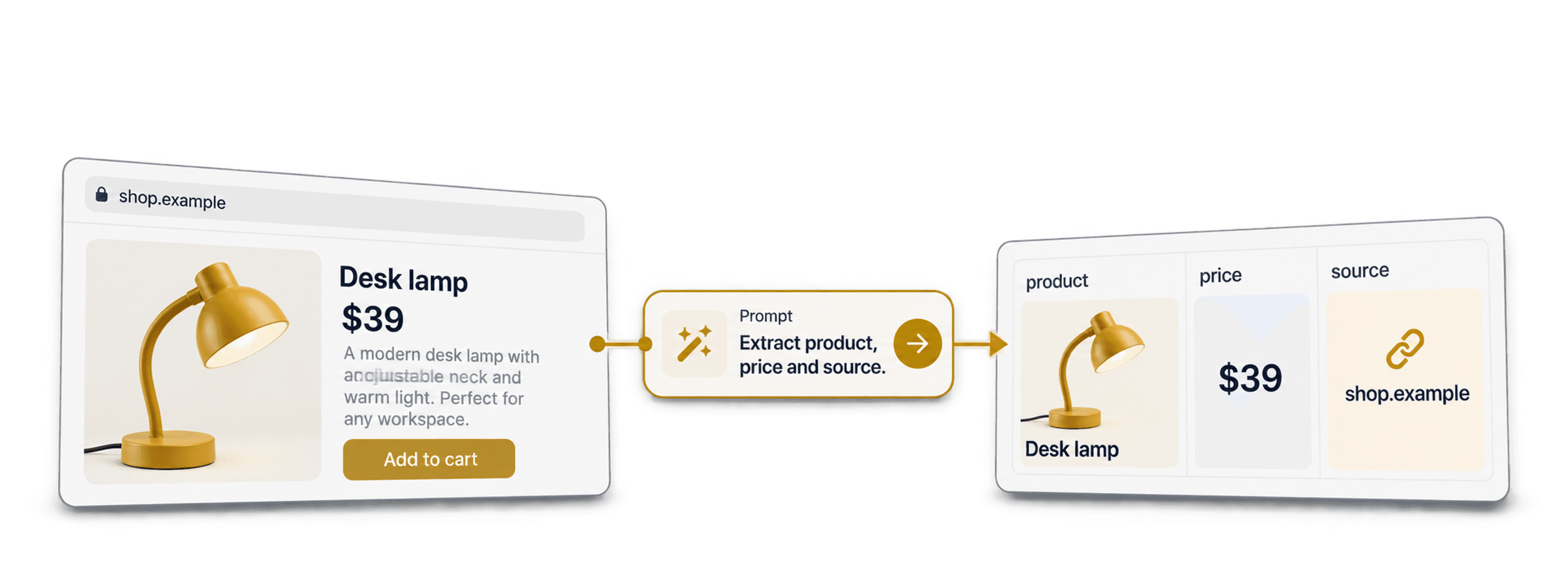
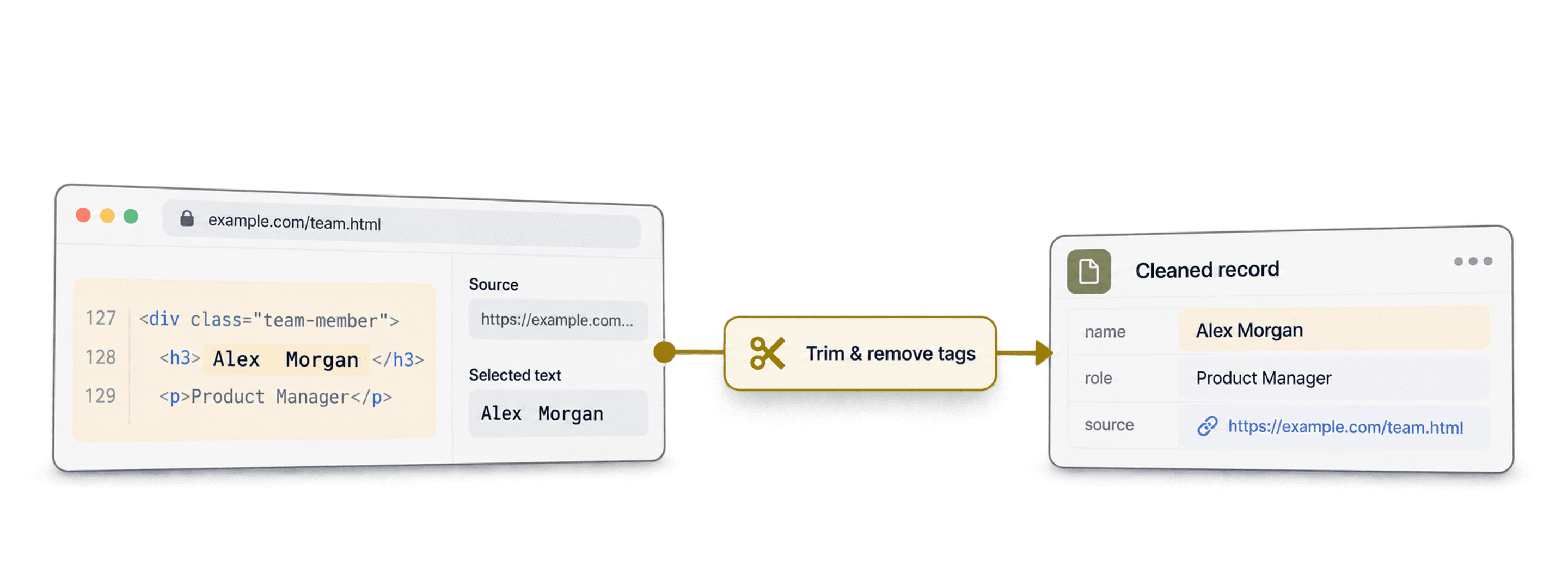


 Easy to Use
 38,000+ Users
Step-by-Step Guide
Step 1: Sign Up & Upload Your Data
First, sign up for Datablist.com
Create a collection with the CSV editor. Then, upload your CSV or Excel file with the URLs you want to scrape.
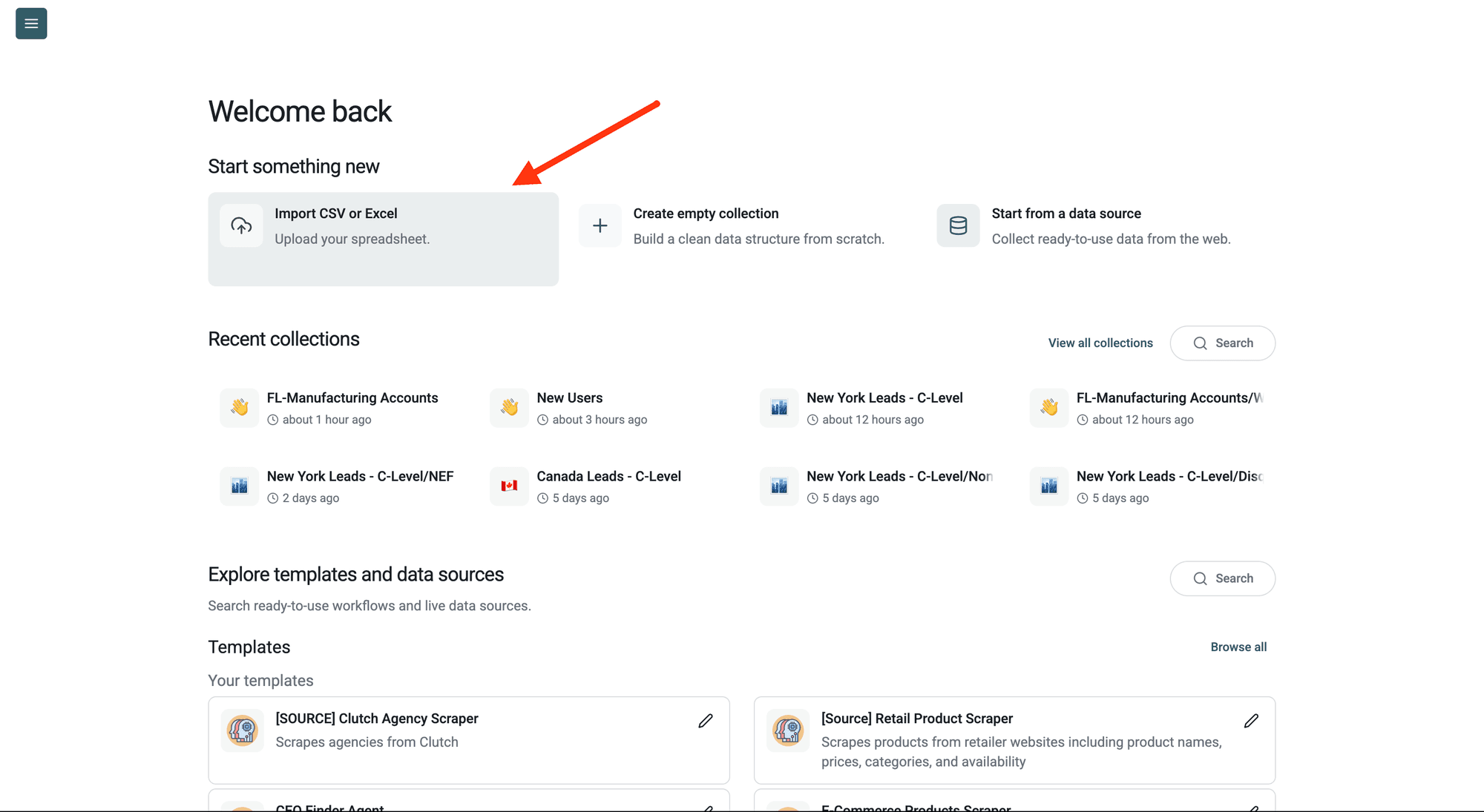
Step 2: Navigate to the Enrichment
Click Enrich in the top menu and search for Bulk Scraper.
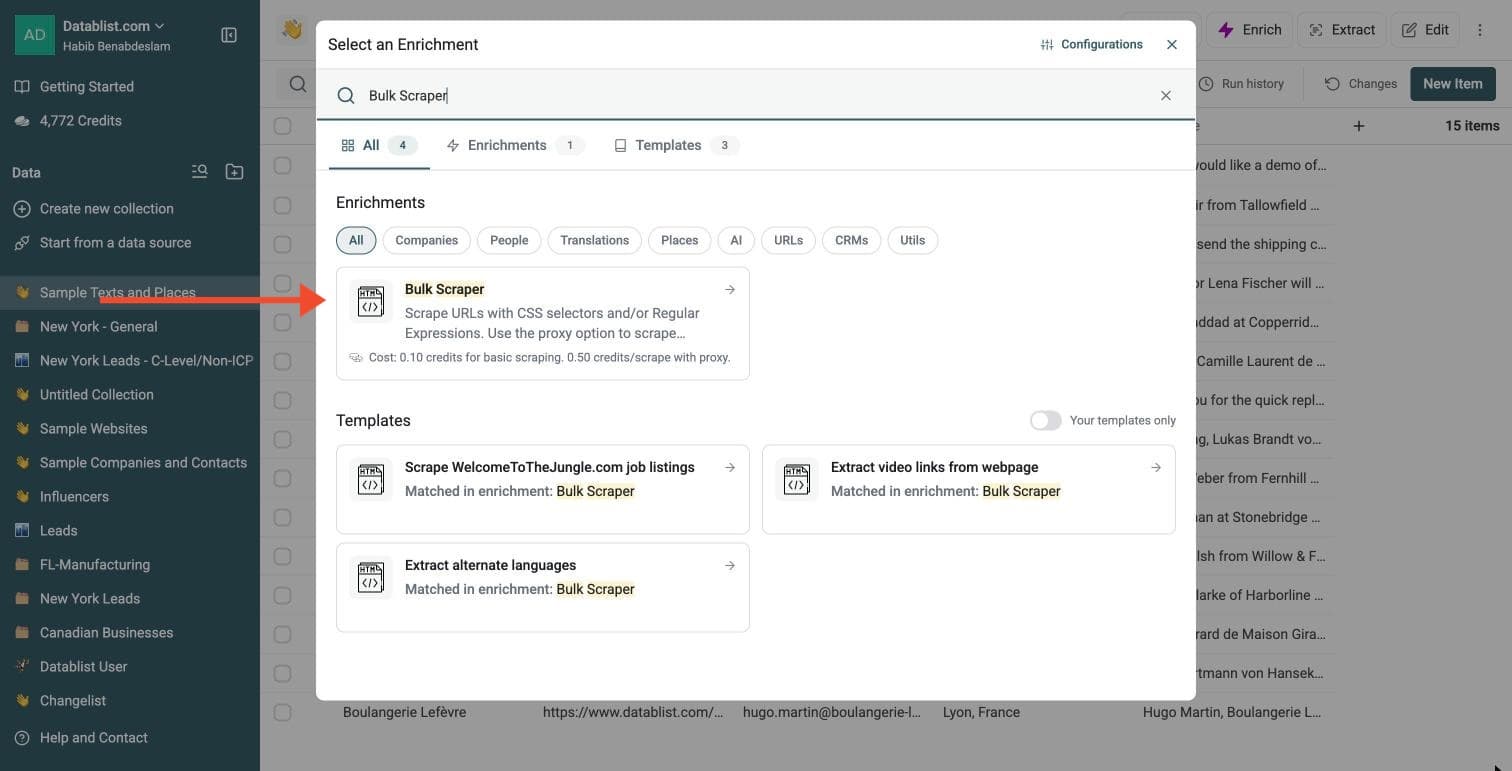
Step 3: Set Up the Enrichment
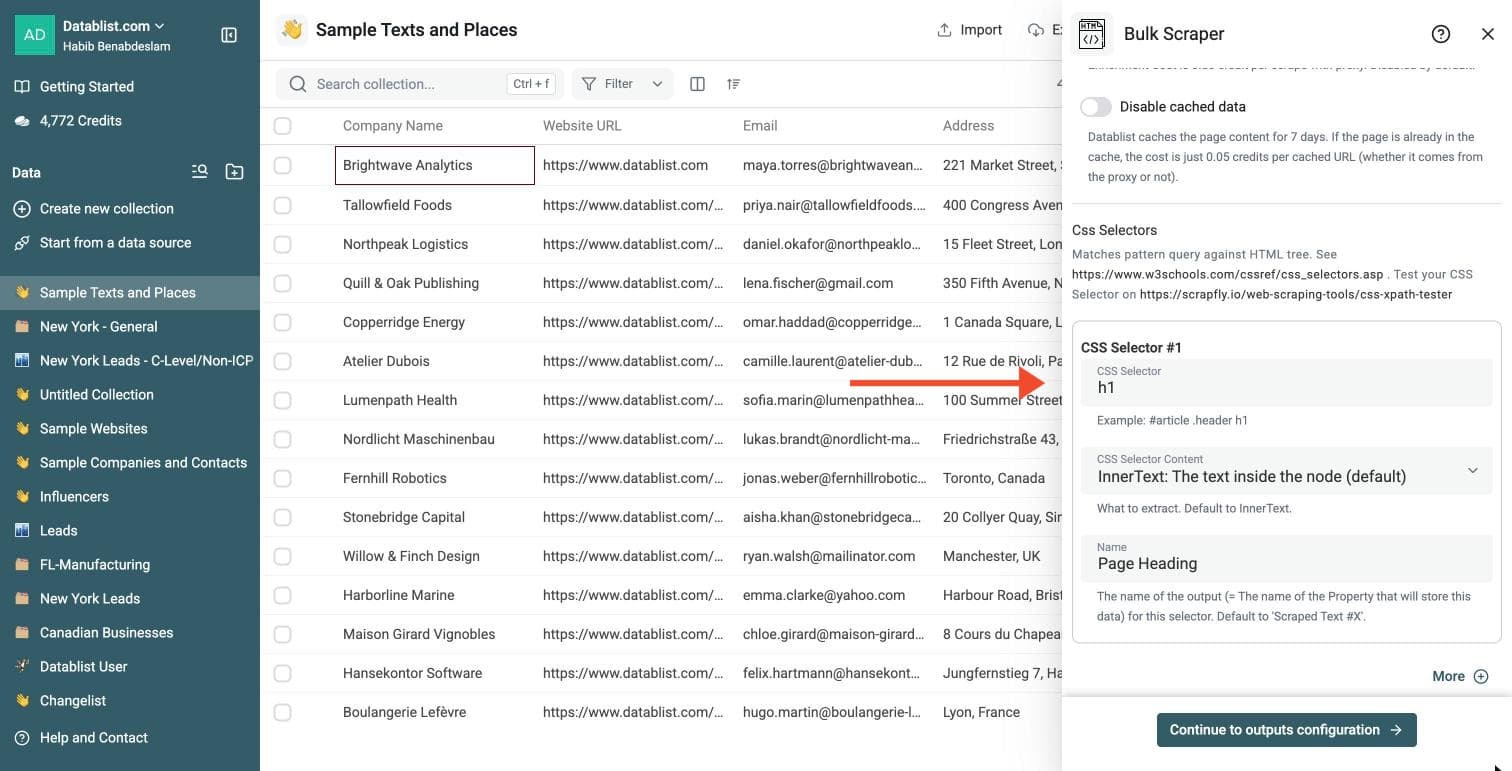
In the drawer that opens, describe what to extract:
-
CSS Selector: the selector of the text you want, for example h1
-
CSS Selector Content: InnerText (default), HTML or an attribute
-
Name: the name of the output column for this selector
-
More: add another selector
-
Use Proxy when needed and Disable cached data: optional fetch settings
For pages built with JavaScript, enable Use Proxy when needed, then Render HTML. A fresh rendered scrape uses a proxy and costs 2 credits per page. With rendering off, Proxy Policy selects proxy-on-error or always-proxy.
You can also enable Extract using Regular Expressions or Extract data from a JSON object inside the HTML code.. For JSON extraction, use Path to the JSON object to select the script tag, then add JSONPath expressions. At least one selector, regular expression or JSONPath expression is required.
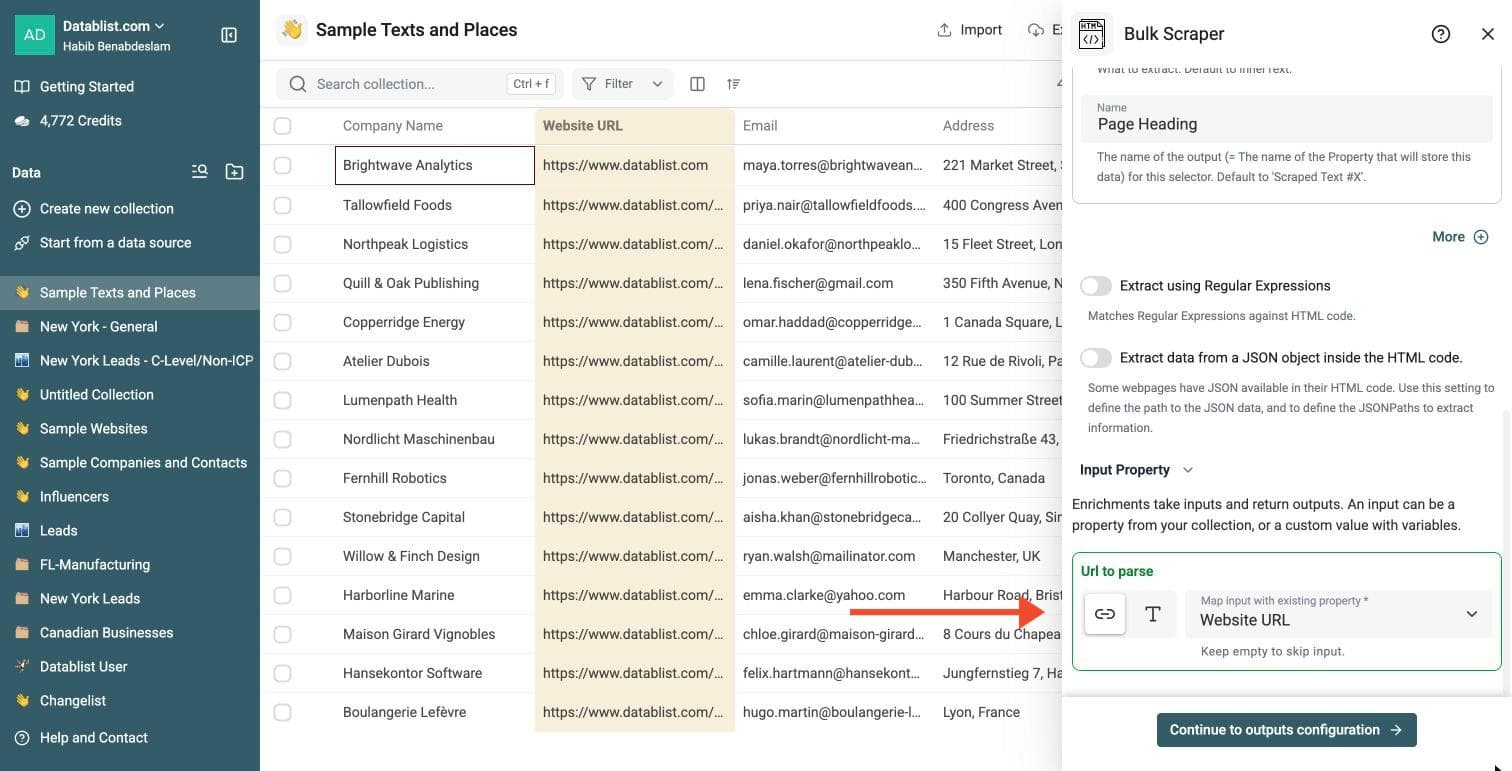
Step 4: Configure Your Inputs
Map the Url to parse input to the column that holds your URLs.
Then click Continue to outputs configuration.
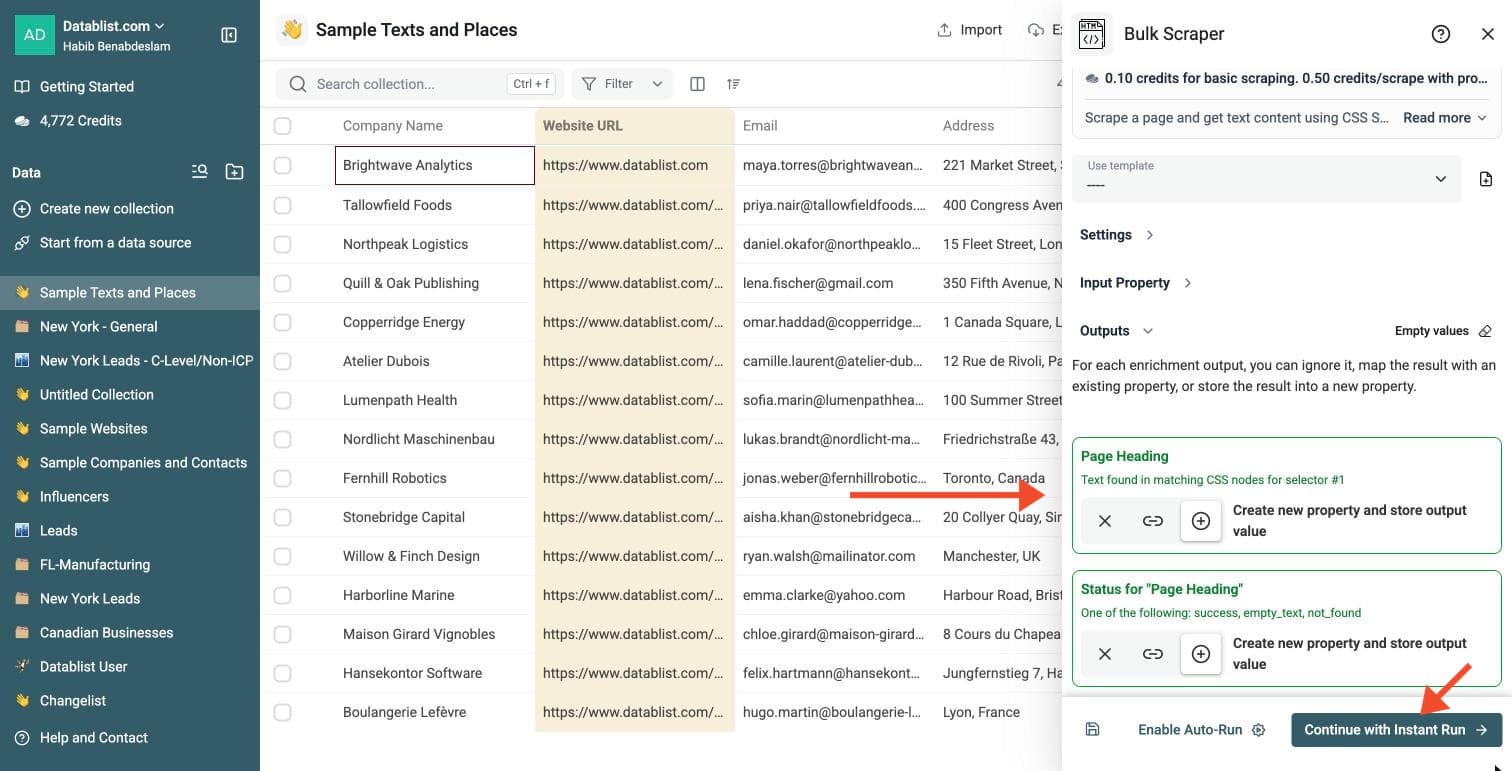
Step 5: Select Outputs
Bulk Scraper returns, for each selector:
-
The text found for the selector, in a column with the name you gave it
-
Its status: success, empty_text or not_found
Click the ⊕ icons to add them to your collection, then click Continue with Instant Run.
Step 6: Run the Enrichment
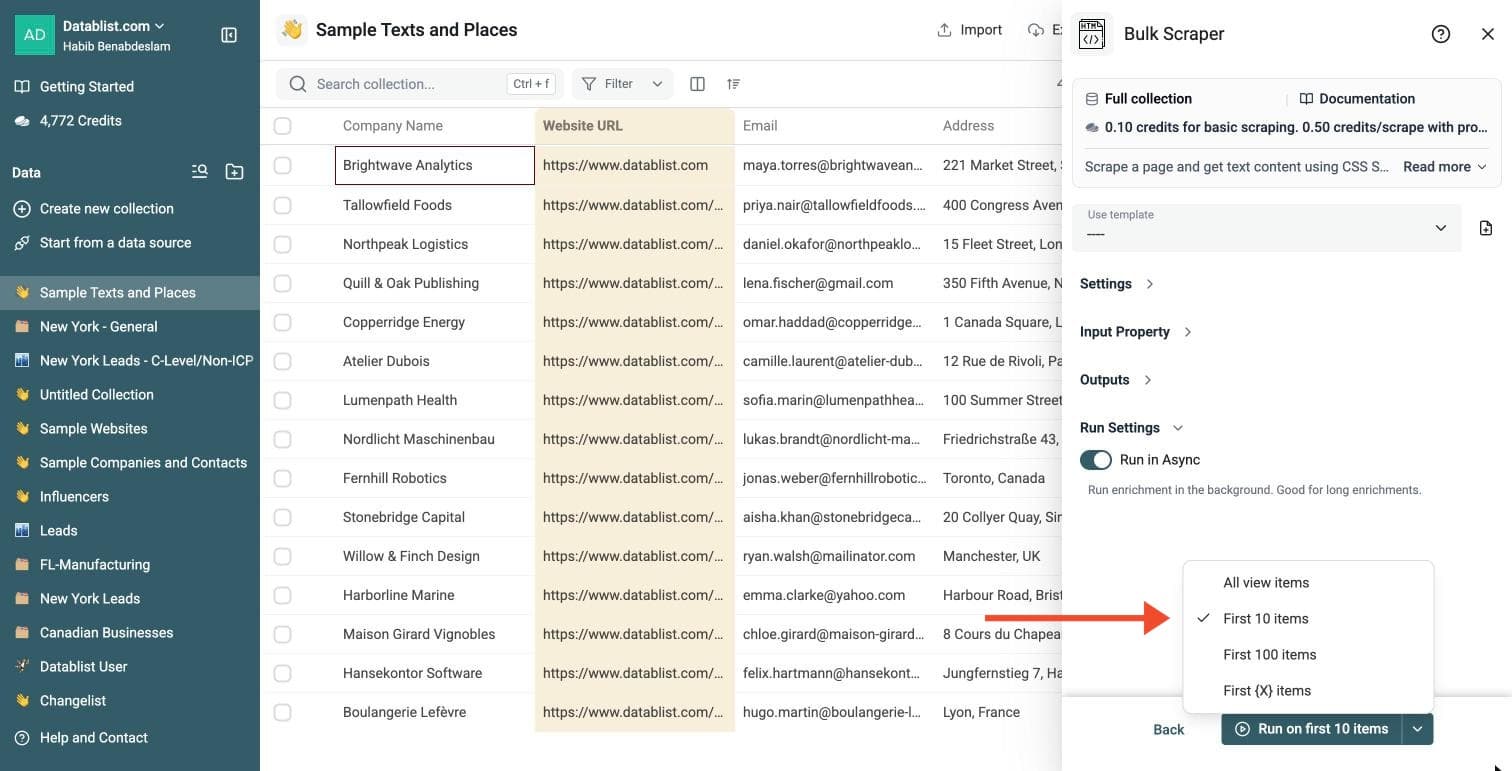
Click the chevron on the right side of the run button to choose how many items to process:
-
Run on first 10 items: Good for checking results before committing
-
Run on first 100 items: Useful for validating larger samples
-
Run on all view items: Process your entire list (or view if you've enabled filters)
Bulk Scraper costs 0.10 credits per page, 0.50 with the proxy.
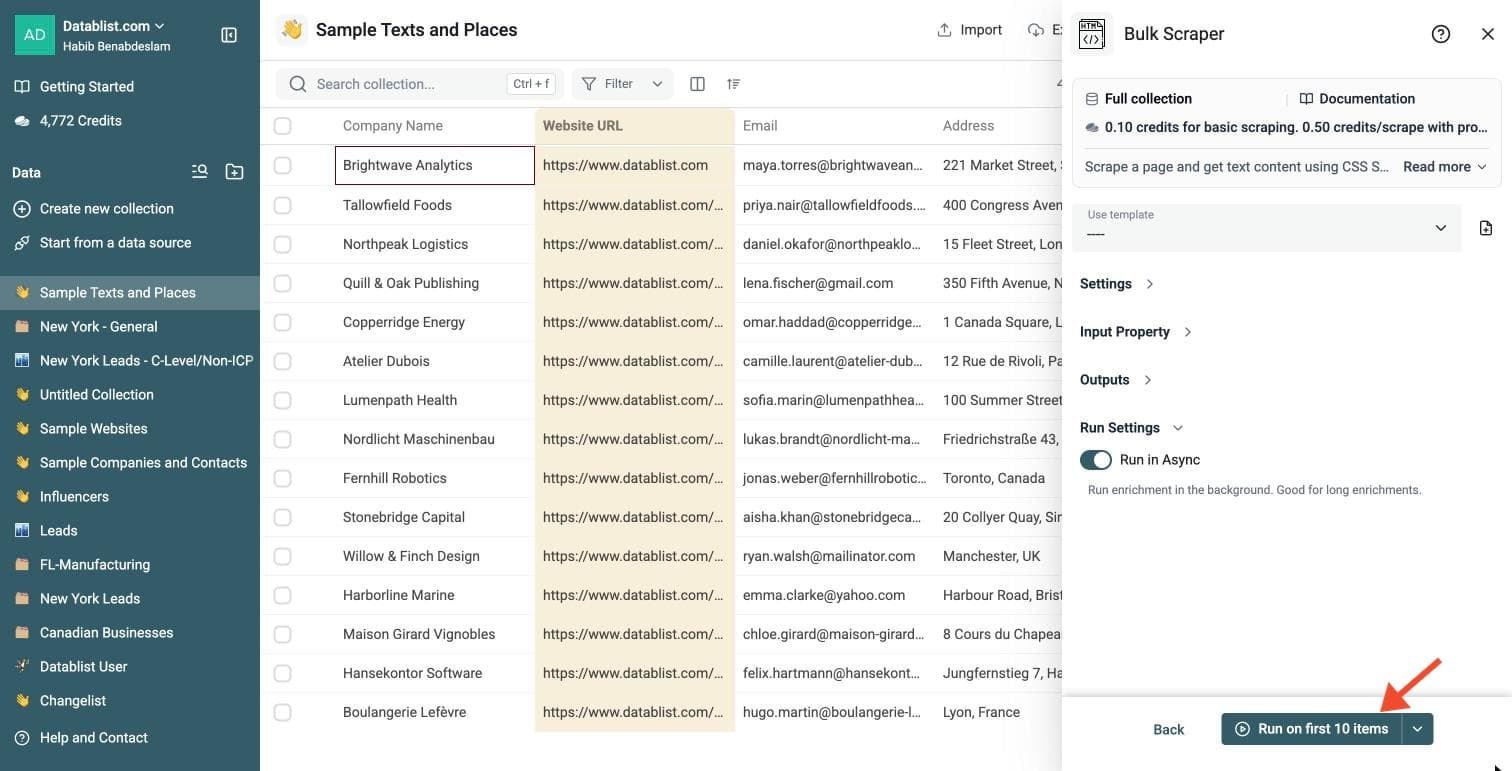
Review a small sample and the run-status column before processing the full list. Filter rows that need attention, fix inputs or settings, and rerun those rows. Export your collection when the results are ready.
Configure CSS Selectors
The Bulk Scraper supports JSONPath extraction as well as two ways detailed below: CSS Selectors and Regular Expressions.
CSS selectors allow you to target specific parts of an HTML document to extract information.
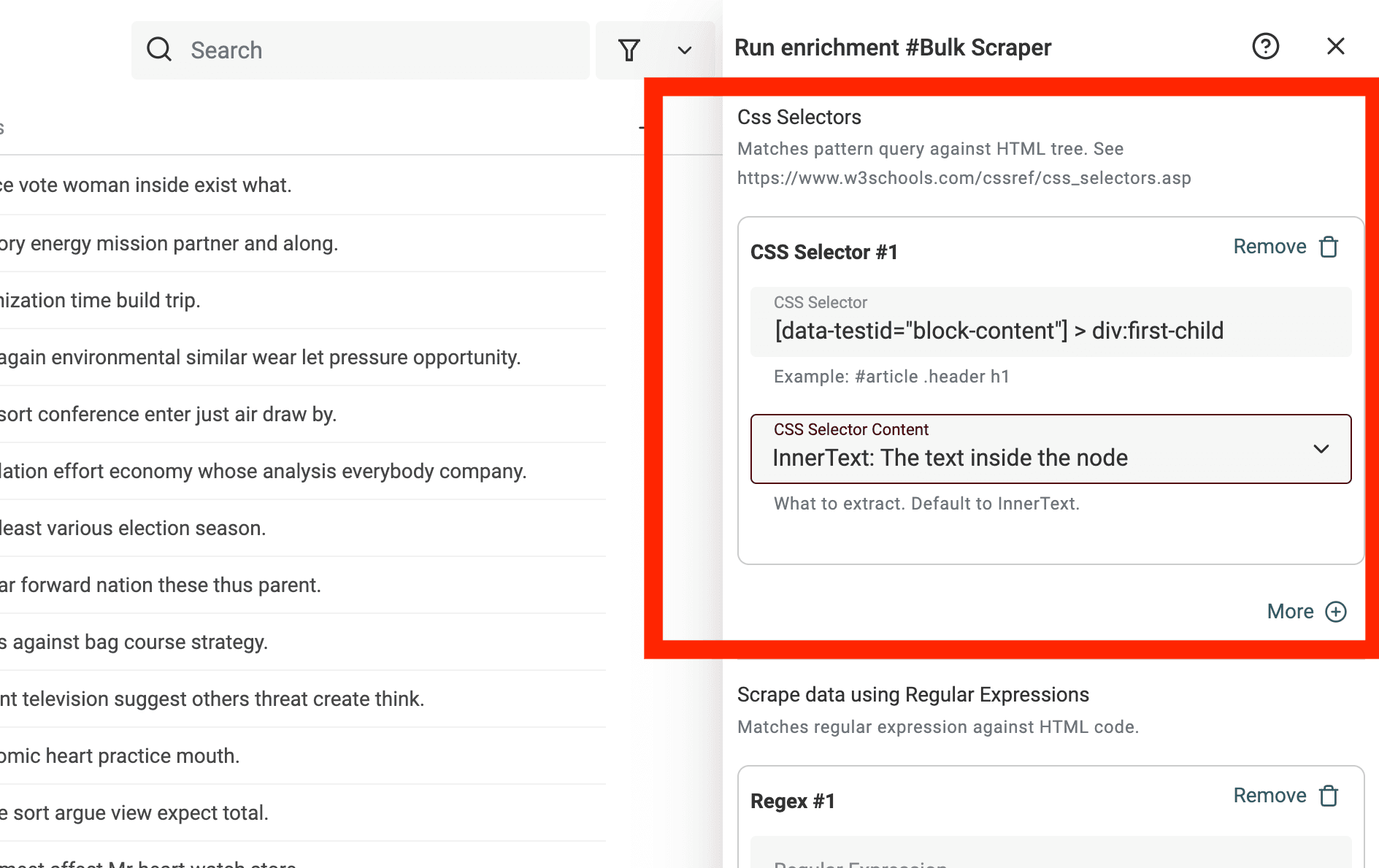
A CSS selector is defined with the following information:
- CSS Selector - The CSS path to the HTML element. Read this guide to learn how to write CSS Selector.
- CSS Selector Content - Data to extract for the HTML element.
- InnerText - Extract the text inside the HTML element. If the HTML element contains nested HTML elements, their texts are also extracted.
- HTML - Extract the outer HTML code for the HTML element
- Attribute - Extract a specific attribute text from the HTML element.
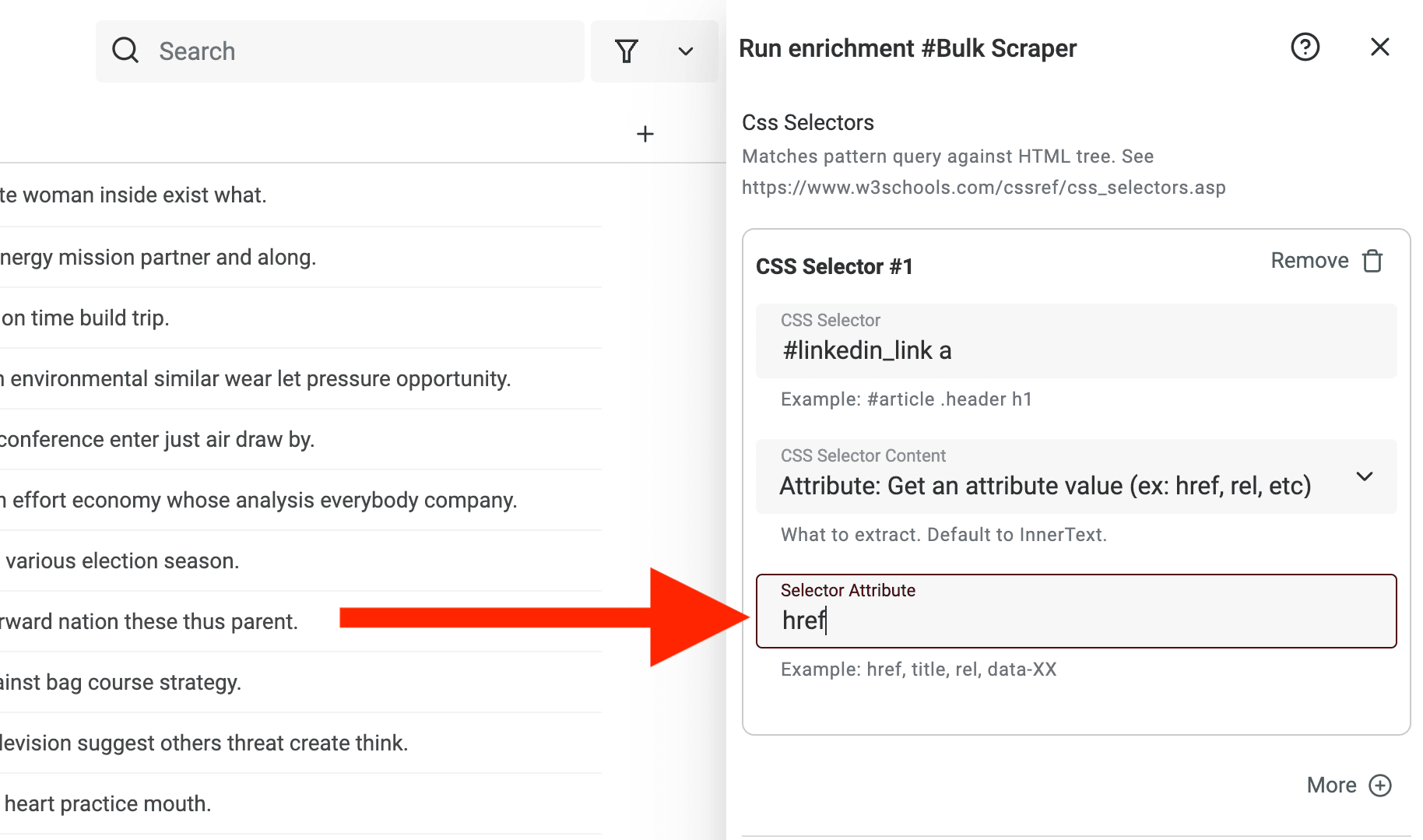
- Selector Attribute - Available when the
CSS Selector Contentis set onAttribute. Define the attribute to extract. Example: href, rel, title.
Note: When several elements match a CSS selector, all the results are returned concatenated with a semicolon (
;)
If you need one scraped link or value per row after export, run the file through the CSV Rows Splitter.
Selector Attribute field available on CSS Selector Content: Attribute.
Examples of CSS Selectors
To learn how to write CSS Selector paths, please read this guide.
Getting the text of an HTML element.
<div class="section product-data">
<div class="product-name">New Phone</div>
</div>The CSS selector would be .section.product-data .product-name with the CSS Selector Content to InnerText.
Getting the text of the first div after a custom HTML attribute.
<div data-testid="block-content">
<div>Info To Scrape</div>
<div>Useless Info</div>
<div>Useless Info</div>
</div>The CSS selector would be [data-testid="block-content"] > div:first-child with the CSS Selector Content to InnerText.
Getting the URLs for links:
<div class="social-media">
<a href="https://fr.linkedin.com/company/datablist">Linkedin</a>
<a href="https://www.twitter.com/datablist">Twitter</a>
</div>The CSS selector would be .social-media a with the CSS Selector Content to Attribute and the Attribute to href.
How to test CSS Selectors
An easy way to test your CSS Selectors before running them in bulk is to use your browser console.
To test for InnerText:
Array.from(document.querySelectorAll('{css-selector-path}')).map(elem => elem.textContent).join(';')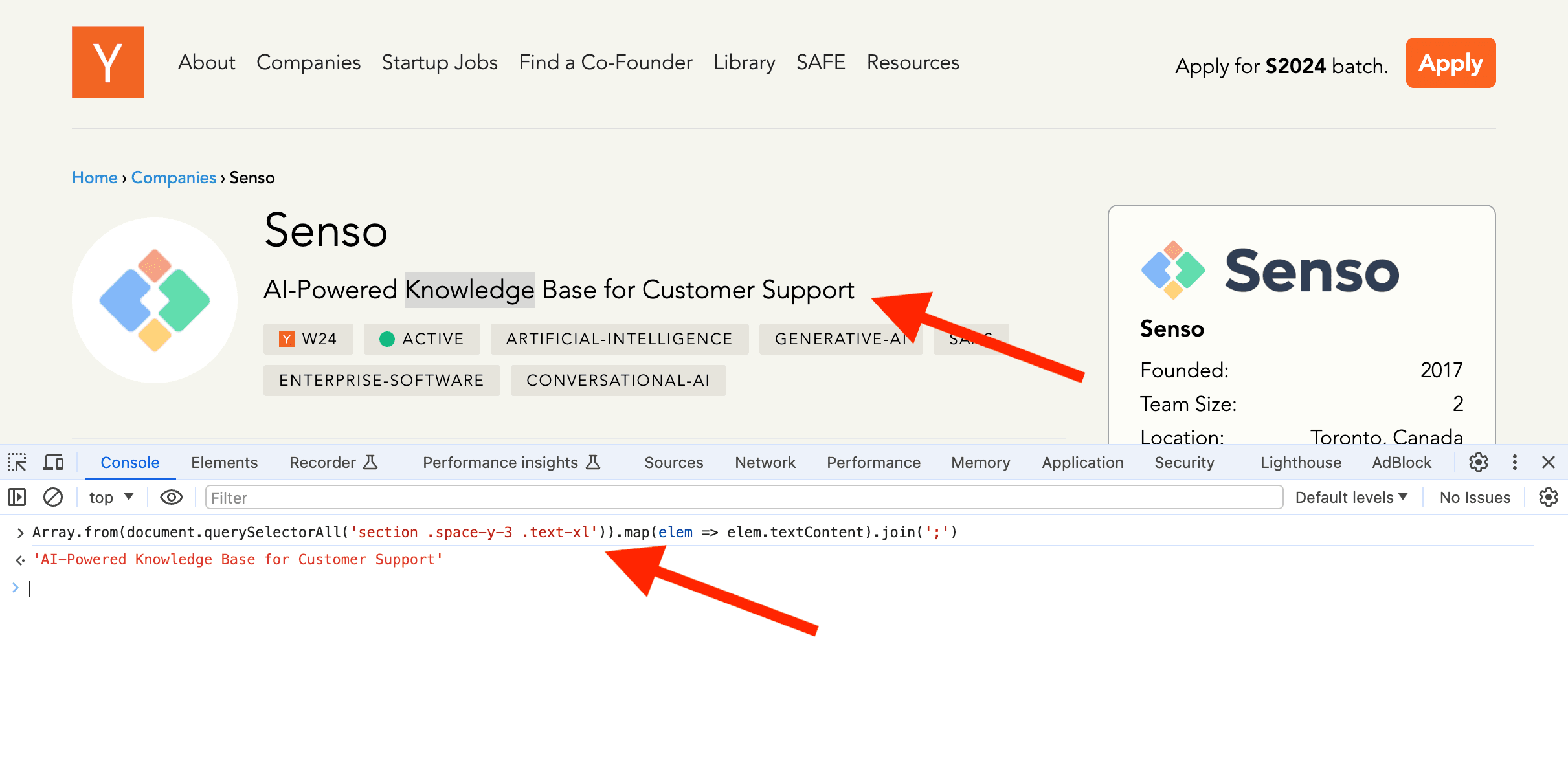
To test for HTML:
Array.from(document.querySelectorAll('{css-selector-path}')).map(elem => elem.outerHTML).join(';')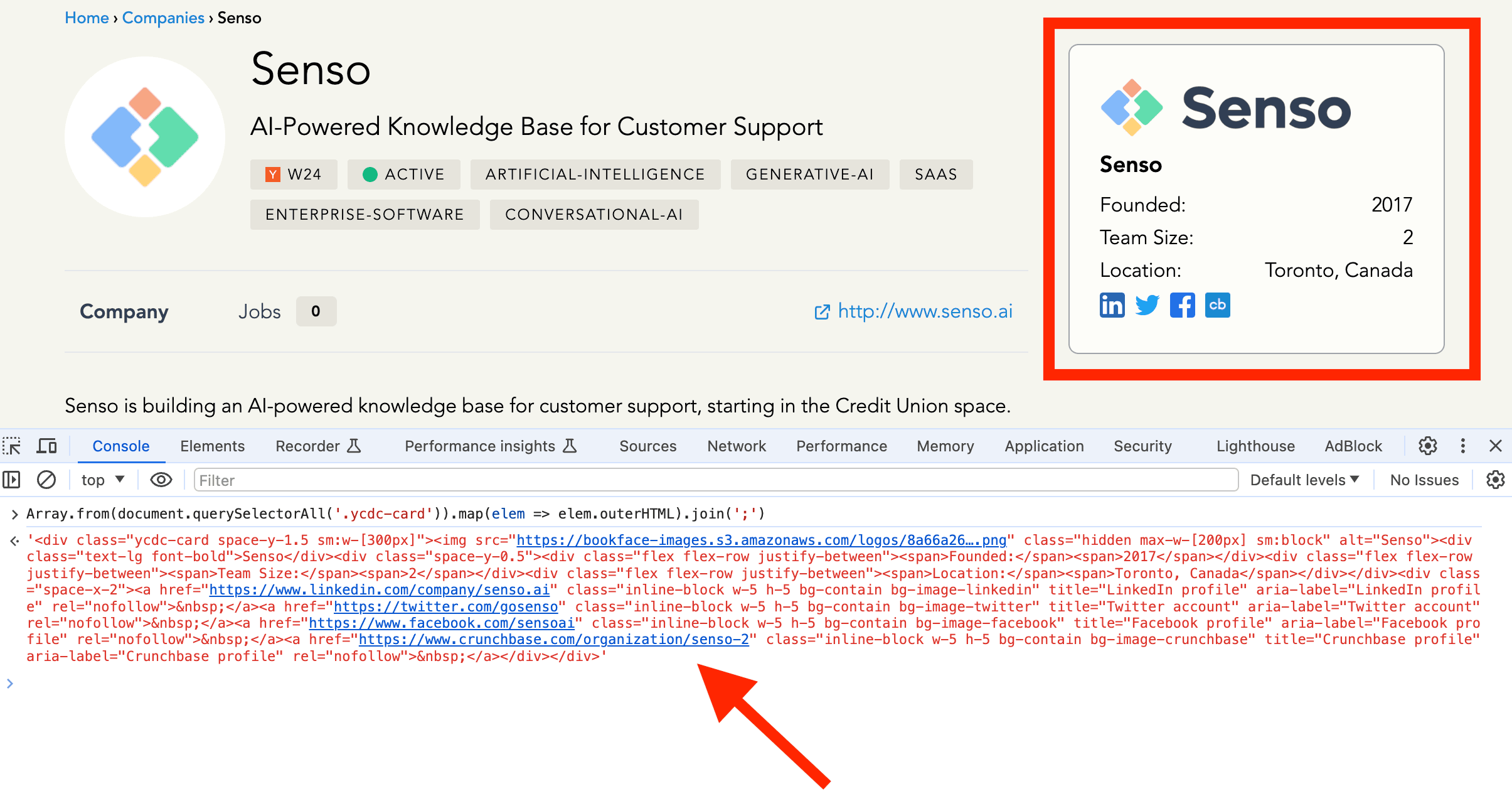
To test for the content of an Attribute:
Array.from(document.querySelectorAll('{css-selector-path}')).map(elem => elem.getAttribute('{attribute}')).join(';')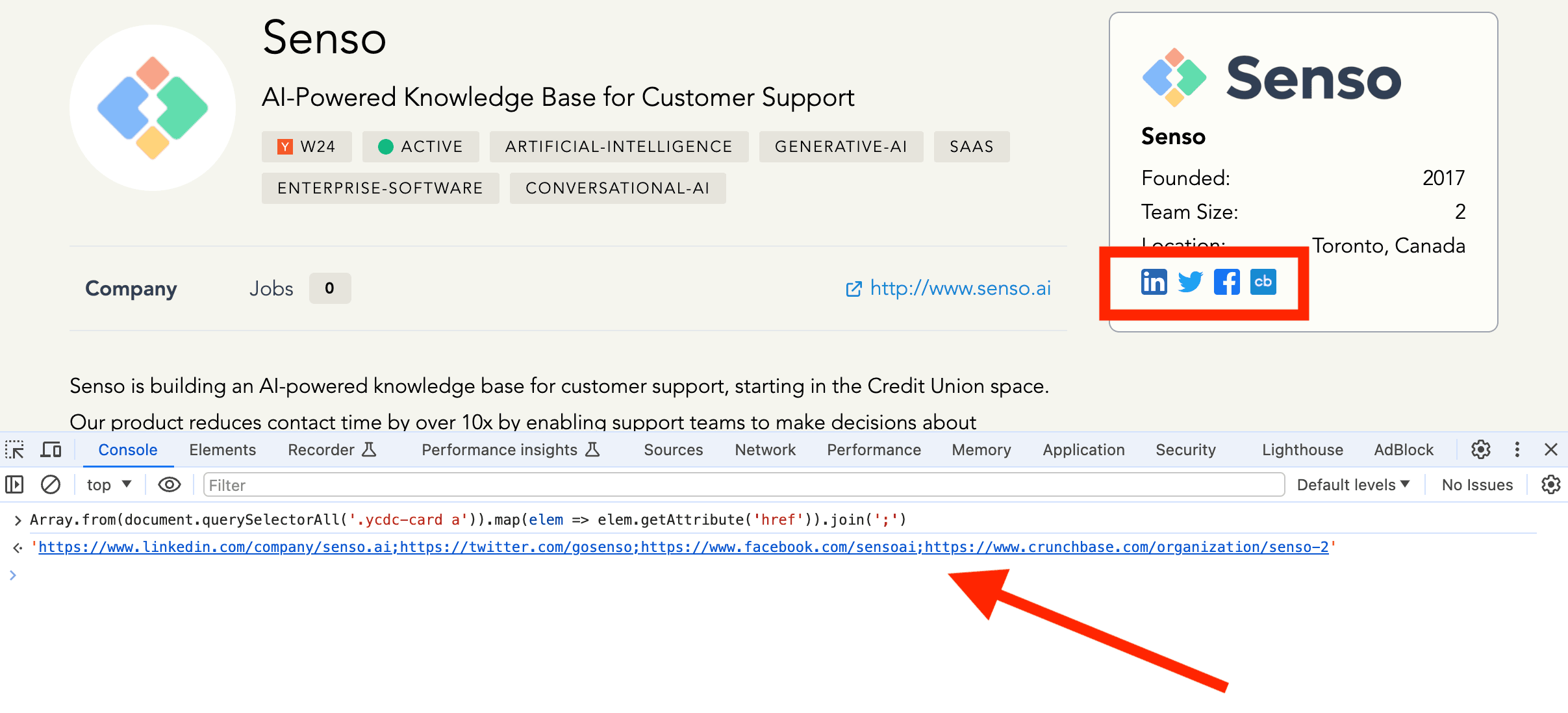
If you need help writing your CSS selectors, please contact us.
Configure Regular Expressions
The second way to scrape data from several URLs is to use regular expressions. The bulk scraper matches the RegEx against the HTML code source.
If the pattern contains one capturing group, that group is returned. With no capturing group, the scraper returns the strings matching the whole pattern. Use non-capturing groups such as (?:...) for additional grouping; avoid multiple capturing groups in one expression.
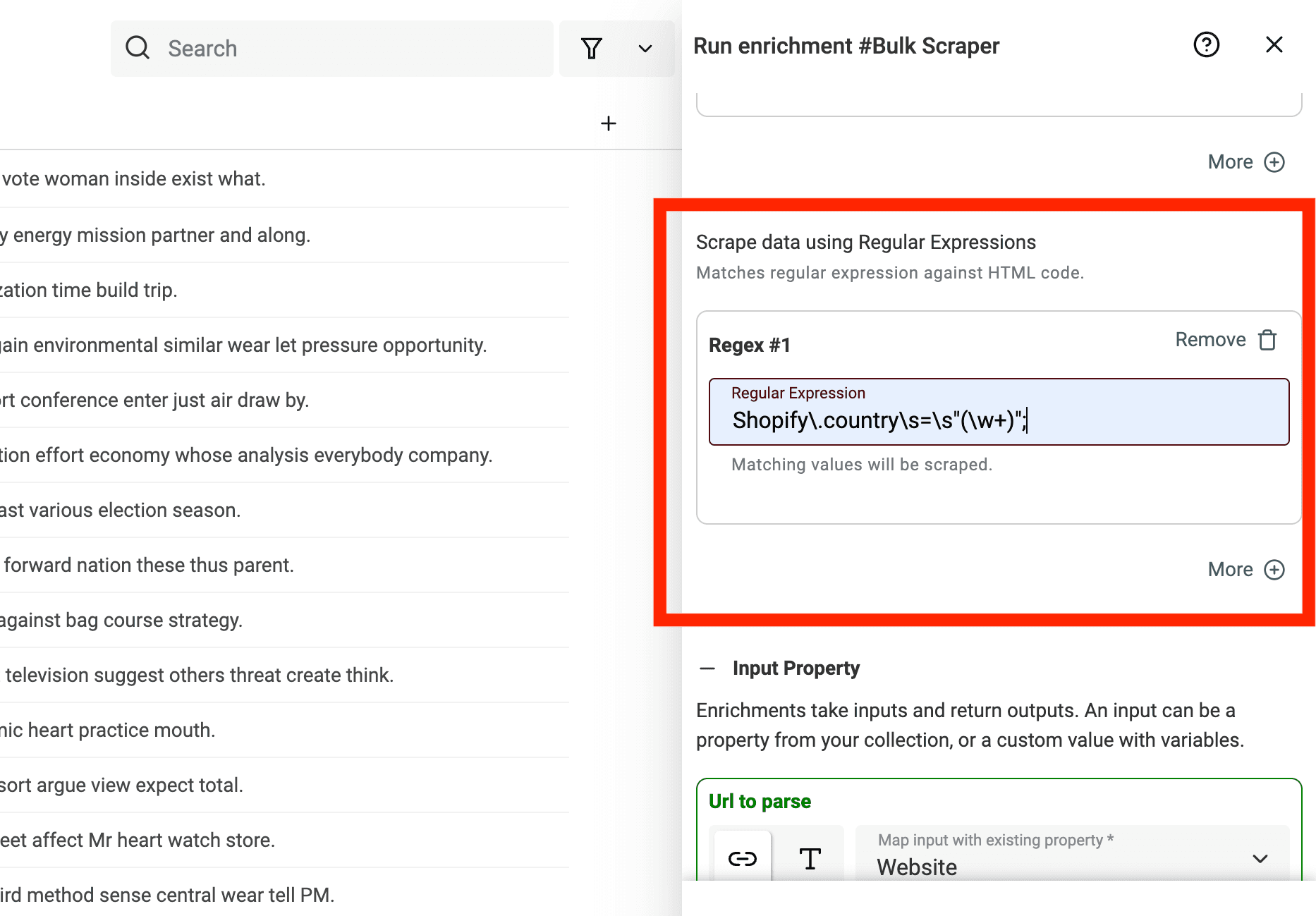
Capturing groups or pattern-matching
When writing a Regex, you can add a capturing group using parenthesis. When a capturing group is defined, the bulk scraper will return only the group text.
For example, in the HTML code:
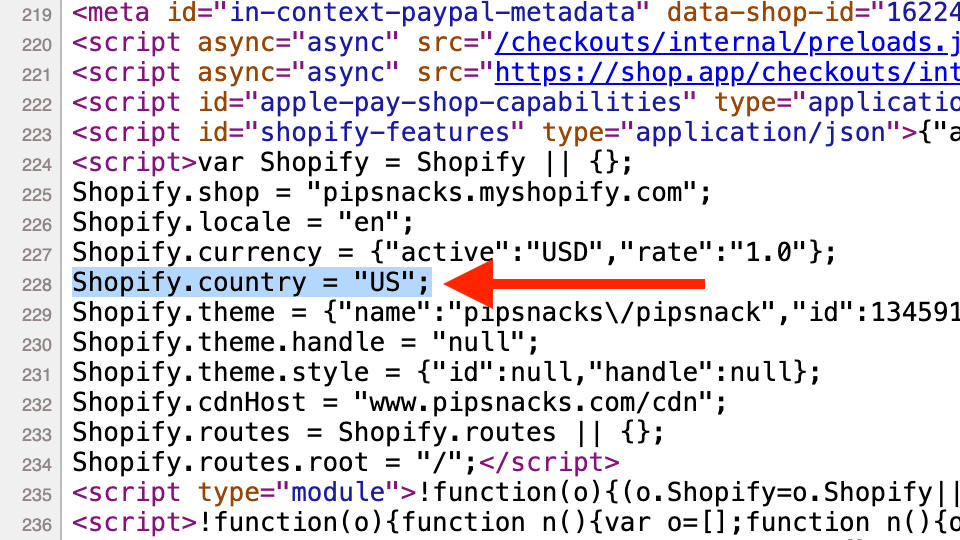
To capture only the "US" text from the Shopify.country line, you would write:
Shopify\.country\s=\s"(\w+)";
Notice the parenthesis in (\w+).
To capture the whole line, you would write:
Shopify\.country\s=\s"\w+";
Notice I removed the parenthesis.
Use Cases
Lead Generation
Bulk scraping allows you to enrich URLs from various sources, such as directories, social media platforms, forums, etc.. Using CSS Selector, bulk scraping lets you get structured information from HTML pages.
Price Monitoring
E-commerce businesses can use URL scraping to monitor competitor websites and track product prices, discounts, and promotions. This information can be used for competitive intelligence and pricing strategies to stay competitive in the market.
Job Board Scraping
Job boards often contain valuable job postings information. Scraping URLs from job boards allows businesses to aggregate job postings automatically, providing valuable insights into hiring trends, job requirements, and competitor recruitment strategies.
Best Inputs for the Bulk Scraper
Use URLs that share a similar page structure. CSS selectors and regular expressions work best when the same fields appear in the same part of each page.
Good inputs include:
- Product pages from one ecommerce site
- Job pages from one job board
- Directory profile pages
- Article pages with the same template
- Store locator pages with repeated fields
If your URLs come from many unrelated websites, use Smart Scraper or AI Agent instead.