
Convert lists of URLs into PDF documents automatically. This enrichment captures web pages exactly as they appear in a browser. It simulates a print action to give you clean, high-quality documents instantly.
Cost and Credit Usage
This tool costs 30 credits per PDF generated. Datablist uses a credit system that scales with your needs:
- $20 Package: Get 20,000 credits. This lets you generate approximately 660 PDFs.
- $150 Package: Get 200,000 credits. This allows you to process over 6,600 URLs.
Why use this enrichment?
We use a headless Chrome browser to render pages. This ensures the output matches what you see on screen.
- Customization: Choose between Portrait or Landscape orientation to fit your content.
- Clean Output: Use the "Extra CSS" setting to inject code before printing. This is perfect for hiding cookie banners, ads, or navigation bars that clutter the final document.
- Speed: Process thousands of URLs in the background without tying up your computer.
Ideal Use Cases
- Website Archiving: Capture landing pages, competitor sites, or news articles for offline analysis or legal compliance.
- Documentation Building: Turn online help centers, wiki pages, or technical manuals into shareable offline files.
- Visual Reporting: Convert live dashboard URLs into static PDF reports for management or client reviews.
- Invoice Saving: Download lists of invoice URLs as permanent records.
Step-by-step guide
Step 1: Load your CSV or Excel file on Datablist
Start by creating a free account. Import your CSV or Excel file containing the target URLs. Datablist handles large datasets easily.
Create a new collection and import your file.
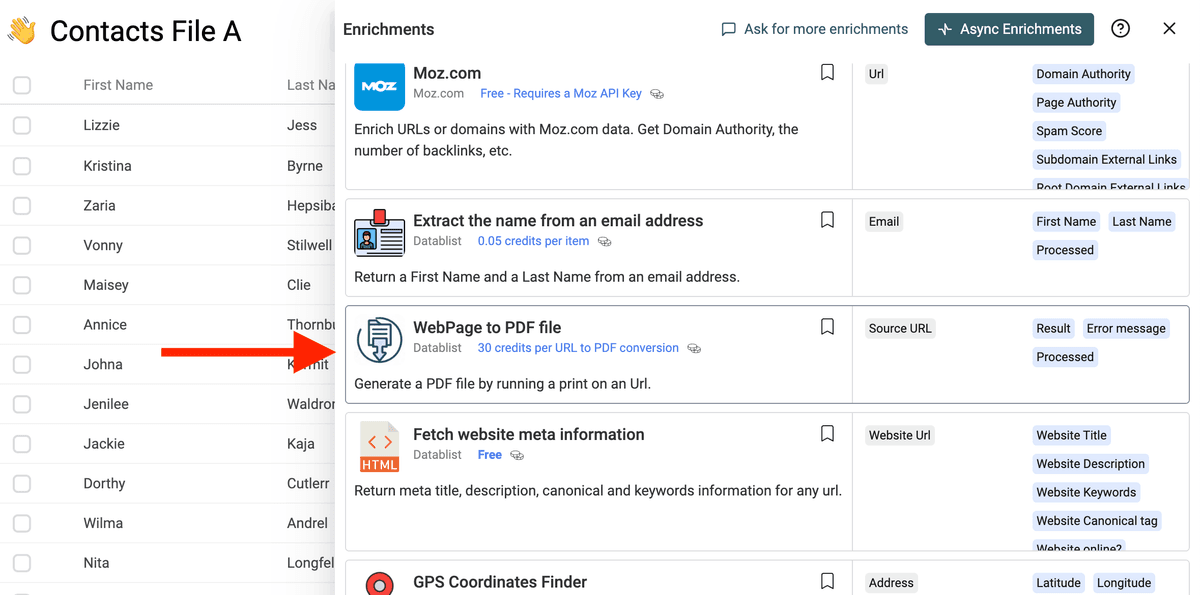
Step 2: Select the "WebPage to PDF file" enrichment
Click on the "Enrich" button, and search for "WebPage to PDF file".
Step 3: Configure and Run
Select the column containing your URLs. Adjust the orientation or add CSS if needed. Run the enrichment.
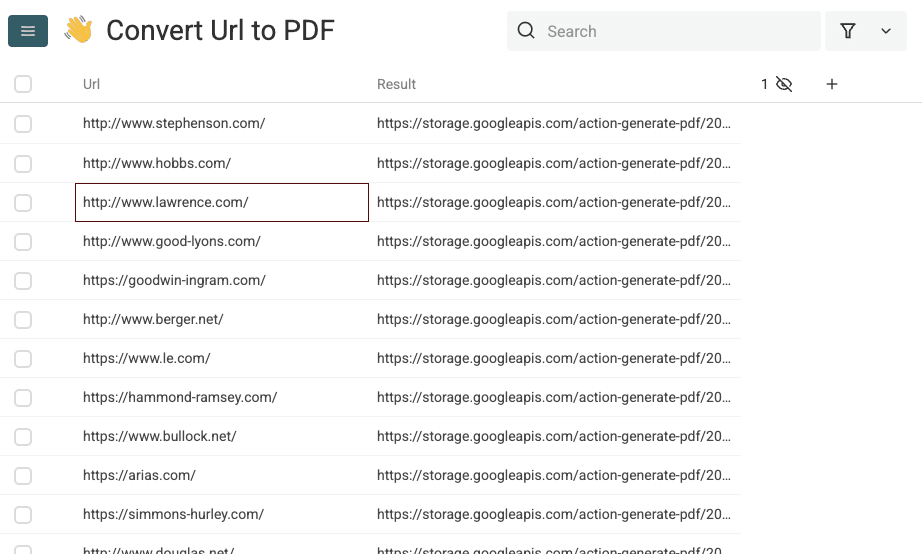
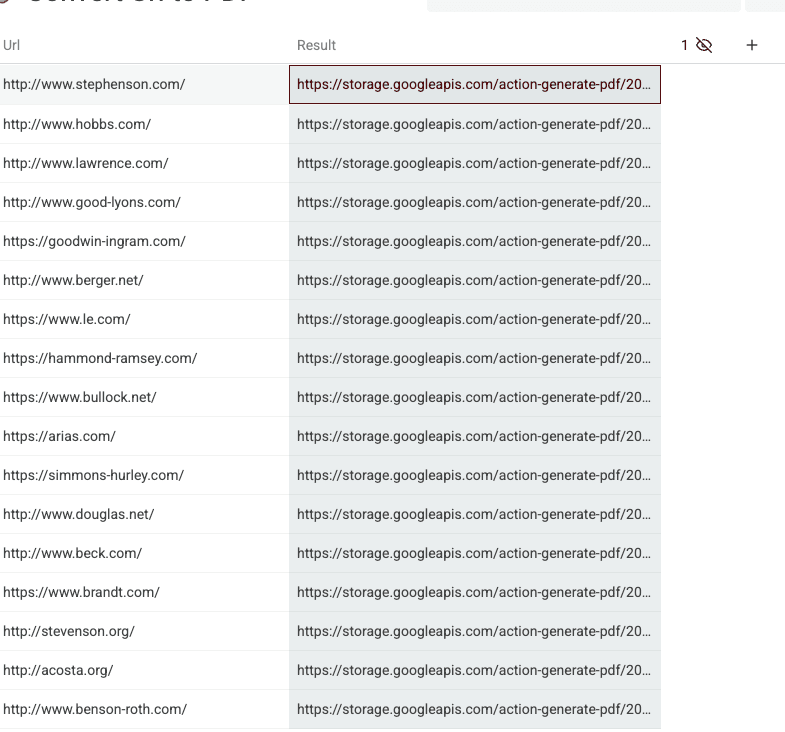
The tool generates a unique download link for every URL. These links point to files stored on our servers.
❗️Links Expiration
The links expire after 7 days or 1 month (depending on the settings). Download the files before the links expire.
Step 4: Download your files
Downloading thousands of files manually is slow. Use a "Bulk Downloader" browser extension to save time.
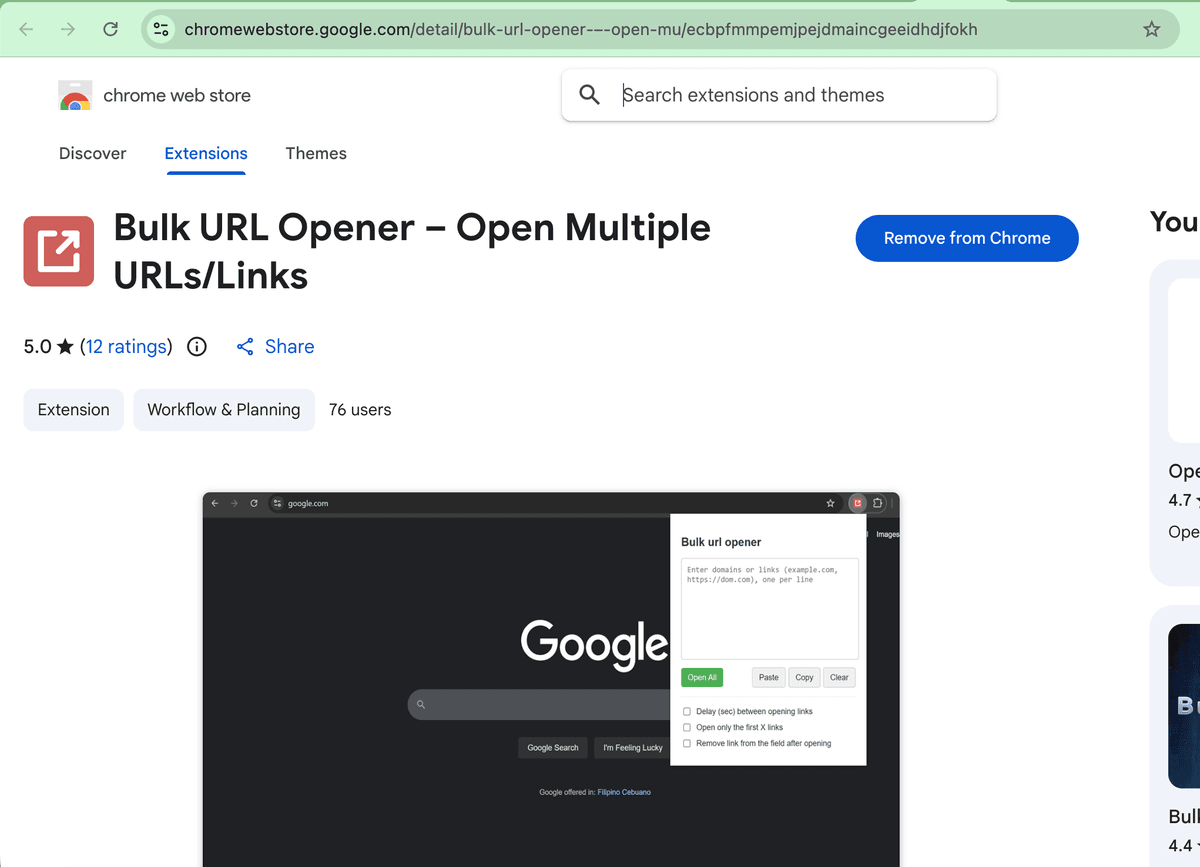
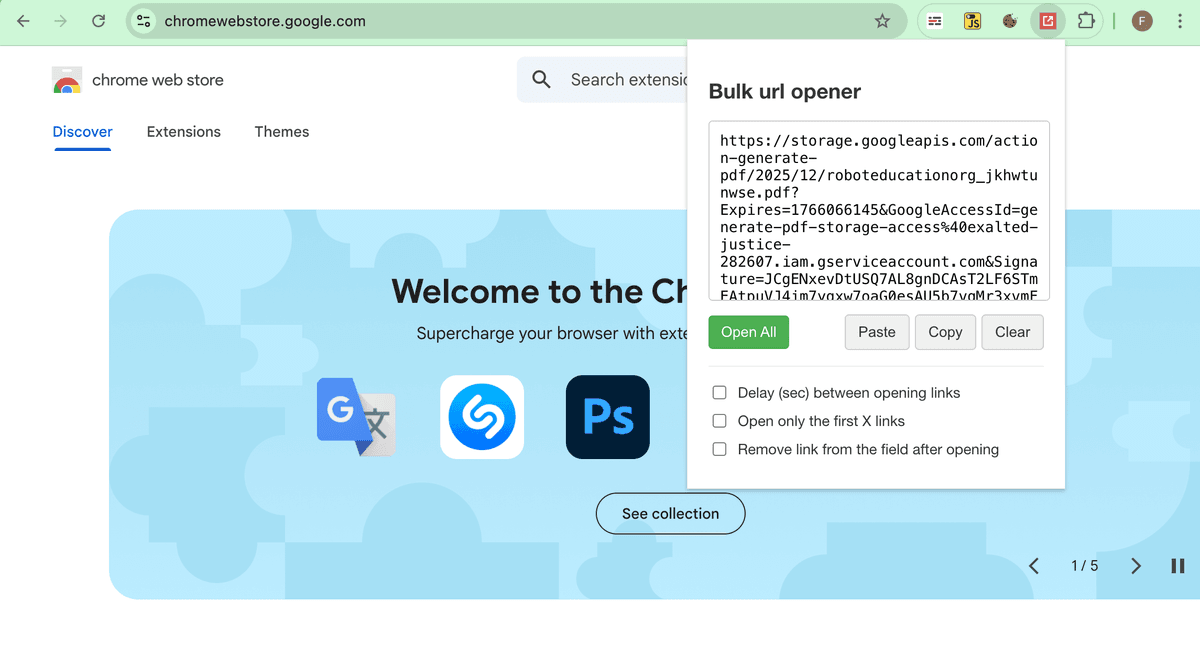
Here is how to download the files using the "Bulk URL Opener" Chrome extension.
First, add the extension to your Chrome browser (download it here).
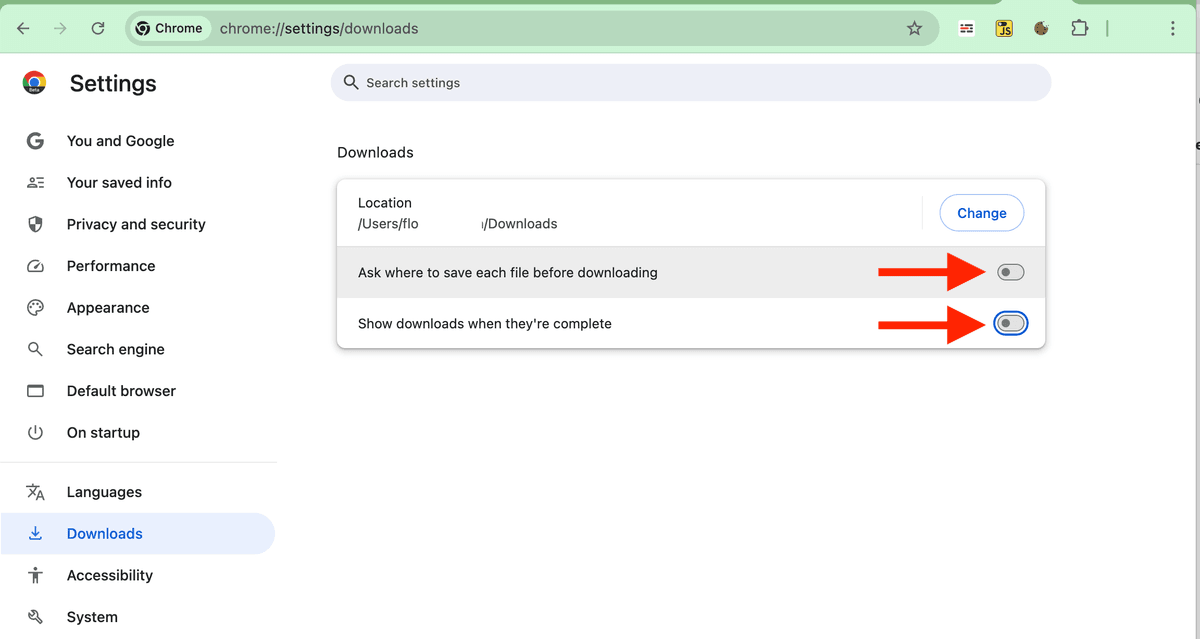
In your Chrome Settings, disable "Ask where to save each file before downloading". This prevents the browser from opening a save dialog for every single PDF.
Return to your Datablist collection. Copy the list of generated PDF links.
Paste the links into the Chrome Extension and click "Open All". The extension will download the PDF files to your default Downloads folder.
Note: Download files in batches (e.g., 100 at a time) to prevent your browser from slowing down.
When to Generate PDFs from URLs in Bulk
Use this enrichment when a webpage needs to become a file you can archive, review, or share.
Common workflows include:
- Saving invoices, receipts, or public documents from URL lists
- Archiving landing pages, pricing pages, or competitor pages
- Capturing product pages for ecommerce research
- Creating PDF snapshots for compliance or manual review
- Turning customer-facing pages into files for a team workflow
Keep a status column so you can filter failed URLs and retry only those rows.
FAQ
Can I generate PDFs from a CSV of URLs?
Yes. Import the CSV into Datablist, map the URL column, and run the enrichment to generate one PDF per row.
Does the enrichment open pages like a browser?
Yes. The page says the enrichment captures webpages as they appear in a browser and simulates a print action to create the PDF.
What happens when a URL fails?
Keep the status output. You can filter failed rows, fix invalid URLs, and rerun only the records that need another attempt.
How many credits does it cost?
The page lists a cost of 30 credits per generated PDF. Use a preview before processing a large URL list.