 2.5 Credits per Lookup
 Confidence Level for Every Match
 Find 200 Profiles Free













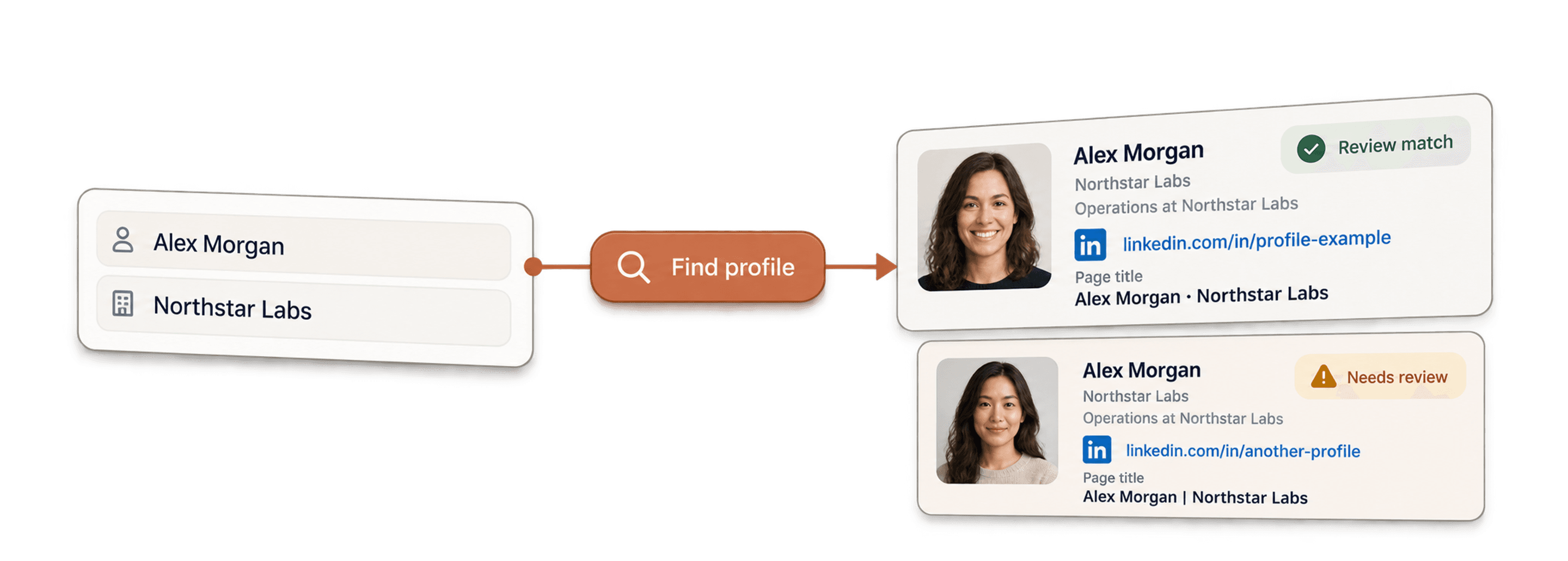
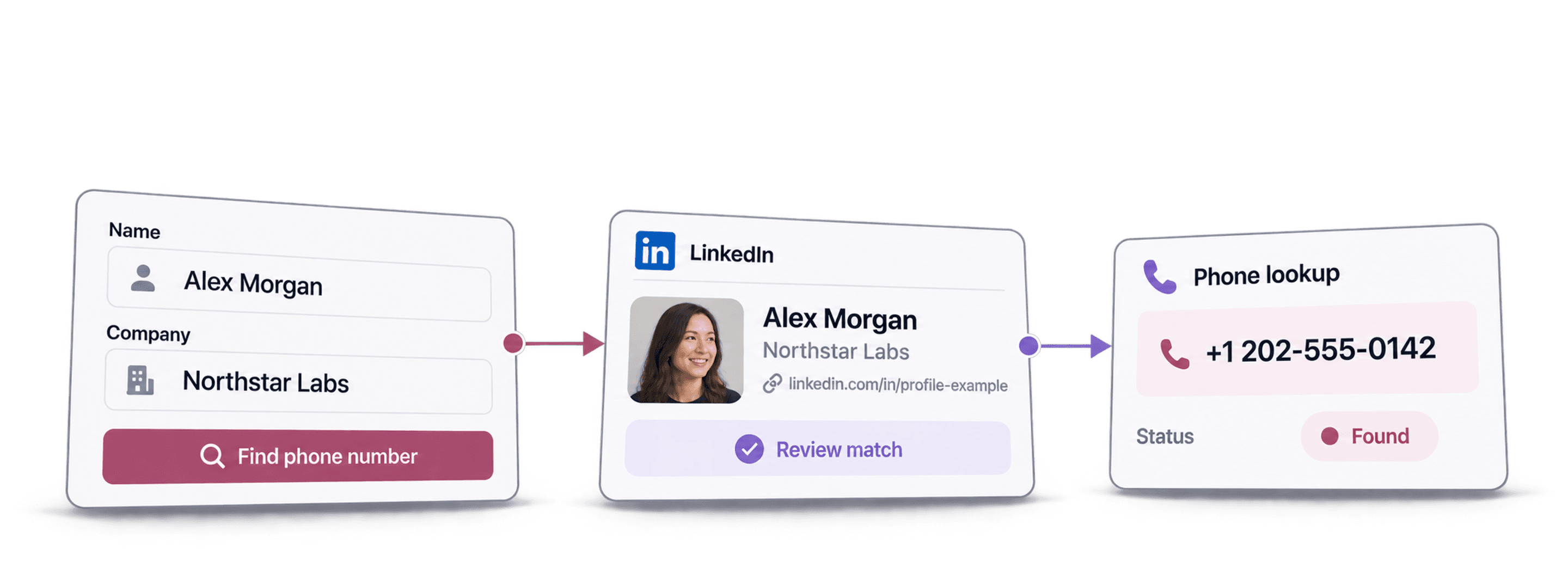
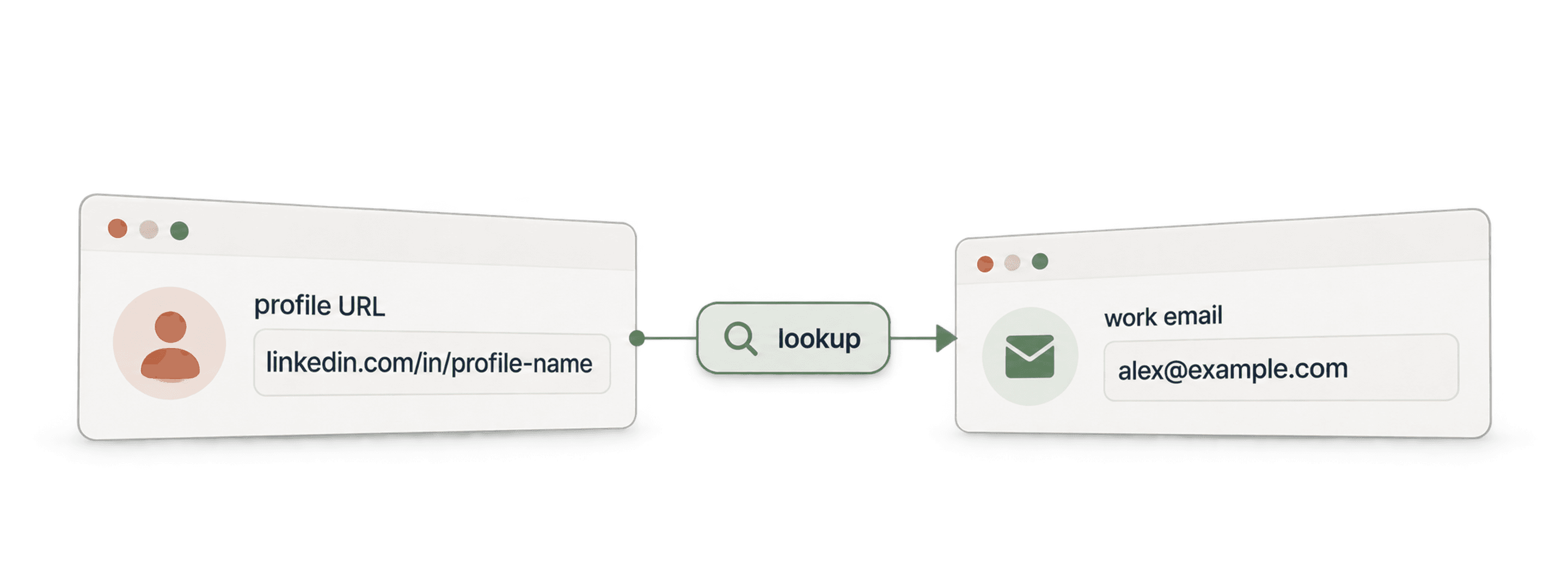


 Easy to Use
 No Technical Configuration
 Fully No-Code
Step-by-Step Guide
Step 1: Sign Up & Upload Your Data
First, sign up for Datablist.com
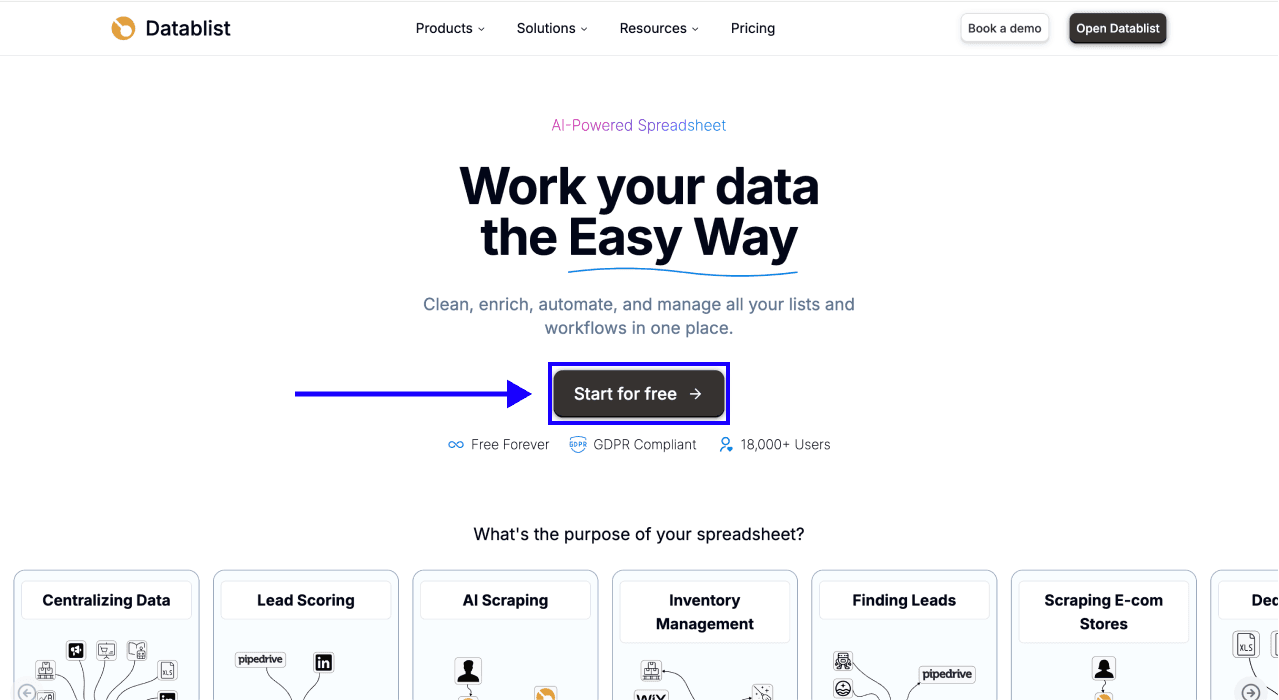
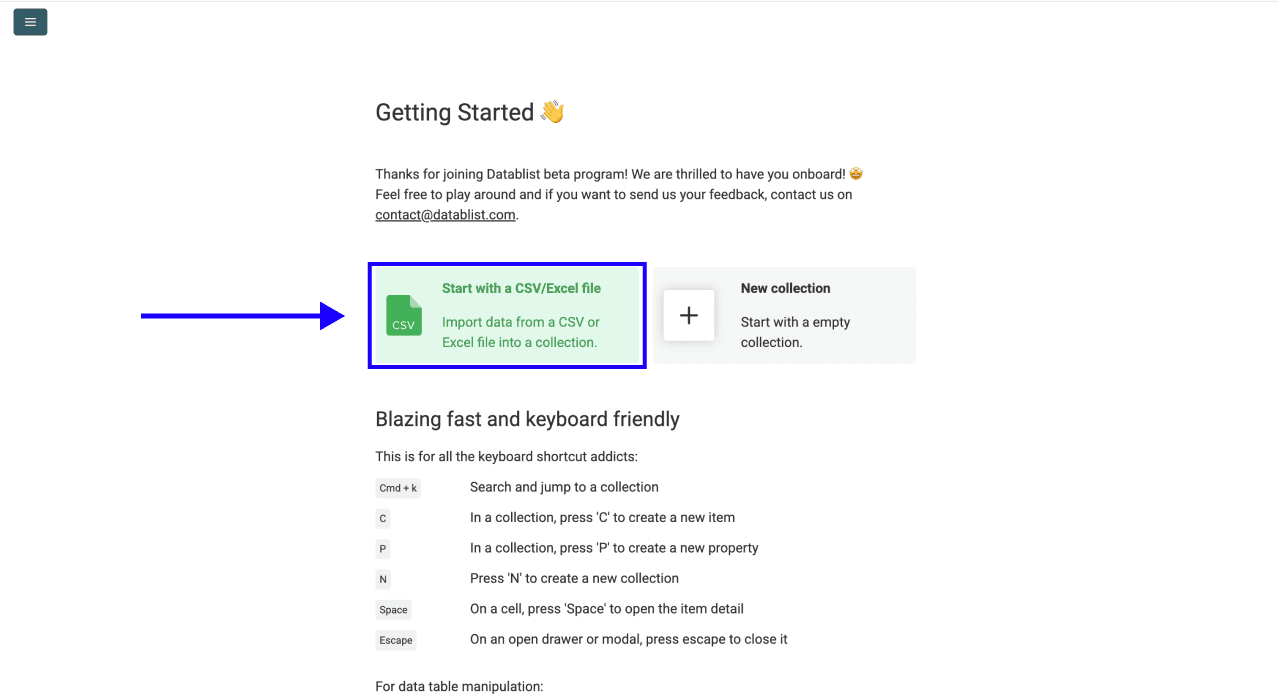
Then, upload your CSV or Excel file containing your list of names and company keywords.
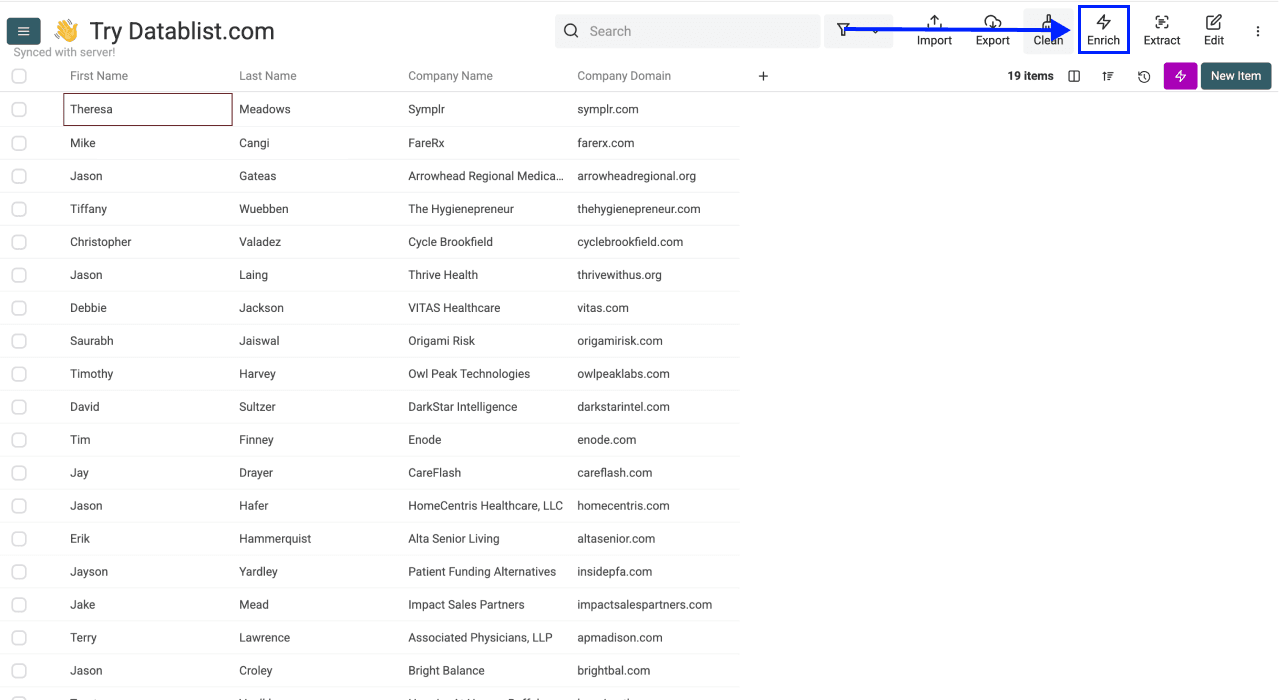
Step 2: Navigate to the Enrichment
- Click on Enrich in the top menu
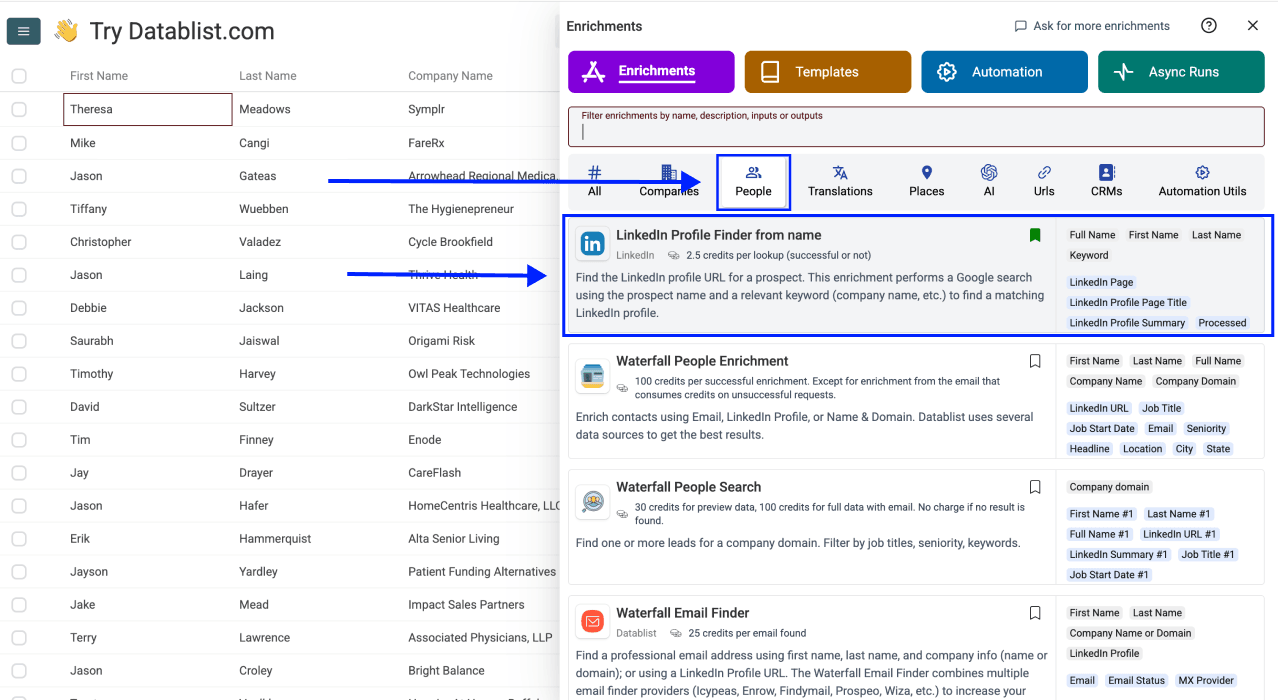
-
Go to the People tab
-
Select Find LinkedIn Profile
Step 3: Set Up the Enrichment
You'll see the following settings:
-
Target Country: Select the country where your contacts are based. This helps narrow down the right LinkedIn profiles.
-
Skip if not matching name: Filters very low-confidence matches. It does not guarantee an exact identity match. Leave it off if you prefer to review more candidates manually.
Once you're done with the settings, scroll down to configure your inputs.
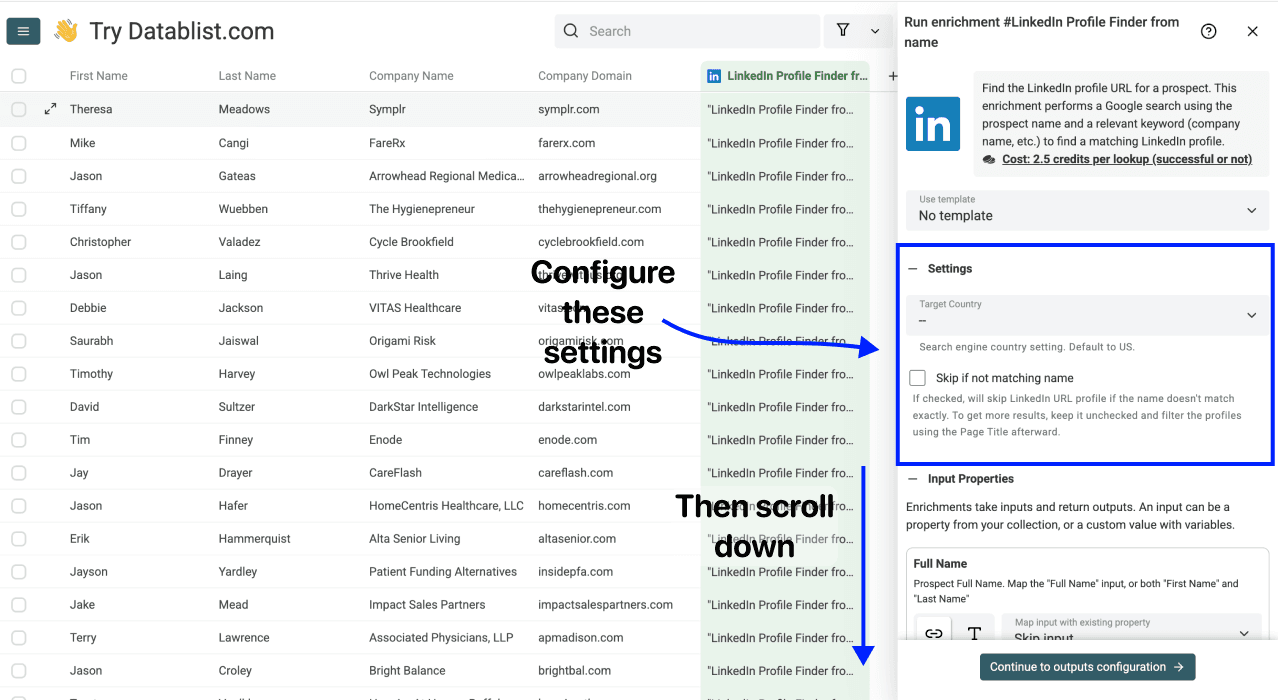
Step 4: Configure Your Inputs
Map the following columns from your collection:
-
Map Full Name, or map both First Name and Last Name.
-
If available, map Keyword to a company, school, or other relevant context property.
Then click Continue to outputs configuration
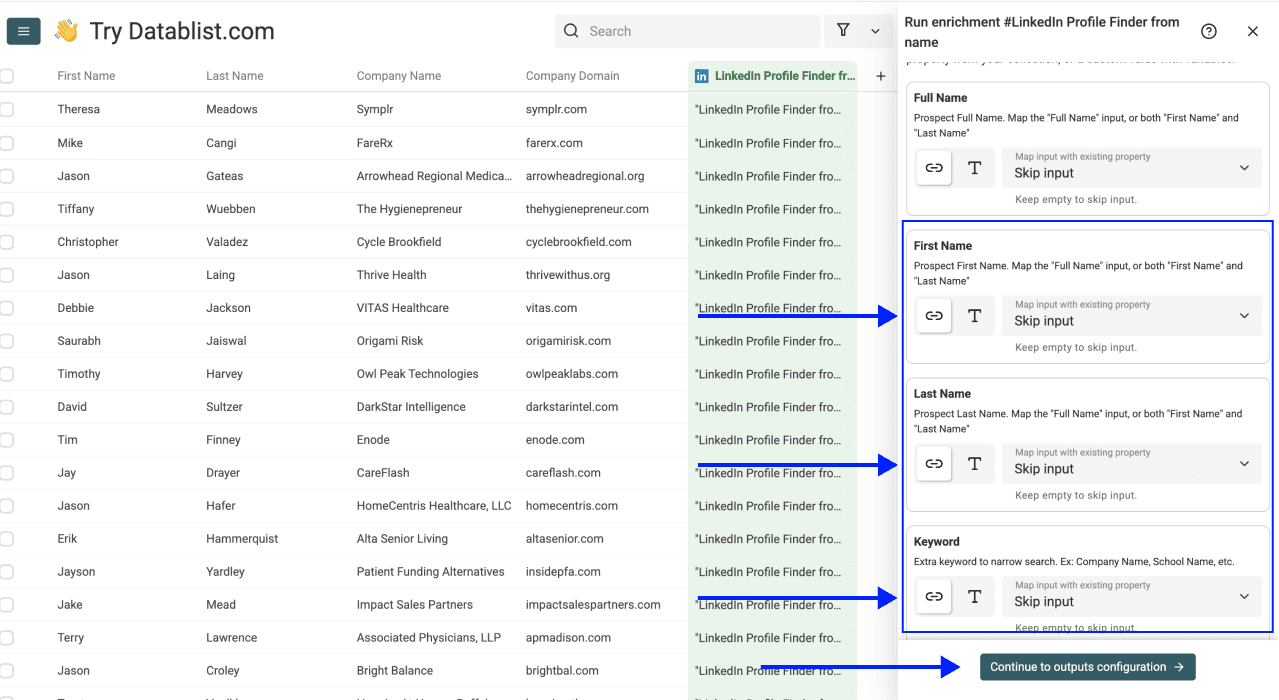
Step 5: Select Outputs
The LinkedIn Profile Finder offers these outputs:
-
LinkedIn Page: The LinkedIn profile URL
-
LinkedIn Profile Page Title: Shows the person's current position and company
-
LinkedIn Profile Summary: A short abstract of their profile summary
-
Profile Confidence: A High, Medium, Low, or Very Low match signal
-
Processed: Indicates whether the row was processed, useful for repeat runs
Click the ⊕ Icons to add them to your collection, then click Instant Run
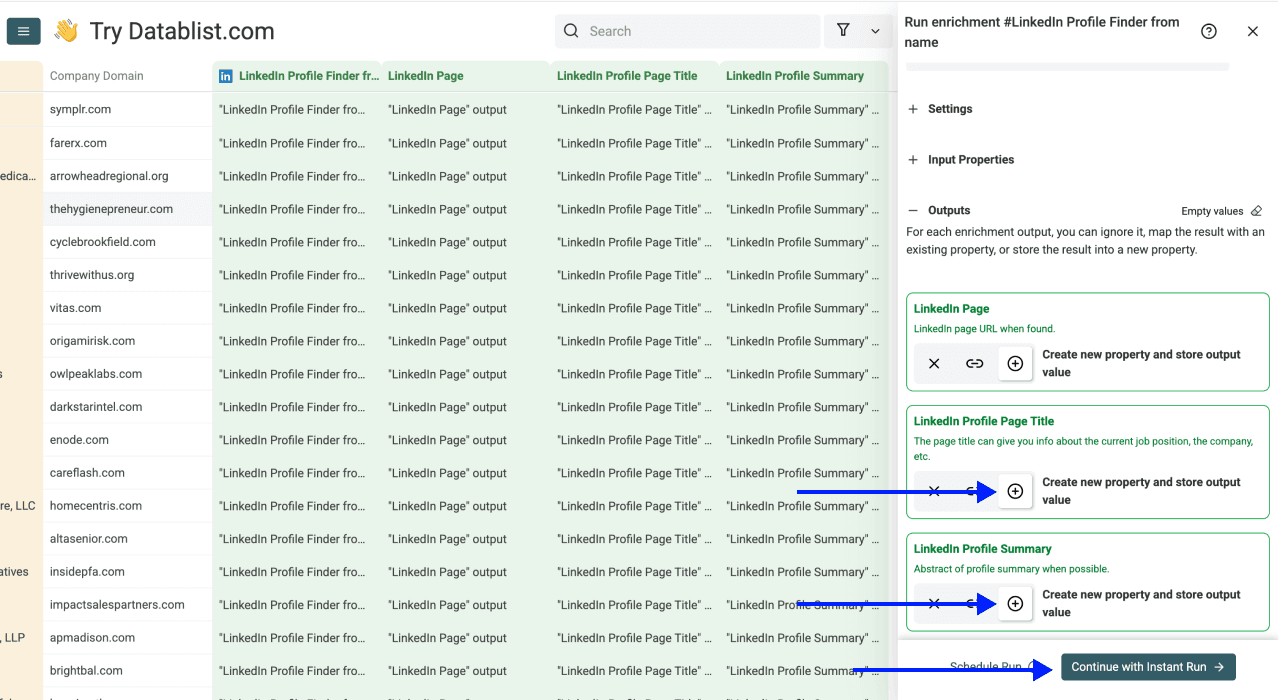
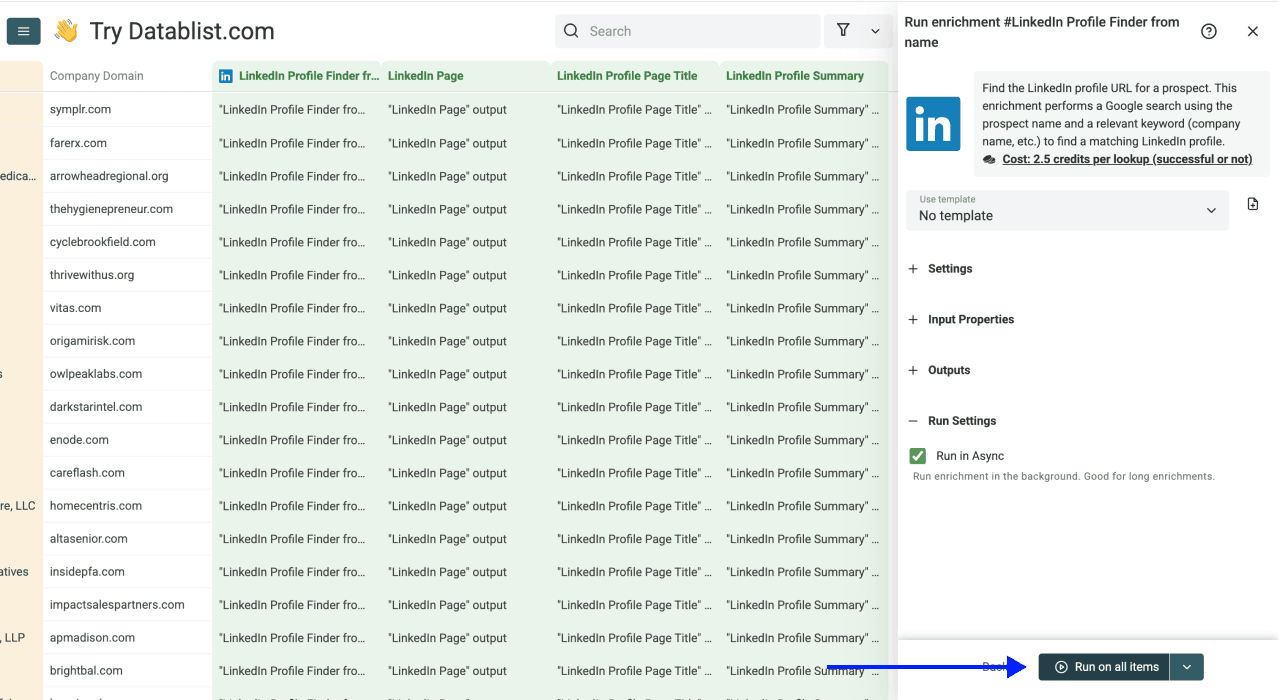
Step 6: Run the Enrichment
Finally, configure your run settings by clicking on the chevron on the right side of the button:
-
Run on first 10 items: Good for checking results before committing
-
Run on first 100 items: Useful for validating larger samples
-
Run on first {X} items: Choose exactly how many to process
-
Run on all view items: Process your entire list (or view if you've enabled filters)
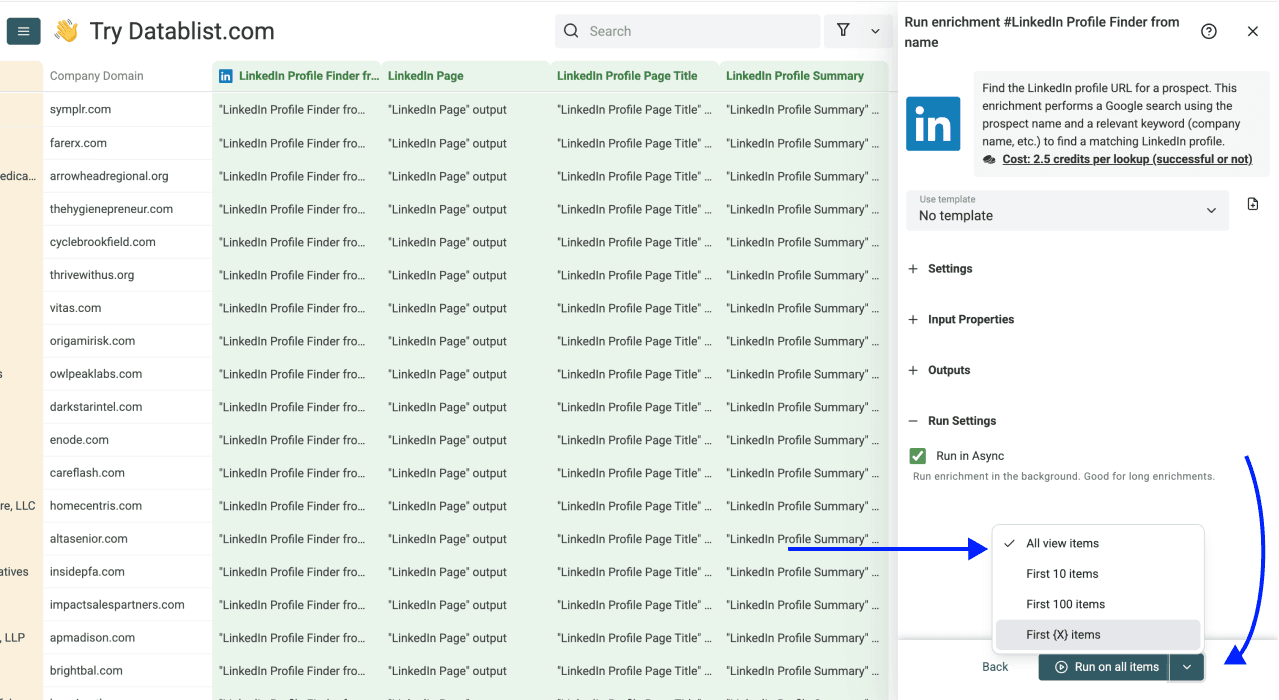
Once you have chosen your preferred option, click Run on X items
Best Inputs for Better Results
A name alone can work, but many people share the same name. Add a keyword when you have context: company, school, job title, city, country, website domain or industry.
Examples:
Jane Smith+DatablistAlex Martin+HEC ParisMaria Garcia+Product ManagerJohn Lee+Singapore fintech
Keep names separate from company information. Map a clean full name, or first and last name separately if your spreadsheet has both columns. For a country-specific list, use Target Country to adjust the search context. It does not prove the returned person is located in that country.
Confidence Levels
The profile confidence is a name-match signal:
- High: Strong name evidence, such as a close name match or matching LinkedIn handle.
- Medium: A likely match with shortened or partial name evidence.
- Low: Some name evidence, requiring review.
- Very Low: Weak name evidence.
A high score does not prove that two people with the same name are the same person. Check the returned URL, company and role. The title and summary come from search results; they are not a newly scraped full profile and may be incomplete or outdated.
Review Low and Very Low matches before recruiting, investor outreach or CRM updates. Skip if not matching name filters very low-confidence results; it is not a guarantee of identity. Keep the run status to review missing names and no-result rows. Improve the keyword before trying those rows again.
Use Cases
Sales Prospecting
Start with prospects from a trade show, website form or CRM export. Add company context, find LinkedIn URLs, and review the title and search summary before account research or outreach.
Recruiting
Use names from candidate lists, schools, job boards or event attendees. Add a company, school, location or role keyword, then review confidence and profile identity before contacting a candidate.
CRM Cleaning
Export contacts with missing LinkedIn URLs to CSV. Keep source names and the run status so you can audit matches and avoid repeating work unnecessarily.
Event and Community Lists
Add profile URLs to attendee, speaker, member or alumni lists. An organization or school keyword helps with common names. Once you have reviewed matches, use LinkedIn Profile Scraper for additional public profile fields.
Pricing Examples
A lookup with enough name data costs 2.5 credits, including a search that finds no profile. Empty names cost 0 credits. For nonempty inputs, 100 lookups use about 250 credits, 1,000 use about 2,500 credits and 10,000 use about 25,000 credits. See the Datablist Credits System for package details.