
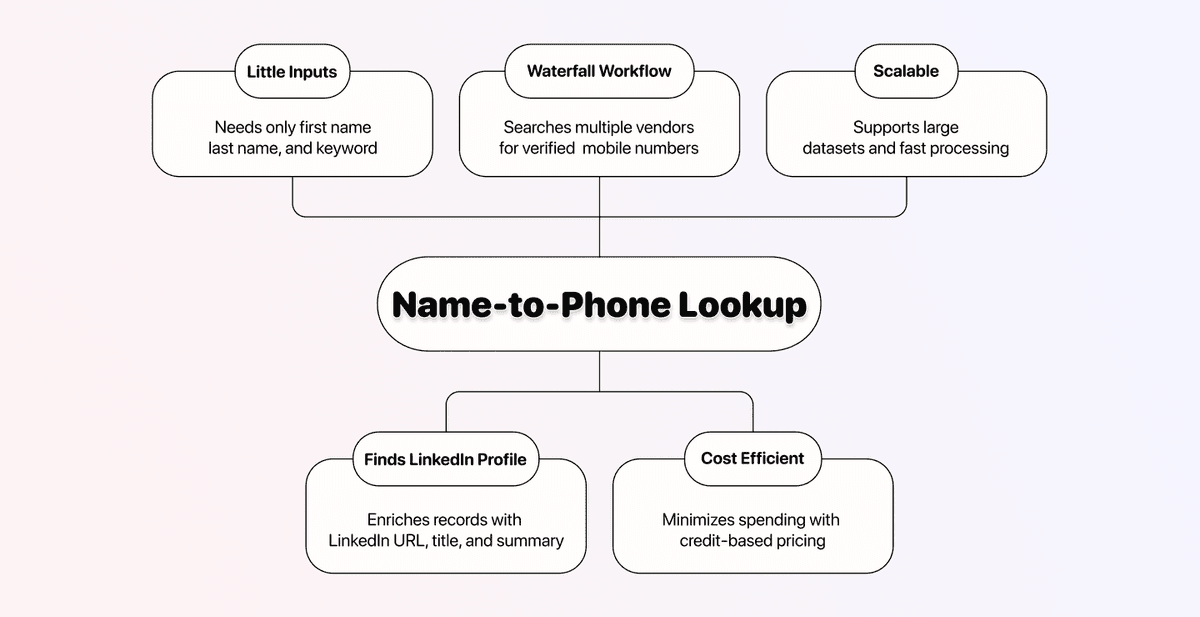
Most phone number finder tools need a LinkedIn URL to get started. But what if all you have is a name?
That's where most tools stop working. You can't just type "John Smith" into a phone number search and find a direct mobile number. You need to bridge the gap between a name and a verified phone number, and that takes two steps, not one.
This guide shows you how to find someone's phone number starting from just their name using two enrichments in Datablist.com. The first one finds their LinkedIn profile. The second finds their verified mobile phone number.
📌 Summary For Those In a Rush
This article shows how to find someone's phone number from their name using two enrichments in Datablist. Here is a summary:
Problem: You only have someone's name but need their phone number. Most phone finders require a LinkedIn URL, which you don't have.
Solution: Use Datablist's LinkedIn Profile Finder to get the LinkedIn URL from a name, then run the Waterfall Phone Number Finder to find a verified mobile number.
Why Datablist: 3 simple reasons
- Two enrichments, both no-code, both in one platform
- You only pay for the phone number if one is actually found
- Affordable pricing starting at $25/month with flexible credit top-ups
What This Guide Covers
- How the two-step process works (name → LinkedIn → phone number)
- What data you need before getting started
- Step-by-step: Finding a LinkedIn profile from a name
- Step-by-step: Finding a verified phone number from a LinkedIn URL
- Cost breakdown, key takeaways, and FAQ
Finding Phone Numbers From a Name: What You Need To Know First
Going from a name to a phone number isn't a one-step process. You need two enrichments running back-to-back: first to find the person's LinkedIn profile, then to find their verified mobile number.
The good news? Both enrichments run inside Datablist, both are no-code, and both follow the same simple 6-step process.
💡 What Is Datablist?
Datablist is a platform for automating lead generation workflows that allows sales, marketing, and recruiting folks to find, clean, and enrich data using over 60 different tools from AI Agents to Email Finders, data cleaning tools, and more.
If you need to find, clean, or enrich data for your lead lists, Datablist keeps everything in one platform, so you don't have to juggle 5 different subscriptions.
How the Two-Step Process Works
Here's the logic behind it:
↳ You start with a first name, last name, and a keyword
↳↳ The LinkedIn Profile Finder matches the person and returns their LinkedIn URL
↳↳↳ The Waterfall Phone Finder takes that URL and returns a verified mobile number
The first enrichment bridges the gap. Once you have a LinkedIn URL, the Waterfall Phone Finder can do what it does best: query multiple data vendors until it finds a confirmed mobile number for that person.
What You Need To Get Started
To run both enrichments, you need three data points per contact:
- First name
- Last name
- A keyword (company name or company domain works best)
The keyword helps Datablist narrow down the right LinkedIn profile. If someone has a common name like "John Smith," the keyword is what makes the difference between finding the right person and getting the wrong one.
Already have LinkedIn URLs? Then you can skip the first enrichment entirely and jump straight to the second part of the workflow and use the Waterfall Phone Finder.
Here's a quick summary of both enrichments:
| Waterfall Phone Finder | LinkedIn Profile Finder | |
|---|---|---|
| What It Does | Finds a verified mobile phone number | Finds a LinkedIn profile URL from a name |
| Input Needed | LinkedIn profile URL | First name, last name, keyword |
| Cost | 500 credits per phone number found | 2.5 credits per search |
| Payment Model | Pay only for success | Pay per request |
| Code Required | None | None |
Important: The LinkedIn Profile Finder charges 2.5 credits per request regardless of whether a match is found. The Waterfall Phone Finder only charges you when it actually returns a verified number. So if a phone number isn't found, you only spent 2.5 credits on the LinkedIn lookup.
How To Find Someone's Phone Number From Their Name: The Step-by-Step Workflow
Both enrichments follow a simple 6-step process, so once you've done one, the second will feel like second nature.
📘 Before We Start
If you already have LinkedIn profile URLs, skip the first enrichment and jump straight to the Waterfall Phone Finder section. The LinkedIn Profile Finder is only needed when you're starting from names alone.
Finding a LinkedIn Profile From a Name
This enrichment takes a first name, last name, and keyword, then returns the matching LinkedIn profile URL. It costs 2.5 credits per search.
Step 1: Sign Up & Upload Your Data
First, Sign up for Datablist.com
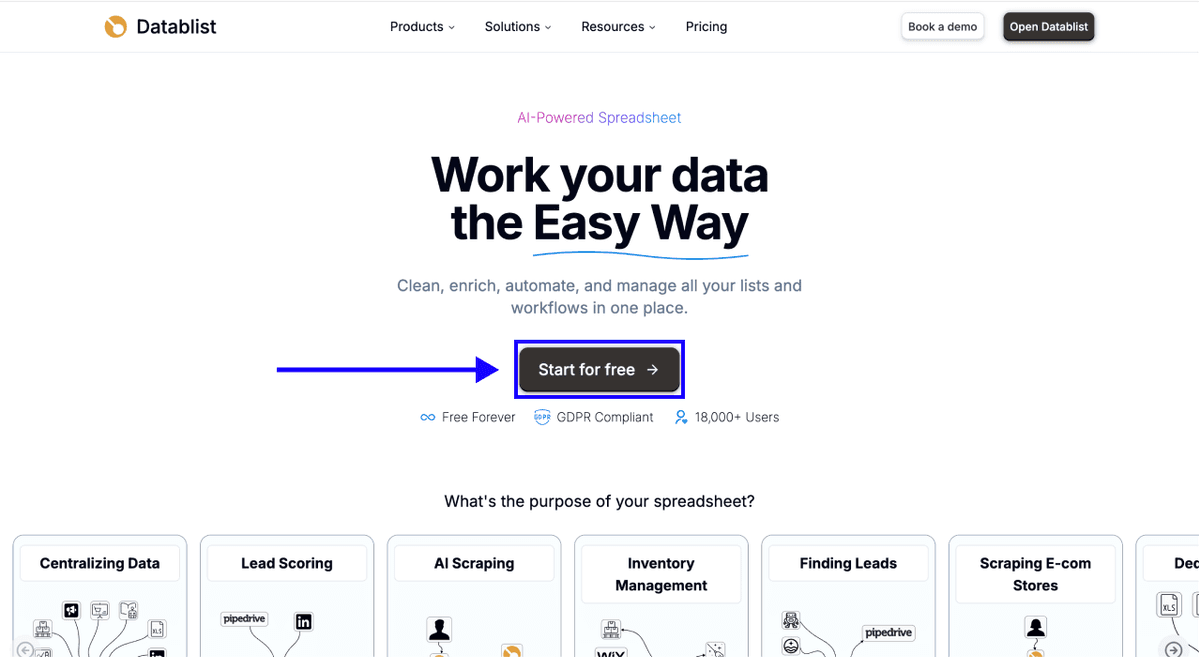
Then, Upload your CSV or Excel file containing your list of names and company keywords
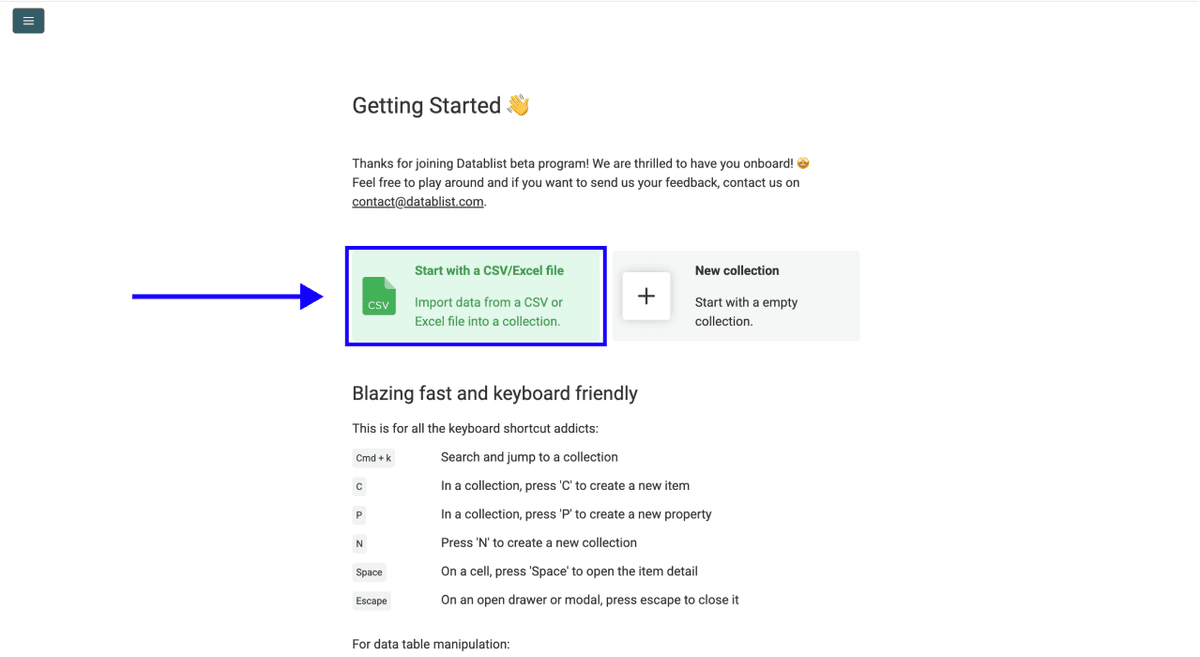
Step 2: Navigate to the Enrichment
- Click on Enrich in the top menu
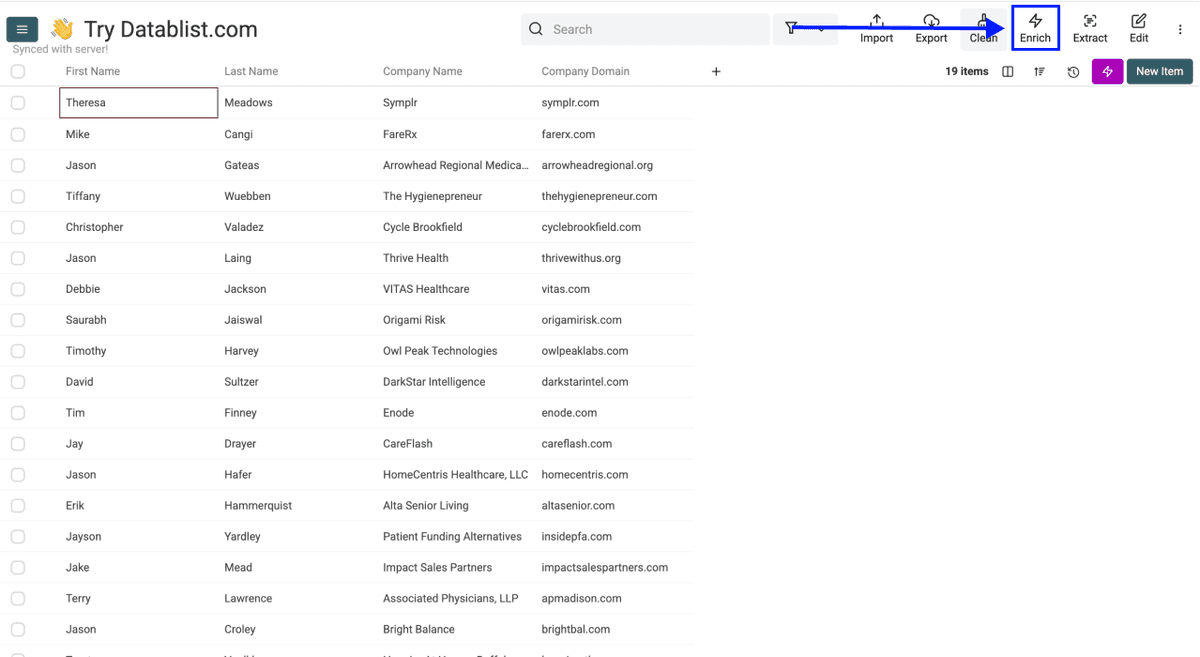
- Go to the People tab
- Select Find LinkedIn Profile
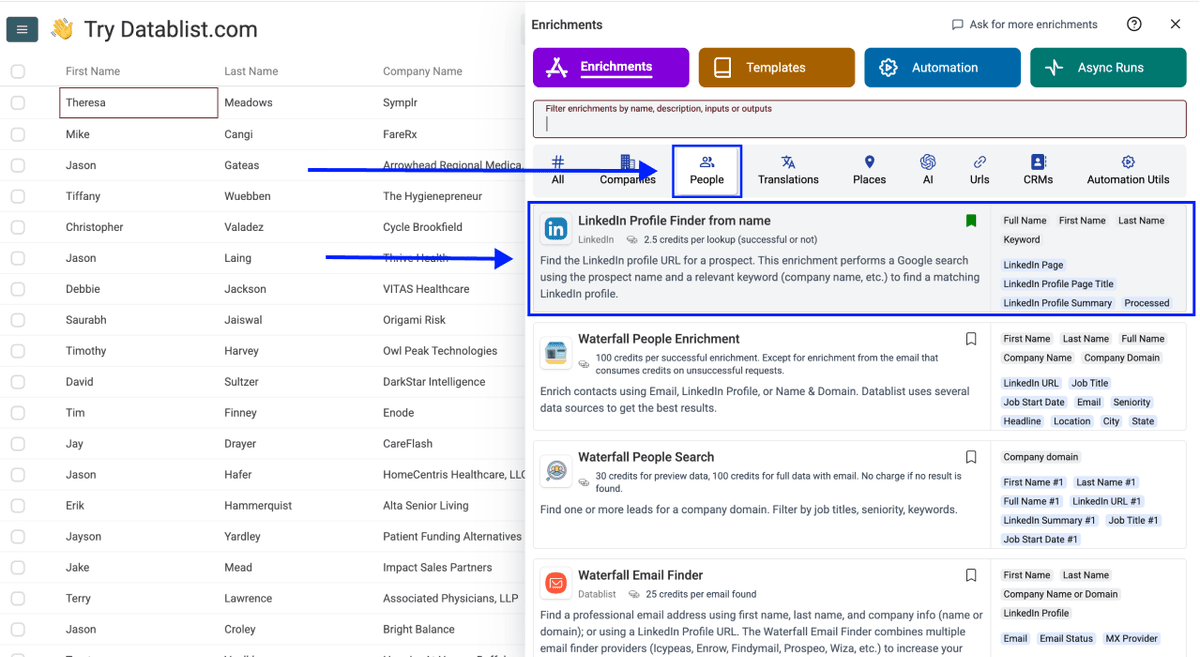
Step 3: Set Up the Enrichment
You'll see the following settings:
- Target Country - Select the country where your contacts are based. This helps narrow down the right LinkedIn profiles.
- Skip If Not Matching Name - If checked, Datablist will skip profiles where the name doesn't match exactly. Keep it unchecked for more results, then filter using the Page Title afterwards.
Once you're done with the settings, scroll down to configure your inputs.
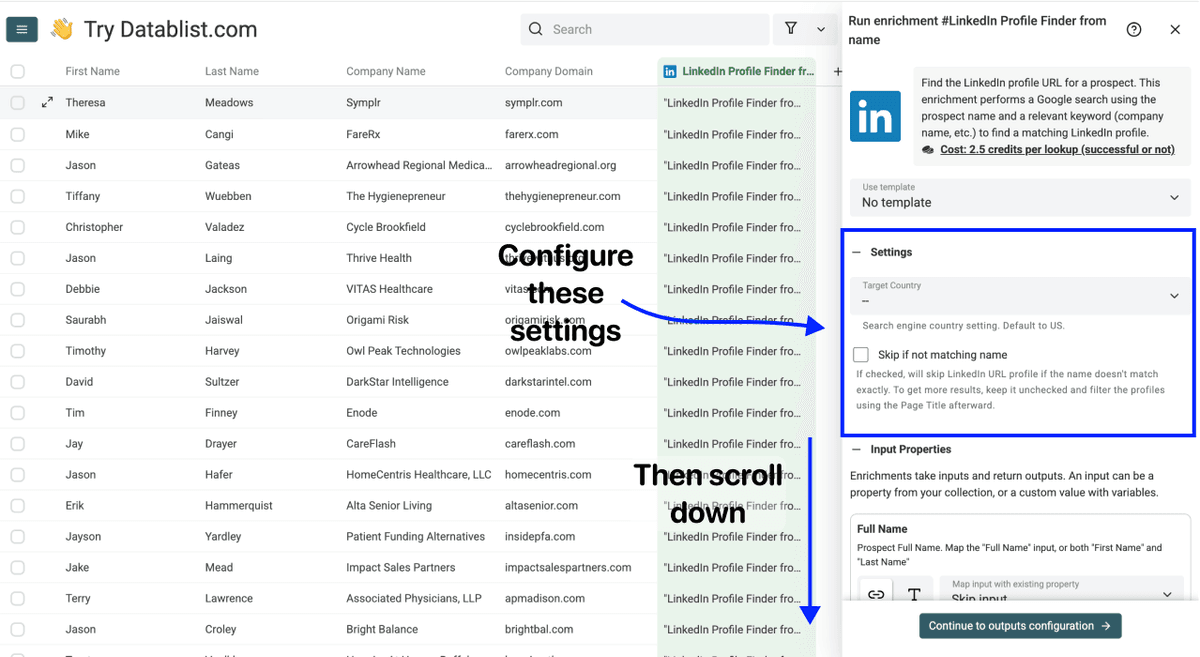
Step 4: Configure Your Inputs
Map the following columns from your collection:
- First Name as the first input property
- Last Name as the second input property
- Keyword as the third input property (company name or domain works best)
Then click Continue to outputs configuration
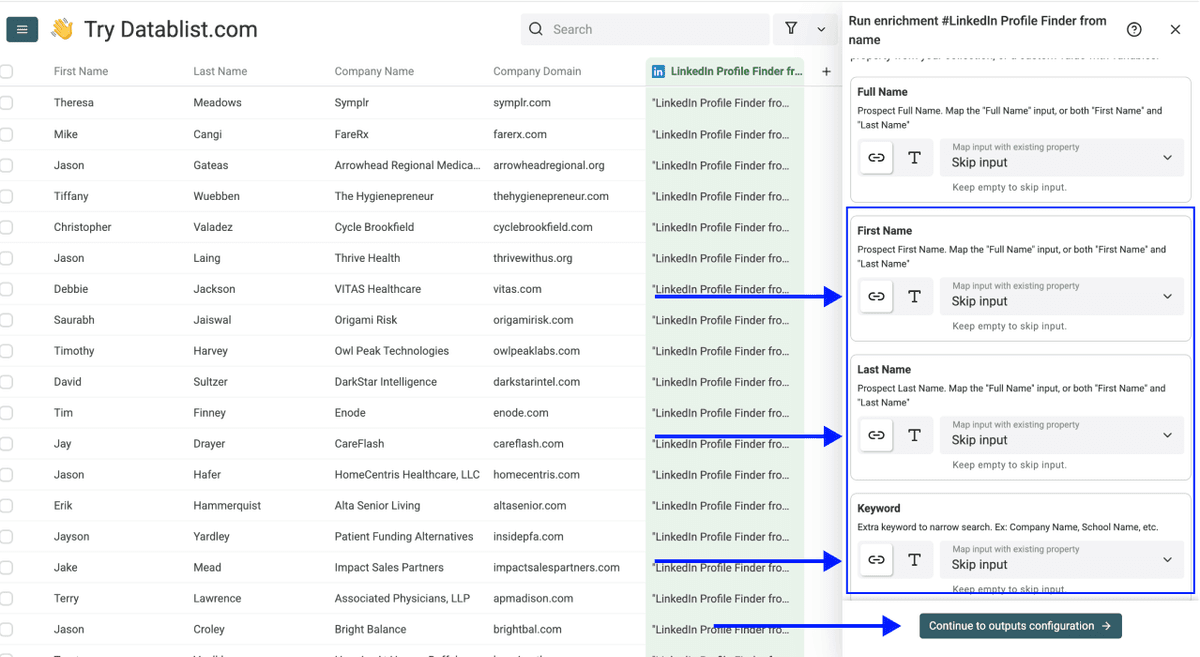
Step 5: Select Outputs
The LinkedIn Profile Finder returns three data points:
- LinkedIn Page - The LinkedIn profile URL
- LinkedIn Profile Page Title - Gives you info about the person's current position and company
- LinkedIn Profile Summary - A short abstract of their profile summary
Click the ⊕ Icons to add them to your collection, then click Instant Run
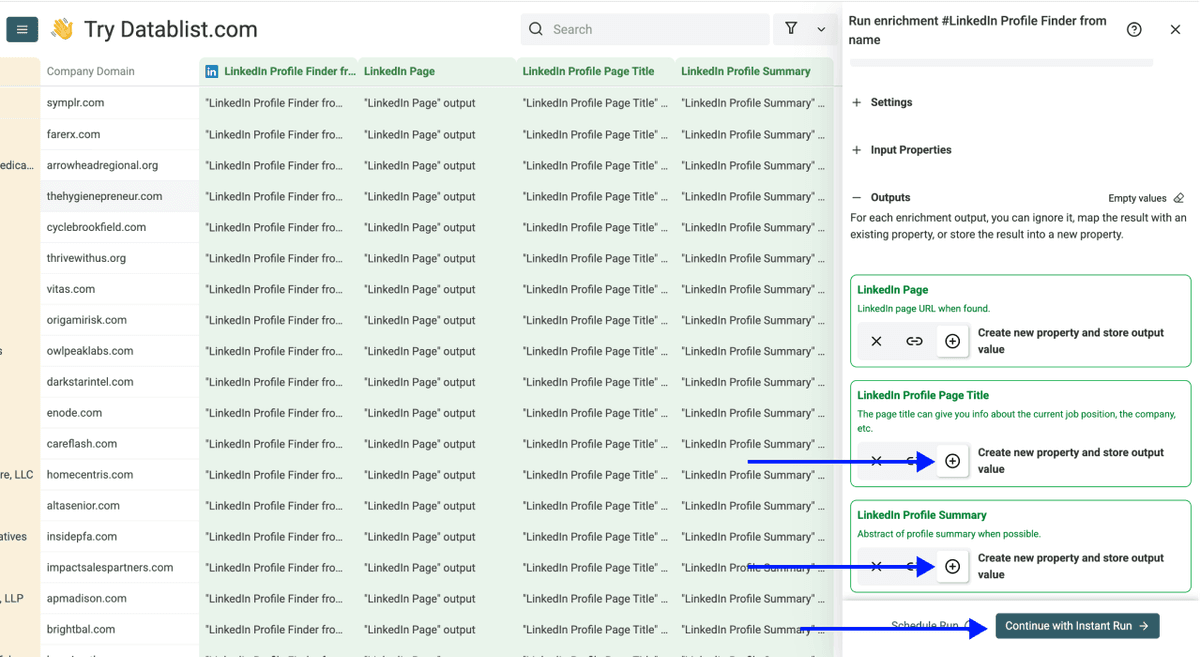
Step 6: Run the Enrichment
Finally, configure your run settings by clicking on the chevron on the right side of the button. This will allow you to choose between the following options:
- Run on first 10 items: Good for checking results before committing
- Run on first 100 items: Useful if you want to validate larger samples
- Run on first {X} items: Lets you choose how many items you want to process
- Run on all view items: Process your entire list (or view if you've enabled filters)
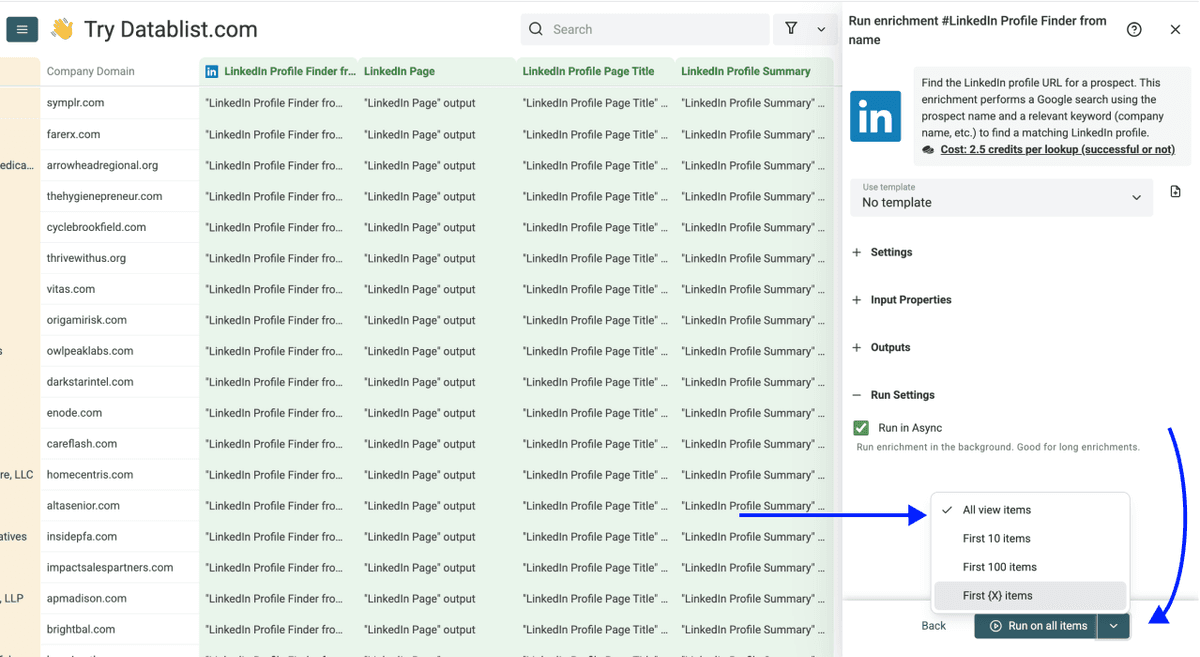
Once you have chosen your preferred option, click Run on X items
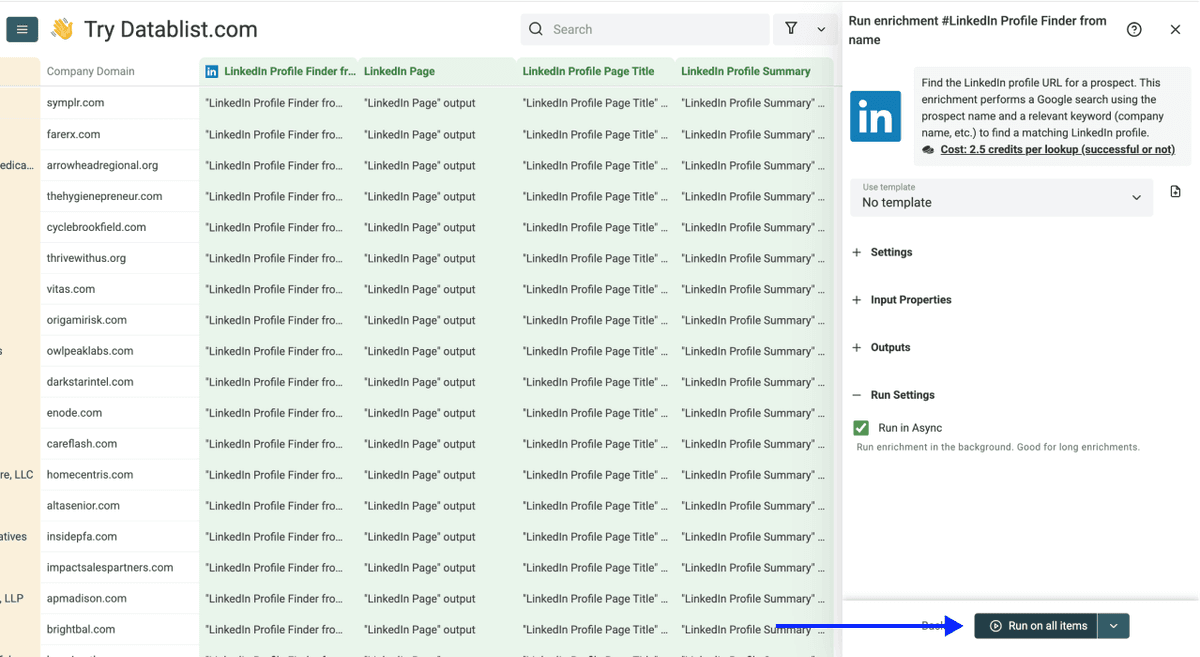
Within minutes, you'll have LinkedIn profile URLs populated in your collection. Now you're ready for the second step: finding phone numbers.
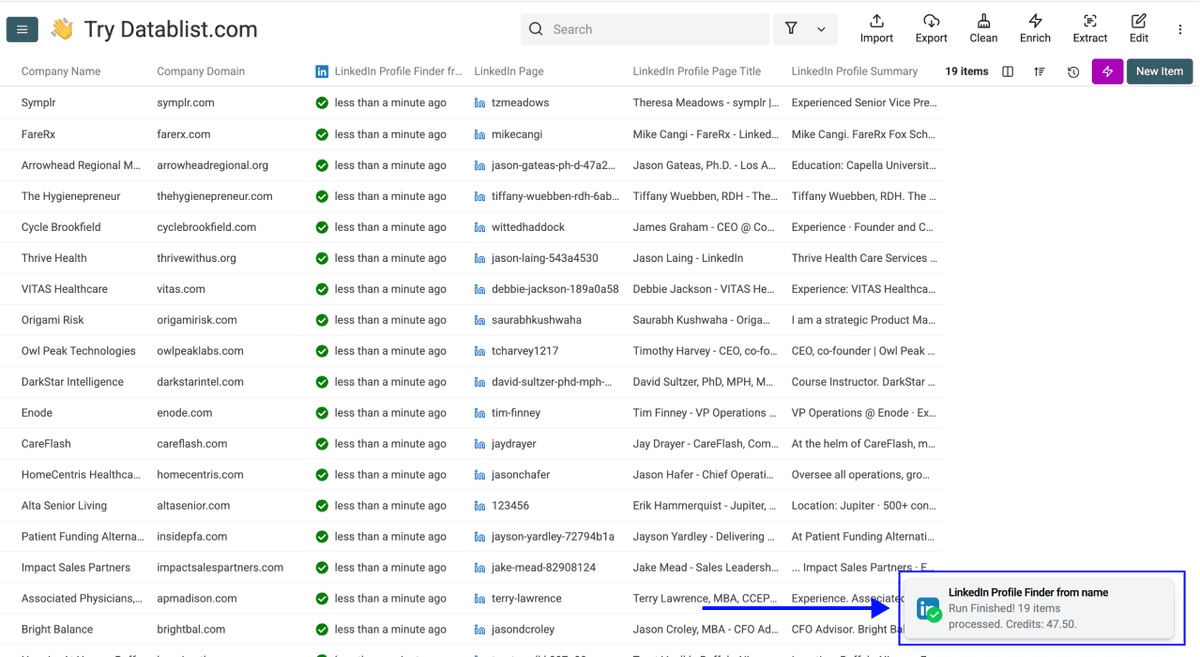
💡 Quick Tip
Before running the phone finder, scan the LinkedIn Profile Page Titles. This is a fast way to confirm you've got the right people before spending credits on phone number lookups.
Using the Waterfall Phone Finder
Now that you have LinkedIn URLs, it's time to find mobile numbers. This enrichment costs 500 credits per verified phone number found, and you only pay when a number is actually returned.
Step 1: Your Data Is Already Ready
If you just ran the LinkedIn Profile Finder, your LinkedIn URLs are already in your collection. No new upload needed. Just continue in the same collection.
If you're starting fresh with a list that already has LinkedIn URLs, upload your CSV or Excel file with the LinkedIn profile URLs.
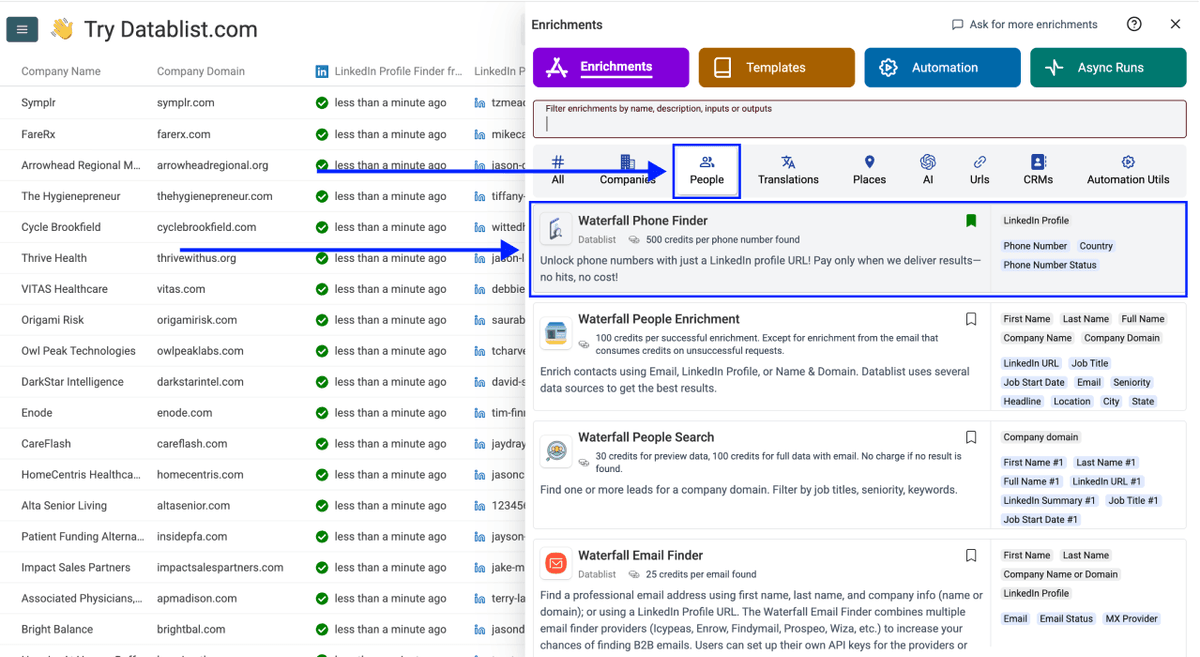
Step 2: Navigate to the Enrichment
- Click on Enrich in the top menu
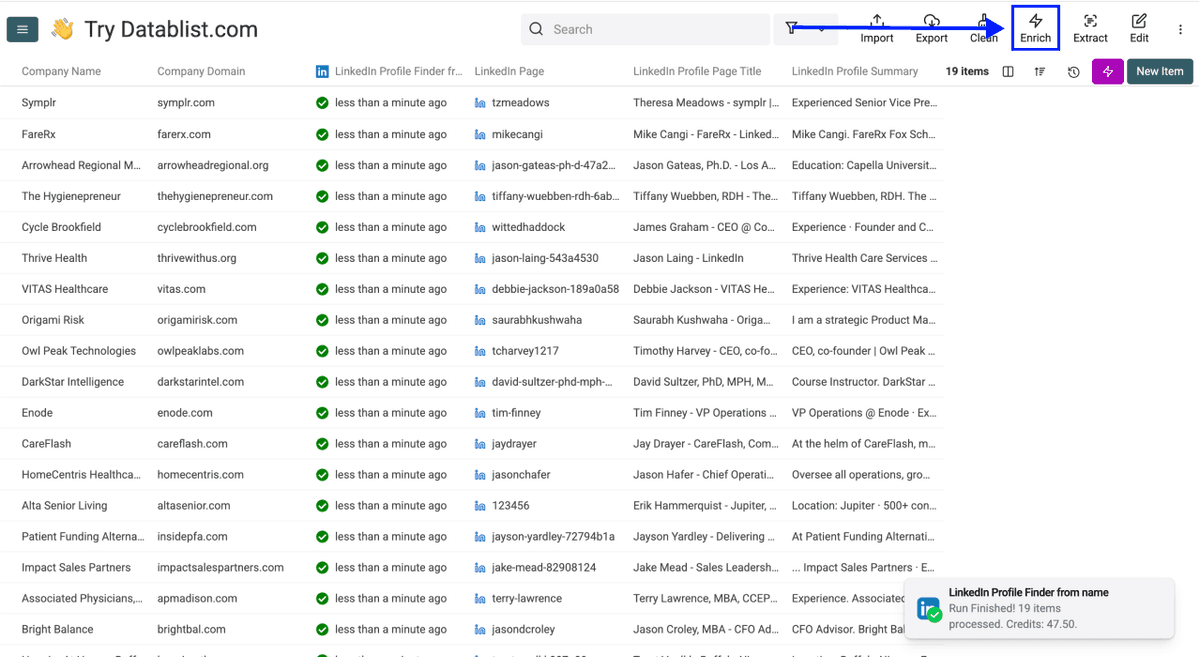
- Go to the People tab
- Select the Waterfall Phone Finder
Step 3: Set Up the Enrichment
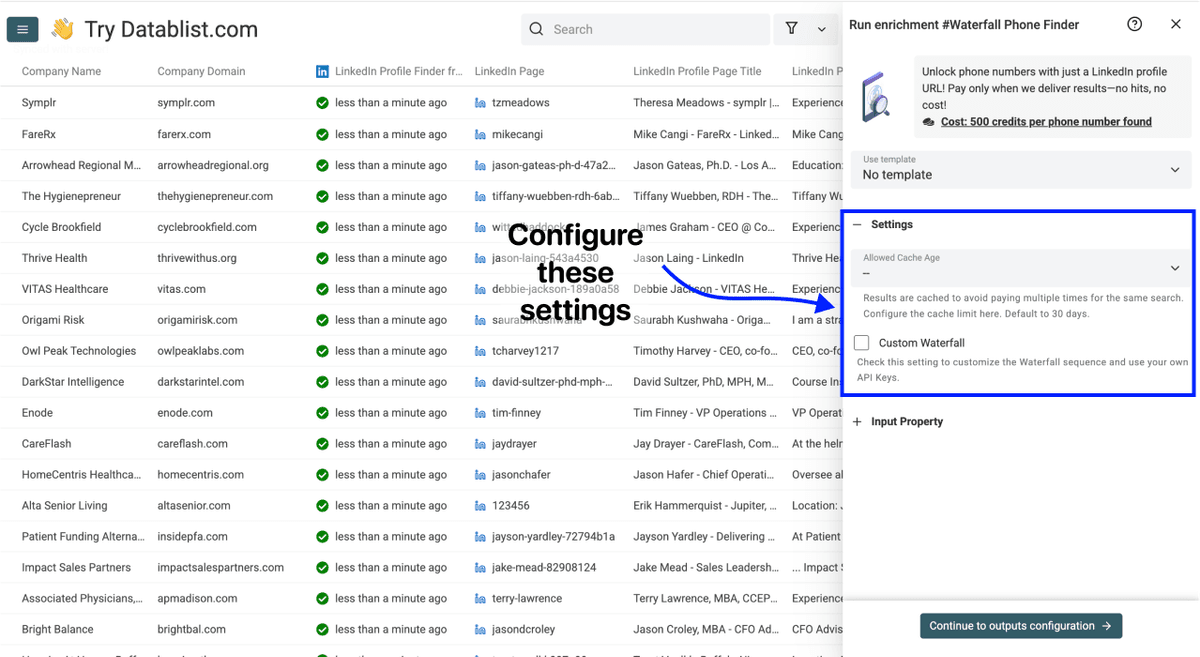
You'll see the following settings:
- Cache Settings - Results are cached to avoid paying multiple times for the same search. Choose between 30 days, 2 months, or 6 months. Default to 30 days.
The setup is straightforward. No complex configuration needed, just select your cache preference and scroll down to configure your inputs.
Step 4: Configure Your Inputs
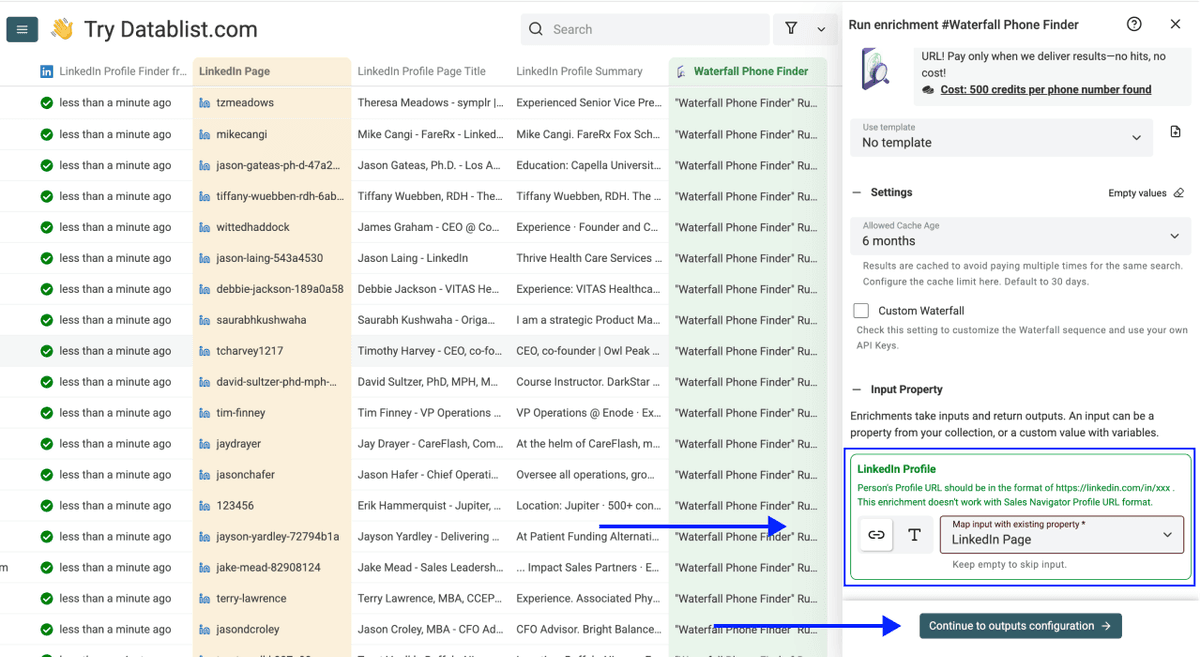
Map the column containing your LinkedIn profile URLs as the Input Property
Then click Continue to outputs configuration
Step 5: Select Outputs
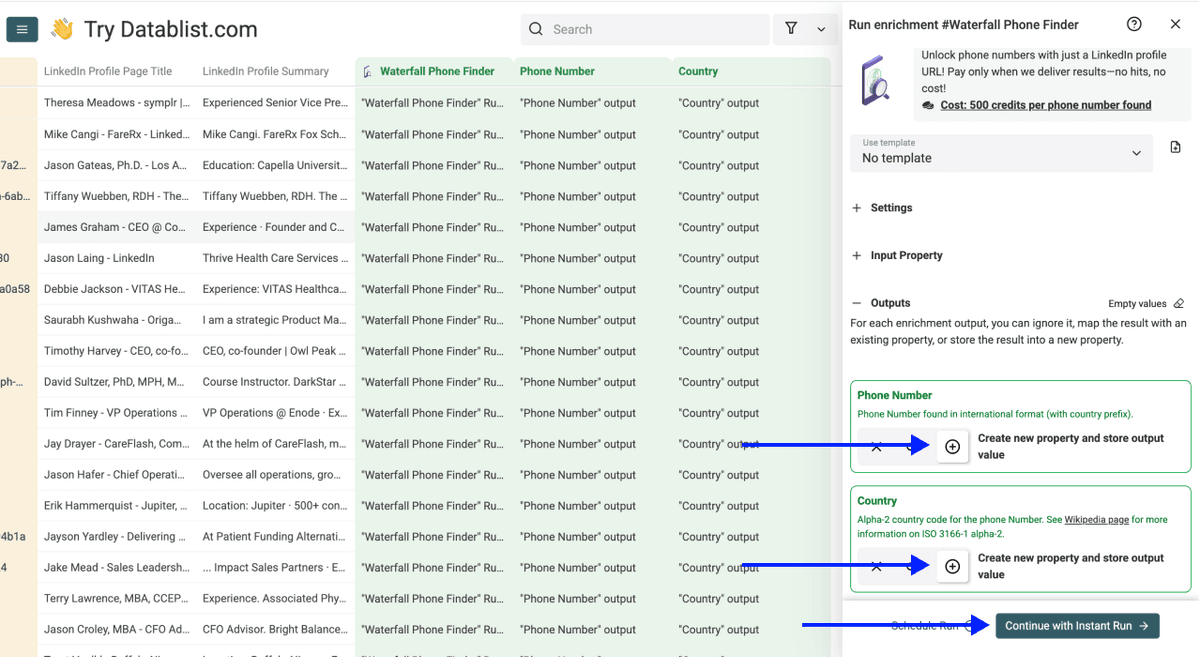
The Waterfall Phone Finder returns:
- Phone Number Found - The verified mobile phone number
- Phone Status - Verification status of the number
Click the ⊕ Icons to add them to your collection, then click Instant Run
Step 6: Run the Enrichment
Finally, configure your run settings by clicking on the chevron on the right side of the button. This will allow you to choose between the following options:
- Run on first 10 items: Good for checking results before committing
- Run on first 100 items: Useful if you want to validate larger samples
- Run on first {X} items: Lets you choose how many items you want to process
- Run on all view items: Process your entire list (or view if you've enabled filters)
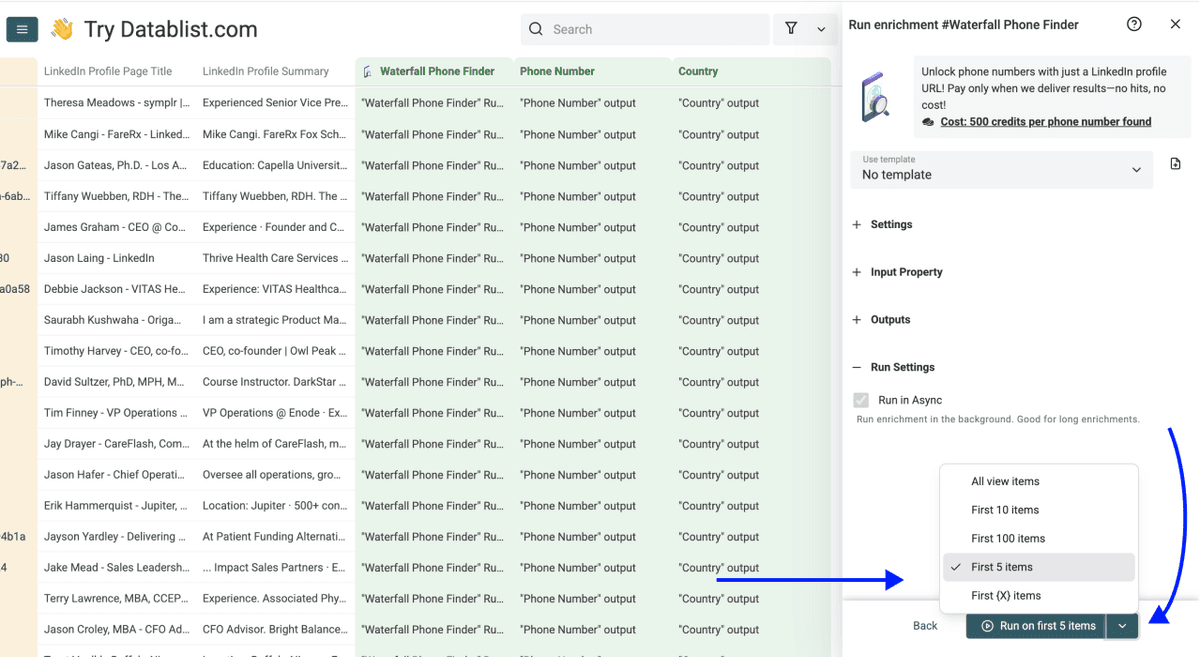
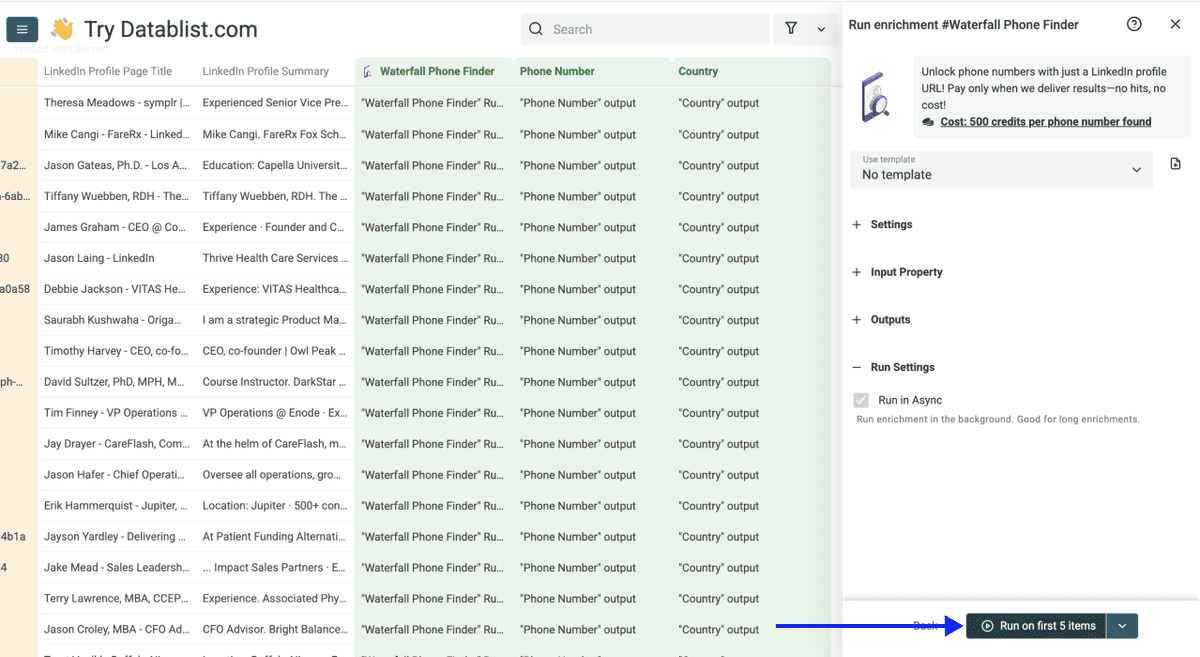
Once you have chosen your preferred option, click Run on X items
After a few minutes, you'll see verified mobile phone numbers in your collection. Every number returned by the Waterfall Phone Finder is a confirmed mobile number, which means you can start dialling with confidence.
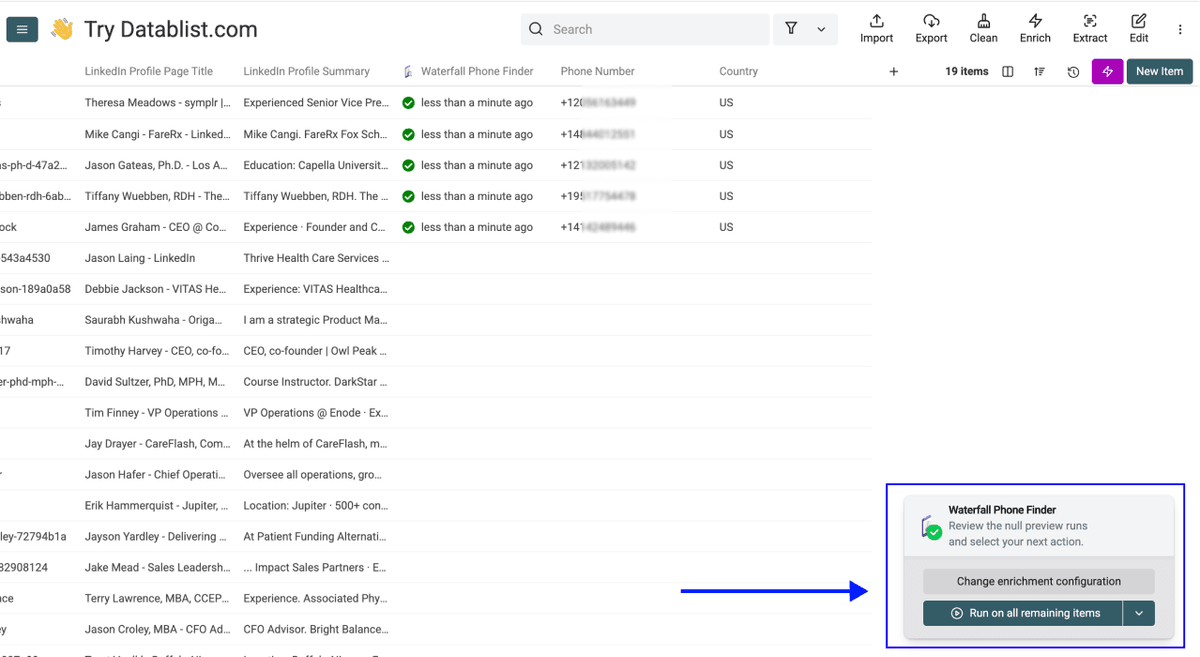
You just went from a list of names to verified mobile phone numbers. Two enrichments, one platform, zero confusion.
Your Key Takeaways
Finding someone's phone number from their name is a two-step process, and both steps are simple:
- Use the LinkedIn Profile Finder to go from a name to a LinkedIn URL (2.5 credits per search)
- Use the Waterfall Phone Finder to go from a LinkedIn URL to a verified mobile number (500 credits per successful find)
Total cost per contact: 2.5 credits for the LinkedIn search + up to 500 credits if a phone number is found. If no phone number is found, you only spent 2.5 credits on the LinkedIn lookup.
What Else Datablist Can Help You With
Finding phone numbers is just one piece of the puzzle. Once you have your contacts and need to find additional contact information, Datablist can help with the next steps:
Build on what you have
- Find verified email addresses with Waterfall Email Finder
- Find personal email addresses
- Enrich company data from company names
- Personalize your cold emails with AI
Build your prospect list from scratch
- Scrape leads from Sales Navigator without losing your account
- Scrape companies from LinkedIn without risking a ban
- Scrape job postings from 19 job boards simultaneously
All within one platform.
Frequently Asked Questions (FAQ) About Finding Phone Numbers From a Name
How Much Does It Cost to Find a Phone Number From a Name With Datablist?
The LinkedIn Profile Finder costs 2.5 credits per search (charged regardless of success), and the Waterfall Phone Finder costs 500 credits per verified phone number found (charged only on success).
So the maximum cost per contact is 502.5 credits per phone number lookup, but if no number is found, you only pay 2.5 credits. With Datablist's Growth Plan ($50/month), you get 20,000 free credits monthly[1]. That's enough for roughly 40 complete name-to-phone lookups.
Can I Find a Phone Number With Just a First and Last Name?
Yes. If all you have is a first and last name, you can still get someone's phone number, but you'll get much better results if you also provide a keyword like the person's company name or domain. Common names return many LinkedIn profiles. A keyword narrows it down to the right person.
Do I Need to Code or Use an API?
Not at all. Both enrichments are fully no-code. You upload a file, select the enrichment, map your columns, and click run. If you can use a spreadsheet, you can use Datablist.com.
How Long Does the Full Process Take?
For 500 contacts, expect the LinkedIn Profile Finder to take 1 minute and the Waterfall Phone Finder to take another 2 to 3 minutes. The entire process from start to finish is under 5 minutes.
What If the LinkedIn Profile Finder Returns the Wrong Person?
The enrichment returns a LinkedIn Profile Page Title that shows the person's current job position and company. Use this to verify matches before running the phone finder. You can also enable "Skip If Not Matching Name" to skip profiles that don't match exactly, though this may reduce your finding rate.
Does the Waterfall Phone Finder Return Landlines or Mobile Numbers?
Only verified mobile phone numbers. The Waterfall Phone Finder checks multiple data vendors in sequence and only returns numbers that pass mobile verification[2]. You reach your contact directly, no front desk, no gatekeepers.
What Happens If No Phone Number Is Found?
You're not charged for the Waterfall Phone Finder if no number is found. You only pay the 2.5 credits for the LinkedIn profile search. There's zero financial risk in running the phone enrichment.
Can I Also Find Their Email Address After Getting Their LinkedIn URL?
Yes. Once you have LinkedIn URLs in your collection, you can run Datablist's Waterfall Email Finder or Personal Email Finder on the same data. No re-upload needed, just pick the next enrichment and run it.
Is There a Limit on How Many Phone Numbers I Can Find?
Datablist.com supports up to 100,000 rows per collection. If your list is larger, split it into multiple collections and enrich each one separately. Practically speaking, there's no real limit.
What's the Difference Between This Method and Using the AI Agent for Phone Numbers?
This method uses the Waterfall Phone Finder, which returns only verified mobile phone numbers. The AI Agent method extracts whatever phone numbers are listed on a company's website, which are usually landlines. If you want to reach someone directly on their mobile, the Waterfall method is what you want.