





















Step-by-Step Guide
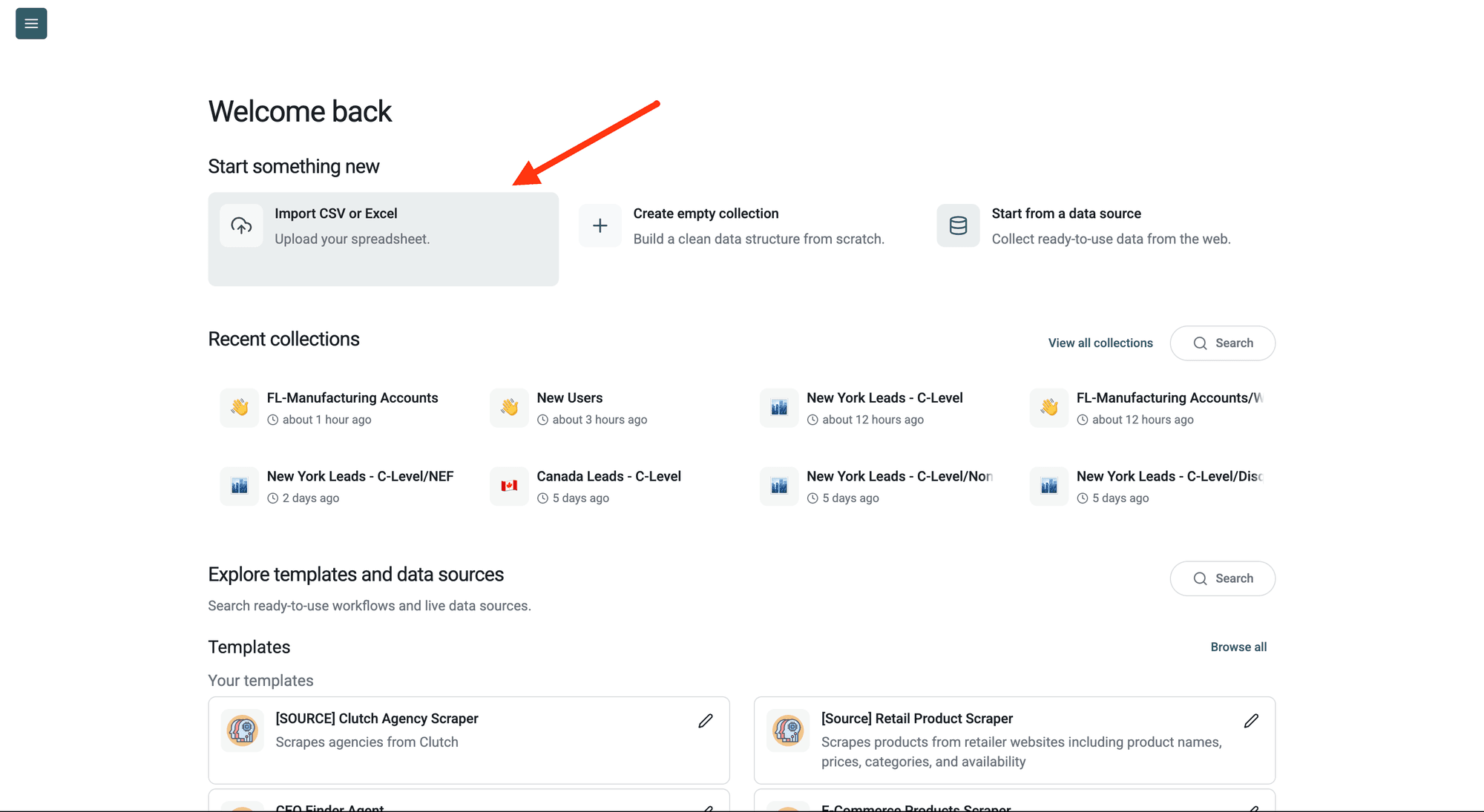
Step 1: Sign Up & Upload Your Data
First, sign up for Datablist.com
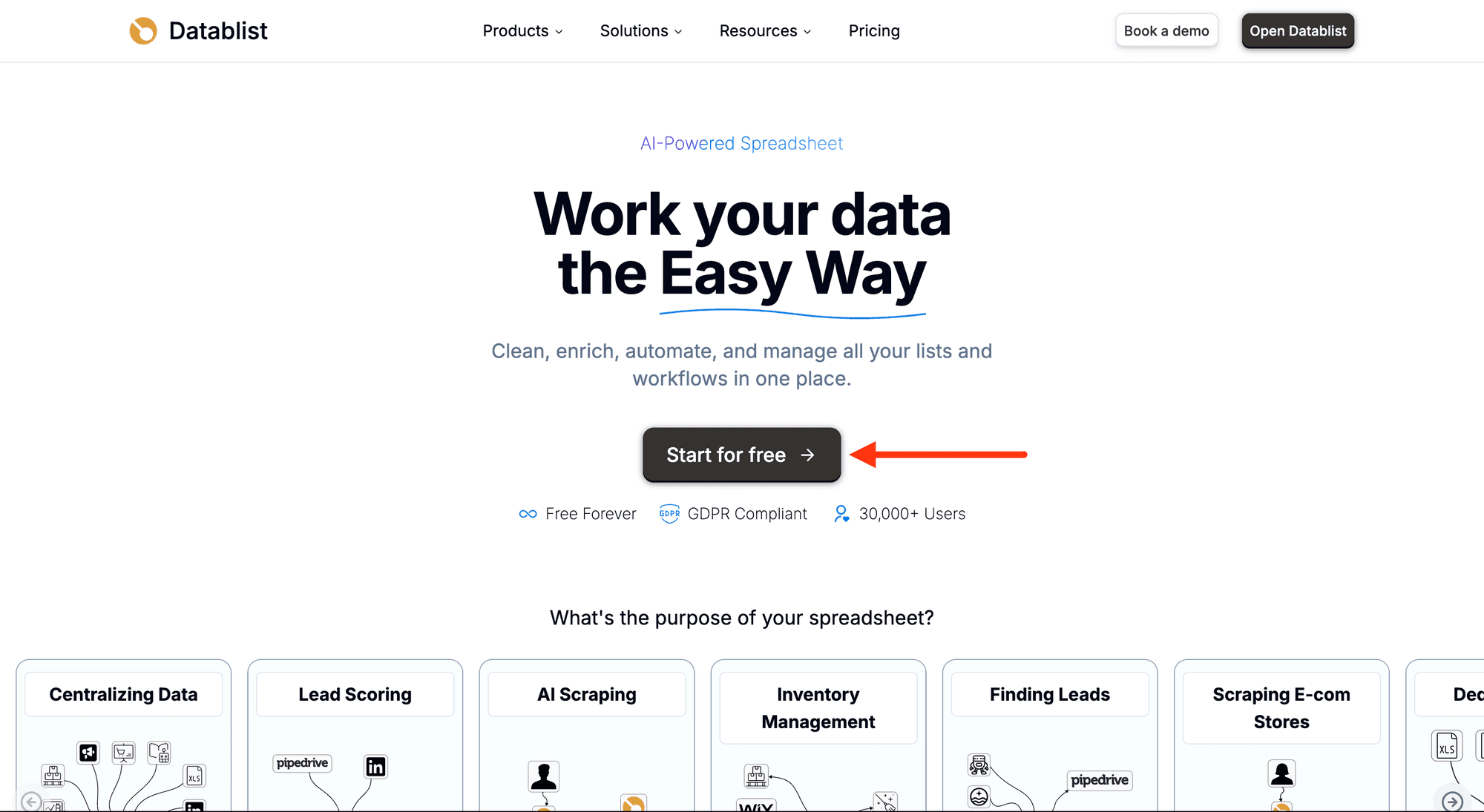
Then, upload your CSV or Excel file with your account list.
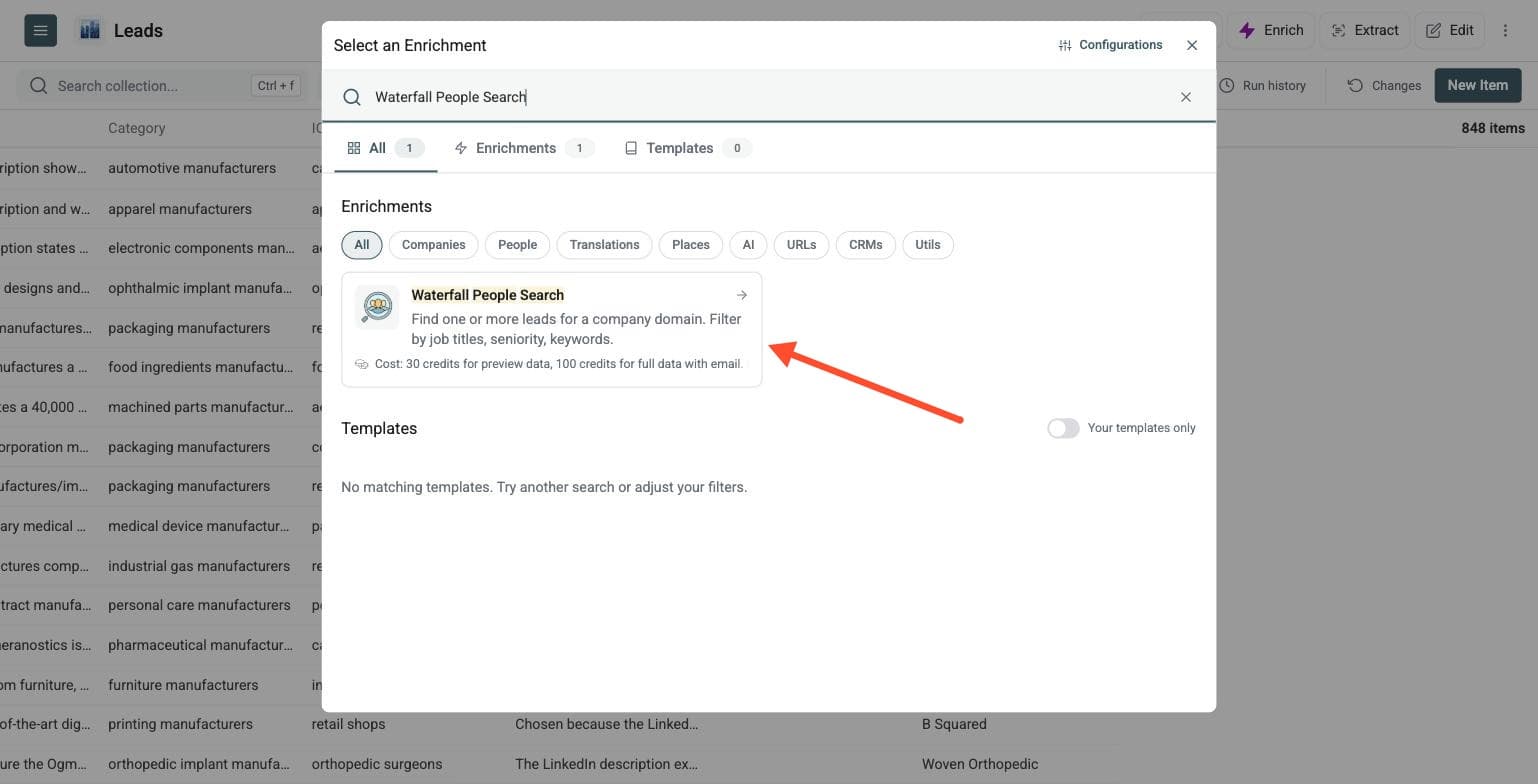
Step 2: Navigate to the Enrichment
Open Enrich and choose Waterfall People Search.
Step 3: Set Up the Enrichment
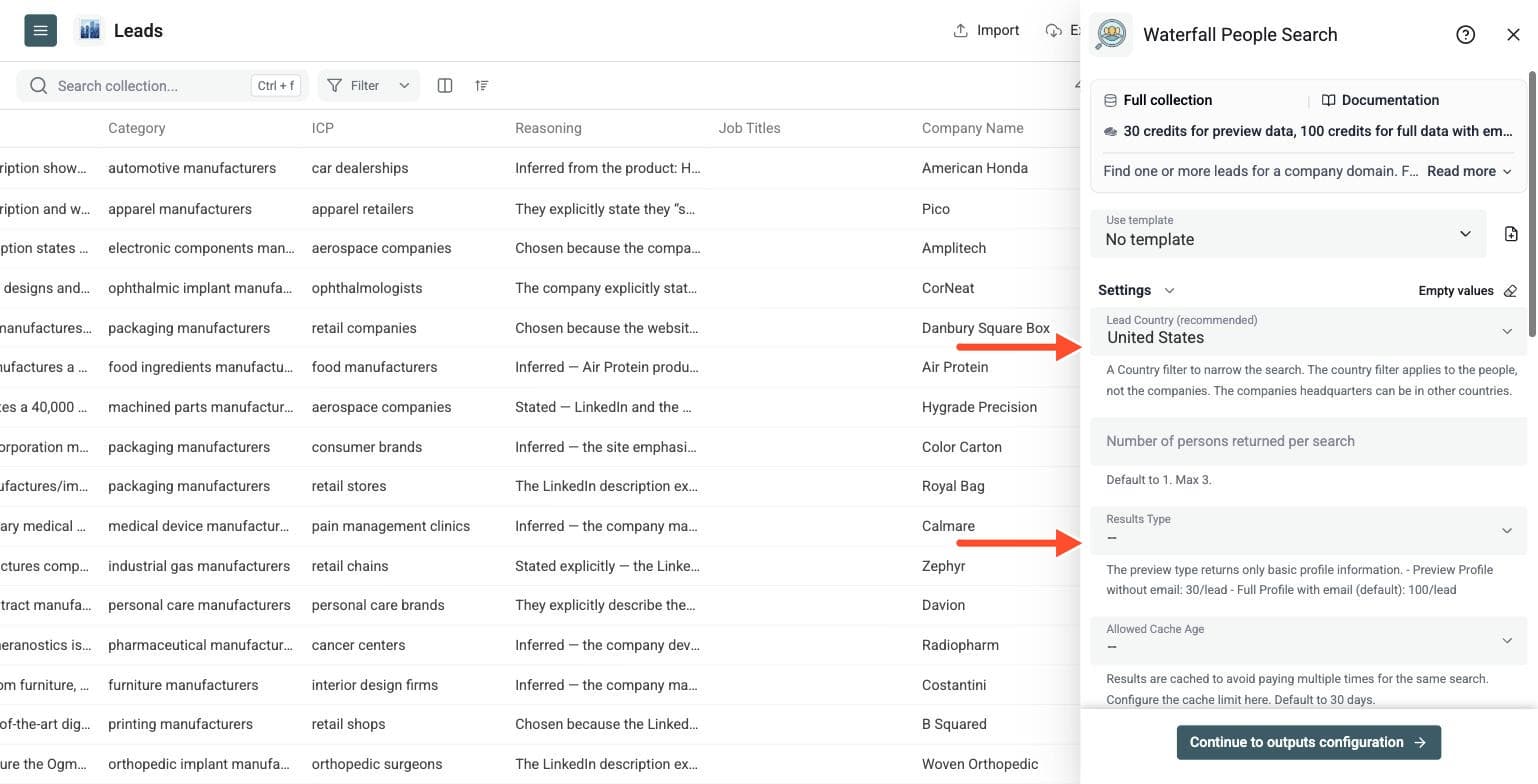
You'll see the following settings:
-
Lead Country (recommended): A country filter to narrow the search. It applies to the people, not the companies.
-
Number of persons returned per search: Default 1, max 3.
-
Find work email: Off by default, with full profiles at 25 credits per returned person. Enable it to also look up a work email: 50 credits when an email is found, or 25 credits for the profile when no email is found.
-
Allowed Cache Age: Results are cached to avoid paying multiple times for the same search. Default 30 days.
-
Waterfall Searches: Datablist searches with Search #1 criteria. If there is no result, it uses Search #2 criteria, and so on. You can define up to 3 fallbacks.
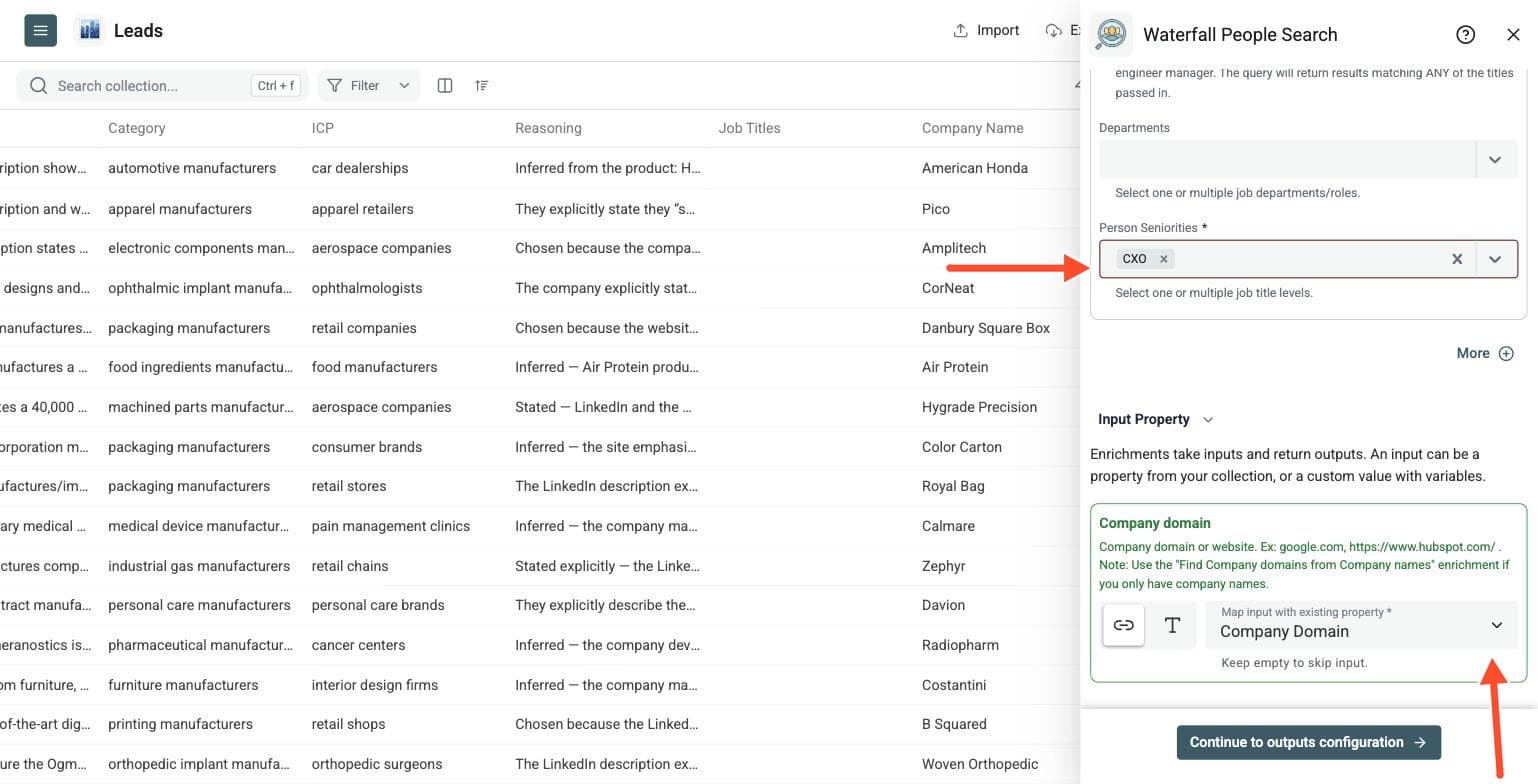
Step 4: Configure Your Inputs
-
Map the column with your company domains or websites as the Company domain input, for example google.com or https://www.hubspot.com/
-
If you only have company names, run the Company Name to Domain enrichment first
Then click Continue to outputs configuration.
Step 5: Select Outputs
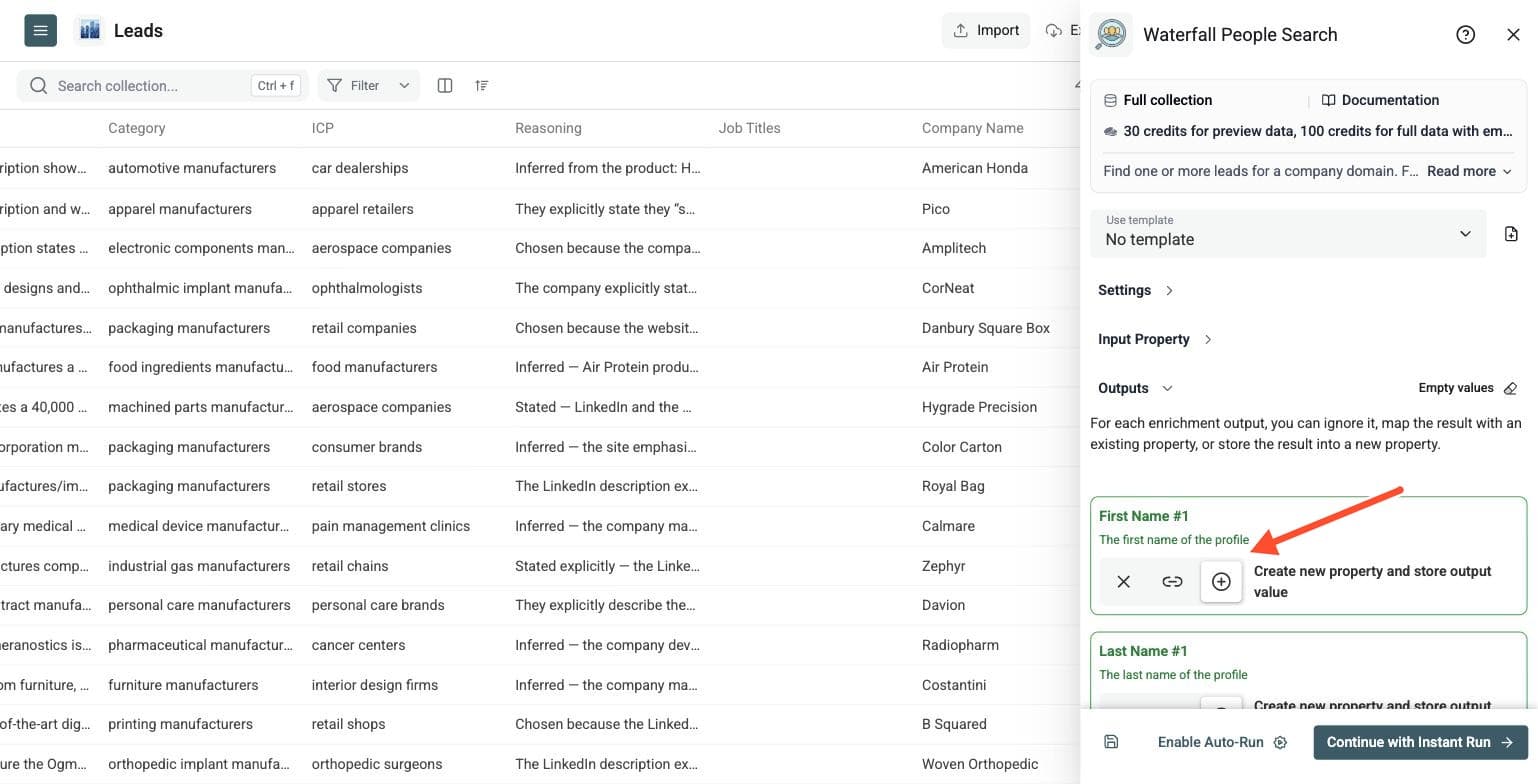
Profiles can include the first name, last name, full name, LinkedIn URL, profile summary, job title, job start date, seniority, city, region, country and company LinkedIn page. Enable Find work email to also return a work email when available. Fields stay empty when the information cannot be found. Keep Search Status to filter the rows.
Click the ⊕ icons to add them to your collection, then click Instant Run.
Step 6: Run the Enrichment
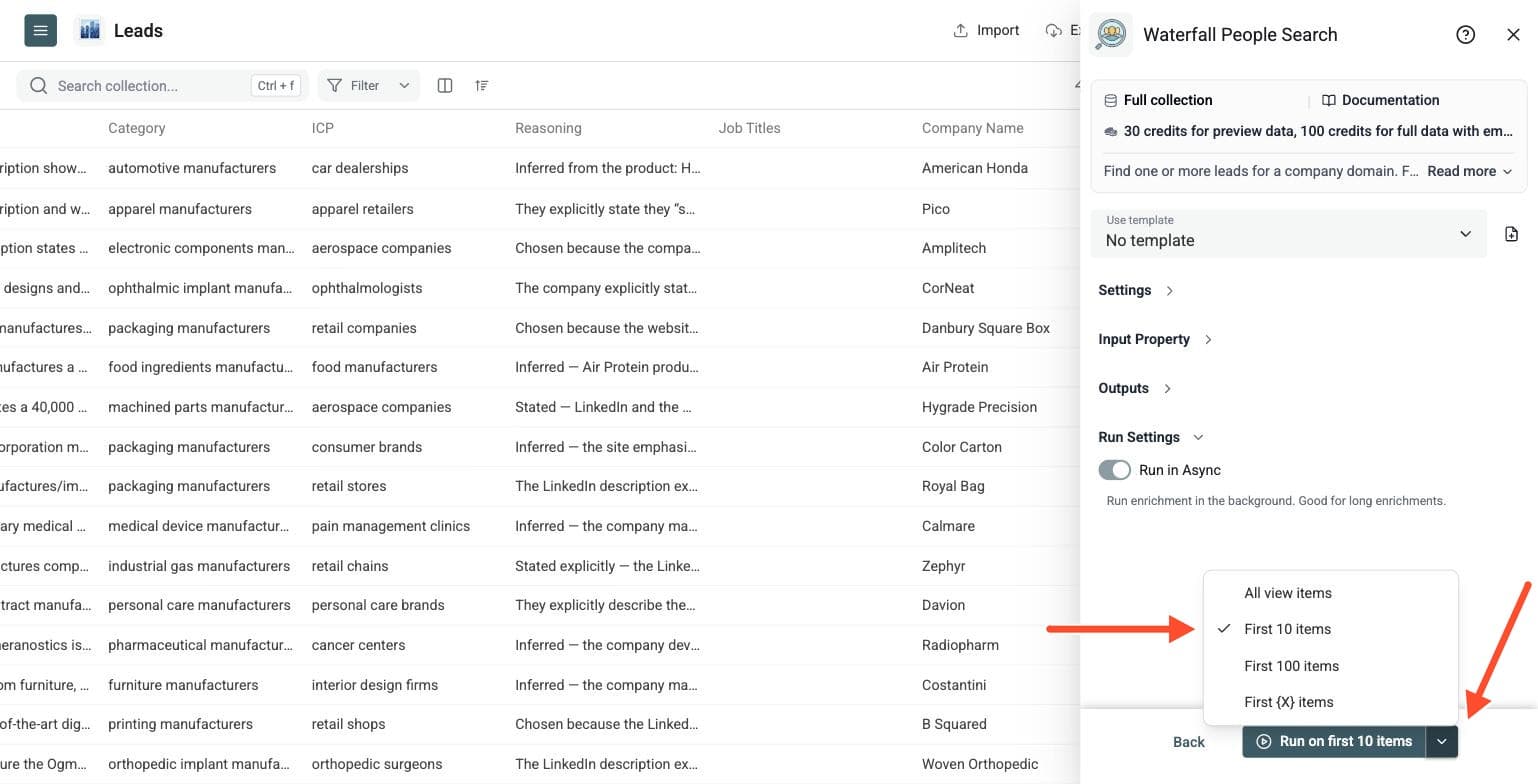
Run a small sample first to check whether your filters are too broad or too narrow. Click the chevron on the right side of the run button to choose how many items to process:
-
Run on first 10 items: Good for checking results before committing
-
Run on first 100 items: Useful for validating larger samples
-
Run on all view items: Process your entire list (or view if you've enabled filters)
Then run the full list and review the returned profiles before you reach out.
Build Narrow Searches Before Broad Fallbacks
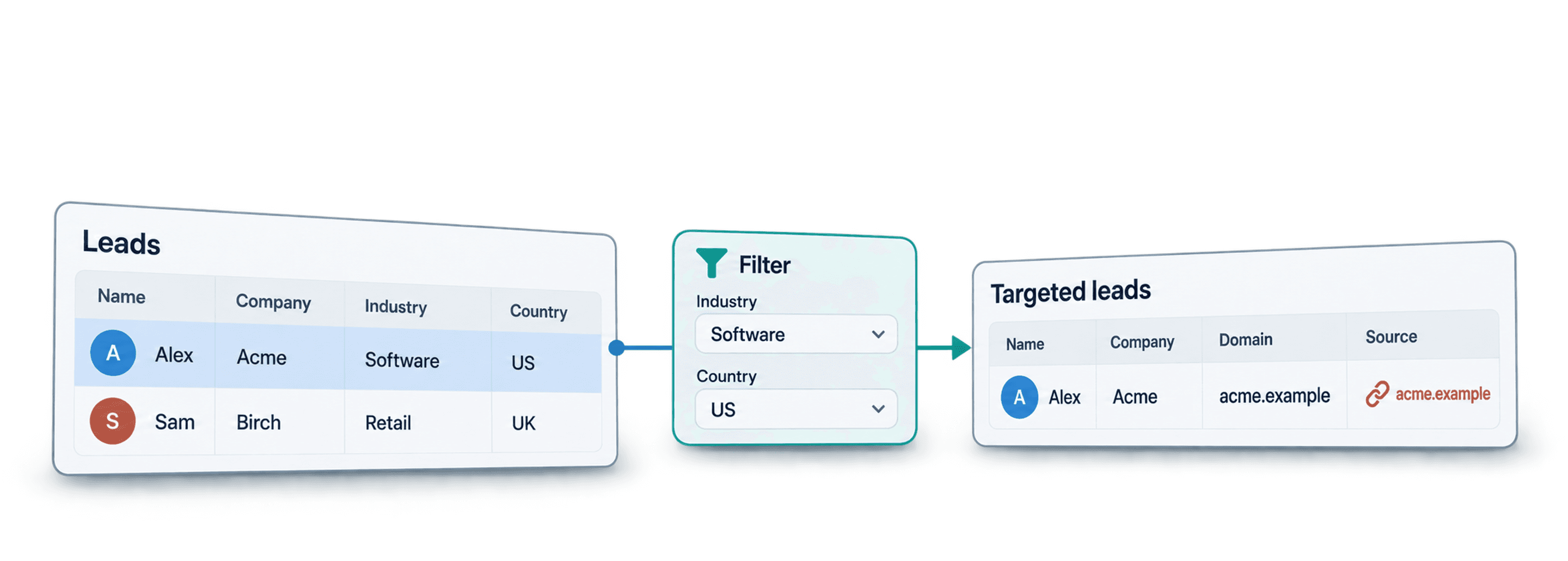
Start with a company domain and the buyer or candidate profile you need. Define a precise first search using job-title keywords and seniority. Broader Search #2 and Search #3 criteria can provide alternatives when the earlier search finds no result. These are fallback searches, not three separate batches of contacts to combine.
For example, start with a Director of Marketing search, then broaden the job-title keywords to Marketing Manager if that fits your campaign. Use the country filter when the location of the people matters. Test a small sample before processing the full account list.
Keep company domains separate from any notes about target roles. If you have company names only, run Company Name to Domain first and review those domains before searching for people.
Full Profiles With or Without Email
Leave Find work email off when you need profile details to assess a contact's fit. Enable it when you also need a work email for outreach. Both options look up additional LinkedIn profile information when the search result has gaps.
The rates are per returned person, not simply per company row. One thousand profiles without email use 25,000 credits. With Find work email enabled, 600 profiles with email and 400 profiles without email use 40,000 credits. If you request several people per company, account for all returned contacts when sizing the run. No-result searches and reused cached results are free.
What To Do After Finding Contacts
Review the returned profiles before outreach. Keep the account domain alongside each contact, check role and location, and deduplicate people who appear more than once across your account lists.
Use Waterfall People Enrichment to complete a known person's record, or Waterfall Phone Finder if your next step needs phone numbers from reviewed LinkedIn URLs. Export the contacts that fit your campaign to your CRM or outreach workflow.
This workflow suits account-based prospecting, turning website datasets into contact lists, testing job-title variants and reviewing contact fit before buying richer data.