
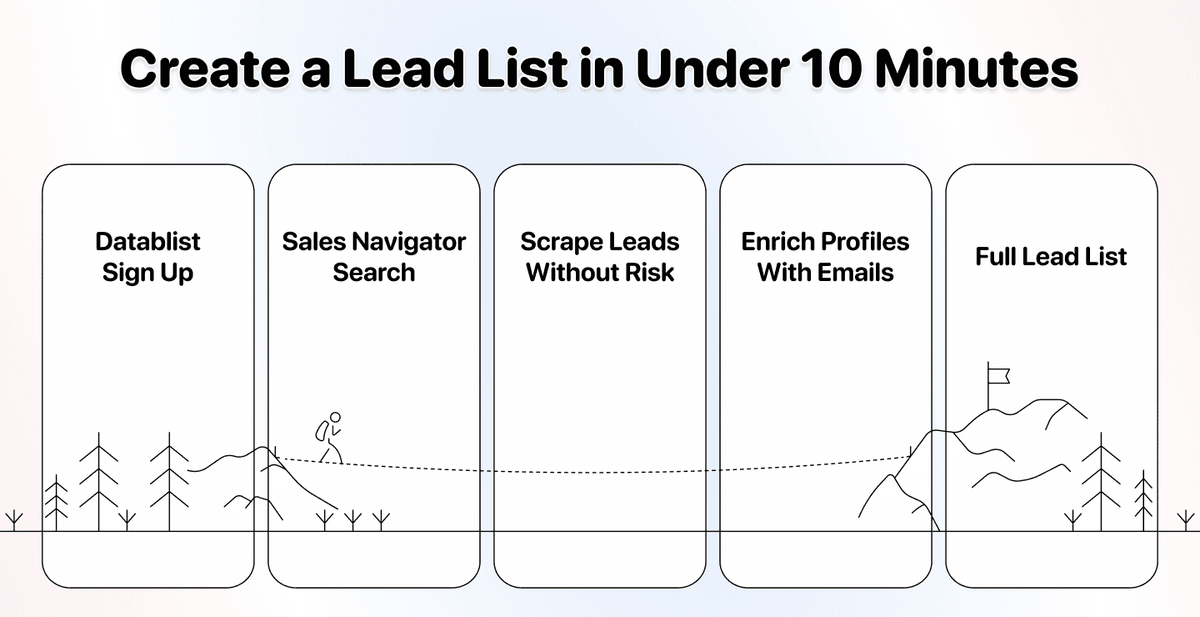
LinkedIn's Sales Navigator is the best B2B data source out there. The filters are precise, the data is fresh, and your ideal customers are already on the platform. But two problems need to be solved before you can take real advantage of this data:
- Scraping LinkedIn is risky and could result in an account ban (if you use a browser extension)
- When you scrape leads from Sales Navigator, you don't get any emails.
This article solves both problems, and by following along, you'll learn:
- How to scrape leads from LinkedIn's Sales Navigator without getting banned
- How to find the verified email address for each you scraped
Additionally, I’ll show you a few other B2B data enrichment tricks that take your lead list from basic to comprehensive.
Each step is explained clearly. Follow along, and you'll have a full LinkedIn lead list with emails in less than 10 minutes.
📌 Summary For Those In a Rush
This article shows how to build a complete B2B lead list from LinkedIn with verified emails. Here is a summary:
The Problems:
- Most LinkedIn scraping tools put your account at risk
- LinkedIn and Sales Navigator give you great prospect data, but no emails.
The Solution to Both Problems: Use Datablist to scrape LinkedIn leads safely (no browser extension, no account credentials needed), then enrich them with verified emails using the Waterfall Email Finder.
Why It Works:
- Datablist never touches your LinkedIn account
- You get 25% more emails than single-provider tools
- You pay only for successfully found emails
Time Required: Less than 10 minutes from start to finish
Table of Contents
- Introduction: What We're Doing and Why It Matters
- Building a Lead List With Emails: The Step-by-Step
- Enriching Your LinkedIn Lead List
- Conclusion
- FAQ
Introduction: What We're Doing and Why It Matters
Before we get into the steps, let me quickly explain which tool we’ll be using and what this workflow looks like from start to finish. This will give you clarity while following along.
What is Datablist? (The Tool We Use)
Datablist is a platform for automating lead generation workflows that allows currently 25k users to find, clean, and enrich data using over 60 different tools from AI Agents to Email Finders, AI processors, Technology enrichments, and more.
Additionally, Datablist allows you to build automated workflows that run on schedule or demand. Here are a few practical use cases that Datablist users love:
- Building lead lists
- Personalizing emails with AI
- Cleaning and deduplicating CRMs
- Scraping job postings from 19 boards at once
- Scraping LinkedIn Sales Navigator searches without risking your account
The point is clear: if you need to get, clean, or automate workflows with data involved and you need it to be easy, fast, and reliable, Datablist is the place to go.
💡 Datablist Summarized in 35 Words
Datablist is a platform for automating lead generation workflows, which offers a suite of over 60 tools, including AI Agents, Waterfall Enrichment to find emails and phone numbers, data cleaning tools for deduplication, and more.
Scraping Leads From LinkedIn
The first part of building your LinkedIn lead list is getting the raw data out of Sales Navigator (or regular LinkedIn). Here's what that involves:
Configuring Your Search
- Creating a targeted search in Sales Navigator
- Applying the right filters to find your ideal prospects
- Avoiding filters that will break the scrape
Scraping the Results
- Copying your search URL
- Pasting it into Datablist's LinkedIn Search Scraper
- Getting your leads without any risk to your account
This part is straightforward. The key is knowing which filters to use and which to skip (more on that soon).
Enriching Your Leads
Once you have your leads, the next step is finding their email addresses. With Datablist, you can do this using just the LinkedIn profile URL.
What You'll Get:
- Verified email addresses
- Deliverability status for each email
- MX provider information
Beyond Emails:
Datablist has an entire ecosystem of enrichments, which is particularly useful for people who want to enhance their lead list for email personalization. After finding emails, you can research companies with AI, find technologies they use, clean up messy data, and more. I'll show you the highlights at the end.
Building a Lead List With Emails: The Step-by-Step
Now let's get into the actual process. I'll break this into clear steps so you can follow along easily.
Creating Your Search Query in Sales Navigator
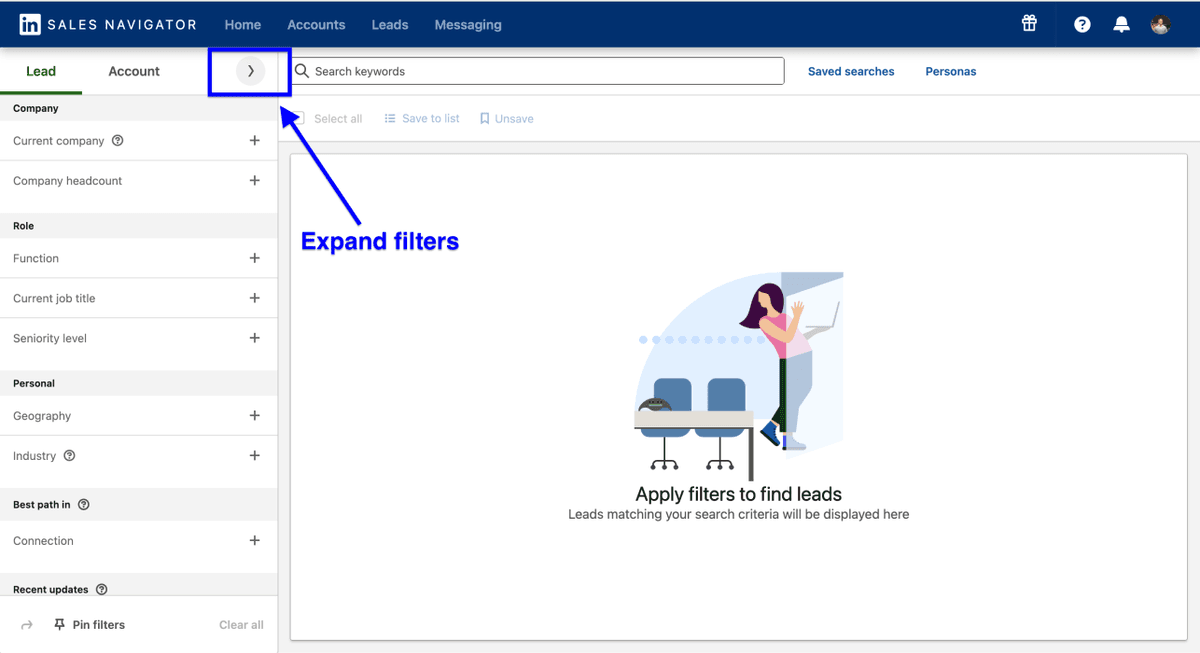
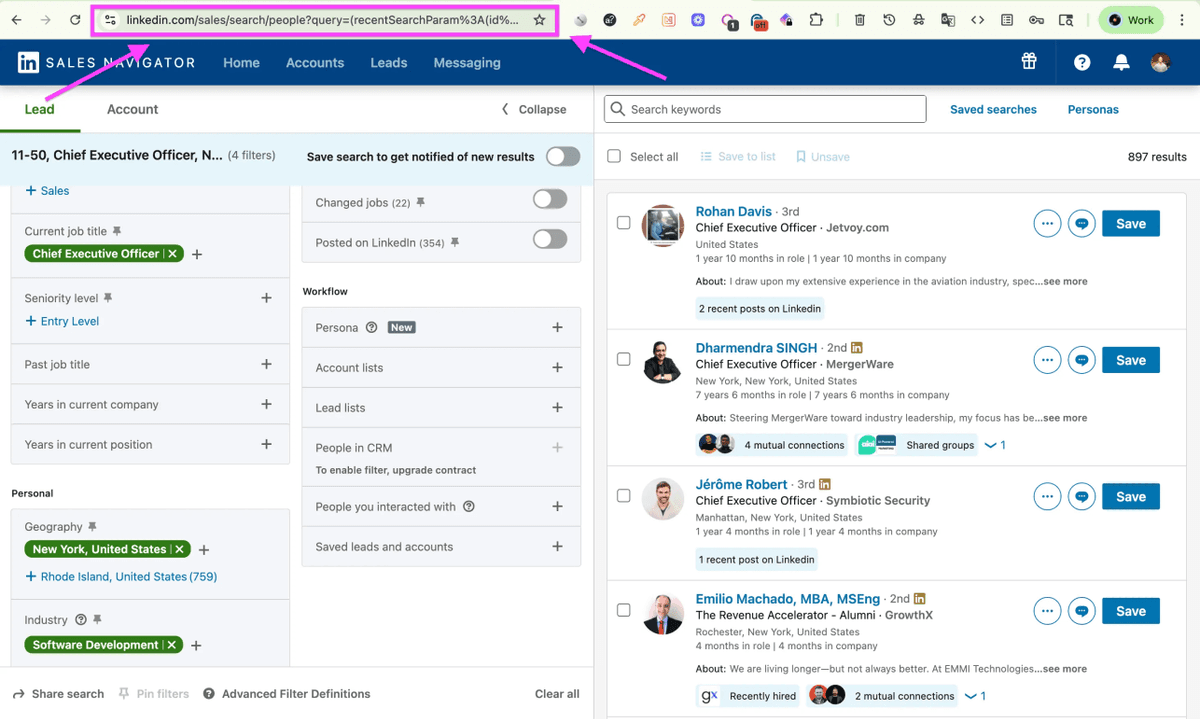
First, head to LinkedIn Sales Navigator and open the Lead Search. Click on the arrow to expand all available filters.
📘 Using Regular LinkedIn?
The following instructions work for both Sales Navigator and regular LinkedIn. Just do your search on LinkedIn, copy the URL from your browser's search bar, and paste it into Datablist. Everything else stays the same.
Sales Navigator gives you 33 filters to work with. Use them to narrow down your ideal prospects. Keep your search results under 2,500 leads for the best results.
Filters You Should Use:
- Job titles and seniority levels
- Company size and industry
- Geography and location
- Years in current position
- Keywords in profile
Filters You Should NOT Use:
These are account-specific filters that will cause problems when scraping:
- Connection grade (1st, 2nd, 3rd)
- Saved lists
- Past colleagues
- Shared experiences
- Viewed profile
- Follows company page
- Interactions
Why avoid these? Because they're tied to your personal account. Since Datablist scrapes without using your account, these filters won't work.
What If Your Search Has More Than 2,500 Results?
Break it down into smaller segments:
- Filter by specific states or regions instead of an entire country
- Narrow by industry sub-categories
- Use the "years in current position" filter to create segments
- Split by company size ranges
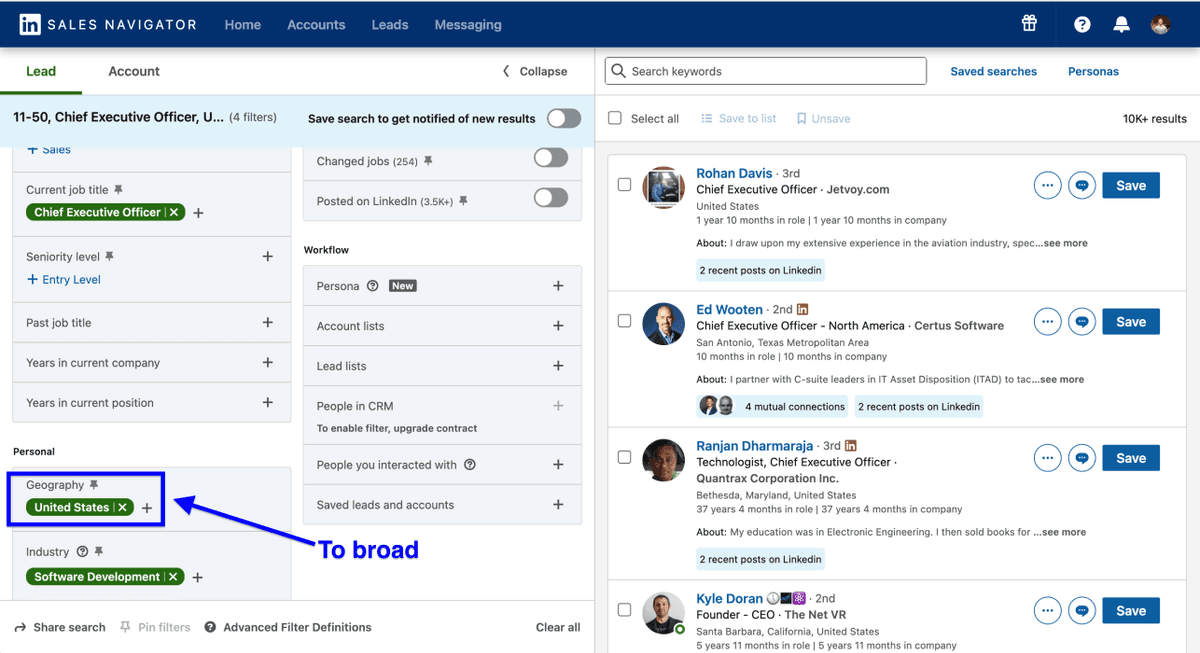
Example: Searching for CEOs at US software companies (10-50 employees) might return 10,000 results. Instead, run separate searches for California, Texas, and New York. Each segment stays under the limit, and you can combine them later.
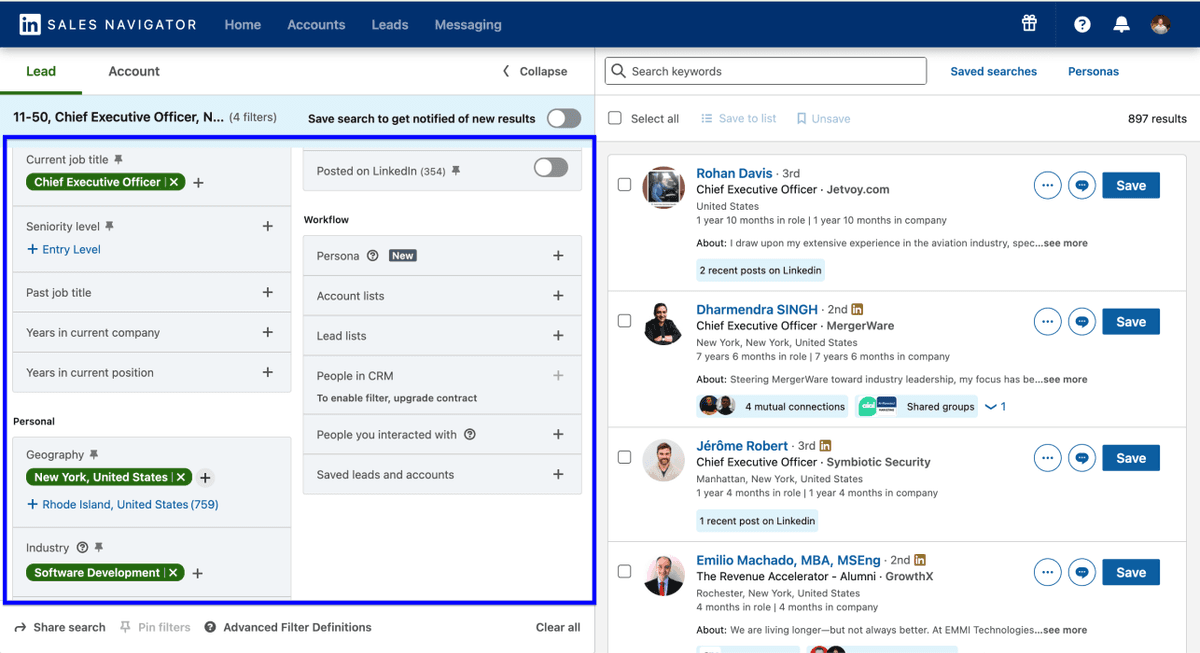
Once your search is configured, copy the URL from your browser's address bar. This is the only thing you need for the next step.
Scraping LinkedIn Leads Without Risking Your Account
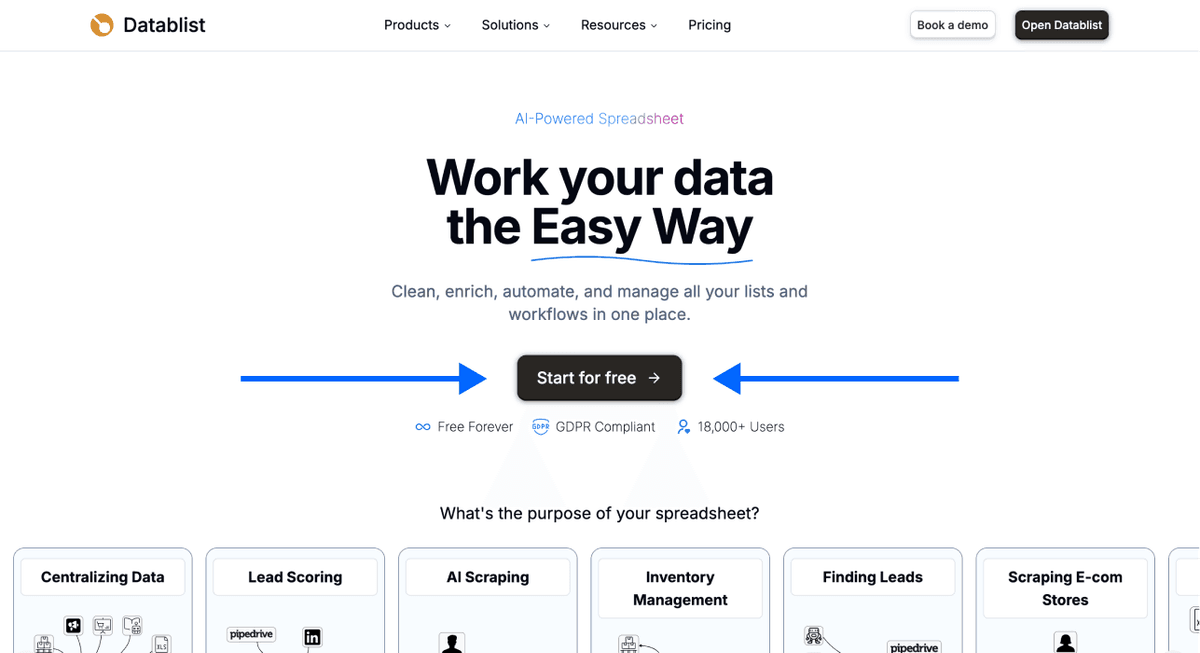
Step 1: Sign up on Datablist.com
Go to Datablist.com and create an account. The process takes less than a minute.
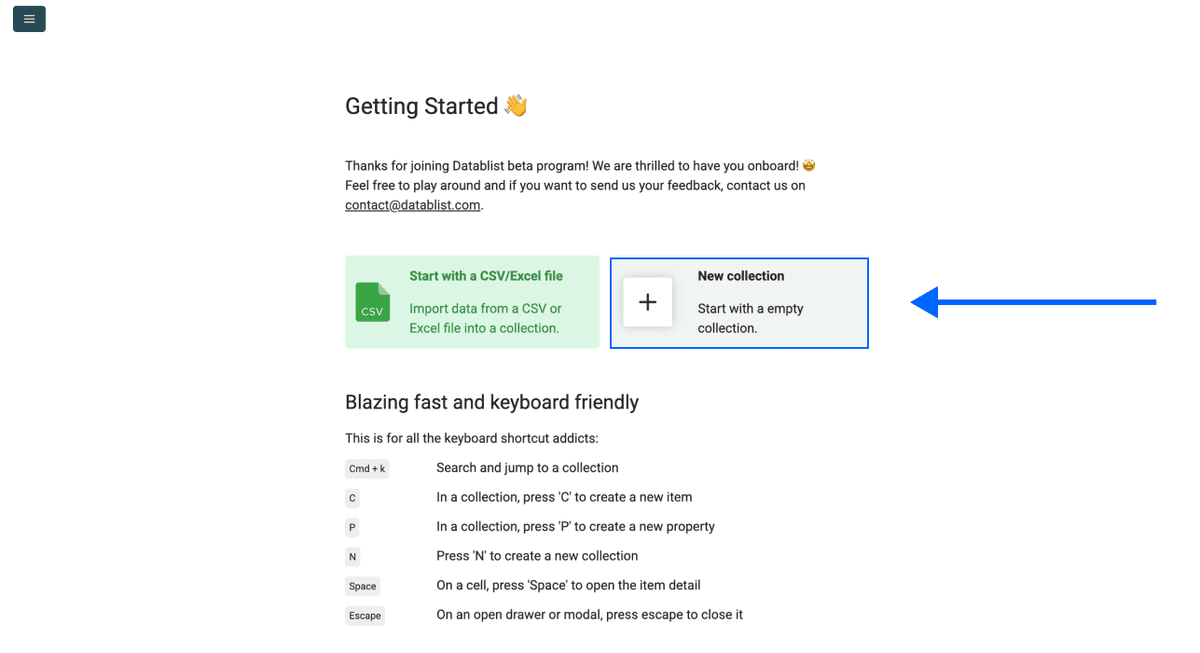
Step 2: Create a New Collection
Once you're in, click on New Collection. This is where your scraped leads will live.
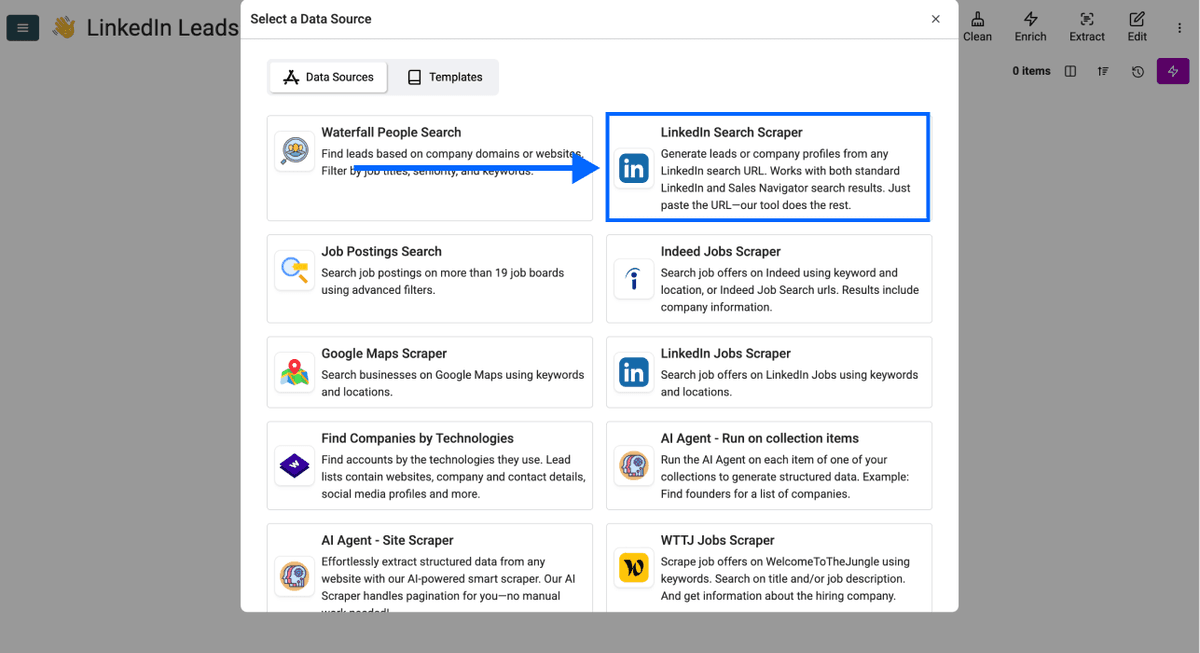
Step 3: Navigate to the LinkedIn Search Scraper
Click on See all sources and select the LinkedIn Search Scraper from the list.
Step 4: Configure Your Scrape
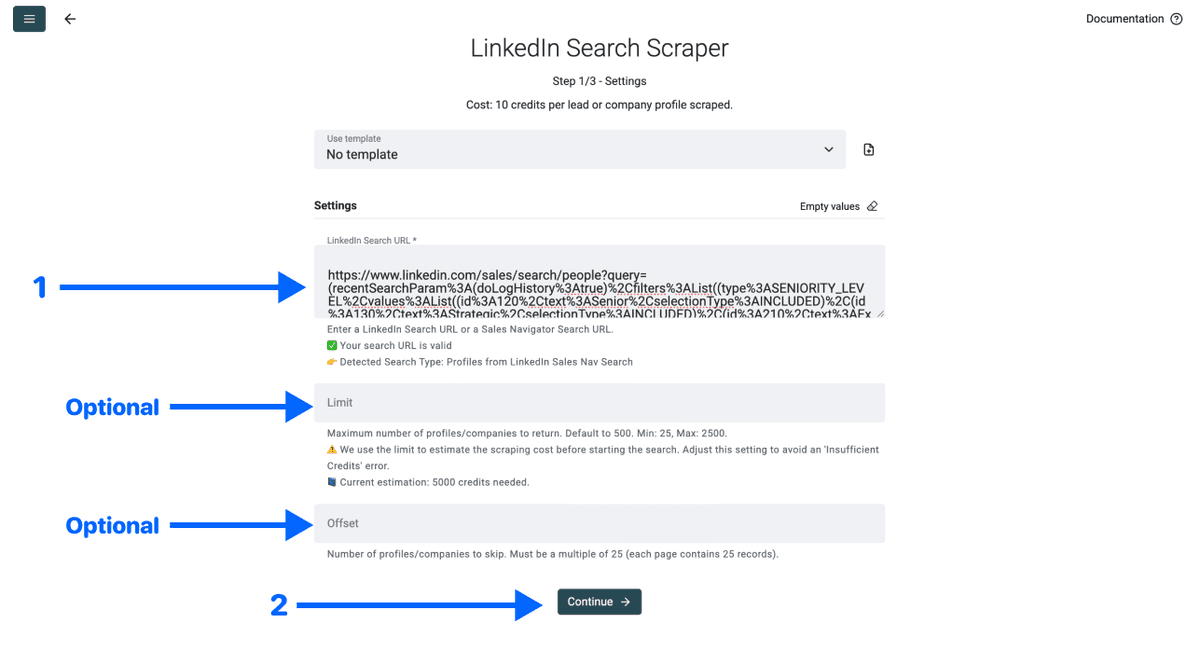
You'll see a simple configuration screen. Here's what to do:
- Paste your Sales Navigator search URL in the first field
- Set a limit if you don't want all results (optional)
- Click Continue
Step 5: Select Your Outputs and Run
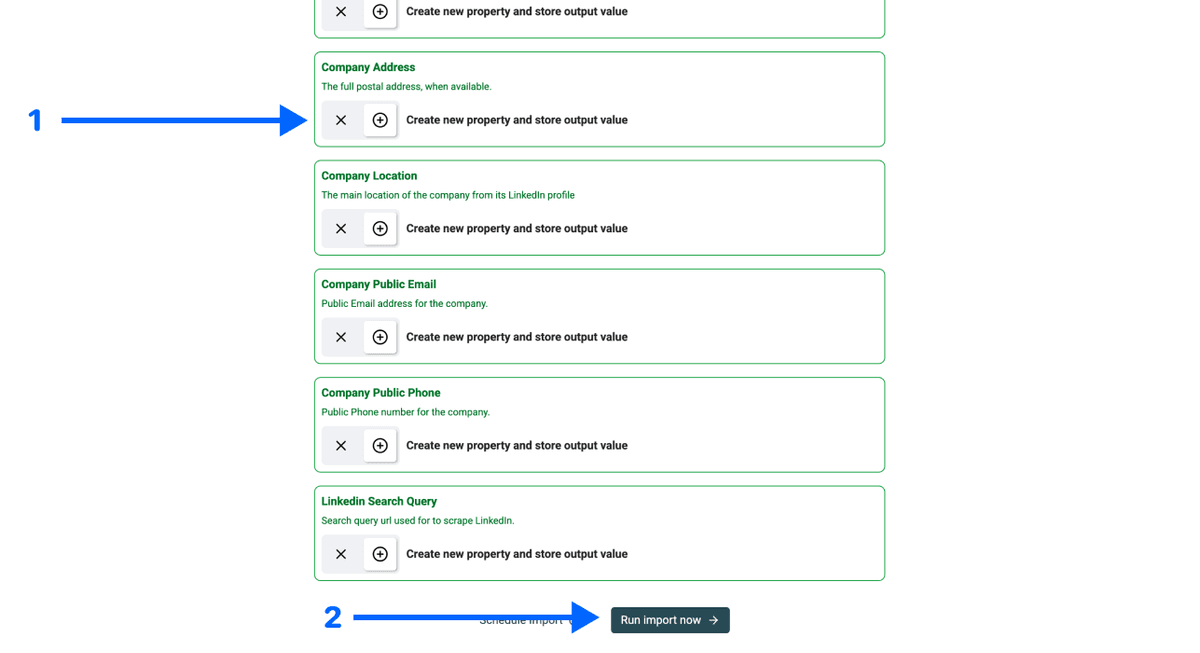
Datablist will show you all the data points it can extract and create a property for each one automatically
Click the ✕ icons to remove the ones you don’t want, then click Run import now
Step 6: Get Your Results
In just a few minutes, your collection will be filled with clean, structured lead data. No risk to your account. No complicated setup.
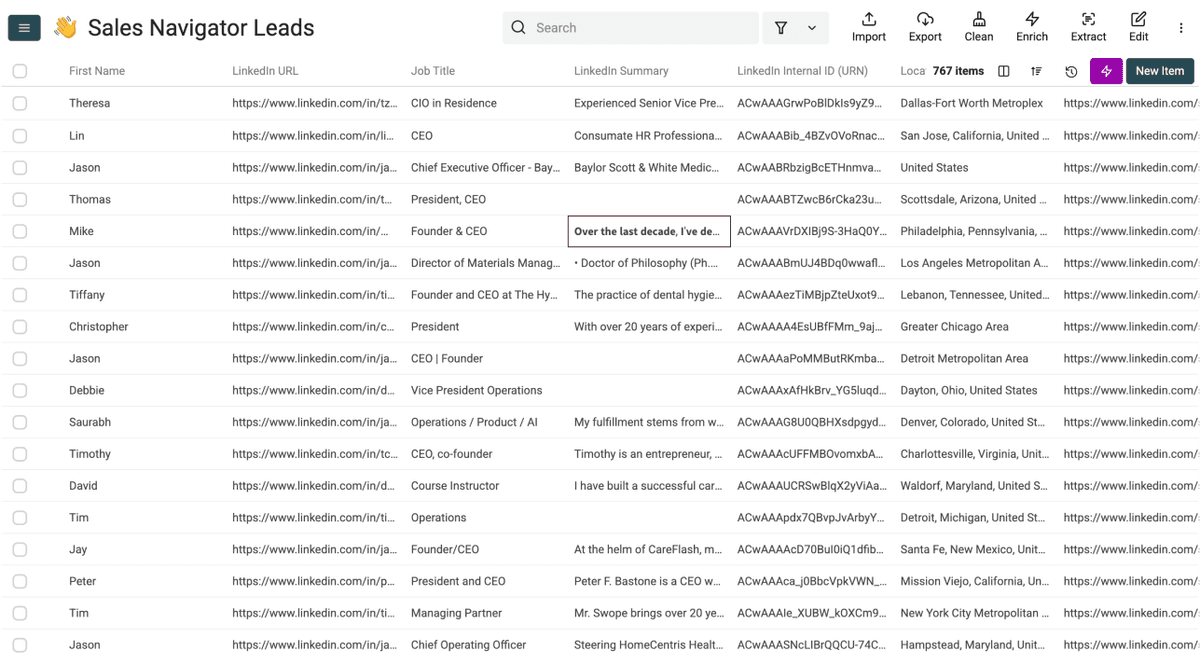
That's it. Datablist will scrape your leads without touching your LinkedIn account. No browser extension. No cookies. No risk of getting banned.
💡 Why This Method Is Safe
Datablist never asks for your LinkedIn login, cookies, or any account credentials. Your LinkedIn profile is completely disconnected from the scraping process. This is why thousands of users trust it for their lead generation without worrying about bans.
Enriching Your LinkedIn Lead List
Now you have a list of leads from LinkedIn. Names, job titles, companies, and LinkedIn profile URLs. But to actually reach out, you need emails. Here's how to get them.
Finding Email Addresses From LinkedIn Profiles
Most email finder tools require you to provide a first name, last name, and company domain. But what if you only have LinkedIn profile URLs? That's where Datablist's Waterfall Email Finder comes in.
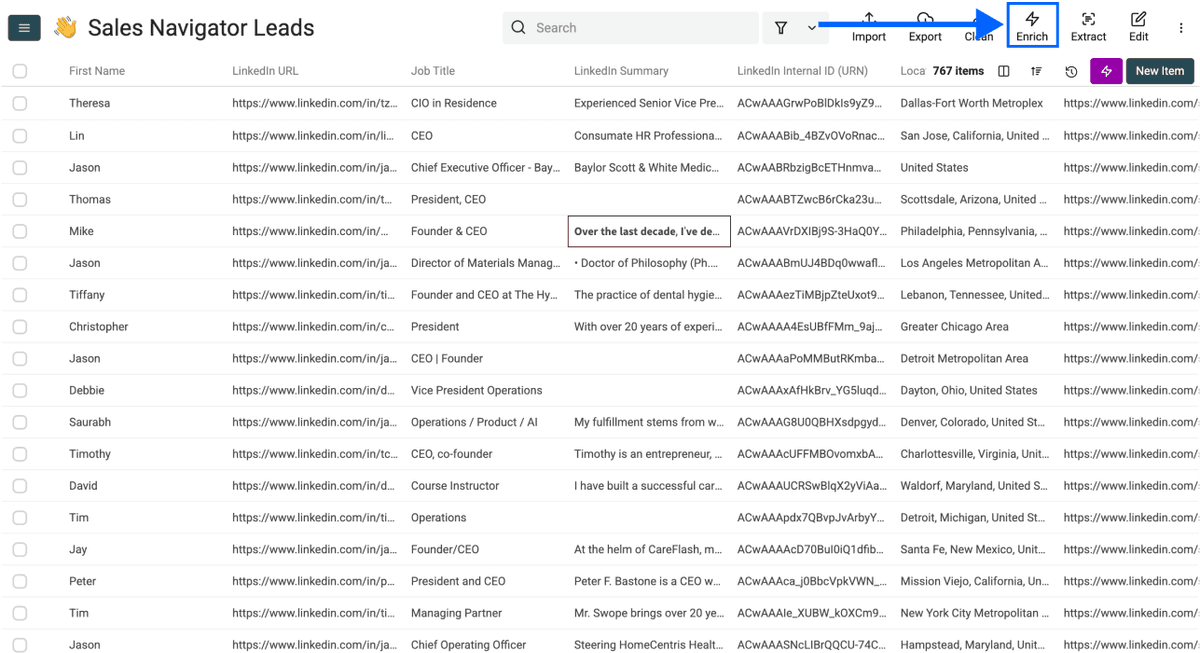
Step 1: Open The Enrichment Library
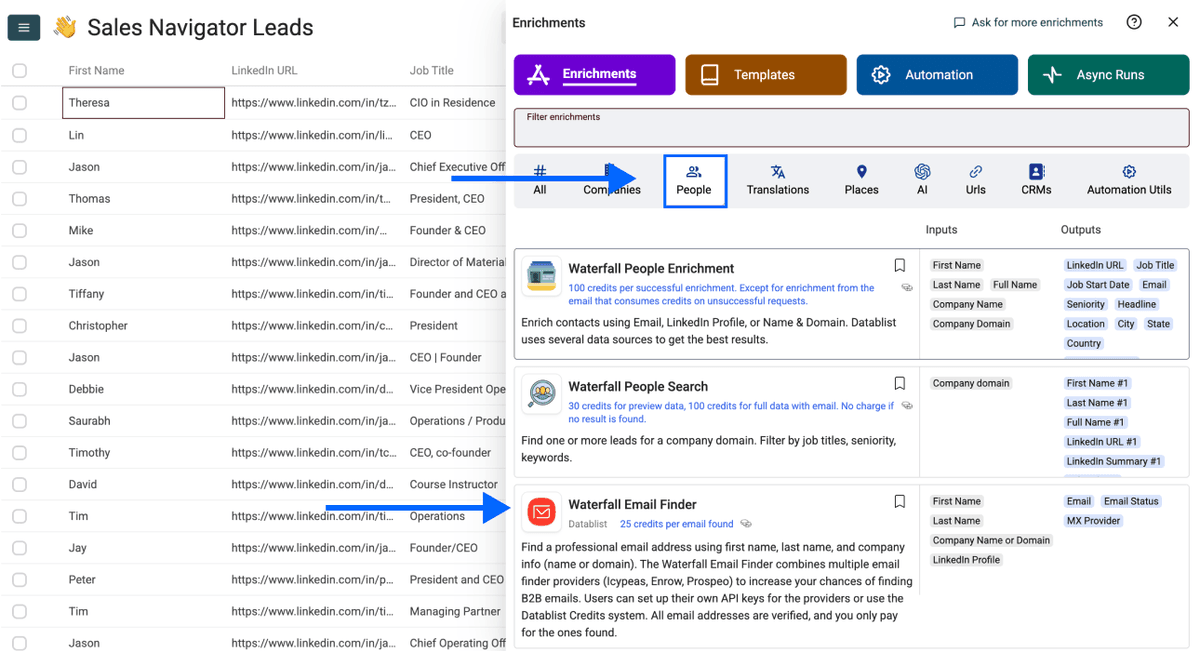
With your scraped leads still in Datablist, click on Enrich in the top menu
Step 2: Navigate to the Enrichment
- Go to the People section
- Select the Waterfall Email Finder
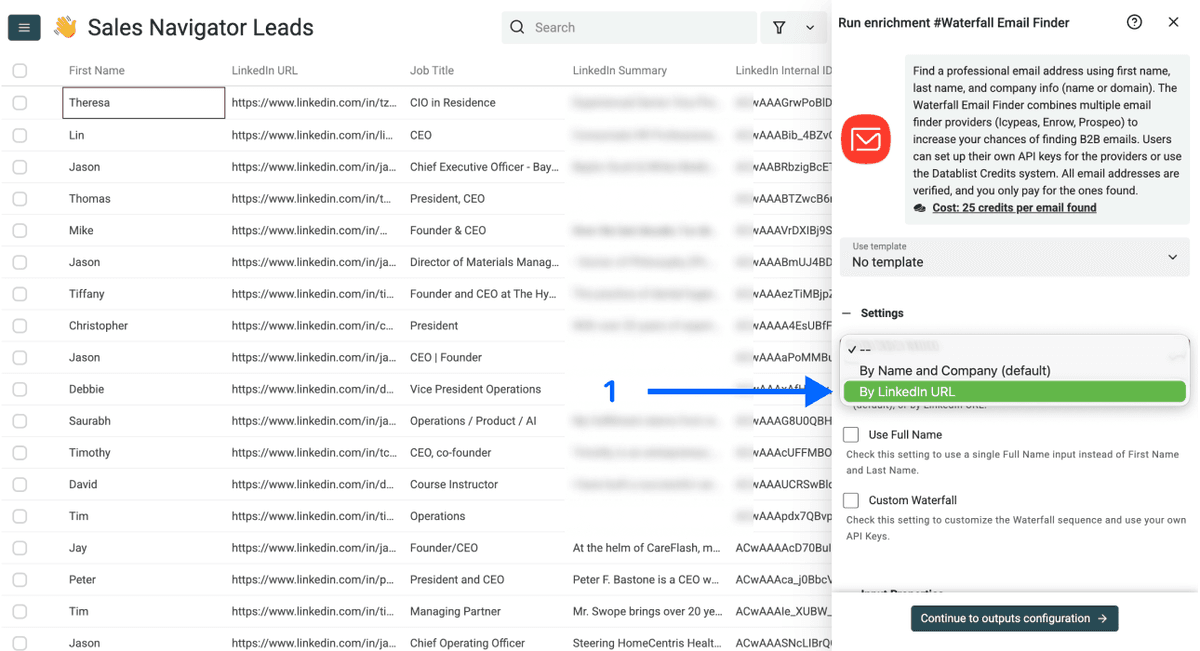
Step 3: Set up the Enrichment
Now you’ll see the following settings:
- Email Search Method – Click on the dropdown and select: By LinkedIn URL
- Use Full Name – This will disappear once you select the “By LinkedIn URL” search method
- Custom Waterfall – This will disappear once you select the “By LinkedIn URL” search method
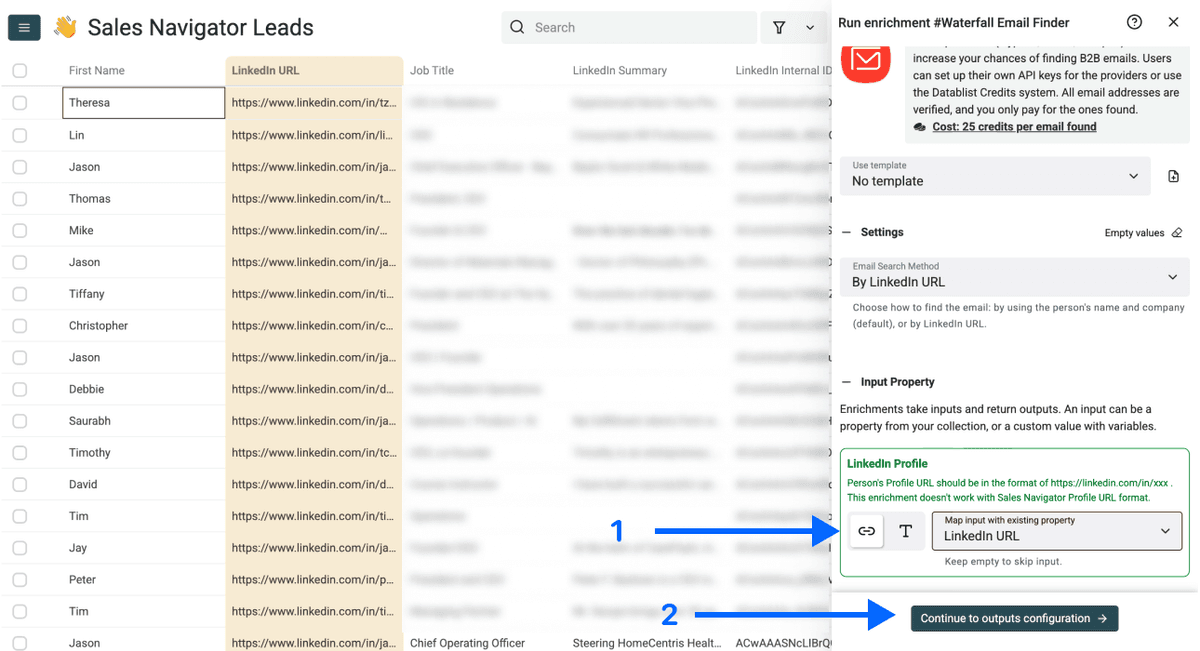
Step 4: Configure Your Inputs
Now you should map the LinkedIn profile URLs in your collection as Input Property and click on Continue to outputs configuration
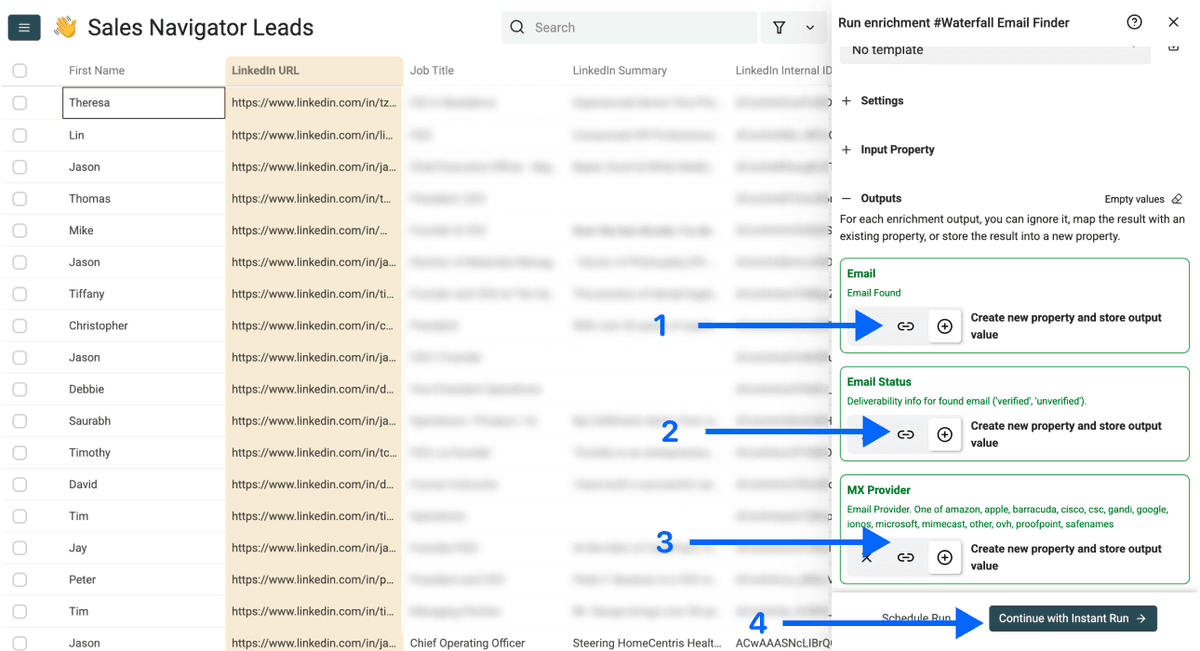
Step 5: Select Outputs
The Waterfall Email Finder gives you 3 different data points:
- Email Found – The email it found
- Email Status – Deliverability status of the email
- MX Provider – The MX provider behind the email
Click on the ⊕ Icons to add them to your collection, then click on Instant Run
Step 6: Run the Enrichment
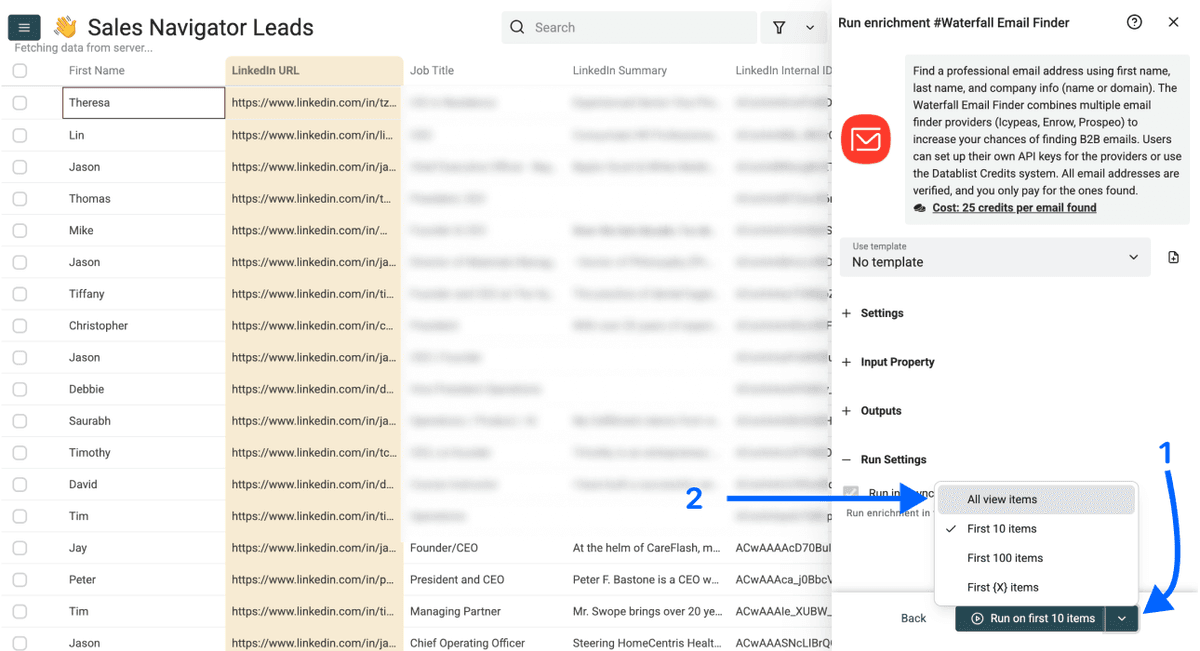
Lastly, click on the drop-down next to “Run on first 10 items” and choose All view items to start the enrichment on all items. Otherwise, you could run also on the first 10 or 100 items instead
💰 You Only Pay for Success
With Datablist's Waterfall Email Finder, you're only charged for emails that are actually found and verified. No email found? No charge. This removes the risk of paying for searches that come up empty.
What Else You Can Do: Datablist's Enrichment Ecosystem
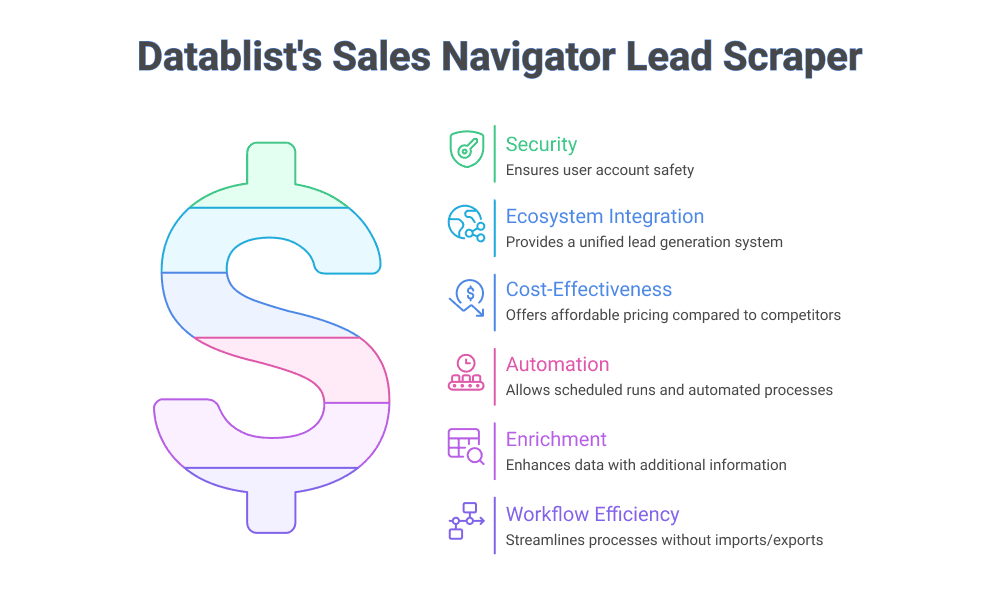
Datablist has over 60 tools for building, cleaning, and enriching your lead lists. Here are some of the most popular ones highlights grouped by category:
AI-Powered Research
- AI Research Agent: Automatically research companies and prospects using AI. Get summaries, news, funding info, and more.
- Claude, ChatGPT, and Gemini integrations: Process your data with any major AI model directly in Datablist
Company Data Enrichments
- Technology Finder: See what tools and technologies a company uses
- Website Finder: Find company websites from a name
- Company Name Cleaner: Normalize messy company names with AI
Scrapers
- Instagram Profile Scraper: Get profile data from Instagram handles
- Job Board Scraper: Scrape job postings from 19 different job boards at once
Data Cleaning Tools
- Deduplication
- Format standardization
The point is: whatever you need to complete or enhance your lead list, there's probably an enrichment for it. And everything runs on the same platform, so no exporting and importing between tools.
Conclusion
Let's recap what we covered. Creating a full lead list with emails involves the following steps:
- Configure your search in Sales Navigator using the right filters (and avoiding account-specific ones)
- Scrape your leads safely with Datablist's LinkedIn Search Scraper
- Find verified emails using the Waterfall Email Finder
- Enrich further with AI research, technology data, and more
The whole process of building a lead list with Datablist takes less than 10 minutes from start to finish. No browser extensions. No risk to your LinkedIn account. And you only pay for the emails that are found.
Frequently Asked Questions
How Much Does It Cost to Build a Lead List With Emails?
Datablist uses a credit-based system. Scraping a Sales Navigator profile costs 10 credits. Finding an email costs 25 credits. With the Starter plan at $25/month (which includes 5,000 add-on credits), when you then get a credits top-up for $20 (which gives you 20k credits), you would have 25k credits, which gets you 714 leads with email addresses. This is the same price Evaboot charges, but with Datablist, your account remains safe.
How Accurate Are the Emails Found by Datablist?
The emails are very accurate. Datablist uses a Waterfall Enrichment approach, which queries multiple email providers and returns the best result. This gives you a 25% higher finding rate compared to single-provider tools. Each email is also verified for deliverability before you're charged, so you're not paying for bounced addresses.
What Data Points Do I Get When Scraping LinkedIn?
The LinkedIn Search Scraper provides 30 data points, including: full name, job title, company name, company size, industry, location, LinkedIn profile URL, Sales Navigator URL, profile headline, years in current position, and more. You choose which ones to include in your collection.
Can I Use Regular LinkedIn Instead of Sales Navigator?
Yes. Datablist's scraper works with both Sales Navigator search URLs and regular LinkedIn search URLs. The process is identical: configure your search, copy the URL, and paste it into Datablist. The main difference is that Sales Navigator offers more advanced filters.
How Long Does It Take to Build a Lead List With Emails?
If you follow this guide, you can go from zero to a complete lead list with emails in under 10 minutes. The scraping itself takes a few minutes, depending on the number of leads, and email enrichment runs quickly after that. Most users are surprised by how fast it is.
Will Scraping LinkedIn Get My Account Banned?
Not with Datablist. The reason browser extensions and Python scripts get accounts banned is that they operate under your account and use your IP address. Datablist doesn't require your LinkedIn login, cookies, or any connection to your account. Your profile stays completely safe.