 500 Credits per Number Found
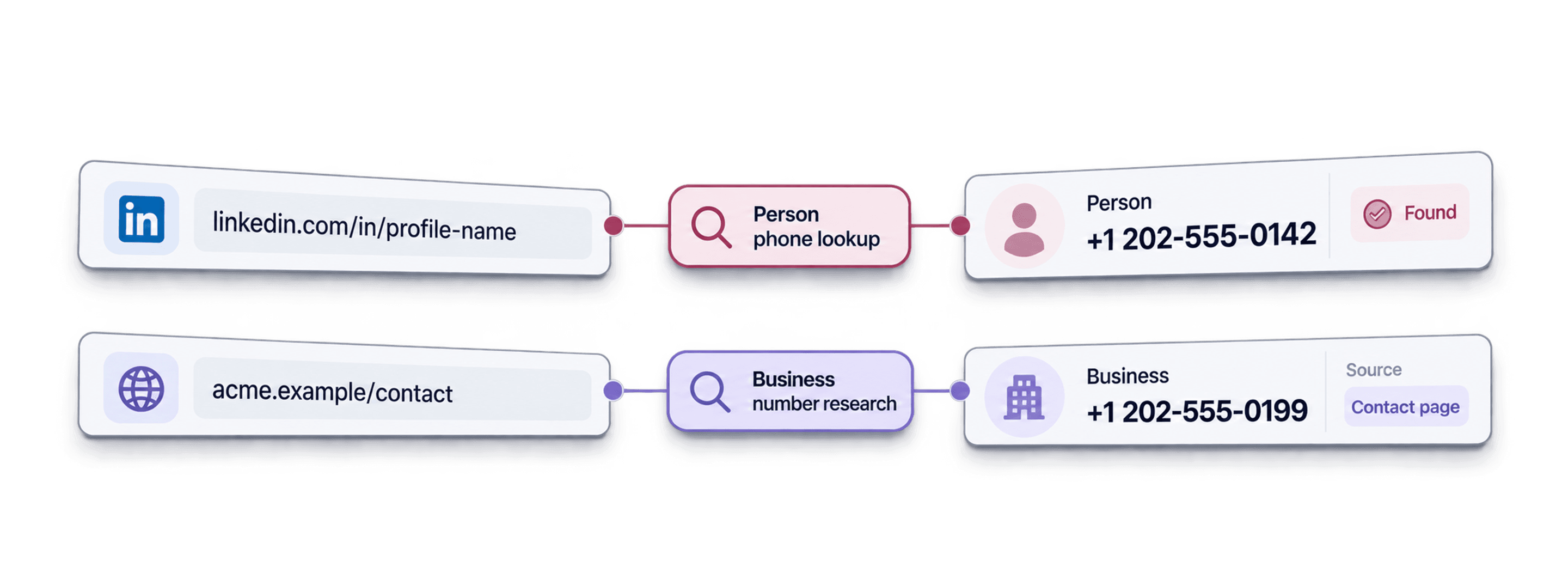
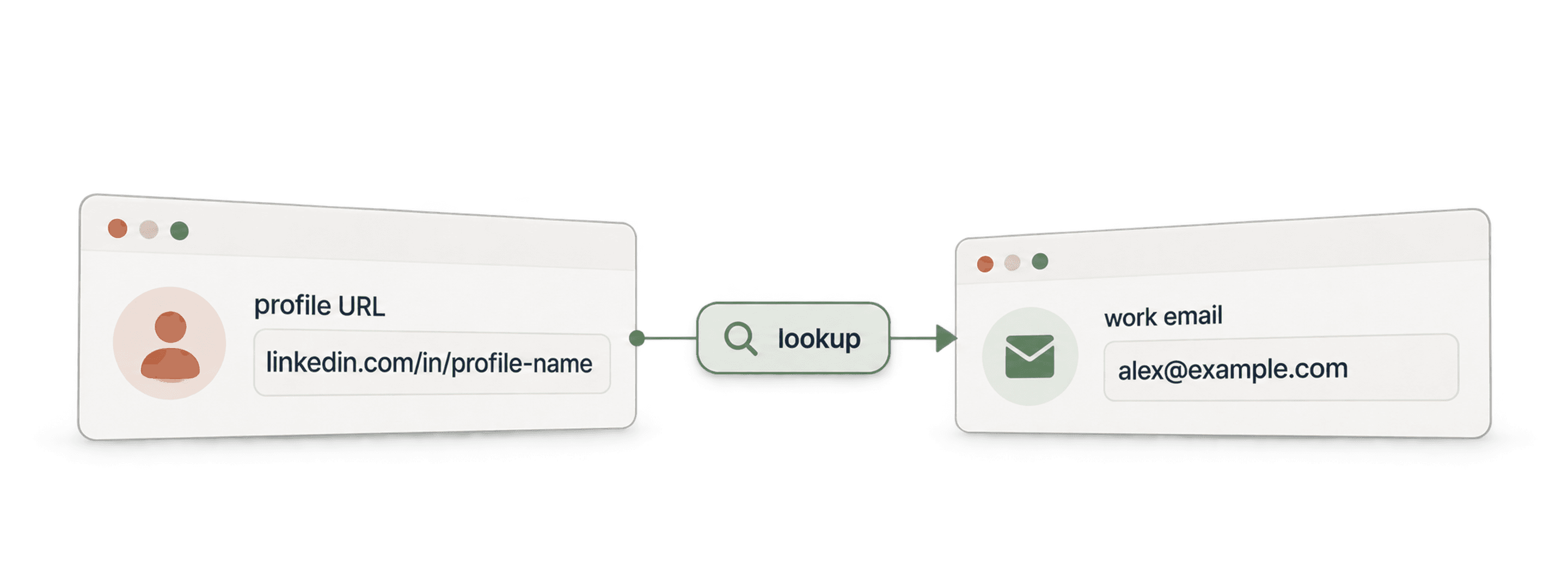
 LinkedIn URL to Phone Number
 500 Free Credits to Try















 Easy to Use
 No Technical Configuration
 Fully No-Code
Step-by-Step Guide
Step 1: Sign Up And Upload Your Data
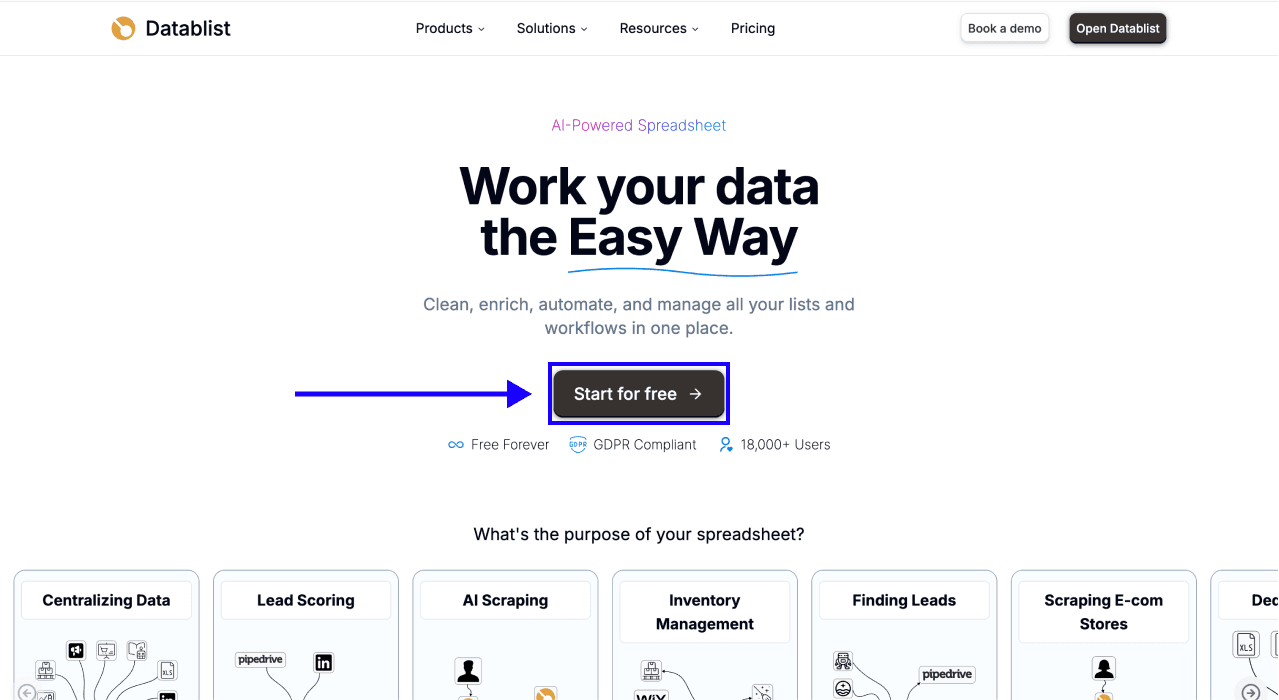
First, sign up for Datablist.com.
Create a collection and upload your CSV or Excel file with the LinkedIn profile URLs of your leads. Use one public LinkedIn profile URL per row.
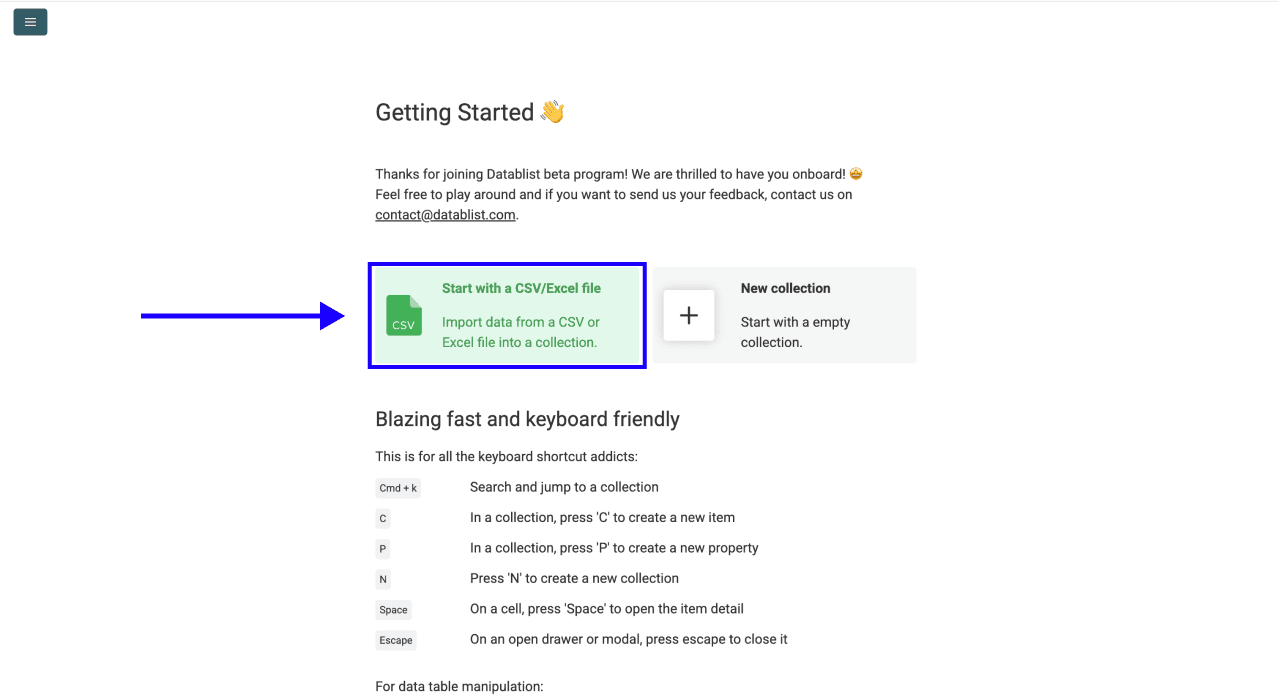
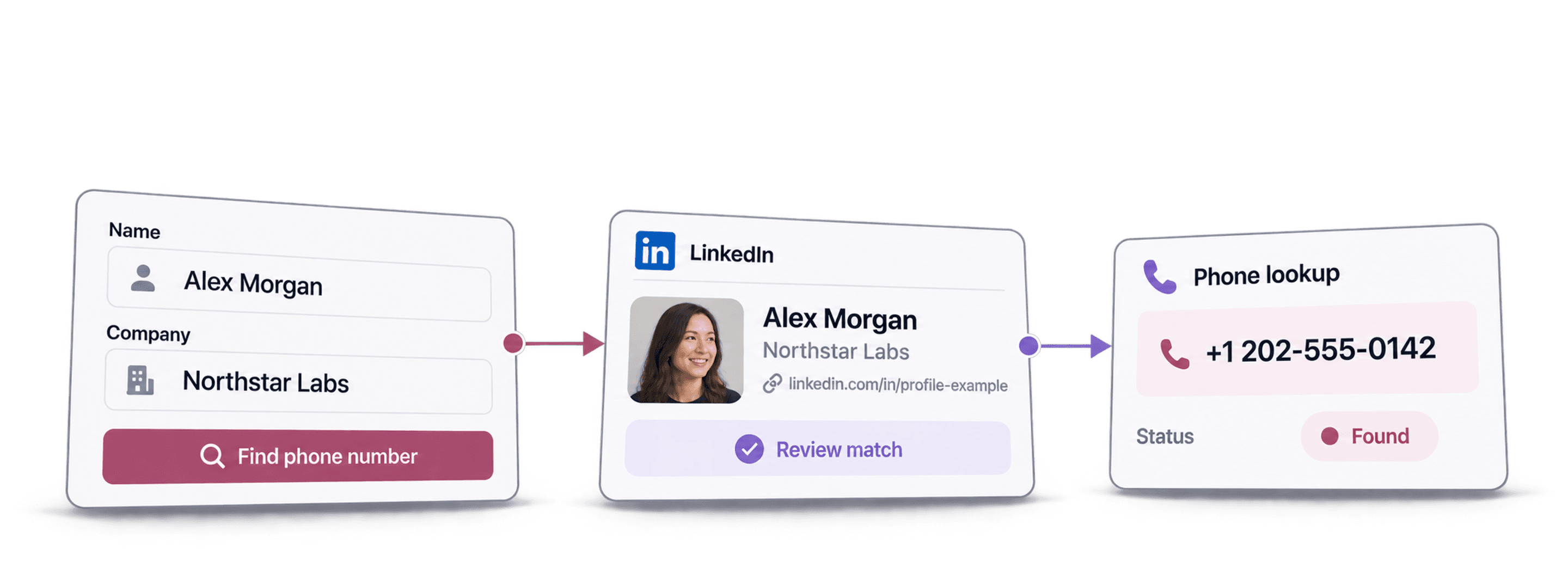
If you have names and company information instead of URLs, first use LinkedIn Profile Finder from Name. Then run Waterfall Phone Finder on the returned profile URLs in the same collection. The profile-finding step has its own credit charge, separate from the phone lookup. Read How to Find Someone's Phone Number From Their Name for that workflow.
Step 2: Navigate To The Enrichment
- Click Enrich in the top menu of the app.
- Go to the People panel.
- Select Waterfall Phone Finder. You can also search for it in the enrichment library.
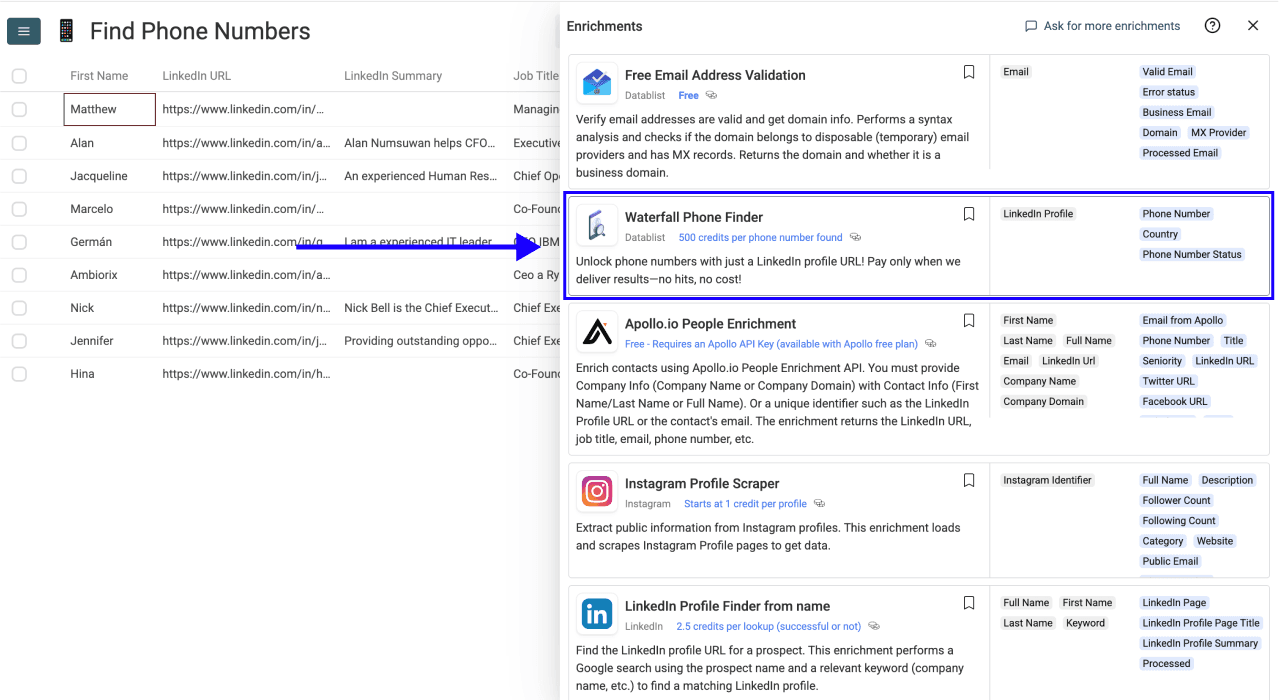
Step 3: Set Up The Enrichment
The default Datablist waterfall queries several phone-number providers in sequence. If the first provider returns no number, the next provider tries. The sequence stops for a row when a number is found. This combines multiple sources without requiring your own provider subscriptions.
Cache Settings
Allowed Cache Age controls how old a cached result can be before a new lookup is needed. The default is 30 days. You can also select 2 months, 6 months, or No cache.
Reusing a cached result does not charge Datablist credits again for that phone lookup. Choose a shorter cache age when you need a newer lookup, or keep the default for routine list building. A new successful uncached lookup costs 500 credits; a lookup with no number is not charged.
Custom Waterfall With Your Own API Keys
Keep the default waterfall unless you want to use your own provider subscriptions. Enable Custom Waterfall and open Waterfall Sequence to set your provider order and enter an API key for each provider. The sequence runs from top to bottom.
Supported custom providers are:
- Enrow
- Prospeo
- Findymail
- Wiza
- Full Enrich
Valid custom runs with your own API keys do not consume Datablist credits for the phone lookup. Provider usage is billed through your provider accounts under their own terms. Make sure each provider row has its API key before running the sequence.
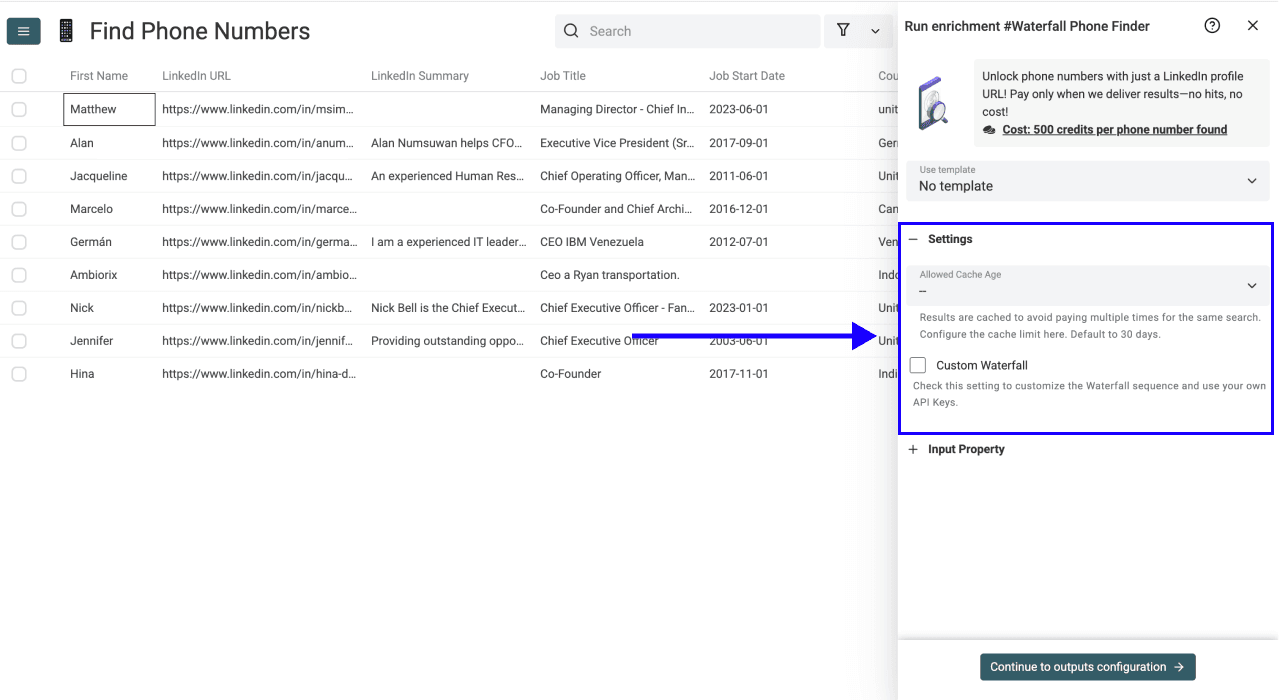
Once your settings are ready, scroll down to configure the inputs.
Step 4: Configure Your Inputs
Map your collection's LinkedIn URL column to LinkedIn Profile. Use public profile URLs in the format https://www.linkedin.com/in/profile-id.
Sales Navigator profile URLs are not supported by Waterfall Phone Finder. If your source list contains Sales Navigator URLs, run LinkedIn Profile Scraper first and map its LinkedIn Profile URL Normalized output into the phone finder. This is a separate enrichment with its own credit charge.
Keep your original profile URL column so you can audit results and correct inputs before retrying failed rows.
Click Continue to outputs configuration when ready.
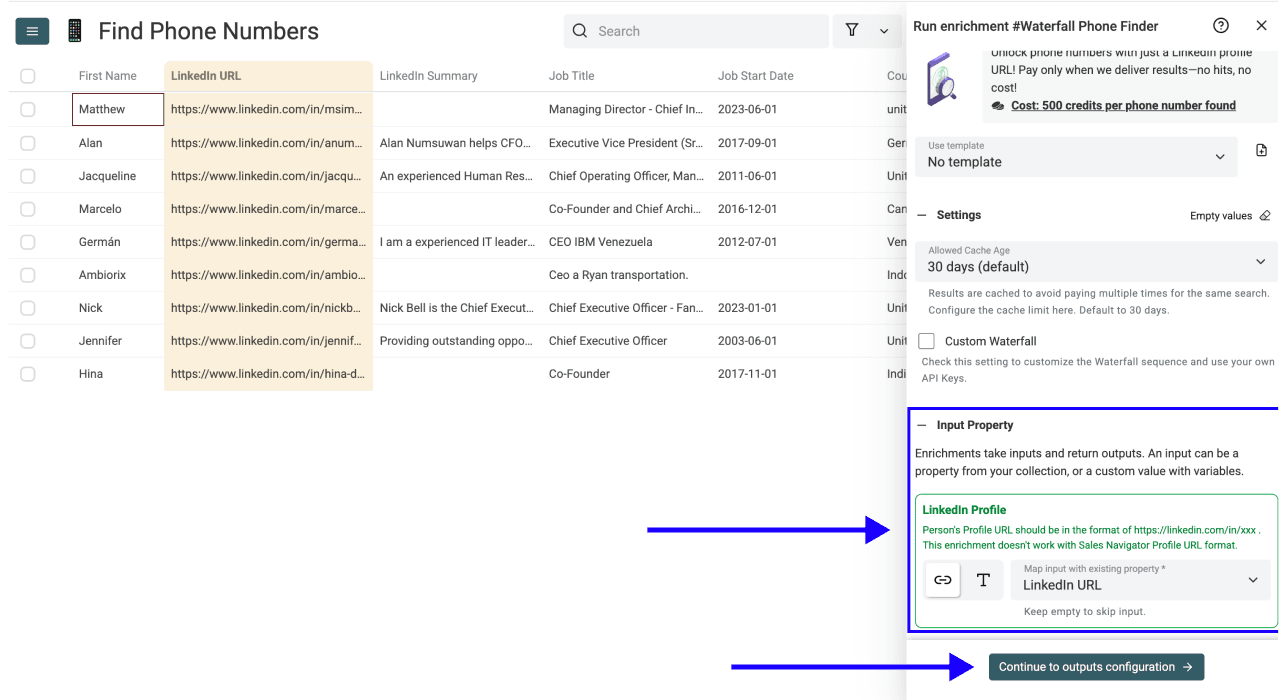
Step 5: Select Outputs
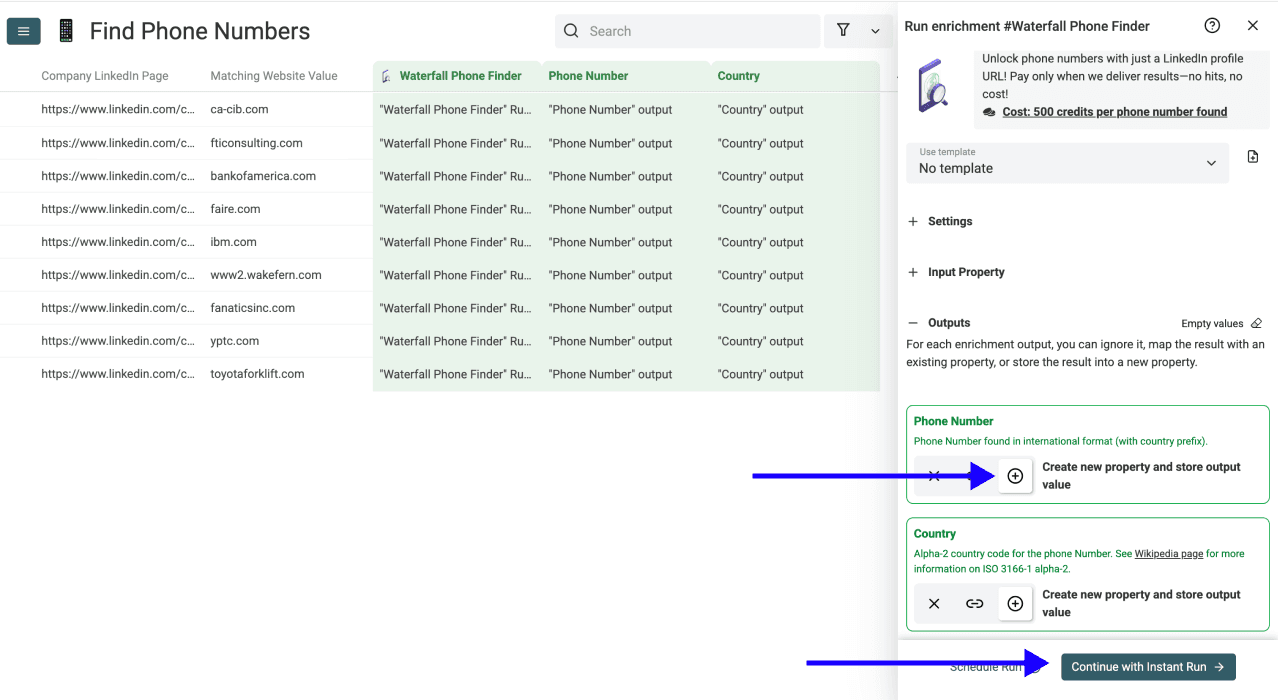
Waterfall Phone Finder returns:
- Phone Number: The number found, in international format with its country prefix.
- Country: The two-letter country code for the number, such as
US,CA, orGB.
With Custom Waterfall enabled, you can also add the Provider output to see which phone-finding service returned the result.
Click the ⊕ icons to add output columns to your collection, or map the results into existing columns. New columns appear at the end of the collection; scroll right to see them. Then click Instant Run.
Step 6: Preview, Run And Review Your Results
Use the chevron next to the run button to choose how many rows to process:
- Run on first 10 items to check inputs and output mapping.
- Run on first 100 items to validate a larger sample.
- Run on first {X} items to choose your sample size.
- Run on all view items to process the current view, including any filters.
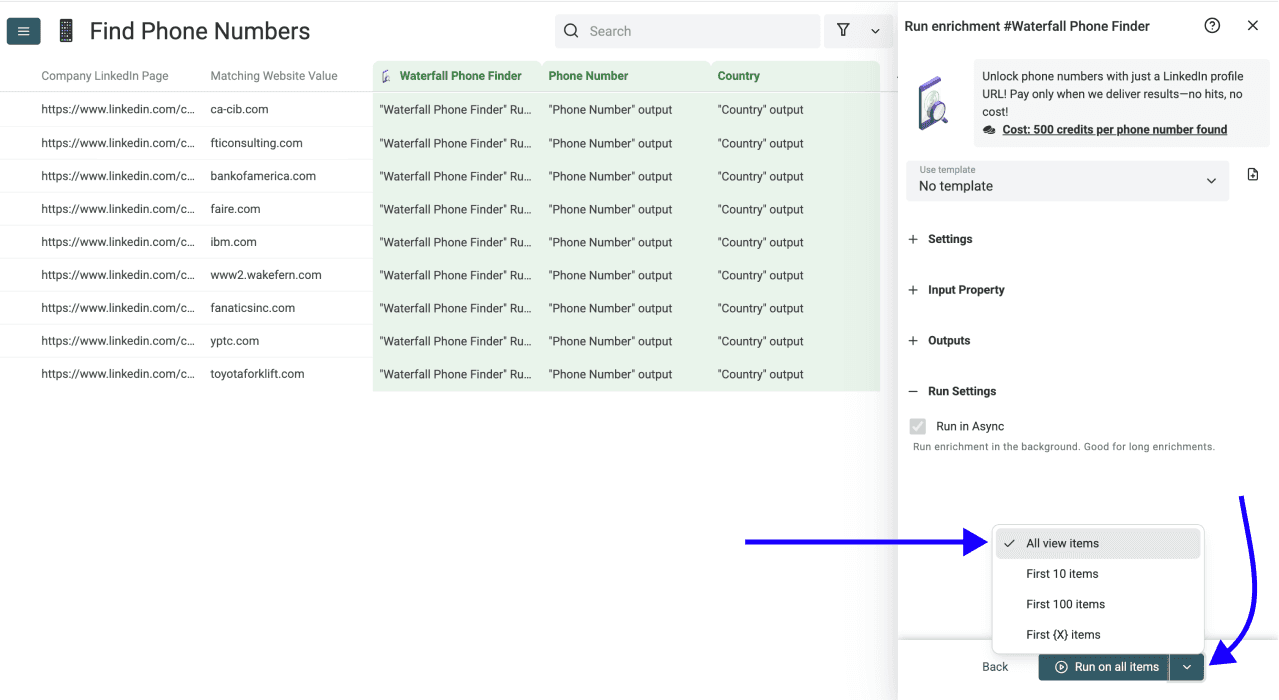
Start with a small preview, then click the run button for your selected number of items. The enrichment processes your rows in the background.
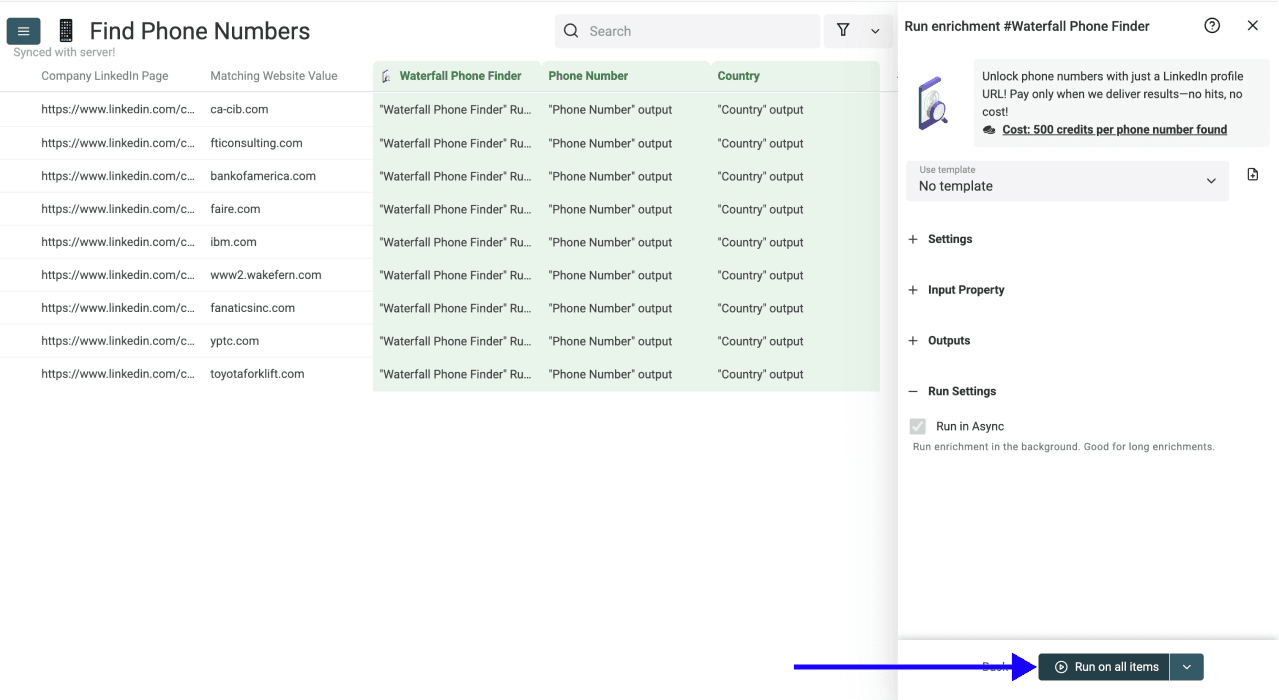
Review the returned numbers and use the run-status column to distinguish completed lookups, no-result rows, and input errors. Correct missing or malformed URLs, filter your view to the relevant rows, and retry them with Run on all view items. If no number is found, the Phone Number field remains empty.
A returned number is not a guarantee of current ownership or reachability. Check a small batch before using the full list for outreach.
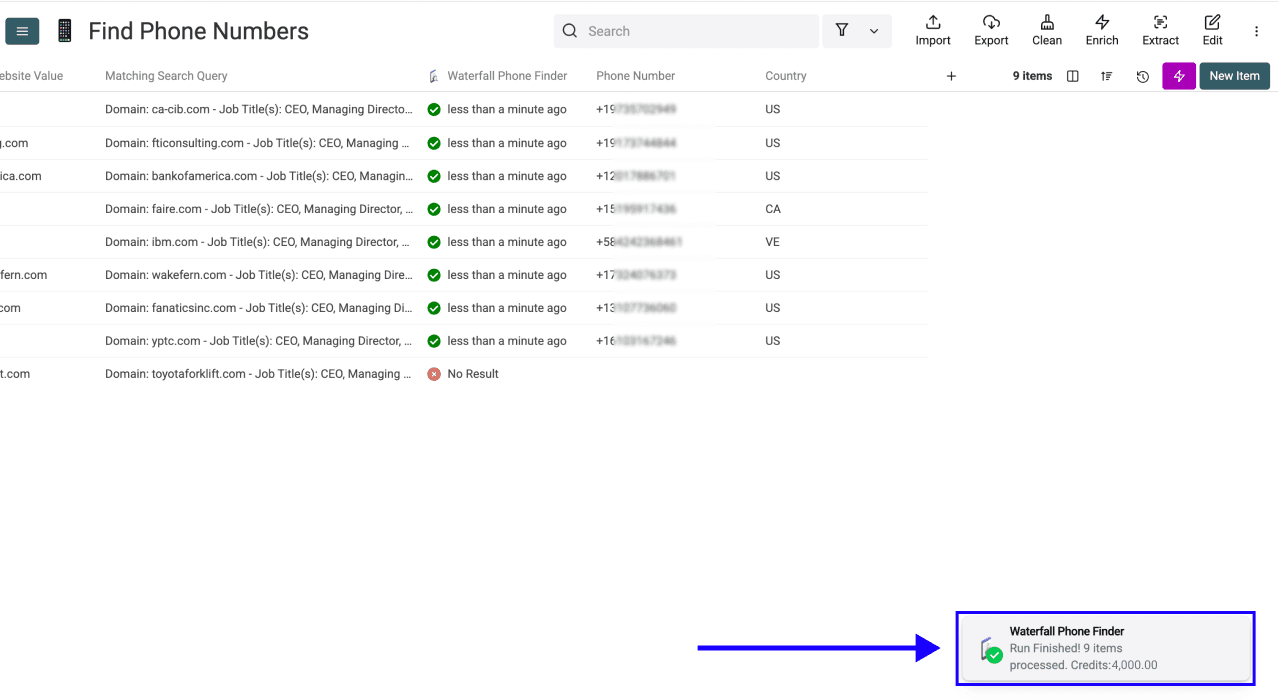
With the default Datablist-funded waterfall, you pay 500 credits per phone number found on a new uncached lookup. No-number results and reused cached results are not charged. For example, 100 new numbers cost 50,000 credits. Valid custom-key runs use your provider accounts instead.
Use the page's calculator and pricing page for current plan and top-up prices. For more details on running enrichments, read the enrichment documentation.
Use Cases For Direct Dial Outreach
Sales Development
Use a list of LinkedIn profiles to find phone numbers for decision-makers and add direct calling to your prospecting workflow. Keep the profile URLs alongside the numbers so your team can review each contact before outreach.
Recruiting
A recruiter with 50 candidate profiles can search for phone numbers to complement LinkedIn messages. Review the results and use the returned contact data in your recruiting workflow.
Account-Based Marketing
Find numbers for several stakeholders at a target company and keep their records in the same collection. This supports building a complete lead list across the account.
For more phone-finding workflows, read 2 Ways to Find Phone Numbers With Datablist.