
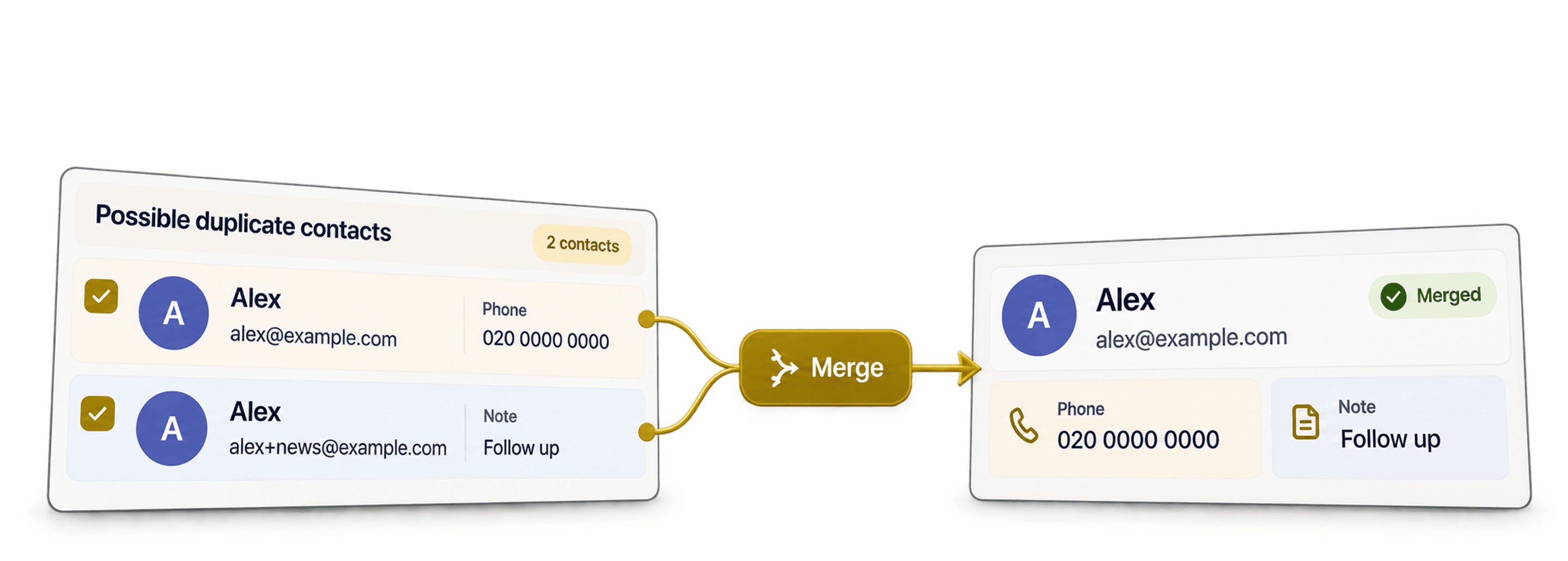
Email duplicates have a habit of sneaking in when you combine a CRM export with form submissions or an event list. The same person appears twice, but the rows are rarely identical. One may have the phone number while the other has the source or a useful note.
This is why I do not start by deleting repeated emails. To dedupe email addresses safely, I use the Datablist Duplicates Finder with Smart matching and the Email processor. It groups email variations, then lets me review the full contact rows and merge the details I want to keep.
For this walkthrough, I put together a 1,000-contact test list with the kinds of email variations I often see, from plus aliases and Gmail differences to wrapped addresses. Datablist found 200 duplicate pairs, and the cleaned collection ended with 800 contacts. Let me show you the settings I used and what I checked before merging anything.
Match on email first, but decide what to keep from the whole contact row. If you need to compare names, phone numbers, company domains, or other identifiers instead, see how to dedupe a list online.
What Datablist treats as the same email address
Smart matching with the Email processor compares email identities rather than raw cell text. It trims surrounding spaces, compares lowercase values, and removes a +suffix from the local part before matching.
It also applies Gmail-specific rules. Dots are removed from the local part of Gmail addresses, and googlemail.com is mapped to gmail.com. Datablist can also extract a valid address from a display-name wrapper or a mailto: value with a query string.
These are examples from the tested dataset:
| Stored values | Smart Email result |
|---|---|
noraanderson40@demo.conoraanderson40+newsletter@demo.co | Same identity after removing the plus suffix |
victorbennett62@gmail.comvictorb.ennett62@gmail.com | Same Gmail identity after removing dots |
yasmincarter105@gmail.comyasmincarter105@googlemail.com | Same Gmail identity after normalizing the domain |
camiladiaz123@testmail.netCamila Diaz <camiladiaz123@testmail.net> | Same identity after extracting the wrapped address |
marcusevans199@testmail.netmailto:MARCUSEVANS199@TESTMAIL.NET?subject=Hello | Same identity after removing the wrapper and comparing lowercase values |
Gmail dot handling is Gmail-specific. Datablist does not assume first.last@company.com and firstlast@company.com are the same address. Dots can be meaningful on non-Gmail domains.
Smart Email is a comparison rule, not an email validator. It checks enough structure to normalize an address, but it does not fully validate the domain or mailbox. For example, person+tag@.example.com becomes person@.example.com for matching even though the domain is malformed. Review invalid values separately before merging.
To keep plus aliases, Gmail dots and wrappers distinct, select Exact. Exact text comparison still trims surrounding spaces and ignores case by default. Enable Case sensitive when uppercase and lowercase must remain distinct; trimming still applies.
🔑 Normalization proposes a duplicate group
It does not prove every field belongs to the same person. Review names, companies, and role-based inboxes before merging.
For most contact-list cleanup, I recommend Smart matching with the Email processor. I switch to Exact when aliases must remain separate, then check the case setting against the identifiers in the file.
See the Email processor reference for the complete normalization rules and plan availability.
Example email list used for this walkthrough
The test file contains 1,000 synthetic contact rows representing 800 designed identities. None of the duplicate pairs has the same raw email string. This matters because an exact-value cleanup would not demonstrate alias-aware matching.
The file has eight columns: record_id, first_name, last_name, email, company, phone, source, and notes. The workflow matches on email, but the other fields stay visible so I can select a master record and preserve useful values.
Here are four exact input rows from two duplicate pairs:
| record_id | first_name | last_name | phone | source | notes | |
|---|---|---|---|---|---|---|
CONTACT-0040-A | Nora | Anderson | noraanderson40@demo.co | CRM export | Primary contact record | |
CONTACT-0040-B | N. | A. | noraanderson40+newsletter@demo.co | +1-202-555-1039 | Website form | Follow-up details from a second source |
CONTACT-0062-A | Victor | Bennett | victorbennett62@gmail.com | +1-202-555-1061 | Website form | Primary contact record |
CONTACT-0062-B | victor | BENNETT | victorb.ennett62@gmail.com | Event | Follow-up details from a second source |
The Nora pair shows why I do not delete duplicates on sight. The base record has the preferred full name, while the plus-alias row holds the only phone number and a second acquisition source. A merge can keep both.
The dataset contains 200 two-row duplicate identities, split evenly across five variation families: plus aliases, dotted Gmail addresses, gmail.com versus googlemail.com, display-name wrappers, and mailto: values. The other 600 identities appear once.
You can download the 1,000-row sample CSV to reproduce the walkthrough. If you use your own file, keep one email per row and retain the adjacent fields you need to consolidate.
Import and prepare the email column
Import the CSV or Excel file into a new Datablist collection. Check the import preview and map the email column as an email property.
Keep names, company, phone, source, notes, and stable IDs in separate properties. Those columns are not noise. They are the evidence you will use when two rows match on email but disagree elsewhere.
I also prefer one address per cell for this workflow. If a cell contains alice@example.com; bob@example.com, split or normalize it first. The guide to deduplicate a field containing several email addresses covers that separate case.
For a cell with several addresses, multi-value deduplication compares the semicolon-separated parts. Review the overlapping mailbox before treating two contact records as one person.
💡 Keep your merge evidence
Do not remove source, notes, phone, or stable ID columns before deduplication. They help you choose the master row and avoid throwing away unique data.
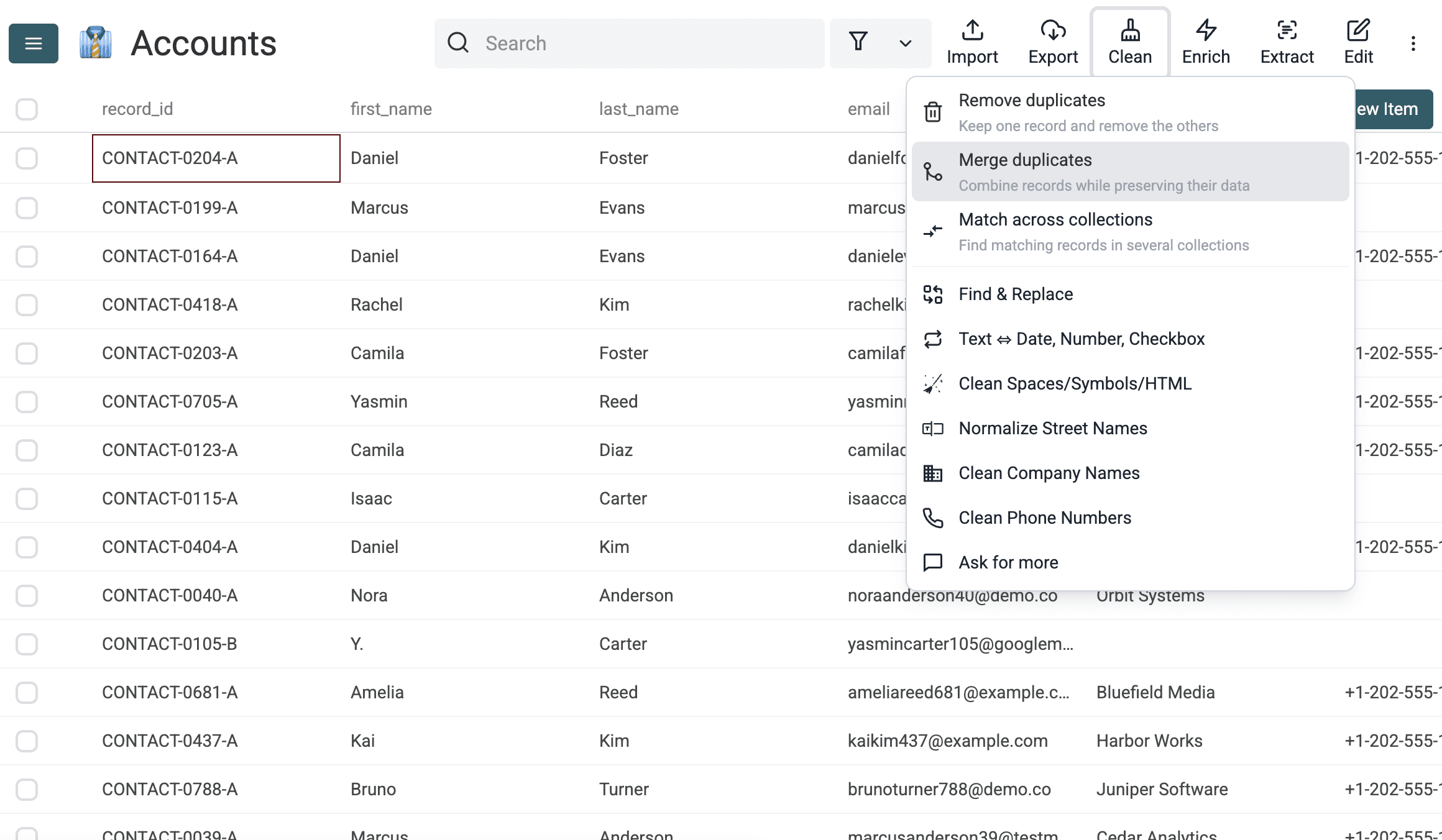
Open Clean > Merge duplicates. Choose Selected Properties, then select email for this email-first pass.
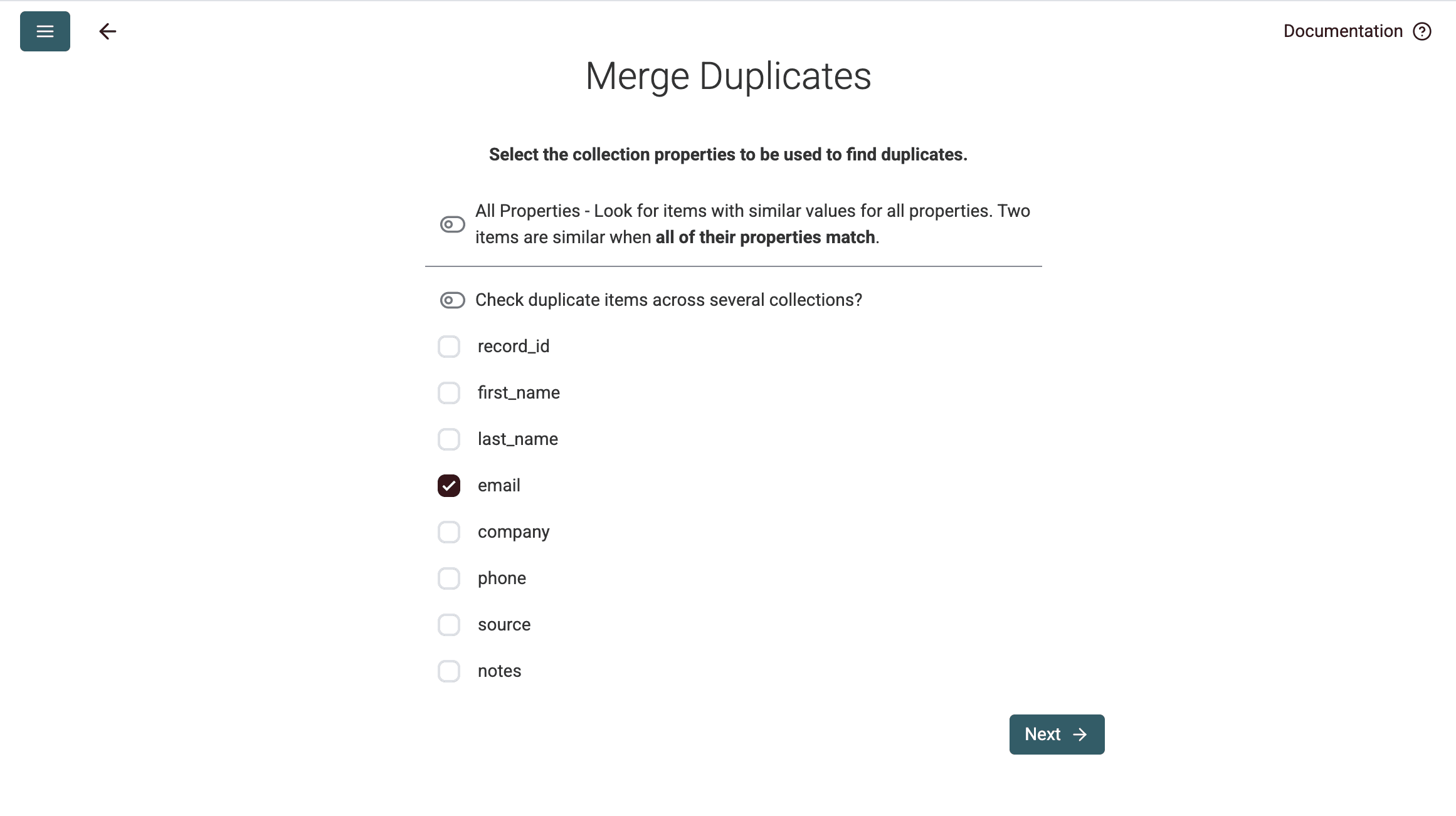
Selecting one property keeps the rule easy to reason about. Adding a name or company property at this point could prevent a valid email match when those fields are missing or formatted differently.
Configure the Duplicates Finder
For the email property, select Smart as the comparison algorithm and choose the Email processor.
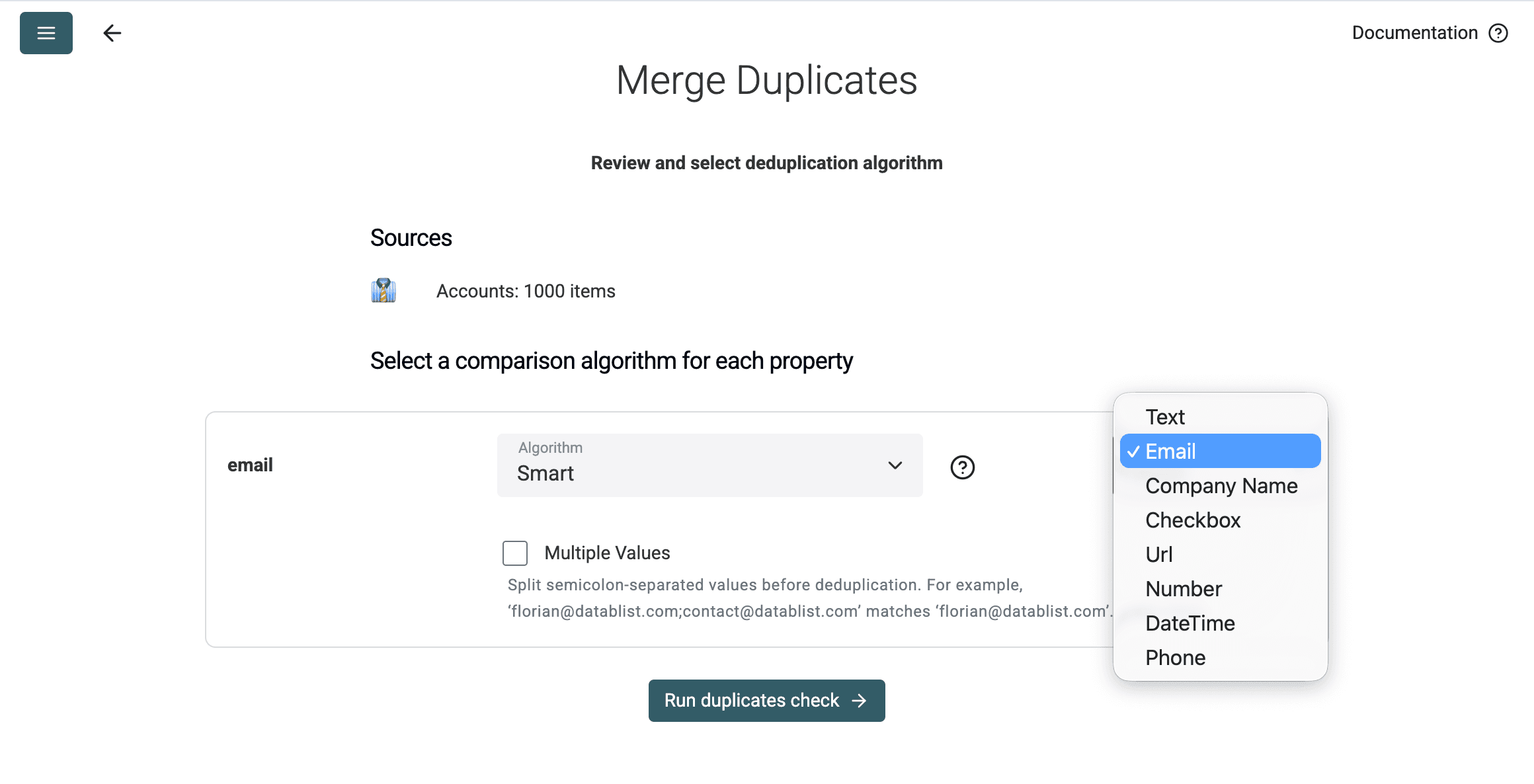
Each setting has a specific job:
- Selected Properties limits the check to the identifier you intend to compare.
- Smart enables processor-based normalization instead of comparing the stored strings literally.
- Email applies the verified alias, Gmail, display-name, and
mailto:rules described above.
Use Smart plus the Email processor for identity variants. Exact skips email-specific normalization, while still trimming spaces and, by default, ignoring case.
The duplicate check itself is read-only. Running it creates candidate groups for review. It does not delete or merge collection rows. Changes happen only after you choose and apply a merge or delete action.
That separation is useful. I want to see what the matching rule considers equivalent before I let a bulk merge touch the list.
Run the check and review duplicate groups
Click Run duplicates check. In this test, Datablist placed 400 of the 1,000 rows into 200 two-row groups.
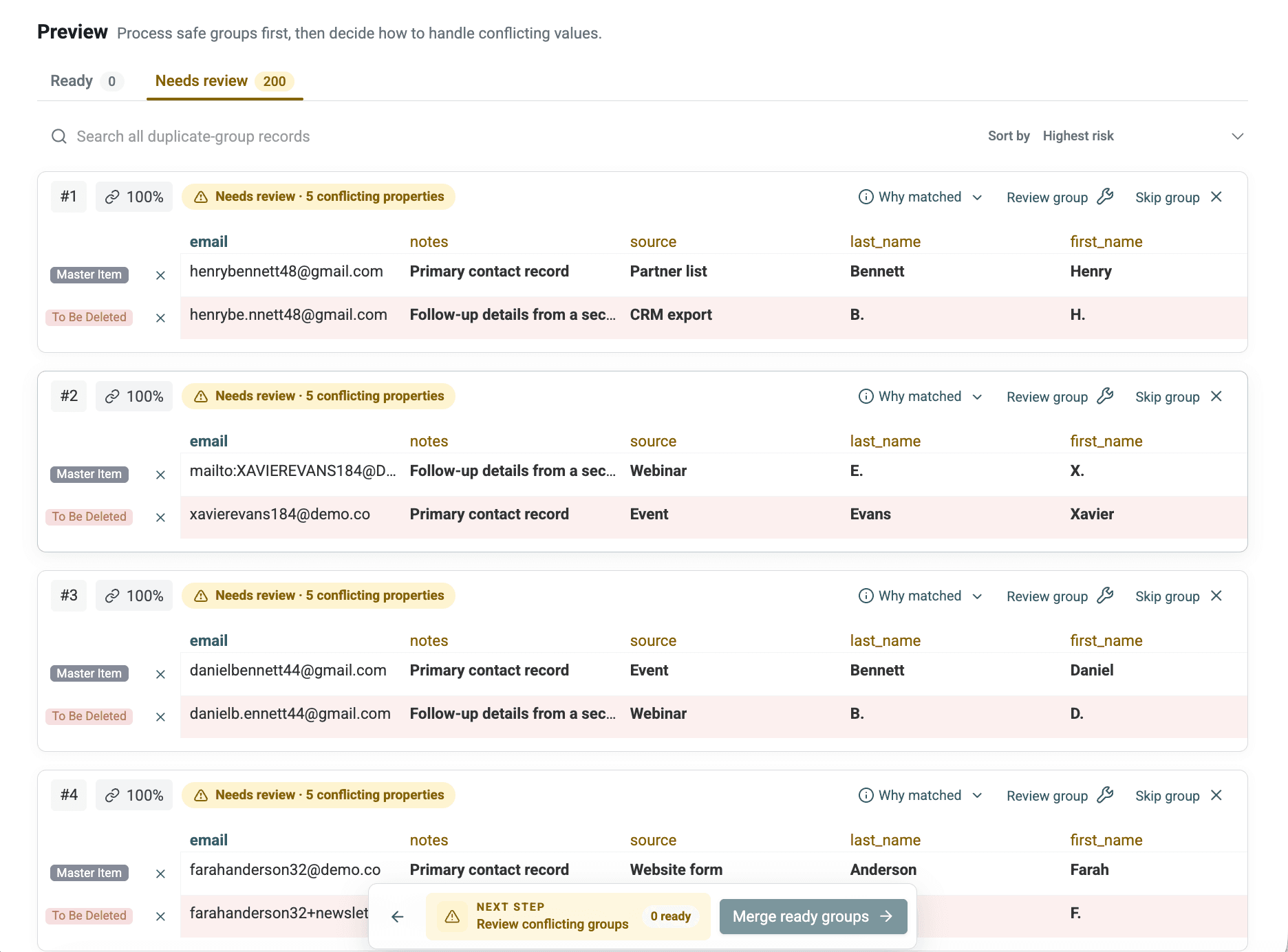
Do not treat the group count as a deletion count yet. A group is a review candidate. For each one, check:
- whether the email variation makes sense;
- whether the first and last names agree or have an explainable variation;
- whether company and phone values conflict;
- whether source and notes add complementary information;
- whether the address is a shared inbox.
I usually inspect the first few groups and any surprising cross-company match before applying a bulk rule. It is faster than repairing an aggressive merge later.
⚠️ A repeated address is not always a repeated person
A shared inbox such as
sales@company.commay appear on several legitimate contacts. Review role-based addresses manually instead of assuming every row should collapse into one.
The tested file was designed so each normalized pair represented one identity. A real CRM export will be messier. If the names or companies suggest different people, skip that group or review it separately.
Choose merge or delete
My decision rule is simple:
- Merge rows when they contain complementary data.
- Delete an extra row only when it contributes no useful value.
- Leave ambiguous groups for manual review.
For this run, the merge configuration selected the most complete row as the master. It kept the master record_id, used the longest first and last name values, and combined source and notes with semicolons.
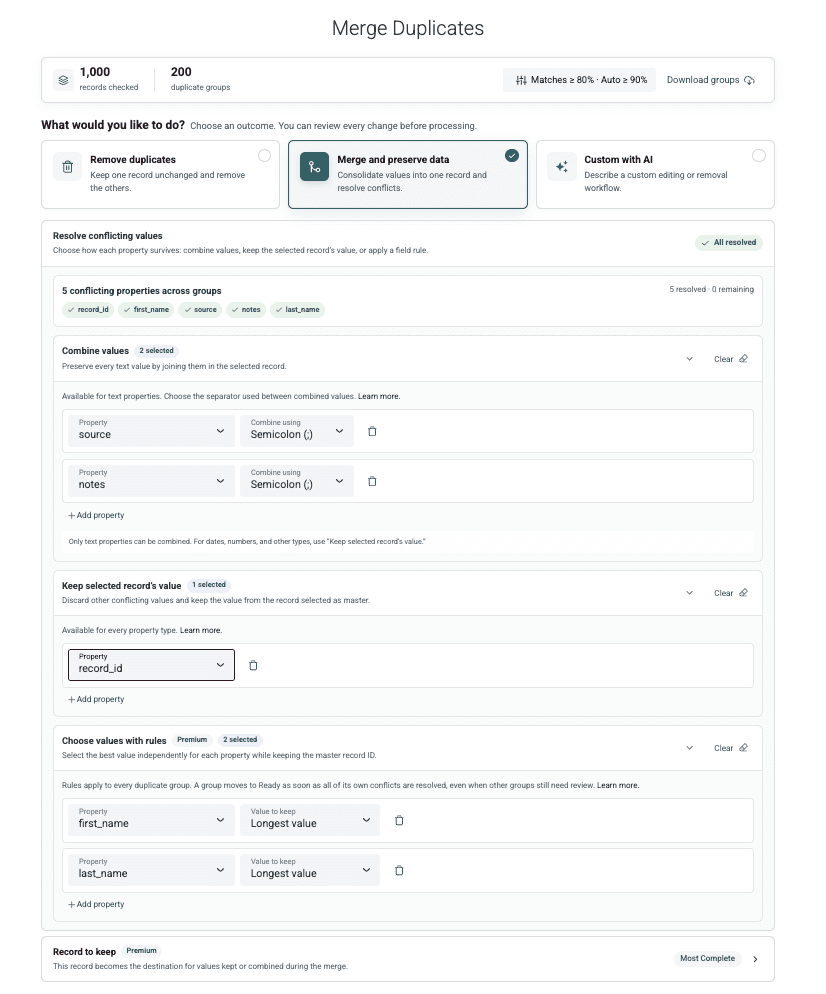
These settings fit the example, but I would not combine every conflicting property by default. A source history can sensibly become Website form;CRM export. A CRM status, owner ID, or primary email usually needs one authoritative value.
The preview is where you verify those choices. After changing a rule, inspect the destination row again.
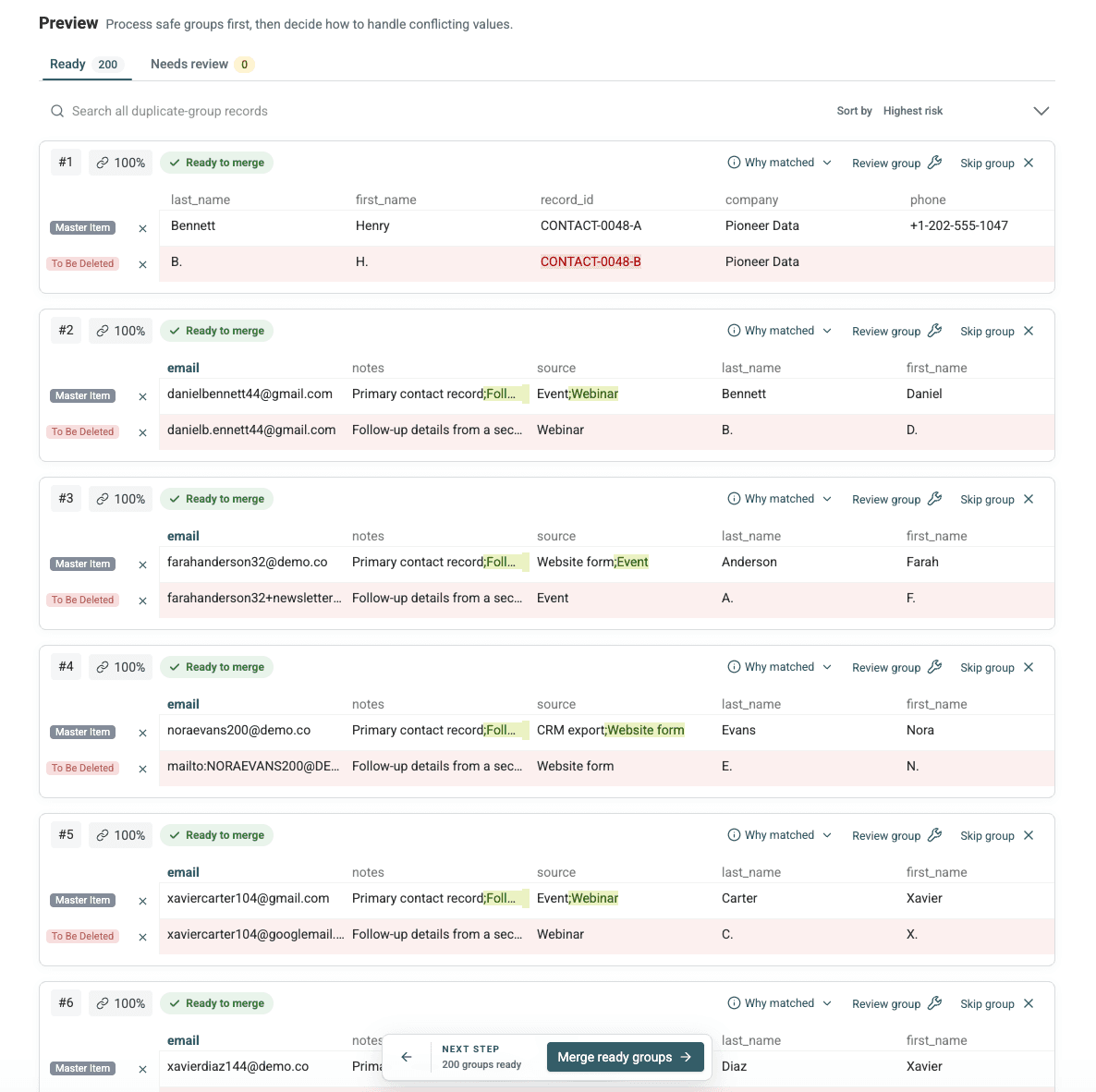
💡 Preview after every rule change
Check which row becomes the master, which values are combined, and which values disappear before applying the rule to every ready group.
If a duplicate row contains a unique phone number, source, or note, merge it instead of deleting it. In the Nora example, the final row kept the full name from one record and the phone from the other.
Readers handling more complex CRM conflicts can use the deeper workflow to merge duplicate leads without losing data. For this email-focused pass, the goal is to preserve the useful adjacent fields without turning every property into a multi-value string.
Results from the tested 1,000-row list
The merge produced these measured counts:
| Measurement | Result |
|---|---|
| Starting rows | 1,000 |
| Rows placed in duplicate groups | 400 |
| Two-row duplicate groups | 200 |
| Deleted duplicate rows | 200 |
| Updated master rows | 200 |
| Final rows | 800 |
| Duplicate groups remaining | 0 |
The reconciliation is direct: 1,000 starting rows - 200 deleted rows = 800 retained rows.
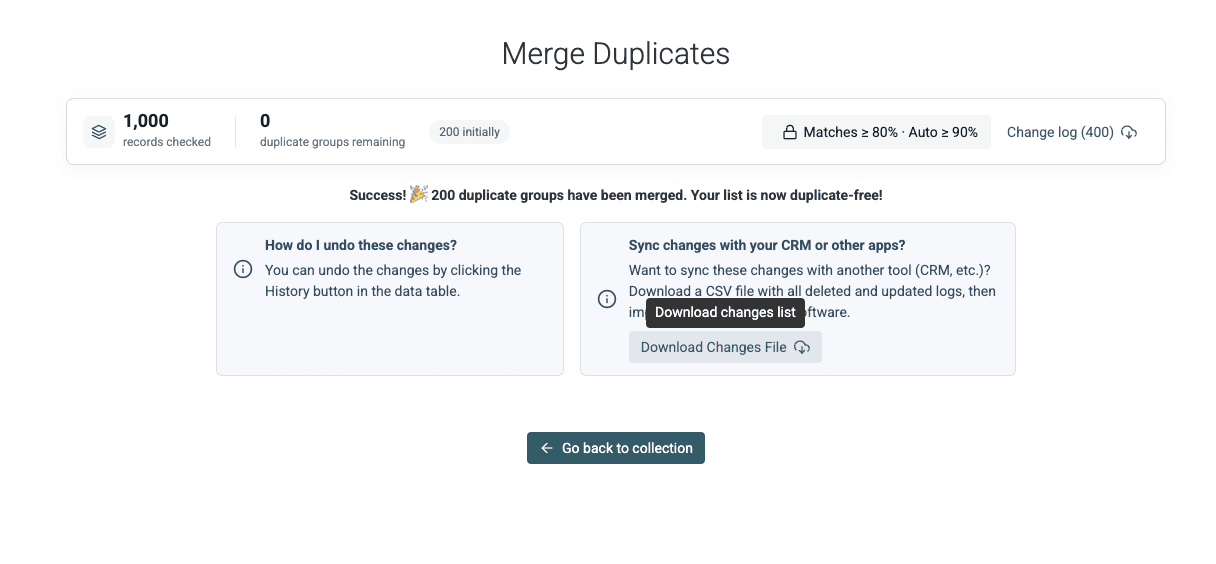
The merge took a few seconds in the human-run test, but no precise timer was recorded. Treat this as an observation from this run, not a performance benchmark.
The downloaded change log contains 400 entries: 200 deleted rows and 200 updated master rows. For each merged group, it shows the values before the merge and the values kept in the destination row.
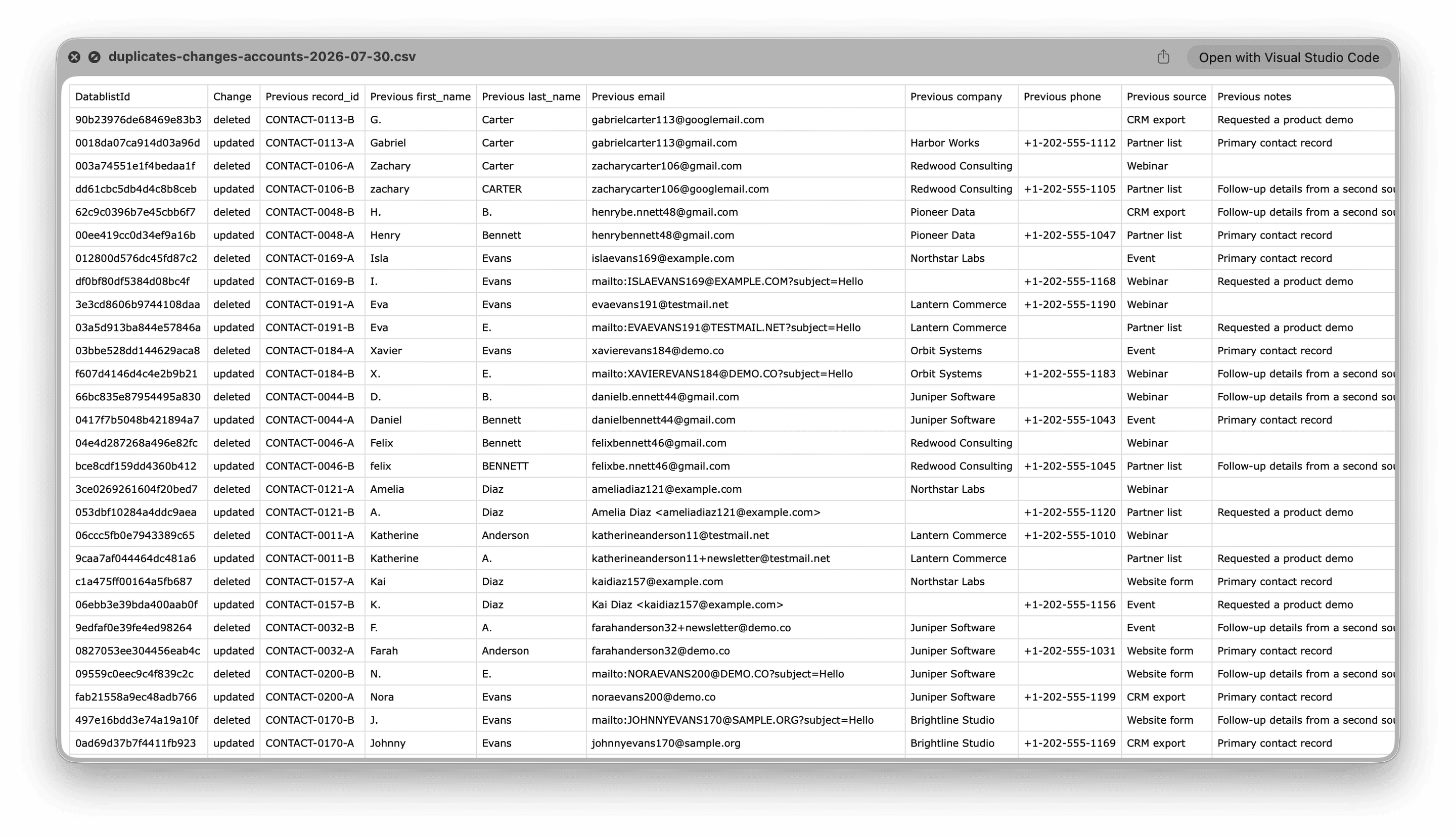
The table below uses exact values from the run:
| Original variants | Why they matched | Retained email | Action | Fields preserved |
|---|---|---|---|---|
noraanderson40@demo.conoraanderson40+newsletter@demo.co | Plus suffix removed | noraanderson40+newsletter@demo.co | Merged into CONTACT-0040-B | Full name, phone, Website form;CRM export, and both notes |
victorbennett62@gmail.comvictorb.ennett62@gmail.com | Gmail dots normalized | victorbennett62@gmail.com | Merged into CONTACT-0062-A | Phone, Website form;Event, and both notes |
gabrielcarter113@gmail.comgabrielcarter113@googlemail.com | Gmail domains normalized | gabrielcarter113@gmail.com | Merged into CONTACT-0113-A | Phone, Partner list;CRM export, and the demo-request note |
camiladiaz123@testmail.netCamila Diaz <camiladiaz123@testmail.net> | Display-name wrapper removed | camiladiaz123@testmail.net | Merged into CONTACT-0123-A | Full name, phone, Partner list;CRM export, and both notes |
marcusevans199@testmail.netmailto:MARCUSEVANS199@TESTMAIL.NET?subject=Hello | mailto: wrapper removed and case normalized | mailto:MARCUSEVANS199@TESTMAIL.NET?subject=Hello | Merged into CONTACT-0199-B | Full name, phone, Webinar;Event, and both notes |
Notice the retained value is not always the visually simplest email. The selected master record controls which stored email remains. Normalization is used for matching; it does not silently rewrite every retained value into a canonical format.
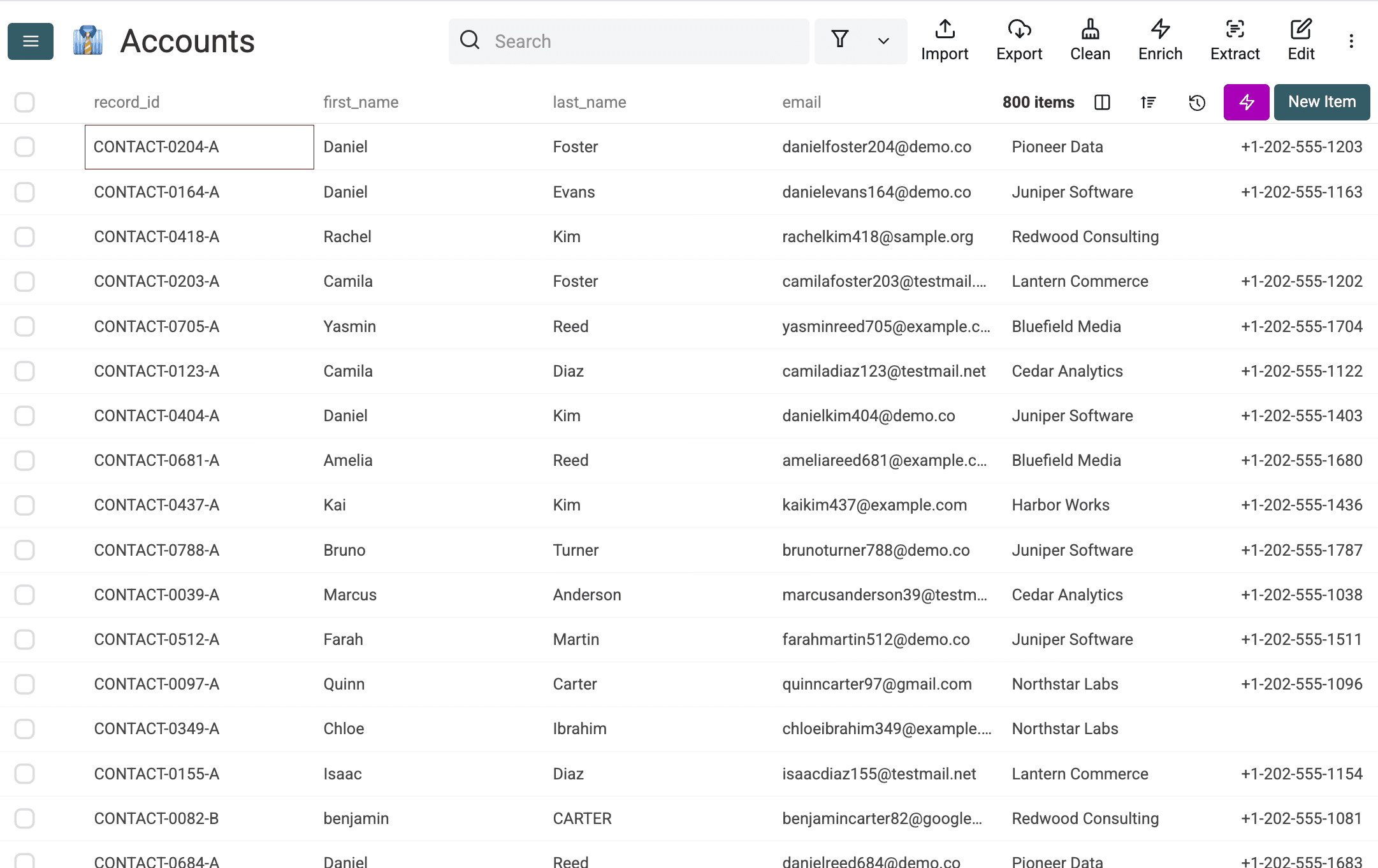
The tested merge reduced 1,000 rows to 800 because 200 reviewed duplicate rows were consolidated into their master records. This result describes the designed test list, not a universal match rate for every email format.
Failure cases and validation checklist
Smart Email matching handles the five tested variation families, but it should not replace review.
Non-Gmail dots
Dots remain significant on non-Gmail domains. Do not assume first.last@company.com and firstlast@company.com belong to the same mailbox. If you have external evidence linking them, handle that pair manually.
Malformed values
Do not treat a matching result as a validity check. Inputs with no usable @ structure or with internal whitespace are not normalized as ordinary addresses, but the processor does not reject every invalid domain shape. Two malformed values can still normalize to the same comparison value. Check the address format and domain separately, and keep questionable rows out of automatic merges. A mailbox or deliverability check is a further step.
Exact matching
Exact does not remove plus suffixes, Gmail dots, domain aliases or display-name wrappers. It does trim surrounding spaces and, by default, compare lowercase text. For example, NAME@example.com and name@example.com match under default Exact settings; name+tag@example.com and name@example.com remain distinct. Turn on Case sensitive when case must be preserved in the comparison. Exact is useful when alias differences matter, but it is not a validation step or a byte-for-byte comparison of the original cell.
Several addresses in one cell
This method assumes one address per cell. A cell containing several delimiter-separated addresses needs the separate multi-value workflow before row-level matching.
Shared inboxes
Two rows with sales@company.com can describe different people. Names, job titles, companies, and notes should drive the review decision. I would not bulk-merge role-based inboxes without checking them.
Deleting complementary fields
Deleting an extra row can remove the only phone number, acquisition source, or note. Use the merge preview to see what survives.
The designed test found all 200 intended identities and no unexpected cross-identity groups. It did not test every real-world address format, malformed value, or shared-inbox pattern.
Before exporting your own list, check:
- Each approved group represents one identity.
- Shared and role-based inboxes have been reviewed manually.
- The master row contains the preferred name, ID, and email value.
- Unique phone, company, source, and note values survive the merge.
- Starting rows minus deleted rows equals the final row count.
- A spot check covers each normalization family present in your list.
- The remaining duplicate-group count matches your expectation.
📌 Reconcile the counts
Starting rows - deleted rows = final rowsis the quickest completeness check after a merge.
Continue cleaning the email list
Deduplication resolves repeated identities. It does not check mailbox existence, disposable providers, unsubscribe status, or deliverability.
I prefer to resolve duplicate identities first. Later checks then run on the retained contacts instead of processing several versions of the same person. Once the merge passes your validation checklist, clean the rest of your email list, then open Export and choose CSV or Excel.
Dedupe your list in Datablist
Import your contact file into Datablist, run the email-aware duplicate check, review the proposed groups, merge the useful values, and export the cleaned list.
FAQ
Does capitalization matter when matching email addresses?
Smart Email comparison uses lowercase values for matching, so NAME@example.com and name@example.com can be grouped when the rest of the normalized address matches.
Do Gmail dots and plus aliases count as the same address?
Smart Email matching removes a plus suffix from the local part and ignores dots in Gmail local parts. The dot rule is Gmail-specific. Dots stay meaningful on non-Gmail domains.
Should I merge duplicate contacts or delete them?
Merge when another row adds a phone number, source, note, company value, or other useful field. Delete the extra row only when it adds nothing you need.
What if one cell contains several email addresses?
Split or normalize the multi-value cell before running this row-level workflow. Follow the guide to deduplicate a field containing several email addresses.
Should shared inboxes such as sales@company.com be merged?
Not automatically. One shared address can represent several contacts. Compare the names and other fields, then review those groups manually.