
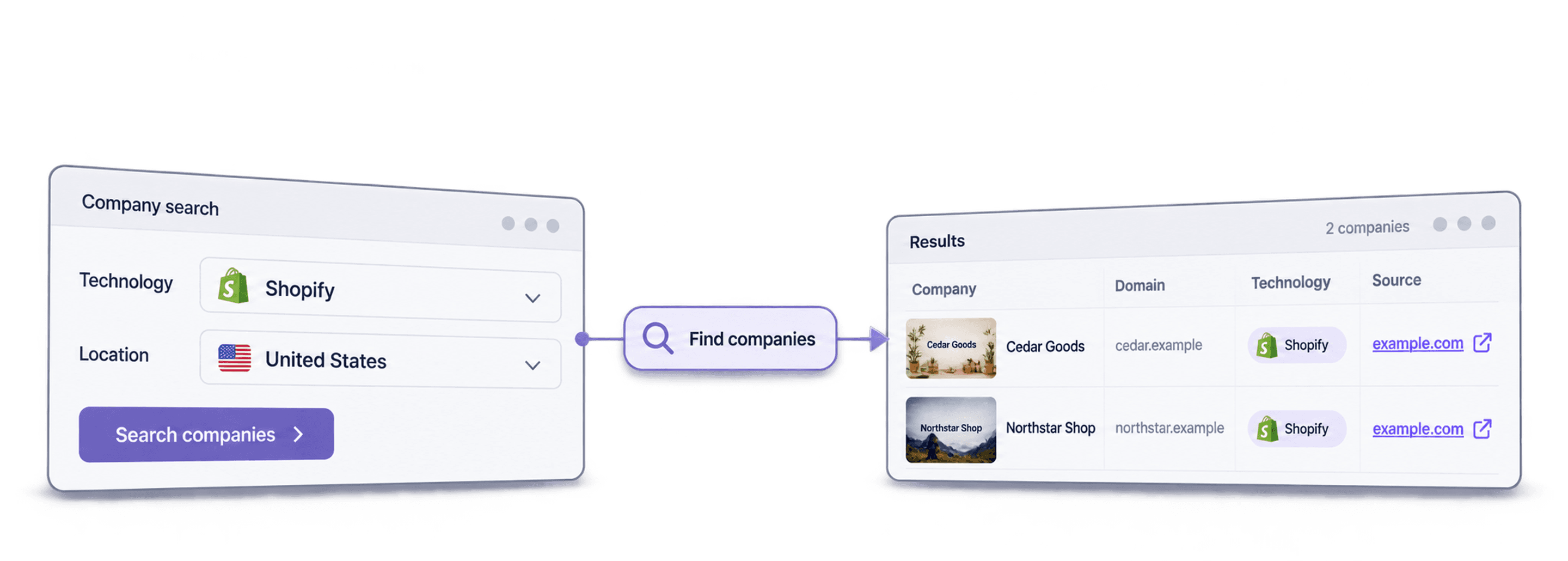
To find companies using Shopify, filter a technology dataset for Shopify, add the country or product keywords you need, and review the returned websites before contacting anyone. Datablist's Find Companies By Technologies source can create the initial list; search operators and MyIP.ms are useful for smaller manual checks. The BuiltWith alternatives comparison explains when to use an individual website lookup, bulk enrichment or a technology-based discovery list.
The output is a list of candidate store domains, not proof that every domain is a current Shopify store. Open a sample of websites, check that the store is active, and confirm the company behind it before adding the list to outreach.
What This Guide Will Teach You
- How to create a list of companies using Shopify
- 5 Ideas on how to use this data in the best way
- Costs to create a list of 1000 companies selling on Shopify
- Additional methods to find stores running on Shopify
Let’s start with the part you came for: How to identify businesses using Shopify, step by step.
The Easiest Way To Get a List of Companies Selling on Shopify
Creating a list of e-com businesses that run on Shopify from scratch requires just 2 simple steps.
These steps take less than 5 minutes and include:
- Signing up & creating a collection in Datablist
- Using the Technology Finder to search for Shopify stores
(Yes, that's how easy it is)
Phase 1 of Creating a List of Shopify Stores: Preparation
The preparation phase is very easy and is just a few clicks.
Go to Datablist.com and sign up.
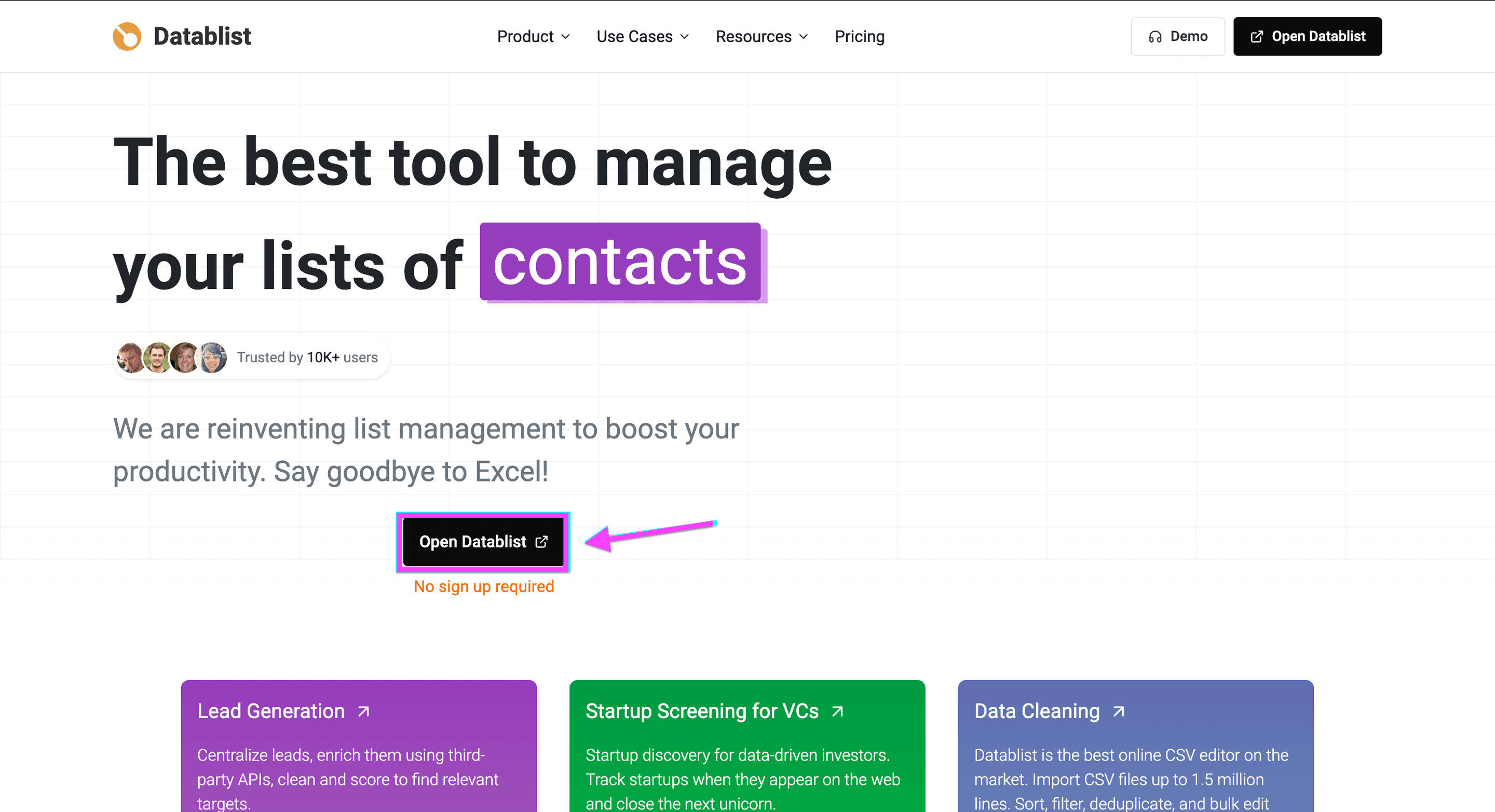
Once you sign up, create a Collection.
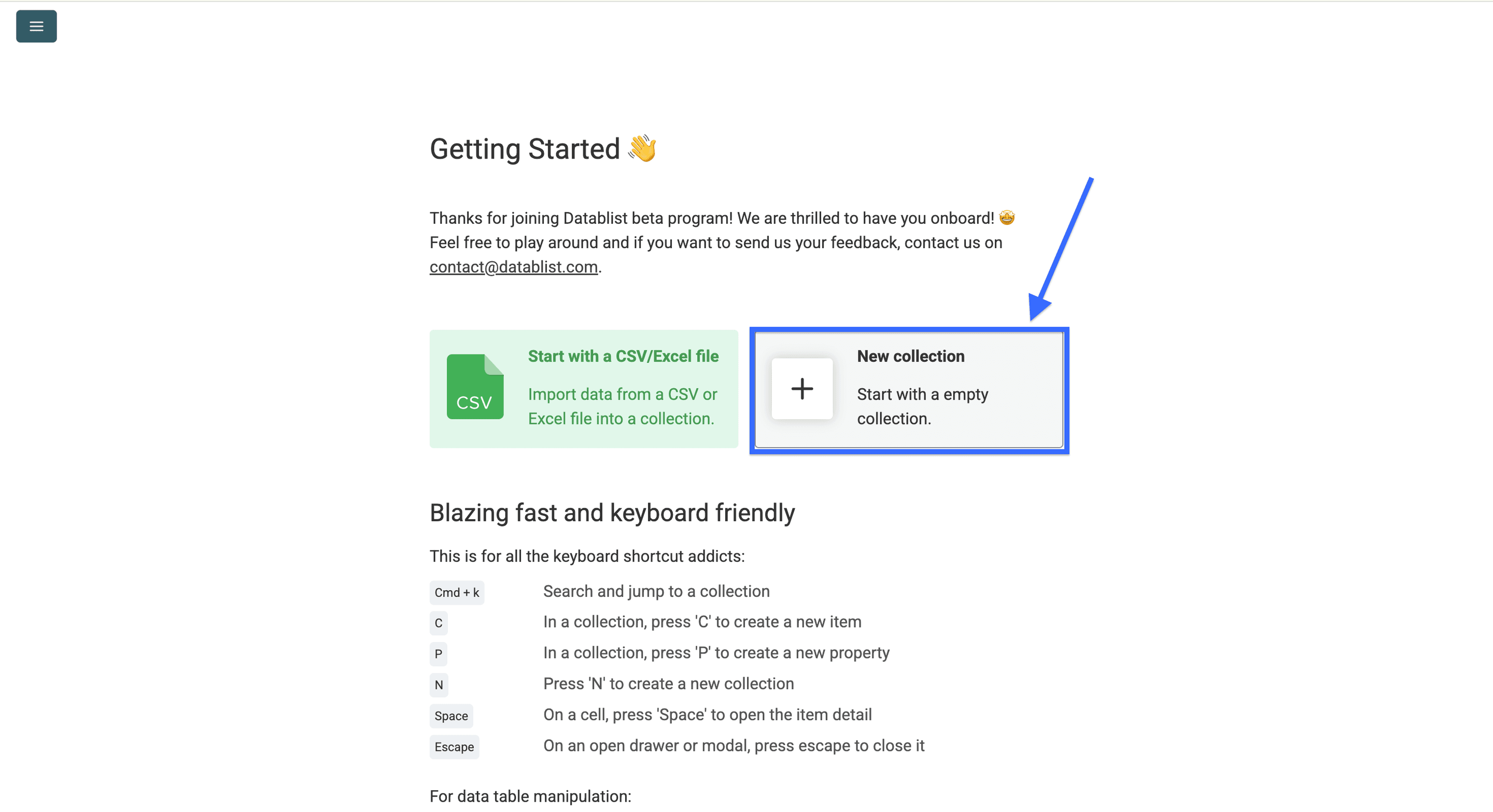
Now, click on Find Companies By Technologies.
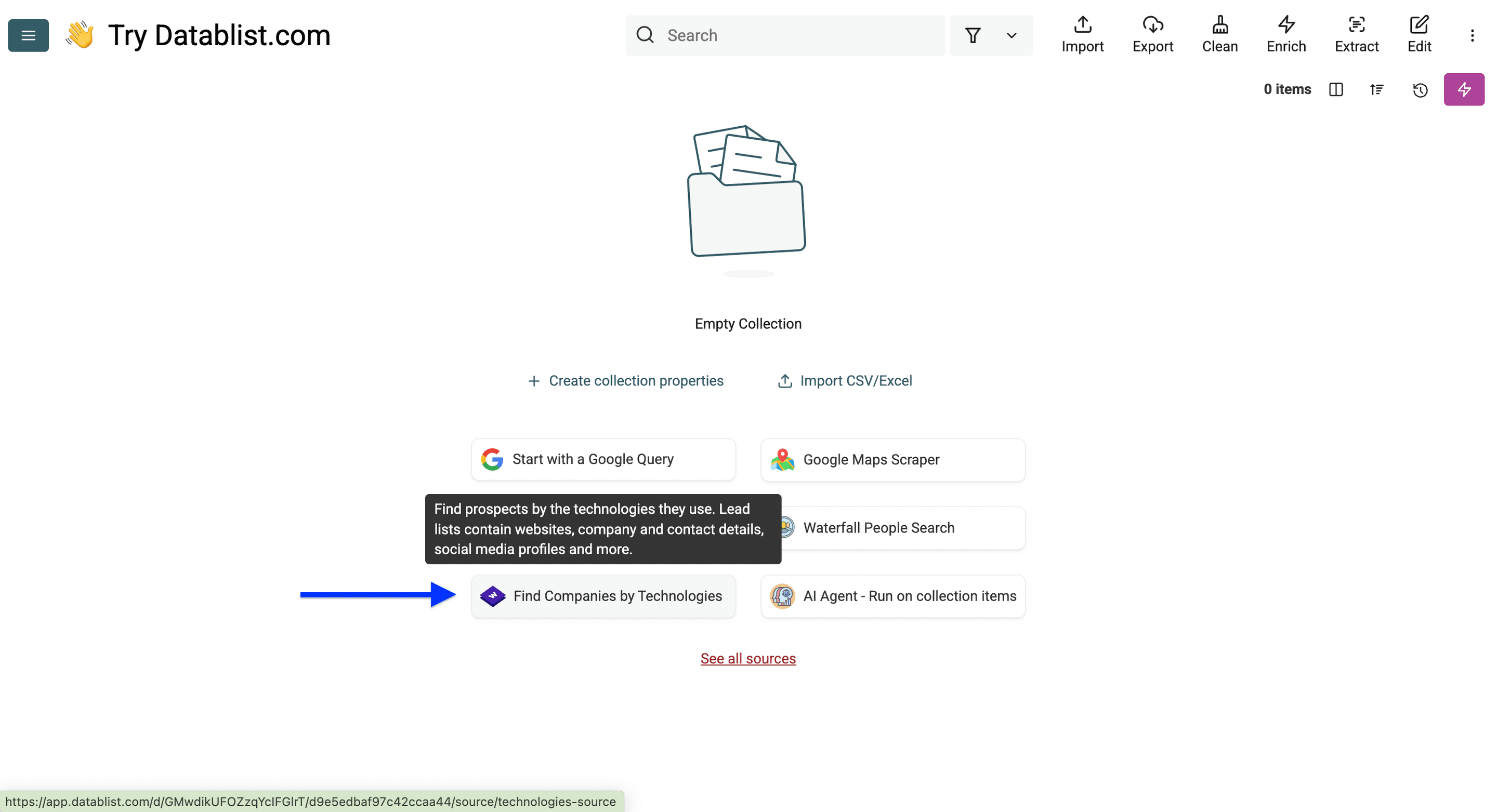
That’s it with the prep.
Now the fun part!
Phase 2 of Creating a List of Shopify Stores: Search and Filter
When you open the Technology Finder of Datablist, you’ll see 4 filter categories:
- Technology filter
- Website filter
- Company filter
- Limits and exclusions
Now I’ll show you how I use those filters to find sportswear brands running on Shopify and located in Germany.
Step 1: Using the technology filter
The first filter is a technology category, which I’ll skip, and use the second one to filter by a specific technology: Shopify.
👉 Check out Wappalyzer's full list of tracked technologies.
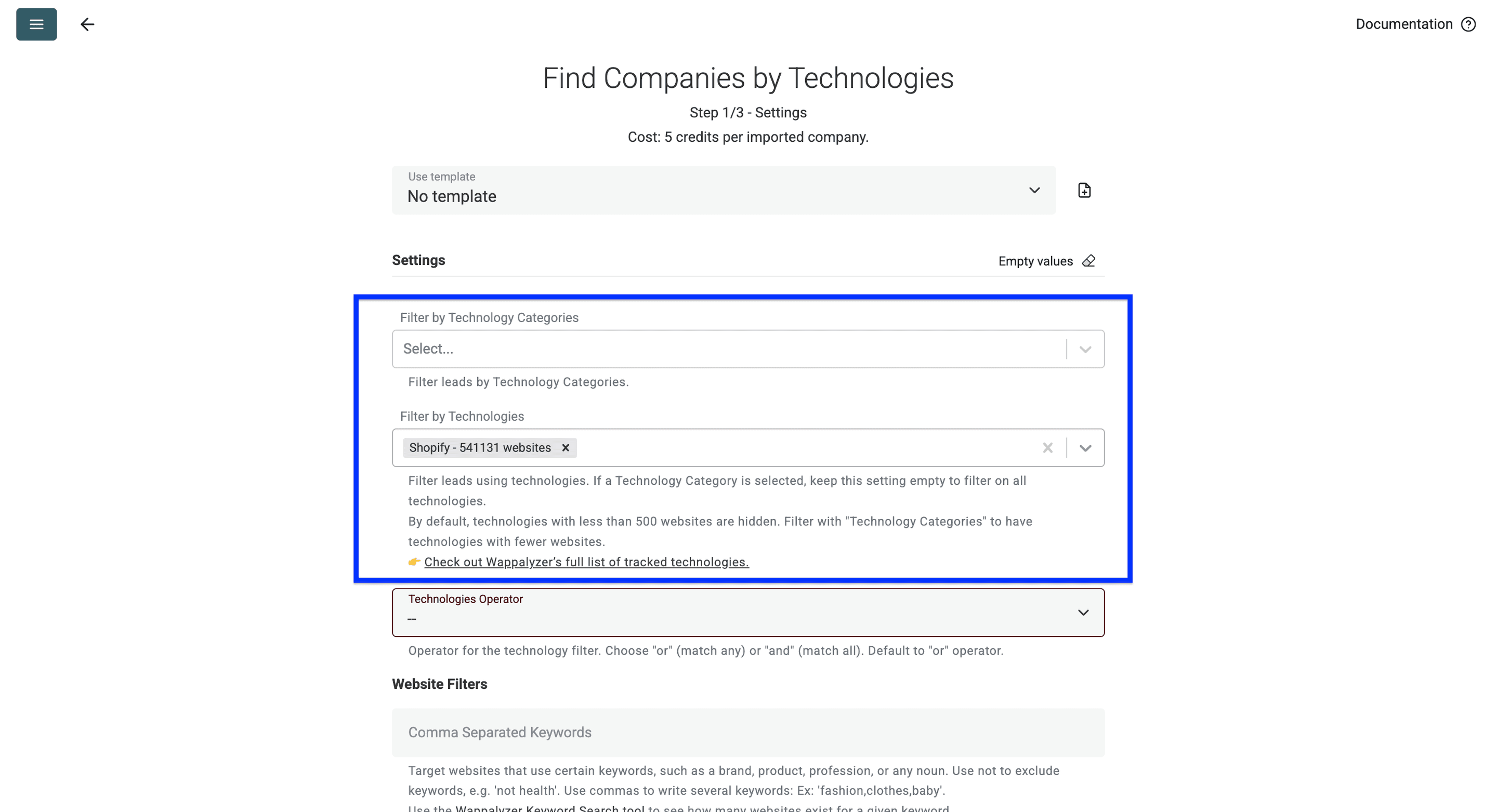
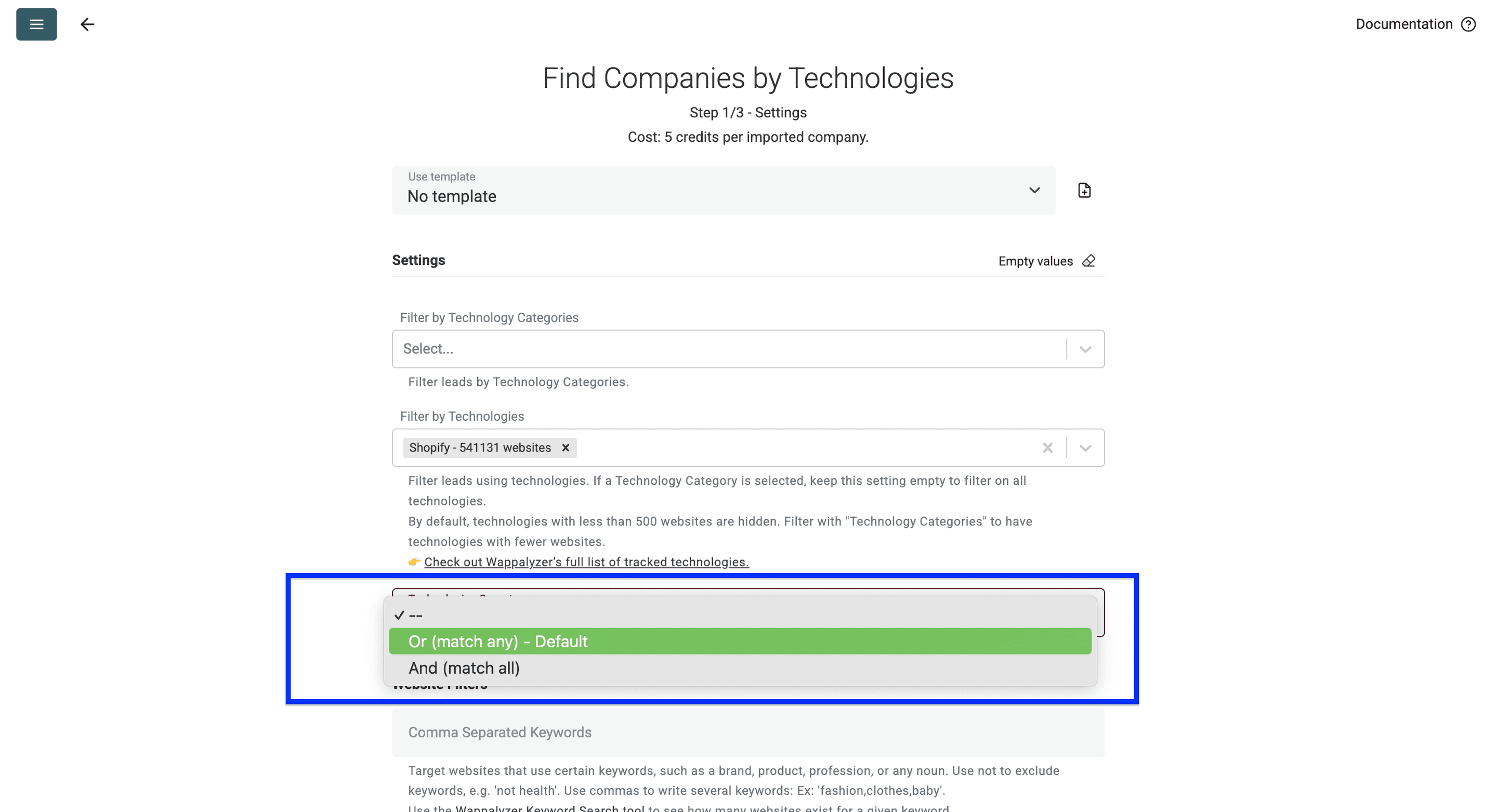
The third filter is the matching operator, which helps with multi-technology searches.
Here’s how it works:
- Option: Or operator, use this if you want to find companies running on Shopify or BigCommerce. This is the default setting.
- Option: And operator, use this if you want to find companies using Shopify + Klaviyo
For my example, this setting is not important, so I’ll skip it.
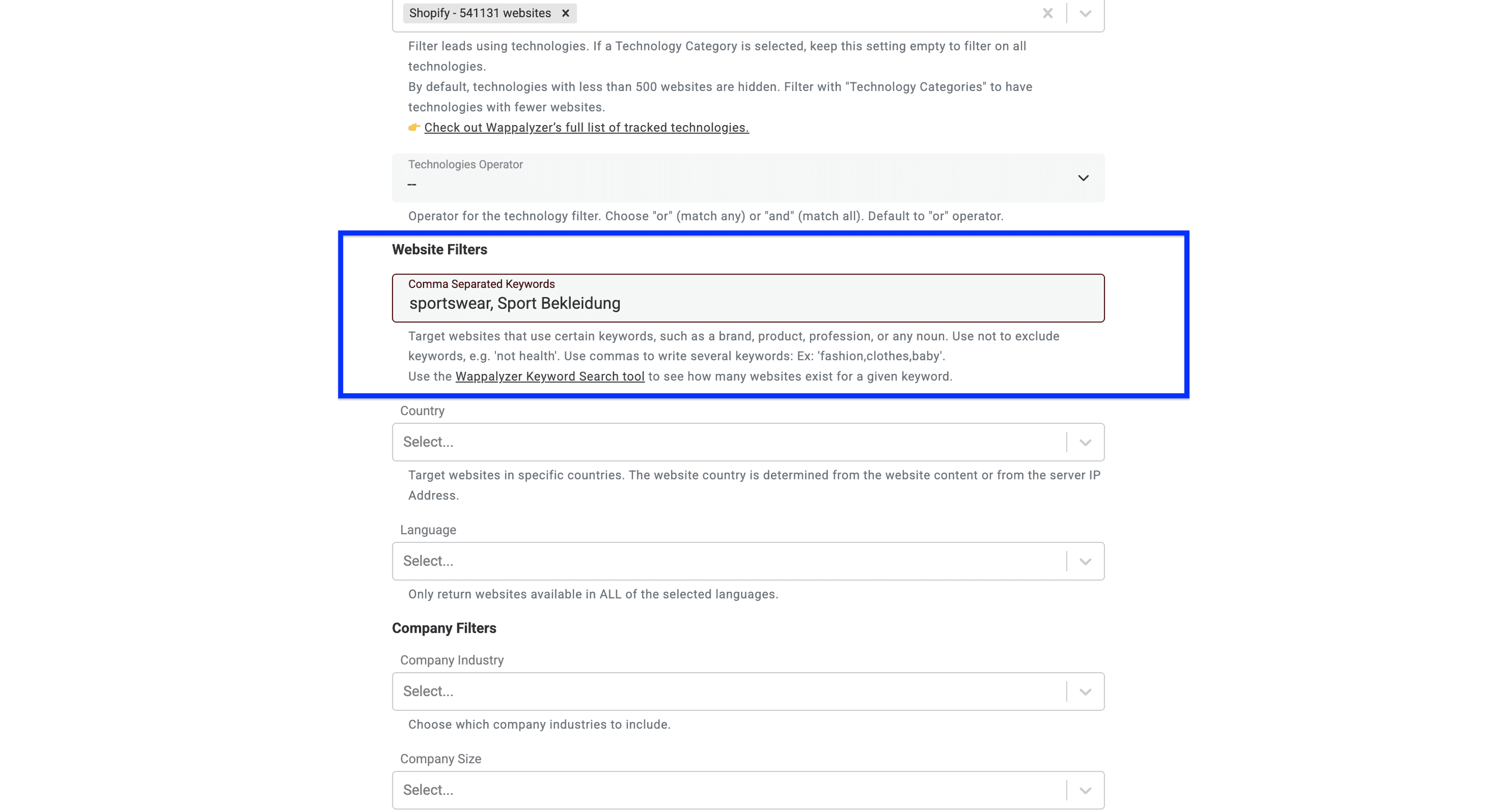
Step 2: Using website filters.
First, use keywords to narrow down your search. You can include and exclude keywords present on the homepage. e.g., 'sportswear', 'not health'. Use commas to write several keywords: Ex: fashion,clothes,baby.
💡 2 Tips for Keyword Filtering
Tip 1: Test your keywords first - Wappalyzer doesn't match every keyword, and many return no results. Verify your keyword using the Wappalyzer Keyword Search tool before building your list.
Tip 2: Focus on homepage content - Only use keywords likely to appear on homepages (brands, product categories, industry terms). Avoid searching for specific details like shipping policies or product specifications.
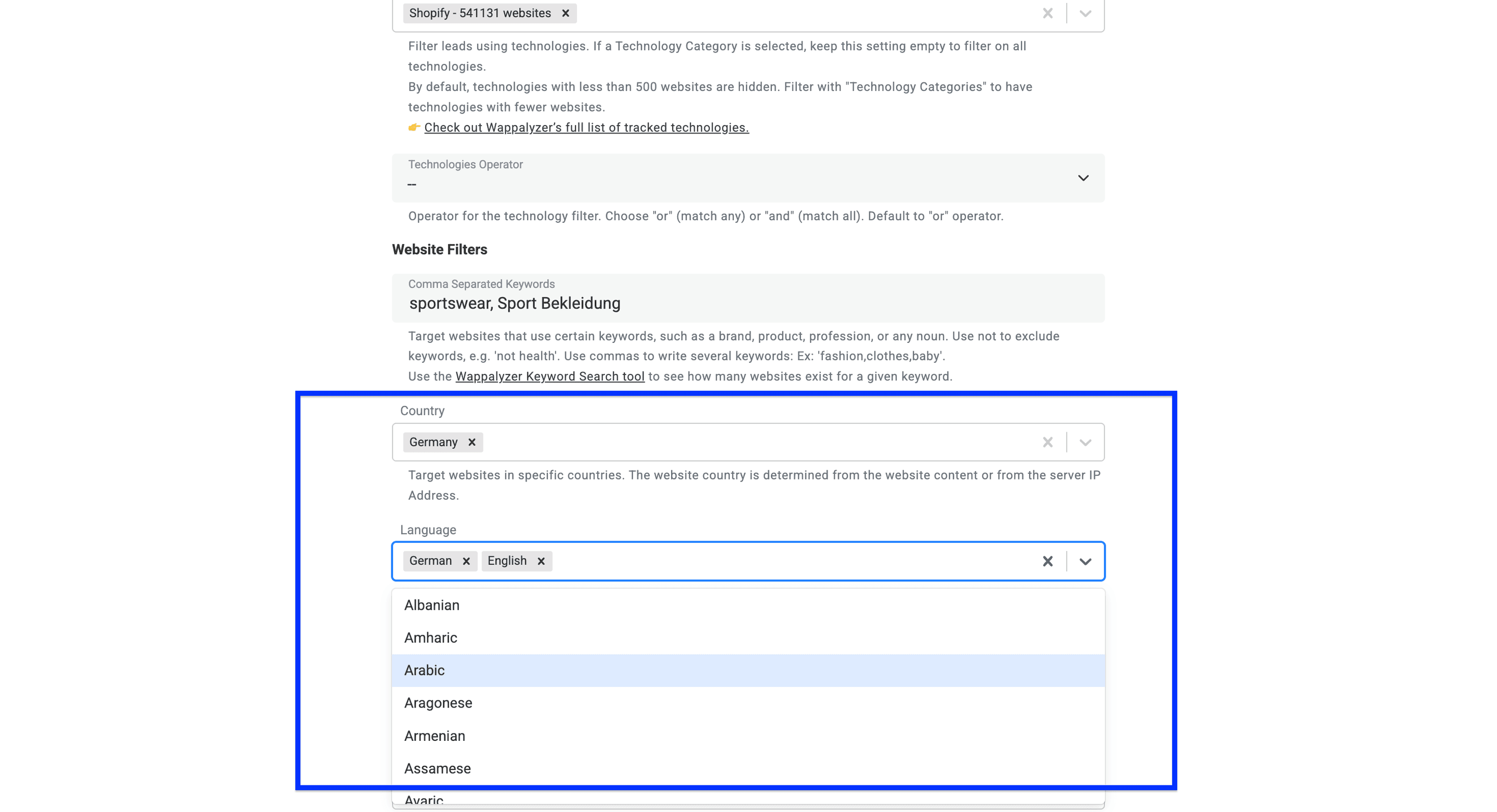
Now, select the countries you want to target.
For a separate storefront-level check, extract each Shopify store's country code. Keep the served storefront country separate from the company's registered location.
Then, select the languages of the website. If you select more than one language, Datablist will return websites available in one of the languages you selected.
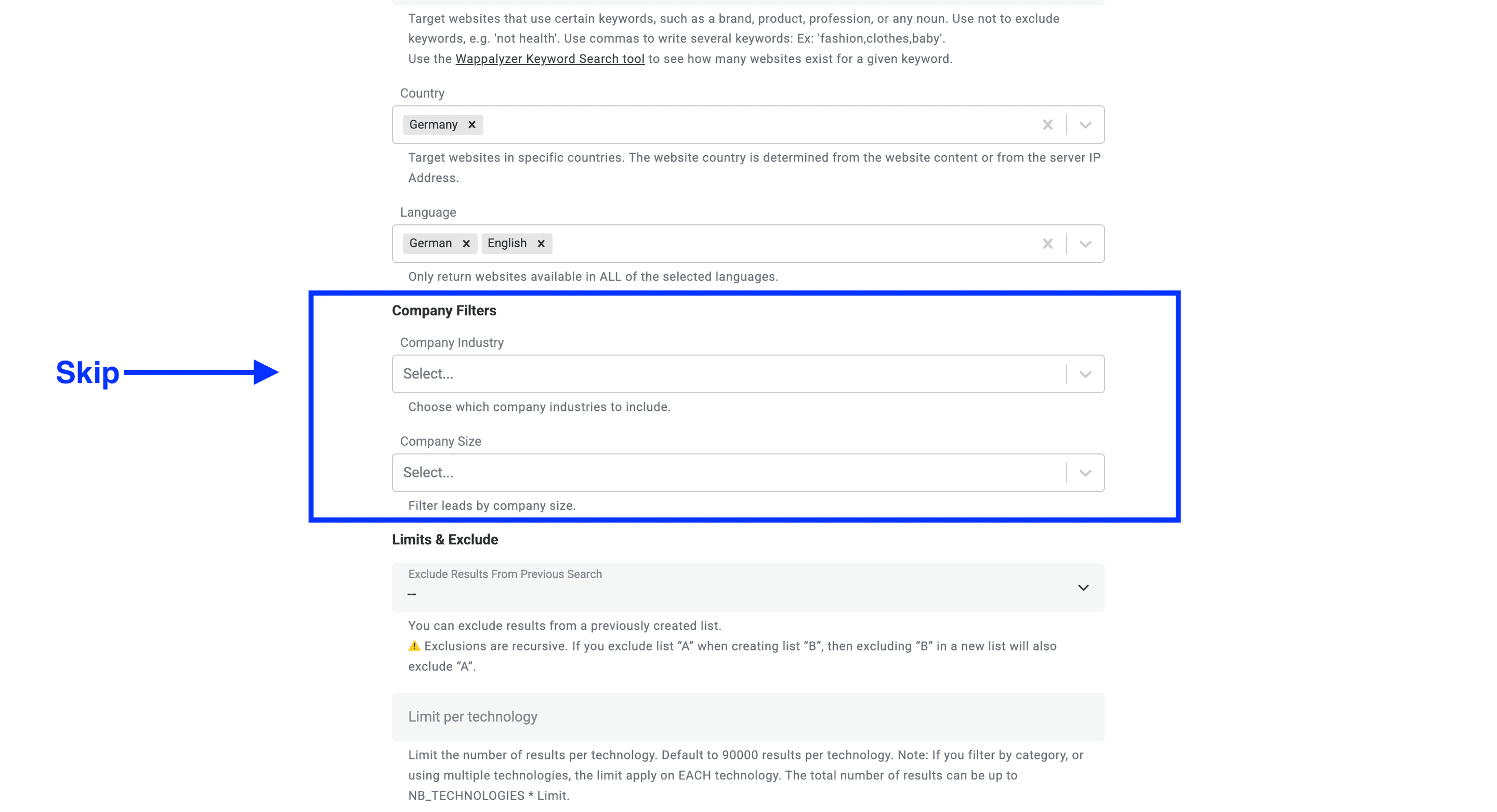
Step 3: Using company filters.
The company filters allow you to do two things:
- Focus your search on industry verticals. In the case of Shopify, the technology already tells what industry the target companies are in, so I’ll leave it open.
- Choose the company size you want to target. I’ll leave this also open
For a campaign aimed at Shopify merchants with an email-marketing integration, follow the Klaviyo company-finding workflow and require both technologies.
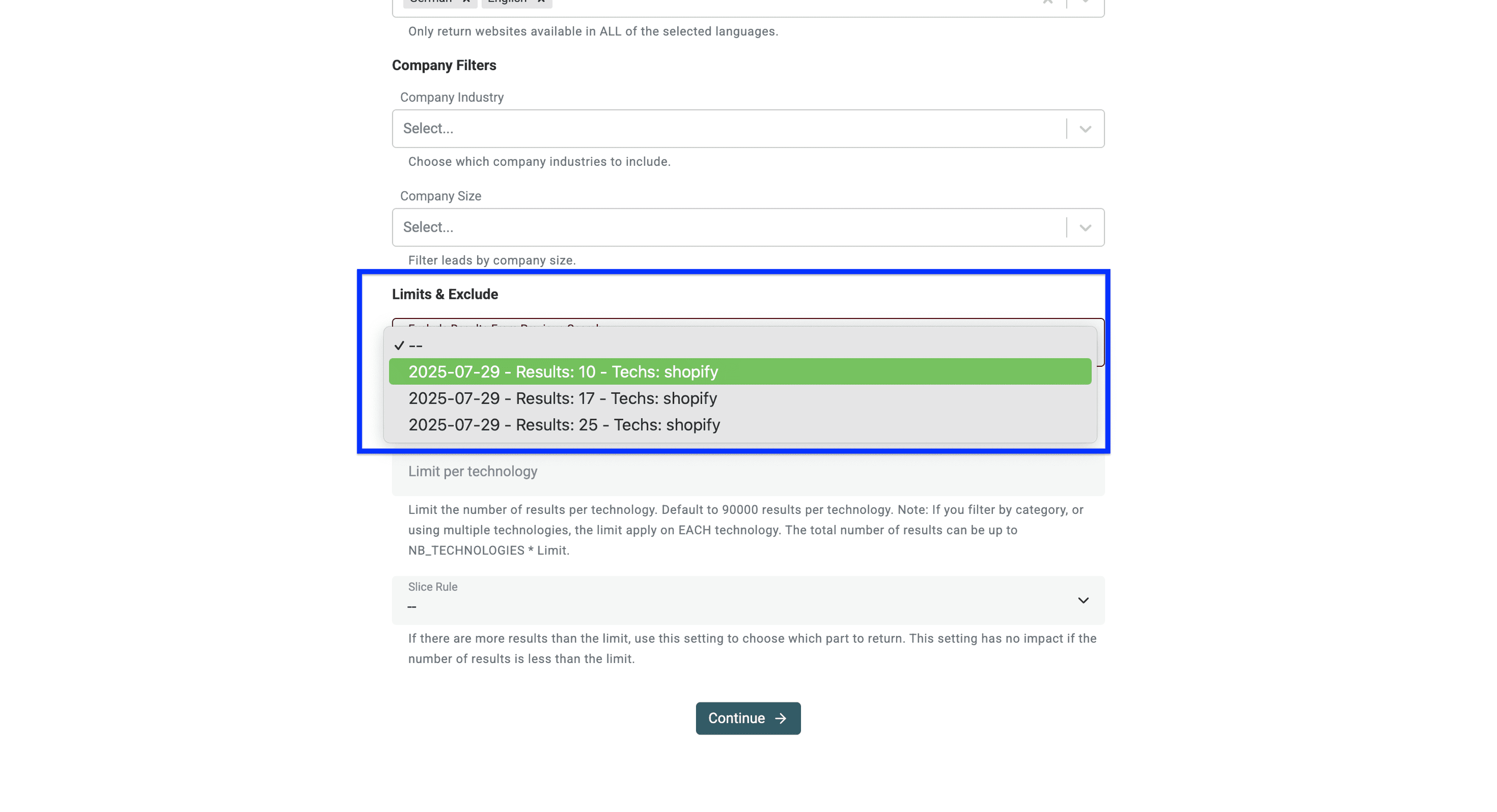
Step 4: Set limits and define exclusions
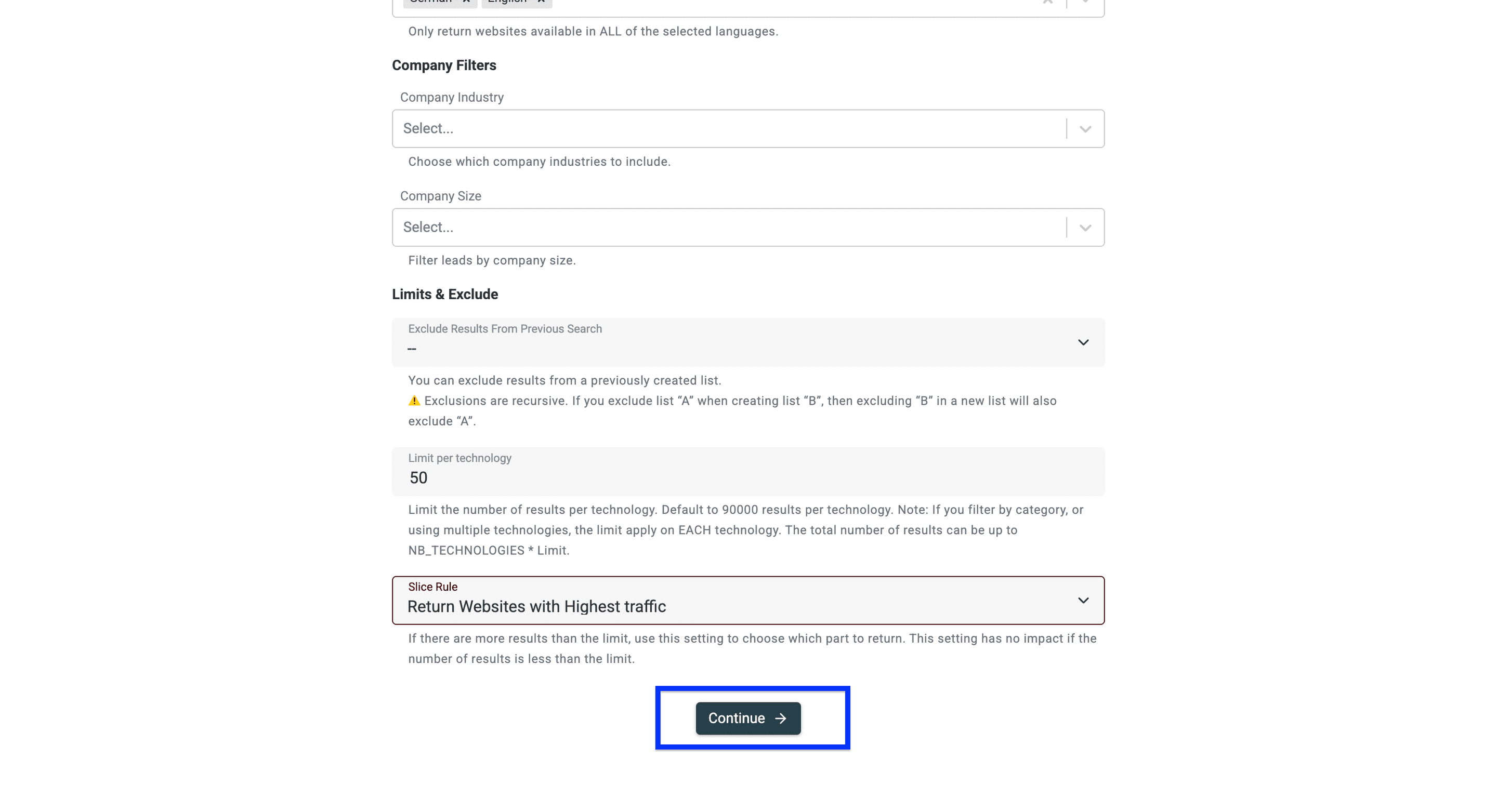
First, you can exclude results from a previously created list.
This is great for testing marketing campaigns. Start with a small lead list. If it works well, create a new list and exclude the leads you already contacted.
⚠️ Note: Exclusions are recursive. If you exclude list “A” when creating list “B”, then excluding “B” in a new list will also exclude “A”.
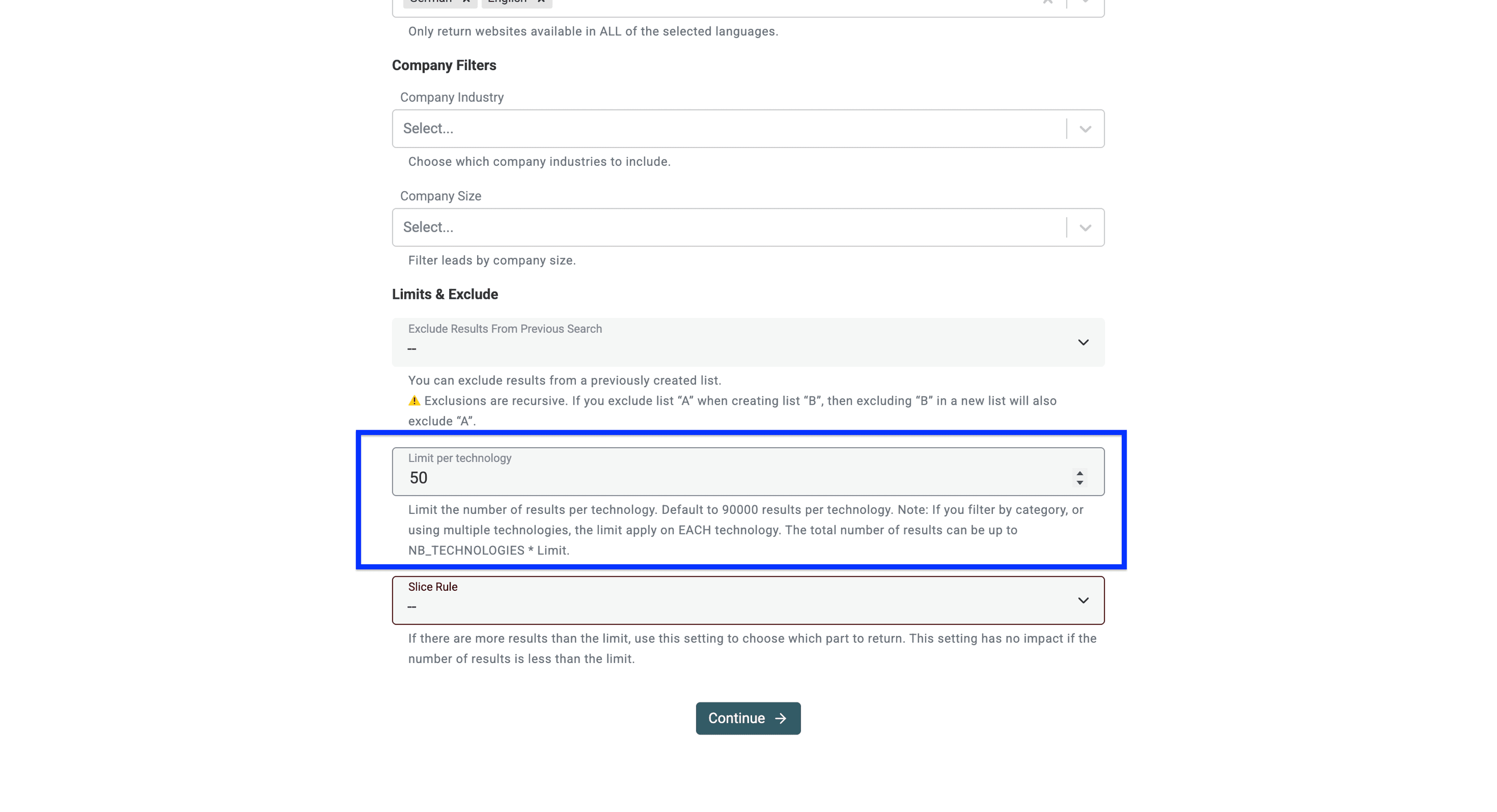
Now, you can set a limit on how many websites you want to have for each technology.
⚠️ Note: This limit is for each technology. If you set up a limit of 1000 while searching for
Klaviyo+Shopify, you’ll get a maximum of 2000 results.
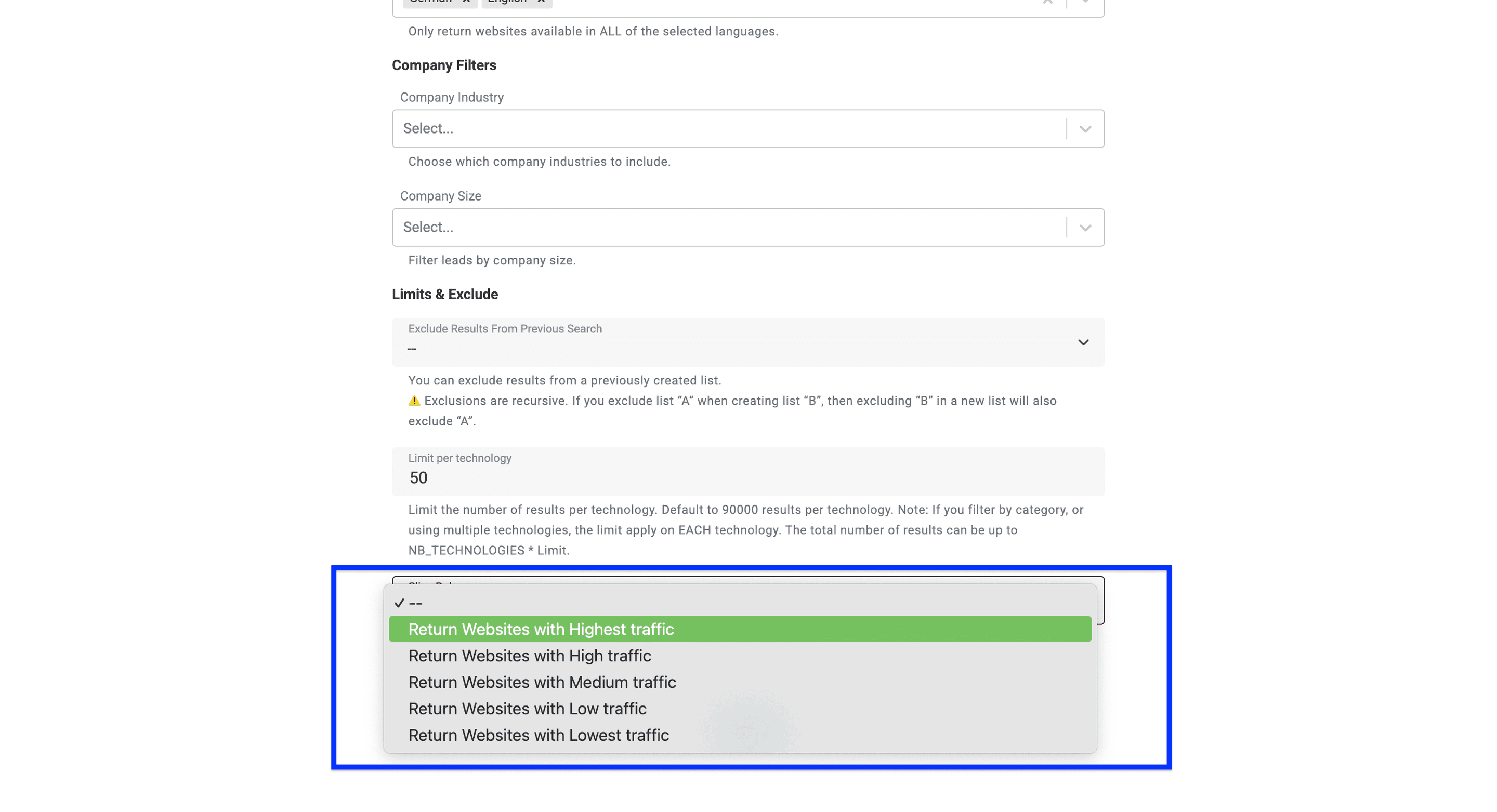
Lastly, you can set a slice rule for your search. This useful feature lets you filter websites based on their traffic volume. For example, selecting "Highest traffic" will return first the most popular websites in your results.
This setting only matters when your search finds more websites than your limit allows. If your search returns fewer results than your limit, all websites will be included regardless of traffic.
Once you’ve set up all your filters, click on Continue.
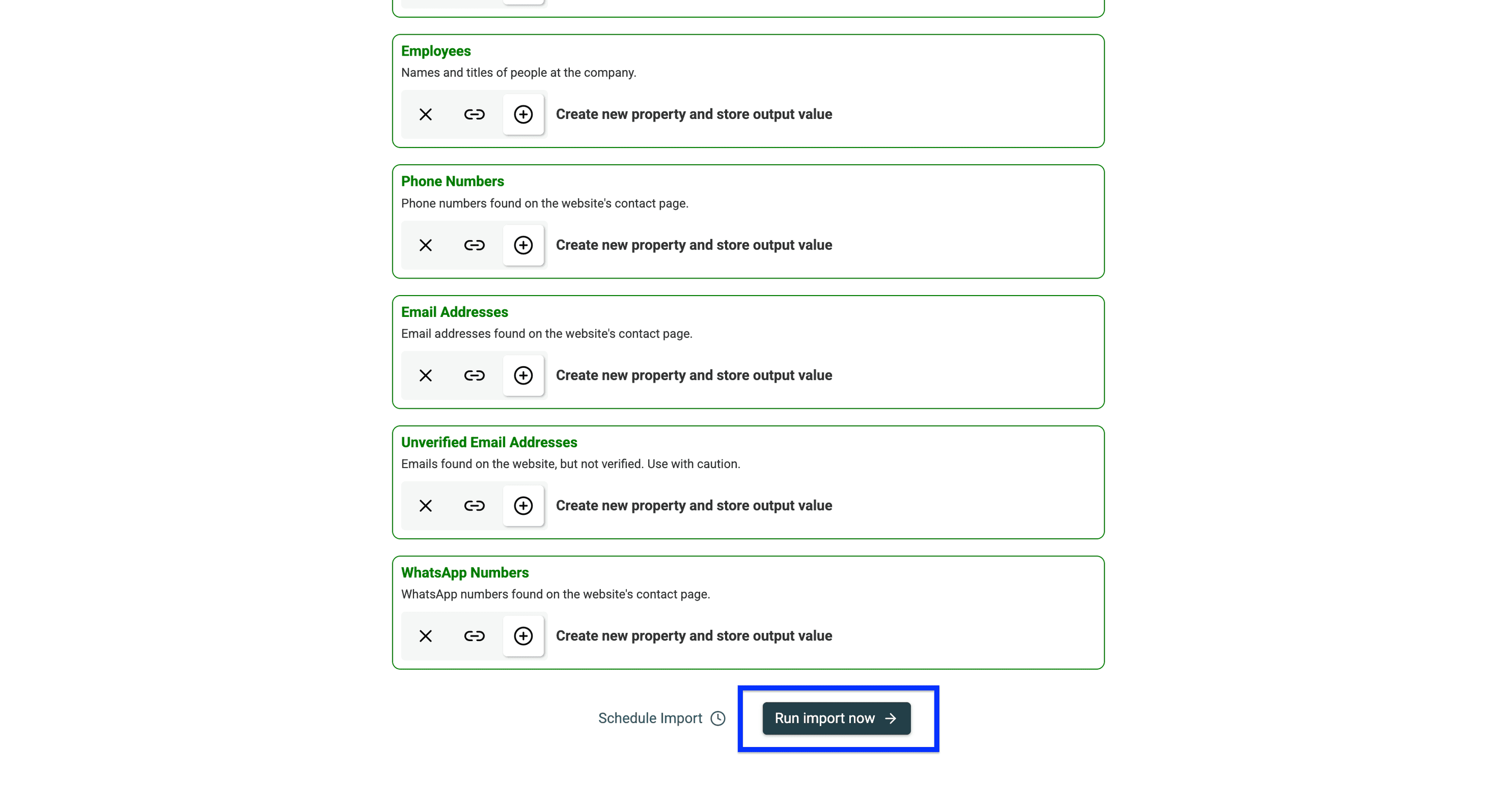
Now, you’ll see all the data points Datablist will return as configured output fields. To complete the process, navigate to the bottom of the page and click Run import now.
After a few minutes, your collection should look like this:
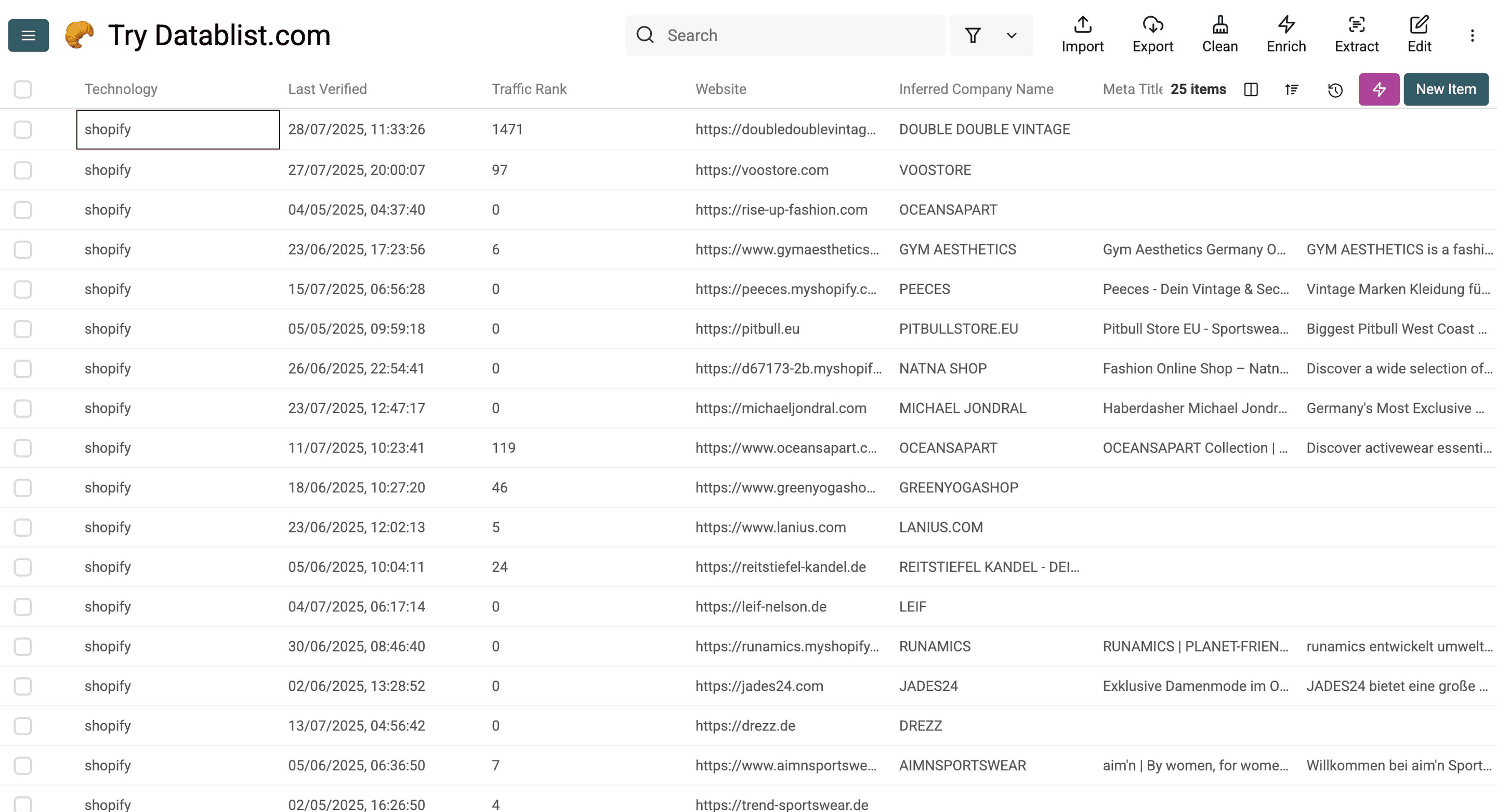
Here’s a detailed overview of the data that Datablist delivers:
Technology & Website Data
- Technology Name: The name of a technology detected on the website (e.g., React, WordPress).
- Technology Versions: The version number of the detected technology, if available.
- Last Verified: The date when the technology detection was last confirmed.
- Traffic Rank: The website’s global popularity rank based on traffic.
- Root Path: The main domain or base URL of the website.
- Website URL: The full web address of the website.
- Meta Title: The page title defined in the website’s HTML metadata.
- Meta Description: The summary or description from the website’s meta tags.
- Responsive: Whether the website is mobile-friendly.
- Copyright Year: The year displayed in the website's copyright notice.
Company Data
- Company Name: The official name of the company behind the website.
- Inferred Company Name: A guessed name for the company based on available data.
- Industry: The business sector the company operates in.
- About Company: A short description of the company’s activities or purpose.
- Company Size: The estimated number of employees in the company.
- Company Type: The type of company (e.g., private, public, nonprofit).
- Founded Year: The year the company was established.
- Total Funding (USD): The total funding amount raised by the company.
- Funding Rounds: The number of funding rounds the company has gone through.
- Employees: A list or range of employees, sometimes with titles or roles.
- Countries: Countries where the company has a presence.
- Languages: Languages the company or its website supports.
- Locations: Physical locations of the company (offices, HQs, etc.).
Contact Information
- Phone Numbers: Phone numbers found on the website or linked profiles.
- Email Addresses: Verified email addresses found on the website.
- Unverified Email Addresses: Email addresses that couldn’t be confirmed as valid.
- WhatsApp Numbers: WhatsApp contact numbers linked to the business.
- LinkedIn: Link to the company’s LinkedIn profile.
- Facebook: Link to the company’s Facebook page.
- Twitter: Link to the company’s Twitter/X profile.
- Instagram: Link to the company’s Instagram profile.
How You Can Use This Data
Identifying Shopify stores is only half the battle - extracting value from that intelligence is where the money is created.
Below are several proven workflows that will help you convert raw data into real business opportunities.
- Find E-commerce founders, marketing directors, or any other person with Waterfall People Search.
- Scrape all products from an E-commerce site to analyze product strategies of competitors.
- Find qualified emails and phone numbers with Datablist’s Waterfall Enrichment.
- Use Datablist’s AI Agent to do in-depth research about each brand.
- Scrape each website with the Smart Scraper to get website texts, Instagram links, and more.
- Check whether Instagram shows the follower list before scraping a brand’s followers to find creators in its audience.
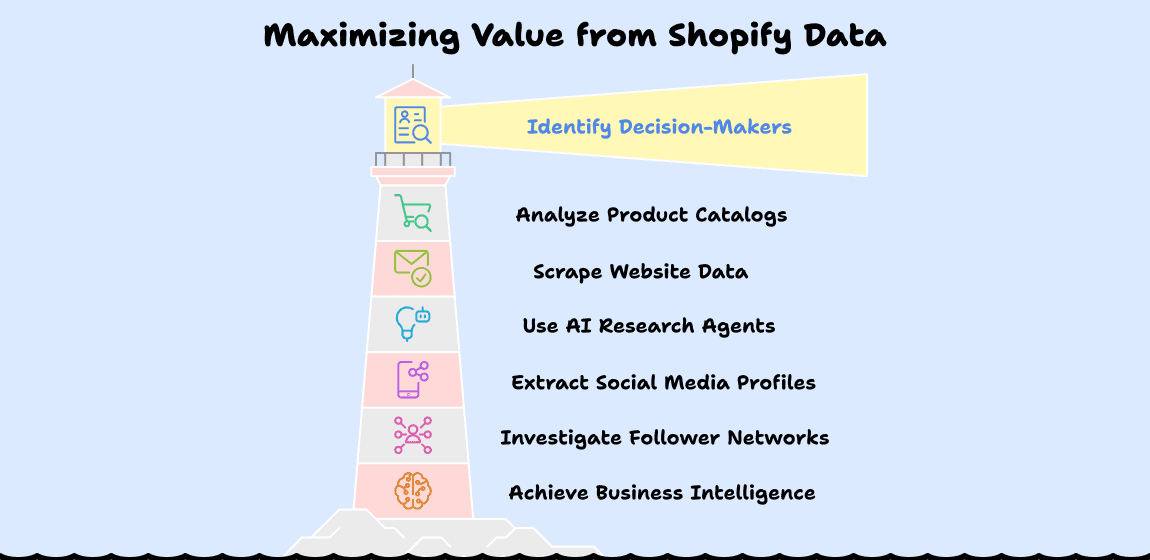
I could continue listing benefits, but I think you get the idea: Collecting data is just the first step. What makes Datablist stand out is the comprehensive ecosystem that handles everything from initial scraping to enrichment, cleaning, and automation - saving you from the perpetual data collection hamster wheel.
Getting 1000 E-Com Websites: How Much Does It Cost
Monthly USD pricing: Starter costs $25/month with 5,000 included credits. A $20 top-up adds 20,000 credits to an active subscription. Included credits are used first; top-ups do not expire.
Using Find Companies by Technologies at 5 credits per returned website row, 1,000 rows use 5,000 credits and fit the $25 Starter allowance. A 10,000-row import uses 50,000 credits: Starter + a $55/60,000-credit top-up costs $80, providing 65,000 credits and leaving 15,000. These are source-row budgets; review duplicates and business fit, then budget any contact enrichment separately.
The current technology-finder configuration charges 5 credits per returned website. A list of 1,000 results therefore uses 5,000 credits. Set a result limit and check your available balance before running a broad search. The cost of a plan and its included credits are separate from the number of websites you can retrieve.

If your target platform is Wix, use the Wix company discovery guide for its domain-search and manual-check examples. Platform-specific search patterns need their own verification.
4 Alternative Methods to Find Companies Using Shopify
For those who want just to get a few Shopify stores without investing in data enrichment tools to automate the process, you can still find companies using Shopify using these 4 alternative methods:
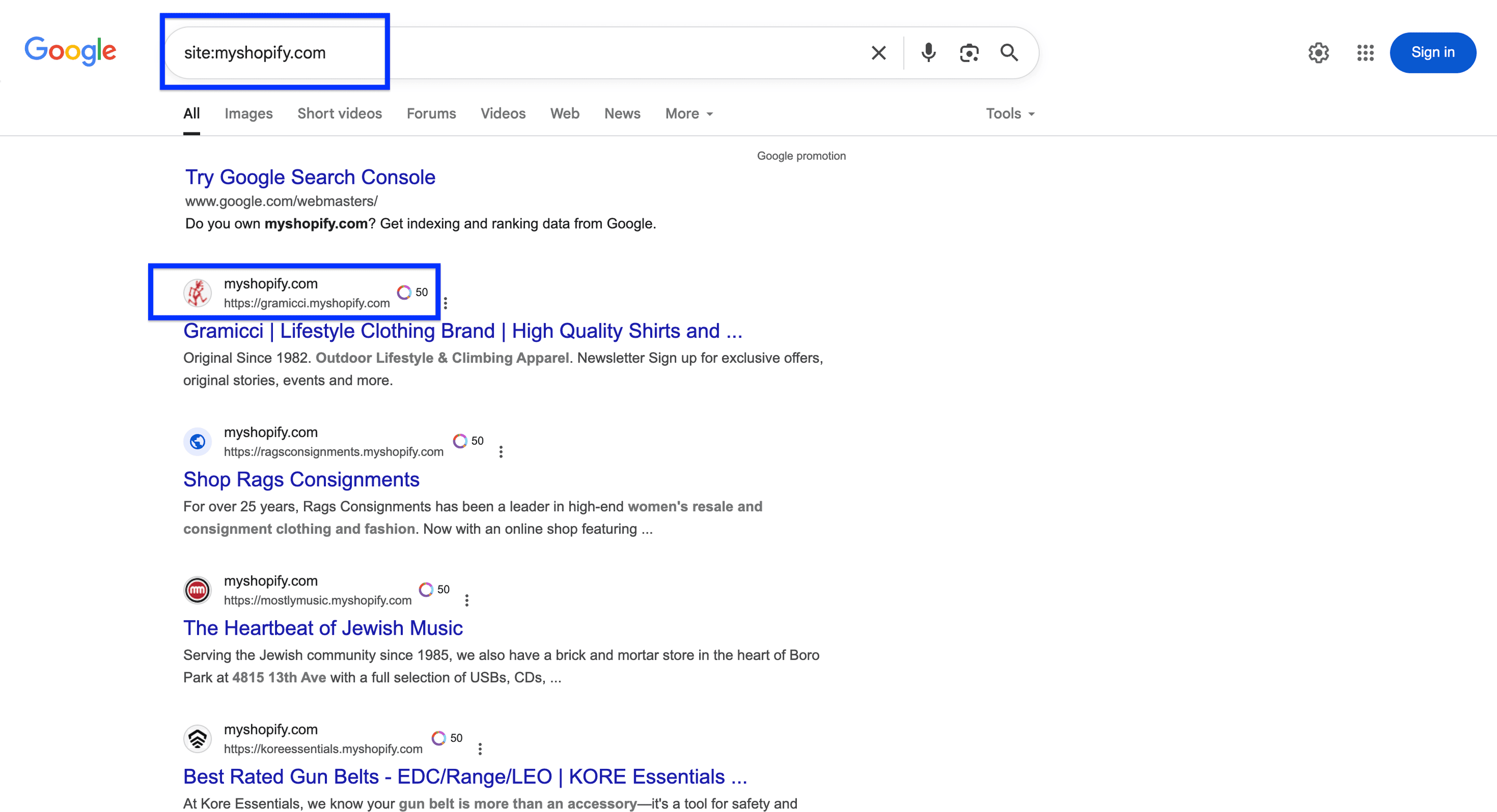
Alternative 1: Basic Google Search Operators for Finding Shopify Stores
site:myshopify.com- Finds companies using Shopify's default domain before setting up a custom domain. Most are new or preparing for launch.inurl:shopify- Finds pages that have "shopify" in their URLintext:"Powered by Shopify"- Many Shopify stores display this text in their footer
Alternative 2: Advanced Search Combinations for Finding Shopify Stores
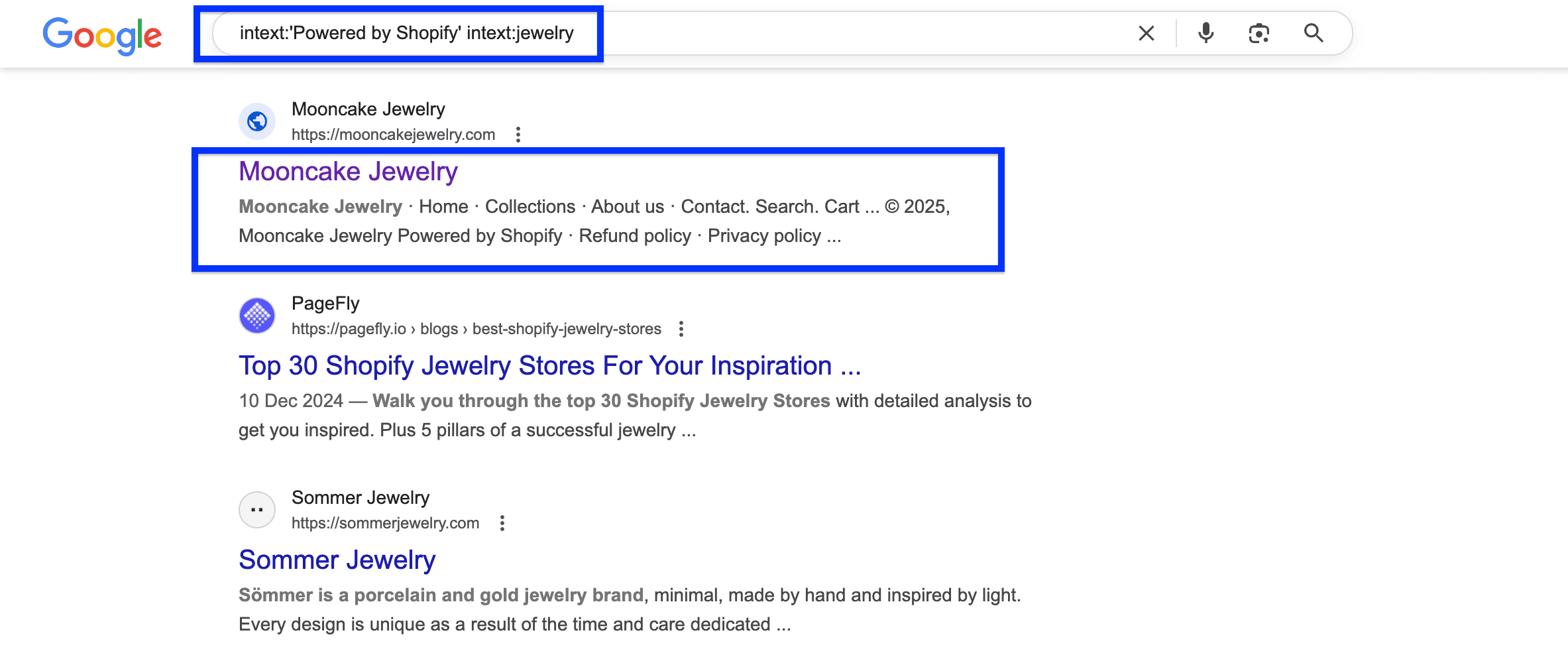
site:myshopify.com + [niche]- For example: "site:myshopify.com fashion" to find fashion stores using Shopifyintext:"Powered by Shopify" + intext:[product type]- To find stores with specific keywords on their homepage. For example: "intext:'Powered by Shopify' intext:jewelry"intitle:[niche] + intext:"Powered by Shopify"- To find Shopify stores with specific keywords in their title. For example:intitle:jewelry intext:'Powered by Shopify'
Alternative 3: Using MyIP.ms Website as Technology Finder
MyIP.ms can help you investigate a domain's hosting information. Treat it as a lead for verification, not as a definitive Shopify technology match.
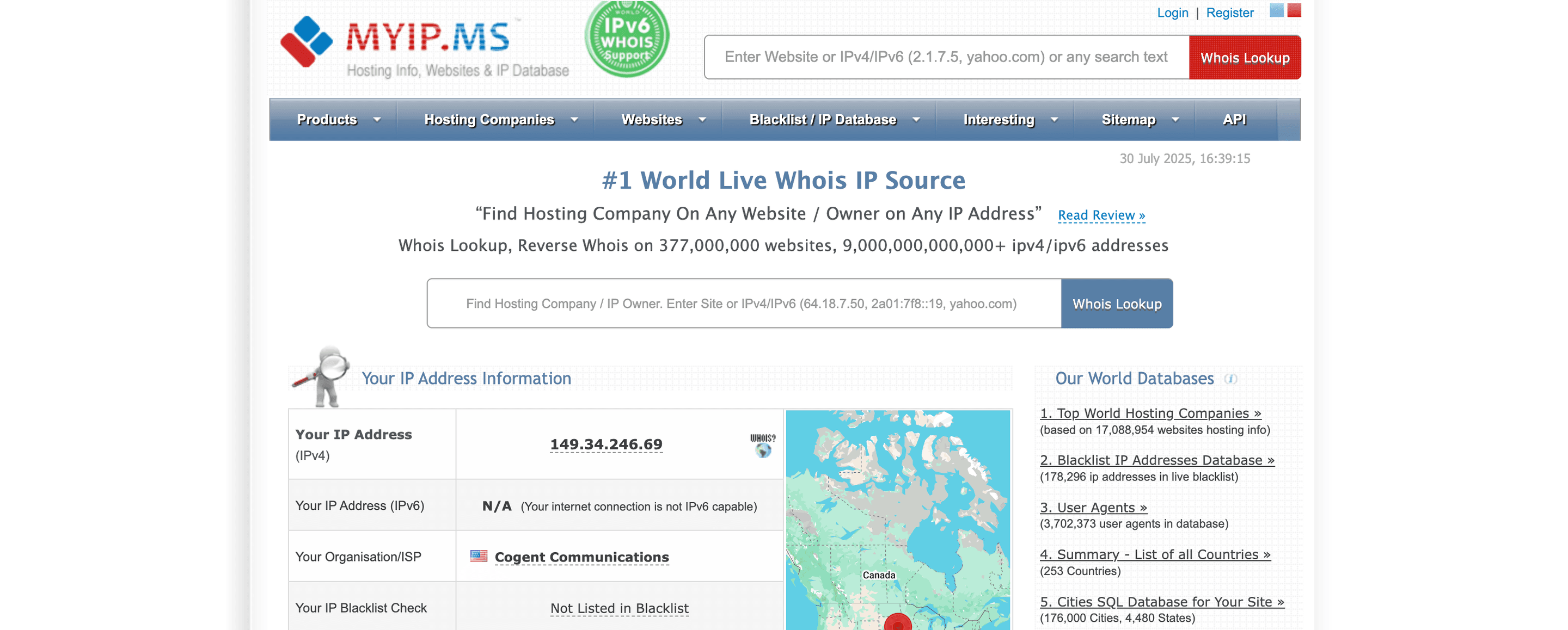
Here's how to use MyIP.ms to find Shopify stores:
- Visit MyIP.ms: Go to the website and use their search features to examine domains.
- Enter a domain: Type the URL of a website you suspect is using Shopify.
- Check hosting information: Look for a platform clue, then open the store itself.
- Verify the store: Confirm the site is active, belongs to the company you want, and still uses Shopify before adding it to your list.
Hosting information can help narrow a search, but a shared or historical IP address does not establish what platform a store uses today. This manual method also requires checking websites one by one.
📘 When To Use MyIP.ms
While MyIP.ms can be useful for individual website lookups, it's not as efficient as Datablist for bulk searches. It's best used to complement other methods when you need more detailed information about specific domains.
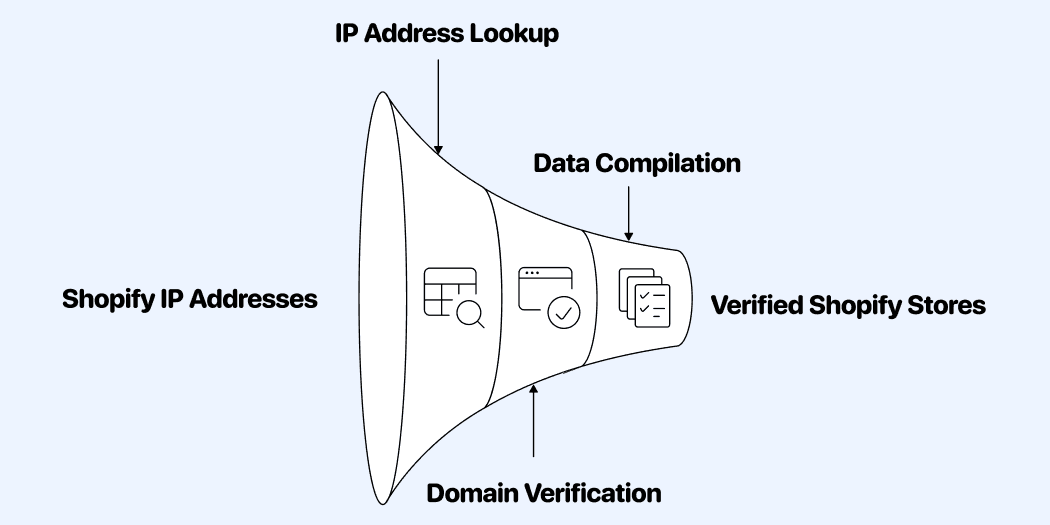
Alternative 4: Finding a List of Shopify Stores on MyIP.ms
1. Visit the MyIP.ms website
Navigate to the MyIP.ms website in your browser.
2. Search a hosting IP from a store you have already verified
Use its current IP as a starting point. Do not rely on a fixed list of IP addresses: hosting arrangements change, and unrelated domains may share infrastructure.
3. View the hosted domains
MyIP.ms may show other domains associated with that IP. Treat them as candidates to check, not as a Shopify store list.
4. Analyze the results
Open candidate domains and check the live store, company identity, and current platform before keeping them.
5. Export the data (optional)
MyIP.ms allows you to export the list of domains, but this is where the process becomes extremely time-consuming.
The limitations of this method:
- You would need to search each IP address separately
- Manual verification of each domain is required to confirm it's a Shopify store
- Exporting and filtering the full list could take days or even weeks
- The data isn't enriched with business information
Conclusion
Finding businesses using Shopify doesn't have to be complicated or expensive - but going about it the wrong way could cost you hundreds of hours or thousands of dollars.
When it comes to identifying and leveraging Shopify store data, your approach should match your objectives:
- For agencies and B2B service providers: Datablist's Technology Finder offers the most comprehensive solution, giving you immediate access to 562,000+ verified Shopify stores with complete business intelligence for targeted outreach.
- For competitive researchers with limited budget: Strategic Google search operators (like "intext:'Powered by Shopify' intext:[your niche]") can help you identify key competitors without significant investment.
- For e-commerce founders/marketers analyzing the market: Combine Datablist's firmographic filtering with AI-powered research to understand positioning opportunities and market gaps before launching new products.
- For those willing to invest time instead of money: The MyIP.ms method, while tedious, can yield results if you're patient enough to manually verify and organize the findings.
The right approach isn't about using every method - it's about choosing the one that delivers the intelligence you need at a cost (in time or money) that makes sense for your business goals.
Frequently Asked Questions About Finding Shopify Stores
What Information Can I Gather About Shopify Stores With Datablist?
Beyond identifying Shopify usage, Datablist allows you to gather company size, industry vertical, traffic volume, decision-maker contact information, product catalogs, social media profiles, and more. These data enrichment capabilities are what set Datablist apart from similar products.
How To Find Shopify Websites?
You can find Shopify websites through several methods: use Datablist's Technology Finder, which provides access to over 562,000 verified Shopify stores, utilize Google search operators like "site:myshopify.com" or "intext:'Powered by Shopify'", or check hosting information through MyIP.ms by searching Shopify IP addresses.
How Do I Know A Website Is Using Shopify?
Look for telltale signs like "myshopify.com" in the domain, "Powered by Shopify" in the footer, or examine the page source for Shopify-specific elements like "/cdn/shop/products/". You can also use technology detection tools like Datablist or browser extensions like Wappalyzer that specialize in finding websites that use a certain technology.
How To Find Companies That Use Shopify?
Use Datablist's Technology Finder to discover businesses using Shopify with multi-layered filtering by industry, company size, and location. Google advanced search operators combined with industry keywords can help identify niche-specific Shopify stores.
Which Big Shops Use Shopify?
Many major brands use Shopify, including Kylie Cosmetics, Gymshark, Allbirds, MVMT Watches, and Heinz. These larger businesses leverage Shopify Plus, the enterprise version of the platform, which offers advanced features for high-volume merchants and established brands.
Can You Tell If A Website Is Using Shopify?
Yes, Datablist's Technology enrichment can accurately identify Shopify websites by leveraging Wappalyzer's detection capabilities. This data enrichment process analyzes website code patterns, technological footprints, and hosting information to verify Shopify usage, providing reliable results for research or lead generation purposes.
How Can I Get A List Of Shopify Websites?
You can get Shopify website lists through Datablist's Technology Finder, which allows filtering by multiple parameters before exporting. The platform enables you to create targeted lists based on specific criteria and enrich them with additional business information for effective outreach campaigns.