
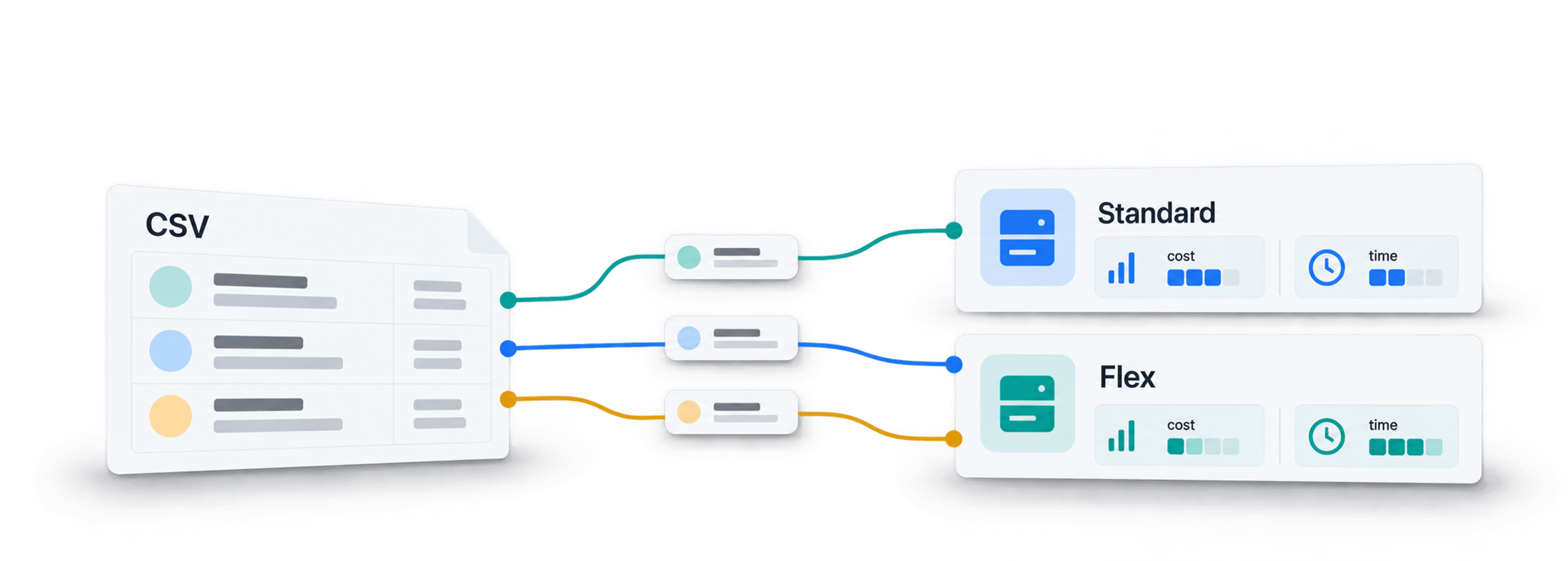
An OpenAI prompt can look cheap when you test one row. Repeat it across 10,000 or 100,000 spreadsheet rows, and the token bill becomes much harder to ignore. OpenAI Flex Mode lowers that processing cost for supported models when your job can accept slower, less predictable responses.
Datablist makes this tradeoff practical. You can import a CSV or Excel file, run one prompt per row with the Ask ChatGPT/OpenAI enrichment, preview the output, enable Flex, and review failures without building an API pipeline. If you need the broader setup first, use the guide to run ChatGPT prompts on CSV or Excel rows.
In this guide, I’ll use a support-ticket classification job to show how I decide whether Flex fits, estimate Standard versus Flex costs, configure the run, and handle delayed or failed rows. The goal is not a faster model or better answers. It is the same row-level task at a lower token price when time matters less than cost.
Quick links
- What OpenAI Flex Mode changes
- When Flex Mode is the right tradeoff
- Example CSV and prompt
- Estimate Standard vs Flex cost before you run
- Configure Ask ChatGPT/OpenAI in Datablist
- Preview, run, and review the results
What OpenAI Flex Mode changes
Flex is a service tier for supported OpenAI API models. A request still goes through the Responses API or Chat Completions API, but it uses service_tier: "flex". In return for accepting slower processing and occasional capacity shortages, you pay the Flex token rates.
OpenAI says Flex tokens use Batch API rates. On the OpenAI pricing page checked on July 16, 2026, the listed Flex rates matched Batch rates. For gpt-5.4-mini, Flex input and output prices were 50% below Standard prices.
This is a processing choice, not a different model. Your prompt, input rows, and output schema can stay the same. The tradeoff is operational:
- responses can take longer
- completion time is less predictable
- request timeouts are more likely
- OpenAI may return
429 Resource Unavailablewhen Flex capacity is unavailable
OpenAI’s Flex processing guide says resource-unavailable requests are not charged. You can retry them later or switch the failed rows to Standard processing when completion matters more than savings.
Flex is also separate from the OpenAI Batch API. Batch is a dedicated asynchronous API for submitted jobs. Flex is a service tier on supported normal API requests. Datablist handles the row-by-row workflow around those requests, so you do not need to create and monitor a Batch job yourself.
It is not part of the ChatGPT web subscription either. API usage and ChatGPT app usage have separate billing and workflows. In Datablist, you can use your own OpenAI API key or Datablist credits for supported models.
🔑 The key rule
Flex changes processing cost and timing. It does not improve output quality, and it is not available for every model.
For more background on running repeated prompts at scale, see batch LLM processing.
When Flex Mode is the right tradeoff
I start with one question: Can this run wait longer if it costs less?
If the answer is yes, Flex is worth considering. Good candidates include overnight ticket classification, review summarization, structured extraction from text, and background lead categorization. A large, non-urgent job to translate ecommerce catalogs with ChatGPT can also fit, provided the selected model supports Flex.
These tasks share three traits. They repeat a stable prompt across many rows, produce an output you can review later, and do not leave a person waiting for each response.
Stay on Standard processing when:
- someone needs the result during the same session
- a failed or delayed row blocks an urgent workflow
- your selected model does not support Flex
- the job needs predictable latency more than lower cost
I also avoid moving a new prompt directly to Flex for a large run. First, I stabilize the prompt and output schema on a small preview. Flex makes processing cheaper, but it cannot rescue vague instructions, unnecessary input text, or oversized outputs.
💡 Use Flex after the prompt is stable
Test 10 to 20 rows first. Once the labels, summaries, and review rules look right, Flex becomes a sensible default for the background run.
Datablist’s Ask ChatGPT/OpenAI enrichment suits this pattern because it runs one prompt per row, stores the response in properties, and keeps row-level processing states for review.
Example CSV and prompt
I’ll use Datablist’s Support tickets AI sample. You can find it in the sample CSV file library. The 100-row version is small enough for setup and screenshots, while the 10,000-row version makes the cost difference easier to see.
The input contains these useful columns:
Ticket SubjectTicket TextCustomer PlanPriority Hint
Each row needs the same job: classify the ticket, assign urgency, summarize the issue, and flag uncertain cases for review. This is a strong Flex candidate because the run can happen in the background and each output stays short.
Here is the prompt I would start with:
Classify this support ticket for operational reporting.
Ticket subject: {{Ticket Subject}}
Ticket text: {{Ticket Text}}
Customer plan: {{Customer Plan}}
Priority hint: {{Priority Hint}}
Return short structured values only.
The expressions inside double braces are prompt variables. Datablist replaces them with values from the row being processed.
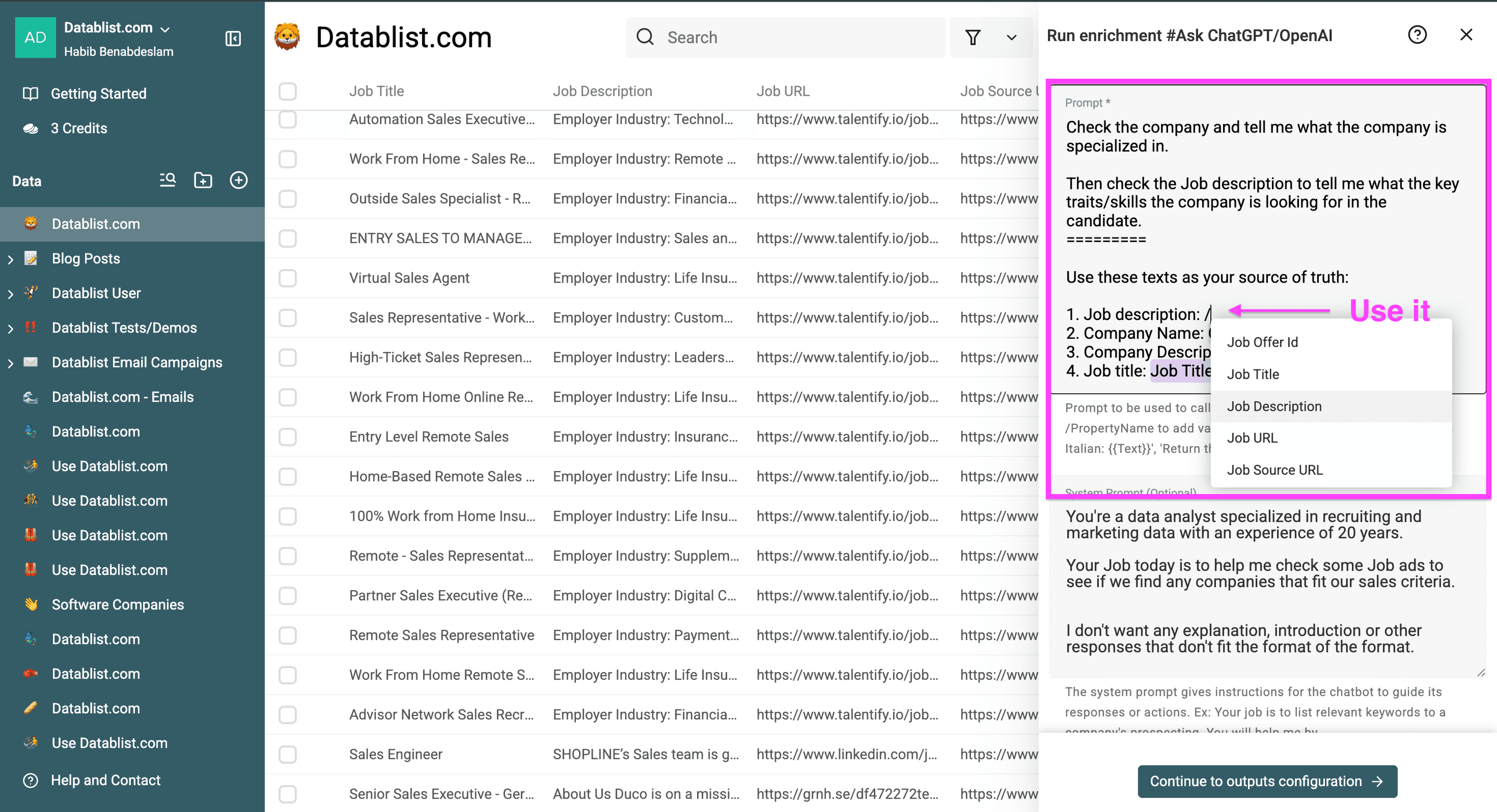
I prefer four structured outputs instead of one block of prose:
Ticket Topic: Billing, Bug, Feature Request, Account Access, Cancellation, or OtherUrgency: Low, Medium, or HighOne Sentence Summary: one concise sentenceNeeds Review: Yes when the ticket is ambiguous, incomplete, conflicts with the priority hint, or returns no result
This schema makes the result easier to filter and keeps output tokens under control. It also separates uncertain rows from the normal queue instead of hiding doubt inside a paragraph.
Estimate Standard vs Flex cost before you run
Cost estimation belongs before the full setup. You want to know whether the savings justify slower processing for your actual row count.
The calculation uses two parts:
- input cost = rows × average input tokens per row × input price per token
- output cost = rows × average output tokens per row × output price per token
- total cost = input cost + output cost
For this example, I’ll use gpt-5.4-mini with 250 input tokens and 30 output tokens per row. The prices below were checked on July 16, 2026:
| Service tier | Input price per 1M tokens | Output price per 1M tokens |
|---|---|---|
| Standard | $0.75 | $4.50 |
| Flex | $0.375 | $2.25 |
For 1,000 rows, the Standard input cost is 250,000 × $0.75 / 1,000,000, or $0.1875. The output cost is 30,000 × $4.50 / 1,000,000, or $0.135. Together, the run costs about $0.32.
Flex halves both rates in this example, so the same workload costs about $0.16.
| Rows | Standard estimate | Flex estimate | Estimated savings |
|---|---|---|---|
| 1,000 | $0.32 | $0.16 | $0.16 |
| 10,000 | $3.23 | $1.61 | $1.61 |
| 100,000 | $32.25 | $16.13 | $16.13 |
The individual numbers are small because the prompt and outputs are compact. Replace a short ticket with a long transcript, product description, or scraped page, and the input cost grows quickly. Ask for a detailed response instead of four short fields, and the output cost rises too.
I use this table as a method, not a quote. Before a real run, update four inputs: model, service tier prices, average input tokens, and average output tokens. Model availability and pricing change, so recheck OpenAI’s page rather than copying an old estimate.
If you use your own API key, OpenAI bills your account. If you use Datablist credits, Datablist converts the processing usage into credits for supported models. The exact credit usage depends on the model and token consumption, so I still keep prompts and outputs compact.
⚠️ Pricing changes
The 50% saving applies to the checked supported model and prices above. Treat the calculation as a reusable template, not a permanent price list or a promise for every model.
Configure Ask ChatGPT/OpenAI in Datablist
Once the workload and savings make sense, configure the enrichment. I keep the setup deliberate because one loose setting gets multiplied by every row.
1. Import the CSV or open a collection
Import the CSV or Excel file into Datablist, or open a collection where the rows already exist. Confirm the four input columns contain useful values. I filter out blank ticket text before calling the model because paying for rows with no meaningful input helps nobody.
2. Select Ask ChatGPT/OpenAI
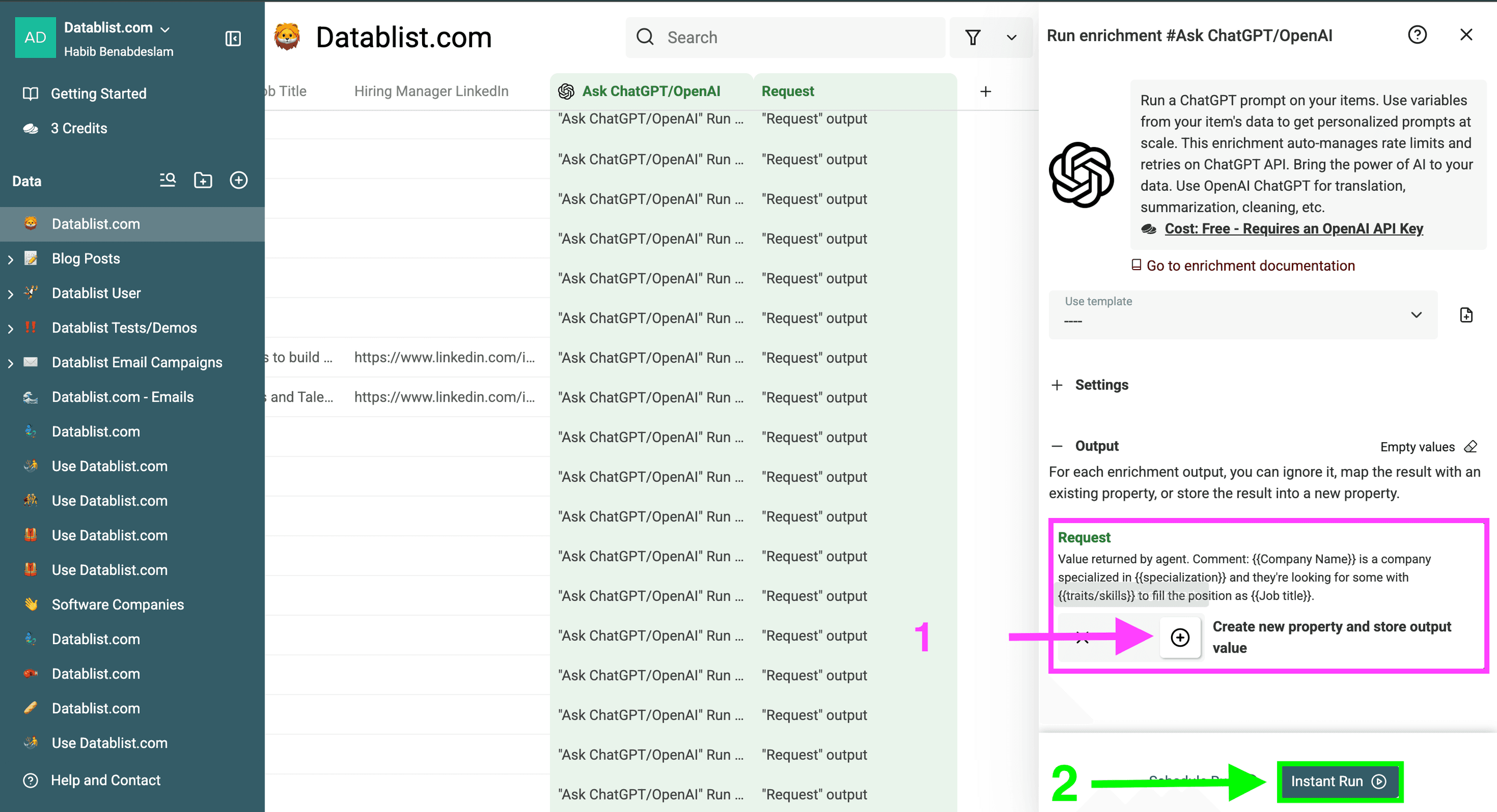
Open Enrich and choose Ask ChatGPT/OpenAI. This enrichment sends one request per selected row and writes the answer into the output properties you configure.
3. Choose how to pay for processing
Use your own OpenAI API key for direct OpenAI billing, or choose Datablist credits when supported for your selected model and account. The processing tier decision stays separate from the payment method.
4. Add the row-level prompt
Paste the support-ticket prompt and insert each field through the variable picker. I keep the instruction short and put the desired format at the end. Repeating background information in every row wastes input tokens.
If a ticket field is often empty, decide how the model should handle it. For example, Needs Review = Yes is safer than letting the model invent missing context.
5. Configure structured output properties
Enable the structured output option and add the four properties from the example. Use short descriptions for each field and define the allowed labels where relevant.
Structured output saves cleanup later, but its main value here is control. A field named Urgency with three allowed labels gives the model less room to return a long explanation.
6. Select a Flex-compatible model
Open the model selector and choose a model marked flex compatible. Datablist only shows the Flex setting when the selected model supports it.
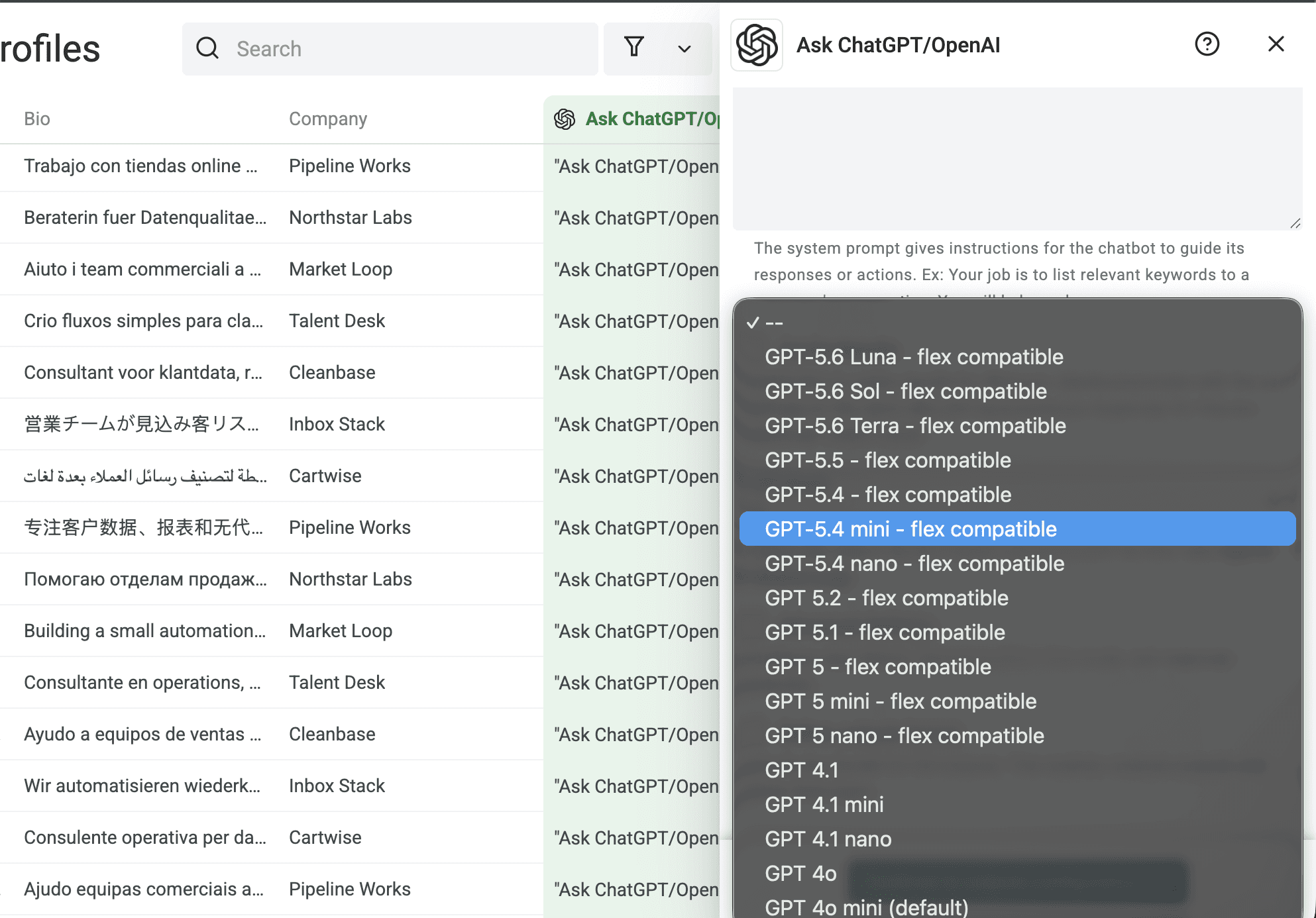
For this cost example, I use GPT-5.4 mini. Do not assume the same list will remain available. Check the label in Datablist and the current OpenAI pricing page when you start a new workflow.
7. Enable Flex Mode
Turn on Advanced Settings, then enable Use Flex Mode.
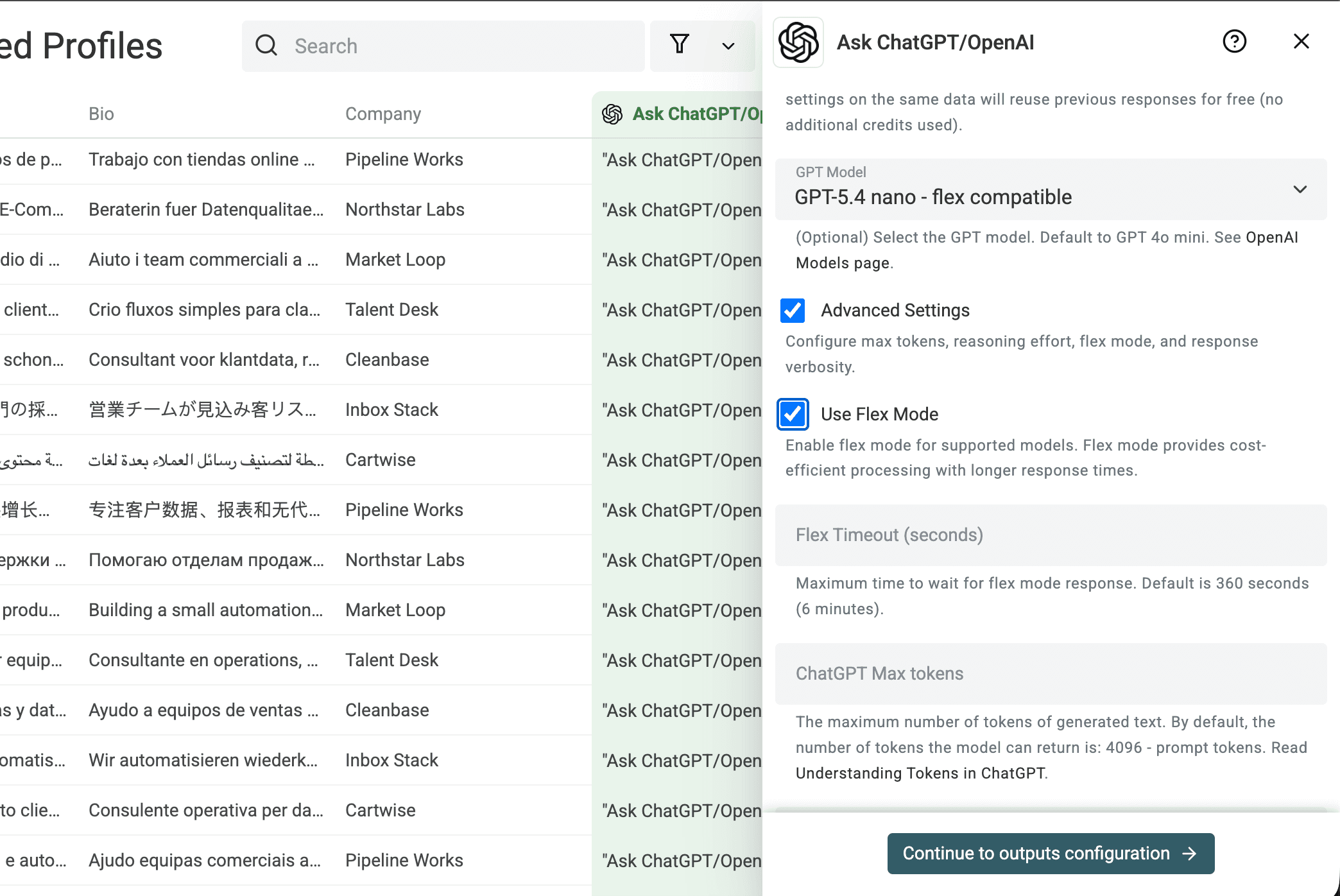
If the toggle does not appear, the selected model is not marked as Flex compatible in Datablist. Pick a supported model or keep Standard processing.
8. Start with the default timeout
Datablist’s current default Flex timeout is 360 seconds, or 6 minutes. I leave it unchanged for the first preview. Increase it only after timeout failures and only when the job can wait longer.
The accepted timeout range is 30 to 1,500 seconds. A higher timeout gives a slow request more time to finish, but it does not guarantee capacity or a response within a fixed time.
9. Keep caching when duplicates may repeat
Datablist can cache identical prompts with the same settings for 48 hours. If duplicate tickets or descriptions generate the same request, a cached result avoids another paid call.
Caching does not replace deduplication. I still filter unnecessary rows first, then use caching as a second layer.
10. Limit output tokens and control concurrency
Set a max-token value suited to four short fields. Do not leave room for an essay when you need labels and one sentence.
If you use your own API key, keep concurrent calls conservative. More concurrency does not make Flex capacity predictable, and it can add rate-limit errors. I prefer a steady background run over a burst followed by retries.
📘 No Flex toggle?
Check the model label first. Datablist only exposes Flex settings for models marked as compatible. Otherwise, choose another supported model or run on Standard.
Preview, run, and review the results
Preview 10 to 20 rows before you process the complete file. I still do this when the prompt looks obvious. Small wording changes can alter labels, output length, and token usage across thousands of requests.
Check these points in the preview:
- every expected property receives a value
Ticket Topicuses consistent labelsUrgencyconsiders the ticket text instead of copyingPriority Hint- summaries stay to one sentence
Needs Reviewcatches missing or conflicting information- input and output lengths remain close to your cost assumptions
A representative result should look like this:
| Ticket Subject | Ticket Topic | Urgency | One Sentence Summary | Needs Review |
|---|---|---|---|---|
| Cannot log in after password reset | Account Access | High | Customer cannot access the account after resetting the password. | No |
If the model returns inconsistent labels, tighten the allowed values before the full run. If summaries are too long, shorten the instruction and reduce max tokens. Fixing the prompt after 10 rows is cheap. Fixing it after 100,000 rows is not.
When the preview looks stable, run the enrichment on the intended rows. Datablist tracks processed items, which helps you avoid calling OpenAI again for completed rows.
After the run, filter rows with failed, timed-out, or no-result statuses. Review a sample from each group before retrying:
- retry with Flex when the error looks temporary and the job can wait
- increase the Flex timeout when requests consistently time out on valid long inputs
- retry critical rows with Standard processing when completion or speed matters more than cost
- correct missing input data before spending another request
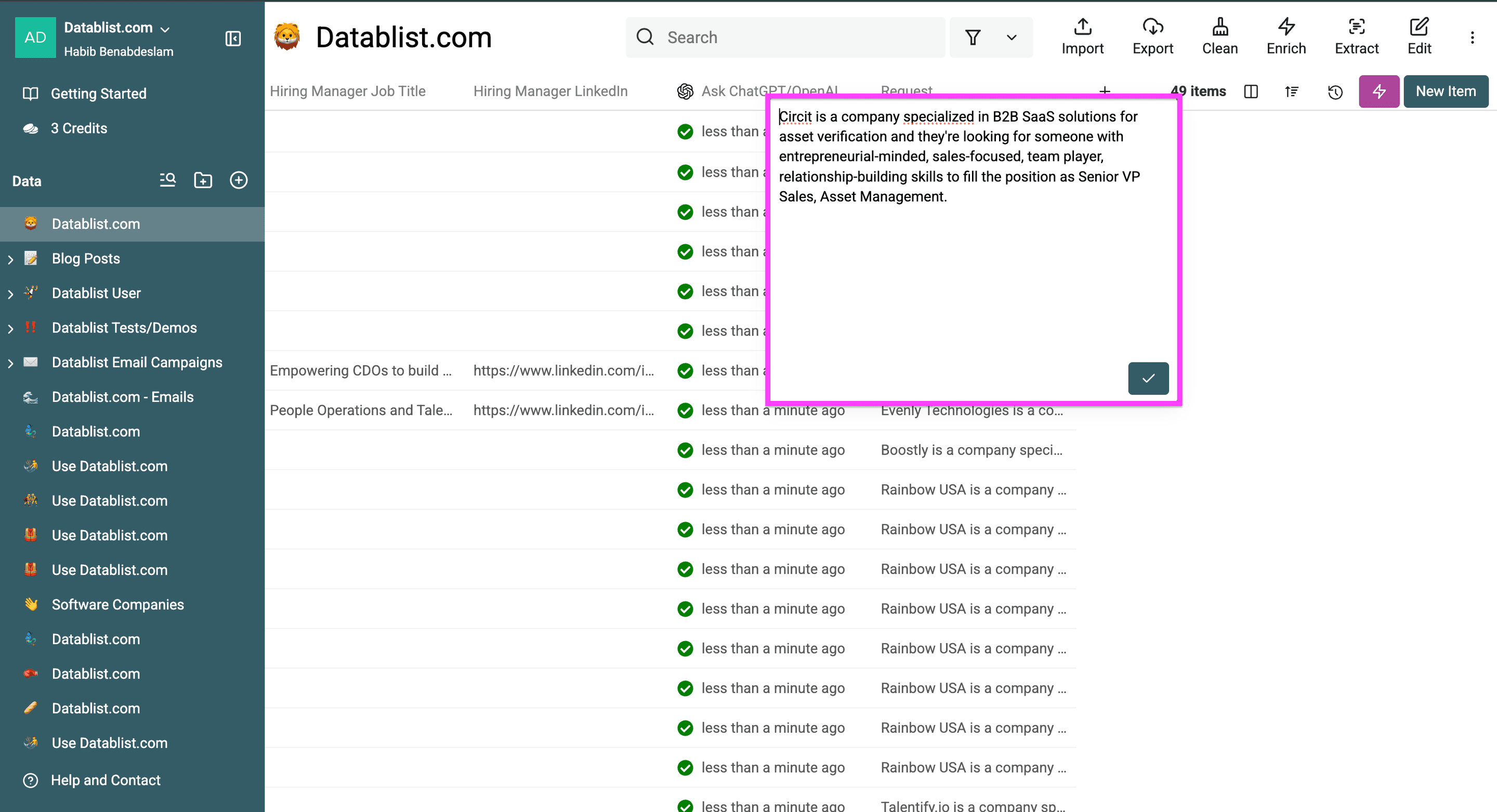
Once the results pass review, export the processed collection to CSV or Excel. Keep Needs Review in the export if another person will validate uncertain tickets downstream.
Ways to reduce cost further
Flex is one cost lever. In many files, the bigger savings come from sending less data and avoiding unnecessary calls.
Filter rows before processing
Remove blank rows, already-classified tickets, and records outside the job’s scope. The cheapest request is the one you never send.
Trim the prompt and inputs
Include only fields the model needs. A customer ID may help you join results later, but the model does not need to read it. The same applies to long signatures, quoted email threads, and boilerplate text inside a ticket.
Keep outputs structured and short
Use labels, booleans, and concise summaries. Output tokens often cost more than input tokens, so a small max-token limit can make a meaningful difference.
Cache repeated prompts
Enable caching when identical requests may recur. This works well for duplicated descriptions or repeated text after importing several files.
Choose the smallest model which meets the quality bar
Preview the same representative rows before changing models. A cheaper model is useful only if the labels and review rate remain acceptable.
Prefer a dedicated enrichment for fixed tasks
An LLM is flexible, but it is not always the cheapest tool. If you only need a language label, use a dedicated language detection workflow instead of asking a general model to infer one for every row.
I estimate cost after trimming the prompt and filtering the dataset. Otherwise, I am pricing a run I should not execute in the first place.
Limitations and troubleshooting
Flex introduces a few failure modes you should plan for.
The selected model does not show Flex
Support is limited and can change. If Datablist does not show the Flex toggle, switch to a model marked as compatible or use Standard processing. Do not force an unverified custom model into a large run.
Responses take longer than expected
Slower and less predictable processing is the core tradeoff. It does not indicate lower output quality. Let non-urgent rows continue, but move urgent work to Standard.
Rows time out
Start with Datablist’s 360-second default. If valid rows time out and the run can wait, increase the timeout within the supported range. If only a few critical rows fail, I usually retry those on Standard instead of slowing the complete job.
OpenAI’s own SDK timeout is separate from Datablist’s Flex timeout setting. Follow the value shown in Datablist for this workflow.
OpenAI returns 429 Resource Unavailable
Flex capacity can be unavailable. OpenAI says these requests are not charged. Retry later for the lowest cost, or use Standard processing when successful completion matters more.
Many rows hit rate limits
Flex does not remove API rate limits. Reduce concurrent calls or process a smaller segment before retrying. A slower, controlled run is easier to review than a large wave of failures.
Flex, Batch API, and ChatGPT are getting confused
Keep the boundaries simple:
- Flex is a lower-cost service tier for supported API requests
- Batch API is a separate asynchronous API
- ChatGPT is the web and app product, not the row-level API workflow used here
- Datablist provides the spreadsheet workflow and can use an API key or credits
Conclusion
Use Flex when the selected model supports it, cost matters more than response time, and the job can run in the background. Keep Standard processing for urgent, interactive, or failure-sensitive rows.
My preferred sequence is straightforward: estimate the token cost, filter the file, configure short structured outputs, preview 10 to 20 rows, enable Flex, run the list, and retry only the rows which need it. You keep the CSV workflow simple while cutting the checked model’s processing cost in half.
FAQ
Does OpenAI Flex Mode always cut costs by 50%?
No. On July 16, 2026, Flex input and output prices for gpt-5.4-mini were 50% below Standard prices and matched Batch API rates. Pricing and supported models can change. Check the current OpenAI pricing page for your model before calculating a large run.
Which OpenAI models support Flex Mode?
Support is limited and changes over time. Check OpenAI’s current pricing list and look for the flex compatible label in Datablist’s model selector. The Flex toggle appears only for supported selections.
Is Flex Mode the same as the OpenAI Batch API?
No. Flex is a service tier for supported Responses or Chat Completions requests. Batch API is a separate asynchronous API for submitted batches. They can share token prices without being the same workflow.
Does Flex Mode change output quality?
Flex does not target a different quality level. It changes the request’s processing tier and timing. Your model, prompt, and output schema still determine the result. Preview rows because prompt quality matters regardless of tier.
What timeout should I use for Flex Mode in Datablist?
Start with the 360-second default. Increase it only when valid rows time out and the job can wait longer. Datablist accepts values from 30 to 1,500 seconds. A longer timeout gives the request more time, but it does not guarantee availability.
Can I use Flex Mode with Datablist credits?
Datablist supports an OpenAI API key or Datablist credits for supported models and account setups. Credit use depends on the model and token usage, so preview a sample and keep inputs and outputs concise.
When should I stay on Standard processing?
Use Standard for interactive work, urgent jobs, rows someone is waiting on, unsupported models, or processes where delayed responses would cause a problem. You can also run the bulk job on Flex and retry a small critical subset on Standard.
Can I use Flex Mode with Excel files?
Yes. Datablist imports CSV and Excel files. Flex applies to the supported OpenAI API request, not the source file type. The same row-level prompt workflow works for both formats.